

Page 1
Page 2

i
TABLE OF CONTENTS – TABLE DES MATIÈRES - ÍNDICE
ENGLISH
Retrieve Codes ......................................................................... 1
View Results ............................................................................. 1
View Live Data .......................................................................... 1
Perform Additional Tests ........................................................... 1
View Vehicle Information .......................................................... 2
Access Reference Information .................................................. 2
Erase DTCs ............................................................................... 2
About RepairSolutions® ........................................................... 2
Page 3
1
This guide contains abbreviated “Quick Reference” procedures for the
Scan Tool.
Retrieve Codes
Connect the Scan Tool to the vehicle’s test connector.
Turn the ignition key "On.” DO NOT start the engine.
The tool will automatically link to the vehicle’s computer.
View Results
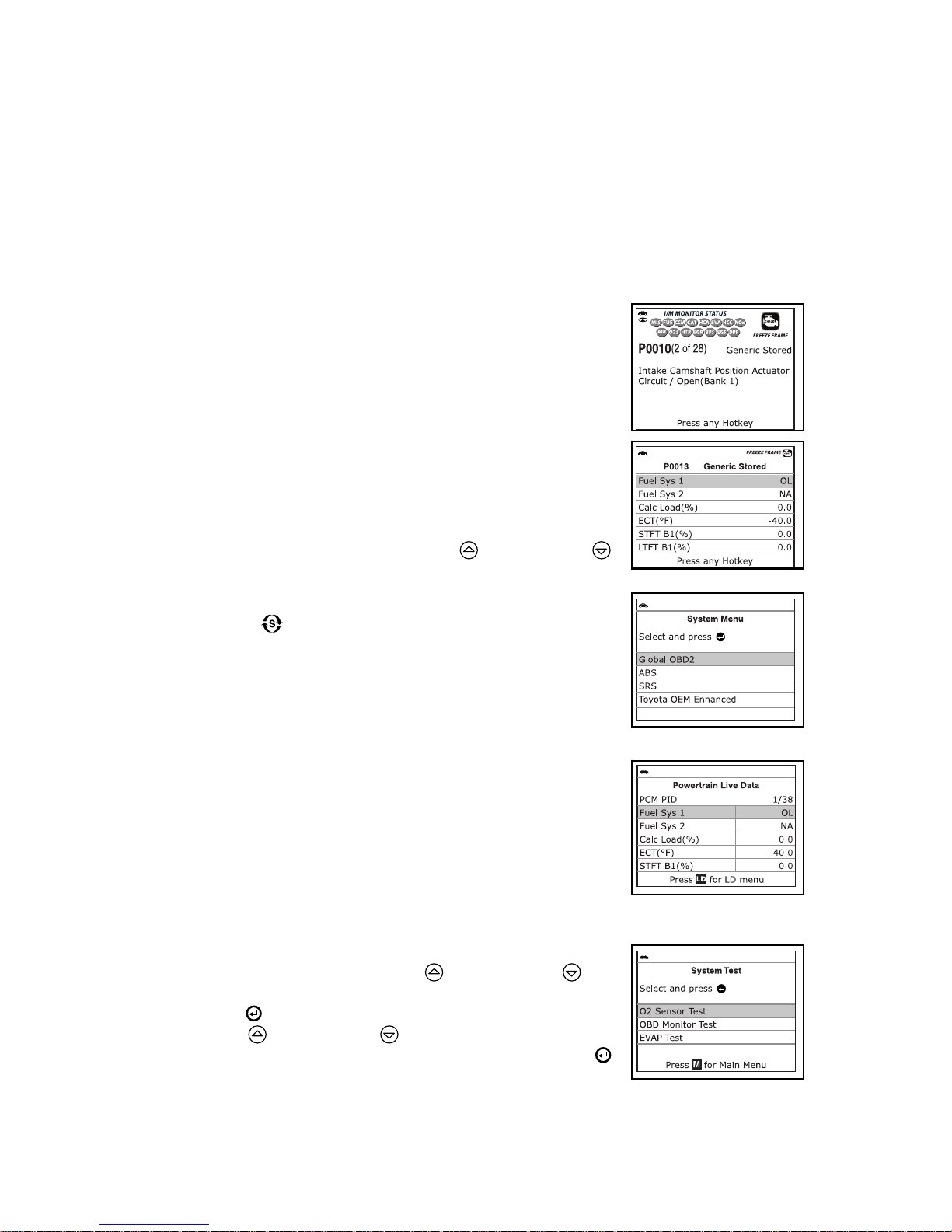
The Scan Tool retrieves stored codes, Freeze Frame
data and System Status.
Codes, I/M Monitor Status and Freeze Frame data are
displayed on the Scan Tool’s display screen. System
Status is indicated by LED indicators.
If more than one DTC was retrieved, press and release
the DTC/FF button, as necessary. Freeze Frame Data (if
available) will be displayed after the Priority Code by
pressing the DTC/FF button.
In the case of long code definitions, or when viewing
Freeze Frame Data, use the UP
and DOWN
buttons, as necessary, to view the additional information.
To view OEM Enhanced DTCs (if available), press the
SYSTEM
button; the System menu displays. The
OEM Enhanced mode provides the ability to retrieve OEM
enhanced DTCs, Anti-Lock Brake System (ABS) DTCs
and Supplemental Restraint System (SRS) DTCs from
most Chrysler/Jeep, Ford/Mazda, GM/Isuzu, Honda/Acura
and Toyota/Lexus vehicles.
View Live Data
Place the Scan Tool in "Code Retrieval" mode. Start the
engine.
Press and release the LD button to place the Scan Tool in
"Live Data" mode. Real-time Live Data (PID) information
supported by the vehicle under test displays.
Perform Additional Tests
While linked to a vehicle, press the M button. The Main
Menu displays. Use the UP
and DOWN
as
necessary, to highlight System Tests, then press the
ENTER
button. The System Test Menu displays. Use
the UP
and DOWN
buttons, as necessary, to
highlight the desired option, then press the ENTER
butto
n.
You can use the Scan Tool to perform additional diagnostic tests (O2 Sensor Test,
Non-Continuous Test, EVAP Leak Test).
Page 4
2
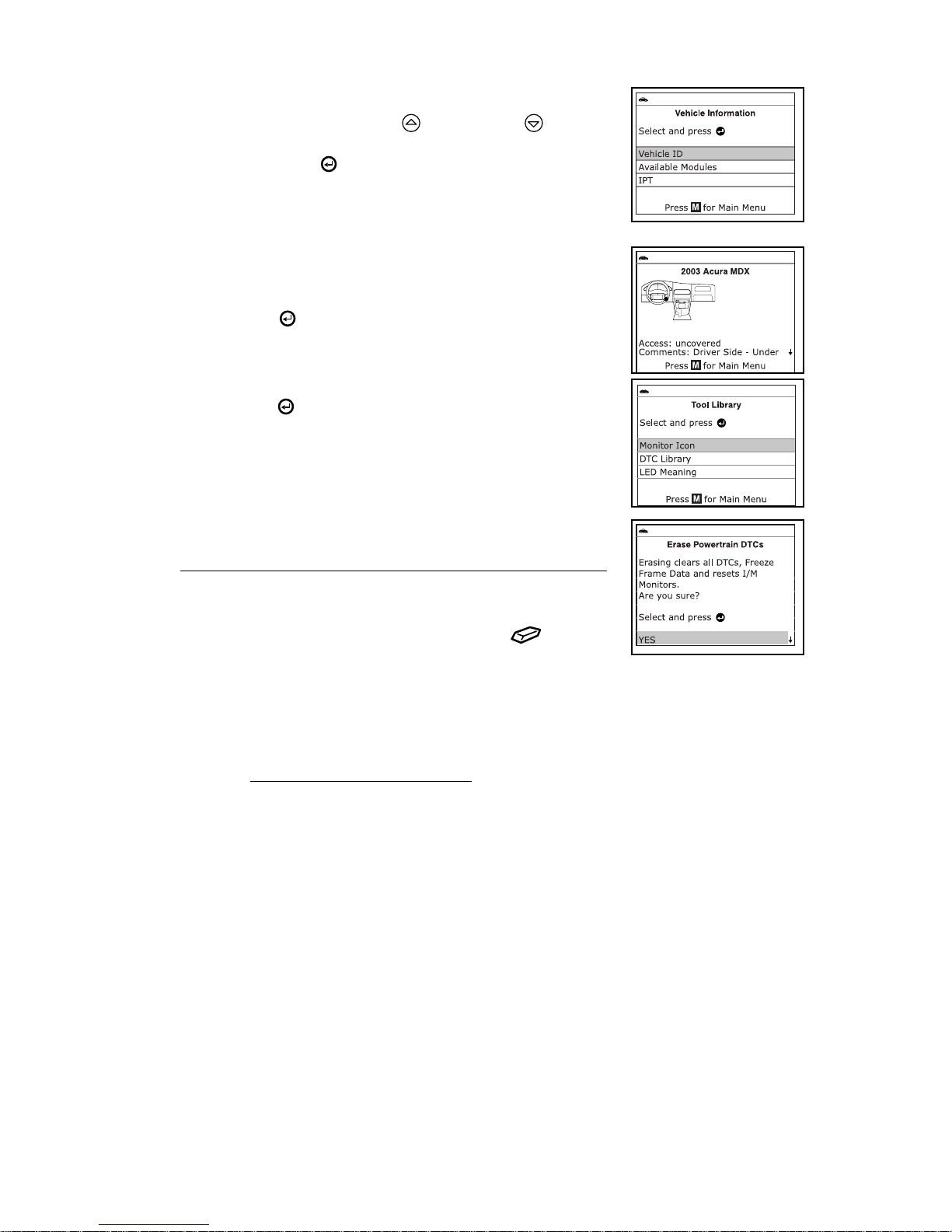
View Vehicle Information
While linked to a vehicle, press the M button. The Main
Menu displays. Use the UP
and DOWN buttons,
as necessary, to highlight Vehicle Information, then
press the ENTER
button.
You can use the Scan Tool to view vehicle information
stored in your vehicle's on-board computer.
Access Reference Information
From the Main Menu, highlight DLC Locator, then press
the ENTER
button to access the DLC Locator. The
DLC Locator lets you find the location of the Data Link
Connector (DLC) for a specified vehicle.
From the Main Menu, highlight Tool Library, then press
the ENTER
button to display the Tool Library Menu.
From the Tool Library Menu you can access libraries of
OBD1 and OBD2 DTC definitions, or view definitions
and descriptions of the I/M MONITOR STATUS icons
and SYSTEM STATUS LEDs.
Erase DTCs
Connect the Scan Tool to the vehicle’s test connector.
Perform the code retrieval procedure for the system you
wish to erase.
Press and release the Scan Tool‘s ERASE button.
ABOUT REPAIRSOLUTIONS®
RepairSolutions® is a web-based service that provides you with the tools and
information you need to quickly and accurately diagnose and repair today’s vehicles.
You can view, save, and email the diagnostic data retrieved from a vehicle’s on-board
computer(s) using an Innova Scan Tool. RepairSolutions® provides an extensive
knowledge database, developed by compiling and analyzing years worth of “real
world” vehicle service data, along with verified, vehicle-specific fixes supplied by ASE
technicians across the country. The basic RepairSolutions® account is free. Certain
“value added” premium information is available on demand at nominal charge or
through “premium” subscription.
The RepairSolutions® Diagnostic Report lets you take advantage of the following
information:
Verified Fixes – find the most likely repair(s) needed by your vehicle based on
the DTCs retrieved, including cost estimates and access to detailed instructions
for performing the repair(s).
Diagnostic Data – view detailed DTC descriptions as well as probable causes for
the issue and recommendations for verifying the problem.
Factory Technical Service Bulletins (TSBs) / Factory Recalls – ensure your
vehicle meets Federal safety standards by reviewing Factory Technical Service
Bulletins (TSBs), Factory Recalls, and Government-mandated NHTSA Safety
Recalls for your vehicle.
Page 5

3
Maintenance - view maintenance procedures that should be performed based on
your vehicle’s year, make, model and current mileage. These include
recommended service procedures based on analysis of component failures
reported by the RepairSolutions® network of technicians.
Factory Warranty Information – check the current state of your vehicle’s
warranties (whether they are active, expired, and/or transferrable).
Predicted Repairs – know what may fail on your vehicle during the next 12
months before it occurs (based on your vehicle’s year, make, model and mileage).
Vehicle History Reports –access vehicle registration and title information,
odometer readings, reported service and repair information for your vehicle.
NEED MORE HELP? The RepairSolutions® website also provides access to several
databases offering maintenance and repair instruction, “techtips,” safety information
and general reference data, such as:
How-To Videos – view a rich selection of How-To Videos that provide step-by-
step instruction for a variety of tasks, including general maintenance, diagnosis
and troubleshooting, and detailed repair information.
DTC Library - view definitions for “generic” and “manufacturer-specific” OBD2
DTCs as well as OBD1 codes.
DLC Locator – look up DLC locations for all OBD2-certified vehicles using our
comprehensive database.
Tech Tips - find basic solutions to everyday vehicle issues, how to perform much
needed maintenance, and basic information on how to take care of your vehicle.
Shop Locator - provides a list of facilities near your location based on the Zip
Code you provide.
Hardware Requirements:
Innova Scan Tool
Mini USB Cable (included with tool)
Minimum System Operating Requirements:
Windows® based PC System (Windows® XP or newer)
128 MB Ram
Pentium III Processor
One available USB port
Internet Connection
Internet Explorer 5.5, Netscape 7.0 or Firefox 1.0 browser
Accessing RepairSolutions®
1. Link your Scan Tool to a vehicle and retrieve diagnostic data.
2. Visit innova, download and install the latest Innova PC-Link software for your Scan
Tool. Select the Support tab, then choose Troubleshoot/Download.
3. Connect the Scan Tool to your PC using a Mini USB cable (cable included).
Your default web browser launches automatically and connects to the
website.
4. Login to your RepairSolutions® account using your registered Email Address
and Password.
If you have not yet established an account, you must register for a
FREE RepairSolutions® account before proceeding.
 Loading...