

Page 1
Page 2

Dear Customer,
Thank you for purchasing i29 Mobile Phone. Kindly
read this user manual carefully to learn about key
functional characteristics and operational methods
of this mobile phone.
i29 is a feature rich phone to take care of all
your communication and entertainment needs.
We wish you have a happy user experience!
Page 3
2
1. SAFETY AND PRECAUTIONS
1.1 Safety Alert and Cautions
Before using the phone, please read these cautions
carefully to make sure you use the phone correctly.
IMPORTANT!
Please read these instructions carefully and follow
them implicitly in case of any dangerous or illicit
situations.
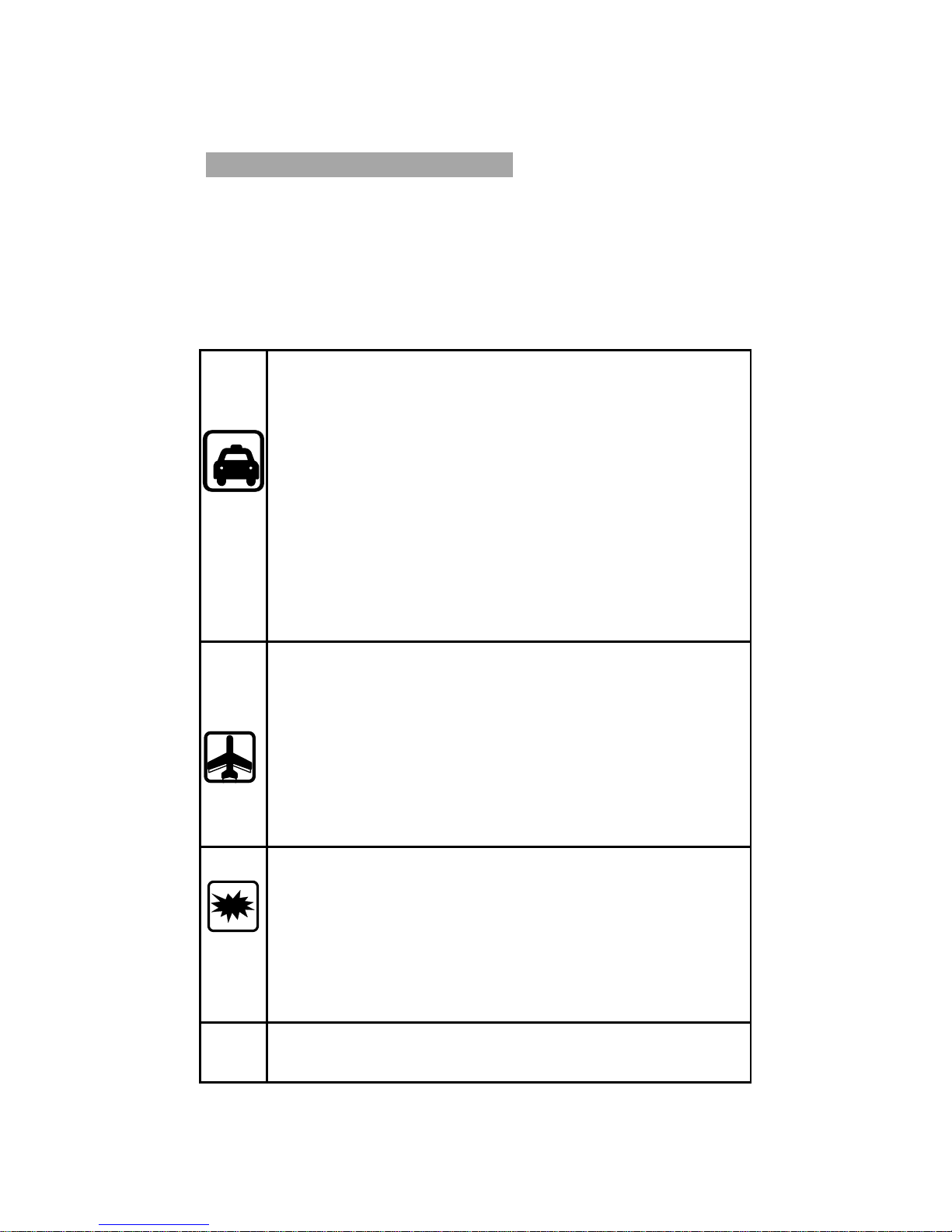
Note driving safety
It is strongly recommended that you
should not use a mobile phone when
driving. Please use the personal hand
free package when a call is inevitable.
Please put your mobile phone in the mobile
phone holder safely, and don’t put it at a
passenger’s seat or any other place that
may risk a drop of your mobile phone in
the case of collision or emergency brake.
Switch off your mobile phone on the air.
Interference caused by mobile phones
affects aviation safety, and thus it is illegal
to use it on the air. Please make sure your
mobile phone is switched off when you are
on the air.
Switch off your mobile phone in blasting
operation area
You should obey relevant laws and
regulations strictly and switch off your
mobile phone in or near blasting operation
area.
Switch off your mobile phone near
dangerous area
Page 4
3
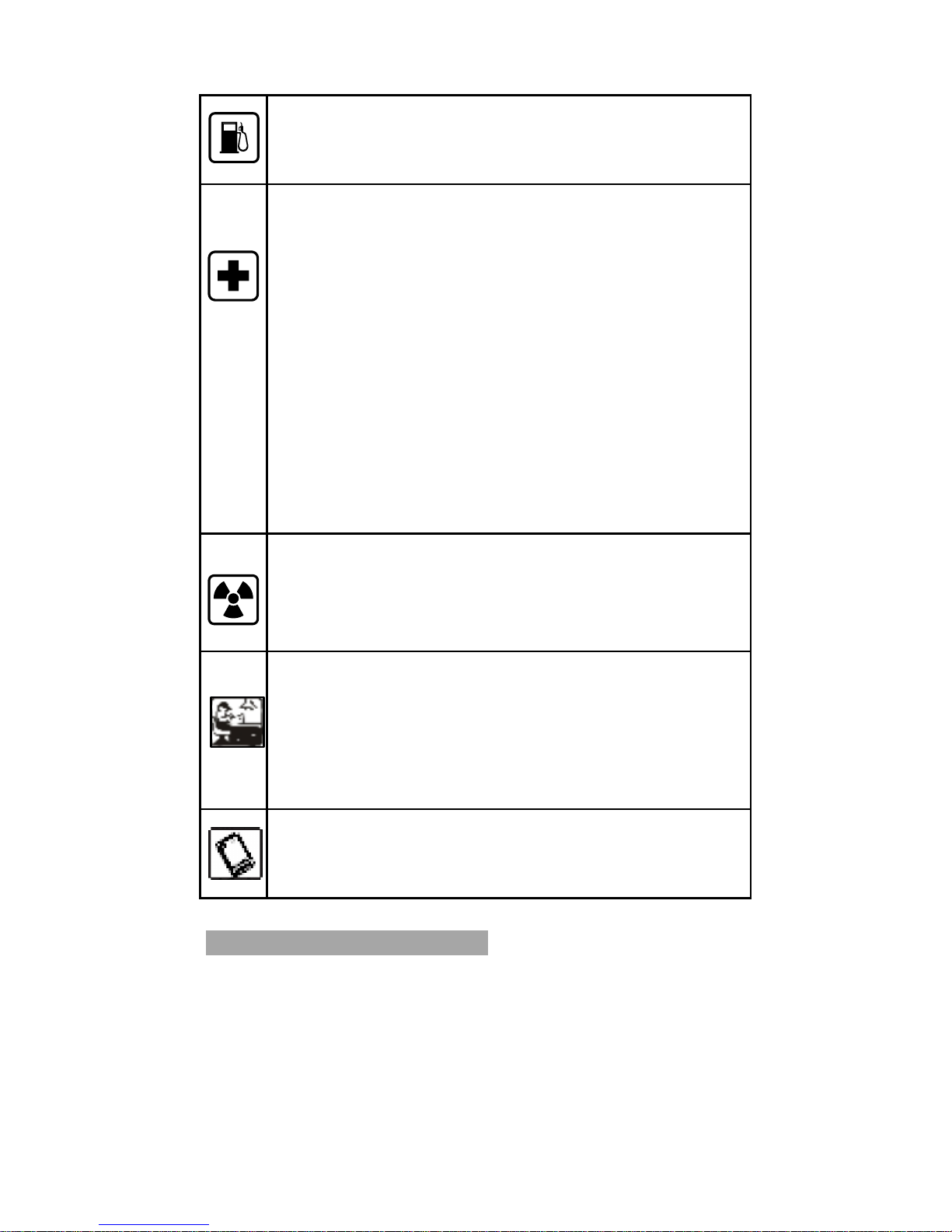
Your cell phone is not allowed to switch on
when the refueling and chemical
substance area is nearby.
In a hospital
When using it in a hospital, you should be
subject to the relevant rules specified by
the hospital. Make sure your mobile
phone is switched off when medical
equipment is nearby. Any wireless
transmission equipment, including mobile
phones, will affect its performance. Other
electronic equipment may be affected as
well. If you have any question in this
regard, please consult relevant doctor or
equipment supplier directly.
Interference
Any interference caused by wireless
equipment can do damage to its
performance.
Qualified services
Only qualified services are allowed to
install or repair mobile phones. If you
install or repair it by yourself, you may
break the guarantee rules.
Accessories and batteries
Only manufacturer recognized accessories
and batteries can be used.
1.2 Protecting Your Battery
The guidelines listed below help you get the most out
of your battery’s performance.
In order to avoid damage, charge the battery only
in
temperatures that ranges from 32° F to 113° F (0°
Page 5

4
C to 45° C).
Don’t use the battery charger in sunlight or in
high humidity areas directly, such as the
bathroom.
Never dispose of the battery by incineration.
Keep the metal contacts on top of the battery
clean.
Don’t attempt to disassemble or short-circuit the
battery.
The battery may need recharging if it has not
been used for a long period of time.
It’s best to replace the battery when it no longer
provides acceptable performance.
It can be recharged hundreds of times before it
needs replacing.
Don’t store the battery in high temperature areas
for long periods of time.
Disposal of Lithium Ion (Li-Ion) Batteries
Do not handle a damaged or leaking Li-Ion
battery as you can be burned.
For safe disposal options of your Li-Ion batteries,
contact your nearest innos authorized service
center.
Note: Be sure to dispose of your battery properly.
In some areas, the disposal of batteries in household
or business trash may be prohibited.
1.3 Cleaning and Maintenance
Please don’t leave the phone, battery and charger
in the bathroom or other high humidity places,
and prevent them from rain.
Please clean the phone, battery and charger with
soft and dry cloth.
Please don’t wipe the phone with the alcohol,
Page 6
5
thinner or benzene and other chemical reagents.
The socket with dirt may cause poor contact or
power-off. Please clean it regularly.
2. BEFORE USE
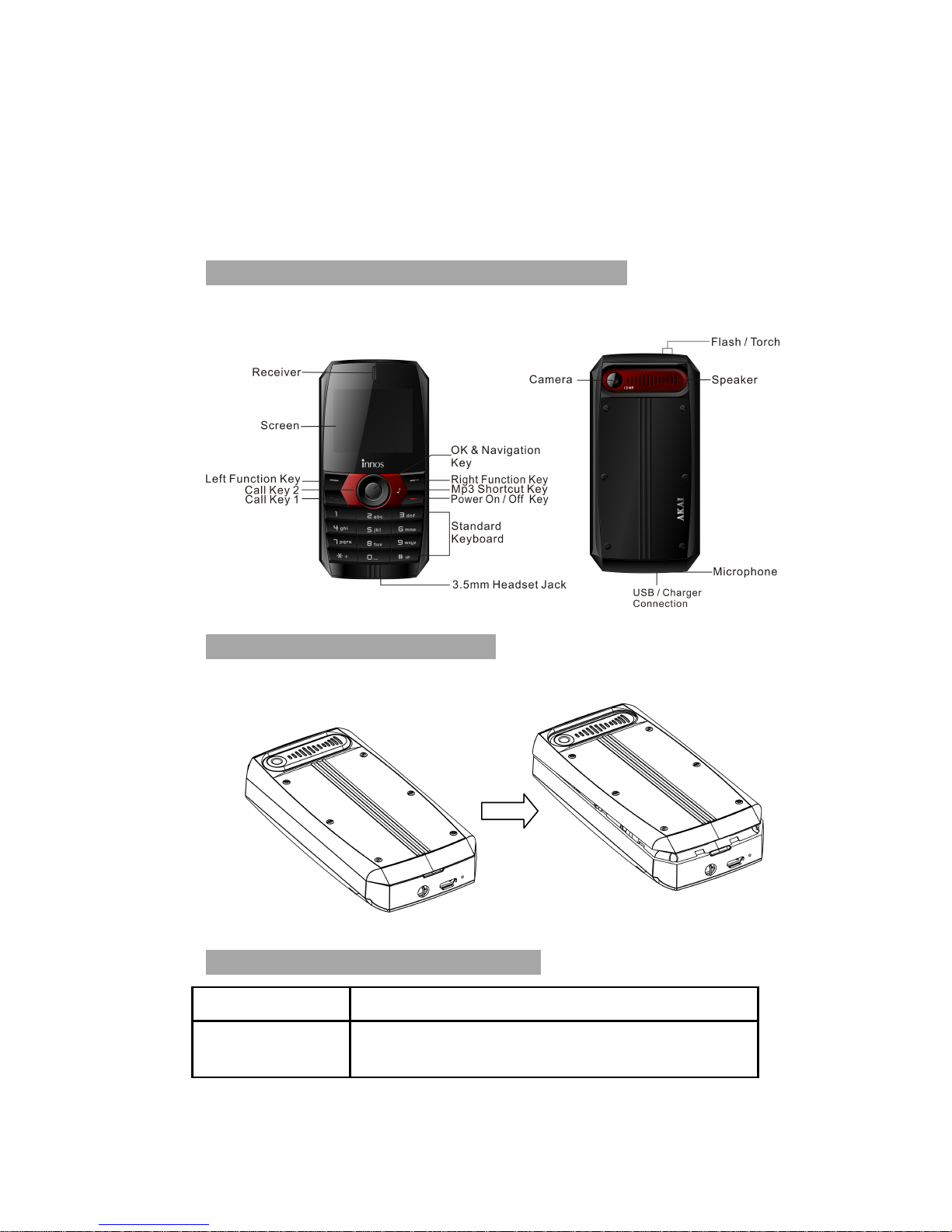
2.1 Name and Explanation of Each Part
2.2 Open the Battery Door
2.3 Description of Special Keys
Keys
Function
Call key1
1. Call from sim1.
2. To enter sim1 call log in standby
Page 7

6
mode
Call key2
1. Call from sim2.
2. To enter sim2 call log in standby
mode
power key
1. Long press to power on/off the
phone.
2. Short press to return to idle screen in
any process.
3. Reject an incoming call or end a call.
4. Short press to lock the phone in idle
screen
Music
Shortcut
Key
Audio player shortcut key
2.4 SIM Card
This phone supports dual sim standby, before you
power on the phone, make sure one sim is inserted
at least. When two sim cards are inserted, you can
shutdown any working sim card under menu
Settings->Call settings->Dual SIM Settings.
Note: Dual sim phone will shorten the standby time
compared to single sim phone.
2.5 Memory Card
Aim at the T card slot and push the T card gently, and
the card will be inserted correctly.
Note: If the memory card failed, please check
whether it is placed at good contact of metal point
correctly.
2.6 Battery & Charger
You can charge the battery by connecting the phone
Page 8

7
with the computer or by using the charger.
Note: In order to ensure normal operation of the
phone, please make sure to use the
designated charger.
2.7 User Passwords
A series of passwords have been set in your mobile
phone and SIM card, for they can prevent any
unauthorized use of your mobile phone and SIM
card.
Mobile phone password:
The mobile phone password is the same as the
mobile phone lock password, which could prevent
unauthorized use of your mobile phone as well. The
mobile phone password preset by the manufacturer
is 1122. If your mobile phone is locked, the mobile
phone password will be required to start the mobile
phone.
Note: The mobile phone password may include 4~8
digits. Please change the password in time, and
remember what you have set. The password used
by the theft proof trace function is the mobile phone
password.
PIN code:
The PIN code (personal identification number, 4~8
digits) is used to prevent unauthorized use of your
SIM card. If the PIN verification function is
activated, the PIN code will be required when power
on the mobile phone. If you have entered the
wrong PIN code for three times, the SIM card will be
locked. The following instructions will indicate you
how to unlock the card:
1> Enter the correct PUK code in line under the
prompt on the screen to unlock the SIM card.
Page 9

8
2> Then enter a new PIN code and press the OK soft
key.
3> If you are prompted to reenter the new PIN code,
then reenter the new PIN code and press the OK key.
4> If the PUK code is correct, the SIM card will
be unlocked. And the PIN code will be reset.
Warning: If you have entered the wrong PIN
code for three times, the SIM card will be locked
automatically. In that case, you need to use
the PUK code to unlock the card. The PUK code
is kept by the network operator generally.
PUK code:
The PUK code (the PIN unlocking password, 8
digits) is used to unlock the locked PIN code.
The PUK code is provided by the manufacturer
together with the SIM card. If you have
entered the PUK code incorrectly for ten times,
the SIM card will be invalidated. You need to
ask your network supplier for a new card.
PIN2 code:
The PIN2 code (4~8 digits) is provided together
with the SIM card, which is used to set the fixed
dial and other functions. Please contact your
network operator to check if your SIM card
supports such functions. If you have entered
the PIN2 code incorrectly for three times, the
PIN2 code will be locked. The PIN2 code will
only be unlocked by entering the correct PUK2
code. The operations are as follows:
1> Enter the correct PUK2 code in line with the
prompt on the screen to unlock the PIN2 code.
2> Then enter a new PIN2 code and press the
OK soft key.
3> When you are prompted to reenter the new
Page 10

9
PIN2 code, please reenter the new PIN2 code
and press the OK soft key.
PUK2 code:
The PUK2 code (the PIN2 unlocking password, 8
digits) is used to unlock the locked PIN2 code. The
PUK2 code is provided by the manufacturer together
with the SIM card. If the PUK2 code has not been
provided, please contact your network operator. If
you have entered the PUK2 code incorrectly for ten
times, you will be unable to use the functions of the
PUK2 code. If you want to use these functions,
please contact your network operator to change a
new card.
2.8 Prohibition password:
When you operate the call restriction function, the
prohibition password would be needed. The
function can be operated after you get this password
from your network operator.
3. QUICK USER GUIDE
3.1 Call
After the number has been entered or a contact has
been selected, press Call key1/key2 to dial a call
from sim1/sim2,
When there is an incoming call, press either call key1
or call key2 or left function key to answer, press end
key to reject or end a call.
Under Settings->Call settings, you can set options:
Dual-SIM, Network settings, Divert calls, Restrict
calls, Call waiting, Hide id, Line selection, Flight
mode etc. for calls.
Page 11

10
3.2 Emergency Services
You can dial an emergency service call without SIM
card directly.
Different network uses different emergency
numbers, please consult your network service
provider for more details.
3.3 Message
You can read, write, send and save text message and
multimedia messages. It also supports voice mail
server. All the messaging services can only be used
if they are supported by your network or service
provider.
3.4 File list
You can brow files in SD-flash card under File list
menu.
3.5 Contacts
You can access contacts stored in both sim cards and
the phone storage, you can also dial the contacts
directly, add, delete, edit, remove or copy the
contacts, send contacts to another device which
supports vcard standard. To facilitate the
management of the records, this phone sets the
group function to collect the similar items into a
group.
3.6 Connectivity
Bluetooth
Bluetooth technology allows you to connect your
phone with the other phone, which opens the
Bluetooth too, within 10 meters (32 feet) via radio
waves. You can build the connection by following
Page 12

11
the step under the menu Connection management
Bluetooth.
USB connect.
Mass storage: If SD card has been inserted, you can
access file in SD card or transfer data between pc
and SD card.
PC communication: Firstly, connect the phone to PC
via USB port, select PC communication at phone end.
Then run the innos pc suite on pc, the
communication would be established.
Note: Before using USB connection, make sure the
USB driver has been installed.
3.7 Multimedia
You can access below functions in Multimedia menu.
Camera: take photos, after entering the function
screen, press left navigation key to set for each
option displayed on right side.
Video recorder: record video, after entering the
function screen, press left navigation key to set for
each option displayed on right side.
Audio player: play audio clips stored in TF card, to
update the music files, you should refresh the
playlist. Press the four navigation keys to control
play. Press # key to add volume and * key to
reduce volume.
Video player: play video files stored in TF card,
Option->Update list action will update all supported
video files in TF card automatically. Press the four
navigation keys to control play. Press # key to add
volume and * key to reduce volume.
FM radio: listen to radio broadcast, press the OK
key to play/stop, left/right navigation key to switch
between the stored channels, up/down navigation
Page 13

12
key to scan channels.
3.8 Internet
The device is compatible with WAP service. You can
visit various WAP services. The services are
designed for the device especially and are
maintained by WAP service supplier.
WAP service requires network backup. You can
consult the network operator or service supplier
about the availability, rates and tax of WAP services.
3.9 Profiles
You can choose different profiles under different
conditions and environments under the menu of
Profiles.
3.10 Mobile tracker
You can start up, shut down anti-theft function, or
revise anti-theft function password (the password
shall be 6-digit).
When “anti-theft” function is started up, you can
only use your SIM card. If different SIM card is
used, the phone will check it automatically when you
switch it on, and the phone will require you to input
protection password. If the password is correct,
you can set up the SIM card so that it is compatible
with the anti-theft function.
If three mistaken passwords are input, when you
switch on the phone, it will send warning SMS to
your notice number, which you set previously, every
24 hours, if the phone is switched off, the warning
mes sages wi ll be sen t the n ex t time you switch it on.
The warning messages will indicate the existing SIM
card and the neighborhood number. When 15
Page 14

13
warning SMS were sent out, the phone cannot be
used any more. You will have to take the purchase
evidence to ask for the dealer’s help.
To guarantee the safety of your phone, you are
suggested to start up the function when you
purchased the phone.
Set up this function under option Settings ->
Security setting -> Mobile tracker.
-Activate: Start up anti-theft function and set the
notice numbers (this number is used to receive the
notice SMS when your phone is used by other
un-authorized SIM card).
-Deactivate: To shut down anti-theft function, you
will have to input the protection password you set for
the phone.
-Modify password: To revise protection password,
you will have to input the protection password you
set for the phone.
3.11 Organizer
In Organizer, you can find Alarm, Calendar,
Calculator, World clock and so on, which bring
convenience to your daily life.
Note: Ebook only supports text file in .txt extension.
Page 15

 Loading...