

Page 1
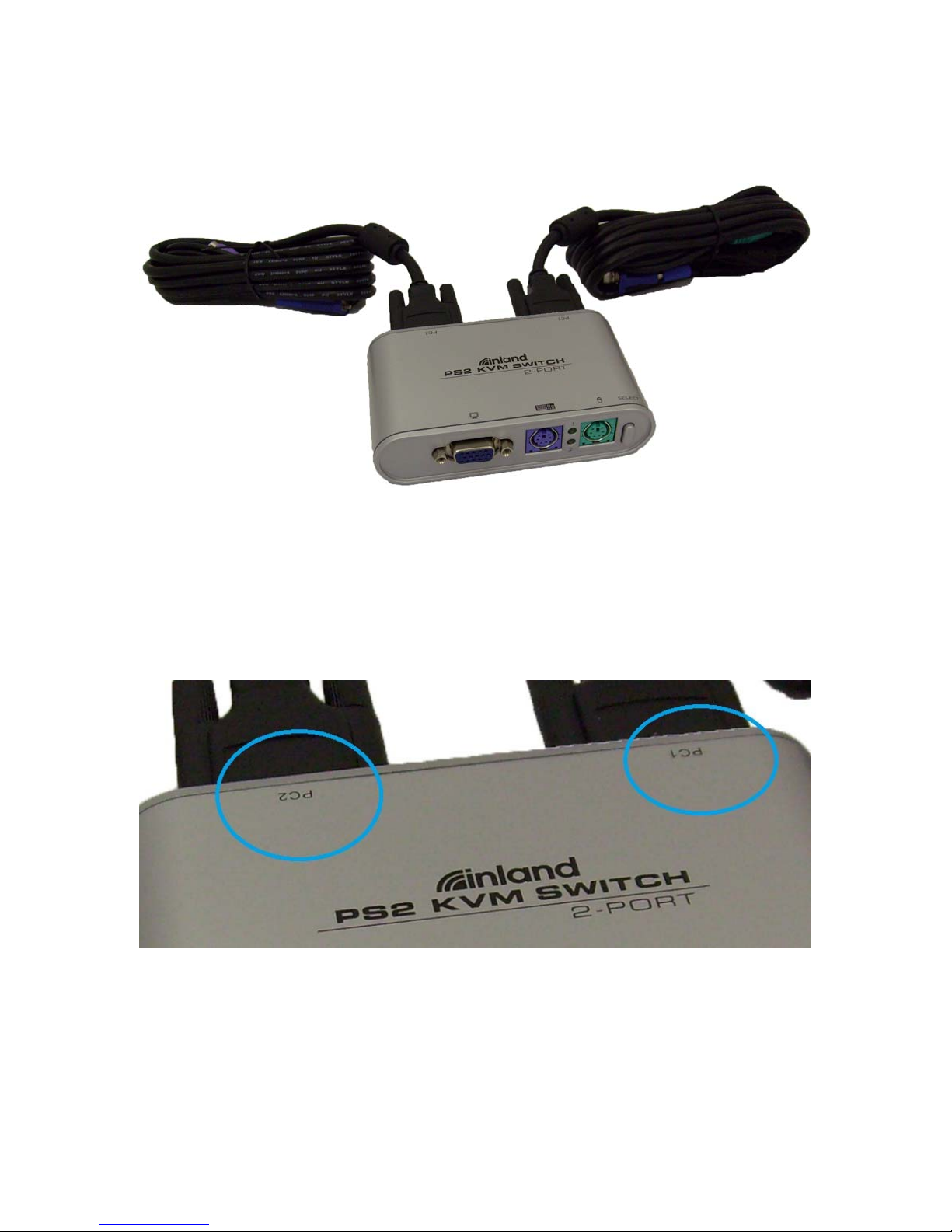
Quick setup guide for the inland 08214 KVM switch
Step 1.) Fully power off your two computers. Don’t put your computers to sleep or
hibernate, they need to be completely powered off.
Step 2.) Identify the “PC1” and “PC2” ports on the switch:
Page 2
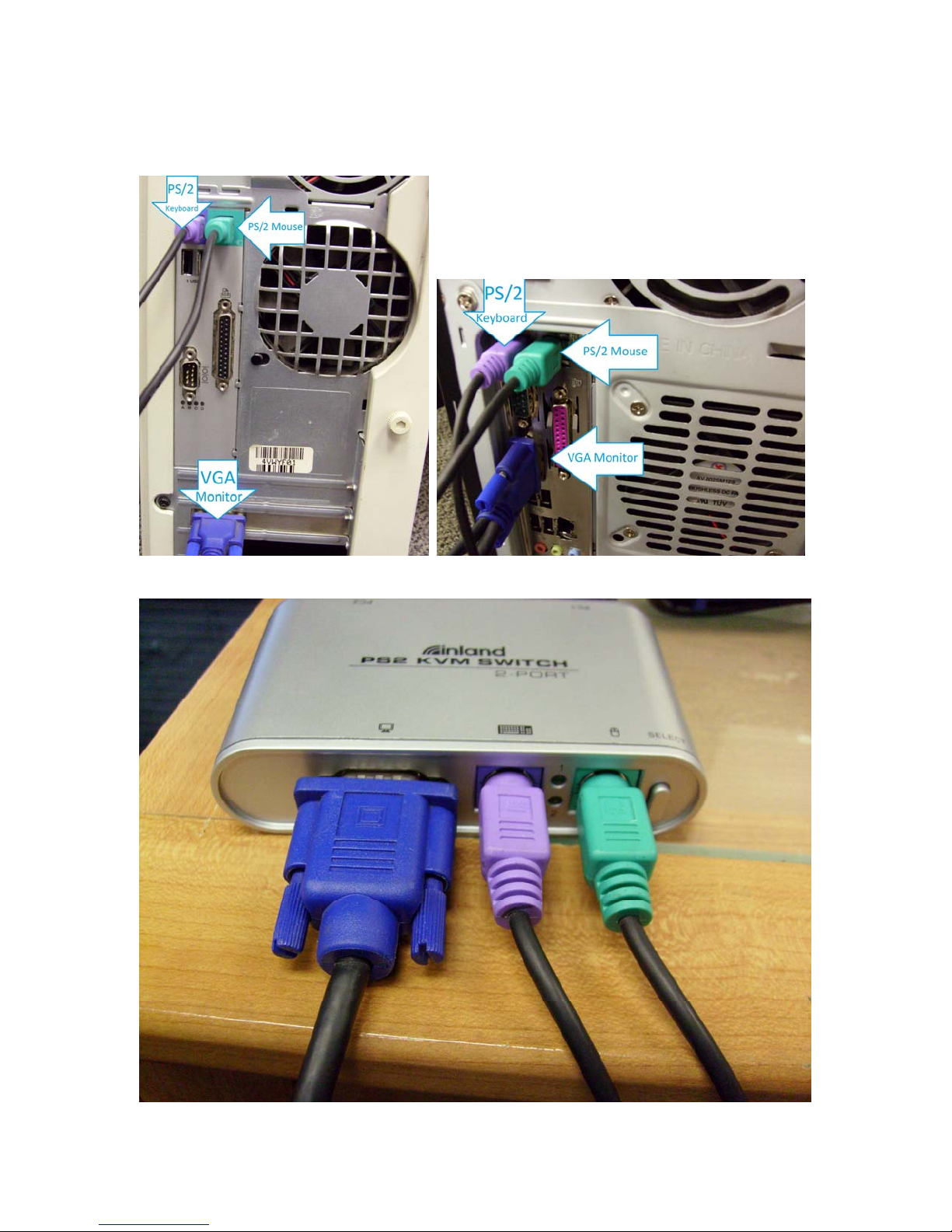
Step3.) Attach the “PC1” cables to the appropriate PC. Repeat this step with “PC2” to
attach your second computer. Please see examples below:
Step 4.) Attach your PS/2 mouse, PS/2 keyboard, and monitor to the switch.
Page 3
Step 5.) Power-on your two computers.
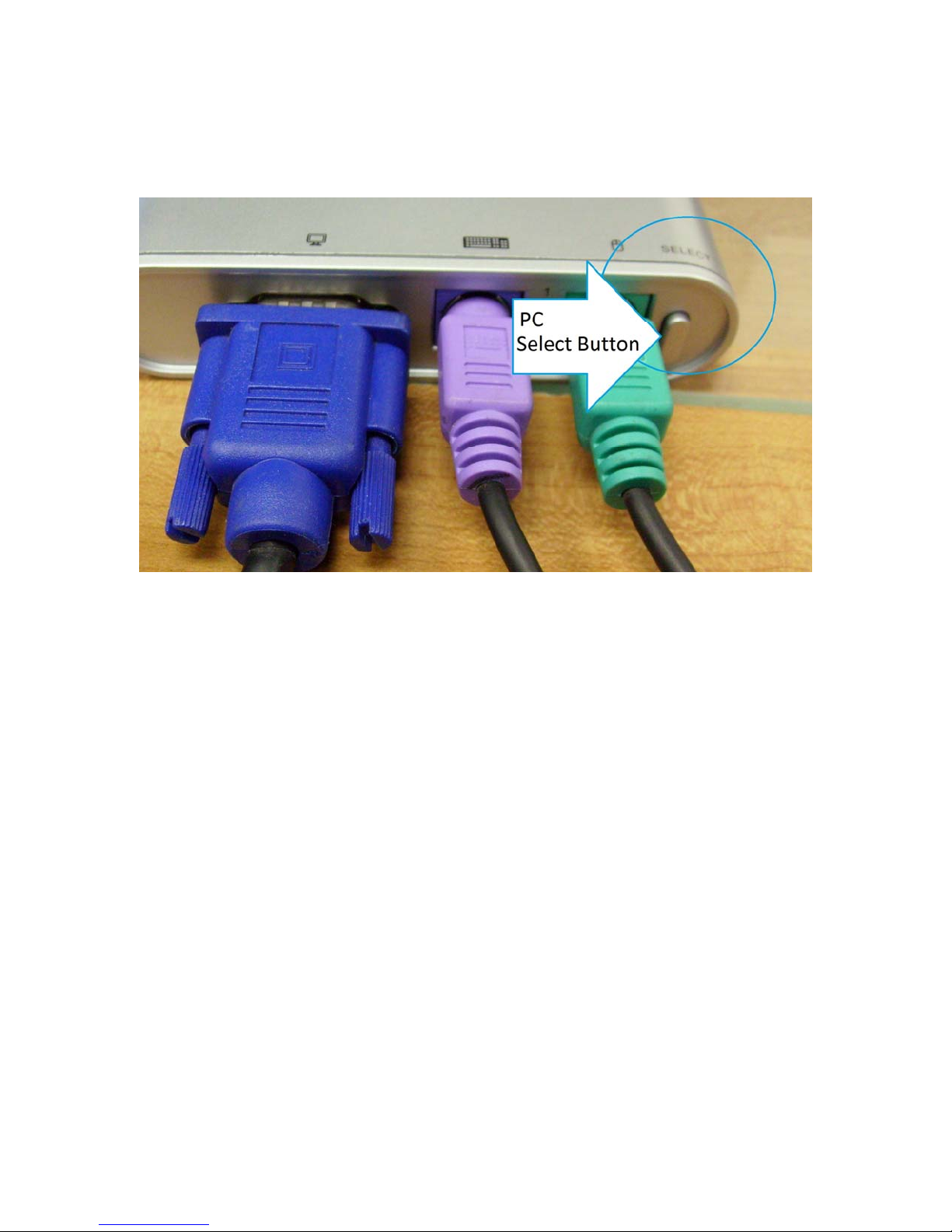
Step 6.) After the two computers are powered on, locate the “SELECT” button to toggle
between the two computers.
You can also toggle between the two computers by using keyboard commands.
To switch directly to computer 1, press [Scroll Lock] [Scroll Lock] [1]
To switch directly to computer 2, press [Scroll Lock] [Scroll Lock] [2]
NOTE: These keyboard commands will only work when using the PS/2 keyboard
attached to the switch.
USB keyboards and USB mice attached using an adapter is not supported on this device.
This KVM switch is designed to only work with PS/2 style keyboards and mice.
However, you may attach the KVM switch to a PC using an approved PS/2 to USB
converter if the PC is not equipped with PS/2 ports. The inland stock number for the
USB to PS/2 converter is 08315; more information regarding this adapter can be found on
our website at www.inlandus.com.
 Loading...