

Page 1
TM
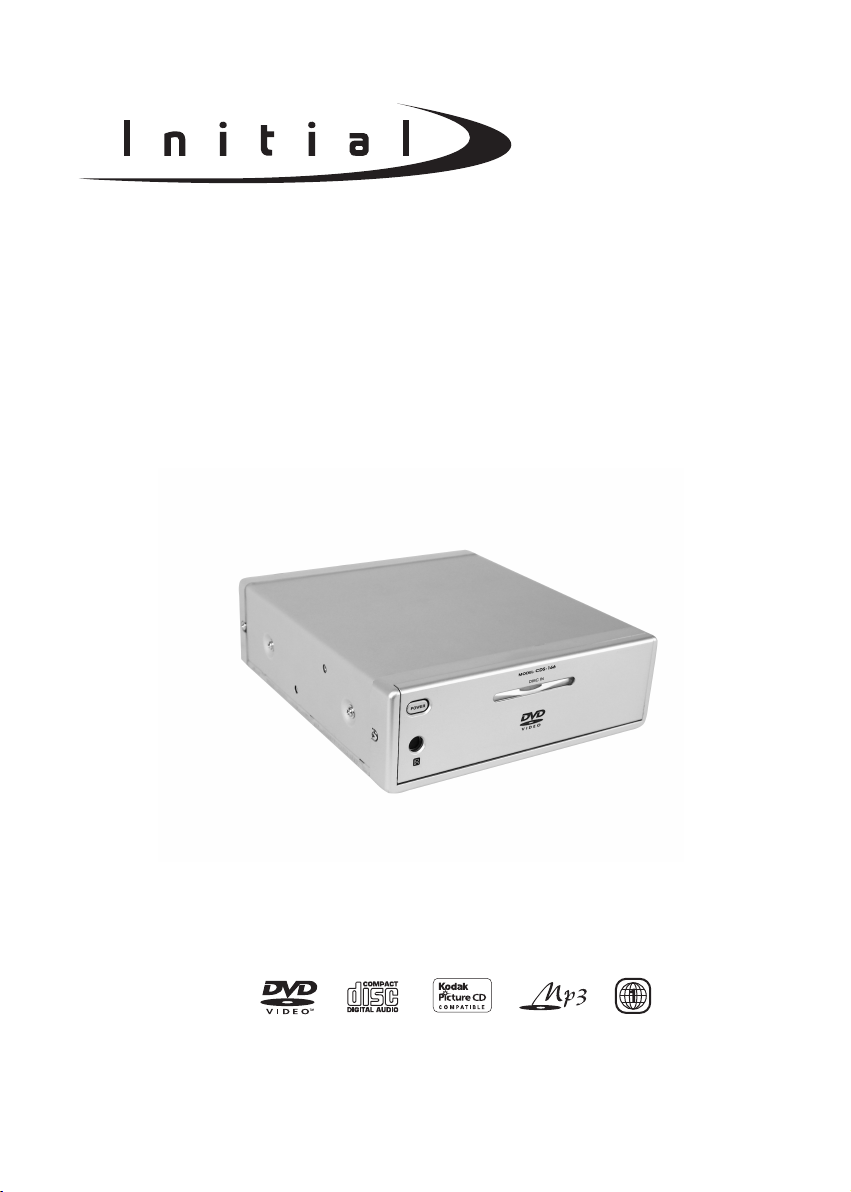
CAR DVD PLAYER
CDS-166
http://www.initialdvd.com
Page 2
A. SAFETY PRECAUTIONS
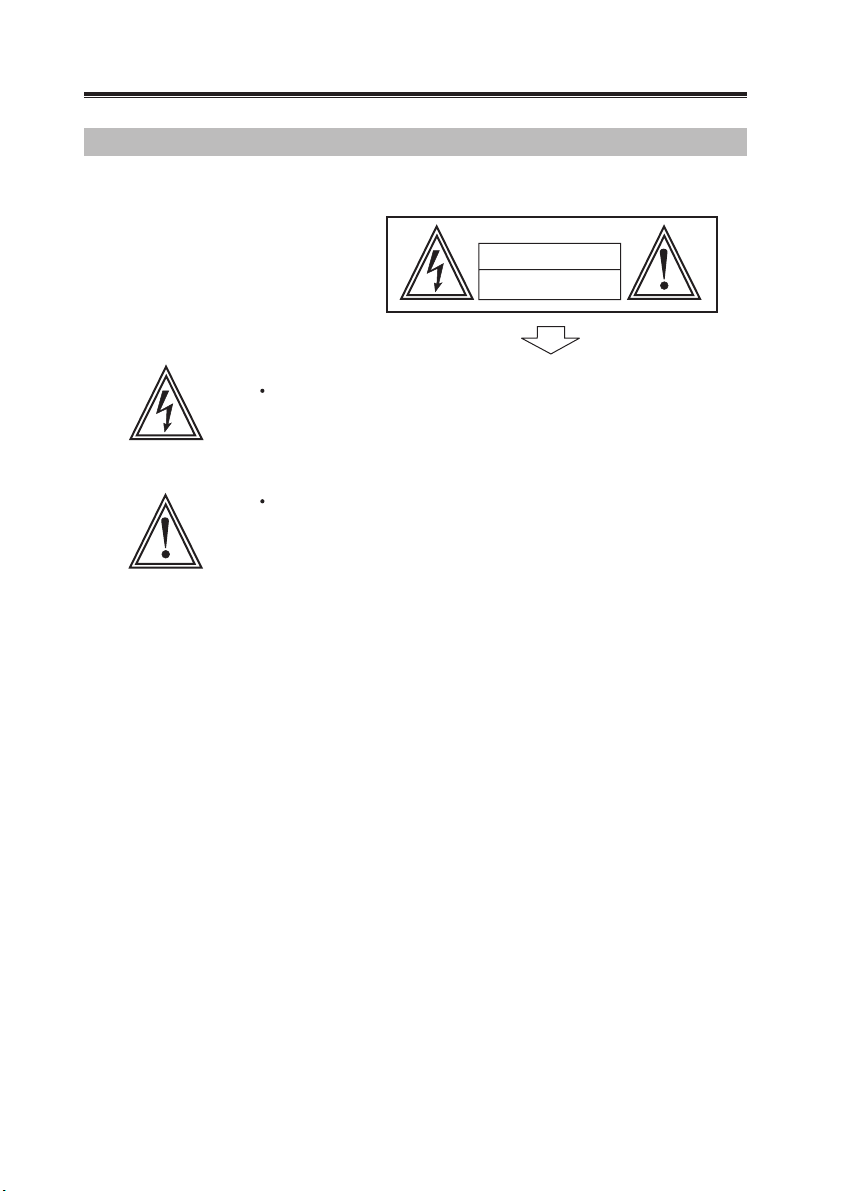
The lightning flash with arrowhead symbol within an equilateral
triangle is intended to alert the user to the presence of uninsulated "
dangerous voltage" within the product's enclosure that may be of
sufficient magnitude to constitute a risk of electric shock to persons.
The exclamation point within an equilateral triangle is
intended to alert the user to the presence of important
operating and maintenance (servicing) instructions
in the literature accompanying the product.
CAUTION
RISK OF ELECTRIC SHOCK
DO NOT OPEN
WARNING:
CAUTION:
WARNING:
To reduce the risk of fire or electric shock, do not expose this appliance
to rain or moistrue. Apparatus shall not be exposed to dripping or splashing
and no objects filled with liquids, such as vases, shall be placed on the
apparatus.
The unit employs a laser system. To ensure the proper use unit, read
this manual carefully and keep it for future reference. If the unit requires
servicing, contact the seller or our service center- see "troubleshooting ". To
prevent direct exposure to the laser radiation, do not open the cabinet. In
visible laser radiation when the cabinet is opened or the interlocks are
defeated. Do not stare into the laser beams.
Use of any controls, adjustments, or procedures other than those specified
herein may result in hazardous radiation exposure.
Not for use where video monitor is visible to driver to avoid risk of serious
injury or possible violation of atate laws.
If the driver wishes to watch a DVD, stop the vehicle in a safe place and watch
the unit.
Keep the sound low enough to enable you to hear the outside sounds when
driving.
· 1 ·
Page 3

B. IMPORTANT SAFETY INSTRUCTIONS
(1)Read Instructions - All the safety and operating instructions should be read
before the product is operated.
(2)Retain Instructions - The safety and operating instructions should be retained
for future reference.
(3)Heed Warnings - All warnings on the product and in the operating
instructions should be adhered to.
(4)Follow Instructions - All operating and use instructions should be followed
(5)Cleaning - unplug this product from the wall outlet before cleaning. Do not
use liquid cleaners or aerosol cleaners. Use a damp cloth for cleaning.
(6)Attachments - Do not use attachments not recommended by the product
manufacturer as they may cause hazards.
(7)Water and moisture -Do not use this product near water - for example, near
a bath tub, wash bowl, kitchen sink, or laundry tub; in a wet basement; or
near a swimming pool; and the like.
(8)Accessories - Do not place this product on an unstable cart, stand, tripod,
bracket, or table. The product may fall, causing serious injury to a child or
adult, and serious damage to the product. Use only with a cart, stand, tripod,
bracket, or table recommended by the manufacturer, or sold with the product.
Any mounting of the product should follow the manufacturer's instructions,
and should use a mounting accessory recommended by the manufacturer.
(9)A product and cart combination should be moved with care. Quick stops,
excessive force and uneven surfaces may cause the product and cart
combination to overturn.
(10)Power Sources - This product should be operated only from the type of
power source indicated on the panel. If you are not sure of the type
of power supply to your home consult your product dealer or local power
company. For products intended to operate from battery power, or other
sources, refer to the operating instructions.
(11)Grounding or Polarization - This product may be equipped with a polarized
alternating-current line plug(a plug having one blade wider than the other).
This plug will fit into the power outlet only one way.This is a safety feature. If
you are unable to insert the plug fully into the outlet, try reversing the plug. If
the plug should still fail to fit, contact your electrician to replace your obsolete
outlet. Do not defeat the safety purpose of the polarized plug.
(12)Power- Cord protection - Power-supply cords should be routed so that they
are not likely to be walked on or pinched by items placed upon or against
them, paying particular attention to cords at plugs, convenience receptacles,
and the point where they exit from the product.
· 2 ·
Page 4

B. IMPORTANT SAFETY INSTRUCTIONS
(13)Lightning - For added protection for this product during a lightning storm, or
when it is left unattended and unused for long periods of time, unplug it
from the wall outlet and disconnect the anetenna or cable system. This will
prevent damage to the product due to lightning and power-line surges.
(14)Power Lines - An outside antenna system should not be located in the
vicinity of overhead power lines or other electric light or power circuits, or
where it can fall into such power lines or circuits. When installing an outside
antenna system, extreme care should be taken to keep from touching such
power lines or circuits as contact with them might be fatal.
(15)Overloading - Do not overload wall outlets, extension cords,or integral
convenience receptacles as this can result in a risk of fire or electric shock.
(16)Object and Liquid Enty - Never push objects of any kind into this product
through result in a fire or electric shock. Never spill liquid of any kind on the
product.
(17)Servicing - Do not attempt to service this product yourself as opening or
removing qualified service personnel.
(18)Damages Requiring Service - Unplug this product from the wall outlet and
refer servicing to qualified service personnel under the following conditions.
a) When the power- supply cord or plug is damaged.
b) If liquid has been spilled , or objects have fallen into the product.
c) If the product has been exposed to rain or water.
d) If the product does not operate normally by following the operating
instructions. Adjust only those controls that are covered by the operating
instructions as an improper adjustment of other controls may result in
damage and will often require extensive work by a qualified technician to
restore the product to its normal operation.
e) If the product has been dropped or damaged in any way.
f) When the product exhibits a distinct change in performance - this
indicates a need for service.
(19)Replacement parts - When replacement parts are required, be sure the
service technician has used replacement parts specfied by the
manufacturer or have the same characteristics as the original part.
Unauthorized substitutions may result in fire, electric shock or other
hazards.
(20)Safety Check - Upon completion of any service or repair to this product, ask
the service technician to perform safety checks to determine that the
product is proper operating condition.
(21)Heat - The product should be situated away from heat sources such as
radiators, heat registers, stoves or other products(including amplifiers)that
product heat.
· 3 ·
Page 5

TABLE OF CONTENTS
SAFETY PRECAUTIONS
A.
IMPORTANT SAFETY
B.
INSTRUCTIONS
FEATURES
C.
ABOUT MANUAL
D.
PLAYABLE DISCS
E.
TERMS FOR DISCS
F.
BEFORE OPERATION
G.
PRECAUTIONS FOR DISCS
H.
PREPARATIONS BEFORE
I.
OPERATION
CHECK ACCESSORIES
USE REMOTE CONTROL
FRONT PANEL
NAMES AND LAYOUT OF REMOTE
CONTROLS
SYSTEM CONNECTIONS
BASIC OPERATIONS
J.
PLAY DISCS
PAUSE
OSD
…………………………………
DVD MENU PLAY
SELECT WITH NUMBER BUTTONS
……………………
……………………………
……………………………
…………………………
…………………………
………………………………
……………
………………………
………………………
……………………
…………………
…………
…………
…………
……………………
………
………………
…………………
1
2-3
4
5
5
6
7
7
8
8
8
9
10
11
12
12
12
13
16
17
…
MENU SETUP
K.
MENU SETTING
PLAY DISCS IN
L.
VARIOUS WAYS
MUTE
FAST PLAY
SLOW PLAY
REPEAT PLAY
SELECT SUBTITLES
SELECT ANGLES
PLAY MP3 DISCS
M.
OTHERS
N.
TROUBLESHOOTING
TECHNICAL SPECIFICATIONS
INSTALLATION
O.
………………………
……………………
……………………
……………………………
………………………
……………………
……………………
……………
………………
………………………
…………………………………
……………
………………………
17
17
23
23
23
23
24
25
25
26
27
27
…
30
31
Page 6

C. FEATURES
· 4 ·
The unit adopts MPEG2 coding format and
brings the horizontal resolution over
500 lines.
1. HIGH DEFINITION
This product incorporates copyright protection technology that is protected by method claims
of certain U .S. patents and other intellectual property rights owned by Macrovision
Corporation and other rights owners. Use of this copyright protection technology must be
authorized by Macrovision Corporation, and is intended for home and other limited viewing
uses only unless otherwise authorized by Macrovision Corporation. Reverse engineering or
disassembly is prohibited.
Multi-angle and multi-language bring
unique trick functions.
Parental lock makes it easy to control the
content of discs.
2. UNIQUE FUNCTIONS
Conventional screen and wide screen
(16:9) are available.
3. SCREEN
The unit can play DVD, CD and MP3
discs.
4. COMPATIBILITY
Fast forward, fast reverse, slow play, frame
play , repeat play.
5. MULTI-FUNCTIONS
English OSD makes the disc content clearer.
6. CONTENT DISPLAY
Page 7
D. ABOUT MANUAL
PRINCIPLES FOR WRITING
· 5 ·
This manual mainly introduces how to
use the buttons on the remote control.
You may operate the unit if the buttons
on the unit have the same or similar
names as to those on the remote
control.
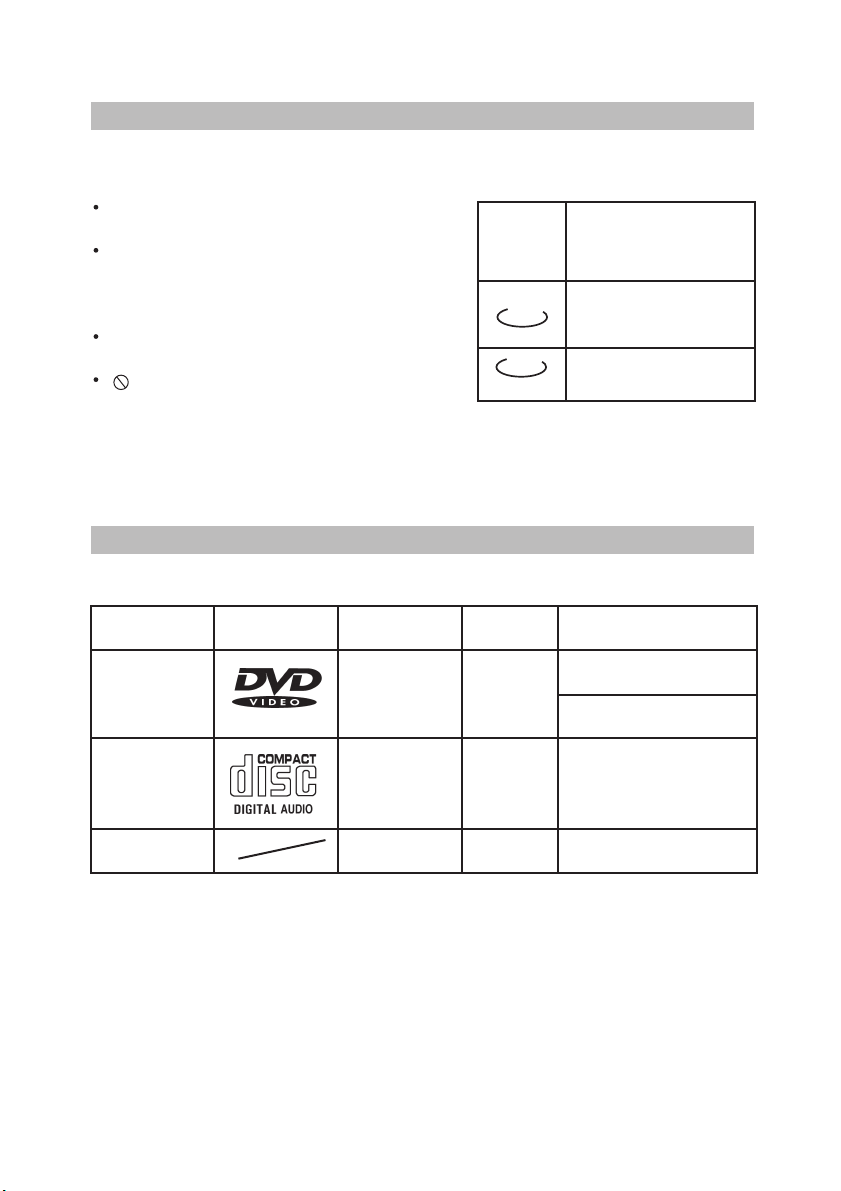
The marks shown in the right chart are
used in the manual.
" " may appear on the TV screen
during operation. This icon means the
function explained in the owner's
manual is not available on that disc.
MARK
INDICATION
functions of DVD
functions of CD
DVD
CD
E. PLAYABLE DISCS
TYPE
DVD
CD
MP3
MARK CONTENT SIZE PLAYING TIME
audio+video
(motion pictures)
audio
audio
12cm
12cm
12cm
approx. 2hrs (single-side disc)
approx. 4hrs (double-side disc)
approx. 74mins
600mins
Note: Region codes for DVD disc are printed on the rear panel, only the disc with
same code can be played.
Page 8
F. TERMS FOR DISCS
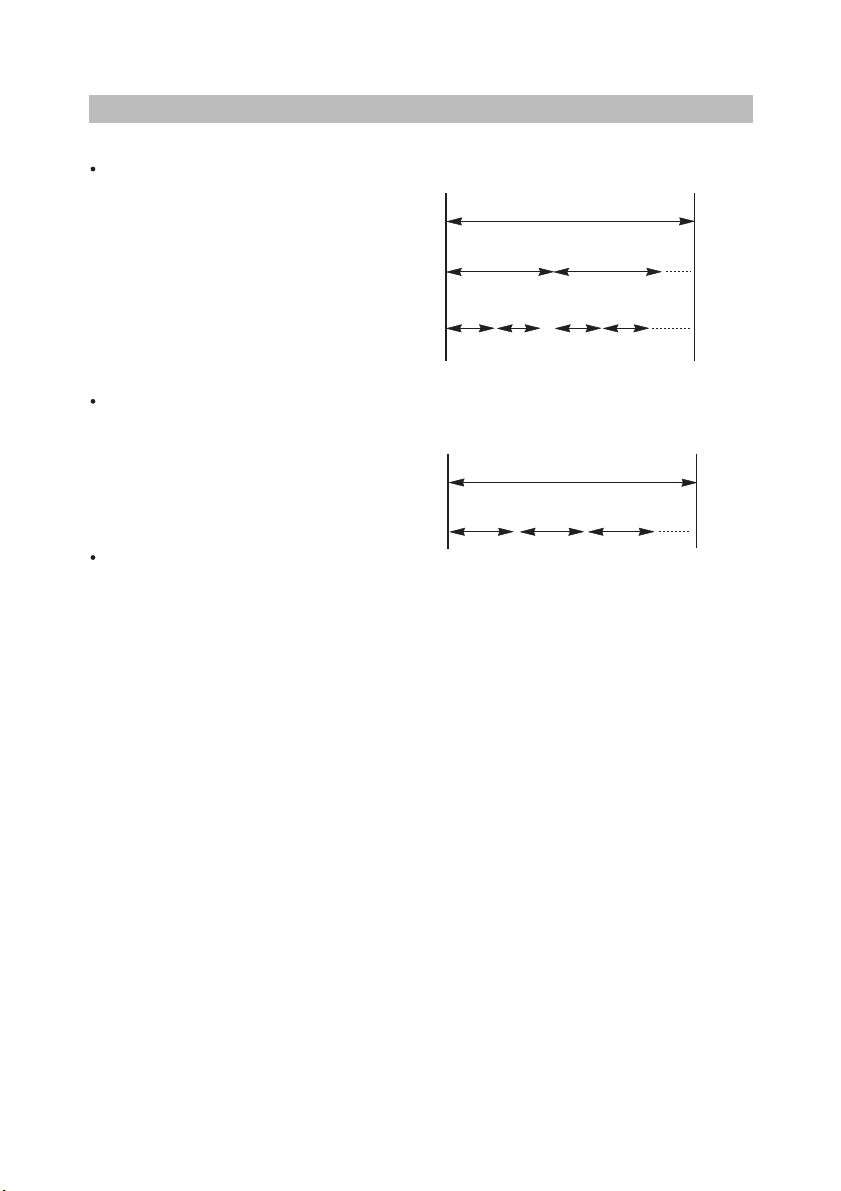
TITLE
The images or music of a DVD are divided
into some units, among which title is the
biggest one.
To an image in video software, title is movie;
to a piece of music in audio software, it is
music.
Each title has an indication number which
makes it easy to locate.
CHAPTER
It is smaller than title among the units
of a DVD. A title is made up of several
chapters, and each chapter has a number
for search. But some discs may not have
numbered chapters.
TRACK
The music in a CD. Each track has a
number for search.
STRUCTURE OF DVD
DISK
TITLE
CHAPTER
STRUCTURE OF CD
DISK
TRACK
· 6 ·
Page 9
G. BEFORE OPERATION
WHEN DRIVING
Keep the volume level low enough to be
aware of road and traffic conditions.
WHEN CAR WASHING
Do not expose the product to water or
excessive moisture. This could cause
electrical shorts, fire or other damage.
WHEN PARKED
Parking in direct sunlight can produce very
high temperatures inside your vehicle.
Give the interior a chance to cool down
before starting playback.
PLACEMENT
Put the unit where ventilation is good
enough to prevent overheating.
Never put the unit in direct sunlight or near
heat sources.
Put the unit horizontally, never put any
heavy object on the unit.
To protect the laser, do not put the unit
where there is most dust. If there is dust
on the laser, use a cleaning disc to clean it.
Refer to the operation instructions of
the cleaning disc you bought.
CONDENSATION
Water will appear on the pickup lens in
the following cases:
The unit is suddenly moved from a cold
place to a warm place.
The unit is put in a room with a heater, or
in the cold air from a air-conditioner.
Use the unit in a humid place. In these
cases, the unit can not work. Unload the
disc and leave the unit on for about
one hour to evaporate the water.
CLEANING
Use soft cloth with a little neutral
detergent to wipe the cabinet, panel and
controls. Never use abrasive pater,
polishing powder or solvent like alcohol
and gasoline.
H. PRECAUTIONS FOR DISC
HANDLING DISC
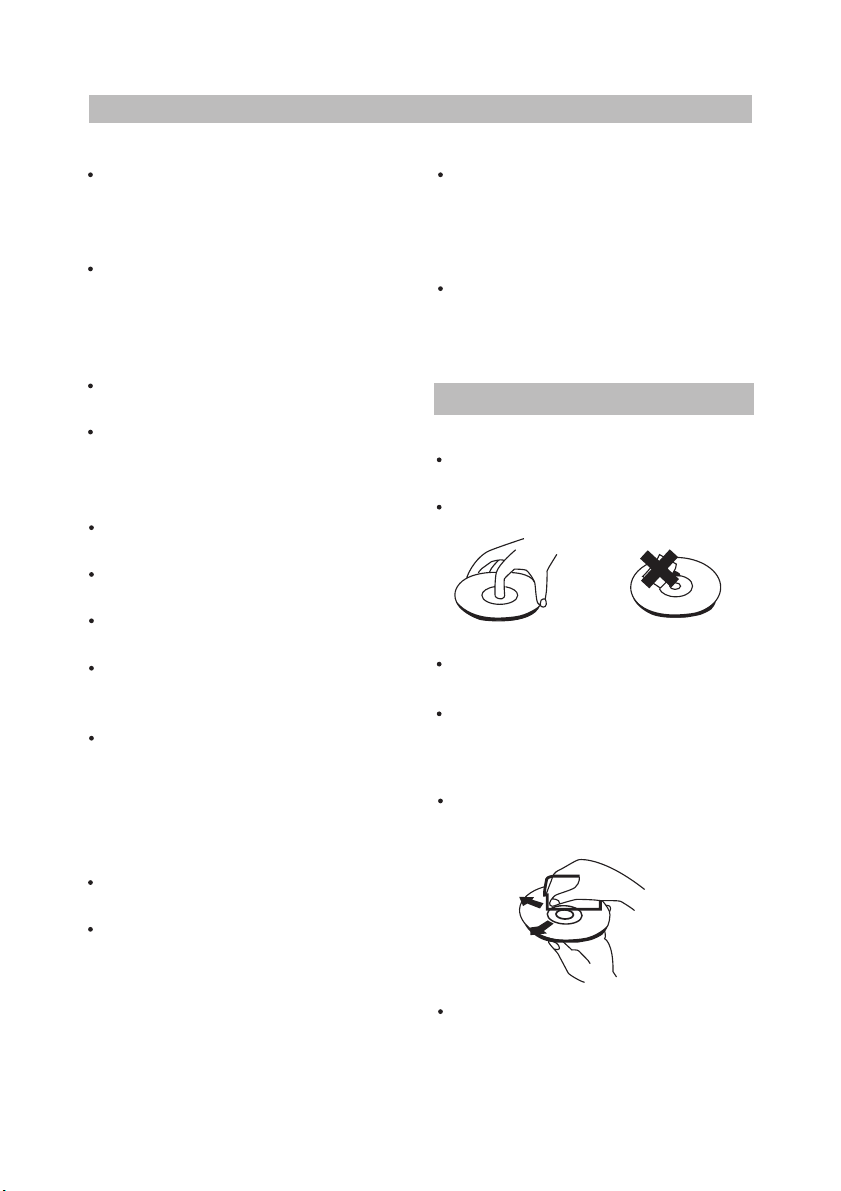
To keep the disc clean, do not touch
the play sides of the disc.
Do not attach paper or tape to the disc.
Keep the disc away from direct sunlight
or heat sources.
Store the disc in a disc case after
playback.
CLEANING DISC
Before playback, wipe the disc outwards
from the center with clean cloth.
Do not use any type of solvent such as
thinner, benzine, commercially available
cleaners or antistatic spray.
· 7 ·
Page 10

I. PREPARATIONS BEFORE OPERATION
This part introduces the work to be done before operating the unit.
CHECK ACCESSORIES
Check if you have all the accessories after the carton is opened.
Audio cable 1
Video cable 1
Installation accessories 1
External remote sensor 1
DC 12V power source cord 1
Warranty card 1
Owner's manual 1
USE REMOTE CONTROL
1.Refer to the diagram, open the battery compartment of the remote control, insert batteries,
then close the compartment.
2.To use the remote control, point it at the remote sensor of the unit, operate in the range of 5
meters and 60°.
3.Generally, batteries last for about one year, replace the batteries if the remote control does
not work.
4.Remove the batteries if remote control is not used for a long time.
· 8 ·
Page 11

12 3
10 9 8 7 6 5 4
I. PREPARATIONS BEFORE OPERATION
· 9 ·
FRONT PANEL
POWER
DISC SLOT
OPEN
RESET
NEXT
PREV
①
②
③
④
⑤
⑥
PLAY
STOP
PAUSE
REMOTE SENSOR
⑦
⑧
⑨
⑩
DISC IN
MODEL:
CDS-166
RESET
Page 12

I. PREPARATIONS BEFORE OPERATION
SETUP
DIRECTION BUTTONS
PLAY
PAUSE
STOP
FF/FR (ADJUST +/- for LCD operation)
DVD/LCD SLIDE SWITCH*
NUMBER BUTTONS 0~5,+5
MENU
TITLE
RETURN
SUBTITLE
LAMP L/R for LCD operation
VOLUME +/-
ANGLE
MUTE(MUTE for LCD operation)
OSD(On Screen Display)
REPEAT
PREV/NEXT
SLOW(FM TX for LCD operation)
POWER/SOURCE
· 10 ·
* When the slide switch is set to "DVD" position, the remote control works on the CDS-166.
When it is set to"LCD" position, the remote will control the LCD IDM-1081 Flip Down Monitor.
NAMES AND LAYOUT OF REMOTE CONTROLS
2
1
3
4
5
6
7
8
9
10
11
12
13
14
15
16
17
18
19
20
21
SOURCE
SETUP
ADJUST
FM TX
+
+
VOLUME
01
3
45
+5
OSD
MUTE
RPT
2
L R
DVD LCD
D
U
A
L
R
E
M
O
T
E
C
O
N
T
R
O
L
DISC DISC
LAMP
1
2
3
4
5
6
7
8
9
10
11
12
13
14
15
16
17
18
19
20
21
Page 13

I. PREPARATIONS BEFORE OPERATION
· 11 ·
SYSTEM CONNECTIONS
When this unit is connected to the LCD IDM-1081, please make connections according to the
following digram.
The Din connector cable used for the CDS-166 to IDM-1081 comes with the IDM-1081.
WIRE CHART
Wire's Label
P.CONT
GND
12V
ACC
OUT PUT
Color
Blue/White
Black
Yellow
Red
Yellow/Red/White
Function
Amplifier Power Control
Ground
To Car Battery +12V
To ACC
RCA outputs for video, Left and Right Audio
Page 14

J. BASIC OPERATIONS
· 12 ·
PLAY DISCS
1. Press the button to turn on the unit.
2. Open the front panel cover, insert a disc into the disc slot with the label side up.
3. Press the PLAY button to begin playback.
4. Stop playback.
Press .
5. Remove the disc and switch off the unit.
You have to press this " " button twice to stop the playback of DVD discs.
PAUSE
Press
DVD CD
、
DVD CD
、
WHEN PLAYING PICTURES
If the pictures of DVD are played, press to make playback pause.
The unit enters step play status. Each time you press , the picture advances one frame.
WHEN PLAYING MUSIC CD
Press to make playback pause.
Press (PLAY)to resume playback.
Page 15

J. BASIC OPERATIONS
The On-Screen Display (OSD) contains
many playback features. To see the Display,
press the OSD button on the remote while
a disc is playing. The picture being played
will be zoomed out to the top of the screen.
The Display appears under the zoomed
picture. Use the or buttons on the remote
to move through the different playback
features in the Display.
When a playback feature is highlighted,
press the (PLAY) button and the text box
by the right side of it will be highlight. Use the
or buttons on the remote to move
through the choices displayed in the text
box.
· 13 ·
Selecting a Title
Some discs contain more than one title.
Each title is divided into chapters. To select a
title:
1. While the disc is playing, press OSD on
the remote to bring up the Display.
2. If "Title" on the Display isn't highlighted,
use the or buttons to highlight it.
3. Press the (PLAY) button, the text box by
the right side is now highlighted.
4. Use the number buttons on the remote to
enter a title number that you want to play.
Note: Some discs only have one title.
WHEN PLAYING DVD
OSD
DVD CD
、
Remember, you can only access the Display
when you're playing a disc. Also, the Display
features are only available if the disc was
created with that particular feature.
The invalid symbol " " appears on the
screen when you press a button that doesn't
have any function. If one of the playback
features is "grayed out", that Display feature
isn't available for the disc you're playing.
To make the Display disappear from the
screen, press OSD on the remote.
DVD discs have the following playback
features: Title, Chapter, Audio, Subtitle,
Angle, TT (Title) Time, CH (Chapter) Time,
Repeat and Time Display.
Selecting a Chapter
Because DVD discs use digital technology, a
title can be divided into chapters (similar to
tracks on a CD). You can skip to a specific
chapter by using the Chapter feature in the
Display.
1. While the disc is playing, press OSD on
the remote to bring up the Display.
2. Press the or buttons to highlight
"Chapter".
3. Press the (PLAY) button, the text box
by the right side is now highlighted.
4. Use the number buttons on the remote to
enter a chapter number that you want to
play.
Notes: The Chapter feature won't work if the
disc isn't formatted with separate chapters.
You can also advance to the next chapter by
pressing on the remote and go to the
preceding chapter by pressing on the
remote.
Page 16

J. BASIC OPERATIONS
· 14 ·
Changing the Audio Language
If the disc was created with different
language tracks (recorded in different
languages), you can use the Display to
temporarily change the DVD player's Audio
Language setting.
1. While the disc is playing, press OSD on
the remote to bring up the Display.
2. Press the or
buttons to highlight "Audio".
3. Press the (PLAY) button, the audio
languages appear on the screen.
4. Press the or buttons to move through
the audio languages that are available on
the disc, Press the (PLAY) button when
the audio language you want to use is
highlighted.
5. To make the Display disappear, press the
OSD button on the remote.
Note: The Language feature only works if
the disc was created with multiple audio tracks.
When you choose an audio language from
the Display, you only override the audio
language setting in the DVD player's main
menu templrarily.
The audio language can also be changed
through the DVD player menu.
Changing the Subtitle Language
If the disc was created with different
subtitles, you can use the Display to change
the Subtitle language.
1. While the disc is playing, press OSD on
the remote to bring up the Display.
2. Press the or buttons to highlight
"Subtitle".
3. Press the (PLAY) button, the subtitle
languages appear.
4. Press the or buttons to move through
the subtitle languages that are available
on the disc, Press the (PLAY) button
when the subtitle language you want to
use is highlighted.
5. To make the Display disappear, press the
OSD button on the remote.
Note: Changing the subtitle language with
the Display will only affect the disc currently
being played. When the disc is removed or
the player is turned off, the subtitle language
will revert to the language setting specified
through the DVD player main menu.
The subtitle language can also be changed
through the DVD player menu.
Changing the Camera Angle
Some discs contain multiple angles of a
particular scent or sequence. When multiple
angles are available, to change the camera
angle:
1. While the disc is playing, press OSD on
the remote to bring up the Display.
2.
Press the or buttons to highlight "Angle".
3. Press the (PLAY) button, the text box
by the right side is now highlighted.
4. Use the number buttons to enter an angle
number that you want to play.
5. To make the Display disappear, press the
OSD button on the remote.
Setting Title Time
You can skip to a specific title time by using
the Title Time feature in the Display.
Page 17

J. BASIC OPERATIONS
1. While the disc is playing, press OSD on
the remote to bring up the Display.
2. Press the or buttons to highlight "TT
(Title) Time".
3. Press the (PLAY) button, the text box
by the right side is now highlighted.
4. Use the number buttons on the remote to
enter a title time that you want to play.
· 15 ·
You can skip to a specific chapter time by
using the Chapter Time feature in the
Display.
1. While the disc is playing, press OSD on
the remote to bring up the Display.
2. Press the or buttons to highlight "CH
(Chapter) Time".
3. Press the (PLAY) button, the text box by
the right side is now highlighted.
4. Use the number buttons on the remote to
enter a chapter time that you want to play.
Setting Chapter Time
Using the Repeat Feature
The default mode for the Repeat feature is
OFF. There are three Repeat options:
All-repeats the disc that is playing
Title-repeats the title that is playing
Chapter-repeats the chapter that is playing
To Use Repeat:
1.
2.
3.
4.
5.
While the disc is playing, press OSD on
the remote to bring up the Display.
Press the or buttons to highlight
"Repeat".
Press the (PLAY) button, the repeat
options appear.
Press the or buttons to move through
the repeat options. Press the (PLAY)
button when the repeat option you want to
use is highlighted.
The selected repeat option will loop repeatedly
until you turn Repeat off.
How to Cancel Repeat:
Press STOP twice.
Go to Repeat feature in the Display and
select Off.
Eject the disc.
Shifting the Displayed Time
Using the Time Display feature in the
Display, you can shift the time displayed on
the screen, between: Title Elapsed Time,
Title Remain Time, Chapter Elapsed Time,
and Chapter Remain Time.
1. While the disc is playing, press OSD on
the remote to bring up the Display.
2. Press the or buttons to highlight
"Time Disp".
3. Press the (PLAY) button, the time
options appear.
4. Press the or buttons to move through
the time options. Press the (PLAY) button
when the option you want to use is highlighted.
5. To make the Display disappear, press the
OSD button on the remote.
WHEN PLAYING CD
CD discs have the following playback
features: Track, Disc Time, Track Time,
Repeat and Time Display.
Selecting a specific Track
1. While the disc is playing, press OSD on
the remote to bring up the Display.
2. Press the or buttons to highlight
"Track".
3. Press the (PLAY) button, the text box by
the right side is now highlighted.
4. Use the number buttons on the remote to
enter a track number that you want to play.
Page 18

J. BASIC OPERATIONS
· 16 ·
Setting Disc Time
You can skip to a specific disc time by using
the Disc Time feature in the Display.
1. While the disc is playing,press OSD on
the remote to bring up the Display.
2. Press the or buttons to highlight
"Disc Time".
3. Press the (PLAY) button,the text box
by the right side is now highlighted.
4. Use the number buttons on the remote to
enter a disc time that you want to play.
Setting Track Time
You can skip to a specific disc time by using
the Track Time feature in the Display.
1. While the disc is playing,press OSD on
the remote to bring up the Display.
2. Press the or buttons to highlight
"Track Time".
3. Press the (PLAY) button,the text box
by the right side is now highlighted.
4. Use the number buttons on the remote to
enter a track time that you want to play.
Using the Repeat Feature
The default mode for the Repeat feature is
OFF.There are two Repeat options tor CDs:
All-repeats the disc that is playing
Track-repeats the track that is playing
To Use Repeat:
1. While the disc is playing, press OSD on
the remote to bring up the Display.
2. Press the or buttons to highlight
"Repeat".
3. Press the (PLAY)button, the repeat
options appear.
4. Press the or buttons to move through
the repeat options. Press the (PLAY)
button when the repeat option you want to
use is highlighted.
5. The selected repeat option will loop
repeatedly until you rurn Repeat off.
Shifting the Displayed Time
Using the Time Display feature in the
Display,you can shift the time displayed on
the screen, between: Single (Track) Elapsed
Time, Single (Track) Remain Time, Total
(Disc) Elapsed Time, and Total (Disc)
Remain Time.
1. While the disc is playing, press OSD on
the remote to bring up the Display.
2. Press the or buttons to highlight
"Time Disp".
3. Press the (PLAY) button, the time
options appear.
4. Press the or buttons to move through
the time options.Press the (PLAY)button
when the option you want to use is highlighted.
5. To make the Display disappear,press the
OSD button on the remote.
DVD MENU PLAY
DVD
Some DVDs have title menus and chapter
menus.
Press (PLAY), the screen shows the menu.
Press or to skip the next or
previous page, select with number buttons or
direction buttons.
Example: select track 13.
1. Press to enter the next menu.
2. Press number buttons to select directly.
Root
Menu
1.
2.
11.
Root
Menu
12.
13.
14.
15.
Page 19

J. BASIC OPERATIONS
· 17 ·
Press direction buttons ( or ) to select
and press (PLAY) to confirm.
--Setup Menu--Main page-General Setup
Audio Setup
Video Setup
Preferences
Password Setup
Exit Setup
Go To General Setup Page
K. MENU SETUP
You can also do as follows:
1. Press to select track 13.
Root
Menu
12.
13.
14.
15.
2. Press (PLAY)to start playing track 13.
Press TITLE once to return to the title menu.
Press
MENU once to return to the root
menu.
SELECT WITH NUMBER
BUTTONS
CD
Load a disc. Press number buttons to select
tracks after the unit finishes reading the disc.
1. If the track number isn't over 5, just
push buttons 1-5.
Example: push 3 to select track 3.
The screen shows:
Track03/20 00:00
2. If the track number is over 5, press +5
once and a button among 1-5.
Example: if you select track 12, press
+5 twice and button 2 .
The screen shows:
Track12/20 00:00
2.
Example: Select "Audio Setup" and do some
setup.
Press direction button to highlight "Audio
Setup", press (PLAY) to enter "Audio
Setup Page".
The main menu appears on the screen, with
icons across the top of the screen, illustrating
General Setup, Audio Setup, Video Setup,
Preference, Password Setup, and Exit Setup.
The screen shows:
SETUP
1. Press SETUP to set the main menu.
According to the recorded information and
external equipment, set the following
functions for the player to obtain the best
playing status.
MENU SETTING
DVD CD
Page 20

K. MENU SETUP
· 18 ·
The screen shows:
Press direction buttons ( or ) to
highlight "Dolby Digital Setup", and press
(PLAY) to enter "Dolby Digital Setup"
Page. The screen shows the submenu for
your selection.
The screen shows:
-- Dolby Digital Setup --
Dual Mono STR
D.R.C
Audio Setup
Stereo
Left Mono
Right Mono
Mixed Mono
Press direction buttons , to select
"Left Mono".
The screen shows:
-- Dolby Digital Setup --
Dual Mono STR
D.R.C
Audio Setup
Stereo
Left Mono
Right Mono
Mixed Mono
-- Dolby Digital Setup --
Dual Mono L
D.R.C
Audio Setup
Stereo
Left Mono
Right Mono
Mixed Mono
Press (PLAY) to confirm your selection.
Set "Dual Mono" in "Dolby Digital Setup" to
"Left Mono".
The screen shows:
-- Audio Setup Page -Speaker Setup
Dolby Digital Setup
Channel Equalizer
3D Processing
Main Page
Go To Speaker Setup Page
Press the direction button to exit from
"Dual Mono".
Press the direction button to exit from
"Dolby Digital Setup".
Press the direction button to highlight
"Main Page" and press (PLAY). The
screen shows:
3. Exit setup menu.
Press the direction button to highlight
"Exit Setup" and press (PLAY) to exit
setup menu completely.
NOTE:You can also keep pressing the direction
button until the cursor is moved to
the last icon illustrating Exit, then press
the (PLAY) button to exit setup menu
completely.
Setup Page - - Main Page
General Setup
Audio Setup
Video Setup
Preferences
Pass word Setup
Exit Setup
Go To Audio Setup Page
Page 21

K. MENU SETUP
· 19 ·
GENERAL SETUP
The setting structure is as follows:
- - General Setup Page - -
TV Display
Captions
Screen Saver
Last Memory
Main Page
Normal/PS
Normal/LB
Wide
On
Off
On
Off
On
Off
PS
On
On
On
TV DISPLAY
1. NORMAL/PS
This is selected when the unit is connected
to a normal TV.
Wide-screen images are shown on the screen,
but with some parts cut automatically.
2. NORMAL/LB
This is selected when the unit is connected
to a mormal TV. Wide-screen images are
shown on the screen, with black belt on the
top and bottom.
3. WIDE
This is selected when the unit is
connected to a wide-screen TV.
Page 22

K. MENU SETUP
CAPTIONS
ON
The hidden subtitle is shown.
OFF
The hidden subtitle is turned off.
SCREEN SAVER
Start the screen saver, the screen saver
image appears when the unit stops or the
image is frozen for a few minutes. This
saver can keep the screen from being
damaged.
ON: Start the screen saver.
OFF: Remove the screen saver.
LAST MEMORY
The unit can memory the point of a disc
where the power is off and play from the
point when you turn on the unit again.
ON: This function is on and works.
OFF: This function is off and does not
work.
AUDIO SETUP
The setting structure is:
- - Audio Setup Page - -
Speaker Setup
Dolby Digital Setup
Channel Equalizer
3D Processing
Main Page
SPEAKER SETUP
The setting structure is:
- - Speaker Setup Page - -
Downmix STR Lt/Rt
Stereo
Audio Setup
LT/RT
A disc recorded multi channel soundtrack,
the output signal will be incorported to left
and right channel.
STEREO
A disc recorded multi channel soundtrack,
the output signal will be incorported to
stereo.
DOLBY DIGITAL SETUP
The setting structure is:
- - Dolby Digital Setup - -
Dual Mono STR Stereo
Left Mono
Right Mono
Mixed Mono
FULL
3/4
D.R.C
Audio Setup
1/2
1/4
OFF
DUAL MONO
This is the output mode of the L and R
signals of the set audio output. If it is set to
"MIXED MONO", the function only works
when the DVD being played is 5.1-channel.
D.R.C
This is selected to adjust liner compression
rate to obtain the different compression
results of the signals.
· 20 ·
Page 23

K. MENU SETUP
· 21 ·
EQUALIZER
This will help you to select graphic equalizer
patterns according to the genre of the music
being played, and adjust the equalizer.
The setting structure is:
- - Channel Equalizer - -
EQ Type None None
Rock
Pop
Live
dance
Techno
Classic
Soft
Audio Setup
EQ TYPE
You can select music category by pressing
the direction buttons and confirm by pressing
the PLAY button.
3D PROCESSING
This setting structure is:
- - 3D Processing Page - -
V SURR
Reverb Mode
Off On
Off
Audio Setup
Off
Off
Concert
Living Room
Hall
Bathroom
Cave
Arena
Church
V SURR
Use to turn Virtual Surround on and off.
REVERB MODE
Use to select a Reverb Mode that you want
to use.
The setting structure is:
VIDEO SETUP
- - Video Setup Page - -
Sharpness
Brightness
Contrast
Main Page
High
00
00
High
Medium
Low
SHARPNESS
Uses to select the sharpness level.
HIGH
The sharpness level is highest.
MEDIUM
The sharpness level is medium.
LOW
The sharpness level is lowest.
BRIGHTNESS
You can use the or button to adjust the
brightness.
CONTRAST
You can use the or button to adjust the
contrast.
Page 24

K. MENU SETUP
PASSWORD SETUP
The setting structure is:
- -Password Setup Page - -
PW Mode
Off On
Off
Password
Change
Main Page
PASSWORD MODE
ON: The password works, "PARENTAL" is
dim and can not be selected.
OFF: The password is locked,
"PARENTAL" can be selected.
PASSWORD CHANGE
Select this to adapt the code, the screen
shows:
Old Password
New Password
Confirm PWD
OK
Enter a password according to the screen.
Note: The password is automatically
factory set to 55555.
PREFERENCES
The setting structure is:
- -Preference Page - -
Audio ENG English
Subtitle ENG English
Disc Menu ENG English
Parental 08 1 G
Default
Main Page
French
Spanish
Chinese
Japanese
French
Spanish
Chinese
Japanese
Off
French
Spanish
Chinese
Japanese
2
3 PG
4 PG 13
5 PGR
6 R
7 NC17
8 ADULT
Reset
LANGUAGE SELECTION
If a language mentioned above is recorded
on the disc, you can select sounds, subtitles
or disc menu languages. If not, the language
recorded on the disc is shown.
PARENTAL LOCK
When playing disc with parental lock
function, you may select an age control
grade according to grade of disc and your
desire.
Example: Select "PG" , you cannot play DVD
video disc rated higher than the PG grade.
DEFAULT >> RESET
Each function setting returns to the initial
status in the factory if you select this option.
Note:
"PREFERENCES" only can be selected
after the unit goes into stop mode.
· 22 ·
Page 25

L. PLAY DISCS IN VARIOUS WAYS
MUTE
DVD CD
When playing a disc, this function can remove
the sound.
1. REMOVE SOUND
Press MUTE , the screen shows "MUTE".
MUTE
MUTE
2. RESUME SOUND
Press MUTE again, the screen shows
"MUTE OFF".
FAST PLAY
DVD CD
When playing a disc, you may play it forward
fast or reverse it fast to find what you want.
WHEN PLAYING DVD OR CD
1. Press to play forward fast. Each time
▲
▲
you press the button, the screen shows
orderly:
▲
▲
1
x
2
2
x
4
▲
▲
▲
▲
▲
2. Press to reverse the disc fast. Each
▲
3
x
▲
▲
8
4
5
6
x
▲
▲
16
32
x
▲
▲
▲
time you press the button, the screen
shows orderly:
▲
▲
1
x
2
2
x
4
▲
▲
▲
▲
3
x
▲
▲
8
4
5
6
x
▲
▲
16
32
x
▲
▲
▲
3. Press (PLAY) to switch to normal play
while FF or FR playing.
SLOW PLAY
DVD
Enjoy slow motions by the following
steps.
WHEN PLAYING DVD
1. Press to play slowly.
The screen shows orderly:
▲
▲
▲
▲
12 14 18 116
▲
▲
116 18 14 12
▲
▲
▲
▲
▲
▲
▲
▲
▲
▲
▲
2.Press (PLAY) to play normally.
▲
▲
· 23 ·
Page 26

L. PLAY DISCS IN VARIOUS WAYS
REPEAT PLAY
This function can be used to repeatedly play
a title, chapter, track, disc, or some part on a
disc.
PLAYING A DISC REPEATEDLY
DVD
You may repeat a title or chapter.
1. Repeat a chapter.
Press RPT
RPT
2. Repeat a title
Press RPT
show
3. Repeat all.
Press RPT
show " ALL".
4. Remove "REPEAT" function.
Press RPT
disappears.
, the screen will show
twice, the screen will
RPT
third time, the screen
until " ALL "
DVD CD
CHAPTER
TITLE
RPT
2. Repeat a disc.
Press RPT
" ALL". The unit plays all the
tracks on the disc.
3. Remove "REPEAT" function.
Press RPT
, the screen shows
RPT
till " ALL" disappears.
TRACK
ALL
CD
You may repeat a track, a disc according to
the following steps.
1. Repeat a track.
Press RPT
" TRACK". The unit plays the
current track.
, the screen shows
· 24 ·
Page 27

L. PLAY DISCS IN VARIOUS WAYS
SELECT SUBTITLES
This operation works only with discs on
which multiple subtitle language are
recorded.
PLAY DVD
1. Press repeatedly until the
desired language is selected.
The screen shows:
SUBTITLE01/03:ENGLISH
2. Remove the subtitle.
Press until the screen shows "TURN
OFF SUBTITLES".
Notes:
For some discs, subtitles can not be
removed.
Different discs differ in the language
of subtitles.
If the subtitles of discs can not be
selected, press , the screen shows
"NO SUBTITLE".
DVD DVD
ANGLES SELECT
Some discs have images with different
viewing angles, you may select among them.
For example, when you watch a running
train, you may watch it from the front, the left
window or the right window without stopping
it.
Example:
A DVD has four viewing angles at your
option.
1. Press toselect ANGLE1.
SCREEN
1/4
2. Press to select other angles, the
screen shows respectively:
2/4 (select ANGLE2)
3/4 (select ANGLE3)
4/4 (select ANGLE4)
3. To resume normal playback, press
to select original angle.
· 25 ·
Page 28

M. MP3 OPERATION
SELECT TRACKS WITH MENU
1. Insert a disc, the unit will search disc
information. The TV screen displays main
menu.
00:00 00:00
001/012
2.Press direction key to select song
folder. Press (PLAY) to confirm
selection. Example: Select CD02, the
TV screen displays.
00:00 00:00
001/016
MP3
MP3
MP3
MP3
MP3
FOLDER
CD01
CD02
CD03
CD04
CD05
CD06
FOLDER
CD02
..
wave-11
wave-12
wave-13
wave-14
wave-15
3. Press direction buttons to select a song.
Press (PLAY) button to start playback.
4. Press or button to select other tracks,
and press (PLAY) button to play.
5. In stop mode, select the folder icon on the
left side, then press (PLAY) button to
return to the main menu.
6. press or to play previous or next
songs.
OTHER FUNCTIONS
During playback MP3 discs, the unit features
mute, volume control, repeat play and etc.
Operations are the same as CD.
· 26 ·
Page 29

N. OTHERS
· 27 ·
TROUBLESHOOTING
If you experience the following problems while using the unit, this troubleshooting guide can
help you.
Sysptom
Cause
Remedy
No power
Blown fuse
Replace with a properly-rated fuse. If the
fuse blows again, consult with your dealer.
Improper connection
Check connections.
Play does not begin.
A disc is not inserted or
is inserted upside-down.
Insert the disc properly, with the label
side up.
The disc is dirty. Clean any debris from the disc.
The car battery voltage
is low.
Charge the battery. If the unit still does
not function, consult your dealer.
A disc that the unit
cannot play is inserted.
Insert a disc that the unit can play.
The audiovisual restriction
function is operative and
the unit is prohibiting DVD
play.
Check the parental level settings in the
setup.
When a function
button is pressed,
only the " " is
displayed, and the
unit does not
function.
The disc in play prohibits
the operation.
The operation cannot be performed
with the disc in play (also refer to the
instructions included with the disc).
Image color or tone is
poor.
Adjustment of brightness,
tone, or color depth is
poor.
Adjust the brightness, tone, or color
depth on the monitor connected to the
unit.
Page 30

N. OTHERS
· 28 ·
Sysptom
Cause
Remedy
No picture.
Brightness adjustment is
turned all the way down.
Adjust the brightness on the monitor
connected to the unit.
No sound.
Sound adjustment is
turned all the way down.
Adjust the volume on the car stereo or
the monitor connected to the unit.
Fast forward,fast
reverse, frame advance,
or slow play is operative.
Sound is not produced during fast
forward, fast reverse, frame advance,
or slow play.
Disc is dirty or scratched.
Wipe any debris off the disc, and do
not use a scratched disc.
Sound or picture is
corrupted.
The remote control and
the remote control
sensor are too far apart.
Operate the remote control with the
signal emitter pointed at the signal
receiver of the remote control sensor.
Improper connection
Check connections.
Improper connection
Check connections.
The signal emitter of the
remote control is not
pointed at the signal
receiver of the remote
control sensor.
The location of use is
producing vibration.
Vibration of the unit can cause sound
skipping and image corruption.
Remote control dose
not operate.
Operate the remote control within a
roughly 3m straight-line distance of the
remote control sensor.
The area between the
remote control and the
remote control sensor is
obstructed.
Remove the obstruction.
The remote control
batteries are worn.
Change the batteries.
The remote control
batteries are inserted
improperly.
Check the positive and negative
orientation of the batteries and insert
correctly.
Page 31

N. OTHERS
· 29 ·
Sysptom
Cause
Remedy
No subtitles.
The DVD in play
contains no subtitles.
Subtitles cannot be displayed.
Subtitles will not
disappear.
The DVD in play contains
only 1 language.
Languages cannot be switched on a
disc not storing multiple languages.
Audio language or
subtitle language
cannot be changed.
The DVD in play prohibits
angle switching.
You cannot switch to a language not
stored on a disc.In this instance,any
language stored on the disc may be used.
The subtitle language is
set to "Off".
Set the language to the subtitle
language you wish to display.
The DVD in play prohibits
hiding of subtitles.
Subtitles cannot be hidden.
A language not stored on
the DVD in play was
selected.
The DVD in play prohibits
language switching.
Languages cannot be switched.
Selected audio
language or subtitle
language is not used.
The angle cannot be switched.
The parental control
function is operative,
prohibiting DVD play.
Check the parental level setting in setup.
The DVD in play does not
contain a parental level.
Parental control cannot be used.
Angle cannot be
switched.
The DVD in play contains
only 1 angle, or multiple
angles are stored only for
some scenes.
The angle cannot be switched when
playing a disc or scene not storing
multiple angles.
Play does not begin
when a title is selected
and the enter button is
pressed.
Parental control was
applied, but play is not
restricted.
Page 32

N. OTHERS
TECHNICAL SPECIFICATIONS
Laser
Video system
Frequency response
Signal/noise ratio
Audio distortion + noise
Channel separation
Dynamic range
Audio out
(analog audio)
Output
Video out
Power supply
Environment temperature
Power consumption
wavelength 650mm
NTSC
30Hz ~ 20KHz ± 5dB
≥
90dB
≤
-70dB (1KHz)
≥
70dB (1KHz)
≥
80dB (1KHz)
output level:
Load impedance:
output level:
Load impedance:
2 V
10KΩ
1 ± 0.2V
75KΩ
DC12V , 1.5A
-10~50°C
≤
20W
+0
-1
Dimensions
Weight
250x210x80mm
Around 2.0Kgs
This manual is only for your reference, any change to the design and specifications will not be
advised.
· 30 ·
Page 33

O. INSTALLATION
CAR MOUNT INSTALLATION
1. Fix the two mounting brackets to the unit with screws.
2. Fix the unit to the car through mounting holes.
· 31 ·
 Loading...