

Page 1
Newtec and the iNetVu® 7700 Series Controller
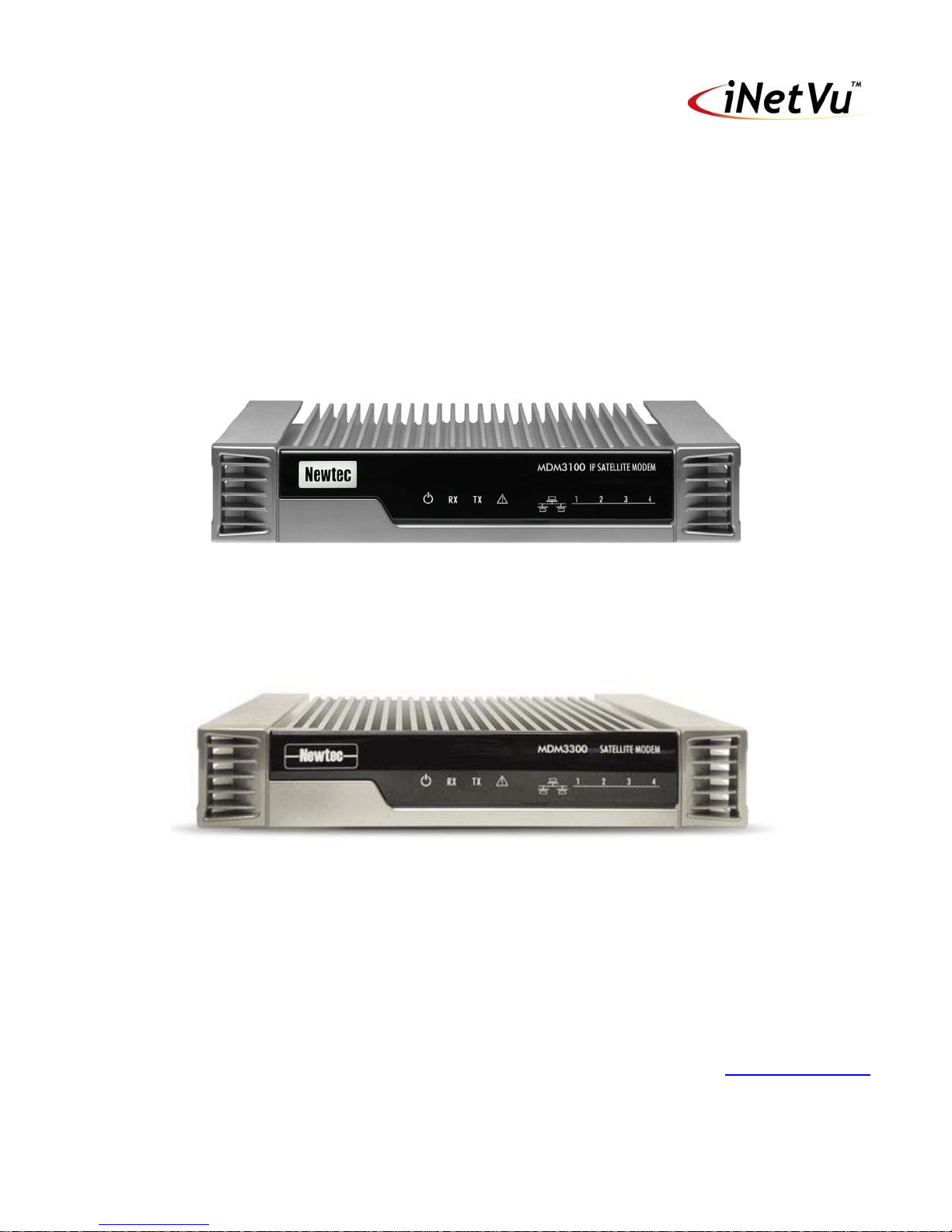
Newtec MDM3100 Satellite Modem
Newtec MDM3300 Satellite Modem
1-877-iNetVu6
www.c-comsat.com
Revision 2.1
February 8, 2017
Page 2

INETVU® MOBILE SYSTEM QUICK START – NEWTEC
This page is intentionally left blank.
C-COM Satellite Systems Inc. Page 2
Page 3
INETVU® MOBILE SYSTEM QUICK START – NEWTEC
1.1 Safety and Warning Information
For your safety and protection the following important safety information should be reviewed before
installation, configuration and use of the iNetVu Satellite Platform System and Modem equipment. It is
also recommended to read the manual in its entirety prior to setup and operation.
Warning: The following general safety precautions must be observed during all phases of setup and
operation of this equipment. Failure to comply with these precautions or with specific warnings
elsewhere in this documentation violates safety standards of design, manufacture and intended use of
the equipment. C-COM Satellites Systems Inc. assumes no liability for the customer’s failure to comply
with these requirements.
This situation or practice might result in property or
equipment damage. Ensure Sensor and Motor cables are
connected prior to powering on 7700 Series Controller. Do not
connect or disconnect cables once controller has been
powered on. It is recommended that controller is properly
C-COM Satellite Systems Inc. Page 3
grounded at all times.
Page 4

INETVU® MOBILE SYSTEM QUICK START – NEWTEC
1.2 System Overview
The iNetVu Mobile Satellite system is an automatic satellite pointing system for two-way satellite
communications. It has been designed to automatically acquire the satellite beam based on both a GPS
and other positioning parameters. It is targeted for mobile users that require high speed Internet access
in remote locations where cable and DSL do not exist. It provides two-way, high-speed data
communications over satellite. iNetVu™ empowers mobile users with the ability to stop anywhere there
is Satellite coverage and access Internet at broadband speeds. The iNetVu™ Mobile application
consists of the iNetVu™ Mobile software 7710 software (for the 7700 Series Controller
iNetVu™ Mobile Application
Key Features:
• Automatic re-peak on satellite upon signal loss.
• Automatic dish stow if Mobile Platform moves
• If the vehicle is moved before the dish is stowed, the dish will sense movement and will
automatically begin stowing itself.
• The dish will not transmit unless it is pointed adequately to meet cross-polarization
specifications.
• The system will automatically find any satellite from any point on the Earth within its coverage
area.
• Displays comprehensive information about the satellite, dish, motors, GPS, compass, control
box, and modem.
• Finds the satellite, peaks the signal strength and selects the optimal path to perform the selected
satellite, allowing the customer’s computer to be online as soon as possible
• Simple to install, configure and operate.
1.3 General
All iNetVu™ Mobile Systems have been fully tested with the iNetVu ™ 7700 Controller prior to shipment.
All position feedback; limit sensing, limit switches and motor speeds have been calibrated and preset
prior to shipping. The wave-guide, the boom mounted Radio Transmitter cables and the
Transmission/Receive coaxial cables have all pre-wired. There is no need to re-calibrate the Mobile
Platform unless directed by a C-Com Support Technician.
It is critical that the iNetVu™ Controller stay together with the Mobile Platform it shipped with. You may
refer to the iNetVu™ Shipping Checklist to confirm this.
The iNetVu™ Mobile System has been designed for either roof rack mounting or mounting directly to a
vehicle. The iNetVu ™ Mobile Platform should always be secured to the vehicle.
C-COM Satellite Systems Inc. Page 4
Page 5
INETVU® MOBILE SYSTEM QUICK START – NEWTEC
1.4 Pre-Configuration Check List
The following items should be completed/known prior to configuring the iNetVu® Mobile System.
Contact the Network Operation Center (NOC) if any of the following items are unknown or if you are
unfamiliar with them.
Prior to installing IMS and configuring your system, verify that you are using the minimum requirements
listed below. C-COM always recommends using the latest version as many fixes and improvements
have been made.
Note: The modem will arrive having been already pre-pointed and executed by the
integrator/service provider. If the pointing procedure has not been already executed
contact your service provider or refer to the Newtec User Manual for pointing procedure.
Service Type Newtec Min. Modem Firmware Min. iNetVu SW/FW Interface
MDM3100 / MDM3300
Note: Installed iNetVu Software and Controller Firmware versions MUST be identical for normal operation
€ IP Address of Satellite Modem
€ Satellite Name and Coordinate
€ DVB Carrier(s) if available
€ Transmit and Receive Polarization (Horizontal/Vertical)
€ BUC size and Antenna size (Outdoor Unit)
3.1.0.33+ 7.7.6+ AMIP
C-COM Satellite Systems Inc. Page 5
Page 6
INETVU® MOBILE SYSTEM QUICK START – NEWTEC
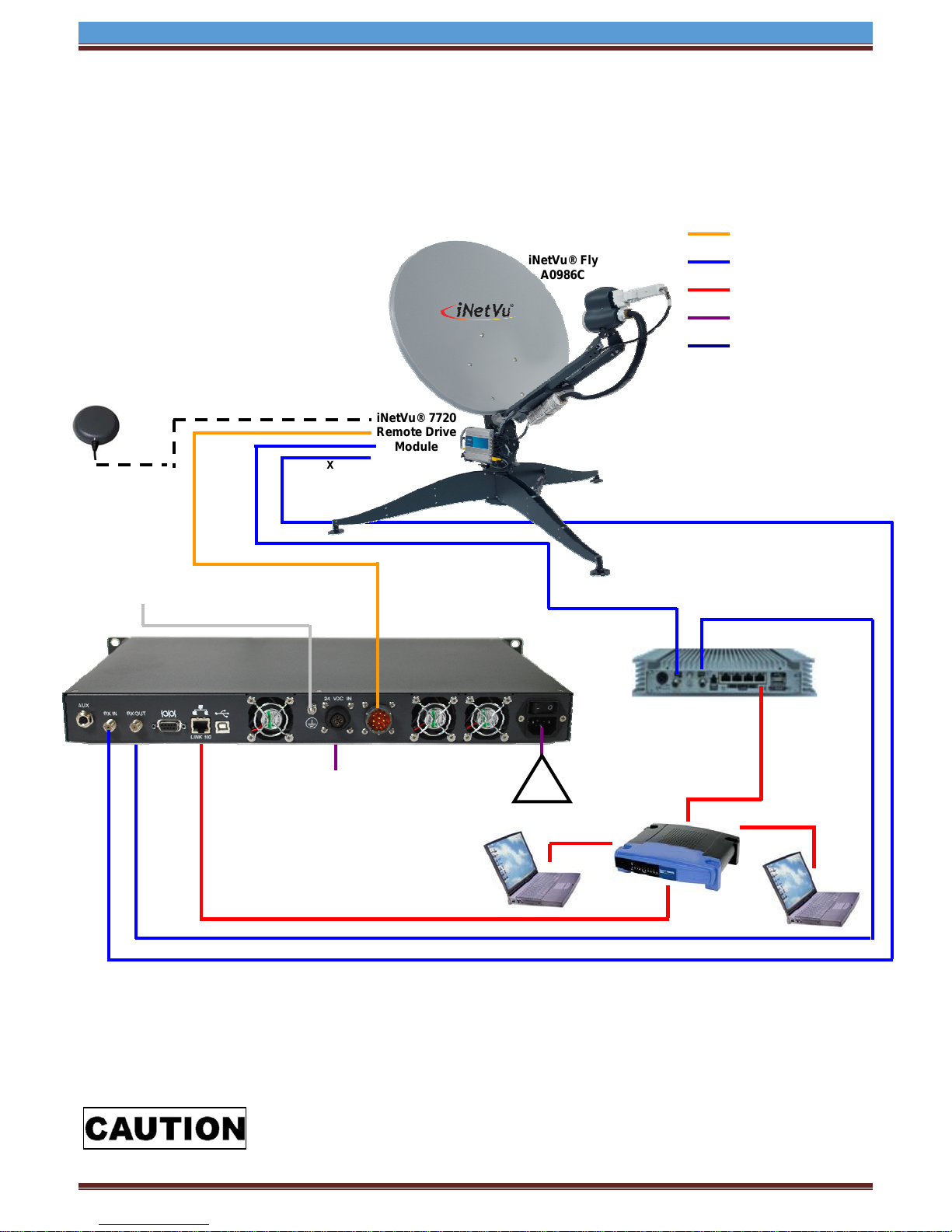
1.5 Network Interface Connection – System Wiring
iNetVu® Fly
A0986C
GPS /Glonass
Antenna
TX
RX
iNetVu® 7720
Remote Drive
Module
Control Cable
RG6 Coaxial Cable
Network Cable
Power Cable
USB Cable
*Ground
protection
External
grounding
connection
CONTROL
CABLE
24 VDC Input
(option)
iNetVu® 7710
Controller
90 - 264VAC
TX OUT
Newtec MDM3100
RX IN
LAN A
Network System Wiring Diagram for Newtec Service with LNB power supplied by the 7710 Controller
Ensure Control Cable, including RX and TX cables are
connected prior to powering on 7710 Controller.
C-COM Satellite Systems Inc. Page 6
Page 7

INETVU® MOBILE SYSTEM QUICK START – NEWTEC
1.6 Modem Console Connection – System Wiring Diagram with Splitter
GPS /Glonass
Antenna
RX IN
iNetVu® A1201A
Drive-away
RX
*Ground
protection
External
grounding
connection
USB Cable
iNetVu® 7720
Remote Drive
Module
TX
Control Cable
TX OUT
iNetVu® 7710
Controller
90 - 264VAC
USB System Wiring Diagram for Newtec Service with LNB power supplied by the Modem
Control Cable
RG6 Coaxial Cable
USB Cable
Power Cable
Network Cable
RX IN
Newtec MDM3100
Ensure Control Cable, including RX and TX cables are
connected prior to powering on 7710 Controller.
C-COM Satellite Systems Inc. Page 7
Page 8

INETVU® MOBILE SYSTEM QUICK START – NEWTEC
1.7 Initial Controller Configuration and Verification with Newtec
Once the system wiring is complete and the network configuration on your PC is configured, you are
required to configure the system parameters for the following before satellite acquisition:
€ Communication Method between IMS and iNetVu® Controller
€ Satellite Name, Longitude, and Receive Polarization
€ Search Method for service, DVB, RF or Beacon
€ Modem/VSAT Communication Parameters
The 7710 Controller may be configured via the Software Application / Web Interface / LCD interface.
Only one is necessary for complete configuration.
€ iNetVu® Software Application (preferred method)
€ First time user should use the iNetVu Wizard which is imbedded into the iNetVu software for
guidance in configuring your system.
USB Connection
Ethernet Connection
€ iNetVu® Web Interface
Ethernet Connection
€ iNetVu® 7710 Front Panel
USB drivers must be installed for USB connection method. The configuration process is only required to
be done once as long there are no change in satellite, service, modem, or platform parameters.
C-COM Satellite Systems Inc. Page 8
Page 9

INETVU® MOBILE SYSTEM QUICK START – NEWTEC
1.8 Tips and Recommendations
€ The user has the option to search for satellite using the following methods depending on what is
available to you:
DVB search and or Reference Satellite Using a Known DVB Carrier
RF search
Beacon receiver
The recommended method of satellite search is DVB using DVB-S/S2, followed by DVB
reference satellite search with RF search being the last option of choice. If using RF search, a
valid RF frequency must be entered and is highly recommended; this can be the service
frequency or any other valid RF frequency from a known carrier (preferably taken from Modem
parameters)
Search Method
€ DVB or RF search are selectable from the drop down window. DVB will search directly on DVB-
S1 or DVB-S2 carrier and lock on it. This is the option of choice to use when searching for
satellite. RF option will allow the user to base satellite searching and peaking strictly on RF
instead of DVB.
This method of searching could be used when the user is having a hard time finding the
transponder data for a specific satellite, or if no transponder data exists. The controller will then
peak on the modem signal when the satellite is found. RF search should be used as a last resort
after DVB and or DVB with reference satellite because search time is much longer.
€ The Reference Satellite option is useful when the user cannot find a DVB transponder on the
desired target satellite. The user may select a reference satellite with a known DVB
Transponder. The iNetVu
point to the desired target satellite, and peak on the modem signal. Does not work if search
method selected is RF Search.
€ Beacon Receiver is used to lock onto a satellite without the use of a modem.
Compass Issues?
If you are in an area where there is magnetic interference or the compass readings are incorrect, it is
recommended to select Full Search which will also override the compass.
Full Search
Override Compass
Selecting Full Search will auto select Override Compass and set the AZ Search Window to 180 or
any other value depending on the Platform type. This value can be overridden to a more desirable
range. Override Compass can be selected without selecting Full Search but this does not hold
true for the vice-versa.
®
System will lock onto the reference satellite, and then pivot from that
Refer to Controller User Manual for more information on using the iNetVu Controller and
options associated with your system.
C-COM Satellite Systems Inc. Page 9
Page 10

INETVU® MOBILE SYSTEM QUICK START – NEWTEC
1.9 Software Setup and Initial Configuration Procedure with Newtec
Service
1. If you are using the network interface to communicate with the 7710 Controller, set the
PC/Notebook to the same network as the 7710 Controller. (If you are using the USB interface,
you may skip to the Software Installation)
2. Open Network and Sharing Center\Network
Connections, right-click your network card, and select
Properties.
3. Select Internet Protocol Version 4 (TCP/IPv4) and click
Properties.
4. Select Use the following IP address.
Set your PC to the same subnet as the 7710 Controller.
IP Address: A.B.C.D+2
Subnet Mask: 255.255.255.0
Gateway: A.B.C.D (Modem/Router IP)
The Gateway is usually the Router IP address. If no router is used, it
is usually the VSAT Modem IP Address.
Set the DNS IP Addresses if required.
C-COM Satellite Systems Inc. Page 10
Page 11

INETVU® MOBILE SYSTEM QUICK START – NEWTEC
W
5. Set the 7710 Controller to the same network as the PC and VSAT Modem.
*Note: The controller IP should be set in the controller through the LCD interface prior to entering
it into the software tool for proper PC to Controller Communication through network interface.
(USB Interface users may skip this step)
To Configure the IP address on the controller, you must navigate to the CONF menu using the
LCD Interface. (Default password “password”)
a. Navigate to the “IP” menu and press the “ENTER” button.
SAT MDM EL AZ PL GP
MT CC P
SG IP SR
b. Press the ‘↑’ button to allow for modification on the C_IP field and set the IP address
of the controller. For example, if the Modem/Router IP is 192.168.0.1 then the
controller IP could be set to 192.168.0.2. Press the “ENTER” button once the change
is complete.
C_IP: 192.168.000.002
M IP: 192.168.000.001
c. Press the “Exit” button twice to exit out of the configuration menu. When prompted if
you would like to save configuration, press the ‘↑’ button to select “Y” (yes) and press
“Enter”.
d. Click the “reset” button on the controller.
You may view the 7710 Controller IP from the LCD interface via – MONITOR IP (C_IP)
C-COM Satellite Systems Inc. Page 11
Page 12

INETVU® MOBILE SYSTEM QUICK START – NEWTEC
1.10 Software Installation and Configuration
Please Note: Do not connect the Controller via USB until the drivers and software have been
installed.
1. If you are installing from the USB flash drive or have downloaded from the C-COM FTP, run the
iNetVu7710Setup.exe file.
2. Install the FTDI USB Driver and continue through the Installation Wizard.
3. Install the iNetVu 7710 Software and close when complete.
4. Now connect the Controller to the PC using the provided USB cable.
5. You have successfully installed the 7710 iNetVu Drivers and Software. Exit the setup wizard.
6. You can now run the iNetVu Mobile 7710 software from the shortcut on your desktop.
C-COM Satellite Systems Inc. Page 12
Page 13

INETVU® MOBILE SYSTEM QUICK START – NEWTEC
1.11 iNetVu Setup Wizard
1. The first screen you will see is the new iNetVu Setup Wizard. You can choose to continue using
the wizard or click NO to proceed to the iNetVu Mobile 7710 software.
NOTE: It is recommended that you continue to the iNetVu Setup Wizard and confirm all
required information is correct. Please select “Do not show this message again” so this pop-up
will not appear after you have completed the initial Controller setup.
2. If the controller firmware does not match you will be prompted to update.
C-COM Satellite Systems Inc. Page 13
Page 14

INETVU® MOBILE SYSTEM QUICK START – NEWTEC
3. Follow the on screen instructions to update the controller firmware. Once complete the wizard
will resume.
C-COM Satellite Systems Inc. Page 14
Page 15

INETVU® MOBILE SYSTEM QUICK START – NEWTEC
4. Configure the Platform Type, Version and Serial No. If no changes are needed press “Next” to
continue.
Platform
Type: Antenna Model
Version: Antenna Version
Serial No: Antenna Serial Number
It is important that this information be correct or will result in undesired antenna behavior.
C-COM Satellite Systems Inc. Page 15
Page 16

INETVU® MOBILE SYSTEM QUICK START – NEWTEC
5. Complete the Service Information section, set to Newtec as the Service Type. Select the
Interface method you wish to use and configure accordingly. Mouse over each selection for a
detailed description. After changes, have been made please click “Next” to continue.
Service Information
Type: Newtec
Interface: Telnet or COM (how the Controller will communicate with the
Modem)
Modem Configuration
IP Address: Enter the Modem IP Address
Baud Rate: COM Port Interface use 9600 or 4800
Password: P@55w0rd! / Newtec
Controller TCP/IP Settings
IP Address: Controller IP Address
Subnet Mask: Controller Subnet Mask
Default Gateway: Controller Gateway (Modem or Router)
C-COM Satellite Systems Inc. Page 16
Page 17

INETVU® MOBILE SYSTEM QUICK START – NEWTEC
6. Click Finish to complete the setup.
7. Select Yes, or select No to return to the previous screen to make additional changes.
8. Congratulations you have configured your iNetVu Controller. You can now find satellite by
pressing the FIND SAT button from the front panel or by launching the iNetvu Software.
*For more detailed information on the iNetVu® 7700 Controller Software, refer to the iNetVu® 7700
Controller Manual
C-COM Satellite Systems Inc. Page 17
 Loading...