

Page 1
© 2014 Inepro B.V. All rights reserved
Installation Guide
DocuPRO Embedded
Client for Xerox
Product Version: 7.0
Version of this manual: 7.0.9
Page 2

Page 3
DocuPRO Embedded Client for Xerox
Congratulations on selecting an Inepro Solution. We are certain you will be pleased with
your purchase of one of the finest solutions of the market.
We want to help you get the best result out of your Inepro Solution and to operate in
an efficient manner. This manual contains information on how to do that; please read it
carefully. Due to continuous product improvements this manual is subject to changes
without notice.
We strongly recommend you read the license agreement to fully understand its
coverage and your responsibilities of ownership.
Your Inepro buisiness partner is dedicated to your satisfaction and will be pleased to
answer your questions and your concerns.
Best wishes,
Inepro BV.
The most efficient embedded solution
Page 4

All rights reserved. No parts of this work may be reproduced in any form or by any means - graphic, electronic, or mechanical,
including photocopying, recording, taping, or information storage and retrieval systems - without the written permission of the
publisher.
Products that are referred to in this document may be either trademarks and/or registered trademarks of the respective owners. The
publisher and the author make no claim to these trademarks.
This product has been developed using Xerox Corporation proprietary embedded architecture or other proprietary Xerox products.
This document includes information which has been provided by Xerox Corporation, and such information is © Xerox Corporation or
its licensors. Copying in whole or in part of the Xerox information without permission of Xerox is prohibited, except to the limited
extent permitted by mandatory applicable law.
While every precaution has been taken in the preparation of this document, the publisher and the author assume no responsibility for
errors or omissions, or for damages resulting from the use of information contained in this document or from the use of programs and
source code that may accompany it. In no event shall the publisher and the author be liable for any loss of profit or any other
commercial damage caused or alleged to have been caused directly or indirectly by this document.
Version 7.0.9 created: October 2014 in Nieuw-Vennep, The Netherlands
Publisher
Managing Editor
Technical Editors
Cover Design
Inepro B.V.
K. de Graaf
R. Post
K. de Graaf
Production
Inepro B.V.
Team Coordinator
R. Groen
H. Wagenaar
DocuPRO Embedded Client for Xerox
Page 5

Version 7.0.9 Inepro B.V. http://www.inepro.com
Table of Contents
Introduction
2
Requirements
4
Networking/Firewall Configuration
6
Installation
8
Configuration
12
........................................................................................................................................................ 121 Auto configure MFP’s
........................................................................................................................................................ 182 MFP Configuration
....................................................................................................................................................................................................... 18System Timeout
....................................................................................................................................................................................................... 19Confirmation / Error Reports
....................................................................................................................................................................................................... 20Secure Access
....................................................................................................................................................................................................... 22Web Services
........................................................................................................................................................ 223 Check MFP Settings
....................................................................................................................................................................................................... 23Enable SSL
....................................................................................................................................................................................................... 23Network Accounting
....................................................................................................................................................................................................... 25Lock All Applications
....................................................................................................................................................................................................... 26Set Default Application
....................................................................................................................................................................................................... 26Secure Access
Business Server Settings
28
Appendix I
32
Page 6

Page 7

Introduction
Part
I
Page 8

Introduction
2 - DocuPRO Embedded Client for Xerox
Introduction
Extensible Interface Platform (EIP) is a platform on which developers can create
an application that can drive the copier, scan and print functions.
DocuPRO embedded client for Xerox can release print jobs, copy and scan, and
will register and optionally enforce payment for those functions.
The DocuPRO client for Xerox embedded system has a number of basic functions:
§
Print
§
Copy
§
Scan
The main focus of the system is a payment and accounting system for the basic
machine functions and provide a print release option for the Inepro DocuPRO
system. In order for this to work the system prevents the machines to be used
freely until a user is logged in. It also records all the transactions a user does
until the user logs out and store these to a central server
Page 9

Requirements
Part
II
Page 10

Requirements
4 - DocuPRO Embedded Client for Xerox
Requirements
§
The Xerox MFP’s must have the “Xerox Secure Access” authentication method
and the “Network Accounting” method installed. You may need to contact Xerox
to enable these functionalities.
§
Ensure that the Xerox MFP’s are connected to the network.
§
Have the network addresses of the Xerox MFP’s available. It is recommended
that the MFP’s are configured with a static IP.
§
Have the network address available of the system running the Inepro Business
Server.
§
Ensure your DocuPRO version is 7.0.14 or higher.
§
Ensure your Xerox EIP (Extensible Interface Platform) version is 2.0 or higher
Page 11

Networking/Firewall Configuration
Part
III
Page 12
Networking/Firewall Configuration
6 - DocuPRO Embedded Client for Xerox
Networking/Firewall Configuration
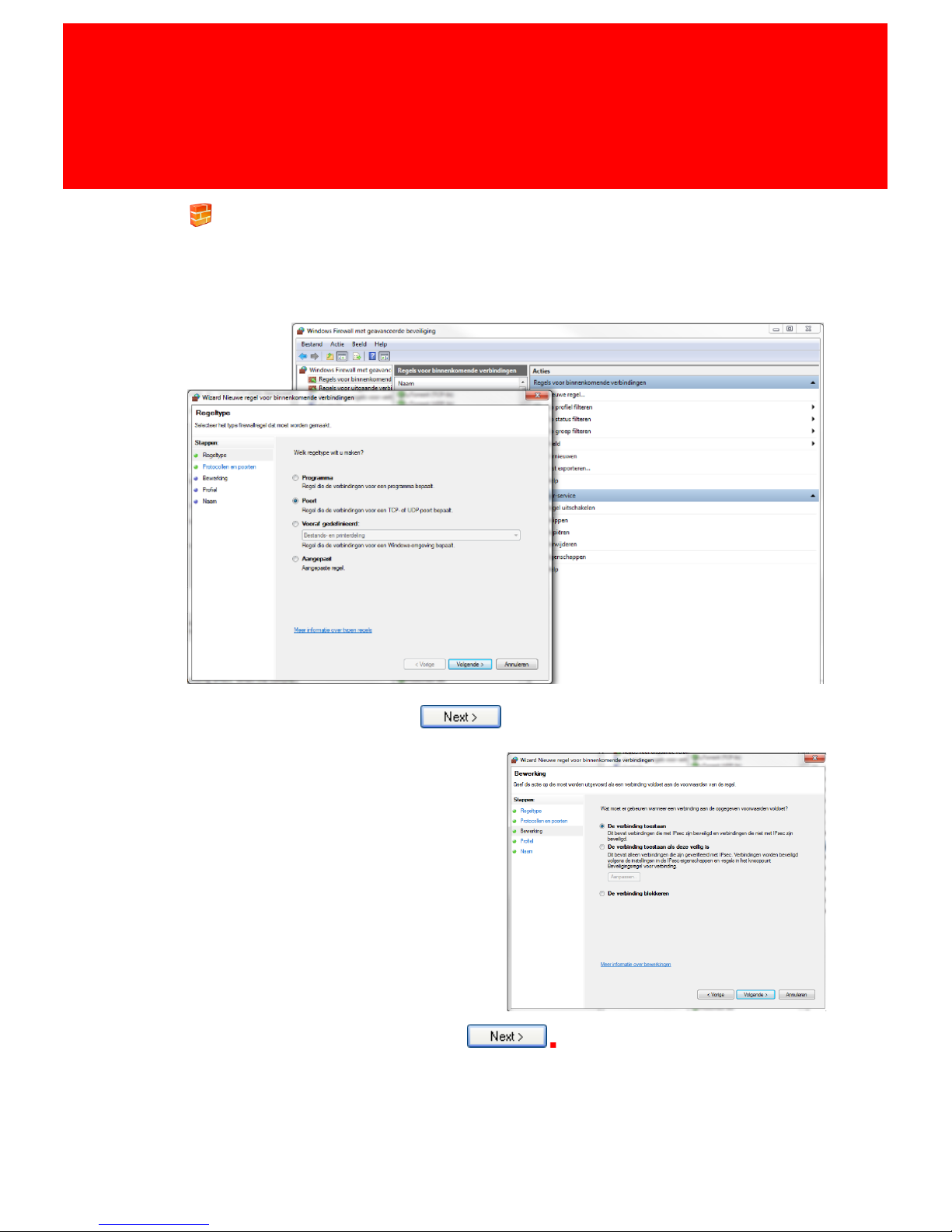
Ensure that your networking/firewall configuration allows port 10056 for inbound TCP connections
from the Xerox MFP’s.
Make a rule, select port. Click .
Enter the port number (10056) and click
'Next'.
Choose 'Allow Connection' and click
Page 13

Installation
Part
IV
Page 14
Installation
8 - DocuPRO Embedded Client for Xerox
Installation
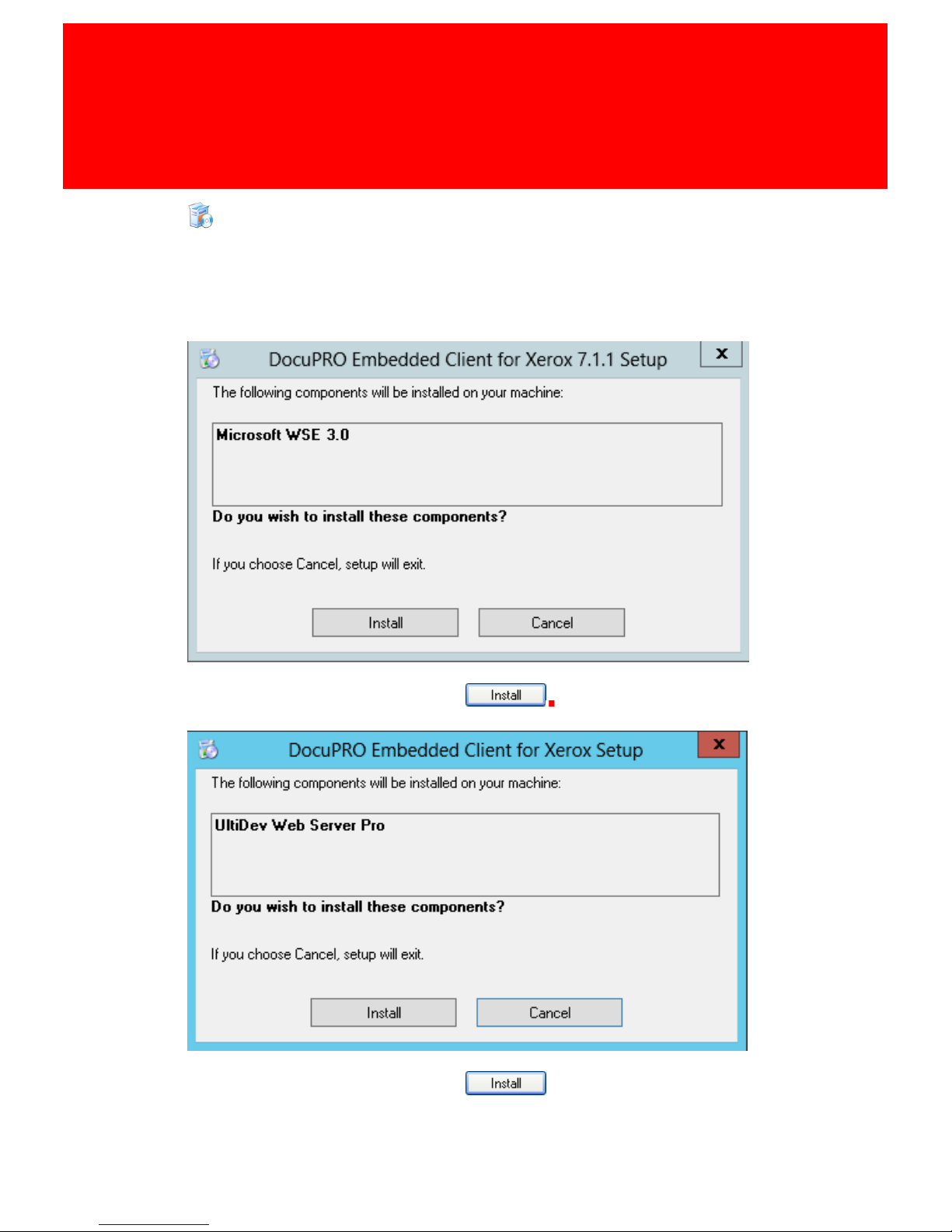
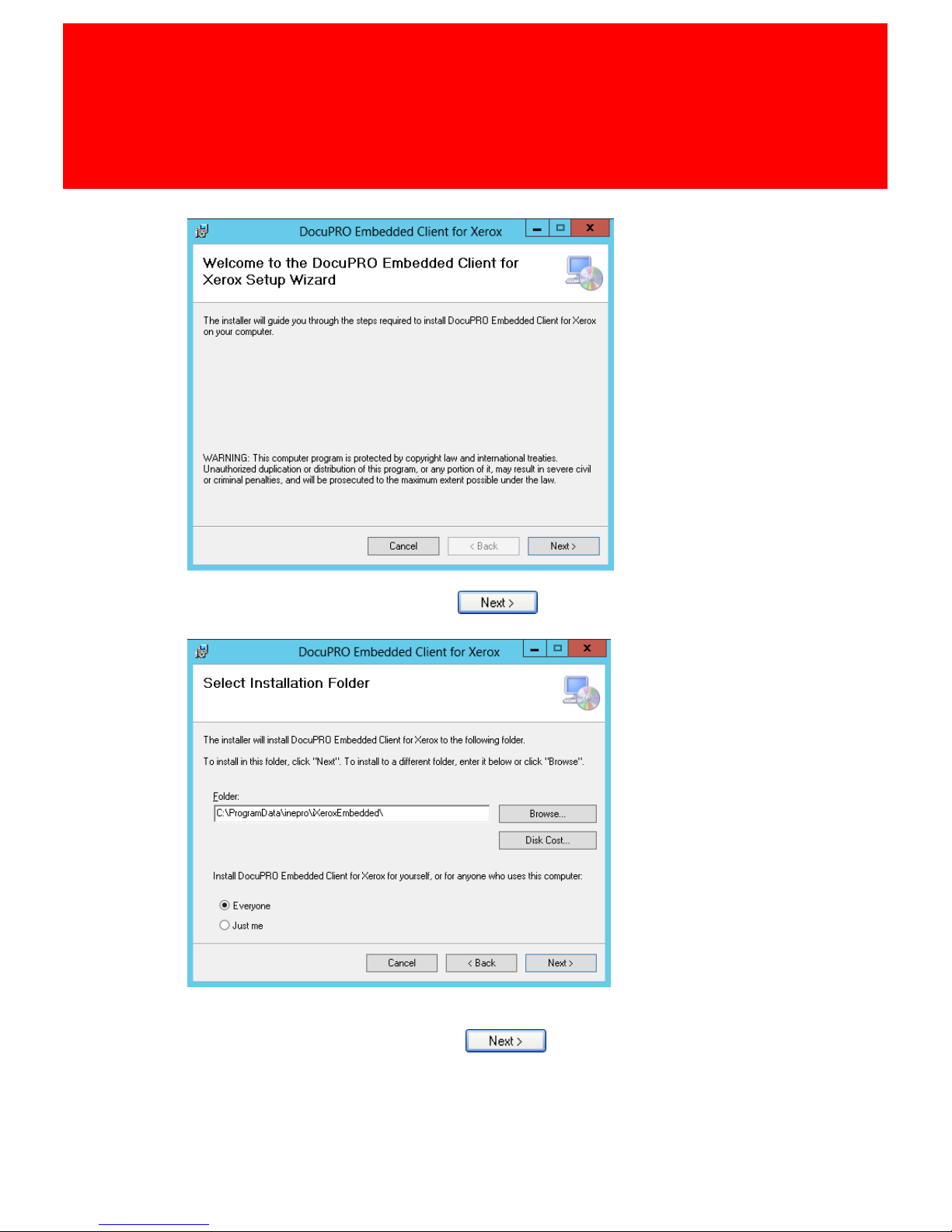
Start setup.exe (not the msi file!) to begin the installation process. Follow the instructions on
screen to begin installing DocuPRO Embedded Client for Xerox.
You will be prompted to install Microsoft WSE 3.0, Ultidev WebServer and .Net 4.0 if not installed
already.
Continue the installation by clicking
Continue the installation by clicking .
Page 15
Version 7.0.9 - 9
Confirm the installation by clicking .
Choose your installation folder, recommended is that you leave this default.
Continue the installation by clicking .
Page 16
Installation
10 - DocuPRO Embedded Client for Xerox
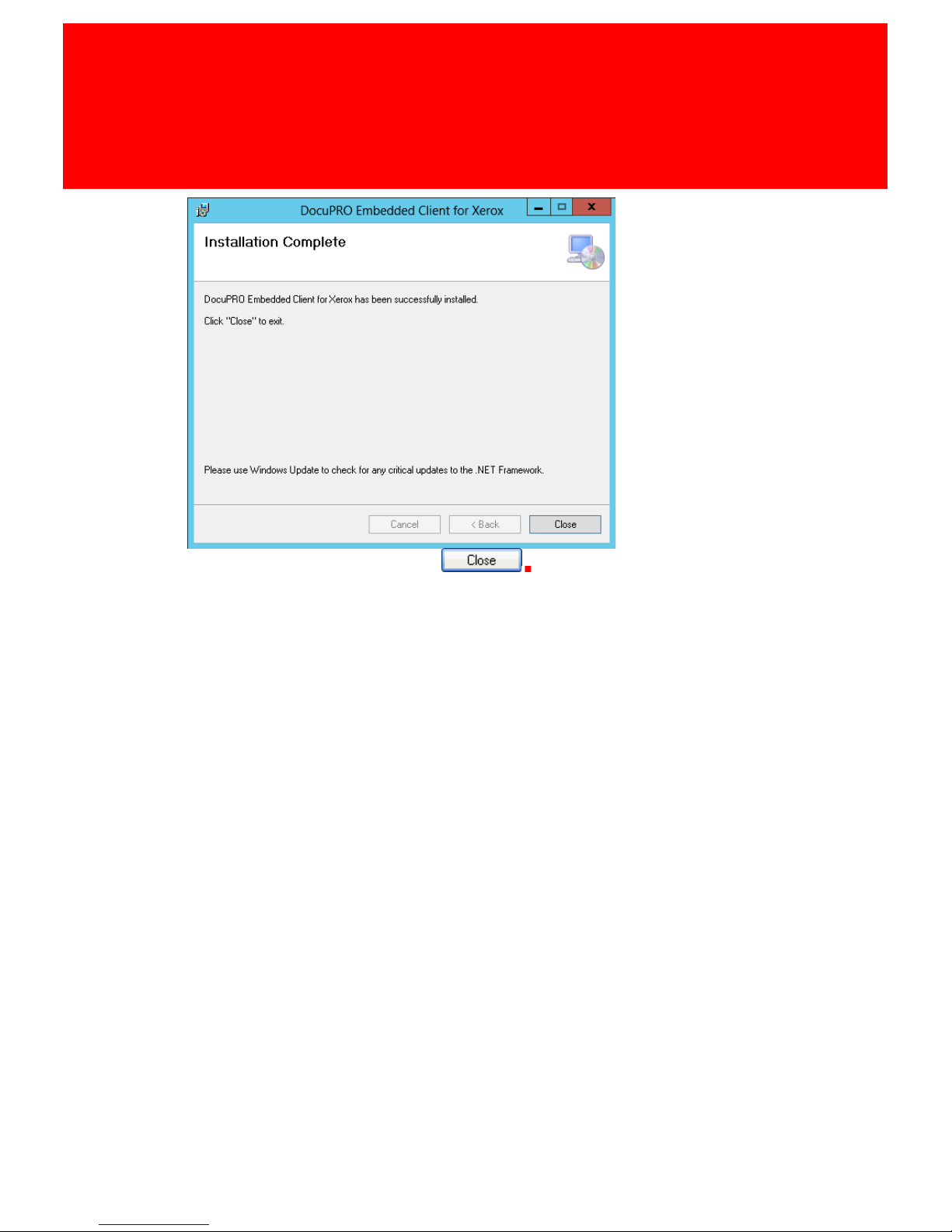
Finish the installation by clicking
Page 17

Configuration
Part
V
Page 18
Configuration
12 - DocuPRO Embedded Client for Xerox
Auto configure MFP’s
UltiDev Web Server settings
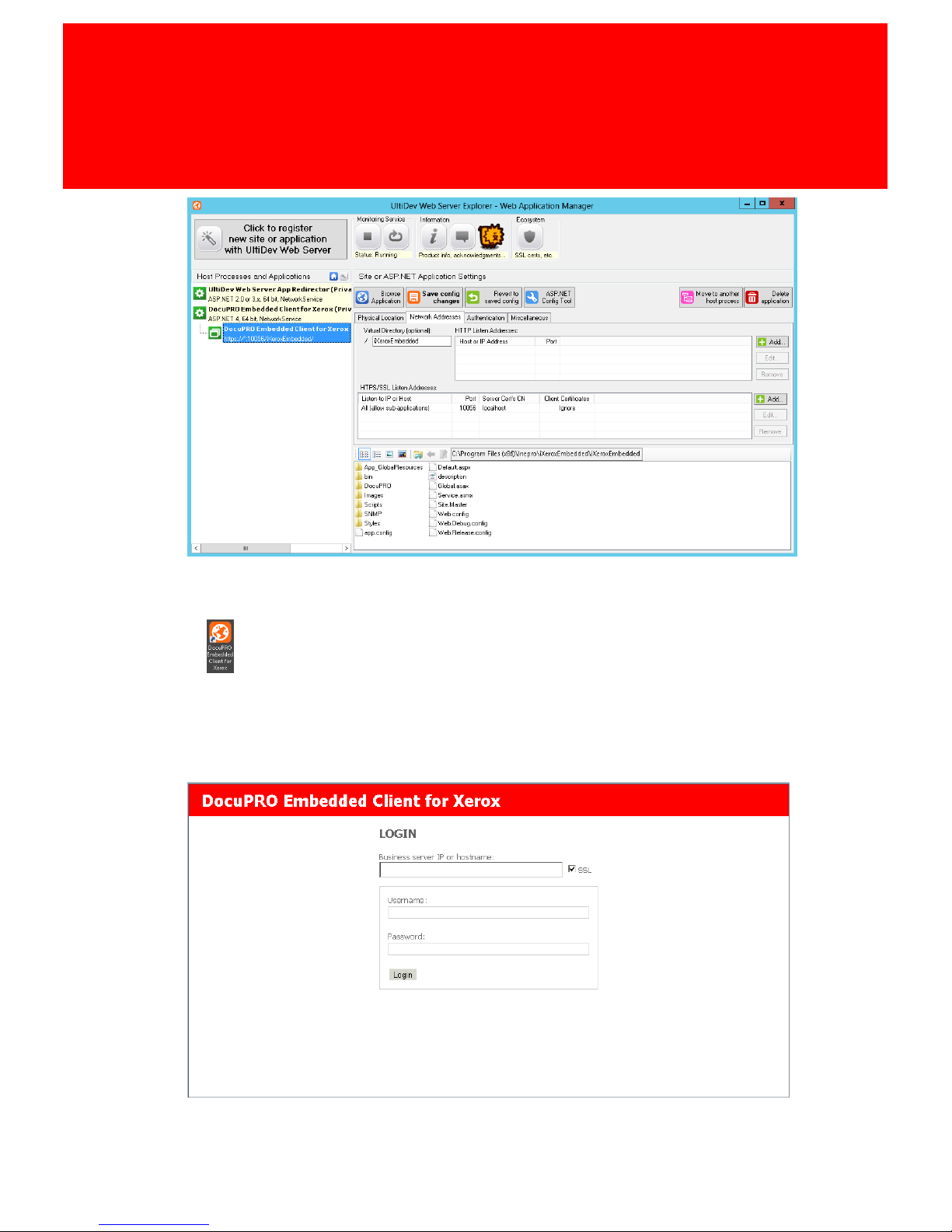
1. When the installation is completed start the UltiDev Web Server Explorer.
Check if the iXeroxEmbedded application is running.
2. Next go to the Network Addresses tab
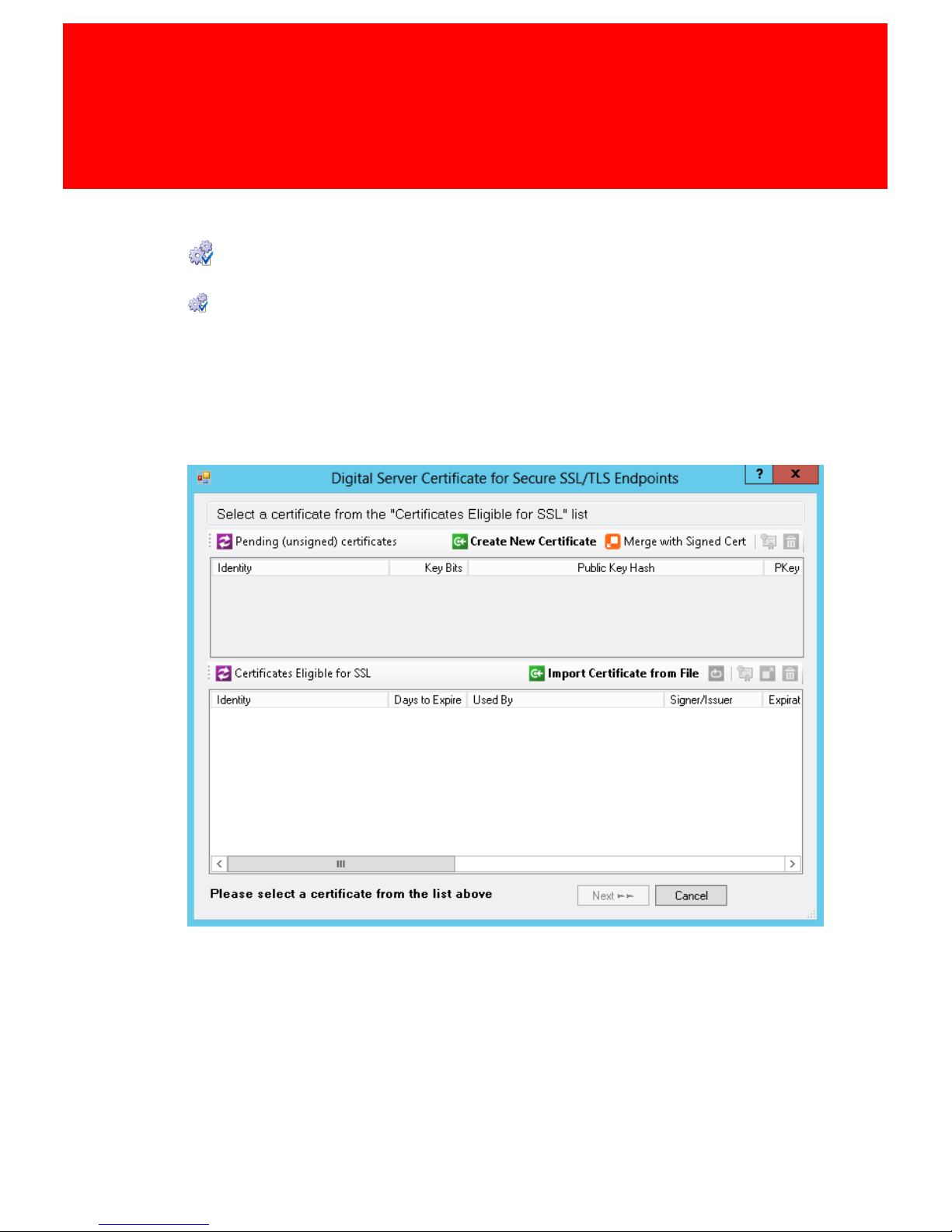
3. Add a SSL Listen Address at port 10056 (Click 'Create a new certificate').
4. A new window opens.
Page 19

Version 7.0.9 - 13
5. Create a self-assigned test certificate.
6. Select or type 'localhost', click .
7. Select certificate, click .
8. Fill out the port number, click .
Page 20
Configuration
14 - DocuPRO Embedded Client for Xerox
9. Click Save config changes.
10.When the application is running again, browse to
https://localhost:10056/iXeroxEmbedded or click this shortcut on the desktop:
.
11.Fill in the Business server IP or host name and log in with your Inepro
Manager staff authentication (username and password). A Inepro
authentication must have been created in the Inepro Manager, please refer to
the Inepro Back Office Manager for instruction on creating authentication
accounts in the Inepro Back Office Manager.
12.Click login to continue.
Page 21
Version 7.0.9 - 15
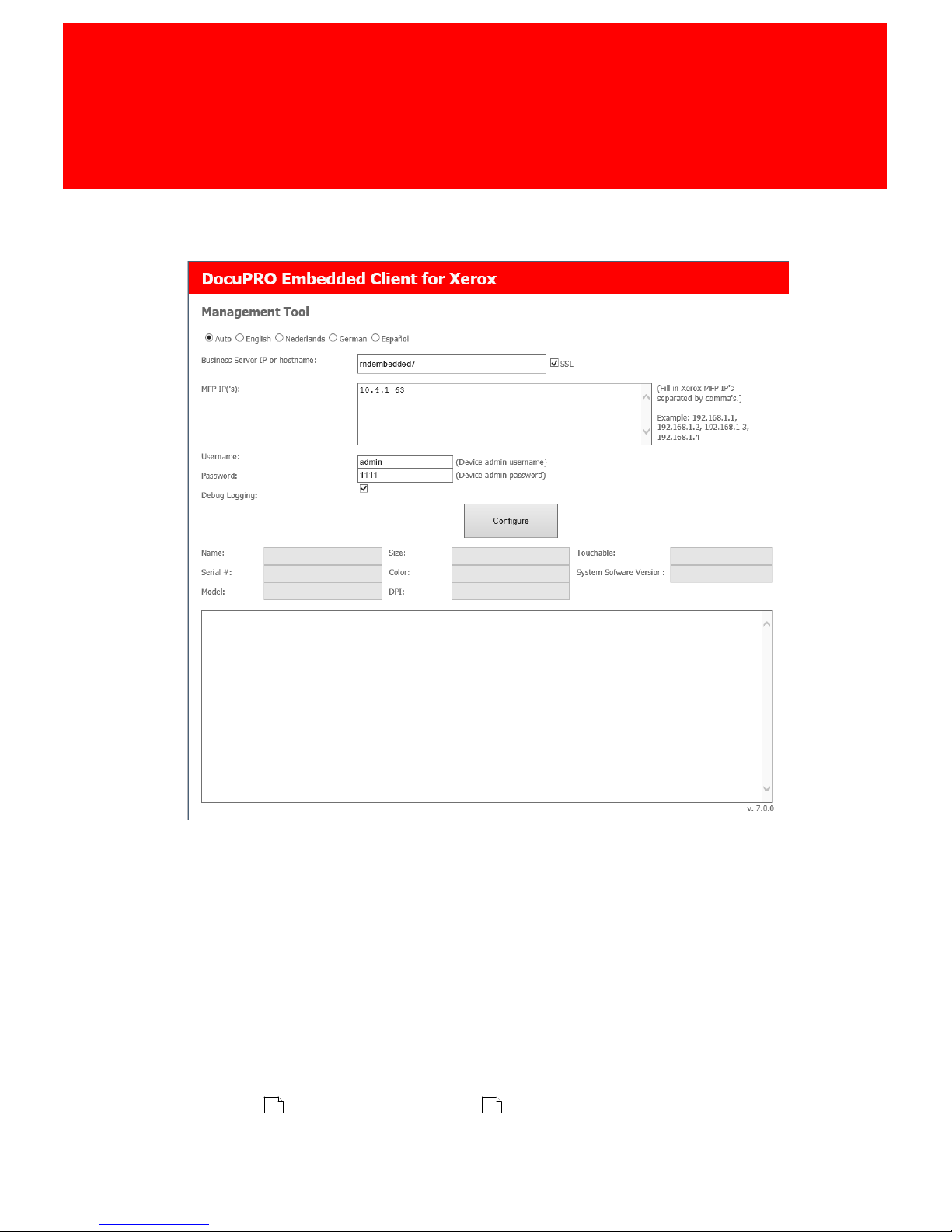
13.At this page configurations can be made. It will also enabe configuration of the
MFP’s automatically and will install the Inepro embedded application on the
devices.
14.Specify the preferred language that should be displayed on the machines. If
this is left on auto, it will use your browser language.
15.Fill out the IP or Hostname where the Inepro business server is installed and if
SSL is enabled. (This is enabled at default).
16.List all Xerox MFP IP’s which should have the Inepro embedded application
installed, separated by comma. (Example 192.168.1.1, 192.168.1.2, etc. ).
17.Fill out the admin username and password of the MFP’s. If this differs per
device it must be configured separately.
18.If debugging, debug logging should be enabled, otherwise leave the checkbox
empty.
19.When everything is ready click 'Configure'.
20.Now all the MFP’s will almost completely be configured automatically. Some
settings must be set manually, this will be done in the MFP configuration
section . See Check MFP Settings to validate the essential settings.
18 22
Page 22

Configuration
16 - DocuPRO Embedded Client for Xerox
Page 23
Version 7.0.9 - 17
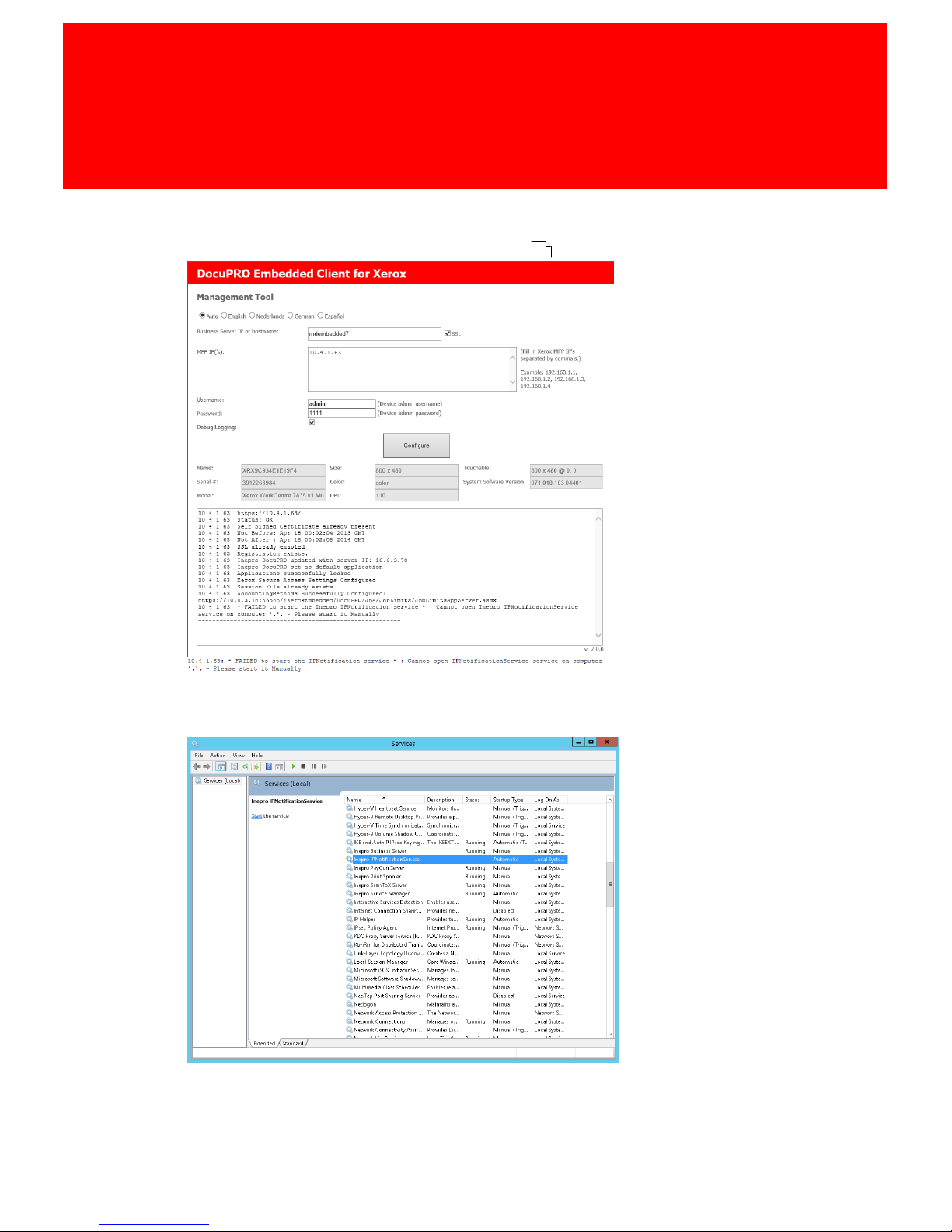
21.If everything went well the previous screen should be seen. If errors are
shown, please configure the afflicted MFP's manually using the MFP web
interface as shown in Check MFP Settings .
22.If the message above is displayed, please start the IP Notification service
manually.
22
Page 24
Configuration
18 - DocuPRO Embedded Client for Xerox
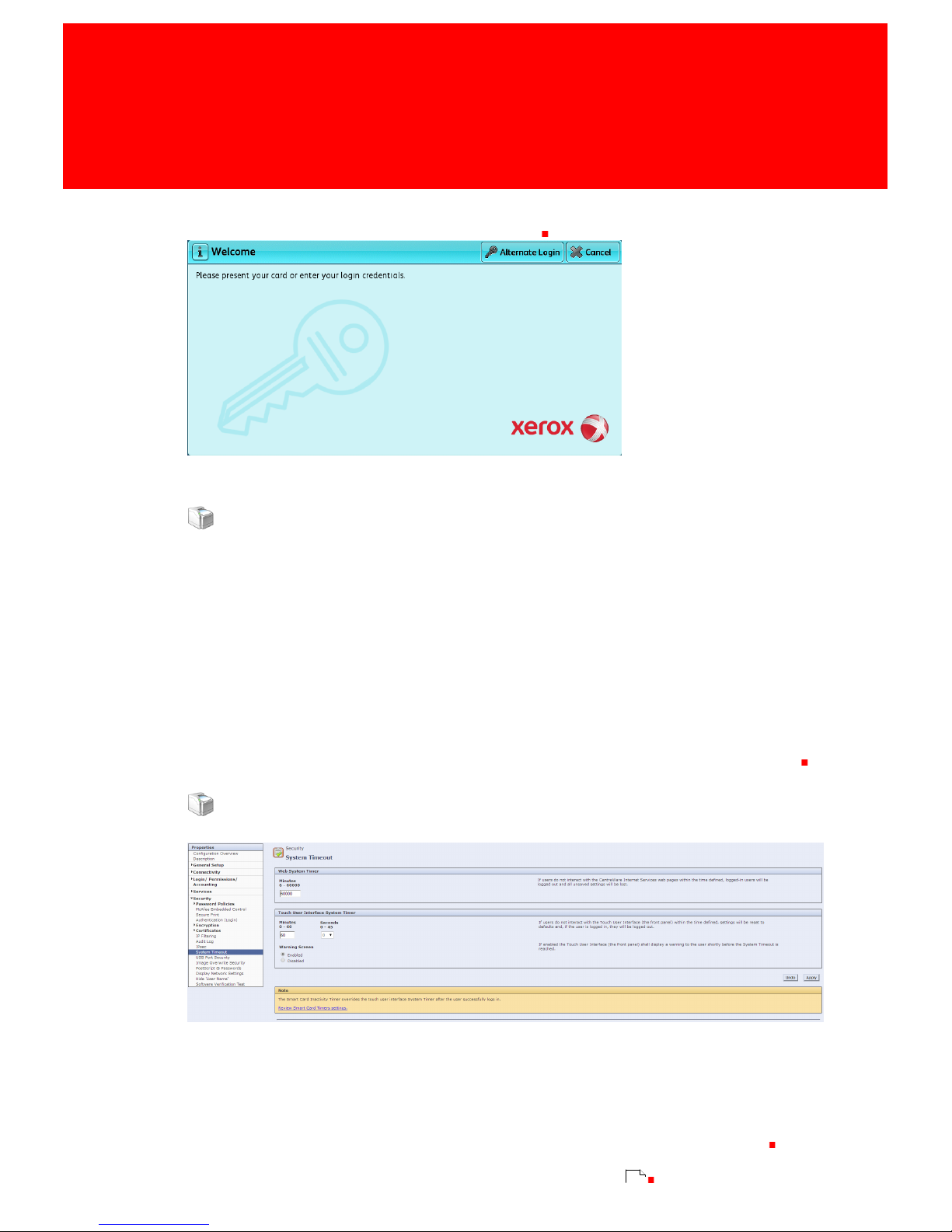
23.Please check the MFP. The MFP’s should now have the following lock screen or
something similar depending on the device
Mandatory MFP Settings
These steps must be followed to ensure a correct installation of the MFP for the DocuPRO
embedded client for Xerox.
The specific steps, screen layouts and button/label names can differ between device models.
However the general process is the same for all supported devices.
The following options need to be configured:
§
System Timeout
§
Confirmation / Error reports must be disabled
§
Secure Access
§
Web Services
Login to the web browser admin panel via the MFP IP adress and then go to the properties tab
System Timeout
Set System Timeout to the maximum setting
At the 'services' section:
- Got to 'Security > System Timeout'
§
Set Touch User Interface System Timeout at the maximum setting (usually 60 minutes).
This is done to insure that the setting is in effect managed by the Inepro Business Server,
(setting CustomerLogoffTimeout). This is set by default at 120 seconds (2 minutes)
See section CustomerLogoffTimeout at the Business Server Settings
28
Page 25

Version 7.0.9 - 19
Turn Off Confirmation / Error Reports
Services
At the 'services' section:
- Printing > General
§
Set Print Banner Sheets to No and Print Error Sheets to Disable.
- Work flow Scanning > General Settings
§
Set Configuration Sheet to Off.
Page 26
Configuration
20 - DocuPRO Embedded Client for Xerox
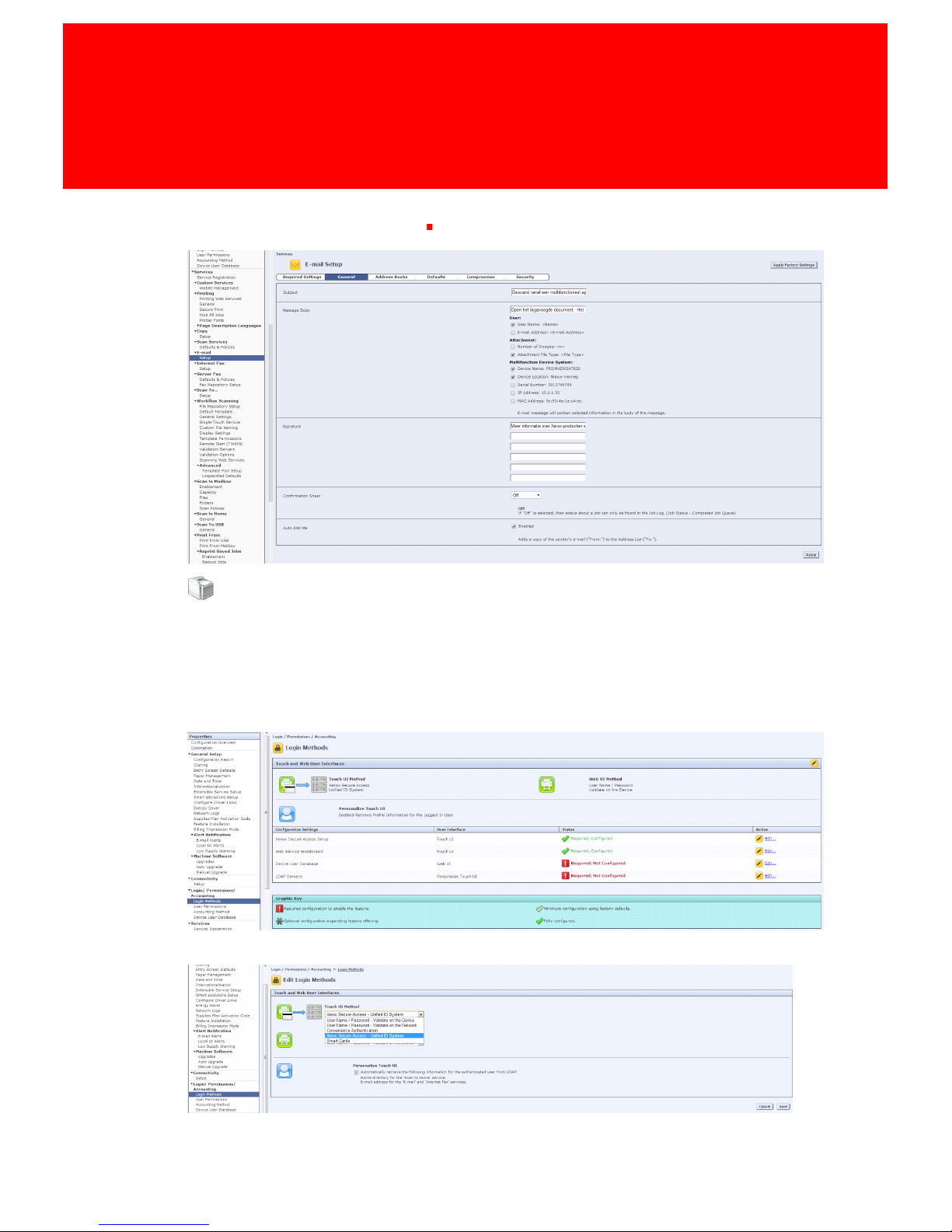
- Email > Setup > General
§
Set Configuration Sheet to Off
Secure Access
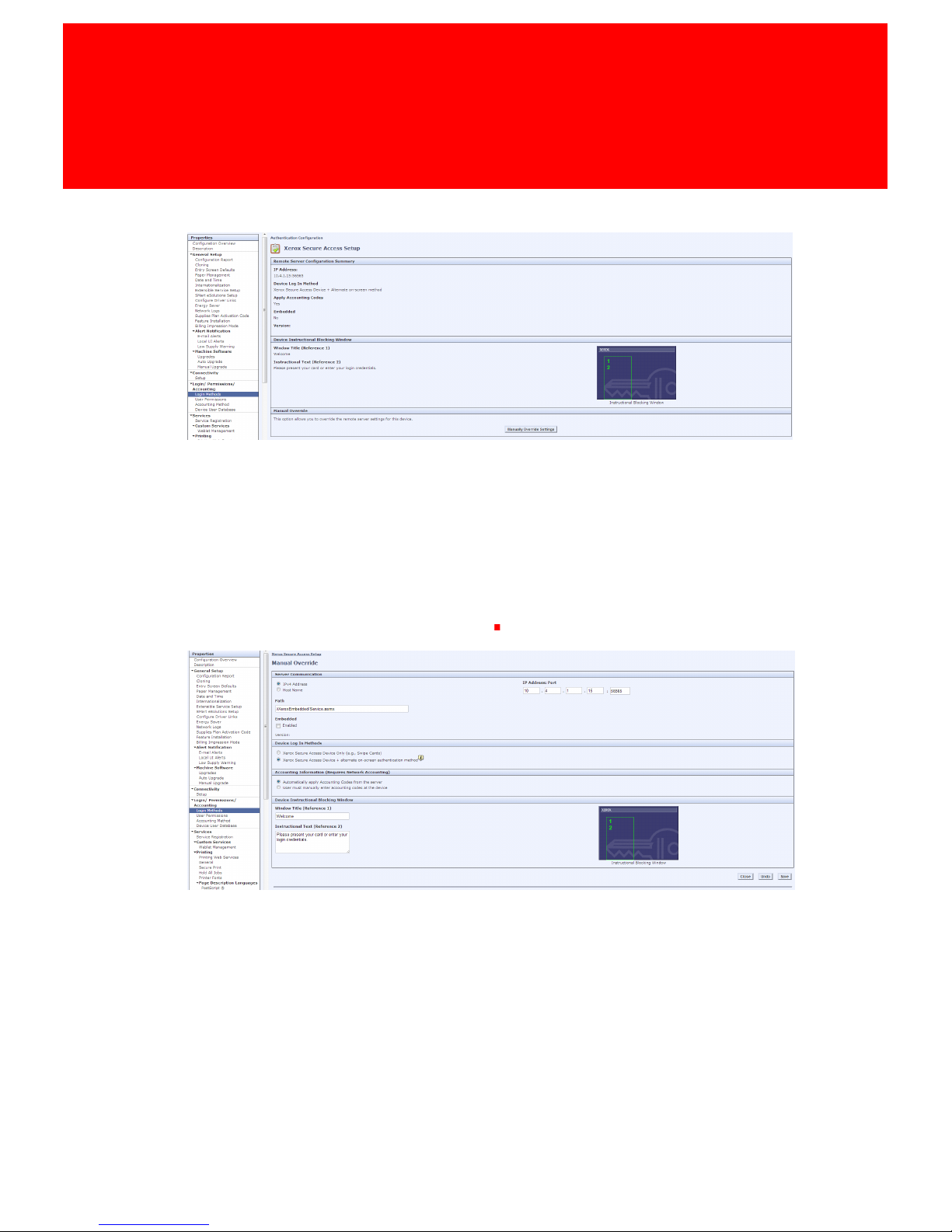
At Login/Permissions/ Accounting
• Login Methods
- Make sure Xerox Secure Access is selected.
If not click the edit button and select it from the list.
Page 27
Version 7.0.9 - 21
When enabled click Xerox Secure Access Setup and in the next screen click Manually
Override Settings.
Make sure:
• The Path is /iXeroxEmbedded/Service.asmx
- The IP of the server where the embedded is installed is correct and the port is 10056.
• At Device Log In Methods Xerox Secure Access Device + alternate on-screen authentication
method is selected.
- This will enable the user to login manually at the device's touch panel.
• At Accounting Information (Requires Network Accounting) Automatically apply
Accounting Codes from the server is selected
Page 28

Configuration
22 - DocuPRO Embedded Client for Xerox
Web Services
At Printing
• Printing Web Services
- Make sure all services are enabled
Check MFP Settings
Please follow these steps to validate that everything during the automatic configuration went ok.
If there where errors during the automatic configuration please also follow these steps.
The specific steps, screen layouts and button/label names can differ between device models.
However the general process is the same for all supported devices.
The following options need to be configured:
§
A Certificate must be present
§
SSL must be enabled
§
Network Accounting must be enabled
§
All applications must be locked
§
The default application should be Inepro DocuPRO
§
Secure Access must be enabled with the correct information
Login to the web browser admin panel via the MFP IP adress and then go to the properties tab
Page 29
Version 7.0.9 - 23
Enable SSL
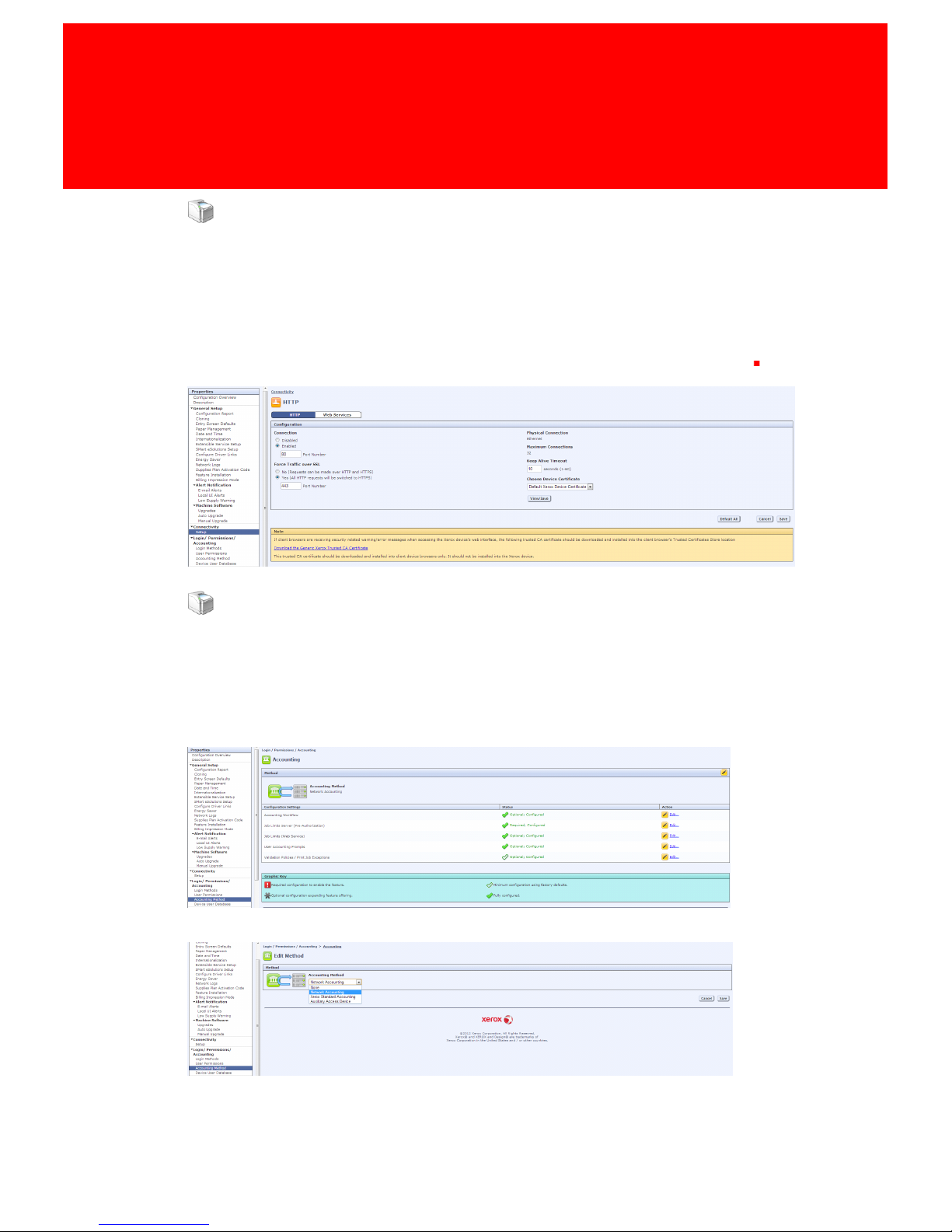
At Connectivity
• Setup
- HTTP
§
Make sure a certificate is present and Force Traffic over SSL is checked to Yes
Network Accounting
At Login/Permissions/ Accounting
• Accounting Method
- Make sure Network Accounting is selected.
If not click the edit button and select it from the list.
Page 30
Configuration
24 - DocuPRO Embedded Client for Xerox
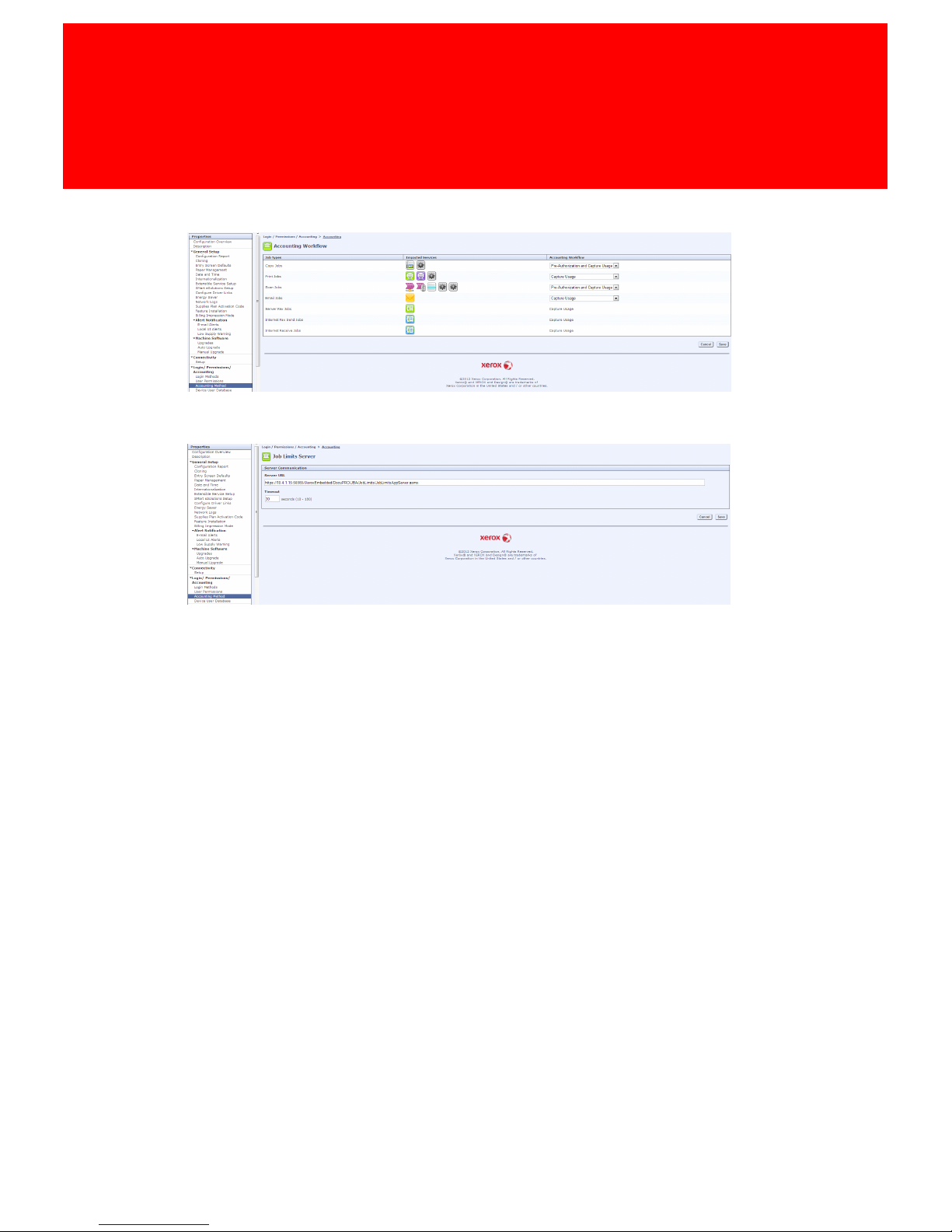
Make sure the Accounting Workflow for Copy and Scan jobs is selected to Pre-Authorization
and Capture Usage and the rest Capture Usage.
And the Job Limits Settings is the correct url:
https://IP:10056/iXeroxEmbedded/DocuPRO/JBA/JobLimits/JobLimitsAppServer.asmx
Page 31

Version 7.0.9 - 25
Lock All Applications
At Login/Permissions/ Accounting
• User Permissions
- Click edit at User Permission Roles
§
Click edit at Non-Logged-In-User
§
Click the Services & Tools tab
§
Make sure the Restrict access to all Services and Tools option is checked
Page 32

Configuration
26 - DocuPRO Embedded Client for Xerox
Set Default Application
At General Setup
· Entry Screen Defaults
o
Make sure Inepro DocuPRO is selected at Services and at Default Walkup Screen
Secure Access
See Secure Access settings in MFP Configuration
18
Page 33

Business Server Settings
Part
VI
Page 34
Business Server Settings
28 - DocuPRO Embedded Client for Xerox
Business Server Settings
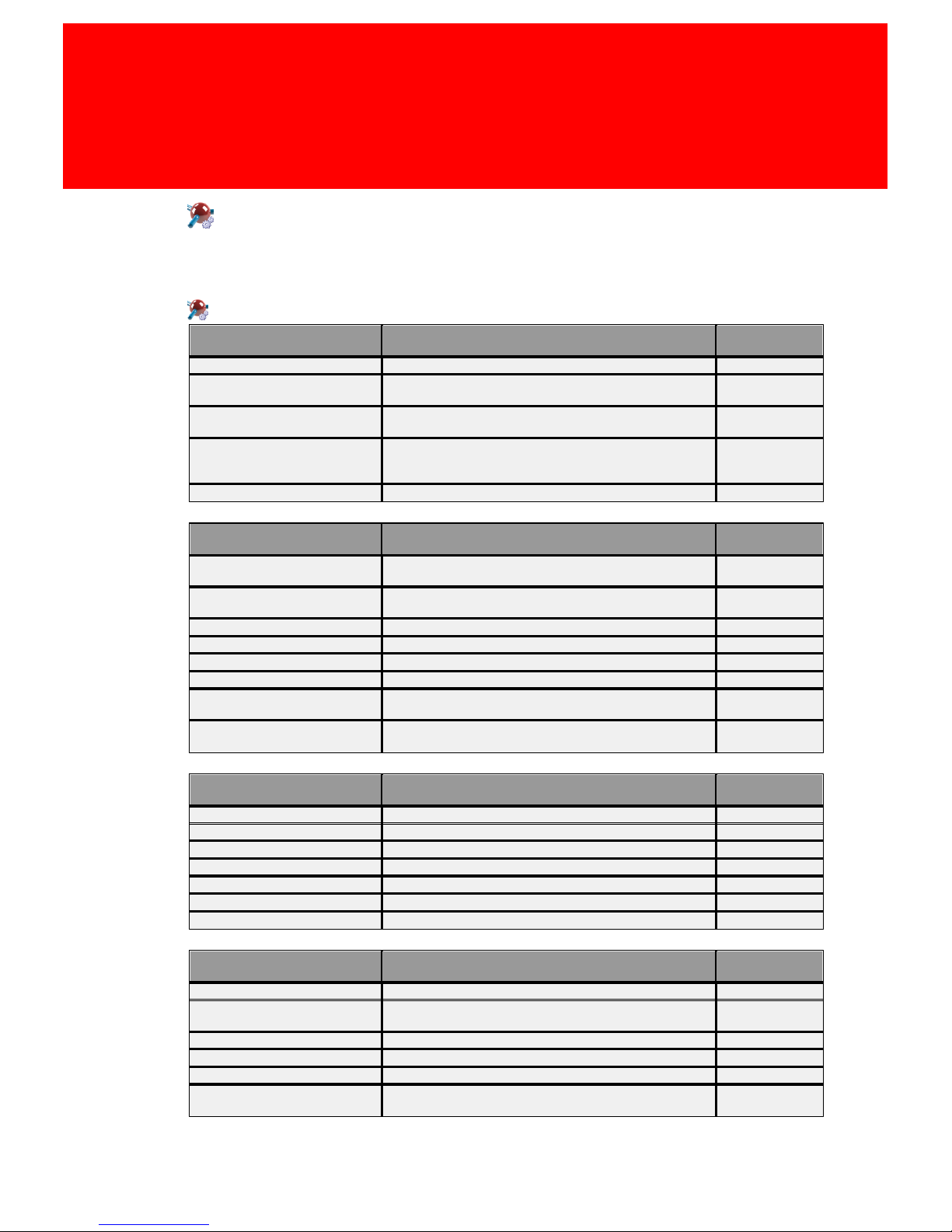
Here a list of setting relevant to the Inepro Client for Xerox can be found.
Settings relevant to the DocuPRO Embedded Client for Xerox:
Setting
Description
Reserved for
future use
AllowCustomerPasswordChange
Allows the user to change his password at the setting screen.
AllowJobPropertyModification
Allow modifications of print jobs (color, amount, cost centre,
etc).
*
AllowTagRegistration
Allow to register a blank card to the logged in customer at the
settings screen.
*
ApplicationMode
PRINT_COPY_SCAN, PRINTRELEASE, PRINT_COPY, COPY.
Show or, if there is only one option, go to the selected option
and disable the rest.
AutomaticFunctionSelection
If there are print jobs go straight to the print screen.
Setting
Description
Reserved for
future use
CostcenterEntryField
SHORTNAME, CODE. Show the cost centre longname + code
instead of only the longname.
CostcenterSelectMode
SELECT, SEARCH. When SEARCH is selected show the
keyboard instead of the cost centre list screen.
CurrencyDecimals
Number of currency decimals after the separator.
CurrencyDecimalSeparator
Separator in currency.
CurrencySymbol
€, $, etc. for/after currency.
CurrencySymbolPrefix
Prefix or postfix the currency symbol.
CustomerLogoffTimeout
The idle time (in seconds) a user has before he/she will be
logged out. Default = 120 sec.
DefaultApplication
Pull print, Scan to me, Copy. Go straight to the print, copy or
scan screen.
Setting
Description
Reserved for
future use
EnableColorScan
Show (auto)color scan option.
EnablePrintJobPreviews
Show print jobs previews on print details screen.
EnableScan
Enable scan functionality.
EnableScanToFolder
Enable ScanToFolder option.
EnableScanToMail
Enable ScanToEmail option.
FTPScanPort
ScanToX port. Default (empty) is port 21.
FTPScanServer
ScanToX IP. Default (empty) is business server IP.
Setting
Description
Reserved for
future use
LogOffAfterPrint
Logoff customer after a printjob is released.
MaxCostcentersInSelection
Maximum number of cost centres in the list, else go to the
keyboard search screen first.
MFPAdminPassword
MFP admin password to login as admin at the device.
MFPAdminUserName
MFP admin username to login as admin at the device.
MinBalance
Minimum balance to be allowed to print, copy or scan.
MinimumPasswordLength
Minimum password length to change password or create a new
tag registration.
Page 35
Version 7.0.9 - 29
Setting
Description
Reserved for
future use
PrintingMode
SIMPLE, ADVANCED, DIRECT_IPREADER_RELEASE
ADVANCED = normal. SIMPLE = print all when print is pressed.
DIRECT_IPREADER_RELEASE (business server does this for us)
release all print jobs when logging in.
PurseSelection
PERSONAL_ONLY, BUDGET_ONLY, PREFER_PERSONAL,
PREFER_BUDGET, PERSONAL_AND_ASK, BUDGET_AND_ASK,
USE_ALL_PURSES.
SecondTerminalLanguage
Second language option in Settings screen.
SupportTagHoldMode
Logoff customer when tag is removed.
Setting
Description
Reserved for
future use
TerminalLanguage
Language of terminal; if UseCustomerLanguage is not TRUE
and the manager language is set to Auto. Also language option
in Settings screen.
ThirdTerminalLanguage
Third language option in Settings screen
Usecost centres
Must use cost centres. If customer doesn't have any, don't
allow budget.
UseCustomerLanguage
Use the customer language, if the user has a language and the
manager language is set to Auto.
Refer to the Inepro Business Server manual for detailed explanation of the
functions.
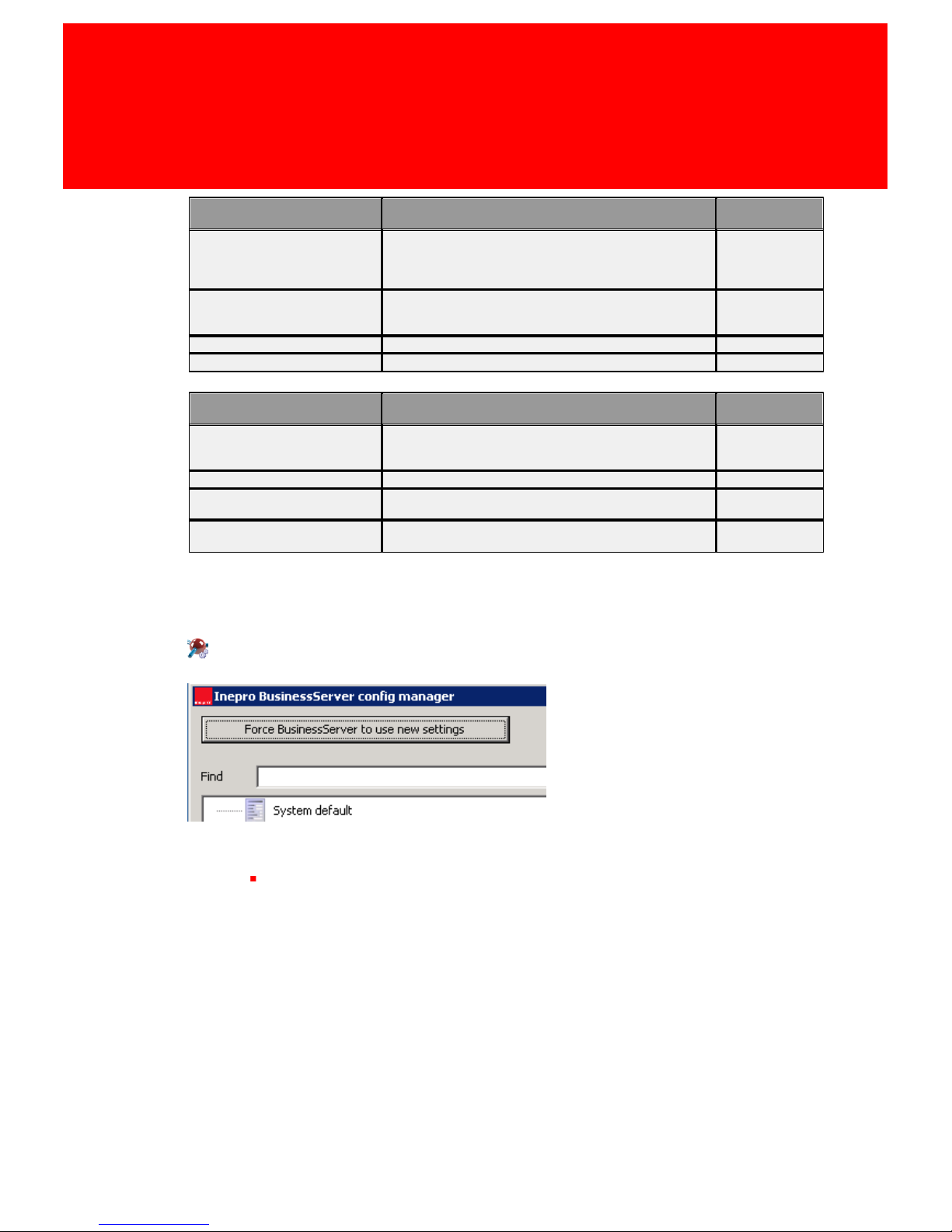
Activate Settings
Use the 'Force Business Server to use new settings' button to use the new
settings
Page 36

Page 37

Appendix I
Part
VII
Page 38
Appendix I
32 - DocuPRO Embedded Client for Xerox
Appendix I: DocuPRO Embedded Client for Xerox
Release notes
Version 7.0
Revision history
Version
Description
Date
Author
7.0.4
First release version
7-1-2014
R. Post
7.0.5
Second release version
7-1-2013
R. Post
Introduction
In these release notes you will find all relevant information regarding this release. Please read
these release notes carefully and make sure you understand them. We strongly recommend not to
roll out this release of software directly on your working system but to test it first before going
live. If you have questions, remarks or if you want to report a problem please send an E-mail to
[email protected]
Disclaimer of warranty
Inepro BV makes no representations or warranties, either express or implied, by or with respect to
anything in this document, and shall not be liable for any implied warranties of merchantability or
fitness for a particular purpose or for any indirect, special or consequential damages.
Copyright © 2014, Inepro BV. All rights reserved.
"Inepro B.V." and Inepro B.V.’s products are trademarks of Inepro B.V. References to other
companies and their products use trademarks owned by the respective companies and are for
reference purpose only.
Purpose
The purpose of the Release Notes is to communicate the major new features and changes in this
release of the inepro Back office suite. It also documents known problems and work-around's.
Scope
This document describes the software release of the DocuPRO embedded for Xerox 7.0
Definitions, Acronyms and Abbreviations
iBos = inepro Back office suite;
iBom = inepro Back office manager;
About this release
The version 7 release is the first DocuPRO embedded for Xerox release. This version, version: 7.0
also includes several new features and bug fixes for the reported issues from the previous release.
Supported machines
All Xerox machines that have EIP 2.0 with a 800x480 screen resolution.
Page 39

Version 7.0.9 - 33
Minimum requirements for an Inepro print server
(Database running on different server)
§
Intel Core 2 Duo processor (Intel XEON recommended).
§
Windows Server OS (see above operating systems)
§
1 GB RAM (2 GB or more recommended)
§
80 GB free NTFS HDD disk space
§
Print Queues defined as local queues on the server
§
Supported 100 Mbit Ethernet adapter.
§
Display setting 1024 X 768
Requirements:
§
The Xerox MFP’s must have the “Xerox Secure Access” authentication method and the “Network
Accounting” method installed. You may need to contact Xerox to enable these functionalities.
§
Ensure that the Xerox MFP’s are connected to the network.
§
Have the network addresses of the Xerox MFP’s available. It is recommended that the MFP’s are
configured with a static IP.
§
Have the network address available of the system running the Inepro Business Server.
§
Ensure your DocuPRO version is 7.0.14 or higher.
§
Ensure your Xerox EIP (Extensible Interface Platform) version is 2.0 or higher
Legend:
(+) Added feature
(*) Improved/ changed feature
(-) Bug fix
+ Email jobs now also are handled and registered as scan jobs
* Removed customer manual login password from log
* Added more info in log at serious exceptions
* Skips registerproducts if logging out without customerdata
Known bugs and limitations
- Added missing Dutch translation for scan/scanning messages.
Page 40

 Loading...