

Page 1
Customer Support: 1-888-999-4215iLIve | IBD704B
Quickstart Guide
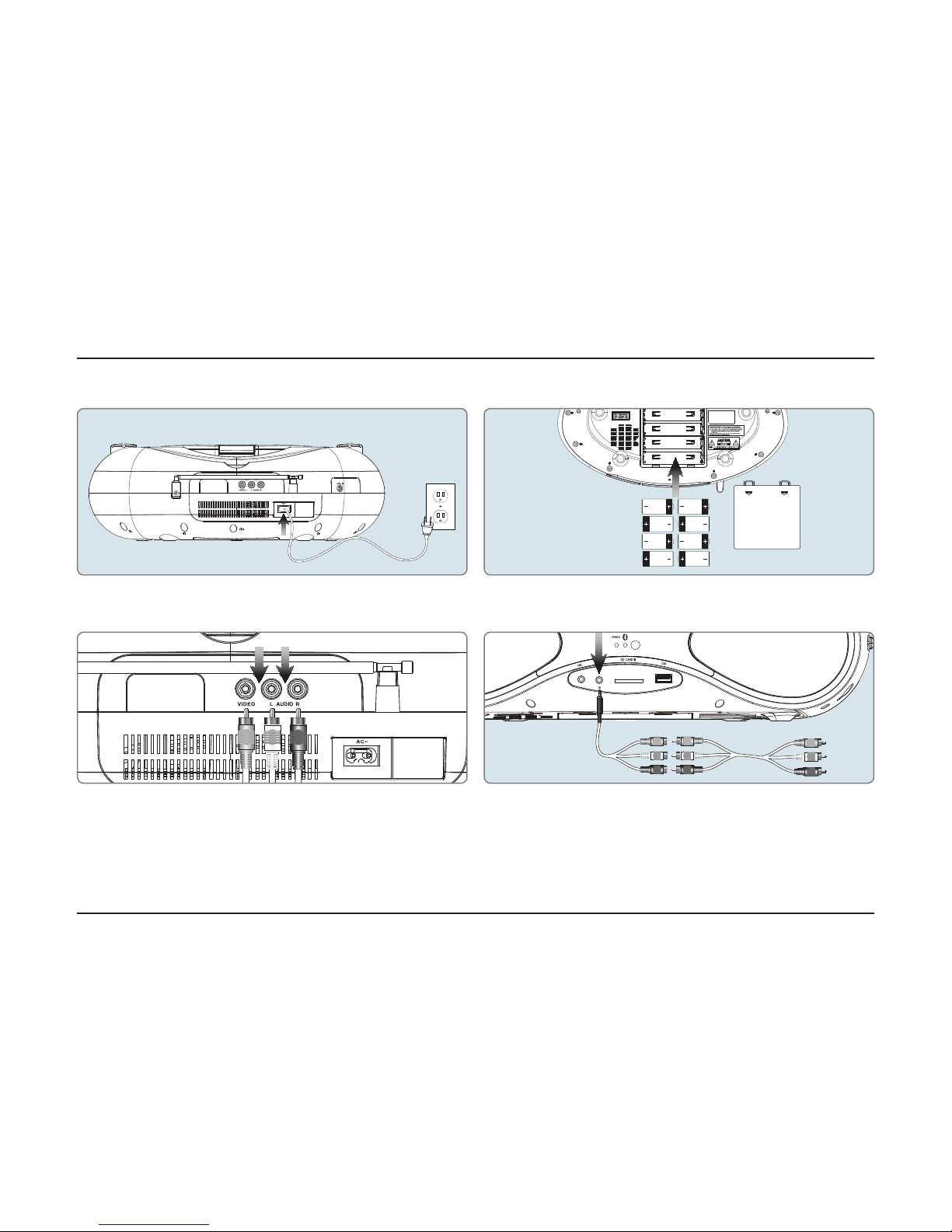
Composite Audio/Video Output
Requires an RCA audio/video cable (included).
1. Connect an RCA AV cable (included) to the Composite outputs on the back of the
unit, and the Composite inputs on a television.
2. Adjust the connected television to the proper input setting.
3. Video and sound from a loaded disc can now be played through the unit to the
connected television.
OPEN OPEN
UNIT SETUP
Power
Plug the small end of the power cord into the AC Input on the back of the speaker, and the
large plug into a standard wall outlet.
Battery
Requires 8 C sized batteries (not included).
Using the AV Input
Requires an 3.5mm to RCA audio/video adapter (included).
1. Connect the included 3.5mm to RCA audio/video adapter to the AV Input and
the RCA output on another device. Note: You may also need to plug an RCA AV
cable (included) into the adapter to nish connecting.
2. Adjust the Source to AV mode.
3. Use the native controls on the connected device to play your audio/video
through the unit.
Page 2

Customer Support: 1-888-999-4215iLIve | IBD704B
Quickstart Guide
UNIT FUNCTIONS
Loading and Playing a DVD
1. Open the Disc Door.
2. Load a DVD into the player, label side facing up.
3. Close the Disc Door.
4. Press the Source button to set the unit to DVD mode. The player will automatically
detect the DVD and begin playing video.
Loading and Playing a CD
Note: This unit is not compatible with MP3 CDs.
1. Open the Disc door.
2. Load a CD, CD-R/RW, or CD+G disc into the player, label side facing up.
3. Close the Disc door.
4. Press the Source button to set the unit to DVD mode. The player will automatically
detect the CD and begin playing music.
Playing the FM Radio
1. Set the Source to FM mode.
2. Adjust the Tuning dial to tune the radio. Adjust the position of the Telescopic FM
Antenna to improve FM radio reception.
Pairing a Bluetooth Device for the First Time
1. Power on the unit by pressing the Power button.
2. Set the Source to Bluetooth and press and hold the Pair button.
The pairing indicator will ash blue quickly. When pairing, remain within 3 feet of the unit.
3. Using the native controls on your Bluetooth device, select the IBD704 in your
Bluetooth settings to pair. If your device requests a password, enter the default
password 0 0 0 0 . Refer to the user’s manual for your specic device for instructions on
pairing and connecting Bluetooth devices.
4. When successfully paired and connected, a beep will issue from the unit and the
Pairing Indicator will display a solid blue light. After initial pairing, the unit will stay
paired unless unpaired manually by the user or erased due to a reset of the device. If your
device should become unpaired or you nd it is unable to connect, repeat the above steps.
Playing Audio Wirelessly
1. After pairing to a bluetooth device, use the native controls on the connected
Bluetooth Device to select a track.
2. Play, pause or skip a selected track using the native controls on the connected
Bluetooth Device or the controls on the unit.
3. Audio played through the connected Bluetooth device will be heard through
the speakers.
Using the Line In
Requires a 3.5 mm audio input cable (not included).
1. Plug one end of a 3.5 mm audio input cable into the Line In input on the front of the
unit, and plug the other end of the cable into the audio output on an MP3 Player or
other audio source.
2. Set the Source to Line In.
3. Audio played through the connected device will be heard through the speaker.
Using an SD Memory Card
1. Insert a SD memory card into the SD Card Slot.
2. In DVD mode, press and hold the STOP/USB/SD button to enter USB/Card
selection mode.
3. Press the up or down Arrow buttons and then press the OK button to select
Card mode.
4. Use the Arrow and OK buttons to select and play content from the connected SD
memory card.
Using a USB Thumb Drive
1. Insert a USB thumb drive into the USB Port.
2. In DVD mode, press and hold the STOP/USB/SD button to enter USB/Card
selection mode.
3. Press the up or down Arrow buttons and press the OK button to select USB mode.
4. Use the Arrow and OK buttons to select and play content from the connected USB
thumb drive.
 Loading...