

Page 1
Congrats on
your shiny new
smart keybox.
version 1.1
Page 2

Quick-start guide
Test your Keybox
Tap 1234 to unlock the Keybox. Your
Keybox is now ready for set up!
Set up your Keybox as shown in the
section ‘Using keybox on app’
To unlock Keybox
‧Key in generated PIN code, or
‧ Use Bluetooth Unlock on app
To lock Keybox
‧ Close the Keybox and it will lock
automatically after 1 second
App Programming
1. To change Master PIN code:
Home > Select Lock > Lock Info >
Second tab on bottom (PIN) > Master
PIN > ‘Edit’ icon > Enter PIN code (6-8
digits) > Re-enter PIN code > Conrm >
Press any key on your lock
2. To create custom PIN code:
Home > Select Lock > One-Time PIN
or Duration PIN > Choose Duration(for
Duration PIN) > Enter visitor name >
Add PIN
3. To create and share Bluetooth Key
Home > Select Lock > Lock Info >
Third tab on bottom (Bluetooth Key) >
‘Add’ icon > Enter details > Create Key
> Send Key
4. Reset lock
Home > Select Lock > Lock Info >
Fourth tab on bottom (Status) > Scroll
to the bottom > Clear PIN list > OK
Note: Clearing PIN list will remove all
generated PIN codes, but Master PIN
will remain.
Keybox programming
1. To change generated ad hoc PINs
to 6 digits of your choice:
On Keybox, key in Ad hoc PIN and
press for 2 seconds > 1 0 and tap
> Ad hoc PIN and tap > New user
PIN (6 digits) and tap > Repeat new
user PIN (6 digits) and tap
Note: PIN change will not be reected
on app
Page 3
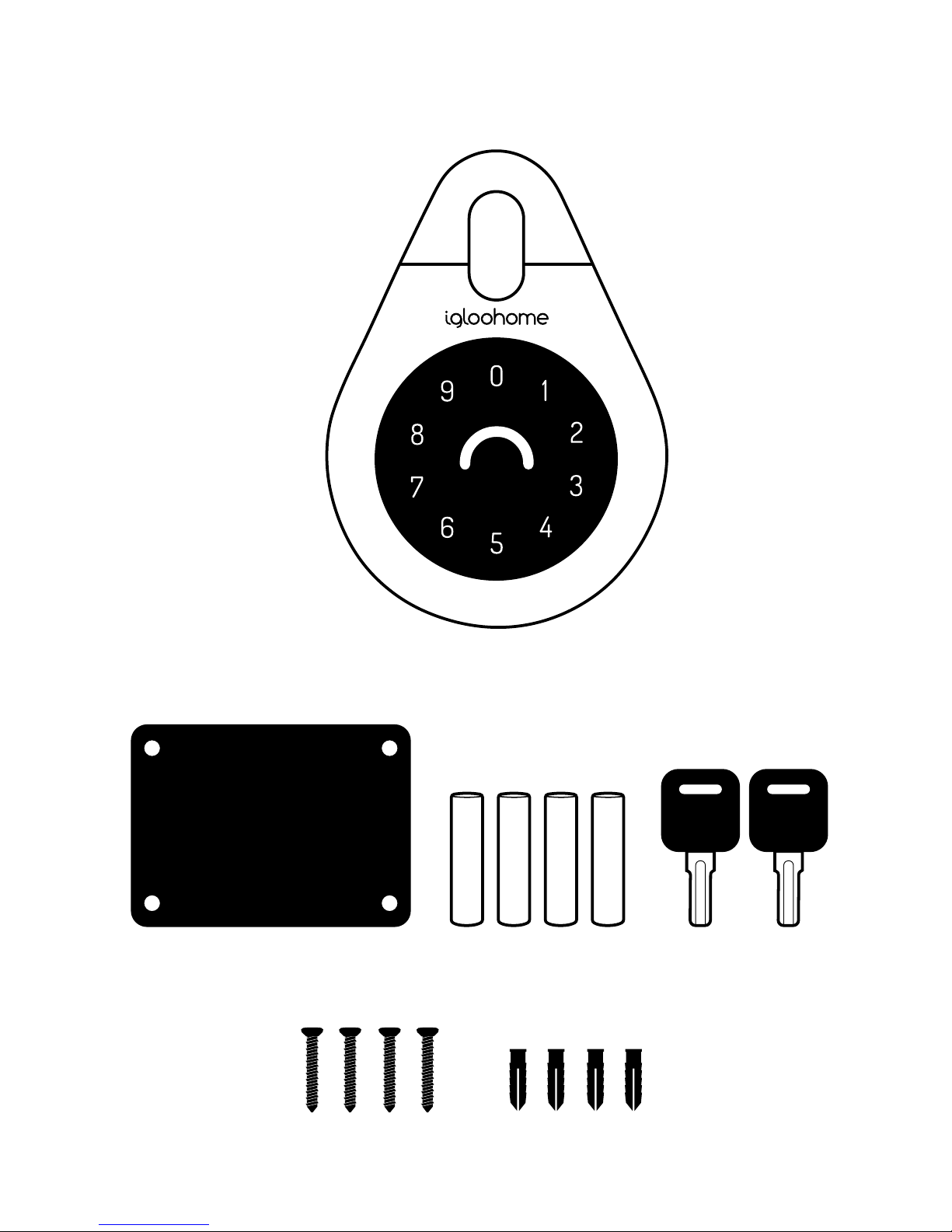
Package
Keybox
KeysBatteries
(sold separately)
Rubber Mount
+
-
+
-
+
-
+
-
Screws Screws Anchors
Page 4
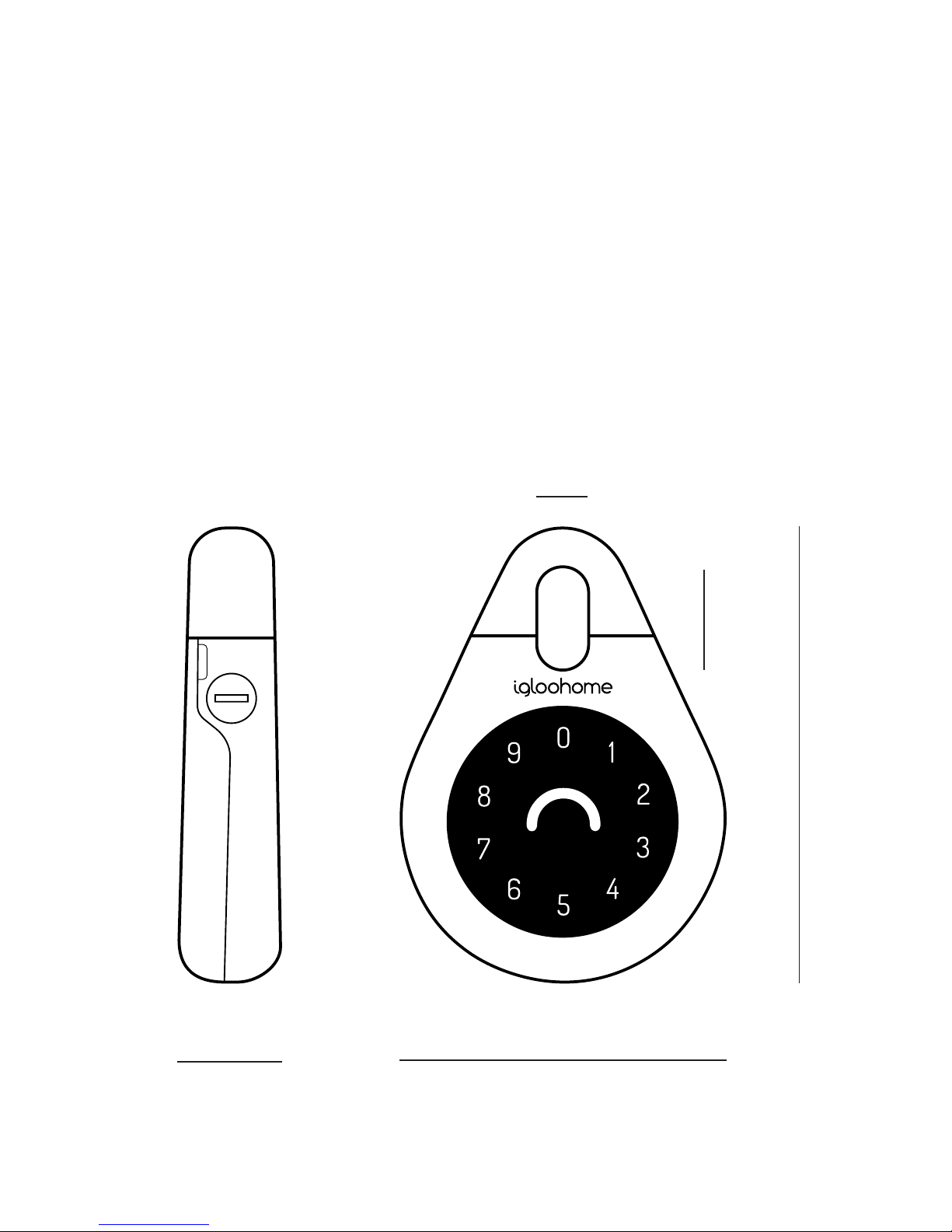
Specications
Model igloohome Smart Keybox v1.1
Dimensions 114.28(W) x 165.1(H) x 34 (T) mm
inner space of shackle 28(W) x 45.5(H)mm
Material Zinc Alloy, Steel, Silicon Rubber
Weight 1.5kg
Wireless Protocol Bluetooth 4.0
Current Rating (Standby) ~20uA
Current Rating (Active) ~20mA
Batteries 4 x AAA
Unlock Mechanism Bluetooth, PIN code
165 mm
34 mm
114 mm
side front
28 mm
45 mm
This device complies with Part 15 of the FCC Rules. Operation is subject to the following two conditions: (1) This device may not cause harmful
interference, and (2) This device must accept any interference received, including interference that may cause undesired operation.
Page 5
Features
Access
Master PIN Code Set a Master PIN code via
the igloohome app which is permanently
active. This can be used to unlock keybox
via keypad.
User PIN Code Generate up to 285 custom
PIN codes, each with selected duration,
which can be used to unlock keybox via
keypad.
Up to 100 PIN codes can be valid at the
same time. Choose between one-time,
permanent or duration PIN codes.
Master Bluetooth Key Open the keybox via
Bluetooth Key on the app.
User Bluetooth Key Generate Bluetooth
keys via the app, each with selected
duration.They can be sent to other app
users to open keybox via Bluetooth.
Bluetooth Keys can be temporarily disabled
or deleted.
Cloud Backup of Master Access
Master access is tied to user account
instead of phone. Any phones logged in to
user account will have full control of the
lock.
Locking
Simply close the keybox, and it locks
automatically after 1 second.
Unlocking
PIN Code
Key the PIN code (generated from app) on
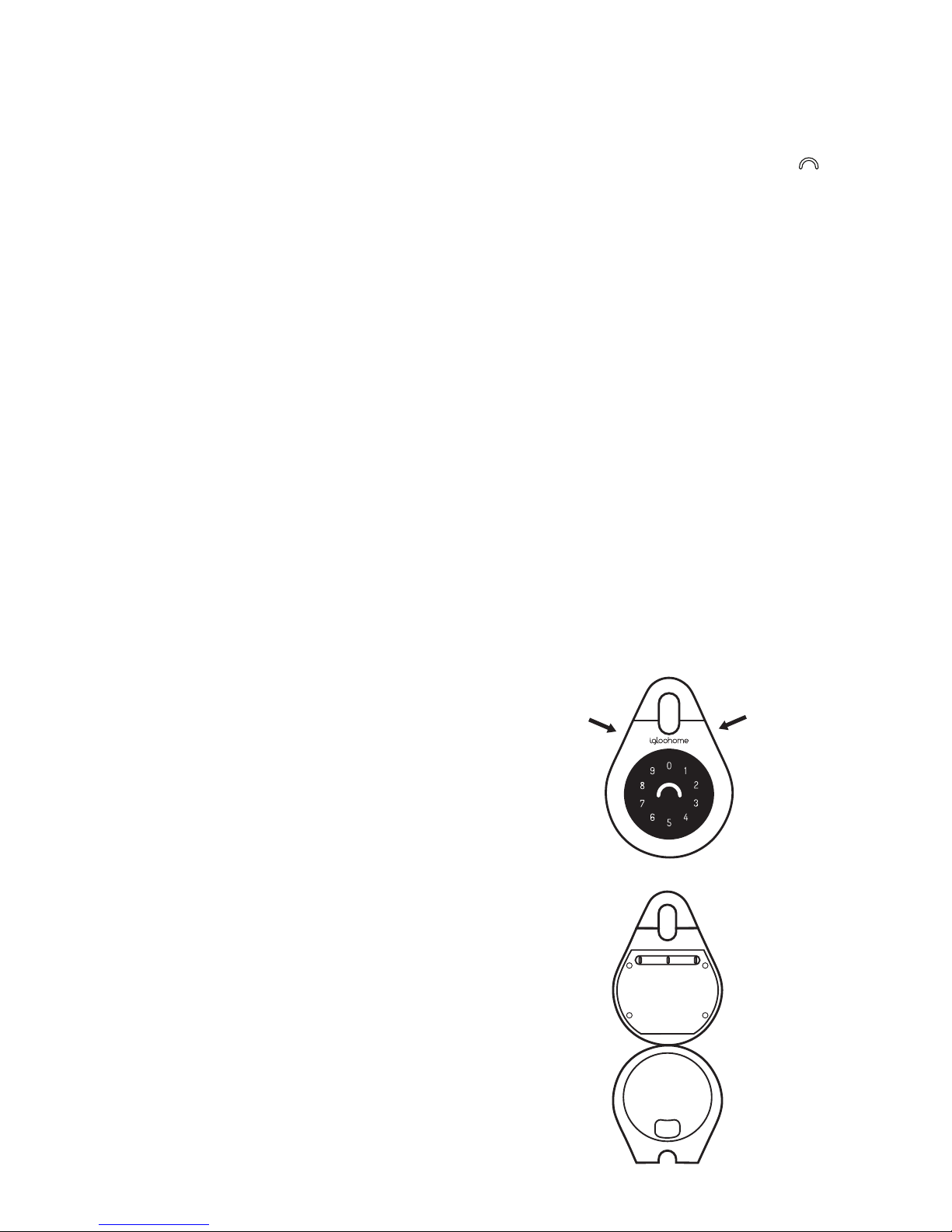
the keypad, and the Keybox unlocks. Open
the Keybox by placing ngers at the neck of
the Keybox (as shown by the arrows in the
diagram on the right), then pulling the front
panel of the Keybox towards you.
If you tap in a wrong digit, you can press the key
to restart. Alternatively, you can just re-tap in your
PIN code. If your last 8 digits are correct and the total
number of digits tapped does not exceed 16 digits,
the Keybox will unlock.
Bluetooth Key
Basic Unlock
Run the igloohome app and select the
Bluetooth Key tab. Press unlock on the
app. Approach the Keybox and it will unlock
once it is within range (about 1 metre).
Open the Keybox as per diagram.
Easy Unlock (optional)
Leave the igloohome app running
throughout the day. Tap the keypad of the
Keybox for it to light up, and it will unlock.
Open the Keybox as per diagram.
The app must be running front-end. Easy unlock will
not work if your phone OS shuts the app down.
step 1
step 2
Page 6
Security
Security Lock-out Mode If 16 incorrect
digits are keyed into the igloohome
Keybox for 5 consecutive times, it will
freeze and not accept any more PIN codes
for the next 5 minutes. This is to deter
unwanted guessing of PIN codes.
Automatic Re-lock
If Keybox is unlocked but remains unopened for 60 seconds, it will automatically
re-lock.
Security Alarm
If the Keybox is not closed properly, it will
beep to indicate that it is not secure.
Decoy Code Up to 8 decoy digits can be
entered prior to the actual PIN code to
deter guessing of the PIN code.
Battery
Battery Consumption 4 AAA Alkaline
batteries can allow up to 5,000 keybox
open and close operations (approx. 12
months)
Low Battery Indicator LED light changes
to red breathing light when battery life is
below 20%. The battery level can also be
monitored on the app and is updated
during Bluetooth Unlock.
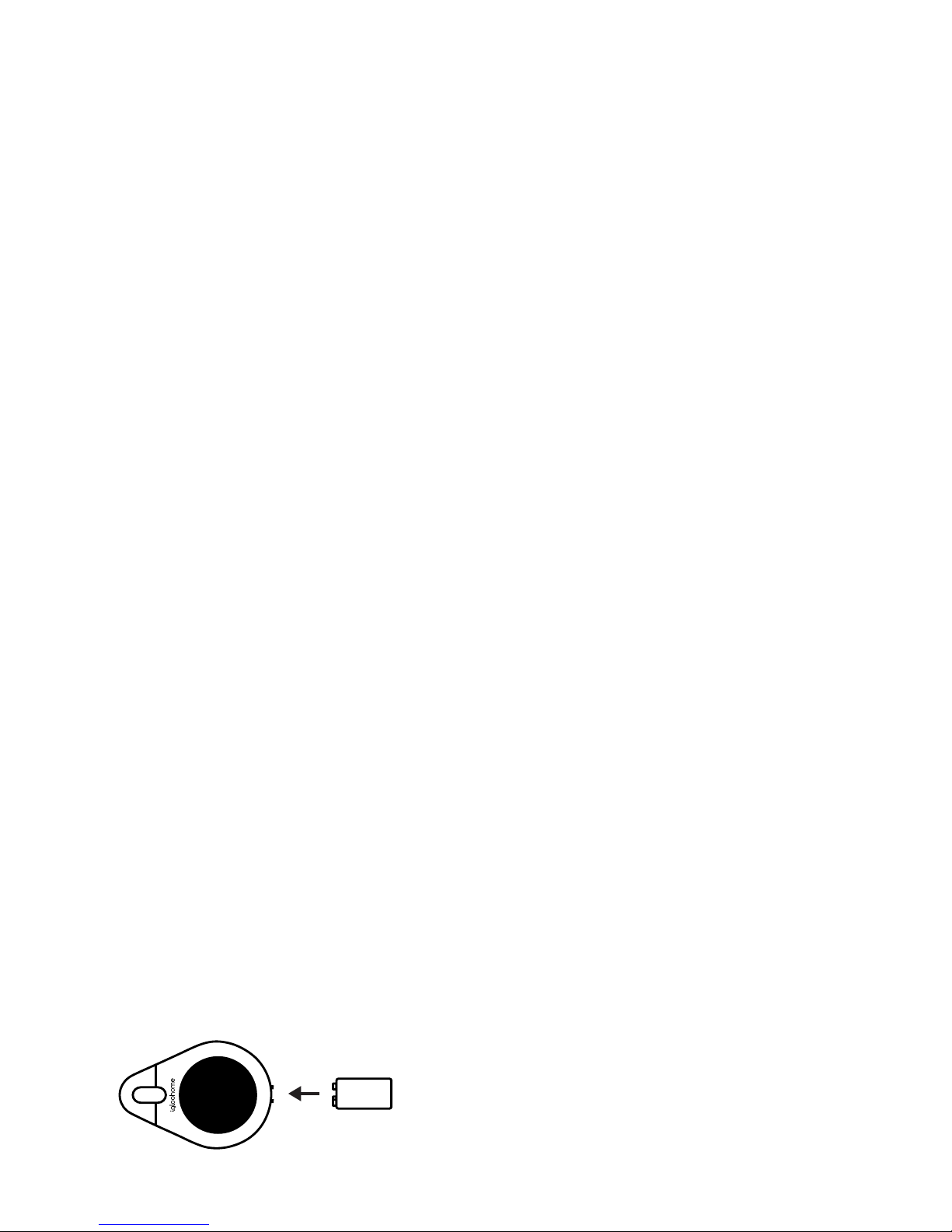
Emergency Jump Start If battery power is
drained, an external 9 Volt battery can be
used to provide emergency power. The 2
pins of the battery must be aligned with
the 2 pins on the Keybox as shown in the
diagram below.
9V
Page 7
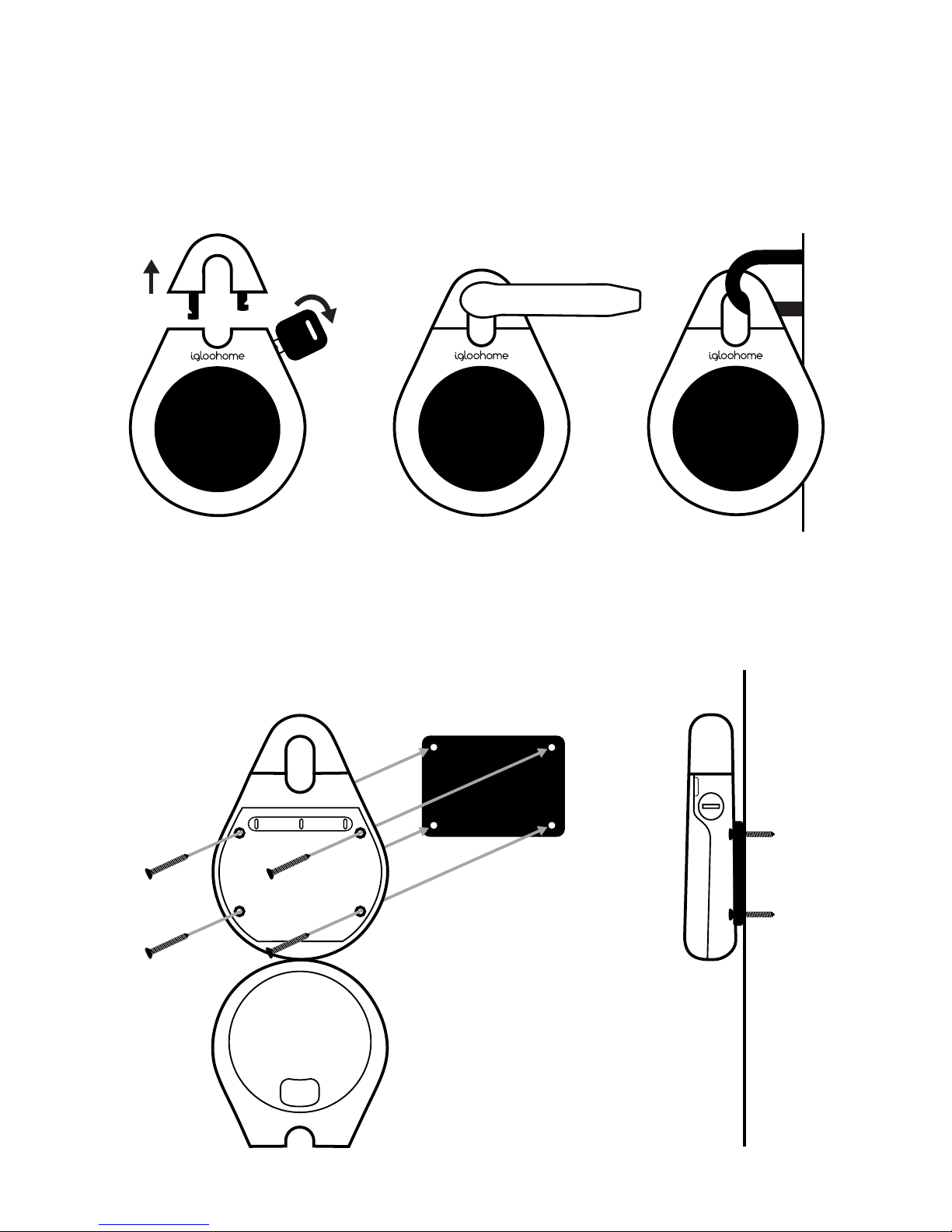
Installation
Secure it on a handle or latch
Mount it on a surface
side
1
2
Page 8

Using keybox on app
1. Set up keybox on app
Download igloohome app from App Store/
Google Play
Register a new account or login with an
existing account on app
Pairing
Ensure that the Keybox is kept open for this
section
Select Select Menu > Set Up Home >
Choose Your Product > Add New Lock to
New Home (or Existing Home for existing
user) > If new home, create a New Home
before proceeding
Tap on the Keybox keypad to light it up, then
click on ‘next’ in the app.
Choose the Keybox from the list to initiate
pairing
App will show “Connecting to device”
Name your lock and associate to home
2. Check that Keybox has been
paired successfully
Select Menu > Home (ensure that the
keybox is currently locked)
Tap on Unlock icon next to Keybox name
Press any key on your keybox
Keybox unlocking indicates that it has been
paired successfully. Good job!
On the rare occasion that pairing is
unsuccessful, here are some steps you can
take
• Try with a different mobile device, using
the same username and password
• Update your phone’s Operating System to
the latest version
• Restart the bluetooth and internet
connection on your mobile device
• Restart Igloohome’s application on your
mobile device
• Switch to brand new batteries
3. Set Master PIN
Go to the Lock Info page (via Home by
clicking on the lock name under your
listing)
Go to the PIN tab, (second tab on Lock Info
page) tap on Master PIN. Click on the edit
icon.
Enter the new Master PIN code, between
7-10 digits. Re-enter it > Conrm
Within 2 seconds, press any key on your
keybox
Keybox will lock to indicate that Master PIN
code has been set successfully.
4. Adding new User PIN
Go to the Lock Info page (via Home by
clicking on the lock name under your
listing)
Click on Create PIN code, select One Time
PIN, Permanent PIN, or Duration PIN.
On your Lock Info page, under List of PIN
codes you should see the new user code.
Note: One Time PIN - must use within 8
hours of PIN creation.
Permanent PIN - must use within 24 hours
of PIN creation.
Duration PIN - must use within 24 hours of
PIN start date.
Page 9
5. 6-Digit User PIN
If you would like to change a generated
ad hoc PIN to a 6-digit PIN of your choice,
follow the following steps. Once ad hoc
PIN is generated, user must key this PIN
onto keybox to activate the code before
proceeding.
Press for 2 seconds >
Key 1 0 and tap > Ad hoc PIN and tap
> New 6-digit PIN and tap > New 6-digit
PIN and tap
For example, if the generated custom PIN
code is 1234 5678, and user would like to
change it to 010101, Press for 2 seconds
> Key 1 0 > 1234 5678 > 010101 >
010101
Note that master PIN codes cannot be
changed via this method. Also, the new user
PIN code will not be reected on the app.
6. Removing used PIN
Go to the Lock Info page (via Home by
clicking on the lock name under your
listing)
Under List of PIN codes, select the user
code you would like to delete
Click on “...” next to the PIN code and select
‘Remove from List”
The user code will be removed from your
app view.
Note Unused codes cannot be deleted from
the Keybox unless the Keybox is reset
7. View access logs
Go to the Lock Info page > Bluetooth
Unlock tab > Access Logs icon (top right
corner).
Access logs for bluetooth keys and PIN
codes will be displayed.
Do note that only successful Keybox
unlocks will be logged.
Do note that access logs for PIN codes
will only be updated each time the Master
owner uses a bluetooth key - they will not be
updated remotely.
8. Bluetooth Key Sharing
To send and share a Bluetooth Key,
(a) go to Home > Lock Info > Third tab
on the bottom > Click on Add > add a
description and key in the Start and End
Date and Time > Create a Bluetooth key
(b) go to Home > Lock info > Third tab on
the bottom > Click on “...”> Share via QR
code or link
To receive a Bluetooth Key
(a) Download the igloohome app
(b) For new users: Register for an account;
For existing users: Logiin to your account
(c) To receive key via QR code, go to ome
> Visits > Click on the QR code scanner
button
(d) To receive key via link, click on the URL
and follow the instructions
To use a Bluetooth Key,
(a) Ensure Bluetooth and internet
connections are active
(b) go to Home > Visits > Tap on green
circle to unlock
To delete a Bluetooth Key,
(a) go to Home> Lock info > Third tab on the
bottom > Click on “...” next to the Bluetooth
key> Revoke
9. Reset keybox
Go to the Lock Info page (via My Home
by clicking on the lock name under your
listing)
Go to the status tab (fourth tab on the lock
info page). Click on Clear PIN list.
Note that once keybox has been reset, all
user codes previously generated are no
longer valid. Master PIN code remains
unchanged.
Page 10

9. Airbnb Connect
Airbnb Connect automates the generation
of PIN codes for your Airbnb guests based
on their approved reservations. It usually
costs USD$4.99 per month, but is currently
on free trial.
Here are the steps to activate Airbnb
Connect:
Step 1: Connect to Airbnb account
Open the igloohome app > Menu (top left
hand corner) > click on prole picture
(top left hand corner) > click ‘Connect
with Airbnb’ button > Log into your Airbnb
account
Step 2: Sync each Airbnb listing with your
igloohome listing
Return to menu > Set Up Home > Select
your product > Manage Homes > Select the
igloohome listing which you want to sync
with your Airbnb listing > Under ‘Connect
Providers’, click on Airbnb > Select the
Airbnb listing you want to sync and click
‘Conrm’
Step 3: Automate check-in for the listing you
have synced
Now that the listings are synced, return to
menu > Reservations > Refresh the page
by dragging down > select the igloohome
listing that you have synced > click
‘Automate check-in’ > Start free trial > OK
To Deactivate Airbnb connect,
Step 1: Go to Airbnb website (for Hosts)
> Account > Connected Apps > Select
igloohome App and Disconnect.
Step 2: Write in to support@igloohome.
co to request for notications for future
reservations to be removed.
App instructions may change as we
update our app interface.
For the full updated app guide, visit
http://bit.ly/iglooappManual.
For FAQs, visit http://bit.ly/iglooFAQ
Page 11
We hope you’ll love it as much as we do.
For enquiries
 Loading...