

Page 1
QUESTIONS?
If you have questions after following the instructions in this manual,
PLEASE DO NOT CONTACT THE STORE. Please visit our
Customer Care website at support.iFit.com or send e-mail to
[email protected].
User’s Manual
Model No. IFACT-INTL.0
GETTING STARTED
1. Install the iFit Track app on your iOS® or Android™ device.
Use the iFit Track app to set up an iFit account, set up the
tracker pod, customize settings for the tracker pod, set goals,
and enter and track information. See HOW TO INSTALL THE
IFIT TRACK APP.
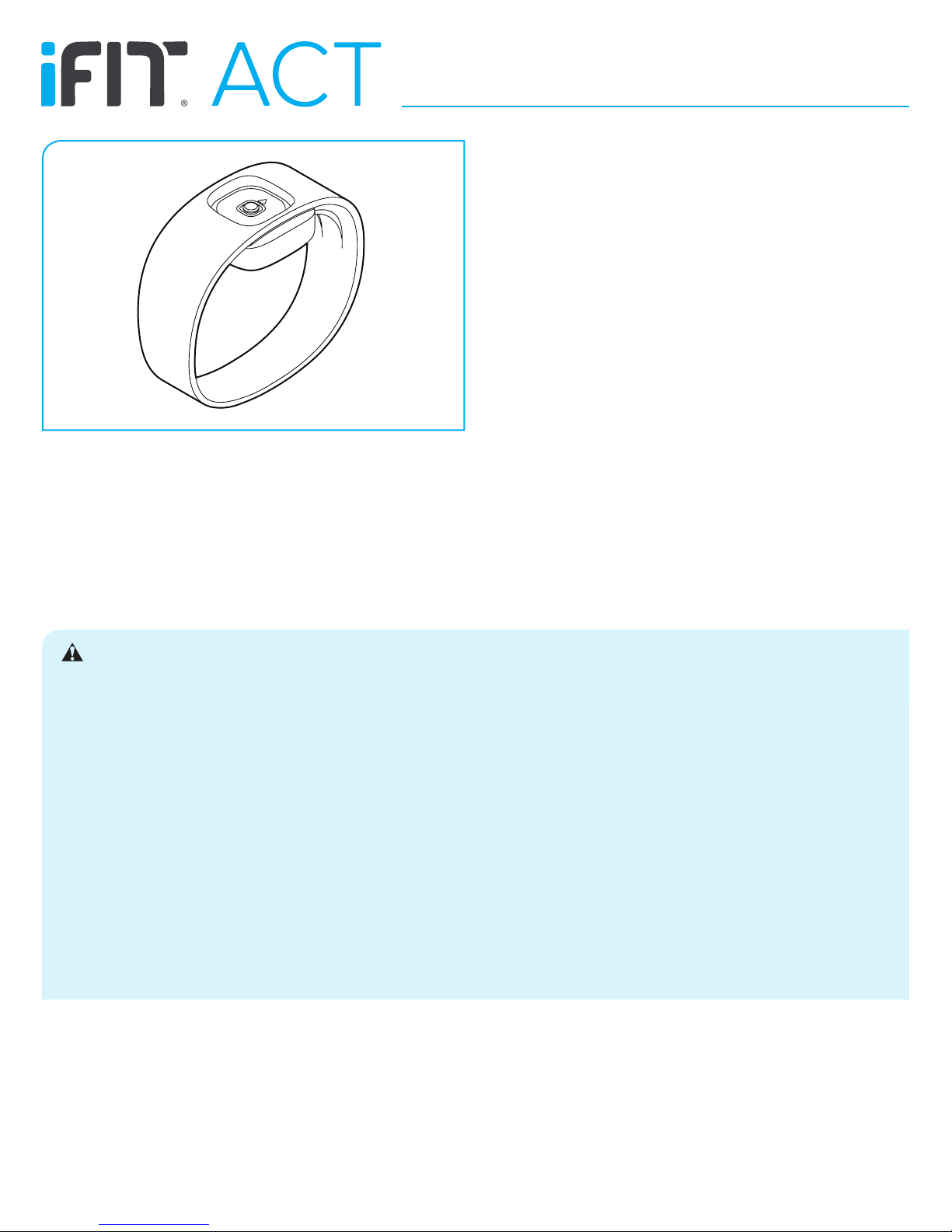
2. Learn how to wear the tracker pod.
Wear the tracker pod in one of the included bands or carry it
independently. See HOW TO WEAR THE TRACKER POD.
3. Learn how to use the tracker pod.
Use the tracker pod to track and sync calorie information, steps,
distance, sleep time, and workout time to the iFit Track app.
See HOW TO USE THE TRACKER POD.
4. Learn how to replace the battery in the tracker pod.
The tracker pod will notify you when the battery level is low. See
HOW TO REPLACE THE BATTERY.
WARNING: To reduce the risk of serious injury, read all important precautions and instructions in this manual. ICON
assumes no responsibility for personal injury or property damage sustained by or through the use of this product.
1. It is the responsibility of the owner to ensure that all
users of this product are adequately informed of all
precautions.
2. Before beginning any exercise program, consult your
physician. This is especially important for persons over
age 35 or persons with pre-existing health problems.
3. Use this product only as described in this manual.
4. Keep this product away from children under age 12 and
pets at all times.
5. Do not use abrasive cleaners to clean this product.
6. Do not use this product in a sauna or a steam room or
while showering or swimming; do not submerge this
product; and do not place this product in a washing
machine or clothes dryer.
7. If you experience skin irritation while using this product,
see HOW TO WEAR THE TRACKER POD.
8. Do not expose the tracker pod to extremely high or low
temperatures, to direct sunlight for an extended period of
time, or to open flames.
9. Over exercising may result in serious injury or death.
If you feel faint, if you become short of breath, or if you
experience pain while exercising, stop immediately and
cool down.
IFIT is a registered trademark of ICON Health & Fitness, Inc. App Store and iPhone are trademarks of Apple Inc., registered in the U.S. and
other countries. Android and Google Play are trademarks of Google Inc. The BLUETOOTH
of Bluetooth SIG, Inc. and are used under license. IOS is a trademark or registered trademark of Cisco in the U.S. and other countries and
is used under license.
®
word mark and logos are registered trademarks
Page 2
HOW TO INSTALL THE IFIT TRACK APP
Pair and set up the tracker pod with your iOS device (iPhone® 4s
and later) or your Android device (Android 4.3 and later) that
supports BLUETOOTH® 4.0 wireless technology.
On your iOS or Android device, open the App Store℠ or the Google
Play™ store, perform a search for the free iFit Track app, and then
install the app on your device.
Make sure that the BLUETOOTH option is enabled on your
device. Then, open the iFit Track app and follow the instructions to
learn how to set up an iFit account, set up and customize settings
for the tracker pod, enter and track information, and set goals. Make
sure to customize the settings for the tracker pod.
The first time that you use the tracker pod, press and hold the
button on the tracker pod for 10 seconds; this will remove the
tracker pod from shipping mode.
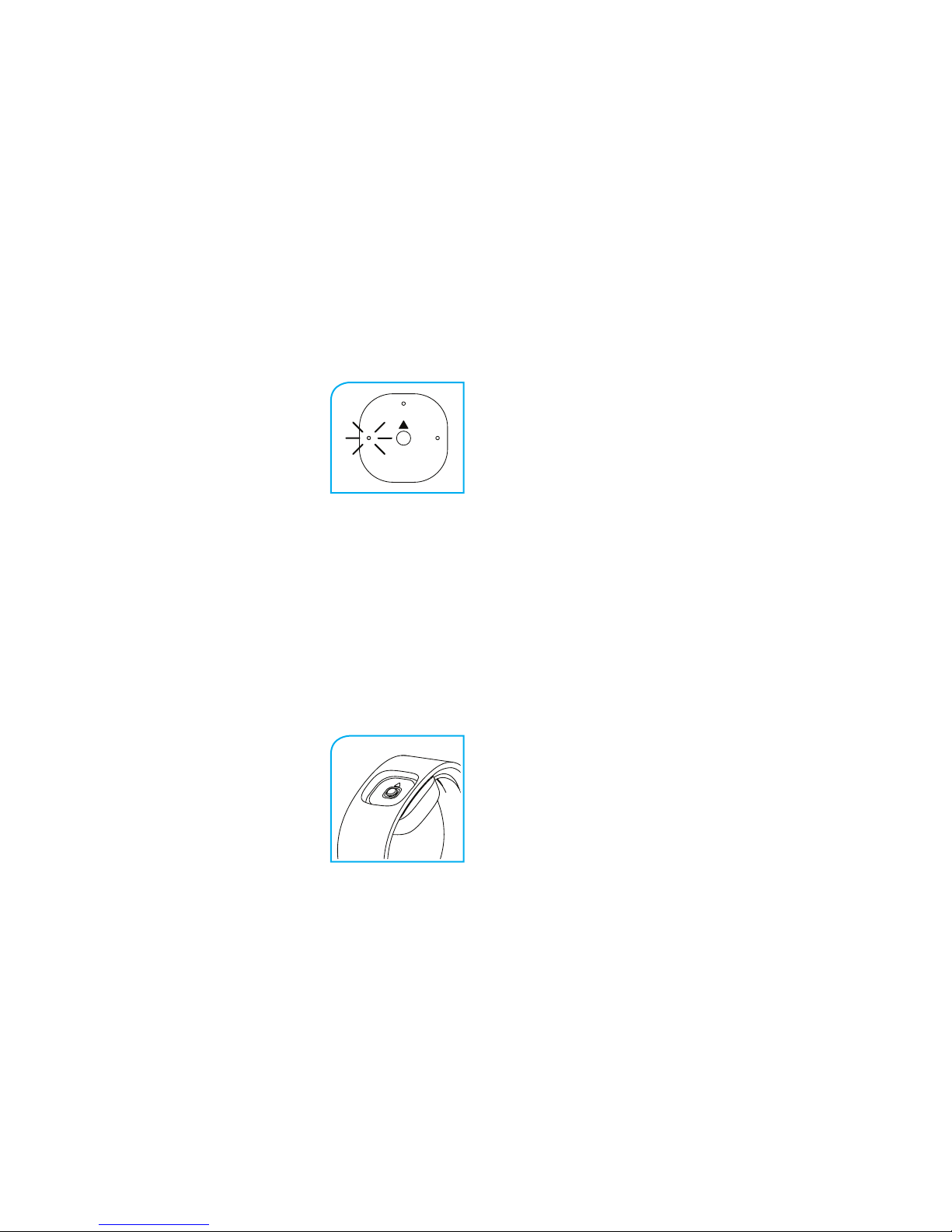
To pair the tracker pod to the iFit Track app
on your device, first press the button on the
tracker pod repeatedly until the red LED
indicator lights. Next, press and hold the
button on the tracker pod for 2 seconds;
the red LED indicator will flash every few
seconds. The tracker pod will attempt to pair
for 1 minute.
Then, open the iFit Track app on your device, select the tracker pod
from the list of discoverable devices, and touch the Connect button.
The iFit Track app will notify you if pairing succeeded or failed.
If pairing is successful, the LED indicators on the tracker pod will
light in succession for a few seconds. The tracker pod will then sync
to the iFit Track app for up to 2 minutes.
HOW TO WEAR THE TRACKER POD
IN THE BAND
Use the included band that best fits on your
wrist. Make sure that the band is slightly
loose on your wrist. Orient the tracker
pod so that the arrow on the tracker pod is
pointing parallel to the band as shown.
Then, press the tracker pod into the opening in the band. Orient the band so that the
arrow on the tracker pod is in the 12 o’clock
position, and place the band on your wrist. Reverse these actions to
remove the tracker pod from the band.
Note: If none of the included bands fit on your wrist, please contact
Customer Care by sending email to [email protected].
Note: As with any watch or jewelry, a very small percentage of users
may experience skin irritation while wearing the band. If you experience any skin irritation, discontinue wearing the band and carry
the tracker pod in your pocket. If you have questions, send email to
[email protected].
INDEPENDENTLY
Simply place the tracker pod in your pocket to carry the tracker pod
independently. Make sure that the tracker pod will not fall out of
your pocket as you move.
HOW TO CLEAN THE BAND
Regularly remove tracker pod from the band and clean the band
with water and a few drops of mild liquid soap. Do not submerge
the tracker pod in water, and do not place the band or the
tracker pod in a dishwasher, washing machine, or dryer. Allow
the band to dry thoroughly before you put it back on your wrist.
HOW TO USE THE TRACKER POD
1. Select a mode if desired.
IMPORTANT: The tracker pod will track and record
information such as your movement and your calorie
expenditure even if you do not select a mode.
Press the button on the tracker pod repeatedly to select a
mode. An LED indicator on the tracker pod will indicate which
mode is selected.
LED Indicator Mode
Blue Sleep
Amber Exercise
Red Pair and Sync
The LED indicators will turn off and the tracker pod will enter
a power saving mode automatically after a few seconds if the
button is not pressed.
When the battery level of the tracker pod is low, the LED
indicators on the tracker pod will flash simultaneously for a
few seconds every minute. See HOW TO REPLACE THE
BATTERY.
Page 3
2. Sync the tracker pod to the iFit Track app regularly.
4. Record your exercise time if desired.
IMPORTANT: After the tracker pod is paired to the iFit Track
app on your device, the tracker pod must be synced to
the iFit Track app at least once every 7 days. If the tracker
pod is not synced to the iFit Track app, the sleep and
exercise data recorded on the tracker pod will be deleted.
Also, make sure to sync the tracker pod to the iFit Track
app when the battery level is low; the data recorded on the
tracker pod will be deleted when the battery level reaches
zero percent.
To sync the tracker pod to the iFit Track app on your
device, first make sure that the BLUETOOTH option is enabled
on your device. Open the iFit Track app, and place the tracker
pod near your device.
Next, press the button on the tracker pod repeatedly until the
red LED indicator lights. Then, press and hold the button on the
tracker pod for 2 seconds; the red LED indicator will flash every
few seconds. The tracker pod will attempt to sync for 1 minute.
The iFit Track app will notify you if syncing succeeded or failed.
If syncing is successful, the LED indicators on the tracker pod
will light in succession for a few seconds. The tracker pod will
then sync to the iFit Track app for up to 2 minutes.
3. Record your sleep time if desired.
To start the sleep timer, first press the
button on the tracker pod repeatedly
until the blue LED indicator lights. Next,
press and hold the button on the tracker
pod for 2 seconds; the blue LED indicator will flash to indicate that the sleep
timer has started.
To start the exercise timer, first press
the button on the tracker pod repeatedly
until the amber LED indicator lights.
Next, press and hold the button on the
tracker pod for 2 seconds; the amber
LED indicator will flash to indicate that
the exercise timer has started.
To s t op th e e x er c is e t i me r, first press the button on the tracker
pod repeatedly until the amber LED indicator flashes. Next,
press and hold the button on the tracker pod for 2 seconds; the
amber LED indicator will stop flashing to indicate that the exercise timer has stopped and has recorded your exercise time.
HOW TO REPLACE THE BATTERY
When the battery level of the tracker pod is low, the blue,
amber, and red LED indicators on the tracker pod will flash
simultaneously for a few seconds every minute.
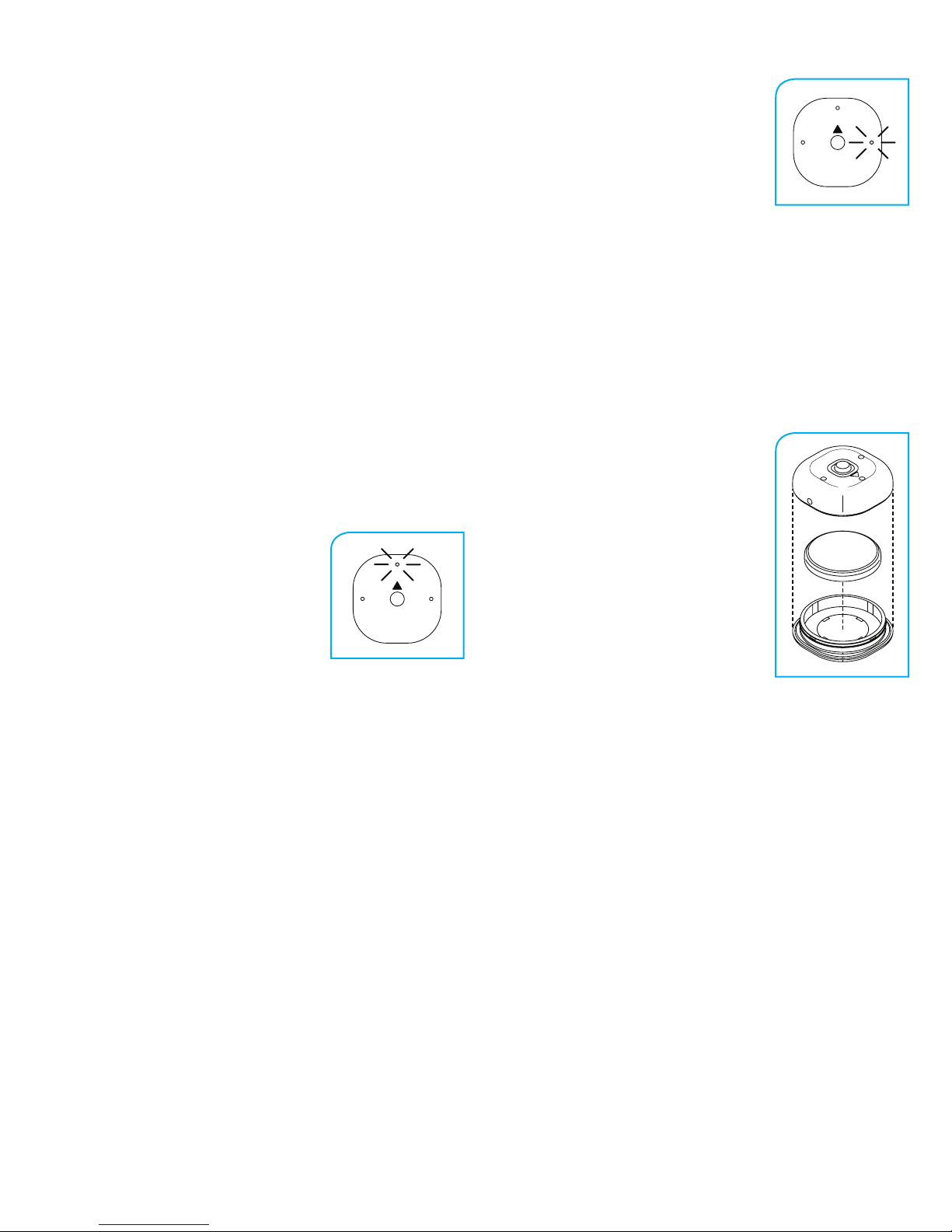
To replace the battery, first remove the
tracker pod from the band.
Next, using your fingernails, pry the back
cover off the tracker pod. Remove the old
battery from the back cover, and insert a
new CR 2032 battery as shown; make sure
that the battery is oriented so that the
text on the battery is facing downward.
Then, align the dot on the side of the tracker
pod with the dot on the underside of the
back cover, and carefully press the tracker
pod onto the back cover.
To s t op th e s l ee p t i me r, first press the button on the tracker pod
repeatedly until the blue LED indicator flashes. Next, press and
hold the button on the tracker pod for 2 seconds; the blue LED
indicator will stop flashing to indicate that the sleep timer has
stopped and has recorded your sleep time.
Page 4

COMPLIANCE INFORMATION
LIMITED WARRANTY FOR UNITED STATES
UNITED STATES
FCC Statement. This device complies with Part 15 of the FCC
Rules. Operation is subject to the following two conditions: (1) This
device may not cause harmful interference, and (2) this device must
accept any interference received, including interference that may
cause undesired operation.
FCC Warning: Any changes or modifications not expressly
approved by the party responsible for compliance could void
the user’s authority to operate this equipment.
Note: This equipment has been tested and found to comply with the
limits for a Class B digital device, pursuant to Part 15 of the FCC
Rules. These limits are designed to provide reasonable protection against harmful interference in a residential installation. This
equipment generates, uses, and can radiate radio frequency energy
and, if not installed and used in accordance with the instructions,
may cause harmful interference to radio communications. However,
there is no guarantee that interference will not occur in a particular
installation. If this equipment does cause harmful interference to
radio or television reception, which can be determined by turning the
equipment off and on, the user is encouraged to try to correct the
interference by one of the following measures:
• Reorient or relocate the receiving antenna.
• Increase the separation between the equipment and the receiver.
• Connect the equipment into an outlet on a circuit different from
that to which the receiver is connected.
• Consult the dealer or an experienced radio/TV technician for help.
This device meets the FCC and IC requirements for RF exposure in
public or controlled environments.
CANADA
IC Statement. This device complies with Industry Canada license
exempt RSS standard(s). Operation is subject to the following two
conditions: (1) This device may not cause harmful interference, and
(2) this device must accept any interference received, including
interference that may cause undesired operation.
This Class B digital apparatus complies with Canadian ICES-003.
ICON Health & Fitness, Inc. (ICON) warrants this product to be free
from defects in workmanship and material, under normal use and
service conditions. Parts are warranted for one (1) year from the
date of purchase.
This warranty extends only to the original purchaser (customer).
ICON’s obligation under this warranty is limited to replacing this
product. If a replacement product is shipped while the product is
under warranty, the customer will be responsible for a minimal
handling charge. No other warranty beyond that specifically set forth
above is authorized by ICON.
ICON is not responsible or liable for indirect, special, or consequential damages arising out of or in connection with the use or
performance of the product; damages with respect to any economic
loss, loss of property, loss of revenues or profits, loss of enjoyment
or use, or costs of removal or installation; or other consequential
damages of any kind. Some states do not allow the exclusion or
limitation of incidental or consequential damages. Accordingly, the
above limitation may not apply to the customer.
The warranty extended hereunder is in lieu of any and all other
warranties, and any implied warranties of merchantability or fitness
for a particular purpose are limited in their scope and duration to the
terms set forth herein. Some states do not allow limitations on how
long an implied warranty lasts. Accordingly, the above limitation may
not apply to the customer.
This warranty provides specific legal rights; the customer may have
other rights that vary from state to state.
For claims, please visit our Customer Care website at
support.iFit.com or send e-mail to [email protected].
ICON Health & Fitness, Inc.
1500 S. 1000 W., Logan, UT 84321-9813
LIMITED WARRANTY FOR EUROPE
To r e ce i ve in f or m at i on ab o ut yo u r w ar r an t y, se n d e ma i l t o
[email protected].
RECYCLING INFORMATION
This electronic product must not be
disposed of in municipal waste. To preserve
the environment, this product must be recycled after its useful life as required by law.
Use recycling facilities that are authorized to collect this type of waste in your area. In doing so,
you will help to conserve natural resources and
improve standards of environmental protection.
For information about safe and correct disposal
methods, please contact your local city office
or waste disposal office, or the establishment where you purchased
this product.
Part No. 363242 R1215A Printed in China © 2014 ICON Health & Fitness, Inc.
 Loading...