

Page 1
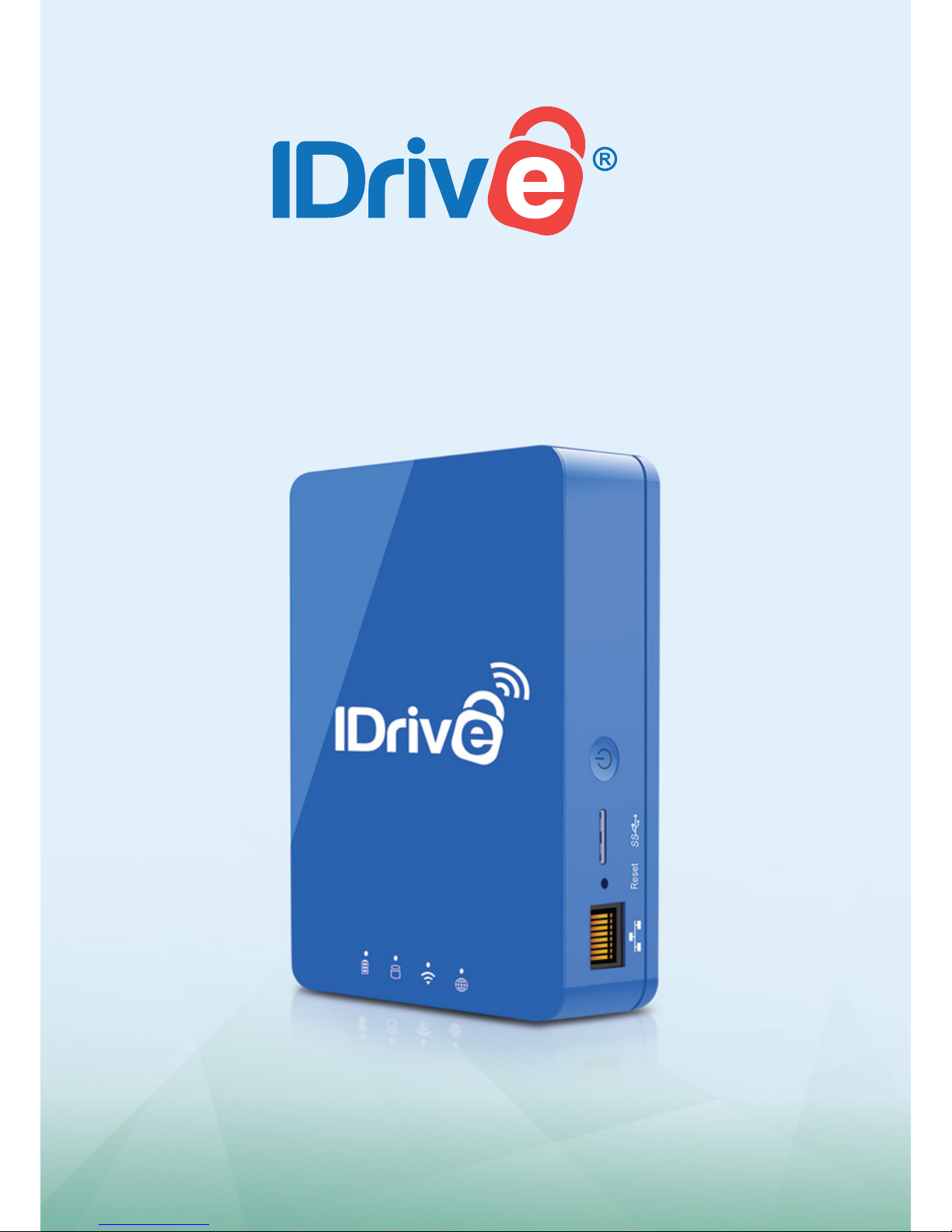
Quick Start Guide
Three great features in One device
One
Page 2
1
1
Seng up Your IDrive One Device as a
Wireless Base
To ulize IDrive One as a Wi-Fi extender, the device must be set up in
a pass-through mode, so that you can connect to the IDrive One
device as well as the internet.
There are two different ways to set up internet access from
IDrive One.
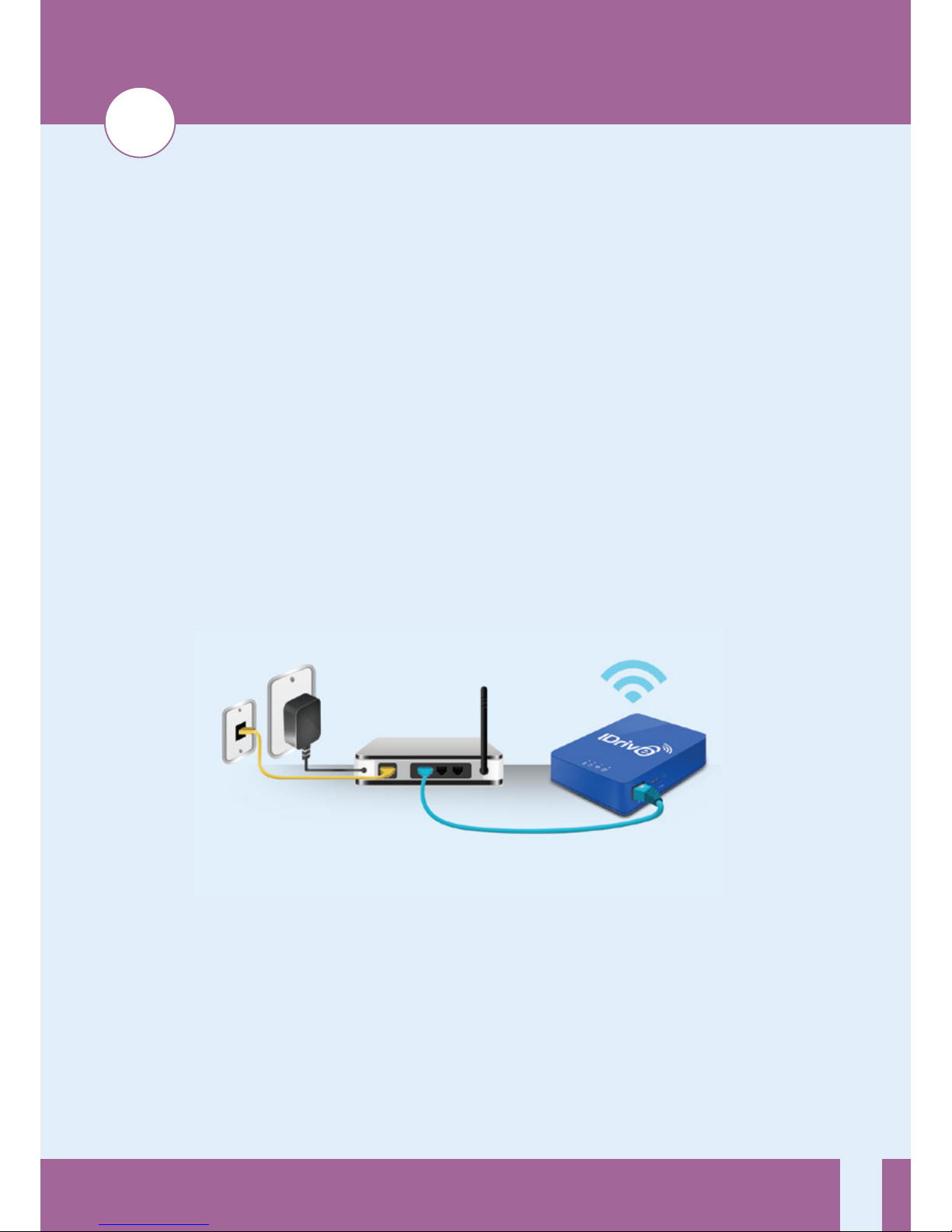
Method 1: Using a LAN-based internet connecon
1 Connect the IDrive One device to a router using a LAN cable.
2. Press and release the power buon, and the light above the
Wi-Fi symbol will glow aer a few seconds.
Page 3

2
Method 2: Using a Wi-Fi connecon
1. Plug in the AC adapter to an available electrical outlet. Press
and release the power buon, and the light above the Wi-Fi
symbol will glow aer a few seconds.
2. From the device you wish to backup, connect to IDrive One’s
Wi-Fi network, IDriveOne-5G-XXXX (if available). Otherwise,
connect to IDriveOne-2G-XXXX. The default password is
11111111.
3. Open a web browser, and visit 10.10.10.254.
4. Click or tap the Login buon. The default username is ‘admin.’
No password is required, but we recommend establishing one
aer logging in.
5. Go to Sengs>Network>Internet.
6. From the available network names, select the wireless network
that provides your internet access. Enter your network
password if required.
7. Click or tap Save buon and close the window.
1
We highly recommend changing your IDrive One Wi-Fi Network Password, and the password for the
Administrative Controls. See our FAQ at idrive.com for details'.
Page 4
3
2
Extending Your Mobile Storage using
IDrive One
Loading Data onto the IDrive
One Device
1. Visit the App Store or Google Play
and download the ‘IDrive One’
mobile app.
2. Connect your device to the IDrive
One Wi-Fi network. If a login field
appears, the default username is
‘admin.’ No password is required, but we recommend
establishing one aer logging in.
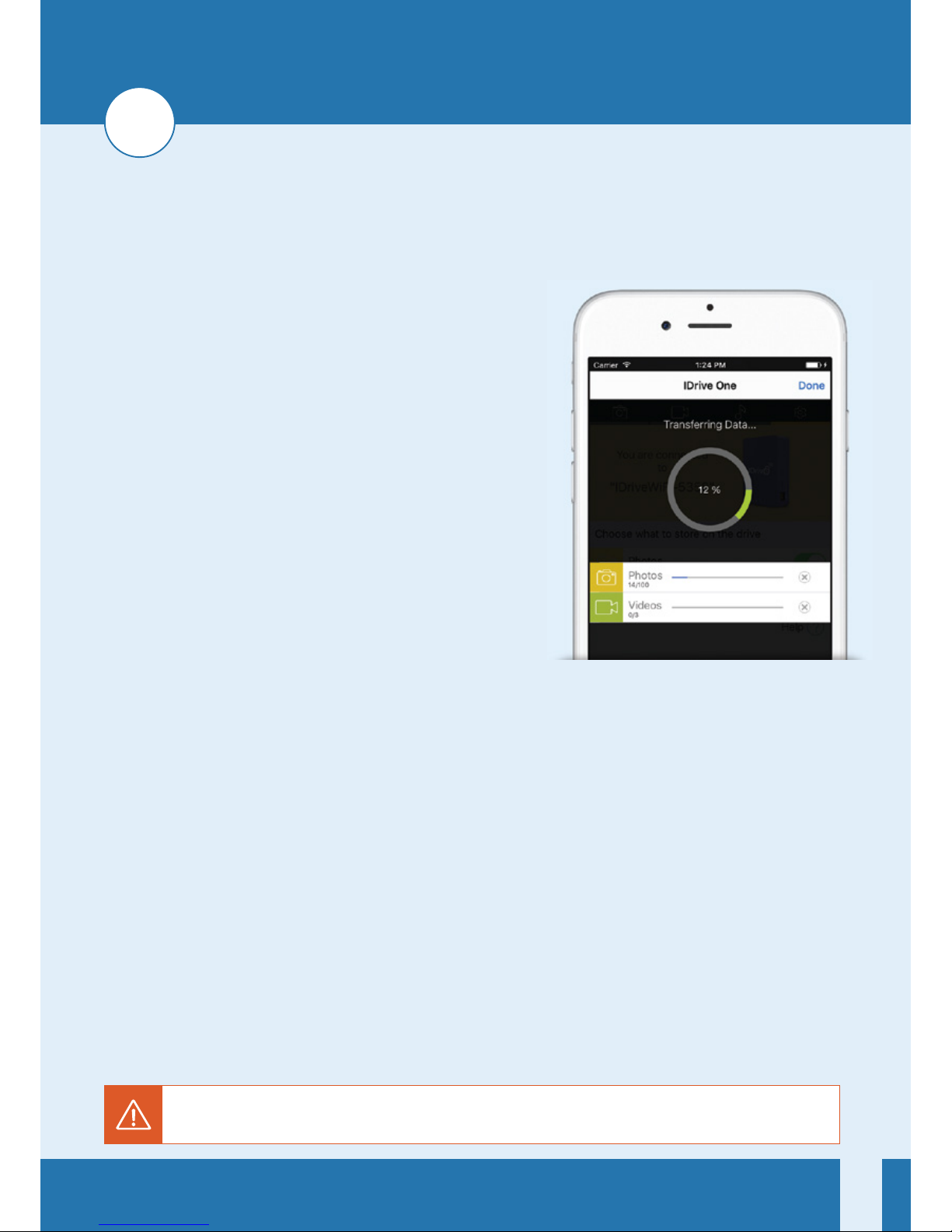
3. Launch the IDrive One mobile app. You should see your IDrive
One device and network name.
4. Select the types of files you’d like to load onto the IDrive One
device. Once loaded, you can stream Photos, Videos, and
Music. (Music available on Android only).
5. Wait for your data to load onto the IDrive One device.
We highly recommend changing your IDrive One Wi-Fi Network Password, and the password for the
Administrative Controls. See our FAQ at idrive.com for details'.
Page 5
4
Streaming Data from the IDrive One Device
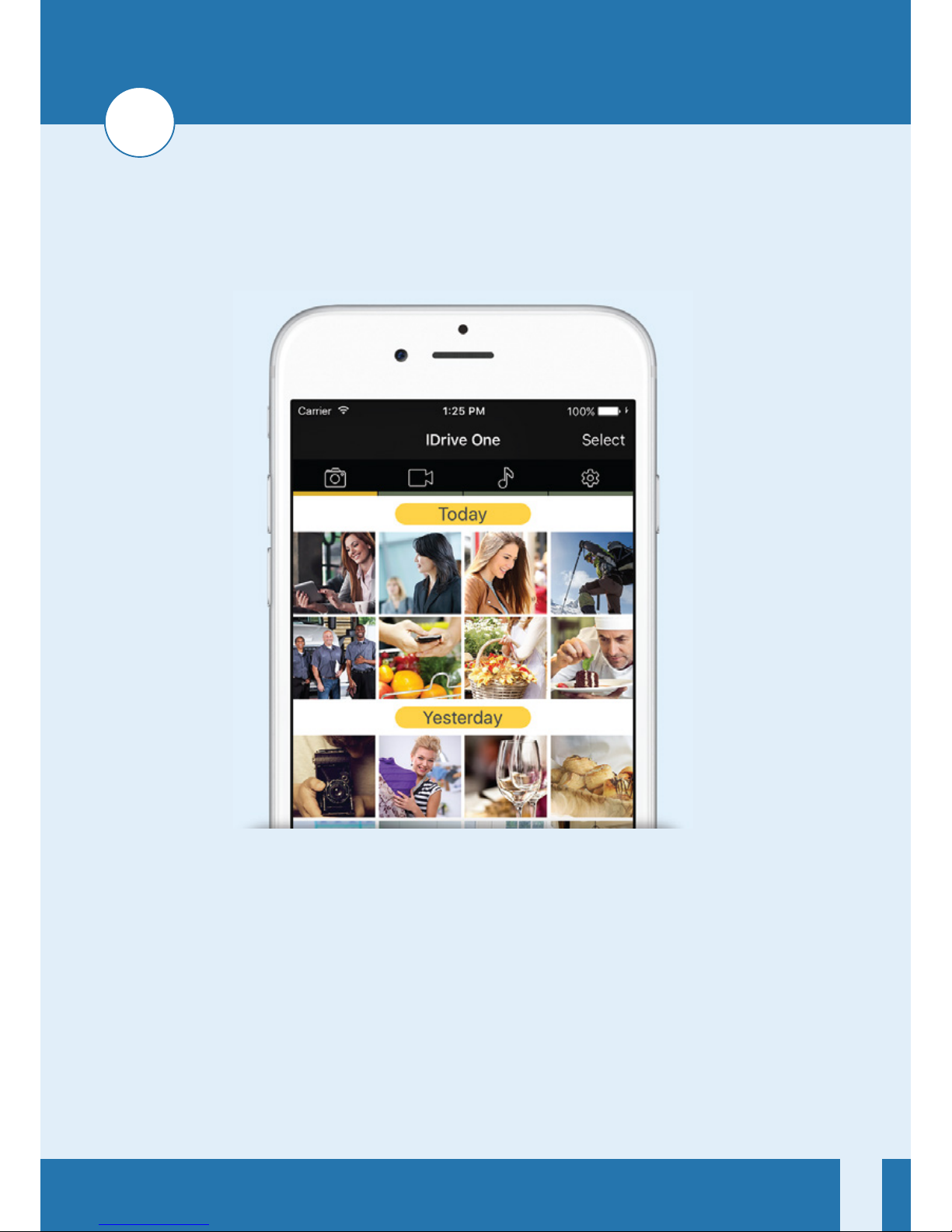
1. Launch the IDrive One mobile app. Make sure you’re connected
to your IDrive One network.
2. Swipe le to view Pictures, Videos, and Music. (Music available
on Android only).
2
Page 6
5
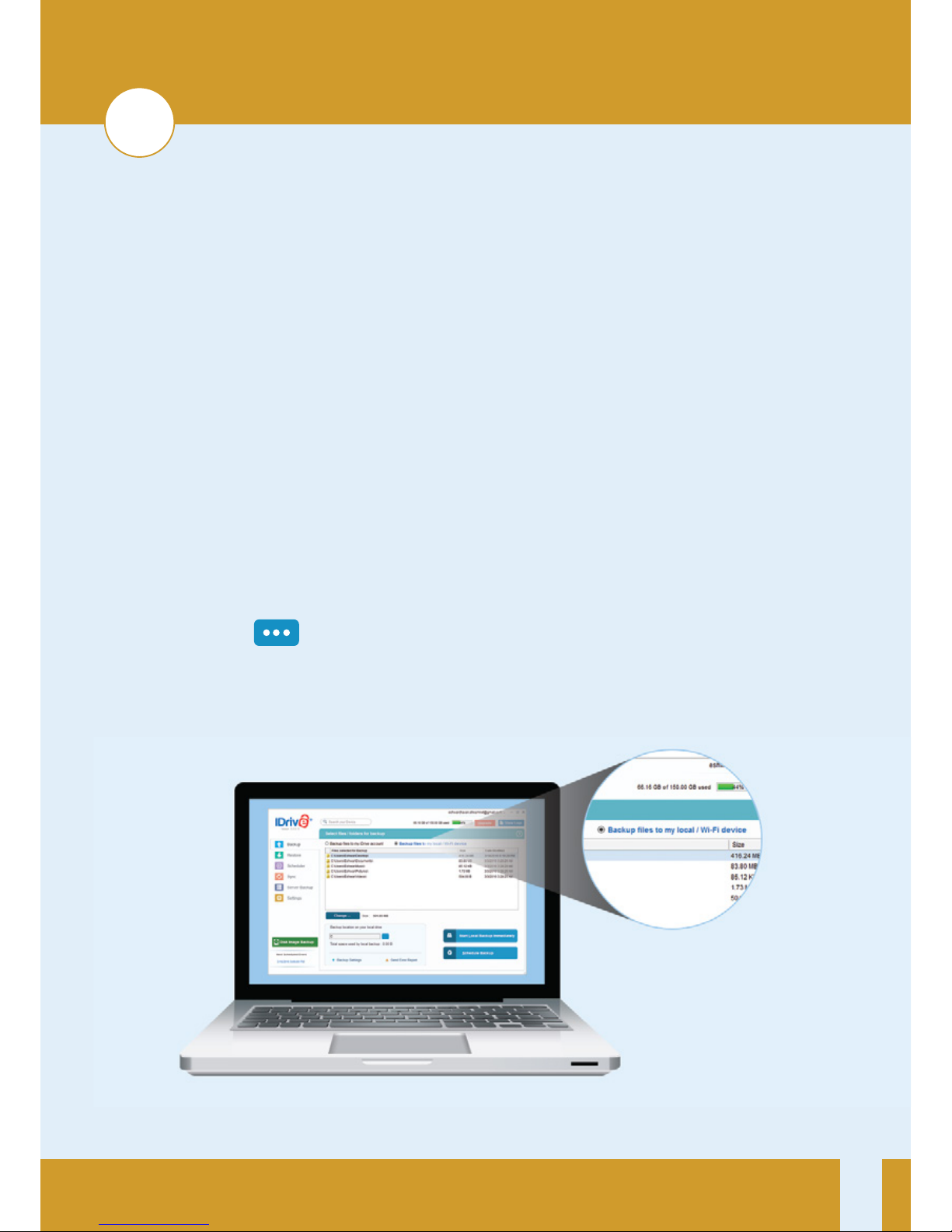
Using the IDrive Applicaon for Local Backup
On Desktop
To perform local wireless backups from the IDrive One device, you’ll
need to connect to the internet.
1. Connect to your IDrive One network, launch the IDrive
applicaon and log in.
2. Select the Backup files to my local/Wi-Fi device buon.
3. Click the icon in the Backup locaon on your local drive
secon, then select the IDrive One Wi-Fi network and click OK.
3
Page 7

6
4. Enter your login credenals for the IDrive One device. The
default username is ‘admin.’ By default, there is no password.
5. Click Change… and select the files/folders you’d like to backup.
6. Click Schedule Backup to set a preferred me for running your
backup, or click Start Local Backup Immediately.
3
Page 8
3
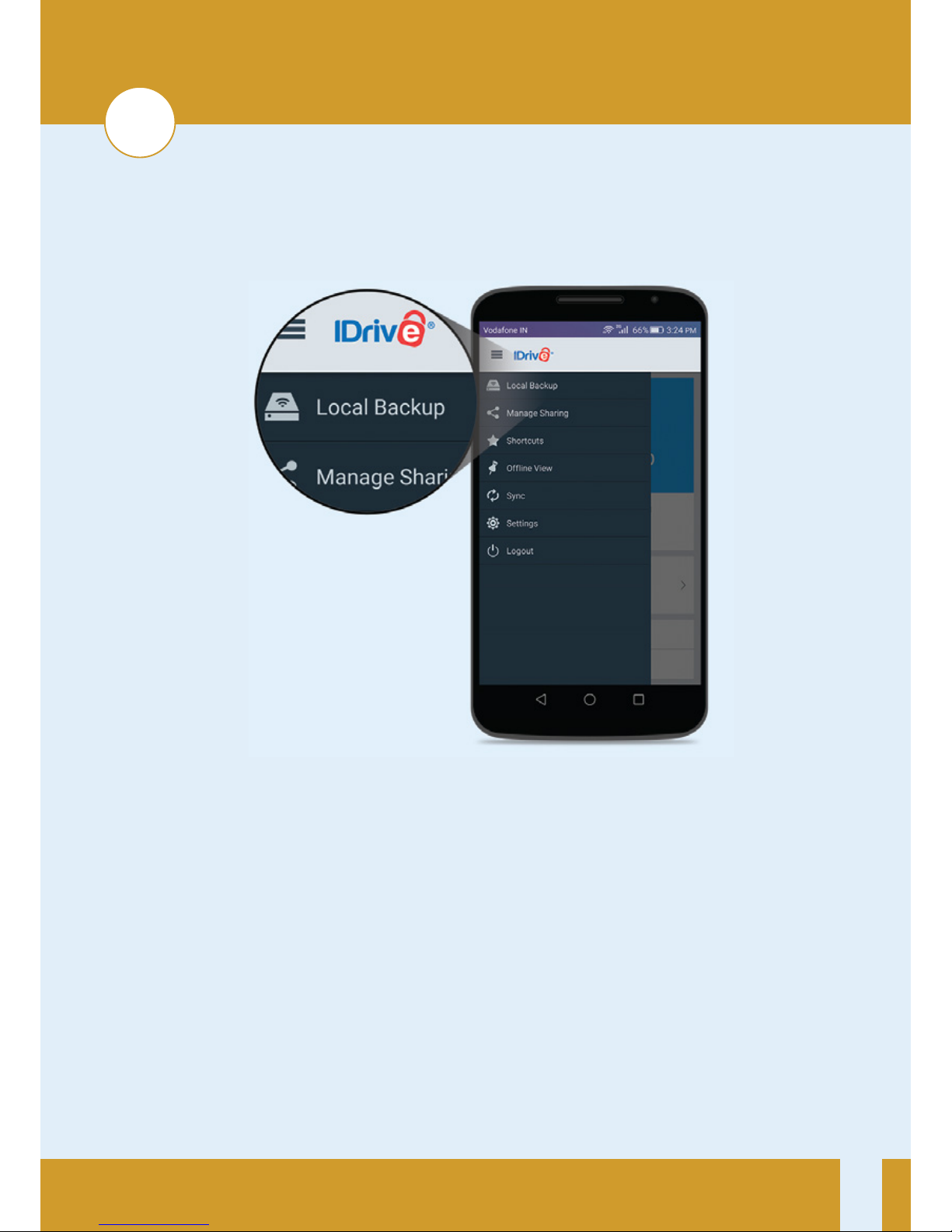
On Mobile
1. Connect to IDrive One network, launch the IDrive app and log in.
2. Tap Menu icon on the top le corner of the screen, then tap the
Backup buon under Local Backup.
3. Tap the type of files you’d like to backup.
4. Click Backup Now to start your backup.
7
Page 9

8
Using IDrive One with a USB connecon
1. Make sure your IDrive One device is powered off.
2. Connect your IDrive One to a computer with a USB cable.
3. Press and hold the power buon to turn on IDrive One.
4. Your IDrive One device will appear as a drive/volume on
your computer.
Note: IDrive One’s Wi-Fi mode cannot be used when the device is
connected via USB.
Page 10

9
Specificaons
Wi-Fi Standard: 802.11 ac/a/b/g/n
Frequency: 5 GHz and 2.4 GHz
Speed: Up to 1.3 Gbps
Network Interface: Up to 100 Mbps Ethernet RJ45
USB Interface: Micro USB 3.0 for data transfer
Operaon Temperature: 5°C - 35°C
Storage Capacity: 1 TB HDD, 2 TB HDD, 128 GB SSD and 256 GB SSD
For more details:
www.idrive.com/one
Page 11
© IDrive Inc.
6 am - 6 pm Pacific, Mon-Fri
www.idrive.com/one
866-748-0555 x 3
More Quesons? Call our Support Team at
 Loading...