

Page 1
IDFONE CO.,LTD
T
www.idfone.co.kr
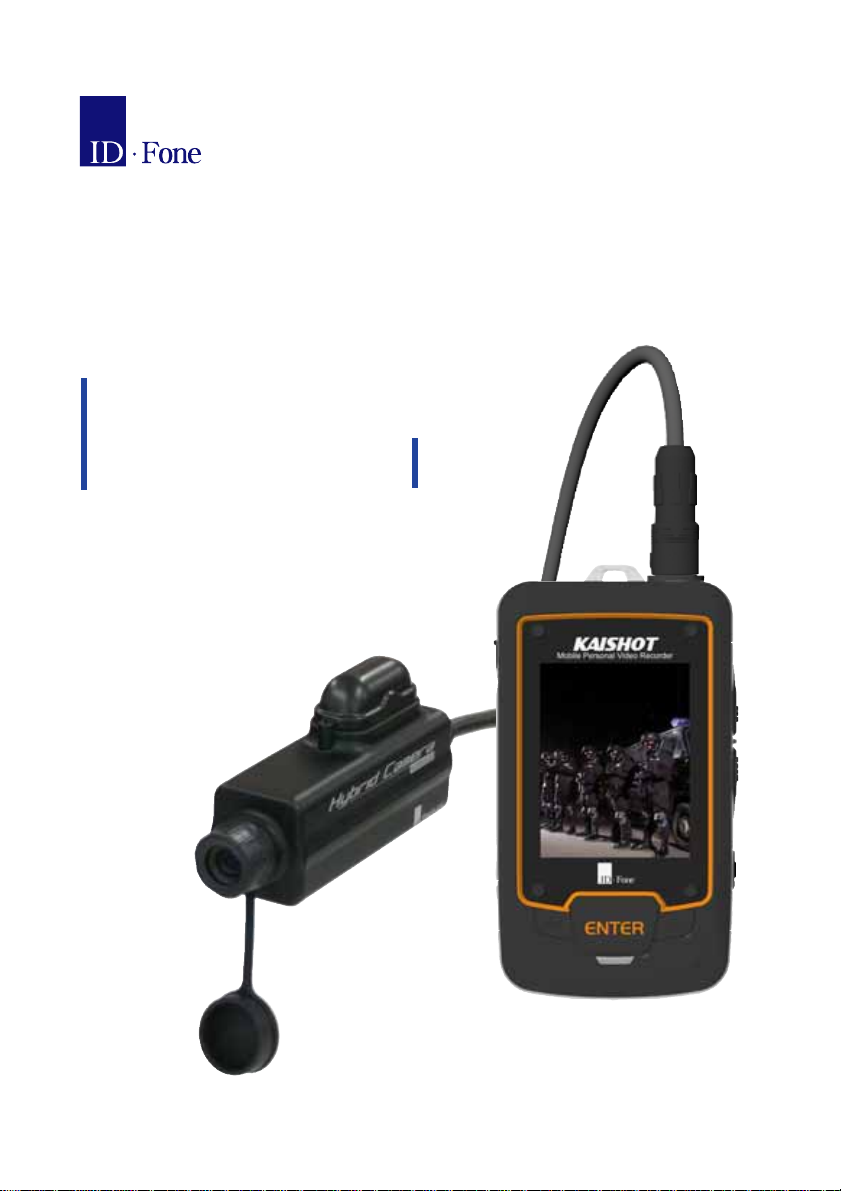
KAISHO
IDF-PVR(Series) User Manual
● Please note that the manufacturer does not hold
responsibility for troubles caused by the use of imitation
parts.
● Please read "Safety Instruction" (page 1-3) carefully before
use in order to prevent personal injuries or damages to the
product.
● The content of manual can be changed without any notice.
The actual product may look different
from the picture in the User Manual.
Page 2
IDFONE CO.,LTD
KAISHOT
Safety Instruction
This instruction is intended to protect user's safety and prevent any damages to the product.
Please read this instruction before use and follow the instruction carefully.
Warning
Failure to comply may cause serious injuries or death
Do not dry this product with electronic heat source such as radiator,
microwave, or stove when it gets wet.
It may lead to explosion, change of shape, or out of order of the product, and the
battery or product changes its color. In this case, product may not eligible for free
services.
Do not use this product in hot and humid co nditions out of the o per a t i ona l
range specified. (Recommended operational temperature: -10 ~ 60 ℃℃
humidity: 20~85%RH )
When the product is used out of recommended operational environment, it may lead to
explosion or out of order of the product.
Please do not expose the battery under the direct sunlight in a closed area such as a car.
I
When battery replacement is required, be sure that the parts replaced are
the ones specified by the manufacturer, and not used for other purposes.
When the battery of different brand is used, durability of the product may be reduced,
or even may possibly lead to explosion. The product will not qualify for free service
under such case. It is strongly recommended to use the battery referred by the
manufacturer.
Keep the product out of children's reach.
It is harmful for the health of children when they play with damaged battery or
put it into the mouth. They may be exposed to harmful chemical solutions,
electromagnetic wave, and/or electric shock.
Do not disassemble, modify, or strike the product.
It may cause the fire.
Safety Instruction 1
Page 3
IDFONE CO.,LTD
KAISHOT
Caution
Press the power cord fir mly when you plug it in to t he outlet, and use the
cord head when you unplug it in order to prevent damage to the cord.
When the contact is not tight or a part of the cord is cut, it could lead to fire and/or
heat over-generation.
Please do not break the power cord and do not use them when the power outlet is
loose. When the product is wet and/or your hands are wet, do not touch the outlet and
the power cord.
Do not use liquid or aerosol cleaner or chem ical solutions such as alcohol,
benzene, or thinner to clean the product.
It could cause fire and damage to the product. Please use dampened soft cloth for
cleaning the product.
Failure to comply may lead to risk of injuries or loss of assets.
Do not place magnetic materials such as credit card, passbook, or transit passes
near the product. You may lose the information contained on them. Data stored
in the product may be damaged or lost.
When you do not use the product, disconnect the power source from the product
and place on safe surface. The product will be damaged if the product is stricken,
beaten, or shaken hard.
Do not paint the product.
It may damage the screen and be a cause of malfunction. In case the debris from
the paint causes allergic reaction, stop using the product and see the doctor.
Safety Instruction 2
Page 4
IDFONE CO.,LTD
KAISHOT
[
]
Place the battery in a room temperature when it is not used for long period of
time after charged. When you need to use it again after long idle period, it is
recommended to use it after recharging it fully. Even after the long idle period, the
battery capacity may reduce gradually. When the duration of operation becomes
substantially short, it is required to replace with a new battery.
Please keep the backup record for your original data.
Data stored in the product may be damaged or lost while upgrading or repairing
the product, or due to human errors.
Please be advised that manufacturer and resellers will not be responsible for the
damage to or loss of data.
Please do not connect this product to the other equipment or application with a
method other than indicated in the User Manual. Some products may be affected
by the electromagnetic wave from this product.
Certification
This product is suitable for use in household environment (Class B).
Product can be used in all areas.
Safety Instruction 3
Page 5

IDFONE CO.,LTD
KAISHOT
Before You Use
Cautions Details
Connect all the
peripherals to the unit
prior to the operation.
Connecting or removing the peripherals during the operation may
cause the damages or troubles.
Check the icon status.
Refer to the appropriate
section of the User
Manual to change the
Micro SD Card and
follow the instruction.
Do NOT open the side
cover.
The maximum amount
of time you can record
per file is limited.
Apply LCD Saving Mode
On.
Do NOT separate the
battery from the unit
during operation.
If the wireless module, camera, GPS, or Micro SC Card has to
connect to the unit while the power is on, it takes some time to be
recognized. Use the function after checking the status of the icon.
You will see the error message when the function is not ready to
perform yet.
When it is not handled accordingly, it may damage the Micro SD
Card, or cause critical system errors.
It may damage Micro SD Card. Also, it may disturb a normal
recording function, thus recording may not be stored properly.
The maximum amount of time for ONE file can record is up to
2GBytes. Recording will automatically stop when it reaches to
maximum recording capacity (up to 3 hours, depending on your
settings).
We recommend that you apply LCD Saving Mode On to reduce
the heat generation and battery consumption as little as possible.
It is set as three (3) minutes by default.
If battery is separated from the unit during operation, not
through the proper steps indicated in the User Manual, it
forcefully turns the system off, thus causing troubles in the
system. If battery is separated in the middle of the recording
operation, it may not store the date recorded.
Please check the battery
capacity.
If remaining battery life is not sufficient, it may forcefully turn the
system off.
Before you use 4
Page 6

IDFONE CO.,LTD
KAISHOT
Contents
Safety Instruction
Before You Use
Contents
Kaishot Introduction
Kaishot Series Introduction
Components
The Name of Each Part
Connecting/Disconnecting Camera
Use of Battery
Micro SD Card Management
Outputting Video to the External Monitor
Kaishot Preview
Recording Functions
Playback Functions
Transmission (Real-time) Functions
Checking Messages
GPS settings Functions
Setup
Program Upgrade
Troubleshooting
Product Specifications
............................................................................... 01~03
.......................................................................................... 04
.................................................................................................... 05
................................................................................... 06
........................................................................ 07
.............................................................................................. 08
............................................................................. 09
........................................................... 10
..................................................................................... 11~12
............................................................... 13~14
.................................................. 15
.................................................................................. 16~19
........................................................................... 20~23
............................................................................. 24~31
.................................................... 32~35
............................................................................ 36~40
....................................................................... 41~43
.................................................................................................... 44~51
……………………..................................................... 52~56
......................................................................................... 57
......................................................................... 58~60
Contents
5
Page 7

IDFONE CO.,LTD
KAISHOT
KAISHOT Introduction
KAISHOT is a portable Micro Audio/Video Recorder (mobile Personal Video Recorder) which
is used to record and store video and audio information, provide locational information, and
transmit such information to control tower through wireless network, thus allowing real-time,
on-site monitoring of the field operations.
[KAISHOT Features]
KAISHOT is a digital audio/video portable product for recording and real time transmission
with high resolution (H.264) and smaller size. Its main use is for security, military, police, sports
and other various activities.
KAISHOT is a system that can store, review, and transmit the meta data all at once.
KAISHOT is designed to be protected from water, vibration, or any external shocks.
Accessories such as belt clip, wire, and pin can be used for more convenient attachment of the
product to the user.
Contents
6
Page 8
IDFONE CO.,LTD
KAISHOT
Kaishot Series Introduction
Series Features
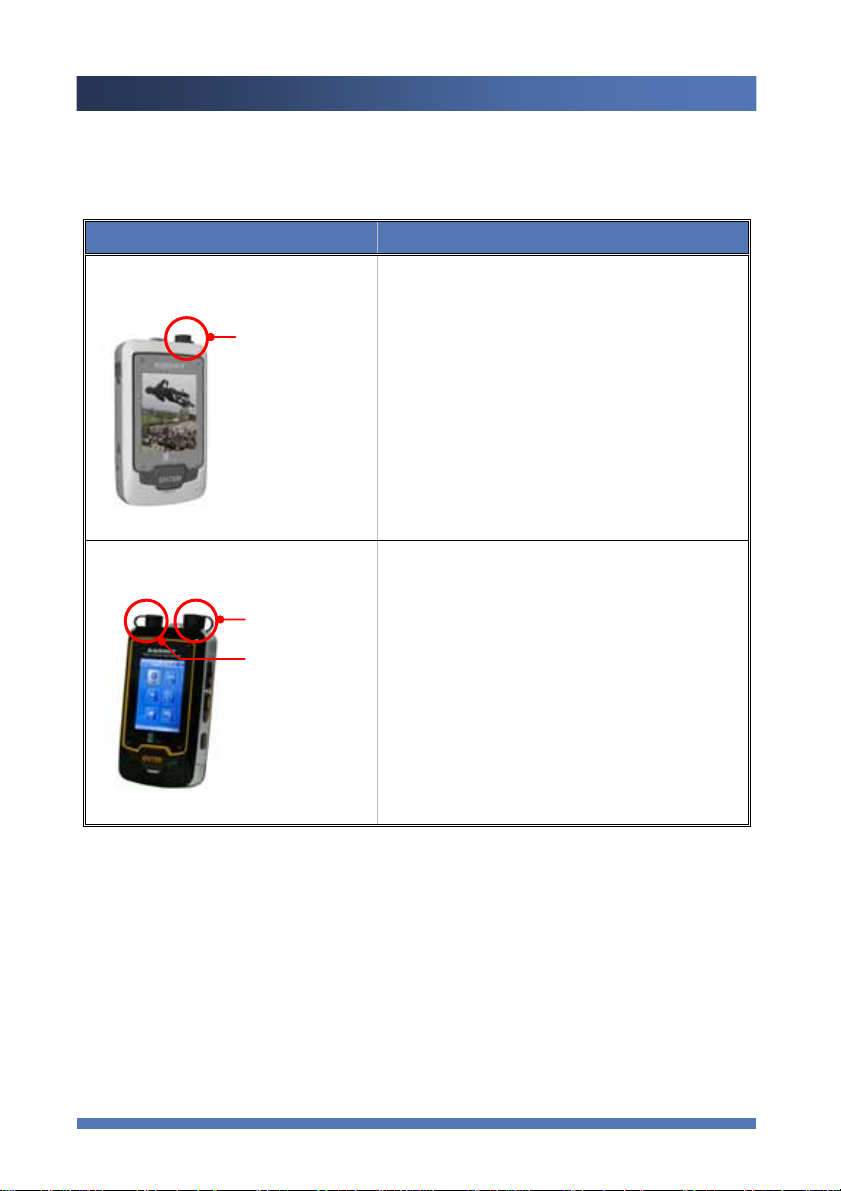
IDF-PVR01 Series
IDF-PVR02 Series
Camera
Connector
Camera
Connector
Connector for
Communicati
on Module
*Camera Connector
Connected with Hybrid camera or Bullet
camera
* Hybrid Camera can use Wireless
Communication Module/GPS/Camera
together.
Option Item : Wireless Communication
Module and GPS
Camera Connector
Connected with external equipment such
as Bullet camera and GPS module
Communication Module
Can connect with Wireless
Communication Module
* Option for each
Components
7
Page 9
IDFONE CO.,LTD
KAISHOT
(
)
Components
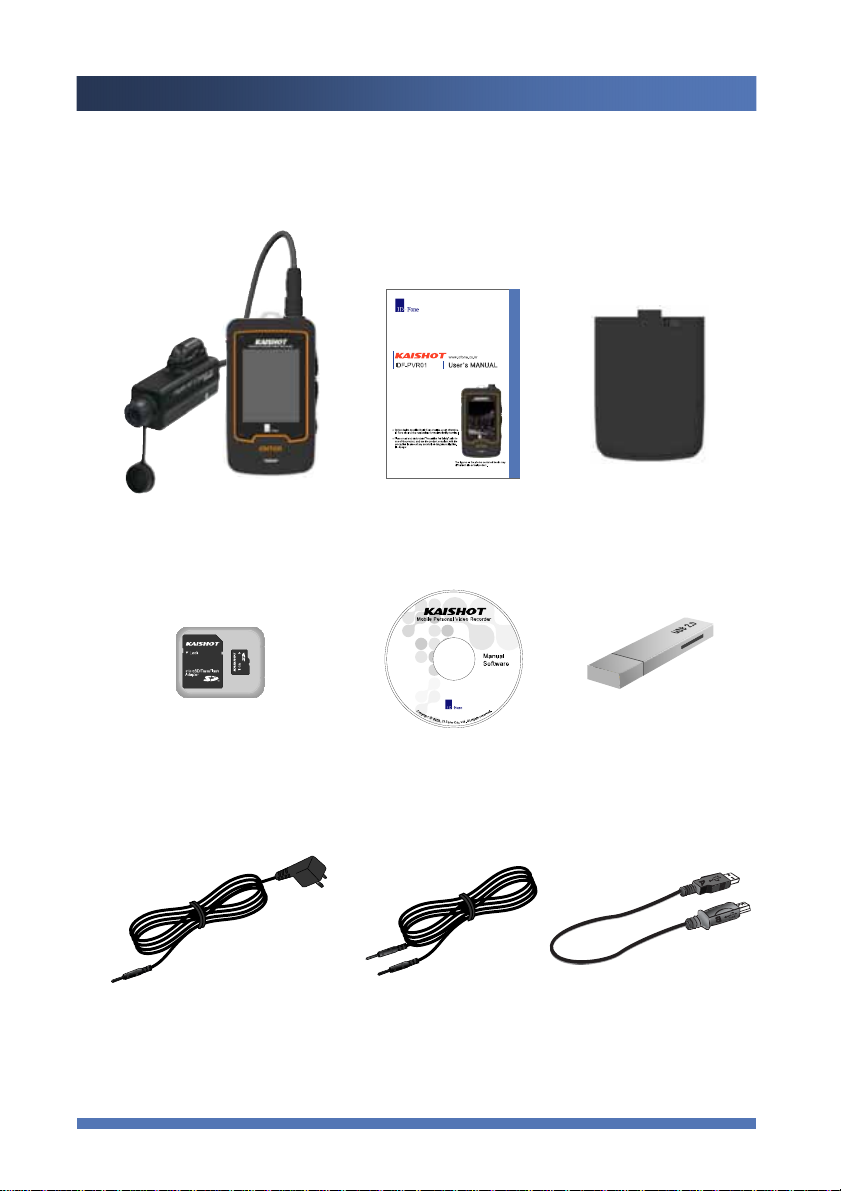
Camera (Optional)
Recorder camera
※Camera(optional): Bullet
Camera
1.5m Turn Core
User Manual Battery Pack
Micro SD Card CD (Manual/Software) Micro SD Card Reader
AC adapter/Power Cord
(1.5m cable)
AV Cable
(1.5m Turn Core)
USB data transfer Cable
((optional):1.5m Turn Core)
Components
8
Page 10
IDFONE CO.,LTD
KAISHOT
r
t
t
r
The Name of Each Part
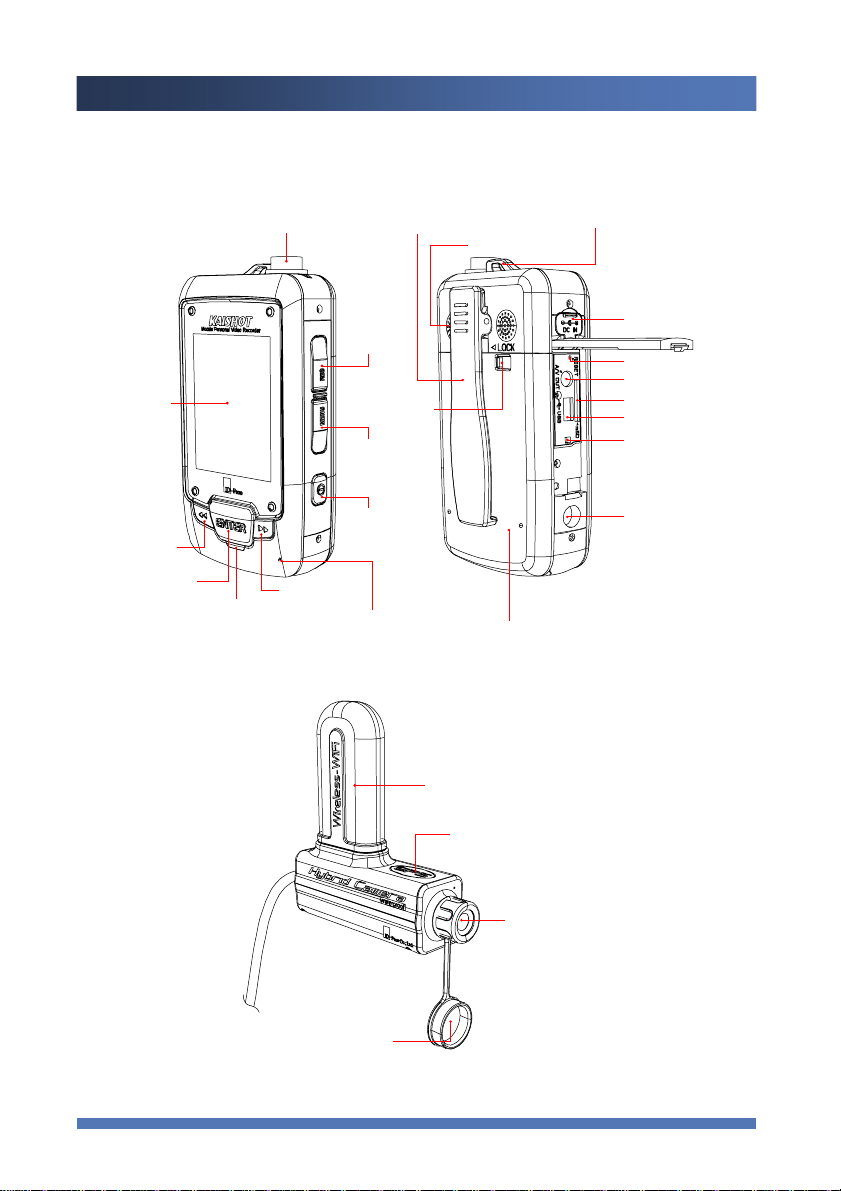
[Recorder]
2.4” Color
TFT LCD
UP/RIGHT
ENTER
[Hybrid Camera]
Camera Connecto
DOWN/LEFT
LCD
REC
Battery Lock
MENU
POWER
Internal MIC
Belt Clip
Speaker
Battery Pack
Wireless Module
(WiFi,HSDPA,GPRS,Wibro)
GPS Module
Hand Strap Connector
DC IN
RESET
A/V OUT
Micro SD Card Slo
USB (Program Update)
Cover Lock
Tripod Socke
Camera
Lens Cove
The Name of Each Part
9
Page 11
IDFONE CO.,LTD
KAISHOT
Connecting/Disconnecting Camera
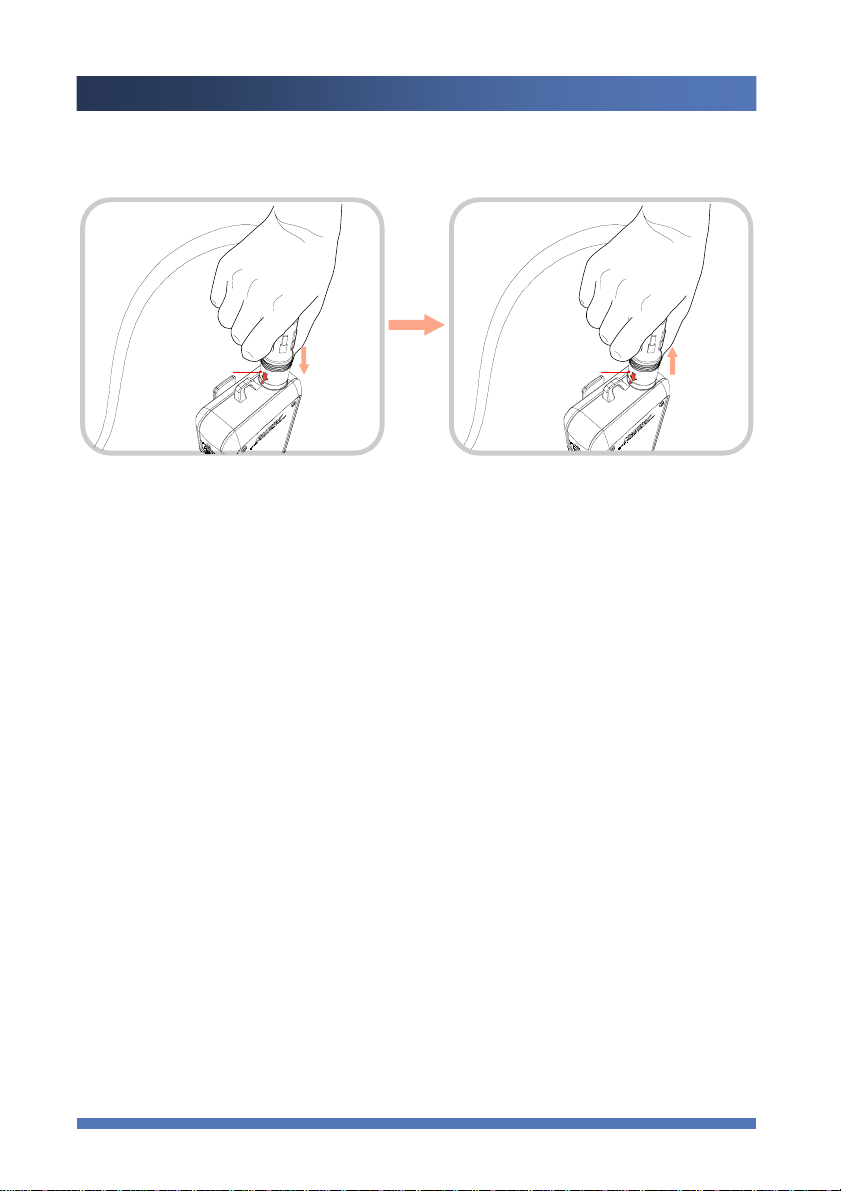
Cover Lock Cover Lock
[Connecting]
Line up the arrow as the picture above
and push the cable down. It will lock
automatically and will secure the
connection.
[Disconnecting]
Hold the connector’s lock position and
pull it up to unlock the connection.
Camera will be separated from the
recorder.
Connecting/Disconnecting Camera
10
Page 12
IDFONE CO.,LTD
KAISHOT
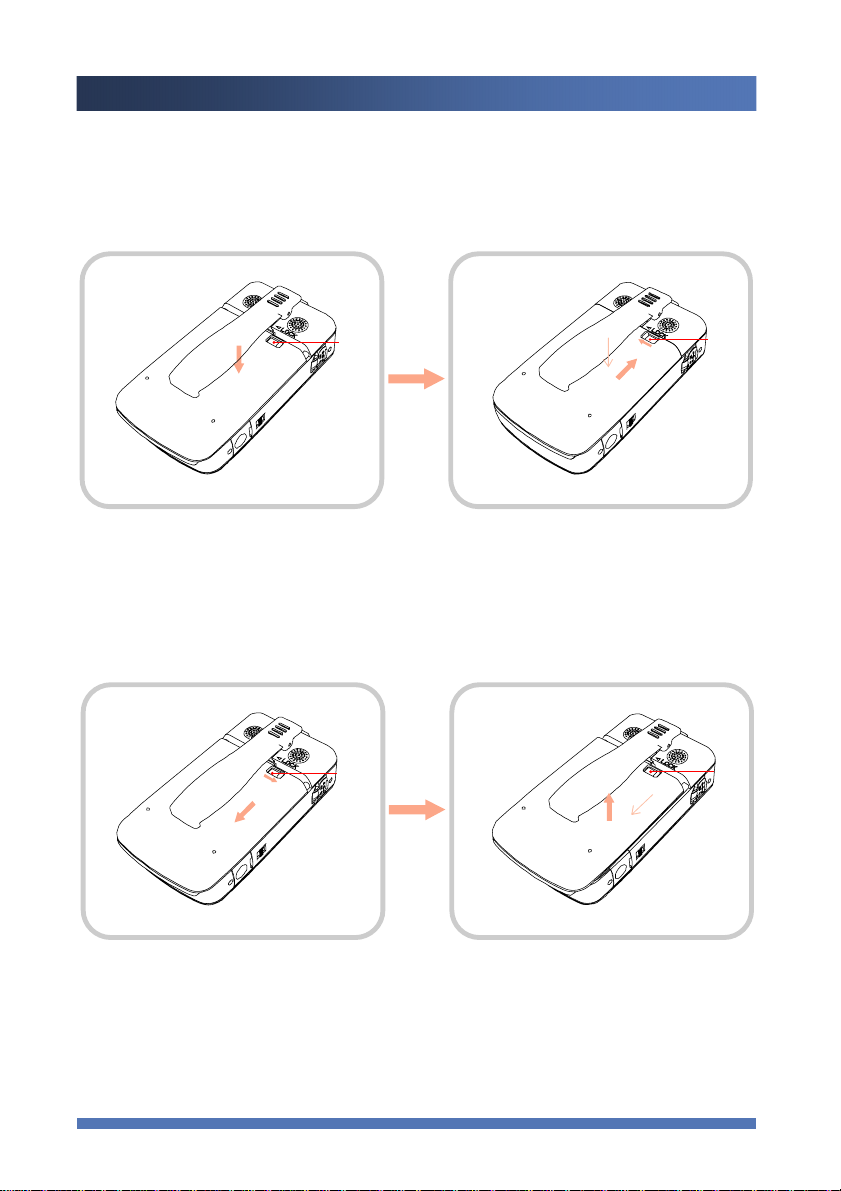
Use of Battery
[ Battery Mounting]
Lever
Lever
Align the battery with the power
connector, and load the battery as
shown on the figure.
[ Battery Removal]
Slide the Lock to the right to release
the lock, and pull the battery down a
little as shown.
Lever
Push the battery up, and then slide the
Lock to the left to engage the lock as
shown.
Lift the battery to separate it from the
body component.
Lever
Use of Battery
11
Page 13
IDFONE CO.,LTD
KAISHOT
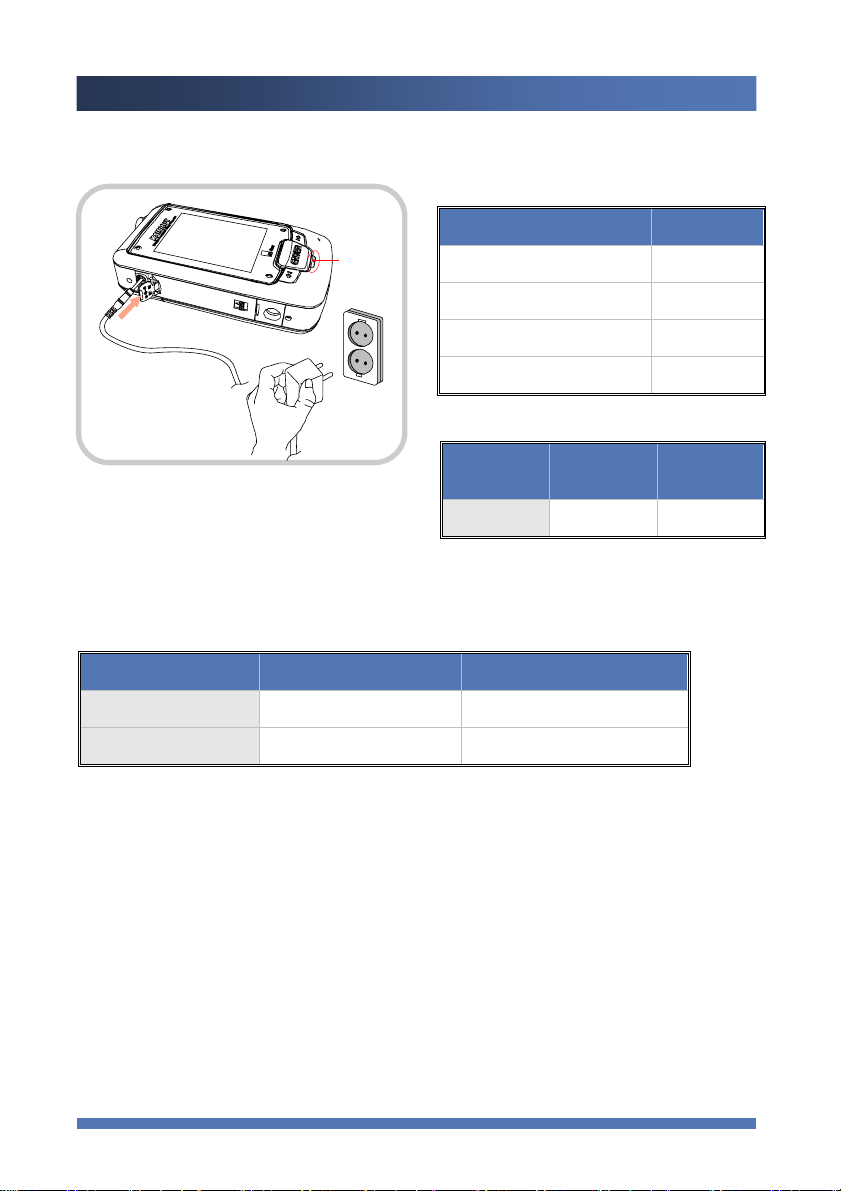
[ Charging the Battery]
LED Lamp
(LED Lamp Indication)
Status LED Color
Recording / Transmission Blue
Receiving Messages Blink Red
Charging Solid Red
Charging Complete Green
Connect AC Adapter to the KAISHOT and
insert power cord to the power outlet. When
battery is fully charged, there will be green light
lit on LED indicator.
[Battery Operation Time]
Continuous Recording
Continuous Transmission
[Notes on Battery]
▪ The figures above are measured in the laboratory setting under the actual conditions.
The actual figures in the use of different conditions may vary.
▪ The battery is a consumable. Duration of operation of battery will decrease over time.
▪ When the duration of operation of battery is reduced to half from the first time of use,
it is required to replace with a new battery.
(The warranty period of a new battery is six months after its purchase.)
▪ The battery is discharged even if you do not use it.
Small Cap. (2,100mAh) Large Cap. (2,100mAh)
1hour 40 minutes 3 hours
1hour 10-20 minutes 2 hours 30-40 minutes
(Charging Time)
Time 4~5 hours 7~8 hours
- When system is turned off
Small Cap.
(2,100mAh)
Large Cap.
(4,200mAh)
Use of Battery
12
Page 14
IDFONE CO.,LTD
KAISHOT
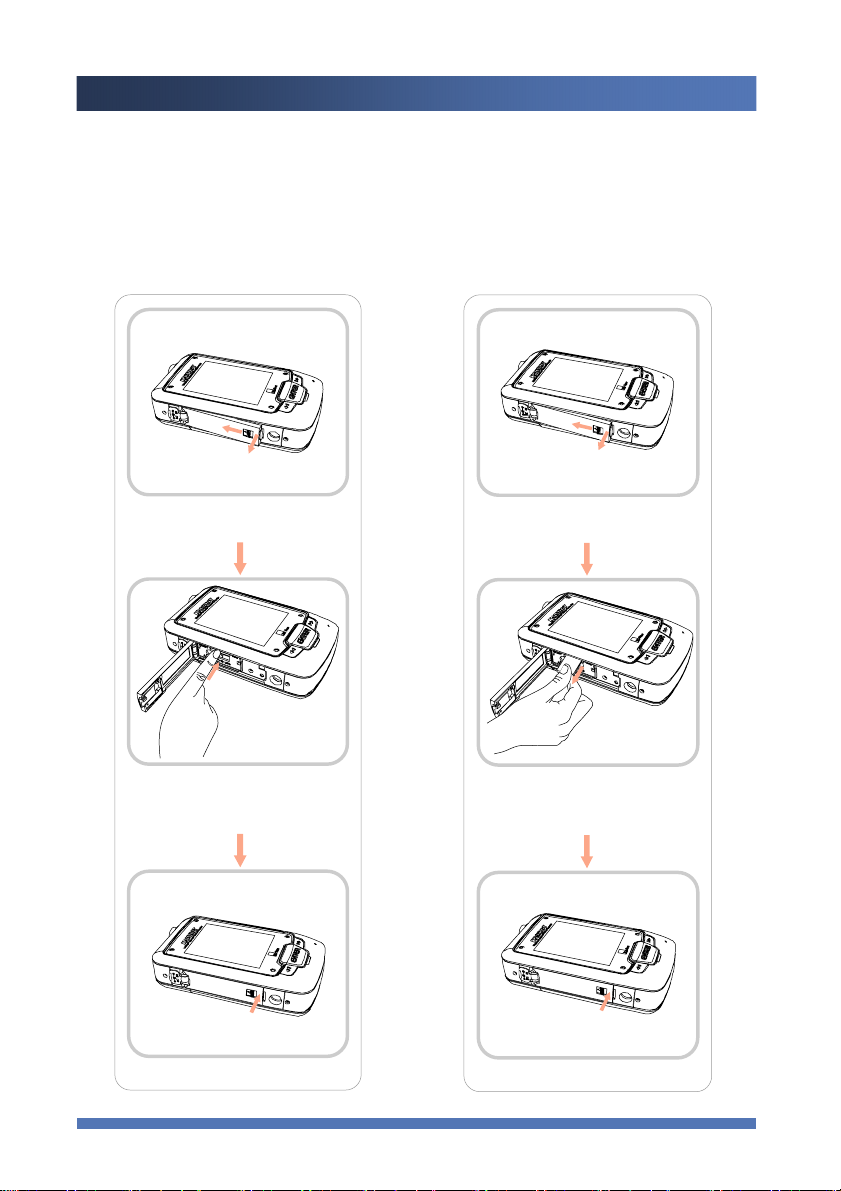
Micro SD Card Management
※ Caution
You must turn OFF the power before you insert or remove the Micro SD Card, or the stored information
may be damaged or lost.
remove the SD Card through the Main Menu. (SEE the following page for related instruction.)
[Inserting SD Card] [Removing SD Card]
If you have to remove the Micro SD Card when the power is ON, you should
Slide the side lock to the left and
open the side cover as shown.
Push the SD Card into the slot
until you hear click
Close the cover.. Close the cover..
Slide the side lock to the left and
open the slide cover as shown
Slightly push the SD Card in until
it clicks, then the SD Card will
eject out of the slot
Micro SD Card Management
13
Page 15
IDFONE CO.,LTD
KAISHOT
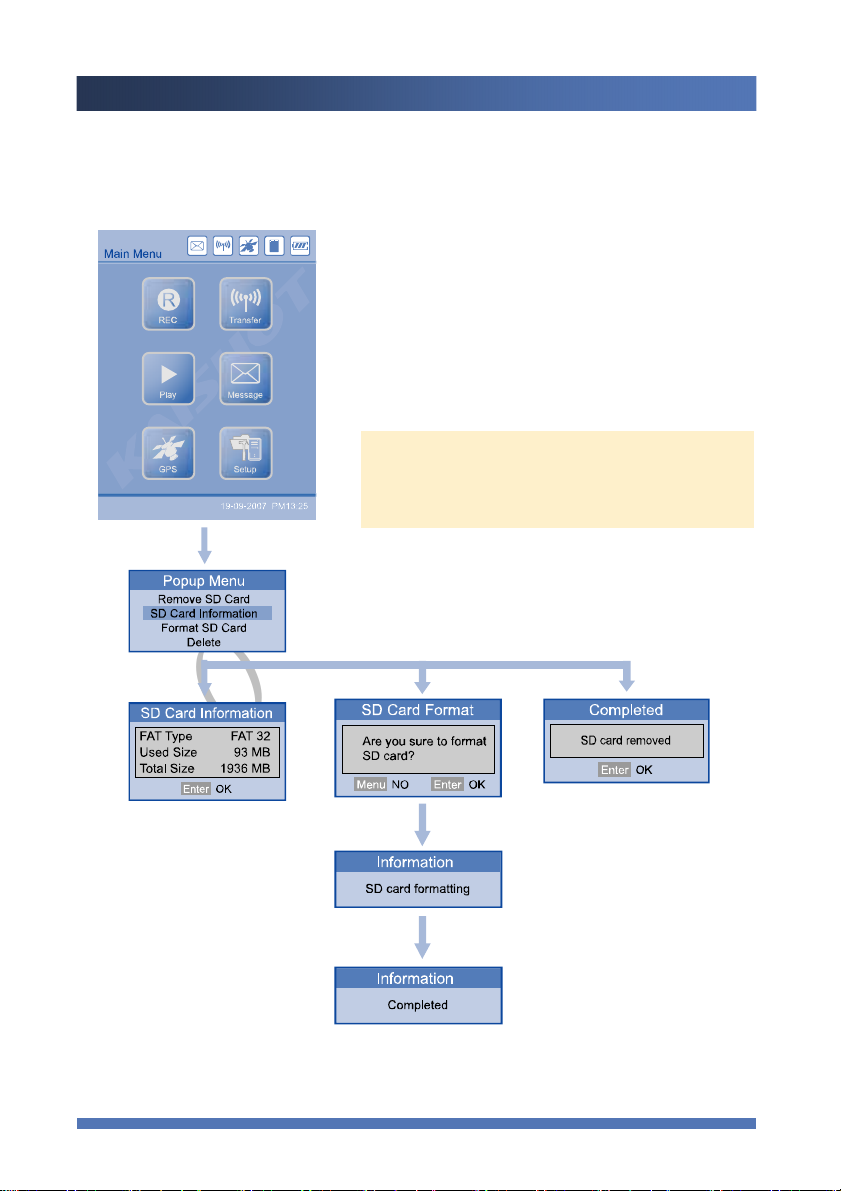
[Managing the SD Card through Main Menu]
Press the MENU button in the Main Menu for 2-3
seconds.
* You can also remove the SD Card while recording,
transferring, or playing the data through this method.
* If you want to delete the file separately:
- Refer to "Playback" for deleting recording files
- Refer to "Messages" for deleting messages.
Note: You will return to the Main Menu if you press MENU
button again shortly. If you press ENTER once you finish
the final function, it will return to the previous screen you
were running.
Press "SD Card Information"
to check the SD Card
information.
Use "◀◀ " or "▶▶ " to select the function you want to
perform, then press
Press "Format SD Card" to
format the SD Card.
ENTER.
Press "Remove SD Card" to
remove the SD Card while
power is on.
SD Card must be completely
removed out of the unit and
re-inserted again to be
recognized its data in the card.
Micro SD Card Management
14
Page 16
IDFONE CO.,LTD
KAISHOT
Outputting Video to the External Monitor
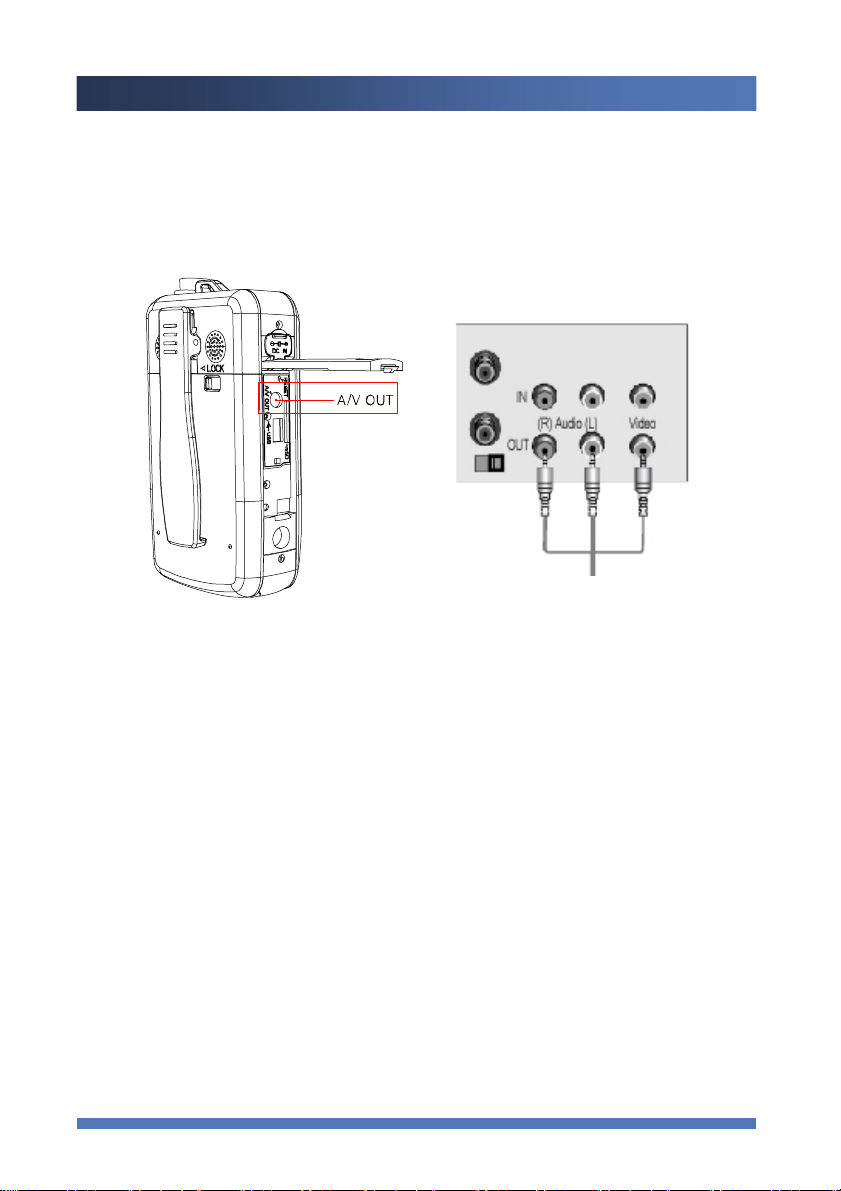
You can play the files recorded by KAISHOT on TV or other external monitors.
▬▶
Turn off the power supply before connecting the recorder to the external devices.
Open the side cover and connect the supplied AV cable with external monitor's AV cable.
(Caution: It may not work properly if you use a cable from different source.)
Outputting Video to the External Monitor
15
Page 17
IDFONE CO.,LTD
KAISHOT
KAISHOT Preview
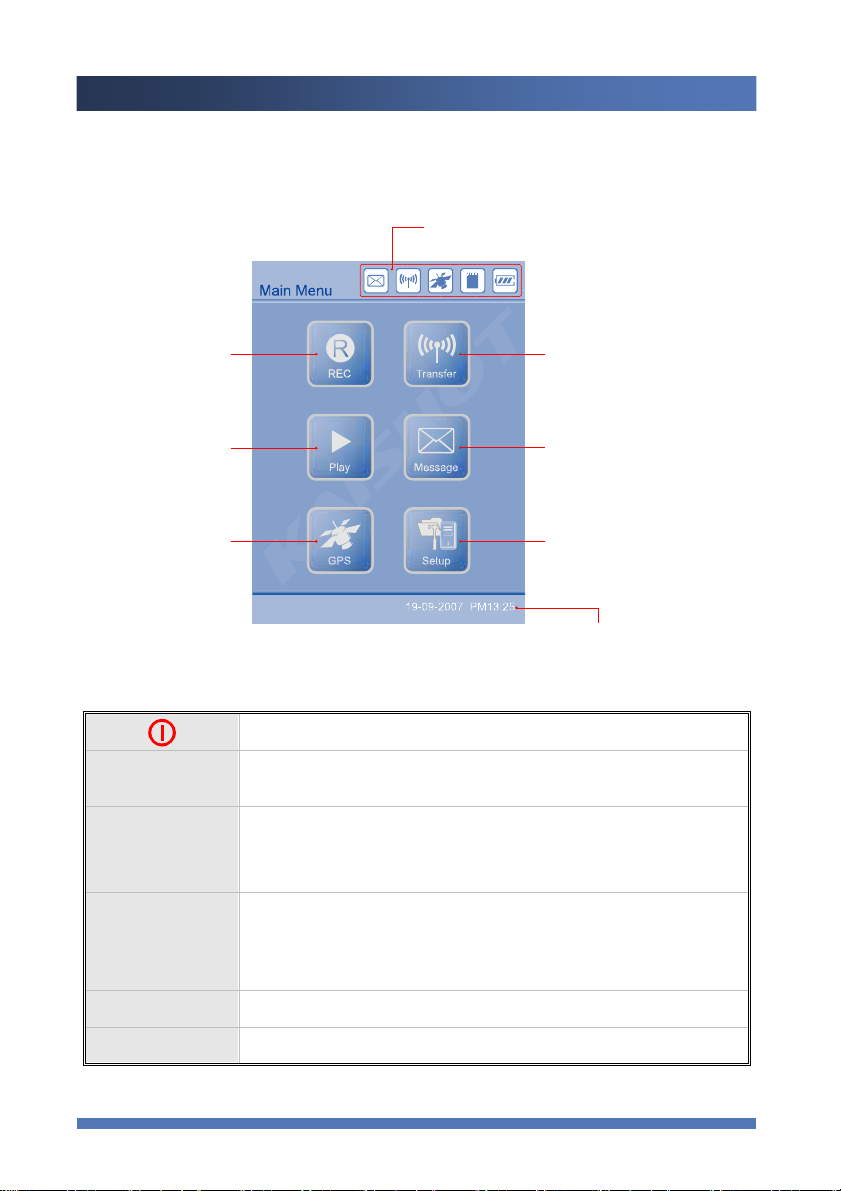
[Main Menu]
REC
Refer to page 16
("Description of Icons o n Upper-Right Corner of
the Screen")
Transfer
[Function Buttons]
Play
GPS
MENU
REC
ENTER
▶▶
Messages
Setup
Time Setting
(dd-mm-yyyy AM/PM)
- Power ON/OFF
- Press short: move to the previous or next menu
- Press long (2-3 seconds): move back to the Main Menu
-Press long (2-3 seconds): start recording
-Also functions to stop recording, real-time transmission, and playback.
- Operates selected functions.
- Press short while recording or playback: moves to check messages
(does not stop recording or playback)
- Press long (2-3 seconds) while recording or playback: pauses recording or playback,
or resumes recording or playback.
- Press short while checking messages: moves back to the previous menu
- Fast-forward or move to the right
◀◀
※ Please be advised that each function button performs differently in different use.
Kaishot Preview
- Rewind or move to the left
16
Page 18
IDFONE CO.,LTD
KAISHOT
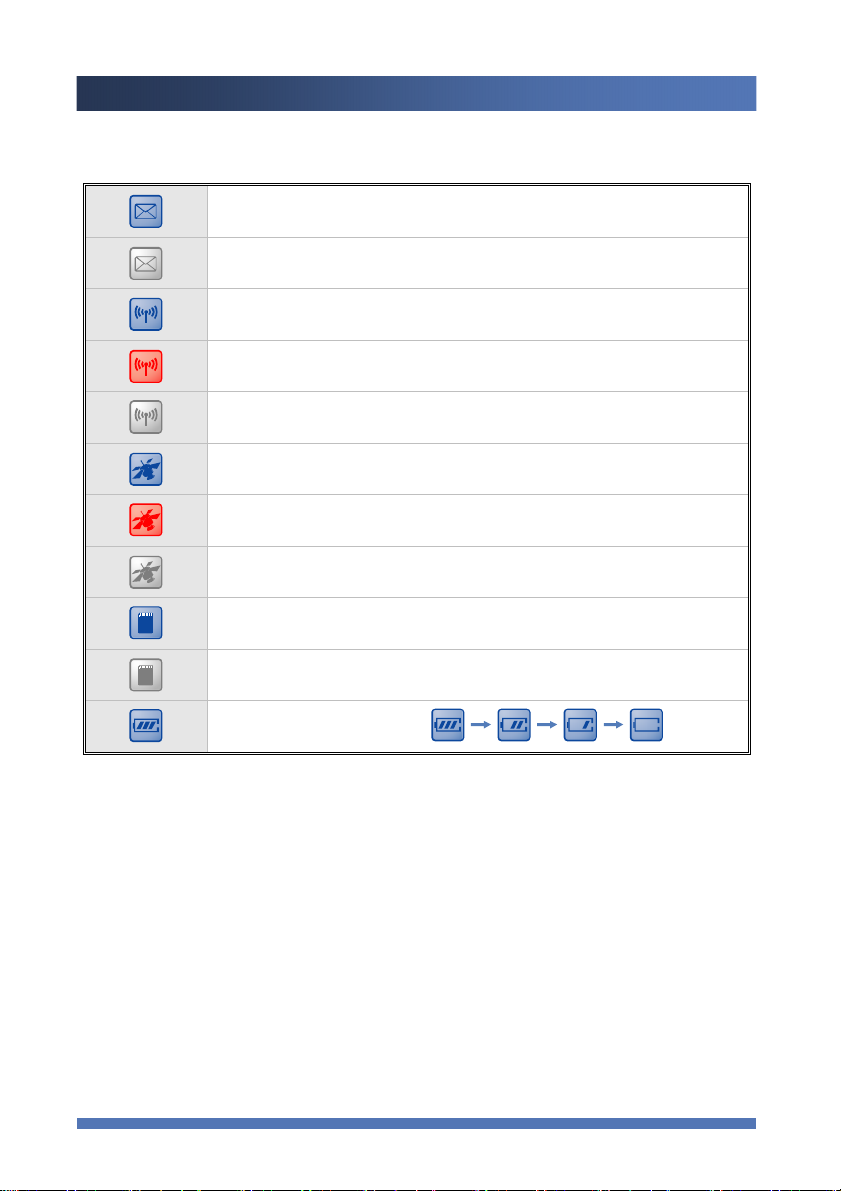
[Description of Icons on Upper-Right Corner of the Screen]
New message or image file is received
There is no message or image file, or no file is received
Wireless module such as WiFi is connected
Wireless module such as WiFi is NOT connected
Wireless module such as WiFi is turned OFF
GPS is connected
GPS is NOT connected
GPS is not activated (GPS OFF)
SD card is inserted
SD card is NOT inserted
Battery Charge Level Indication ( )
Kaishot Preview
17
Page 19
IDFONE CO.,LTD
KAISHOT
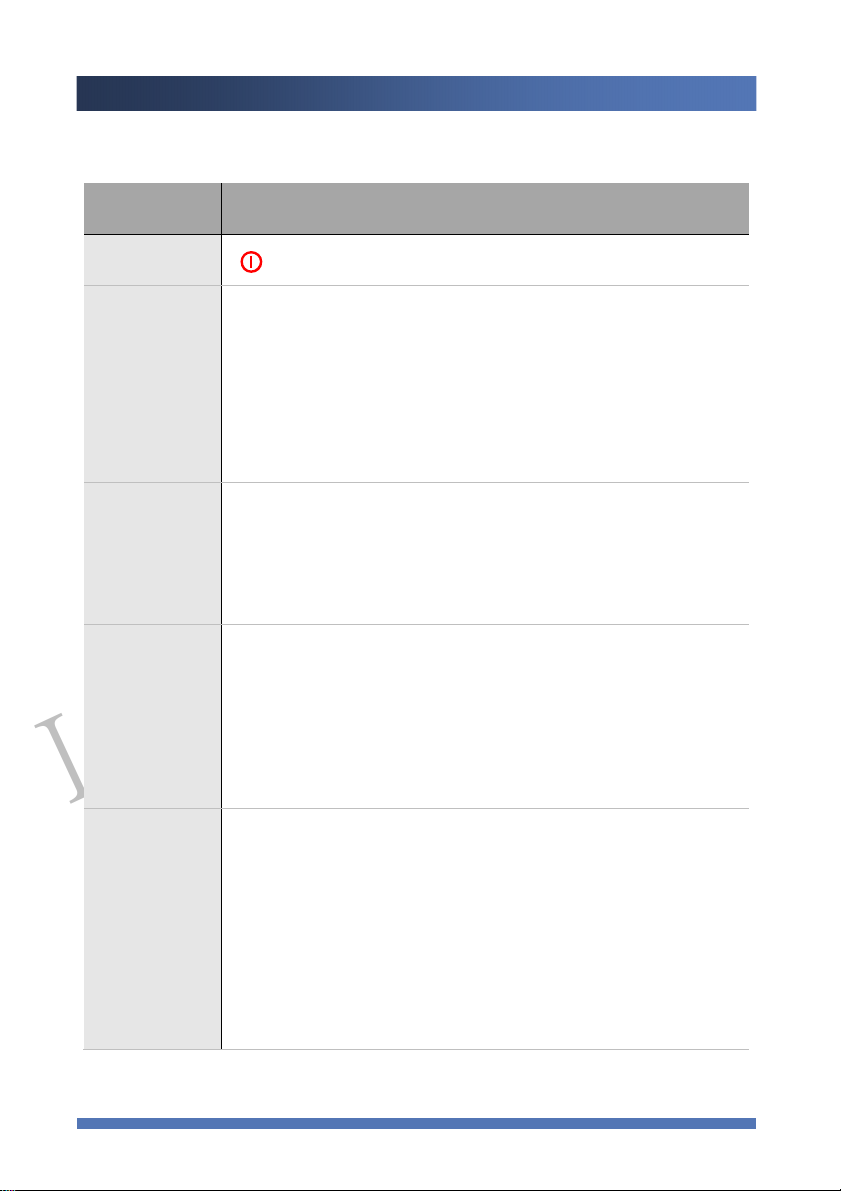
[KAISHOT Main Function]
Main Function How to Use
Power
Recording
Playback
Transmission
“ ” Press long (2-3 seconds) to turn power ON/OFF
▪ Recording will start when you select REC icon and press ENTER button.
▪ Recording is possible, except when data is being transmitted
real-time, by pressing REC button for 2-3 seconds.
▪ Recording will end when you press REC button while recording.
▪ Always check the camera connection, Micro SD Card memory status, and
remaining battery life before recording.
▪ You can see the list of recorded files by selecting Play icon. Select the file you
want to play then press ENTER button.
▪ Playback will end when you press REC for 2-3 seconds while playing.
▪ Real-time transmission will start when you select Transfer icon and press
ENTER button.
▪ Transmission will end when you press REC button.
▪ Check the connection of camera/wireless module/ remaining battery life.
▪ Data is NOT being recorded when file is being transmitted.
▪ You can watch real-time video through KAISHOT Viewer
▪ You can check the list of received messages in the Main Menu by pressing
Message icon, and select the message you want to check then press ENTER
button.
Messages
▪ You can check the message while recording, playback, or transmission if you
press ENTER button.
▪ Wireless module has to be connected to check the messages.
▪You can send messages through KAISHOT Viewer.
Kaishot Preview
18
Page 20

IDFONE CO.,LTD
KAISHOT
Functions How to Use
▪ Select GPS icon and press ENTER button to change your GPS settings.
GPS
Setup
▪ Check GPS module.
▪ GPS information is used to set up time, store GPS data while recording, and
transmit GPS information while real-time transmission.
▪ Select Setup in the Main Menu and press ENTER button to change or set up
the property value.
▪ Record Mode
You can check and change the value about Recording Functions.
▪ Transmission Mode
You can check and change the value about Real-time video transmission and
WiFi that are related to wireless module.
▪ GPS Setup
You can check and view about GPS Functions.
▪ Tools Setup
You can check and change various setup values such as LCD Saving Mode /
Languages / LCD Brightness.
* When system is in Lock mode, the only button that can be used is to Unlock the system.
Kaishot Preview
19
Page 21

IDFONE CO.,LTD
KAISHOT
Recording Functions
▪ Recording Functions Details
Icon Information in the Screen during Recording
Starting and Stopping a Recording
Pausing, and Restarting a Recording after Pausing
Locking and Unlocking a Recording Function
Checking Messages
▪ You may not be able to perform Recording when:
- Camera is not connected
- Micro SD Card is not inserted or has insufficient memory capacity left
- Remaining battery life is insufficient
- Side cover is opened
▪ Recording may stop automatically when:
- One file has reached it maximum recording capacity, or any of the situation above (You may not be
able to perform a recording function) occurs.
- When Micro SD Card is not handled in accordance with the User Manual, Micro SD card, data or
information stored in Micro SD card may be damaged or lost.
▪ Values changed in the Setup will affect the properties of recordings.
▪ Recording will continue while checking the messages.
Recording Functions
20
Page 22
IDFONE CO.,LTD
KAISHOT
y
W
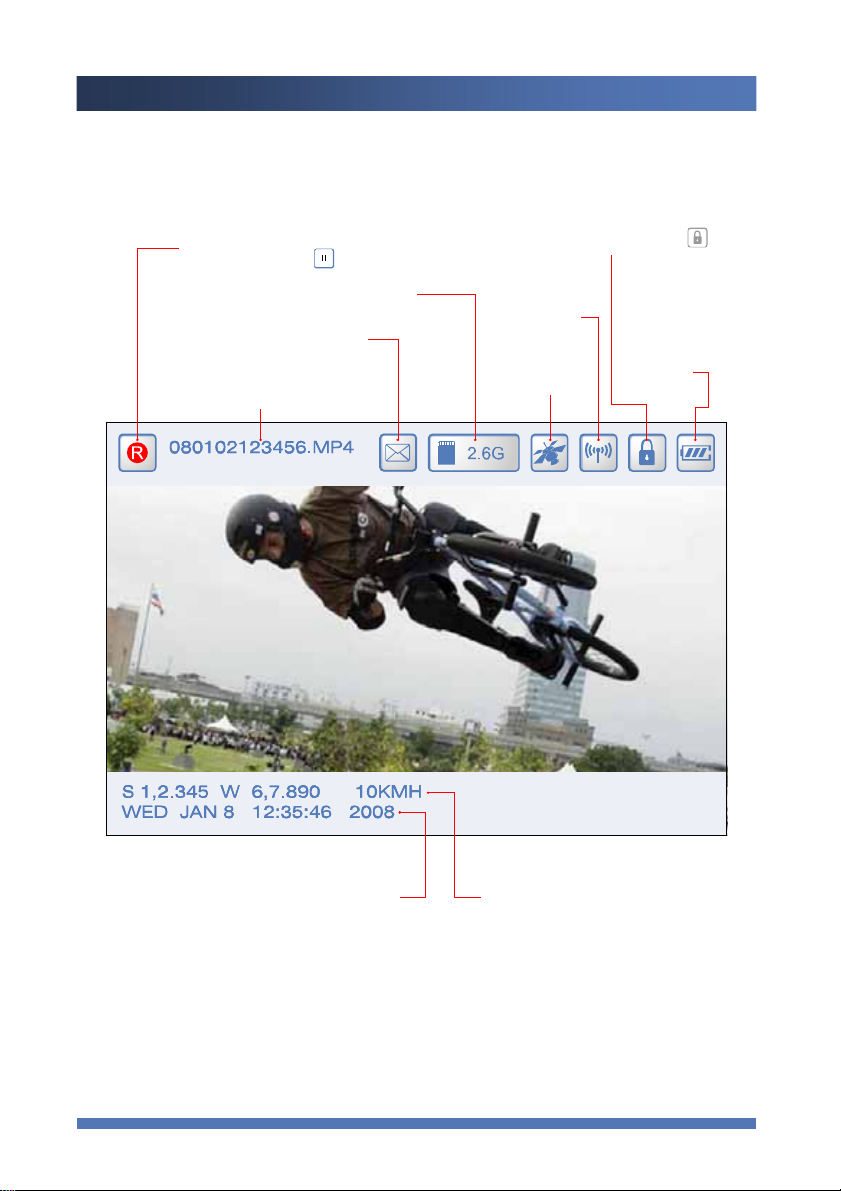
[Icon Information in the Screen during Recording]
Recording mode
(Pause indicated by )
Remaining Micro SD Card capacit
(Number indicates how much memory left)
Msg Status
Recorded file name
yymmdd:hms.MP4
Unlock mode indicated by
ireless
Module On
GPS Status
Remaining
Battery
Current time
(day month date h:m:s year)
GPS Information(Lat. Lon.Vel.)
Recording Functions
21
Page 23
IDFONE CO.,LTD
KAISHOT
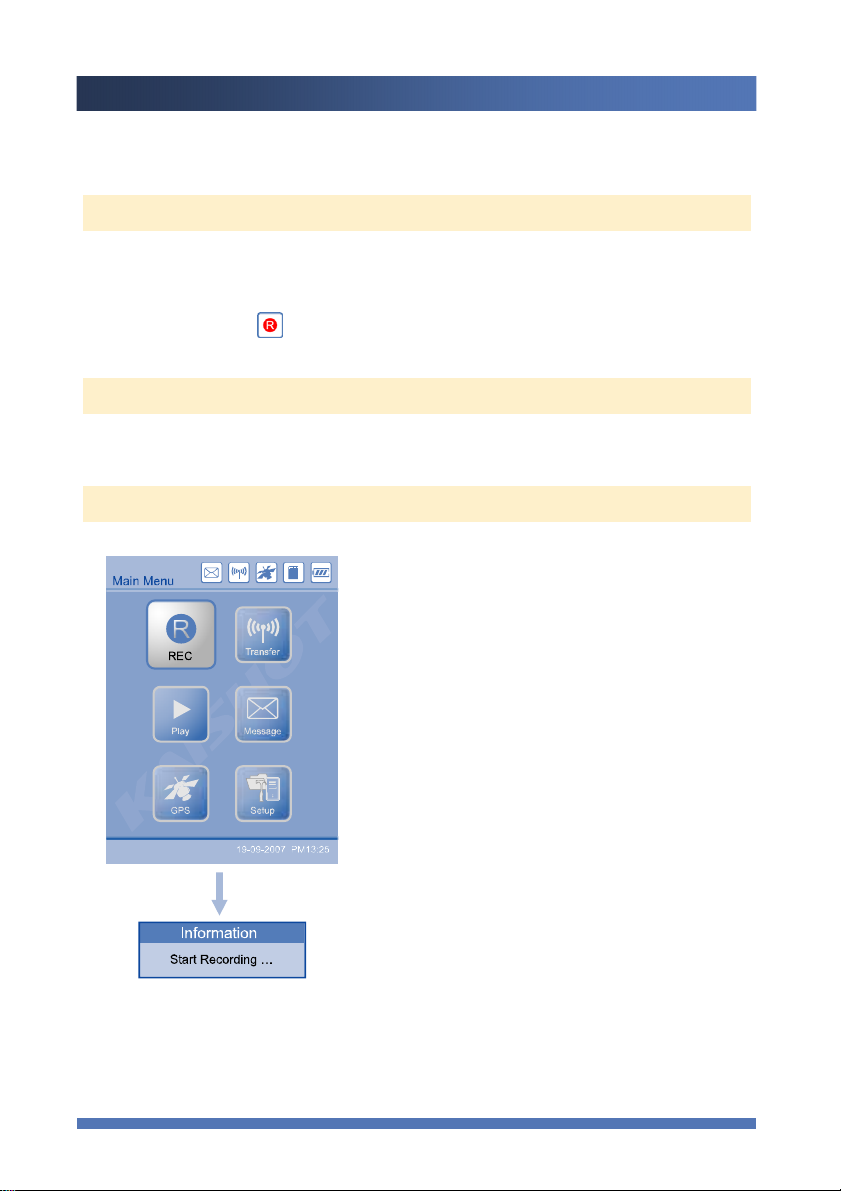
[Starting and Stopping a Recording]
Starting a Recording
▪ Select REC icon in the Main Menu and press ENTER button to start recording.
▪ Recording is possible, except when data is being transmitted real-time, by pressing REC for 2-3
seconds
▪ Once recording starts, icon will appear.
Stopping a Recording
▪ Press REC button for 2-3 seconds to stop recording.
How to Start a Recording
Select REC icon and press ENTER.
Recording Functions
22
Page 24
IDFONE CO.,LTD
KAISHOT
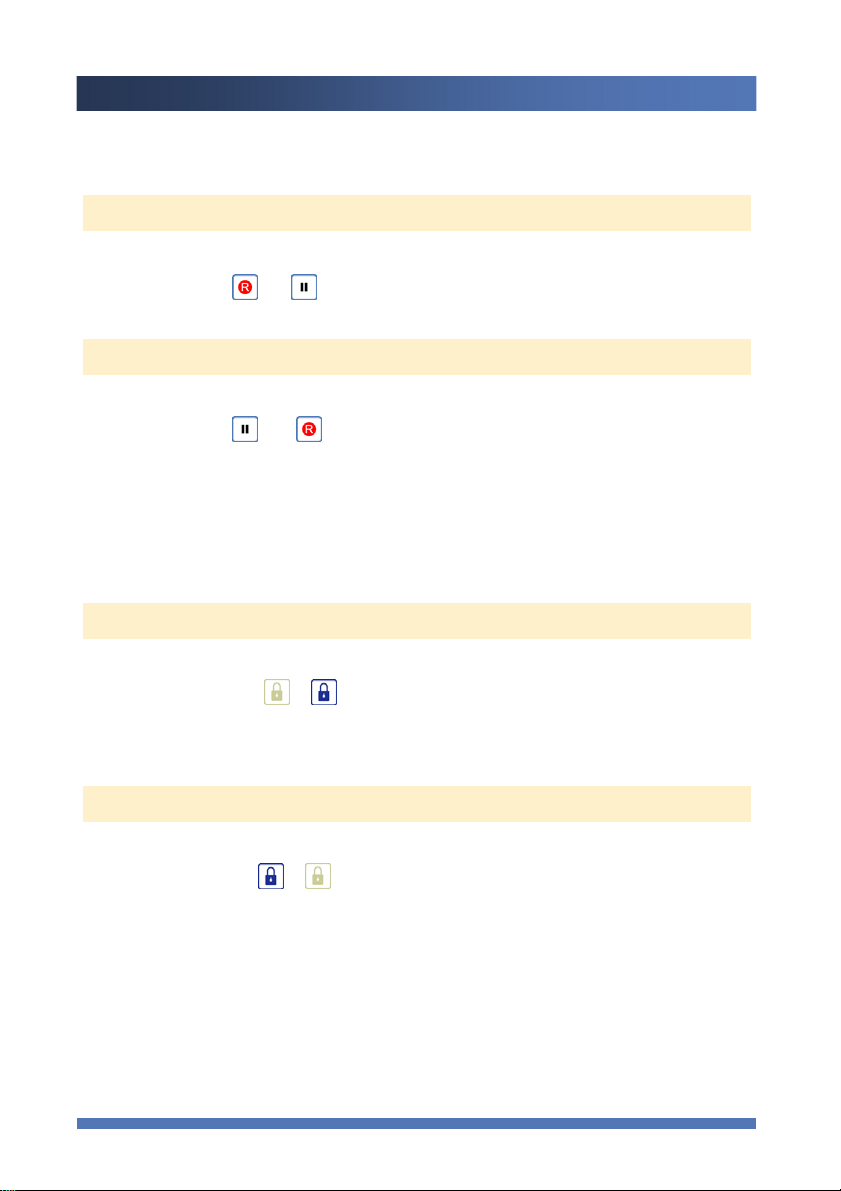
[Pausing, and Restarting a Recording after Pausing]
Pausing while Recording
▪ Press ENTER button for 2-3 seconds to pause recording.
▪ Icon will change to
Restarting after Pausing
▪ Press ENTER button for 2-3 seconds while pausing a recording to restart a recording.
▪ Icon will change to
[Locking and Unlocking a Recording Function]
Locking while Recording
▪ Press MENU button for 2-3 seconds, then Lock feature will be activated.
▪ Lock icon will changes to
▪ Except for pressing MENU again for 2-3 seconds to deactivate lock feature, no buttons can
function as usual.
Unlocking
▪ Press MENU button for 2-3 seconds to unlock.
▪ Lock icon will change to
▪ All buttons will function as usual.
Recording Functions
23
Page 25

IDFONE CO.,LTD
KAISHOT
Playback Functions
▪ Playback Functions Details
Icon Information in the Screen during Playback
Starting and Stopping a Playback
Pause / Restart / Return to the Start of the Playback / Fast-forward and Rewind
Adjusting OSD, Audio Volume, LCD Brightness
Micro SD Card Management while Playback
Checking Messages while Playback(Please refer “Checking Messages”)
▪ You may not be able to perform a Playback function when:
- Micro SD Card is not inserted or not recognized.
- Remaining battery life is insufficient.
▪ Playback may stop automatically when:
- Any of the situation above (You may not be able to perform a Playback function) occurs.
Playback Functions
24
Page 26
IDFONE CO.,LTD
KAISHOT
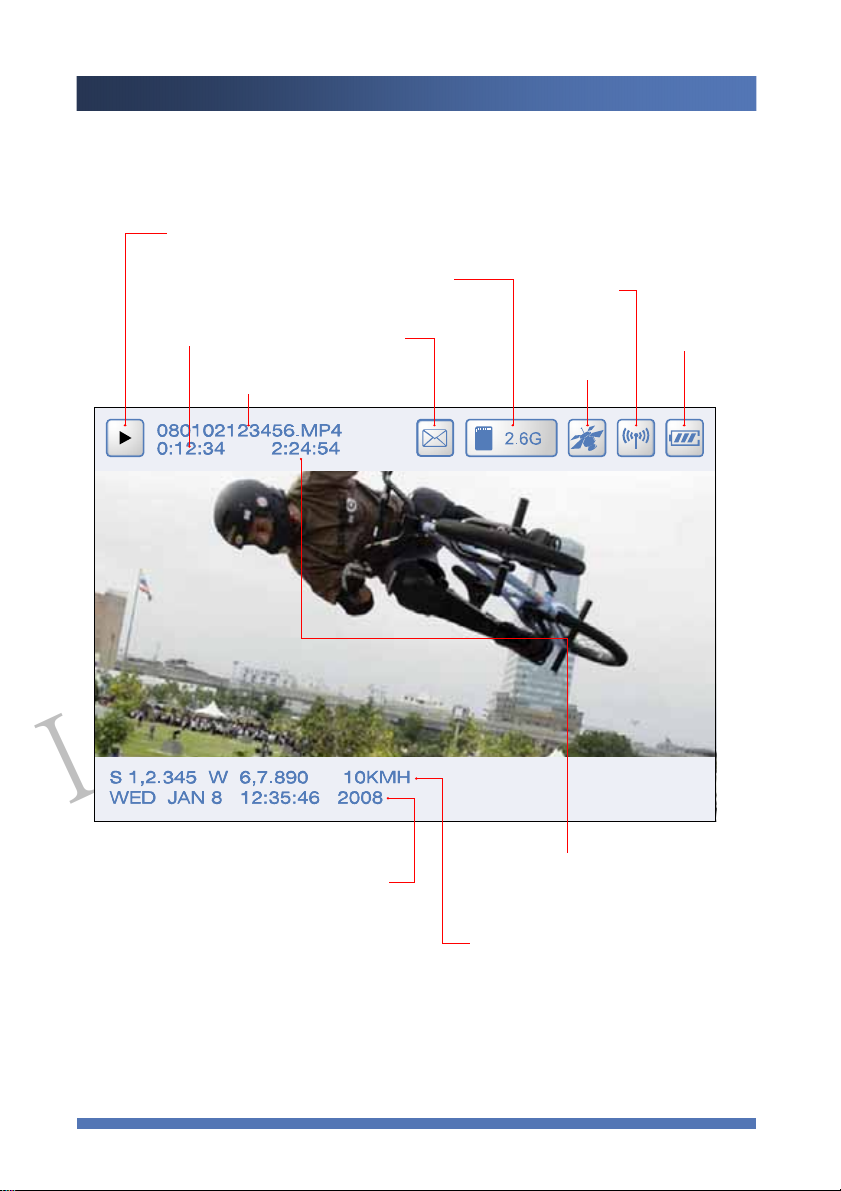
[Icon Information in the Screen during Playback]
Time file is being played
Playback Mode
(Number indicates the memory cap.)
Micro SD Card Capacity
Msg Status
File name
(yymmdd:hms.MP4)
Wireless
Module Status
Remaining
Battery
GPS Status
(day month date h:m:s year)
Recorded time
Total recording
GPS Information (Lat. Lon.Vel.)
Playback Functions
25
Page 27
IDFONE CO.,LTD
KAISHOT
y
T
[Starting and Stopping a Playback]
Starting a Playback
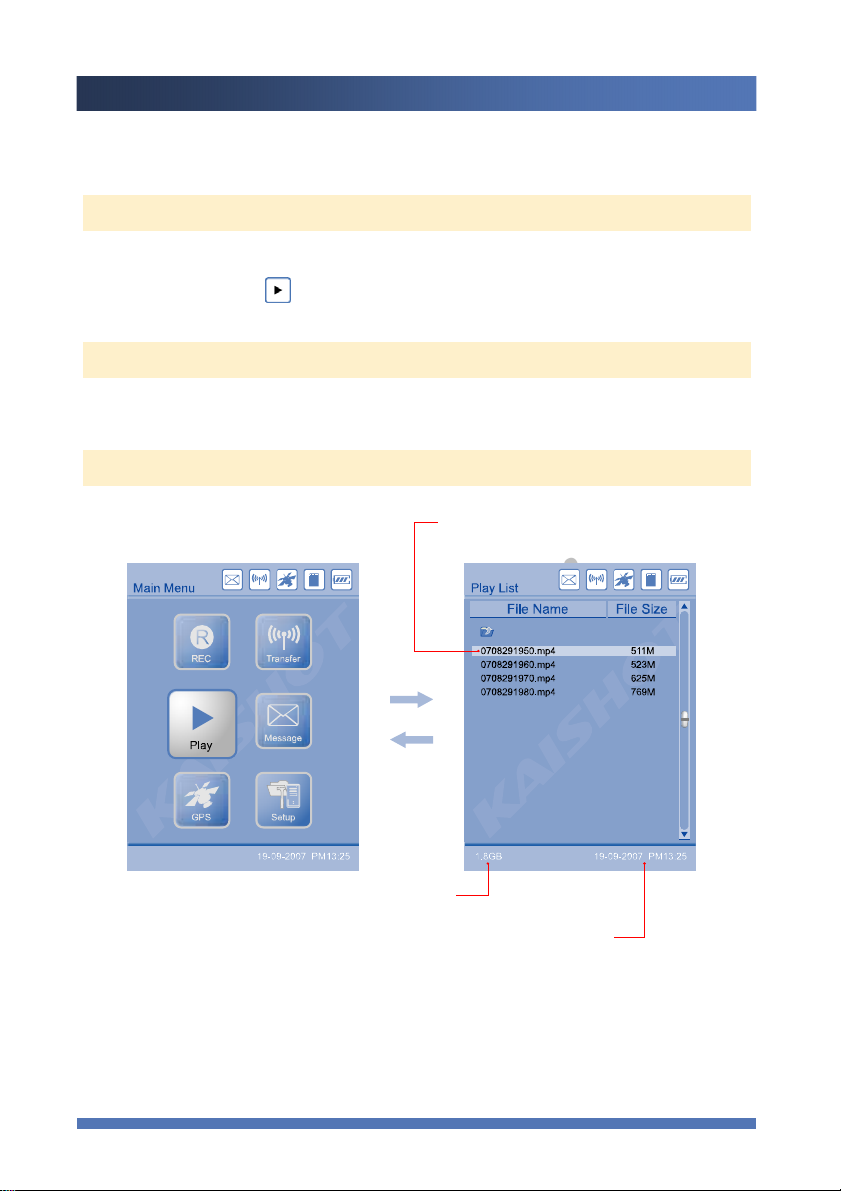
▪ You can check the list of files recorded when you press “Play” button. Select the file you want to
watch and press ENTER to start playback.
▪ The icon will change to
Stopping a Playback
▪ Press REC button for 2-3 seconds to stop playback.
Playback Screen
Time when recording has started (yymmdd)
Availab le Mi cro S D Card me mo r
ime setting (dd-mm-yy AM/PM )
Playback Functions
26
Page 28
IDFONE CO.,LTD
KAISHOT
Pause / Restart/ Return to the Start of the Playback / Fast-forward and Rewind]
[
Pause while Playback Mode
▪ Press ENTER button for 2-3 seconds to pause playback.
▪ Icon will change to
Playback after pause
▪ Press ENTER button for 2-3 seconds while pause mode to restart playback.
▪ Icon will change to
Return to the Start of the Playback
▪ Press ◀◀ button for 2-3 seconds to return to the beginning of the file and play again.
Rewinding
▪ Press ◀◀ button shortly (less than 2 seconds) to rewind the file.
▪ Press ◀◀ again shortly (less than 2 seconds) to resume playback at a normal speed.
Fast-forwarding while Playback
▪ Press ▶▶ button shortly (less than 2 seconds) to fast forward the file.
▪ Press ▶▶ again shortly (less than 2 seconds) to resume playback at a normal speed.
Playback Functions
27
Page 29
IDFONE CO.,LTD
KAISHOT
[Adjusting OSD, Audio Volume, LCD Brightness]
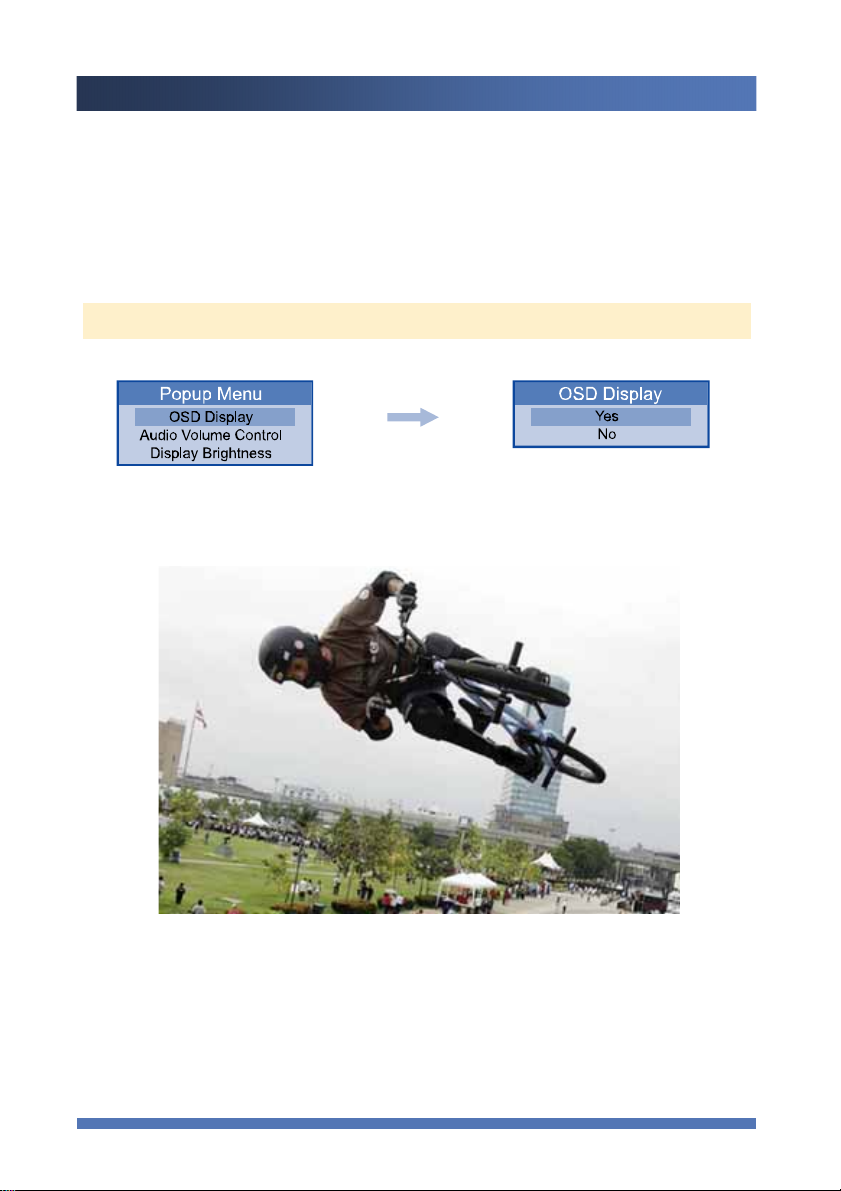
▪ If you press MENU button 2-3 seconds while playback, Popup Menu appears.
▪ If you press MENU button shortly (less than 2 seconds), the Menu will disappear.
Changing OSD Status
▪ Select OSD Display and ENTER button. Use arrow to select Yes or No.
▪ OSD Display will not appear once you Select No.
Playback Functions
28
Page 30
IDFONE CO.,LTD
KAISHOT
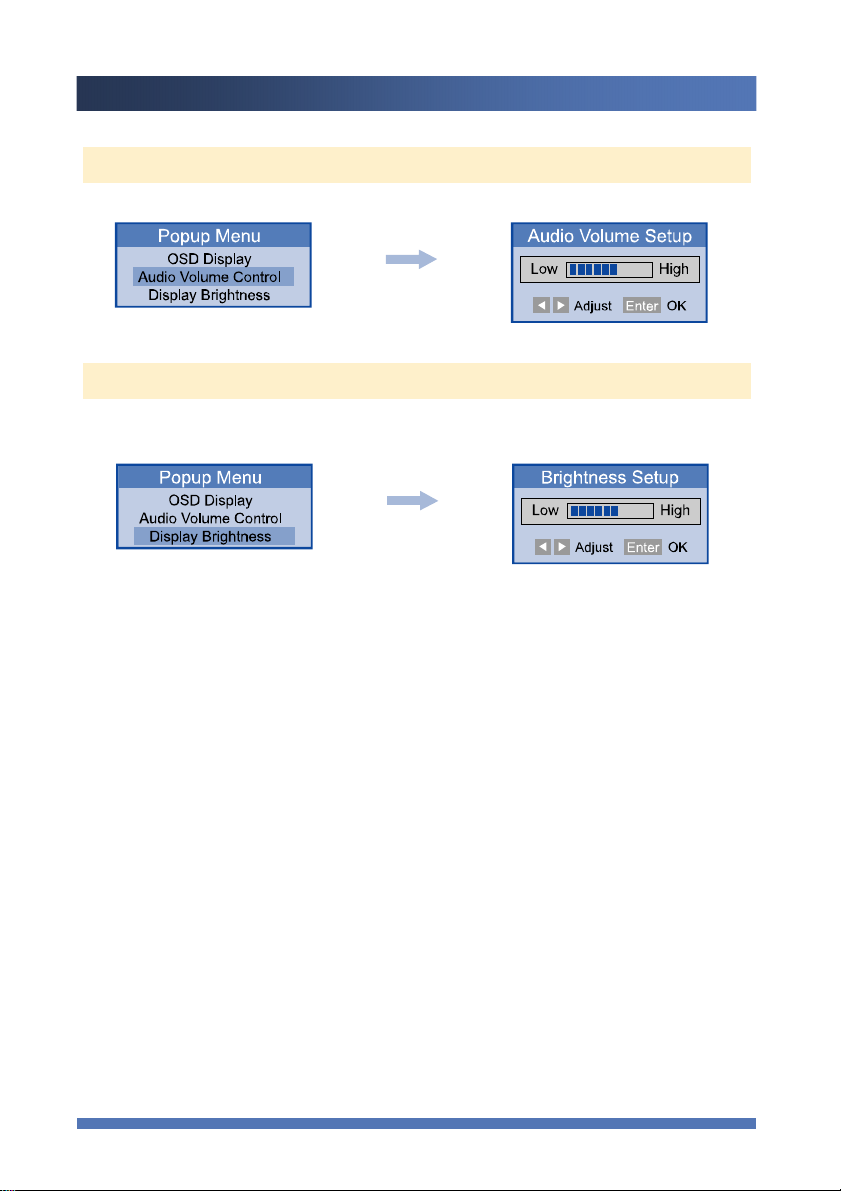
Adjusting Audio Volume while Playback
▪ Select desired Audio volume and press ENTER button. Adjust volume with ◀◀ or ▶▶ button.
Adjusting LCD Brightness while Playback
▪ Select desired LCD Brightness and press ENTER button. Adjust the brightness with
◀◀ or ▶▶ button.
Playback Functions
29
Page 31
IDFONE CO.,LTD
KAISHOT
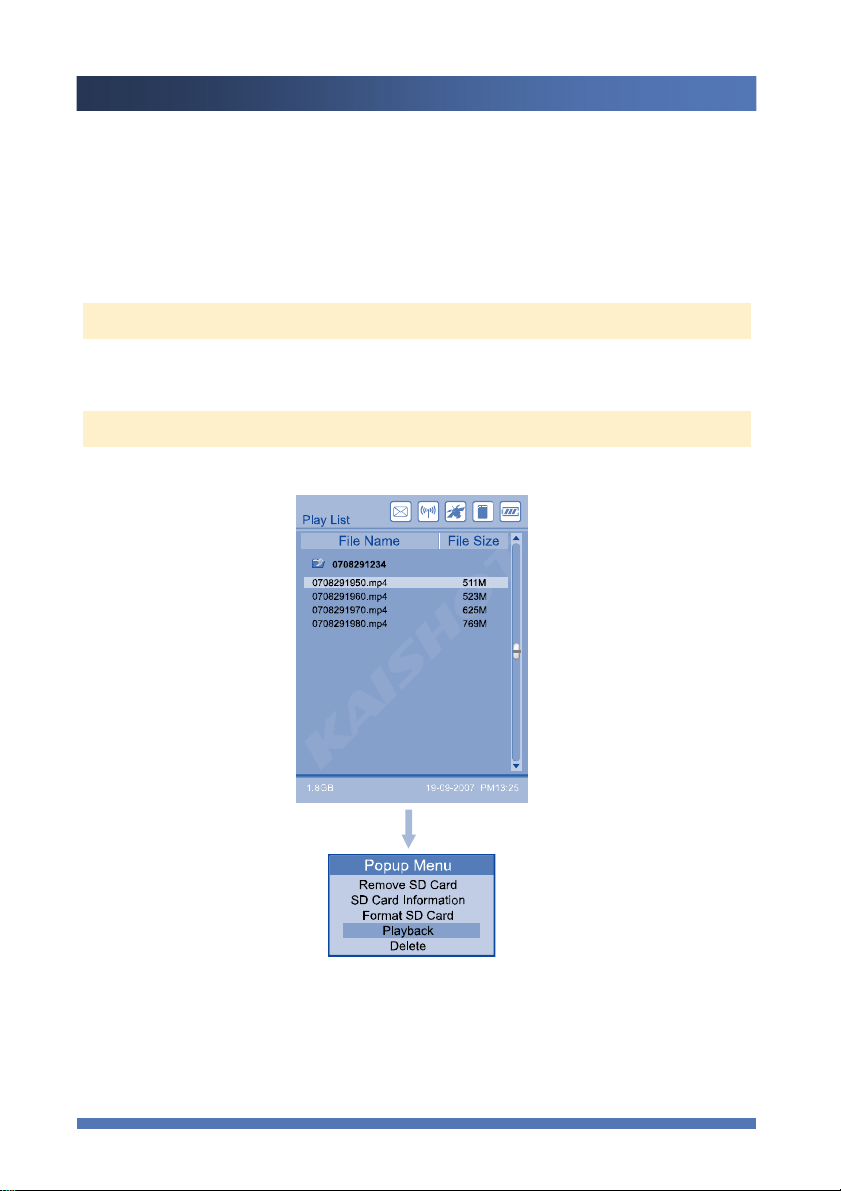
[Micro SD Card Management in the Recording File Menu]
▪ Press MENU button in the Play List for 2-3 seconds. Popup Menu will appear.
▪ Popup Menu will disappear when you press MENU button again, without changing any values.
Removing SD Card / SD Card Information / SD Card Format
▪ Refer to Micro SD Card Management (page.13)
Playback from the File List
▪ Choose the file you want to play and select Play icon, then press ENTER button to start playback.
Playback Functions
30
 Loading...