

Page 1
BEBOOK MINI
®
E-READER
USER GUIDE
Page 2

Welcome...
To your BeBook Mini electronic reader
• Clear, paperlike display for perfect readability,
even in bright sunlight
• Light to carry, simple to use
• Read books and documents in all popular formats
including pdf, word, txt and html.
• Change typeface and typesize while reading
• One BeBook holds a whole bookcase
• SD card slot lets you exchange books and documents
with friends
• Free software upgrades
• Over 20,000 free classic eBooks available for
download at the www.mybebook.com
• Play MP3 tracks
Got everything?
• BeBook Mini reader
• Leather case
• 1 x Li-ION rechargeable battery
• USB cable
• Earphones
Need more information?
Visit www.mybebook.com
Page 3

Contents
Your BeBook Mini at a glance ............................................ 5
Getting started ............................................................... 7
Install the battery ........................................................... 7
Charging the battery ....................................................... 7
Battery status ................................................................. 7
Switch on/off .................................................................. 8
Keypad lock .................................................................... 9
USB connection ............................................................ 9
Adding new eBooks ....................................................... 10
Adding ePub files with Adobe Digital Editions .................... 10
Download Digital Editions ............................................... 10
Import your eBooks in Digital Editions ............................. 10
Connect your BeBook with Digital Editions ........................ 10
Copy eBooks from and to your BeBook ............................ 11
Installing an SD card .................................................. 11
Copying files to SD
using Windows 2000, XP or Mac ...................................... 11
Reading eBooks .......................................................... 12
Open an ebook ............................................................. 12
Page 4

Page turning ................................................................. 12
First/Last page .............................................................. 12
Jump to a page ............................................................. 13
Zoom in and out ........................................................... 13
Bookmarks ................................................................. 14
Add a bookmark ............................................................ 14
Replace a bookmark ...................................................... 14
Delete a bookmark ........................................................ 14
View and go to bookmarks ............................................. 14
Index ........................................................................... 15
Search ........................................................................ 16
Search for a book .......................................................... 16
Search by folder category .............................................. 16
Search by order ............................................................ 16
Find a recently viewed ebook or document ....................... 16
Switch between your BeBook
and SD card bookshelves ............................................... 17
ebook information ......................................................... 17
MP3 tracks ................................................................. 18
MP3 controls ................................................................. 18
Page 5

Settings ...................................................................... 19
Settings menu .............................................................. 19
Key tones on/off ........................................................... 19
Change language .......................................................... 19
Change font.................................................................. 19
System information ....................................................... 19
Help ........................................................................... 19
Safety information ..................................................... 20
Cleaning ...................................................................... 20
Product disposal instructions ........................................... 20
Warranty ...................................................................... 21
FAQ ............................................................................ 22
Page 6
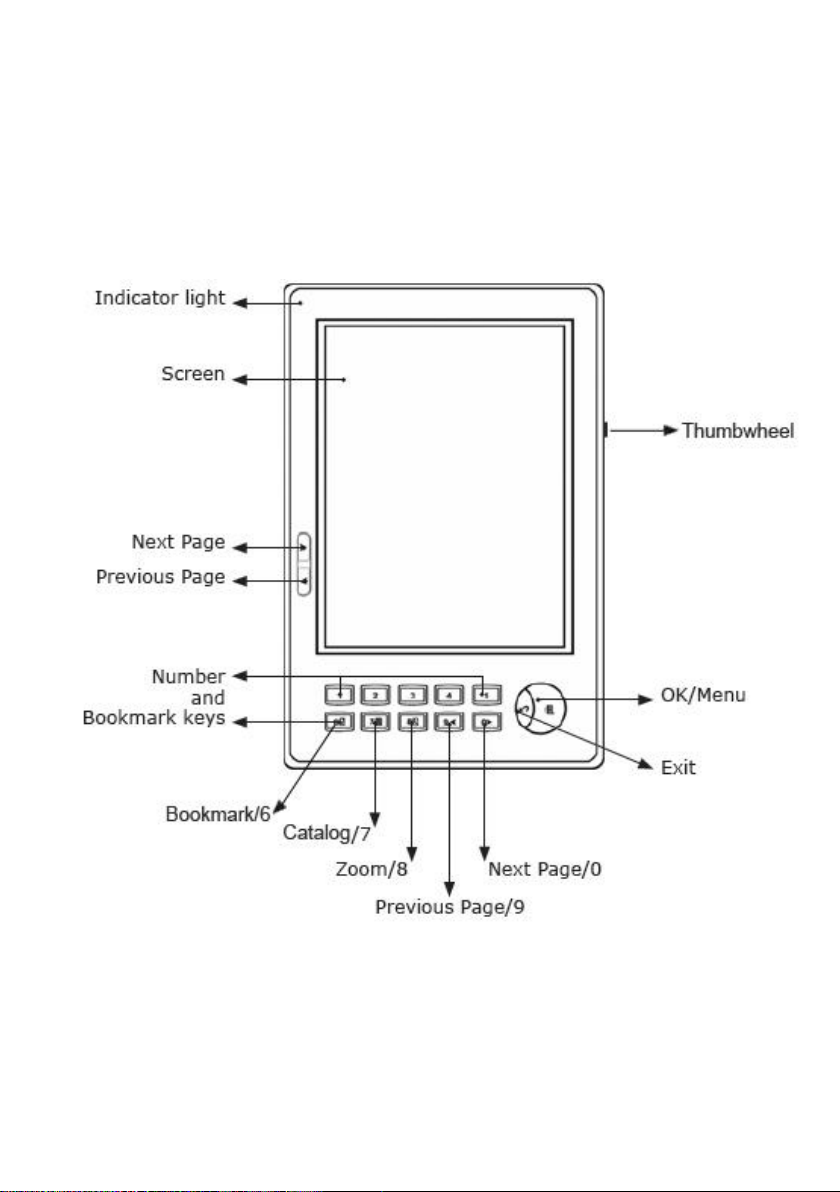
Your BeBook at a glance
Font
Page 7
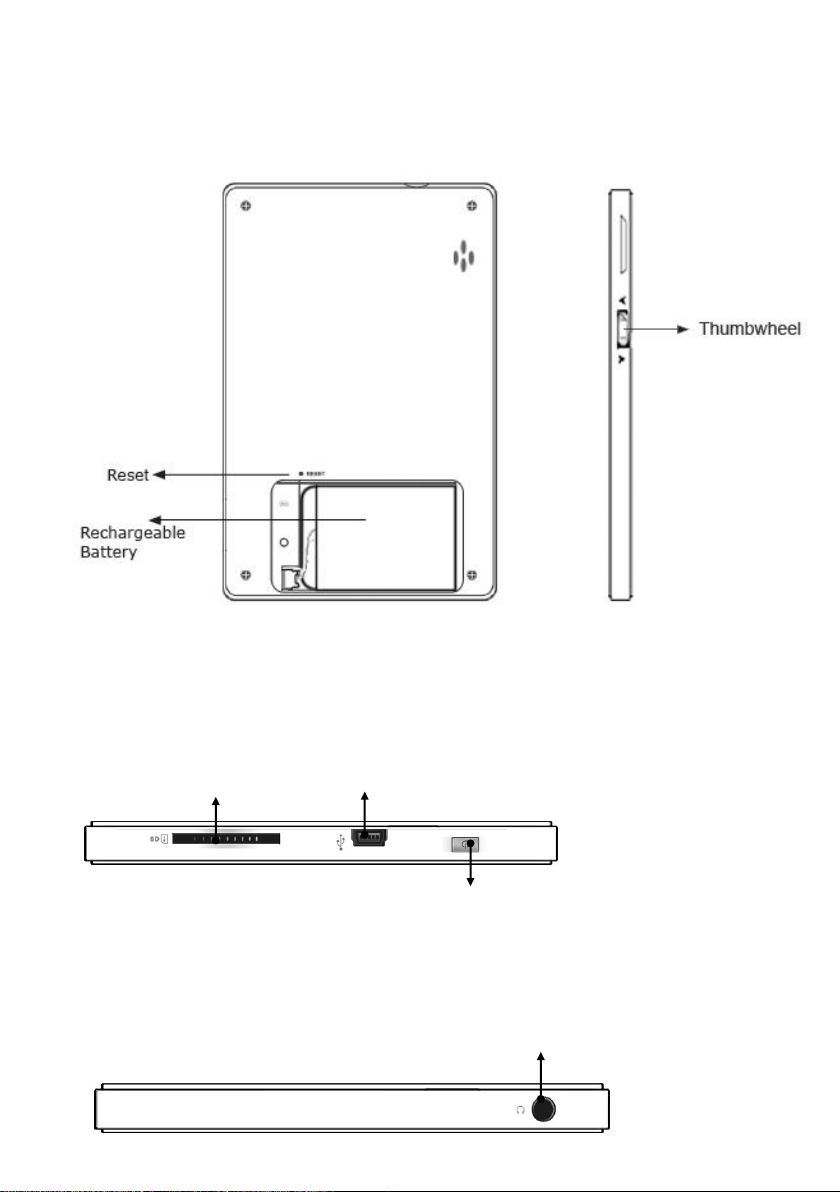
SD Slot
Power On/Off
USB Port
Headphone socket
Back Side View
Top View
Bottom View
Page 8
Getting started
1. Install the battery
Open the battery cover.
Install the battery as indicated on the battery slot.
2. Charge battery for at least 12 hours
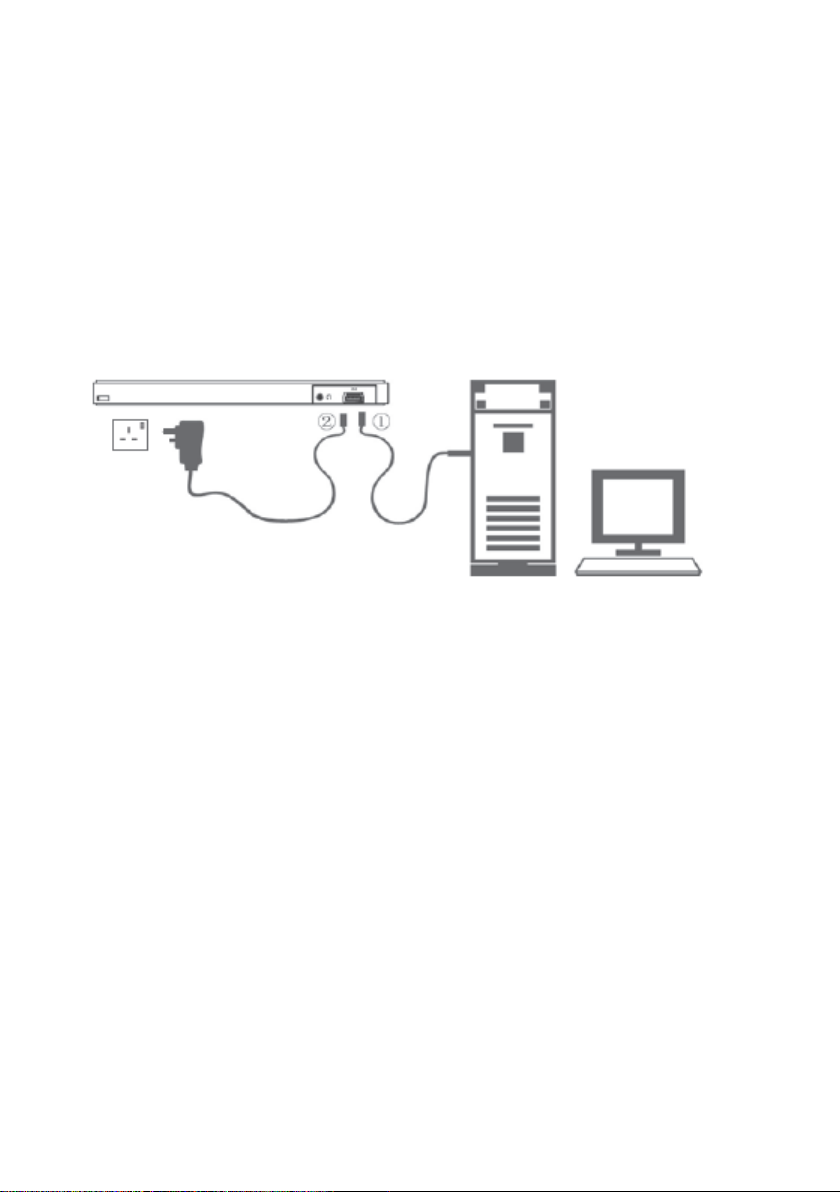
• Plug the USB1 cable into your PC or Mac and connect the other
end to your BeBook.
• To charge the battery for the first time, please allow 12 hours
continuous charging. Subsequently, it takes about three hours to
fully charge the battery from flat.
Charging indicator light
• While charging the light flashes orange.
• When fully charged the light is green.
Your BeBook can be used while charging, but the charging takes
longer.
One full charge lasts up to 7000 page turns or up to 5 hours of mp3
playback.
Page 9
Important
Do not use a different type of battery or charger; this can cause damage to
your BeBook.
Do not remove the battery when charging.
Note
Your BeBook can be also charged by a power adapter2
(not supplied).
Connect the BeBook to the power adapter, and plug the power adapter into a
mains power socket.
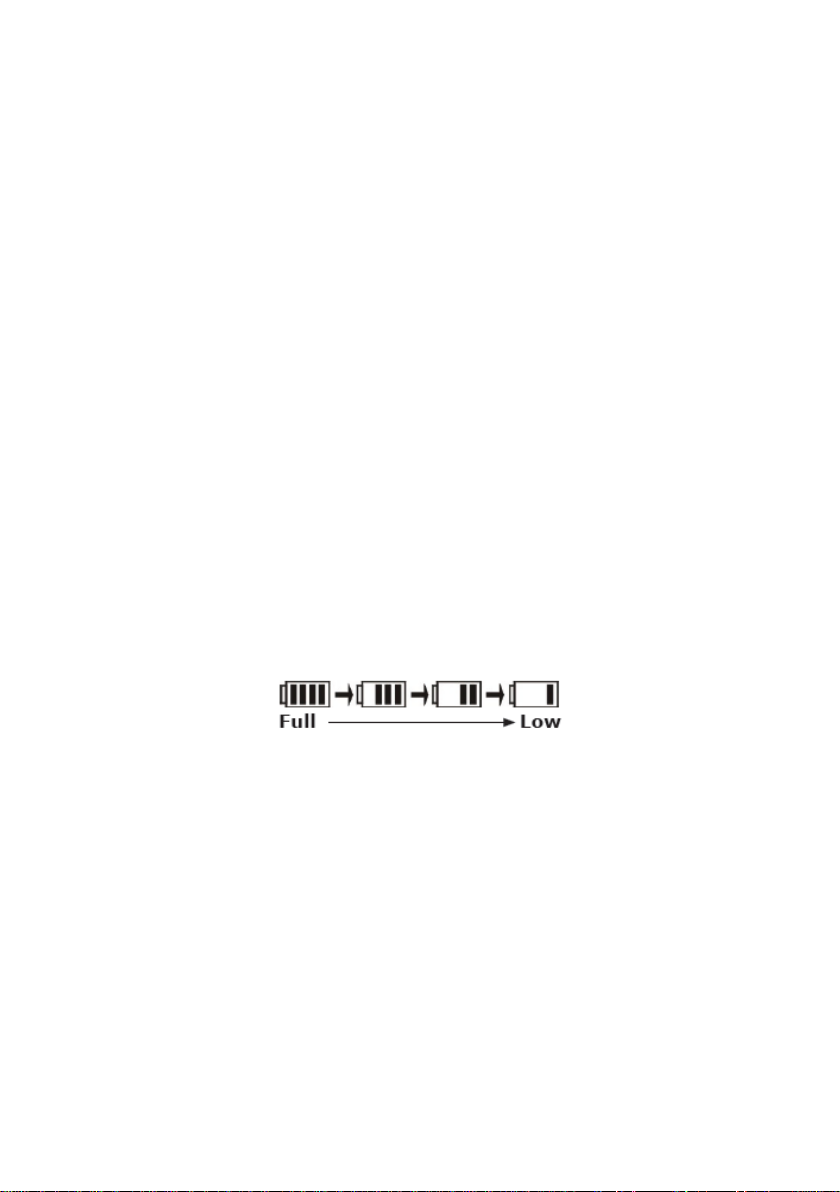
Battery status
The battery status icon is displayed at the bottom right corner of the
screen. When only one power bar is displayed or you hear the low
battery warning, charge the battery.
Page 10
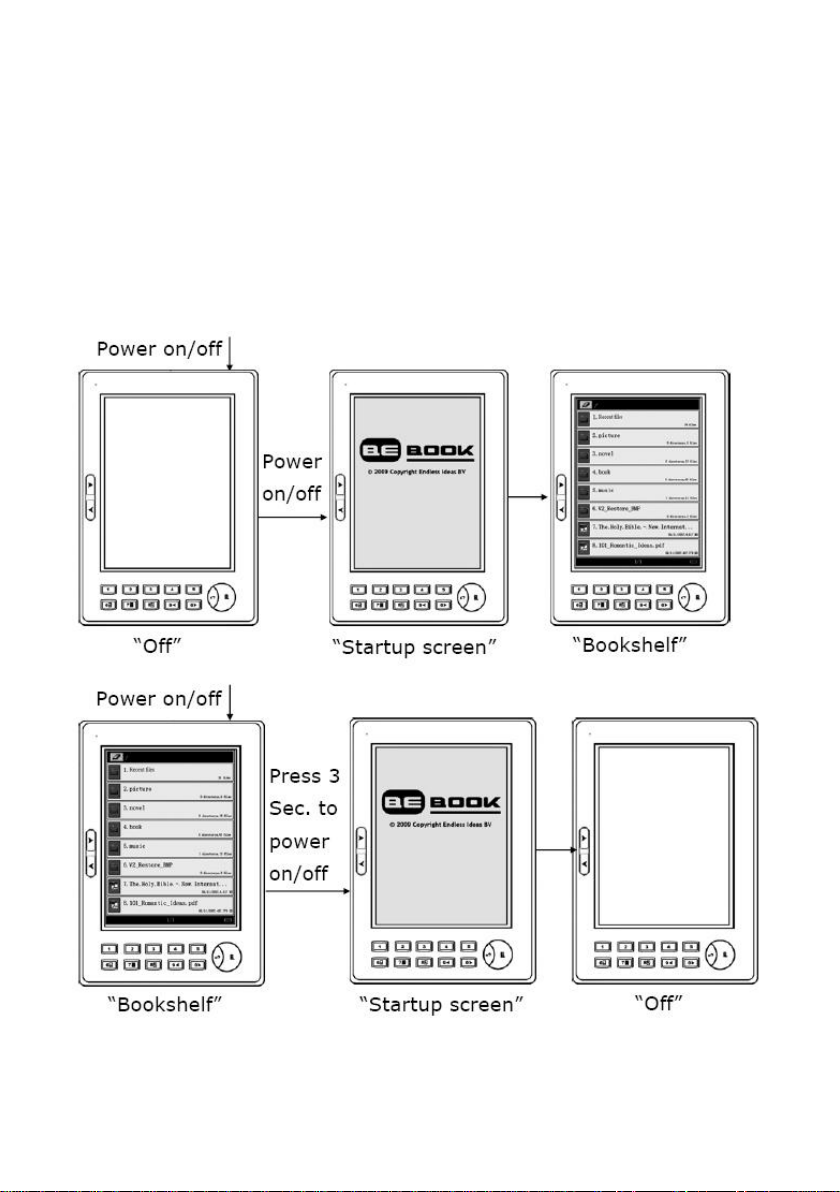
Switch On/Off
1. Press On/Off to power on. Your BeBook start up screen
is displayed, then the bookshelf screen.
2. To switch off, press and hold the On/Off button for about
3 seconds.
Page 11
Keypad lock
Prevents accidental presses of the keys/buttons.
1. Press the Power On/Off button briefly to lock or unlock the
keypad. The display shows: Keyboard locked. Press power to
unlock.
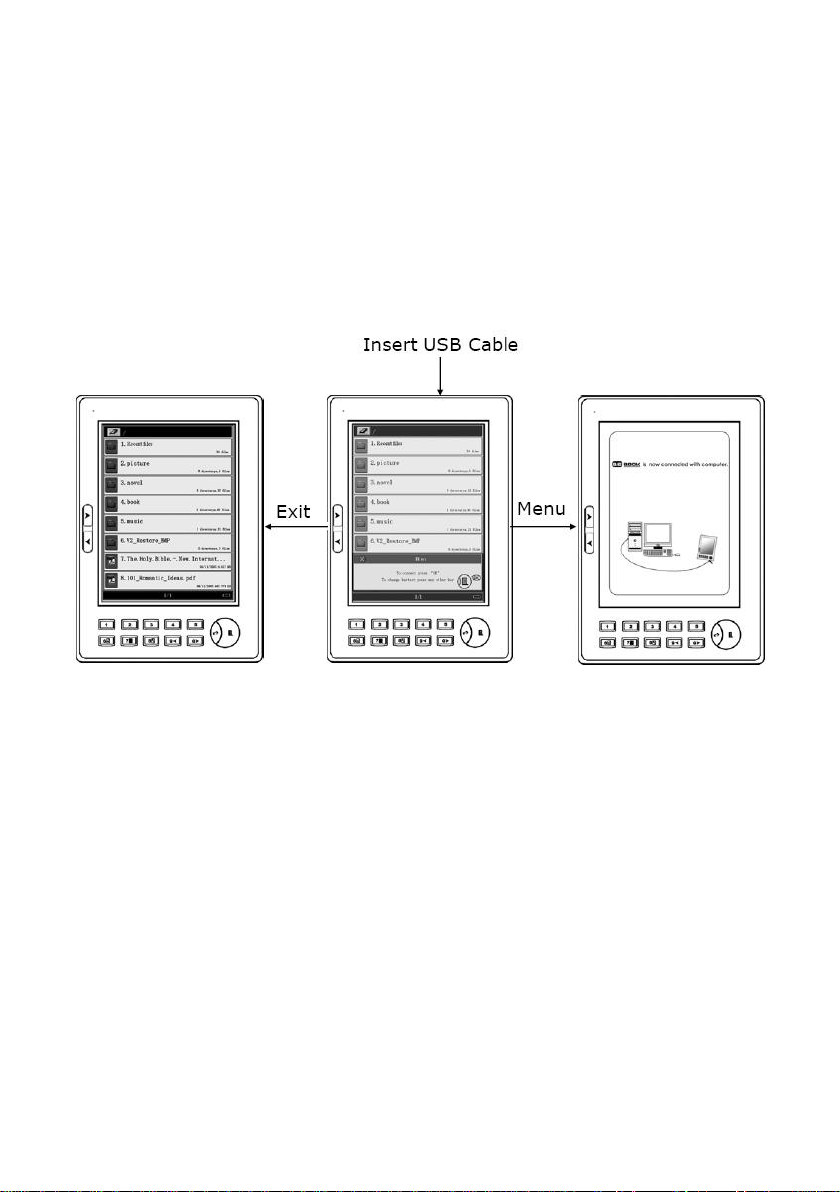
USB connection
You can connect your BeBook to your PC or Mac by USB cable
supplied. Plug in the USB cable to your computer and BeBook and
press OK to connect. When connected the My Computer window will
display a Removable Disk icon.
Note
When the USB cable is connected, you will not be able to read books on your
BeBook screen.
Page 12

Adding new eBooks
eBooks can be obtained from a large number of websites.
On www.mybebook.com you will find over 20,000 free books to
download. More current titles can be bought though many online
stores.
1. Visit www.mybebook.com
2. Search for books in the „eBooks menu‟
3. Save the books to your computer hard drive first
4. To put the books on your BeBook, plug in the USB cable
to your computer and BeBook and press Menu-button to connect
(If it doesn‟t connect, restart you computer and try again).
5. Your BeBook is now recognised as an extra storage device
on your computer. Drag and drop the book files there.
(or use copy/paste)
Adding ePub files with Adobe Digital Editions
In order to download the most recent titles in ePub format, you
have to download Adobe Digital Editions®. This program will help
you to order and synchronize your eBooks.
Download Adobe Digital Editions
1. Go to www.adobe.com/products/digitaleditions.
2. Click on the START INSTALLATION button.
3. Follow the Installation wizard.
Page 13

Activation and Authorization
After installation, the Setup Assistant wizard prompts you to
activate Adobe Digital Editions (you must be online during this
process). During activation, you have the option to authorize your
computer with an Adobe ID. If you do not have an Adobe ID,
creating one is free and only takes a minute.
Adobe ID
The Adobe ID enables you to transfer items protected by digital
rights management (DRM) between multiple computers or devices
and restore them after a data loss or system reinstallation.
1. Go to www.adobe.com/membership.
2. Click on the CREATE an ADOBE ACCOUNT button.
3. Fill out the membership sign up form. You'll create a new user
name and password. This will be you‟re adobe ID.
4. Finish activation of Adobe Digital Editions Software by filling in
your Adobe ID.
Import your eBooks in Digital Editions
1. Click on LIBRARY In the menu.
2. Click on add file to library.
3. Browse on your computer for text files you like to synchronize
with your BeBook.
Page 14

Connect your BeBook with Digital Editions
1. Connect your BeBook with your computer using the USB cable
supplied.
2. Your BeBook will be recognized by Digital Editions as a new
bookshelf.
Note
The first time you connect your BeBook to Digital Editions the
program will synchronize all data from the BeBook to your
computer. It may seem that your computer is stuck, but this
process can take up to 10~20 minutes. Remember, this is only the
first time.
Copy books from and to your BeBook
When the BeBook Is connected and recognized by Adobe Digital
Editions you can drag and drop files from one bookshelf to another.
For more details about Adobe Digital Editions please visit the Adobe
website www.adobe.com.
Page 15

Installing an SD card
1. Insert the SD card in the direction of the arrow with the label
facing up.
2. The bookshelf screen will be displayed.
To remove the SD card, push it in until you hear a click.
You can now pull it out.
Copying files to SD card using Windows 2000, XP or Mac
Under the Windows operating system, files may be initially copied to
the internal cache memory and need to be confirmed.
To confirm a copied file:
1. During file transfer the indicator light flashes on your BeBook.
Wait until it stops flashing.
2. Right click the Removable Disk icon on your PC screen then select
Eject or Pull out from the menu. You can now remove the USB cable
from your BeBook.
3. Your BeBook screen displays the bookshelf interface, and you can
select and read the books stored on the SD card.
Page 16

Reading eBooks
Open an ebook
1. When you switch your BeBook on, the main bookshelf page is
displayed with up to eight titles shown.
2. Press Next> or <Previous buttons to display the next bookshelf
page.
3. Press a key 1-8 to select the title you want.
The first page is displayed.
Page 17

Page turning
1. When a page of text is displayed, press Next> or 0
to turn to the next page or <Previous or 9 to go back.
2. Press and hold the button to skip 10 pages forward
or back.
3. Move the thumbwheel up/down to turn a page; move the
thumbwheel down to display menu or to confirm the current
operation.
First/Last page
Go straight to the first or last page of a book.
1. When a text page of a book is displayed, press Menu button to
open the menu.
2. Press 1 to display the first page, or 2 to display last page.
Note
First/Last page and Page Jump are book features only and do not apply to
images.
Page 18

Jump to a page
Go straight to a specific page number.
1. When a text page is displayed, press Menu button to open the
menu and then press 3 to enter into the jump page function.
2. Use the 0-9 keys to open the page number you want and press
the Menu button.
If you press the wrong number key, press Exit to delete the last digit.
If no page number is entered, press Exit to quit.
Zoom in and out
Make the print bigger or smaller. There are five levels: Extra-small,
Small, Medium, Large and Extra-large. To display the text in a
landscape format press Menu button to open the menu and then
press 6 to rotate (Only PDF and EPUB formats).
1. When a text page is displayed, press 8 repeatedly to zoom in or
out to the format you prefer.
Page 19

Bookmarks
You can bookmark up to five pages.
Add a bookmark
1. When the page you want to bookmark is displayed, press a key
1-5 to set the bookmark. If the key is already being used as a
bookmark, press and hold the key to reset the bookmark to the
current page.
Bookmark display:
The current page without bookmark
The current page with bookmark
The numbers 1-5 which have been set as bookmarks are
displayed in the status bar at the bottom of the screen.
Replace a bookmark
1. If the number you want to use as a bookmark is already being
used, simply press and hold the key to reset it for the current page.
Delete a bookmark
1. At the bookmarked page, press the bookmark number key to
clear the bookmark.
View and go to bookmarks
1. When a page of text is displayed, press and hold 6 to display a
list of all the bookmarks you have set.
2. Press the number of the bookmark you want. The screen displays
the bookmarked page.
Page 20

Index
Go to catalog /7
Exit
1. When a page of text is displayed, press Go to catalog/7 key to
display the index screen.
2. Press a key 1-8 to select from the catalog options displayed. If
required, select from the next catalog option screen.
3. At the final screen press the number key to go to the chapter you
want.
4. Press Exit to return to the previous screen.
Note
The index is not available for images or documents in txt and html formats.
Page 21

Search
Search for a book
1. When the bookshelf page is displayed, up to eight titles are
shown. Press Next> or <Previous buttons or move the thumbwheel
down to display the next bookshelf page.
2. Press and hold the Next> or <Previous buttons to skip 10 pages
forward or back.
3. To select a title from the bookshelf page, press a key 1-8.
Search by folder category
You can save books of the same kind in the same folder.
1. Press a number key 1–8 to enter a sub-folder.
2. Press a key 1-8 to open the book or document you want.
Page 22

Search by order
1. When the bookshelf page is displayed, press the Menu button to
display the menu.
2. Press:
2 to search by name alphabetically
3 to search by the date you added the ebook or document
4 to search by type of document.
Press Exit to return to the previous screen.
Find a recently viewed ebook or document
The books most recently opened will be saved in the
“Recent” folder.
1. When the main bookshelf page is displayed, press 1 to open the
Recent folder.
2. Press a key 1-8 for the ebook or document you want. Or press
Next> or to display the next most recently read books.
Page 23

Switch between your BeBook and SD card bookshelves
1. When the main bookshelf page is displayed, press the Menu
button to open the menu.
2. Press 5 to swap between the bookshelf of an inserted SD card
your BeBook bookshelf.
3. Press Exit to return to the previous screen.
Delete eBooks and documents
1. Switch on your BeBook
2. Plug the USB cable into your BeBook and your computer
3. Press the Menu button for OK.
4. Open the BeBook internal memory (in “My Computer”) or the SD
card memory
5. Press delete on your computer.
6. Remove the USB cable from the BeBook
Page 24

eBook information
1. When a page of text is displayed, press the Menu button to
display the menu then press 5 to select About.
2. All available information about the book you are reading is
displayed. This can include the author, file name, publication date.
Different books may supply different information.
3. Press exit to return to the previous screen.
Page 25

MP3 tracks
Play music or audio books.
1. When the main bookshelf screen is displayed, press the number
key to play your MP3 files.
2. Press the Menu button to display the MP3 menu, and then press
1. The Music Play function will display all information of the current
MP3, including song title, bit rate and playing time.
MP3 controls
Note
It is possible to use all features of the BeBook Mini while listening to
MP3 files.
Page 26

Settings
Display the settings menu
You can adjust key tones, language, font and information settings.
1. When the bookshelf screen is displayed, press the Menu button to
open the menu. Press 6 to display the system setting screen. You
can now adjust the following:
Key tones on/off
When you press a key on the keypad, you hear a beep. You can
switch this off or on.
1. When the Settings menu is displayed, press 1 to switch key pad
tones off or on.
Change language
You can change the display language to: Chinese, English, Russian,
Ukrainian, Spanish, Turkish, French, German, Greek, Estonian,
Hungarian, Japanese, Korean, Dutch, Polish, Slovenian, Bulgarian,
Catalan.
1. When the Settings menu is displayed, press 2 to display the
language options.
2. Press the number you want to select from the options displayed.
Page 27

Change font
Select the typeface you prefer.
1. When the Settings menu is displayed, press 3 to display the font
options.
2. Press the number you want to select from the options displayed.
Note
To be able to change fonts, you need an SD Card and create a folder on it
named ‘fonts’. You can save any (Windows or Mac) TTF files (True Type
Fonts) in this fonts folder of the root index of your SD card.
System version
1. When the Settings menu is displayed, press 4 to display your
BeBook‟s software version information.
Page 28

Help
If you have a problem with your BeBook, first try these solutions.
Switch your BeBook off then on again.
1. Press and hold Power On/Off button for three seconds to switch
your BeBook off. Press again to switch it back on.
Reset your BeBook
1. Press the reset button or press and hold the Power On/Off button
for at least 10 seconds.
2. Find solutions online at: www.mybebook.com/forum
Safety information
For safe and efficient use of the product, please follow the
instructions in this guide.
Do not leave the product in direct sunlight for long periods and do
not use in extreme high or low temperature environments. This can
cause damage to the product and may damage electronic
components and/or the battery.
Do not put or use BeBook in areas of high humidity. Avoid any
liquid getting into the product as this can damage the internal
electronic circuit.
Always place the product on a stable surface. Violently shaking or
dropping the product will cause damage to the product and its
electronic components.
Do not press on the screen or put heavy weights on it.
Page 29

Do not expose your product to dust or dirt or chemically hazardous
conditions.
Do not put the product near magnetic fields.
Please use the authorised accessories, do not use third party
components or third party accessories.
Do not attempt to repair or take the product apart. This
will void your warranty. Only qualified personnel from ICIDU B.V.
or an authorised maintenance centre can repair the product.
Battery:
Do not use the rechargeable battery if it is damaged in
any way.
If battery leaks liquid, please clean the BeBook and replace with a
new battery.
If liquid leaked from the battery contacts human skin, please
carefully rinse and consult a doctor.
Please properly dispose of old and waste batteries.
Cleaning
Do not use chemical solvent to clean the surface of the product.
Please use a soft cloth to wipe off the dust from the surface of the
screen or cover.
Page 30

Product disposal instructions
Products that include the WEEE [The Waste of Electrical and
Electronic Equipment] symbol, shown below, should not be placed in
the normal household rubbish, but should be disposed of using the
appropriate WEEE disposal facility. These facilities may be advised
to you by your local council or the retailer from which the product(s)
was purchased.
Page 31

Warranty
If you think you need to return your BeBook for service or
malfunction, please visit http://www.mybebook.com/support for
detailed instructions.
Your BeBook is guaranteed for a period of 12 months from the date
of purchase.
A Broken screen is not included within our standard warranty policy.
For full terms and conditions of our Limited Warranty Service
Please visit www.mybebook.com
http://mybebook.com/a9/Terms-&conditions/article_info.html
This product is and approved.
Page 32

Frequently Asked Questions
Q: My BeBook won’t turn on or freezes at the same page.
When this happens, the last screen content of the BeBook will remain
displayed.
A: Most common cause: the battery is flat.
Solution:
− Connect the USB (power) cable to your BeBook.
− Press the small reset button on the back and/or press the on/off button
on top of the device.
− Charge the battery for up to four hours.
Q: I tried to update the software/firmware, now my BeBook freezes
at the same page.
Or, during the update nothings happens for at least 10 minutes.
Or, I get a message stating: “invalidate file”
A: Most common cause: the battery went flat during the update, or there
was a problem with the SD card.
Solution:
− Check if the SD card used is smaller than 256Mb (a 128 Mb SD card
probably won‟t work) and no higher than 16Gb (not all Gb cards, 2Gb and
larger can perform the update). It is also recommended to format the SD
card (FAT).
− Use a suitable SD card, preferably a 1 GB card can be used to store
books after the update.
Page 33

− Connect the USB (power) cable to your BeBook. Press the small reset
button on the back and/or press the on/off button on top of the device.
(Keep the USB cable connected)
− To restart the update: Hold the next page at the left side of the BeBook
and press the power on/off button twice, to shut down and power on again.
Keep the next page button pressed during this step.
− Once the update progress bar is shown, wait for the update to finish, it
will ask you to press a button when the update is finished. (There is no
need to keep the next page button pressed during the update).
− If this still fails: check the downloaded update for the correct file size.
Instructions can be found here: http://mybebook.com/p9/FREE-
BEBOOK-SOFTWARE-UPDATE/pages.html
− Download the update again and check its file size, if it‟s correct and the
update won‟t start, your SD card is not compatible, please try a different
make or size of card.
Q: The BeBook shows 2 battery bars but the page will not turn
A: This happens sometimes when turning a page if the battery has run
down. The BeBook gives an electronic pulse to bring up the new page, but
as there‟s no (or very little) power consumption while reading a page, the
battery may run empty and the last page is still displayed included the old
power status.
Solution:
- Charge the battery.
Page 34

Q: I purchased and/or downloaded an ebook from an online
bookstore, now the file won’t open, or the file doesn’t show up on
the BeBook.
A: Most common cause(s):
Solution:
− The downloaded/purchased file has DRM (copyright protection) system,
not supported by BeBook.
− The downloaded/purchased files have a format which isn‟t supported.
Make sure the BeBook has the latest update from our website
www.mybebook.com. If the downloaded book still doesn‟t show up in
your booklist, the format isn‟t supported and cannot be read.
Current formats are: pdf, doc, html, bmp, jpg, png, gif, tif, djvu, fb2, wol,
txt, epub, ppt, lit, chm, rar, zip, mp3, mobi, prc, htm
If it does show up on your book list it‟s most likely protected through a 3rd
party DRM/copy protection system. Though the extension (e.g. .pdf or .lit)
remains the same, copyright protection has been added.
The BeBook can only read DRM protected books in the ePub format . It‟s not
possible to read other protected books. Make sure to choose the correct format
when downloading books. If you accidentally downloaded a non compatible
version, please contact the vendor and ask for a replacement in the correct
format.
Q: Where do I get new books, how do I put new books on
my BeBook?
A: Books can be obtained from a large number of websites.
On www.mybebook.com you will find over 20,000 free books to
download. More current titles can be bought though many stores.
Page 35

Make sure you download your books in the correct file format. The files
should not contain a DRM (digital rights management) system. There is one
exception: you can download protected books in the ePub format.
There are a huge number of online stores offering these books.
To put the books on your BeBook, attach the USB cable to PC and BeBook
and press OK to connect. (If it doesn‟t connect, restart your computer and
try again)
Your BeBook is now recognised as an extra storage device on your
computer. Just drag and drop the book files there.
ePub Books purchased can be uploaded through Adobe Digital Edition
software.
Q: Which formats are supported on the BeBook?
A: BeBook supports many formats: ePub, pdf, mobi, ppt, doc, lit, html,
chm, bmp, rar, jpg, zip, png, mp3, gif, rtf, tif, wol, fb2, djvu, txt.
Q: What is DjVu?
A: DjVu is a digital document format which allows for the distribution of
very high resolution images of scanned documents, digital documents and
photographs on Internet and on DVD. For more information visit:
http://djvu.org/
Q: BeBook can not read .odt format, do you intend to implement this
format in BeBook, if yes when?
A: odt is not supported, but you can save your document as .doc file which
works perfectly on BeBook.
Q: What is odt?
A: odt stands for “open document text”. This format is a part of odf (open
document format) standard introduced by ISO and used by StarOffice,
Koffice and other applications.
Page 36

The OpenOffice is like Microsoft office and runs on Linux environment. It‟s
available for Windows and MacOS as well.
Q: Will the BeBook support pdb format in the future?
A: Currently we are developing this. Meanwhile, you can convert pdb files to
the pdf format and read them on your BeBook. Details on how to do this are
online at:
http://www.imageconverterplus.com/help-center/work-withicp/examples/how-to-convert/pdb_pdf.html
Q: Which languages are supported on the BeBook?
A: The BeBook menu can be changed into the following languages: Chinese,
English, Russian, Ukrainian, Spanish, Turkish, French, German, Greek,
Estonian, Hungarian, Japanese, Korean, Dutch, Polish, Slovenian, Bulgarian,
Catalan.
Q: Can the BeBook read other alphabet/characters?
A: The BeBook can read any language, and any character as long as it‟s
“true type”.
Q: Does BeBook have translation function?
A: The BeBook can read many fonts but it doesn‟t contain
translation function.
Q: Does the BeBook have a search function?
A: You can search for words on the BeBook.
Q: Does the BeBook have touch screen?
A: Currently the BeBook screen is not touch screen. This will be a feature in
the future.
Q: Does the BeBook have wifi connection?
A: At the moment you cannot download files wirelessly, only via USB cable.
We are currently developing wifi and RSS feeds. Please note that the
current BeBook cannot be updated or upgraded to wifi.
Page 37

Q: Can I optimise my pdf files for the BeBook?
A: To enjoy the best reading experience with BeBook, we offer you a free
tool to optimise your books and documents. It‟s really easy and you can
download the software at:
http://cutepdf.com/download/CuteWriter.exe
To optimise content, books, documents for BeBook please follow these
steps:
1. Download and install CutePDF from the link above
2. After the installation is finished: open the document
3. Change the page size from A4 (or letter) to: 3,54 x 4,72 inches
(90 x 120 mm)
4. Click Print button and choose a new printer called
„CutePDF Writer‟
5. Click Printer settings, then „Advanced‟ and then change page size to
Custom page size
6. Now set the page size to 3,54 x 4,72 inches (or 90 x 120 mm) and click
OK three times
7. Now click Print and save the pdf file
Page 38

After copying the pdf file(s) to the memory of your BeBook (either internal
or an SD card) you will see it looks perfect.
Q: The size of my screen is too small to see my pdf document. What
is the problem?
A: The document isn‟t optimised for the smaller BeBook screen (compared
to a PC).
Try the zoom function by pressing 8. Or you can use a free software tool to
optimise your books and documents. It‟s really easy and you can download
the software here:
http://cutepdf.com/download/CuteWriter.exe
To optimise content, books, documents for BeBook please follow these
steps:
1. Download and install CutePDF from the link given above
2. After the installation is finished: open the document
3. Change the page size from A4 (or letter) to: 3,54 x 4,72 inches
(90 x 120 mm)
4. Click „Print‟ button and choose a new printer called
„CutePDF Writer‟
5. Click Printer settings, then Advanced and then change page size to
Custom page size
6. Now set the page size to 3,54 x 4,72 inches (or 90 x 120 mm) and click
OK three times
7. Now click Print and save the pdf file
After copying the pdf file(s) to the memory of your BeBook (either internal
or an SD card) you will see it looks perfect.
Page 39

Q: How does the BeBook display pdf files? Is it able to pan and
zoom?
A: BeBook can read any pdf, and you can zoom the page. We use our own
pdf parser software for this. The best option is to use optimised page
settings for BeBook, which is 3,54 x 4,72 inches with margins set to 0,012
inch.
Q: What are the optimised page settings for BeBook?
A: Optimised settings for the BeBook are: 3,54 x 4,72 inches with margins
set to 0,012 inch.
Q: What is the screen resolution of the BeBook?
A: The screen resolution is 600 x 800.
Q: When rendering pdf files, will it correctly show layout, graphics,
embedded fonts, etc.?
A: Yes, BeBook can open any pdf (and many more document formats), and
it displays graphics, technical drawings etc. perfectly. Please note that the
page layout size should be set to 3,54 x 4,72 inches, which is optimised for
BeBook.
Q: I have downloaded .lit files. It shows that the files have been
stored in the BeBook internal memory when it’s connected to the
computer, however when you unplug the USB cable to view or read
the .lit ebooks they do not appear in the BeBook. What is the
problem?
A: Have you downloaded the new update for the BeBook website? You can
find it on our homepage, in the News section.
Some .lit files are DRM protected. DRM stands for Digital Rights
Management, a copyright protection system. BeBook doesn‟t support DRM
at this moment, at least not for .lit files.
Q: Can I install Microsoft reader on my BeBook?
A: You do not need to install Microsoft reader. BeBook can already read .lit
files, but only files without DRM protection.
Page 40

Q: Can the BeBook read books purchased on Amazon or Sony e-book
sites?
A: No it can‟t. Both Sony and Amazon chose to use their own standard, so
book sales will end up with them. There‟s no reader that can read all
formats. However, BeBook does support the widely available ePub format.
Q: Where can I download free ebooks that I can read on
my BeBook?
A: There are many websites where you can download free ebooks.
A few examples are:
http://www.lifeinbook.com/
http://www.freebookspot.com/
http://www.hongkiat.com/blog/20-best-websites-to-downloadfree-e-books/
Most classic titles are free because they are free of copyright protection. On
our website, you can find 20,000 free titles:
http://mybebook.com/download_free_ebook/
Q: I have downloaded an ebook, but it won’t open on the BeBook.
What is the problem?
A: As you can read on our website, most formats are suitable for the
BeBook. The most common cause of this problem is that most commercial
ebooks are DRM protected (Digital Rights Management, a copyright
protection system).
Q: What is DRM?
A: DRM stands for Digital Rights Management, a copyright protection
system for digital documents. Providers of digital text have their own
systems to protect content. For example, Adobe (pdf), Microsoft (.lit), Sony
and Mobipocket all have their own protection system. BeBook now supports
DRM protected ePub files.
Q: How much do ebooks cost?
A: Most ebooks are 25% cheaper than the printed version.
Page 41

Q: How do I download an ebook on my BeBook?
A: Follow these steps:
1. When the BeBook is charged, switch it on by the ON button on the top
side of the BeBook
2. Insert the USB cable into the BeBook (at the top) and
your computer
3. Press the menu button to connect
4. Download ebooks (for example the 20.000 free ebooks on our website.
Or from other websites. But, keep in mind: only DRM
free books. DRM stands for Digital Rights Management, a
copyright protection system that does not allow you to open the purchased
books.)
5. Save the books on the BeBook (internal memory, or insert an SD card in
the SD slot on the top side)
6. Remove the USB cable from the BeBook
Q: How do I delete files from my BeBook?
A: It‟s not possible to directly delete books from your BeBook without
connecting it to a PC.
To delete books, follow these steps:
1. When the BeBook is charged, switch it on by the ON button on the top
side of the BeBook
2. Insert the USB cable into the BeBook (at the top) and
your computer
3. Press the menu button to connect
4. Open the BeBook internal memory (in “My Computer”) or the
SD card memory
5. Press “delete” on your computer
6. The file is now being deleted
7. Remove the USB cable from the BeBook
Page 42

Q: How do I charge my BeBook?
A: When you plug in the USB if the BeBook is turned off,
it will charge.
When you plug in the USB if the BeBook is on, it will say “To connect press
OK. If you press ok, it will connect. If you press any other button, it will
automatically charge the battery. The battery will be fully charged in 4
hours.
Q: How do I connect my BeBook to the computer to charge or to
download ebooks?
A: If you insert the USB cable into the BeBook (at the top of the BeBook)
and into your computer (in an USB port), the BeBook will give you the
option to press menu to connect (the big menu button), or to press any
other button to start charging the battery.
Q: Can I downgrade the BeBook Mini?
A: Yes, you can downgrade your BeBook Mini to an earlier firmware version.
Please visit our website for more information.
Q: Is the BeBook for sale in stores?
A: Yes! Please check our website to find a list of retailers near you. You can
also buy a BeBook on our website www.mybebook.com.
Q: What is the average amount of time it takes to turn a page on the
BeBook?
A: „Turning‟ a page, or refreshing a page takes 1-2 seconds. The larger the
size of the document, the (slightly) slower it will go.
Q: Does BeBook play audio books?
A: Yes, the BeBook also plays audio books. You can download many audio
books online, for free or paid, especially in English.
Page 43

Q: Will the BeBook play audio books out loud?
A: No, the BeBook does not have speakers. You can listen to audio books
by inserting the earphones into the earphone-jack. The earphones are
included in the BeBook packaging.
Q: Can I read an ebook and listen to mp3 at the same time?
A: Yes, you can. Just play an mp3 file first and then use the exit button to
go to the main bookshelve to select a book.
Note
Do not forget to stop the mp3 file(s) from playing otherwise your battery will run flat
after a few hours.
Q: How do I turn up the volume of audio books?
A: By using the thumbwheel at the right side of the BeBook.
Q: Which accessories are available for the BeBook?
A: Various accessories for the BeBook are being developed: cases, limited
edition cases, lights etc. Check out our website regularly to see when they
are available.
Q: How do I use the memory of an SD card?
A: Please go through the following steps:
1. Insert the SD card into the slot on the top of the BeBook.
(SD cards no larger than 16 Gb)
2. Connect the BeBook to your computer with the USB cable, then press
the menu button to connect.
3. Your computer will now recognise the BeBook (internal memory) and
another drive: the SD card.
4. You can now open the SD card drive and save/delete files.
Page 44

Q: Is the SD slot SDHC compatible?
A: Yes. SD is supported up to 16 GB.
Q: Which SD cards can I use?
A: We guarantee that the BeBook will read books on the memory of SD
cards up to 16 Gb.
Q: How do I switch between the BeBook internal memory and the
SD memory?
A: When switching your BeBook on with an SD card present, the catalogue
will display the contents of the SD card.
However, simply removing the SD card will automatically switch the device
into the built-in storage mode.
Q: How do I use the bookmark function?
A: When the page you want to bookmark is displayed, press 1-5 to set the
bookmark. If the key is already being used as a bookmark, press and hold
the key to reset the bookmark to the current page.
Replace a bookmark
1. If the number you want to use as a bookmark is already being used,
simply press and hold the key to reset it for the
current page.
Delete a bookmark
1. At the bookmarked page, press the bookmark number key to clear the
bookmark.
View and go to bookmarks
1. When a page of text is displayed, press and hold 6 to display a list of all
the bookmarks you have set.
2. Press the number of the bookmark you want. The screen displays the
bookmarked page.
Page 45

Q: Is the BeBook compatible with Vista, Mac etc?
A: The BeBook uses a regular USB connection, which is a universal
standard. This is compatible with all MS Windows versions, including Vista
and Mac.
Q: Is the BeBook useable for visually impaired people?
A: Our BeBook has a 3 level, single key, zoom function. This means you can
double the original font size twice. When fully zoomed, font size is large
enough for most visually impaired.
Q: How does the zoom function of the BeBook work?
A: Our BeBook has a 3 level, single key, zoom function.
This means you can double the original font size twice. Simply press 8 to
zoom in.
Q: What is the text /background colour combination?
A: The BeBook uses black text on a white background, just like regular
books. It‟s currently not possible to change this.
Q: Does the BeBook have a colour screen?
A: No, the BeBook uses eInk technology, which means that the „ink‟ is black
and the „paper‟ white-grey just like a normal book. Colour display is not
currently available.
Q: How are images and pictures displayed on the BeBook?
A: The BeBook has a three-level grey scale, this means that the pictures
will be displayed in black-grey-white. It is clearly visible, just like an old
fashioned black and white picture. Contrast and sharpness cannot be
adjusted.
Q: With which USB port does the BeBook work?
A: The BeBook has USB 2.0.
Page 46

Q: How do I transfer information to the BeBook?
A: You do not need a software package. Please go through the following
steps:
1. You can plug the BeBook to your PC or Mac with a USB cable, your
computer will just simply show a storage device icon on
the screen just like other USB memory stick.
(the USB cable is supplied)
2. Copy all the files you want to read and paste into the BeBook storage
device icon.
3. When you plug off the BeBook from your computer, then the BeBook will
automatic recognize the file you just paste in and you can start to enjoy
your reading on the BeBook:)
Q: What is the warranty policy for the BeBook?
A: We offer one year full warranty if the BeBook has a malfunction. This
warranty policy does not include a broken screen.
www.mybebook.com
 Loading...