

Page 1

www.icetechusa.com
Foreword …………………………………………………………………………………………………..
Features …………………………………………………………………………………………………….
Precautions ……………………………………………………………………………………………….
Player Controls ………………………………………………………………………………………….
LCD …………………………………………………………………………………………………………….
Battery ……………………………………………………………………………………………………….
Basic Buttons and Functions ….…………………………………………………………………
MENU Button…………………………………………………………………………………………….
ARROWS / Next / Previous Buttons ……………………………………………………….
VOL Button (Model v.A) | REC/A-B Button (Model v.B) ……………………….
Play / Pause Button ………………………………………………………………………………..
Hold Function ………………………………………………………………………………………….
Volume Function ……………………………………………………………………………………..
Advanced Functions ………………………………………………………………………………….
Lyrics Display ………………………………………………………………………………………….
Voice Recording ………………………………………………………………………………………
Converting ACT to WAV Files ………………………………………………………………….
Storing FM Radio Stations ………………………………………………………………………
E-book ……………………………………………………………………………………………………..
Games ……………………………………………………………………………………………………..
3
3
4
5
6
9
10
10
10
10
11
11
11
12
12
13
14
14
16
16
1
Page 2

www.icetechusa.com
System Setup…………………………………………………………………………………………..
Additional Features …………………………………………………………………………………..
Folders …………………………………………………………………………………………………….
Delete Files ……………………………………………………………………………………………..
Playback Modes ……………………………………………………………………………………….
Tempo Rate …………………………………………………………………………………………….
A-B Replay Mode …………………………………………………………………………………….
Follow Read Mode …………………………………………………………………………………..
Voice Recording Comparative Mode ……………………………………………………….
Replay Times …………………………………………………………………………………………..
Replay Gap ……………………………………………………………………………………………..
Private Space ………………………………………………………………………………………….
AMV Convert Tool ………………………………………………………………………………………
Other Files on the CD…………………………………………………………………………………
Troubleshooting …………………………………………………………………………………………
Technical Specifications …………………………………………………………………………….
17
20
20
20
21
22
22
23
23
24
24
24
26
32
32
35
2
Page 3

www.icetechusa.com
FOREWORD:
This IceTECH™ MP4 player is the cutting edge of a new generation of digital
media portable devices. It supports multiple music and video formats (MP 1, 2,
Layer I,II, III; WMA; ASF; WAV; AMV; MOV; AVI, etc…) either directly or by
means of conversion software provided on a bundled CD.
We hope that its outstanding sound quality, great reliability, versatile
functionality and its cool high tech appearance will make it one of your favorite
gadgets that will accompany you on all of your ventures.
FEATURES:
- Extra slim design, comfortable to handle and user-friendly for operating;
- 65K color OLED display
- Multi-format c o mp a t ibility
- Video playback (AMV format)
- Picture browsing (.JPG, .GIF and .BMP formats)
- E-book feature (.TXT and .LRC formats)
- FM Radio allows you to scan for and set your favorite stations (up to 40)
- USB Flash disk with password-protected “Private Space” feature
- Games: Snake and Russian Tetris
3
- Learn and Repeat: A-B / section replay / compare 2 recorded pieces and
- Record: the player supports voice and sound recording through a
excellent in-built microphone (.wav, .act)
Page 4

www.icetechusa.com
replay
- 7 mode preset Equalizer
- Multiple repeat modes: Normal, Repeat One, Folder, Repeat all, Random,
Introduction
- Power off: you can preset the timing in the “auto power off” feature
- Graphic User Interface Menu: Helps you to learn the operating process
and the player features faster
PRECAUTIONS:
- do not leave in direct sunlight and avoid temperatures above 110F;
- do not use in highly humid or dusty environments;
- do not drop the player to avoid damaging the display;
- please select appropriate volume level to avoid hearing damage ;
- do not attempt to disassemble the player;
- do not operate this player while driving to avoid accidents;
- some changes in the features can be made without prior notice, go to
www.icetechusa.com to obtain the latest version of this manual.
4
Page 5

www.icetechusa.com
PLAYER CONTROLS
1. Power ON / OFF
2. Built-in Microphone
3. USB port / charger port
4. Earphone jack port
5. Carry-around pin
6. Button: Menu
7. Button: Play / Pause
8. Button: BCKWD / Prev / VOL –
9. Volume control activation (Model v.A)
Rec/Repeat (Model v.B)
10. Button: FWD / Next / VOL+
5
Page 6
www.icetechusa.com
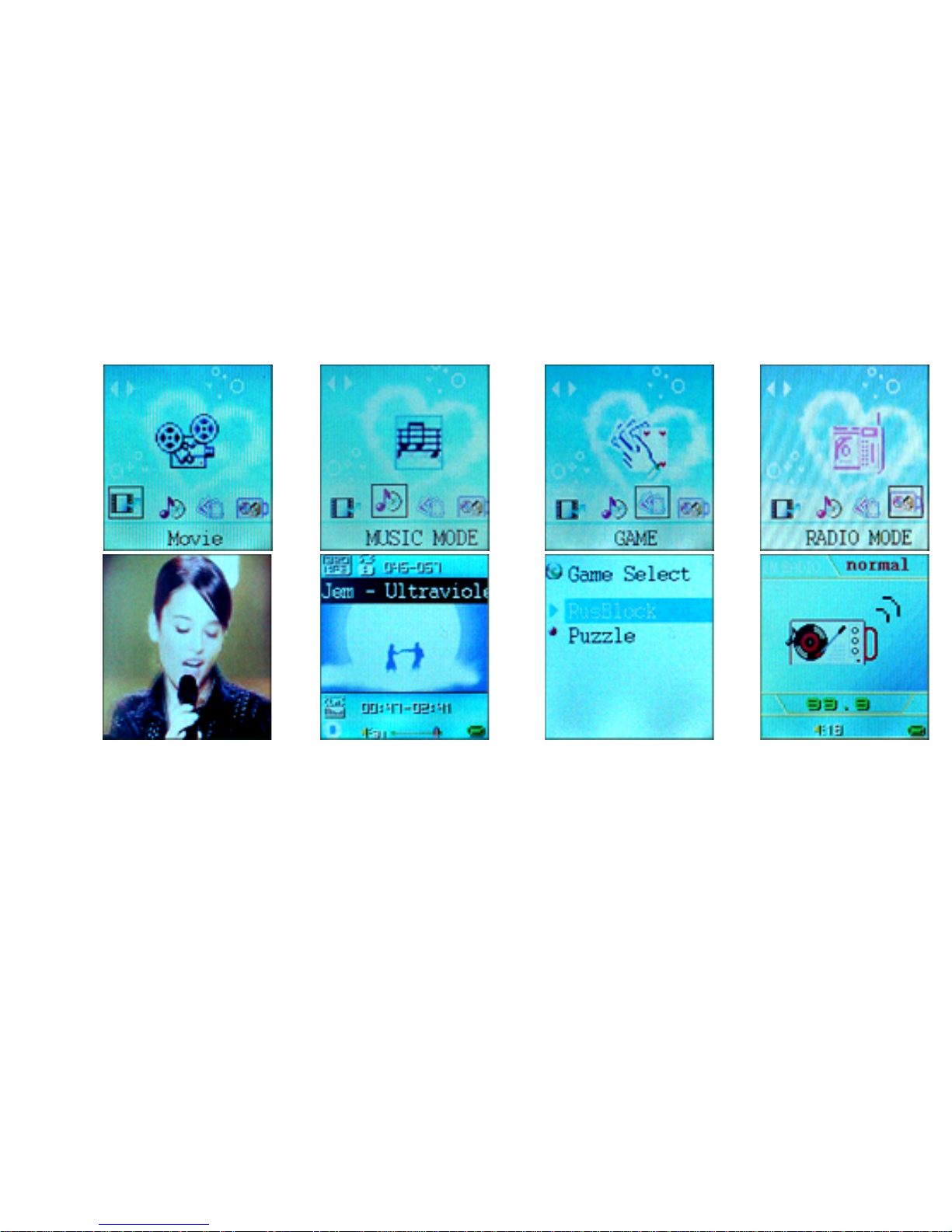
LCD Appearance
1.
2. 3. 4.
1 – Movie Mode, 2 – Music Mode, 3 – Gaming mode, 4 – Radio Mode
6
Page 7
www.icetechusa.com
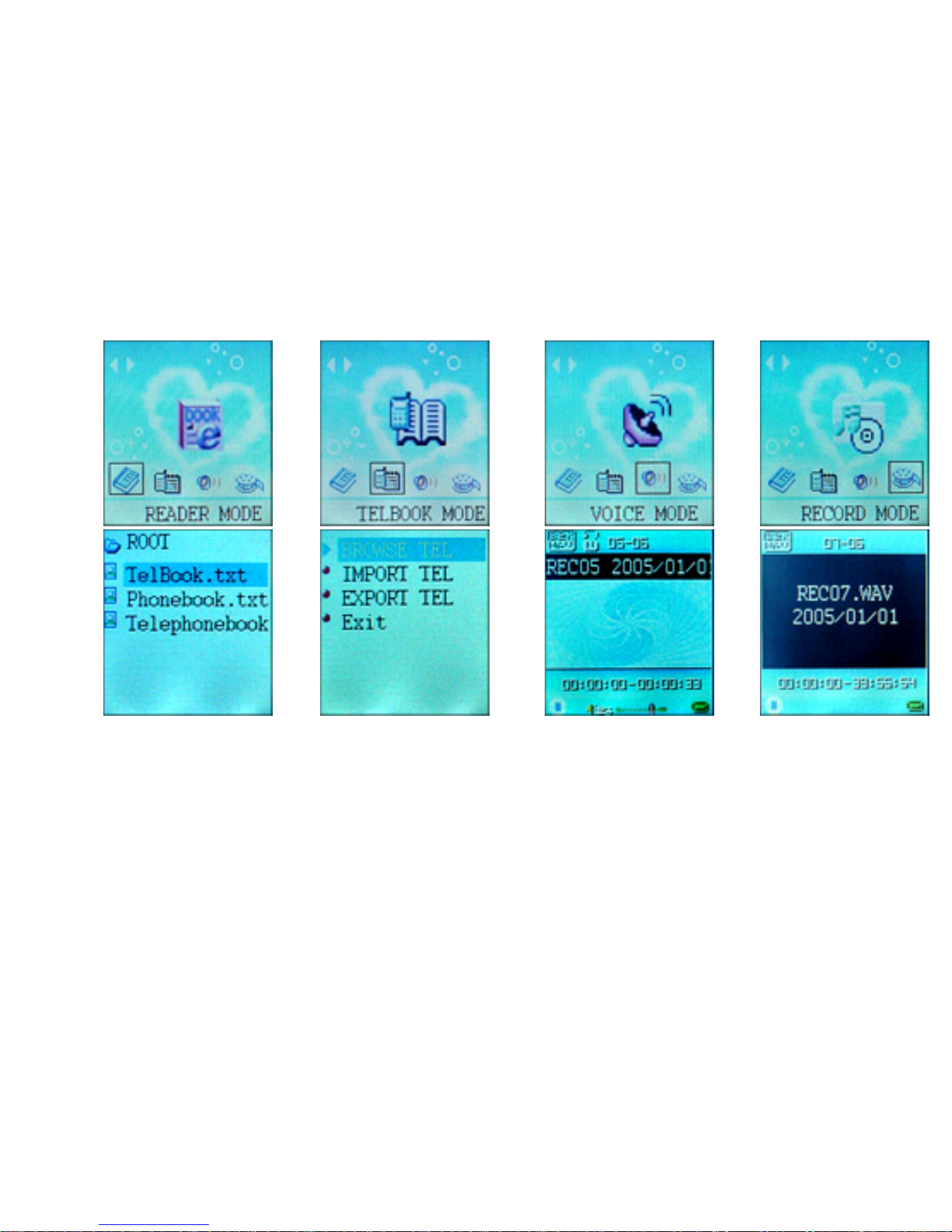
5. 6. 7. 8.
5 – E-Book Mode, 6 – Phone Book Mode, 7 – Voice Playback Mode,
8 –Voice Recording Mode
7
Page 8
www.icetechusa.com
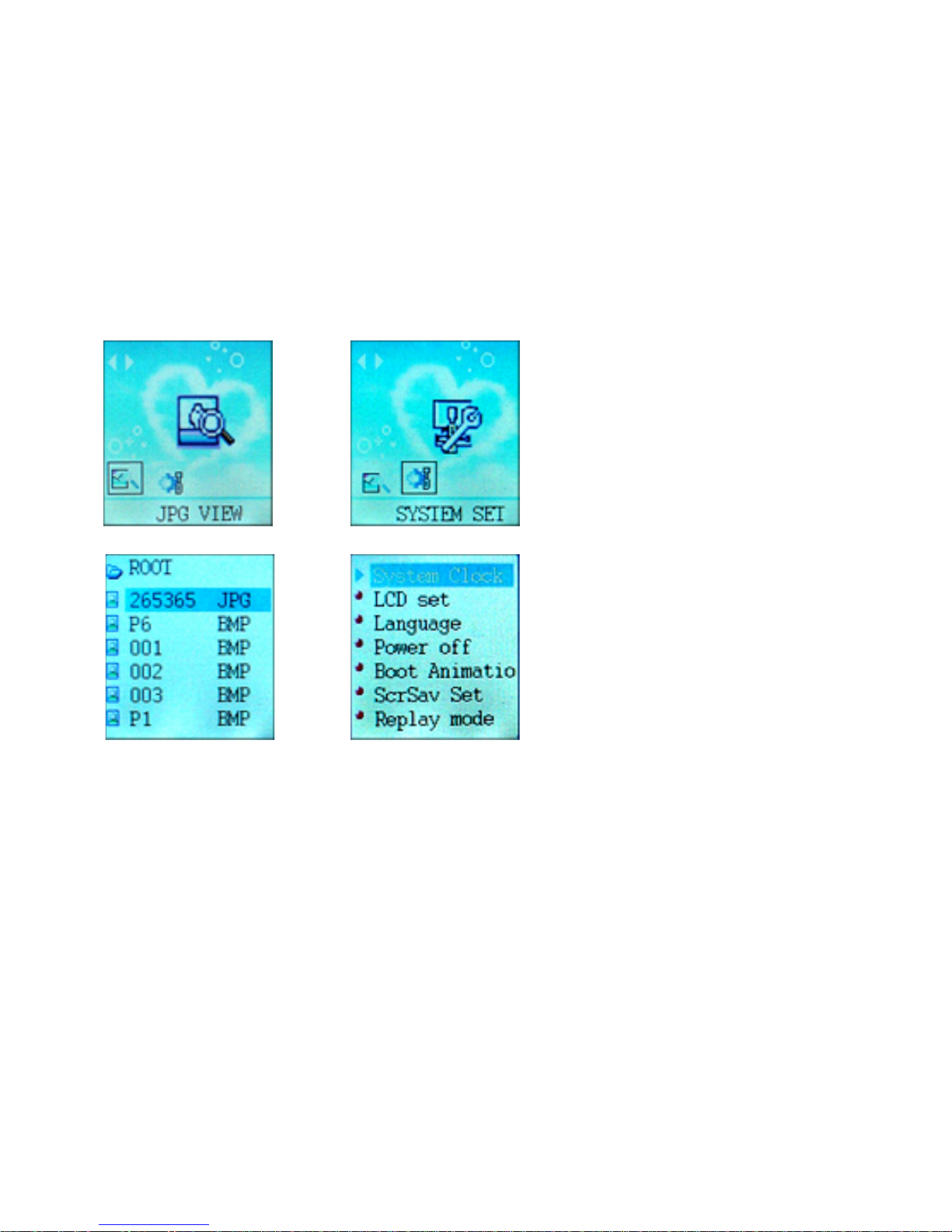
9. 10.
9 – Photo mode, 10 - Settings mode
8
Page 9

www.icetechusa.com
BATTERY
This player from IceTECH™ has an in-built rechargeable Li-Ion battery which can
be charged using the provided charger unit or USB port.
- Please turn the power “OFF” when recharging from a power outlet
- Leave the power “ON” when charging from the PC via USB cable
Note: Your player has a 9-level battery monitoring system. In order to make the
lifetime of the battery longer, please use it up until empty and then charge to
full when using for the first two times.
9
Page 10

www.icetechusa.com
BASIC BUTTONS and FUNCTIONS
When you turn the IceTECH™ player ON using the “POWER” button, it takes you
to the Main Menu level. Using the arrow keys you can navigate through the list
of main MODES.
They include: Music, Record, Voice, FM Radio, Text, Picture, Phone Book, Game,
Movie and SYS Setup.
MENU Button
Use the MENU button to enter the selected MODE. Short click works as Enter.
When inside the MODE or its sub-section – long-click (2 seconds) works as “Exit”
and takes you back one level up. Short clicking MENU in any mode will bring up
the sub-menu. Use the ARROW buttons to navigate through.
ARROW Buttons
These buttons are used to browse through the list of songs, videos and other
files on your player. When in MUSIC playback mode pressing and holding the
ARROW button serves as Fast Forward or Fast Rewind.
VOL Button (Model v.A)
Short press VOL then use ARROW buttons to adjust the volume. Press MENU to
exit the VOLUME dialogue.
10
Page 11

www.icetechusa.com
REC/A-B Button (Model v.B)
While in MAIN MENU - short press REC Button to start the voice recording. Longpress MENU to exit the RECORDING mode.
PLAY/PAUSE Button
Press it to start the playback/recording/view movie/view image/play game.
Press it again during playback to PAUSE. Long-press it to turn the player ON/OFF
(when the power switch in left in “ON” position).
HOLD Function
When this function is in effect all other buttons are locked.
To activate/deactivate this function – press and hold the VOL Button (model v.1)
or the REC Button (model v.2) for 2 seconds. A message will appear that you are
in a HOLD mode or exiting from it.
VOLUME Function
To adjust VOLUME:
Model v.A (with the VOL Button on the Jog-Dial): Press the VOL Button, use
arrow keys to increase/decrease it. Press MENU again to exit.
Model v.B (with the REC/A-B Button on the Jog-Dial): Press MENU while in a
playback mode, select “Volume” and press MODE again. Use ARROW Buttons to
adjust it, and then press MENU to exit the screen.
11
Page 12

www.icetechusa.com
ADVANCED FUNCTIONS
Lyrics Display (KARAOKE)
Your player supports synchronous display of lyrics files (.LRC format) along with
music. Aside from the entertainment benefits of this feature it is found to be of
great help in language learning by many of our users.
How to use this feature? Simply save the lyrics file in the same folder and with
the same name as the corresponding music piece. For example: if your music
file is called “Jem-24.mp3”, then name your .lrc file “Jem-24.lrc” and put it in
the same folder with the music.
When you select a music file that has an accompanying lyrics file, the letter T
(Text) will be displayed in the bottom right corner of the screen along with the
music symbol: “T♪”.
To display the lyrics for the song just long press the MENU button during the
song’s playback.
To hide the lyrics – short press MENU again.
Note: Should you wish to create your own LRC files you may use LRC Editor
program, included in the bundled software package on the CD.
12
Page 13

www.icetechusa.com
Voice Recording
*Make sure that your battery is well-charged.
** Your IceTECH™ media player is capable of saving up to 99 files in each
directory.
When you press the PLAY button in the VOICE RECORDING MODE it starts
saving the file in the pre-set folder. You can select it by clicking the MENU button
while in this MODE but before you have started recording.
When the “OVERFLOW” message is displayed during recording – the player’s
memory is full. Clean up/delete some files to allow further recording.
When the “OVER RECORD” message is displayed – you have reached maximum
capacity of 99 files per folder. You need to change the destination folder for the
recording or delete some files from the current one.
Enter VOICE MODE to review and listen to your recordings.
13
Page 14

www.icetechusa.com
Converting ACT to WAV files
Voice recordings saved in .ACT format can be converted to more common,
although bigger .WAV files by means of the software provided on the bundled
CD. Use “Sound Converter” for this operation. Click button OPEN, select an ACT
file then click button CONVERT and you will get the desired .WAV file as a result
of this process.
Note: “Sound Converter” can also play WAV and MP3 files.
Storing FM Radio Stations
Use the ARROW buttons to select FM RADIO MODE from the main menu. Press
the MENU Button to enter this mode.
Once inside – use the FORWARD and BACKWARD ARROW buttons to locate
available radio stations in the area.
Note: Please have your headphones plugged into the player while scanning for
radio stations. They serve as a receiving antenna extension.
MANUAL SCAN: press the FORWARD or BACKWARD ARROW Button repeatedly,
it will cause the player to scan in increments of 100KHz up or down the
bandwidth looking for all available sources each time you short-press the
ARROW.
14
Page 15

www.icetechusa.com
AUTO SCAN: long-press the FORWARD or BACKWARD ARROW Button until the
player goes into an auto scan mode. It will stop automatically once a strong
radio signal is located. Press any of the ARROW Buttons again to stop auto scan.
STORING the RADIO STATION: to store the station you like just short-click on
the MENU button while listening to the desired station. It will bring up the submenu where you can add it to your favorites by short-clicking the MENU Button
again.
When you have several pre-set stations you can quick-browse through them
using PLAY/PAUSE Button.
Note: “US BAND” and “JAPAN BAND” can hold up to 20 stations each.
DELETING A STATION is the same procedure as deleting a file. Short-click the
MENU button while listening to the station. Select DELETE STATION using the
ARROW Buttons and short click MENU again.
15
Page 16

www.icetechusa.com
E-Book
Use the ARROW buttons to select TEXT MODE then click MENU to activate it. Use
the ARROW buttons again to select from the e-books list, click MENU to open the
book. Use the ARROW keys to scroll through the text.
Note: E-Book application in this player supports only ANSI-encoded .txt files.
Games
Boxman
Use JOG DIAL RING to direct your worker and push box(es) to the marked
spot(s).
Bricks
Tetris type game. Use LEFT/RIGHT ARROW Buttons to move falling bricks. Use
the PLAY Button to rotate it and VOL – to drop down. Fill each line completely to
make bricks in it disappear and free more space for new falling ones.
16
Page 17

www.icetechusa.com
System Setup
Clock
Use the PLAY Button to move the cursor over the fields with YEAR / MM / DD and
HH / MM /SS settings
Use ARROW Buttons to set correct time and date.
Note: this player uses 24-hour (military) time setting.
LCD Set
BRIGHTNESS – to adjust LCD brightness.
DARKLE – to set the time in seconds before the screensaver turns on
BLACK – to adjust contrast (optional feature)
Language
Use this menu to select the interface language you desire. Although we
recommend using English, the following options are available: Chinese Simple,
English, Chinese Traditional, Japanese, Korean, French, German, Italian, Dutch,
Portuguese, Spanish, Russian, Arabic, Thai, Swedish, Danish, Czech, Polish,
Slovakian, Croatian, Hungarian, Romanian, Turkish, Slovenian and Hebrew.
17
Page 18

www.icetechusa.com
Power Off
OFF TIME – set here the time (in minutes) after which your unit will turn off
automatically. Leave this value at “0” to turn this feature off.
SLEEP TIME – inactive time after which your unit will turn off. Designed
specifically for those who like to listen to the music before going to sleep.
Note: “SLEEP TIME” settings do not survive shutdown and have to be set again
each time after the player has been turned off.
Replay Mode
This feature is designed for language studies, where certain exercises are
needed to be repeated over and over again.
MANUAL REPLAY – this setting means that in the A-B REPLAY MODE, the ending
point (point B) can be set only manually.
AUTO REPLAY – this setting enables the player to set an ending point
automatically. This feature works especially well for voice files without music
with distinctive endings between exercises.
Online Mode
This MP-833 model from iceTECH features an option for the user to set a
18
Page 19

www.icetechusa.com
partition of two flash disks on the drive of the player and make one of them –
password protected. However not all operation systems are capable of displaying
both drives on one USB device connected to the PC. That setting enables users
to choose which drive to display in case of PC System limitations.
MULTI DRIVE – default preset. Shows both drives: normal and passwordprotected.
NORMAL ONLY – only normal drive will be visible in “My Computer” folder.
ENCRYPTED ONLY – only encrypted drive will be shown in “My Computer” folder.
Note: Read more on this feature in “Private Space” function
Memory Info
Displays the amount of memory on the player (MB) and percentage of it that is
used (%)
Firmware Version
Displays details about a firmware version currently installed on the player.
Firmware Upgrade
Use this option before connecting to PC to upgrade the software.
19
Page 20

www.icetechusa.com
ADDITIONAL FEATURES
Folders
You can set up to 99 folders in each player directory while it is connected as a
USB drive to your PC.
These folders can be chosen for playback while you are in MUSIC, MOVIE,
VOICE, TEXT or PICTURE modes.
To do so – Press MENU upon entering any of these modes. Choose “Local
Folder”, use ARROWS to select the desired folder, Press MENU again to enter it
and the click PLAY to confirm selection.
Delete File
You can move/copy/delete files and directories while your player is connected to
a PC. When you are done, make sure to turn the player OFF before
disconnecting, otherwise some files may not be deleted properly.
You can also delete files manually by means of the player’s internal file
navigation system.
First enter the mode that works with the file(s) you want to delete: MUSIC,
VIDEO, PICTURE, VOICE, TEXT or RADIO MODES.
Select the file that you want to delete and press the MENU button. Then select
DELETE to delete just this file or DELETE ALL. Selecting DELETE ALL will delete
20
Page 21

www.icetechusa.com
all files of the type in the folder you are working with. Thus if you confirm
DELETE ALL while in MUSIC MODE - all music files in the currently selected
directory will be gone, being in IMAGE, VIDEO, RADIO, VOICE MODES will delete
those types of files respectively.
Playback Modes
Different playback modes can be selected when listening to music and recorded
files.
Once in MUSIC or VOICE modes Press MENU to call up the submenu. Select the
REPEAT feature from the list that appears and press MENU again. You can
choose from the following playback modes:
Normal – play files in current folder in a normal sequence;
Repeat One – play a single music file repeatedly;
Folder – play all music files in the current folder in a normal sequence;
Repeat Folder – play all music files in the current folder repeatedly;
All Repeat – play all music files repeatedly ;
Random – random playback of the songs in the selected folder;
Intro – play the first 10 seconds of each music file.
21
Page 22

www.icetechusa.com
Note: you can also call this function by pressing MENU during playback of a
music or an audio file.
Tempo Rate
Press the MENU button during playback of an audio file to bring up the submenu,
use ARROWS to select TEMPO RATE and press MENU again. Use arrows to adjust
the playback speed to be slower or faster. Once satisfied, press MENU again.
A-B Replay Mode (only in MUSIC mode)
Press the MENU button during playback of an audio file to bring up the submenu,
use ARROWS to select REPLAY mode. Press MENU again. Note that a flickering A
appears at the bottom of the screen. It indicates that the player is waiting for
you to set the beginning point of a segment for replay. Press NEXT to choose the
starting point (a flickering B will appear at the bottom). To set the ending point
of the replay selection press NEXT again. The A-B icon will appear and the player
will repeat the selection according to the preset amount of times (REPLAY
TIMES), inserting a gap between each replay as set in REPLAY GAP.
22
Page 23

www.icetechusa.com
Follow Read Mode
When A-B icon is displayed at the bottom press NEXT one more time to enter
the FOLLOW READ mode.
Your IceTECH player will pause after the fragment replay for exactly the same
time as the fragment itself, so you can repeat after it. Press MENU to exit this
mode, or press NEXT twice to select the beginning of the next fragment to
repeat (the A will start flickering again).
Voice Recording Comparative Mode
When in the FOLLOW READ MODE press NEXT one more time. This will take you
to the COMPARATIVE MODE. It is very similar to the FOLLOW READ, but it also
plays back your recorded speech after a selected fragment so that you can
compare them both.
Note: the player will play back the fragment selected for repetition, followed by
your own audio fragment an infinite amount of times until you press NEXT. Then
a flickering A will appear at the bottom again, prompting you to select the
starting point for a new fragment.
Note: recording your voice will not damage any existing audio files on the
player. It is done into separate files which are only compared with the original
file.
23
Page 24

www.icetechusa.com
Replay Times
Press the MENU button during the playback of an audio file to bring up the
submenu, use ARROWS to select REPLAY TIMES. Press MENU again and use
ARROWS to adjust the amount of repetitions of an audio file (1-10). Press MENU
or PLAY to confirm selection and return to the main playback screen.
Replay Gap
Press the MENU button during playback of an audio file to bring up the submenu,
use ARROWS to select REPLAY GAP and press MENU again. Use arrows to set the
gap between the audio files which are being replayed. 1 = 1 second.
Private Space Function
This player model from iceTECH features a dual-partition option on its USB flash
disk. User can use it in a standard mode (the whole disk is recognized as one
drive), or turn on PRIVATE SPACE function. This will split the disk in two drives
access to one of which will be password protected.
This feature best works with Windows XP operation system installed, or windows
2K with SP4. Otherwise you may find only one disk being detected by your
computer. You can choose then which of the disks to make “visible” by going to
“SYS Setting” – “Online Mode” and selecting one or the other.
24
Page 25

www.icetechusa.com
To enable PRIVATE SPACE function:
1. Connect the player to your PC
2. Run the “MP3 Player Disk Tool” from “MP3 Player Utilities” in Program
Files. (you first will need to install this pack from a bundled CD, or
download and install from the “software support” section of our website:
http://www.icetechusa.com).
3. Set partition sizes and password for a secured disk.
4. Upon completion of this process you will have 2 disks set up on your
player. To access the one that is password-protected, double click the
.EXE file located in its root directory and enter the proper password.
Note:
- You will have to enter passwor d every time you reconnect this disk to a computer.
- dividing the disk in two may erase all the data on both. Make sure to backup all of your
files prior to this proc edure.
25
Page 26

www.icetechusa.com
AMV Convert Tool
1. Installation
1. Locate and double-click the file “Setup.exe”, located in the directory
”AMV convert” on the CD that came with your player.
2. Follow the prompts to complete software installation.
When software installation is complete, you might want to install additional
decoding tools that come on the CD to ensure that you can convert most of the
commonly-used formats into “.AMV” format files used by the iceTECH media
player.
These decoding tools are located in the “PLAYER” folder of the CD. If you are
using Windows XP then you already have Windows Media Player and DirectX 9.0
or higher installed. However, installing the remaining codecs will still be
necessary.
Note: to install “fdd show-20021213.exe”, “quicktimealt144.exe”,
“realalt135.exe” and “StormCodec5.03.exe” just double-click on these files and
follow installation prompts to complete the process. To install the rest of the
codex you will need to double-click “setup.exe” in their folders.
26
Page 27

www.icetechusa.com
2. Converting your media
AMV format is a special one used in this player for video files. Follow these steps
to get your media converted into AMV from various sources.
1. Run “AMV Convert Tool” program from “MP3 Player Utilities” in your
“Program Files” directory.
2. Select a file to convert by clicking “Add File” button as shown below:
27
Page 28

www.icetechusa.com
3. Select an output folder by clicking “AMV Path” button:
28
Page 29

www.icetechusa.com
4. Click “START” to begin conversion.
You can also set the advanced properties for conversion:
29
- segment of a file to be converted;
Page 30

www.icetechusa.com
- the size of AMV file;
- audio bit rate of an output file;
- amount of frames per second, etc…
First – highlight in the window list the file to set properties for:
30
Then click “Setting” to enter advanced properties screen and do all the
Page 31

www.icetechusa.com
necessary adjustments.
31
Page 32

www.icetechusa.com
Other Files on the CD:
The “TOOLS” folder of the bundled CD contains the following extras that come
free with this player:
- Phonebook – is a telephone book to edit/input phone numbers in the
player
- LRC Edit – Lyrics editing software
- MP3 Edit (id3) – song ID3 editing application
- WMA to MP3 – audio conversion software
Troubleshooting:
The player does not turn
ON
Probably the battery is low. Recharge the player.
The green light appears on the charger unit while it
is charging the media player.
Player screen is flickering
ON and OFF
Probably the battery is low. Recharge the player.
The green light appears on the charger unit while it
is charging the media player.
32
Page 33

www.icetechusa.com
No sound in the
headphone
- Check the connecting audio jack;
- Check if the sound volume on the player unit is
set to “0”;
- Some corrupted audio files may not play well,
make sure the file is a good one by playing it on the
computer, or try to listen to another file on the
player;
- Make sure your headphones are ok by plugging
them into any other compatible audio device;
Characters on the screen
are unreadable
Make sure you have the right language selected. If
it is e-book that you can’t read make sure it is in
plain TXT ANSII format.
33
Page 34

www.icetechusa.com
FM reception is poor - Adjust the position of your player, try to re-locate
if possible;
- Some other electric devices nearby (especially the
ones like power generators can cause radio
disturbances). Turn them off or relocate;
- Plug your headphones into the player, they serve
as antenna for FM radio function;
Problems with file transfer - Check USB cable if it is connected properly or has
any damage;
- Re-install drivers, when working under Windows
98 or other OS that require them;
- Check if player memory is full;
34
Page 35

www.icetechusa.com
Technical Specifications:
Size 89 x 40 x 7 mm
Weight 42g
LCD 128x128 color STN
PC Connection USB 2.0
Flash Memory 128Mb – 4Gb
Power Supply Li-Ion battery, up to 15 hrs playback
Earbud max output (L)10mW+(R)10mW (32Ohm)
Sample Rate 8KHz
Format WAV (32Kbps), ACT (8Kbps)
Recording
Time 20hrs in ACT mode (1Gb)
Mp3 bit rate 8Kbps – 320 Kbps
WMA, WMV, ASF bit rate 5Kbps – 384Kbps
Frequency response 20Hz-20KHz
Audio Playback
SNR 85dB
Receiving frequency range 76MHz-96MHz / 87MHz-
108MHz
Saved stations 20 / 20
FM Radio
SNR 45dB
Music formats supported MP1, MP2, MP3, WMA, WMV, ASF, WAV
Operating temperatures -5C +40C
Multi-language interface
options
English, Spanish, German, French, Italian, Dutch, Danish,
Swedish, Thai, Russian, Portuguese, Japanese, Chinese
35
Page 36

www.icetechusa.com
Operation Systems Windows 98/SE/ME/2K/XP, MacOS 10, Linux 2.4.2
Note: some features in product design and specification may change without notice
For additional product information, software support, latest version of the manual and
FAQ database please visit our website:
http://www.icetechusa.com
© IceTECH USA, 2006. ® All Rights Reserved.
36
 Loading...