

Page 1

H_LF_A,B_AUDIO:BH hma 4-109~(Audio).qxd 5/19/2014 9:41 AM Page 1
Multimedia System
AUDIO SYSTEM ......................................................4-2
HOW VEHICLE AUDIO WORKS.............................4-2
CARING FO R DISC ..................................................4-4
SYSTEM CO NTR O LLERS AND FU N CTIONS
- 3.8 INCH MONO TFT.........................................4-16
Audio Head Unit (For RDS model)..............................4-16
Audio Head Unit (For Bluetooth equipped model)......4-18
Audio Head Unit..................................
SETU P(fo r RDS model)..................................................4-21
System Settings............
SETU P .................................................
RADIO (FO R RDS MODEL) :FM , AM ...........................4-31
RADIO : FM , AM .........................
Making a call using the Steering wheel re m o te
con tro ller...........................................
...................................................4-23
............................4-20
...............................4-24
.....................................4-33
................................4-38
SYSTEM CO N TRO LLER S AND FU NCTIONS
- 4.3 INCH CO LOR TFT LCD ................................4-42
Audio Head Unit (For RDS model)..............................4-42
Audio Head Unit........................................................
Steering-w heel mounted contro ls..............................4-44
RADIO MODE (FO R RDS MODEL)...............................4-46
RADIO MODE...............
MEDIA MODE.............................................
AUDIO CD MODE.............................................................4-52
MP3 CD MODE...........
.....................................................4-49
......................4-51
......................................................4-55
......4-43
USB MODE.............................................
®
iPod
MODE.....................................................................4-61
AUX MODE..............................
MY MUSIC MODE.......................................................
Bluetooth
USING
USING
VOICE RECOGNITION ......................................................4-87
ENDING VOICE RECOGNITION ............
SETU P (FO R RDS,
TECHNO LOGY EQ UIPPED MODEL).............................4-95
SETU P (fo r
Technology equipped model).....................................4-102
REAR VIEW CAM ERA (if equipped)..........................4-108
®
Wire less Techn ology AUDIO MODE......4-68
Bluetooth
Bluetooth
®
Wire less Techn ology ...................4-75
®
Wire less Techn ology ...................4-83
BLUETOOTH
Bluetooth
..........................................4-64
®
Wire less
...........................4-58
..........................4-88
®
WIRELESS
.....4-65
44
Multimedia System
4-1
Page 2
H_LF_A,B_AUDIO:BH hma 4-109~(Audio).qxd 5/19/2014 9:41 AM Page 2
Multimedia System
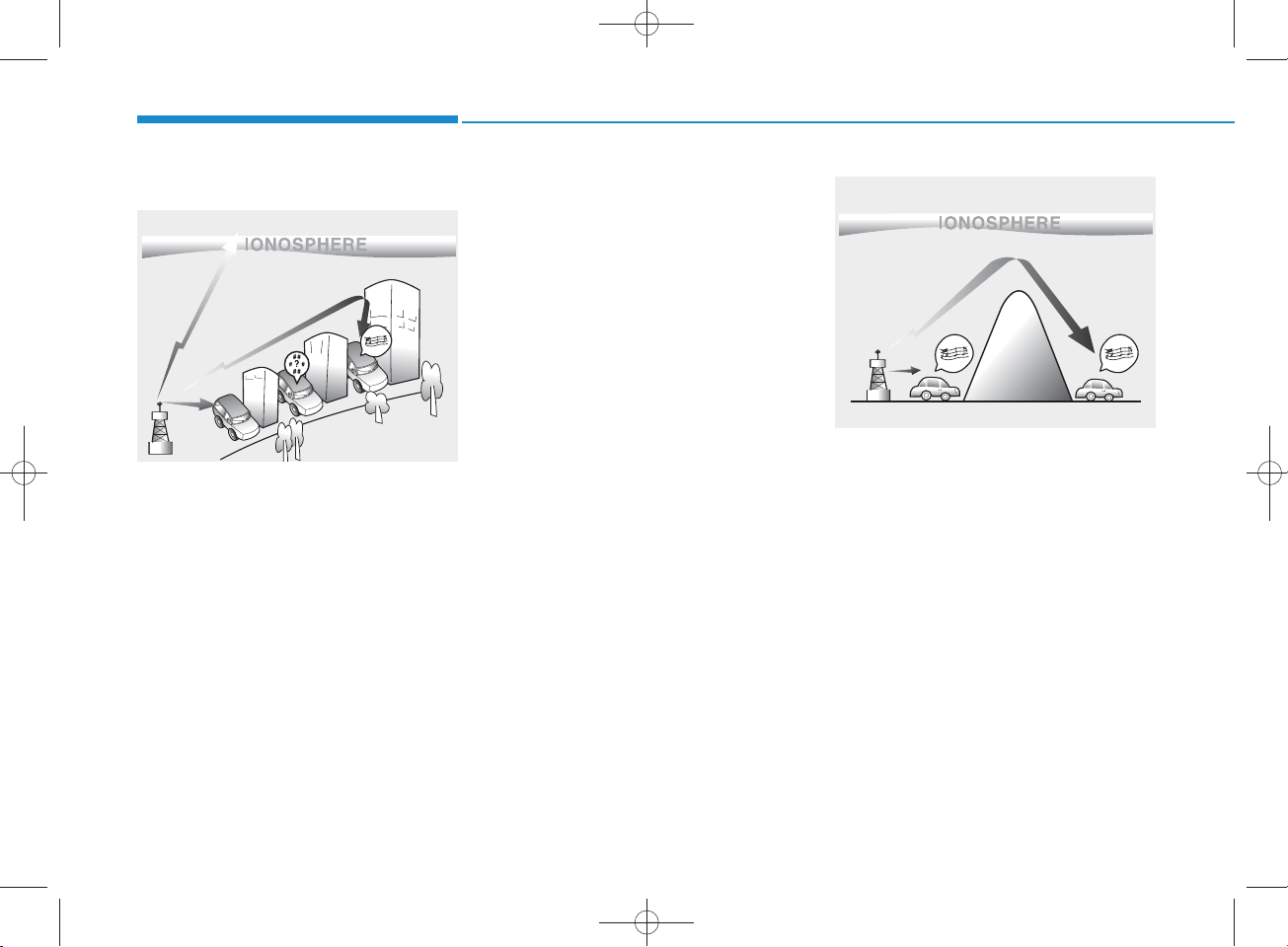
How vehicle audio works
FM reception
JBM 001
AM and FM radio signals are broadcast from transm itter towers located
around your city. They are intercepted by the radio antenna on your vehicle. This signal is then processed by
the radio and sent to your vehicle
speakers.
W hen a strong radio signal has
reached your vehicle, the precise
engineering of your audio system
ensures the best possible quality
reproduction. However, in som e
cases the signal com ing to your vehicle may not be strong and clear.
This can be due to factors, such as
the distance from the radio station,
closeness of other strong radio stations or the presence of buildings,
bridges or other large obstructions in
the area.
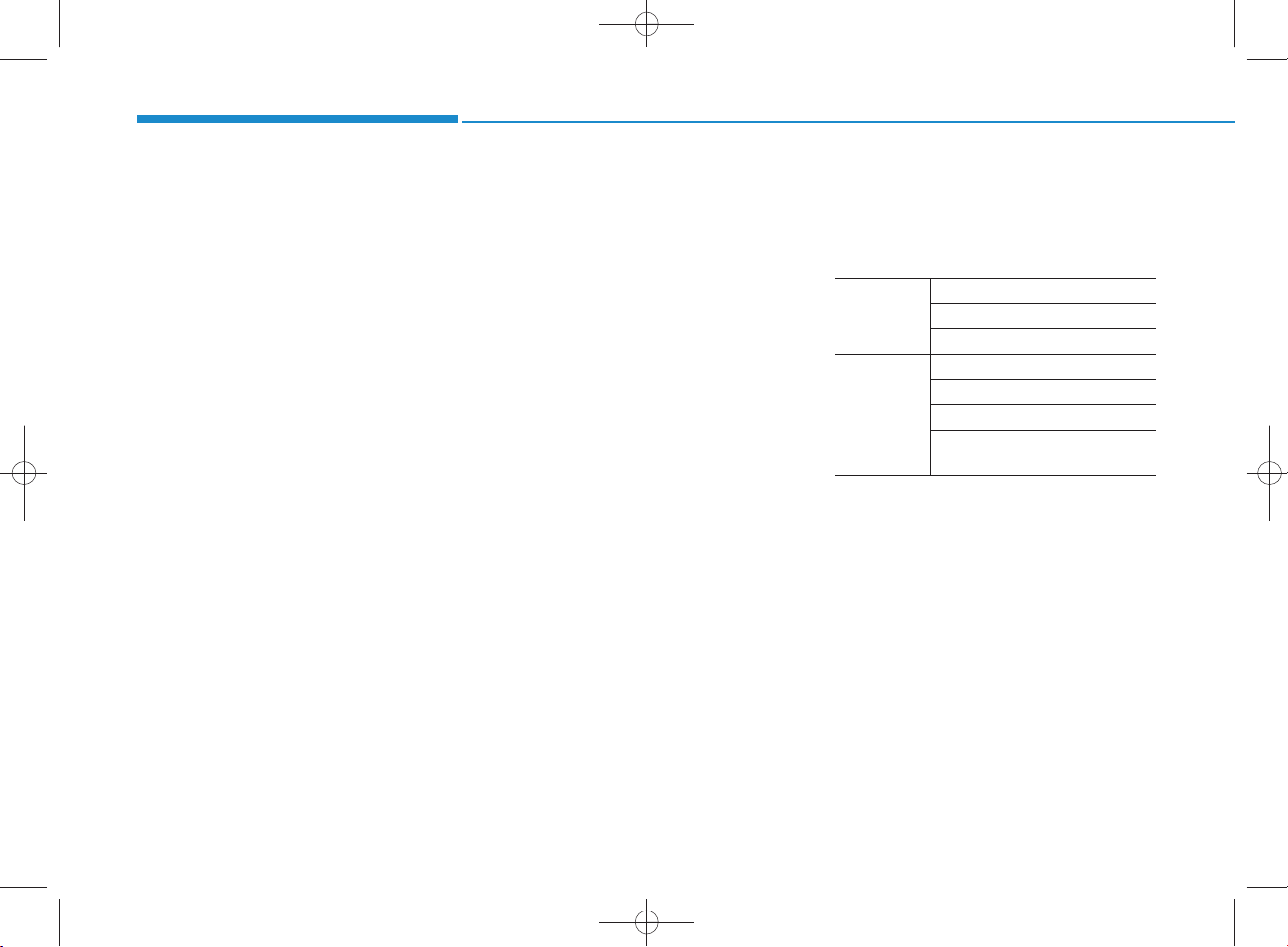
AM reception
JBM 002
AM broadcasts can be received at
greater distances than FM broadcasts. This is because A M radio
waves are transm itted at low frequencies. These long distance, low
frequency radio waves can follow the
curvature of the earth rather than
travelling straight. In addition, they
curve around obstructions resulting
in better signal coverage.
4-2
Page 3

H_LF_A,B_AUDIO:BH hma 4-109~(Audio).qxd 5/19/2014 9:41 AM Page 3
FM ra d io station
JBM 003
FM broadcasts are transm itted at
high frequencies and do not bend to
follow the earth's surface. B ecause
of this, FM broadcasts generally
begin to fade w ithin short distances
from the station. Also, FM signals are
easily affected by buildings, m ountains, and obstructions. This can lead
to undesirable or unpleasant listening conditions w hich m ight lead you
to believe a problem exists with your
radio. The follow ing conditions are
norm al and do not indicate radio
trouble:
JBM 004 JBM 005
• Fading - A s your vehicle m oves
aw ay from the radio station, the
signal will w eaken and sound w ill
begin to fade. W hen this occurs,
we suggest that you select another
stronger station.
•Flutter/Static - W eak FM signals or
large obstru c tions betw een the
transm itter and your radio can disturb the signal causing static or
fluttering noises to occur. R educing
the treble level may lessen this
effect until the disturbance clears.
•Station S w apping - As an FM signal
w eakens, another more pow erful
signal near the sam e frequency
m ay begin to play. This is because
your radio is designed to lock onto
the clearest signal. If this occurs,
select another station w ith a
stronger signal.
•Multi-Path C ancellation - R adio signals being received from several
directions can cause distortion or
fluttering. This can be caused by a
direct and reflected signal from the
sam e station, or by signals from two
stations w ith close frequencies. If
this occurs, select another station
until the condition has passed.
4-3
4
Multimedia System
Page 4
H_LF_A,B_AUDIO:BH hma 4-109~(Audio).qxd 5/19/2014 9:41 AM Page 4
Multimedia System
Caring for disc
•If the tem perature inside the car is too
high, open the car windows to ventilate before using the system .
•It is illegal to copy and use
MP3/WMA files without permission.
Use CDs that are created only by
law ful m eans.
• D o not apply volatile agents, such
as benzene and thinner, norm al
cleaners and m agnetic sprays
m ade for analogue disc onto CDs.
• To prevent the disc surface from
getting dam aged, hold CDs by the
edges or the center hole only.
•Clean the disc surface with a piece
of soft cloth before playback (wipe
it from the center to the outside
edge).
•Do not dam age the disc surface or
attach pieces of sticky tape or
paper.
• M ake certain only CDs are inserted into the CD player (Do not insert
more than one CD at a time).
• K eep CDs in their cases after use to
protect them from scratches or dirt.
• D epending on the type of CDR/CD-RW CDs, certain CDs m ay
not operate norm ally according to
the m anufacturing com panies. In
such circ u m s tances, continued
use m ay cause m alfunctions to
your audio system .
NOTICE -Playing an
Incom patible Copy
Protected Audio CD
Som e cop y protected CDs, which do
not com ply with intern ational audio
CD standards (Red B ook), m ay not
play on your car audio. Please note
that inabilities to properly play a
copy protected CD m ay indicate
that the CD is defective, not the CD
player.
MP3 File Inform ation
• Supported Audio Form ats
ISO 9660 Level 1
File S ystem
Audio
Compression
File form ats that do not com ply
with the above form ats may not be
properly recognized or play without
properly displaying file nam es or
other inform ation.
ISO 9660 Level 2
R om eo / Ju liet (128 characters)
M PEG1 Audio Layer3
M PEG2 Audio Layer3
M PEG2.5 Audio Layer3
Windows M edia Audio Ver 7.X
& 8.X
4-4
Page 5
H_LF_A,B_AUDIO:BH hma 4-109~(Audio).qxd 5/19/2014 9:41 AM Page 5
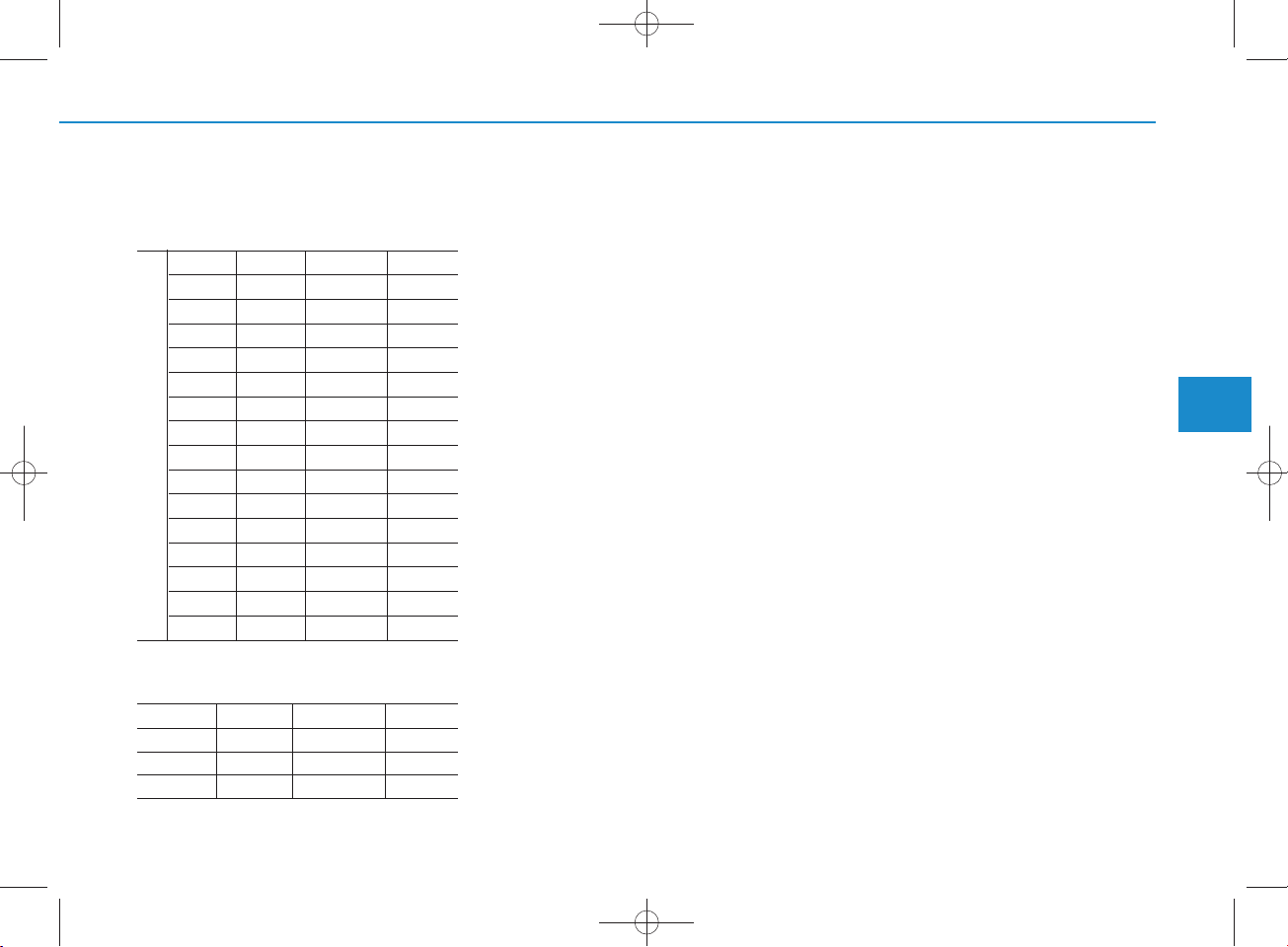
• Support for C om pressed Files
1. Supported Bitrates (Kbps)
M PEG1 M PEG2 M PEG2.5WMA
Layer3Layer3Layer3
32 8 8 48
40 16 16 64
48 24 24 80
56 32 32 96
64 40 40 128
80 48 48 160
96 56 56 192
112 64 64
BIT RATE(kbps)
128 80 80
160 96 96
192 112 112
224 128 128
256 144 144
320 160 160
2. Sam pling Frequencies (Hz)
M PEG1 M PEG2 M PEG2.5WMA
44100 22050 11025 32000
48000 24000 12000 44100
3000 16000 8000 48000
High R ange
•For MP3/WMA compression files,
differences in sound quality w ill
occur depending on the bitrate.
(Higher sound quality can be experienced with higher bitrates.)
•This device only recognizes files
with M P 3/WMA extensions. Other
file extensions may not be properly
recognized.
3.M aximum number of recognized
folders and
files
-Folder : 255 folders for CD, 2,000
folders for USB
-File : 999 files for CD, 6,000 files
for USB
There are no limitations to the
num ber of recognized folder levels
• Language Support
(Unicode Support)
1.E nglish: 94 characters
2.S pecial characters and Sym bols :
986 characters
Languages other than Korean and
English (including C hinese) are
not included.
3.Text Display (B ased on Unicode)
-File nam e: Maxim um 64 English
characters
-Folder nam e: M ax 32 English
characters
Using the scroll feature allow s you
to see the entire nam e of files with
nam es that are too long to be displayed at once.
4
Multimedia System
4-5
Page 6

H_LF_A,B_AUDIO:BH hma 4-109~(Audio).qxd 5/19/2014 9:41 AM Page 6
Multimedia System
• Com patibility by Disc Type
1.Playing M IXED CDs: First plays
the audio CD, then plays the com pressed file(s).
2.Playing EXTRA CDs: First plays
the audio CD, then plays the com pressed file(s).
3.P laying multisession CDs: Plays in
order of sessions
-MIXED CD : CD type in w hich
both MP3 and audio CD files are
recognized in one disc.
-Multisession CD CD type that
includes more than two sessions.
Different from E xtra CDs, multisession C D s are recorded by
sessions and have no m edia limitation.
• Precautions upon Writing CDs
1.In all cases except w hen creating
multisession discs, check the
close session option before creating the disc. Though product malfunctions will not occur, som e time
m ay be required for the device to
check w hether the session state is
closed (approximately 25 seconds). (Additional time may also
be required depending on the
num ber of folders or files.)
2.C hanging the M P 3/WMA file
extensions or changing files of
other extensions to M P3/WMA
may result in product malfunction.
3.W hen nam ing files w ith
MP3/WMA file extensions, write
using only K orean and English.
(Languages other than Korean
and English are not supported and
are displayed as blank.)
4.U nauthorized use or duplication of
music files are prohibited by law .
5.Prolonged use of CD-R/CD-RW
discs that do not satisfy related
standards and/or specifications
could result in product malfunction.
6.U nauthorized use or duplication of
MP3/WMA files is prohibited by
law .
4-6
Page 7
H_LF_A,B_AUDIO:BH hma 4-109~(Audio).qxd 5/19/2014 9:41 AM Page 7
Using a cellular phone or a twoway ra d io
W hen a cellular phone is used inside
the vehicle, noise m ay be produced
from the audio system . This does not
m ean that som ething is w rong w ith
the audio equipm ent. In such a case,
try to operate m obile devices as far
from the audio equipm ent as possible.
CAUTION
When using a com m unication
system such as a cellular phone
or a ra d io set inside the vehicle, a
separate external antenna m ust
be fitted. W hen a cellular phone
or a radio set is used w ith an
internal antenna alone, it may
interfere with the vehicle's electrical system and adversely affect
safe operation of the vehicle.
W ARNING
Do not use a cellular phone
while driving. Stop at a safe
location to use a cellular phone.
NOTE:
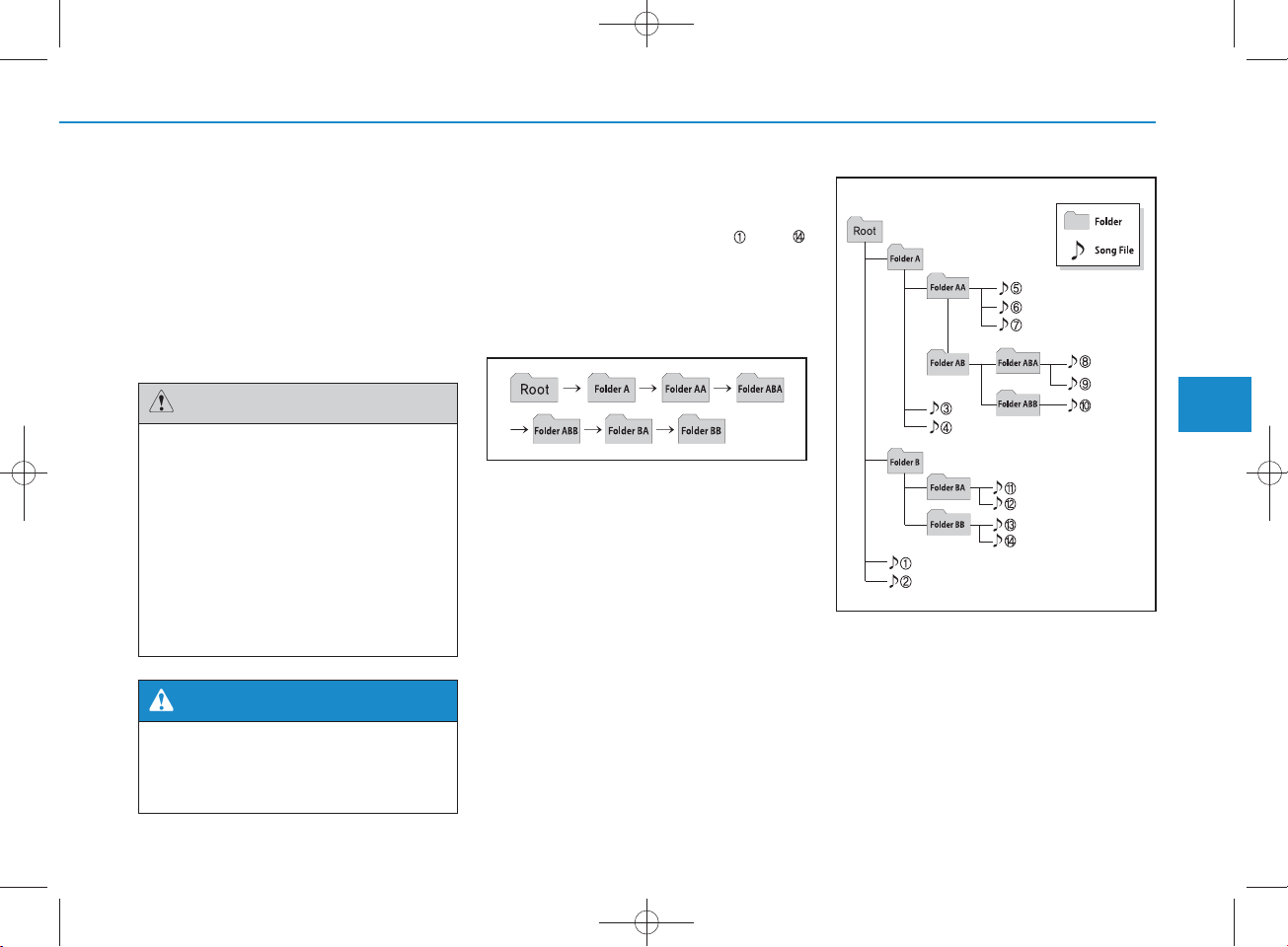
Order of playing files (folders) :
1.Song playing order : to
sequentially.
2.Folder playing order :
If no song file is contained in the
folder, that folder is not displayed.
4
Multimedia System
4-7
Page 8
H_LF_A,B_AUDIO:BH hma 4-109~(Audio).qxd 5/19/2014 9:41 AM Page 8
Multimedia System
W ARNING
• Do not stare at the screen
while driving. Staring at the
screen for prolonged periods
of tim e could lead to tra ffic
accidents.
• Do not disassem ble, assem ble, or m odify the audio system . Such acts could result in
accidents, fire , or electric
shock.
•Using the phone w hile driving
may lead to a lack of attention of
tra ffic conditions and increase
the likelihood of accidents.
U se the phone feature after
parking the vehicle.
• H eed caution not to spill water
or introduce foreign objects
into the device. S uch acts
could lead to sm oke, fire , or
product malfunction.
CAUTION
O perating the device w hile driv-
ing could lead to accidents due
to a lack of attention to external
surroundings. Firs t park the
vehicle before operating the
device.
•Adjust the volum e to levels that
allow the driver to hear sounds
from outside of the vehicle.
Driving in a state w here external sounds cannot be heard
may lead to accidents.
•Pay attention to the volum e
setting w hen turning the
device on. A sudden output of
extre m e vo lum e upon turning
the device on could lead to
hearing impairm e n t. (Adjust
the vo lum e to a suitable levels
before turning off the device.)
(C ontinued)
CAUTION
(C ontinued)
•Do not place beverages close
to the audio system . Spilling
beverages may lead to system
malfunction.
•In case of product malfunction,
please contact your place of
purchase or A fter S ervice center.
•Placing the audio system
with in an electrom agnetic
environm ent m ay result in
noise interference.
• P revent caustic solutions
such as perfum e and cosm etic oil from contacting the
dashboard because they m ay
cause dam age or discoloration.
4-8
Page 9

H_LF_A,B_AUDIO:BH hma 4-109~(Audio).qxd 5/19/2014 9:41 AM Page 9
NOTICE - Using the discs
•This d ev ice h as been m an u factured to be com patible w ith software bearing the follow ing logo
marks.
•Do not clean discs w ith ch em ical
solutions, such as record sprays,
antistatic sprays, antistatic liquids,
ben zen e, or thin n ers.
•After using a disc, put the disc back
in its original case to p revent disc
scratch es.
•Hold discs by their edges or within
the cen ter hole to p reven t dam ages
to disc su rfaces.
•Do not introd u ce foreign substan ces
into the disc insert/eject slot.
In troducing foreign substan ces
cou ld dam age the device interior.
•Do not insert two discs simultaneously.
• W hen using CD-R/CD-RW discs,
differen ces in disc read ing and playing tim es m ay occur depending on
the disc m anufacturer, production
method and the record ing m ethod
as used by the user.
(Continued)
(Continued)
•Clean fin gerprints and dust off the
disc su rface (coated side) with a
soft cloth.
• T he use of CD-R/CD-RW discs
attached with labels m ay result in
disc slot jam s or difficu lties in disc
rem oval. Such discs m ay also
result in noise whi
le playing.
•Som e CD-R/CD-RW discs m a y
not p rop erly operate depending
on the disc m anufacturer, production m eth od an d the record
method as used by the user. If
problem s persist, trying using a
different CD as con tinued use may
result in malfunctions.
• T he perform ance of this product
m ay differ depending on the CDRW Drive Software.
• C opy-protected C D s su ch as Stype CDs m ay not function in the
device. DATA discs cannot be
played. (However, su ch d iscs m a y
still op erate but will do so abnormally.)
(Continued)
(Continued)
•Do not use abnorm ally shaped
discs (8cm , heart-sh ap ed , octagonsh a p ed ) as su ch discs cou ld lead to
malfunctions.
•If the disc is straddled on the disc
slot without rem oval for 10 seconds, the disc w ill autom atically
be re-in serted into the disc player.
• O n ly genuine audio C D s are supported . Other discs m a y resu lt in
recognition failure (e.g. copy CDR, CDs with labels)
4
Multimedia System
4-9
Page 10

H_LF_A,B_AUDIO:BH hma 4-109~(Audio).qxd 5/19/2014 9:41 AM Page 10
Multimedia System
NOTICE - Using the USB
device
• C on nect th e U SB device after
turning on the engine. The USB
device m ay b ecom e d am aged if it
is alread y conn ected w hen the
ignition is tu rned on .The USB
device m ay not op erate prop erly if
the car ignition is turned on or off
with the USB device con n ected.
• H eed cau tion to static electricity
w h en con n ecting/disconn ecting
USB devices.
• Encoded M P 3 P layers w ill not be
recognized w hen con nected as an
external device.
• W hen con n ecting an external USB
device, the device m ay not p roperly recognize the U SB is in som e
states.
•Only p r o d u c ts fo r m a tte d w ith
byte/sectors under 64K byte will be
recognized .
•This d evice recogn izes U S B
devices form atted in FAT 12/16/32
file form ats. This d ev ice d oes not
recognize files in N T FS file format.
(Continued)
(Continued)
•Some USB devices m ay not be supported due to com patibil
ity issu es.
• Avoid contact betw een the USB
con n ector with bodily parts or foreign objects.
• R ep eated con n ecting/discon n ecting of USB devices w ithin short
periods of time m ay result in product malfunction.
•A stran ge n oise m ay occu r w h en
discon necting the USB.
•M ake sure to con n ect/disconn ect
external USB devices w ith th e
audio pow er turned off.
• T he am ount of tim e required to
recognize the USB device m ay differ depending on the type, size or
file form ats stored in the U SB.
Such differen ces in time are not
indications of malfunctions.
• The device on ly supports U S B
devices used to play music files.
•USB im ages and videos are not
supported .
(Continued)
(Continued)
•Do not use the USB I/F to charge
batteries or U S B accessories that
gen erate heat. Such acts m ay lead
to w orsened p erform an ce or dam age to the device.
•The device m ay not recognize the
USB device if sep a ra te ly purchased U SB hubs and extension
cab les are being used. C on n ect the
USB directly with the multimedia
term inal of the vehicle.
• W hen usin g m a ss storage U SB
devices w ith sep a ra te logical
drives, only files saved to the root
drive can be played.
•Files m ay not p rop erly operate if
application program s are installed
to the USBs.
• T he device m ay n ot op erate n ormally if M P 3 P layers, cellular
phones, digital cam eras, or other
electron ic devices (USB devices
not recognized as portable d isk
drives) are con nected w ith the
device.
4-10
Page 11

H_LF_A,B_AUDIO:BH hma 4-109~(Audio).qxd 5/19/2014 9:41 AM Page 11
(Continued)
•Charging through the USB m ay
not work for so m e mobile devices.
• T he device m ay not support normal op eration w hen using a USB
memory type besides (M etal
C over Type) USB Memory.
• T he device m ay not support normal operation when using form ats
such as HDD Type, CF, or SD
Memory.
• T he device w ill not support files
locked by D R M (Digital Rights
M anagem ent.)
•USB memory stick s used b y con necting an A daptor (SD Type or
CF Type) m ay not be p roperly recognized .
•The device m ay not
operate properly w hen using USB HDDs or
U SB s subject to con n ection failures caused by vehicle vibrations.
(e.g. i-stick type)
(Continued)
(Continued)
• A void use of U SB
m em ory products that
can also be used as key
chains or mobile phone
accessories. Use of such products
m ay cause dam age to the USB
jack.
• C on necting an M P 3 device or
phone through various channels,
such as AUX/B T or Audio/ USB
mode may result in pop noises o r
abnorm al op eration.
NOTICE - Using the iPod
®
device
•iPod®is a registered trad em ark of
A pple In c.
• In order to use the iPod®while
op erating the keys, you must use a
dedicated iPod®cab le. (the cable
that is supplied w h en p u rch asing
iPod®/iPhone®products)
•If the iPod®is con n ected to the
vehicle w hile it is playing, a high
pitch sound could occur for
approximately 1-2 secon ds immediately after con necting. If po ssible, con n ect the iPod to the vehicle
with the iPod
•During ACC ON state, con n ecting
the iPod®through the iPod®cab le
will charge the iPod®through the
car audio sy stem .
• W hen connecting w ith the iPod
cab le, make su re to fully in sert the
jack to preven t com m unication
interference.
®
stopped/ paused.
(Continued)
4
Multimedia System
®
4-11
Page 12

H_LF_A,B_AUDIO:BH hma 4-109~(Audio).qxd 5/19/2014 9:41 AM Page 12
Multimedia System
(Continued)
• W hen the EQ features of an external device, su ch as the iPod
®
, and
the audio system are b oth active,
E Q effects cou ld overlap and
cau se sound deterioration and distortion.
W hen ever possible, turn off the
EQ feature w ithin the extern al
device upon use by connecting
with the audio system .
•Noise m ay occur when an iPod®or
AUX device is con n ected. When
su ch d ev ices are n ot being used,
discon nect the device for storage.
• W hen the iPod®or AUX device
power is con n ected to the pow er
jack, playing the external device
m ay resu lt in noise. In su ch cases,
discon nect the pow er connection
before use.
• Skipping or im p rop er o p eration
m ay occu r depending on the ch aracteristics of your iPod® /Phone
device.
(Continued)
(Continued)
•If your iPhone®is con n ected to
b o th th e B luetooth®Wireless
Technology and U SB , the sound
m ay not be properly played. In
your iPhone®, select the Dock connector or B luetooth®Wireless
Technology to change the sound
output (source).
•iPod m ode cannot b e operated
when the iPod®cannot be recognized du e to versions that do not
support com m unication protocols.
•For fifth generation iPod®Nano
devices, the iPod®m ay not be recognized w h en the battery level is
low . Please charge the iPod®for
use.
•Search/play orders show n w ithin
the iPod®device m ay differ w ith
the ord ers sh ow n within the audio
system .
•If the iPod®malfunctions due to an
®
iPod®device defect, reset the iPod
and try again. (To learn more, refer
to your iPod®m anual)
(Continued)
(Continued)
• Som e iPod®s m ay not sy n c with the
System depending on its version.
If the Media is rem oved before the
Media is recognized , then the system m ay not prop erly restore the
previously operated m ode. (iPad
charging is not supported .)
®
®
4-12
Page 13

H_LF_A,B_AUDIO:BH hma 4-109~(Audio).qxd 5/19/2014 9:41 AM Page 13
NOTICE- Using the AUX
device
•If an extern al device con n ector is
con n ected with the AUX term inal,
then AUX mode will autom atically
op erate. O nce the con nector is discon n ected , the previous mode will
be restored.
•AUX mode can be used only when
an extern al audio player (cam cord er, car VCR, etc.) has been
con n ected .
•The AUX volum e can be contro lled separately from other
audio modes.
• C on n ecting a conn ector jack to the
AUX term inal without an extern al
device w ill convert th e sy stem to
AUX mode, but only output noise.
W hen an extern al device is n ot
being used, also rem ove the connector jack.
• W hen the extern al device pow er is
con n ected to the pow er jack, playing the external device m ay output
noise. In su ch ca ses, discon n ect the
power con nection before use.
•Fully in sert the AUX cable to the
AUX jack upon use.
4
Multimedia System
4-13
Page 14

H_LF_A,B_AUDIO:BH hma 4-109~(Audio).qxd 5/19/2014 9:41 AM Page 14
Multimedia System
NOTICE - Before using
the
Bluetooth
What is Bluetooth®?
•Bluetooth®refers to a short-distance wireless networking technology w hich u ses a 2.4GHz ~
2.48G H z frequency to connect
various devices within a certain
distan ce.
• Supported w ithin PC s, extern al
devices, Bluetooth®phones, PDAs,
various electron ic devices, and automotive environ m en ts, Bluetooth
allow s data to be tran sm itted at high
sp eed s without having to use a con nector cab le.
•Bluetooth®H andsfree refers to a
device w hich allow s the user to
con ven ien tly m ake phone calls
with B luetooth®mobile phones
through the audio sy stem .
•Bluetooth®H andsfree m ay not be supported in som e m obile phones. To
learn more about mobile device com patibility.
®
handsfre e
NOTICE - Precautions for
safe driving
•Bluetooth®H andsfree is a feature
that en ab les drivers to practice
safe driving. C on n ecting the head
unit w ith a B luetooth®phone
allow s the user to conven iently
m ak e and receive calls and use
con tacts. Before using Bluetooth®,
carefully read the con ten ts of this
user’s m anual.
• E xcessive use or operations w hile
driving m ay lead to negligent driv-
®
ing practices an d result in accidents. Refrain from excessive
op erations while driving.
•View ing the screen for prolonged
periods of time is dangerous and
m ay lead to accidents. When driving, view the screen only for sh o rt
periods of time.
NOTICE - When connecting a
Bluetooth
•Before con n ecting the head unit
with the m obile phone, ch eck to
see that the mobile phone supports
Bluetooth®features.
•Even if the phone supports
Bluetooth®, the phone w ill not be
found during device searches if the
phone has b een set to hidden state
or the Bluetooth®power is turned
off. Disa b le the hidden state or
tu rn o n th e B luetooth®power
prior to sea rch ing/con n ecting with
the Head unit.
•Bluetooth phone is a u tom atically
con n ected when the ignition on.
•If you do not want autom atic connection w ith your B luetooth
device, turn off the Bluetooth®feature within your mobile phone.
• T he H andsfree call volum e and
quality m ay differ depending on
the mobile phone.
®
phone
(Continued)
®
4-14
Page 15

H_LF_A,B_AUDIO:BH hma 4-109~(Audio).qxd 5/19/2014 9:41 AM Page 15
(Continued)
•Park the vehicle when conn ecting
the head unit with the m obile
phone.
®
•Bluetooth
con n ection m ay
becom e interm itten tly discon nected in so m e mobile phones. Follow
these steps to try again.
1.Within the m obile phone, turn
the Bluetooth®function off/on
and try again.
2.Turn the m obile phone pow er
Off/On and try again.
3.Com pletely rem ove the m obile
phone battery, reboot, and then
again.
4.R eboot the A udio System and
try again.
5.Delete all paired devices, pair
and try again.
• H andsfree call quality and volum e
m ay differ depending on the
model of your mobile phone.
4
Multimedia System
4-15
Page 16
SYSTEM CONTRO LLERS AND FUNCTIONS
H_LF_A,B_AUDIO:BH hma 4-109~(Audio).qxd 5/19/2014 9:41 AM Page 16
Multimedia System
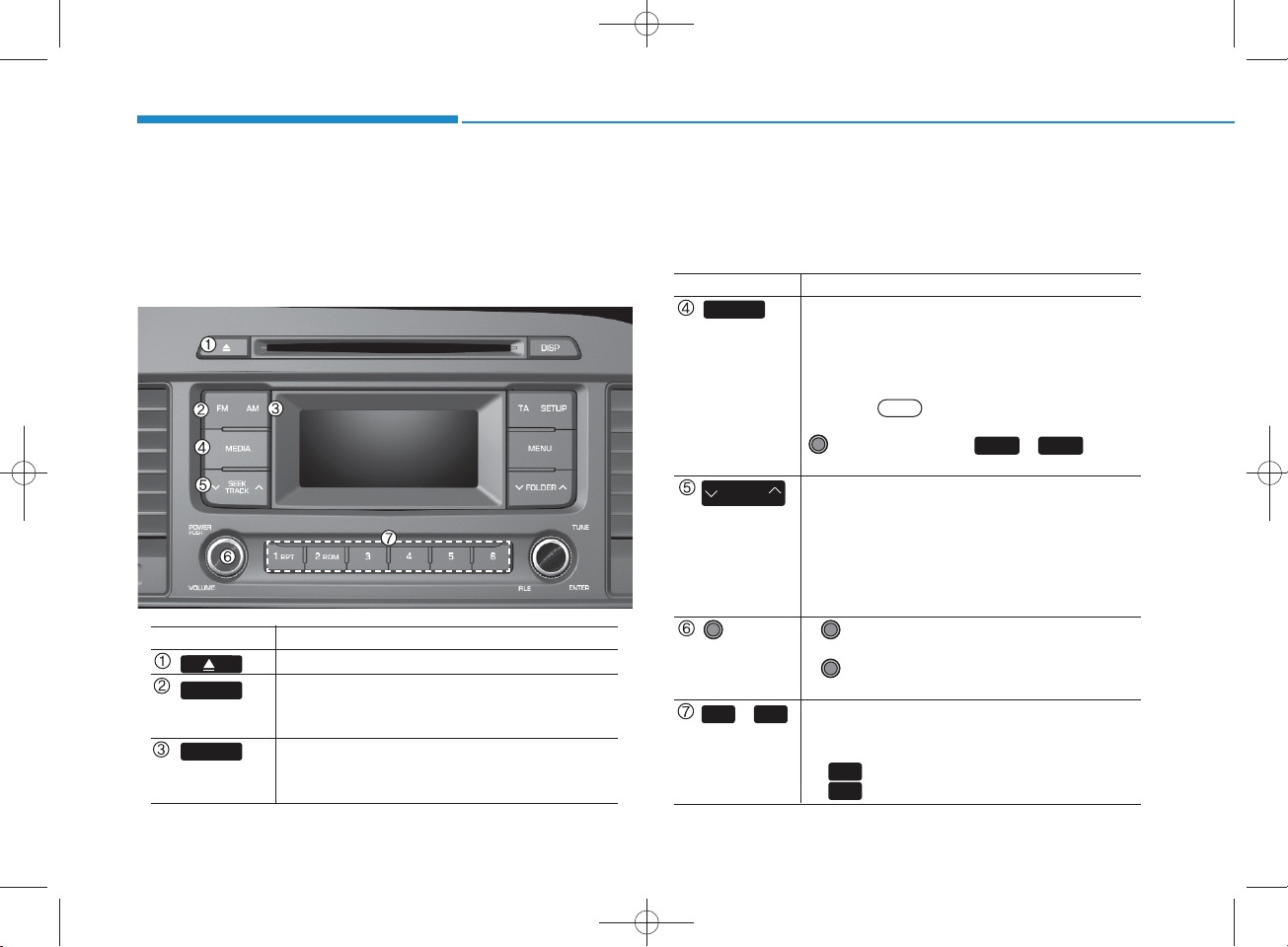
Display and settings m ay differ depending on the
selected audio.
Audio H ead Unit (For RDS m odel)
N am e D escription
Ejects the disc.
FM
AM
4-16
• C hanges to FM m ode.
• Each time the key is pressed, the m ode
changed in order of FM 1 FM 2.
• C hanges to AM m ode.
• Each time the key is pressed, the m ode
changed in order of AM .
N am e D escription
MEDIA
SEEK
TRA CK
PW R/
VO L knob
~
(Preset)
•Each time the key is pressed, the m ode is
changed in order of CD, USB, iPod
Music m odes.
In Setup>D isplay, the m edia pop up screen
will be displayed w hen [M ode Pop up] is
turned .
W hen the pop up screen is displayed, use the
select the desired m ode.
• R adio M ode : Autom atica lly searches for
broadcast frequencies.
• CD, USB, iPod
- S hortly press the key : Moves to next or pre
vious song(file)
- Pre ss and hold the ke y : Rewinds or fast-for
wards the current song(file)
• Power Knob : Turns pow er On/Off by
pressing the knob
• Volum e K nob : Sets volum e by turning
the knob left/right
61
• R adio M ode : Saves frequencies (channels)
or receives saved frequencies (channels)
• CD, USB, iPod
- : R epeat
- : R andom
On
TUNE knob or keys ~ to
®
, My Music m odes :
®
1
2
, My Music m ode
®
, AU X , My
41
Page 17
H_LF_A,B_AUDIO:BH hma 4-109~(Audio).qxd 5/19/2014 9:41 AM Page 17
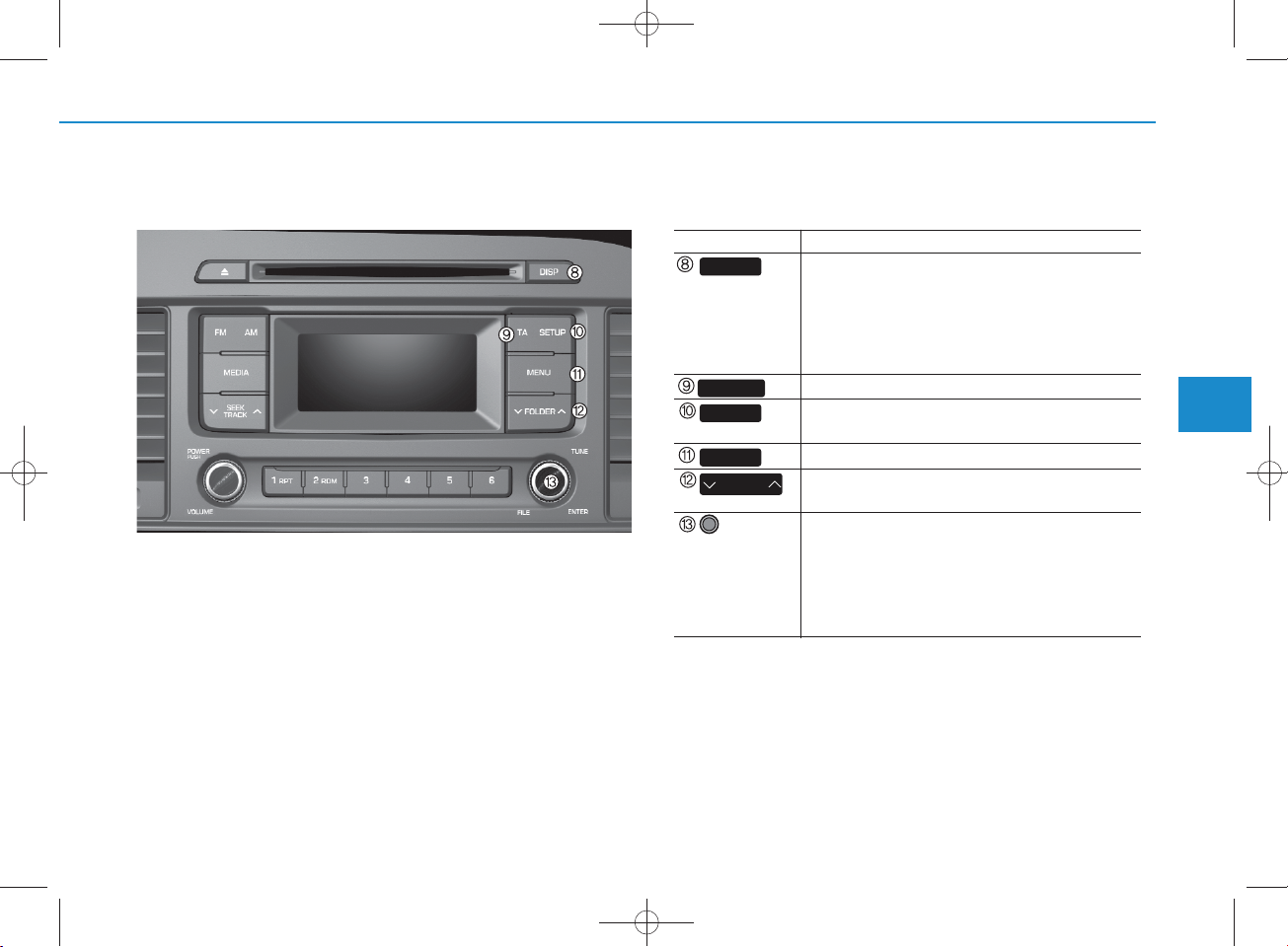
Audio H ead Unit (For RDS m odel)
N am e D escription
DISP
TA
SETUP
MENU
FO LDER
TUNE
knob
• Each time the button is shortly pressed, it
sets the screen Off Screen On Screen Off
Audio operation is maintained and only the
screen will be turned Off. In the screen Off
state, press any key to turn the screen On
again.
Set TA (Traffic Announcem ent) feature On/Off.
• S hortly press the key : Moves to the Display,
Sound, S ystem setting m odes
• Displays menus for the current m ode.
• MP3, CD, USB m ode : Folder S earch
May differ depending on the selected audio
• R adio m ode : C hanges frequency by turning
the knob left/right
• CD, USB, iPod m ode: S earches songs (files)
by turning the knob left/right
W hen the desired song is displayed, press
the knob to play the song.
4
Multimedia System
4-17
Page 18

H_LF_A,B_AUDIO:BH hma 4-109~(Audio).qxd 5/19/2014 9:41 AM Page 18
Multimedia System
Audio H ead Unit (For Bluetooth equipped m odel)
N am e D escription
Ejects the disc.
RADIO
• Convert to R adio m ode.
• Each time the key is pressed,the m ode is
changed in order of FM 1,FM 2, AM .
N am e D escription
MEDIA
•Each time the key is pressed, the m ode is
changed in order of CD, USB, iPod
Music, BT Audio m odes.
In Setup>D isplay, the m edia pop up screen
will be displayed w hen [M ode Pop up] is
turned .
On
W hen the pop up screen is displayed, use the
TUNE knob or keys ~ to
select the desired m ode.
PHO N E
(for
Bluetooth
®
Wireless Technology equipped
m odel)
• Converts to Phone m ode
W hen a phone is not connected, the
connection screen is displayed.
SEEK
TRA CK
• R adio M ode : Autom atica lly searches for
broadcast frequencies.
• CD, USB, iPod
®
, My Music m odes :
- S hortly press the key : Moves to next or
previous song(file)
- Pre ss and hold the ke y : Rewinds or fast-
forwards the current song(file)
POW ER/
VO LUM E
knob
• Power Knob : Turns pow er On/Off by
pressing the knob
• Volum e K nob : Sets volum e by turning
the knob left/right
61
~
(Preset)
• R adio M ode : Saves frequencies (channels)
or receives saved frequencies (channels)
• CD, USB, iPod, My Music m ode
1
- : R epeat
2
- : R andom
®
, AU X , My
51
4-18
Page 19
H_LF_A,B_AUDIO:BH hma 4-109~(Audio).qxd 5/19/2014 9:41 AM Page 19
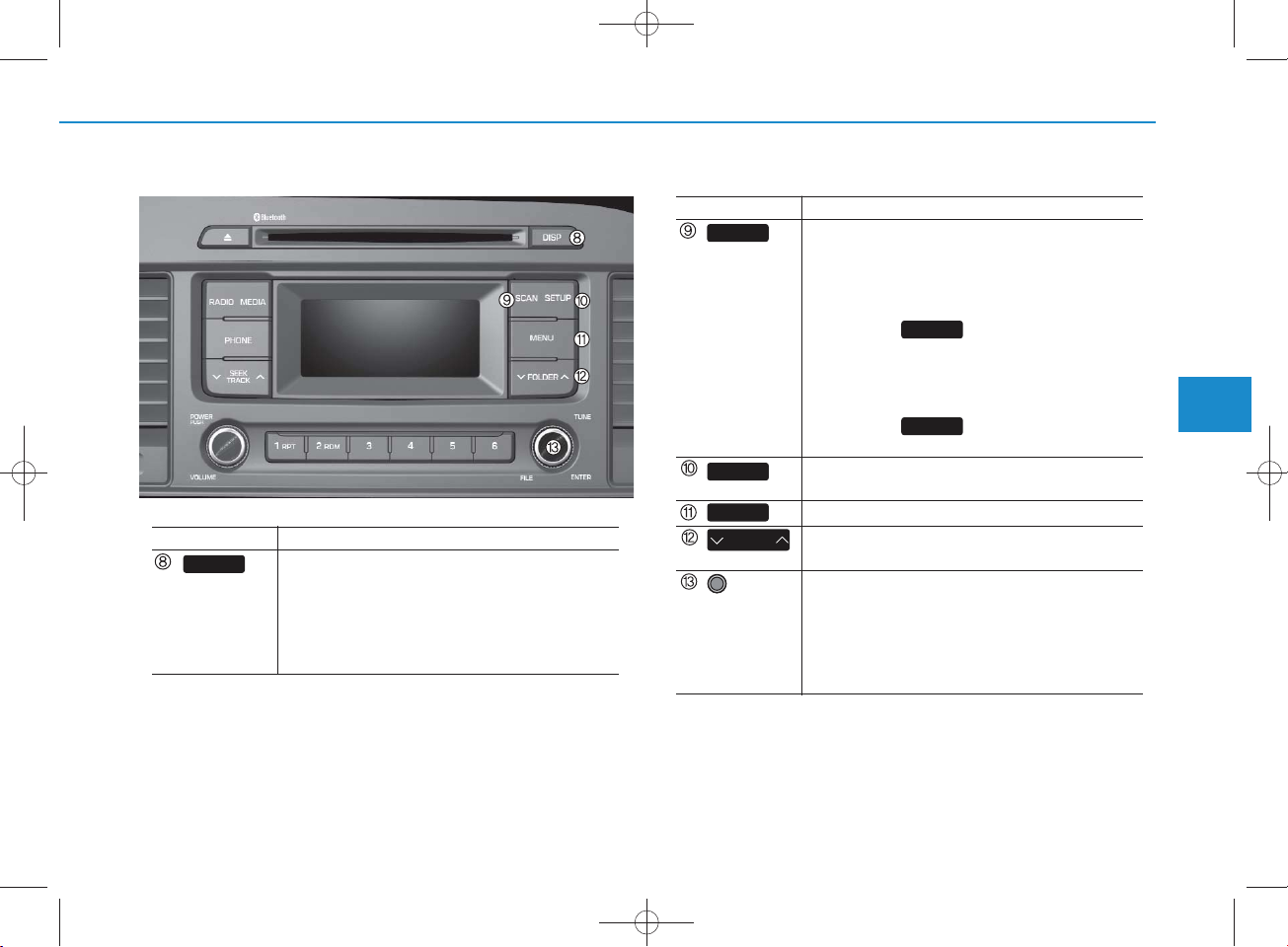
N am e D escription
DISP
• Each time the button is shortly pressed, it
sets the screen Off Screen On Screen Off
Audio operation is maintained and only the
screen will be turned Off. In the screen Off
state, press any key to turn the screen On
again.
N am e D escription
SCAN
SETUP
MENU
FO LDER
TUNE
knob
• R adio M ode
- S hortly press the key : Preview s each
broadcast for 5 seconds each
- Pre ss and hold the key : Preview s the
broadcasts saved in Preset for 5 seconds each.
Press the key again to continue
listening to the current frequency.
• CD, USB m ode
-
Shortly press the key : Preview s each song
(file) for 10 seconds each
Press the key again to continue
listening to the current song (file).
• S hortly press the key : Moves to the Display,
Sound, P hone, S ystem setting m odes
• Displays menus for the current m ode.
• MP3, CD, USB m ode : Folder S earch
May differ depending on the selected audio
• R adio m ode : C hanges frequency by turning
the knob left/right
• CD, USB, iPod m ode: S earches songs (files)
by turning the knob left/right
W hen the desired song is displayed, press
the knob to play the song.
SCAN
SCAN
4
Multimedia System
4-19
Page 20
H_LF_A,B_AUDIO:BH hma 4-109~(Audio).qxd 5/19/2014 9:42 AM Page 20
Multimedia System
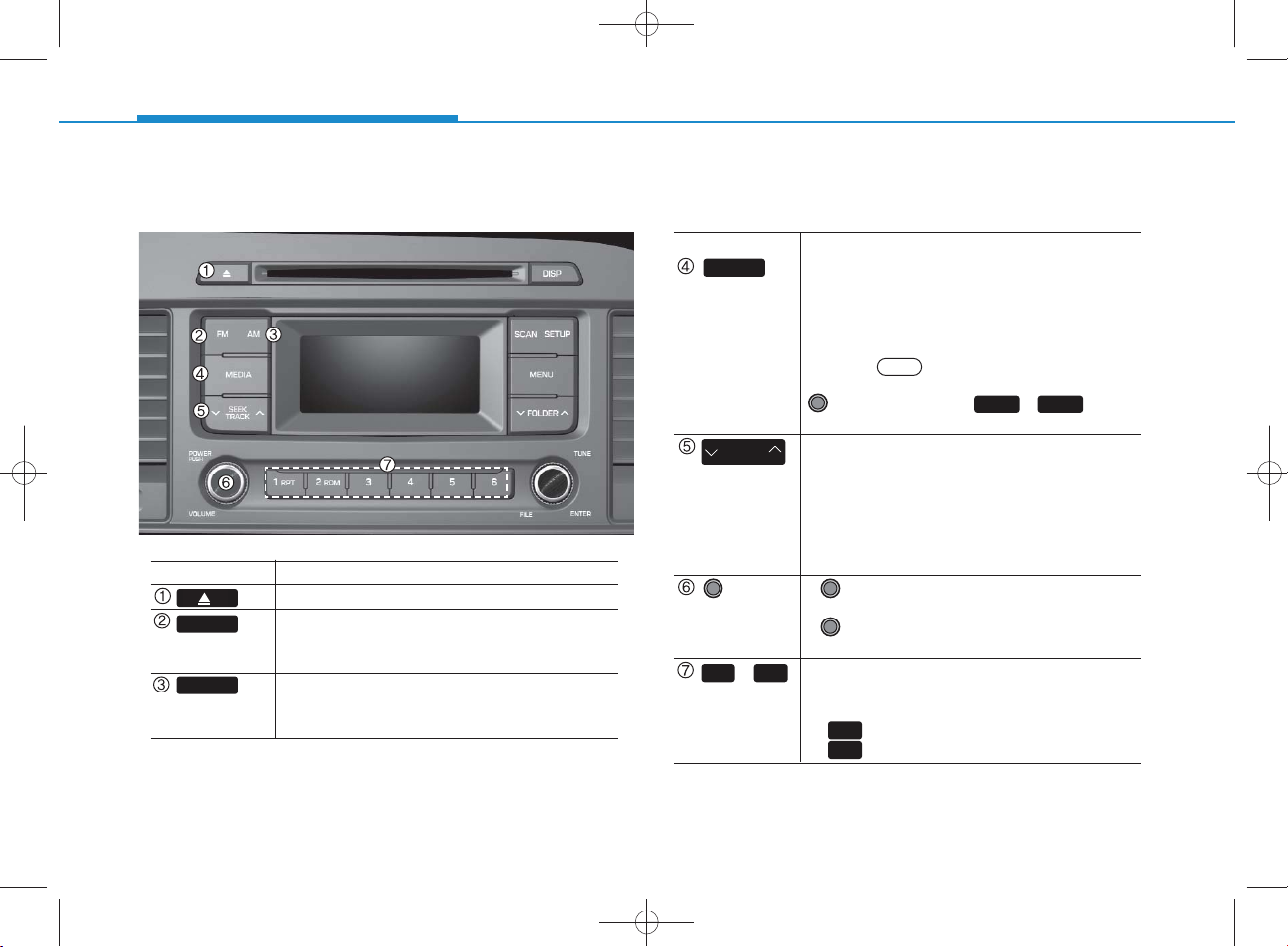
Audio H ead Unit
N am e D escription
Ejects the disc.
FM
AM
• C hanges to FM m ode.
• Each time the key is pressed, the m ode
changed in order of FM 1 FM 2.
• C hanges to AM m ode.
• Each time the key is pressed, the m ode
changed in order of AM .
N am e D escription
MEDIA
•Each time the key is pressed, the m ode is
changed in order of CD, USB, iPod
Music m odes.
In Setup>D isplay, the m edia pop up screen
will be displayed w hen [M ode Pop up] is
turned .
On
W hen the pop up screen is displayed, use the
TUNE knob or keys ~ to
select the desired m ode.
SEEK
TRA CK
• R adio M ode : Autom atica lly searches for
broadcast frequencies.
• CD, USB, iPod
®
, My Music m odes :
- S hortly press the key : Moves to next or pre
vious song(file)
- Pre ss and hold the ke y : Rewinds or fast-for
wards the current song(file)
PW R/
VO L knob
• Power Knob : Turns pow er On/Off by
pressing the knob
• Volum e K nob : Sets volum e by turning
the knob left/right
61
~
(Preset)
• R adio M ode : Saves frequencies (channels)
or receives saved frequencies (channels)
• CD, USB, iPod
1
- : R epeat
2
- : R andom
®
, My Music m ode
®
, AU X , My
41
4-20
Page 21

SETUP(for RDS m odel)
H_LF_A,B_AUDIO:BH hma 4-109~(Audio).qxd 5/19/2014 9:42 AM Page 21
Display Settings
Press the key Select [Display]
M ode Pop up
[M ode Pop up] C hanges .
selection m ode
• During O n state, press the or
MEDIA
change pop up screen.
SETUP
On
RADIO
key to disp lay the m ode
Scroll text
[Scroll text]Set /
On
• : Maintains scroll
Off
• : Scrolls only one (1) time.
OffOn
Song Info
W hen playing an M P 3 file, select the
desired display info from ‘Folder/File’ or
‘Album /Artist/Song’.
Sound Settings
Press the key Select [S ound]
SETUP
4
Multimedia System
4-21
Page 22
H_LF_A,B_AUDIO:BH hma 4-109~(Audio).qxd 5/19/2014 9:42 AM Page 22
Multimedia System
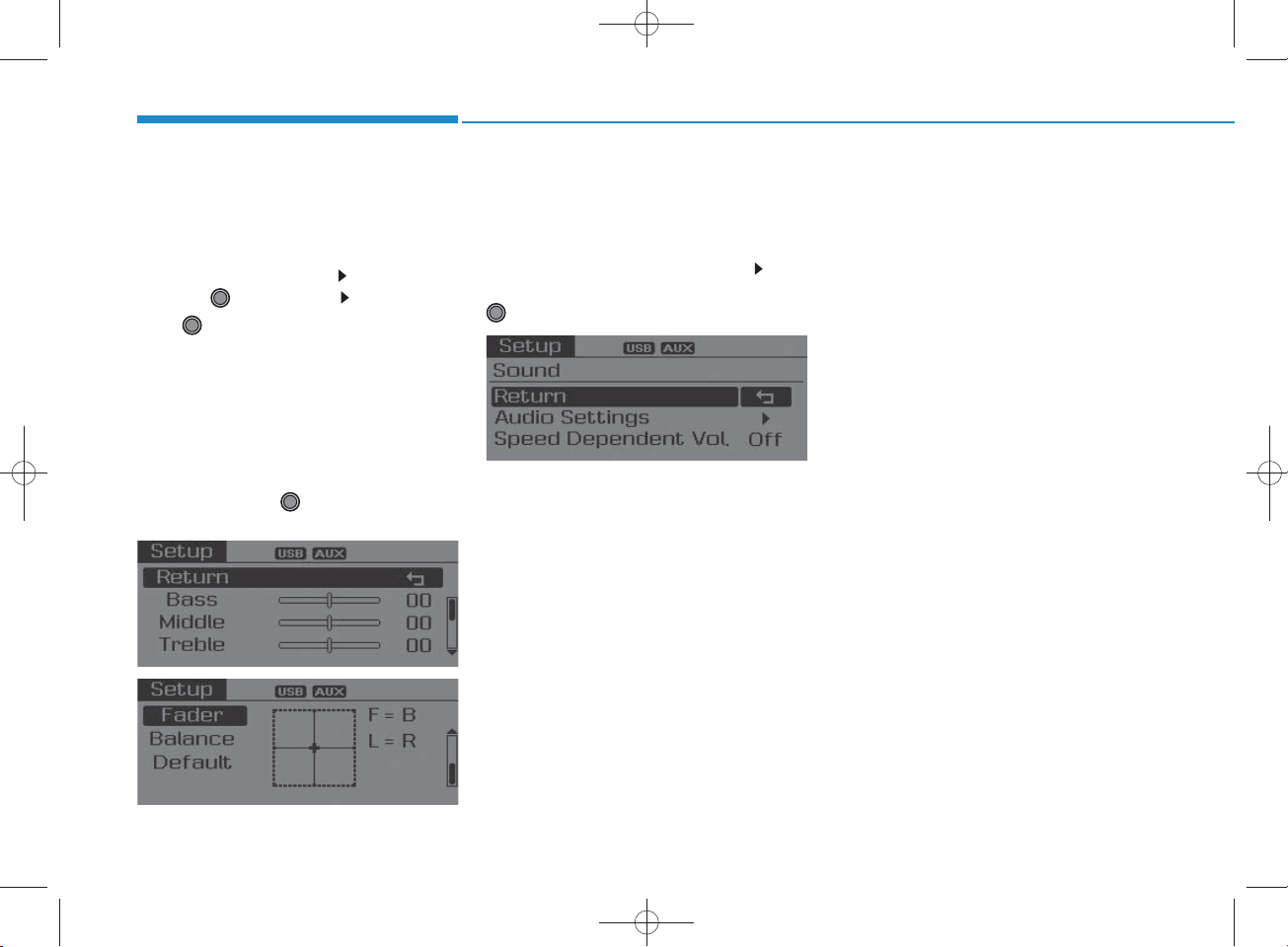
Audio Settings
This m enu allow s you to set the ‘Bass,
Middle, Treble’ and the S ound Fader and
Balance.
Select [Audio Settings]Select menu
through TU N E knob
Turn TUNE knob left/right to set
• Bass, Middle, Treble : Selects the sound
tone.
• Fader, Balance : Moves the sound fader
and balance.
• Default : Restores default settings.
Return : While adjusting values, re-
pressing the TU N E knob w ill
restore the parent menu.
Speed Dependent Volum e C ontro l
This feature is used to autom atically control the volum e level according to the
speed of the vehicle.
Select [S peed D ependent Vol.]Turn
SDVC O n/Off by pressing the
TUNE knob
4-22
Page 23

System Settings
H_LF_A,B_AUDIO:BH hma 4-109~(Audio).qxd 5/19/2014 9:42 AM Page 23
Press the key Select [S ystem ]
SETUP
Memory Information (if equipped)
Displays currently used m em ory and
total system memory.
Select [Memory Inform ation] O K
The currently used m em ory is displayed
on the left side w hile the total system
memory is displayed on the right side.
May differ depending on the selected
audio.
Language
This menu is used to set the display and
voice recognition language.
Select [Language] S et through
TUNE knob
The system w ill reboot after the lan-
guage is changed.
Language support by region
-
4
Multimedia System
4-23
Page 24
SETUP
H_LF_A,B_AUDIO:BH hma 4-109~(Audio).qxd 5/19/2014 9:42 AM Page 24
Multimedia System
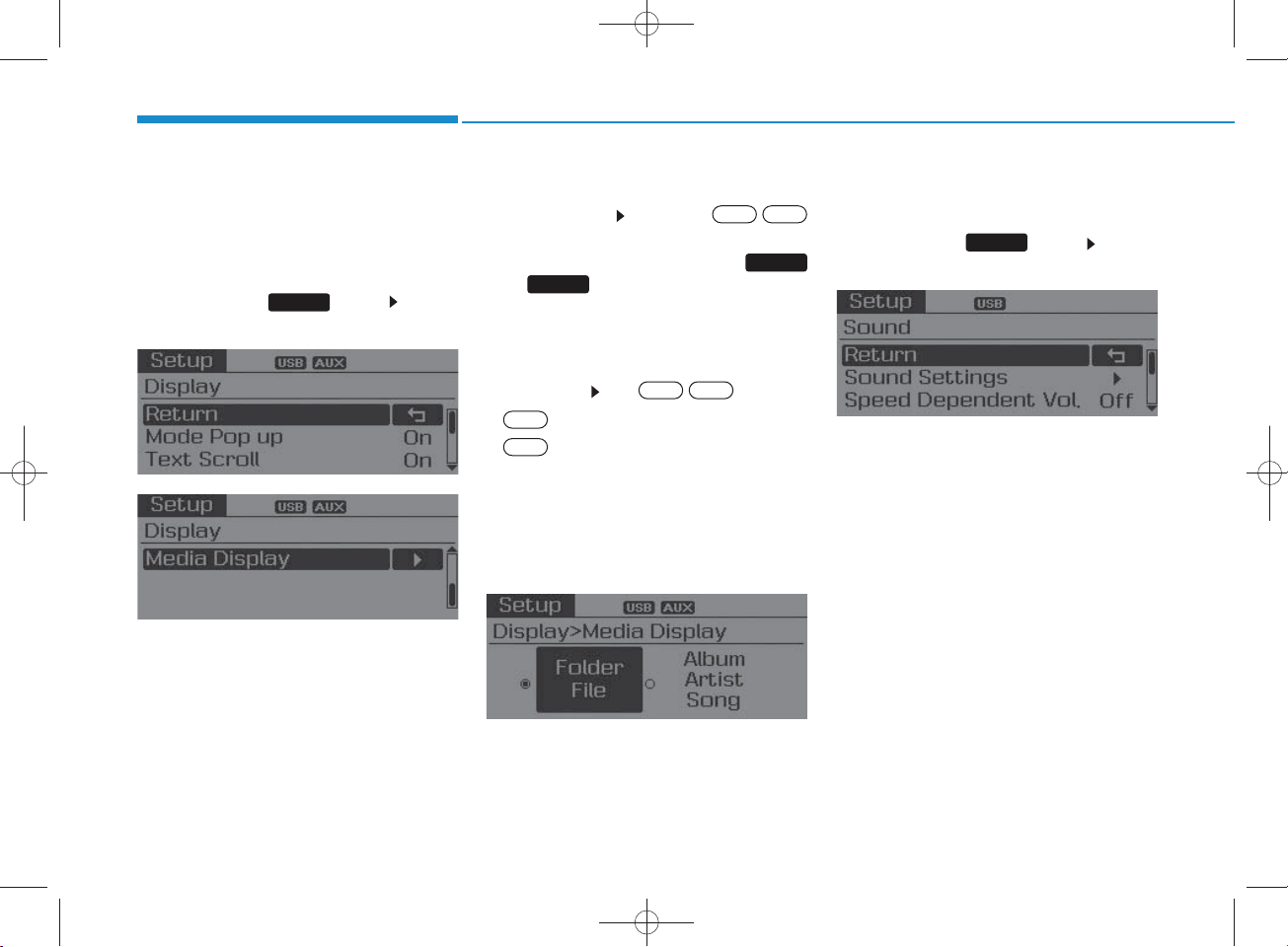
Display Settings
P ress the key Select
[Display]
SETUP
M ode Pop up
[M ode Pop up] C hanges
OffOn
/
selection m ode
•During On state, press the
MEDIA
or key to display the m ode
RADIO
change pop up screen.
Text Scroll
[Text Scroll]Set /
On
•: Maintains scroll
Off
•: Scrolls only one (1) time.
OffOn
Media Display
W hen playing an MP3 file, select the
desired display info from ‘Folder/File’
or ‘Album /Artist/S ong’.
Sound Settings
P ress the key Select
[Sound]
SETUP
4-24
Page 25
H_LF_A,B_AUDIO:BH hma 4-109~(Audio).qxd 5/19/2014 9:42 AM Page 25
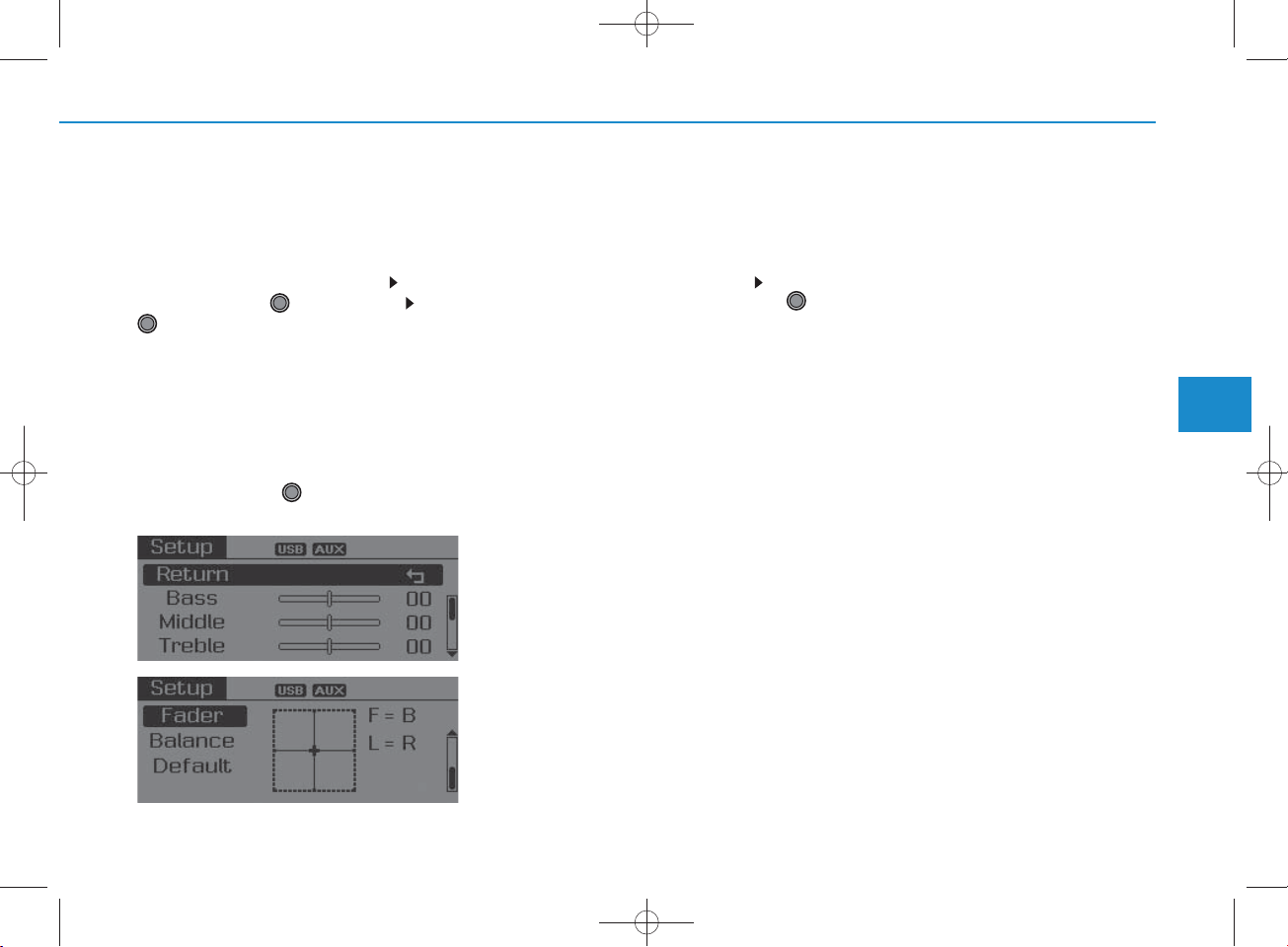
Sound Settings
This m enu allow s you to set the
‘Bass, Middle, Treble’ and the S ound
Fader and Balance.
Select [S ound Settings] S elect
menu through TU N E knob Turn
TUNE knob left/right to set
•Bass, Middle, Treble : Selects the
sound tone.
• Fader, Balance : Moves the sound
fader and balance.
•Default : Restores default settings.
Back : While adjusting values,
pressing the TU N E knob w ill
restore the parent menu.
Speed Dependent Volum e C ontro l
This feature is used to autom atically
control the volum e level according to
the speed of the vehicle.
Select Speed D ependent Vol. Turn
SDVC O n/Off by pressing the
Tune knob.
4
Multimedia System
4-25
Page 26
H_LF_A,B_AUDIO:BH hma 4-109~(Audio).qxd 5/19/2014 9:42 AM Page 26
Multimedia System
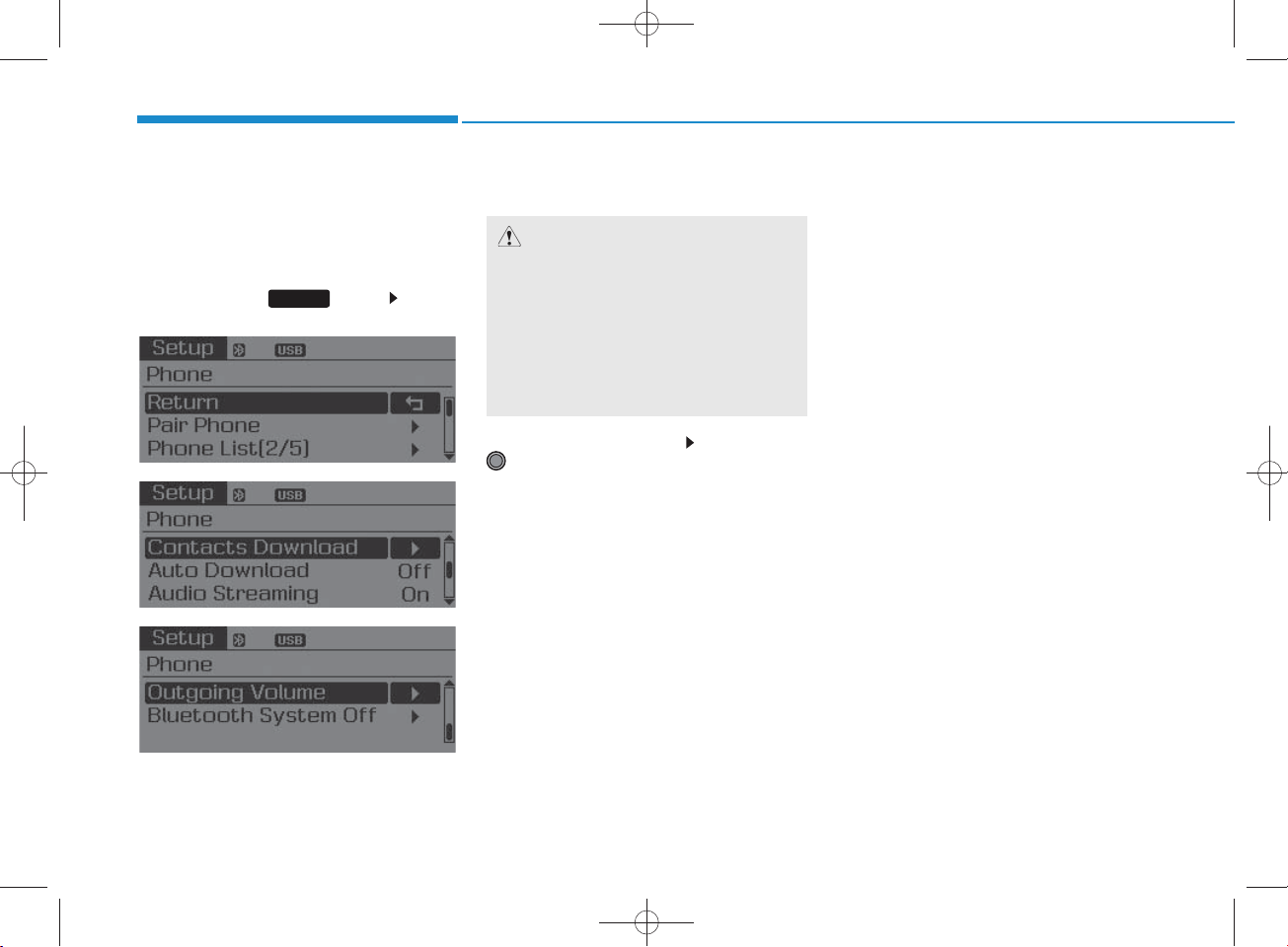
Phone Setup
(for Bluetooth
®
Wire less
Technology equipped m odel)
P ress the key Select
[Phone]
SETUP
Pair Phone
CAUTION
To pair a B luetooth®Wire less
Technology enabled m obile phone,
authentication and connection
processes are firs t require d . As a
result, you cannot pair your m obile
phone while driving the vehicle.
Firs t park your vehicle before use.
Select [Pair Phone] Set through
TUNE knob
Search for device nam es as displayed
on your m obile phone and connect.
Input the passkey displayed on the
screen. (P asskey : 0000)
The device nam e and passkey will
be displayed on the screen for up
to 3 minutes. If pairing is not com pleted w ithin the 3 m inutes, the
m obile phone pairing process w ill
autom atically be canceled.
Pairing com pletion is displayed.
In som e m obile phones, pairing
will autom atically be follow ed by
connection.
It is possible to pair up to five
Bluetooth
®
Wireless Technology
enabled m obile phones.
4-26
Page 27
H_LF_A,B_AUDIO:BH hma 4-109~(Audio).qxd 5/19/2014 9:42 AM Page 27
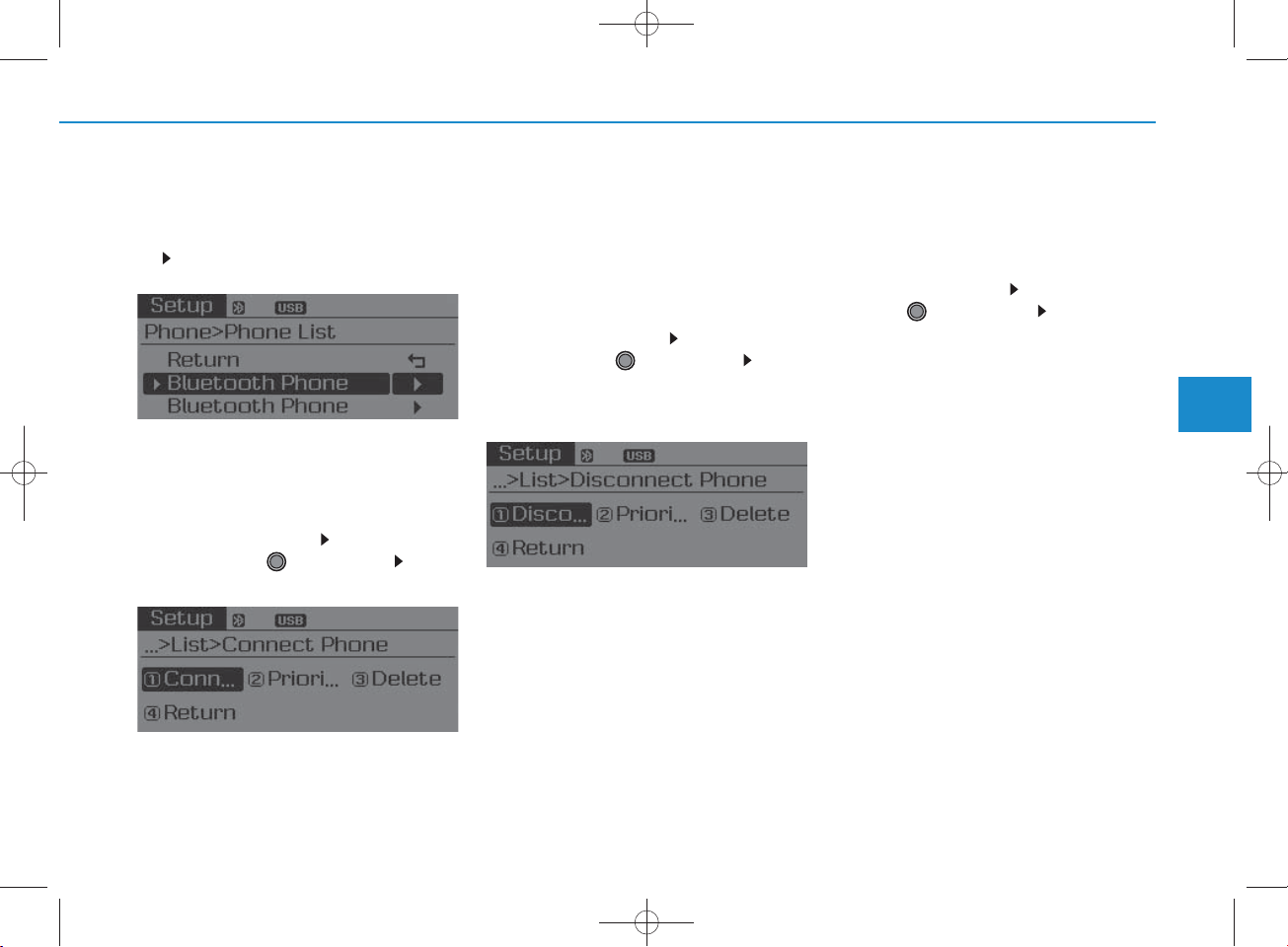
Phone List
The nam es of up to 5 paired phones will
be displayed.
A [] is displayed in front of the currently
connected phone.
Select the desired nam e to setup the
selected phone.
C onnecting a phone
•
Select [Phone List]Select m obile
phone through TU N E knob S elect
[C onnect P hone]
C onnection com pletion is displayed.
If a phone is a lready connected, dis-
connect the currently connected
phone and select a new phone to connect.
•
Disconnecting a connected phone
Select [Phone List]Select m obile
phone through TU N E knob S elect
[Disconnect P hone]
Select the currently connected m obile
phone.
Disconnect the selected m obile
phone.
Disconnection com pletion is displayed.
• C hanging connection sequence
(Priority)
This is used to change the order (priority) of autom atic connection for the paired
m obile phones.
Select [P hone List]Select [Priority]
through TU N E knob S elect No. 1
Priority m obile phone
Select [Priority].
From the paired phones, select the
phone desired for No.1 priority.
The changed priority sequence is dis-
played.
Once the connection sequence (prior-
ity) is changed, the new no. 1 priority
m obile phone will be connected.
- w hen the no. 1 priority cannot be connected: Autom atically attem pts to connect the m ost recently connected
phone.
- C ases w hen the m ost recently connected phone cannot be connected:
Attem pts to connect in the order in
which paired phones are listed.
4
Multimedia System
Select a m obile phone that is not currently connected.
C onnect the selected m obile phone.
4-27
Page 28
H_LF_A,B_AUDIO:BH hma 4-109~(Audio).qxd 5/19/2014 9:42 AM Page 28
Multimedia System
• Delete
Select [Phone List]Select m obile
phone through TU N E knob S elect
[Delete]
Select the desired m obile phone.
Delete the selected m obile phone.
Deletion com pletion is displayed.
W hen attem pting to delete a currently
connected phone, the phone is first
disconnected.
CAUTION
• W hen you delete a m obile phone,
the m obile phone contactswill
also be erased.
•
For stable B luetooth®Wire less
Technology com m unication, delete
the m obile phone fro m the audio
and also delete the audio fro m your
m obile phone.
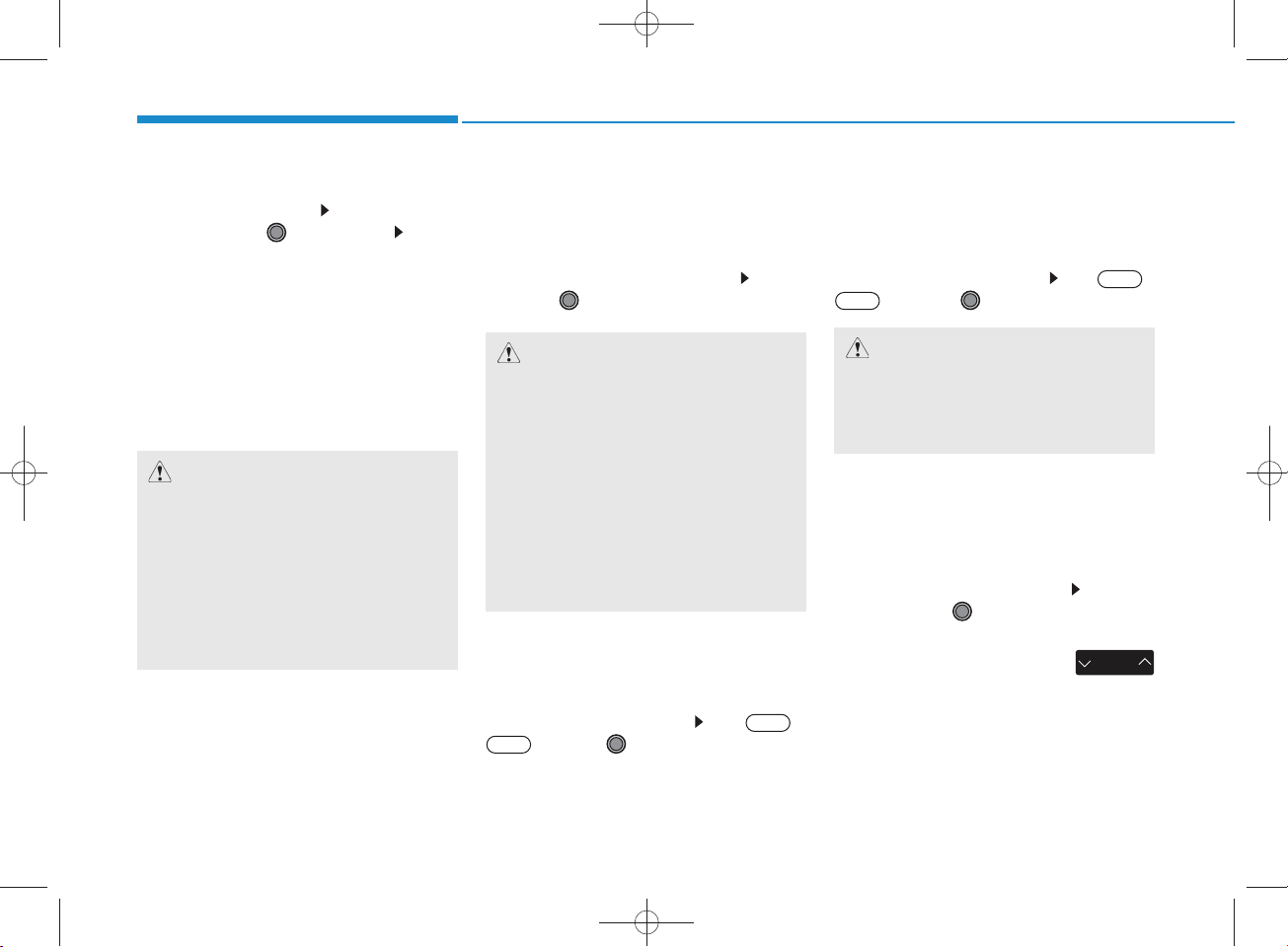
Contacts Download
This feature is used to dow nload contacts and call histories into the audio system .
Select [C ontactsDownload] Select
through
TUNE
knob
Audio Stream ing
Songs (files) saved in your
Wireless Technology enabled
can be played through the audio system .
Select [Audio S tream ing] Set /
Off
CAUTION
•
The download feature m ay not be
supported in som e m obile phones.
•If a differen t operation is perform ed while Contactsare being
dow nloaded, dow nloading will be
discontinued. C ontactsalready
dow nloaded will be saved.
• W hen dow nloading new C ontacts,
delete all previously saved
Contactsbefore starting dow nload.
Auto Download
W hen connecting a m obile phone, it is
possible to autom atically dow nload new
C ontacts and Call Histories.
Select [Auto Download] Set /
Off
through TU N E knob
On
The
audio stream ing feature may not be
supported in som e m obile phones.
Outgoing Volum e
This is used to set the volum e of your
voice as heard by the other party w hile
on a
enabled handsfree call.
Select [Outgoing Volum e] Set volum e through
Even while on a call, the volum e can
be changed by using the
key.
Bluetooth
m obile phone
On
through TU N E knob
CAUTION
Bluetooth®Wire less Technology
Bluetooth
®
Wireless Technology
TUNE
knob
SEEK
TRAC K
®
4-28
Page 29
H_LF_A,B_AUDIO:BH hma 4-109~(Audio).qxd 5/19/2014 9:42 AM Page 29
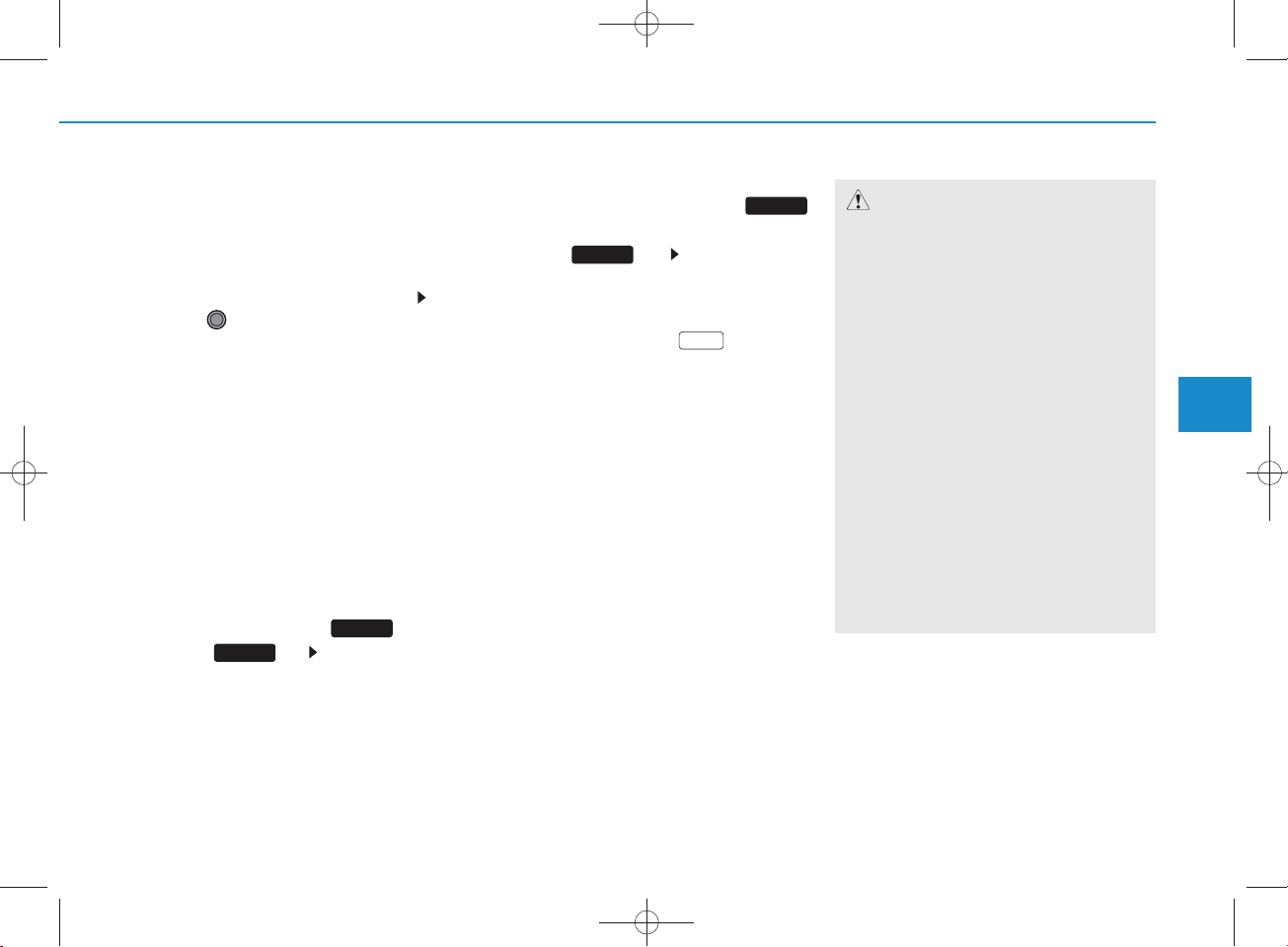
Bluetooth
®
Wire less
Technology S ystem Off
This feature is used w hen you do not
wish to use the
Technology
system .
Bluetooth
Select [Bluetooth S ystem O ff]Set
through TU N E knob
If a phone is already connected, dis-
connect the currently connected phone
and turn the
Technology
Using the
Bluetooth
system off.
Bluetooth
®
Wireless
®
Wire less
®
Wire less
Technology System
To use
Bluetooth
w hen the system is currently off, follow
these next steps.
• T u rn ing O n
Technology
Press the key S creen Guidance
PHO N E
Moves to the screen w here
Wireless Technology
used and disp lays guidance.
®
Wireless Technology
PHO N E
®
Wire less
through the Key
Bluetooth
Bluetooth
functions can be
®
• Turning O n
Bluetooth
Technology through the
®
Wireless
SETUP
key
Press the key S elect [P hone]
A screen asking w hether to turn on
Bluetooth
displayed.
On the screen, select to turn on
Bluetooth
display guidance.
If the
system is turned on, the system w ill
autom atically try to connect the m ost
recently connected
Wireless Technology
SETUP
®
Wireless Technology
®
Wireless Technology
Bluetooth
®
Wireless Technology
m obile phone.
YES
Bluetooth
will be
and
®
CAUTION
•Bluetooth®Wire less Technology
connection may becom e interm itte n tly disconn ected in som e
m obile phones. Follow these next
steps to try again.
1) Turn the B luetooth®Wire less
Technology function w ithin the
m obile phone ON/O FF and try to
connect again.
2) Turn the m obile phone power
ON/O FF and try to connect again.
3) Com pletely rem ove the m obile
phone battery, reboot, and then
try to connect again.
4) Reboot the audio system and try
to connect again
5) Delete all paired devices in your
m obile phone and the
tem and pair again for use.
audio sys-
4
Multimedia System
4-29
Page 30

H_LF_A,B_AUDIO:BH hma 4-109~(Audio).qxd 5/19/2014 9:42 AM Page 30
Multimedia System
System Settings
Press the key Select [S ystem ]
SETUP
Memory Inform ation
Displays currently used memory and
total system memory.
Select [Memory Inform ation] O K
The currently used m em ory is dis-
played on the left side while the total
system memory is displayed on the
right side.
4-30
Page 31
RADIO (FOR RDS M ODEL) :
FM , AM
H_LF_A,B_AUDIO:BH hma 4-109~(Audio).qxd 5/19/2014 9:42 AM Page 31
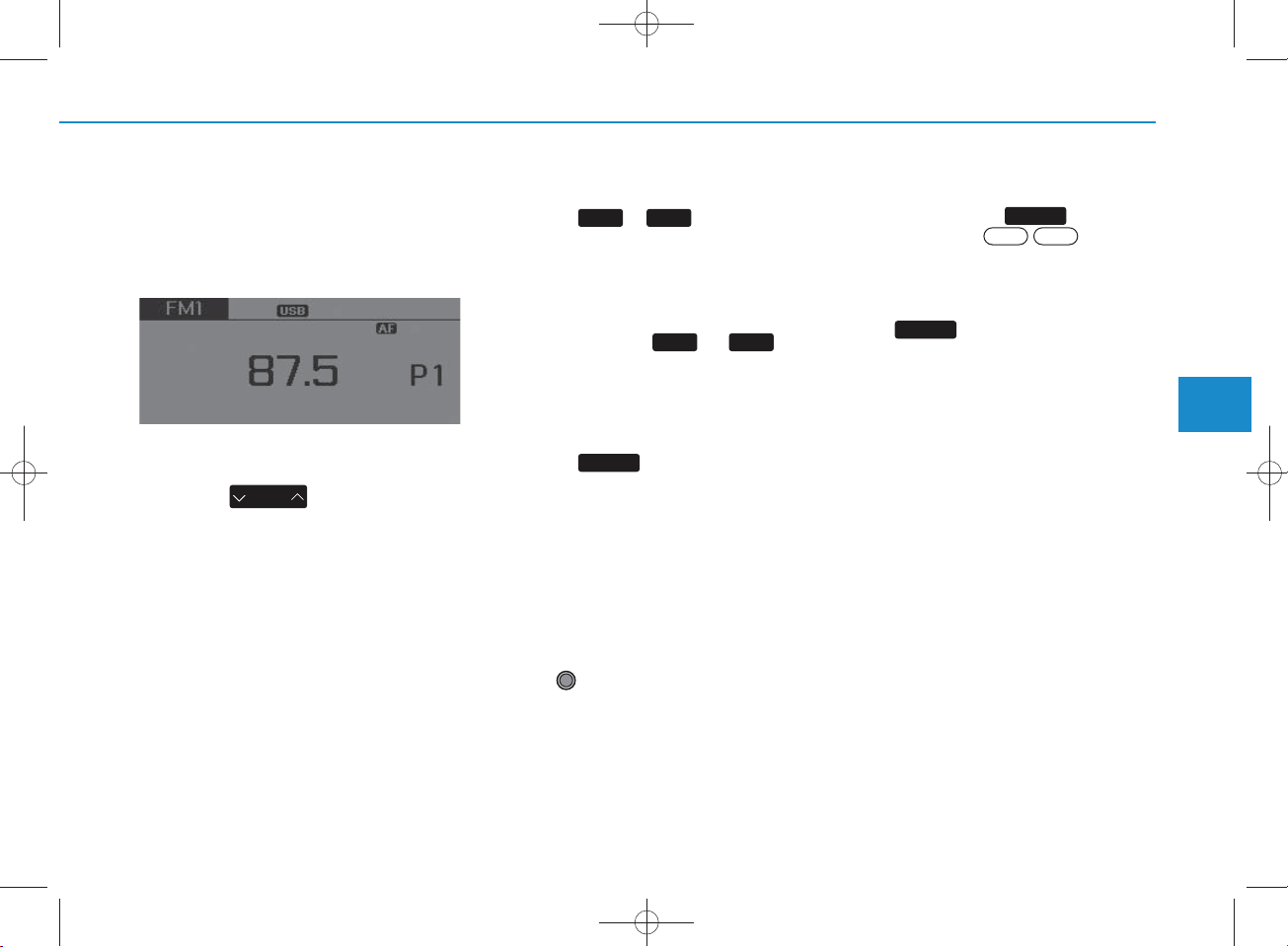
Changing RADIO m ode
SEEK
Press the key
• Shortly pressing the key (under 0.8
seconds): C hanges the frequency.
• Pressing and holding the key (over 0.8
seconds): Autom atically searches for
the next frequency.
SEEK
TRAC K
Preset SEEK
Press the ~ key
• Shortly pressing the key (under 0.8
seconds): Plays the frequency saved in
the corresponding key.
• Pressing and holding the key (over 0.8
seconds): Pressing and holding the
desired key from ~ w ill
save the currently playing broadcast to
the selected key and sound a BEEP.
61
1 6
SCAN
Press the key
• Pressing and holding the key : The
broadcast frequency increases and
preview s each broadcast for 5 seconds
each. After scanning all frequencies,
returns and plays the current broadcast
frequency.
TA
Selecting through manual
search
Turn the TU N E knob left/right to adjust
the frequency.
• A C 101C 1G G
- FM : C hanges by 100K H z
- AM : C hanges by 9K H z
Traffic A nnouncem ent (TA )
Shortly pressing the key (under
0.8 seconds): Set
Announcem ent) m ode.
TA
On Off
/
TA Traffic
MENU
Within key are the A S T (Auto
Store) and Info functions.
MENU
4
Multimedia System
4-31
Page 32
H_LF_A,B_AUDIO:BH hma 4-109~(Audio).qxd 5/19/2014 9:42 AM Page 32
Multimedia System
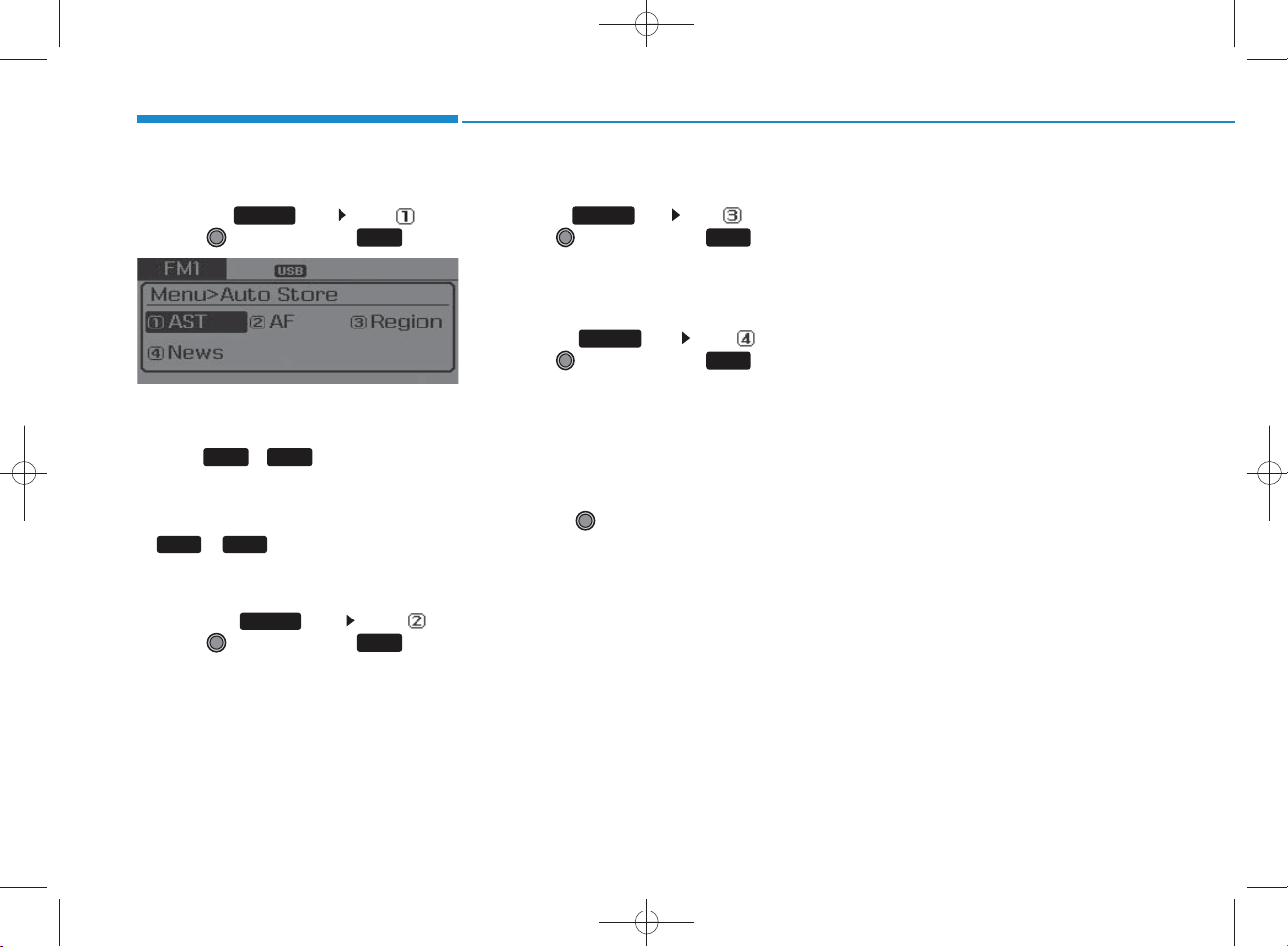
AST (Auto Store)
Press the key Set [ AST]
through TU N E knob or key.
Select AST (Auto Store) to save frequencies with superior reception to
presets
are received, then the m ost recently
received frequency will be broadcast.
Saves only to the Preset memory
MENU
RPT
1
61
~
61
~ of FM A or AM A m ode.
. If no frequencies
AF (Alternative Frequency)
Press the key S et [AF]
through TU N E knob or key.
The Alternative Frequency option can be
turned On/Off.
MENU
2
RDM
Region
Press the key S et [ R egion]
through TU N E knob or key.
The R egion option can be turned On/Off.
MENU
3
News
Press the key Set [News]
through TU N E knob or key.
The News option can be turned On/Off.
MENU
4
Info Volum e
Info Volum e refers to the sound volum e
upon receiving News or Traffic inform ation.
The info volum e can be controlled by
turning the VO L knob left/right while a
new s or traffic broadcast is playing.
AF, R egion, and News are RDS R adio
menus.
4-32
Page 33
RADIO : FM , AM
H_LF_A,B_AUDIO:BH hma 4-109~(Audio).qxd 5/19/2014 9:42 AM Page 33
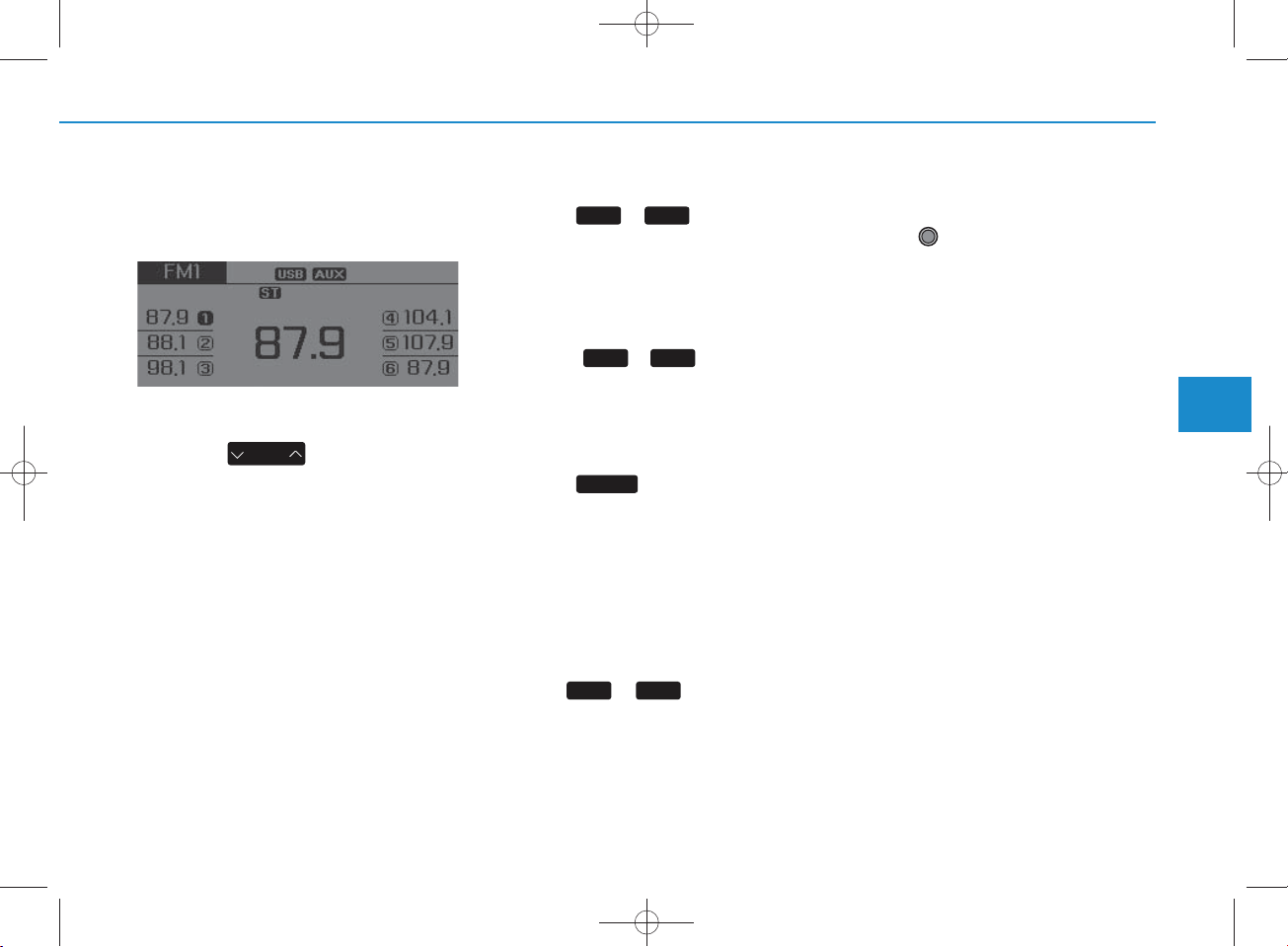
SEEK
Press the key
• S hortly pressing the key : C hanges
the frequency.
•Pressing and holding the key :
Autom atically searches for the next
frequency.
SEEK
TRAC K
Preset SEEK
~
61
61
will save the
Press the ~ key
• S hortly pressing the key : Plays the
frequency saved in the corresponding key.
•Pressing and holding the key :
Pressing and holding the desired
key from
currently playing broadcast to the
selected key and sound a BEEP.
SCAN
Press the key
• S hortly pressing the key : The
broadcast frequency increases
and preview s each broadcast for 5
seconds each. After scanning all
frequencies, returns and plays the
current broadcast frequency.
•Pressing and holding the key :
Preview s the broadcasts saved in
Preset ~ for 5 seconds
each.
SCAN
61
Selecting through manual
search
Turn the TU N E knob left/right to
adjust the frequency.
• A C 100C 1G G ,A C 100C 1M G ,
AC 111C 1M G
- FM : C hanges by 100KH z
- AM : C hanges by 9KH z
• AC 100C 1G N
- FM : C hanges by 200KH z
- AM : C hanges by 10KH z
• AC 100C 1G E
- FM : C hanges by 50KH z
- AM : C hanges by 9KH z
• AC 100C 1G C
- FM : C hanges by 100KH z
- AM : C hanges by 10KH z
4
Multimedia System
4-33
Page 34
H_LF_A,B_AUDIO:BH hma 4-109~(Audio).qxd 5/19/2014 9:42 AM Page 34
Multimedia System
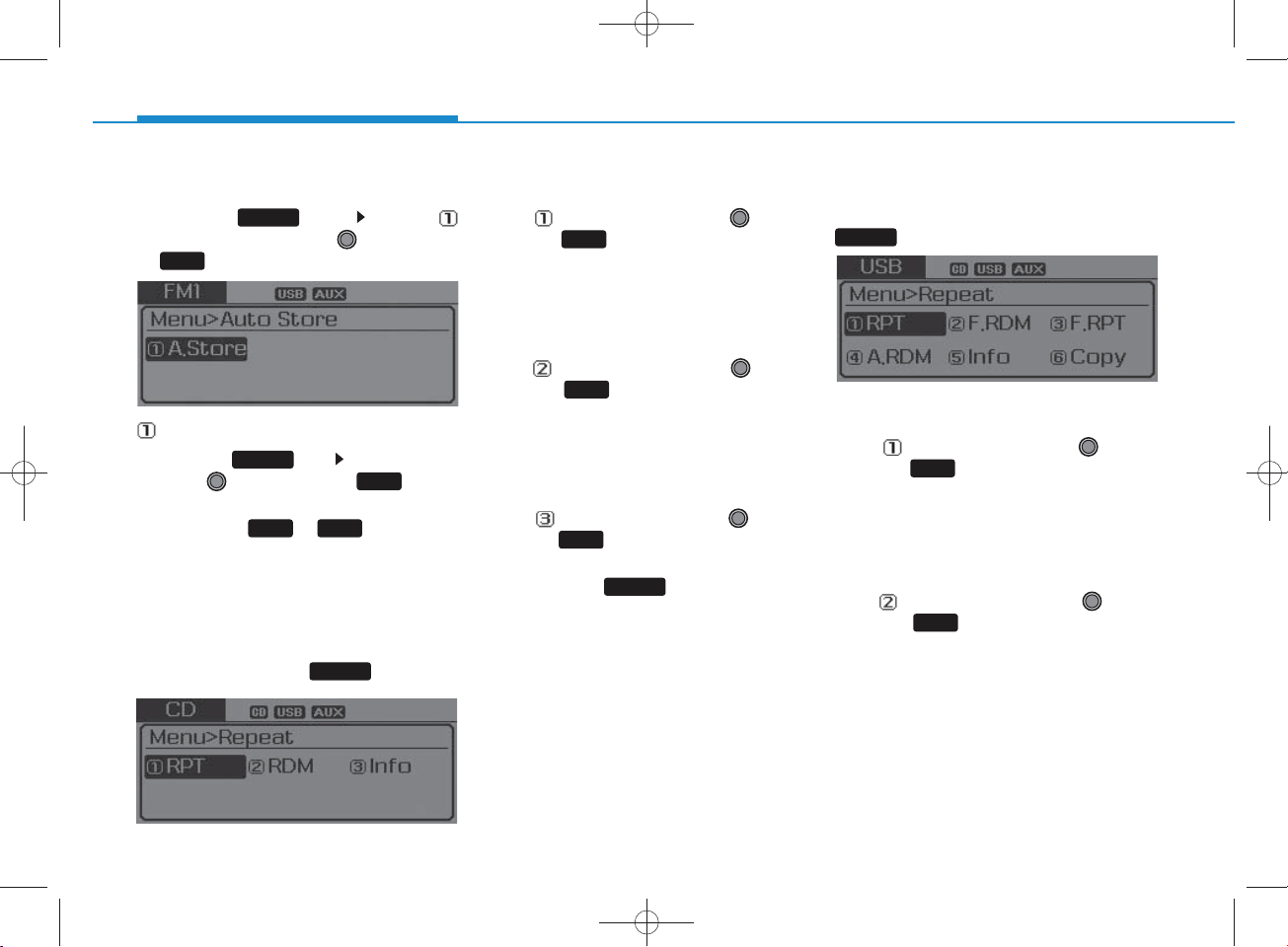
Menu
Press the key Select [
Auto Store] through the TU N E knob
1
or key
A.Store
Press the key Set [A.Store]
through TU N E knob or key
Saves broadcasts w ith superior
reception to ~ keys. If no
frequencies are received, then the
most recently received frequency will
be broadcast.
MENU
MENU
1
61
MENU : Audio CD
In CD m ode, press key.
MENU
R epeat
Set [RPT] through the
RPT
knob or key to repeat the cur-
1
rent song.
Press RPT again to turn off.
TUNE
Random
Set [ RDM] through the
RDM
knob or key to random ly play
2
songs within the current folder.
Press RDM again to turn off.
TUNE
Inform ation
Set [Info] through the
knob or key to display inform a-
3
tion of the current song.
Press the key to turn off
MENU
info display.
TUNE
MENU : MP3 CD / USB
In M P 3 C D / USB m ode, press
MENU
key.
R epeat
Set [RPT] through the
RPT
knob or key to repeat the cur-
1
rent song.
Press RPT again to turn off.
TUNE
Folder R andom
Set [F.RDM ] through the
RDM
knob or key to random ly play
2
songs within the current folder.
Press F.RDM again to turn off.
TUNE
4-34
Page 35
H_LF_A,B_AUDIO:BH hma 4-109~(Audio).qxd 5/19/2014 9:42 AM Page 35
Folder R epeat
Set [F.RPT] through the
knob or key to repeat songs
3
within the current folder.
Press F.RPT again to turn off.
TUNE
All R andom
Set [A.RDM ] through the
knob or key to random ly play all
4
songs within the CD.
Press A.RDM again to turn off.
TUNE
Inform ation
Set [Info] through the
knob or key to display inform a-
5
tion of the current song.
Press the key to turn off
MENU
info display.
TUNE
Copy
Set [Copy] through the
knob or key.
6
This is used to copy the current
song into My Music. You can play
the copied M usic in My Music
m ode.
If another key is pressed w hile
copying is in progress, a pop up
asking you whether to cancel
copying is displayed.
If another m edia is connected or
inserted (USB, CD, iPod
while copying is in progress, copying is canceled.
Music w ill not be played w hile
copying is in progress.
TUNE
®
, AUX)
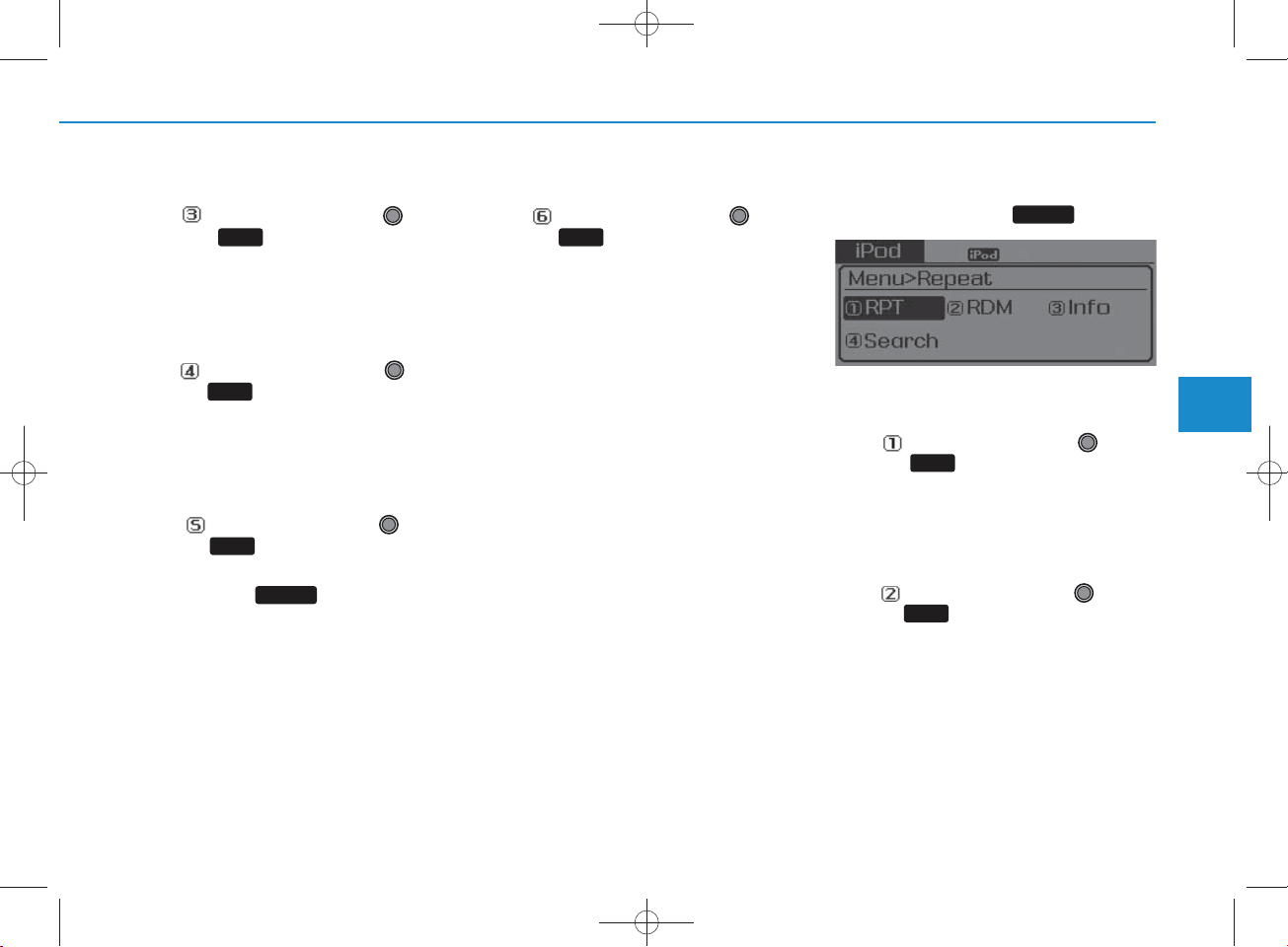
MENU : iPod
In iPod m ode, press key.
®
MENU
R epeat
Set [RPT] through the
RPT
knob or key to repeat the cur-
1
rent song.
Press RPT again to turn repeat off.
TUNE
Random
Set [ RDM] through the TU N E
knob or key.
Plays all songs w ithin the currently
playing category in random order.
Press RDM again to turn off.
2
RDM
4
Multimedia System
4-35
Page 36
H_LF_A,B_AUDIO:BH hma 4-109~(Audio).qxd 5/19/2014 9:42 AM Page 36
Multimedia System
Inform ation
Set [Info] through the
knob or key.
3
Displays inform ation of the current
song.
Press the key to turn off
MENU
info display.
TUNE
Search
Set [ S earch] through the
knob or key.
Displays iPod
4
®
category list.
Searching iPod® category is
MENU
key pressed, move to par-
ent category.
TUNE
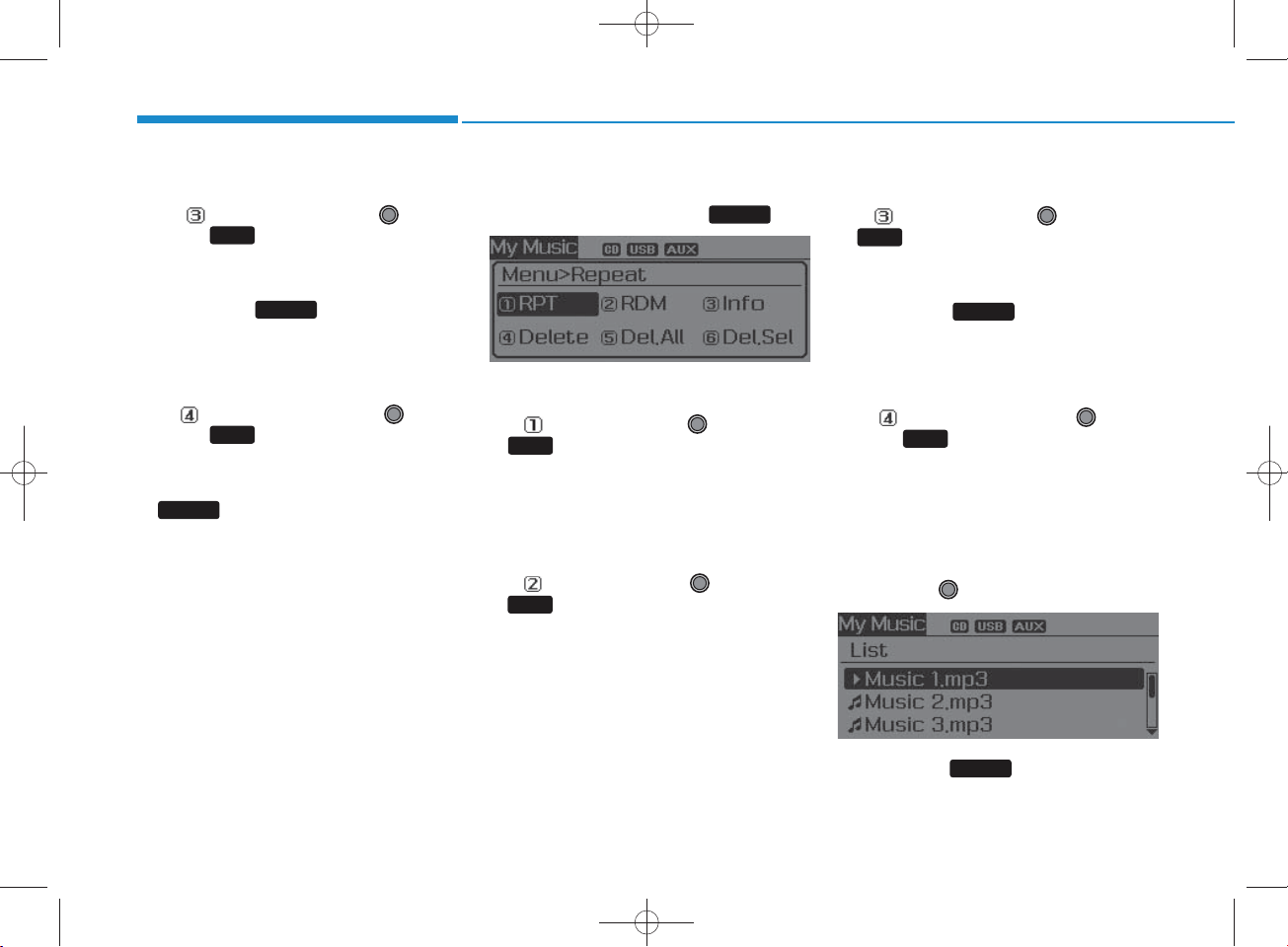
MENU : My Music M ode
In My Music m ode, press
MENU
key.
R epeat
Set [RPT] through the TU N E knob
RPT
1
or key.
R epeats the currently playing song.
Press RPT again to turn repeat off.
Random
Set [ RDM ] through the TU N E knob
RDM
2
or key.
Plays all songs w ithin the currently
playing folder in random order.
Press RD M again to turn random
off.
Inform ation
Set [Info] through the
3
or key.
Displays inform ation of the current
song.
Press the key to turn off
MENU
info display.
TUNE
knob
Delete
Set [Delete] through the TUNE
knob or key.
•Deletes currently playing file
In the play screen, pressing delete
will delete the currently playing song.
•Deletes file from list
Select the file you wish to delete by
using the TU N E knob.
4
4-36
Press the key and select
MENU
the delete m enu to delete the
selected file.
Page 37
H_LF_A,B_AUDIO:BH hma 4-109~(Audio).qxd 5/19/2014 9:42 AM Page 37
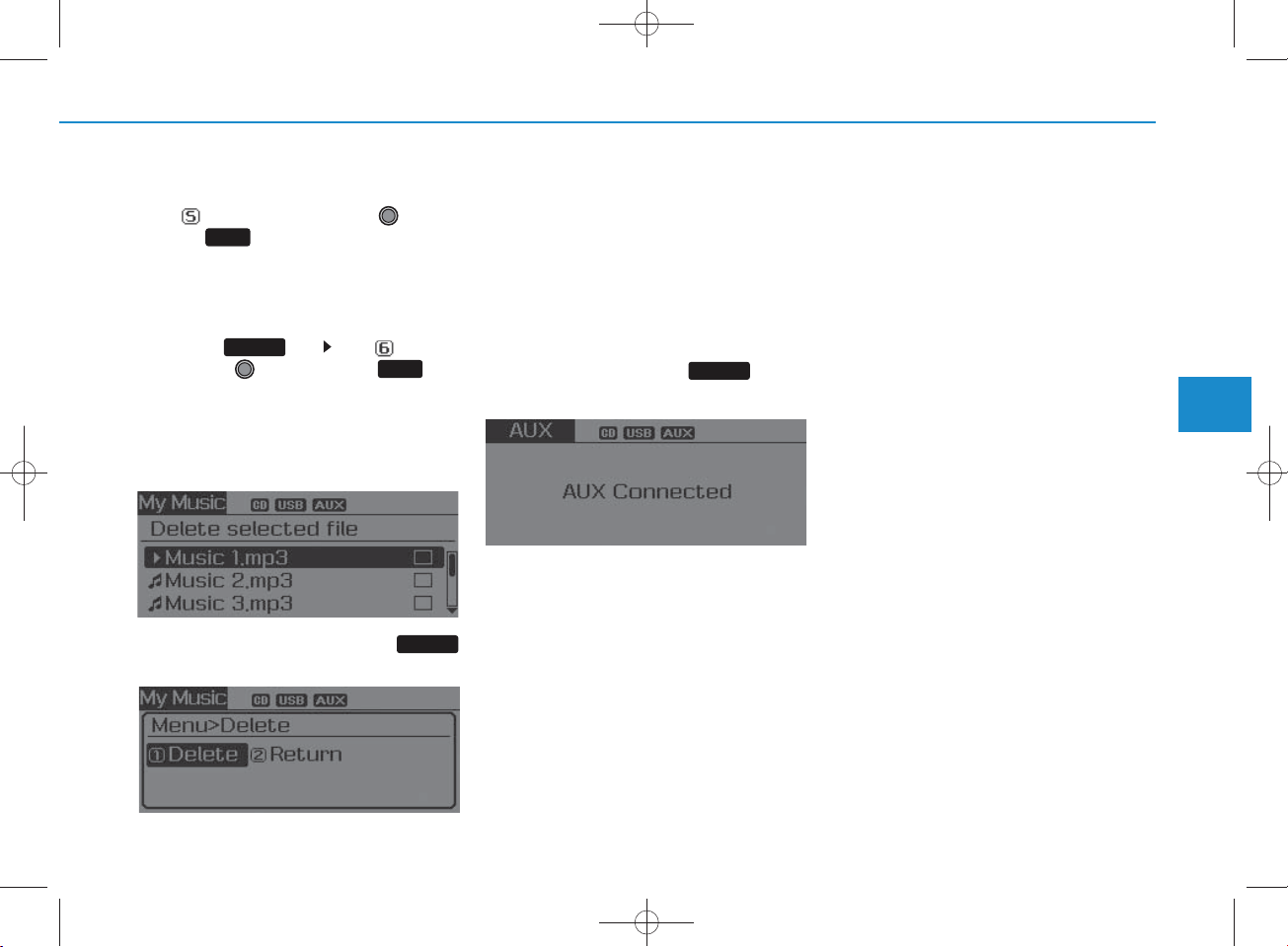
Delete All
Set [Del.All] through the TU N E
knob or key.
5
Deletes all songs of My Music.
Delete Selection
Press the key Set [Del.Sel]
through the TU N E knob or key.
Songs w ithin My Music are selected
and deleted.
Select the songs you wish to
delete from the list.
After selecting, press the
key and select the delete menu.
MENU
6
MENU
AUX
AUX is used to play external MEDIA
currently connected w ith the AU X
term inal.
AU X m ode w ill autom atically start
w hen an external device is connected to the AUX term inal.
If an external device is connected,
you can also press the key to
MEDIA
change to AUX m ode.
AU X m ode cannot be started
unless there is an external device
connected to the AUX term inal.
NOTICE - USING THE AUX
•Fully in sert the AUX cab le into the
AUX term inal for use.
4
Multimedia System
4-37
Page 38
H_LF_A,B_AUDIO:BH hma 4-109~(Audio).qxd 5/19/2014 9:42 AM Page 38
Multimedia System
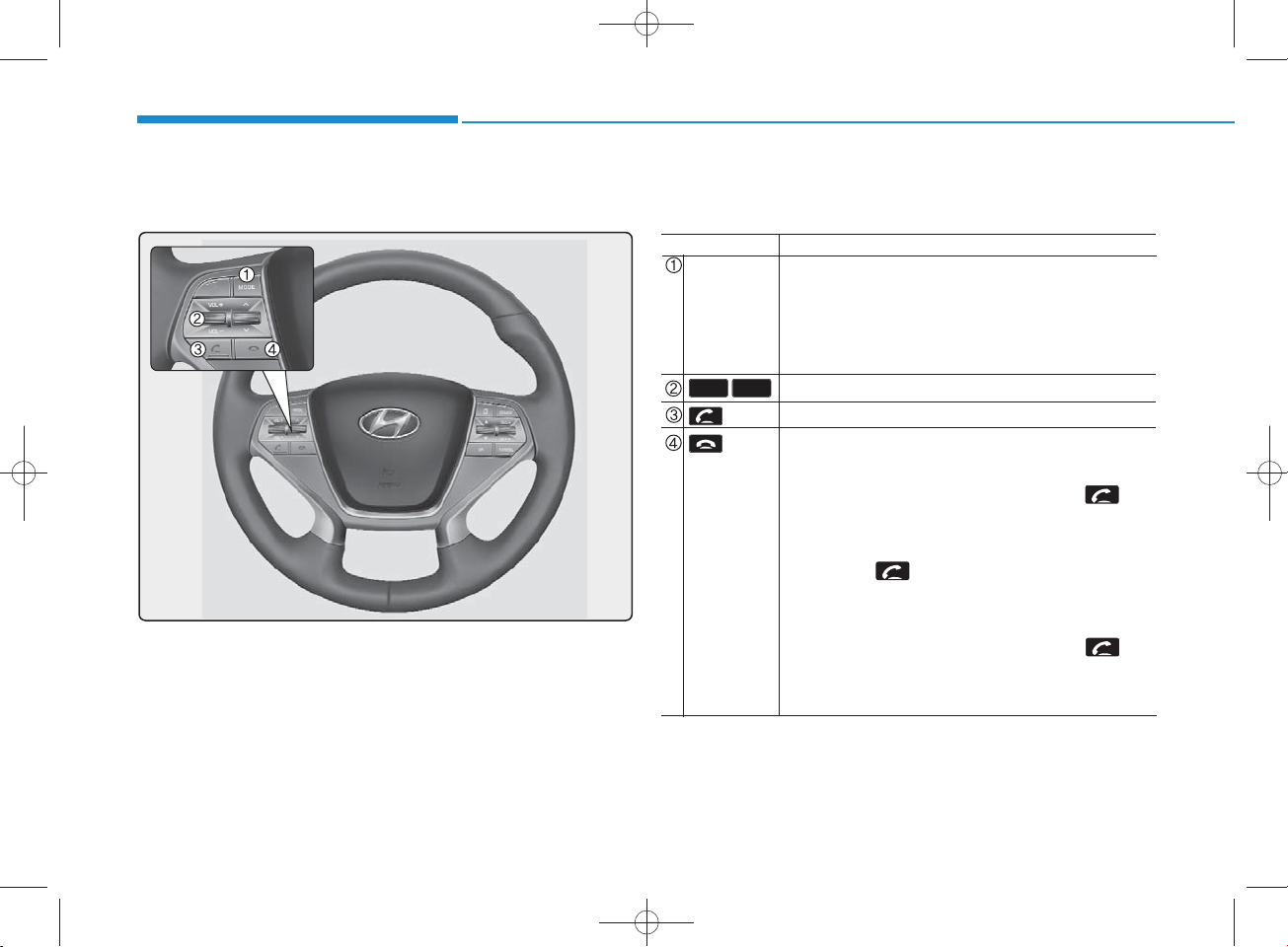
M aking a call using the Steering w heel re m o te
controller
The actual feature in the vehicle m ay differ from the
illustration.
Nam e
MODE
VO L-VO L+
key
key
D escription
• Each time this key is pressed, the m ode is changed in
order of FM 1
FM 2 FM A AM AM A CD
USB or iPod AU X My Music BT Audio
• If the m edia is not connected or a disc is not inserted, corresponding m odes will be disabled.
Raise s or low ers speaker volum e.
Places and transfers ca lls.
Ends calls or cancels functions.
• C heck call history and making call
Shortly press (under 0.8 seconds) the key
on the steering rem ote controller.
The call history list will be displayed on the screen.
Press the key again to connect a call to
selected num ber.
• R edialing the most recently called num ber
Press and hold (over 0.8 seconds) the key
on the steering rem ote controller.
The most recently ca lled num ber is redialed.
the
4-38
Page 39
H_LF_A,B_AUDIO:BH hma 4-109~(Audio).qxd 5/19/2014 9:42 AM Page 39
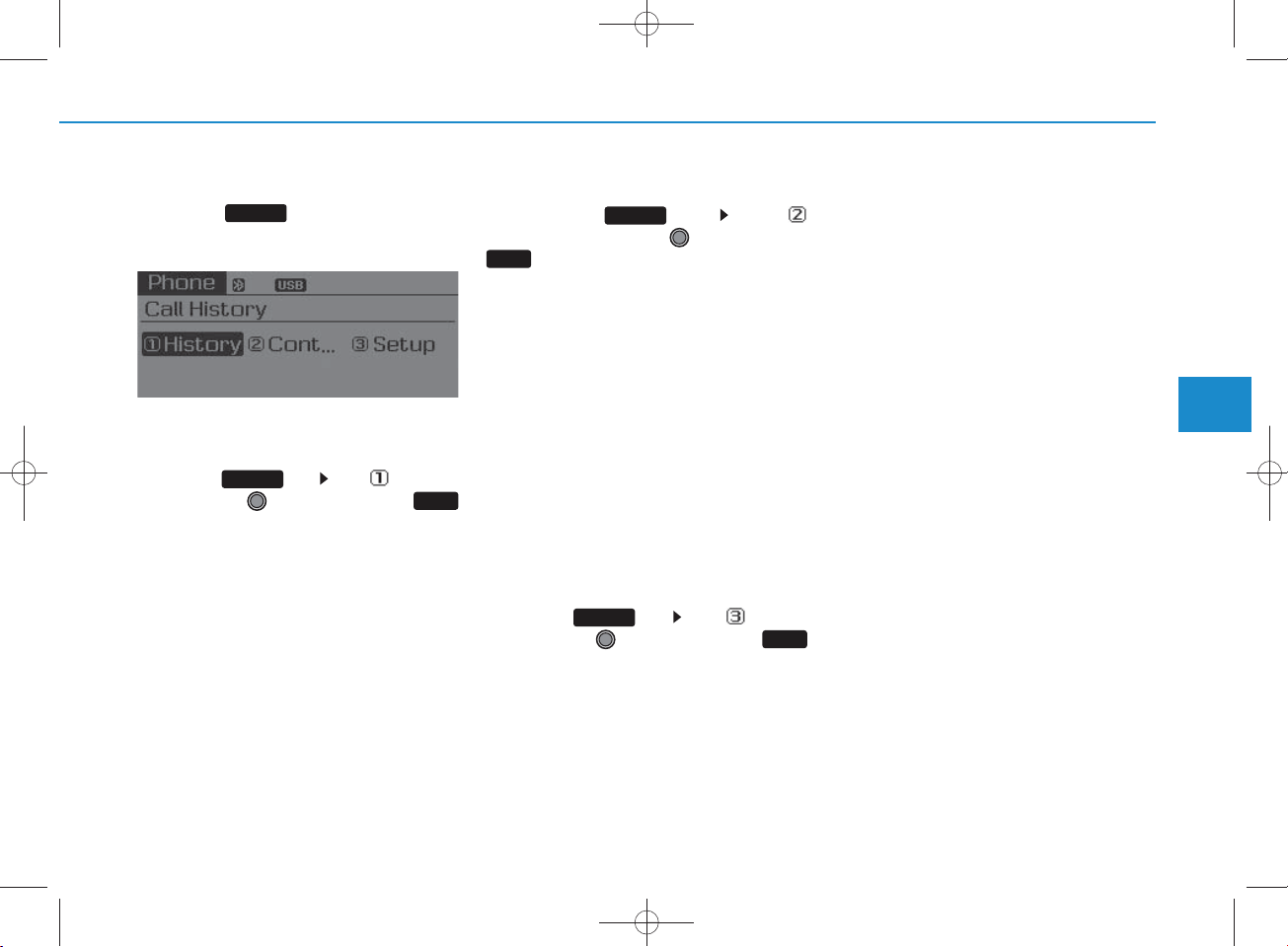
Phone MENU
Press the key to display three
menus (Call History, C ontacts,
Phone Setup).
PHO N E
Call history
Press the key Set [History]
through the TU N E knob or
key.
The call history is displayed and can
be used to select a num ber and
make a call.
If call history does not exist, a screen
asking w hether to dow nload call history is displayed. (The dow nload feature m ay not be supported in som e
m obile phones)
PHO N E
1
RPT
Contacts
Press the key S et [
C ontacts
RDM
2
key.
The C ontacts are displayed and can
be used to select a num ber and
make a call.
If more than one num ber is saved
to one contact, then a screen
show ing the m obile phone num ber, H om e and office num ber is
displayed. Select the desired num ber to make the call.
If C ontacts do not exist, a screen
asking w hether to dow nload
C ontacts is displayed. (The dow nload feature may not be supported
in som e m obile phones)
PHO N E
] through the TU NE knob or
Phone Setup
Press the key Set [Setup]
through the TU N E knob or
key.
The
m obile phone setup screen is displayed. For more inform ation, refer to
“P hone Setup”.
PHO N E
Bluetooth
®
Wireless Technology
3
4
Multimedia System
4-39
Page 40

H_LF_A,B_AUDIO:BH hma 4-109~(Audio).qxd 5/19/2014 9:42 AM Page 40
Multimedia System
NOTICE -
Bluetooth
USING THE
®
Wire less
Technology CELLULAR PHO NE
•Do not use a cellular phone or perfo r m B luetooth
®
Wireless
Technology settings (e.g. pairing a
phone) while driving.
•Some Bluetooth
®
Wireless
Technology -en ab led phones m ay
not be recognized by the system or
fully com patible with the sy stem .
•Before using Bluetooth
®
Wireless
Technology related features of the
audio sy stem , refer your phone’s
User’s M anual for phone-side
Bluetooth
®
Wireless T ech n ology
op erations.
• T he phone m ust be paired to the
audio sy stem to use B luetooth
Wireless T ech n ology related features.
•You will not be able to use the
hands-free feature w hen your
phone (in the car) is outside of the
cellular service area (e.g. in a tunnel, in a underground, in a m ountainous area, etc.).
( Continued)
( Continued)
•If the cellular phone signal is poor
or the vehicles int
erior noise is too
loud, it m ay be difficult to hear the
other person ’s voice during a call.
•Do not place the phone near or
inside m etallic ob jects, oth erw ise
com m unications w ith Bluetooth
Wireless Technology sy stem or cellular service stations can be disturbed.
•W hile a phone is conn ected
through B luetooth
®
Technology your phone m ay discharge quicker th an usual fo r
additional Bluetooth
®
Technology-related operations.
• Som e cellular phones or other
devices m ay cau se interference
®
noise or malfunction to audio system . In this case, store the device
in a different location m ay resolve
the condition.
• Phone contact n a m es sh ou ld be
saved in E nglish o r they m ay not
be disp layed correctly.
( Continued)
Wireless
Wireless
( Continued)
•If Priority is set upon vehicl
tion(IG N /ACC ON), th e
Bluetooth
®
Wireless T ech n ology
phone w ill be autom atically connected.
Even if you are outside, th e
®
Bluetooth
®
Wireless T ech n ology
phone w ill be autom atically connected on ce you are in the vicinity
of the vehicle.
If you do not want autom atic
Bluetooth
®
Wireless T ech n ology
con n ection, turn the B luetooth
Wireless Technology feature off.
• T he hands-free call volum e and
quality m ay differ depending on
the mobile phone type.
•Bluetooth
®
Wireless T ech n ology
features can be used only when the
mobile phone has b een paired and
con n ected w ith the device. For
more inform ation on pairing and
con n ecting Bluetooth
®
Technology enabled m ob ile
phones, refer to the “Phone Setup”
section.
( Continued)
e igni-
®
Wireless
4-40
Page 41

H_LF_A,B_AUDIO:BH hma 4-109~(Audio).qxd 5/19/2014 9:42 AM Page 41
( Continued)
• W hen a Bluetooth®Wireless
Technology m obile phone is con nected, a ( ) icon w ill appear at
the top of the screen. If a () icon
is not disp layed, this indicates that
a B luetooth
®
Wireless T ech n ology
enab led d evice has not been connected. Y ou m ust con n ect the
device before use. For more information on B luetooth
®
Wireless
Technology m obile phones, refer
to the “Phone Setup” section.
•Pairing and connecting a
Bluetooth
enab led m ob ile phone w ill work
only when the Bluetooth
®
Wireless T ech n ology
®
Wireless
Technology option w ith in your
mobile phone has b een turned on.
(M ethods of turning on the
Bluetooth
®
Wireless T ech n ology
enab led feature m ay differ
depending on the mobile phone.)
( Continued)
( Continued)
•In some mobile phones, starting
the ignition while talking through
Bluetooth
®
Wireless T ech n ology
enab led handsfree call will result
in the call b ecom ing discon n ected .
(S w itch th e c a ll back to your
mobile phone w hen starting the
ignition.)
•Some features m ay not be supported in som e Bluetooth
Wireless Technology mobile phone
and devices.
•Bluetooth
®
Wireless T ech n ology
enab led op eration m ay be unstable depending on the com m unication state.
•Placing the audio system within an
electrom agnetic en viron m en t may
result in noise interference.
®
4
Multimedia System
4-41
Page 42
SYSTEM CONTRO LLERS AND FUNCTIONS
H_LF_A,B_AUDIO:BH hma 4-109~(Audio).qxd 5/19/2014 9:42 AM Page 42
Multimedia System
Display and settings m ay differ depending
on the selected audio
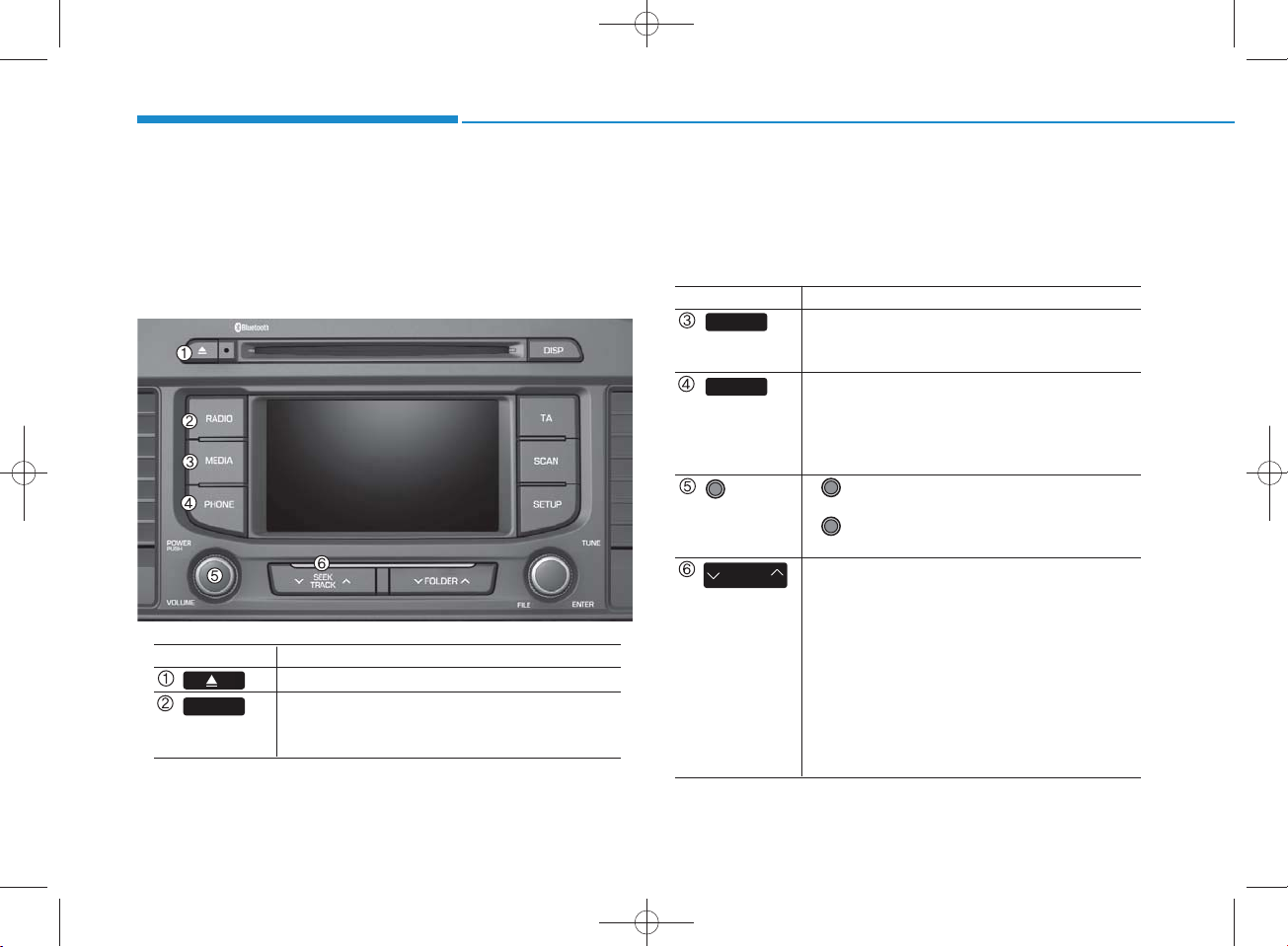
Audio H ead Unit (For RDS m odel)
N am e D escription
Ejects the disc.
RADIO
4-42
• Convert to R adio m ode.
• Each time the key is pressed,the m ode is
changed in order of FM 1, FM 2, FM A, AM , AM A
N am e D escription
MEDIA
PHO N E
POW ER/
VO L knob
SEEK
TRA CK
• Each time the key is pressed, the m ode is
changed in order of CD, USB, iPod
Music, BT Audio m odes.
Bluetooth
(for
m odel)
• Converts to Phone m ode
W hen a phone is not connected, the
connection screen is displayed.
• Power : Tu rns pow er On/Off by pre ssing
the knob
• Volum e : Sets volum e by turning the knob
left/right
• W hen pressed shortly
- R adio m ode : plays previous/next frequency.
- M edia (CD/USB/iPod®/My Music) m odes :
changes the track, S ong(file)
• W hen pressed and held
- R adio m ode : continuously changes the
frequency. U pon release, plays the current
frequency.
- M edia(CD/USB/iPod®/My Music) m odes :
rew inds or fast forwards the track or file
- During a H andsfree call, controls the call volum e.
®
Wireless Technology equipped
®
, AU X , My
Page 43
H_LF_A,B_AUDIO:BH hma 4-109~(Audio).qxd 5/19/2014 9:42 AM Page 43
N am e D escription
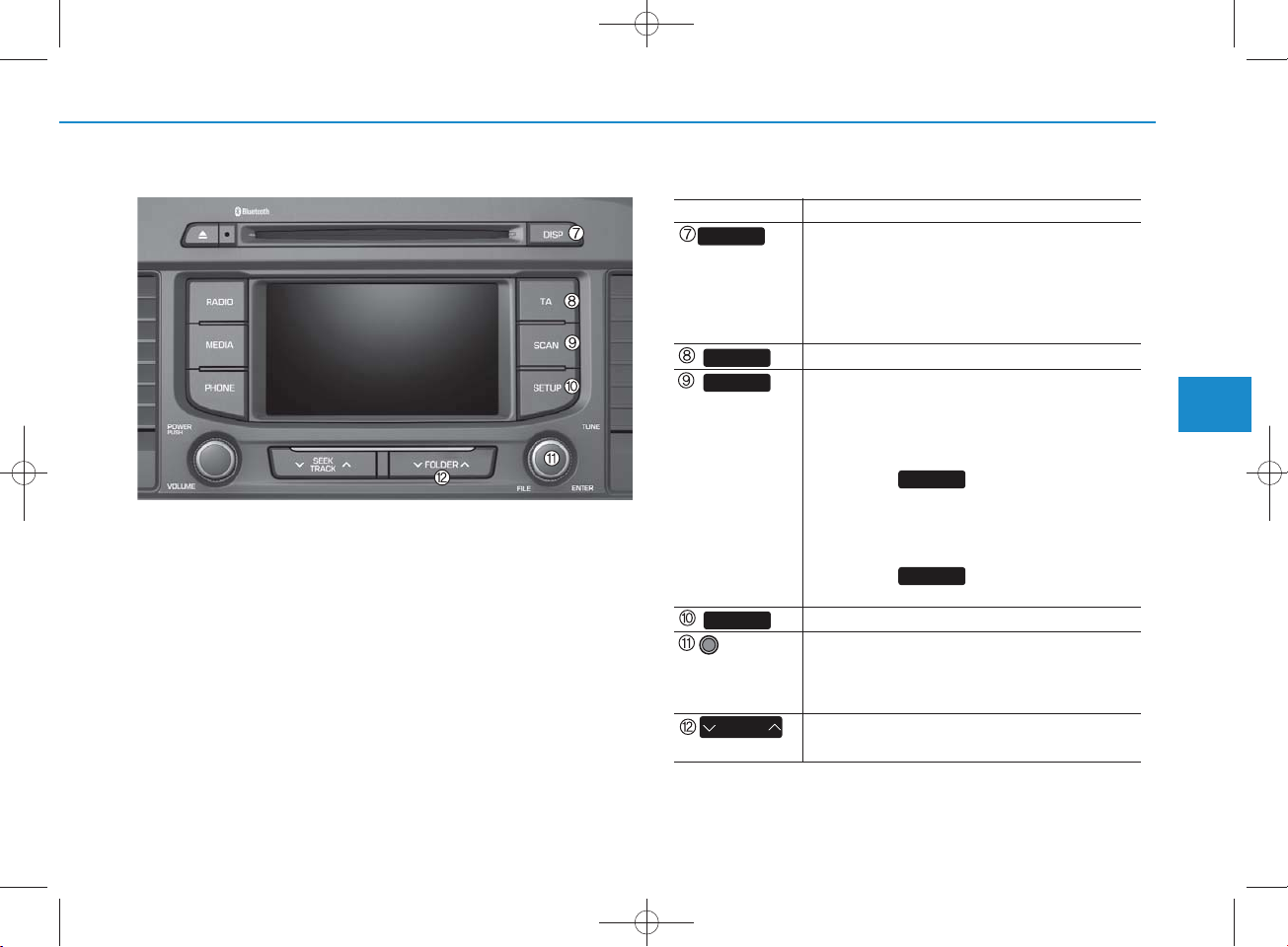
DISP
TA
SCAN
• Each time the button is shortly pressed, it
sets the screen Off Screen On Screen Off
Audio operation is maintained and only the
screen will be turned Off. In the screen Off
state, press any key to turn the screen On
again.
Set TA (Traffic Announcem ent) feature On/Off.
• R adio M ode
- Shortly press the key : Preview s each broad
cast for 5 seconds each
- Press and hold the key : Preview s the broad
casts saved in Preset for 5 seconds each.
Press the key again to continue
SCAN
listening to the current frequency.
• CD, USB m ode
- Shortly press the key : Preview s each song
(file) for 10 seconds each
Press the key again to continue
SCAN
listening to the current song (file).
SETUP
TUNE
knob
FO LDER
Converts to Setup m ode.
• R adio m ode : turn to change broadcast
frequencies.
• M edia (CD/USB/iPod
turn to search tracks/ channels/files.
• MP3, CD, USB m ode : Folder S earch
May differ depending on the se lected audio
®
/My Music) m odes :
4
Multimedia System
4-43
Page 44
H_LF_A,B_AUDIO:BH hma 4-109~(Audio).qxd 5/19/2014 9:42 AM Page 44
Multimedia System
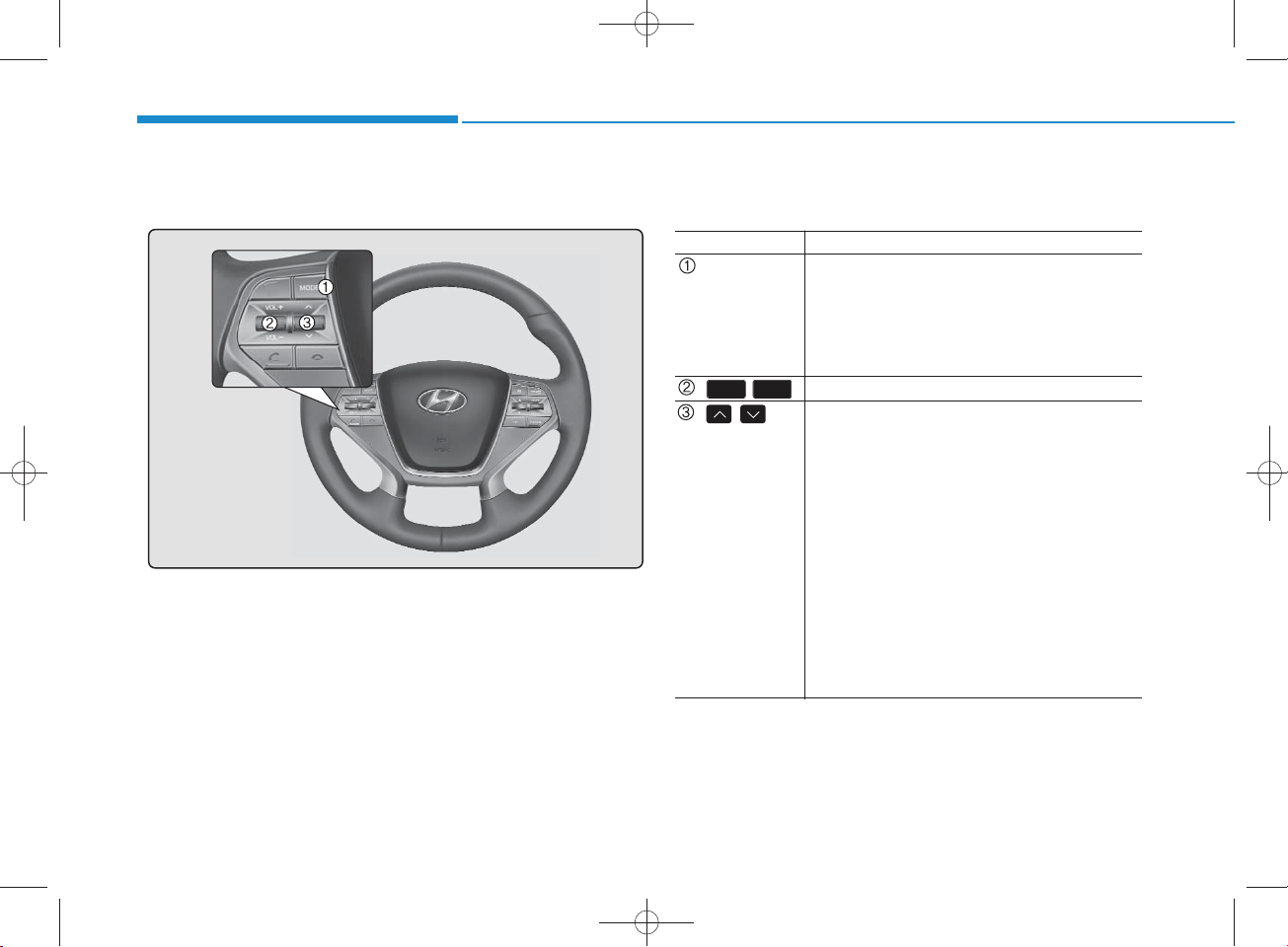
Steering-w heel m ounted contro ls
The actual feature in the vehicle m ay differ from the
illustration.
N am e D escription
MODE
• Each time this ke y is pressed, the m ode is
changed in order of FM 1 FM 2 FM A
AM AM A CD USB or iPod
My Music B T Audio.
• If the m edia is not connected or a disc is not
inserted, corresponding m odes will be disabled.
VO L-VO L+
, Used to control volum e.
, Mute the microphone during a call.
• W hen pressed shortly (under 0.8 seconds)
- R adio m ode : searches broadcast frequen
cies saved to presets.
- M edia(CD / USB / iPod
®
/ My Music / BT
Audio) m odes : changes the track, file or
chapter.
• W hen pressed and held (over 0.8 seconds)
- R adio m ode, autom atically searches
broadcast frequencies and channels
- M edia(CD / USB / iPod
®
/ My Music)
m odes, rew inds or fast forwards the track
or song(file)
- BT Audio m ode may not be supported in
som e m obile phones.
®
AUX
4-44
Page 45
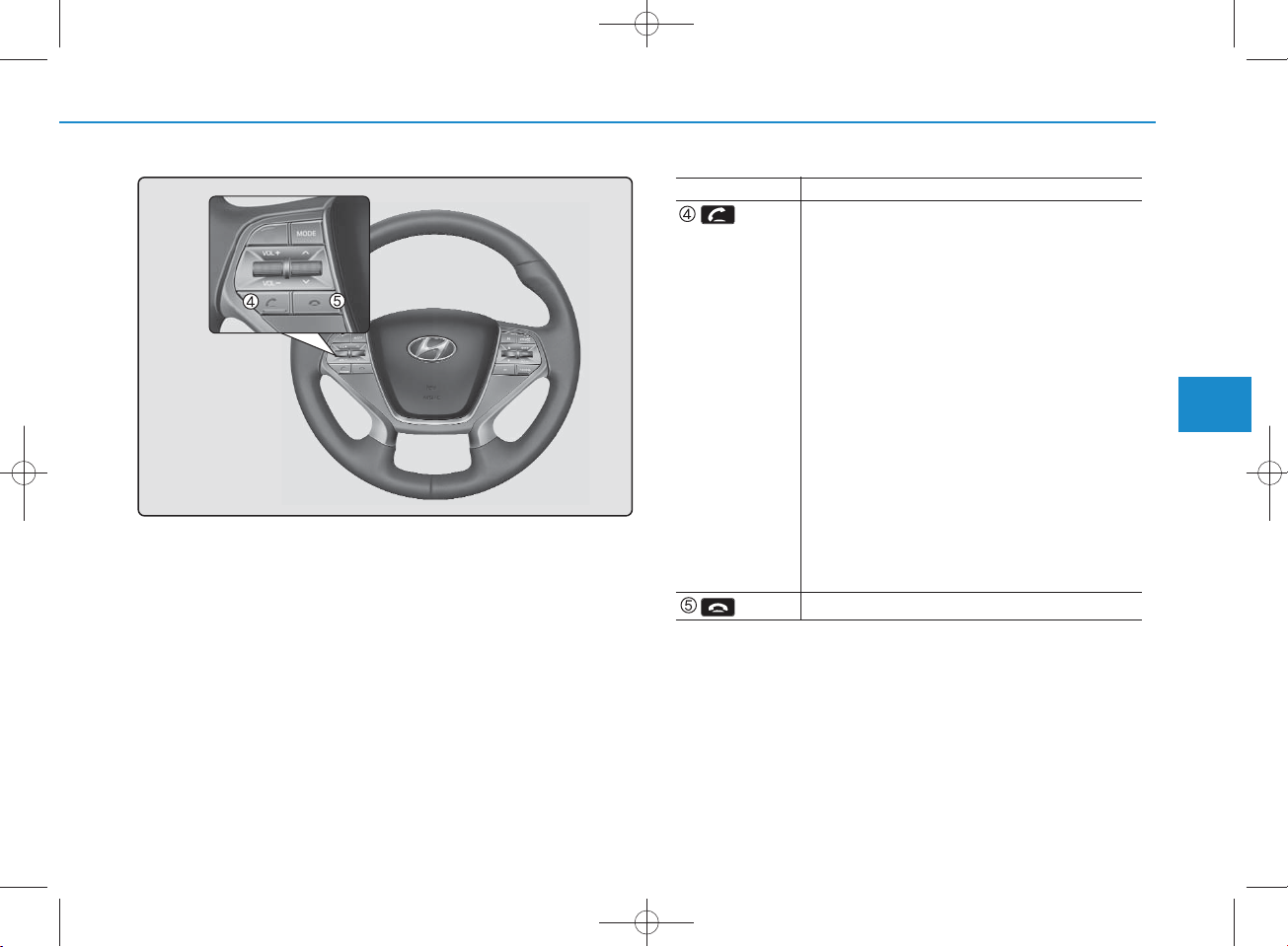
H_LF_A,B_AUDIO:BH hma 4-109~(Audio).qxd 5/19/2014 9:42 AM Page 45
N am e D escription
• W hen pressed shortly
- W hen pressed in the phone screen, displays
call history screen
- W hen pressed in the dial screen, makes a call
- W hen pressed in the incom ing call screen,
answ ers the ca ll
- W hen pressed during call waiting, sw itches
to waiting cal
l (Call Waiting)
• W hen pressed and held (over 0.8 seconds)
- W hen pressed in the Bluetooth
Technology H andsfree wait m ode, redials the
last call
- W hen pressed during a Bluetooth
Technology H andsfree call, sw itches call
back to m obile phone (Priva te)
- W hen pressed while calling on the m obile
phone, sw itches ca ll back to Bluetooth
Wireless Technology H andsfree (O perates
only w hen Bluetooth
®
Wireless Technology
H andsfree is connected)
Ends phone call
®
Wireless
®
Wireless
4
Multimedia System
®
4-45
Page 46
RADIO M O DE
(FOR RDS M ODEL)
H_LF_A,B_AUDIO:BH hma 4-109~(Audio).qxd 5/19/2014 9:42 AM Page 46
Multimedia System
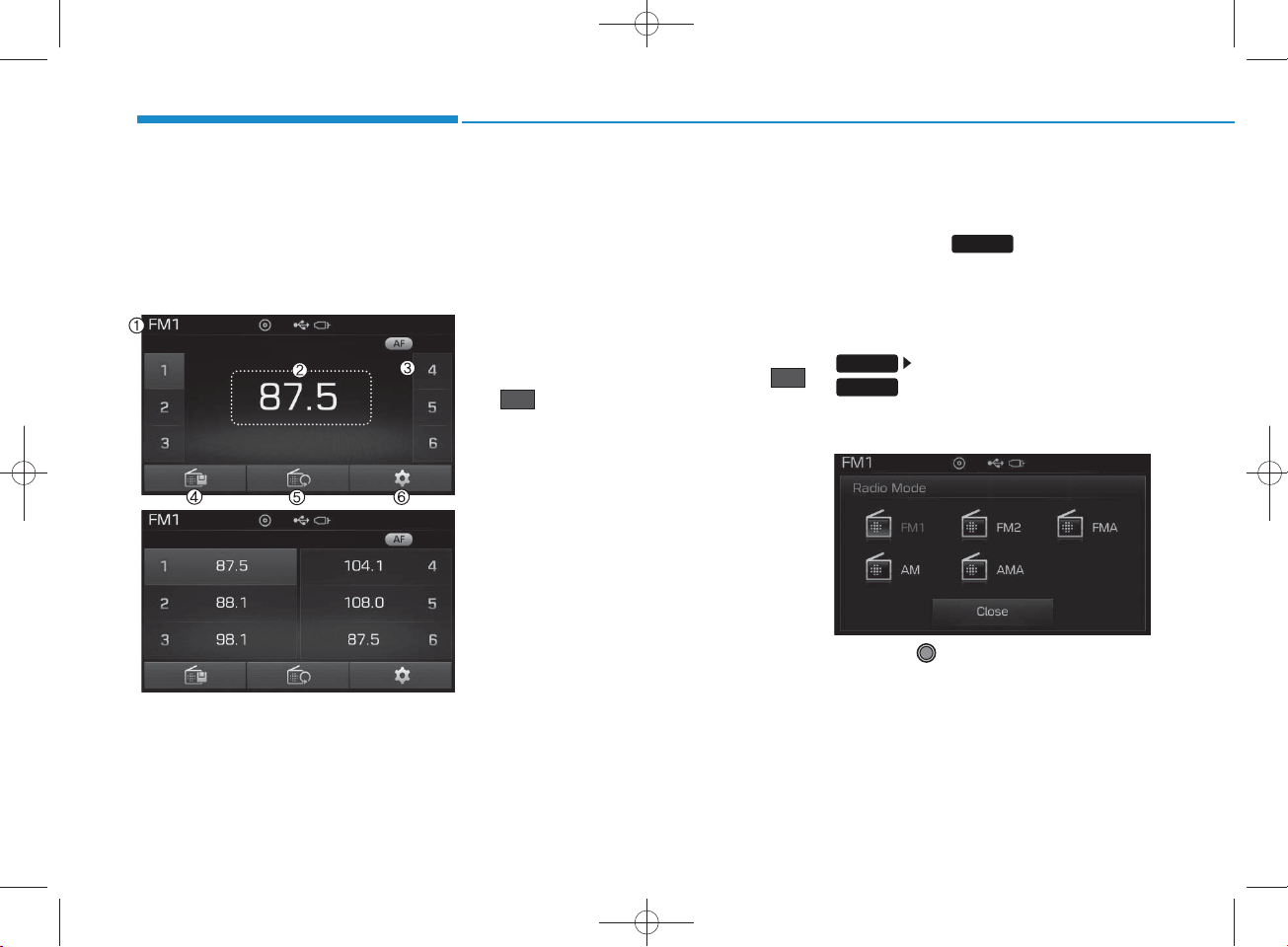
B asic M ode Screen
1. M ode Display
Displays currently operating m ode
2. Frequency
Displays the current frequency
3. Preset
Displays current preset num ber
6
~
1
4. Preset Display
Displays preset buttons
5. Autostore
Autom atically saves frequencies with
superior reception to Preset
buttons
6. RDS Info
Displays RDS broadcast inform ation
Switching to Radio M ode
Pressing the key will change
the operating m ode in order of
FM2 FMA AM AM A
If [Pop up M ode]is turned on w ithin
SETUP
RADIO
Pop-up M ode screen.
Turn the TU N E knob to m ove the
focus. Press the knob to select.
RADIO
FM 1
[Display], then pressing the
key w ill display the R adio
4-46
Page 47
H_LF_A,B_AUDIO:BH hma 4-109~(Audio).qxd 5/19/2014 9:42 AM Page 47
Searching Radio Frequencies
Using S eek
Press the key to play the
previous/next frequency.
SEEK
TRA CK
Using TUNE
Turn the TU N E knob to select the
desired frequency.
• FM : Increases/decreased by 100kH z
• AM : Increases/decreased by 9kH z
Using Radio M ode
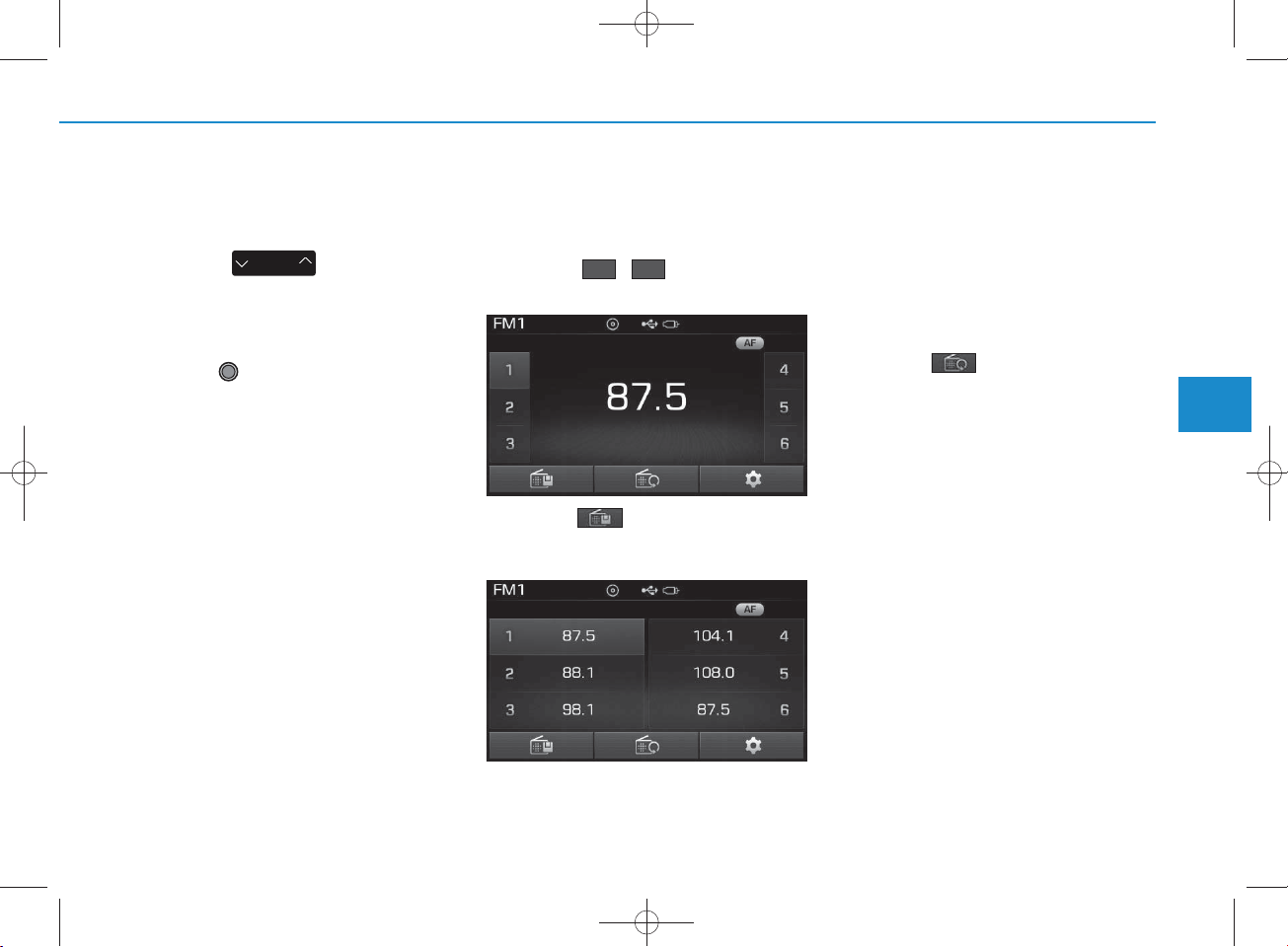
Selecting /Saving P resets
Press the ~ buttons to play
the desired preset.
Press the button to display the
broadcast inform ation for the frequency saved to each button.
61
NOTICE
While listening to a frequency you
want to save as a preset, p ress an d
hold one of the [1] ~ [6] preset buttons
(over 0.8 second s) to save the cu rrent
frequency to the selected preset.
Auto Store
Press the button to autom atically save receivable frequencies to
Preset buttons.
NOTICE
While Auto Store is op erating, p ressing the [C ancel] button again will can cel Auto Store and restore the previous frequency.
4
Multimedia System
4-47
Page 48
H_LF_A,B_AUDIO:BH hma 4-109~(Audio).qxd 5/19/2014 9:42 AM Page 48
Multimedia System
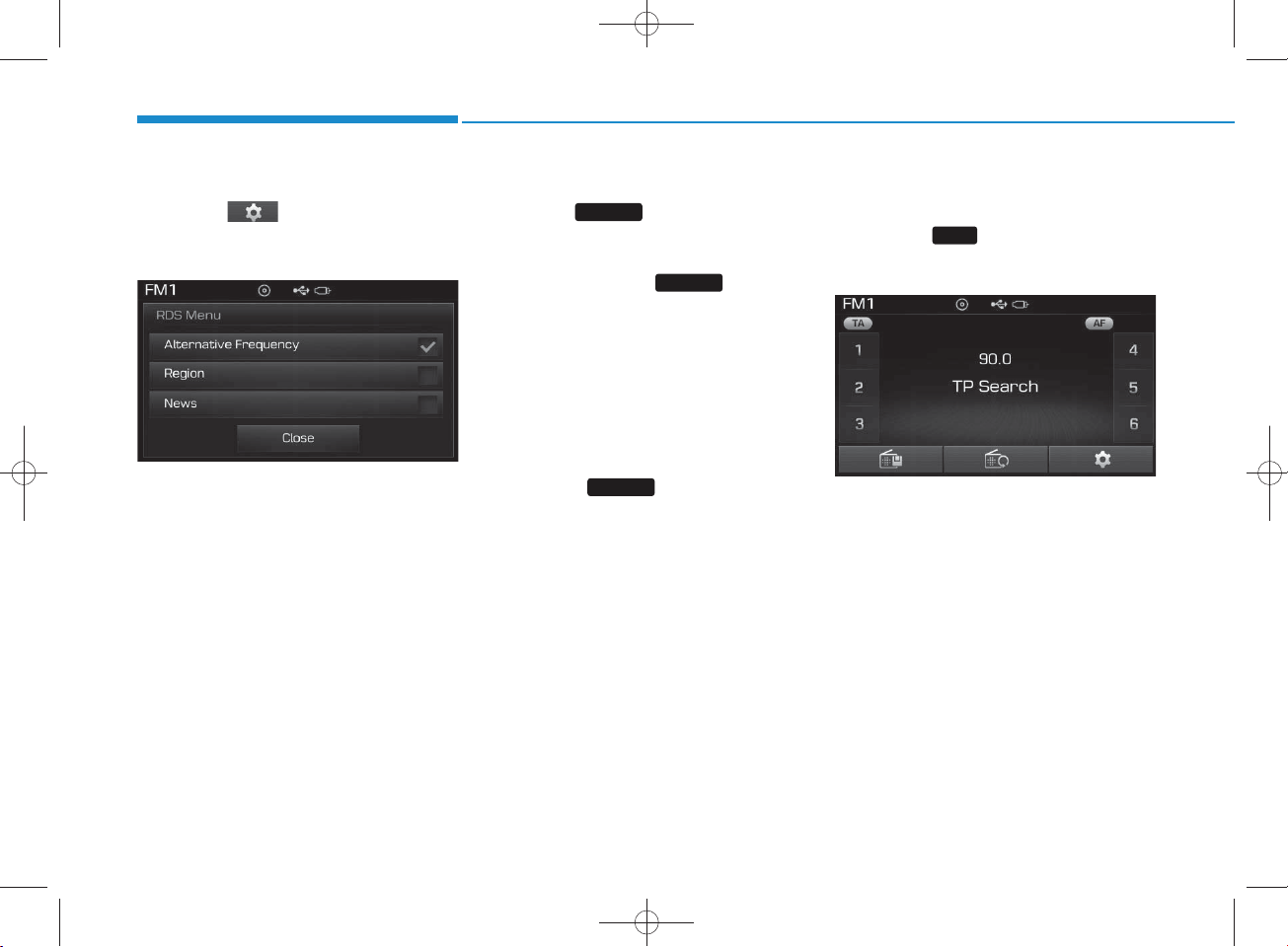
RDS Menu
Press the button to set the AF
(Alternative Frequency), R egion and
News features.
NOTICE
The RDS M enu is not supported within AM or AM A mode.
Scan
Press the key to preview frequencies with superior reception for
5 seconds each.
Press and hold the key (over
0.8 seconds) to preview presets for 5
seconds each.
SCAN
SCAN
NOTICE
O nce scan is co m p lete, the previous
frequency will be restored.
While Scan is op erating, p ressing and
holding the key (over 0.8 seconds) will cancel the sca n op eration.
SCAN
TA (Traffic A nnouncem ent)
Press the key to turn the TA
(T raffic Announcem ent) feature
On/Off.
TA
4-48
Page 49
RADIO M O DE
H_LF_A,B_AUDIO:BH hma 4-109~(Audio).qxd 5/19/2014 9:42 AM Page 49
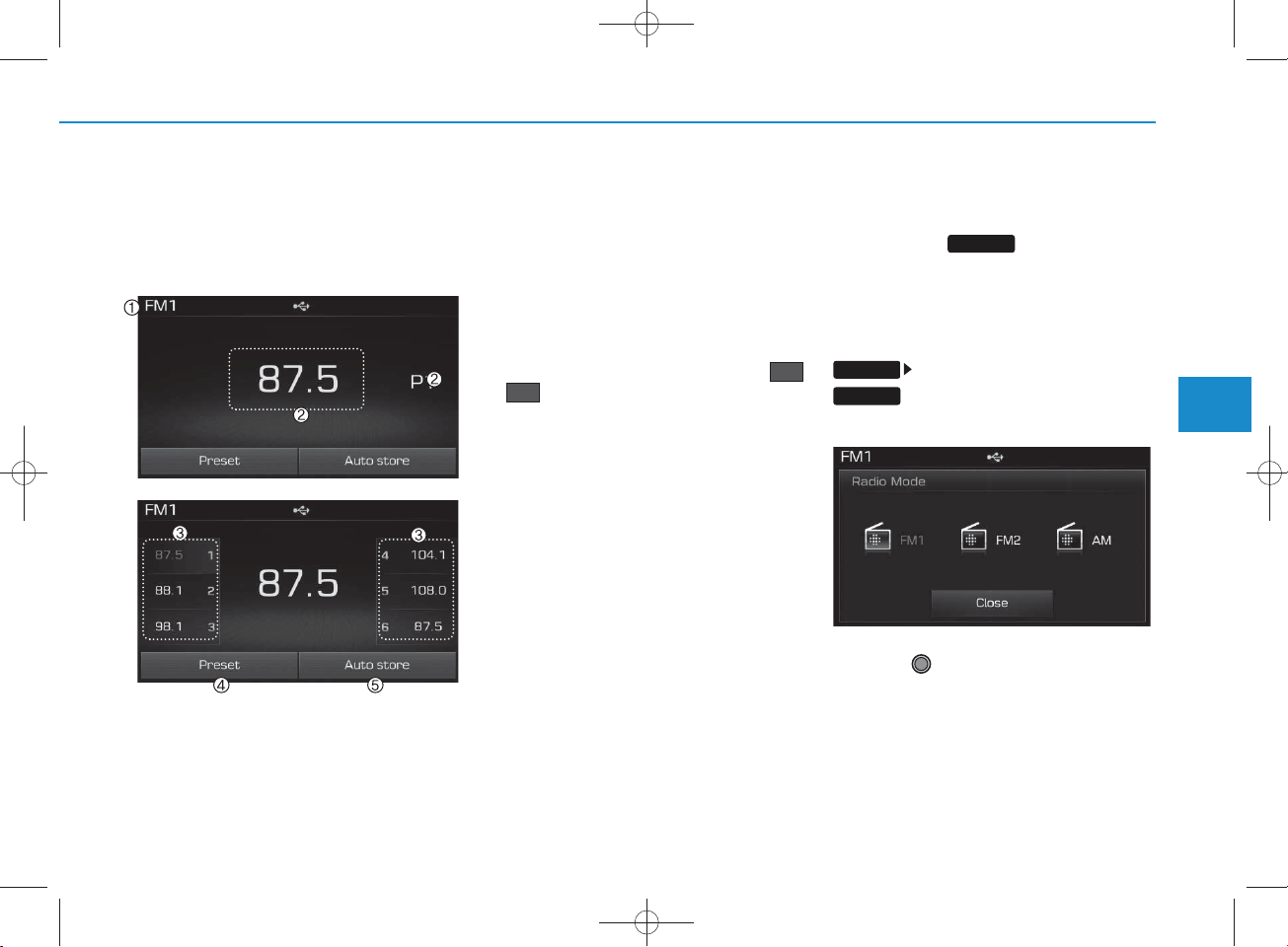
B asic M ode S creen
1. M ode Display
Displays currently operating m ode.
2. Frequency
Displays the current frequency.
3. Preset
Displays current preset num ber
P6
~ .
P1
4. Preset Display
Displays preset buttons.
5. Auto store
Autom atically saves frequencies with
superior reception to Preset
buttons.
Switching to Radio M ode
Pressing the key will change
the operating m ode in order of FM 1
FM 2 AM
If [M ode Pop up] is turned on within
SETUP
RADIO
Pop-up M ode screen.
Turn the TU N E knob to move the
focus. Press the knob to select.
RADIO
[Display], then pressing the
key will display the R adio
4
Multimedia System
4-49
Page 50
H_LF_A,B_AUDIO:BH hma 4-109~(Audio).qxd 5/19/2014 9:42 AM Page 50
Multimedia System
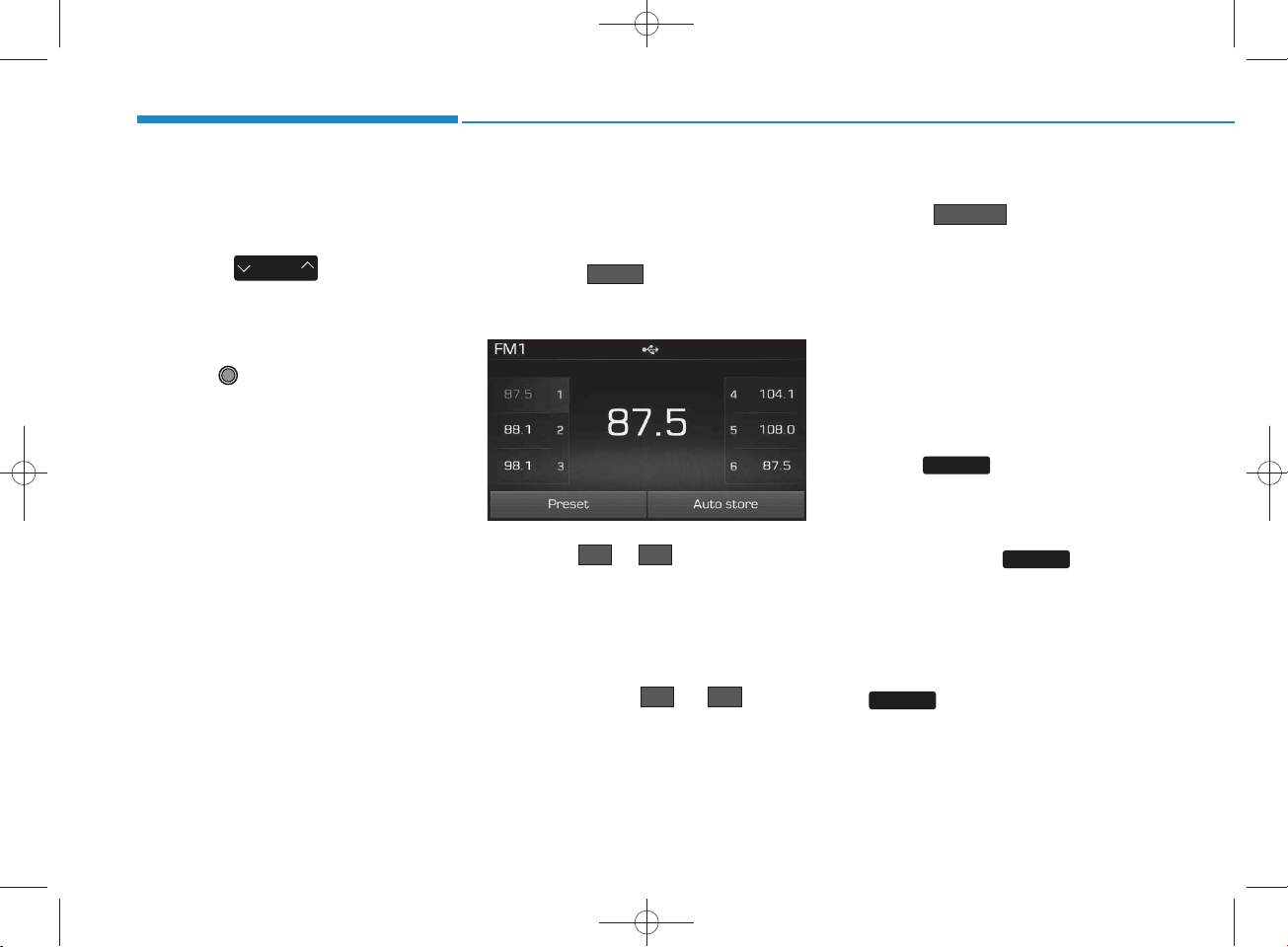
Searching Radio Frequencies
Using S eek
Press the key to play the
previous/next frequency.
SEEK
TRA CK
Using TUNE
Turn the TU N E knob to select the
desired frequency.
• FM : Increases/decreased by
200kHz
• AM : Increases/decreased by
10kHz
Using Radio M ode
Selecting P resets/Saving P resets
Press the button to display
the broadcast inform ation for the frequency saved to each button.
Press the ~ buttons to play
the desired preset.
Preset
P6P1
NOTICE
While listening to a frequency you
want to save as a preset, p ress a n d
hold one of the ~ preset
buttons (over 0.8 secon d s) to save
the cu rrent frequency to the selected
preset.
P6P1
Auto Store
Press the button to automatically save receivable frequencies to Preset buttons.
Auto store
NOTICE
While A u to Store is operating,
p ressing the [C an cel] button again
will cancel Auto Store and restore
the previous frequency.
Scan
Press the key to preview frequencies
with superior reception for 5 seconds
each.
Press and hold the key (over
0.8 seconds) to preview presets for 5
seconds each.
Once scan is com plete, the previous
frequency will be restored.
While S can is operating, pressing
the key will cancel the scan
operation.
SCAN
SCAN
SCAN
4-50
Page 51
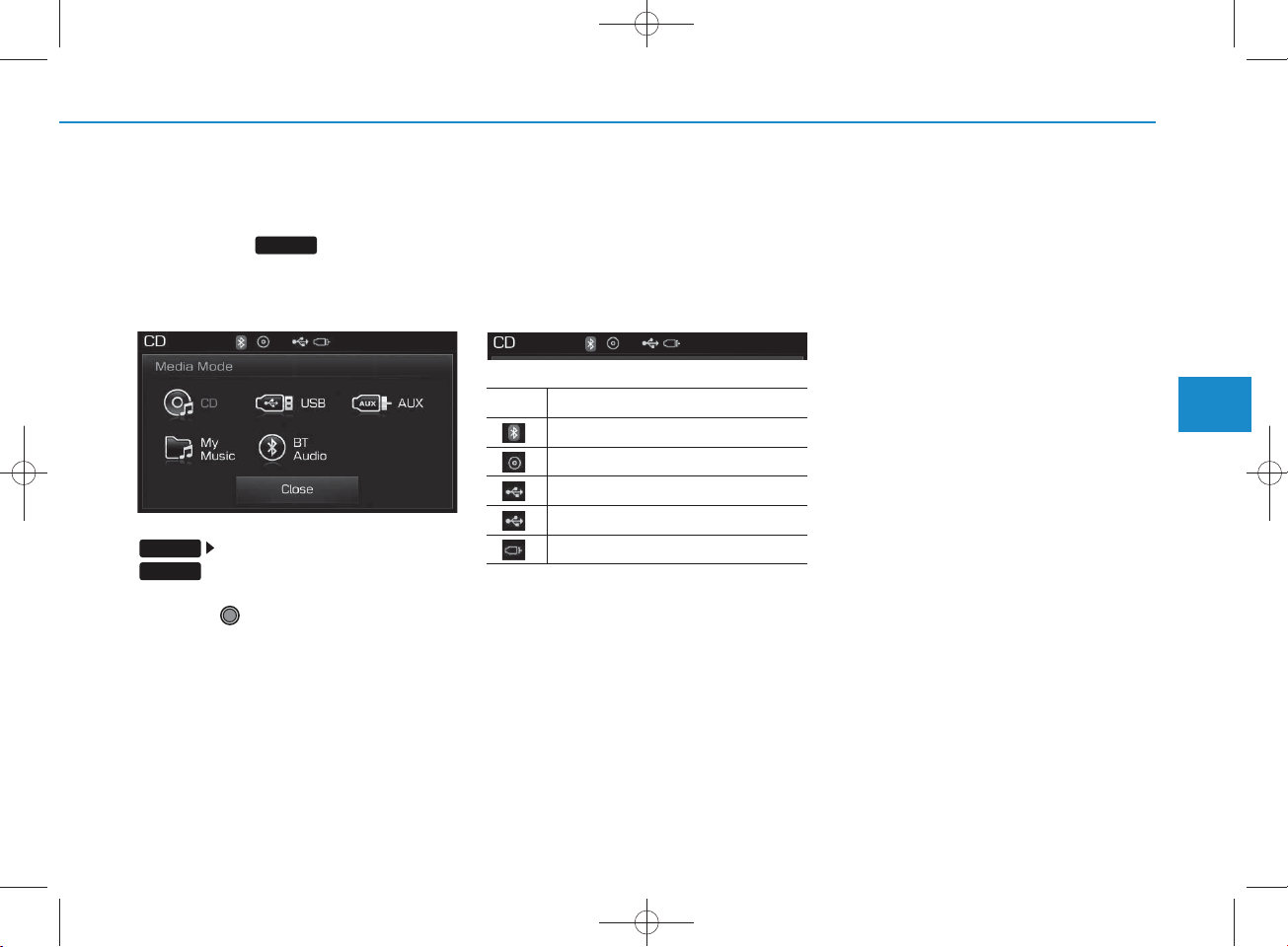
M EDIA M ODE
H_LF_A,B_AUDIO:BH hma 4-109~(Audio).qxd 5/19/2014 9:42 AM Page 51
Pressing the key will change
the operating m ode in order of CD
USB(iPod®) AUX My Music B T
Audio.
If [M ode Pop up] is turned on w ithin
SETUP
MEDIA
Pop-up M ode screen.
Turn the TU N E knob to m ove the
focus. Press the knob to select.
MEDIA
[Display], then pressing the
key w ill display the M edia
NOTICE
The media mode pop up screen can
be disp layed only when there are two
or more media modes turned on.
Title Icon
W hen a
Bluetooth
Technology, iPod®, USB, or AU X
device is connected or a CD is
inserted, the corresponding m ode
icon will be displayed.
Icon Title
Bluetooth
CD
®
iPod
USB
AUX
®
Wire less
®
Wireless Technology
4
Multimedia System
4-51
Page 52
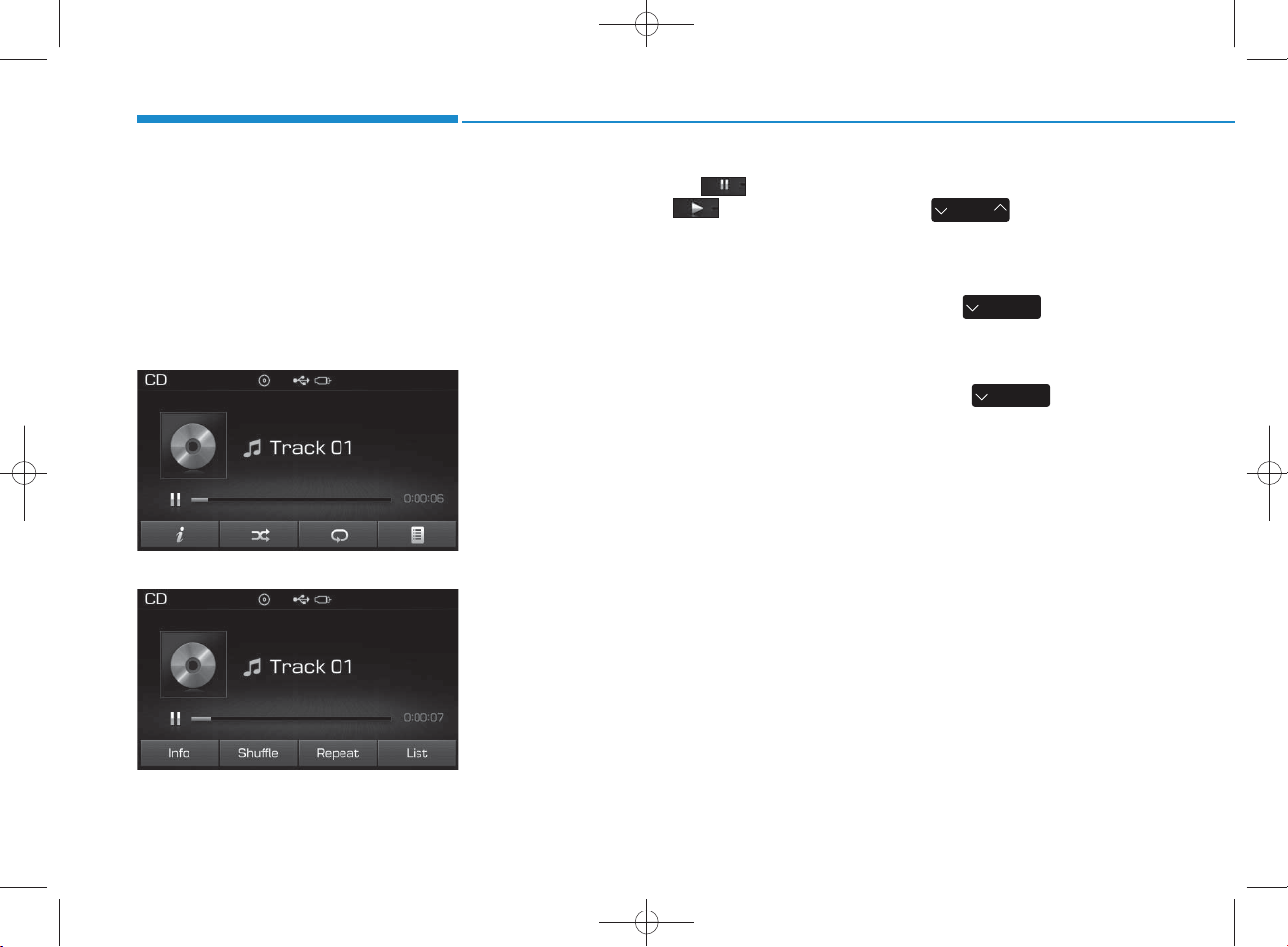
AUDIO CD M ODE
H_LF_A,B_AUDIO:BH hma 4-109~(Audio).qxd 5/19/2014 9:42 AM Page 52
Multimedia System
Using Audio CD M ode
Playing/Pausing CD Tracks
O nce an audio CD is inserted, the
m ode w ill autom atically start and
begin playing.
<For RDS m odel>
While playing, press the button
to pause and press button to
play.
NOTICE
•Only genuine audio C D s are supported . Other discs m a y resu lt in
recognition failure (e.g. copy CDR, CDs with labels)
•The artist and title inform ation
are disp layed on the screen if
tra ck inform ation is included
within the audio CD.
Changing Tracks
Press the key to m ove to
SEEK
TRA CK
the previous or next track.
NOTICE
• P ressing the key after the
SEEK
TRA CK
track has been playing for 2 seconds w ill start th e curren t track
from the beginning.
• P ressing the key before
SEEK
TRA CK
the track h as been p laying for 1
second s w ill start the previous
track .
4-52
Page 53
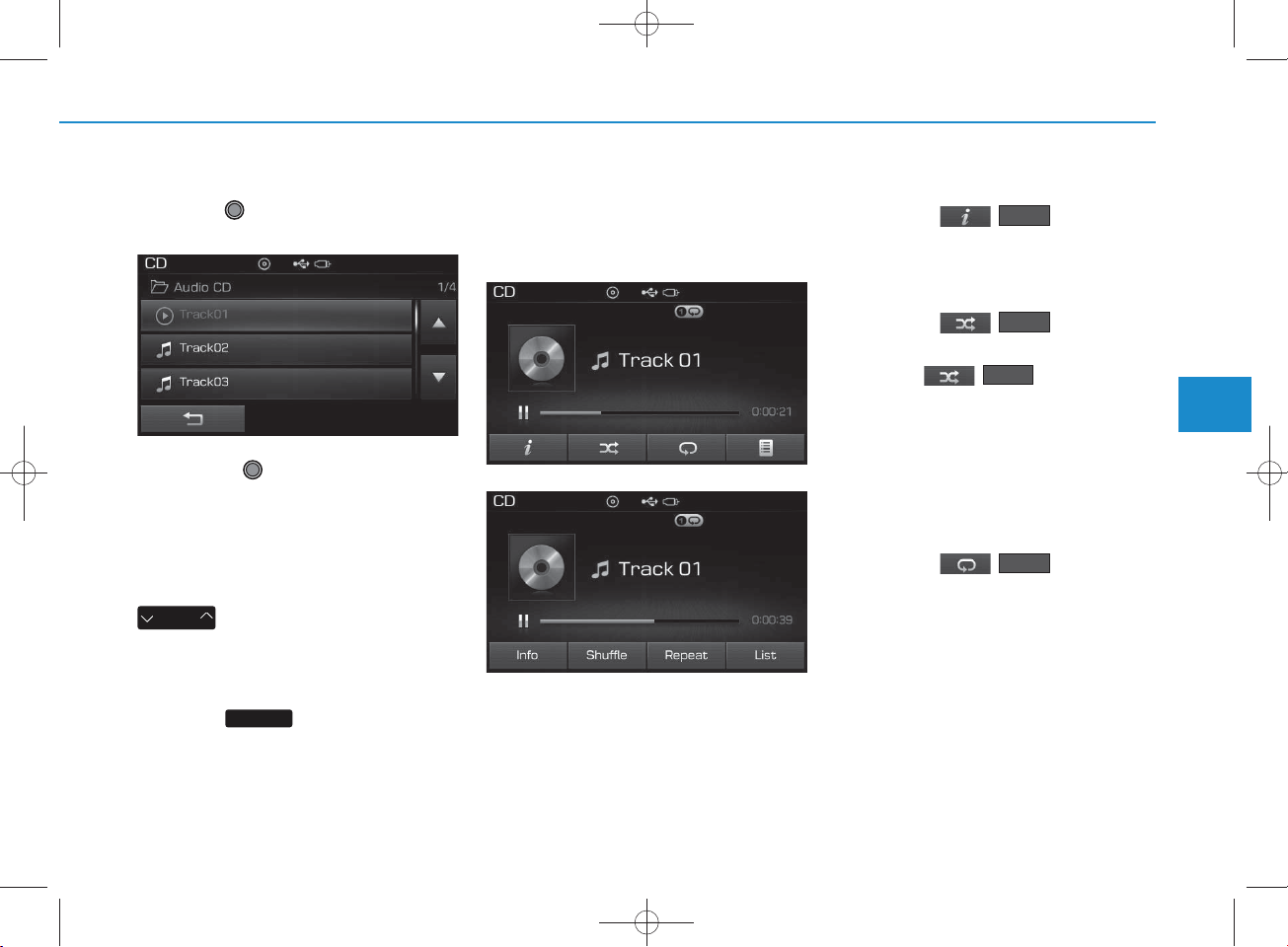
H_LF_A,B_AUDIO:BH hma 4-109~(Audio).qxd 5/19/2014 9:42 AM Page 53
Selecting fro m the List
Turn the TU N E knob left/right to
search for the desired track.
O nce you find the desired track,
press the TU N E knob to start
playing.
Rewinding / Fast-forw arding
Tracks
While playing, press and hold the
SEEK
TRA CK
key to rew ind or fast-for-
ward the current track.
Scan
Press the key to play the first
10 seconds of each file.
SCAN
Audio CD M ode Menu
Within this m ode, you w ill have
access to the Info, R andom (S huffle),
R epeat and List features.
<For RDS m odel>
Info
Press the ( ) button to
display details about the current disc.
Info
Random (Shuffle)
Press the ( ) button to
play tracks in random (S huffle) order.
Press the ( ) button again
to turn the R andom (S huffle) feature
off.
• R andom (Shuffle): Plays all tracks
in random (Shuffle) order.
Shuffle
Shuffle
R epeat
Press the ( ) button to
repeat the current track. Press the
button again to turn the repeat feature off.
• R epeat : R epeats the current track.
R epeat
4
Multimedia System
4-53
Page 54
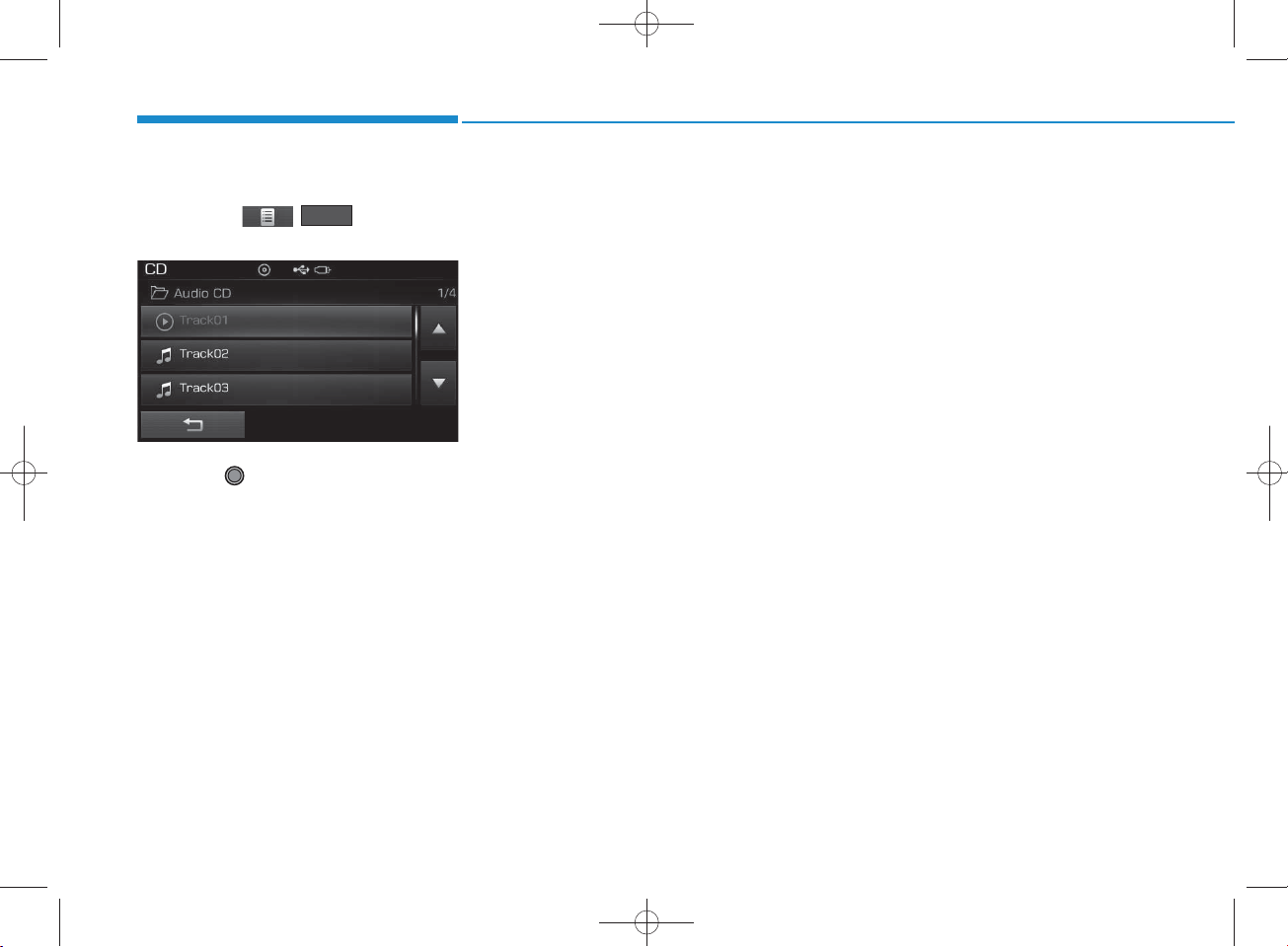
H_LF_A,B_AUDIO:BH hma 4-109~(Audio).qxd 5/19/2014 9:42 AM Page 54
Multimedia System
List
Press the ( ) button to
display the track list screen.
Turn the TU N E knob left/right to
search for tracks. Once the desired
track is displayed, press the knob to
select and play.
List
4-54
Page 55
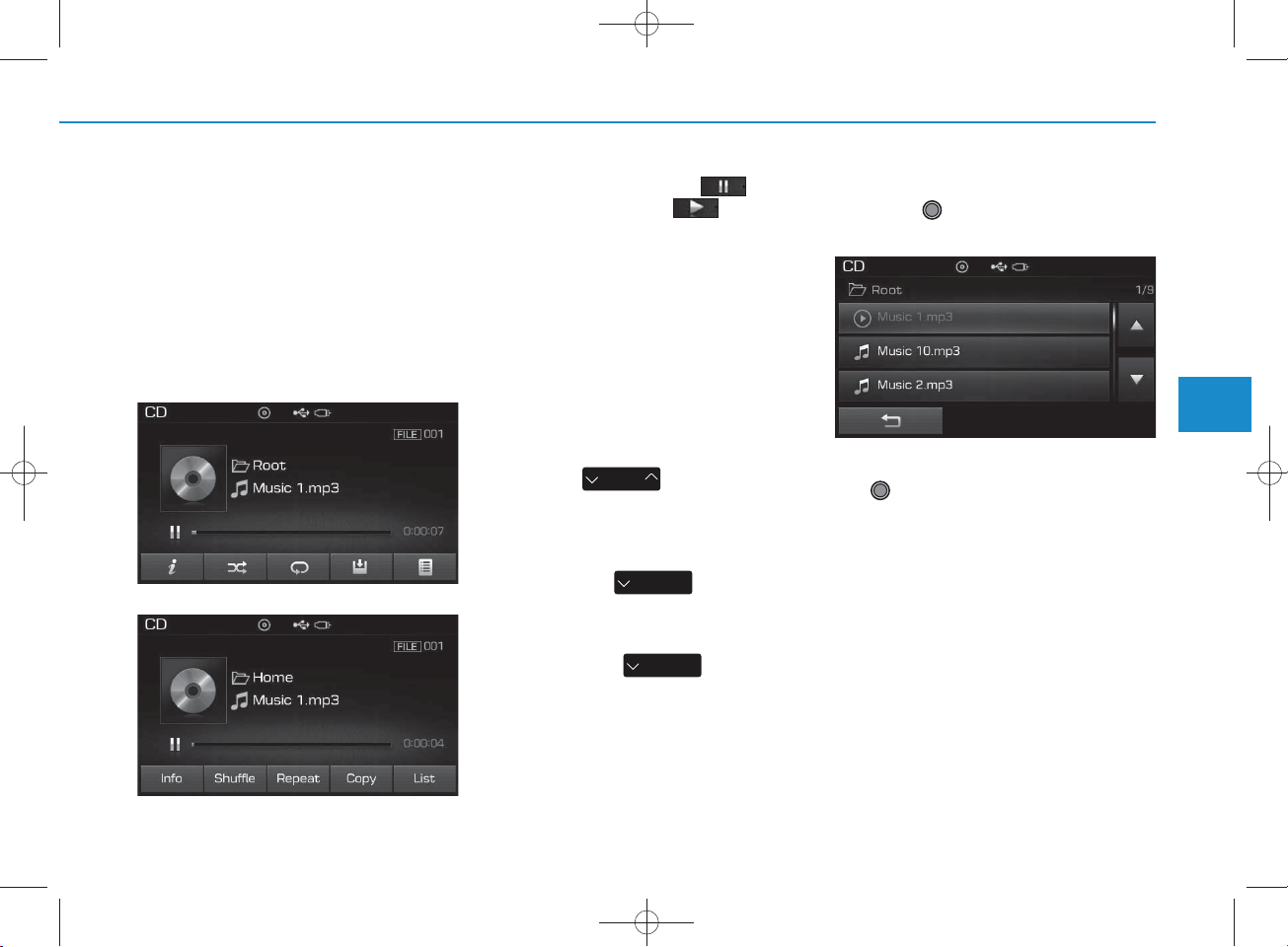
M P3 CD M ODE
H_LF_A,B_AUDIO:BH hma 4-109~(Audio).qxd 5/19/2014 9:42 AM Page 55
Using MP3 CD M ode
Playing/Pausing MP3 Files
O nce an M P3 disc is inserted the
m ode w ill autom atically start and
being playing.
<For RDS m odel>
While playing, press the button
to pause and press button to
play.
NOTICE
If there are num erous files and folders w ithin the disc, rea d ing time
cou ld take m ore than 10 seconds
and the list m ay not be disp layed or
song searches m ay not operate.
O nce loading is com plete, try again.
Changing Files
Press the key to m ove to
SEEK
TRA CK
the previous or next file.
NOTICE
• P ressing the key after the
file has been playing for 2 secon ds
will start the curren t file fro m the
beginning.
• P ressing the key before
the file has b een playing for 1 seconds will start the previous file.
SEEK
TRA CK
SEEK
TRA CK
Selecting fro m the List
Turn the TU N E knob left/right to
search for the desired file.
4
Multimedia System
Once you find the desired file, press
the TU N E knob to start playing.
4-55
Page 56
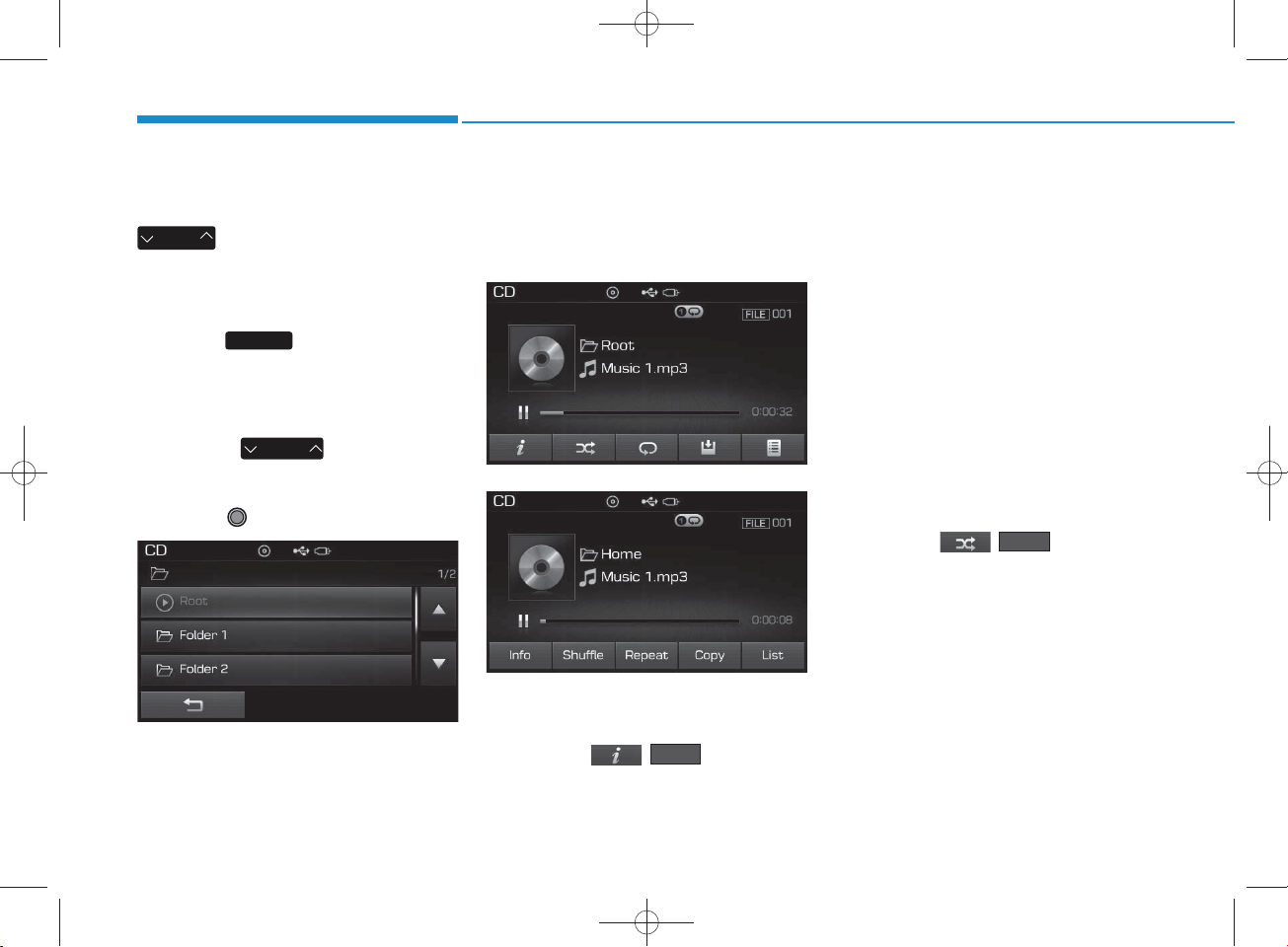
H_LF_A,B_AUDIO:BH hma 4-109~(Audio).qxd 5/19/2014 9:43 AM Page 56
Multimedia System
Rewinding / Fast-forw arding Files
While playing, press and hold the
SEEK
TRA CK
key (over 0.8 seconds) to
rew ind or fast-forward the current file.
Scan
Press the key to play the first
10 seconds of each file.
SCAN
Searching Folders
Press the key to select
and search folders.
Once the desired folder is displayed,
press the TU N E knob to select.
The first file within the selected folder will begin playing.
FO LDER
MP3 CD M ode Menu
Within this m ode, you w ill have
access to the Info, R andom (S huffle),
R epeat, Copy and List features.
<For RDS m odel>
Info
Press the ( ) button to
display details about the current file.
Info
NOTICE
• W hen the ‘Folder File’ option is
set as the default disp lay w ithin
Disp lay setup, the album /artist/file
inform ation are disp layed as
detailed file inform ation.
• W hen the ‘Album A rtist Song’
option is set as the default disp lay,
the folder nam e/file nam e are displayed as detailed file inform ation.
•The title, artist and album info are
disp layed only w hen such information are record ed w ithin the
MP3 file ID 3 tag.
Random (Shuffle)
Press the ( ) button to
play files in random (S huffle) order.
Each time the button is pressed, the
feature changes in order of R andom
(S huffle) Folder
All Off.
• R andom (Shuffle) Folder : Plays all
files w ithin the current folder in
R andom (Shuffle) order.
• R andom (Shuffle) All : Plays all files
in R andom (S huffle) order.
Shuffle
R andom (Shuffle)
4-56
Page 57
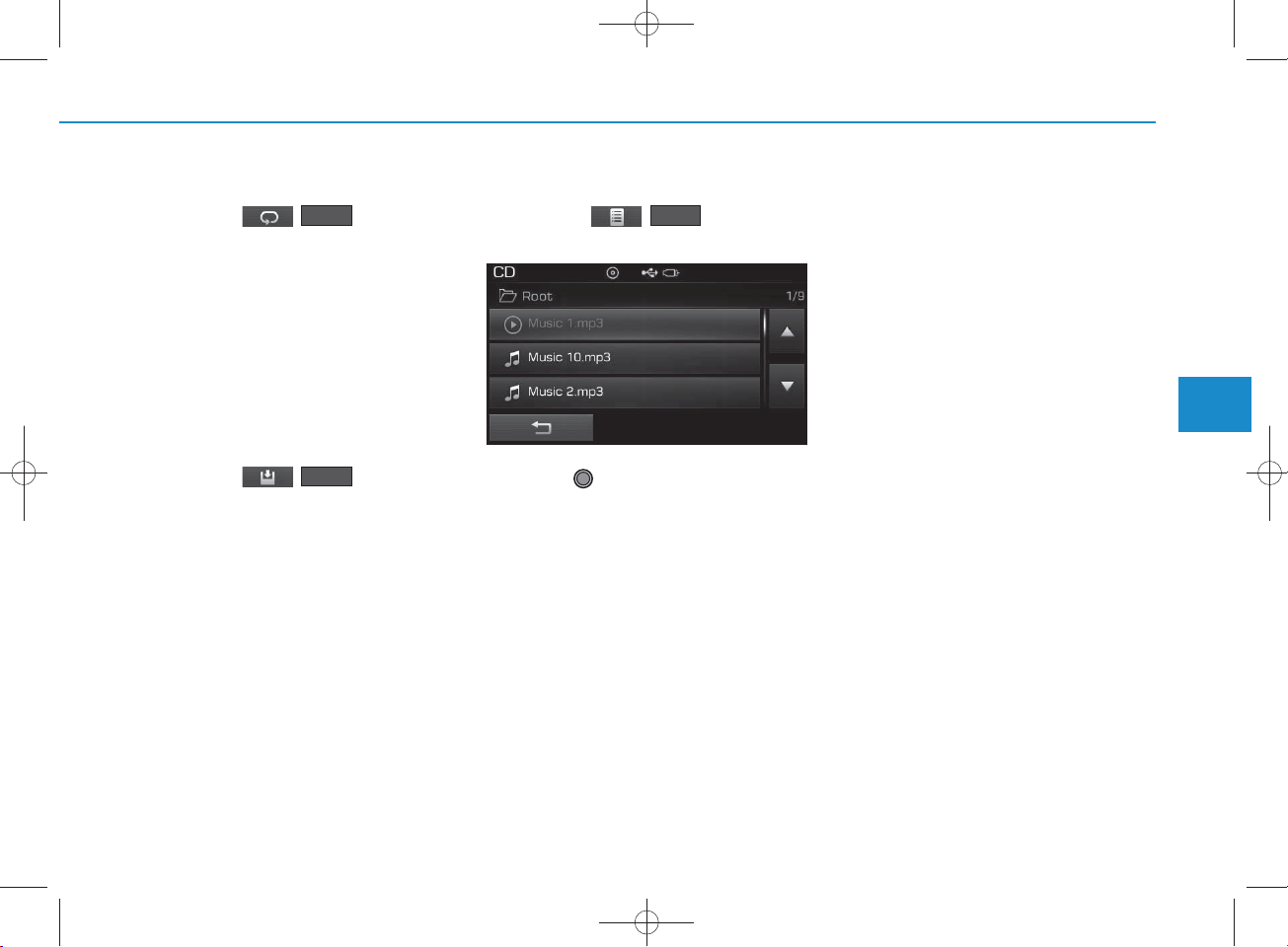
H_LF_A,B_AUDIO:BH hma 4-109~(Audio).qxd 5/19/2014 9:43 AM Page 57
R epeat
Press the ( ) button to
repeat the current file or folder.
Each time the button is pressed, the
feature changes in order of R epeat
R epeat Folder O ff.
• R epeat: R epeats the current file.
• R epeat Folder: R epeats all files
within the current Folder.
R epeat
Copying Files
Press the ( ) button to
copy the current file into My Music.
Copy
NOTICE
Selecting another feature during
cop ying will disp lay a pop-up asking
whether you wish to can cel cop ying.
To can cel, select 'Yes’.
List
Press the ( ) button to
display the file list screen.
Turn the TU N E knob left/right to
search for files. Once the desired file
is displayed, press the knob to select
and play.
List
4
Multimedia System
4-57
Page 58
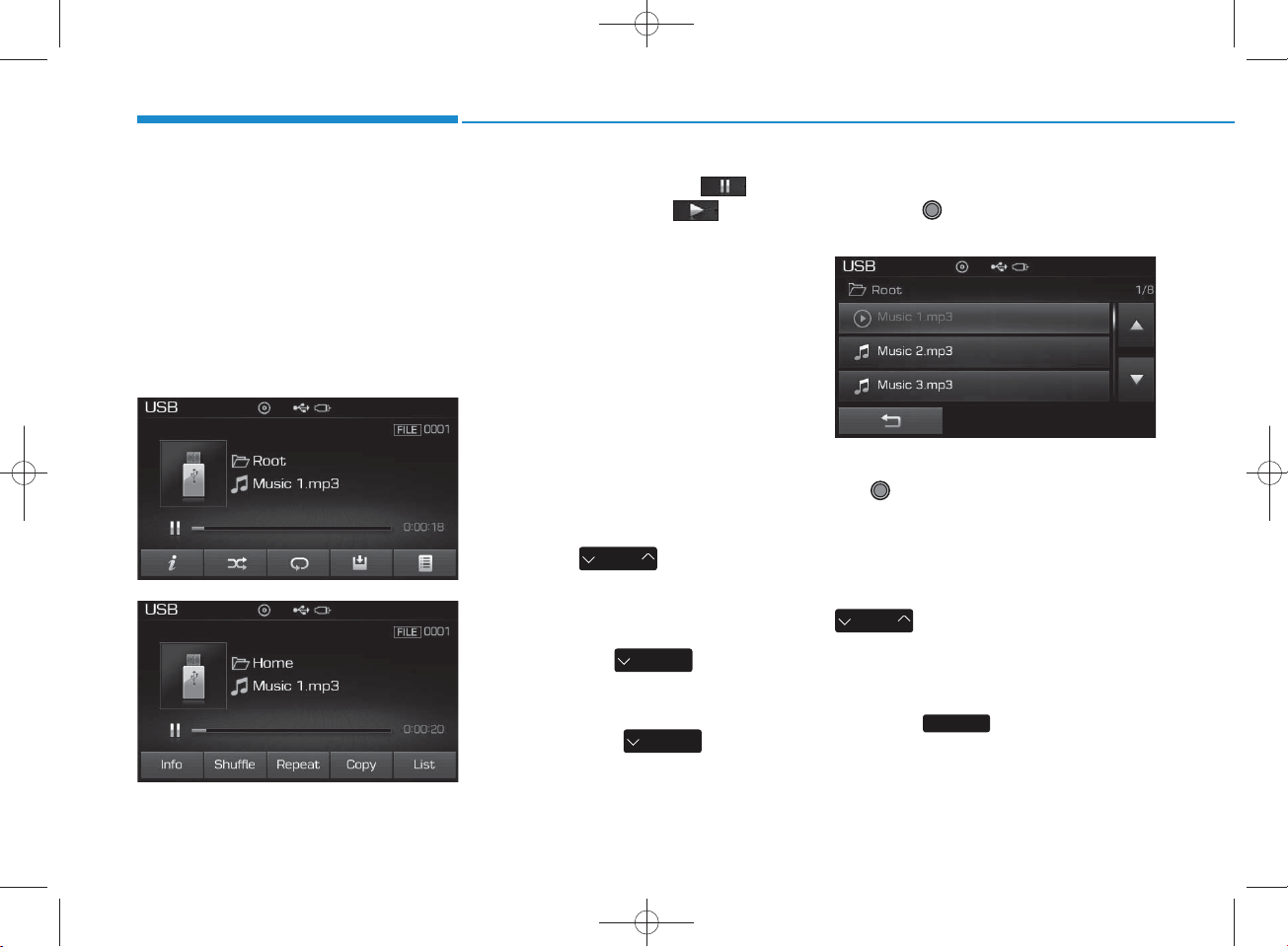
USB M O DE
H_LF_A,B_AUDIO:BH hma 4-109~(Audio).qxd 5/19/2014 9:43 AM Page 58
Multimedia System
Using USB M ode
Playing/Pausing USB Files
Once a USB is connected, the m ode
will autom atically start and begin
playing a USB file.
<For RDS m odel>
While playing, press the button
to pause and press button to
play.
NOTICE
• L oading m ay require additional
time if there are m any files an d
fold ers w ithin the U SB and result
in faulty list disp lay or file sea rch ing. Normal op erations will resum e
on ce loading is com plete.
• T he device m ay not support normal op eration w hen using a USB
memory type besides (M etal
C over Type) USB Memory.
Changing Files
Press the keys to m ove to
the previous or next file.
NOTICE
• P ressing the key after the
file has been playing for 2 secon ds
will start the curren t file fro m the
beginning.
• P ressing the key before
the file has b een playing for 1 seconds will start the previous file.
SEEK
TRA CK
SEEK
TRA CK
SEEK
TRA CK
Selecting fro m the List
Turn the TU N E knob left/right to
search for the desired file.
Once you find the desired file, press
the TU N E knob to start playing.
Rewinding / Fast-forw arding
Files
While playing, press and hold the
SEEK
TRA CK
key (over 0.8 seconds) to
rew ind or fast-forward the current file.
Scan
Press the key to play the first
10 seconds of each file.
SCAN
4-58
Page 59
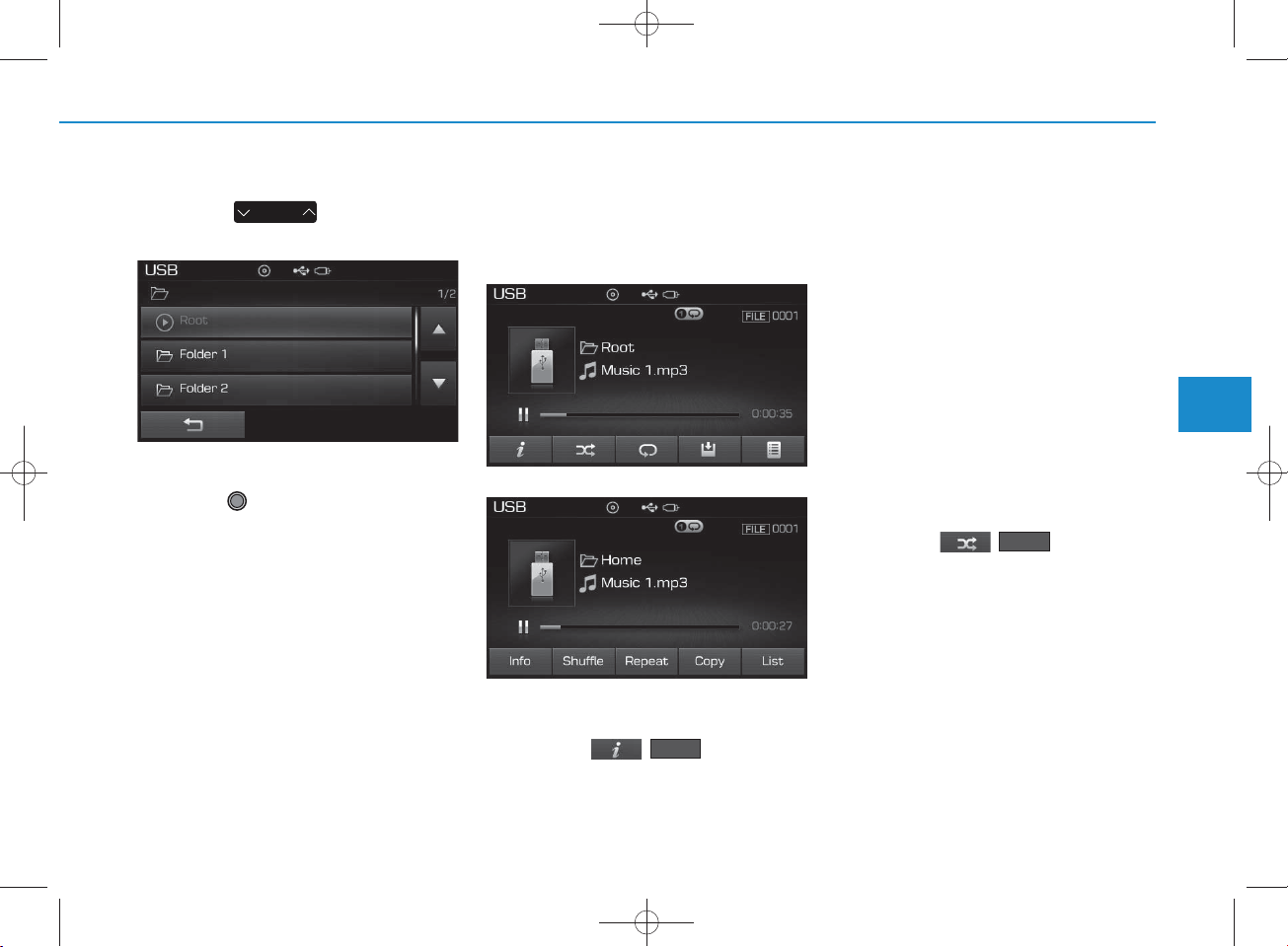
H_LF_A,B_AUDIO:BH hma 4-109~(Audio).qxd 5/19/2014 9:43 AM Page 59
Searching Folders
Press the key to select
FO LDER
and search folders.
Once the desired folder is displayed,
press the TU N E knob to select.
The first file within the selected folder will begin playing.
USB M ode Menu
Within this m ode, you w ill have
access to the Info, R andom (S huffle),
R epeat, Copy and List features.
<For RDS m odel>
Info
Press the ( ) button to
display details about the current file.
Info
NOTICE
• W hen the ‘Folder File’ option is set
as the default disp lay w ithin
Disp lay setup, the album /artist/file
inform ation are disp layed as
detailed file inform ation.
• W hen the ‘Album A rtist Song’
option is set as the default disp lay,
the folder nam e/file nam e are displayed as detailed file inform ation.
•The title, artist and album info are
disp layed only w hen such information are record ed w ithin the
MP3 file ID 3 tag.
Random (Shuffle)
Press the ( ) button to
play files in random (S huffle) order.
Each time the button is pressed, the
feature changes in order of
R andom (S huffle) Folder
(S huffle) AllOff.
• R andom (Shuffle) Folder : Plays the
files in the current folder in random (S huffle) order.
• R andom (Shuffle) All : Plays all files
in random (Shuffle) order.
Shuffle
R andom
4
Multimedia System
4-59
Page 60
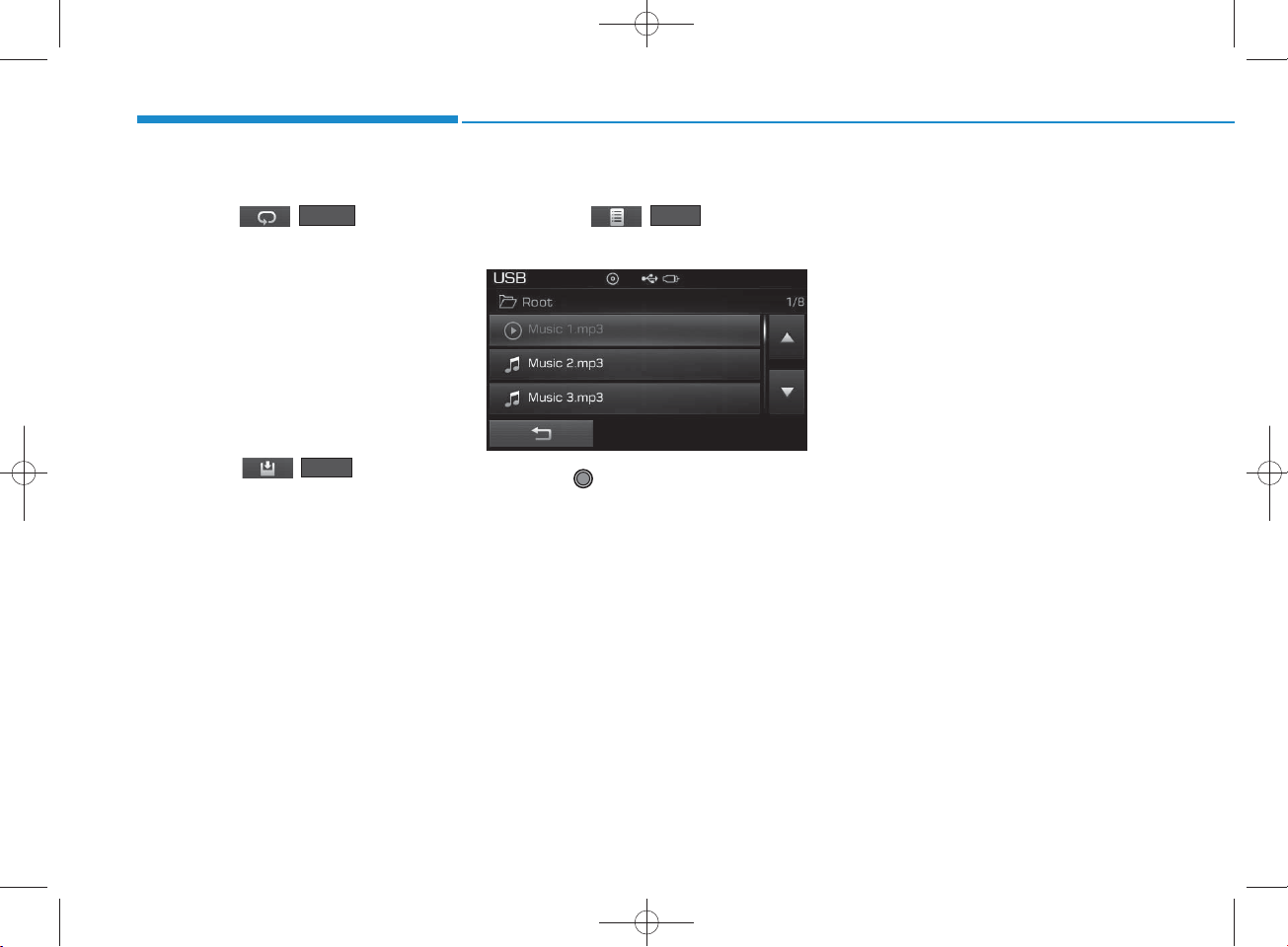
H_LF_A,B_AUDIO:BH hma 4-109~(Audio).qxd 5/19/2014 9:43 AM Page 60
Multimedia System
R epeat
Press the ( ) button to
repeat the current file or folder.
Each time the button is pressed, the
feature changes in order of R epeat
R epeat Folder Off.
• R epeat : R epeats the current file.
• R epeat Folder : R epeats all files
within the current folder.
R epeat
Copying Files
Press the ( ) button to
copy the current file into My Music.
Copy
NOTICE
Selecting another feature during
cop ying will disp lay a pop-up asking
whether you wish to can cel cop ying.
To can cel, select 'Yes’.
List
Press the ( ) button to
display the file list screen.
Turn the TU N E knob left/right to
search for files. Once the desired file
is displayed, press the knob to select
and play.
List
4-60
Page 61
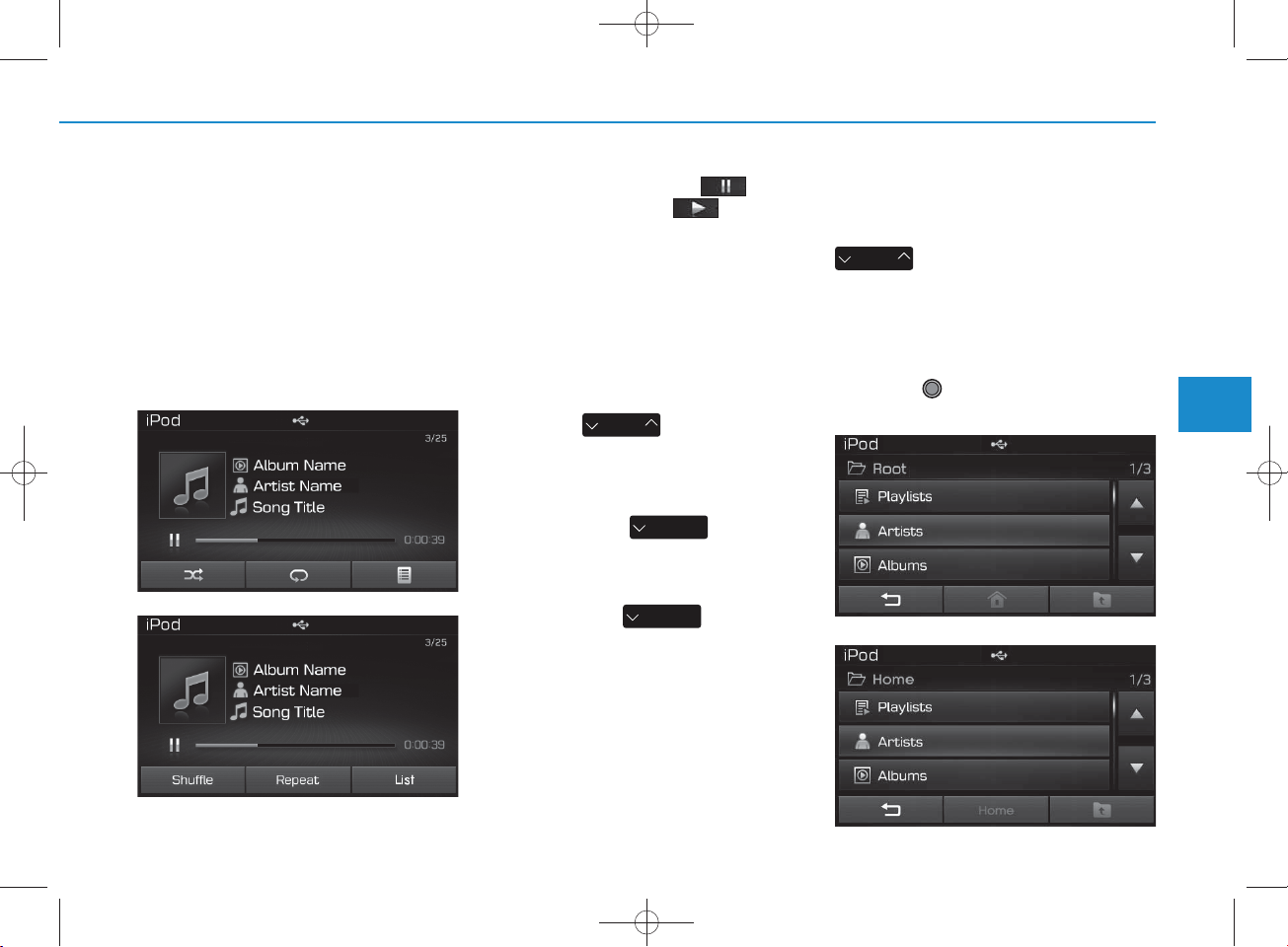
iPod®M ODE
H_LF_A,B_AUDIO:BH hma 4-109~(Audio).qxd 5/19/2014 9:43 AM Page 61
Using iPod®M ode
Playing/Pausing iPod®Songs
O nce an iPod®is connected, the
m ode w ill autom atically start and
begin playing an iPod®song.
<For RDS m odel>
While playing, press the button
to pause and press button to
play.
NOTICE
iPod®s with unsupported com m unication protocols m ay not p rop erly
op erate in the audio system .
Changing Songs
Press the key to m ove to
the previous or next song.
SEEK
TRA CK
NOTICE
• P ressing the key after
the so n g has been playing for 2 seconds w ill start th e cu rrent so n g
from the beginning.
• P ressing the key before
the so n g has been playing for 1 seconds will start the previous so n g.
•Slight time differen ces m ay exist
depending your iPod
SEEK
TRA CK
SEEK
TRA CK
®
product.
Rewinding / Fast-forw arding
Songs
While playing, press and hold the
SEEK
TRA CK
key (over 0.8 seconds) to
rew ind or fast-forward the current
song.
Searching Categories
Turn the TU N E knob left/right to
search for the desired category.
<For RDS m odel>
4
Multimedia System
4-61
Page 62
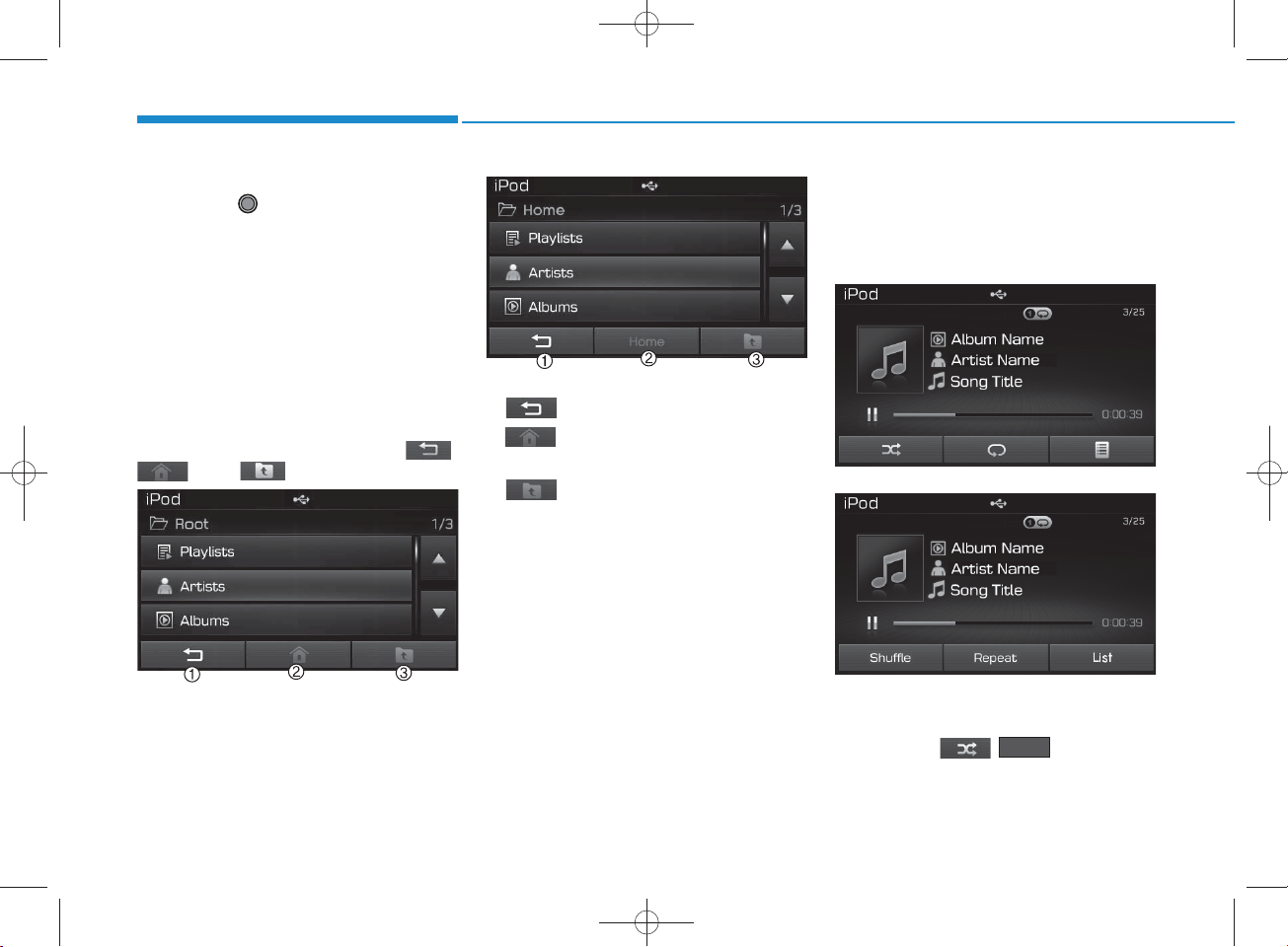
H_LF_A,B_AUDIO:BH hma 4-109~(Audio).qxd 5/19/2014 9:43 AM Page 62
Multimedia System
O nce you find the desired category,
press the TU N E knob to select
and play.
NOTICE
T here are eight categories that can be
searched , including Playlists, Artists,
Album s, Genres, Songs, C om posers,
A udiobooks and Podcasts.
Category Menu
Within the iPod®Category m enu,
you w ill have access to the ,
, and features.
<For RDS m odel>
4-62
1. : Displays the play screen
2.
(Hom e)
: Moves to the iPod
root category screen
3. : Moves to the previous category
NOTICE
•If the search m ode is a ccessed
while p laying a song, the m ost
recently searched category is d isplayed.
•Search steps upon initial con n ec-
tion m ay differ depending on the
type of iPod®device.
iPod®M ode Menu
Within this m ode, you w ill have
access to the R andom (Shuffle),
R epeat and List features.
®
<For RDS m odel>
Random (Shuffle)
Press the ( ) button to
play songs in random (S huffle) order.
• R andom (Shuffle) All : Plays all
songs in R andom (S huffle) order.
Shuffle
Page 63
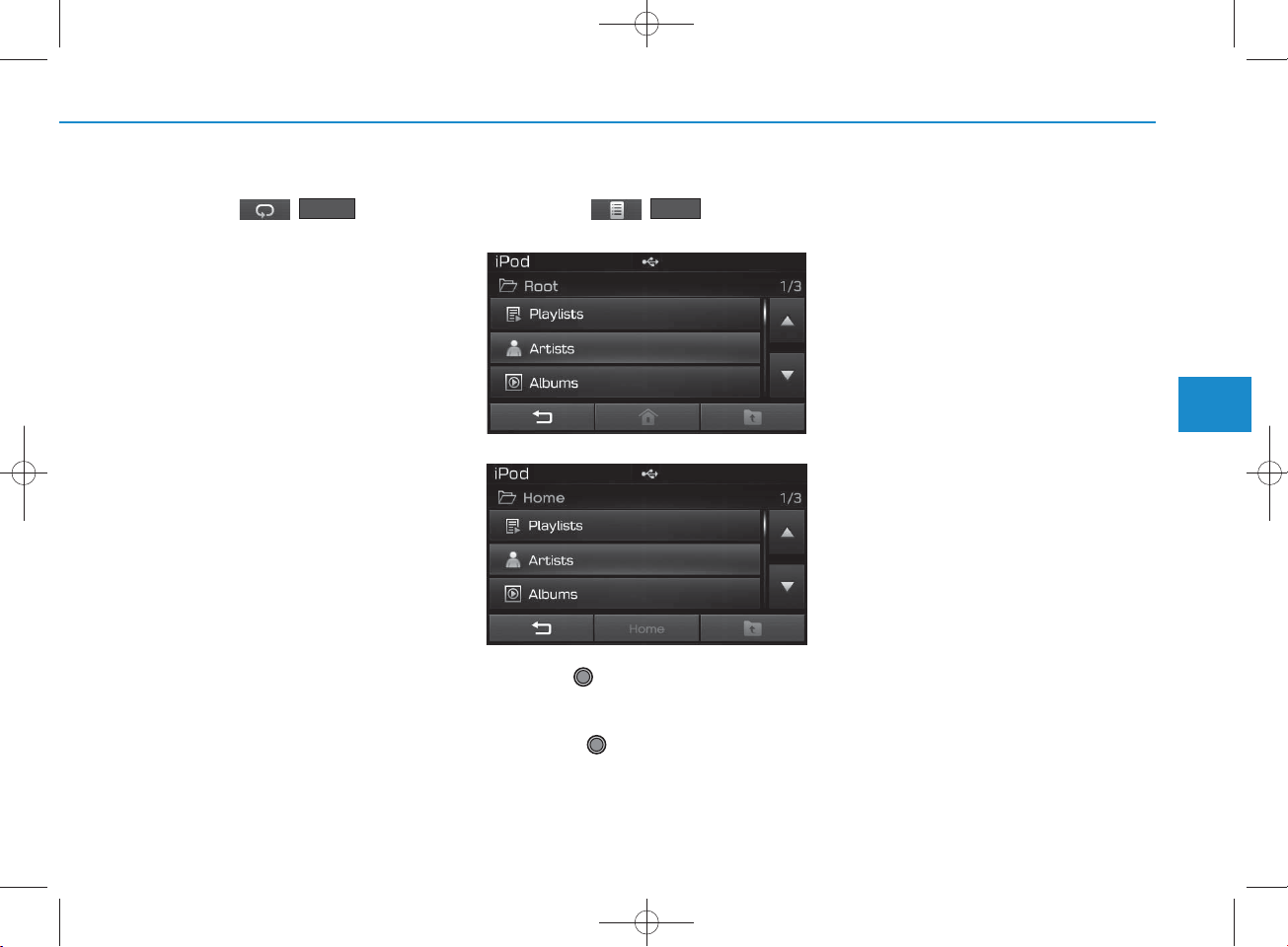
H_LF_A,B_AUDIO:BH hma 4-109~(Audio).qxd 5/19/2014 9:43 AM Page 63
R epeat
Press the ( ) button to
repeat the current song. Press the
button again to turn the repeat feature off.
• R epeat : R epeats the current song
R epeat
List
Press the ( ) button to
display the Category Menu.
Turn the TU N E knob left/right to
search for the desired category.
O nce you find the desired category,
press the TU N E knob to select
and play.
List
<For RDS m odel>
4
Multimedia System
4-63
Page 64
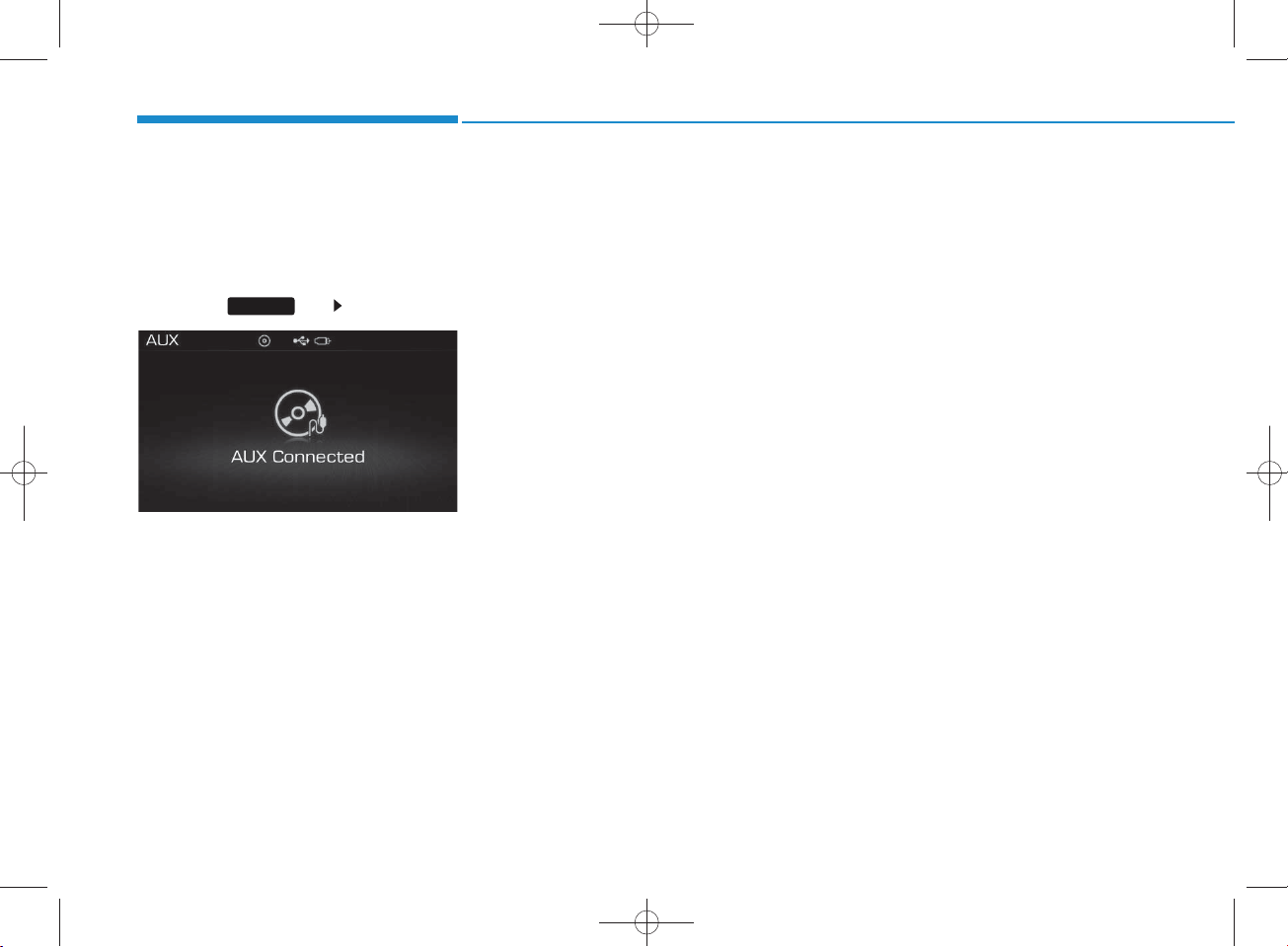
AUX M O DE
H_LF_A,B_AUDIO:BH hma 4-109~(Audio).qxd 5/19/2014 9:43 AM Page 64
Multimedia System
Using AUX M ode
Press the key Select [AU X]
An external device can be connected
to play music.
MEDIA
Connecting an External Device
External audio players (Camcorders,
car VCR, etc.) can be played through
a dedicated cable.
4-64
Page 65
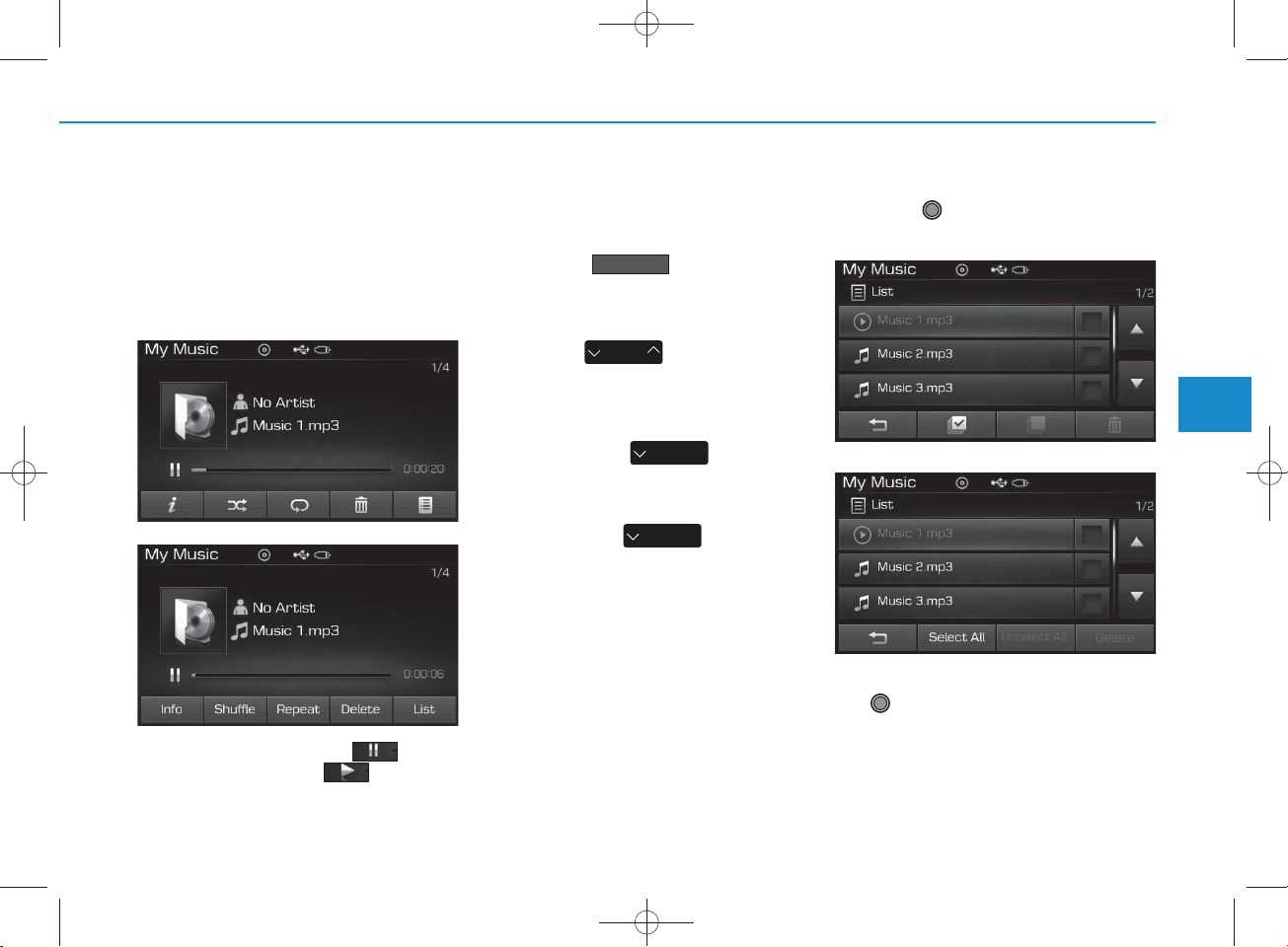
M Y M USIC M ODE
H_LF_A,B_AUDIO:BH hma 4-109~(Audio).qxd 5/19/2014 9:43 AM Page 65
Using My Music M ode
Playing/Pausing My Music Files
<For RDS m odel>
While playing, press the button
to pause and press button to
play.
NOTICE
If there are no files saved within My
Music, the button w ill be
disa b led.
Changing Files
Press the key to move to
the previous or next file.
NOTICE
• P ressing the key after
the file has b een playing for 2 seconds w ill start th e cu rrent file
from the beginning.
• P ressing the key before
the file has b een playing for 1 seconds will start the previous file.
My Music
SEEK
TRA CK
TRA CK
SEEK
TRA CK
SEEK
Selecting fro m the List
Turn the TU N E knob left/right to
search for the desired file.
<For RDS m odel>
Once you find the desired file, press
the TU N E knob to start playing.
4
Multimedia System
4-65
Page 66
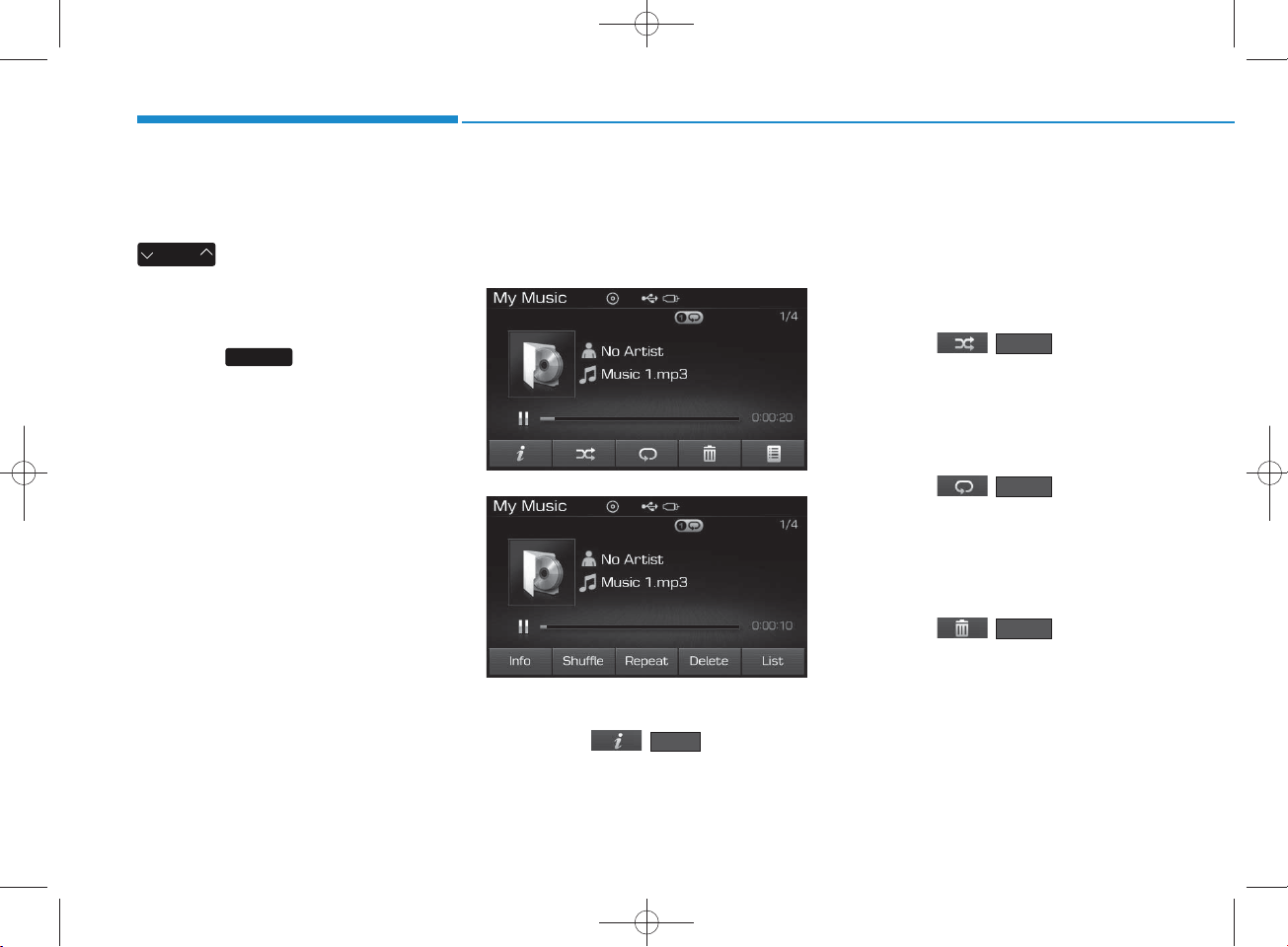
H_LF_A,B_AUDIO:BH hma 4-109~(Audio).qxd 5/19/2014 9:43 AM Page 66
Multimedia System
Rewinding / Fast-forw arding
Files
While playing, press and hold the
SEEK
TRA CK
key to rew ind or fast-for-
ward the current file.
Scan
Press the key to play the first
10 seconds of each file.
SCAN
My Music M ode Menu
Within this m ode, you w ill have
access to the Info, R andom (S huffle),
R epeat, Delete and List features.
<For RDS m odel>
Info
Press the ( ) button to
display details about the current file.
Info
NOTICE
The title, artist and album info are
disp layed only w hen such inform ation is record ed within the MP3 file
ID 3 tag.
Random
Press the ( ) button to
play files in random order. Press the
button again to turn the R andom feature off.
R epeat
Press the ( ) button to
repeat the current song. Press the
button again to turn the repeat feature off.
Deleting Files
Press the ( ) button to
delete the current file.
Shuffle
R epeat
Delete
4-66
Page 67
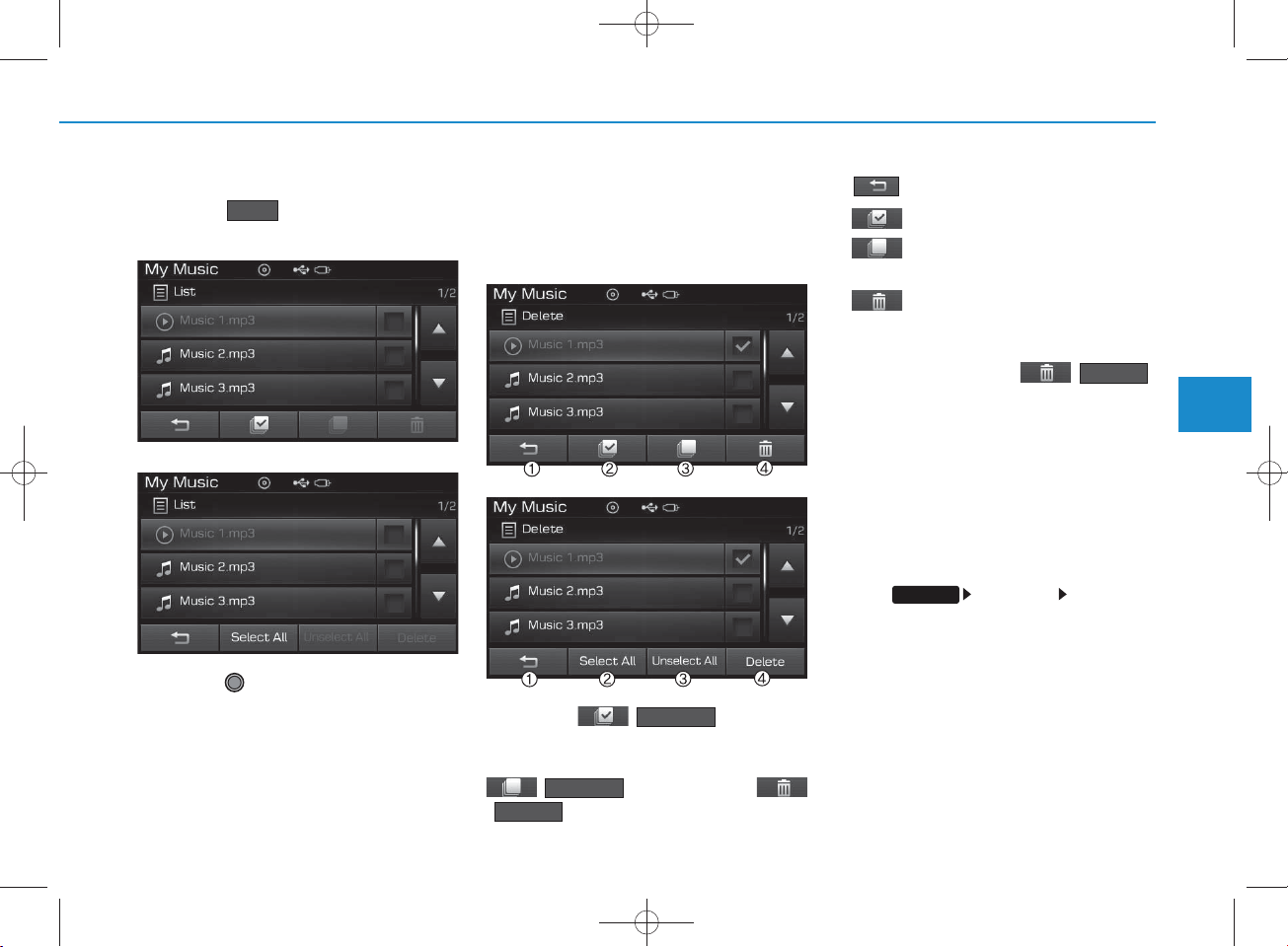
H_LF_A,B_AUDIO:BH hma 4-109~(Audio).qxd 5/19/2014 9:43 AM Page 67
List
Press the button to display the
file list screen.
Turn the TU N E knob left/right to
search for files. Once the desired file
is displayed, press the knob to select
and play.
List
<For RDS m odel>
List Menu
From the List screen, it is possible to
delete files you previously saved into
My Music.
<For RDS m odel>
Press the ( ) button or
individually select the files you w ant to
delete. Once files are selected, the
() button and
Unselect All
() buttons will be
Delete
Select All
enabled.
1) : Moves to the previous screen
2)
3)
4)
Selects all) : Selects all files
(
(Unselect All)
selected files
(Delete)
: Deselects all
: Deletes se lected files
After selecting the files you w ant to
delete, press the
()
Delete
button to delete the
selected files.
NOTICE
•If there is memory available, up to
6,000 files can be saved.
• Identical files cann ot be copied
more than 1,000 times.
•To ch eck memory inform ation, go
SETUP
to [S y ste m ] [M em o r y
In form ation]
4-67
4
Multimedia System
Page 68
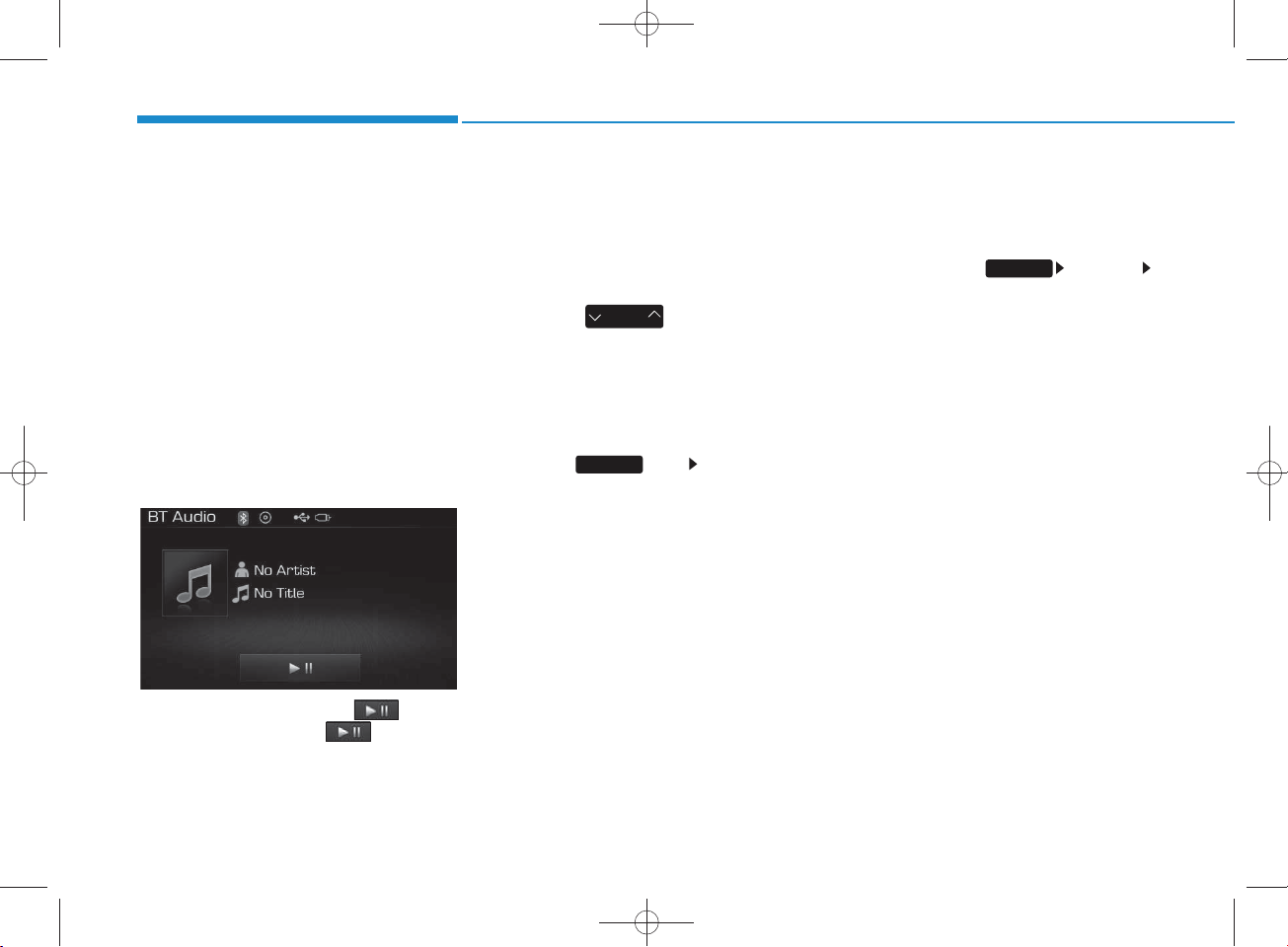
Bluetooth
®
W ireless
Technology AUDIO M O DE
H_LF_A,B_AUDIO:BH hma 4-109~(Audio).qxd 5/19/2014 9:43 AM Page 68
Multimedia System
(for
Bluetooth
Technology equipped m odel)
Using
Bluetooth
Technology Audio M ode
Playing/Pausing Bluetooth
Wire less Technology
Once a
Technology device is connected, the
m ode will autom atically start.
While playing, press the button
to pause and press button to
play.
®
Wire less
®
Bluetooth
Wire less
Audio
®
Wire less
®
NOTICE
The play/pause feature m ay op erate
differen tly depending on the mobile
phone.
Changing Files
Press the key to move to
the previous or next file.
SEEK
TRA CK
Setting C onnection
If a
Bluetooth
device has not been connected,
press the key [P hone] but-
ton to display the
Wireless Technology connection
screen.
It is possible to use the pair phone,
connect/disconnect and delete features from your
Technology phone.
®
Wireless Technology
SETUP
Bluetooth
Bluetooth
®
Wireless
®
NOTICE
• If th e B luetooth
®
Wireless
Technology audio is n ot operating
properly, ch eck whether the feature
is turned off at [Phone]
SETUP
[A udio stream ing] (Stream ing
A udio). If the feature is off, turn
back on and try again.
• If music is not yet playing from your
mobile d evice after con verting to
Bluetooth®Wireless T ech n ology
A udio mode, p ressing the play button once m ay start playing the
mode. C heck to see that music is
playin g fr o m th e B luetooth
Wireless T ech n ology device after
con verting to B luetooth®Wireless
Technology A udio Mode.
®
4-68
Page 69
H_LF_A,B_AUDIO:BH hma 4-109~(Audio).qxd 5/19/2014 9:43 AM Page 69
Bluetooth
(for RDS,
®
Wire less Technology
Bluetooth
®
Wire less
Technology equipped m odel)
Using
Bluetooth
®
Wire less
Technology H andsfre e
•
Bluetooth
refers to a short-distance w ireless
networking technology which uses a
2.45G H z frequency to connect va rious devices w ithin a certain distance.
• S upported w ithin P C s, external
devices,
Technology phones, PDAs, various electronic devices, and automotive environm ents,
Wireless Technology allow s data to
be transm itted at high speeds without having to use a connector
cable.
®
Wireless Technology
Bluetooth
®
Bluetooth
Wireless
®
Bluetooth
•
®
Wireless Technology
H andsfree refers to a device which
allow s the user to conveniently
m ake phone calls w ith
Bluetooth
Wire less Technology m obile
phones through the audio system .
CAUTION
•Bluetooth®Wire less Technology
®
Handsfree is a feature that
enables drivers to practice safe
driving. C onnecting the car audio
system w ith a B luetooth
Wire less Technology phone
allow s the user to conveniently
m ake calls, receive calls, and
manage the phone book. Before
using the Bluetooth
Technology , carefully read the
contents of this user’s manual.
• Excessive use or operations
while driving m ay lead to negligent driving practices and be the
cause of accidents.
• Do not operate the device excessively while driving.
•View ing the screen for prolonged
periods of time is dangerous and
may lead to accidents. When drivi
ng, view the screen only for short
periods of time.
®
Wire less
®
4
Multimedia System
4-69
Page 70
H_LF_A,B_AUDIO:BH hma 4-109~(Audio).qxd 5/19/2014 9:43 AM Page 70
Multimedia System
NOTICE - USING UPON
CONNECTING
Bluetooth
®
Wire less Technology PHO NE
•Before con necting the car audio sy stem
with the mobile phone, check to see that
the m obile phone supports B luetooth
Wireless Technology fea tures.
•Even if the phone supports Bluetooth
Wireless T ech n o logy, the phone will
not be found during device search es if
the phone has been set to hidden state
or the Bluetooth
power is turned off. Disa b le the hidden
state or turn on the Bluetooth
Wireless T ech n o logy pow er prior to
sea rch ing/con n ecting w ith the car
audio sy stem .
•If you do not want to autom atically
con n ect your B luetooth
Technology phone, try the follow ing.
1. Turn off the Bluetooth
Technology feature in your m obile
phone.
- For more inform ation on Bluetooth
Wireless Technology features within
your m obile, refer to your m obile
phone user’s m anual.
2. Turn off the Bluetooth
Technology feature in your car
audio sy stem .
®
Wireless Technology
®
Wireless
®
Wireless
®
Wireless
(Continued)
(Continued)
- To turn off the Bluetooth
®
Technology feature in your car audio
system , go to [Phone] and
[turn off]the Bluetooth
®
®
Technology feature.
•Park the vehicle when con n ecting the
car audio sy stem w ith your m obile
phone.
•Bluetooth
SETUP
®
Wireless Technology con -
®
nection m ay becom e interm itten tly
discon n ected in some mobile phones.
Follow these steps to try again.
1. T u rn the B luetooth
®
Technology function w ith in the
®
mobile phone off/on and try again.
2. Tu rn the m ob ile phone pow er
Off/On and try again.
3 C om pletely rem ove the m obile
phone battery, reboot, and then
again.
4. R eboot the audio sy stem and try
again.
5. Delete all paired devices, pair a n d
®
try again.
•The H andsfree call volum e and quality m ay differ depending on the mobile
phone.
(Continued)
Wireless
Wireless
Wireless
(Continued)
•Bluetooth
®
Wireless T ech n o logy features supported w ithin the vehicle are
as follow s. Som e features m ay not be
supported depending on your
Bluetooth
®
Wireless Technologydevice.
- A nsw ering and placing Bluetooth
Wireless Technology H andsfree calls
- M enu op eration during call (Sw itch
to Private, Sw itch to call waiting,
Outgoing volum e)
- Download Call History
- Download Mobile Phone book
- Phone book/Call History Auto Download
-Bluetooth
®
Wireless T ech n o logy
device au to con n ection - Bluetooth
Wireless Technology A udio
•It is p ossible to pair up to five
Bluetooth
devices to the car sy stem .
•Only one B luetooth
®
Wireless T ech n o logy
®
Wireless
Technology device can be con n ected at
a time.
•Other devices cannot be paired while a
Bluetooth
is already con n ected .
• W hen a Bluetooth
®
Wireless Technologydevice
®
Wireless Technology
device is b eing conn ected , the con n ection p ro cess cannot be can celed.
(Continued)
®
®
4-70
Page 71
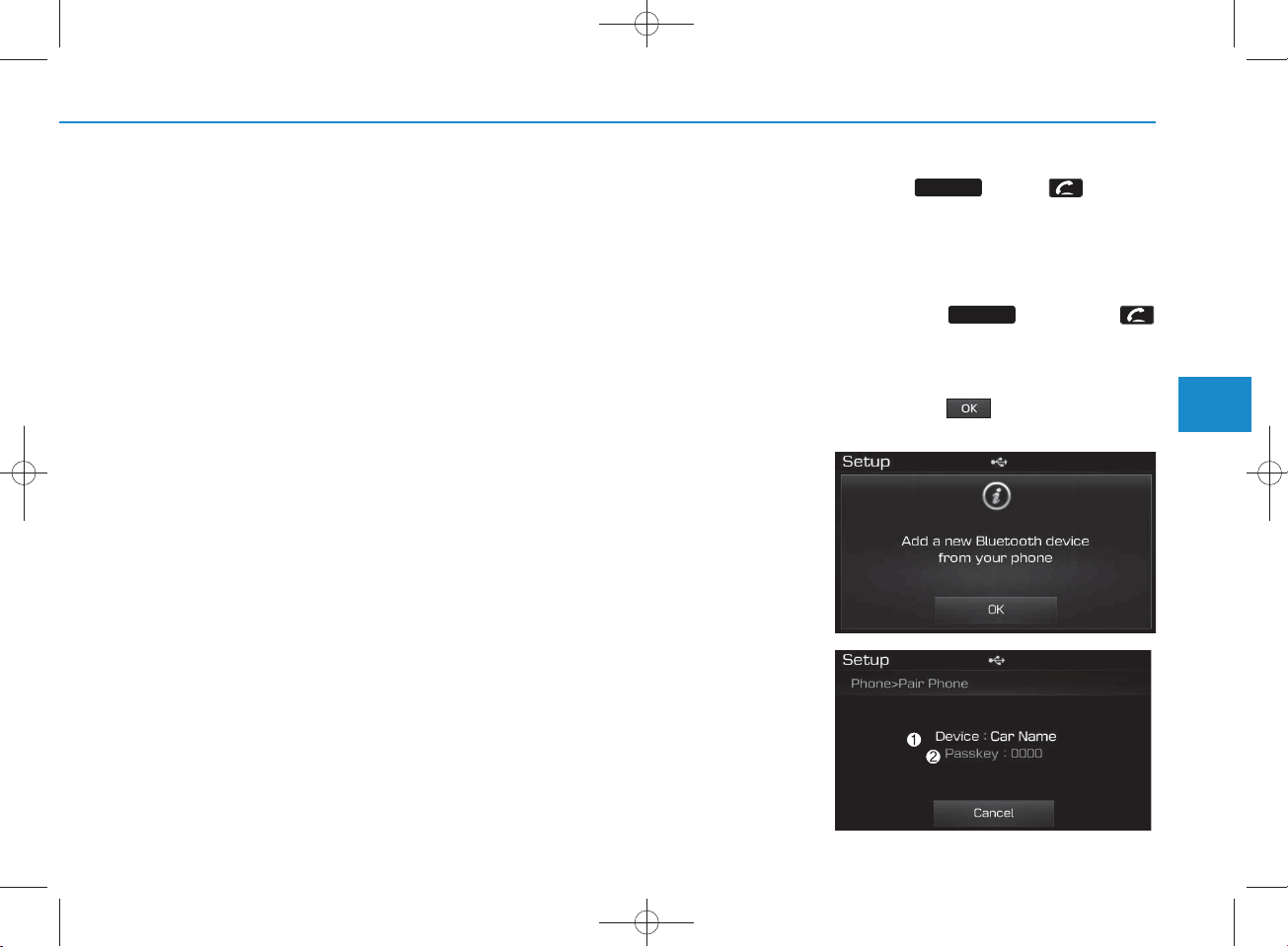
H_LF_A,B_AUDIO:BH hma 4-109~(Audio).qxd 5/19/2014 9:43 AM Page 71
(Continued)
•Only B luetooth
H andsfree an d B luetooth
®
Wireless T ech n o logy
®
Wireless
Technology audio related features will
op erate within this sy stem .
•Normal op eration is p o ssible on ly for
devices that support H andsfree or
audio features, such as a Bluetooth
Wireless Technology mobile phone or
a B luetooth
®
Wireless T ech n o logy
®
audio device.
•Only one function can be used at a time
betw een the Bluetooth
Technology H andsfree an d B luetooth
Wireless T ech n o logy audio. (While
playing Bluetooth
audio, stream ing will end upon en tering
the Bluetooth
®
Wireless Technology
®
Wireless T ech n o logy
phone screen.)
• If a con n ected B luetooth
®
Wireless
®
Wireless
®
Technology device b eco m es discon nected for various reason s, su ch a s
being out of range, turning the device
OFF, or a B luetooth
Technology com m unication error,
Bluetooth
®
Wireless T ech n o logy
®
Wireless
devices are autom atically searched
and con n ected.
•Placing the audio sy stem within an
electrom agnetic en viron m en t may
result in noise interference.
Pairing a
Bluetooth
®
Wire less
Technology wire less technology Device
What is
Bluetooth
®
Wire less
Technology Pairing?
Pairing refers to the process of synchronizing your
Bluetooth
Technology phone or device with the
car audio system for connection.
Pairing is necessary to connect and
use the
Bluetooth
Technology feature.
®
®
Wireless
Wire less
Pairing Key / Key
PHO N E
on the Steering Rem ote
Contro ller
When No Devices have been Paired
1. Press the key or the
key on the steering rem ote controller. The follow ing screen is displayed.
2. Press the button to enter the
Pair P hone screen.
PHO N E
4
Multimedia System
4-71
Page 72
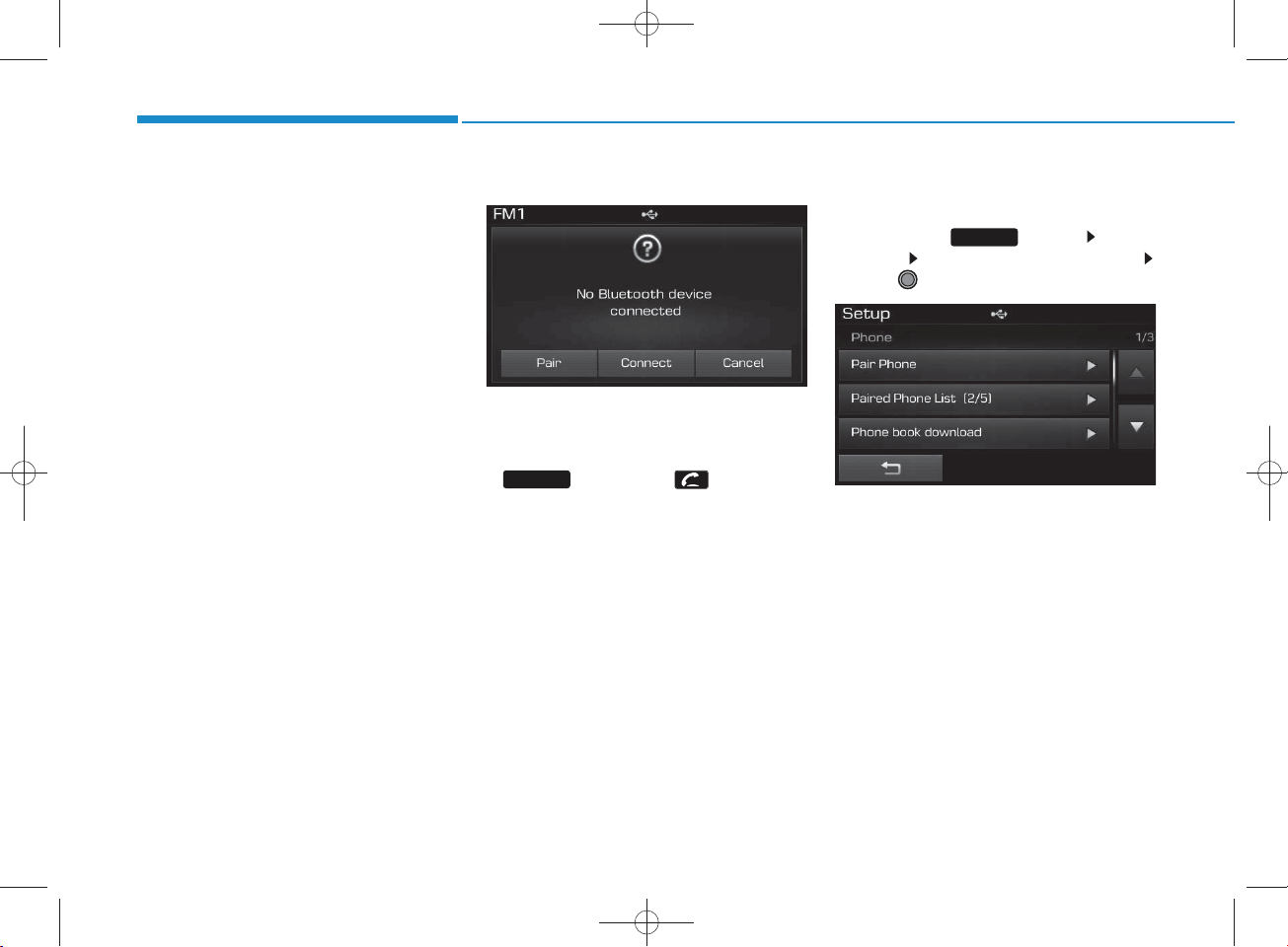
H_LF_A,B_AUDIO:BH hma 4-109~(Audio).qxd 5/19/2014 9:43 AM Page 72
Multimedia System
1) Device : Nam e of device as show n
w hen searching from your
Bluetooth
®
Wireless Technology
device
2) P asskey : P asskey used to pair the
device
3.From your
Bluetooth
®
Wireless
Technology device (i.e. M obile
Phone), search and select your
car audio system .
4.After a few moments, a screen is
displayed w here the passkey is
entered.
Here, enter the passkey “0000” to
pair your
Bluetooth
®
Wireless
Technology device w ith the car
audio system .
5. O nce pairing is com plete, the follow ing screen is displayed.
NOTICE
•If Bluetooth®Wireless T ech n o logy
devices are p aired but n one are curren tly con n ected, p ressing the
PHO N E
steering rem ote con troller disp lays the
follow ing screen. P ress the [Pair] button to pair a new device or press the
[C on n ect] to con nect a previously pair
device.
key or the key on the
Pairing through [PHO NE]
Setup
P ress the key Select
[P hone] Select [Pair P hone]
Select TUNE knob
1. The follow ing steps are the sam e
as the steps described in the
“W hen N o D evices have been
Paired” section.
SETUP
4-72
Page 73
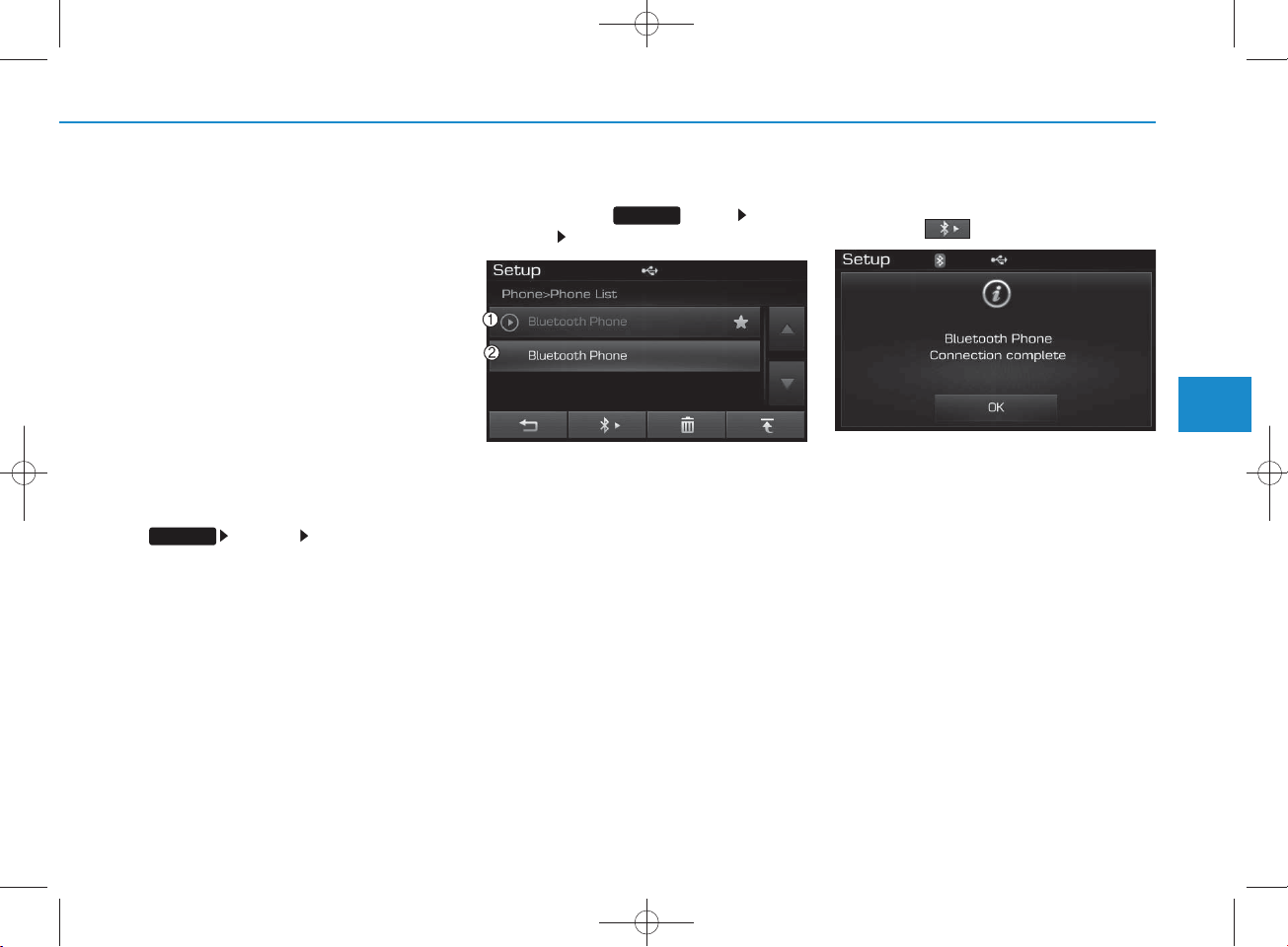
H_LF_A,B_AUDIO:BH hma 4-109~(Audio).qxd 5/19/2014 9:43 AM Page 73
NOTICE
• The waiting period during phone pairing will last for one minute. The pairing p ro cess will fail if the device is not
paired w ithin the given time. If the
pairing process fails, you m ust start
the p ro cess from the beginning.
• G enerally, most Bluetooth
Technology devices w ill autom atically
con n ect once p airing is co m p lete.
However, so m e d ev ices m ay req uire a
sep ara te verifica tion process to connect. C h eck to see whether Bluetooth
Wireless Technology has been prop erly conn ected w ith in your m obile
phone.
• L ist of paired B luetooth
Technology devices can b e view ed at
SETUP
[Phone] [Paired P hon e
List].
®
®
Wireless
Wireless
Connecting a Device
P ress the key Select
[Phone] Select [Paired Phone List]
®
1) C onnected Phone : Device that is currently connected
2) Paired Phone : Device that is paired
but not connected
SETUP
From the paired phone list, select the
device you w ant to connect and
press the button.
4
Multimedia System
4-73
Page 74
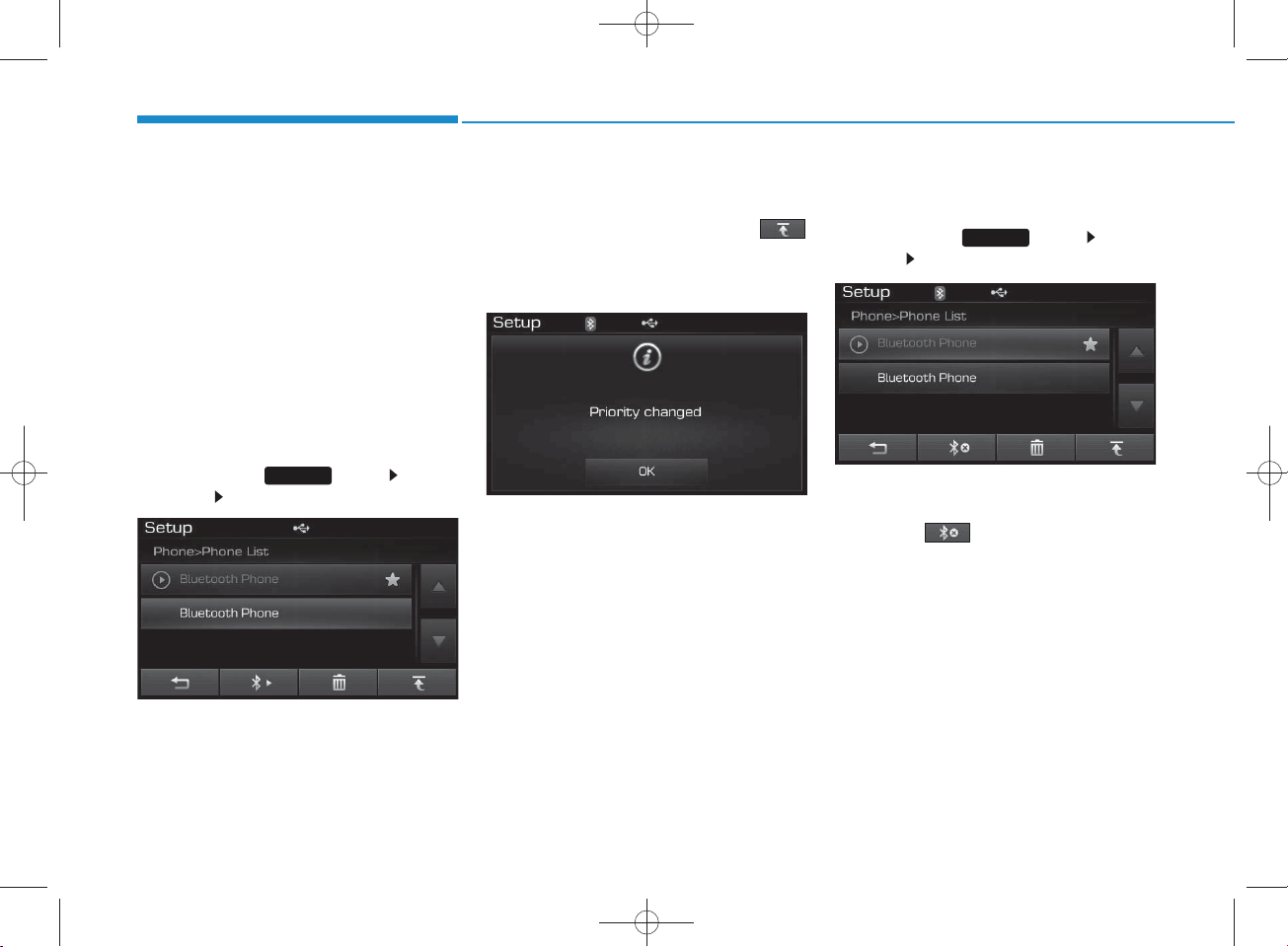
H_LF_A,B_AUDIO:BH hma 4-109~(Audio).qxd 5/19/2014 9:43 AM Page 74
Multimedia System
Changing Priority
What is Priority?
It is possible to pair up to five
Bluetooth
devices w ith the car audio system .
As a result, the “C hange Priority’ feature is used to set the connection priority of paired phones. However, the
most recently connected phone w ill
alw ays be set as the highest priority.
P ress the key Select
[Phone] Select [Paired P hone List]
®
Wireless Technology
SETUP
From the paired phone list, select
the phone you w ant to change to the
highest priority, then press the
button from the M enu. The selected
device w ill be changed to the highest priority.
Disconnecting a Device
P ress the key Select
SETUP
[Phone] Select [Paired Phone List]
From the paired phone list, select the
currently connected device and
press the button.
4-74
Page 75
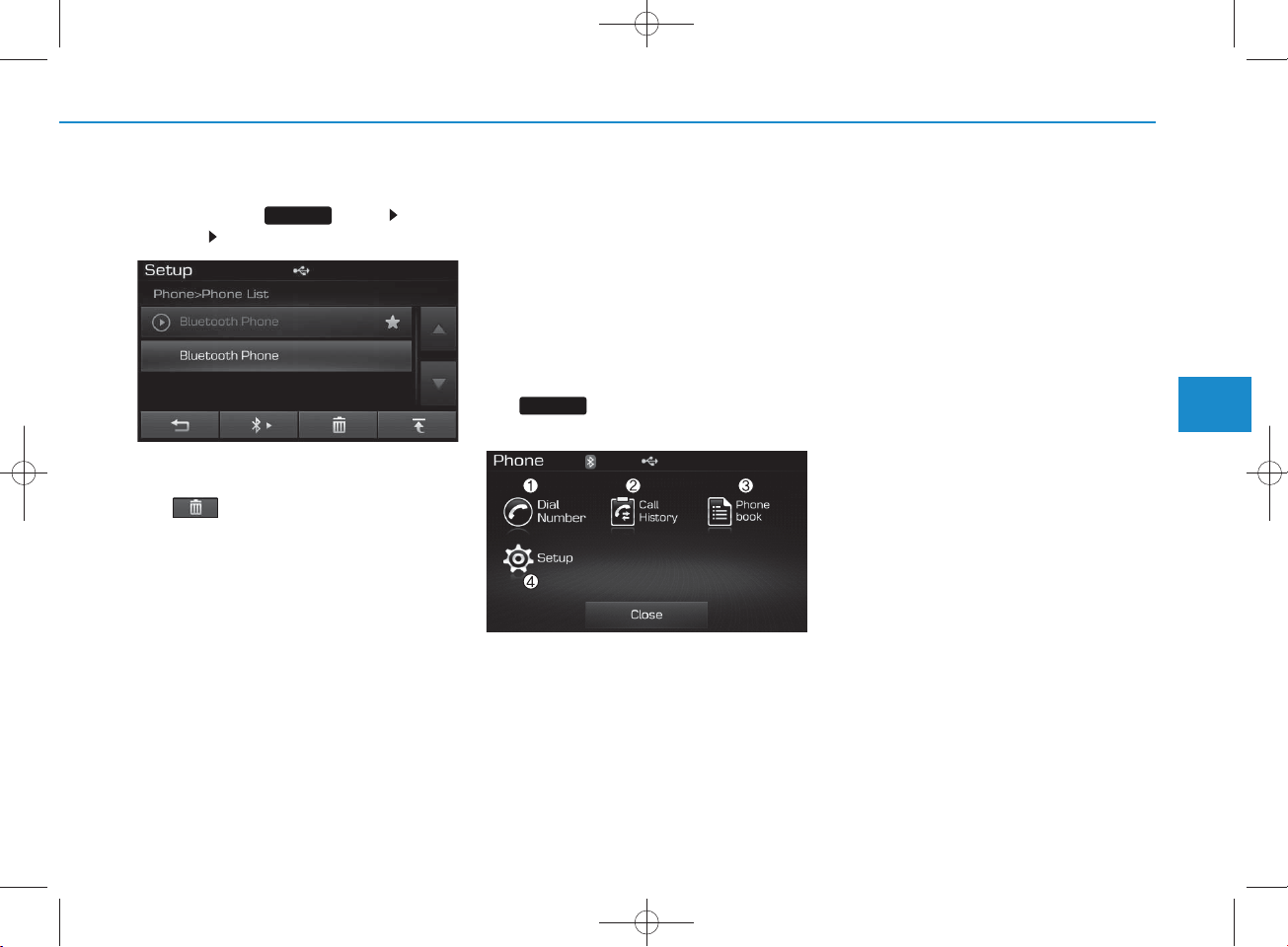
USING
Bluetooth
®
W ireless
Technology
H_LF_A,B_AUDIO:BH hma 4-109~(Audio).qxd 5/19/2014 9:43 AM Page 75
Deleting a Device
P ress the key Select
[Phone] Select [Paired Phone List]
From the paired phone list, select the
device you w ant to delete and press
the button.
SETUP
NOTICE
• W hen deleting the cu rrently con n ected device, the device will autom atically be discon nected to proceed with the
deleting p rocess.
•If a paired B luetooth
Technology device is d eleted, th e
device’s ca ll history and phone book
data will also be deleted .
•To re-use a deleted d evice, you m ust
pair the device again.
®
Wireless
Phone Menu Screen
Phone Menus
With a
Bluetooth
Technology device connected, press
PHO N E
the key to display the Phone
menu screen.
®
Wire less
1) D ial N um ber : Disp lays the dial screen
w here num bers can be dialed to make
calls
2) C all History : Displays the call history
list screen
3) P hone book : Displays the Phone
book list screen
4) S etup : Displays Phone related settings
NOTICE
• If you p ress the [Call History] button
but there is n o ca ll history data, a
prom pt is d isplayed w hich asks
whether to dow nload call history
data.
• If you p ress the [Phone book] button
but there is no phone book data, a
prom pt is d isplayed w hich asks
whether to dow nload phone book
data. .
• This feature m ay not be supported in
som e mobile phones. For more information on dow nload support, refer
to your mobile phone user’s m anual.
4
Multimedia System
4-75
Page 76
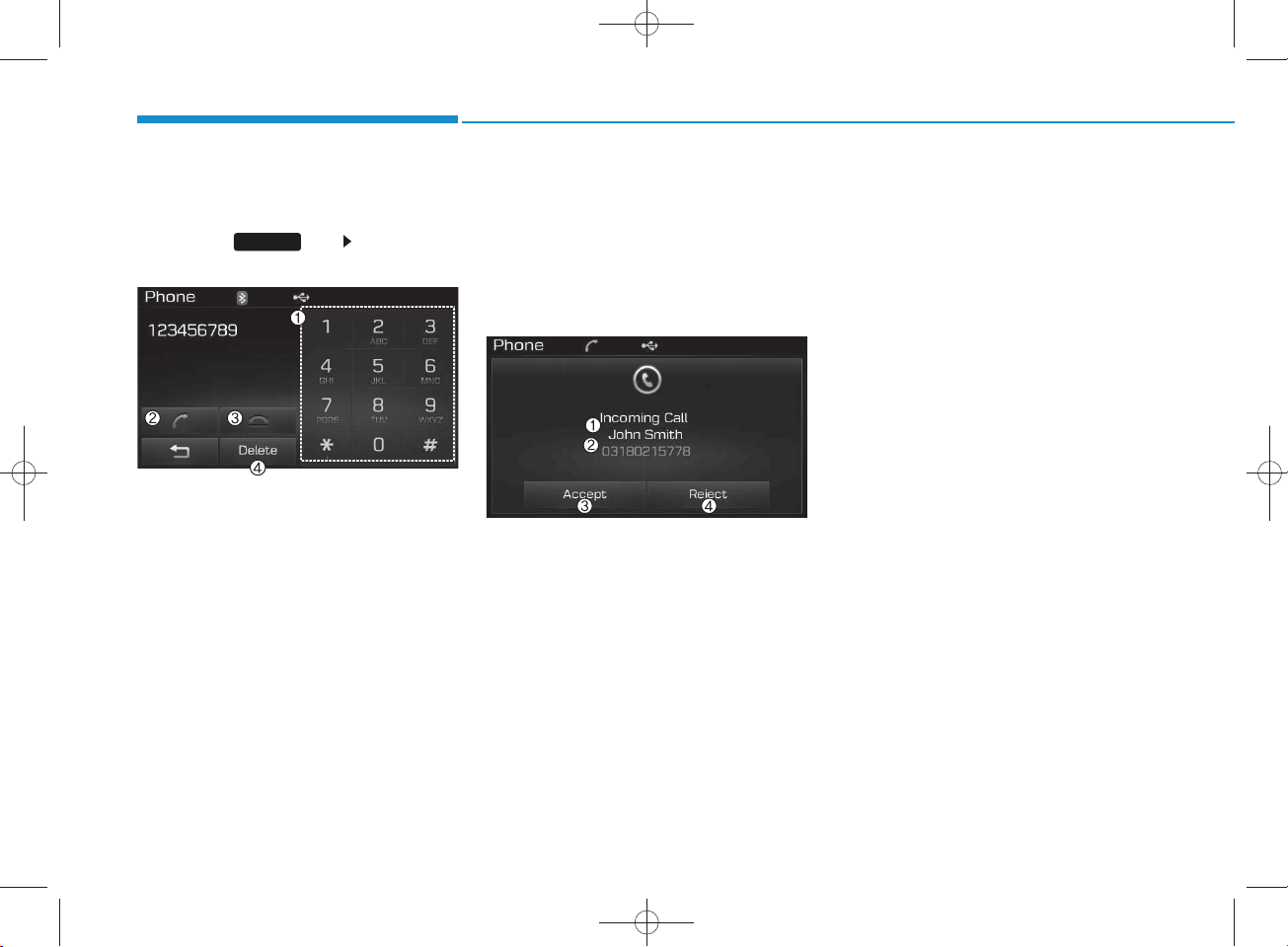
H_LF_A,B_AUDIO:BH hma 4-109~(Audio).qxd 5/19/2014 9:43 AM Page 76
Multimedia System
Calling by Dialing a Num ber
Press the key Select [Dial
N um ber]
1) Dial P ad : U sed to enter phone num ber
2) Call : If a num ber has been entered,
calls the num ber If no num ber has
been entered, sw itches to call history
screen
3) E nd : Deletes the entered phone num ber
4) Delete : Deletes entered num bers one
digit at a time
PHO N E
Answering Calls
Answering a Call
Answering a call with a
Wireless Technology device connected will display the follow ing screen.
1) Caller : Displays the other part’s nam e
w hen the incom ing caller is saved
within your phone book
2) Incom ing N um ber : Displays the
incom ing num ber
3) Accept : Accept the incom ing ca ll
4) Reject : Reject the incom ing call
Bluetooth
NOTICE
• When the incom ing call pop-up is displayed, most A udio and SETUP mode
features will not operate. Only the call
®
volum e can be op erated .
•The telephone num ber m ay not be
properly disp layed in some mobile
phones.
• W hen a call is a n sw ered w ith the
mobile phone, the call mode will automatically con vert to Private mode.
4-76
Page 77
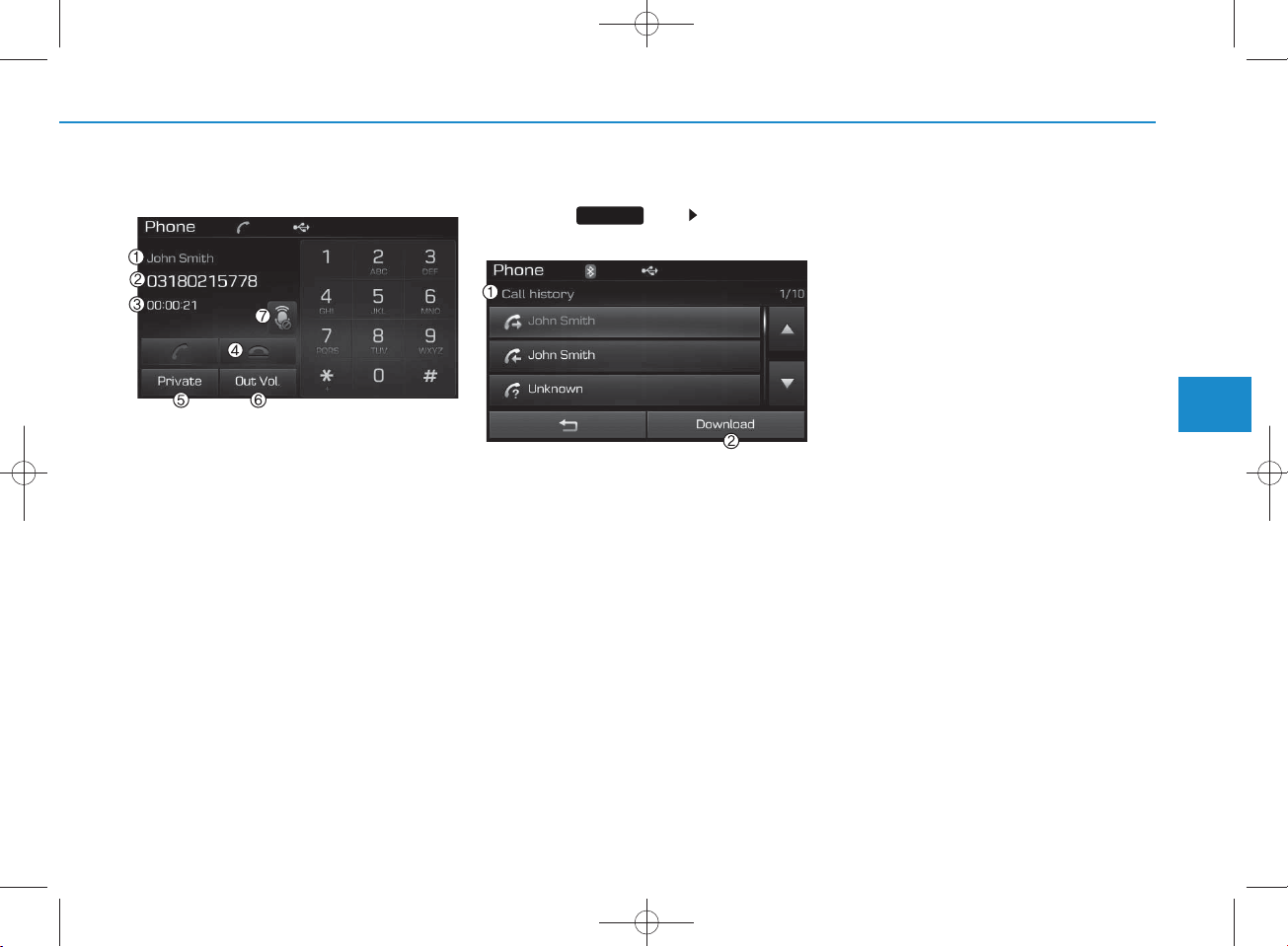
H_LF_A,B_AUDIO:BH hma 4-109~(Audio).qxd 5/19/2014 9:43 AM Page 77
During a Handsfree Call
1)C aller : Displays the other party’s nam e
if the incom ing caller is saved w ithin
your phone book
2)Incom ing N um ber : Displays the
incom ing num ber
3) Call time : Displays the call time
4) End : Ends call
5) Private : Converts to Private m ode
6) Out Vol. :
the other party
7) Mute : Turns Mic Mute On/Off
Sets call volum e as heard by
NOTICE
If the mic is muted, the other party will
not be able to hear your voice.
Call History
Press the key Select [Call
History]
A list of incom ing, outgoing and m issed
calls is displayed.
Press the [Download] button to dow nload
the call history.
1) C all History :
- Displays recent calls (call history)
- C onnects call upon selection
2)Download : Download R ecent Call
History
PHO N E
NOTICE
• T h e call history list will disp lay up to
30 outgoing, incom ing, and m issed
calls.
• Upon downloading call histories, previously saved histories are deleted .
• In com ing calls with hidden caller ID s
will not be saved in the call history
list.
• P rev iously saved phone book entries
are sto red ev en if a device i
nected and re-conn ected .
• The download feature m ay not be supported in so m e mobile phones. C heck
to see that the B luetooth
Technology device supports the dow nload feature.
s d isco n -
®
Wireless
4
Multimedia System
4-77
Page 78
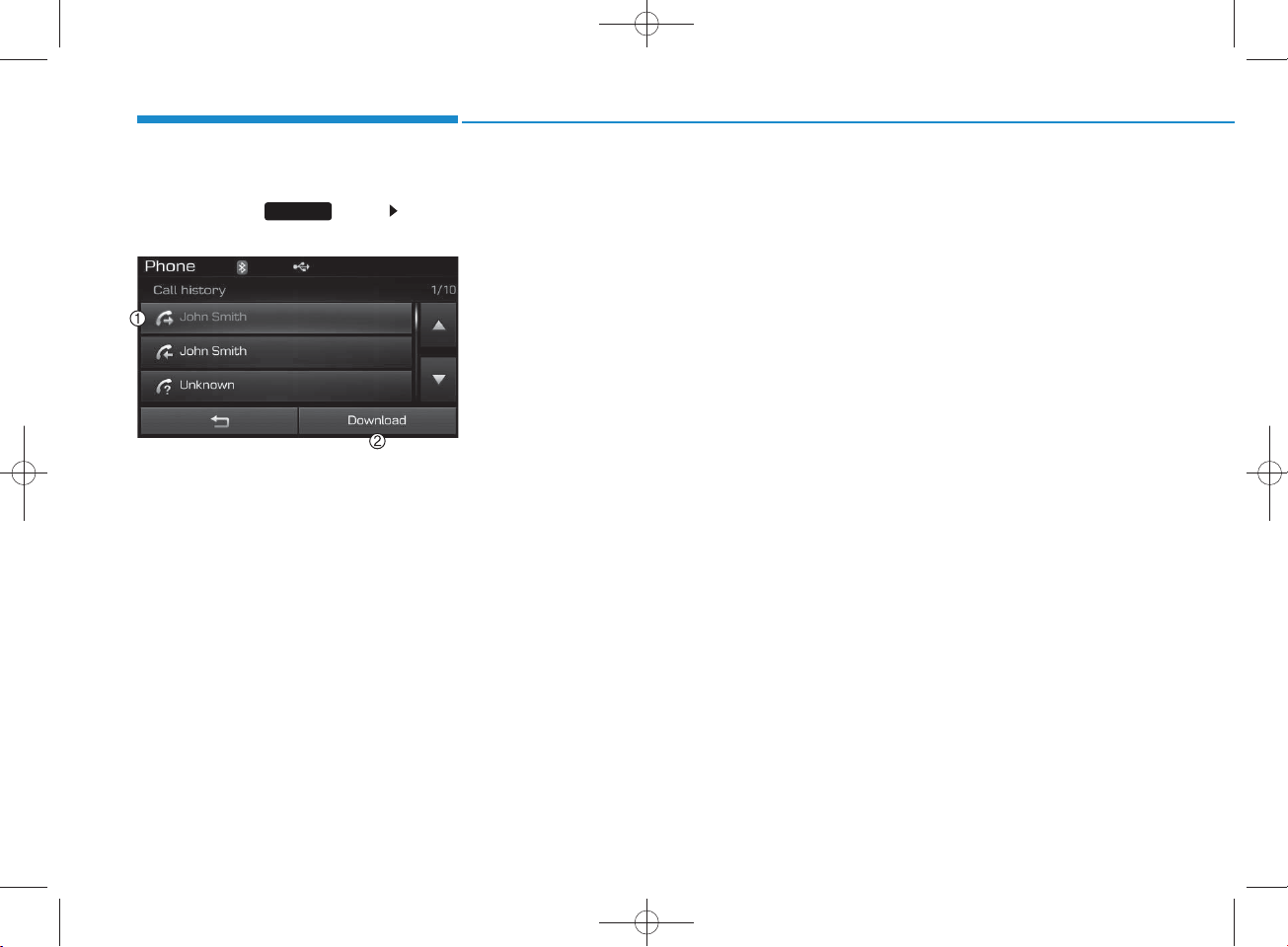
H_LF_A,B_AUDIO:BH hma 4-109~(Audio).qxd 5/19/2014 9:43 AM Page 78
Multimedia System
Phone B ook
P ress the key Select
PHO N E
[Phone book]
The list of saved phone book entries is
displayed. Press the [Download] button
to dow nload the call history.
1) P hone book List :
-Displays dow nloaded phone book
entries
-C onnects call upon selection
2)Download : Download phone book
entries
NOTICE
•Up to 1,000 phone book en tries can be
cop ied into car phone book.
• Upon downloading phone book data,
previously saved phone book data will
be deleted .
•Downloading is n ot po ssible if the
phone book dow nload feature is
tu rn ed o ff w ith in the B luetooth
Wireless T ech n o logy device. Also,
som e d ev ices m ay requ ire d evice
authorization upon attem pting to
download. If downloading cannot be
norm ally conducted, check th e
Bluetooth
®
Wireless T ech n o logy
device setting or the screen state.
•Caller ID inform ation will not be displayed for unsaved callers.
•The dow nload feature m ay not be supported in so m e mobile phones. C heck
to see that the B luetooth
®
Technology device supports the dow nload feature.
®
Wireless
4-78
Page 79
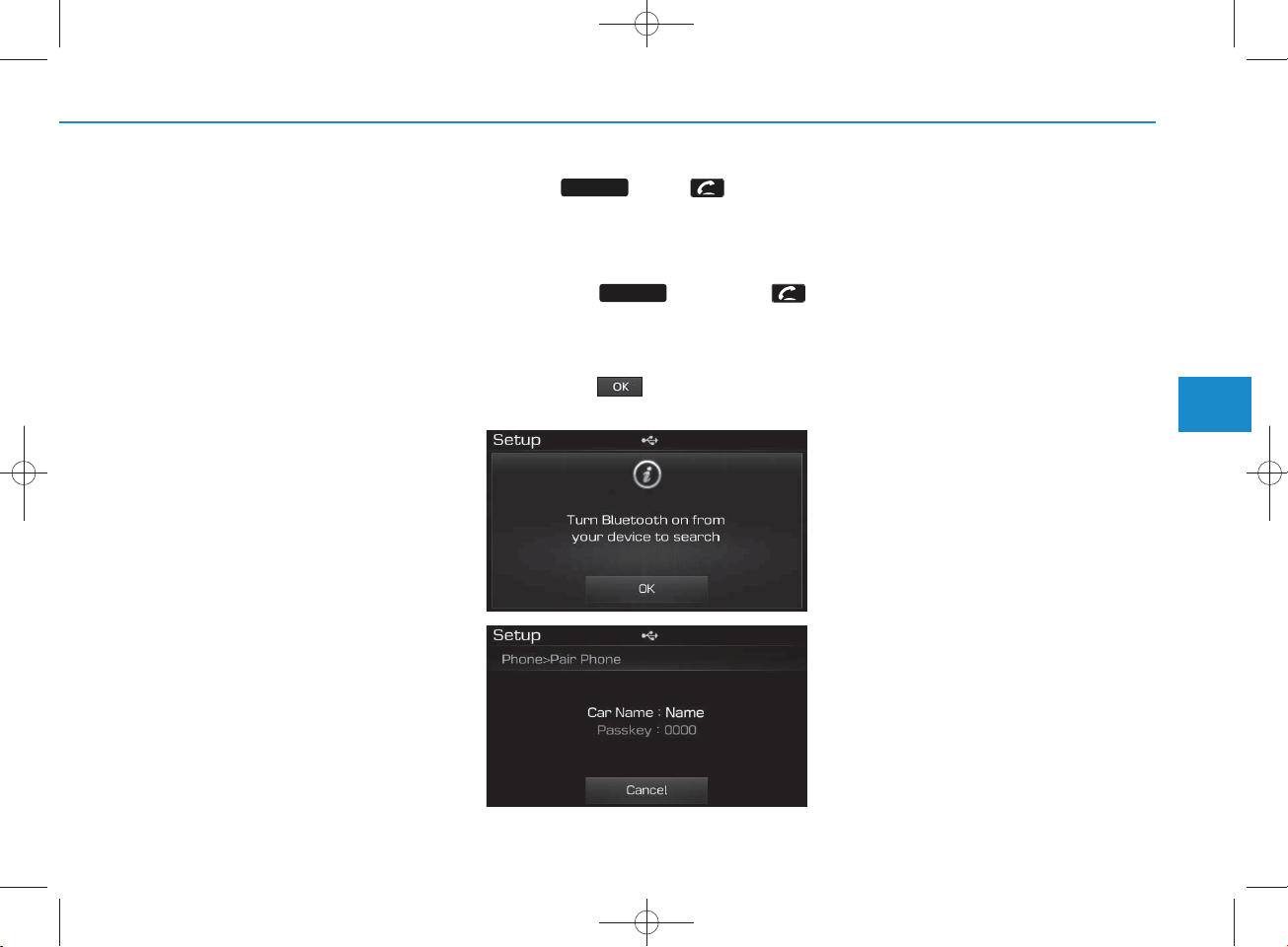
H_LF_A,B_AUDIO:BH hma 4-109~(Audio).qxd 5/19/2014 9:43 AM Page 79
Bluetooth
(for
®
Wire less Technology
Bluetooth
®
Wire less
Technology equipped m odel)
Pairing a
Bluetooth
®
Wire less
Technology wire less technology Device
What is
Bluetooth
®
Wire less
Technology Pairing?
Pairing refers to the process of synchronizing your
Bluetooth
Technology phone or device with the
car audio system for connection.
Pairing is necessary to connect and
use the
Bluetooth
Technology feature.
®
®
Wireless
Wire less
Pairing Key / Key on
PHO N E
the Steering Rem ote Controller
When No Devices have been Paired
1. Press the key or the
key on the steering rem ote controller. The follow ing screen is displayed.
2. Press the button to enter the
Pair P hone screen.
PHO N E
1) D evice : Nam e of device as show n
w hen searching from your
Wireless Technology device
2) Passkey : Passkey used to pair the
device
3.From your
Bluetooth
Bluetooth®
®
Wireless
Technology device (i.e. M obile
Phone), search and select your
car audio system .
4.After a few moments, a screen is
displayed w here the passkey is
entered.
Here, enter the passkey “0000” to
pair your
Bluetooth
®
Wireless
Technology device w ith the car
audio system .
5.O nce pairing is com plete, the follow ing screen is displayed.
4
Multimedia System
4-79
Page 80
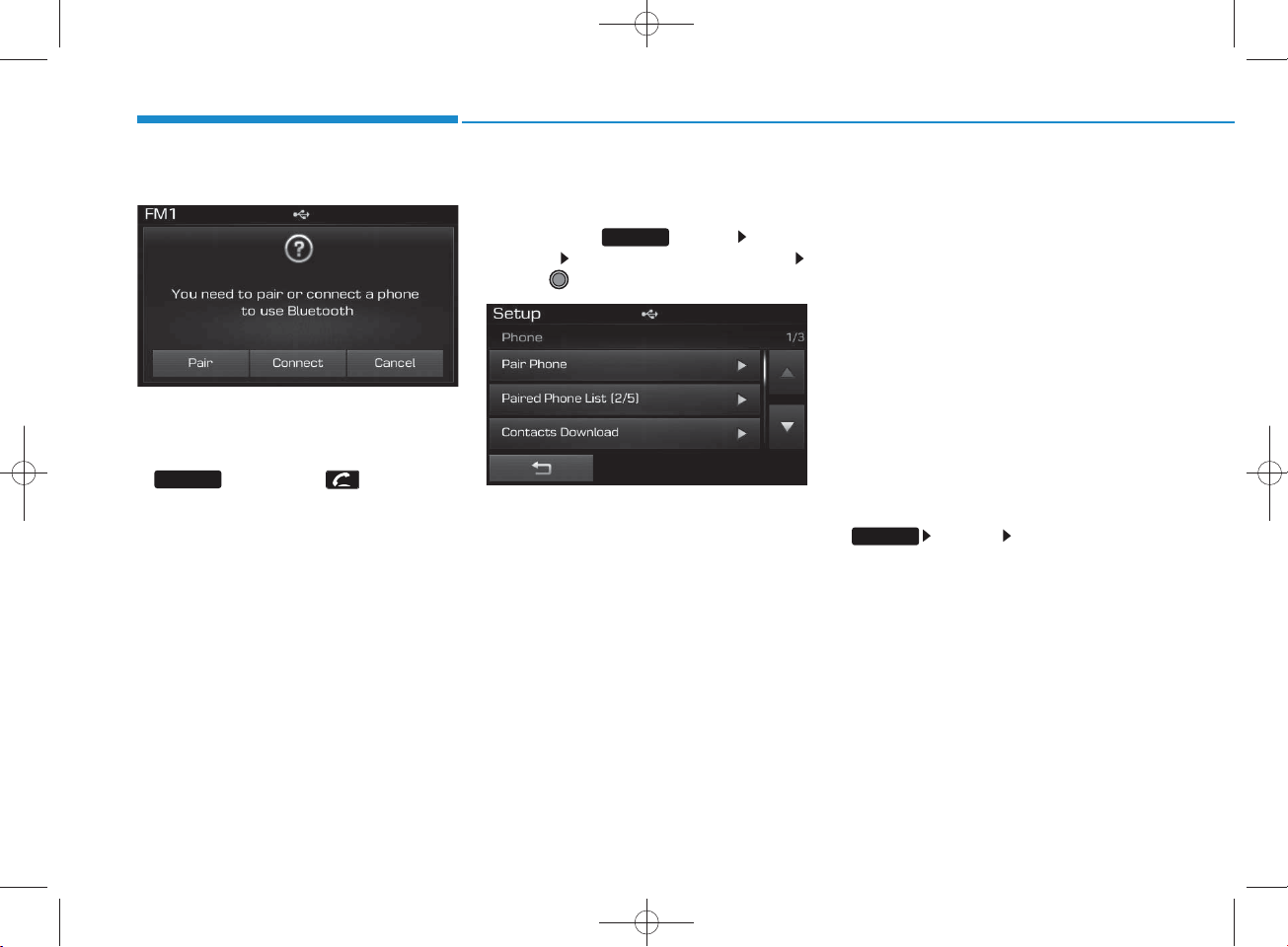
H_LF_A,B_AUDIO:BH hma 4-109~(Audio).qxd 5/19/2014 9:43 AM Page 80
Multimedia System
NOTICE
•If Bluetooth®Wireless T ech n o logy
devices are p aired but n one are curren tly con n ected, p ressing the
PHO N E
steering rem ote con troller disp lays the
follow ing screen. P ress the [Pair] button to pair a new device or press the
[C on n ect] to con nect a previously pair
device.
key or the key on the
Pairing through [PHO NE]
Setup
P ress the key Select
[P hone] Select [Pair P hone]
Select TUNE knob
1. The follow ing steps are the sam e as
the steps described in the “W hen N o
Devices have been Paired” section.
SETUP
NOTICE
•The waiting period during phone
pairing will last for one m inute. The
pairing p ro cess will fail if the device is
not paired within the given time. If the
pairing process fails, you m ust start
the p ro cess from the beginning.
• G enera lly, most Bluetooth
Technology devices will autom atically
con n ect once p airing is co m p lete.
However, som e devices m ay require a
sep ara te verifica tion process to connect. C heck to see whether Bluetooth
Wireless T ech n o logy has been properly con n ected w ithin your m obile
phone.
•List of paired B luetooth
Technology devices can b e view ed at
SETUP
[Phone] [Paired P hon e
List].
®
®
Wireless
Wireless
®
4-80
Page 81
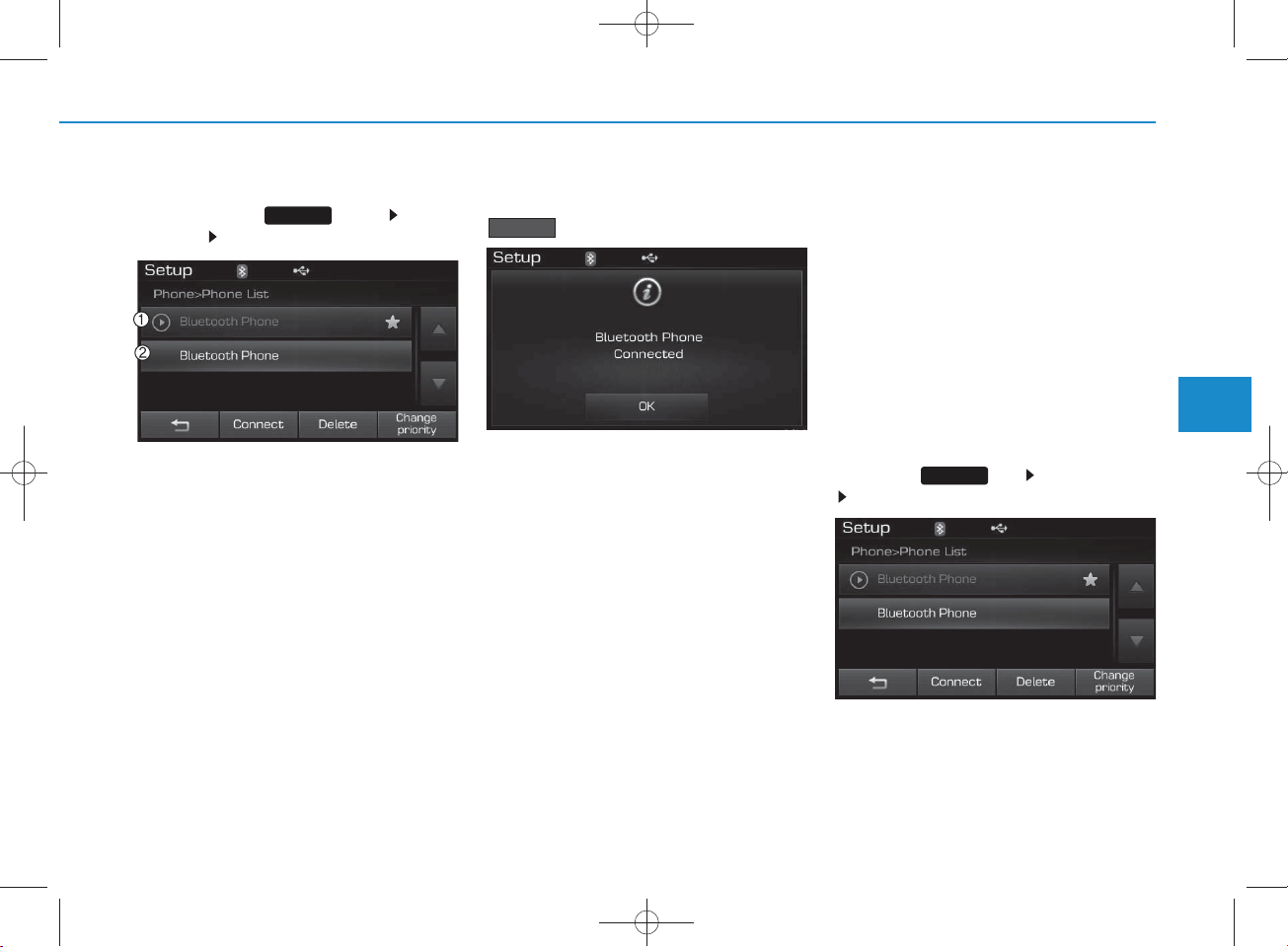
H_LF_A,B_AUDIO:BH hma 4-109~(Audio).qxd 5/19/2014 9:43 AM Page 81
Connecting a Device
P ress the key Select
[Phone] Select [Paired Phone List]
1) C onnected Phone : Device that is currently connected
2) Paired Phone : Device that is paired
but not connected
SETUP
From the paired phone list, select the
device you w ant to connect and press the
C onnect
button.
Changing Priority
What is Priority?
It is possible to pair up to five
Bluetooth
devices w ith the car audio system .
As a result, the “C hange Priority’ feature is used to set the connection priority of paired phones. However, the
most recently connected phone w ill
alw ays be set as the highest priority.
Press the key Select [P hone]
Select [Paired Phone List]
®
Wire less Technology
SETUP
4
Multimedia System
4-81
Page 82
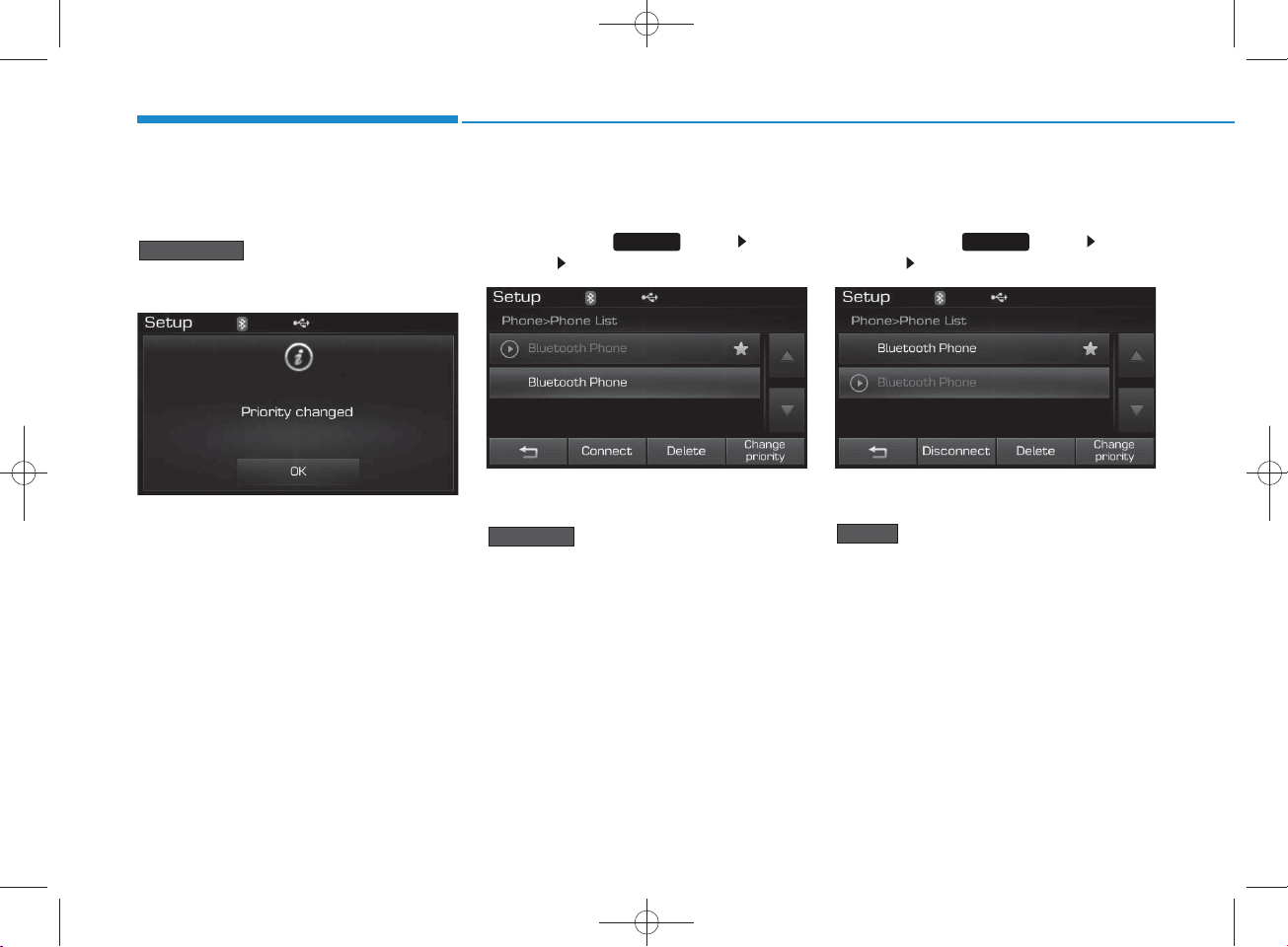
H_LF_A,B_AUDIO:BH hma 4-109~(Audio).qxd 5/19/2014 9:43 AM Page 82
Multimedia System
From the paired phone list, select
the phone you w ant to change to the
highest priority, then press the
C hange priority
button from the M enu.
The selected device will be changed
to the highest priority.
Disconnecting a Device
P ress the key Select
[Phone] Select [Paired Phone List]
From the paired phone list, select the
currently connected device and press the
Disconnect
button.
Deleting a Device
P ress the key Select
[Phone] Select [Paired Phone List]
From the paired phone list, select the
device you w ant to delete and press the
button.
Delete
SETUP SETUP
4-82
Page 83
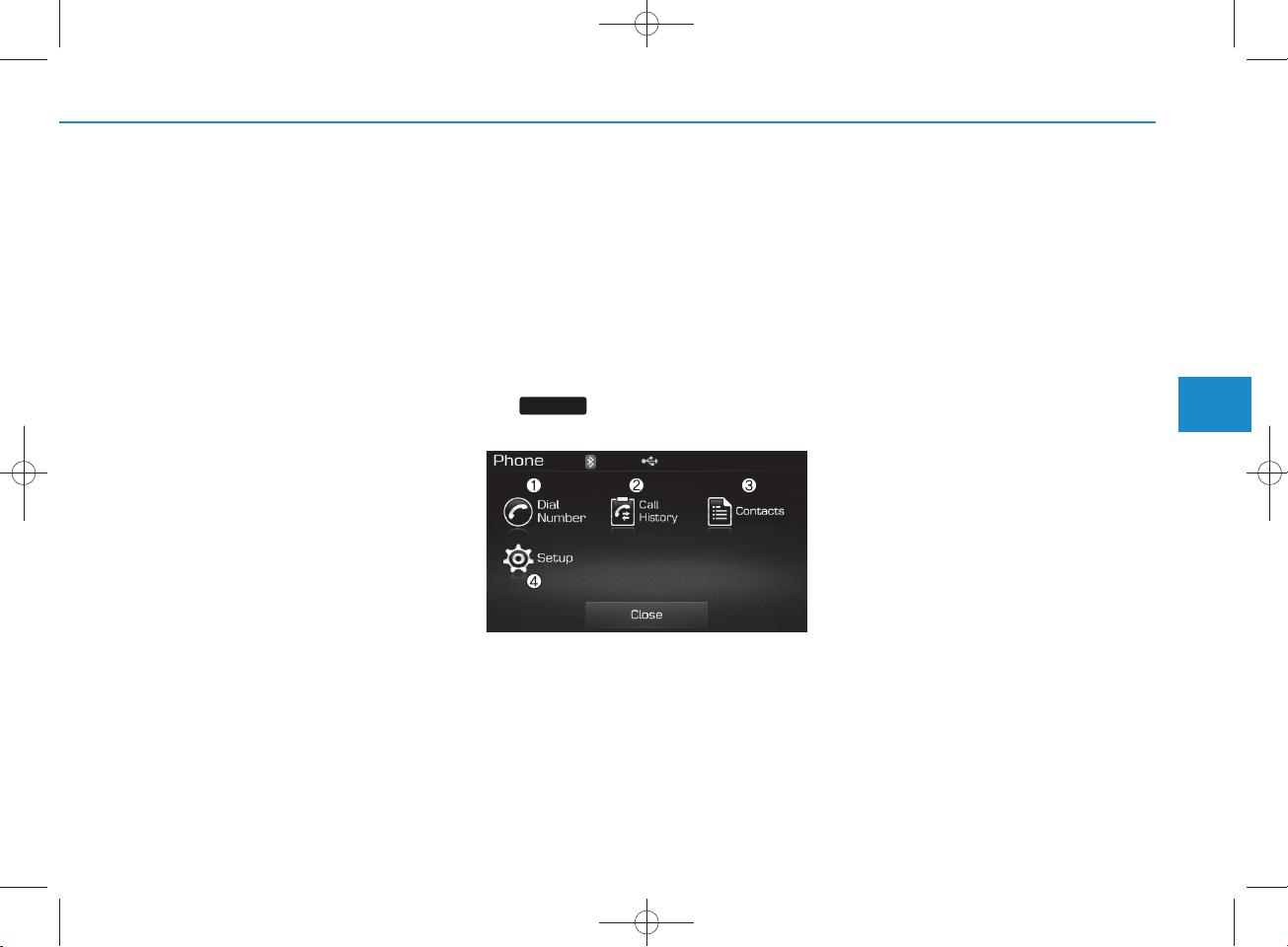
USING
Bluetooth
®
W ireless
Technology
H_LF_A,B_AUDIO:BH hma 4-109~(Audio).qxd 5/19/2014 9:43 AM Page 83
NOTICE
• W hen deleting the cu rrently con n ect-
ed device, the device will autom atically be discon nected to proceed with the
deleting p rocess.
•If a paired B luetooth
Technology device is d eleted, th e
device’s call history and con tactsdata
will also be deleted .
•To re-use a deleted d evice, you m ust
pair the device again.
®
Wireless
Phone Menu Screen
Phone Menus
With a
Bluetooth
Technology device connected, press
PHO N E
the key to display the Phone
menu screen.
1) Dial Number : Displays the dial screen
w here num bers can be dialed to make
calls
2) Call History : Displays the call history
list screen
3) C ontacts: Displays the C ontactslist
screen
®
Wire less
4) Setup : Displays P hone related settings
NOTICE
• If you press the [Call History] button
but there is n o call history data, a
prom pt is d isp layed w hich asks
whether to dow nload call history data.
• If you press the [con tacts] button but
there is no contacs data, a p rom pt is
disp layed w hich asks w hether to
download con tactsdata.
• T h is feature m ay not be supported in
some mobile phones. F or m ore information on dow nload support, refer to
your mobile phone user’s m anual.
4
Multimedia System
4-83
Page 84
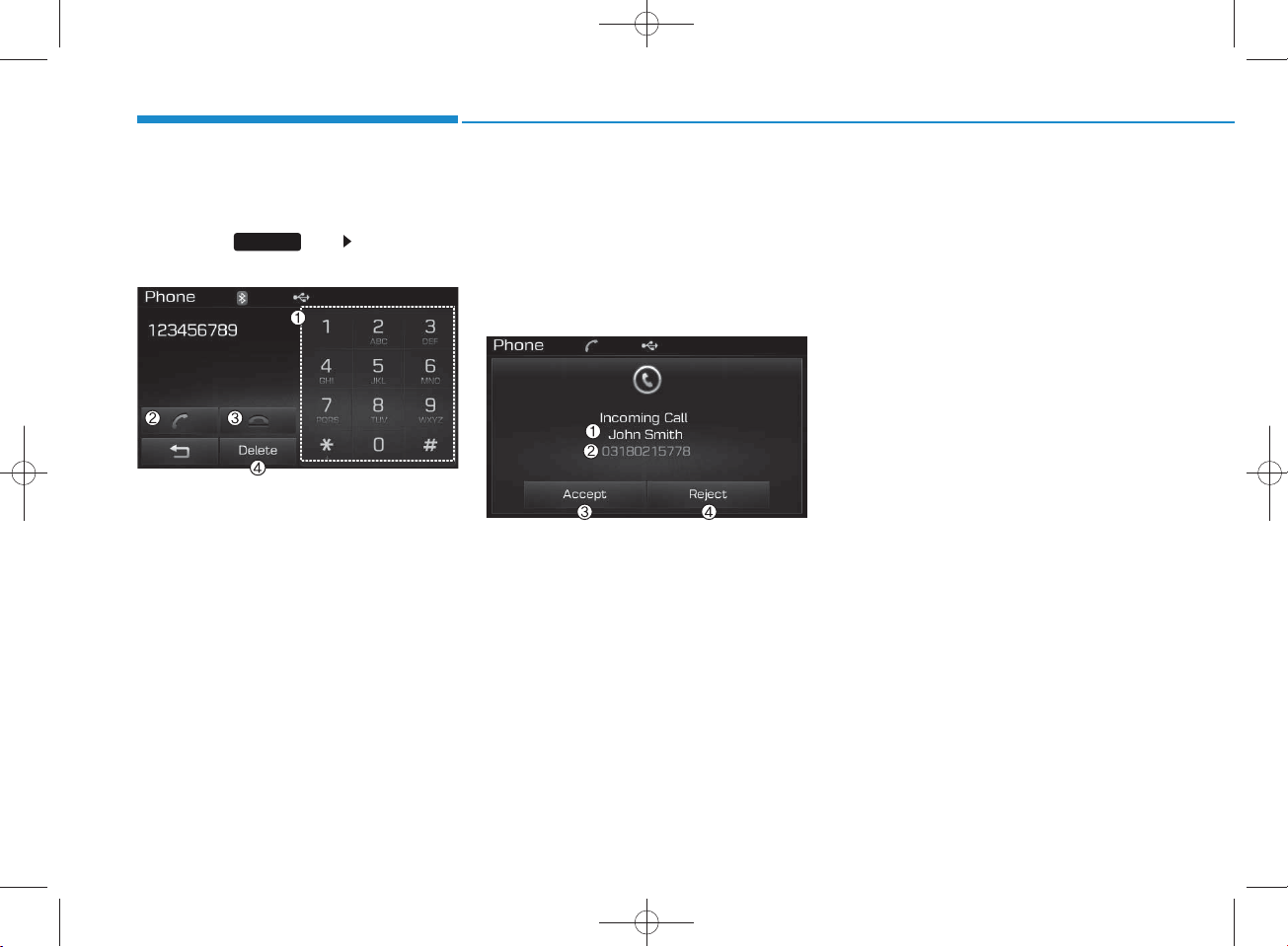
H_LF_A,B_AUDIO:BH hma 4-109~(Audio).qxd 5/19/2014 9:43 AM Page 84
Multimedia System
Calling by Dialing a Num ber
Press the key Select [Dial
N um ber]
1) Dial P ad : U sed to enter phone num ber
2) Call : If a num ber has been entered,
calls the num ber If no num ber has
been entered, sw itches to call history
screen
3) E nd : Deletes the entered phone num ber
4) Delete : Deletes entered num bers one
digit at a time
PHO N E
Answering Calls
Answering a Call
Answering a call with a
Wireless Technology device connected will display the follow ing screen.
1) C aller : Disp lays the other part’s nam e
w hen the incom ing caller is saved
within your contacts
2) Incom ing N um ber : Displays the
incom ing num ber
3) Accept : Accept the incom ing ca ll
4) Reject : Reject the incom ing call
Bluetooth
NOTICE
• W hen the incom ing ca ll pop-up is displayed, most A udio and SETUP mode
features will not operate. Only the call
®
volum e can be op erated .
•The telephone num ber m ay not be
properly disp layed in some mobile
phones.
• W hen a call is a n sw ered w ith the
mobile phone, the call mode will automatically con vert to Private mode.
4-84
Page 85
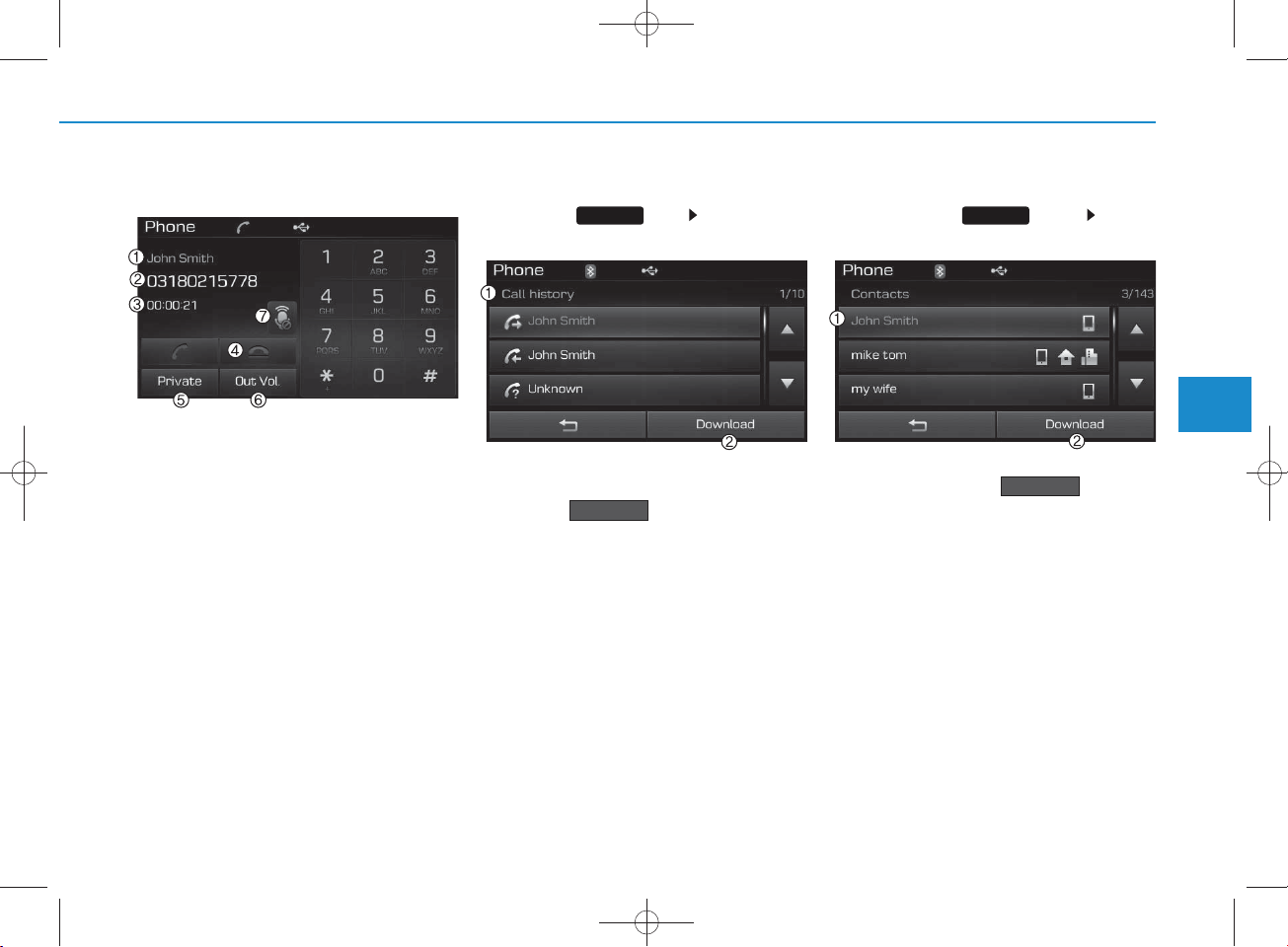
H_LF_A,B_AUDIO:BH hma 4-109~(Audio).qxd 5/19/2014 9:43 AM Page 85
During a Handsfree Call
1) C aller : Displays the other party’s
nam e if the incom ing caller is saved
within your contacts
2) Incom ing N um ber : Displays the
incom ing num ber
3) Call time : Displays the call time
4) End : Ends call
5) Private : Converts to Private m ode
6) Out Vol. : Sets call
the other party
7) Mute : Turns Mic Mute On/Off
volum e as heard by
NOTICE
If the mic is muted, the other party will
not be able to hear your voice.
Call History
Press the key Select [Call
History]
A list of incom ing, outgoing and m issed
calls is displayed.
Press the button to dow nload
the call history.
1) C all History :
- Displays recent calls (call history)
- C onnects call upon selection
2)Download : Download R ecent Call
History
Download
Contacts
P ress the key Select
[C ontacts]
The list of saved phone book entries is
displayed. Press the button to
dow nload the call history.
1) C ontactsList :
- Displays dow nloaded contacts entries
- C onnects call upon selection
2) Download : Download contacts entries
PHO N EPHO N E
Download
4
Multimedia System
4-85
Page 86
H_LF_A,B_AUDIO:BH hma 4-109~(Audio).qxd 5/19/2014 9:43 AM Page 86
Multimedia System
NOTICE
•Up to 1,000 contactsentries can b e
cop ied into car con tacts.
• Upon dow nloading con tactsdata, previously saved contactsdata w ill be
deleted .
•Downloading is not p o ssible if the co n tactsdownload feature is turned off
with in the B luetooth
Technology device. Also, so m e devices
m ay require d ev ice authorization
upon attem pting to dow nload. If
downloading cannot be norm ally con ducted , ch eck the Bluetooth
Technology device setting or the
screen state.
•Caller ID inform ation will not be displayed for unsaved callers.
•The dow nload feature m ay not be supported in so m e mobile phones. C heck
to see that the B luetooth
Technology device supports the dow nload feature.
®
Wireless
®
Wireless
®
Wireless
NOTICE - USING TH E Voice
Recognition
• W hen using the voice recognition feature, only commands listed within the
user's m anual are supported.
•Be aw are that during the op eration of
the voice recognition sy stem , p ressing
any key other than the key or
touching th e screen w ill term inate
voice recognition mode.
• F or sup erior voice recognition p erform an ce, position the m icrophone
used for voice recogn it
head of the driver’s seat and maintain
a proper position w hen saying com m ands.
•Within the follow ing situations, voice
recognition m ay not function p rop erly
due to external sound.
- When the window s and sunroof are
open
- When the wind of the cooling / heat-
ing device is stron g
- When ent
ering and p assing through
tunnels
- When driving on rugged and uneven
roads
- During severe rain (heavy rains,
windstorm s)
ion ab ove the
• Phone related voice commands can be
used only when a Bluetooth
®
Wireless
Technology device is conn ected .
• W hen making calls by stating a nam e,
the corresponding contact must be
downloaded and stored w ithin the
audio sy stem .
• A fte r d o w n loading the B luetooth
®
Wireless T ech n o logy phone book, it
takes som e times to con vert the phone
book data into voice inform ation.
During this time, voice recognition
m ay not p rop erly op erate.
• Pronounce the voice commands naturally and clearly as if in a norm al conversation.
4-86
Page 87
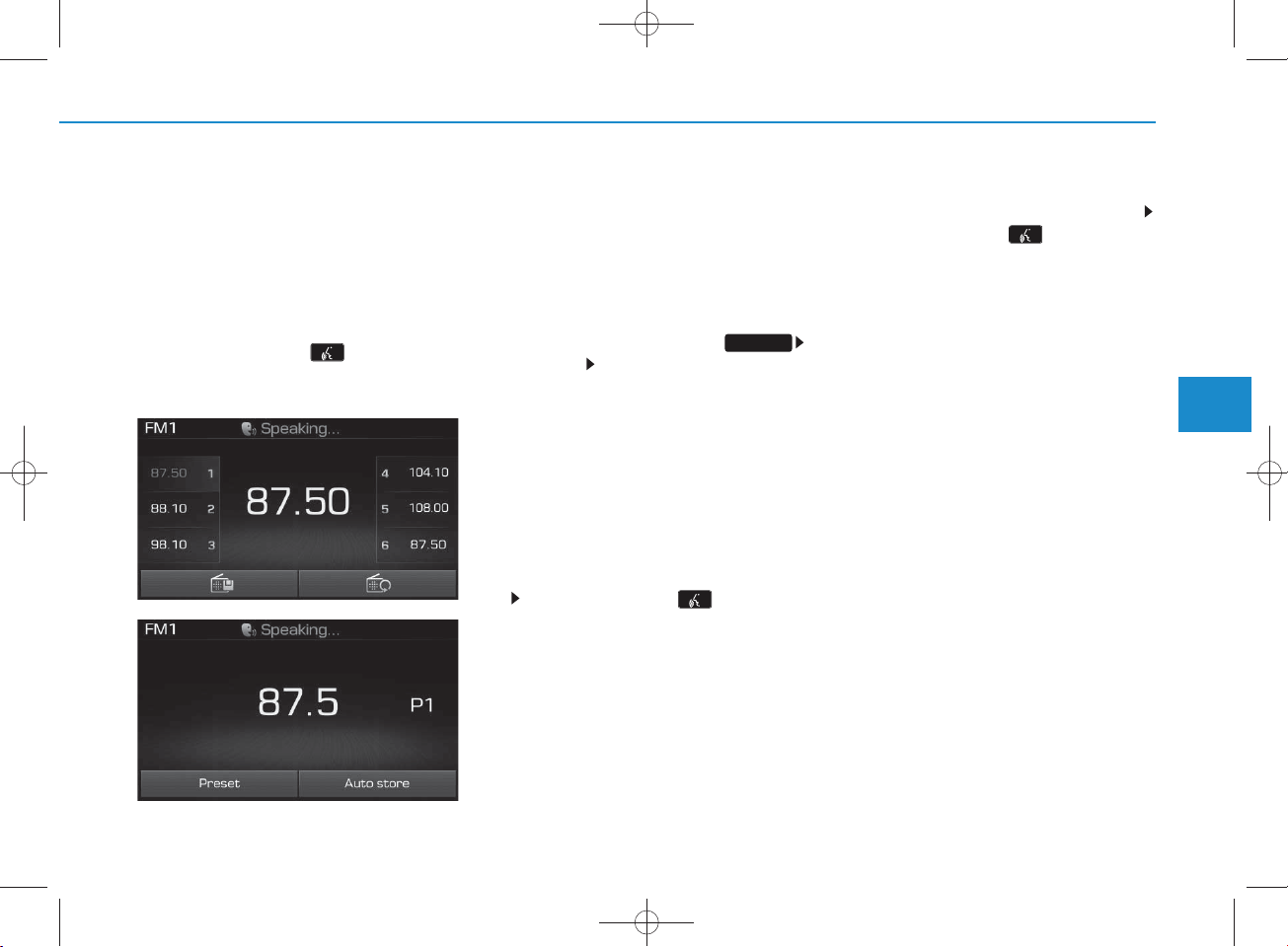
VOICE RECOGN ITIO N
(if equipped)
H_LF_A,B_AUDIO:BH hma 4-109~(Audio).qxd 5/19/2014 9:44 AM Page 87
Using Voice R ecognition
Starting Voice R ecognition
Shortly press the key on the
steering rem ote controller .Say a
com m and
<For RDS m odel>
If vo ice recognition is in [Norm al M ode],
then the system w ill say “Please say a
com m and. B eep~”
•If voice recognition is in [Expert
M ode], then the system will only say a
“Beep~”
• To change the N orm al M ode/E xpert
M ode setting, go to
[S ystem ] [Prom pt Feedback].
SETUP
NOTICE
For proper recognition, say the com m and after the voice instru ction and
beep tone.
Skipping Prom pt M essages
While prom pt m essage is being stated Shortly press the key on the
steering rem ote controller (under 0.8
seconds)
The prom pt m essage is im m ediately
ended and the beep tone w ill sound.
After the “beep”, say the vo ice com m and.
Re-starting Voice Recognition
While system waits for a com m and
Shortly press the key on the
steering rem ote controller (under 0.8
seconds)
The com m and w ait state is im m ediately
ended and the beep ton will sound. After
the “beep”, say the vo ice com m and.
4
Multimedia System
4-87
Page 88

ENDING VOICE RECOGN ITIO N
H_LF_A,B_AUDIO:BH hma 4-109~(Audio).qxd 5/19/2014 9:44 AM Page 88
Multimedia System
While Voice R ecognition is operating
Press and hold the key on the
steering rem ote controller (over 0.8
seconds)
NOTICE
• W h ile u sing voice com m an d, p ressing
a steerin g w h eel rem ote con trol or a
different key will end voice command.
• In a state w here the system is waiting
for a voice com m an d , say “cancel” or
“end” to end voice command.
• In a state w here the system is waiting
for a voice com m an d, press and hold
the key on the steering rem ote
con tro ller to end voice command.
4-88
Page 89
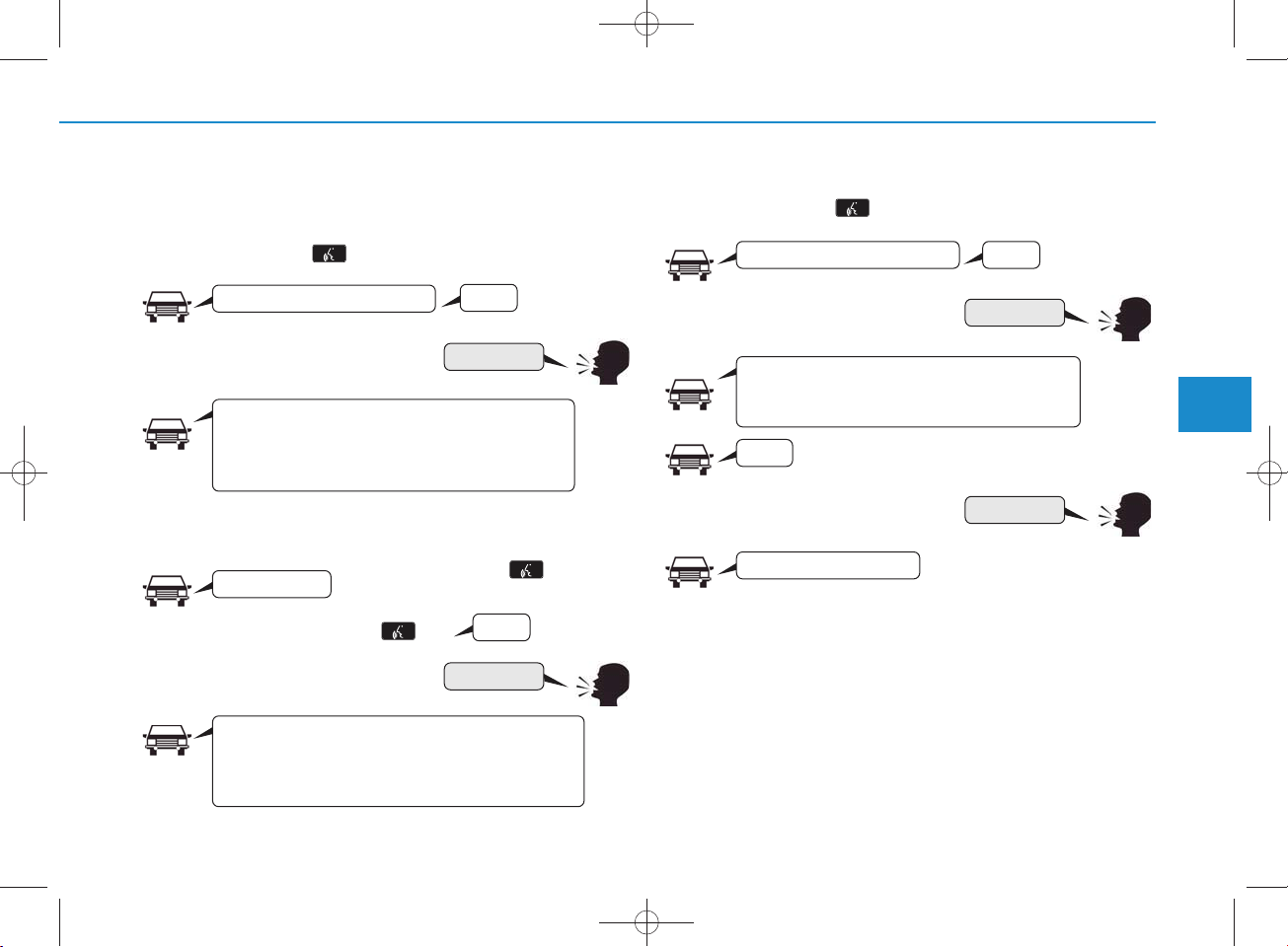
H_LF_A,B_AUDIO:BH hma 4-109~(Audio).qxd 5/19/2014 9:44 AM Page 89
Illustration on using vo ice com m ands
• Starting voice command.
Shortly pressing the key (under 0.8 seconds):
Please say a com m and
More Help.
You can say R adio, FM , AM , M edia, CD, USB, Aux,
My Music, iPod, Bluetooth Audio, P hone, Call
History or Phone book. Please say a com m and.
Ding~
More Help
• Skipping Voice Recognition
Please say a...
Shortly pressing the key
Shortly pre ssing the key (under
0.8 seconds):
Ding~
(under 0.8 seconds)
More Help
More Help.
You can say R adio, FM , AM , M edia, CD, USB, Aux,
My Music, iP od, Bluetooth Audio, P hone, Call
History or Phone book. Please say a com m and.
• End vo ice command.
Shortly pressing the key (under 0.8 seconds):
Please say a com m and
Phone book.
Please say the nam e of the phone book you
w ant to ca ll.
Ding~
Di-Ding~(C ancel S ound)
Ding~
Phone book
C ancel
4
Multimedia System
4-89
Page 90
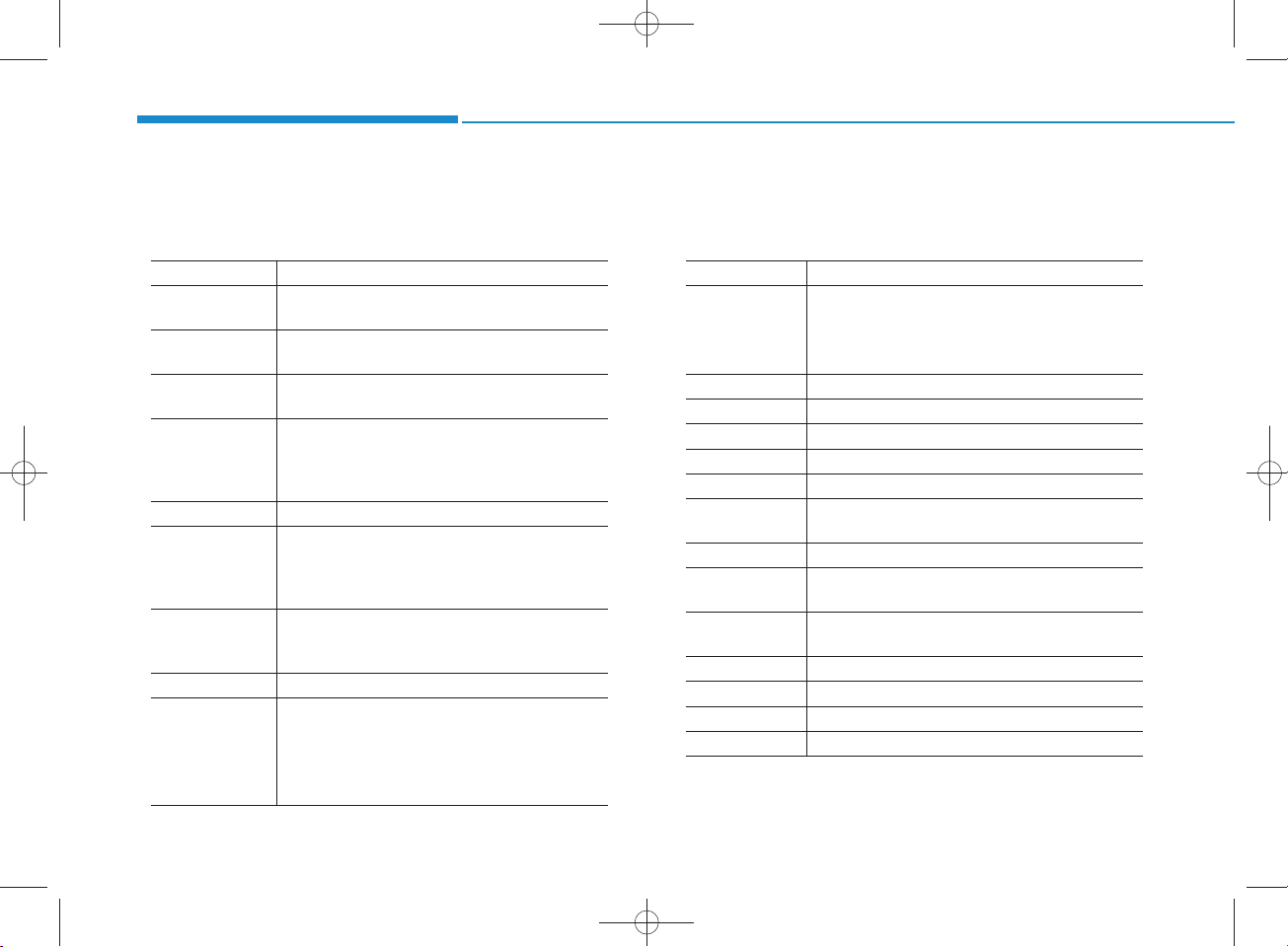
H_LF_A,B_AUDIO:BH hma 4-109~(Audio).qxd 5/19/2014 9:44 AM Page 90
Multimedia System
Voice Command List
• C om m on C om m ands: These are com m ands that can be used in all situations. (However, som e com m ands may not be support-
ed in special circum stances.)
Com m and Function
More HelpProvides guidance on com m ands that can be
HelpProvides guidance on com m ands that can be
Call<N am e> C alls <N am e> saved in
Phone Provides guidance on Phone related com -
Call History D isplays the Call History screen.
Phone book
Dial Number Disp lay the D ial num ber screen. After saying
R edial C onnects the most recently called num ber.
R adio
used anyw here in the system .
used within the current m ode.
Ex) Call “John”
m ands. After saying this com m and, say “Call
History”, “
cute corresponding functions.
Displays the
this com m and, say the nam e of a
saved in the
nect the call.
this com m and, you can say the num ber w hat
you w ant to call.
•
•
Phone book
phone book
phone book
W hen listening to the radio, displays the next
radio screen. (FM 1 FM 2 FM A
AM A)
W hen listening to a different m ode, displays
the most recently played radio screen.
phone book
”, “Dial N um ber” to exe-
screen. After saying
phone book
to autom atically con-
AM
4-90
Com m and Function
•
FM
FM 1(FM O ne) Displays the FM 1 screen.
FM 2(FM Tw o) D isplays the FM 2 screen.
FM A D isplays the FM A screen.
AM Displays the AM screen.
AM A Displays the AM A screen.
FM Preset 1~6 Plays the m ost recently played broadcast
AM Preset 1~6 P lays the broadcast saved in AM Preset 1~6.
FM 87.5~107.9Plays the FM broadcast of the corresponding
AM 530~1710 P lays the AM broadcast of the corresponding
TA on Enable Traffic A nnouncem ent
TA offDisable Traffic A nnouncem ent
News on Enable RDS News feature
News offDisable RDS News feature
W hen currently listening to the FM radio,
maintains the current state.
•
W hen listening to a different m ode, displays
the most recently played FM screen.
saved in FM Preset 1~6.
frequency.
frequency.
Page 91
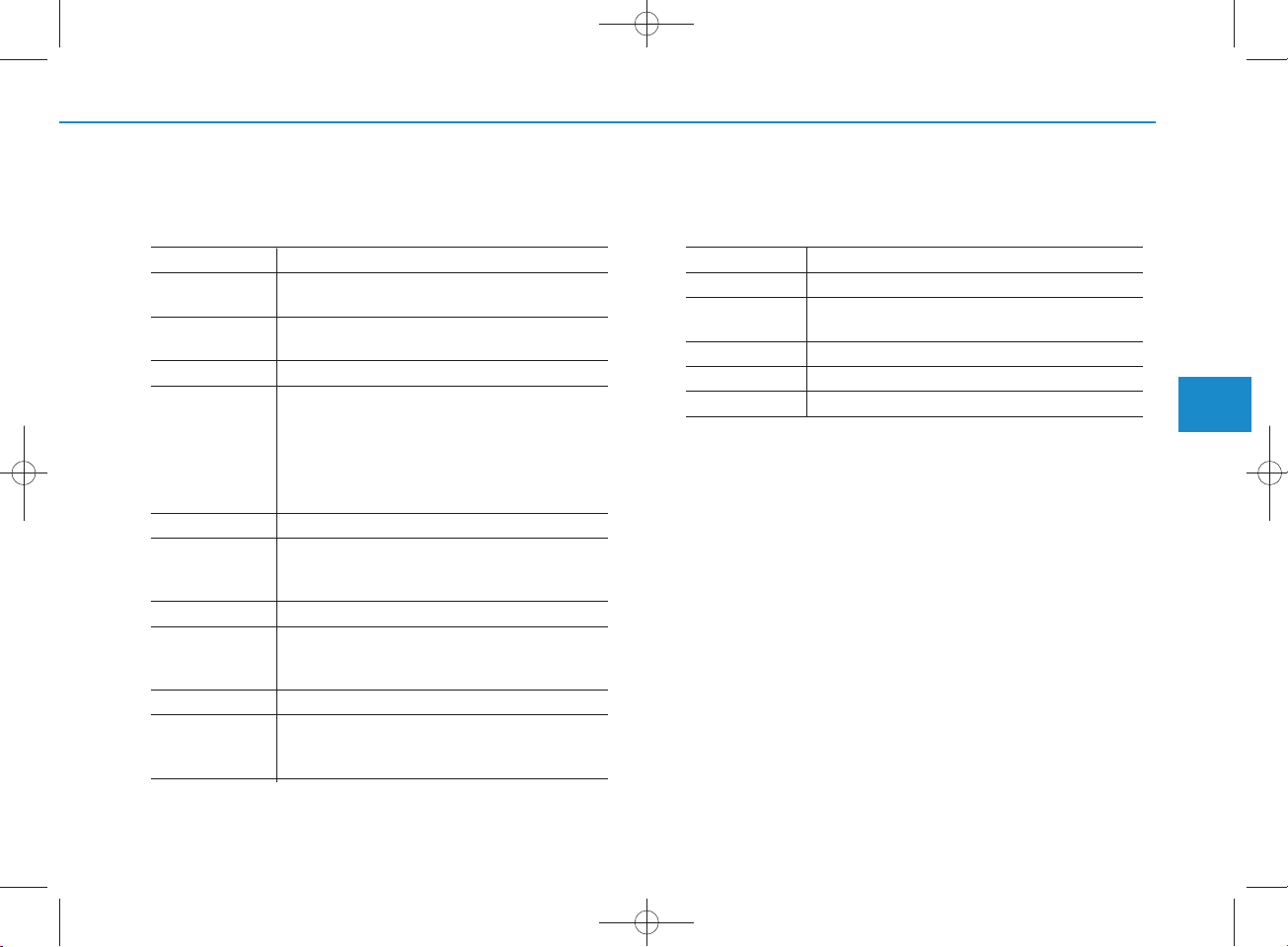
H_LF_A,B_AUDIO:BH hma 4-109~(Audio).qxd 5/19/2014 9:44 AM Page 91
Com m and Function
M ediaMoves to the m ost recently played m edia
Play Track 1~30 If a m usic C D has been inserted, plays the
CD Plays the music saved in the CD.
Search CD M oves to the CD track or file selection screen.
USB Plays USB m usic.
Search USB M oves to USB file selection screen. After
iPod Plays iPod music.
Search iPod M oves to the iPod file selection screen. After,
My MusicPlays the music saved in My Music.
Search My MusicMoves to My Music file selection screen. After
screen.
corresponding track.
•
For audio CDs, move to the screen and say the
track num ber to play the corresponding track.
•
Moves to MP3 CD file selection screen. After
m anually operate the device to select and
play music.
m anually operate the device to se lect and play
music.
m anually operate the device to se lect and play
music.
m anually operate the device to se lect and play
music.
Com m and Function
AUX (Auxiliary) Plays the connected external device.
Bluetooth A udioPlays the m usic saved in connected
Bluetooth
MuteMutes the radio or music volum e.
Pardon? R epeats the most recent com m ent.
C ancel (Exit) Ends voice com m and.
®
Wireless Technology
device.
4
Multimedia System
4-91
Page 92
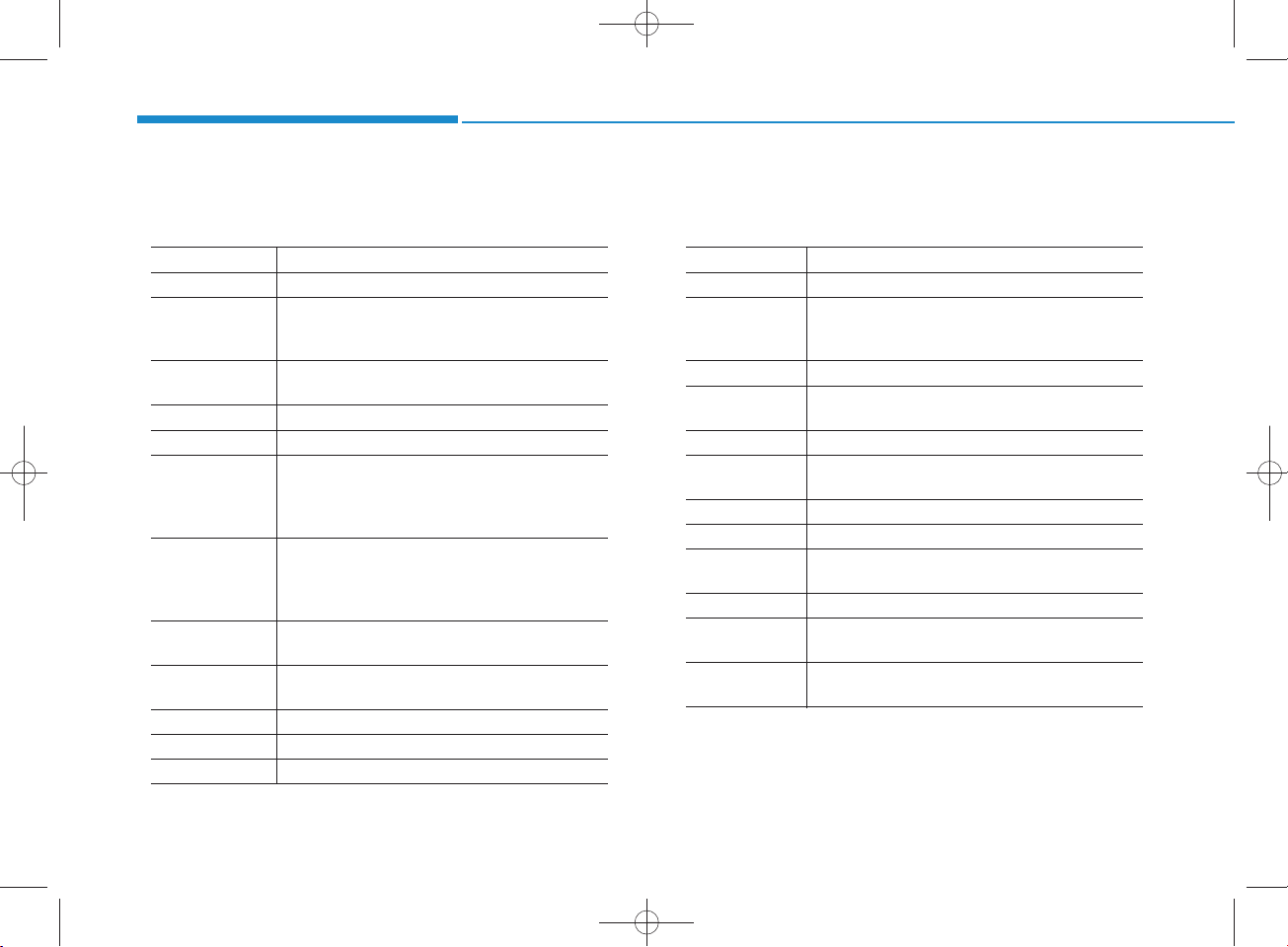
H_LF_A,B_AUDIO:BH hma 4-109~(Audio).qxd 5/19/2014 9:44 AM Page 92
Multimedia System
• FM /AM radio com m ands: C om m ands that can be used while
listening to FM , AM radio.
Com m and Function
Preset 1~6 P lays the broadcast saved in Preset 1~6.
Auto StoreAutom atically selects radio broadcast fre-
quencies with superior reception and saves in
Presets 1~6.
Preset Save 1~6 Saves the current broadcast frequency to
Preset 1~6.
Seek up P lays the next receiva ble broadcast.
Seek dow n P lays the previous receivable broadcast.
Next Preset S elects the preset num ber next to the m ost
recently se lected preset. (E xam ple: W hen cur-
rently listening to preset no. 3, then preset no.
4 will be selected.)
Previous Preset Selects the preset num ber previous to the
most recently selected preset. (Exam ple:
W hen currently listening to preset no. 3, then
preset no. 2 will be selected.)
Scan Scans receiva ble frequencies from the current
broadcast and plays for 10 seconds each.
Preset Scan M oves to the next preset from the current
present and plays for 10 seconds each.
AF on Enable Alternative Frequency feature
AF offDisable Alternative Frequency feature
R egion E nable R egion feature
• Audio C D com m ands: C om m ands that can be used while
listening to Audio CD.
Com m and Function
R egion off Disable R egion feature
Program Type M oves to the R D S P rogram type selection
screen. After, m anually operate the device to
select a desired program type.
R andom R andom ly plays the tracks within the CD.
R andom Off C ancels random play to play tracks in sequen-
tial order.
R epeat R epeats the current track.
R epeat Off Cancels repeat play to play tracks in sequen-
tial order.
Next Track Plays the next track.
Previous Track P lays the previous track.
Scan Scans the tracks from the next track for 10
seconds each.
Track 1~30 P lays the desired track num ber.
Search Track M oves to the track selection screen. After, say
the track nam e to play the corresponding track.
Inform ation D isplays the inform ation screen of the current
track.
4-92
Page 93
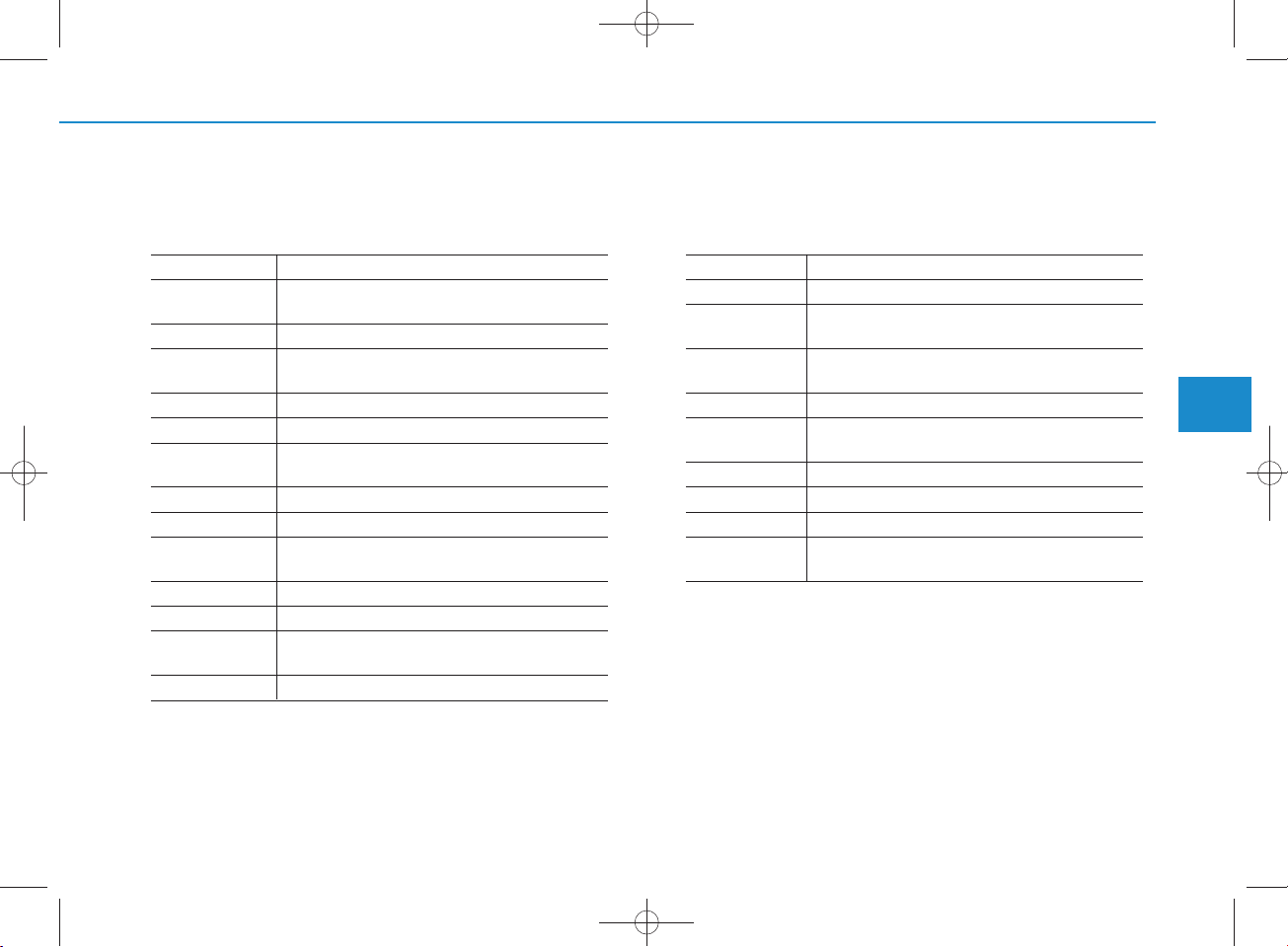
H_LF_A,B_AUDIO:BH hma 4-109~(Audio).qxd 5/19/2014 9:44 AM Page 93
• MP3 CD / U S B com m ands: C om m ands that can be used
while listening to music files saved in CD and USB.
Com m and Function
R andom R andom ly plays the files within the current
folder.
All R andom R andom ly plays all saved files.
R andom Off C ancels random play to play files in sequential
order.
R epeat R epeats the current file.
Folder R epeat R epeats all files in the current folder.
R epeat Off Cancels repeat play to play files in sequential
order.
Next FilePlays the next file.
Previous FilePlays the previous file.
Scan Scans the files from the next files for 10 sec-
onds each.
Search FileMoves to the file selection screen.
Search Folder M oves to the folder selection screen.
Inform ation D isplays the inform ation screen of the current
file.
Copy Copies the current file into My Music.
• iP od C om m ands: C om m ands that can be used while playing
iPod.
Com m and Function
All R andom R andom ly plays all saved songs.
R andom R andom ly plays the songs w ithin the current
category.
R andom Off C ancels random play to play songs in sequen-
tial order.
R epeat R epeats the current song.
R epeat Off Cancels repeat play to play songs in sequen-
tial order.
Next S ong P lays the next song.
Previous S ong Plays the previous song.
Search S ong M oves to the song selection screen.
Inform ation D isplays the inform ation screen of the current
song.
4
Multimedia System
4-93
Page 94
H_LF_A,B_AUDIO:BH hma 4-109~(Audio).qxd 5/19/2014 9:44 AM Page 94
Multimedia System
• My Music Com m ands: C om m ands that can be used w hile
playing My Music.
Com m and Function
R andom R andom ly plays all saved files.
R andom Off C ancels random play to play files in sequential
order.
R epeat R epeats the current file.
R epeat Off Cancels repeat play to play files in sequential
order.
Next FilePlays the next file.
Previous FilePlays the previous file.
Scan Scans the files from the next files for 10 sec-
onds each.
Search FileMoves to the file selection screen.
Inform ation D isplays the inform ation screen of the current
file.
DeleteDeletes the current file. You w ill bypass an
additional confirm a tion process.
Delete AllDeletes all files saved in My Music. You w ill
bypass an additional confirm a tion process.
•
Bluetooth
®
Wireless Technology A udio C om m ands:
C om m ands that can be used while playing Phone Music.
Com m and Function
Play P lays the currently paused song.
Pause Pauses the current song.
4-94
Page 95
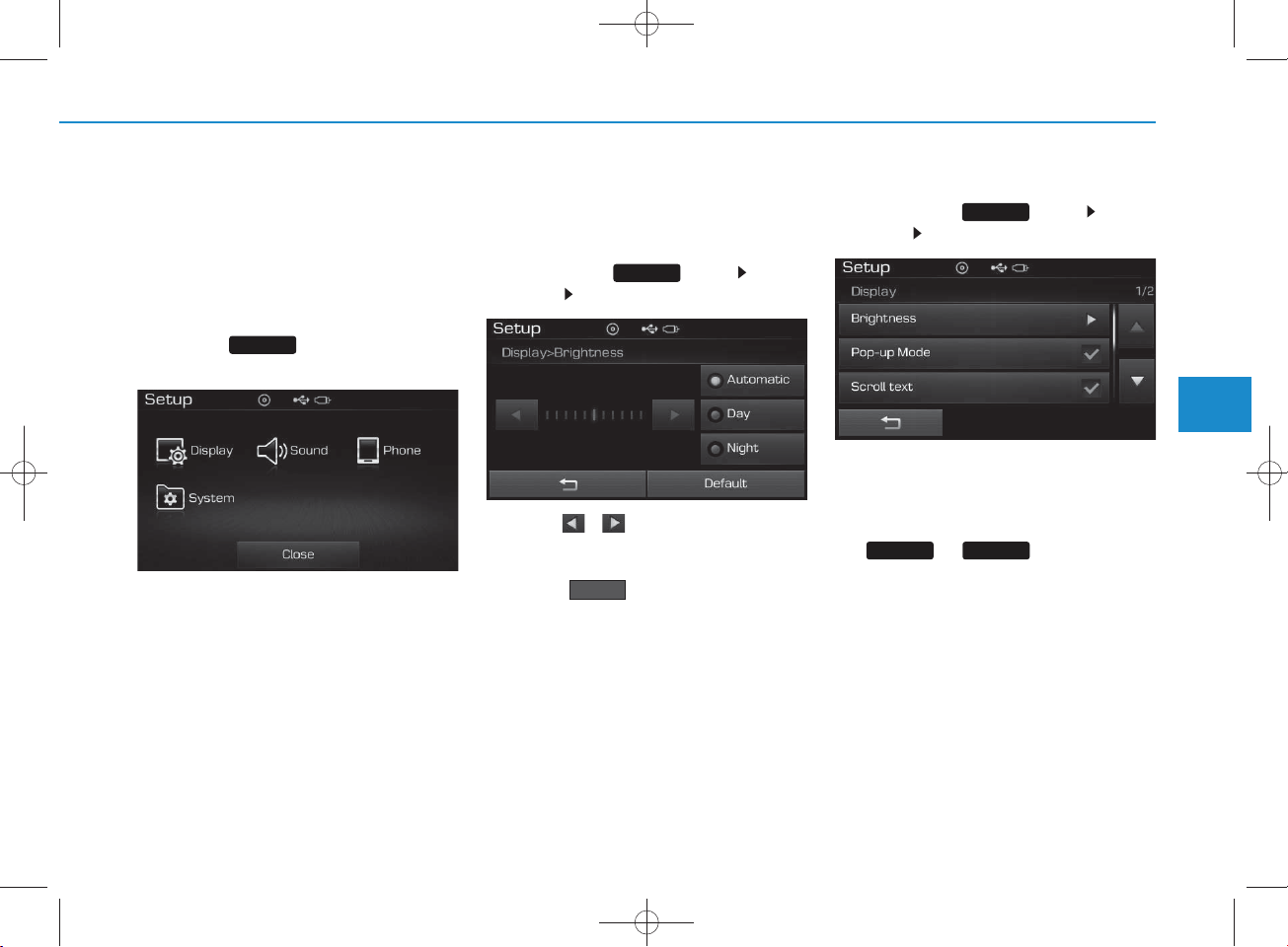
SETUP
(FOR RDS,
BLUETOOTH
®
W IRELESS
TECHNOLOGY EQUIPPED M ODEL)
H_LF_A,B_AUDIO:BH hma 4-109~(Audio).qxd 5/19/2014 9:44 AM Page 95
Starting M ode
Press the key to display the
Setup screen.
You can select and control options related
to [Display], [S ound], [P hone] and
[S ystem ].
SETUP
Display Settings
Adjusting the Brightness
P ress the key Select
[Display] Select [Brightness]
Use the , buttons to adjust the
screen brightness or set the Brightness
on Autom atic, Day, or Night m ode.
Press the button to reset.
1)Autom atic : Adjusts the brightness
autom atically
2) Day: Alw ays maintains the brightness on high
3) Night: Alw ays m aintains the
brightness on low
SETUP
Default
Pop-up M ode
P ress the key Select
[Display] Select [Pop-up M ode]
This feature is used to display the Pop-up
M ode screen w hen entering radio and
m edia m odes.
W hen this feature is turned on, pressing
the or key w ill display
the Pop-up M ode screen
SETUP
MEDIA RADIO
.
NOTICE
The m edia Pop-up M ode screen can
be disp layed only w hen two or m ore
media modes have b een con n ected.
4
Multimedia System
4-95
Page 96
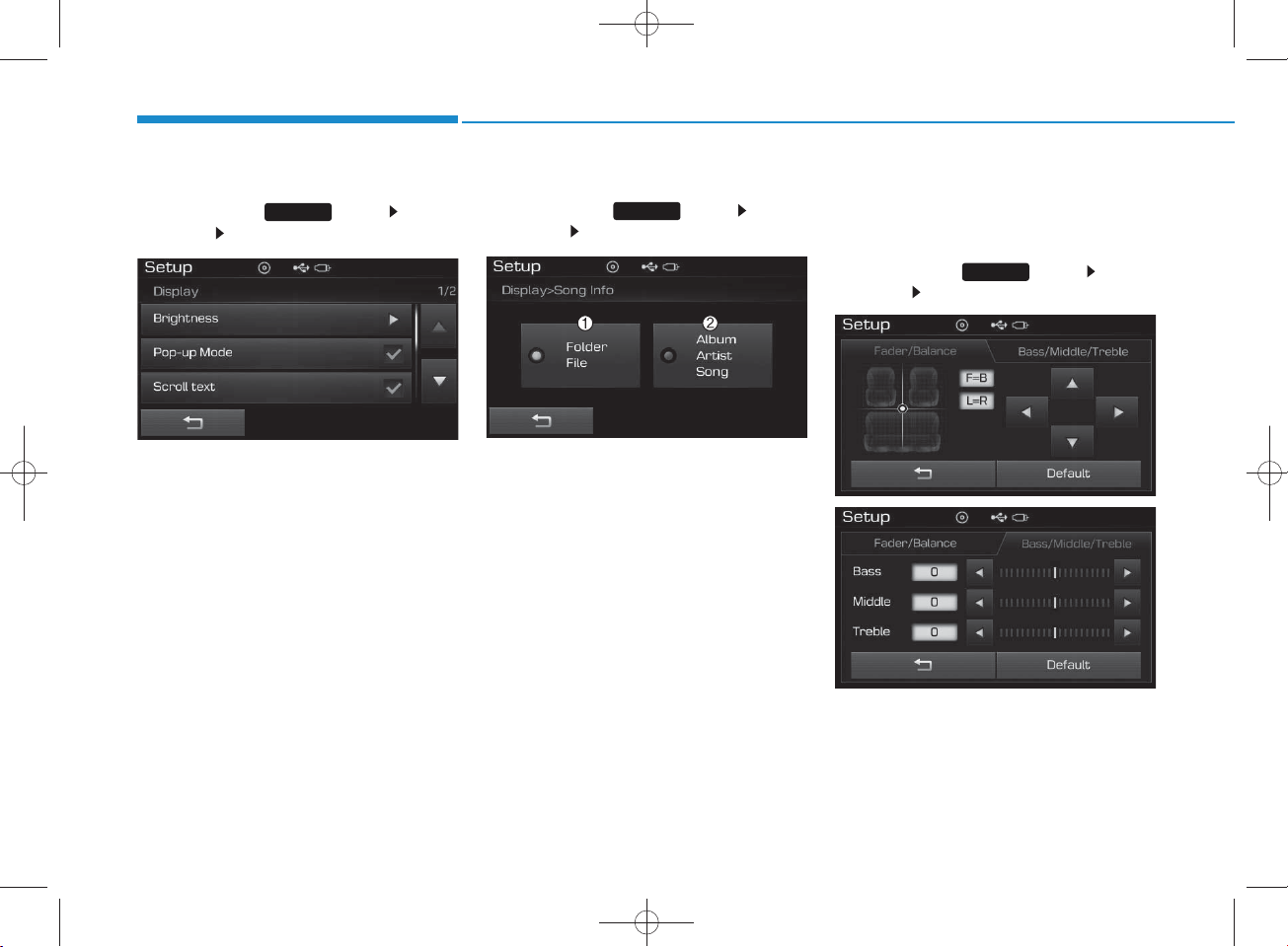
H_LF_A,B_AUDIO:BH hma 4-109~(Audio).qxd 5/19/2014 9:44 AM Page 96
Multimedia System
Scroll Text
P ress the key Select
[Display] Select [Scroll text]
This feature is used to scroll text displayed on the screen w hen it is too
long to be displayed at once.
W hen turned on, the text is repeatedly scrolled. W hen turned off, the
text is scrolled just once.
SETUP
MP3 Inform ation Display
P ress the key Select
[Display] Select [S ong Info]
This feature is used to change the
inform ation displayed w ithin U S B
and MP3 CD m odes.
1)Folder File : Displays file nam e
and folder nam e
2)A lbum Artist S ong : Displays
album nam e/artist nam e/song
SETUP
Sound Settings
Audio Settings
P ress the key Select
[Sound] Select [Audio Setting]
SETUP
4-96
Page 97
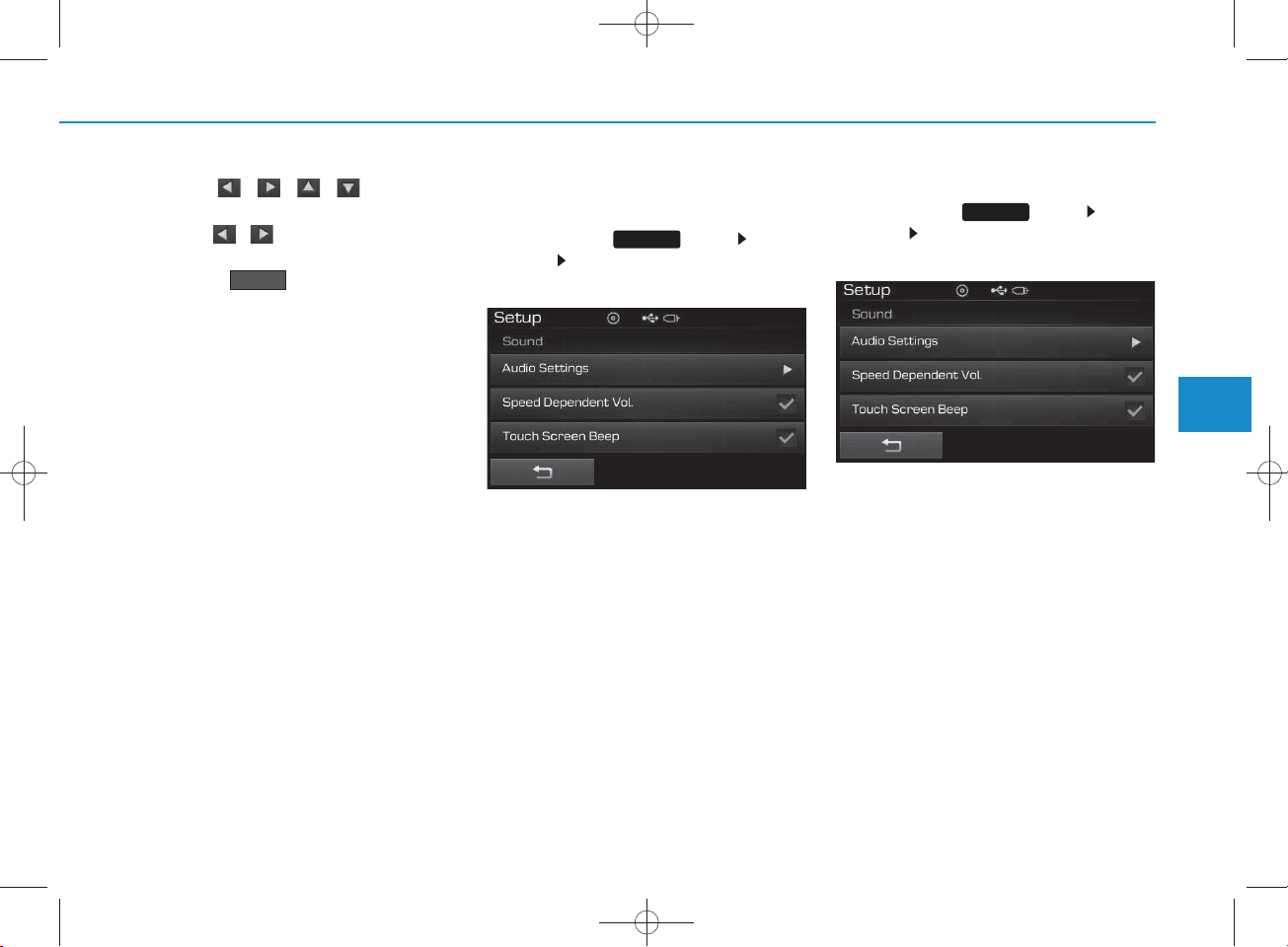
H_LF_A,B_AUDIO:BH hma 4-109~(Audio).qxd 5/19/2014 9:44 AM Page 97
Use the , , , buttons to
adjust the Fader/Balance settings.
Use the , buttons to adjust the
B ass/Middle/Treble settings.
Press the button to reset.
Default
SDVC (Speed Dependent Volum e
Contro l)
P ress the key Select
[Sound] Select [S peed D ependent
Vol.]
The volum e level is controlled automatically according to the vehicle
speed. SDVC can be set by selecting
from On / Off.
SETUP
Touch S creen B eep
P ress the key Select
[S ound] Select [Touch S creen
Beep]
This feature is used to turn the touch
screen beep on/off.
SETUP
4
Multimedia System
4-97
Page 98
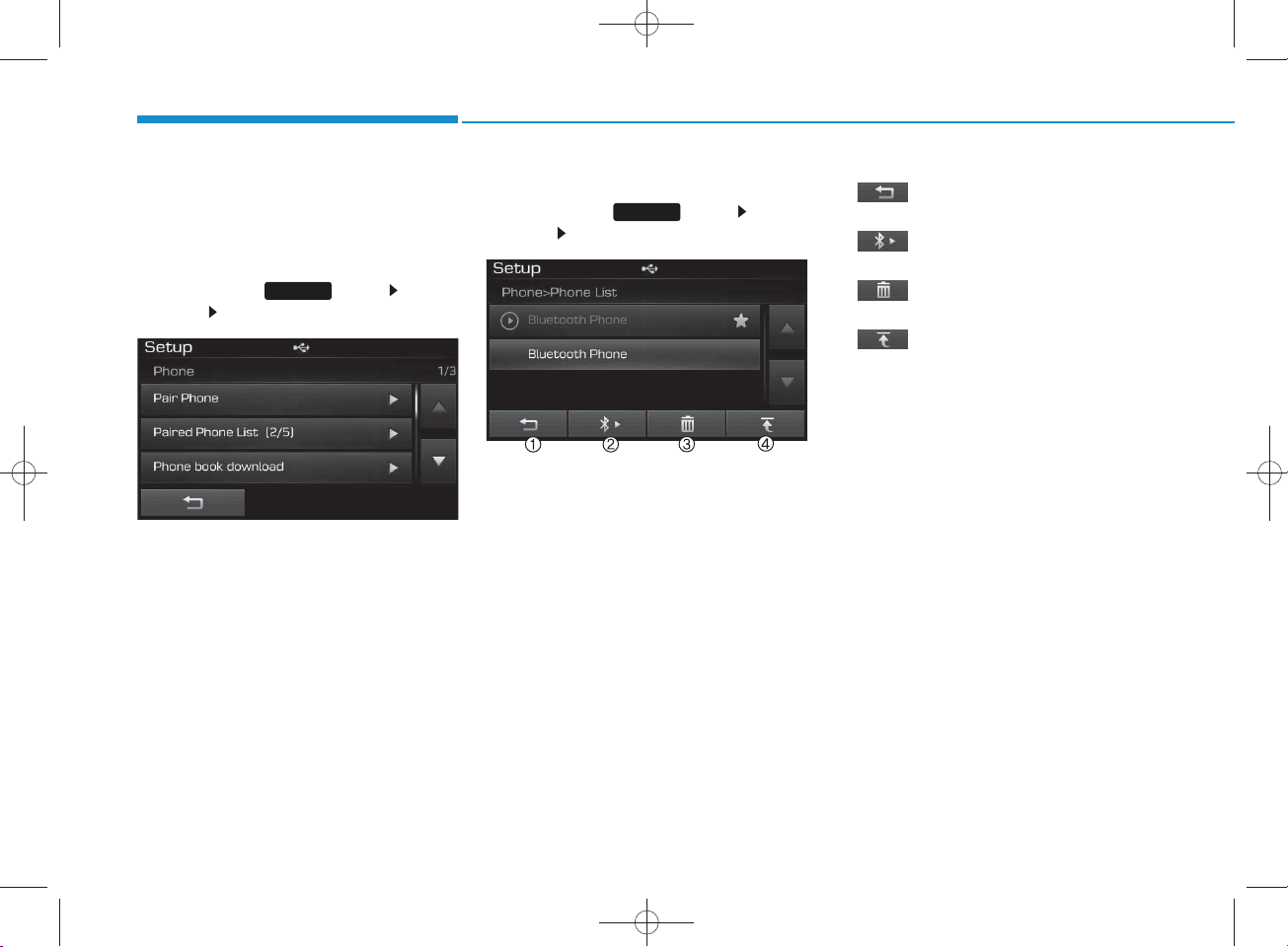
H_LF_A,B_AUDIO:BH hma 4-109~(Audio).qxd 5/19/2014 9:44 AM Page 98
Multimedia System
Bluetooth
®
Wire less
Technology Setting
Pairing a New Device
P ress the key Select
[Phone] Select [Pair P hone]
Bluetooth
devices can be paired with the audio
system .
For more inform ation, refer to the
“Pairing through Phone S etup” section w ithin
Technology.
SETUP
®
Wire less Technology
Bluetooth
®
Wire less
View ing Paire d Phone List
P ress the key Select
[Phone] Select [Paired Phone List]
This feature is used to view m obile
phones that have been paired w ith
the audio system . U pon selecting a
paired phone, the setup menu is displayed.
For more inform ation, refer to the
“S e tting
Technology Connection” section
within
Technology.
SETUP
Bluetooth
Bluetooth
®
Wire less
®
Wire less
1) : Moves to the previous
screen
2) : C onnect/ disconnects currently selected phone
3) : Deletes the currently
selected phone
4) : Sets currently selected
phone to highest connection
priority
NOTICE BEFORE DOW NLOADING PHO NE BOOKS
• Only phone books within conn ected
phones can be dow nloaded. Also
check to see that your mobile phone
supports the dow nload feature.
• T o learn m ore ab ou t whether your
mobile phone supports phone book
downloads, refer to your m obile
phone user’s m anual.
• T he Phone book for only the con-
nected phone can be dow nloaded.
Before dow nloading, ch eck to see
whether your phone supports the
download feature.
4-98
Page 99
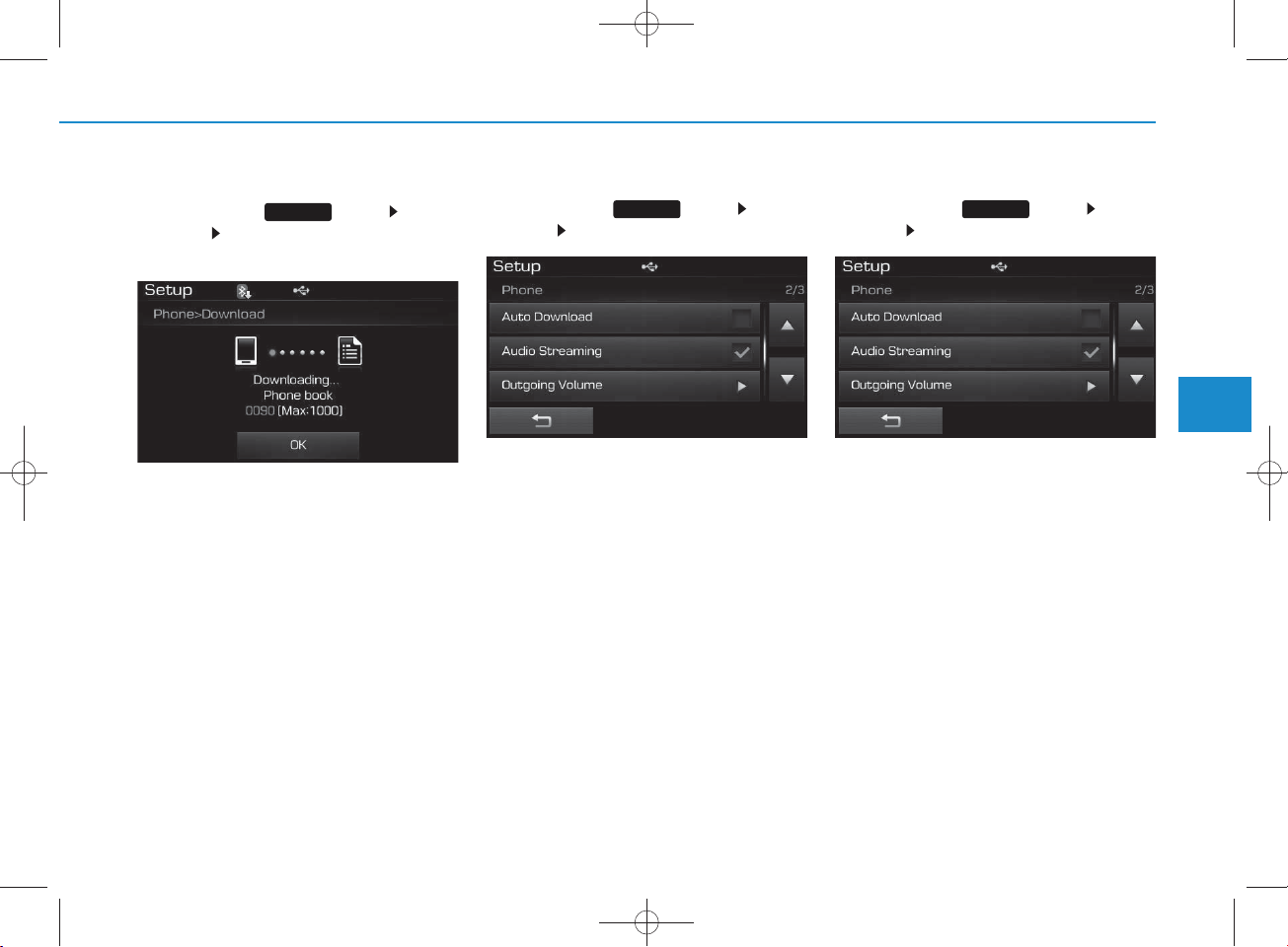
H_LF_A,B_AUDIO:BH hma 4-109~(Audio).qxd 5/19/2014 9:44 AM Page 99
Downloading Phone books
P ress the key Select
[P hone] Select [Phone book
Download]
The Phone book is dow nloaded from
the m obile phone and the dow nload
progress is displayed.
SETUP
NOTICE
•Up to 1,000 phone book entries can
be cop ied into car phone book.
•Up to 1,000 phone book entries can
be saved for each paired device.
• Upon downloading phone book
data, previously saved phone book
data w ill be deleted . However,
Phone book entries saved to other
paired phones are not deleted .
Auto Download (Phone B ook)
P ress the key Select
[Phone] Select [Auto Download]
This feature is used to autom atically
dow nload m obile phone book entries
once a
Bluetooth
®
Wire less
Technology phone is connected.
NOTICE
•The Auto Download feature will
download m obile phone book
entries every time the phone is con nected. The download time m ay differ depending on the num ber of
saved phone book entries and the
com m unication state.
• W h e n d o w n loading a phone book,
first ch eck to see that your m obile
phone supports the phone book
download feature.
Audio Stream ing
P ress the key Select
[Phone] Select [A udio Stream ing]
W hen Audio Stream ing is turned on,
you can play m usic files saved in
your
Technology device from the car.
SETUP SETUP
Bluetooth
®
Wire less
4
Multimedia System
4-99
Page 100
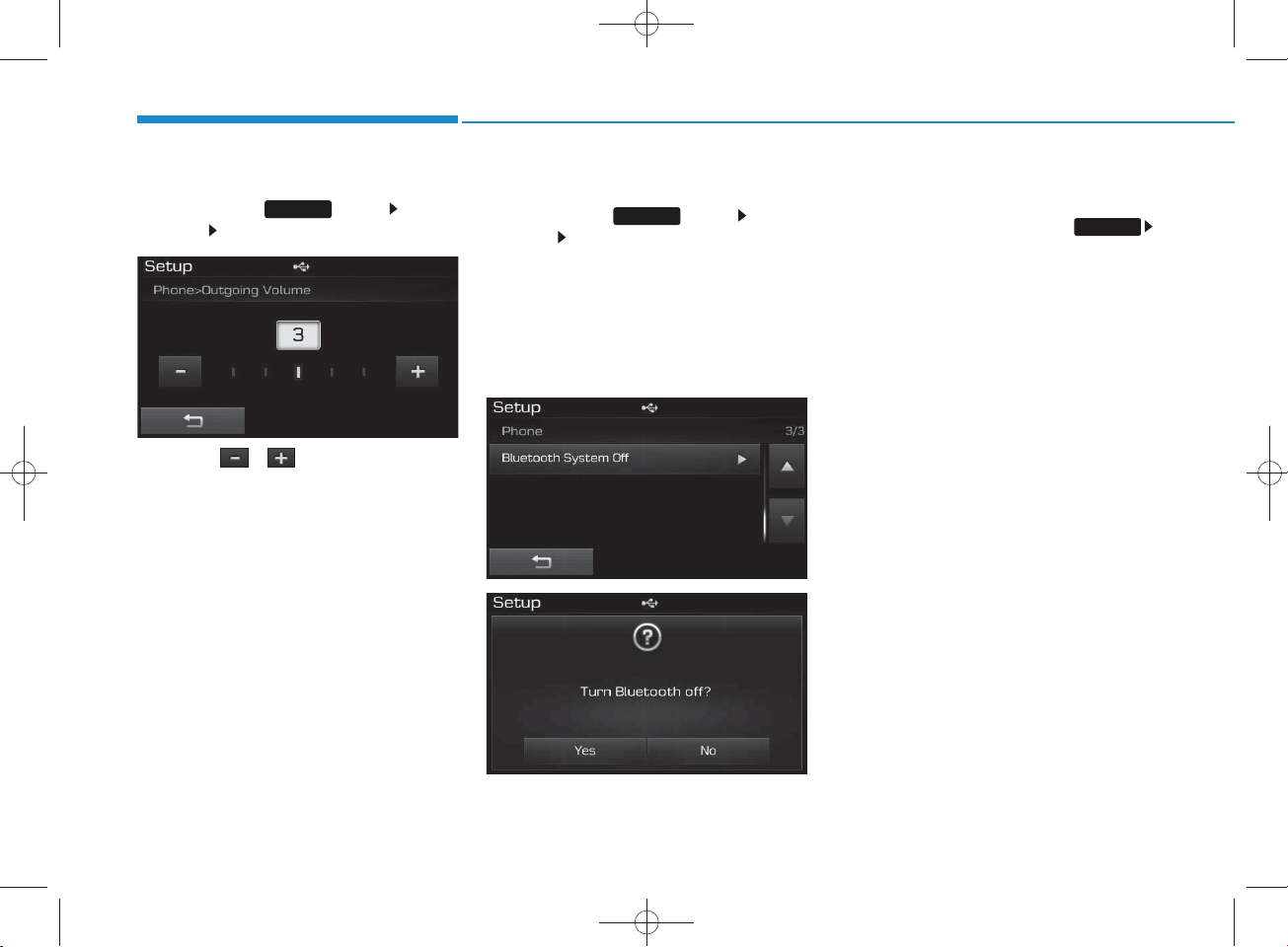
H_LF_A,B_AUDIO:BH hma 4-109~(Audio).qxd 5/19/2014 9:44 AM Page 100
Multimedia System
Outgoing Volum e
P ress the key Select
[Phone] Select [Outgoing Volum e]
Use the , buttons to adjust
the outgoing volum e level.
SETUP
Turning Bluetooth S ystem Off
P ress the key Select
[Phone] Select [Bluetooth S ystem
Off]
Once
Technology is turned off,
Wireless Technology related features
will not be supported within the audio
system .
SETUP
Bluetooth
®
Wire less
Bluetooth
®
NOTICE
To turn Bluetooth
®
Technology back on, go to
[Phone] and p ress “Y es”.
Wireless
SETUP
4-100
 Loading...