

Page 1

Remote Video Microphone
USER'S MANUAL
Page 2

1
Preface
Welcome to the world of Hytera and thank you for purchasing this product. To derive optimum performance
from the product, please carefully read this manual before use.
This manual is applicable to the following products:
VM68X Remote Video Microphone
Page 3

2
Icon Conventions
The following icons are available through this manual:
Caution
:indicates situations that could cause damage to your product or bodily injury.
Note
:indicates tips that can help you make better use of your product.
Copyright Information
Hytera is the trademark or registered trademark of Hytera Communications Corporation Limited (the Company)
in the People’s Republic of China (PRC) and/or other countries or areas. The Company retains the ownership of
its trademarks and product names. All other trademarks and/or product names that may be used in this manual
are properties of their respective owners.
The product described in this manual may include the Company’s computer programs stored in memory or other
media. Laws in PRC and/or other countries or areas protect the exclusive rights of the Company with respect to its
computer programs. The purchase of this product shall not be deemed to grant, either directly or by implication,
any rights to the purchaser regarding the Company’s computer programs. The Company’s computer programs
may not be copied, modified, distributed, decompiled, or reverse-engineered in any manner without the prior
written consent of the Company.
Disclaimer
The Company endeavors to achieve the accuracy and completeness of this manual, but no warranty of accuracy
or reliability is given. All the specifications and designs are subject to change without notice due to continuous
technological development. No part of this manual may be copied, modified, translated, or distributed in any
manner without the prior written consent of the Company.
We do not guarantee, for any particular purpose, the accuracy, validity, timeliness, legitimacy or completeness of
the third-party products and contents involved in this manual.
If you have any suggestions or would like to receive more information, please visit our website
at:
http://www. hytera.com.
Page 4

3
EU Regulatory Conformance
As certified by the qualified laboratory, the product is in compliance with the essential requirements and other
relevant provisions of the following directives:
2014/53/EU
2006/66/EC
2011/65/EU
2012/19/EU
Please note that the above information is applicable to EU countries only.
Page 5

4
1. Packing List
No.
Item
Qty.
1
Remote Video Microphone (RVM)
1
2
Battery 1
3
Belt Clip 1 4
USB Cable 1
5
Power Adapter 1
6
Documentation Kit
1
Page 6
5
2. Product Introduction
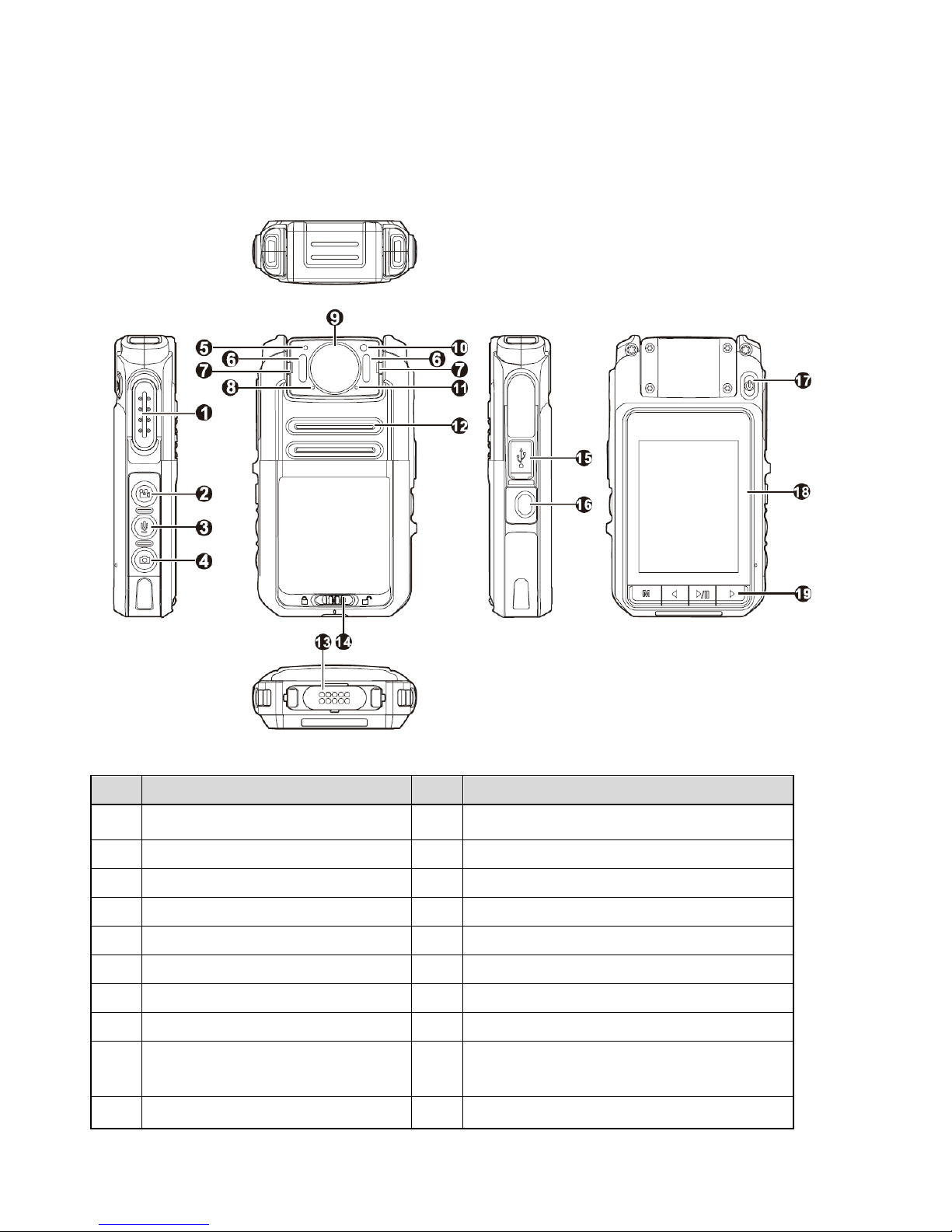
2.1 Product Layout
No.
Part Name
No.
Part Name
1
PTT (Push-to-Talk) Key
11
Microphone 1
2 Video Recording Key
12 Speaker
3 Audio Recording Key
13 Accessory Interface (10-pin)
4 Photo Taking Key
14 Battery Latch
5 Light Sensor
15 USB Connector
6 Infrared (IR) LED
16 Emergency Key
7 LED Indicator
17 On/Off Key
8 Microphone 2
18 LCD Display
9
Lens
19
Keys (Menu/Back Key, Left Key, Play/Pause/
Confirm Key, Right Key)
10
Light Compensator
/
/
Page 7
6
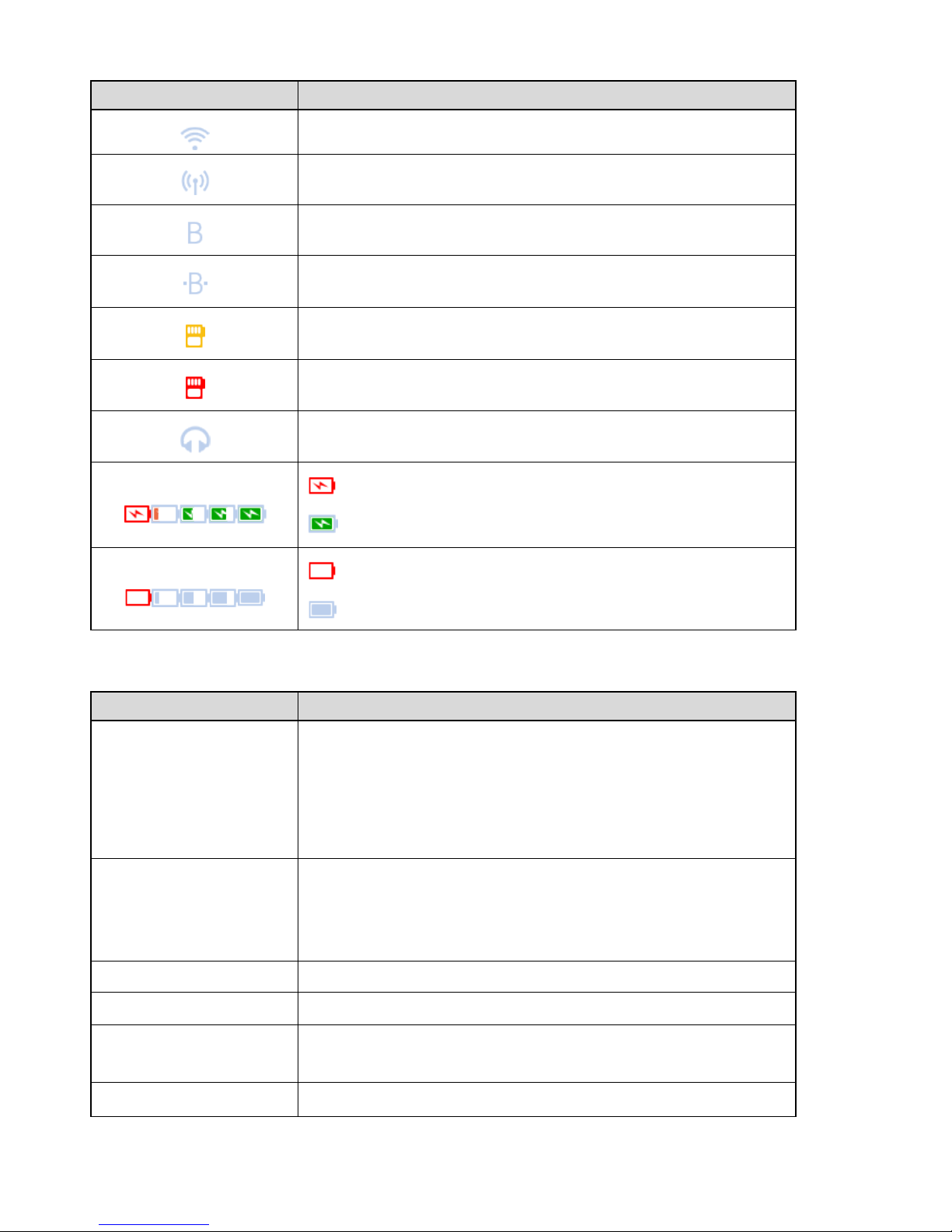
2.2 LCD Icons
LCD Icon
Description
WLAN is enabled.
WLAN hotspot is enabled.
BT Feature is enabled.
The wireless connection is established.
The remaining capacity of the TF card is less than 2 GB.
The TF card is full
.
Earpiece is connected.
: The product is being charged when the battery is low.
: The product is fully charged
: Low battery.
: Full battery.
2.3
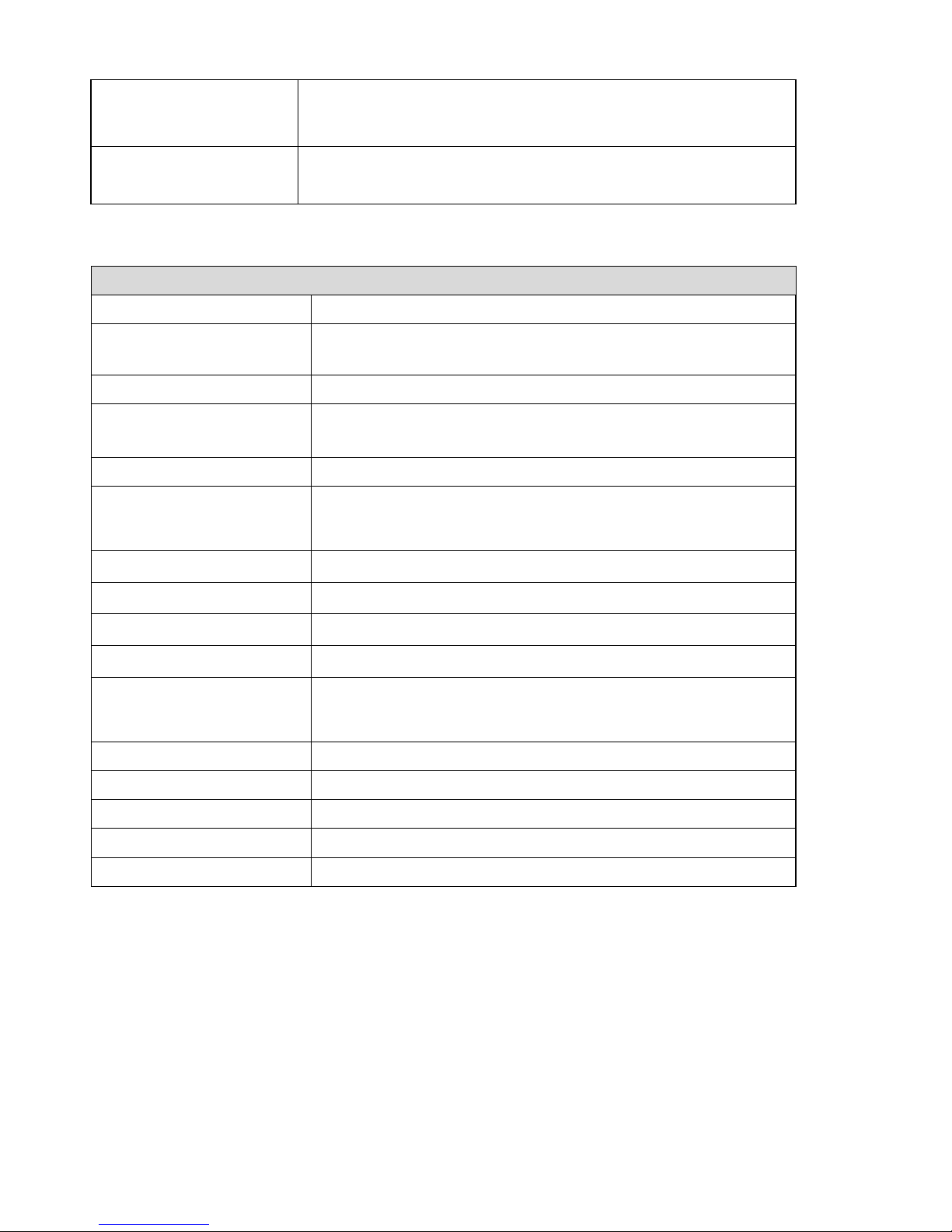
LED Indicators
LED Indication
Description
Glows red
The product is transmitting.
The product is being charged.
The TF card is full.
The product is being turned off.
Glows green
The product is receiving.
The product is fully charged.
The product is being turned on.
Glows orange
Call idle. You can press and hold the PTT key to speak.
Flashes orange rapidly
Idle status in Emergency Alarm mode.
Flashes red once every five
seconds
The battery runs low. Please recharge or replace the battery in time.
Flashes red slowly
Video recording.
Page 8
7
Flashes orange slowly
Audio recording.
The remaining card is less than 2 GB.
The LED indicator flashes
red and blue in turn.
BT pairing.
2.4 Specifications
RVM
Dimensions (H x W x D)
24 mm x 60 mm x 106.5 mm
Weight
(with standard battery)
<
170 g
Image Sensor
16-megapixel
Camera
Fixed angle, glass, 180° rotatable, diagonal 140°, horizontal 106°,
vertical 78°
Focus Range
0.1 m to infinity
Battery Life
(continuous video shooting)
≥ 8 hours
Battery Capacity
2,500 mAh
Display Size
2.4-inch
Display Resolution
240 (RGB) x 320
Screen Type
TFT-LCD 262K color display
Internal Memory
Standard: 16 GB
Optional: 32 GB/64 GB/128 GB
Video Format
MP4
Video Encoding Format
H.264
Video Resolution
480P (30FPS), 720P (30FPS/60FPS), 1080P (30FPS/60FPS)
Audio Encoding Format
AAC (Advanced Audio Coding)
Photo Format
JPG
Page 9

8
Photo Resolution
4608 x 3456 (16-megapixel), 3072 x 1728 (5-megapixel), 2304 x 1296
(3-megapixel)
Pre-recording Time
10s/20s
Post-recording Time
10s/20s/30s
Speaker Power
2 W
Microphone
Silicon microphone x 1, –38 dB
Electret microphone x 1, –42 dB
Wi-Fi
802.llb/g /n (AP mode and STA mode supported)
BT BT4.0
Connector
Micro USB, 10-pin contact port
Infrared (IR) LED
OSRAM RED x 6
Night Vision Range
(without lighting
)
≥ 3 m
Light Compensator
1 W
Ruggedness
MIL-STD-810G, IP67
Drop Resistance
1.5 m
ESD
±6 kV (contact discharge)
±12 kV (air discharge)
Operating Temperature
–20°C to +60°C
Storage Temperature
–40°C to +85°C
System Compatibility
Windows XP/Window 7/Windows 8/Windows 10
Power Adapter
Input
110 V – 240 V AC, 50 Hz – 60 Hz
Output
5 V DC, 1 A
Page 10
9
3. Before Use
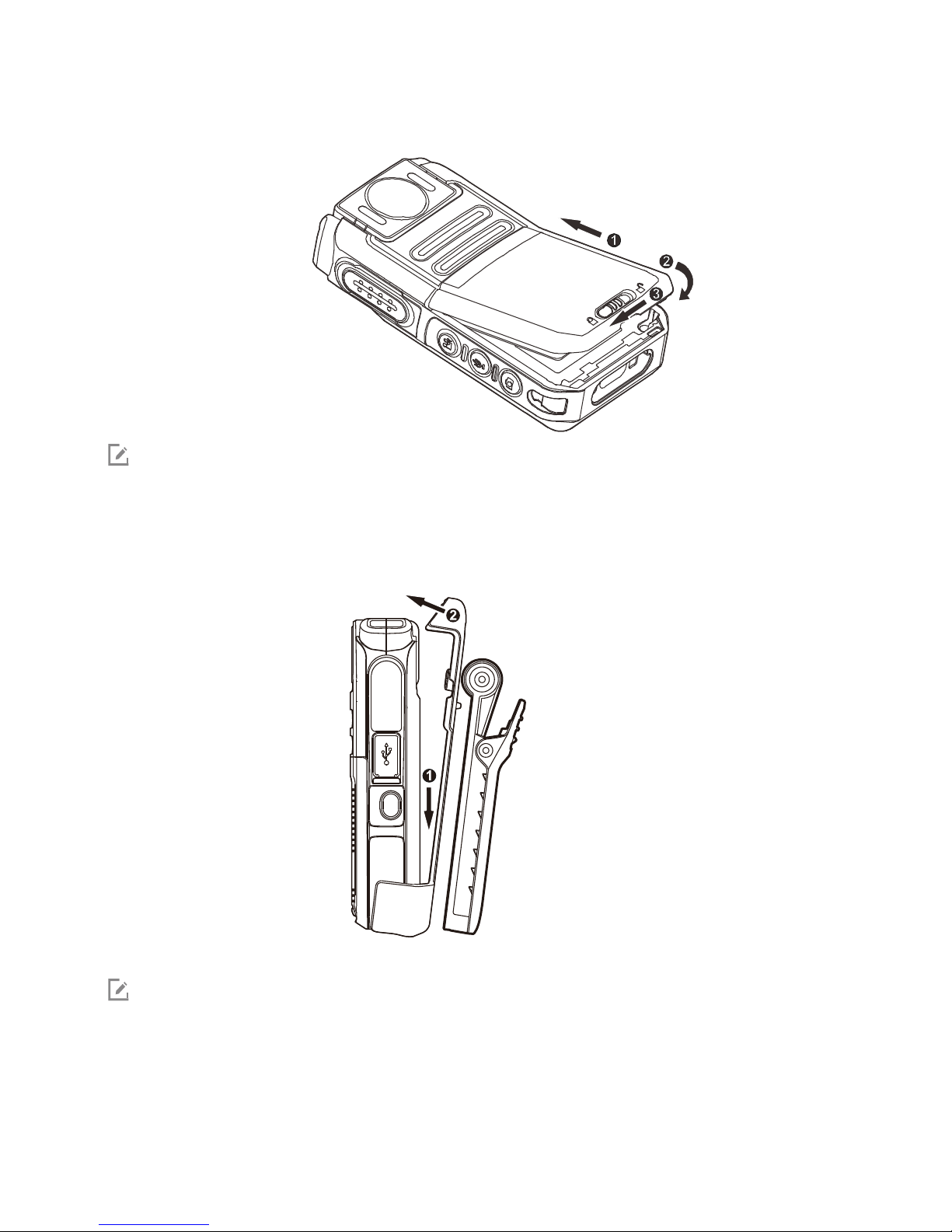
3.1 Attaching the Battery
Note
Use only the Hytera standard or optional battery. Polarity reverse and use of other batteries may
result in explosion and fire hazards.
3.2 Attaching the Belt Clip
Note
To remove the belt clip, go through the above steps reversely.
Page 11
10
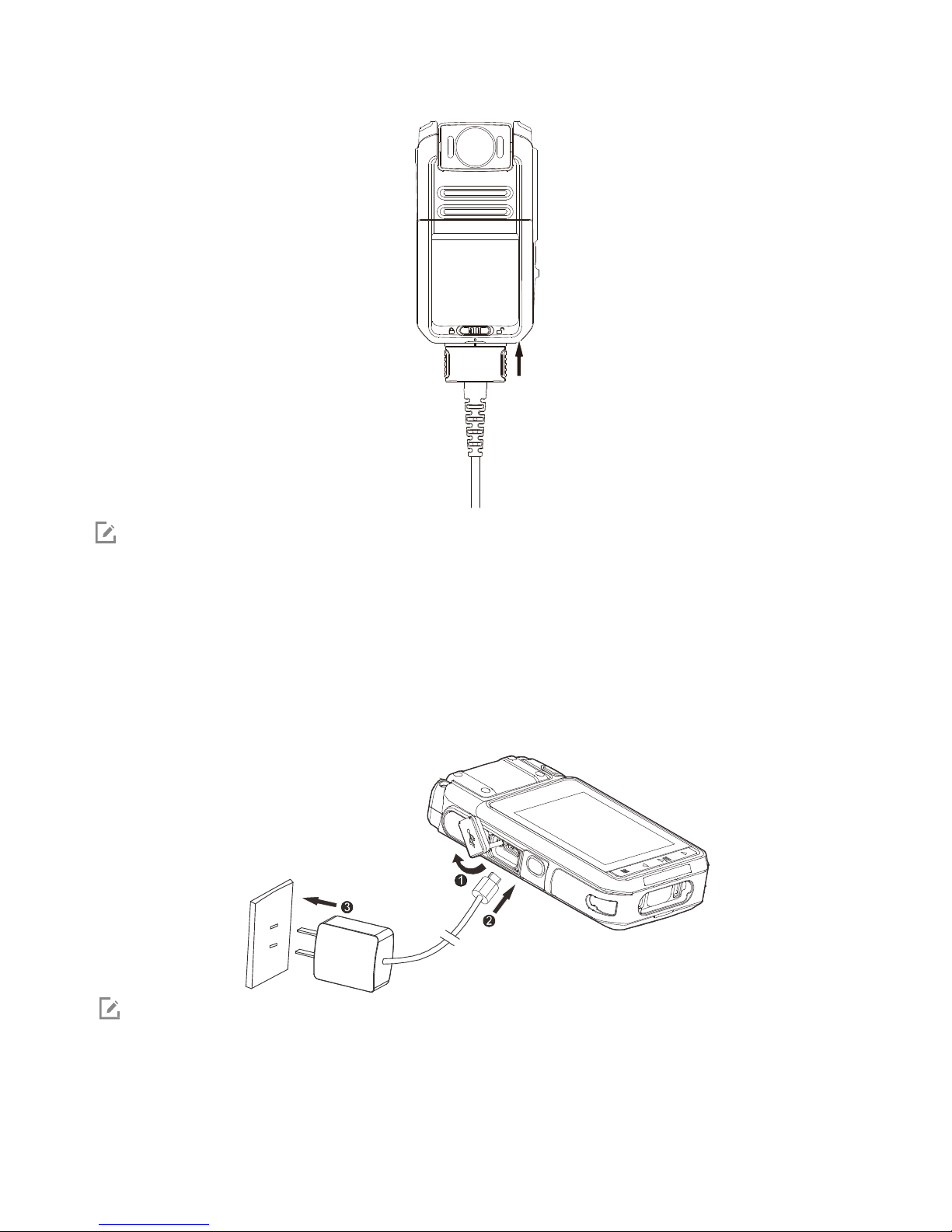
3.3 (Optional) Connecting the Accessory Cable
Note
Skip this section if you do not purchase the accessory cable.
To disconnect the cable, press both sides of the cable connector and remove the connector with
proper force.
3.4 Charging the Product
To charge the product, do as follows:
Note
The LED indicator tells you the charging status of the product. See 2.3 LED Indicator for details.
Page 12

11
4. Basic Operations
4.1 Turning on the Product
To turn on the product, press and hold the On/Off key for 3s to enter the Live View mode.
4.2 Turning off the Product
To turn off the product, press and hold the On/Off key again for 3s.
4.3 Setting the Product
You can set the BT, WLAN, WLAN hotspot, language, screen, volume, silent mode, night vision and other features.
To enter the basic settings screen, press and hold the Menu/Back key in the Live View mode.
4.3.1 BT
You can enable or disable BT and Device Match features, or view the Device Name and MAC Address.
1. Press the Left key or the Right key to select BT, and then press the Play/Pause/Confirm key.
2. To enable or disable the BT feature, do as follows:
a. Press the Play/Pause/Confirm key to enter BT On/Off screen.
b. Press the Left key or the Right key to select ON or OFF, and then press the Play/Pause/Confirm key.
3. To enable or disable the Device Match, do as follows:
a. Press the Left key or the Right key to select Device Match, and then press the Play/Pause/Confirm key.
b. Press the Left key or the Right key to select ON or OFF, and then press the Play/Pause/Confirm key.
4. To view the Device Name, press the Left key or the Right key to select Device Name, and then press the
Play/Pause/Confirm key.
5. To view the MAC address, press the Left key or the Right key to select MAC address, and then press the
Play/Pause/Confirm key.
4.3.2 WLAN
You can enable or disable WLAN, view the network list, select the device to be connected, and view the IP
address.
1. Press the Left key or the Right key to select WLAN, and then press the Play/Pause/Confirm key.
Page 13

12
2. Press the Play/Pause/Confirm key to enter the WLAN screen.
3. Press the Left key or the Right key to select ON or OFF, and then press the Play/Pause/Confirm key.
4. To view the network list, press the Left key or the Right key to select Network List, and then press the
Play/Pause/Confirm key.
5. (Optional) Press the Left key or the Right key to select the device to be connected, and then press the
Play/Pause/Confirm key.
6. (Optional) To view the IP address, press the Left key or the Right key to select IP address, and then press the
Play/Pause/Confirm key.
4.3.3 WLAN Hotspot
You can enable or disable hotspot, view hotspot name, hotspot password, MAC address, and IP address.
1. Press the Left key or the Right key to select WLAN Hotspot, and then press the Play/Pause/Confirm key.
2. Press the Play/Pause/Confirm key to enter the Hotspot On/Off screen.
3. Press the Left key or the Right key to select ON or OFF, and then press the Play/Pause/Confirm key.
4. To view the Hotspot name, press the Left key or the Right key to select Name, and then press the
Play/Pause/Confirm key.
5. (Optional) To view the Hotspot password, press the Left key or the Right key to select Password, and then
press the Play/Pause/Confirm key.
6. (Optional) To view the MAC address, press the Left key or the Right key to select MAC Address, and then press
the Play/Pause/Confirm key.
7. (Optional) To view the IP address, press the Left key or the Right key to select IP Address, and then press the
Play/Pause/Confirm key.
4.3.4 Language
You can set the language displayed on the interface.
1. Press the Left key or the Right key to select Language, and then press the Play/Pause/Confirm key.
2. Press the Left key or the Right key to select the desired language, and then press the Play/Pause/Confirm key.
4.3.5 Screen
1. Brightness
Page 14

13
To adjust the brightness, do as follows:
1. Press the Left key or the Right key to select Screen, and then press the Play/Pause/Confirm key.
2. Press the Left key or the Right key to select Brightness, and then press the Play/Pause/Confirm key.
3. Press the Left key or the Right key to select the brightness value, and then press Play/Pause/Confirm key.
2.
Screen Off
To set the time for the screen saver, do as follows:
1. Press the Left key or the Right key to select Screen, and then press the Play/Pause/Confirm key.
2. Press the Left key or the Right key to select Screen Off, and then press the Play/Pause/Confirm key.
3. Press the Left key or the Right key to select 10s, 20s, 30s or OFF, and then press the Play/Pause/Confirm
key.
3.
Auto-Brightness
This feature allows the product to adjust the brightness automatically to fit lightning situation for better
image and video view. To enable or disable the feature, do as follows:
1. Press the Left key or the Right key to select Screen, and then press the Play/Pause/Confirm key.
2. Press the Left key or the Right key to select Auto-Brightness, and then press the Play/Pause/Confirm key.
3. Press the Left key or the Right key to select ON or OFF, and then press the Play/Pause/Confirm key.
4.
Sleep Mode
This feature allows the product to enter sleep mode for saving battery power, if no operation is made within
predefined time. To set the sleep mode, do as follows:
1. Press the Left key or the Right key to select Screen, and then press the Play/Pause/Confirm key.
2
.
Press the Left key or the Right key to select Sleep Mode, and then press the Play/Pause/Confirm key.
3. Press the Left key or the Right key to select 5 min, 10 min, 20 min or OFF, and then press the Play/Pause/
Confirm key.
4.3.6 Volume
You can adjust the volume for the key tone, alert tone, video playback and audio playback.
To adjust the volume, do as follows:
Page 15

14
1. Press the Left key or the Right key to select Volume, and then press the Play/Pause/Confirm key.
2. Press the Left key or the Right key to select High, Medium, Low or Silent, and then press the Play/Pause/
Confirm key.
4.3.7 Silent Mode
With this feature enabled, the product gives no alert tones, the indicator will not light up, and the display
brightness is at the lowest level.
To enable or disable the Silent Mode, do one of the following:
Press the Left key or the Right key to select Silent Mode, and then press the Play/Pause/Confirm
key. Press the Left key or the Right key to select ON or OFF, and then press the Play/Pause/Confirm
key.
Press and hold both the On/Off key and the Menu/Back key simultaneously.
4.3.8 Night Vision
With this feature enabled, the IR LED will light up when the product is recording video in the dark.
To enable or disable this feature, do as follows:
1. Press the Left key or the Right key to select Night Vision, and then press the Play/Pause/Confirm Key.
2. Press the Left key or the Right key to select ON or OFF, and then press the Play/Pause/Confirm key.
4.3.9 About
You can view the Model Name, Device ID, SN, Processor, and other information.
To view related information, do as follows:
1. Press the Left key or the Right key to select About, and then press the Play/Pause/Confirm key.
2. Press the Left key or the Right key to view the details.
4.4 Waking Up the Product from the Sleep Mode
To wake up the product from the sleep mode, press the On/Off key.
4.5 Turning the Screen On or Off
To turn the screen on, press any key except PTT. To turn the screen off, press the On/Off key.
Page 16

15
5. Advanced Features
5.1 Recording Videos or Audios and Taking Photos by One
Key
To record videos or audios or take photos, do as follows:
In power-off mode: press and hold the Video Recording key/Audio Recording key/Photo Taking key.
In sleep mode: press the Video Recording key/Audio Recording key/Photo Taking key.
To stop recording video or audio, press the Video Recording key/Audio Recording key again.
5.2 Recording Videos
To record videos in the Live View mode, press the Video Recording key. To stop recording, press
the Video Recording key again.
5.3 Pre-recording or Post-recording Videos
1.
Pre-recording
This feature allows you to record the video for a predefined time period before pressing the Video Recording key
to start recording.
To enter pre-recording mode, press and hold the Video Recording key in the Live View mode. Press it again to
exit.
2.
Post-recording
This feature allows you to record the video for a predefined time period after pressing the Video Recording key
to finish recording.
To enter post-recording mode, do as follows:
1. Press the Video Recording key to start recording normal video, or press the Emergency key or Menu/Back
key to start recording important videos.
2. Press the Video Recording key again to stop recording. The product will enter post-recording mode
automatically.
To exit post-recording mode, do one of the followings:
For normal video recording: press the Video Recording key.
The product starts normal video recording again. To stop recording, press the Video Recording key.
Page 17

16
For important video recording: press the Emergency key.
The product starts important video recording again. To stop recording, press the Video Recording key.
Note
The pre-recording and post-recording features can be programmed by your dealer.
5.4 Recording Audios
To record audios in the Live View mode, press the Audio Recording key. To stop recording, press the Audio
Recording key again.
5.5 Taking Photos
To take photos in the Live View mode, press the Photo Taking key.
5.6 Marking Videos or Audios
In Video or Audio mode, press the Menu/Back key to mark the recording as important. After the operation,
the red icon ★ appears on the top left corner of the screen.
To directly mark the video recordings after power-on, press the Emergency key to start important recording.
To stop recording, press and hold the Emergency key or press the Video Recording key.
5.7 Taking Photos in Video Mode
To take photos during video recording, press the Photo Taking key.
5.8 Playing Back Audio or Video Recordings
The video playback is similar to the audio playback. The following example shows how to play back the
video. .
To play back videos, do as follows:
1. In the Live View mode, press the Menu/Back key.
2. Press the Left key or the Right key to select Video.
3. Press the Play/Pause/Confirm key.
4. Press the Left key or the Right key to select the video.
5. Press the Play/Pause/Confirm key to play back the video.
You can do the following during playing:
Page 18

17
Pause: Press the Play/Pause/Confirm key.
Fast-forward: Press the Right key to select a speed.
Fast-backward: Press the Left key to select a speed.
Play the previous video: Press the Left key when the video is paused.
Play the next video: Press the Right key when the video is paused.
5.9 Viewing Photos
To view photos, do as follows:
1. In the Live View mode, press the Menu/Back key.
2. Press the Left key or the Right key to select Photo.
3. Press the Play/Pause/Confirm key.
4. Press the Left key or the Right key to select the photo.
5. Press the Play/Pause/Confirm key to view the photo.
5.10 Turning the Flashlight On or Off
To turn the flashlight on, press and hold the Audio Recording key when the product is powered on. To turn the
flashlight off, press and hold Audio Recording key again.
5.11 IR Controlling by Light Sensor
With the Night Vision feature enabled, when the light sensor detects that the environment light dims in video
recording, the IR LED will be turned on. When the environment light brightens, the IR LED will be turned off.
5.12 Adjusting the Volume
Note
This feature is available only when the product is wirelessly connected to the multi-mode advanced radio.
To adjust the volume during a call, press the Left key to decrease the volume, and press the Right key to
increase it.
To adjust the volume of alert tone in standby mode, press the Left key to decrease the volume, press the
Right key to increase it.
To adjust the volume during video or audio playback, press the Left key to decrease the volume, press the
Right key to increase it.
Page 19

18
5.13 Selecting the Channel/Contact
Note
This feature is available only when the product is wirelessly connected to the multi-mode advanced radio.
1. Press the Play/Pause/Confirm key in the Live View mode.
2. Press the Left key or the Right key to select the channel/contact.
5.14 Selecting the Zone/Group (folder)
Note
This feature is available only when the product is wirelessly connected to the multi-mode advanced radio.
1. Press the Play/Pause/Confirm key in the Live View mode.
2. Press the Left key or the Right key to select the zone/group (folder).
5.15 Transmitting the Voice
When the product is connected to the portable radio by cable or BT, it works as the remote speaker microphone. You
can press and hold the PTT key to speak into the microphone, or release the key after finishing talking.
Note
If the product is connected to the portable radio by cable and BT simultaneously, the voice will be
transmitted by cable.
5.16 Making an Emergency Alarm
When the product is wirelessly connected to the multi-mode advanced radio, you can press the Emergency
Alarm key to make an emergency alarm in case of emergencies. At this time, the product starts recording the
video simultaneously. To end the emergency alarm, press the Emergency Alarm key again.
Note
The emergency alarm has the highest priority. You can make an emergency alarm no matter whether the multi-
mode advanced radio is transmitting or receiving. The duration of the
Emergency Alarm key press can be set by
your dealer.
Page 20

19
6. Troubleshooting
Phenomena
Analysis
Solution
The product cannot be
turned on.
The battery may be improperly
installed.
Remove the battery and attach it
again.
The battery may run out.
Recharge or replace the battery.
The radio battery and the
charging probes are in poor
contact due to dirtied or
damaged battery contacts.
Clean the battery contacts.
Wireless connection
cannot be established.
The product is out of the
communication coverage of the
wirelessly connected radio.
Make sure that the product and the
radio are within the communication
coverage of each other.
You hear noise during
calls.
The LED indicator does
not glow red when you
press and hold the PTT
key.
The volume is low
when the product is
used with portable
radio.
The microphone 2 and speaker
are blocked or damaged.
Clean the microphone 2 and
speaker.
The volume during
video or audio
playback is low.
The microphone 1 is blocked or
damaged.
Clean the microphone 1.
The product cannot
record video or audio.
The TF card is full.
Delete all data from the TF card after
exporting the data.
The product cannot
take photos.
The TF card is full.
Delete all data from the TF card
after exporting the data.
The total number of photos
reaches the maximum (300).
Delete all the photos after exporting
them.
The product cannot
pre-record or post-
record the video.
The pre-recording or postrecording feature is not enabled.
Enable the features via CPS.
The IR LED has
not been turned
on automatically
when the product is
recording videos in the
dark.
The Night Vision feature is not
enabled.
Enable the Night Vision feature.
The product gives no
alert; the indicator
does not light up; the
display lightness is at
the lowest value.
The Silent Mode is enabled. Disable the Silent Mode.
The product gives
no response to
operations.
The system has crashed.
Press the Audio Recording key, the
Left key and the Right Key
simultaneously to power off the
product, and then power on it again.
Page 21

20
If the above solutions cannot solve your problems, or you may have some other queries, please contact us or
your local dealer for more technical support.
Page 22

21
7. Care and Cleaning
To guarantee optimum performance as well as a long service life of the product, please follow the tips below.
Product Care
Do not pierce or scrape the product.
Keep the product away from substances that can corrode the circuitry.
Do not hold the product by connection cable.
Attach the USB port cover when the USB port is not in use.
Product Cleaning
Caution
Turn off the product before cleaning.
Make sure the product is completely dry before use.
Clean up the dust and fine particles on the product’s surface with a clean and dry lint-free cloth or a brush
regularly.
Use a non-woven cloth with neutral cleanser to clean the device after long-time use. Do not use chemical
preparations such as stain removers, alcohol, sprays or oil preparations, so as to avoid potential damage on
the surface.
Make sure the product is completely dry before use.
Page 23

22
8. Optional Accessories
Caution
Use the accessories specified by the Company only; otherwise, we shall not be liable for any losses or
damages arising out of the use of any unauthorized accessories.
Contact your local dealer for the optional accessories of the product.
Page 24

 Loading...