

Page 1
ENGLISH
INSTRUCTION MANUAL
www.hyperkin.com
FOR
•
POUR
•
PARA GB / GBC
TM
*Smartphone not included.
Page 2
1
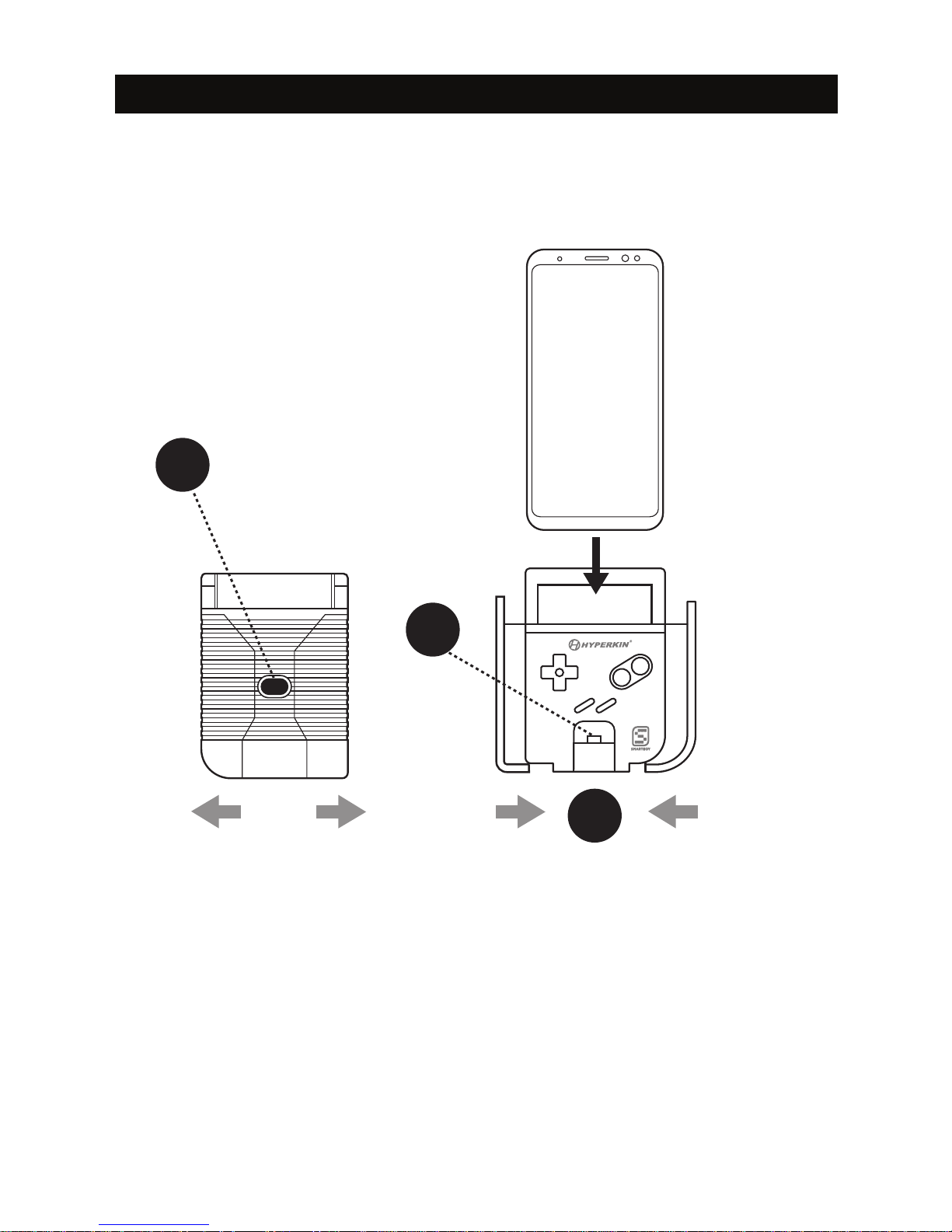
1. Press the black button located on the back of the SmartBoy in order to extend the
padded side panels.
2. With its screen facing front, insert your smartphone into the SmartBoy until the
USB Type-C jack is inserted completely into your phone's USB Type-C port. If the
USB Type-C jack does not immediately insert into the USB Type-C port, use the
Port Alignment Adjustor (located just under the Start and Select buttons) to align
the USB Type-C jack with your smartphone's USB Type-C port.
3. Push the padded side panels in until the padding is rmly touching the sides of
your smartphone. Your smartphone should have little to no movement, as to
maintain a solid connection with your SmartBoy.
Before inserting your smartphone into your SmartBoy, please make sure your smartphone
has a USB Type-C port located on the bottom. This device is not compatible with smartphones
that have a Micro USB port.
Note: These instructions are best applied to
a current-gen Samsung device, such as the
Samsung Galaxy S8. Other compatible
Android smartphones may vary in setup.
Attaching Your SmartBoy to Your Android Smartphone
1
2
3
TM
B
START
SELECT
A
Page 3

In order to play Game Boy and Game Boy Color cartridges on your SmartBoy, you will
need to install SmartBoy Companion and My OldBoy! Free from Google Play. Make sure
to open each app before proceeding to the steps below in order to allow permissions
on your device. The SmartBoy is compatible with other apps and games, including GBA
apps from Google Play. Conguration for such apps may vary.
Playing Game Boy and Game Boy Color Cartridges with Your SmartBoy
1. Insert your smartphone into your SmartBoy (see Attaching Your SmartBoy to Your
Android Smartphone). Upon rst time inserting your phone, you will receive a notication
asking if you'd like SmartBoy Companion to be set as your default app when attaching
the SmartBoy. If options are not visible, use the SmartBoy D-pad and A button to conrm
your selection.
2. Insert your Game Boy or Game Boy Color cartridge. SmartBoy Companion will appear
to load the cartridge data and "Run Launch Software" will become available once
loading is complete.
3. Press "Run Launch Software" button.
4. You will be presented with a directory. Navigate it until you nd and select "/sdcard."
5. Now, select "HyperkinSmartboySerial/."
6. Finally, select "smartboy.gb" which will start the game.
Note: Removing the cartridge from your SmartBoy will cause a notication to pop up
on your screen regarding piracy. Re-inserting the cartridge will cause the notication
to disappear and resume the game.
SmartBoy Companion Refresh Button
If your cartridge has been inserted but SmartBoy Companion does not load its data, you
can press the Refresh Button (indicated by two arrows forming a circle). This will retry
the loading process. If it still does not load, remove the cartridge, clean it, then re-insert it.
Press the Refresh Button again to load the game data.
Settings
Launcher: My OldBoy! Free is the default and recommended launcher for the SmartBoy.
2
Page 4

Please visit www.Hyperkin.com/warranty to register your ofcial Hyperkin product for
Hyperkin's Warranty.
© 2017 Hyperkin Inc. Hyperkin® is a registered trademark of Hyperkin Inc. Game Boy®, Game Boy Color®,
and Game Boy Advance® are registered trademarks of Nintendo® of America Inc. Samsung® is a registered
trademark of Samsung Electronics Co., Ltd. This product is not designed, manufactured, sponsored, endorsed,
or licensed by Nintendo® of America Inc. in the United States and/or other countries. All rights reserved. Made
in China.
 Loading...