

Page 1
User Manual
VOIP FXO Gateway
Model: HT-342
For DC12V Only
Shenzhen HyberTone Technology Co.,Ltd.
Http://www.hybertone.com
Page 2

Http://www.hybertone.com HT-342 Two FXO Gateway
Contents
Contents................................................................................................1
1 Product Introduction.......................................................................3
1.1 General Information............................................................................................................3
1.2 Protocol...............................................................................................................................3
1.3 Hardware Specification.......................................................................................................4
1.4 Software Specification........................................................................................................4
1.5 List of the Package..............................................................................................................4
1.6 View of the Appearance......................................................................................................5
2 Installation.........................................................................................5
2.1 Installation Steps.................................................................................................................5
2.2 Connection Diagram...........................................................................................................6
2.3 LED Light Pattern Indication..............................................................................................7
3 Configuration Guide........................................................................7
3.1 Access the Web Configuration Menu..................................................................................8
3.2 Status...................................................................................................................................9
3.2.1 Phone Information..............................................................................................10
3.2.2 Network Information...........................................................................................10
3.3 Configurations Options.....................................................................................................10
3.3.1 Language.............................................................................................................11
3.3.2 Time Zone and Time Server.............................................................................11
3.3.3 Auto-provision.....................................................................................................11
3.3.4 Pound (#) Key and Auto-dial Timeout .............................................................12
3.3.5 Network Tone......................................................................................................12
3.4 Call Settings......................................................................................................................13
3.4.1 H.323 Phone.......................................................................................................13
3.4.1.1 Single Configuration...................................................................................14
3.4.1.2 Configuration by Line.................................................................................14
3.4.1.3 Configuration by Group..............................................................................15
3.4.1.4 Advance Settings.........................................................................................15
3.4.1.5 H.323 Direct Mode.....................................................................................17
3.4.2 SIP Phone ...........................................................................................................17
3.4.2.1 Single Server Mode.....................................................................................17
3.4.2.2 Configuration by Line.................................................................................19
3.4.2.3 Advance Settings.........................................................................................19
3.4.3 Media Setting......................................................................................................21
3.4.4 Codec Preference ..............................................................................................22
3.4.5 NAT Traversal .....................................................................................................22
1
Page 3

Http://www.hybertone.com HT-342 Two FXO Gateway
3.4.5.1 Signaling NAT Traversal.............................................................................22
3.4.5.2 Media NAT Traversal..................................................................................23
3.5 Call divert.........................................................................................................................24
3.6 Gain Settings… .................................................................................................................25
3.7 Network Configurations....................................................................................................26
3.7.1 LAN Port configurations ....................................................................................27
3.7.2 PC port configurations.......................................................................................28
3.7.3 Primary DNS.......................................................................................................29
3.7.4 Secondary DNS..................................................................................................29
3.8 Save Configuration...........................................................................................................29
3.9 Discard Changes...............................................................................................................30
3.10 Tools Menu.....................................................................................................................30
3.10.1 Online Upgrade................................................................................................31
3.10.2 Change Password............................................................................................31
3.10.3 Reset Configuration.........................................................................................31
3.10.4 Reboot the Device ...........................................................................................32
4 Products Parameter ......................................................................33
5 Manufactory Parameter ................................................................33
2
Page 4

Http://www.hybertone.com HT-342 Two FXO Gateway
1 Product Introduction
1.1 General Information
A PSTN FXO (foreign exchange - office) gateway is a PSTN-to-digital adaptor that allows
you to use your PSTN line to make VoIP calls. FOX gateway is designed to realize voice
communication over a broadband IP network. It offers high voice quality with minimal
bandwidth requirement. No matter it could access to the public IP address or not, the
device has the advantage of easy installation in simple or complex network Multiple IP
phones can also be installed in the same network with only one public IP address. It
comes with enriched features for both network and phone call applications, such as
broadband router, DHCP, LAN Phone System.
The HT-342 FOX Gateway is an all-in-one VoIP integrated device, which is designed to be
a total solution for network’s providing VoIP services. Its functions are available via a
standard PSTN line. The HT-342 FXO gateway has four PSTN lines port.
1.2 Protocol
TCP/IP V4 (IP V6 auto adapt)
ITU-T H.323 V4 Standard
H.2250 V4 Standard
H.245 V7 Standard
H.235 Standard(MD5,HMAC-SHA1)
ITU-T G.711 Alaw/ULaw, G.729A, G.729AB, and G.723.1 Voice Codec
RFC1889 Real Time Data Transmission
Proprietary Firewall-Pass-Through Technology
SIP V2.0 Standard
Simple Traversal of UDP over NAT (STUN)
Web-base Management
PPP over Ethernet (PPPoE)
PPP Authentication Protocol (PAP)
Internet Control Message Protocol (ICMP)
TFTP Client
Hyper Text Transfer Protocol (HTTP)
Dynamic Host Configuration Protocol (DHCP)
Domain Name System (DNS)
User account authentication using MD5
Out-band DTMF Relay: RFC 2833 and SIP Info
3
Page 5

Http://www.hybertone.com HT-342 Two FXO Gateway
1.3 Hardware Specification
ARM9E Processor
DSP for voice codec and voice processing
Two 100M BaseT Ethernet ports in comply with IEEE 802.3 for both LAN and PC
connection.
LEDs for Ethernet port status
Four PSTN Line ports
Build in Ethernet switch
1.4 Software Specification
LINUX OS
Built-in HTTP for programming
PPPoE dial-up
NAT Broadband Router functions
DHCP Client
DHCP Server
Firmware On-line upgrade
Caller ID
Multiple Language Support
1.5 List of the Package
a) One HT-342 main unit
b) One DC12V/500mA power adaptor
c) One Ethernet cable (3M)
4
Page 6
Http://www.hybertone.com HT-342 Two FXO Gateway
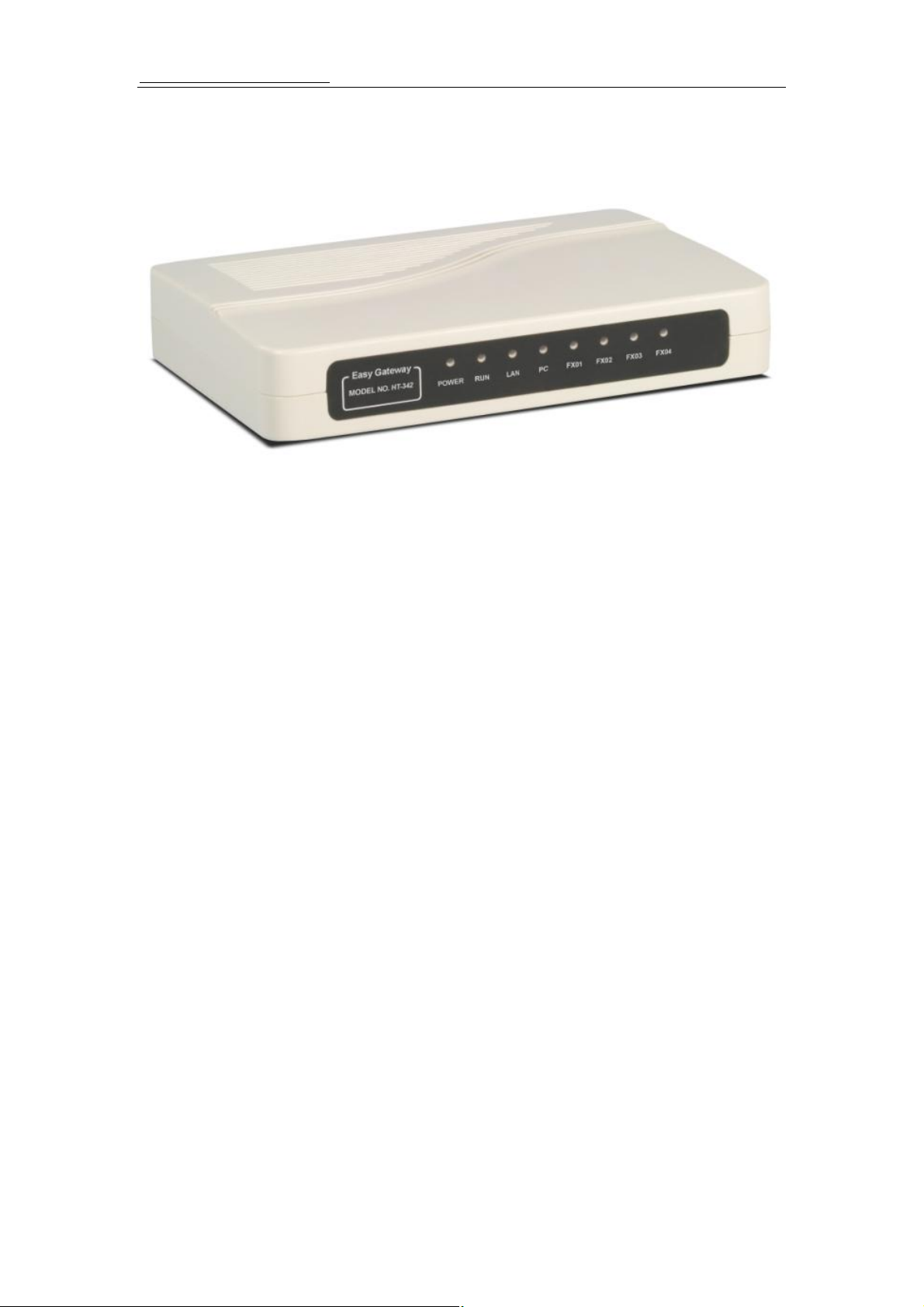
1.6 View of the Appearance
1) FXO 1
It is connected to the PSTN with RJ11 connector.
2) FXO 2
It is connected to the PSTN with RJ11 connector.
3) FXO3
It is connected to the PSTN with RJ11 connector.
4) FXO4
It is connected to the PSTN with RJ11 connector.
5) LAN
Connect to the switch, DSL modem or other network access equipment.
6) PC
Connect a computer or other terminal.
7) POWER DC12V/500mA
It is the power source, connect to the power adapter.
8) Reset
Press it with a nail to reboot the terminal or long press to reset terminal configuration.
2 Installation
2.1 Installation Steps
The HT-342 IP ADAPTOR has four PSTN ports(FXO1 to FXO4),one NETWORK port
and one PC port. The VoIP channels can login by same SIP (or H.323) account or four
different SIP (or H.323) accounts.
Please follow the steps below to install an HT-342 IP ADAPTOR:
5
Page 7
Http://www.hybertone.com HT-342 Two FXO Gateway
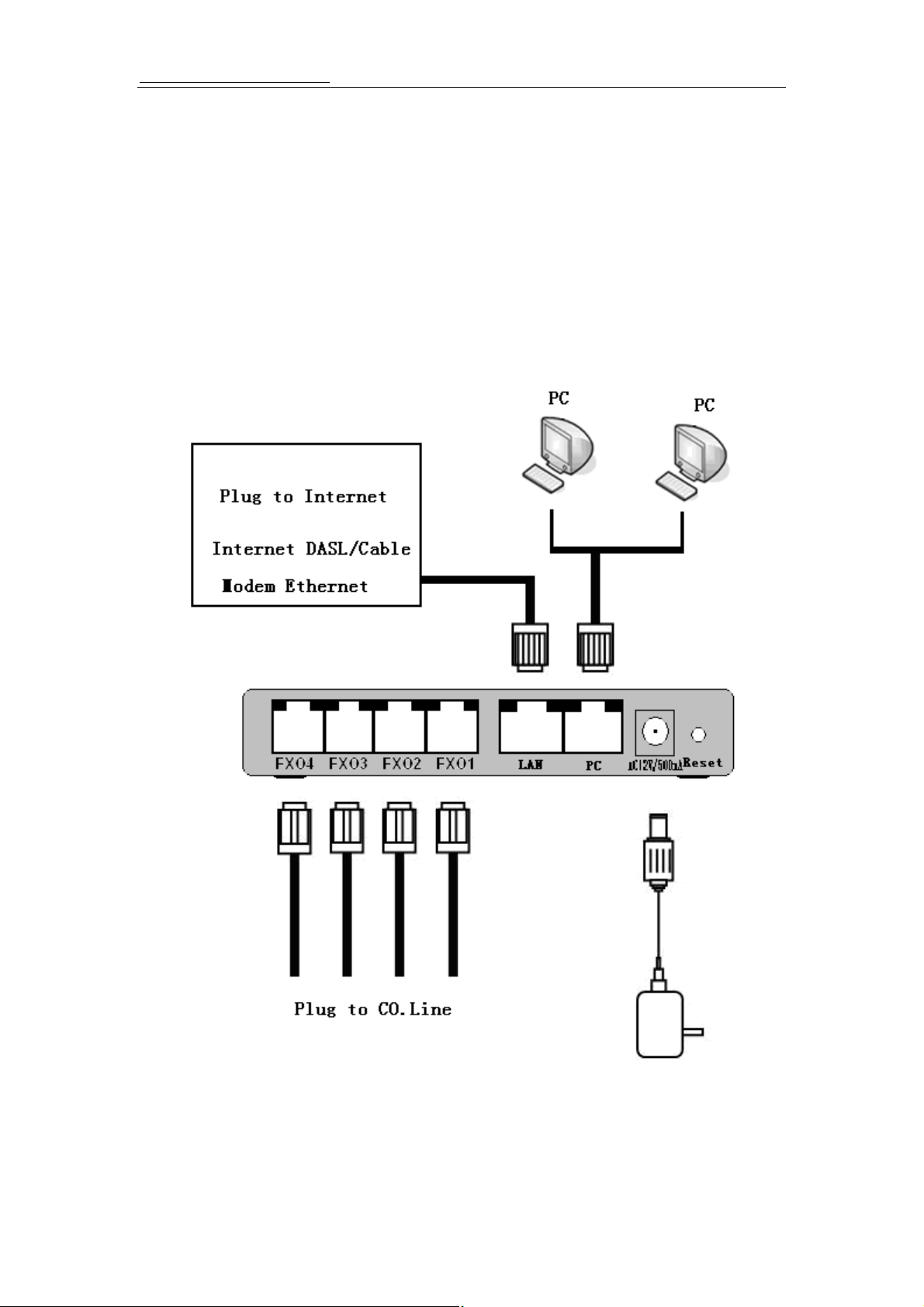
a) Connect the PSTN lines to the FXO1 to FXO4.
b) Insert the Ethernet cable into the LAN port of HT-342 IP ADAPTOR and connect the
other peer to the internet access equipment.
c) Connect a PC to the PC port of HT-342 IP ADAPTOR.
d) Insert the power adapter into the HT-342 IP ADAPTOR and power up.
2.2 Connection Diagram
The interconnection diagram is as below:
6
Page 8

Http://www.hybertone.com HT-342 Two FXO Gateway
2.3 LED Light Pattern Indication
The following table shows the LED light pattern indication.
LED DESCRIPTION
RUN 1. When the device is booting up, the LED
will flash 100ms ON and 100ms OFF.
2. When the account is logon, the LED will
flash 1s ON and 1s OFF.
3. If the ATA does not boot up, the LED
will not flash.
4. Normally boot up and login time needs
about 30 seconds.
LAN 1. When the LAN port linkup, the LAN
LED will lights up
2. when data is transmitting the LAN LED
will flashing
PC 1.When the PC port linkup, the LAN LED
will lights up
2. When data is transmitting the PC LED will
flashing.
FXO1 Lights up when the line is in use
FXO2 Lights up when the line is in use
FXO3 Lights up when the line is in use
FXO4 Lights up when the line is in use
3 Configuration Guide
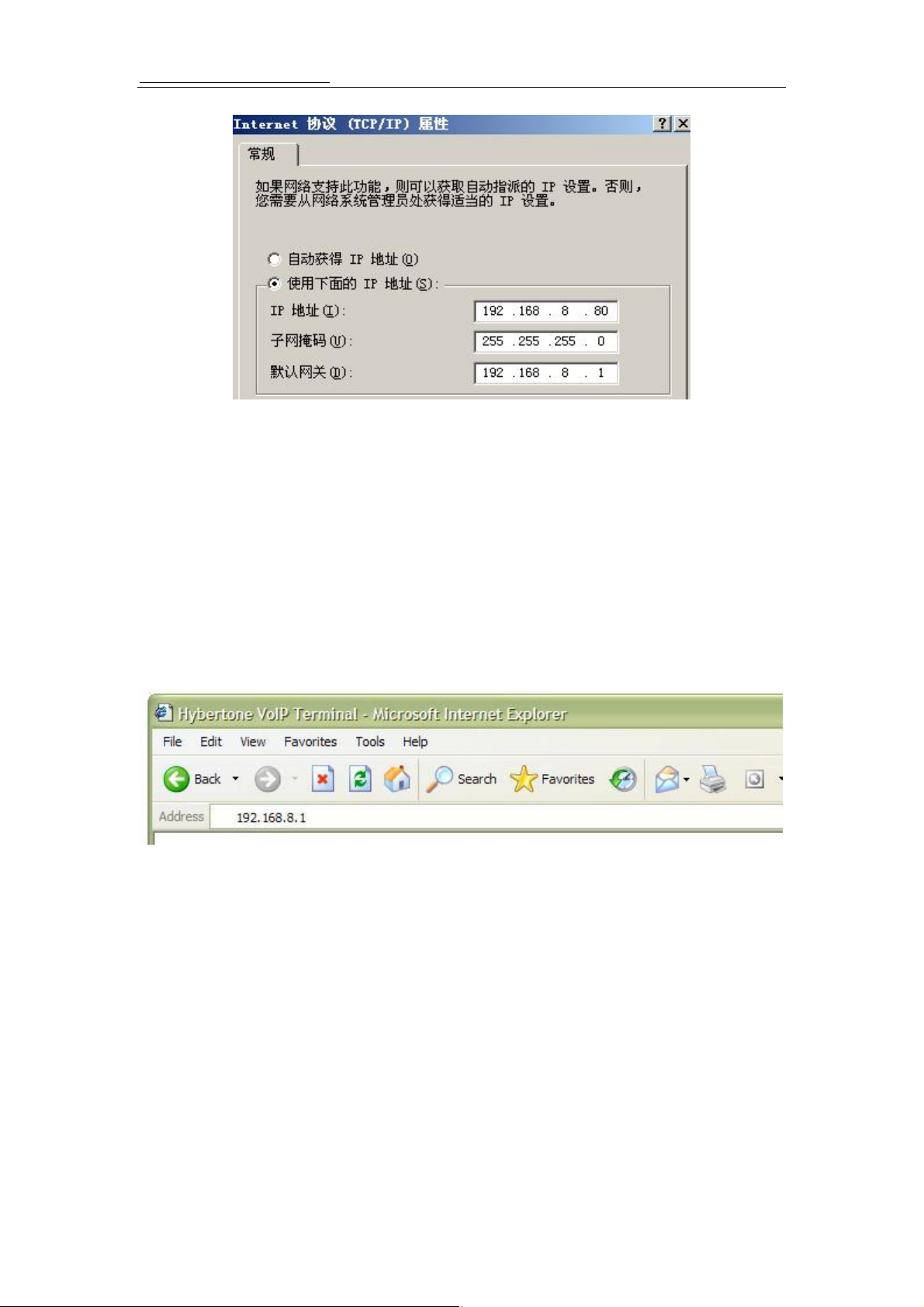
Before configuring the HT-342 IP ADAPTOR, first you must configure you computer’s IP in
Static Mode and it must use 192.168.8.x. The default network setting of HT-342 is:
LAN Port: DHCP
PC Port: 192.168.8.1
Method as follow:
Windows’s Control Panel--àNetwork Connections--àLocal Connectionism’s
Property--àTCP/IP Protocol’s Property
7
Page 9
Http://www.hybertone.com HT-342 Two FXO Gateway
Setup the computer’s network setting as the picture above. After this, you can login
the HT-342 via the HT-342’s PC port IP.
Note: Regarding the HT-342’s default setting, please consult the chapter 5.Manufactory
Setting.
3.1 Access the Web Configuration Menu
After configured your computer, you can login to the HT-342’s configuration page by Web
browser. Just input the IP: 192.168.8.1 to the Address line.
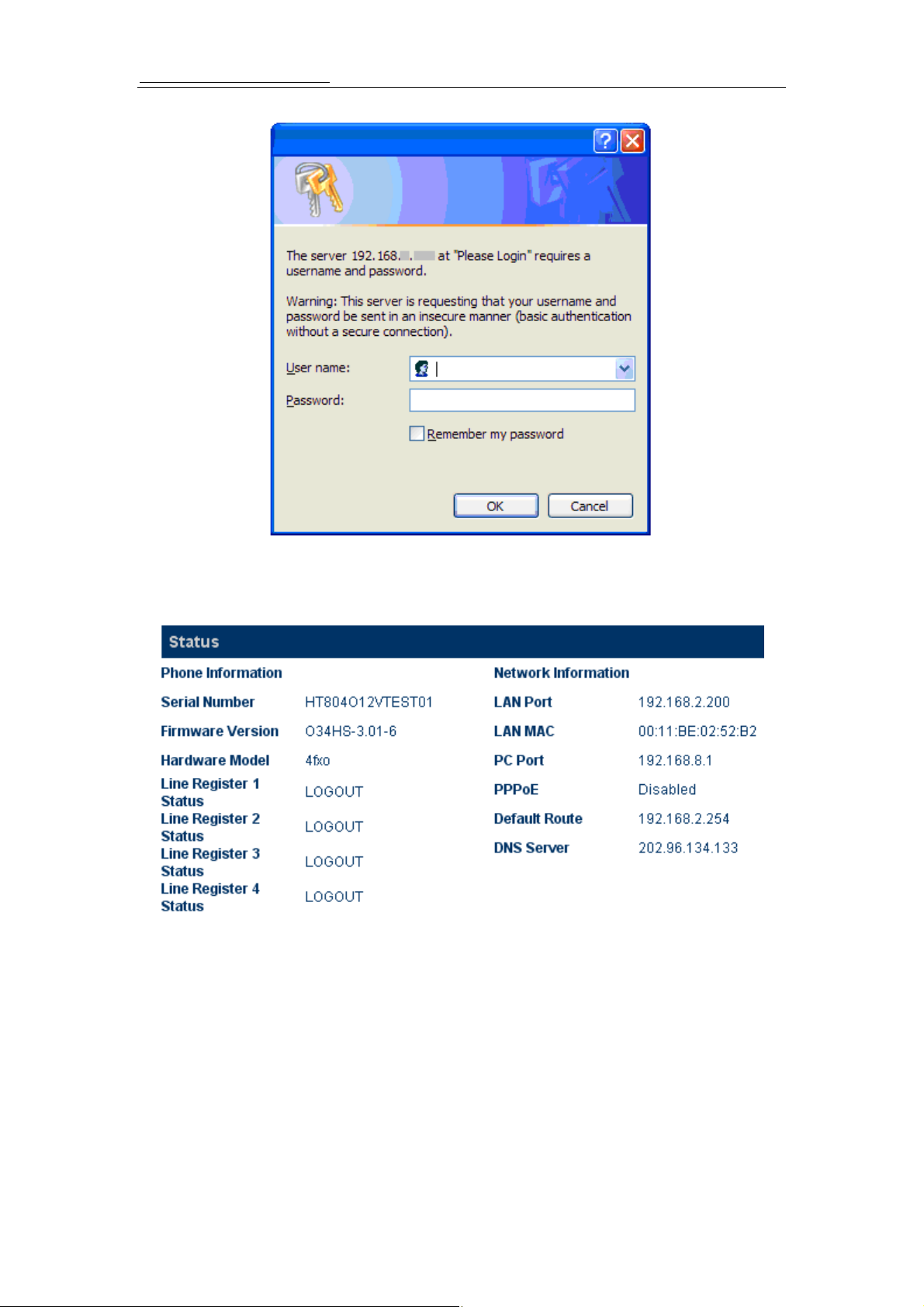
A login dialog window will pop up:
8
Page 10
Http://www.hybertone.com HT-342 Two FXO Gateway
The default user name is “admin” and the default password is “admin”. Press OK then
accessing the configuration page as below.
Administrator (user admin) can setup every thing of the HT-342.
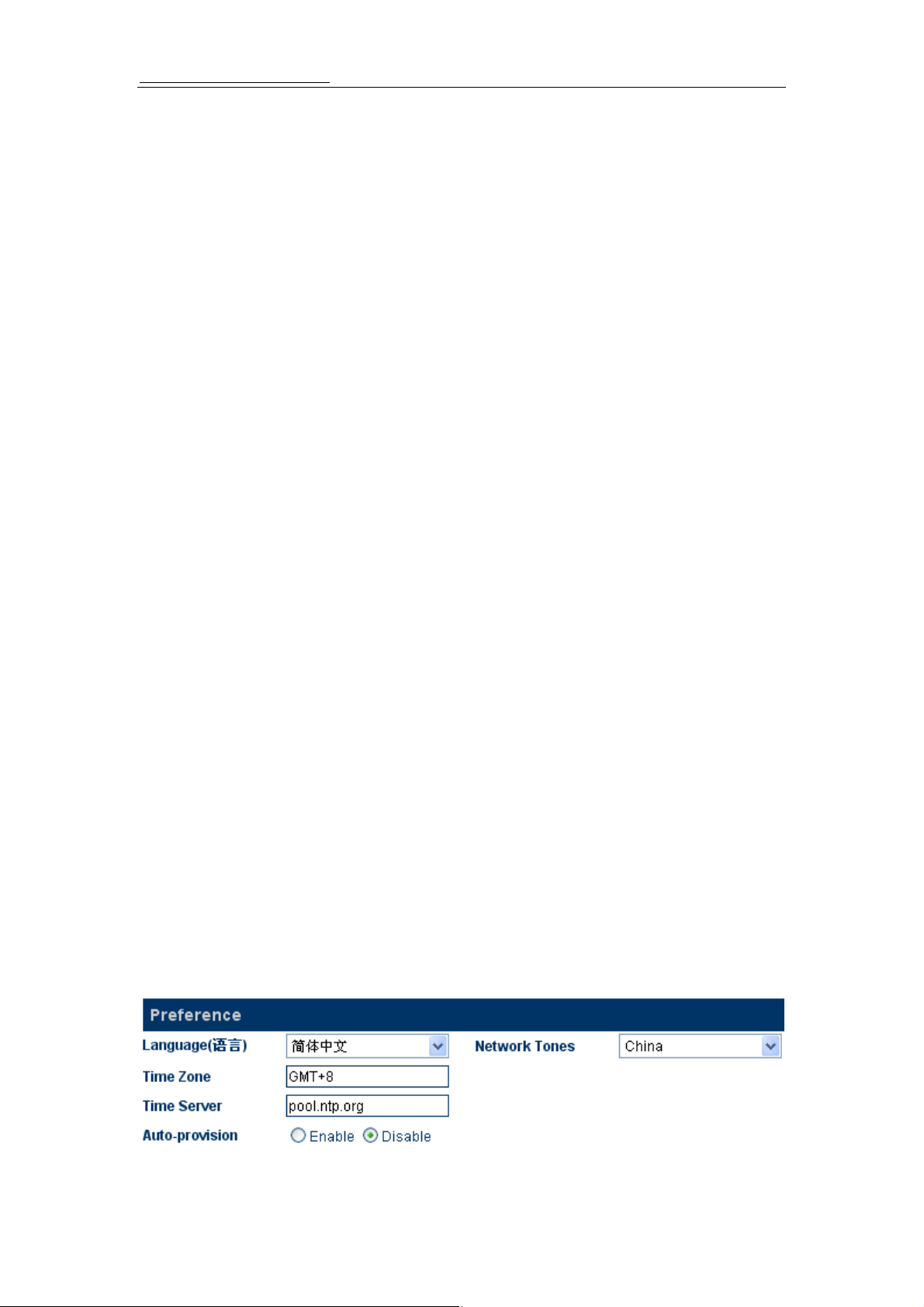
3.2 Status
Status page shows the status of the gateway.
9
Page 11
Http://www.hybertone.com HT-342 Two FXO Gateway
3.2.1 Phone Information
A. Serial Number
Each gateway has a unique serial number assigned by the factory such as
HT304O12VTEST01. This number is important for centralized configuration, technical
support, and warranty. This number is printed on the bottom of the gateway and is
associated with your software license.
B. Firmware Version
Firmware version refers to the firmware version of the gateway such as
A34HS-3.07-18, which is used to identify the firmware version.
C. Hardware Mode
This field shows terminal’s hardware type.
D. Phone Status
This field shows the status of Line’s connection status. If the connection is successful,
this field displays LOGIN. Otherwise displays LOGOUT.
3.2.2 Network Information
A. LAN Port Configuration
Display the status of the LAN port.
B. PC Port Configuration
Display the status of the LAN port.
C. PPPoE
When PPPoE is enable the working message will display.
D. Default Route
The IP address of the routing gateway.
E. DNS Server
Display the Domain Name Server of the current network.
3.3 Configurations Options
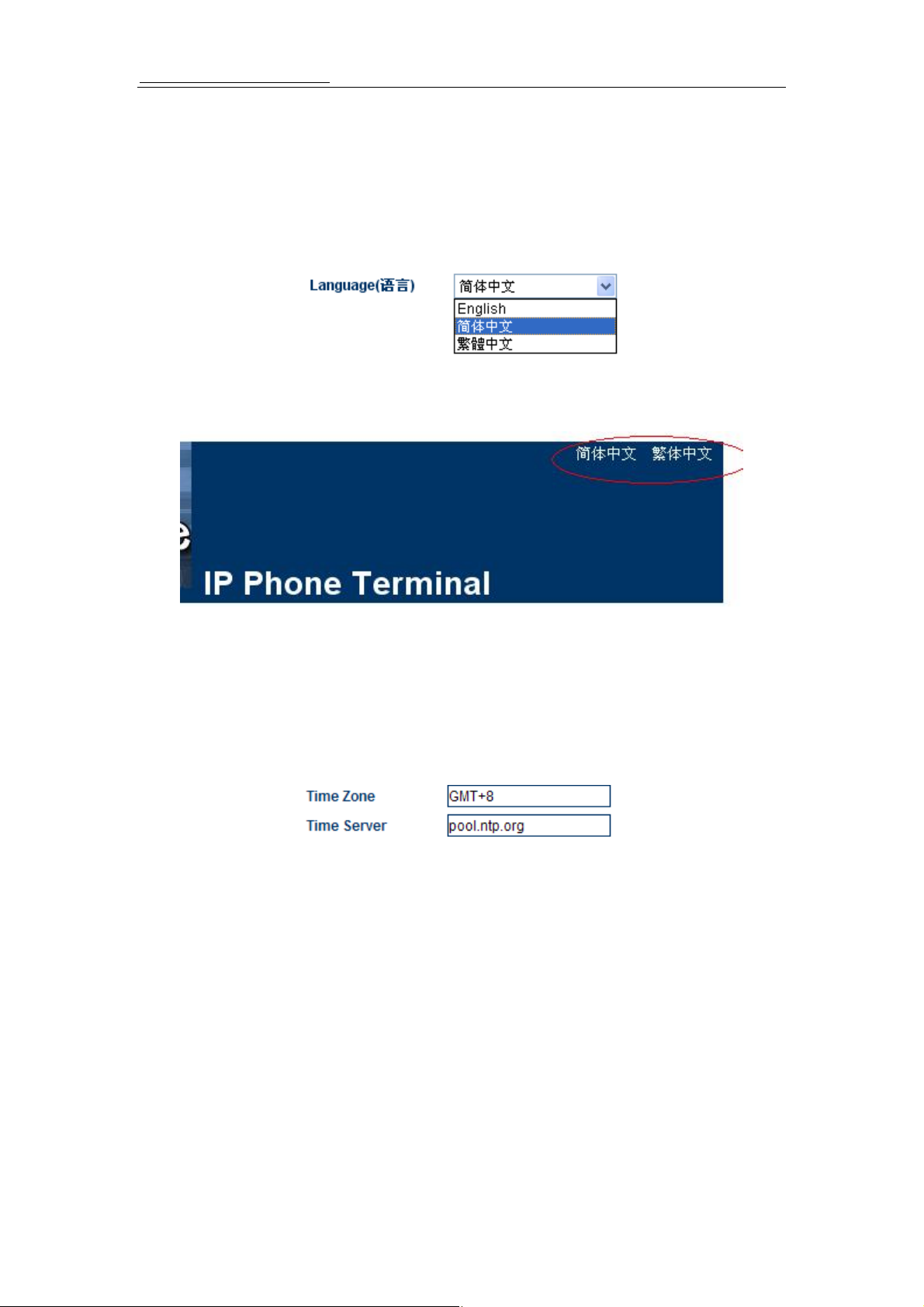
Click on the “Configurations”, the web page will pop-up a subordinate options. Click on
“Preference” in the left menu of the configuration web, and the screen will be displayed as
below:
10
Page 12
Http://www.hybertone.com HT-342 Two FXO Gateway
3.3.1 Language
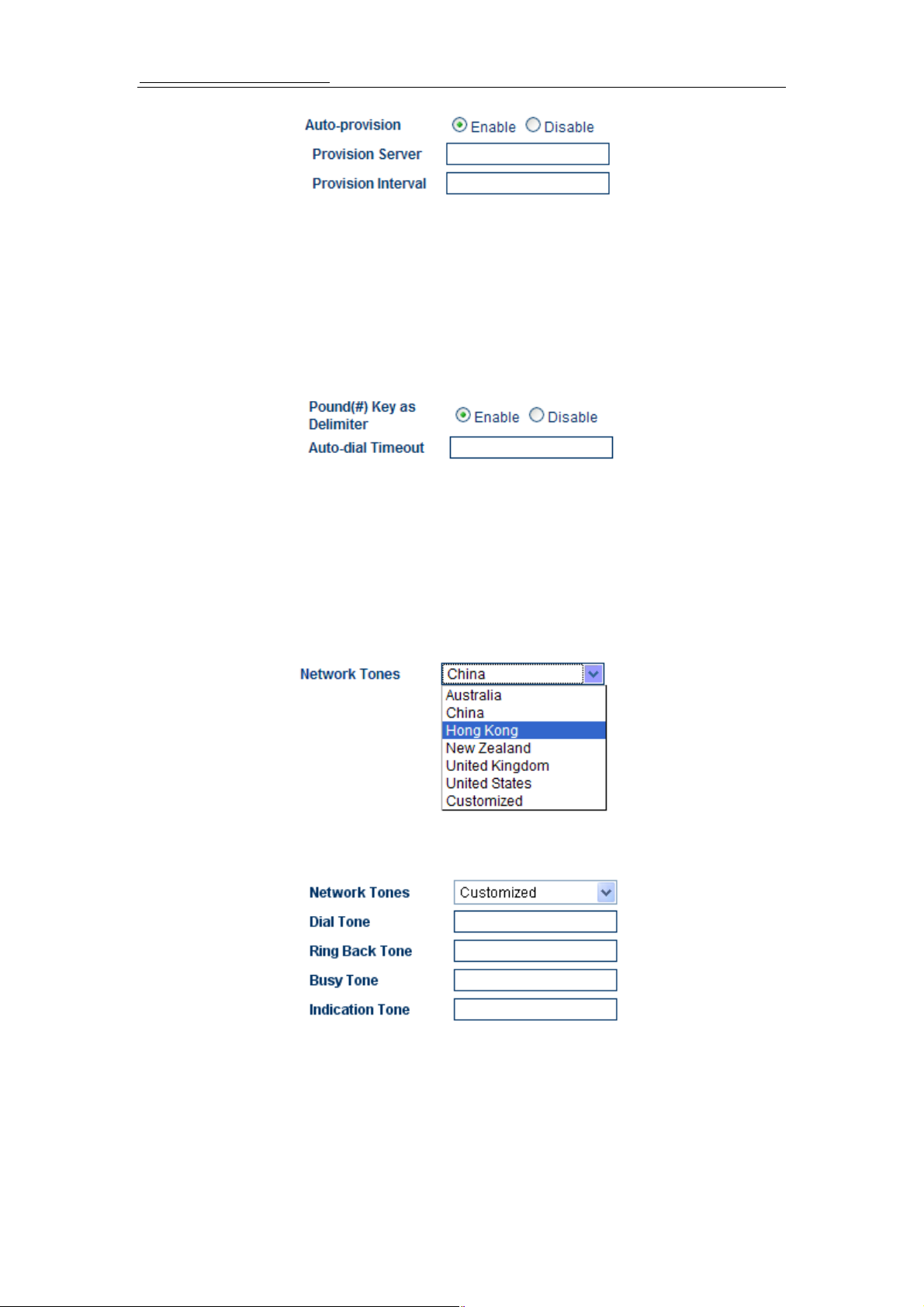
Select web provisioning language as English or Chinese. For example, if you’re present
language used is English; please click “English” in the “Language” menu, when the
terminal was reboot the web page will display all information in English.
You can choice the language use the quick link, the Web page’s language will change at
soon.
3.3.2 Time Zone and Time Server
The HT-342 using Network Time Protocol (NTP) to get the date time information from an
NTP server (Time Server). The time is in GMT ± offset. For example, Pacific Standard
Time is GMT-8, and Pacific Daylight Time is GMT-7.
For a FXO gateway the real time will appear on the CDR (call detail record), so it is
important if user needs rigors CDR.
3.3.3 Auto-provision
Allow central provisioning of HT-342. Auto-provision is the automatic configuration of
devices without manual intervention and without any need for software configuration
programs or jumpers. Ideally, auto-provision devices should be "Plug and Play".
Auto-provision has been made common because of the low cost of microprocessors and
other embedded controller devices. It includes Auto-provision Server and Auto-update.
11
Page 13
Http://www.hybertone.com HT-342 Two FXO Gateway
This is the special service only. It must support by HyberTone’s Auto-provision Server.
3.3.4 Pound (#) Key and Auto-dial Timeout
If you want the terminal send out your telephone number shortly, please click the Pound (#) Key
enable. If it was disable, the terminal will call out after 5 seconds (or the Auto-dial timeout) after
the last digit is input
Note: This function only inure when the call from PSTN to VoIP’s secondly dial
number.
3.3.5 Network Tone
Network Tones is the dial tone of the second dial. Users can choice the tone like the local
telephone network.
You can configure the Network Tones as Customized option:
The parameters are fill-in as true digits as below format:
nc, rpt, c1on, c1off, c2on, c2off, c3on, c3off, f1, f2, f3, f4, p1, p2, p3, p4
Chapter Descriptor:
nc: number of cadences
rpt: repeat counter(0 - infinite, 1~n - repeat 1~n times)
c1on: cadence one on (in milliseconds)
12
Page 14
Http://www.hybertone.com HT-342 Two FXO Gateway
c1off: cadence one off (in milliseconds)
c2on: cadence two on (in milliseconds)
c2off: cadence two off (in milliseconds)
c3on: cadence three on (in milliseconds)
c3off: cadence three off (in milliseconds)
f1: tone #1, 300-3000(Hz)
f2: tone #2, 300-3000(Hz)
f3: tone #3, 300-3000(Hz)
f4: tone 34, 300-3000(Hz)
p1: attenuation index #1, 0~31(0=3dB, -1dB increments)
p2: attenuation index #2, 0~31(0=3dB, -1dB increments)
p3: attenuation index #3, 0~31(0=3dB, -1dB increments)
p4: attenuation index #4, 0~31(0=3dB, -1dB increments)
For example, you want add a tone as 450Hz and it is run 700 milliseconds and off 1000
milliseconds. You only add below parameters in corresponding option:
1,0,700,1000,0,0,0,0,450,0,0,0,20,0,0,0
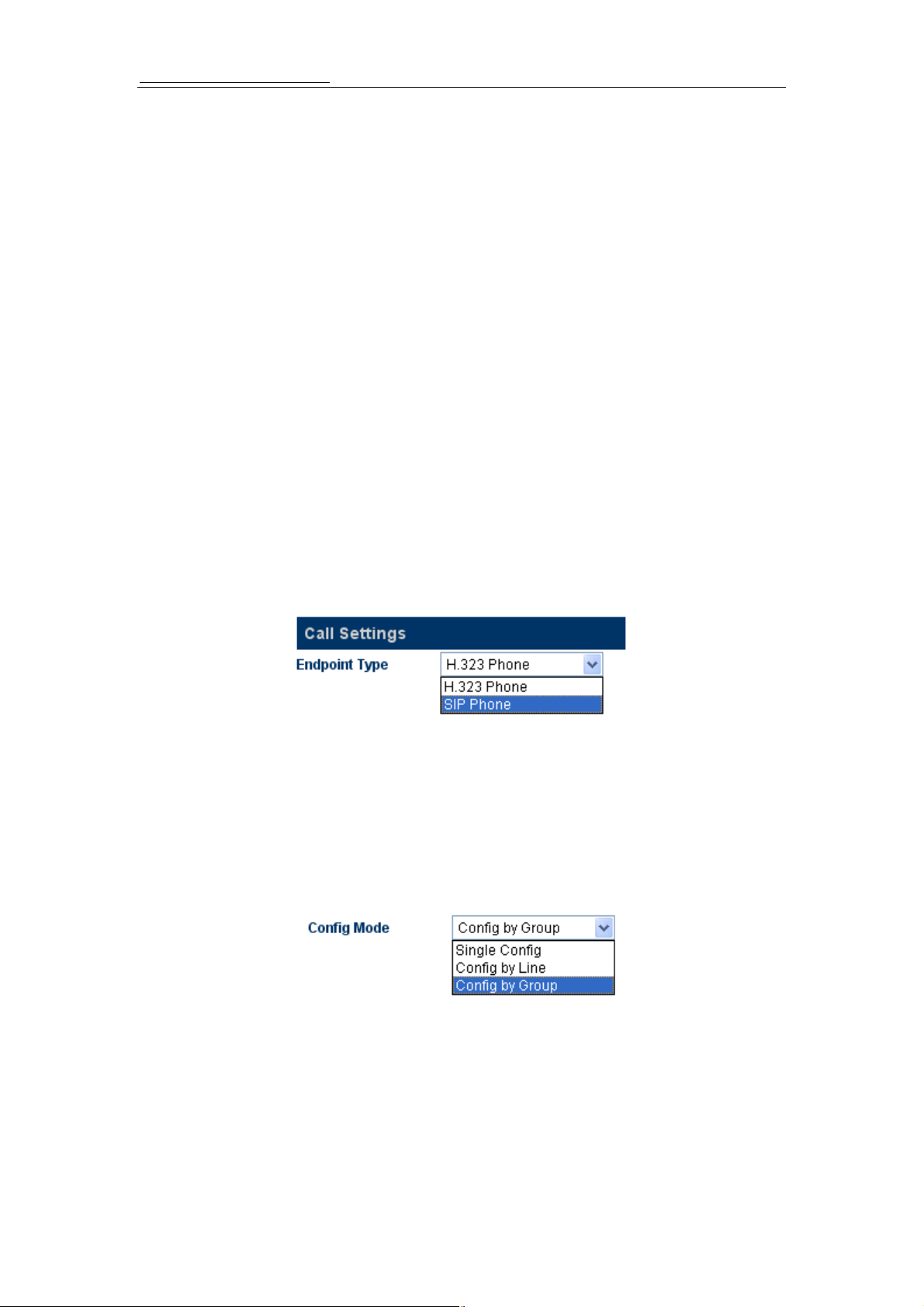
3.4 Call Settings
Call setting let users program the parameters between gateway and the server(s).
3.4.1 H.323 Phone
Select the end point type to H.323 phone. There are three kinds of login mode can be
configured:
1) Single Configuration; 2) Configuration by line ; 3)Configuration by Group .
13
Page 15
Http://www.hybertone.com HT-342 Two FXO Gateway
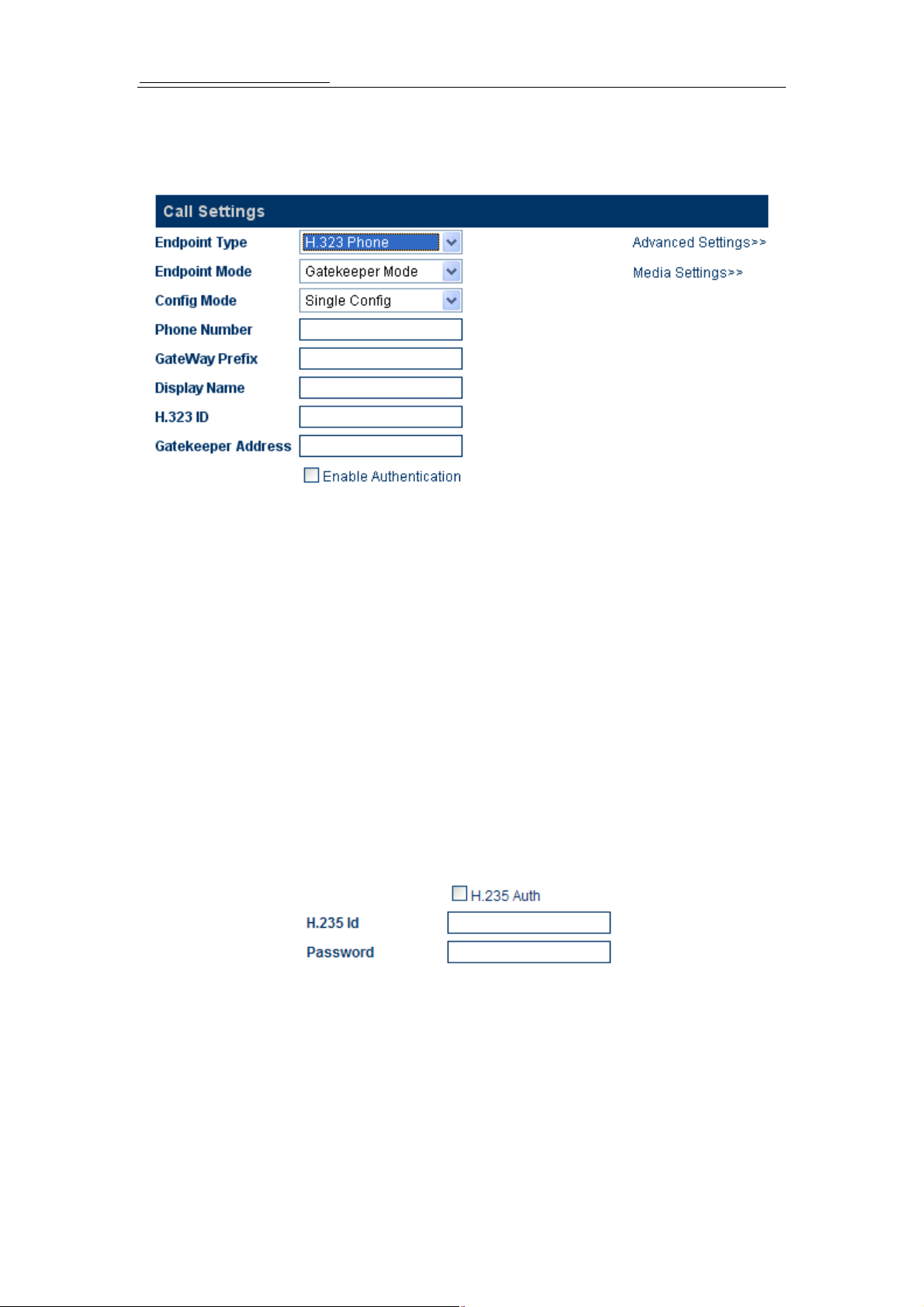
3.4.1.1 Single Configuration
In this mode, the four lines will login to the server with single number or prefix:
A. H.323 Phone Number
H.323 phone number: fill the login number (E164) here.
B. Gateway Prefix
If login with a Prefix method fill the prefix number (do not fill the Phone number)..
C. Display Name
Display name will display on the other VoIP party fill in the display name of the
gateway.
D. H.323 ID
If the system needs H.323ID for the Authenticate fill in the Authentication message.
E. Gatekeeper Address
Fill in the gatekeeper address with IP or domain name. If the registration port is not
1719 then add “:” and the port number. Like “192.168.1.70:8080”.
F. Enable Auth
If H.235 Authentication is needed click the “H.235 Auth” and fill the Authenticate
message.
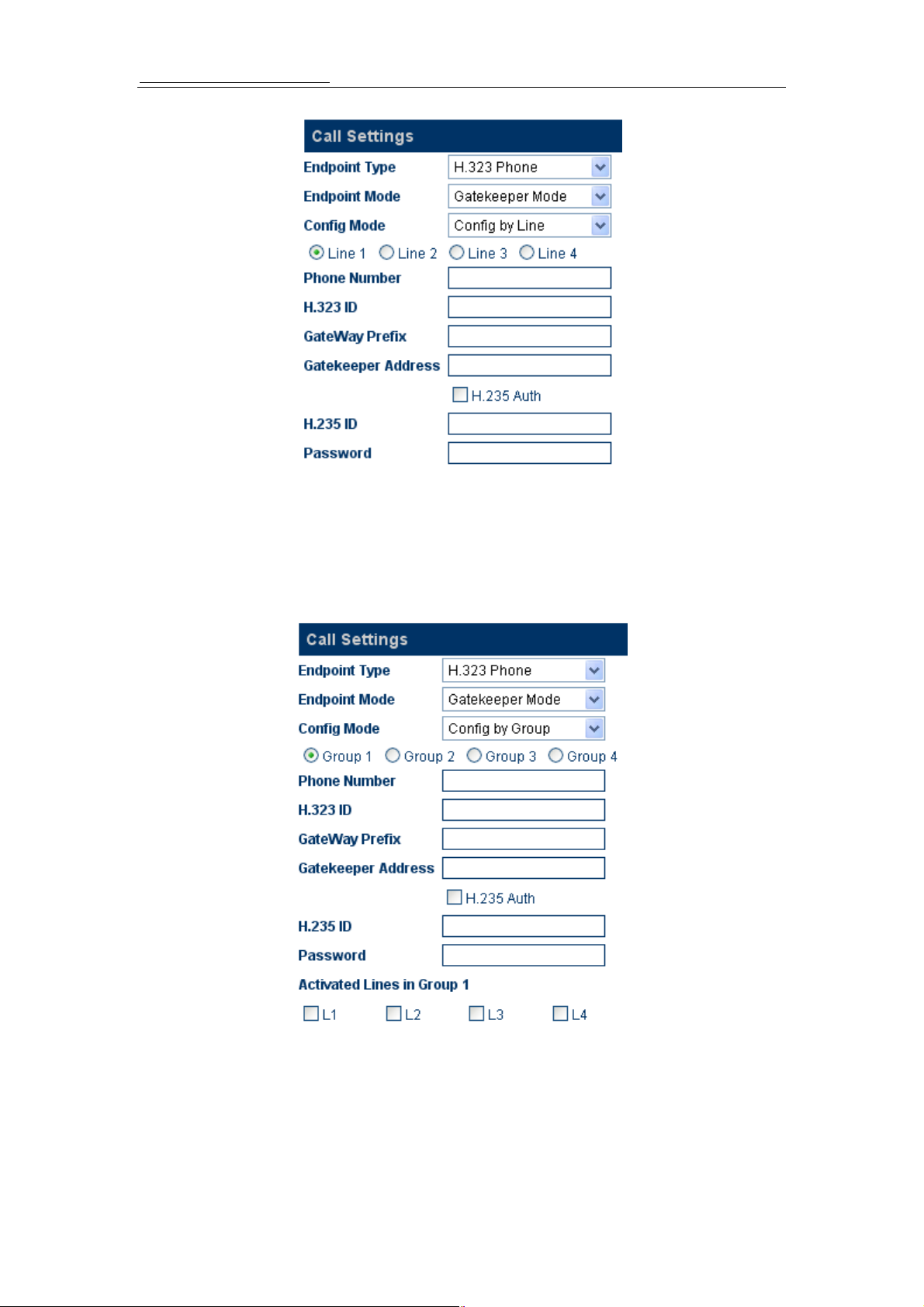
3.4.1.2 Configuration by Line
In the “Config by line” mode user can setup each of the four lines with difference
numbers or prefixes. For advance using the each line can login difference server.
14
Page 16
Http://www.hybertone.com HT-342 Two FXO Gateway
3.4.1.3 Configuration by Group
In the “Config by Group” mode user can setup each of the four lines with difference
groups. For advance using the each group can login difference server.
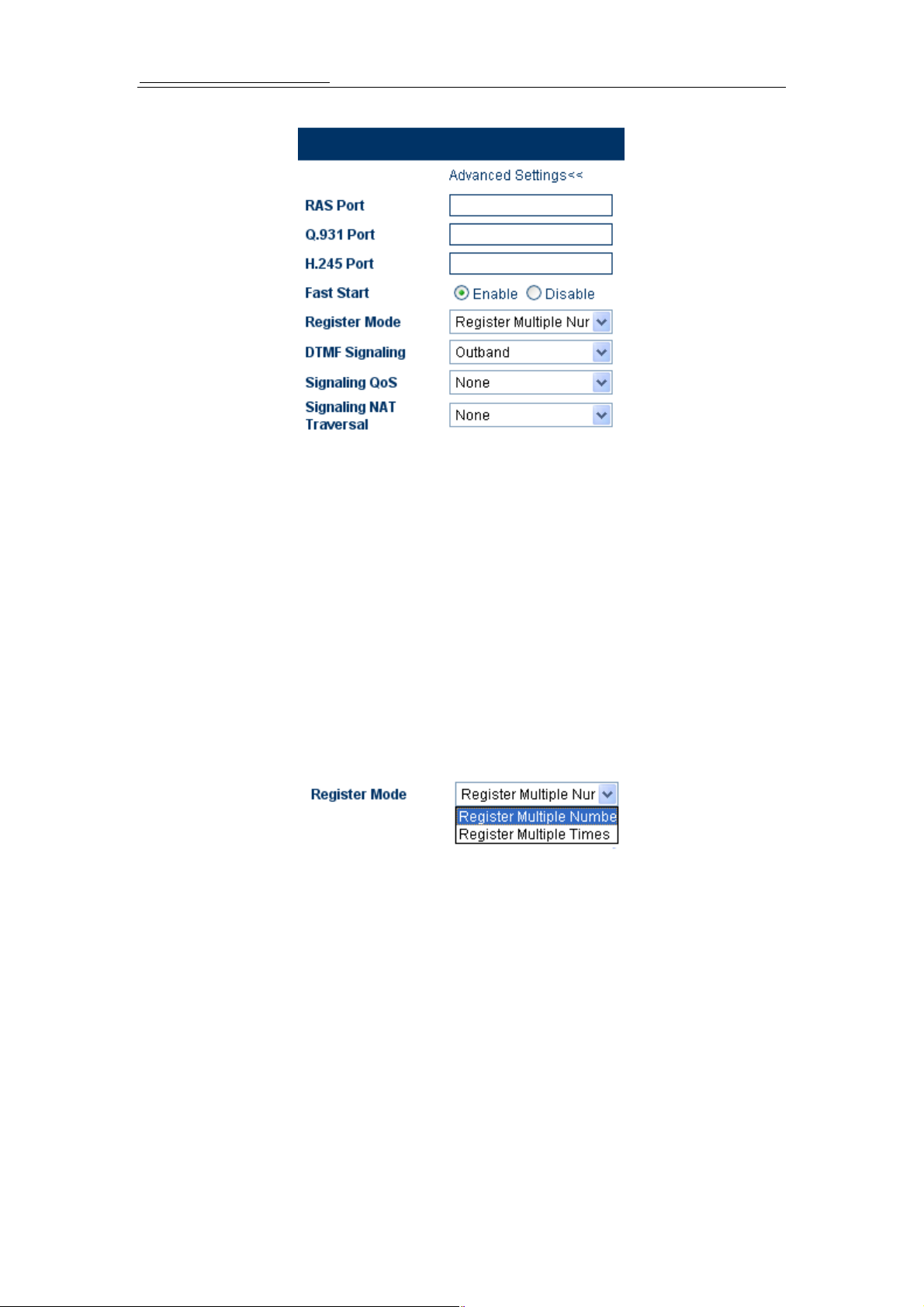
3.4.1.4 Advance Settings
Click “Advance Settings” in the H.323 menu, the configuration screen of advance settings
will be displayed as follows. User can modify all information of H.323 and the preference
of the media.
15
Page 17
Http://www.hybertone.com HT-342 Two FXO Gateway
A) RAS Port
RAS Port is connected to an unreliable channel, which is used to convey the
registration, admissions, bandwidth change, and status messages between two H.323
entities.
B) Q.931 Port ( Call Signaling Port )
Call Signaling Port is connected to a reliable channel used to convey the call setup
and release messages between two H.323 endpoints.
C) H.245 Port ( Media Control Ports )
Media control port is the port or port range used by the H.245 media control protocol.
D) Fast Start
Enable or disable the Fast Start in H.225.0. Only few H.323 terminals or gateways do
not support Fast start.
E) Register Mode
Register Multiple Numbers: The HT-342 send registration request in one signaling
packet to the gatekeeper. In the mode, one signaling
packet includes two VoIP line’s registration information.
Register Multiple Times: In this mode, the HT-342 will register like two terminals.
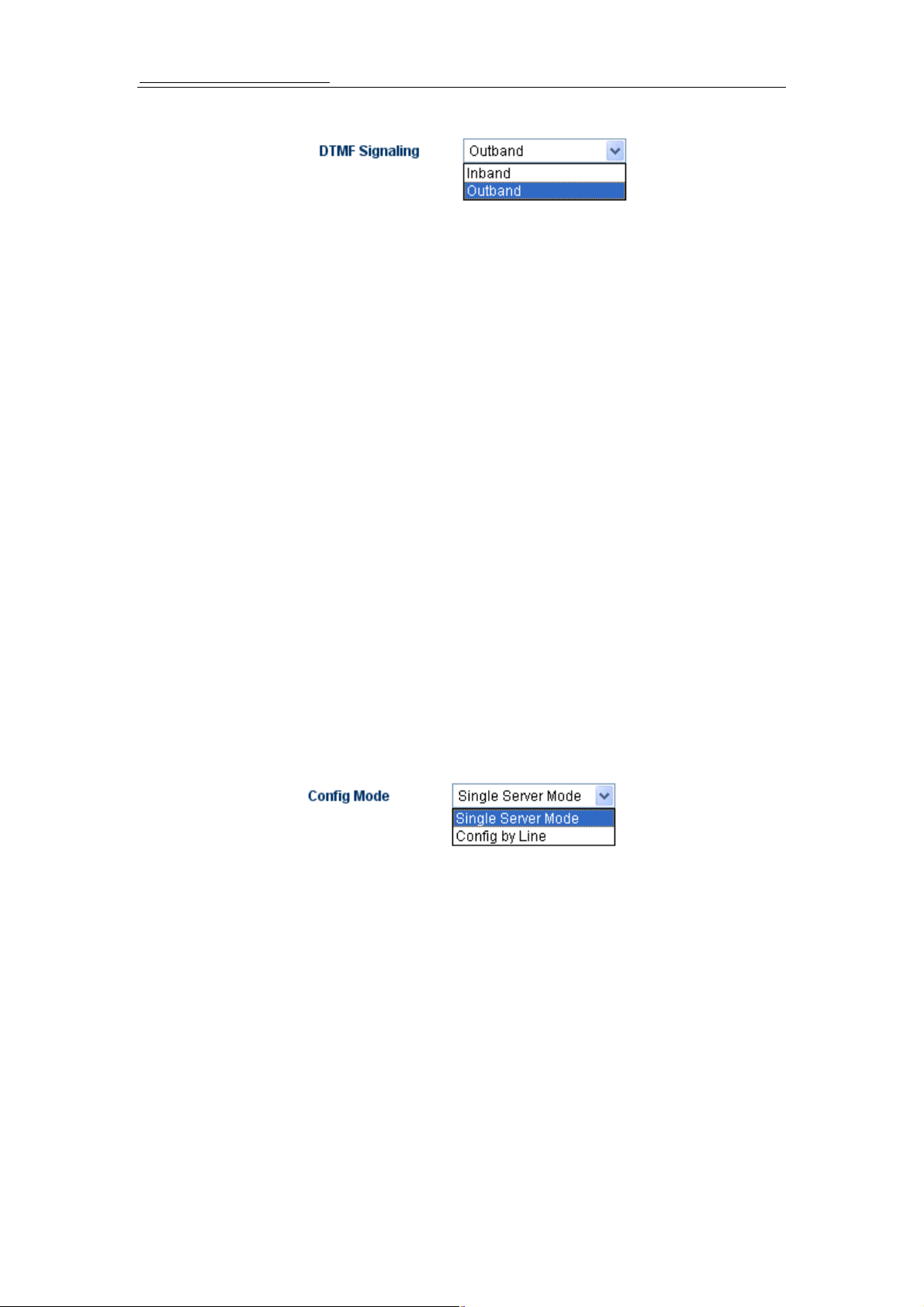
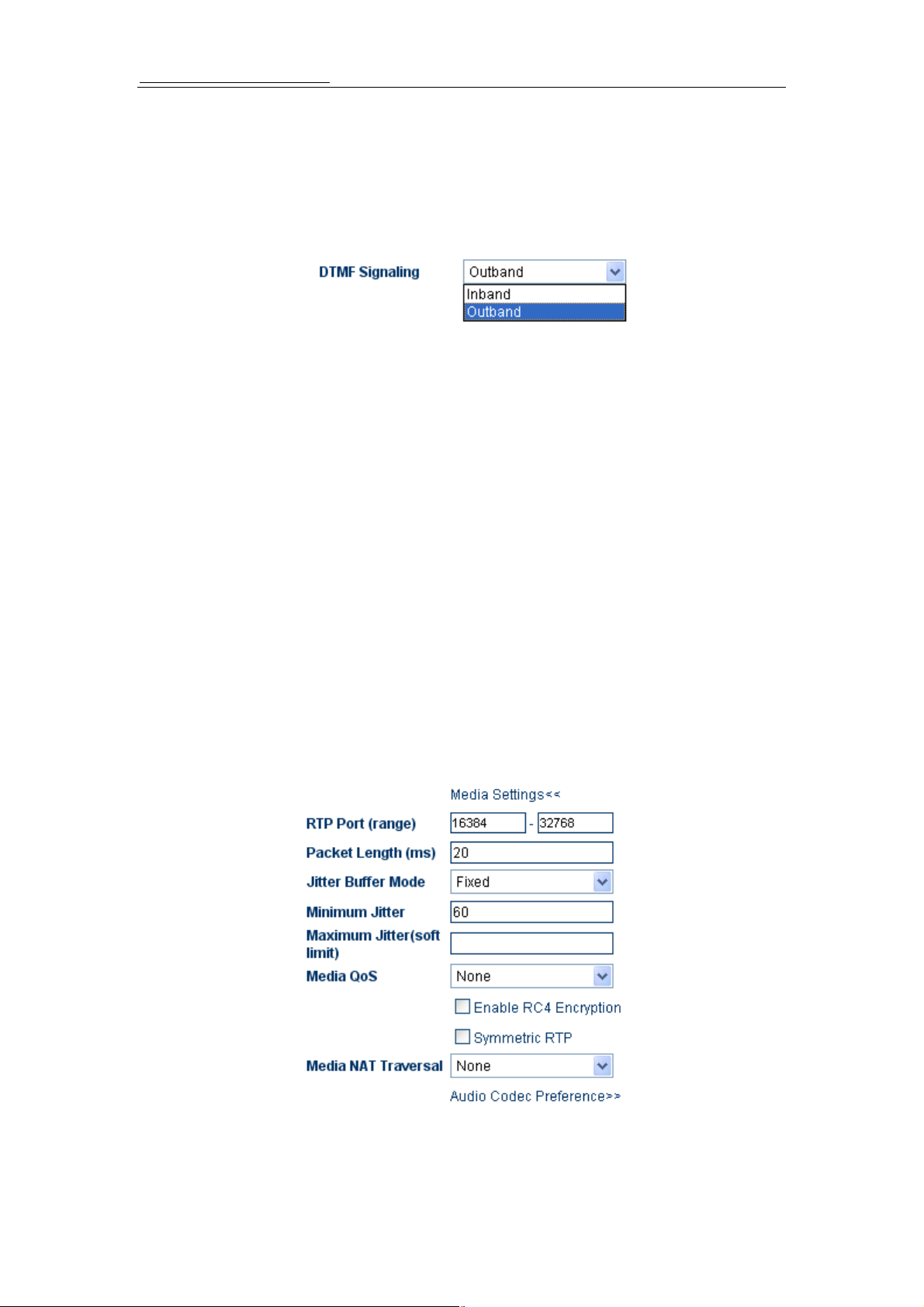
F) DTMF Signaling
1) DTMF TYPE
DTMF TYPE is used for telephone signaling over the line in the voice frequency band
to the call switching center. DTMF means that two groups of tone with different
frequencies are united into 16 kinds of dial tone. The telecommunication station,
switch or the phone service such as 1860 identify these special tones through DSP
analysis to confirm the keys dialed by user. There are two DTMF types: Inband DTMF
type and Outband DTMF type.
16
Page 18
Http://www.hybertone.com HT-342 Two FXO Gateway
Inband DTMF type transfers these special dial tones together with the speech tone
without doing any special processing to them. So there is not any type as to Inband
DTMF.
Outband DTMF type transfers these special dial tones by some special method to
confirm its correctness. The special method is the so called protocol such as
RFC2833 and SIP information.
2)DTMF Payload Type
DTMF Payload Type is used to carry telephony tones and telephony signals. By using
a distinct dynamic RTP payload type in the same RTP stream as the media, it is
possible to carry DTMF tones, fax-related tones, standard subscriber line tones,
country-specific tones and trunk events.
3.4.1.5 H.323 Direct Mode
For the IP to IP call.
3.4.2 SIP Phone
When user using SIP system, select SIP Phone in the “Endpoint Type”.
There are two configuration modes:
1) Single Server Mode; 2) Configuration by Line
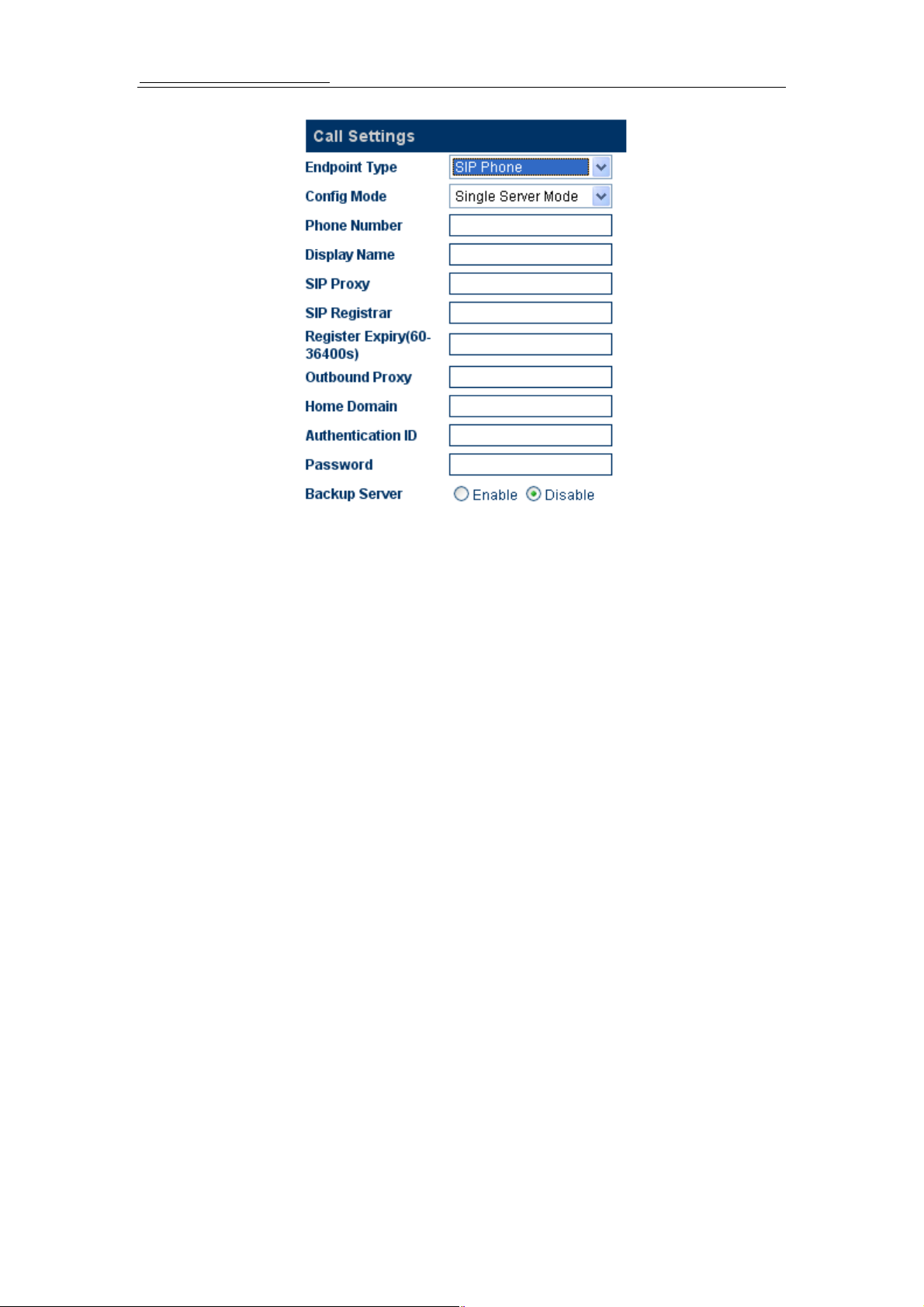
3.4.2.1 Single Server Mode
17
Page 19
Http://www.hybertone.com HT-342 Two FXO Gateway
In this mode, the four lines will login to the server with single number.
A)Phone Number
Fill in the login number of SIP.
B)SIP Proxy
Fill in the SIP proxy IP address or domain name. If the registration port isn’t 5060 then
add “:” and the port number like:”sip.at338.com:8080”
C)SIP Registrar Server
If a registrar server is needed fill in the IP address or domain name.
If the registrar port isn’t 5060 then add “:” and the port number
like:”sip.at338.com:8080”
D)Home Domain
This field use fill in the IP address of the home domain. Although the IP address is
easy to remember, the user still finds it hard to remember because it is long and has
no association with its geographical position or organizational relationship. In order to
solve the problem, Internet defines the Domain Name System (DNS) by using ASCII
string.
E)Authentication ID
Fill in the authentication ID (user name) if it is needed.
F) Password
Fill in the authentication password if it is needed.
G) Display Name
Fill in the display name and it will display on the other VoIP party.
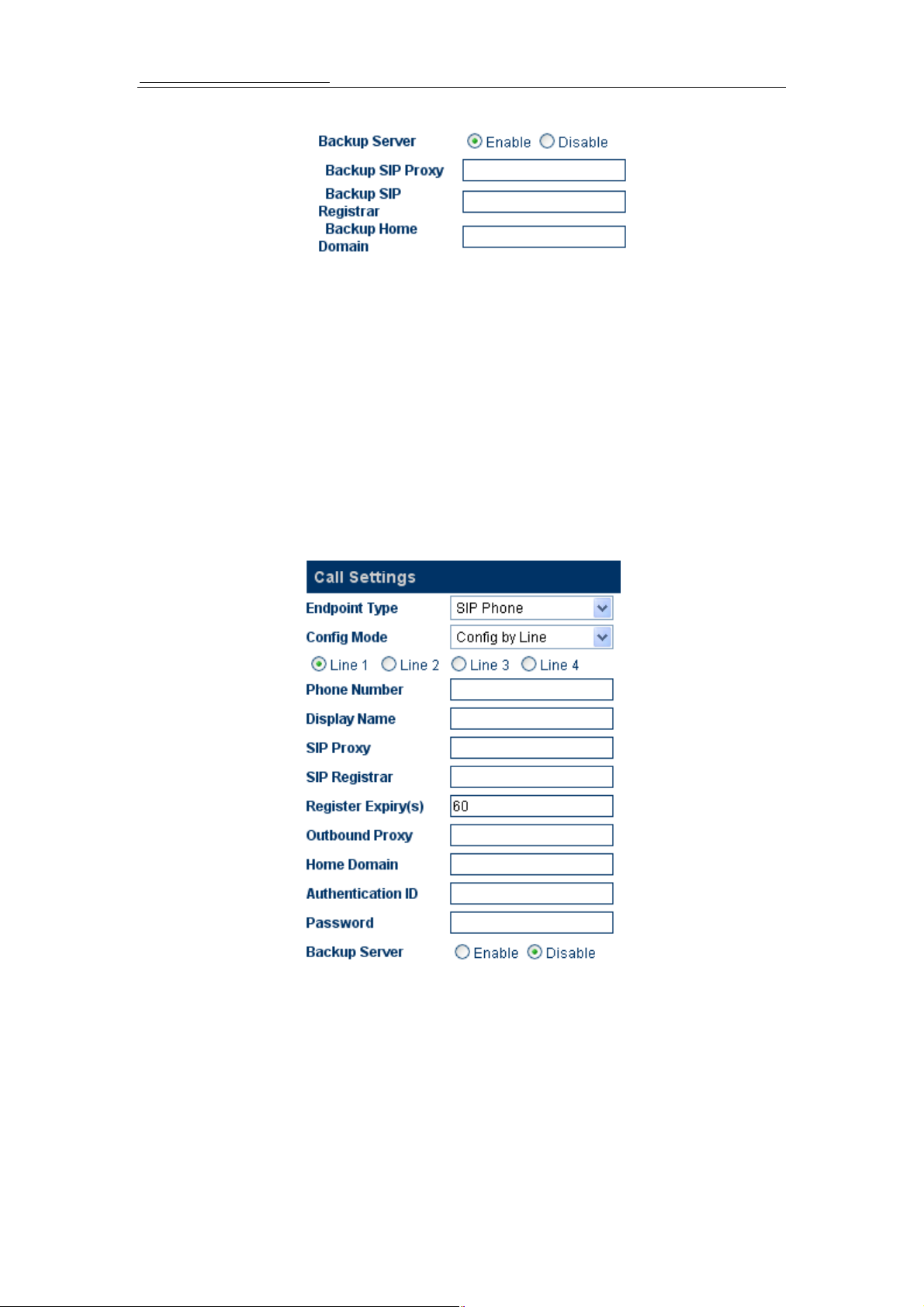
H) Backup Server
18
Page 20
Http://www.hybertone.com HT-342 Two FXO Gateway
When system support backup server fill in the messages of the backup server. When
the first server is failed HT-342 will try the backup server.
I) Outbound Proxy
When Outbound proxy is needed fill in the IP address or domain name..
3.4.2.2 Configuration by Line
In the “Config by line” mode user can setup each of the four lines with difference
numbers. For advance using the each line can login difference server.
3.4.2.3 Advance Settings
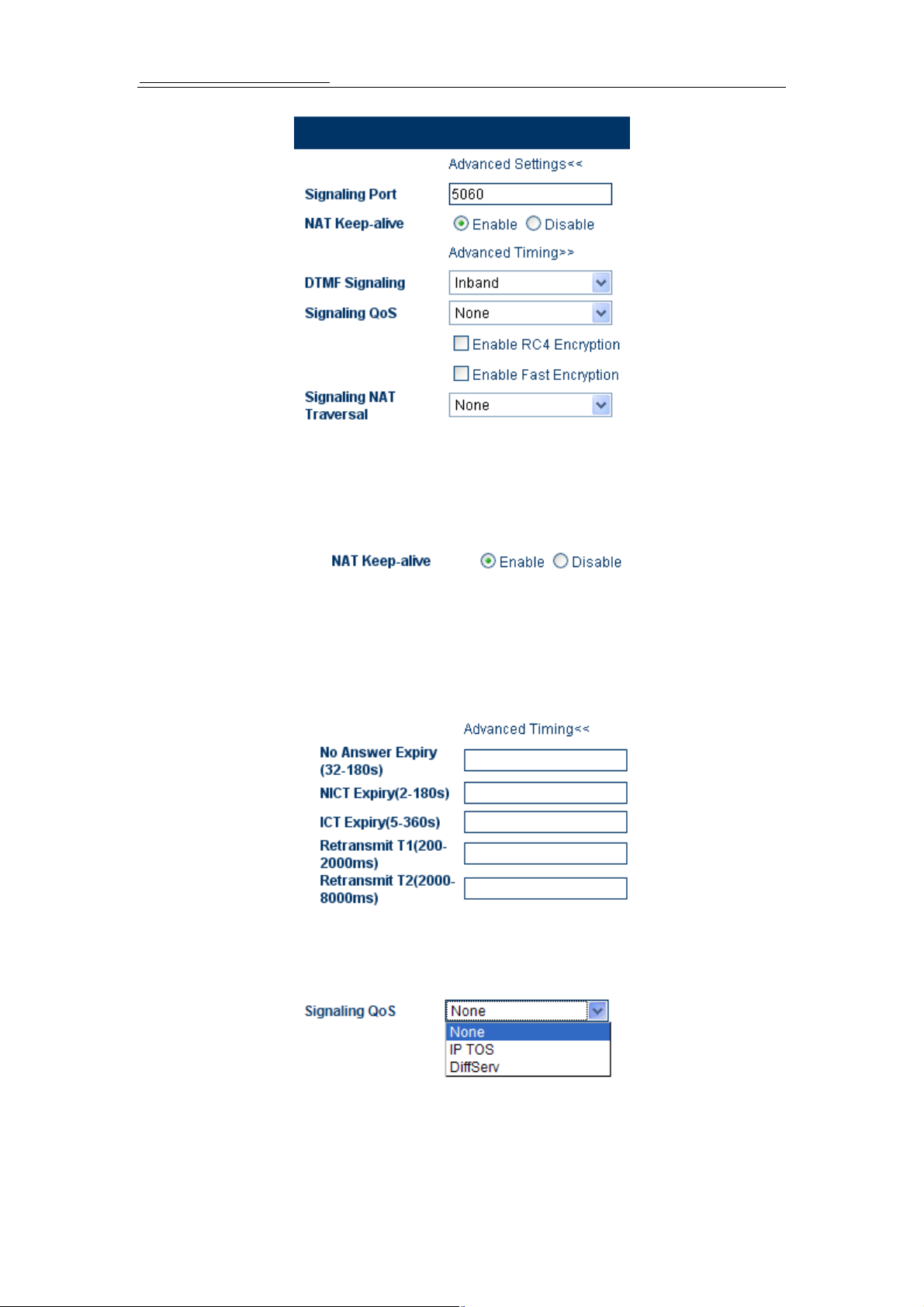
Click on “Advance Settings” in the SIP menu, the configuration screen of advance settings
will be displayed as follows. In this part, you will have more advance control over the SIP
signaling and media preference.
19
Page 21
Http://www.hybertone.com HT-342 Two FXO Gateway
A) Signaling Port (SIP Local port)
Set the local signaling port. If 5060 is not your favor.
B) NAT Keep-alive
Periodically send out a packet (with no content) to the SIP proxy to keep NAT open for
incoming traffic.
C) Advanced Timing
D) Signaling Qos
If local network supporting Qos, Choice one of them.
E) DTMF Signaling
1) DTMF TYPE
DTMF TYPE is used for telephone signaling over the line in the voice frequency band
20
Page 22
Http://www.hybertone.com HT-342 Two FXO Gateway
to the call switching center. DTMF means that two groups of tone with different
frequencies are united into 16 kinds of dial tone. The telecommunication station,
switch or the phone service such as 1860 identify these special tones through DSP
analysis to confirm the keys dialed by user. There are two DTMF types: Inband DTMF
type and Outband DTMF type.
Inband DTMF type transfers these special dial tones together with the speech tone
without doing any special processing to them. So there is not any type as to Inband
DTMF.
Outband DTMF type transfers these special dial tones by some special method to
confirm its correctness. The special method is the so called protocol such as
RFC2833 and SIP information.
2)DTMF Payload Type
DTMF Payload Type is used to carry telephony tones and telephony signals. By using
a distinct dynamic RTP payload type in the same RTP stream as the media, it is
possible to carry DTMF tones, fax-related tones, standard subscriber line tones,
country-specific tones and trunk events.
3.4.3 Media Setting
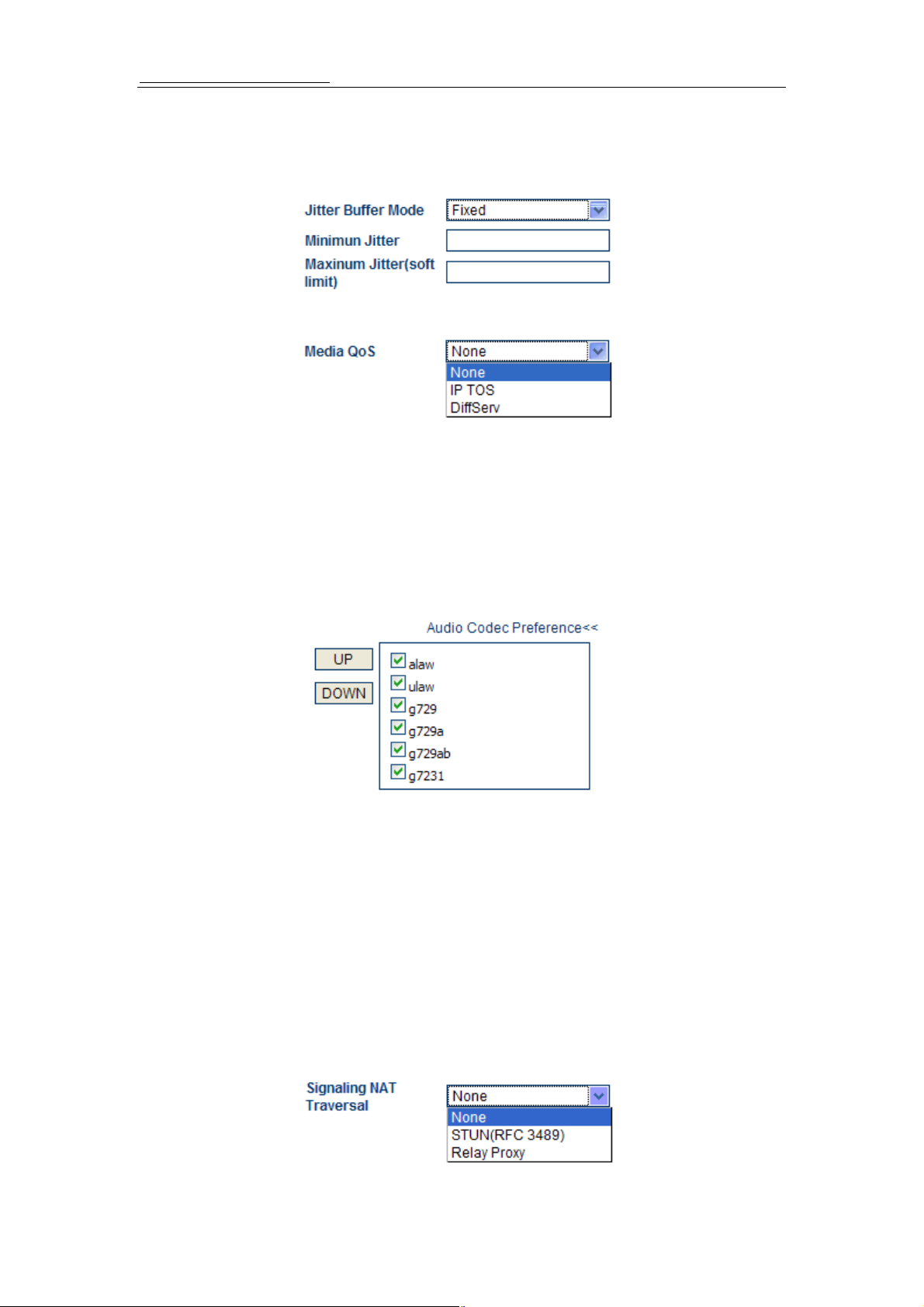
Click on “Media Settings” in the “Call Setting” menu, Media setting allow user change the
preference of the media and RTP etc.
A) RTP Ports
RTP (Real Time Protocol) Port id the Flexed port of the RTP.
B) Packet Length
21
Page 23
Http://www.hybertone.com HT-342 Two FXO Gateway
Default length is 20mS; user can change the packet size from 5mS to 40mS with 5mS
per step.
C) Jitter Buffer Mode
D) Media Qos
If local network supporting Qos, Choice one of them.
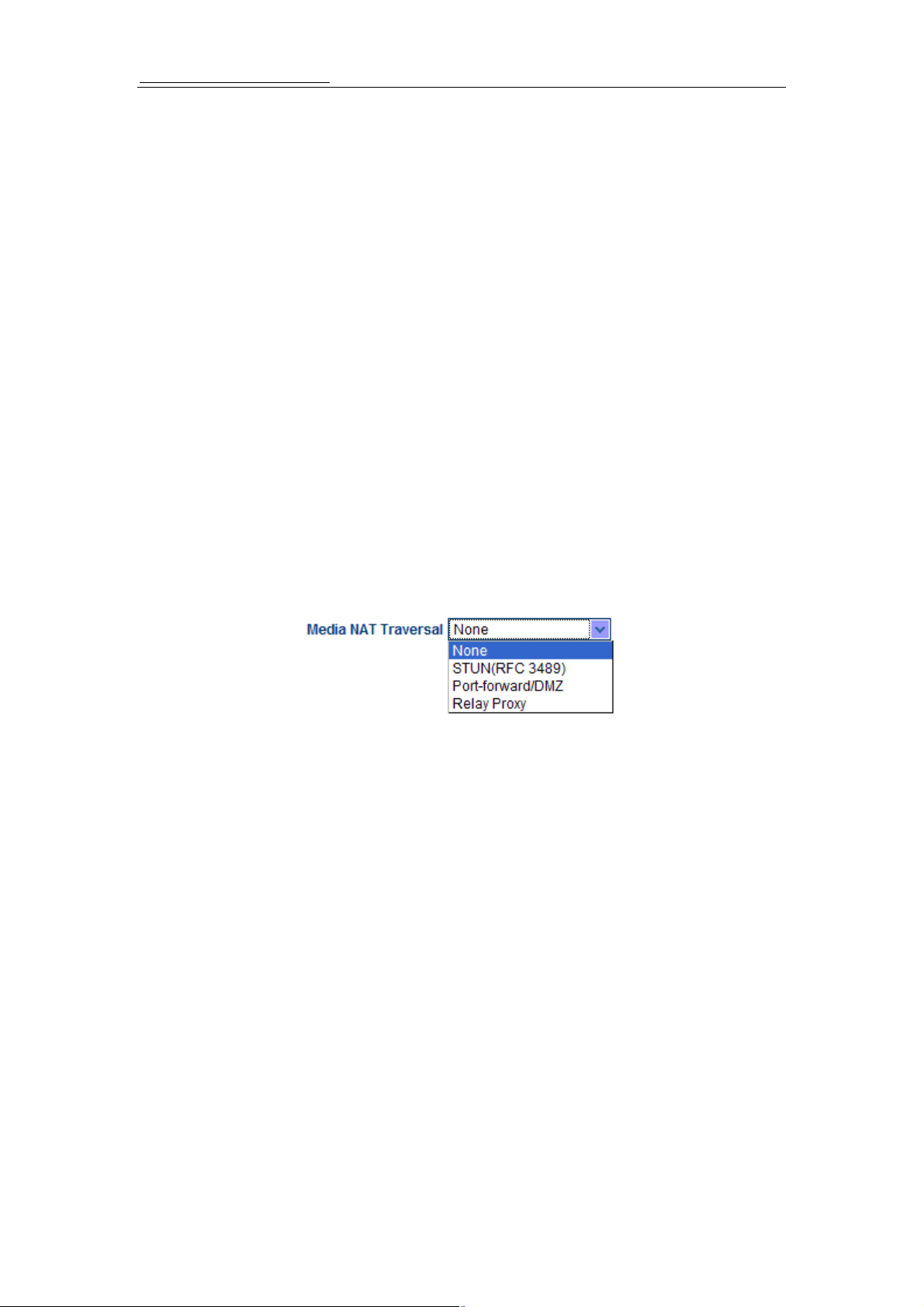
3.4.4 Codec Preference
Codec Preference let user to choice the audio codec sequence and disable some of the
codec.
To upper or lower one of the codec of the sequence; highlight one of them then kick UP or
DOWN button. To disable or enable one of the codec click the “□” front of the codec
names.
3.4.5 NAT Traversal
3.4.5.1 Signaling NAT Traversal
Signaling traversal is setting the method of the signaling traversal between NAT.
A) None
22
Page 24
Http://www.hybertone.com HT-342 Two FXO Gateway
None means there is no traversal mechanism supported.
B) Port-forwarding Support
Port-forwarding is the action of forwarding network ports on the outside network
interface (public IP) to inside network (private IP). Check your NAT (router)setting
before user choice this function.
Port-forwarding support includes gateway address and echo server address. Gateway
address id the IP of the network gateway. Echo server is a standard service
implementing the ECHO protocol.
C) Relay Proxy
Relay proxy is HyberTone's proprietary NAT traversal technology which allow
HyberTone's VoIP terminals to achieve anywhere of the complicated network
environments. It includes address, ports, user name, and password.
Note: This RELAY proxy is only working with the RELAY Server software developed
by HyberTone independently. It was free software; user can get it from our
technical support.
3.4.5.2 Media NAT Traversal
Click on the “Media NAT Traversal” in the “Call Settings” configuration page’s “Media
Settings NAT Traversal” screen will be displayed as below.
Media NAT traversal is setting the method of the RTP traversal between NAT:
A) None
None means there is no traversal mechanism supported.
B) Port-forwarding Support
Port-forwarding is the action of forwarding network ports on the outside network
interface (public IP) to inside network (private IP). Check your NAT (router)setting
before user choice this function.
Port-forwarding support includes gateway address and echo server address. Gateway
address id the IP of the network gateway. Echo server is a standard service
implementing the ECHO protocol.
C) STUN (RFC 3489 )
When system support STUN then choice it and fill in the STUN server IP (or domain
name) address.
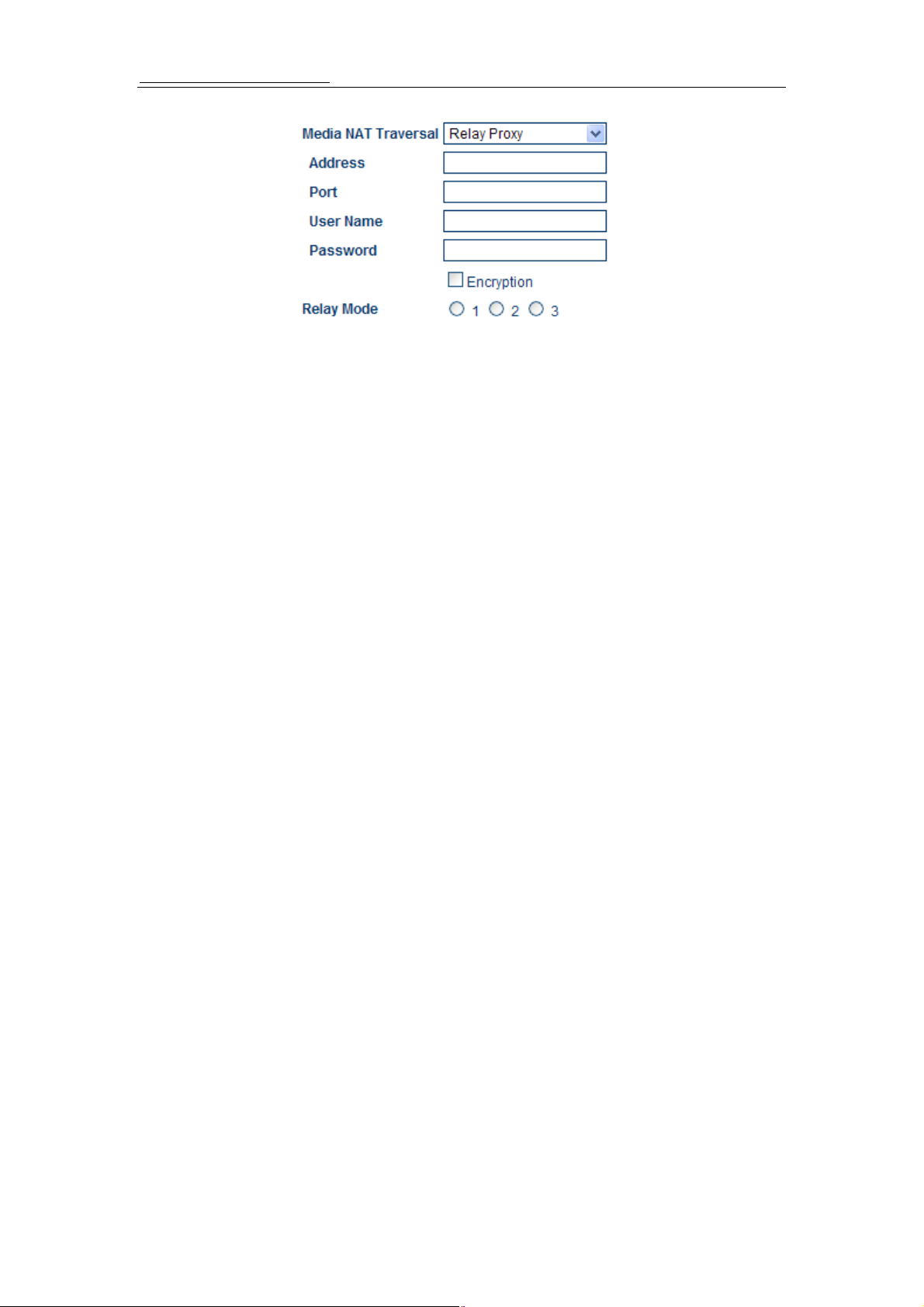
D) Relay Proxy
Relay proxy is HyberTone's proprietary NAT traversal technology which allow
HyberTone's VoIP terminals to achieve anywhere of the complicated network
environments. It includes address, ports, user name, and password..
23
Page 25
Http://www.hybertone.com HT-342 Two FXO Gateway
The RELAY can running in 3 kind of packaging mechanism:
Mode 1: The media use UDP packets and (or) encrypt with multiple UDP port;
Mode 2: The media use UDP packets and (or) encrypt with single UDP port;
Mode 3: The media use TCP packets and (or) encrypt (UDP over TCP).
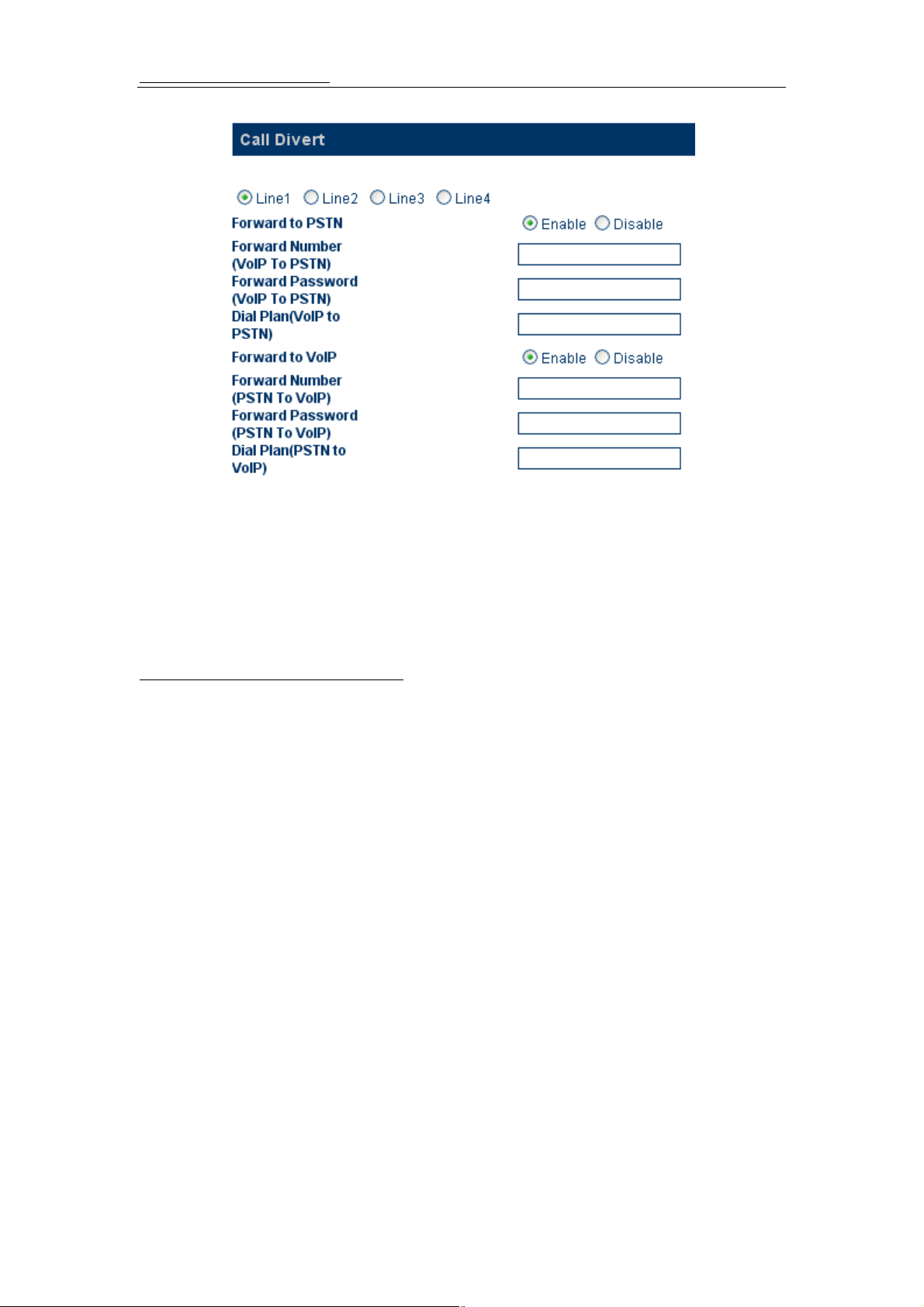
3.5 Call divert
The four VoIP and PSTN channels both can be program to divert mode.
Forward Number (VoIP to PSTN)
When forward number (VoIP to PSTN) is filled, the VoIP incoming call will forward to the
number of the PSTN immediately. For the PSTN number “’,” is supported, it means
500mS delay between two digits.
Forward Password (VoIP to PSTN)
When the forward Password is filled, the call to PSTN needs input the “Password” before
the call is making. The call flow is: call the HT-342 -> hears the indication tone -> input the
password by press the keypad (by DTMF) -> get the PSTN dialing tone -> make call.
Forward Number (PSTN to VoIP)
When forward number (PSTN to VoIP) is filled, the PSTN incoming call will forward to the
number of the VoIP immediately. And when the VoIP side pickup the call will be establish.
Forward Password (PSTN to VoIP)
When the forward Password is filled, the call to VoIP needs input the “Password” before
the call is making. The call flow is: call the HT-342 -> hears the indication tone -> input the
password by press the keypad (by DTMF) -> get the VoIP dialing tone -> make call.
24
Page 26
Http://www.hybertone.com HT-342 Two FXO Gateway
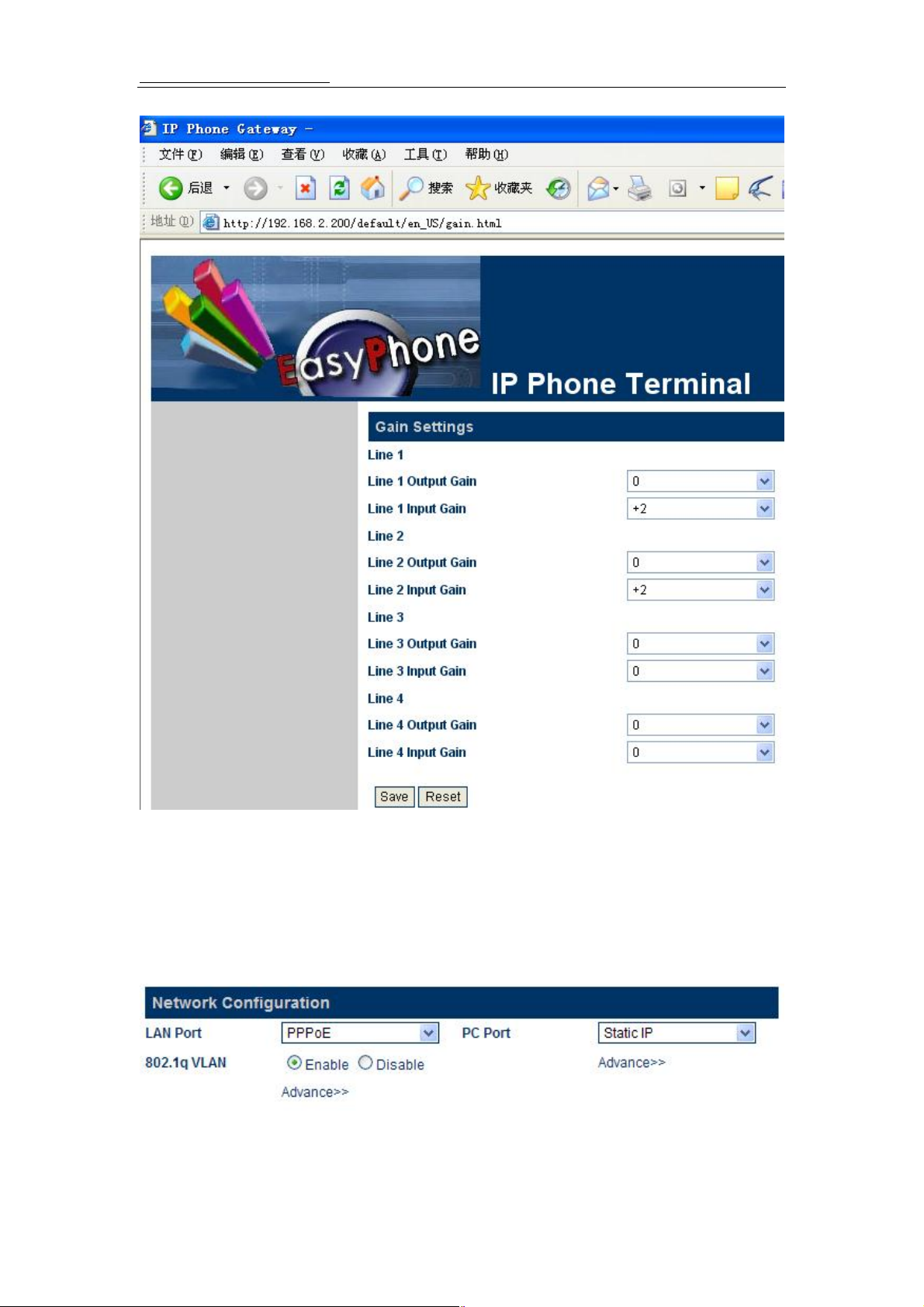
3.6 Gain Settings…
The gain setting must be cautious to using. It was a hidden web page. If you want adjust
the VoIP Lines’s volume. Please rewrite the URL address to
http://xxx.xxx.xxx.xxx/default/en_US/gain.html and enter. The web browser will show up
a GAIN SETTINGS screen.
You can adjust the volume of the two PSTN Lines to different values. The range you can
adjust is from 5 to -5.
25
Page 27
Http://www.hybertone.com HT-342 Two FXO Gateway
Note: A too low or too high input gain will make DTMF detector insensitive.
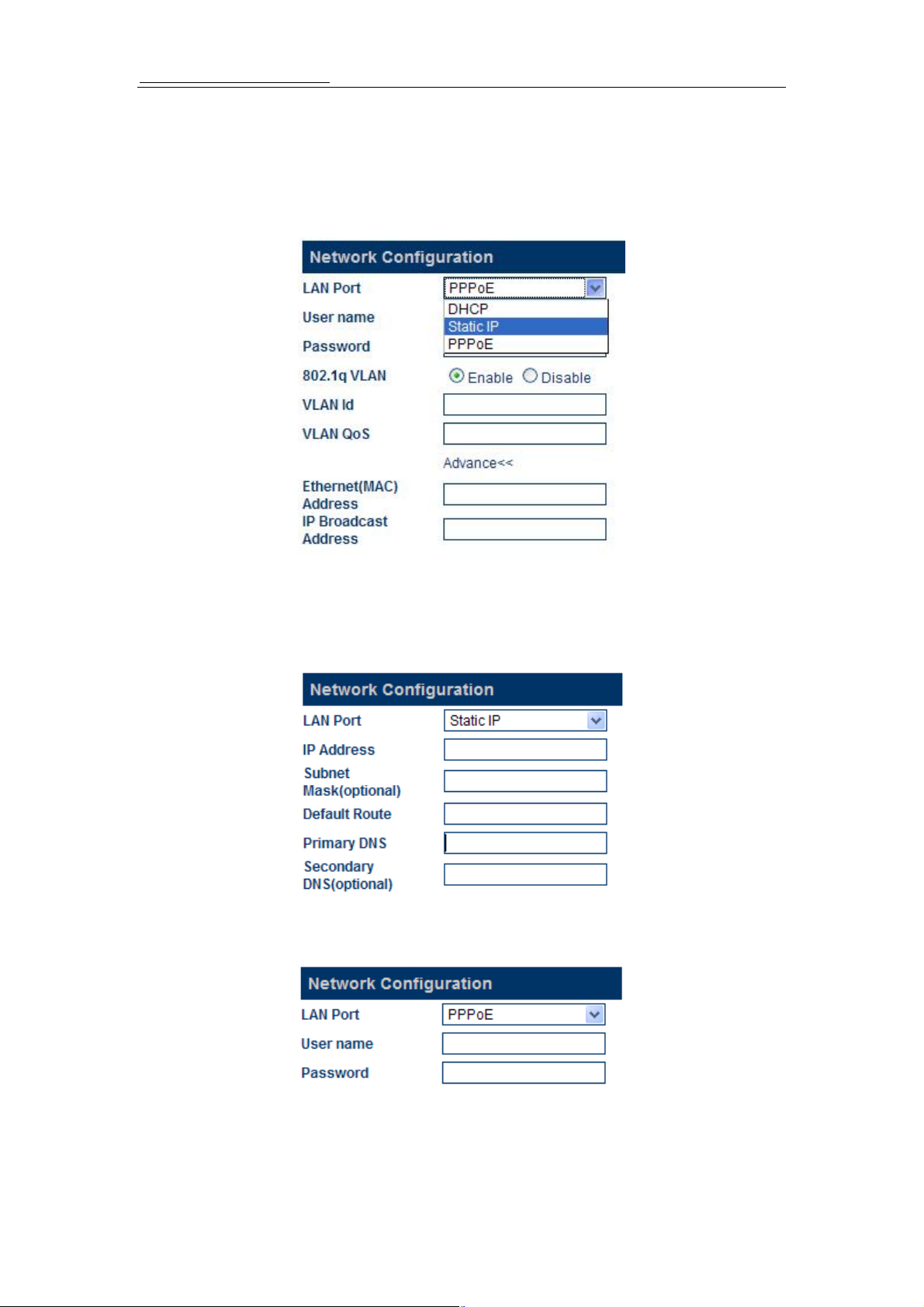
3.7 Network Configurations
Click on Network Configuration in the left menu of the Configuration page and the network
configurations screen will be displayed as below.
The Network Configurations screen allows user setup the IP addresses of the LAN and
PC port. User also can setup PC port to a DHCP server or working in Bridge mode.
26
Page 28
Http://www.hybertone.com HT-342 Two FXO Gateway
3.7.1 LAN Port configurations
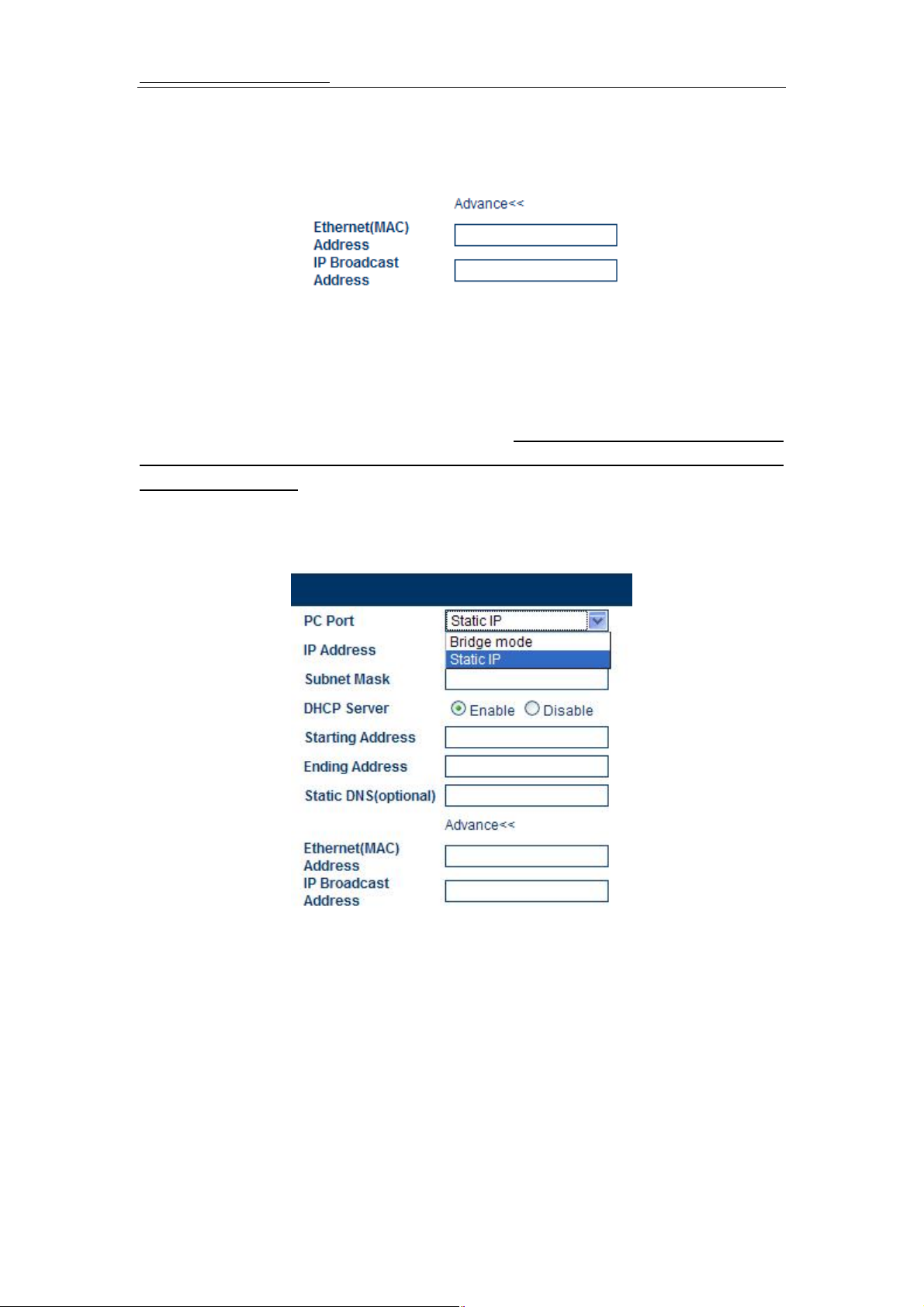
Choice one of the LAN configuration that meet your network environment, they are:
1) DHCP, 2) Static IP, 3) PPPoE.
1) DHCP
Choice DHCP when the network offering DHCP service.
2) Static IP
Choice Static IP when network needs a static IP and fill in the messages of then.
3) PPPoE
PPPoE, point-to-point protocol over Ethernet, is a network protocol for encapsulating
PPP frames in Ethernet frames. It is used mainly with cable modem and DSL (Digital
Subscriber Line) services. Click PPPOE, and fill in the user name and password
accurately.
27
Page 29
Http://www.hybertone.com HT-342 Two FXO Gateway
4). Advance…
Click Advance and you will get the two items: Hardware address and Broadcast
address.
Fill in if the MAC address and broadcast need to change to specify.
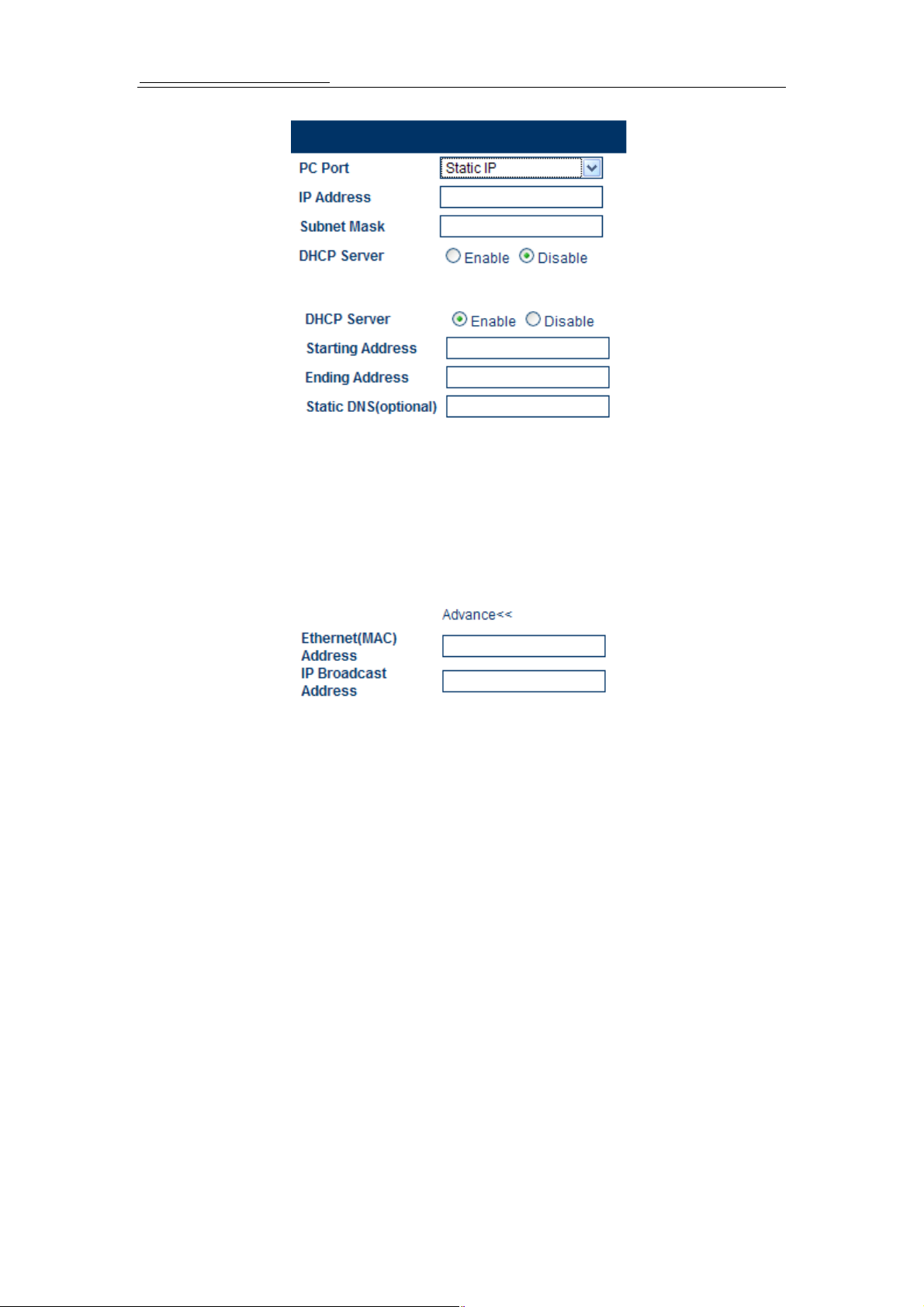
3.7.2 PC port configurations
PC port can setup into Bridge Mode or Static IP. Strongly recommend user using
static IP mode because of in bridge mode PC port don’t has a IP for login the
configuration page.
The default setting is Static IP in 192.168.8.1.
1) Bridge Mode
In the Bridge Mode, PC port is link to LAN port with a internal switch, device which
connect to PC port same as connect to the LAN cable.
2) Specify an IP Address Manually
Click Static IP, and enter IP Address and Subnet Mask.
28
Page 30
Http://www.hybertone.com HT-342 Two FXO Gateway
3) Enable DHCP Service
When users enable the DHCP service, PC port become a DHCP server and offer
DHCP service. Please also fill in the starting address and ending address of the
DHCP service. If the LAN port setting to static IP and user want to offer DNS field in
DHCP please also fill in the DNS server IP address.
4) Advance…
Click Advance and you will get the two items: Hardware address and Broadcast
address.
Fill in if the MAC address and broadcast address need to change to specify.
3.7.3 Primary DNS
When LAN port is setting to static IP DNS must be set. If there is not DNS IP filled HT-342
and the device(S) behind the HT-342 can not access any address with Domain Name.
3.7.4 Secondary DNS
Fill in a backup DNS server IP address here.
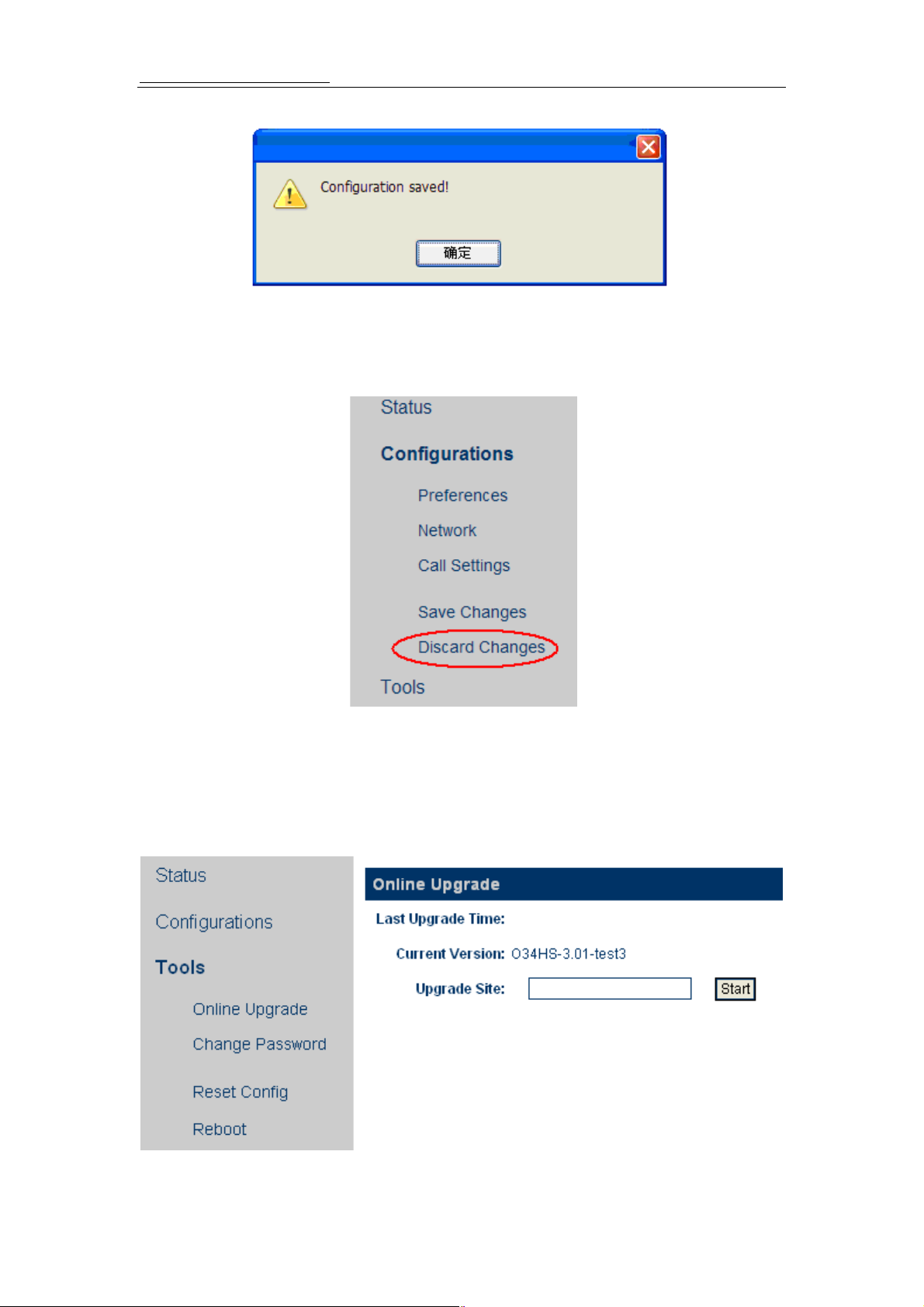
3.8 Save Configuration
Once a change is confirm, users should click on the “Save Configuration” button in the
Configuration page. Otherwise, your configuration will not take effect. After user click the
“Save configuration” the screen will be:
29
Page 31
Http://www.hybertone.com HT-342 Two FXO Gateway
3.9 Discard Changes
3.10 Tools Menu
Click on the “Tools”, the web page will pop-up a subordinate options and the screen will be
displayed as below:
30
Page 32
Http://www.hybertone.com HT-342 Two FXO Gateway
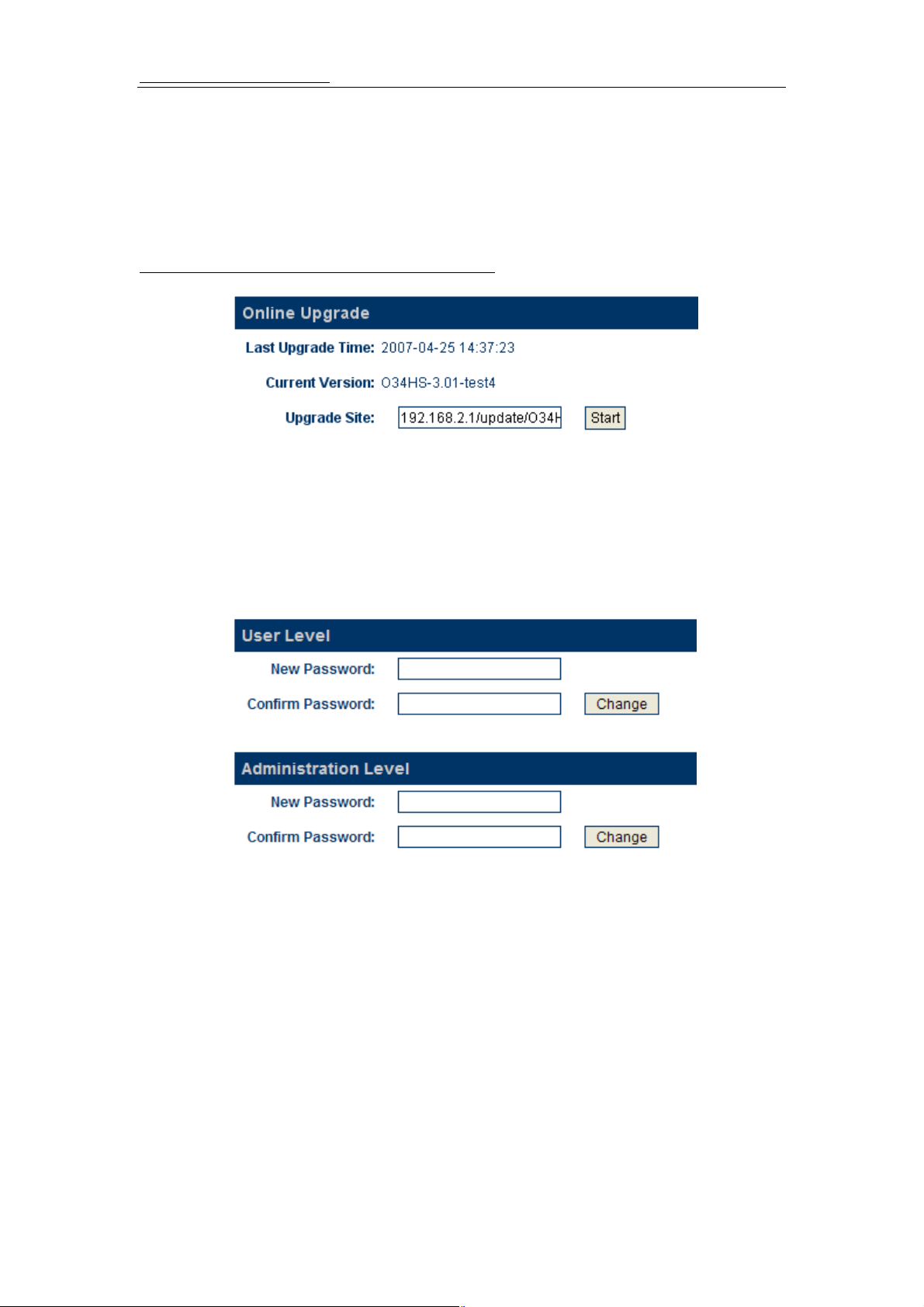
3.10.1 Online Upgrade
WARNING! Performing an online upgrade is for experienced users or
administrators only!
Click Online Upgrade. Enter the update link which provide by HyberTone like:
http://202.96.136.145/update/A34HS-3.07-18.pkg, And click the Start button.
WARNING! When the terminal is updating, never power down the HT-342. It will
destroy the equipment.
3.10.2 Change Password
A) User Password (default:1234)
User password is for the user of “user”. “ user” is the lower level user of the
configuration, when “user” login, “Call setting” will not show. It means “user” only can
setup something like network etc.
B)Administrator Password (default: admin)
Administrator Password is the password of “admin”. ”admin” can change anything of
HT-342 so please reminded change the password of “admin” after you finish configure
the device.
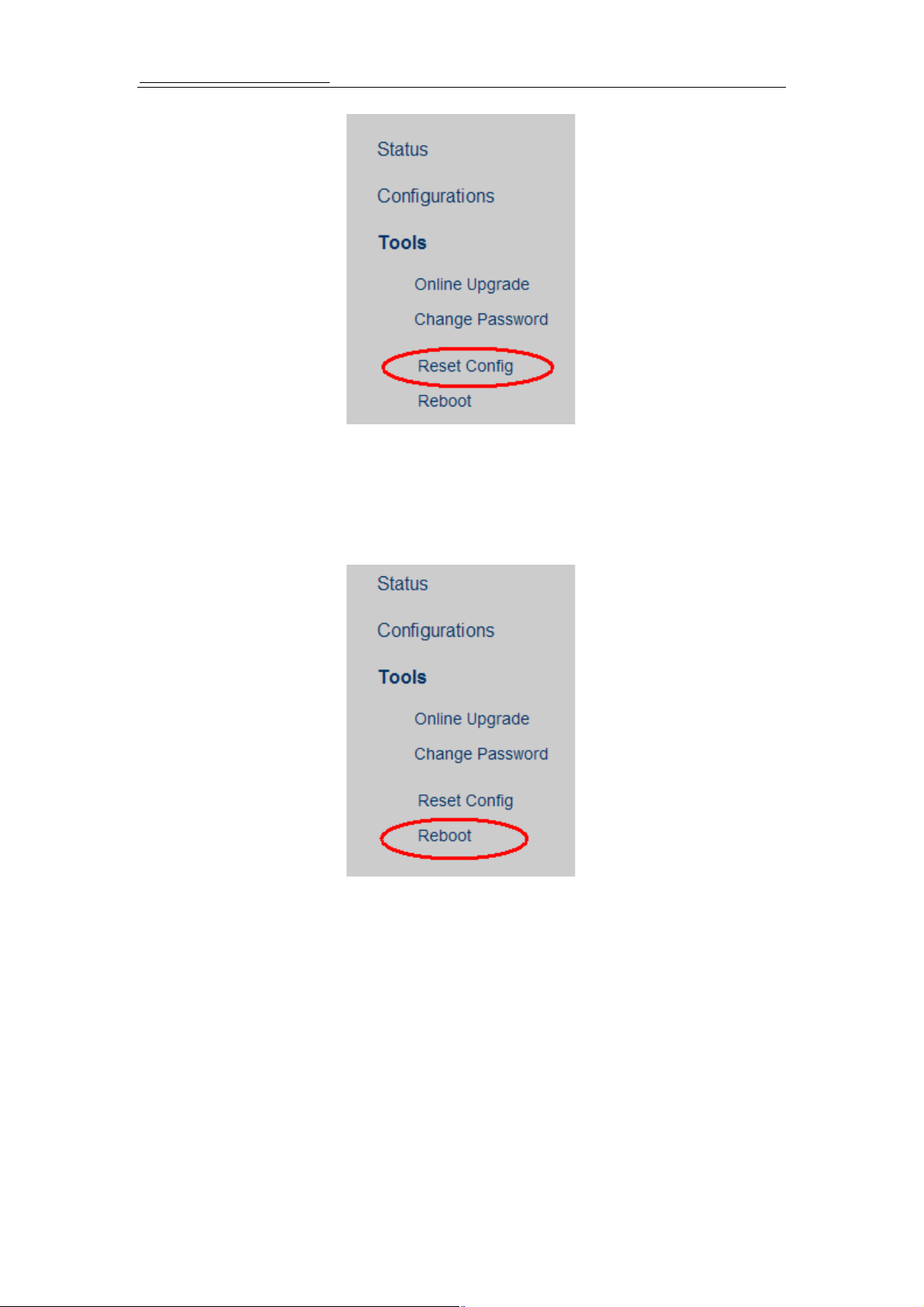
3.10.3 Reset Configuration
When reset configuration is click HT-342 will reset to factory default.
31
Page 33
Http://www.hybertone.com HT-342 Two FXO Gateway
After reset all the configured will be lost.
3.10.4 Reboot the Device
Click on this field to reboot the device.
32
Page 34

Http://www.hybertone.com HT-342 Two FXO Gateway
4 Products Parameter
Characteristics of the hardware
Processor ARM9E 133MHz
DSP VDS924PM4 200MHz
RAM 16M
FLASH 4M
Power DC12V/500mA +-10%
Consumption The maximum 3 W
Impedance 600 ohm
Ring Detect Range 30-150Vrms 18Hz-55Hz
PSTN Port Voltage Upper Limit 160V
LED Operate, network , circuit
Network card 2 100/10BASE-T
Weight 250 grams
Working temperature 0-42℃
Parameter Remarks
WHITOUT DC ADAPTER
Working humidity 40%-90% not congealed
Colour White
PSTN Ports 4
VoIP Chunnel 4
5 Manufactory Parameter
Network
Password
Parameter
LAN DHCP
PC Static IP:192.168.8.1
admin admin
user 1234
Time Zone GMT+8
Default
This default parameter are unsuitability the customization’s products.
33
 Loading...