

Page 1
User Manual
Guide d’utilisation
Page 2

This document will show you how to
use your SmartView Pocket's many
features.
1. Contents of the Package
• Handheld video magnifier
• Power supply
• USB cable
• RCA video cable
• Protective case
• Carrying strap
• Cleaning cloth
• User Guide
• Warranty Card
Page 3
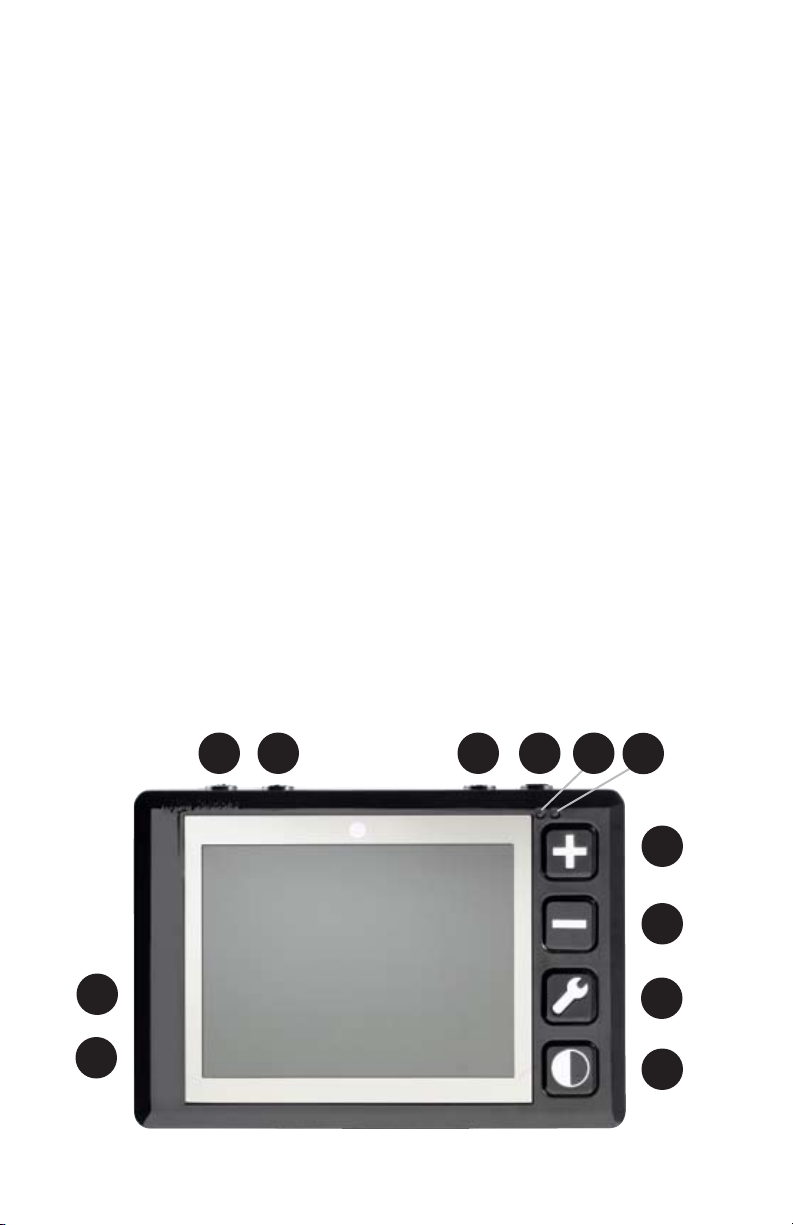
2. SmartView Pocket's features
location
1: Power button
2: Reset button
3: Light button
4: Freeze image button
5: Power light
6: Charge light
7: Increase (+) button
8: Decrease (-) button
9: Settings button
10: Mode button
11: USB port
12: A/V port
12
11
4321
5
6
7
8
9
10
Page 4
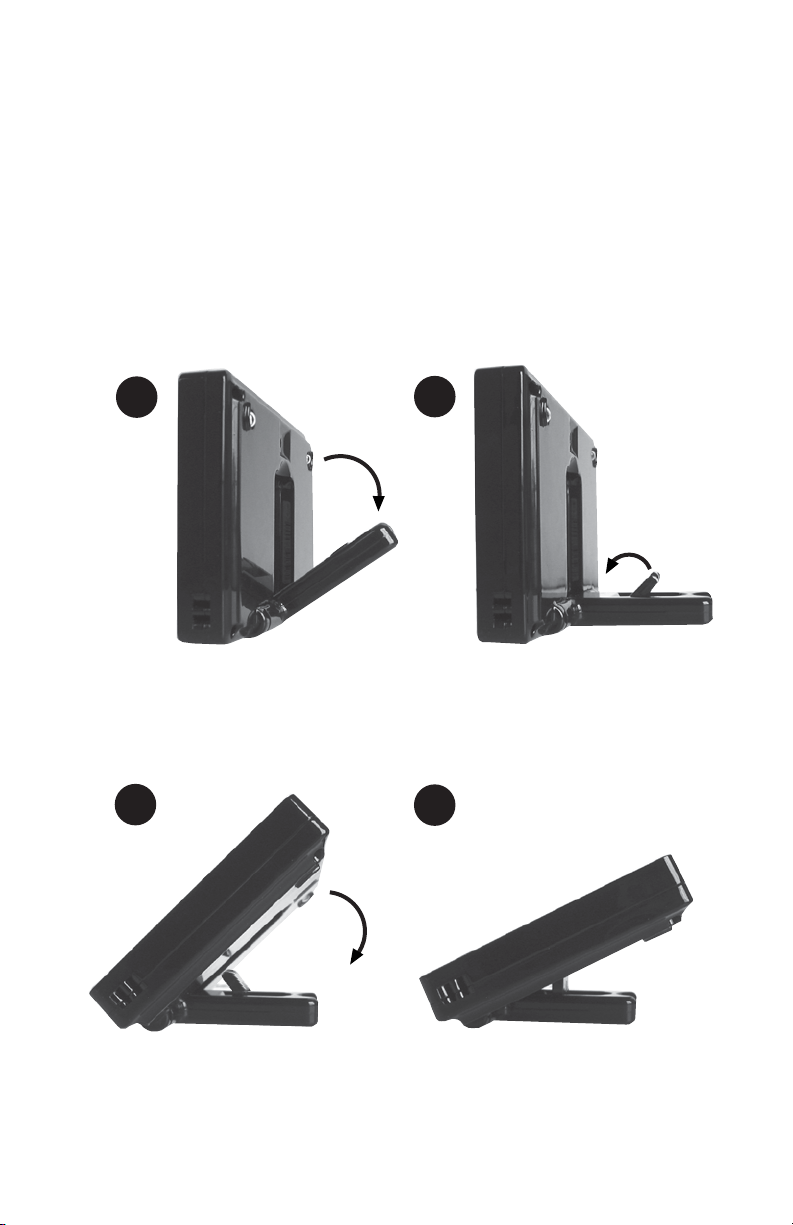
3. Using the SmartView Pocket
3.1 Positioning the SmartView
Pocket's stand
3
1
2
4
Page 5
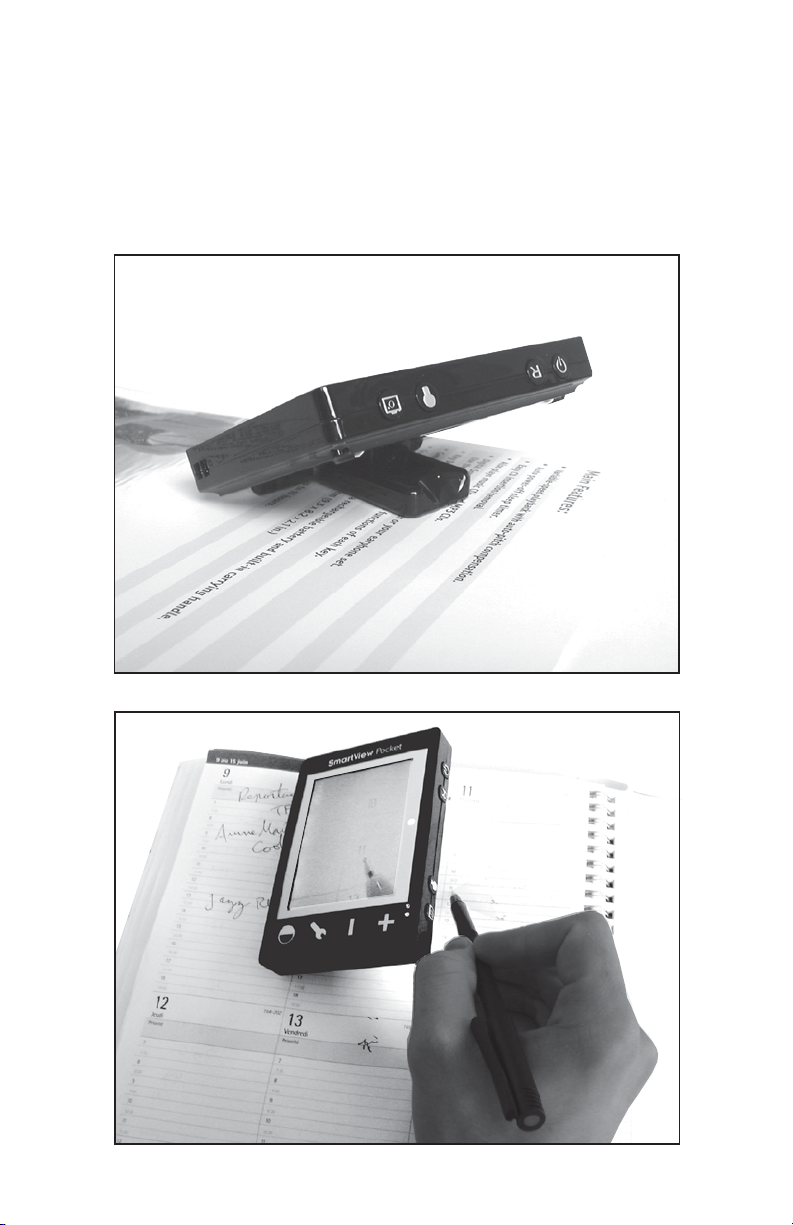
3.2 Reading and writing positions
Page 6
3.3 Key Description
Key
Power
Reset
Light
Freeze
Settings
Function
Used to power on/off.
Only use if the SmartView
Pocket stops responding.
Press Power to restart.
Turn on/off light that
illuminates viewing surface.
Freeze an image.
Zoom / Brightness /
Environment / Sound.
Selected Setting can be
modified with Increase (+)
and Decrease (-) buttons.
Setting will remain on current
value until pressed again.
Leave setting in Zoom for
normal operation.
Mode
Increase (+)
Decrease (-)
Image mode toggle: Color /
Gray / Negative / Positive
Used to change the selected
setting.
Used to change the selected
setting.
Page 7

3.4 Recharging the Battery
To recharge the SmartView Pocket:
• Connect the power supply to one end of
the USB cable.
• Connect the other end of the USB
connector to the SmartView Pocket's USB
port.
• Plug the power supply to an electrical
outlet.
The SmartView Pocket needs to be plugged
in for approximately 3 hours to reach full
charge. The charger light will turn off
when fully charged.
Once fully charged, the SmartView Pocket
can be used for a period of about 3 hours.
3.5 Connecting to a TV screen
If you wish to view the magnified image on
a larger screen, you can connect the
SmartView Pocket to a television. To do so,
plug the RCA video cable's single connector
to the SmartView Pocket's A/V port
located on the left edge. Plug the yellow
(video) connector to video input port on
your television. The remaining sound
connectors are not used.
Page 8

Warning: Avoid exposure to moisture,
rain, sand and extreme temperatures
 Loading...