

Page 1
Page 2

Page 3

INTRODUCTION ............................................................................................... 1
1. PARTS AND ACCESSORIES ............................................................................ 2
2. STRUCTURE.................................................................................................. 2
3. USING YOUR EXPLORĒ 7 .............................................................................. 4
3.1 OPERATING YOUR EXPLORĒ 7 ..............................................................................4
3.1.1 Power on/off ........................................................................................4
3.1.2 Zoom In/Zoom Out ...............................................................................5
3.1.3 Contrast color mode and Camera function ..........................................5
3.1.4 Brightness Adjustment .........................................................................7
3.1.5 Freeze Function ....................................................................................7
3.1.6 Setting memory function .....................................................................8
3.1.7 Power saving function .........................................................................8
3.1.8 HDMI output function ..........................................................................8
3.1.9 Distance View/ Close View function .....................................................8
4. TROUBLESHOOTING..................................................................................... 9
5. SAFETY GUIDE ............................................................................................ 10
6. TECHNICAL SPECIFICATIONS ....................................................................... 11
Page 4

explorē 7
1
Introduction
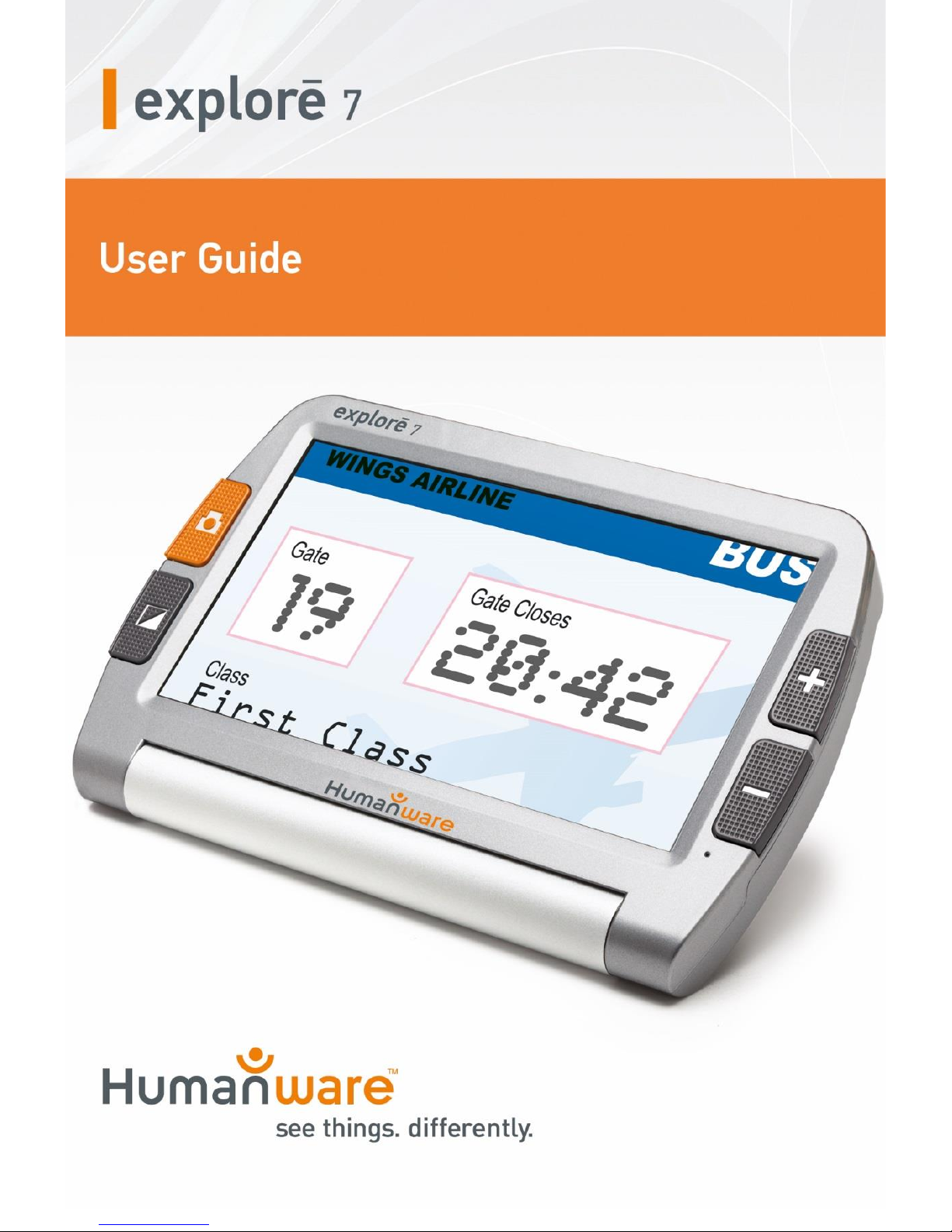
explorē 7 is a big screen, HD, handheld electronic magnifier
for near and distance viewing. With its 7-inch HD and high
contrast display screen, explorē 7 is the perfect companion to
help you see better, and farther. And for an even larger and
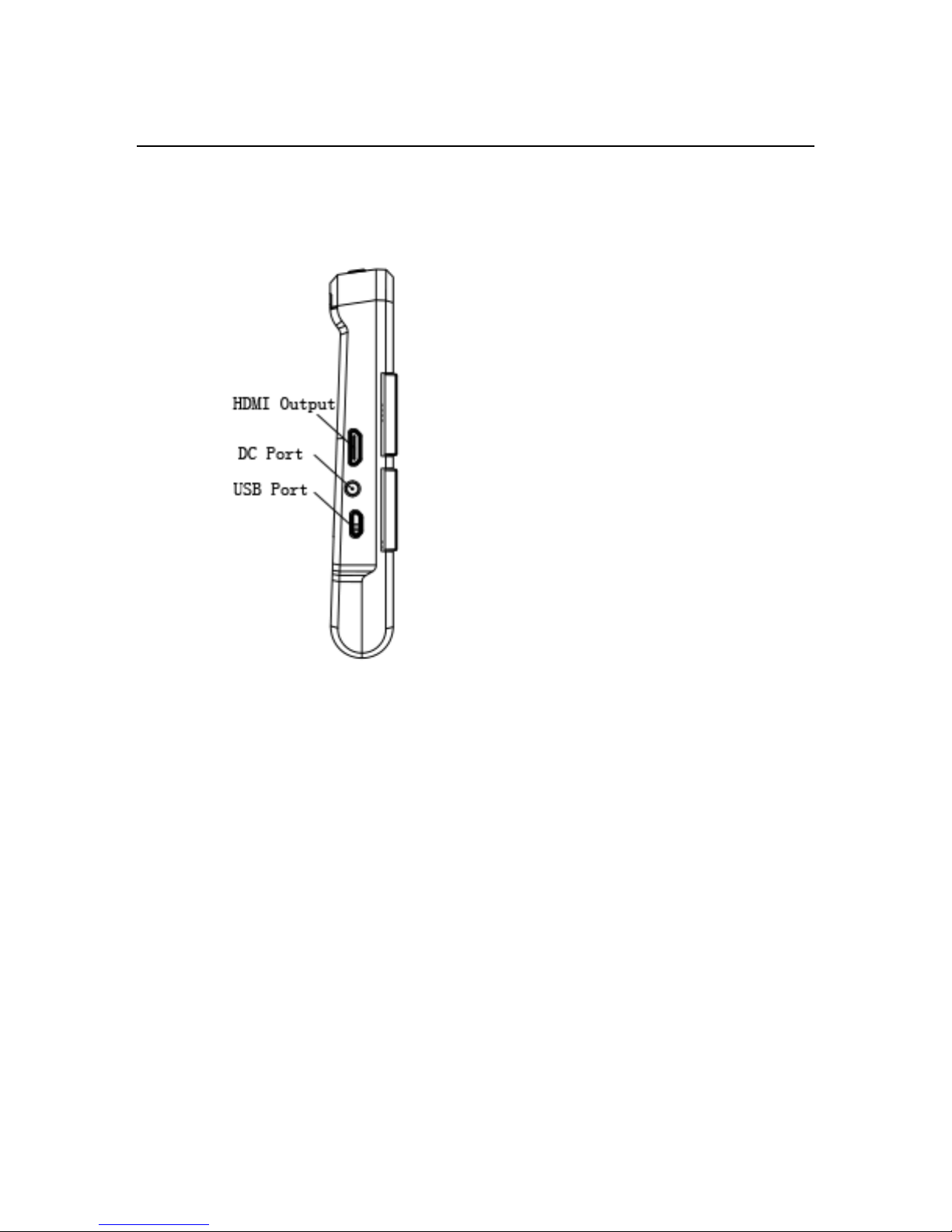
clearer image, it even features an HDMI video output and
cable you can connect easily connect to your TV.
With a viewing range between 6.8 cm and 600 cm and a
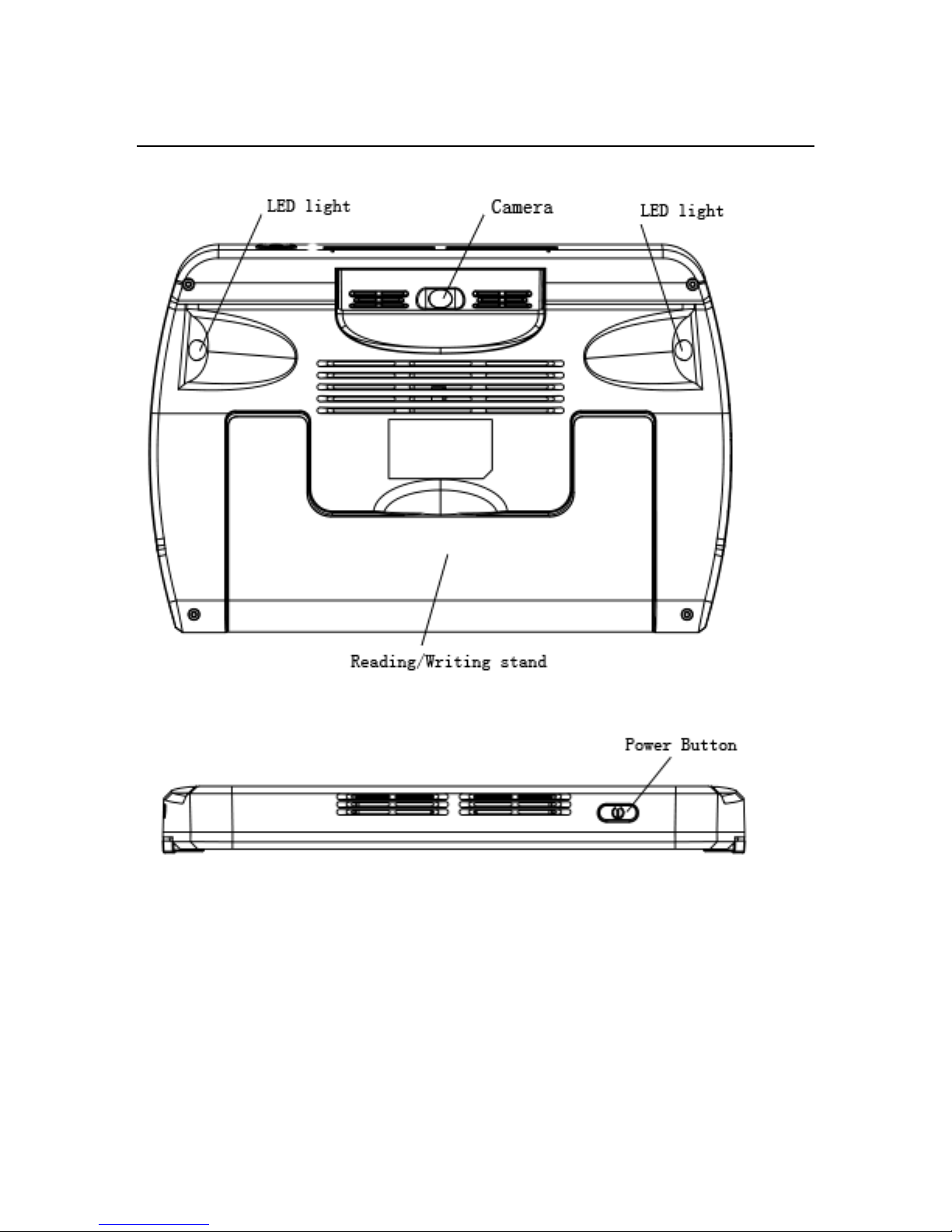
rotatable camera that makes it easy to change between
distance and near viewing, your explorē 7 will soon become
an integral part of your daily routine.
Page 5
explorē 7
2
1. Parts and Accessories
Accessories
Qty
Video magnifier
1
AC power adapter
1
HDMI cable
1
User Manual
1
Protective case
1
2. Structure
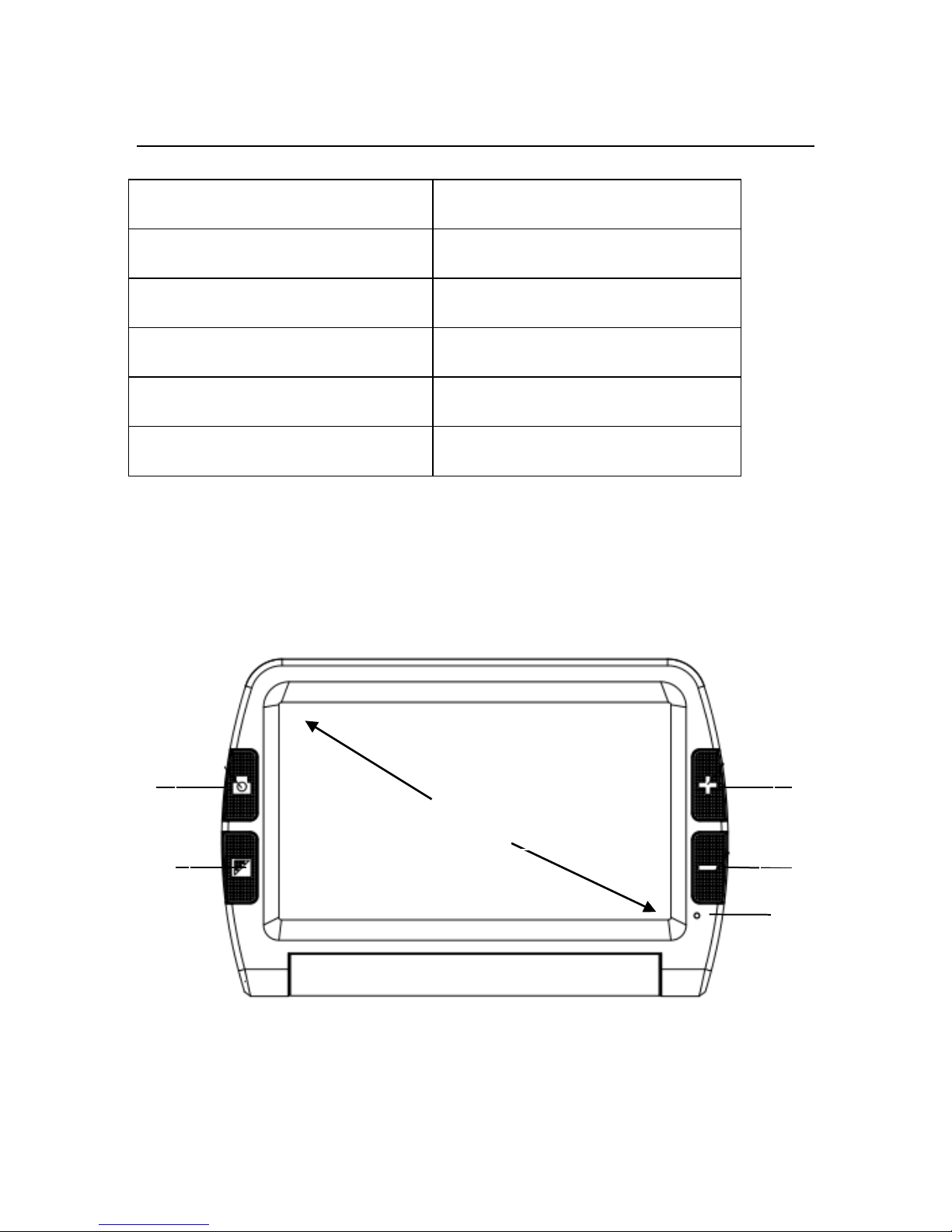
Zoom In
Zoom Out
Freeze
Button
Color
Mode
7 inch
Power
Indicator
Page 6
explorē 7
3
Page 7
explorē 7
4
3. Using your explorē 7
3.1 Operating your explorē 7
3.1.1 Power on/off
To turn on the device, press and hold the power button
for 3 seconds until a beep is heard. The screen will
show the opening image for 2 seconds and then the
unit will enter into video magnifier mode
Press and hold the power button for 2 seconds to turn
off.
Page 8
explorē 7
5
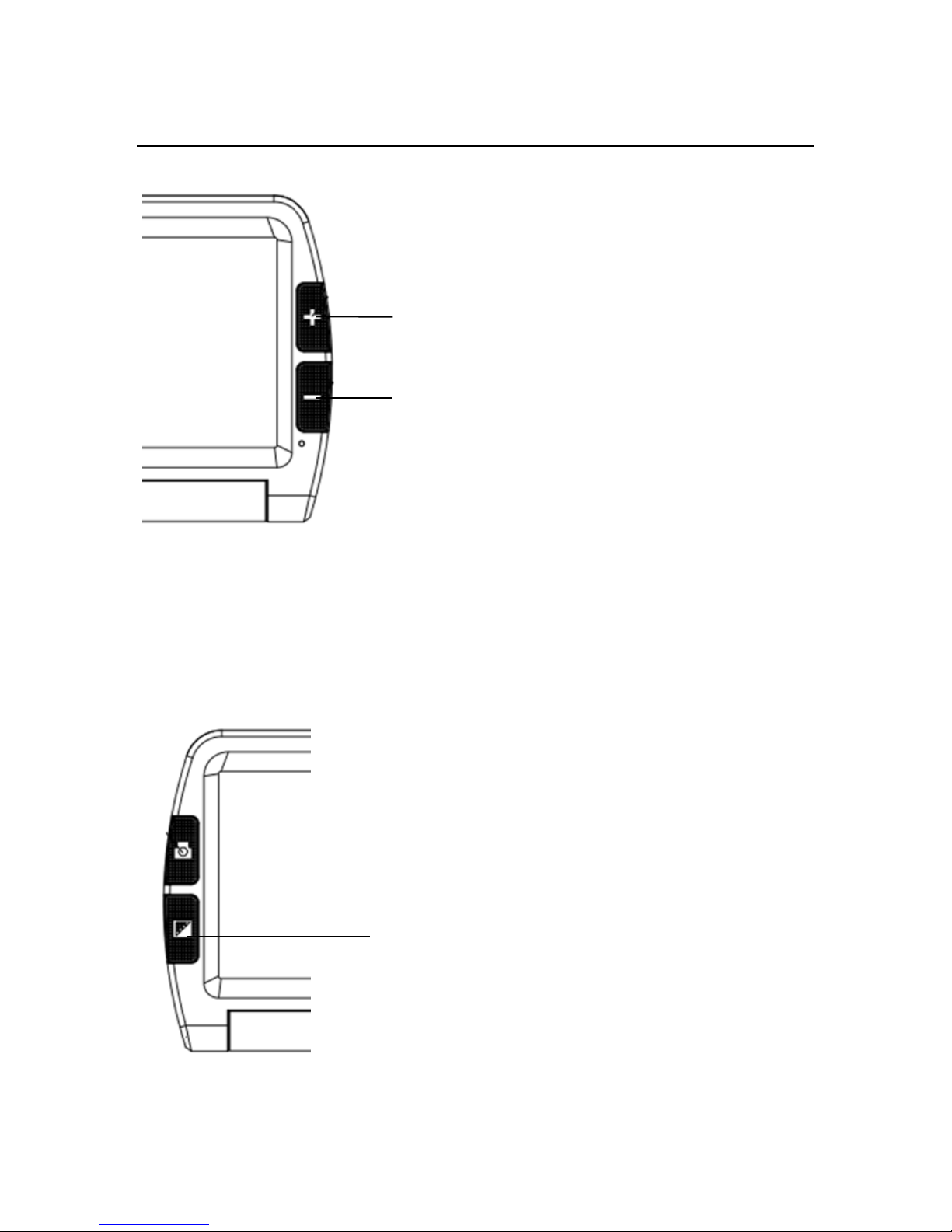
3.1.2 Zoom In/Zoom Out
Press the “+” button to zoom in, and press the
“-”button to zoom out. You can choose the right and
preferred magnification.
3.1.3 Contrast color mode and Camera function
Zoom In
Zoom out
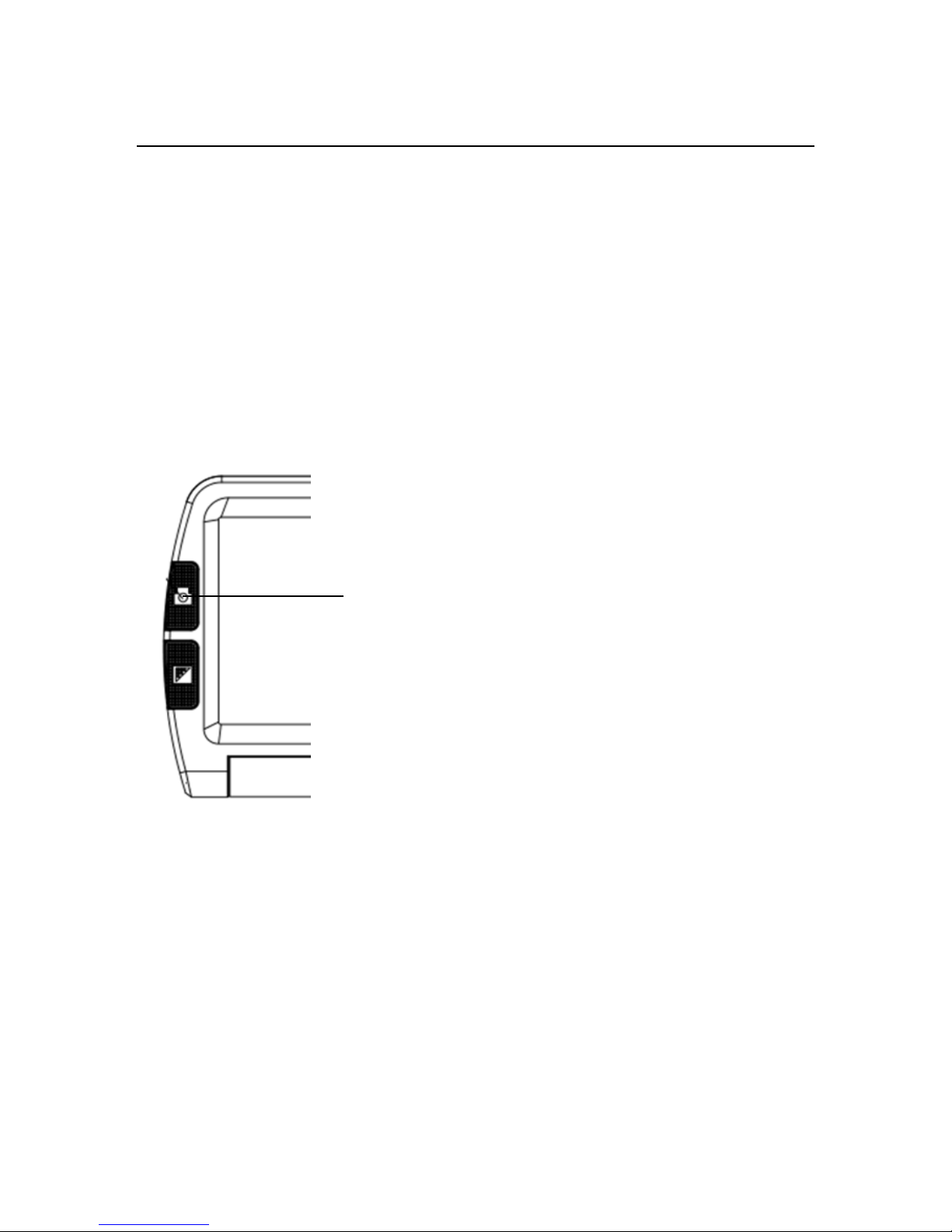
Contrast Color
mode
Page 9

explorē 7
6
Normal mode and favorite modes are available for
contrast color mode.
Press and hold the contrast color mode button for 2
seconds to change between normal mode and favorite
mode.
In favorite mode, press the mode button to cycle through
3 basic modes: full color, your favorite contrast color and
reverse (such as white on blue & blue on white).
In Normal mode, press the mode button to cycle through
the following 12 color modes:
- Full color
- Grey mode
- White text on black background mode
- Black text on white background mode
- White text on blue background mode
- Blue text on white background mode
- Yellow text on black background mode
- Black text on yellow background mode
- Blue text on yellow background mode
- Yellow text on blue background mode
- Green text on black background mode
- Black text on green background mode
Press and hold the contrast color mode for 5 seconds to
Page 10
explorē 7
7
turn on/off the camera lights.
3.1.4 Brightness Adjustment
Hold the “Freeze” button and “Zoom in ”button together to
enter into brightness adjustment.
A brightness bar shows, then press “Zoom in” to increase
brightness and “Zoom out” to decrease it.
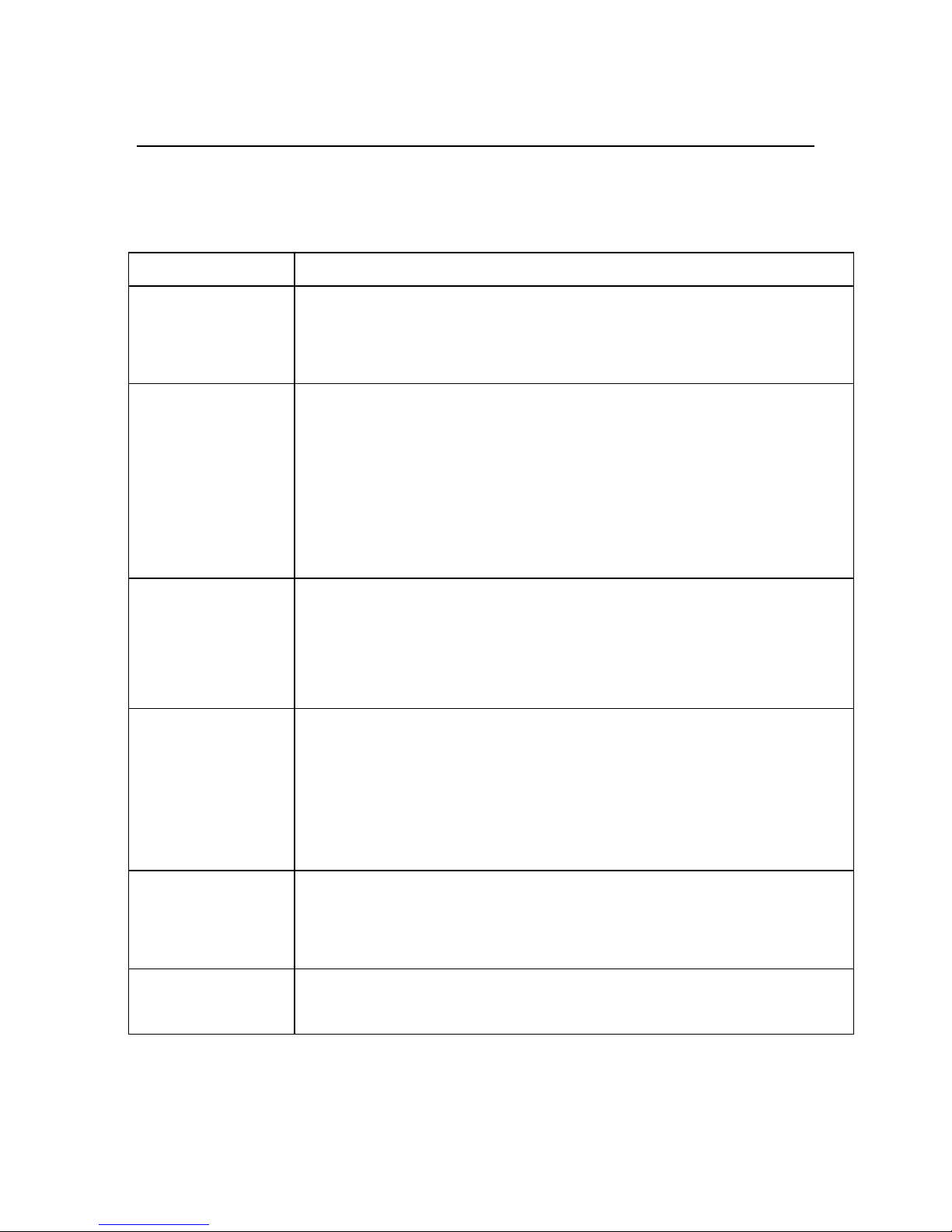
3.1.5 Freeze Function
Take the unit closer to have a better look at the object.
You can also magnify or scale down images by pressing
the zoom in and zoom out buttons, and switch contrast
modes by pressing the Mode button.
Press the Freeze button again to exit
Freeze Button
Page 11

explorē 7
8
3.1.6 Setting memory function
The unit will memorize automatically the most recent
settings (e.g. color mode, magnification, video output
format, button beeps, brightness) and use them the next
time your device is powered on.
3.1.7 Power saving function
In magnification mode, the unit will turn off automatically if not
operated for 3 minutes.
3.1.8 HDMI output function
If the unit’s screen size is not large enough, you can use
the TV output function to connect to the TV screen for
magnification.
Once the TV output is connected to the TV, turn the unit
on. The image will automatically appear on the TV
screen.
3.1.9 Distance View/ Close View function
When you read paper materials such as books, you can
select close view mode.
When you want to see objects at certain distances, you
can choose distance view mode.
To switch between the distance view and close view
modes, you simply need to rotate the camera.
Page 12
explorē 7
9
4. Troubleshooting
Problem
Solutions
Black screen
Make sure device is on.
Make sure the camera lens is clean.
Decrease magnification.
Unable to
turn on
device
Make sure battery is in the device and that
the battery is charged.
Try to use the power adapter to turn on your
device.
Press and hold the power button and color
mode button for 3 seconds to turn on
Image on
screen is
dark and
twisted
Make sure your reading material is laid flat.
Make sure the camera lights are turned off.
Nothing is
displayed
after
connecting
to the TV
Make sure the TV is on.
Make sure the cable is correctly connected to
the HDMI output and to the TV.
Make sure you are in the correct HDMI
output mode.
Unable to
charge
battery
Make sure the power adapter is connected.
Blurry image
Press and hold the Freeze button for 6
seconds to set the auto-focus.
Page 13

explorē 7
10
5. Safety Guide
To keep the video magnifier in good conditions, please read
the following safety guide carefully:
Do not expose explorē 7 to excessive heat or direct
sunlight to avoid the risk of fire.
Keep device away from humidity, rain, liquid and
chemicals.
Do not use this magnifier near inadequately shielded
medical devices.
Only use explorē 7 within the 10°C and 40°C temperature
range
Do not try to repair the magnifier by yourself or open its
case as this will void the warranty. Contact your dealer to
service this equipment if necessary.
Always unplug the system before cleaning it. Use a soft
damp cloth to clean the exterior. Do not use cleaning
agents or abrasive materials as they will damage your
unit.
Only use a compatible power adapter to charge the
device, otherwise it will damage the unit.
Page 14

explorē 7
11
6. Technical Specifications
Magnification: 2.3X ~ 19X
High contrast color modes: 12 modes (3 favorite color
modes)
Screen: 7-inch ISP LCD screen
Camera: Auto focus: 5M pixels
Continuous magnification: Select the suitable
magnification
Viewing distance: 6.8cm ~ 600cm (2.68~ 236.22“)
Functions: Freeze image, Switch color mode, Zoom
in/out
Settings saved after power-off
Power-Saving: IView7 HD turns off automatically if
non-use in 3 minutes
Connect to HDMI/Monitor
Power adapter: Input: 110—240V
Continuous use: 5 hours maximum
Charging time: 4~5 hours
Total weight: < 440g
Dimension: 195mm*139.5mm*25mm
Page 15

Page 16

 Loading...