

Page 1
o Windows Operating System(s):
Windows XP SP2 and
Later, Windows Vista
o Audible Manager Version:
5.5.03 or
Later
o Mac Operating System(s):
N/A
o Windows Media Player Version:
N/A
o Audible Formats Supported:
o Section Navigation:
Yes
o Bookmarking:
Yes
o Variable Playback Speed:
Yes
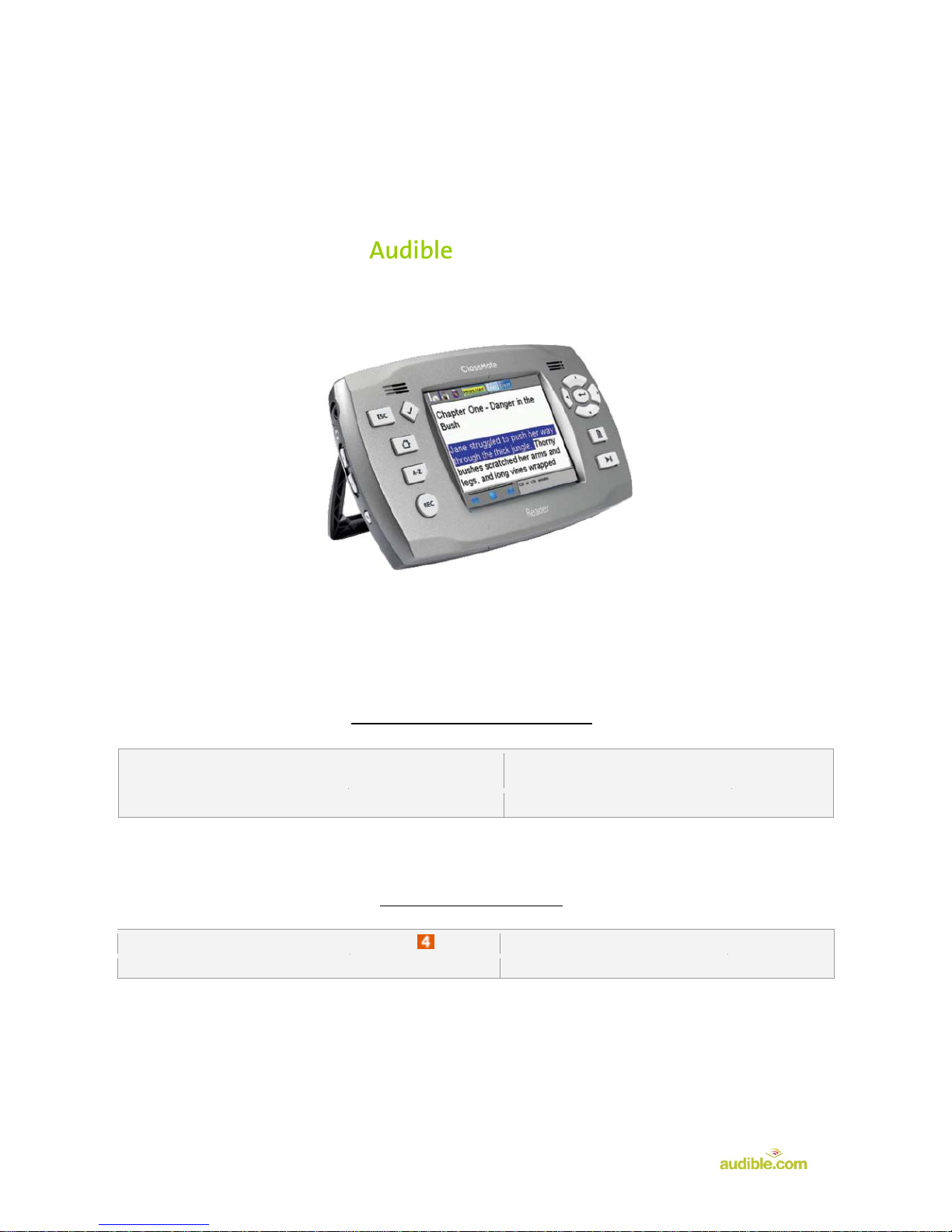
HumanWare ClassMate
User Guide
System Requirements:
Audible Features:
Page 2
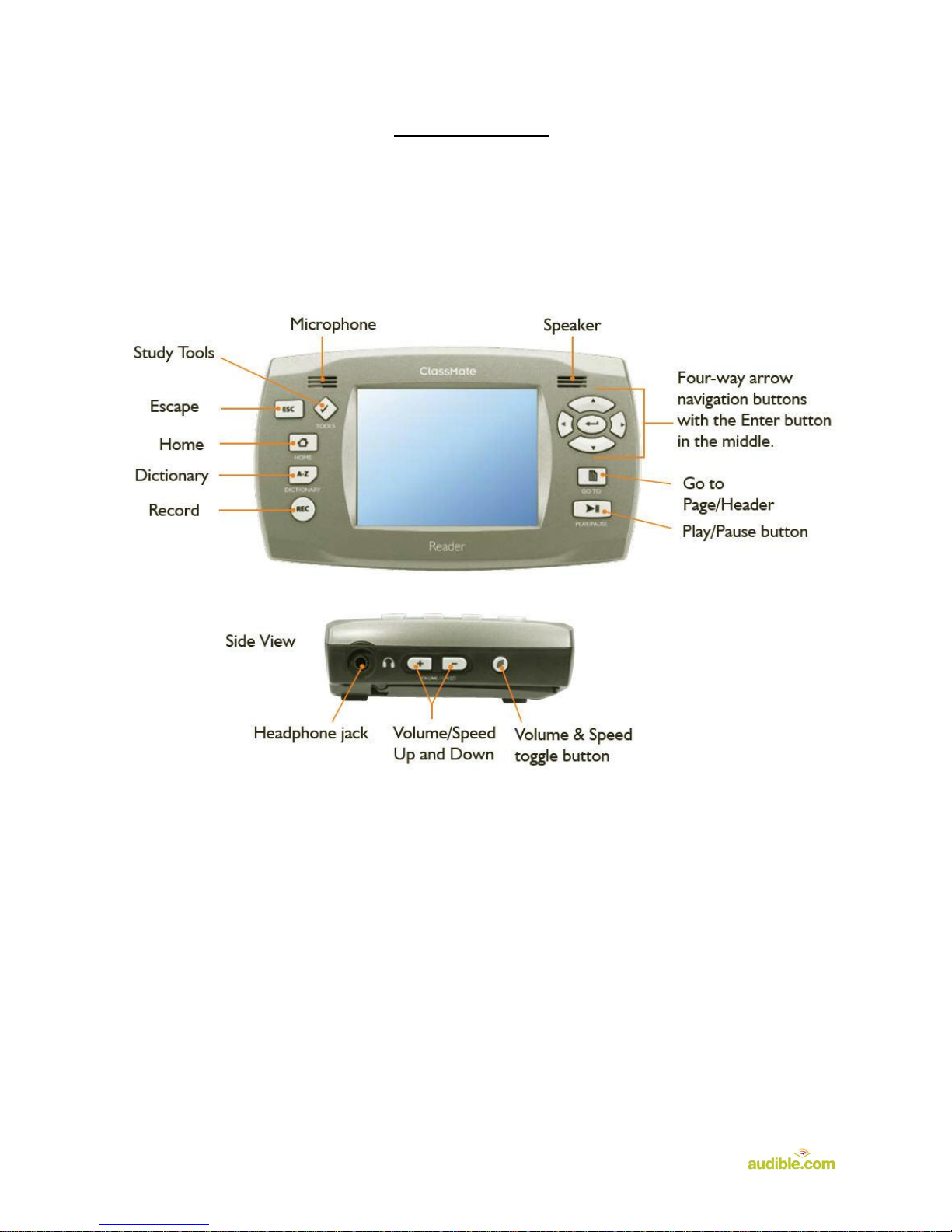
Device Layout:
Page 3
How To’s:
Playback - How do I locate and play Audible content on my device?
Step 1. Press on the Home button on the device to access the Main Menu
Step 2. On the Main Menu screen, press on the Open icon and press the Return
key
Step 3. Select the SD Card folder, then press on the right arrow button ► to expand
Step 4. Select the Audible books, then press on the right arrow button ► to expand
Step 5. Select the title to play, then press on the Return key
Step 6. Press the Play/Pause button to start playback
Rewind/Fast-Forward - How do I rewind or fast-forward an Audible book?
Rewind
Step 1. During playback, press the rewind button on the screen to rewind
Step 2. Press the play button to resume playback
Fast-Forward
Step 1. During playback, press the fast forward button on the screen to fast-
forward
Step 2. Press the play button to resume playback
Section Navigation - How do I navigate through sections within an Audible book?
Step 1. During playback, single press the right arrow button to section forward
Step 2. During playback, single press the left arrow to section back
Bookmarking - How do I use bookmarking for Audible content?
Setting a Bookmark
Step 1. During playback, press the Tools button
Step 2. On the next screen, tap on the Bookmark icon
Step 3. Press the Play/Pause button to resume playback
Accessing a Bookmark
Step 1. During playback, the bookmark(s)created will show on the screen
Step 2. Scroll to select the bookmark to play
Page 4
Step 3. Press the Return button to start playback
Removing a Bookmark
Step 1. While the book and its bookmarks show on the screen, click on the
Tools button
Step 2. On the screen, select the Navigate Markings icon, then press the
Return button
Step 3. On the Search Markings Menu, select the Bookmark icon, then press
the Return button
Step 4. Scroll and select the bookmark to be removed
Step 5. Press the Delete button shown on the screen
Step 6. Click Yes on the confirmation window that will show on the screen. The
bookmark will then be removed from the device
Change Playback Speed - How do I change the playback speed of Audible content?
Step 1. Press the Home button to access the main menu
Step 2. Tap on the Audio Settings icon on the screen
Step 3. Tap on the Volume/Speed icon on the screen
Step 4. Adjust the speed slider (the first slider from the left) to the desired speed
Step 5. Tap OK to save
 Loading...