

Page 1

5G Keyboard System
with Clip Mouse User Instructions
Keyboard Depth Adjustment
Your 5G Keyboard System slides on
a track. To use your keyboard system,
simply slide it out from under the
desk. To put it away, simply slide your
keyboard system back under the desk.
Page 2

5G Keyboard System
with Clip Mouse User Instructions
Keyboard Height Adjustment
To raise the height of your keyboard
system, lift the front edge of the
keyboard platform, raise to desired
height and release. It will automatically
lock in place. To lower, tilt the platform
from the front edge, lower to desired
position and release.
Ergo Tip: Adjust keyboard height
to within 1 inch of seated elbow
height while maintaining clearance
between the bottom of the platform
and the thighs.
Page 3
5G Keyboard System
with Clip Mouse User Instructions
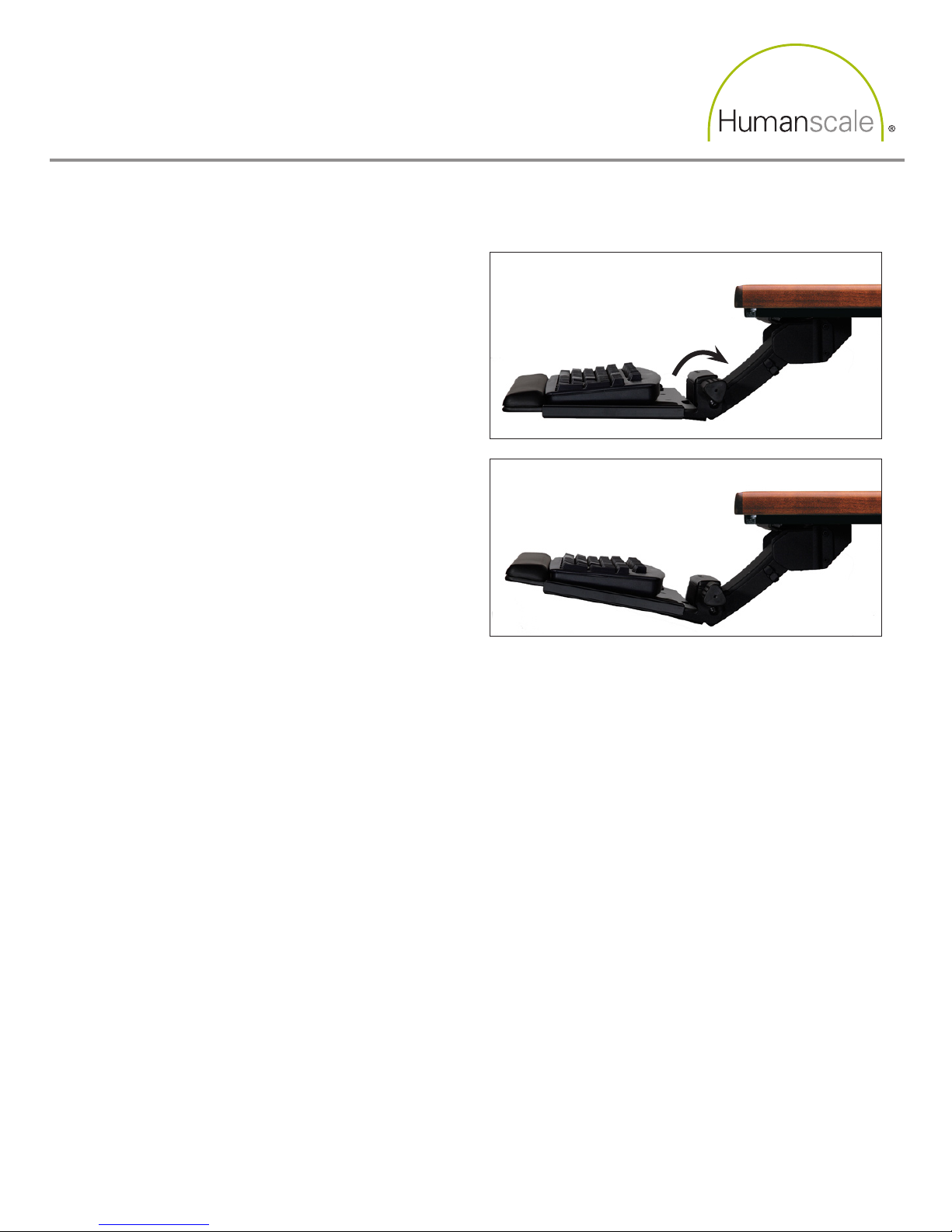
Keyboard Angle Adjustment
To change the angle of your keyboard
platform, locate the adjustment dial and
turn to desired angle.
Ergo Tip: Set the keyboard angle
such that your wrists are straight
while your palms are positioned on
the palm support. For most users,
the ideal angle will be between –5
and –10 degrees.
Page 4
5G Keyboard System
with Clip Mouse User Instructions
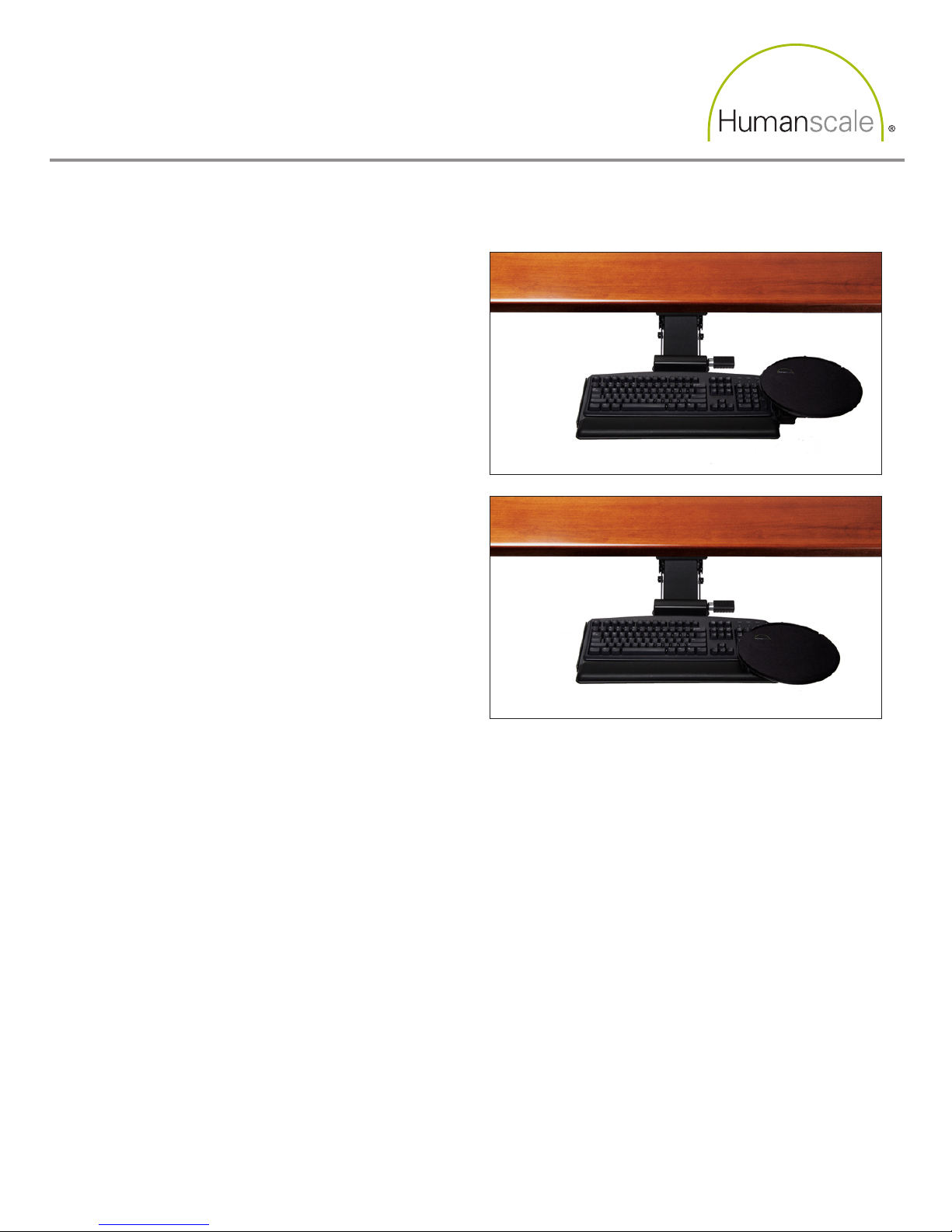
Clip Mouse Horizontal Adjustment
The Clip Mouse can be moved closer
to or further away from you by simply
sliding it forward or back. Grasping
the unit near the Rail will facilitate the
sliding action. The Clip Mouse can
also be adjusted laterally by rotating it
around its offset pivot point.
Ergo Tip: Position the Clip Mouse
so that you can easily reach the
mouse by simply swinging your
forearm from the center of the
keyboard. As with keying, you
should be able to mouse with your
shoulders relaxed and your arms
hanging comfortably at your sides.
Page 5
5G Keyboard System
with Clip Mouse User Instructions
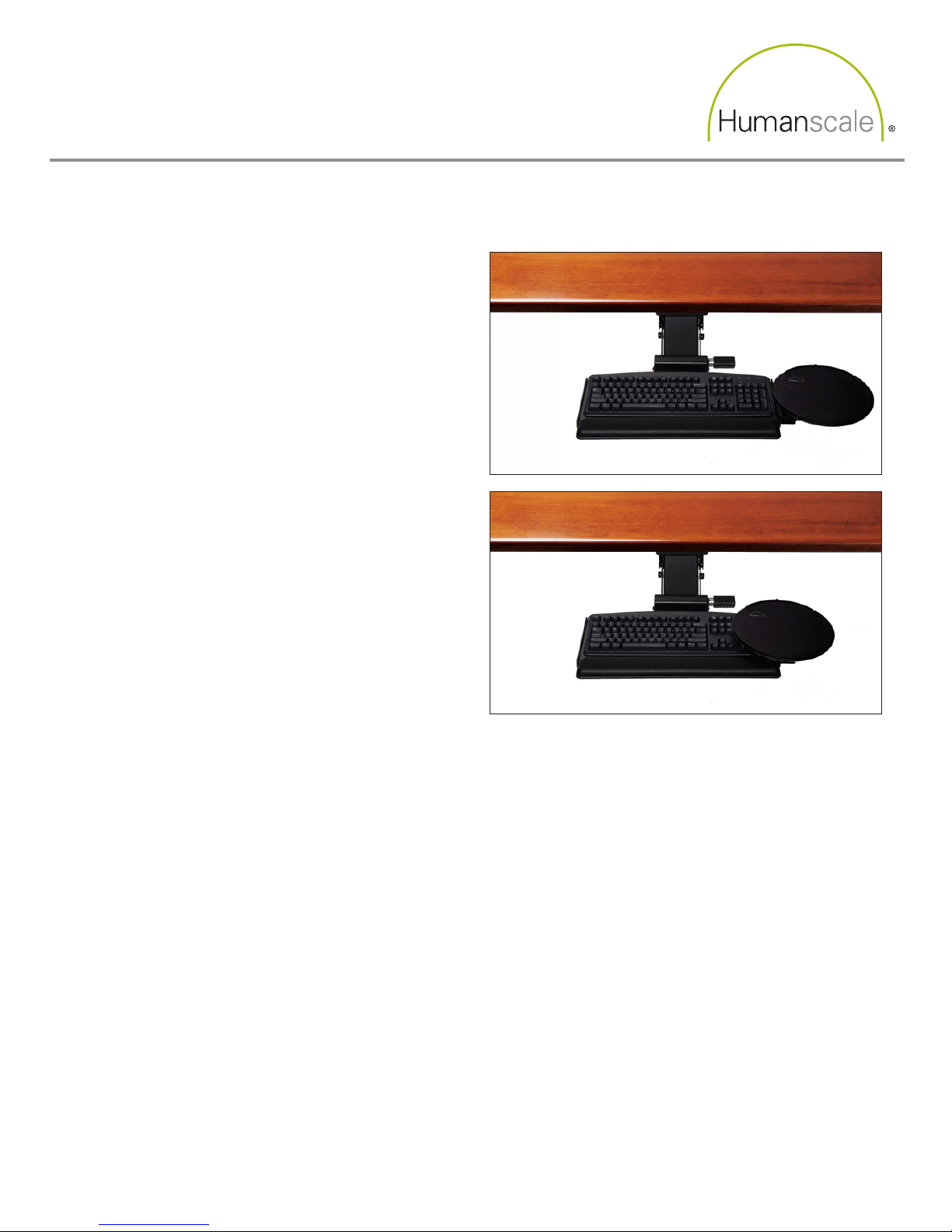
Clip Mouse Height Adjustment
The Clip Mouse can be positioned
at one of two heights – either above
the keyboard’s numeric keypad or at
keyboard height. To adjust the Clip
Mouse from the low position to the high
position, simply lift the platform and
push towards the keyboard until the
platform locks into place. To adjust the
Clip Mouse from the high position to
the low position, pull the platform away
from the keyboard. The platform will
automatically lower to keyboard height.
Ergo Tip: In situations where the
numeric pad is not often utilized,
it is recommended that the Clip
Mouse be set in the higher position,
with the mouse platform swiveled
over the numeric pad to minimize
reaching for the mouse.
Page 6
5G Keyboard System
with Clip Mouse User Instructions
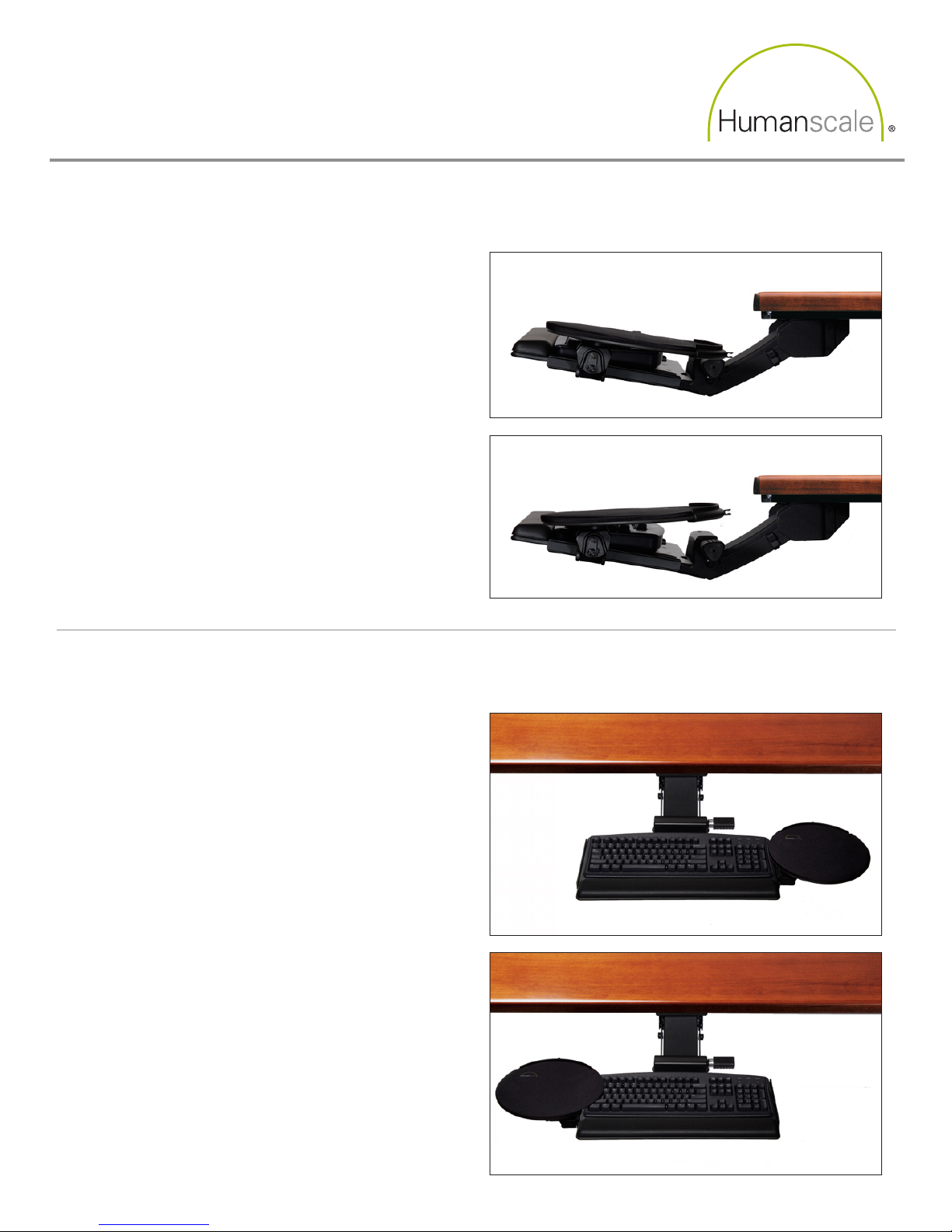
Clip Mouse Angle Adjustment
If the keyboard platform is set to a
tilt, the Clip Mouse platform can be
adjusted so that the mousing surface is
parallel to the floor. Simply grasp front
edge of the Clip Mouse platform and
move it up or down to achieve desired
angle.
Clip Mouse Left/Right Use
The Clip Mouse may be used on either
the left or right side of the keyboard
to accommodate left- or right-handed
users, or to periodically alternate
the mousing hand. To move the Clip
Mouse from one side of the keyboard
to the other, slide it all the way back
until it slides off the rail. Turn it 180
degrees and slide it onto the back of the
opposite rail.
 Loading...