

Page 1
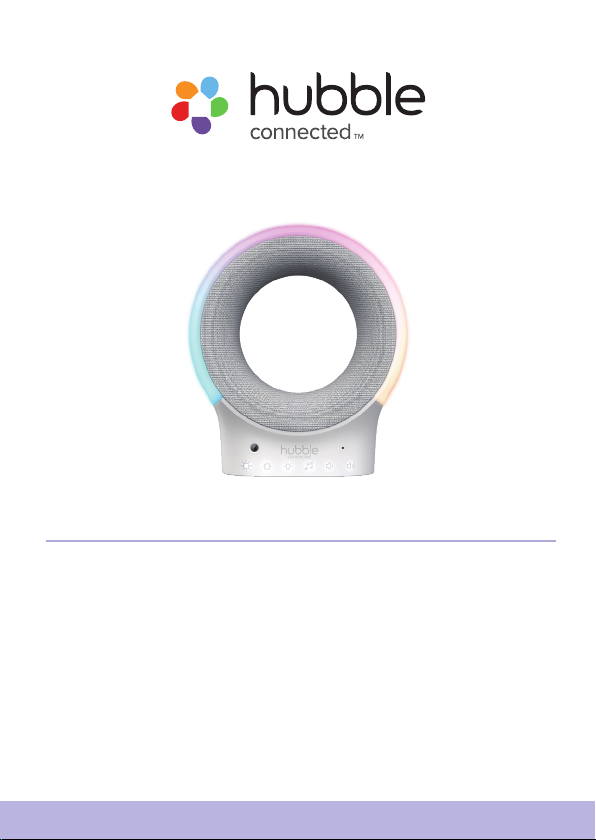
USER’S GUIDE
Smart Wi-Fi Audio Monitor and Soother
With Night Light and BT Speaker
Eclipse
The features described in this user’s guide are subject to modifications without prior notice.
Page 2

Welcome...
to your new smart Wi-Fi Audio Monitor and Soother!
Thank you for purchasing your new Hubble Nursery product. This Smart WiFi Audio Monitor and Soother create a calm and relaxing nursery ambience,
in various ways, helping your baby sleep peacefully and you can hear his (her)
sleeping in another room.
Connect your phone via BT and play a lullaby or audiobook for your little
one, on the high-quality speaker.
Choose from 7 different night light colors to soothe your baby, in the dark.
The night light also provides guidance, during late night feeding and diaper
changes, without having to turn on the harsh, aggressive bedroom lights.
Please retain your original dated sales receipt for your records. For warranty
service of your Hubble product, you will need to provide a copy of your
dated sales receipt to confirm warranty status. Registration is not required
for warranty coverage.
For product related questions, please contact:
Live Chat: hubbleconnected.com
Email: [email protected]
Visit support.hubbleconnected.com to download the User Guide with
instructions, answers to frequently asked questions, and more to help you
get the most from your product.
Inside the Box
• 1 x Eclipse (Smart Wi-Fi Audio Monitor and Soother)
• 1 x USB Charging Cable (Type-C)
• 1 x Quick Start Quide
Page 3
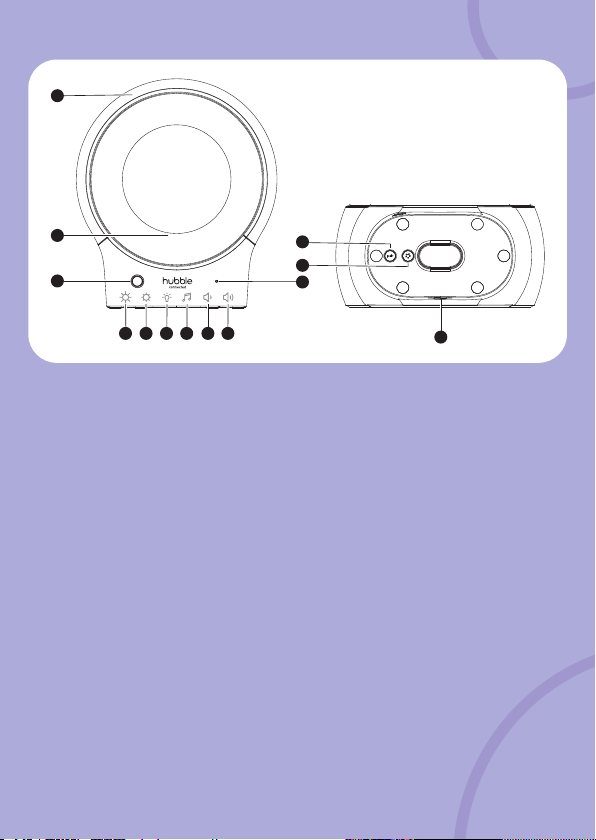
Overview of Eclipse
3
7
2
12
11
10
4 5 6 7 8
9
13
1
1. Night Light
2. Speaker
3. Light Sensor
4. Brightness Up key
5. Brightness Down key
6. Night Light key
8. Volume Down key
9. Volume Up key
10. Microphone
11. Hubble Pair button
12. BT Pair button
13. Power Socket
7. Soothing Sound key
Important guidelines for installing your Eclipse
• Use of other 2.4 GHz products, such as other wireless networks, BT systems or
microwave ovens may cause interference with this product. Keep the Unit away
from these types of products, or turn them off if they appear to be causing
interference.
• Always ensure that you have a good Wi-Fi® connection available.
Page 4
Table of contents
1. Safety Instructions ............................................................................... 5
2. System Requirements of Smart Device ........................................... 6
3. Getting Started ..................................................................................... 7
3.1 Charge Eclipse ...................................................................................7
3.2 Connect to HubbleClub .....................................................................7
4. Basic Operation of Eclipse .................................................................. 8
4.1 Control Night Light ............................................................................8
4.2 Control Soothing Sound ....................................................................8
4.3 Use Eclipse as a BT Speaker ..............................................................9
5. Disposal of the Device (environment) ............................................10
6. Troubleshooting for Wi-Fi® Internet Viewing .............................. 11
7. General Information ........................................................................... 15
8. Technical Specifications ....................................................................19
4
Table of contents
Page 5
1. Safety Instructions
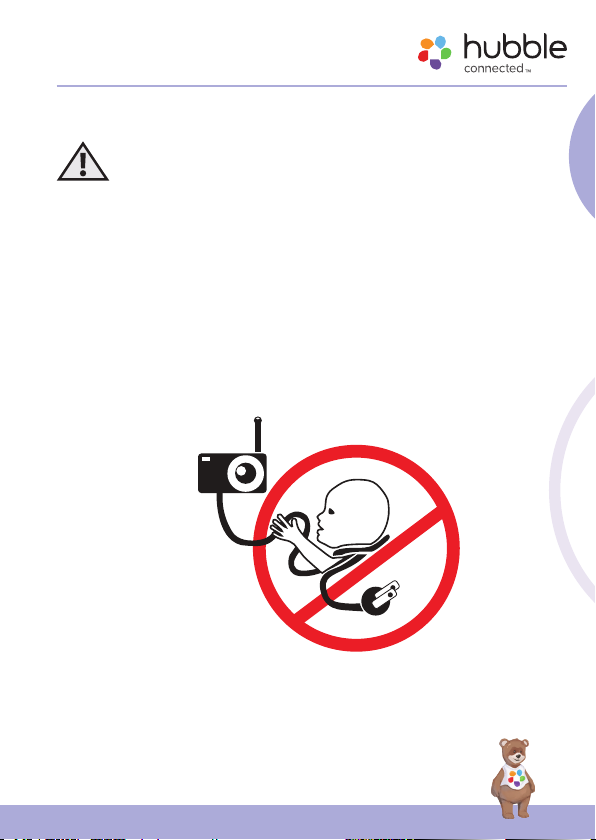
WARNING:
Strangulation Hazard: Children have
STRANGLED on cords. Keep this cord
out of the reach of children (more than
3ft (1m) away).
English
Safety Instructions
5
Page 6
WARNING
This product is compliant with all relevant electromagnetic eld standards
and is, when handled as described in the User’s Guide, safe to use.
Therefore, always read the instructions in this User’s Guide carefully before
using the device. Understand and follow all instructions and warnings
including:
• Adult assembly is required. Keep small parts away from children when
assembling.
• The device is intended for indoor use only. Do not operate it outdoors.
• Place the device on a smooth, level, waterproof surface that is elevated off the
ground.
• Do not install it directly next to a wall or near electrical devices.
• Always handle the device with dry hands to avoid electric shocks.
• Do not operate the device with a damaged cord or plug.
• Unplug the device when not in use.
• Keep the cords out of reach of children.
• Test this device and all its functions so that you are familiar with it prior to
actual use.
• Keep this user’s guide for future reference.
2. System Requirements of Smart
Device
Smartphones/Tablets: Android™ and iOS® only.
Minimum System Requirement: iOS 12.0, Android 8.0, BT 4.2.
6
System Requirements of Smart Device
Page 7
3. Getting Started
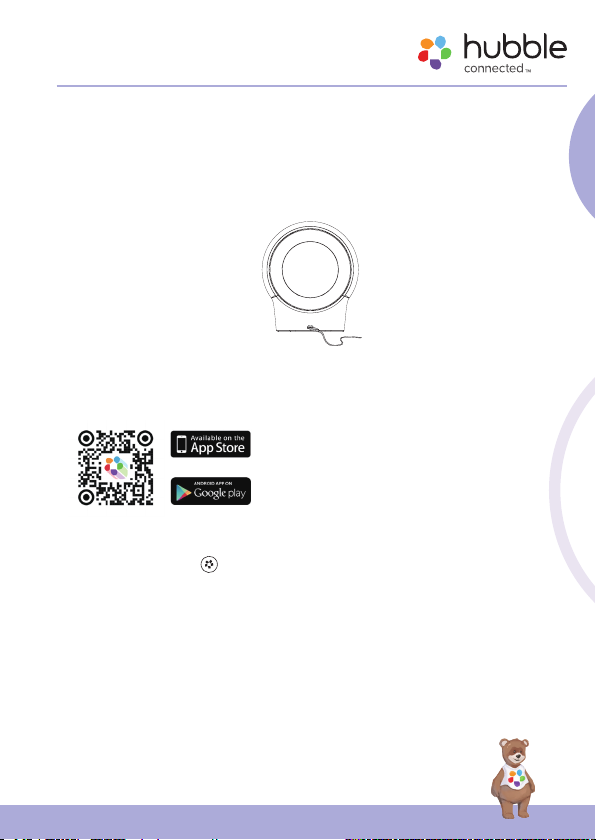
3.1 Charge Eclipse
Connect Eclipse through the USB charging cable provided with a DC5V 2A
power adaptor (not included).
3.2 Connect to HubbleClub
• Scan the QR code with your smart
device and download HubbleClub
by Hubble Connected App from the
App Store for iOS devices or from the
Google Play™ Store for Android™
devices.
• Install HubbleClub by Hubble
Connected App on your device.
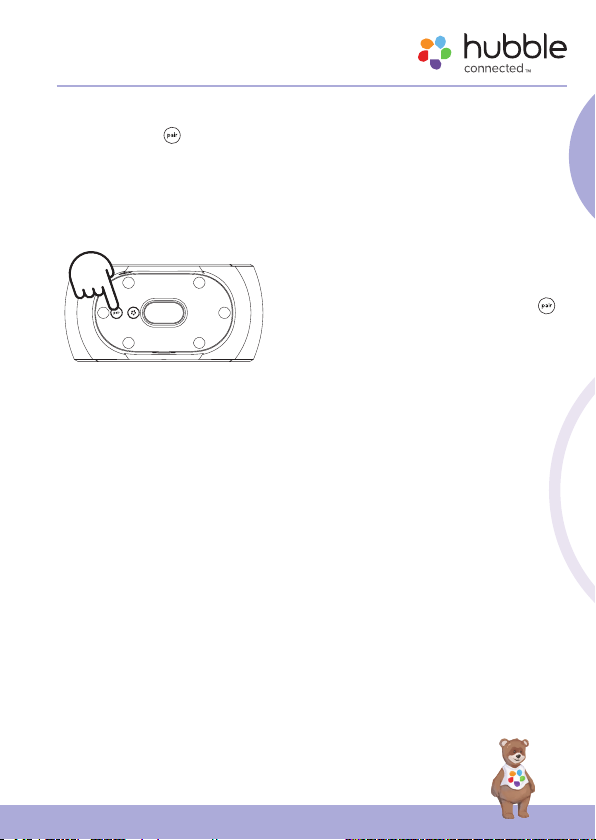
1. Press Hubble Pair
2. The LED indicator blinks in blue for 60 s at pairing mode.
3. Follow the instructions of HubbleClub App to create your HubbleClub
account.
4. Select Wellness and then Eclipse, follow the in-app instructions to
connect Hubble Eclipse to your account.
button at the bottom of Eclipse.
English
Getting Started
7
Page 8
5. If registration fails or connection cannot be completed during 60 s,
connection mode will be turned off.
6. If registration fails, please try again by going through steps 1 to 4.
7. Full control and full features can be accessed with HubbleC
lub App.
4. Basic Operation of Eclipse
4.1 Control Night Light
• Tap Night Light icon at the front of Eclipse will change the colour of
night light. The colour changes in cycle.
• The brightness of night light can be adjusted by tap brightness up
and brightness down
4.2 Control Soothing Sound
• Tap Soothing Sound icon at the front of Eclipse will change the
soothing sound.
• The volume of the soothing sound can be adjusted by tap volume up
and volume down
icons.
icons.
8
Basic Operation of Eclipse
Page 9
4.3 Use Eclipse as a BT Speaker
• Press BT Pair button at the bottom of Eclipse to enter into pairing
mode. The LED will blink in blue.
• Go to the Set-Up menu of your mobile phone. Then go to BT Connection.
• Find the Device name “Hubble Eclipse” and connect.
• If the connection fails, please try again by going through steps 1 to 3.
• Stream the audio from your mobile phone and listen to it in Eclipse.
Note:
Once Bluetooth is disconnected, reactive
Bluetooth by long pressing Bluetooth Pair
button, and reconnect Eclipse on your mobile
phone.
English
Basic Operation of Eclipse
9
Page 10
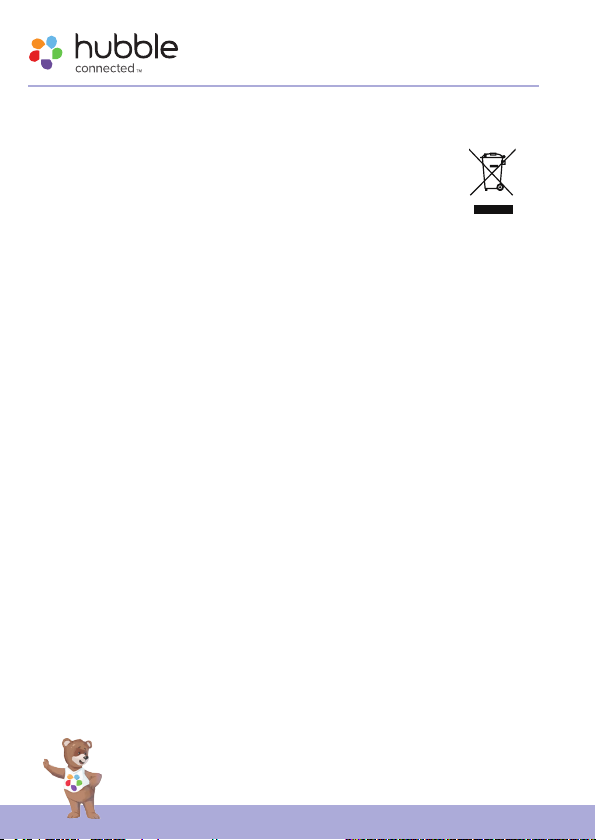
5. Disposal of the Device (environment)
At the end of the product life cycle, you should not dispose of
this product with normal household waste. Take this product to
a collection point for the recycling of electrical and electronic
equipment. The symbol on the product, user’s guide and/or
box indicates this.
Some of the product materials can be re-used if you take them to a recycling
point. By reusing some parts or raw materials from used products you make
an important contribution to the protection of the environment.
Please contact your local authorities in case you need more information on
the collection points in your area.
10
Disposal of the Device (environment)
Page 11
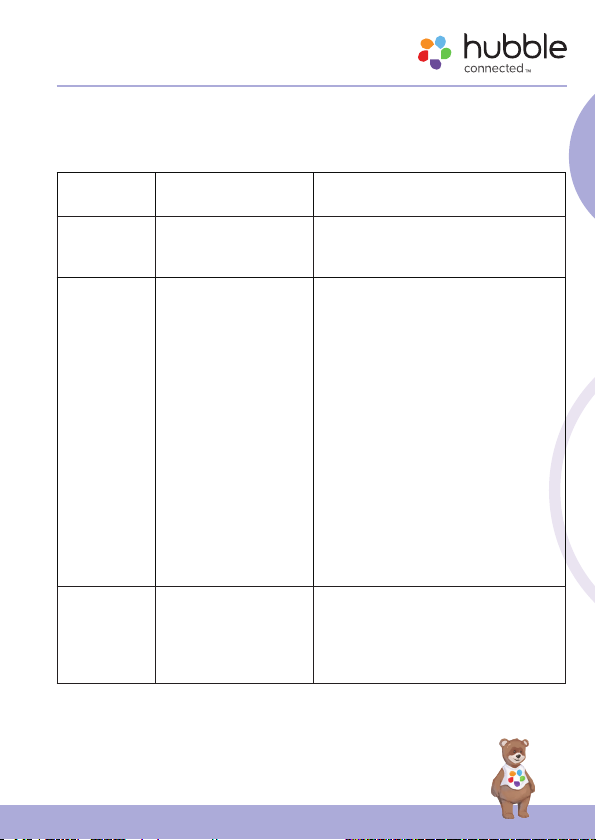
6. Troubleshooting for Wi-Fi® Internet
Viewing
Category Problem
General Which platforms
General How do I download
General When I try to view my
Description / Error
are supported for
accessing my device?
the App for Android™
and iOS devices?
device, I get a prompt
for device rmware
upgrade. What should
I do?
Minimum requirement:
Android™ 8.0
iPhone®/iPad® iOS version 12.0
Android™:
– Open the Google Play Store on
your Android™ device.
– Select Search
– Type in “HubbleClub by Hubble
Connected”
– The results will show the Hubble
App
– Select to install it
iOS Device:
– Open the App Store
– Select Search
– Type in “HubbleClub by Hubble
Connected”
– The results will show the Hubble
App
– Select to install it
Please upgrade your rmware. This
takes around 5 minutes. We push
upgrades from time to time to
improve the device features.
Solution
TM
English
Troubleshooting for Wi-Fi® Internet Viewing
11
Page 12
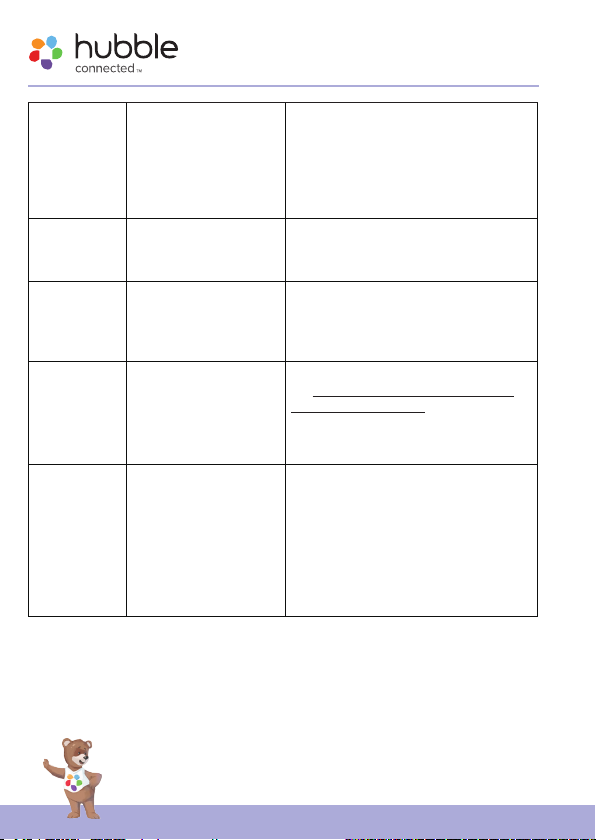
General No power. 1. Verify cable is fully inserted into
the Eclipse power port and wall
block.
2. Verify wall block and wall outlet
are good.
3. Verify wall outlet has power.
Account I am unable to
login even after
Please check your user name and
password.
registration.
Account I receive an error
message saying:
“Email ID is not
Please ensure that you have
registered with us. Tap Create
Account to create an account.
registered”.
Account What do I do if I
forgot my password?
Account I am unable to receive
a new password
although I have
used the “Forgot
password” option.
Click on the “Forgot Password” link
on https://app.hubbleconnected.
com/ #lostpassword OR on your
Android™ or iOS application. An
email will be sent to your registered
email address.
1. The e-mail might have been
sent to your Junk Mail Folder.
Please check your Junk Mail
Folder.
2. There might be a delay in
getting your e-mail. Please wait
a few minutes and refresh your
email account.
12
Troubleshooting for Wi-Fi® Internet Viewing
Page 13
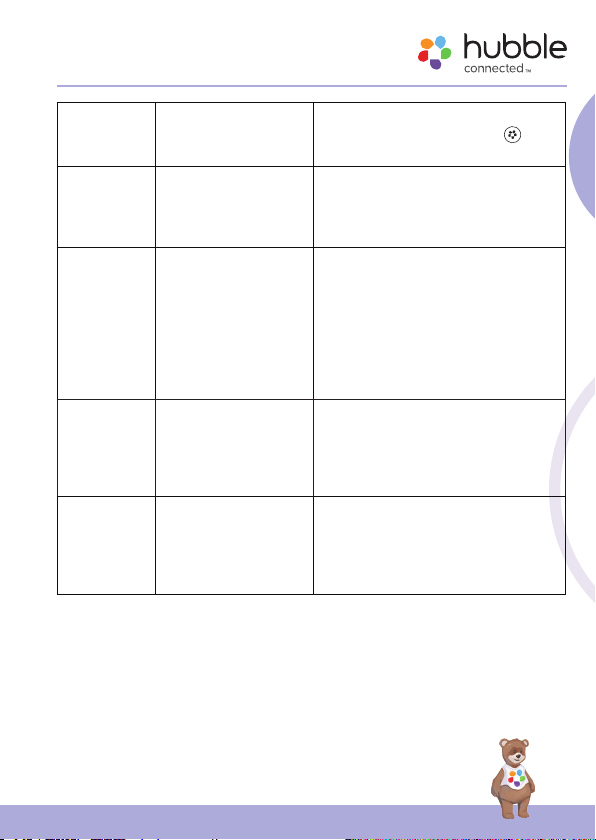
HubbleClub Cannot pair to
HubbleClub.
Make sure you are pressing the
HubbleClub Pairing button
the bottom of the Eclipse.
HubbleClub Cannot nd my
product model on
APP.
There are more than one Hubble
App. Check if you download correct
App “HubbleClub By Hubble
Connected” and select Wellness.
Connectivity
Issues
Connectivity
issues
I get a message: We
are having problems
accessing your
device. This could be
due to lack of internet
connection. Please
wait and try again
later.
I am not able to
access my device.
1. Please try again in a few
minutes.This could be because
of any issue with your internet
connection.
2. If the problem remains, please
restart your device to check if
this xes the problem.
3. Please restart your WIFI Router.
Please check if the device is within
Wi-Fi® range. Please try to move
the device closer to the router for
better Wi-Fi® connectivity and try
again.
Feature Nightlight not on. 1. Press nightlight button on
Eclipse to cycle to next color.
2. Increase brightness level on
Eclipse or using the HubbleClub
App.
on
English
Troubleshooting for Wi-Fi® Internet Viewing
13
Page 14
Feature Cannot hear sounds,
music, or stories.
1. Increase volume on Eclipse.
2. Increase volume in Hubble
Club.
3. Sounds, Music, or Story is
paused.
Feature Cannot pair to BT. 1. Make sure you are pressing the
BT Pairing button
on the
bottom of the Eclipse.
2. Make sure BT on your mobile
device is turned on.
Feature No sound. 1. Make sure the Eclipse is
connected to your mobile
device.
2. Increase volume on the Eclipse.
3. Increase volume on your mobile
device.
14
Troubleshooting for Wi-Fi® Internet Viewing
Page 15
7. General Information
If your product is not working properly, read this User Guide.
Contact Customer Service:
Live Chat: hubbleconnected.com
Email: [email protected]
Consumer Products and Accessories Limited Warranty
(“Warranty”)
Thank you for purchasing this Hubble Smart Nursery branded product
manufactured by Hubble Baby (HK) Limited ("HUBBLE").
What Does this Limited Warranty Cover?
Subject to the items listed below in the section “What is not Covered”
HUBBLE warrants that this Hubble connected branded product (“Product”)
will be free from defects in material and workmanship under normal use
for a period of 2 years from the date of purchase and that any certied
accessory (“Accessory”) sold for use with this product will be free from
defects in materials and workmanship under normal use for a period of 90days from the date of purchase. This Limited Warranty is your exclusive
warranty and is not transferable.
What is not covered?
This Limited Warranty excludes and does not cover:
• Normal deterioration or wear resulting from use;
• Damage caused by or resulting from misuse, abuse, or accident;
• Damage caused by or resulting from improper operation or storage;
• Damage caused by or resulting from contact with foreign substances,
including, but not limited, to liquid, water, rain, humidity, perspiration,
sand, dirt, and/or food;
English
General Information
15
Page 16
• Damage caused by or resulting from the use of Non-Hubble Smart
Nursery branded or certied Products or Accessories or other peripheral
equipment;
• Damage caused by or resulting from modications, alterations,
tampering, improper installation, or repairs by someone other than
Hubble connected or their authorized representatives;
• Defects, damages, or the failure of Products or Accessories due to any
communication service or signal you may subscribe to or use with the
Products or Accessories; and,
• Periodic maintenance, repair and replacement of parts due to normal
wear and tear.
What Other Limitations Are There?
THIS LIMITED WARRANTY SETS FORTH THE ENTIRE LIABILITY OF
HUBBLE AND CONTAINS YOUR SOLE AND EXCLUSIVE REMEDY. OTHER
THAN THIS LIMITED WARRANTY, HUBBLE MAKES NO ADDITIONAL
REPRESENTATIONS OR WARRANTIES, EXPRESS OR IMPLIED, INCLUDING
WARRANTIES OF MERCHANTABILITY OR FITNESS FOR A PARTICULAR
PURPOSE. IF YOUR STATE DOES NOT PERMIT THE DISCLAIMER OF
WARRANTIES, THEN THE IMPLIED WARRANTY OF MERCHANTABILITY
AND FITNESS FOR A PARTICULAR PURPOSE IS LIMITED TO THE
DURATION OF THIS LIMITED WARRANTY. REPAIR OR REPLACEMENT IS
YOUR SOLE AND EXCLUSIVE REMEDY AGAINST HUBBLE AND Hubble
Smart Nursery. IN NO EVENT SHALL HUBBLE OR Hubble Smart Nursery’s
LIABILITY TO REPAIR OR REPLACE YOUR PRODUCT OR ACCESSORY
EXCEED THE ORIGINAL PURCHASE PRICE OF THE PRODUCT AND
ACCESSORY AND HUBBLE AND Hubble Smart Nursery’s TOTAL LIABILITY
FOR DAMAGES ARISING FROM THIS LIMITED WARRANTY SHALL NOT
EXCEED THE PRICE YOU PAID FOR THE PRODUCT AND ACCESSORY
REGARDLESS OF WHETHER SUCH CLAIM ARISES UNDER CONTRACT,
STATUTE, TORT OR OTHERWISE. IN NO EVENT AND UNDER NO
16
General Information
Page 17
CIRCUMSTANCES WILL HUBBLE OR Hubble Smart Nursery BE LIABLE
FOR DIRECT, INDIRECT, INCIDENTAL, SPECIAL OR CONSEQUENTIAL
DAMAGES OF ANY KIND, OR LOSS OF REVENUE OR PROFITS, LOSS OF
BUSINESS, LOSS OF INFORMATION OR OTHER FINANCIAL LOSS ARISING
OUT OF OR IN CONNECTION WITH THE ABILITY OR INABILITY TO USE
THE PRODUCTS OR ACCESSORIES. ALL DISCLAIMERS, LIMITATIONS OF
LIABILITY AND MODIFICAITONS OF WARRANTIES STILL APPLY EVEN
IF THE LIMITED REMEDY OF REPAIR AND REPLACEMENT FAILS OF ITS
ESSENTIAL PURPOSE.
Some jurisdictions do not allow the limitation or exclusion of incidental or
consequential damages, so the above limitations or exclusions may not
apply to you. This Limited Warranty gives you specic legal rights, and you
may have other rights that vary from one jurisdiction to another.
Who is covered?
This Warranty extends only to the rst consumer purchaser and is not
transferable.
What will HUBBLE do?
HUBBLE or its authorized distributor at its sole discretion will, at no charge,
repair or replace any Products or Accessories that do not conform to this
Warranty. In the event that replacement is necessary to remedy a defect
in material or workmanship, HUBBLE may use new or remanufactured
products, accessories or parts of equal quality to the original Product or
Accessory.
How to Obtain Warranty Service or Other Information?
To obtain service or information, please contact us by:
Live Chat: hubbleconnected.com
Email: [email protected]
English
General Information
17
Page 18
You will receive instructions on how to ship the Products or Accessories at
your expense and risk, to a HUBBLE Authorized Repair Center.
You must include: (a) the Product or Accessory; (b) the original proof of
purchase (receipt) which includes the date, place and seller of the Product;
(c) if a warranty card was included in your box, a completed warranty card
showing the serial number of the Product; (d) a written description of the
problem; and, (e) your name, address, email address and telephone number.
These terms and conditions constitute the complete warranty agreement
between you and HUBBLE regarding the Products or Accessories purchased
by you, and supersede any prior agreement or representations, including
representations made in any literature publications or promotional materials
issued by HUBBLE or representations made by any agent, employee or staff
of HUBBLE, that may have been made in connection with your purchase of
any Product and/or Accessory.
EU Declaration of Conformity (DoC)
Hereby, Hubble Baby (HK) Limited declares that the radio equipment type is in
compliance with RE Directive 2014/53/EU.
Download User Guide from website: support.hubbleconnected.com
18
General Information
Page 19
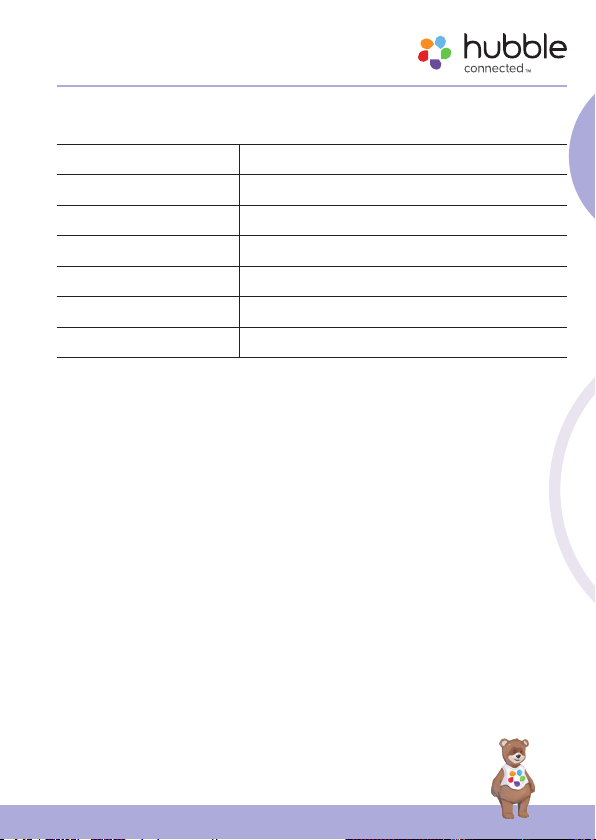
8. Technical Specifications
Wi-Fi version 802.11 b/g/n, 2.4GHz
BT Audio BT 4.2
0
Operating Temperature 41 to 104
Speaker Type 4Ω, 5W
Night Light RGB, 7 colors, and auto cyclic mode
Volume Control 5 Level
Brightness Control 5 Level
F (5 to 400C)
English
Technical Specications
19
Page 20
Manufactured, distributed and sold by Hubble Baby
(HK) Limited. Apple logo is trademark of Apple
Inc., registered in the U.S. and other countries. App
Store is a service mark of Apple Inc. Google Play
and Android are trademarks of Google Inc. Wi-Fi is a
trademark of the Wi-Fi Alliance. All rights reserved.
Printed in China
EU_EN Version 1.0
 Loading...