

Page 1
HUAWEI ETS2055
Fixed Wireless Terminal
USER GUIDE
Page 2

Copyright © Huawei Technologies Co., Ltd. 2010. All rights reserved.
No part of this document may be reproduced or transmitted in any form or by any means without prior
written consent of Huawei Technologies Co., Ltd.
The product described in this manual may include copyrighted software of Huawei Technologies Co.,
Ltd and possible licensors. Customers shall not in any manner reproduce, distribute, modify,
decompile, disassemble, decrypt, extract, reverse engineer, lease, assign, or sublicense the said
software, unless such restrictions are prohibited by applicable laws or such actions are approved by
respective copyright holders under licenses.
Trademarks and Permissions
, HUAWEI, and are trademarks or registered trademarks of Huawei Technologies Co.,
Ltd.
Other trademarks, product, service and company names mentioned are the property of their
respective owners.
Notice
Some features of the product and its accessories described herein rely on the software installed,
capacities and settings of local network, and may not be activated or may be limited by local network
operators or network service providers, thus the descriptions herein may not exactly match the
product or its accessories you purchase.
Huawei Technologies Co., Ltd reserves the right to change or modify any information or specifications
contained in this manual without prior notice or obligation.
NO WARRANTY
THE CONTENTS OF THIS MANUAL ARE PROVIDED “AS IS”. EXCEPT AS REQUIRED BY
APPLICABLE LAWS, NO WARRANTIES OF ANY KIND, EITHER EXPRESS OR IMPLIED,
INCLUDING BUT NOT LIMITED TO, THE IMPLIED WARRANTIES OF MERCHANTABILITY AND
FITNESS FOR A PARTICULAR PURPOSE, ARE MADE IN RELATION TO THE ACCURACY,
RELIABILITY OR CONTENTS OF THIS MANUAL.
TO THE MAXIMUM EXTENT PERMITTED BY APPLICABLE LAW, IN NO CASE SHALL HUAWEI
TECHNOLOGIES CO., LTD BE LIABLE FOR ANY SPECIAL, INCIDENTAL, INDIRECT, OR
CONSEQUENTIAL DAMAGES, OR LOST PROFITS, BUSINESS, REVENUE, DATA, GOODWILL
OR ANTICIPATED SAVINGS.
Import and Export Regulations
Customers shall comply with all applicable export or import laws and regulations and will obtain all
necessary governmental permits and licenses in order to export, re-export or import the product
mentioned in this manual including the software and technical data therein.
Page 3
1
Introduction
Note:
The figures of the FWT (Fixed Wireless Terminal) are only for your reference, please refer
color and shape to product.
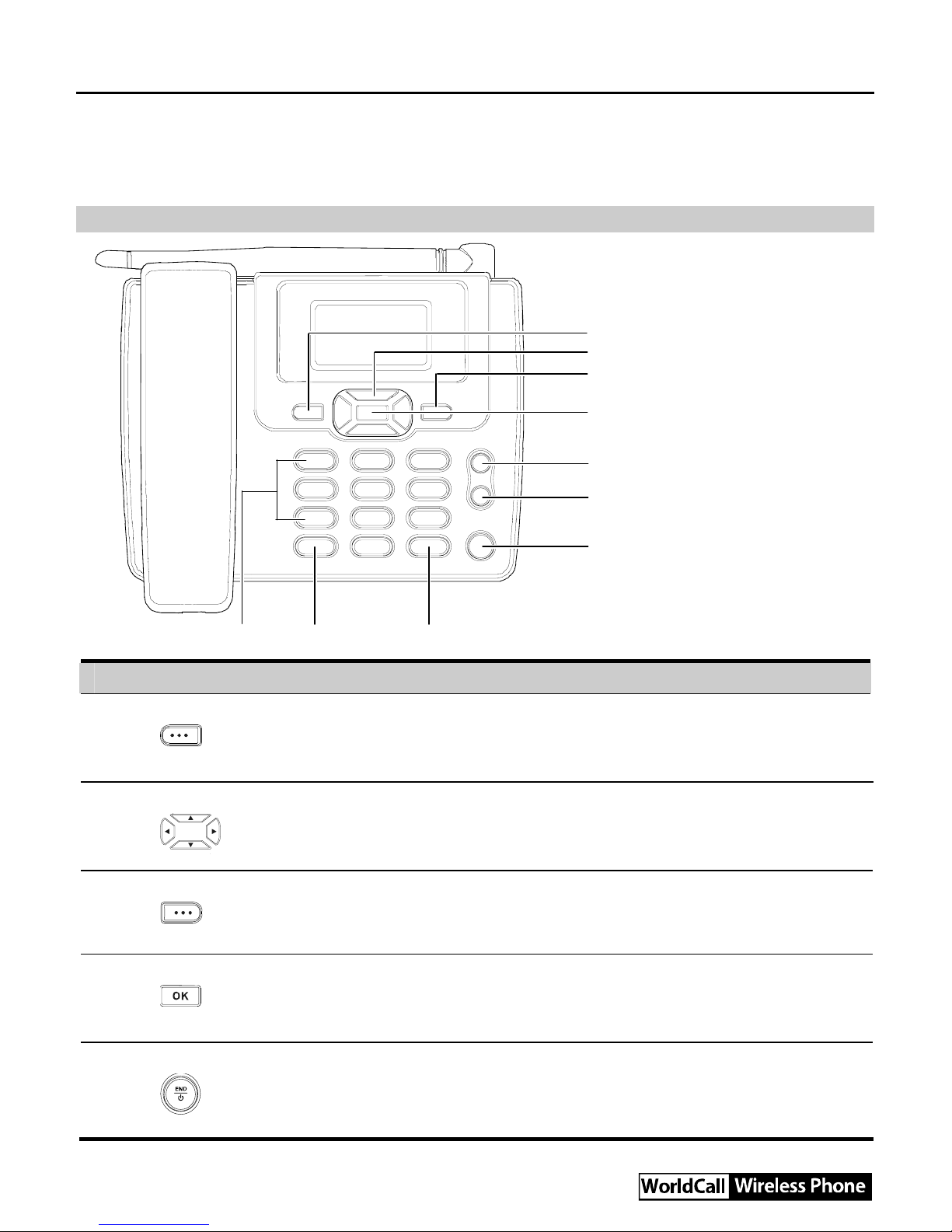
Front view
1
2
3
4
5
6
7
8910
No. Item Description
1 Left soft key
y Access the main menu in standby mode.
y Select the option displayed on the lower left corner of the
screen.
2 Scroll keys
y Access the shortcut screen in standby mode.
y Adjust the microphone and the earpiece volume during a call.
3 Right soft key
y Access the Phone Book screen in standby mode.
y Select the option displayed on the lower right corner of the
screen.
4 OK key
y Access the main menu in standby mode.
y Select the option displayed on the lower left corner of the
display screen.
5 End key
y End a call or reject an incoming call.
y Power on or off the FWT (by pressing and holding it).
y Return to the standby mode.
Page 4
2
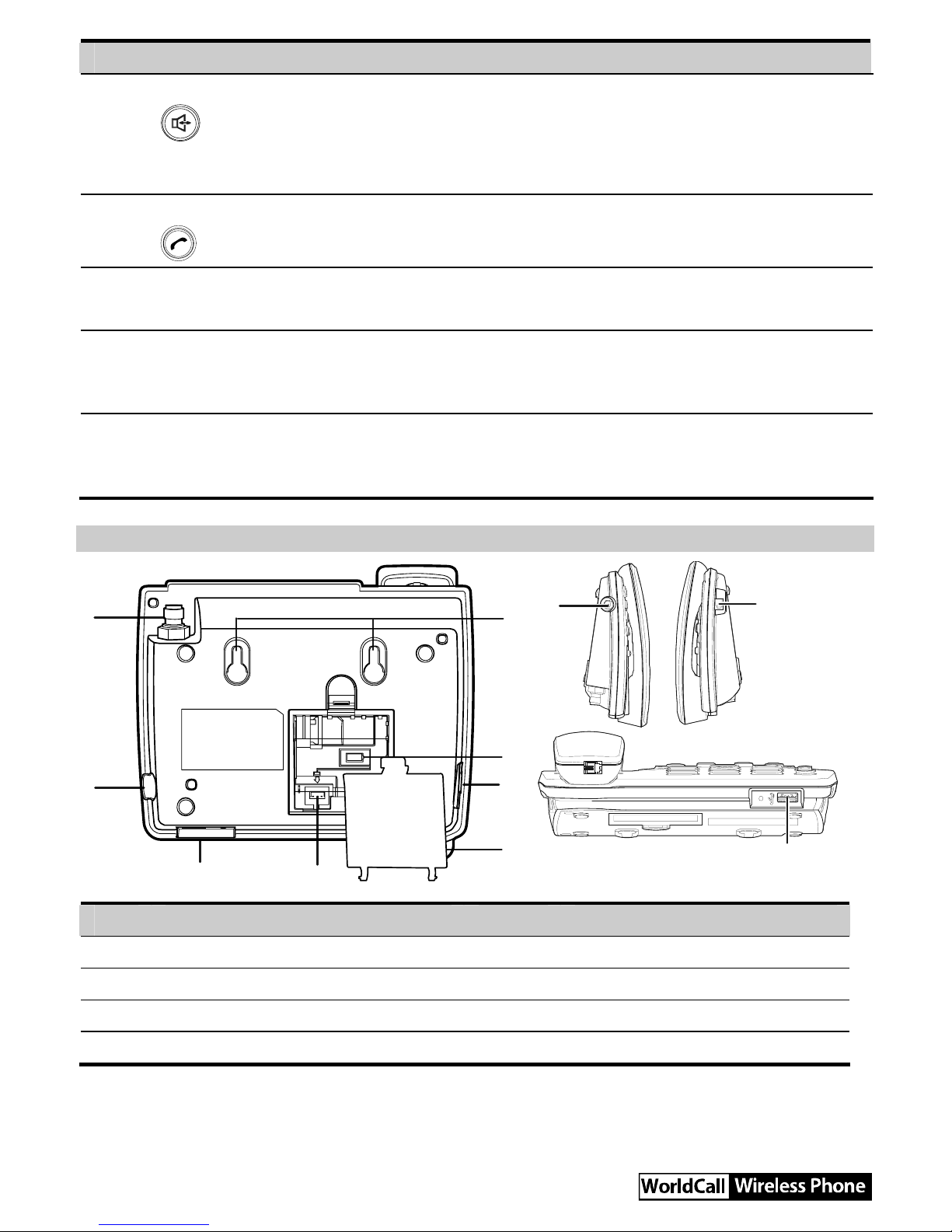
No. Item Description
6 Hands-free key
y Make or answer a call without lifting the handset.
y Cancel the dialing, when dialing a number in the hands-free
mode.
y End the current call during a call in the hands-free mode.
7 Call/Redial key
y Make or answer a call.
y View the call history in standby mode.
8 # key
y Lock the keypad in standby mode (by pressing and holding it).
y Switch between different input modes in editing mode.
9
* key
y Activate/deactivate the quiet profile in standby mode (by
pressing and holding it).
y Access the symbol screen in editing mode.
10 Number keys
y Number keys from 0 to 9: Enter numbers and characters.
y Number keys from 1 to 9: Press and hold a key to speed dial a
phone number in standby mode.
Back View and Side View
1
2
3
4
5
6
7
3
2
6
8
No. Item No. Item
1 Antenna jack 2 Power jack
3 USB port 4 Battery cord jack
5 Battery container cover 6 Coiled cord jack on main unit
7 Battery case 8 Wall-mounting brackets
Page 5

3
Screen Icons
Icon Description Icon Description
Network signal strength
/
Calling / No service
Alarm clock is on
Hands-free mode
Message received
Powered by the power adapter
Voice message received
Battery power level
Menu Tree
Phone Book Messages CallHistory
1. Search
2. Add New
3. Groups
4. Speed Dial
5. Delete All
6. My Phone Num
7. Memory Status
1. Write Message
2. Inbox
3. Outbox
4. Draft
5. Voice Mail
6. Message Settings
7. Delete All
1. Missed Calls
2. Received Calls
3. Dialed Calls
4. Call Duration
5. Delete All
Recorder Fun&Utility Profiles
1. Guest
Announcements
2. Recorder Settings
1. Alarm
2. Schedule
3. Calculator
4. Stopwatch
5. World Clock
6. Line Game
7. Smash Game
1. General
2. Outdoor
3. Quiet
Settings
1. Display
2. Call Settings
3. Phone Settings
4. Security
Using the Menu
1. In standby mode, press Left soft key to display the main menu.
2. Press / to select a menu item.
3. Press Left soft key to display submenu.
4. Access the submenu in either of the ways:
y Press / to scroll to a submenu item and press Left soft key to access it.
Page 6

4
y Press the number key corresponding to the number of a submenu to access it.
5. Press Right soft key to return to the previous menu or return to the home screen.
6. Press to return to the standby mode.
Installation
Installing the Battery
Power off the FWT and remove the power supply cable, and install the battery as shown. Make sure
that the battery cord plug matches the battery jack. Do not insert the battery reversely.
Using the Power Adapter and Charging the Battery
1. Install the battery based on the battery installation steps.
2. Connect one end of the power adapter cable to the FWT and the other to the power socket.
3. The battery charging icon is displayed on the screen. The battery charging icon becomes static
when the battery is fully charged.
Note:
y Remove the battery if the FWT is left unused for a long period.
y If the battery has not been used for a long time or the battery is exhausted, the screen of
the FWT may not function when you charge the battery again. This is normal. After the
battery is being charged for a while, you can power on the FWT for use.
Call
Making a Call
1. In standby mode, enter a phone number.
2. Press to dial the number.
Page 7
5
3. Press to end the call.
Note:
y In standby mode, press to view the call history. Select a record and press to
dial this number.
y Select a phone number from Phone Book and press to call this contact.
Answering a Call
When there is an incoming call, press , , Left soft key or pick up the handset to answer it.
Press
to reject it.
If the any-key answer function is activated, you can press any key except Right soft key and
to
answer an incoming call.
Message
Creating a Message
1. Select Menu > Messages > Write Message.
2. Write the message.
3. Press Left soft key to select Send or Send&Save.
4. Insert recipients. Do the following:
y Enter the phone number directly.
y Insert a contact from the phone book.
y Insert group.
5. Press Left soft key to send a message.
Viewing a Message
The inbox stores received messages.
1. Select Menu > Messages > Inbox.
2. Press / to scroll the messages.
3. Press Left soft key to view the message.
4. Press Left soft key to reply, delete, or forward a short message, or call or save the phone
number of a message.
Input Modes
Changing Text Input Modes
In editing mode, the current text input mode is displayed. Press the # key to change the input mode.
Page 8
6
Note:
y In the editing mode, press Right soft key once to delete the letter on the left of the cursor.
Press and hold Right soft key to delete all the entered letters.
y In the "ABC" or "abc" input mode, press 0 once to enter a space, press 0 for two
consecutive times to enter a "0", and press 0 for three consecutive times to start a new
line.
y In the "ABC" or "abc" input mode, press 1 repeatedly to select and enter the commonly
used punctuations.
Entering English (ABC or abc)
In "ABC" or "abc" input mode, press number keys to enter English letters.
If the letter you want to enter is on the same key as the previous one, you can enter the letter only
after the cursor appears again or after you move the cursor to the next space.
Intelligent Input (eZiEn)
In " eZiEn" input mode, press number keys to enter English words.
1. According to the word to be entered, press the corresponding number keys once, and the FWT
makes out the candidate words.
2. Press / or press * repeatedly to select the word.
3. Press / to confirm your selection. The word is displayed in the input area. Alternatively,
press the 0 key to confirm your selection and enter a space behind the word.
Entering Numbers
In the "123" input mode, press a key labeled with the desired number.
Entering Symbols
1. In any input mode, press the * key to display a symbol list.
2. Press / to scroll up or down the symbol list.
3. Press the corresponding number key to enter the symbol.
Voice Caller ID (Optional)
Supports notifying the incoming call number in voice. In standby mode, you can select Menu >
Settings > Call Settings > Voice Caller ID to enable or disable this function.
Recorder
Guest Announcements
The Guest Announcements is used to store incoming call Records.
1. In standby mode, select Menu > Recorder > Guest Announcements.
2. Press / to select a record. Then, the record is automatically played.
Page 9
7
Note:
y During the recording of an incoming call, you can press Right soft key or pick up the
handset to answer the incoming call. Then the recording stops and the record is not
stored.
y Supports auto-delete function. When the storage is full, the earliest record is
automatically deleted.
Recorder On or Off
1. In standby mode, select Menu > Recorder > Recorder Settings > Recorder On/Off.
2. Press / to select On or Off.
3. Press Left soft key to save the setting.
Auto Answer
In standby mode, select Menu > Recorder > Recorder Settings > Auto Answer to set the duration
from the ringing of an incoming call to the start of automatic answering.
Recording Monitoring
During the recording of an incoming call, you can listen to the record and determine whether to
answer the call.
In standby mode, select Menu > Recorder > Recorder Settings > Recording Monitoring to enable
or disable this function.
Data Service
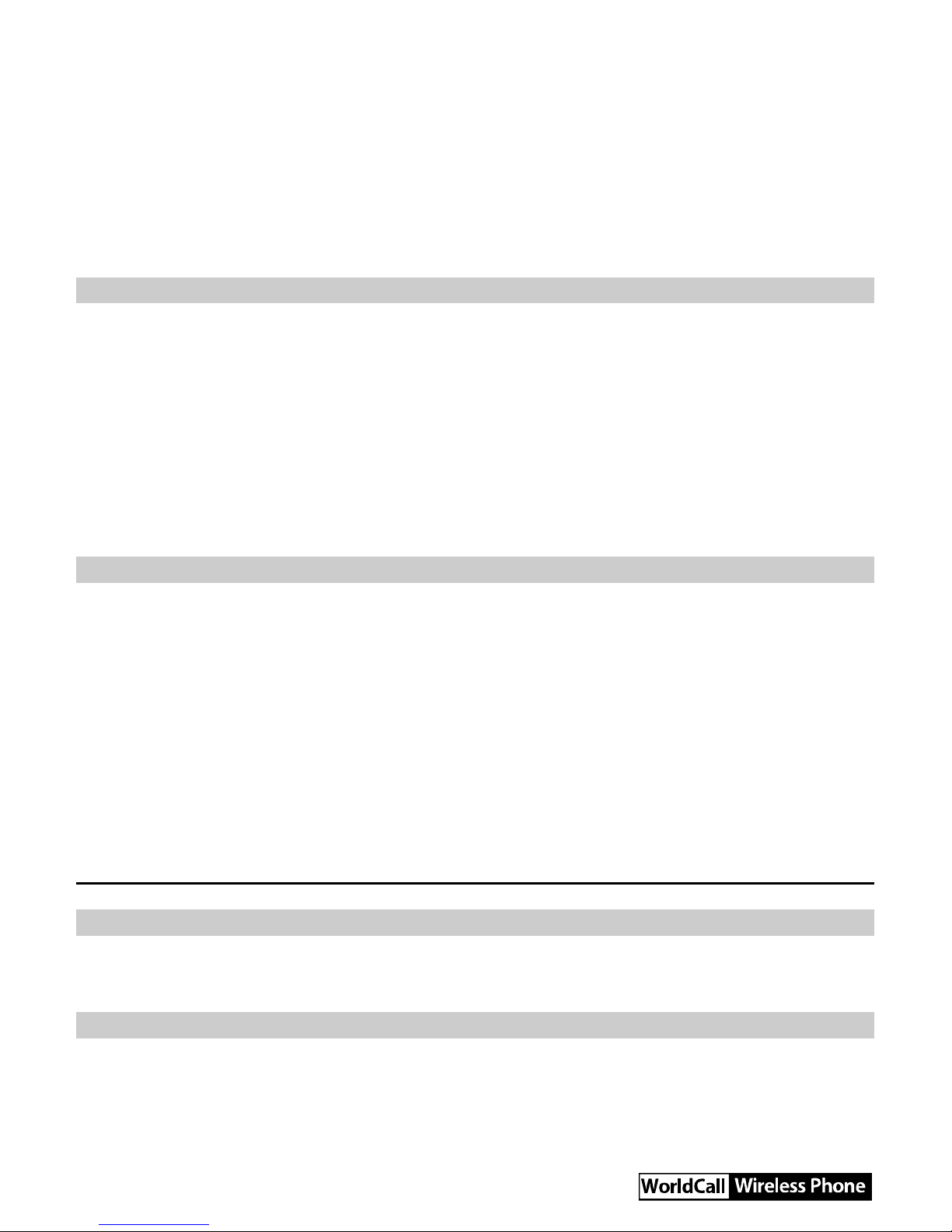
Connecting the FWT to a PC
The FWT can be connected to a PC to provide data services. Data services include Internet surfing
and faxing. To use data services, you need to purchase the data service suite and connect the FWT
to a PC as show in the following figure. For details, consult your local dealer.
Installing the Management Program
If you are using the data service for the first time, you need to install the FWT management program.
The steps of installing the FWT management program are as follows:
1. Connect the FWT to a PC with a compatible USB cable.
Page 10
8
2. The system finds the new hardware and installs the modem driver automatically.
3. The installation program automatically starts, and then the installation interface is displayed.
4. Follow the instructions of the installation program.
5. When the installation completes, a shortcut icon of the FWT management program is displayed
on the desktop.
Note:
The operating system configuration requirement of a PC: Windows 2000, Windows XP,
Windows Vista (32-bit or 64-bit).
Accessing the Internet
Before accessing the Internet, you need to set the network connection. If you use the default settings,
skip the settings operations.
1. Connect the FWT to a PC with a compatible USB data cable.
2. Double-click the shortcut icon of the FWT management program.
3. Click Settings to set the network connection.
4. Click Connect.
Note:
You can consult your network operator for more information about the network connection.
PC Fax
Before using the fax service, do the following steps:
1. Install the modem driver on the PC.
2. Install the PC facsimile software on the PC.
3. Select Menu > Settings > Phone Settings > Data Service > Fax Mode. Start the facsimile
service.
Note:
For the usage of PC fax software, see the description of particular software. This guide only
describes operations on the FWT to use the PC fax function.
Security
FWT Lock
The FWT lock protects your FWT from unauthorized use. The default FWT lock code is 0000. You
can change it into any numeric string of 4 digits.
Keypad Lock
In standby mode, press and hold the # key to lock the keypad. In this case, you can answer an
incoming calls or make emergency calls.
In standby mode, press Left soft key and then press the * key to unlock the keypad.
In standby mode, if the automatic keypad lock function is enabled and the standby time exceeds the
Page 11
9
preset period, the keypad will be automatically locked.
Warnings and Precautions
This section contains important information pertaining to the operating instructions of your device. It
also contains information about how to use the device safely. Read this information carefully before
using your device.
Electronic Device
Power off your device if using the device is prohibited. Do not use the device when using the device
causes danger or interference with electronic devices.
Medical Device
y Follow rules and regulations set forth by hospitals and health care facilities. Do not use your device
when using the device is prohibited.
y Pacemaker manufacturers recommend that a minimum distance of 15 cm be maintained between
a device and a pacemaker to prevent potential interference with the pacemaker. If you are using a
pacemaker, use the device on the opposite side of the pacemaker and do not carry the device in
your front pocket.
y Some wireless devices may affect the performance of hearing aids. For any such problems,
consult your service provider.
Potentially Explosive Atmosphere
Power off your device in any area with a potentially explosive atmosphere, and comply with all signs
and instructions. Areas that may have potentially explosive atmospheres include the areas where you
would normally be advised to turn off your vehicle engine. Triggering of sparks in such areas could
cause an explosion or a fire, resulting in bodily injuries or even deaths. Do not power on your device
at refueling points such as service stations. Comply with restrictions on the use of radio equipment in
fuel depots, storage, and distribution areas, and chemical plants. In addition, adhere to restrictions in
areas where blasting operations are in progress. Before using the device, watch out for areas that
have potentially explosive atmospheres that are often, but not always, clearly marked. Such locations
include areas below the deck on boats, chemical transfer or storage facilities, and areas where the air
contains chemicals or particles such as grain, dust, or metal powders. Ask the manufacturers of
vehicles using liquefied petroleum gas (such as propane or butane) whether this device can be safely
used in their vicinity.
Traffic Security
y Do not use your device while driving, and observe the local laws and regulations.
y Do not use your device while flying in an aircraft. Power off your device before boarding an aircraft.
Using wireless devices in an aircraft may cause danger to the operation of the aircraft and disrupt
the wireless telephone network. It may also be considered illegal.
Operating Environment
y Do not use or charge the device in dusty, damp, and dirty places or places with magnetic fields.
Otherwise, it may result in a malfunction of the circuit.
y On a stormy day with thunder, do not use your device, to prevent any danger caused by lightning.
y When you are on a call, do not touch the antenna. Touching the antenna affects the call quality and
results in increase in power consumption. As a result, the talk time and the standby time are
reduced.
y Use accessories authorized by the manufacturer. Using unauthorized accessories will render the
warranty null and void.
Page 12

10
y Because the device needs to disperse heat during working, place the device and the power supply
in a ventilated and shady place. Never cover the device, put objects on it, or place it near water, fire
as well as inflammable and explosive materials.
y This device should be installed and operated with a minimum distance of 20 cm between the
antenna and all persons.
y Keep the ambient temperature between -10°C and 45°C while the device is being charged. Keep
the ambient temperature between -10°C to 55°C for using the device powered by a battery.
Safety of Children
Comply with all precautions with regard to children's safety. Letting the child play with your device or
its accessories, which may include parts that can be detached from the device, may be dangerous, as
it may present a choking hazard. Ensure that small children are kept away from the device and
accessories.
Accessories
Use the accessories delivered only by the manufacturer. Using accessories of other manufacturers or
vendors with this device model may invalidate any approval or warranty applicable to the device,
result in the non-operation of the device, and cause danger.
Battery and Charger
y Unplug the charger from the electrical plug and the device when not in use.
y Do not connect two poles of the battery with conductors, such as metal materials, keys, or
jewelries. Otherwise, the battery may be short-circuited and may cause injuries and burns on your
body.
y Do not disassemble the battery or solder the battery poles. Otherwise, it may lead to electrolyte
leakage, overheating, fire, or explosion.
y If battery electrolyte leaks out, ensure that the electrolyte does not touch your skin and eyes. When
the electrolyte touches your skin or splashes into your eyes, wash your eyes with clean water
immediately and consult a doctor.
y If there is a case of battery deformation, color change, or abnormal heating while you charge or
store the battery, remove the battery immediately and stop using it. Otherwise, it may lead to
battery leakage, overheating, explosion, or fire.
y If the power cable is damaged (for example, the cord is exposed or broken), or the plug loosens,
stop using the cable at once. Otherwise, it may lead to an electric shock, a short circuit of the
charger, or a fire.
y Do not dispose of batteries in fire as they may explode. Batteries may also explode if damaged.
y Danger of explosion if battery is incorrectly replaced. Recycle or dispose of used batteries
according to the local regulations or reference instruction supplied with your device.
Cleaning and Maintenance
y The device, battery, and charger are not water-resistant. Keep them dry. Protect the device, battery,
and charger from water or vapor. Do not touch the device or the charger with a wet hand.
Otherwise, it may lead to a short circuit, a malfunction of the device, and an electric shock to the
user.
y Do not place your device, battery, and charger in places where they can get damaged because of
collision. Otherwise, it may lead to battery leakage, device malfunction, overheating, fire, or
explosion.
y Do not place magnetic storage media such as magnetic cards and floppy disks near the device.
Radiation from the device may erase the information stored on them.
Page 13

11
y Do not leave your device, battery, and charger in a place with an extreme high or low temperature.
Otherwise, they may not function properly and may lead to a fire or an explosion.
y Do not place sharp metal objects such as pins near the earpiece. The earpiece may attract these
objects and hurt you when you are using the device.
y Before you clean or maintain the device, power off the device and disconnect it from the charger.
y Do not use any chemical detergent, powder, or other chemical agents (such as alcohol and
benzene) to clean the device and the charger. Otherwise, parts of the device may be damaged or a
fire can be caused. You can clean the device and the charger with a piece of damp and soft
antistatic cloth.
y Do not dismantle the device or accessories. Otherwise, the warranty on the device and
accessories is invalid and the manufacturer is not liable to pay for the damage.
Emergency Call
You can use your device for emergency calls in the service area. The connection, however, cannot be
guaranteed in all conditions. You should not rely solely on the device for essential communications.
Disposal and Recycling Information
This symbol on the device (and any included batteries) indicates that they should not
be disposed of as normal household garbage. Do not dispose of your device or
batteries as unsorted municipal waste. The device (and any batteries) should be
handed over to a certified collection point for recycling or proper disposal at the end
of their life.
For more detailed information about the recycling of the device or batteries, contact
your local city office, the household waste disposal service, or the retail store where
you purchased this device.
The disposal of this device is subject to the Waste from Electrical and Electronic Equipment (WEEE)
directive of the European Union. The reason for separating WEEE and batteries from other waste is
to minimize the potential environmental impacts on human health of any hazardous substances that
may be present.
Reduction of Hazardous Substances
This device is compliant with the EU Registration, Evaluation, Authorisation and Restriction of
Chemicals (REACH) Regulation (Regulation No 1907/2006/EC of the European Parliament and of
the Council) and the EU Restriction of Hazardous Substances (RoHS) Directive (Directive
2002/95/EC of the European Parliament and of the Council). For more information about the REACH
compliance of the device, visit the Web site www.huaweidevice.com/certification. You are
recommended to visit the Web site regularly for up-to-date information.
EU Regulatory Conformance
Hereby, Huawei Technologies Co., Ltd. declares that this device is in compliance with the essential
requirements and other relevant provisions of Directive 1999/5/EC.
For the declaration of conformity, visit the Web site www.huaweidevice.com/certification.
Notice: Observe the national local regulations in the location where the device is to be used. This
device may be restricted for use in some or all member states of the European Union (EU).
Version: V100R001_01 Part Number: 31010DGE
 Loading...