

Page 1
HUAWEI TP3106-70&TP3206-55 Telepresence V100R002
Quick Start Guide
The Huawei TP3106-70 and TP3206-55 telepresence systems (telepresence systems for
short) use a touch panel to control conferences. For more information, visit
http://support.huawei.com/enterprise to obtain the
HUAWEI TP3106-70&TP3206-55
Telepresence V100R002 User Guide.
Powering On and Waking Up
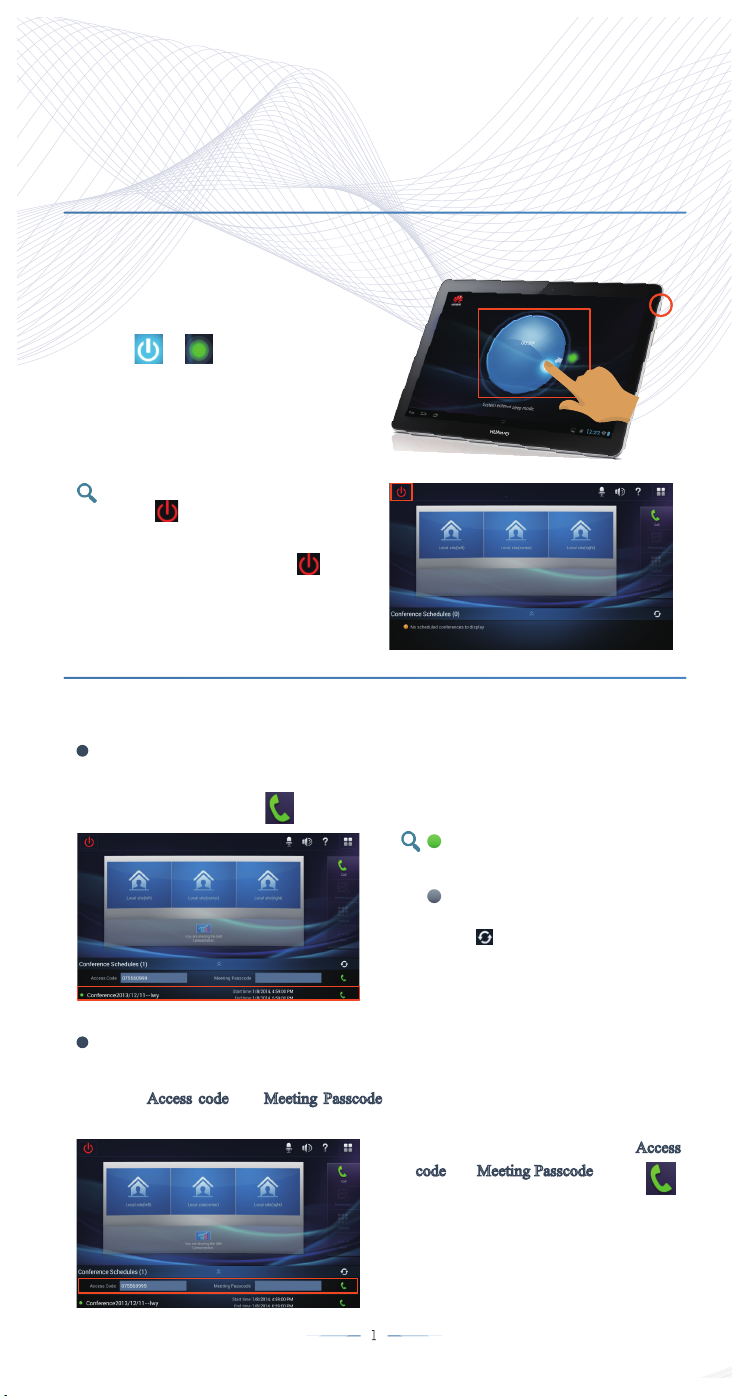
1.On the touch panel, press and hold
the power button for 2 seconds or
more.
2. Drag to .
The telepresence system home screen
is displayed, as shown in the
following figure.
If the telepresence system is not
started, tap , and select Power On
All to power on all devices.
To power off all devices, tap
and select Power Off All.
Joining a Conference
Using the One Tap to Join Conference Function
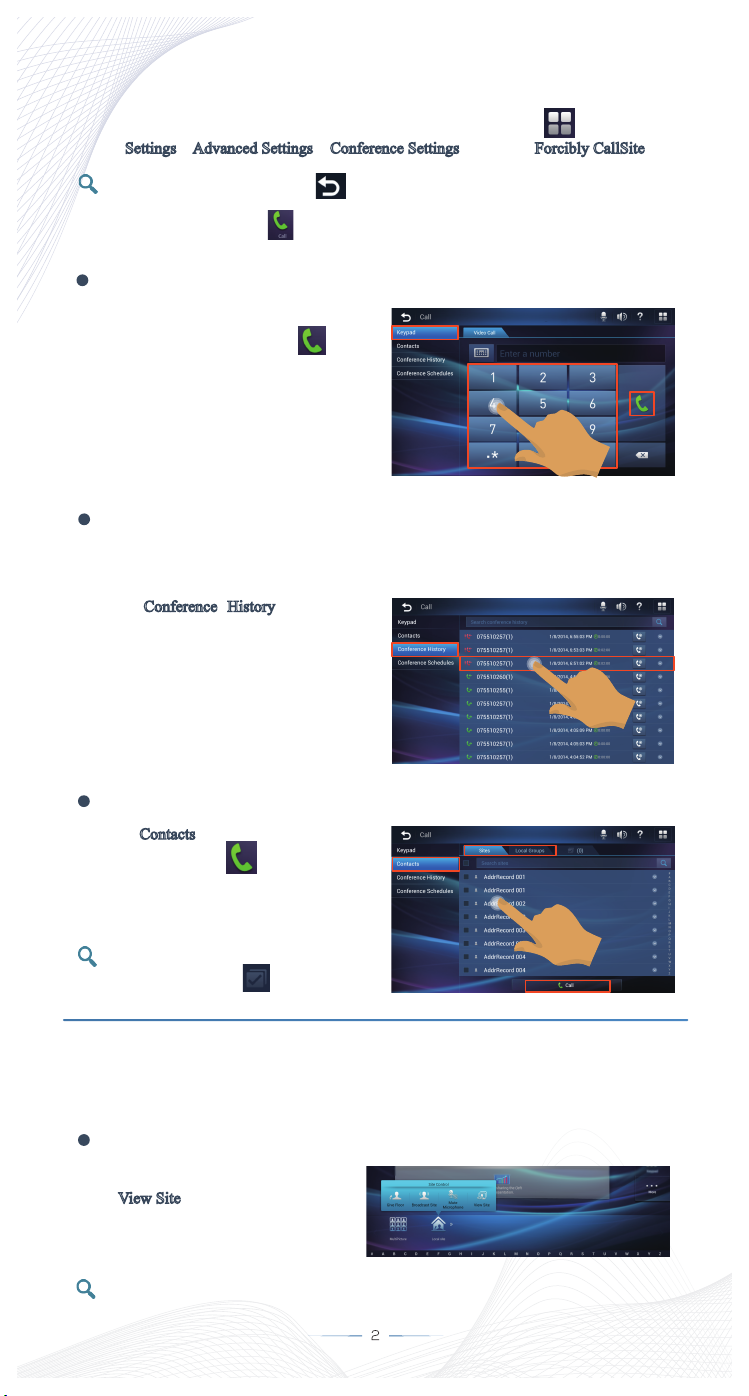
If the conference has been scheduled, from the conference schedules list on the home screen,
select the conference and tap .
indicates that the conference is
ongoing, but your site is absent from
the conference.
indicates that the conference has
not yet started.
Tap to refresh the conference
schedules list.
Using the Unified Access Number
If the telepresence system supports the Passcode function and the service management center
sends you Access code
conference on the home screen.
and Meeting Passcode for a conference, you can quickly join the
On the home screen, enter Access
code and Meeting Passcode and tap .
Page 2
Initiating a Conference
1. (Perform this step if you want to initiate a multipoint conference.) Tap on the taskbar,
choose Settings
To return to the home screen, tap .
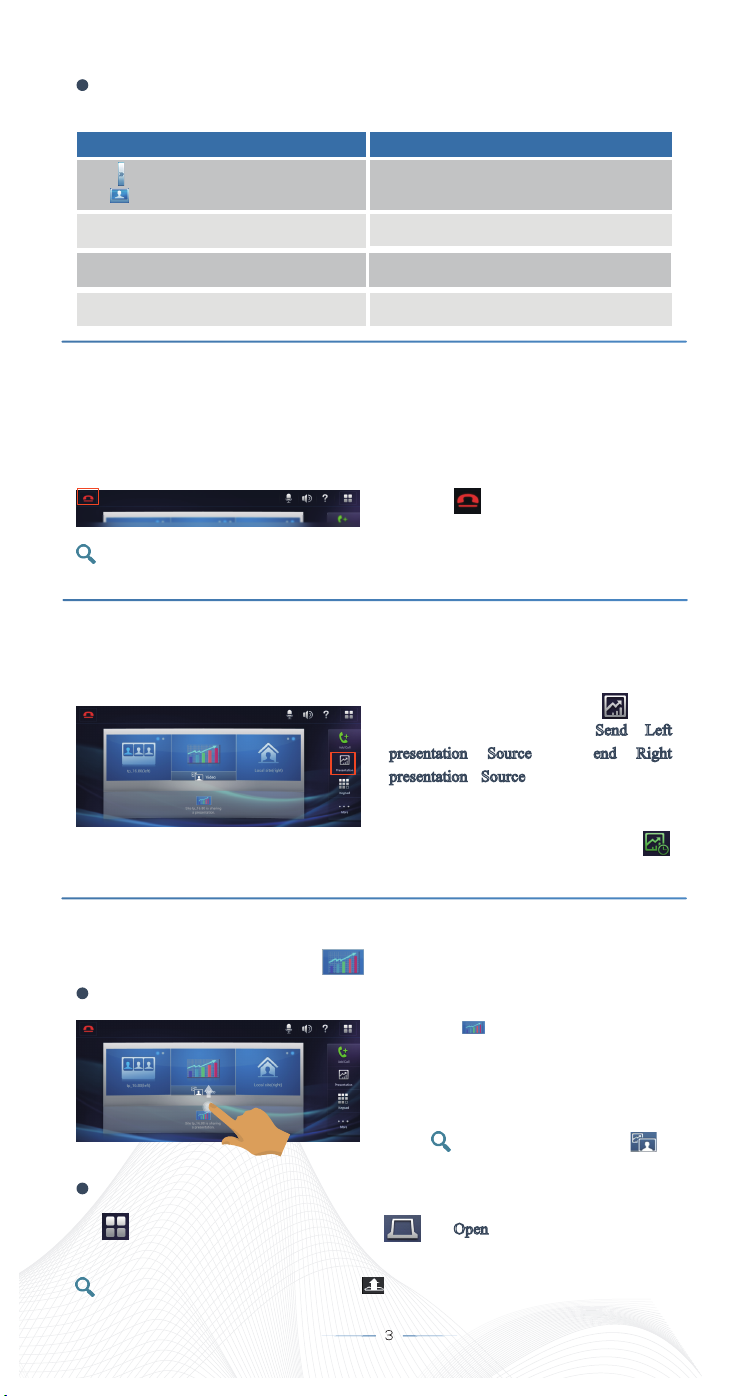
2. From the home screen, tap to display the Call screen.
Using the Keypad
Enter the IP address or number of
the site you wish to call. Then tap .
Using the Conference History
The conference history includes the received calls, missed calls, and dialed numbers of
your site.
Tap Conference History. In the
displayed conference list, tap the
conference you wish to call.
> Advanced Settings > Conference Settings, and select Forcibly CallSite.
Using the Contacts List
Tap Contacts
sites or groups and tap .
You can view and delete the sites
you have selected on the tab.
. Select one or more
Viewing Sites
When no site is being broadcast or given the floor, you can view the video of any site.
Viewing a Specific Site
Tap the site you wish to view and
select View Site
You can also drag a site to the HD
display area to view it.
.
Page 3
Viewing a Specific Screen
If a site has three screens, you can choose which screens to view.
If You... You Will View...
Tap and drag one of the screen icons (such
as ) to one of the simulated HD displays.
Flick your finger left or right on the simulated
center HD display.
Flick your finger left or right on the simulated
left HD display.
Flick your finger left or right on the simulated
right HD display.
The video of that site's left, center, or right
screen on your site's left, center, or right HD
display.
The video of that site's left, center, or right
screen on your center HD display.
The video of that site's left or center screen on
your left HD display.
The video of that site's right or center screen on
your right HD display.
Exiting or Ending a Conference
A point-to-point conference ends if a site exits it while a multipoint conference proceeds in the
same situation. Chair control rights are automatically released when the chair site exits the
conference. Only the chair site or convener's site is able to end a multipoint conference.
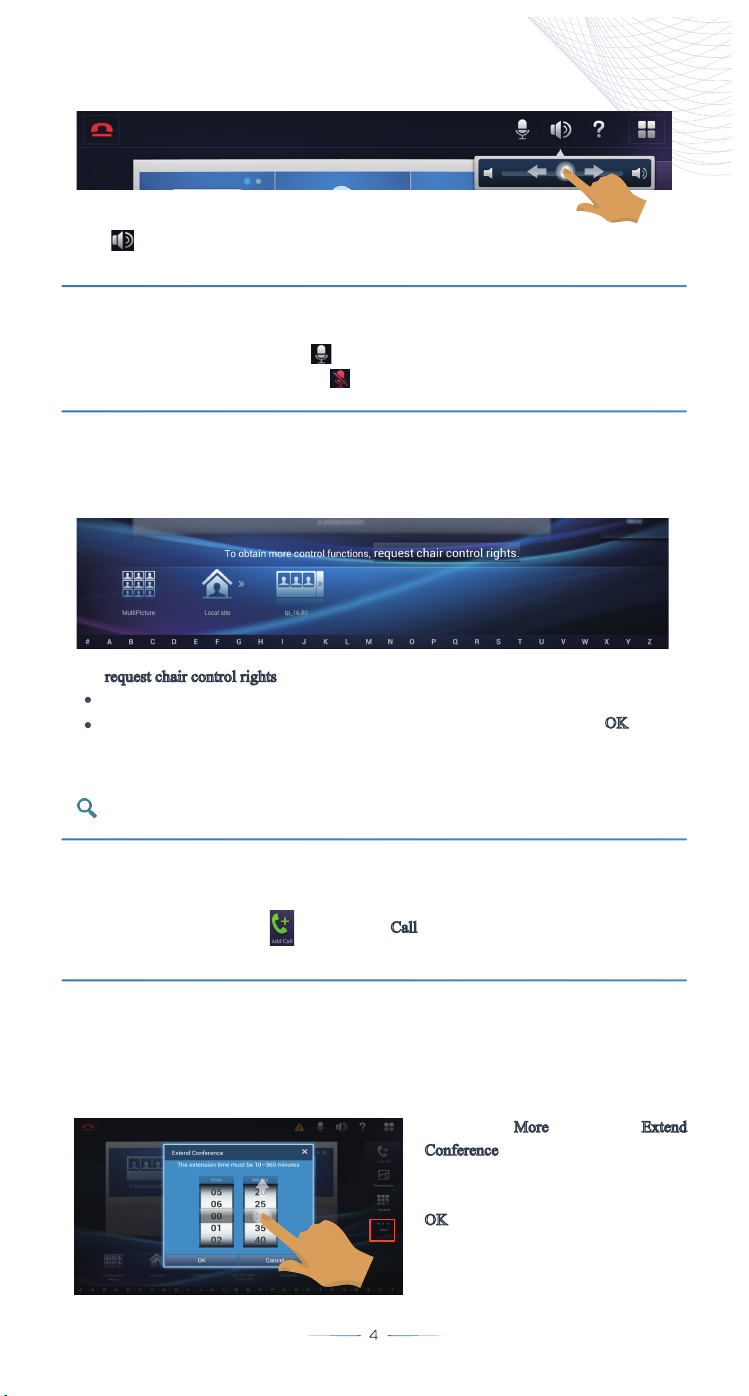
Tap and follow the onscreen
instructions to exit or end a conference.
If a conference is ongoing after you exit it, you can rejoin it using the one tap to join
conference function or conference history.
Starting or Stopping Presentation Sharing
Separately use a video cable and an audio cable to connect a presentation source, such as a
laptop, to a multi-functional socket.
To share a presentation, tap in the
shortcut bar, and select Send Left
presentation Source or Send Right
presentation Source, depending on the
multi-functional socket to which the
presentation source is connected.
To stop presentation sharing, tap
in the shortcut bar.
Viewing a Presentation
When a presentation is being shared, is displayed below the HD display area.
Viewing a Presentation on an HD Display
Drag to one of the simulated HD
displays in the HD display area to view the
presentation on the corresponding HD
display.
To view back the video, tap .
Viewing a Presentation on Tabletop Displays
Tap on the taskbar. From the main menu, tap then Open to open the tabletop displays
and view the presentation.
To open a single tabletop display, press corresponding to the tabletop display on the
conference table.
Page 4
Adjusting the Volume at Your Site
Tap on the taskbar. Drag the slider left to decrease the volume or right to increase the
volume.
Muting or Unmuting the Local Microphones
To mute the local microphones, tap .
To unmute the local microphones, tap .
Requesting Chair Control Rights
If a multipoint conference has no chair site, any participating site can request chair control
rights.
Tap request chair control rights
If the conference is not password protected, you directly obtain the chair control rights.
If the conference is password protected, enter the chair password and tap OK
displayed dialog box.
Contact the telepresence system administrator for the chair password.
.
in the
Adding a Site to a Conference
In a multipoint conference, the chair site can add sites to the conference.
From the home screen, tap to display the Call
contacts list.
screen. Add a site using the keypad or
Extending a Conference
Only the chair site of a conference can extend it. If a conference has no chair site, request chair
control rights before extending it.
1. Tap More and select Extend
Conference.
2. Select the duration by which you
wish to extend the conference and tap
.
OK
Page 5
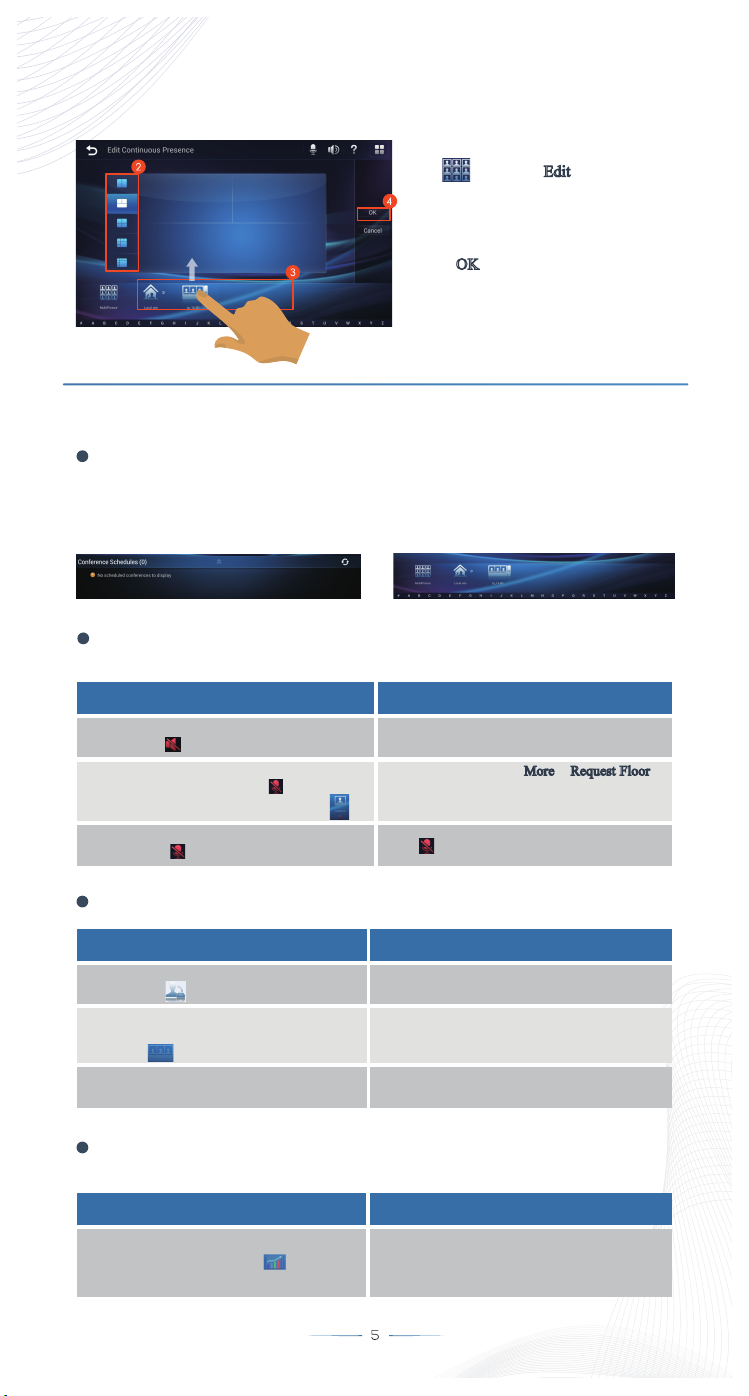
Editing the Continuous Presence
The chair site of a conference can edit the continuous presence.
1. In the site list on the home screen,
tap and select Edit
.
2. Select a continuous presence layout.
3. Drag sites to the specific panes in
continuous presence.
4. Tap OK
.
FAQ
How Do I Know Whether I Have Joined a Conference?
After you join a conference, the site list is displayed. The following figures show the
difference.
Before you join a conference:
What Can I Do If I Cannot Hear a Remote Site or Other Sites
Cannot Hear My Site?
After you join a conference:
Possible Cause Solution
The speakers at your site are muted, as
indicated by .
The chair site mutes the remote site's
microphones. If this happens, is displayed
below the remote site's icon, for example, .
The microphones at your site are muted, as
indicated by .
Unmute the speakers and adjust your site's
volume.
At the remote site, tap More > Request Floor.
The remote site can be heard once it has the
floor.
Tap to unmute the microphones.
What Can I Do If I Cannot View a Remote Site?
Possible Cause Solution
The remote site is an audio-only site, as
indicated by .
The remote site is offline or has exited the
conference, as indicated by a dimmed icon, for
example, .
The scheduled conference has not yet started.
No solution is available because no video is
displayed for an audio-only site.
Call the remote site.
Call the remote site into the conference when the
scheduled start time arrives.
What Can I Do If I Cannot Share My Desktop as a
Presentation?
Possible Cause Solution
Another site in the conference is sharing a
presentation. If this happens, is displayed
below the HD display area.
Ask the site to stop presentation sharing.
Page 6
What Can I Do If I Fail to Add a Site to a Conference?
Possible Cause
The conference is not a multipoint conference. If
this is the case, is unavailable on the right of
the home screen.
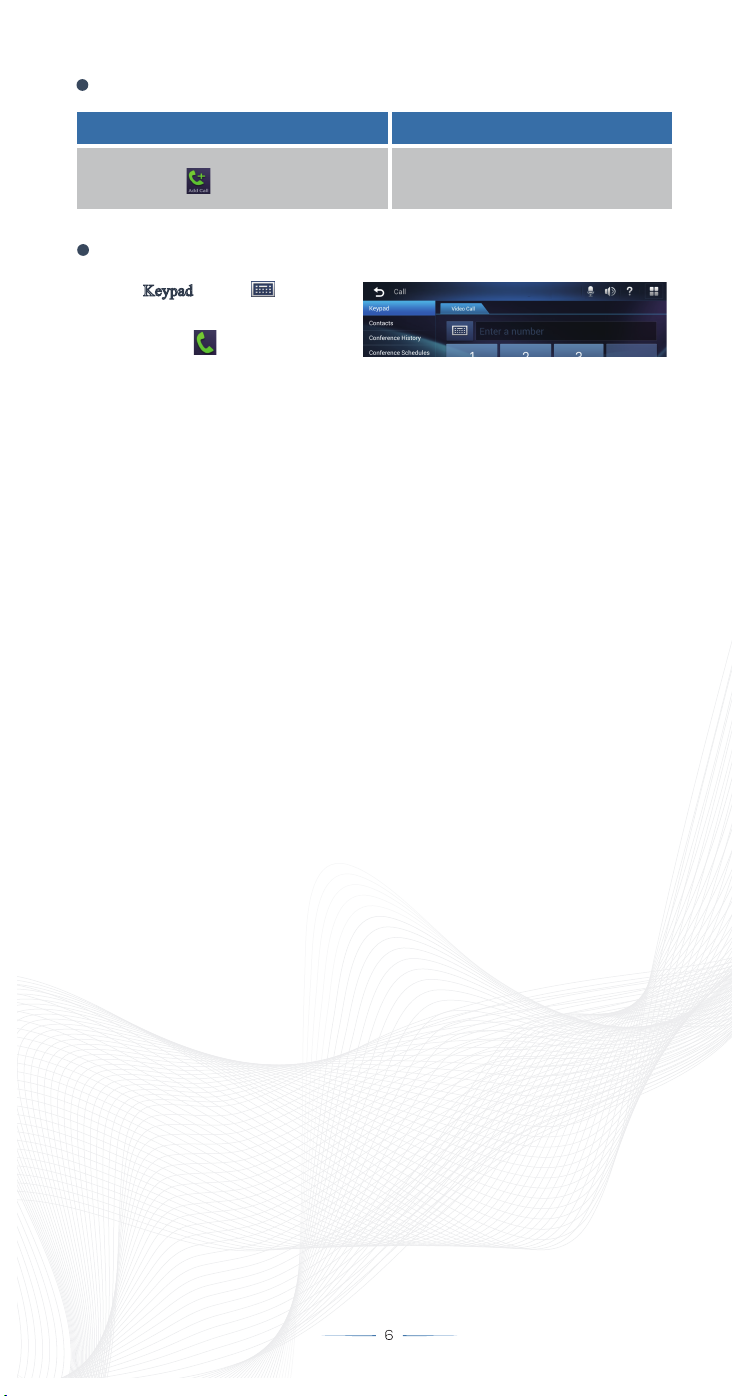
How Can I Call a Site Using Its URI?
Select the Keypad tab. Tap to display
the full alphanumeric keypad. Enter the
site's URI and tap .
Solution
Initiate a multipoint conference.
Copyright © Huawei Technologies Co., Ltd. 2014. All rights reserved
Issue: 01 (2014-04-30)
 Loading...