

Page 1
T710
GSM Mobile Phone
USER GUIDE
Copyright © 2008 Huawei Technologies Co., Ltd.
and other Huawei trademarks are the trademarks or registered trademarks of
Huawei Technologies Co., Ltd. in the Pe ople’s R epublic of China and certain other countries.
All other trademarks mentioned in this manual are the property of their respective holders.
The information in this manual is subject to change without notice. Every effort has been
made in the preparation of this manual to ensure accuracy of the contents, but all
statements, information, and recommendations in this manual do not constitute the
warranty of any kind, express or implied.
Huawei Technologies Co., Ltd.
Page 2

Address: Huawei Industrial Base, Bantian, Longgang, Shenzhen 518129,
People's Republic of China
Tel: +86-755-28780808 Global Hotline: +86-755-2 8560808
E-mail: [email protected] Website: www.huawei.com
Page 3

Contents
1 Know your phone .1
Your Phone.........1
Keys and Functions
........................2
Screen Icons ......4
2 Start.....................4
Installing the SIM
Card and Battery 4
Charging the
Battery..............5
Power on/off ......5
Using the Function
Menu.................6
Phone Lock ........6
PIN/PUK ............6
Locking the Keypad
........................7
3 Calling..................7
Making a Call......7
Answering a Call.8
Voice Mail Server 8
Speed Dial .........9
4 Text Input............9
Changing the Text
Input Modes.......9
Entering Eng(ABC
and abc).......... 10
Entering Numbers
...................... 10
Entering Symbols
...................... 10
5 Messages ...........11
Edit and Send SMS
...................... 11
Edit and Send MMS
...................... 12
View SMS/MMS 13
6 Contacts............. 13
Add New Contacts
...................... 13
Search ............ 14
7 Multimedia......... 14
Camera ........... 14
Video Recorder. 15
Video Player..... 15
FM Radio ......... 16
Sound Recorder 17
8 Network Connect ion
.............................17
Network Settings
...................... 17
Page 4

Network
Connection....... 18
PUSH ..............18
9 Warnings and
Precautions........... 18
Page 5
1 Know your phone
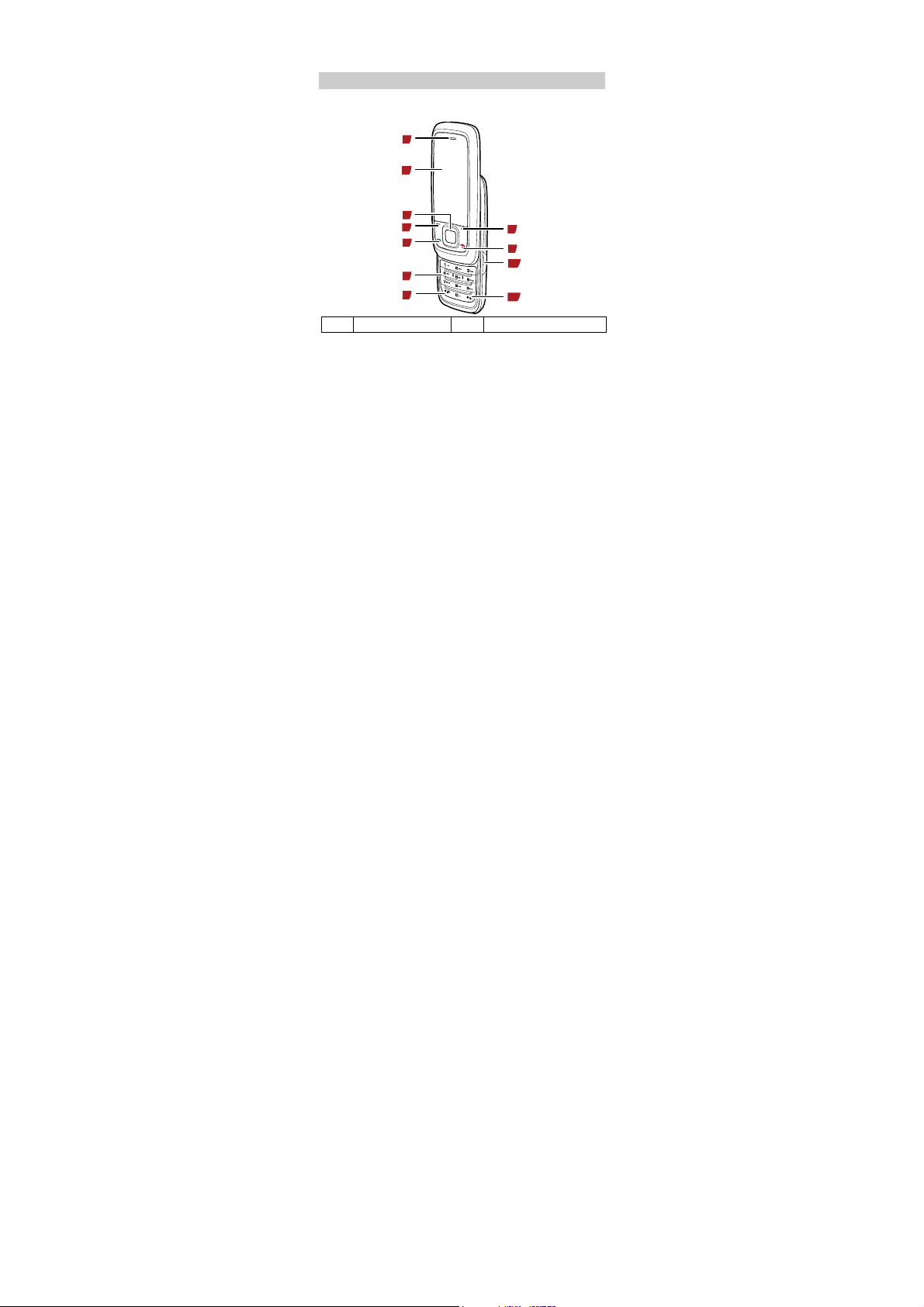
Your Phone
The following figure is a sketch of the phone. The actu al
product may differ.
1
2
3
1
2
3
4
5
6
4
5
6
7
Earpiece
Screen
Navigation keys
Left soft key
Dial key
Number key
7
8
9
10
11
8
9
10
11
* key
Right soft key
End key
Charger /Earpiece
interface
# key
Page 6
Keys and Functions
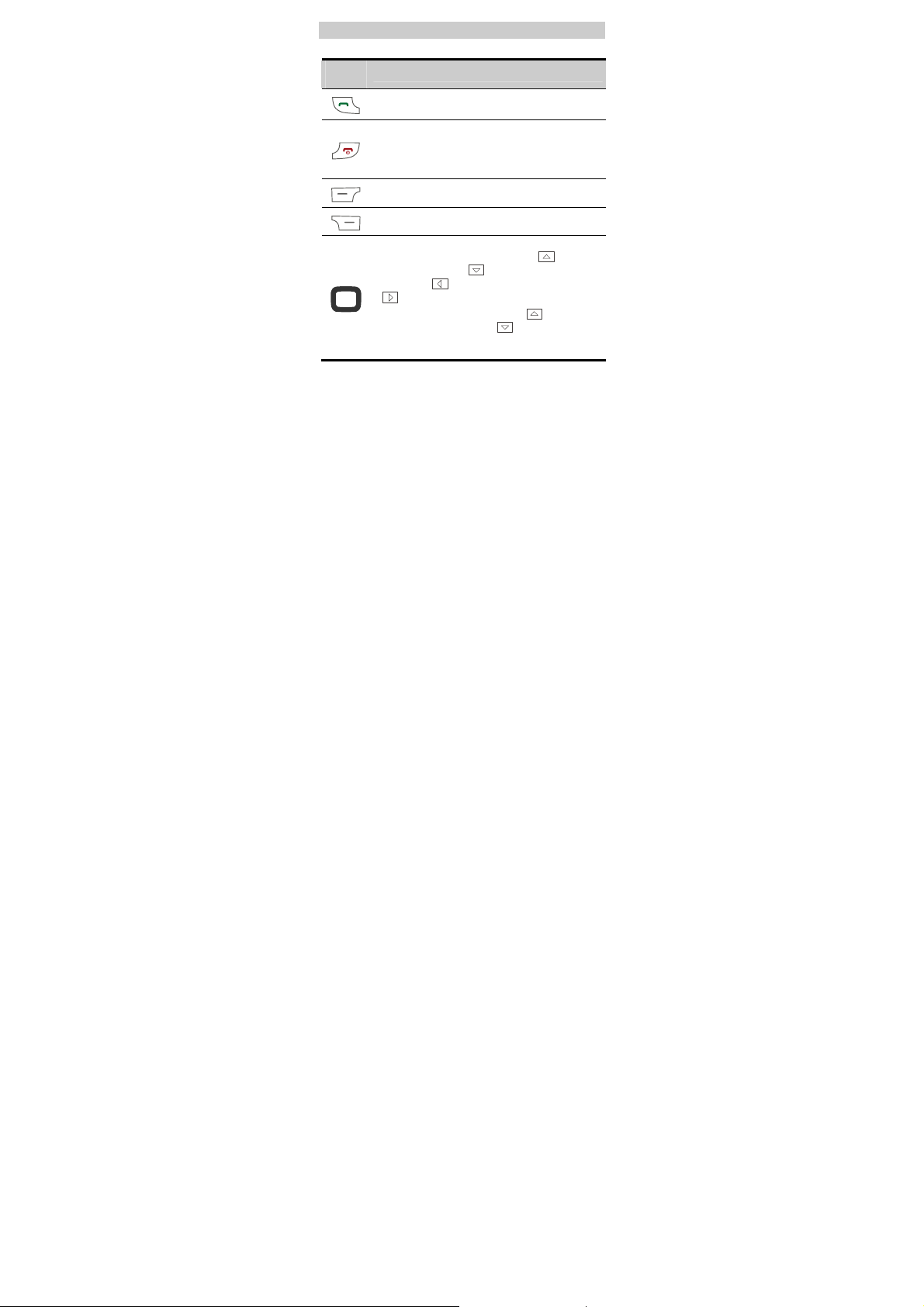
Press
…
z
View the Dialed calls in the standby mode.
z
Make or answer a call.
z
Power on or off the phone (by pressing and
holding it).
z
End a call or reject an incoming call.
z
Return to the standby .
Select the option displayed on the lower left
corner of the screen.
Select the option displayed on the lower right
corner of the screen.
z
Display the Profiles interface , the
Inbox interface
interface
in the standby mode.
z
During a call, you can press to increase
the volume and press
volume.
, and the Camera interface
To…
, the Write Message
to decrease the
Page 7
Press
…
-
To…
z
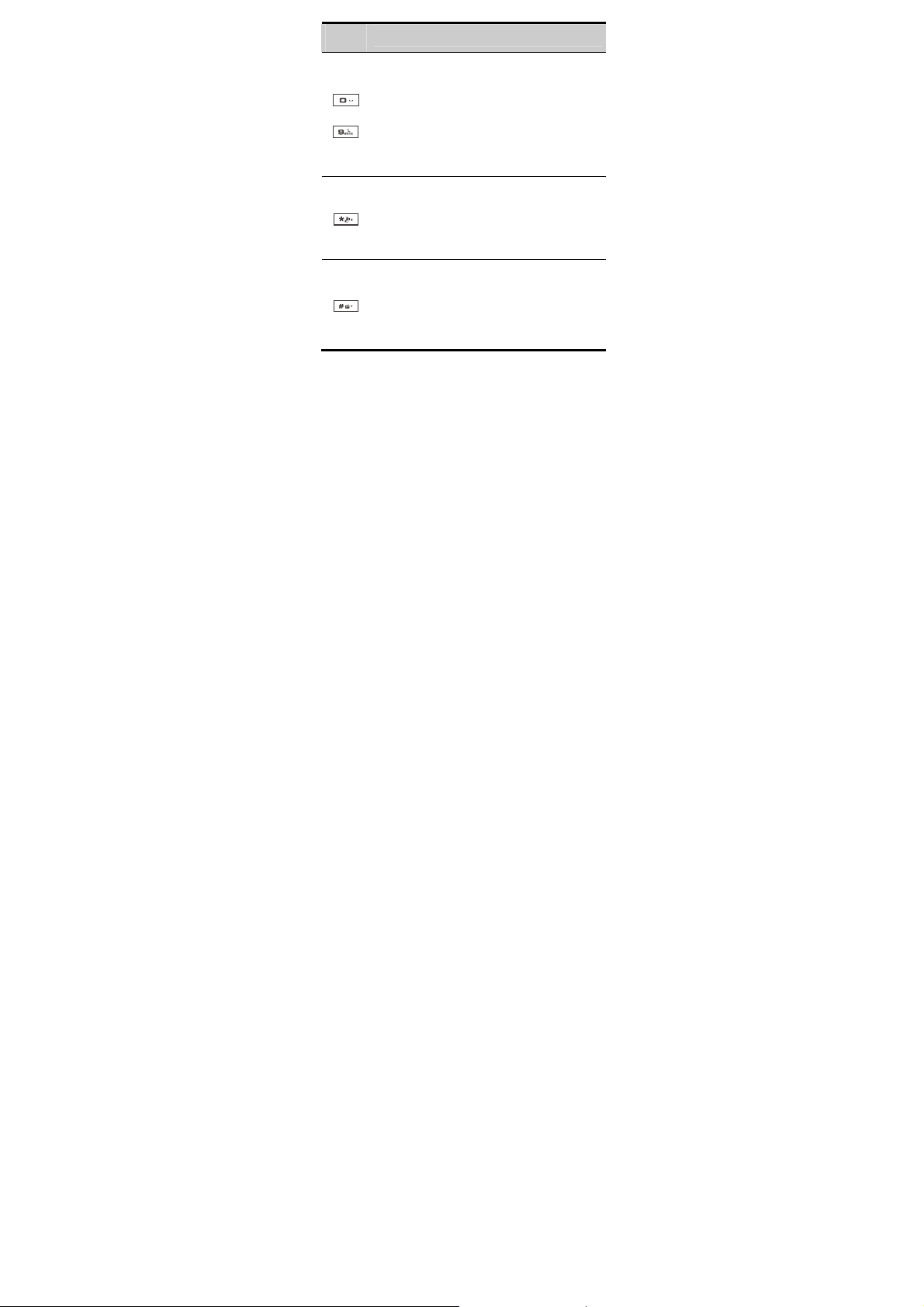
Enter numbers, letters and symbols.
z
Speed-dial phone numbers in the standby
mode (by pressing and holding the 2-9
keys).
z
Enter the number of a contact quickly in the
standby mode (by pressing one or more of
the 1–9 keys and then pressing #).
z
Enter the voice mailbox in the standby
mode (by pressing and holding the 1 key).
z
Enter the * symbol.
z
After entering a telephone number and
holding this key (then you
screen), enter the extension number.
z
Display the list of punctuations in the editing
mode.
z
Enter the # symbol.
z
Change a text input mode in the editing
mode.
z
Press and hold it enter to FM in standby
mode.
will see "P" on the
Page 8
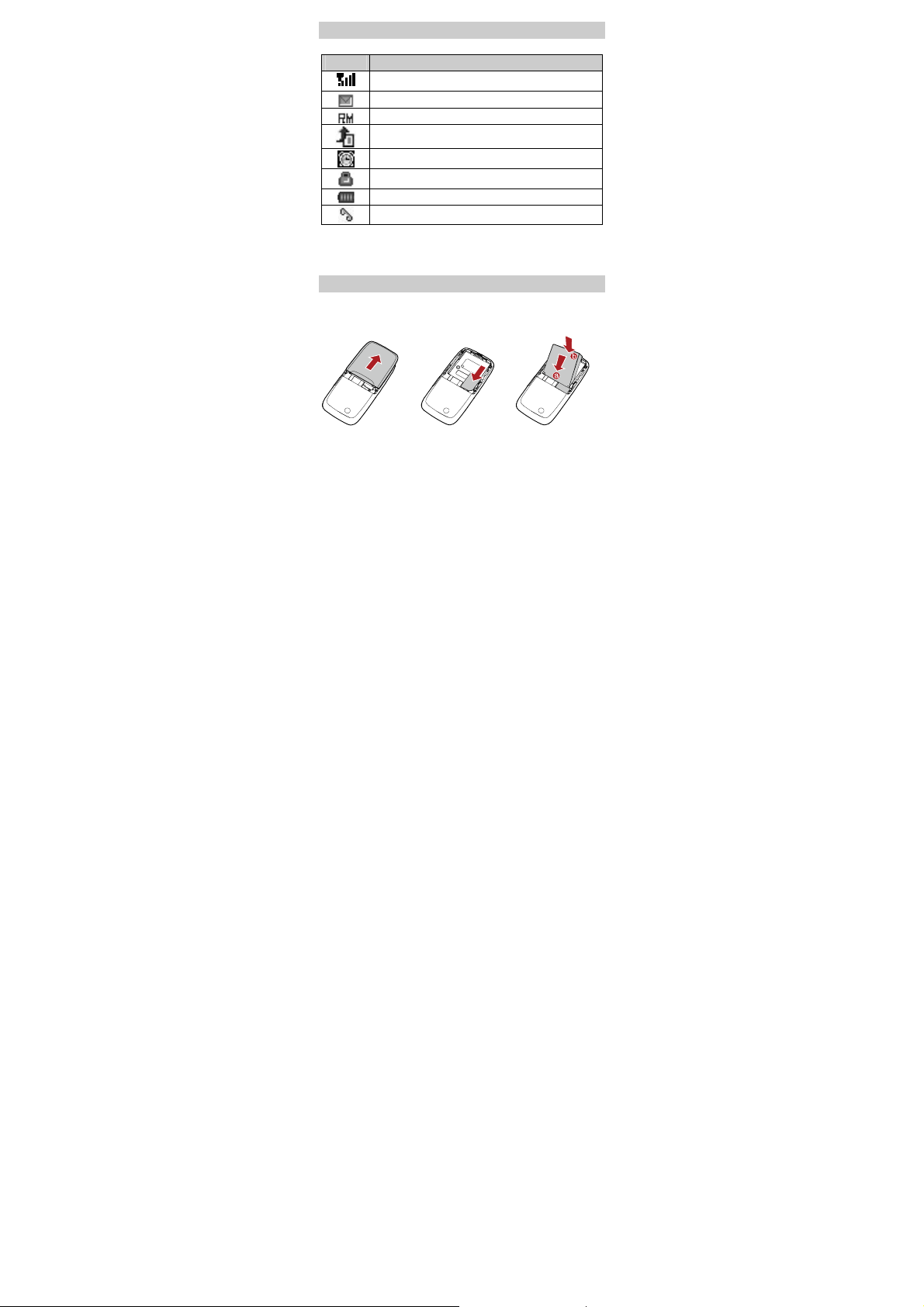
Screen Icons
Icon Description
It indicates the signal strength.
There are new messages.
The phone is roaming.
Call forward is activated.
Alarm is activated.
Keypad is locked.
It indicates the battery charge level.
There are missed calls.
2 Start
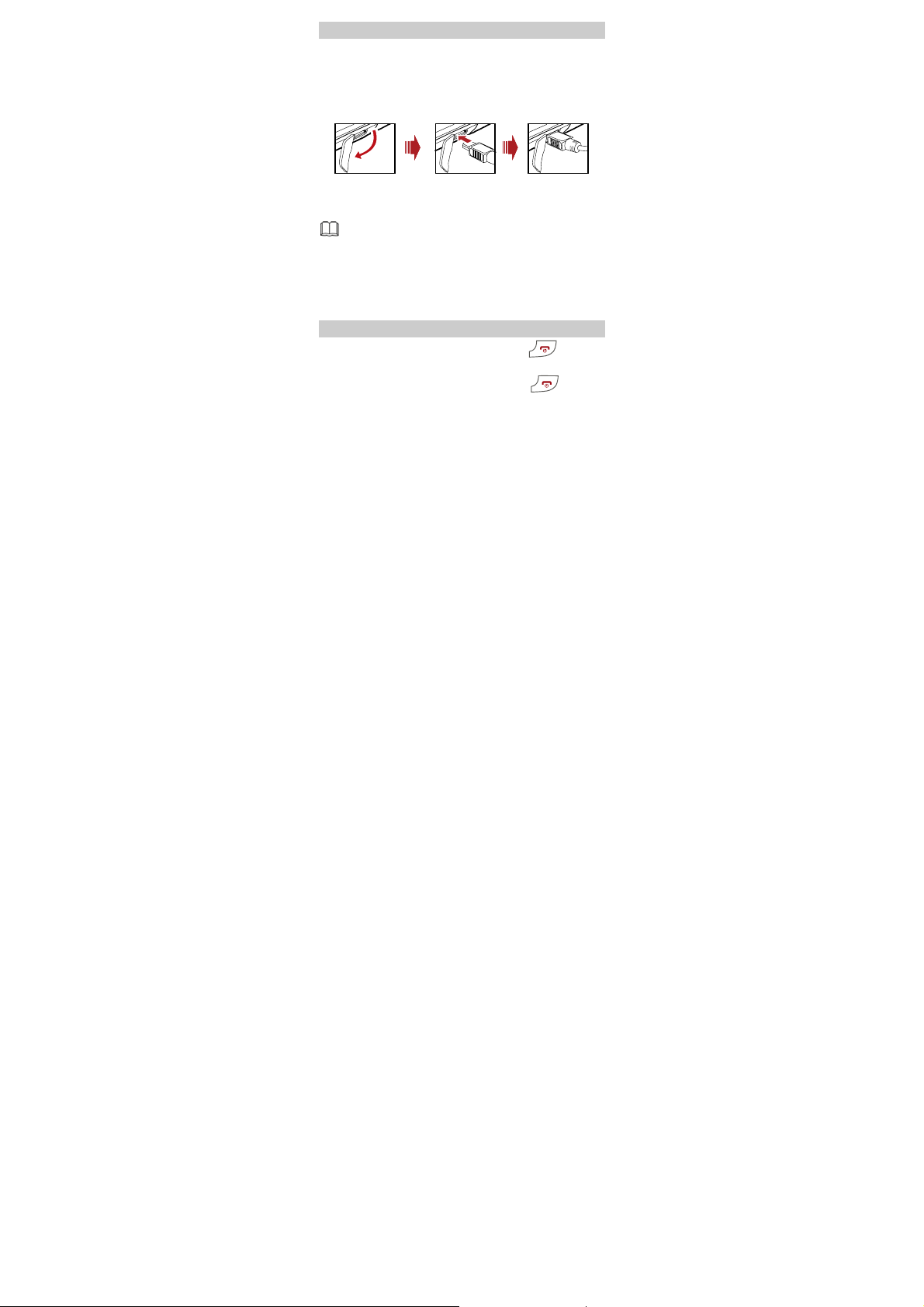
Installing the SIM Card and Battery
Make sure that the golden area on the SIM card is facing
downwards and the cut-off edge is correctly aligned with
the card holder.
Page 9
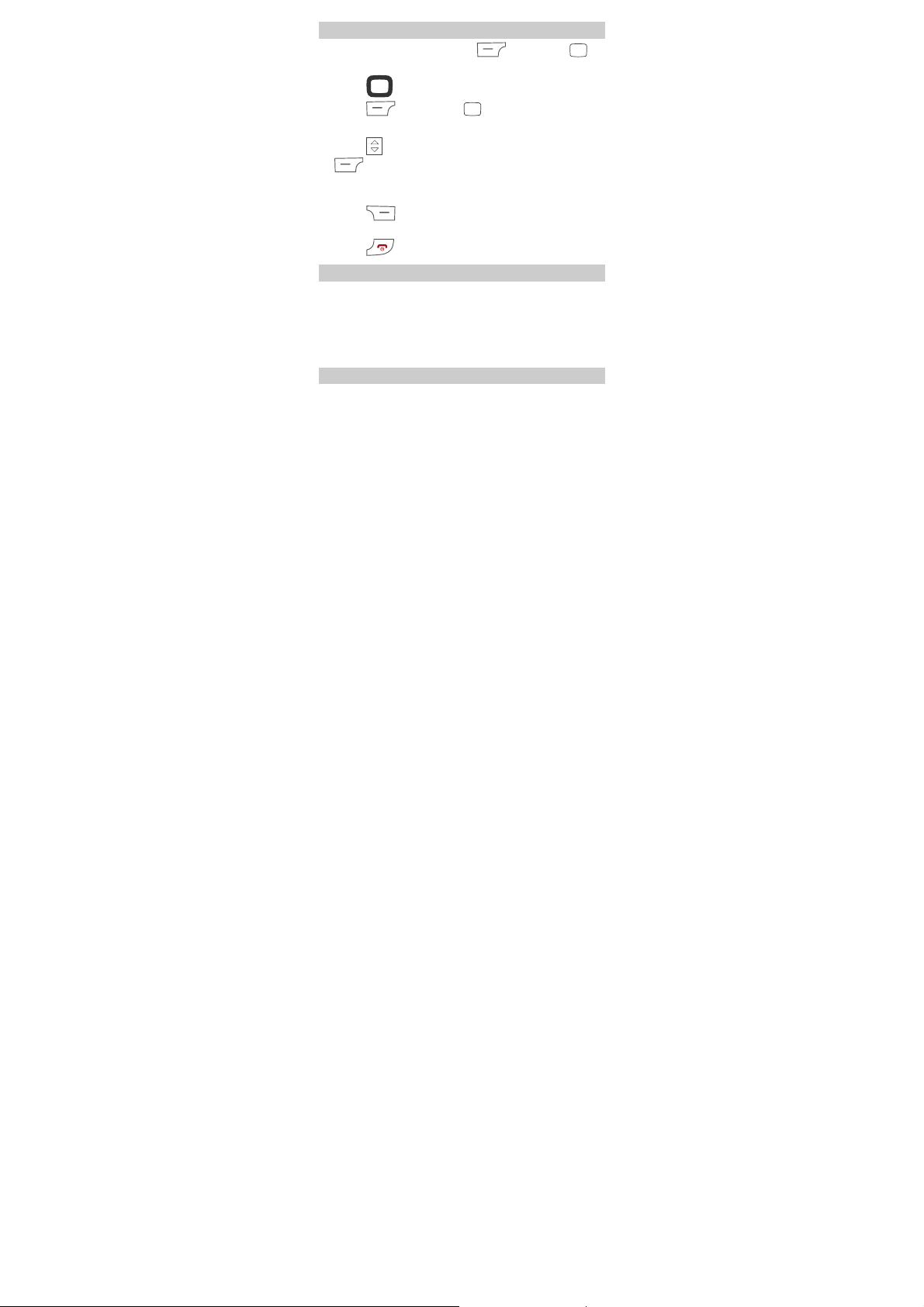
Charging the Battery
When the battery power is low, the phone will issue a
warning sound and pop-up message; if the battery is too
low, the phone will automatically shutdown. Please
charge the battery in time.
1. Connect the charger to the charger interface on the
side of your phone.
2. Connect the charger to an AC power socket.
3. During the charging, the charging icon is displaying in
animation.
If the battery is completely discharged, you may need to wait
a few minutes before the charging indicator appears on the
screen.
4. When the charging icon becomes static, the battery is
fully charged. Disconnect the charger from the AC
power socket.
5. Disconnect the charger from the phone.
Power on/off
If the phone is power on,press and hold about 3
seconds to power off.
If the phone is power off, press and hold
seconds to power on.
about 3
Page 10
Using the Function Menu
1. In the standby mode, press (Menu) or to
display the Menu interface.
2. Press to scroll to a menu item.
3. Press (Select) or to display the menu.
4. Display the submenu in either of the ways:
z
Press to scroll to a submenu item and press
(Select) to display the submenu.
z
Press the number key corresponding to the number of
a submenu to display it.
5. Press (Back) to return to the previous menu
or quit the function menu.
6. Press to return to the standby mode.
Phone Lock
The phone lock protects your phone from unauthorized
use. The default phone lock code is 1122. You can
change it into any numeric string of 4 to 8 digits.
If the phone lock function is enabled, you ne ed to en ter
the correct phone lock code when the phone is powered
on or in the standby mode.
PIN/PUK
The personal identity number (PIN) protects your SIM
card from unauthorized use. The PIN unloc king key (PUK)
can unblock the blocked PIN. Both PIN and PUK are
Page 11

delivered with the SIM card. For details, consult your
service provider.
If you enter wrong PINs for three times consecutively,
the phone asks you to enter the PUK code.
If you enter wrong PUKs for ten times consecutively, the
SIM card is invalidated permanently. Contact your
service provider for a new card
Locking the Keypad
Cover the slide to lock the keypad. When the keypad is
locked , you can press
or make emergency calls.
In the standby mode , you can press
to unlock the keypad.
When the Keypad lock function is enabled , if there is
no operation on the phone for a preset period in the
standby mode, the keypad is locked automatically.
to answer an incoming call
and
3 Calling
Making a Call
1. In the standby mode, enter a phone number.
z
To make an international call, press (two
times)to enter the international long distance code of
"+". Then enter the number to be dialed, in the
format of "country code + region code + phone
number".
Page 12
z
To call a number with an extension, press
(three times)to insert "P" betwee n the phone number
and the extension number.
2. Press to dial the number.
3. Press to end the call.
z When the phone is locked, enter the lock code
to unlock the phone first; otherwise, you can
make emergency calls or answer calls only.
z You can dial calls by call log,contacts ,SMS
and
MMS.
z During a call, you can press to increase
volume and press
to decrease the volume.
the
Answering a Call
When there is an incoming call, you can press
(Accept) to answer it, or press
(Reject) or
to reject it.Press (Mute) can shut up the
ringing,then press
(Reject) to reject it.Press
(Options),then select Answer to answer it.
If the Cover answer function is activated, you can
cover to answer an incoming call.If the Anykey answer
function is activated, you can press any key except
and to answer an incoming call.
Voice Mail Server
Page 13

The fast dial number of Voice Mail Server is .After
it is activated,you can press and hold
Select ”Menu > Messages > Voice Mail Server >
Options > Edit” , edit the number.
(The realization of functions needs network support, before
use it is necessary to apply for enabling of this service.
to use.
Speed Dial
Number 2~9 can be set as speed dial key for 8
frequence numbers.In standby mode,press and hold
number can speed dial.
Set speed dial:
1. Select “Menu > Contacts > Speed Dial > Set
Number”;
2. Select an “Empty”,press (Options);
3. Select “Edit”,open the Contact List;
4. Select the number you w ant to use as the spe ed dial.
4 Text Input
Changing the Text Input Modes
The indicator of the current text input mode is displa yed
on the screen. In the editing mode, press
change the input mode.
to
Page 14
z In the editing mode, press (Delete) once
to delete the letter on the left of the cursor.
Press and hold
letters at a time.
z In the "ABC" or "abc" input mode, press
repeatedly to select and enter the commonly
(Delete) to delete all the
used punctuations.
z In any input mode( except “123” input mode) ,
press
"abc" input mode, press
to enter a space. In the "ABC" or
once to enter a
space, twice to enter "0".
Entering Eng(ABC and abc)
In the "ABC" or "abc" input mode, you can press a key
labeled the desired letters once to enter the first letter
on the key, twice to enter the second letter on the key,
and so on.
Entering Numbers
z
In the "123" input mode, press a key labeled the
desired number.
z
In the "ABC" or "abc" input mode, press a numeric
key repeatedly until the desired number appears on
the screen.
Entering Symbols
1. In any input mode, press to display a symbol
list.
Page 15

2. Press to scroll to the desired symbol.
3. Press
or
to enter the selected symbol.
5 Messages
Your phone support the SMS and MMS.It can store as
mang as 500 short messages, MMS storage number by
phone decide by remaining storage space.
z MMS service needs service provider support,
before use please confirm your SIM card
supports this service or consult relevant service
provider.
Edit and Send SMS
1. Select “Menu > Messages > SMS > Write
Message”.
2. Edit the short message.Press (Options) to
insert object,format text,input method.
3. Finish editing,press (Options):
z
Send:entering phone number or search from
Contacts.
z
Save and Send:send the message and save it to
Inbox.
z
Save:save the message to Drafts.
z
Send to Many:send to several recipients.
z
Send by Group:select a group to send.
Page 16

4. Press (OK)or send the message.
Edit and Send MMS
1. Select “Menu > Messages > MMS > Write MMS”.
2. Select “To”,”Cc” or “Bcc”, press (Edit).
3. Add number/Email of ” To” , ”Cc” or “Bcc”.
4. Select Subject,press (Edit) to add subject.
5. Select “Edit Content”,press (Edit) to edit the
MMS.
When editing,press
picture,add audio,add attachment,add slide
before,preview,slide timing.
6. Finish editing,press (Options) and select
“Done” to exit.
7. Press (Done):
z
Send Only:send MMS.
z
Save and Send:send MMS and save it to Inbox.
z
Save to Drafts:save MMS to Drafts.
z
Send Options:setup the send options.
z
Exit:Quit the “Write MMS”,you can choose whether
to save the MMS you just edited.
(Options),then add
Page 17

z Your phone support several pages attachments
(such as PPT).
z Wireless networks limit the size of MMS
messages. If you insert g raphics size e xceed the
limit, then the phone will send pictures to
narrow.
View SMS/MMS
When you receive SMS or MMS,press
(View/Play).If you want to view later,press
(Back).
View the SMS or MMS later , you can refer to following
steps:
1. Select “Menu > Messages > SMS (MMS) > Inbox”.It
will display the unread messages.
2. Select one message , press (Options) to
open.
3. Press (Options) to answer the message.
Open the message, make sure to carefully. MMS objects may
contain malicious software, as well as other potential harm to
your phone.
6 Contacts
Add New Contacts
1. Select “Menu > Contacts > Add New Contact”.
Page 18

2. Press (Options) to save the contact “To SIM”
or “To Phone”.
3. Edit contact.
If you want to save to SIM , you can only edit name
and number.
4. Finish editing,press (Done), pop-up message
to preserve the contact person.
5. Press (Yes)to save;press (No)to exit.
Search
1. Select “Menu > Contacts > Quick Search ” .
2. Enter name , or the first letter of name.
3. Press (Options), then search.
7 Multimedia
Camera
1. In standby mode , press or select “Menu >
Multimedia > Camera ”.
2. Press (Option):
z
“Photos”.
z
Camera Settings:setup with “EV”, “AE Meter” ,
“Banding” , “Delay Timer” , “White Balance” ,
“Scene Mode” and “Shutter Sound”.
z
Image Settings:setup “Image Size” and “Image
Quality”.
Page 19

z
Effect Settings : setting the special effects you want
to take photos used.
z
Restore Default: set the Camera settings to restore
default.
3. In “Camera” interface , press to take photos.
4. Press (Continue)to save the photo to
“Photos” ;press
(Delete)to delete the photo.
Video Recorder
1. Select “Menu > Multimedia > Video Recorder” ,
enter to recorder preview interface.
2. Press (Options):
z
Video Recorder Settings: setup “White Balance” ,
“EV” , “Night Mode” , “Banding” , “Video Quality”.
z
Effect Settings : setup the special effect you want to
use record.
z
Restore Default: set the Video Recorder settings
to restore default.
3. Press to start/stop.
4. Press to adjust “EV”.
5. Press to stop recording,press (Yes)to
save the video to phone;press
(No) to delete it.
Video Player
1. Select “Menu > Multimedia > Video Player”.
Page 20

2. Select one video , press to play.
When it is playing , you can do the following op tions :
z
Press to adjust the volume.
z
Press or to pause/play.
3. Press (Stop) to stop playing.
FM Radio
Before using FM Radio,need to plug earphone as
antenna. In order to ensure the effectiveness, do not
pull out the earphone or earphone’s wine bending.
1. Connect the earphone first.
2. Press and hold to enter to FM Radio in standby
mode ; or select “Menu > Multimedia > FM Radio”
3. Press to broadcast.
When it is broadcasting, you can do the following
options:
z
Press to adjust the volume.
z
Press to minitrim,±0.1Hz/once。
z
Press (Options),select “Preset Auto Search”
to search channels and save to channel list.
z
Press (Options), select “Settings” to setup
“Background Play”, “Skin” , “Loud Speaker” and
so on.
z
Press (Options), select “Record” to record the
current program and save .
Page 21

4. Press (Stop) to stop.
Sound Recorder
You can record AMR / WAV format file with your phone.
1. Select “Menu > Multimedia > Sound Recorder”
2. Press (Options), select “Record” to start.
3. When it is recording,press (Pause/Continue)
or , press (Stop) to stop recording.You
can save the recorded file.
8 Network Connection
WAP service needs network supported, regarding the
availability, price and taxation of WAP service, please
consult your network operator or the service provider
that provide you with the service you need.
Network Settings
Setup the data account:
1. Select “Menu > Settings > Network Settings >
Data Account”.
2. Select your service provider from list.
Press
3. Setup the data account with the information provide
by your service provider’.
4. Press (done), pop-up message to preserve.
5. Press (Yes)to save;press (No)to exit.
(Edit) or to open.
Page 22

Network Connection
After the completion of the network settings, you can
browse the web with phone.
1. Select “Menu > WAP > Input Address”.
2. Input address.Press * Key can input symbol.
3. Press (Options),select “Done”.Browser will
open the website you input.
Browse the Web, the phone keys’ function may vary
depending on the services , please operate with the on-screen
instructions.
PUSH
PUSH refers to your service provider for the service
information issue. It can be a text message, or a WAP
service address. You can choose to read, to add new
bookmarks, added to the white list or delete PUSH
information.
9 Warnings and Precautions
Electronic Device
z
Power off your phone near high-precision electronic
devices. The phone may affect the performance of
these devices.
z
Such devices include hearing aids, pacemakers, fire
alarm systems, automatic gates, and other
automatic-control devices. If you are using an
electronic medical device, consult the device
Page 23

manufacturer to confirm whether the radio wave
affects the operation of this device.
z
Pacemaker manufacturers recommend that a
minimum separation of 15cm be maintained between
a mobile phone and a pacemaker to avoid potential
interference with the pacemaker. To achieve this, use
the phone on the opposite ear to your pacemaker and
do not carry it in a breast pocket.
Page 24

Hospital
Pay attention to the following points in hospitals or
health care facilities:
z
Do not take your phone into the operating room (OR),
intensive care unit (ICU), or coronary care unit
(CCU).
z
Do not use your phone at places for medical
treatment where phone use is prohibited.
z
When using your phone near someone who is
suffering from a heart disease, turn down the ring
tone volume or vibration properly so that it does not
affect the person.
Area with Inflammables and Explosives
In any area with inflammables and explosives, power off
your phone and do not take out, install or charge the
battery, to avoid explosion and fire. Areas with
inflammables and explosives include, but are not limited
to:
z
Gas station
z
Area for storing fuels (such as the bunk under the
deck of a ship)
z
Device/Vehicle for transporting and storing fuels or
chemical products
z
Area with chemical substances and particles (such as:
granule, dust, metal powder) in the air
z
Area with the sign of "Explosives"
z
Area with the sign of "Power off bi-direction wireless
equipment"
Page 25

z
Area where it is generally suggested to stop the
engine or a vehicle
Page 26

Traffic Safety
z
Please observe local laws and regulations on phone
use. Do not use your phone while driving to avoid
traffic accident.
z
Secure the phone on its holder. Do not place the
phone on the seat or other places where it can get
loose in a sudden stop or collision.
z
Use the phone after the vehicle stops at a safe place.
z
If your phone supports the hands-free function, or the
phone can be used with earphones, or there is any
vehicle-mounted equipment with the hands-free
function, use them in emergency.
z
Do not place the phone over the air bag or in the air
bag outspread area. Otherwise, the phone may hurt
you owing to the strong force when the air bag
inflates.
z
Observe the rules and regulations of airline
companies. When boarding or approaching a plane,
power off the phone and take out the battery. In areas
where phone use is prohibited, power off the phone.
Otherwise, the radio signal of the phone may disturb
the plane control signals. Power off your phone before
boarding an aircraft.
Storage Environment
z
Do not place magnetic storage media such as
magnetic cards and floppy disks near the phone.
Radiation from the phone may erase the information
stored on them.
z
Do not put your phone, battery, or other accessories
in containers with strong magnetic field, such as an
Page 27

induction cooker and a microwave oven. Otherwise,
circuit failure, fire, or explosion may occur.
z
Do not leave your phone, battery, or charger in a very
hot or cold place. Otherwise, malfunction of the
products, fire, or explosion may occur.
z
Keep the ambient temperature between 0℃ and 45
℃ while the battery is being charged. Keep the
ambient temperature between –20℃ and 60℃ for
storing the battery . If the ambient temper ature is too
low (especially below 0℃) or too high, the capacity
and life of the battery will be reduced.
z
Do not place sharp metal objects such as pins near
the earpiece. The earpiece may attract these objects
and hurt you when you are using the phone.
z
Do not subject your phone, battery, and charger to
serious collision or shock. Otherwise, battery leakage,
phone malfunction, overheat, fire, or explosion may
occur.
z
Do not put your phone in the back pocket of your
trousers or skirt, to avoid phone damage while
seated.
Children Safety
z
Put your phone, battery, and charger in places
beyond the reach of children. Do n ot allow children to
use the phone, battery, or charger without guidance.
z
Do not allow children to put the battery in mouth, for
electrolyte in the battery is poisonous.
z
Do not allow children to touch the small fittings.
Otherwise, suffocation or gullet jam can be caused if
children swallow the small fittings.
Page 28

Operating Environment
z
The phone, battery, and charger are not
water-resistant. Keep them dry. Protect the phone,
battery and charger from water or vapor. Do not
touch the phone with a wet hand. Otherwise,
short-circuit and malfunction of the product or
electric shock may occur.
z
Do not use the phone in dusty, damp and dirty places
or places with magnetic field. Otherwise, malfunction
of the circuit may occur.
z
Do not power on or off the phone when it is near your
ears to avoid negative impact on your health.
z
When carrying or using the phone, keep the antenna
at least one inch (2.5 centimeters) away from your
body , to avoid negativ e impact on your health caused
by radio frequency leakage.
z
If you feel uncomfortable (such as falling sick or
qualm) after playing games on your phone for a long
time, please go to see a doctor immediately.
z
On a thunder stormy day, do not use your phone
outdoors or when it is being charged.
z
Do not touch the antenna when a call is going on.
Touching the antenna may affect call quality and
cause the phone to operate with more power. As a
result, the talk time and standby time are shortened.
z
The phone may interfere with nearby TV set s, radios
and PCs.
z
In accordance with international standards for radio
frequency and radiation, use phone accessories
approved by the manufacturer only.
Page 29

z
While using the mobile phone, observe the loc al laws
and regulations, and respect others' privacy and legal
rights.
Clearing and Maintenance
z
Before you clean or maintain the phone, power off the
phone and disconnect it from th e charger. Otherwise,
electric shock or short-circuit of the battery or
charger may occur.
z
Do not use any chemical detergent, powder, or other
chemical agent (such as alcohol and benzene) to
clean the phone and the charger. Otherwise, part
damage or a fire can be caused. You can clean the
phone and the charger with a piece of soft antistatic
cloth that is a little wet.
z
Do not scratch the shell of the phone. Otherw ise, th e
shed coating may cause skin allergy . Once it happ ens,
stop using the phone at once and go to see a doctor.
z
Keep the plug dry when you clean it, to prevent fire.
z
If the phone or any of its fittings does not work, turn
to the locally authorized service center for help.
z
Do not dismantle the mobile phone or accessories.
Only an authorized service center is allowed to
maintain the mobile phone.
Environment Protection
z
Please observe the local regulations regarding the
disposal of your packaging materials, exhausted
battery and old phone and please promote their
recycling. Do not dispose of exhausted battery or old
phone in municipal waste or fire. Otherwise,
explosion may occur.
Page 30

z
This HUAWEI device complies with Directive
2002/95/EC on the restriction of the use of certain
hazardous substances in electrical and electronic
equipment.
z
: This symbol indicates that the equipment
carrying this mark must NOT be thrown into general
waste but should be collected separately and properly
recycled under local regulations.
Emergency Call
You can use your phone for emergency calls. However,
connections in all conditions cannot be guaranteed. You
should never rely solely on the phone for essential
communications.
Battery
z
Use the battery approved by the manufacturer only.
Otherwise, explosion may occur.
z
Do not dispose of the battery in fire. Otherwise, the
battery may ignite or explode.
z
Do not connect two poles of the battery with
conductors such as cables, jewelries or any other
metal material. Otherwise, the battery is
short-circuited and it may burn your body.
z
Do not disassemble the battery or solder the battery
poles. Otherwise fluid leakage, overheat, fire, or
explosion may occur.
z
If there is battery leakage, smoke, or strange smell,
stop using the battery and keep it away from open
flame to avoid fire or explosion. Then turn to an
authorized maintenance engineer for help.
Page 31

z
If the battery fluid contacts your skin or cloth, wash
with clean water immediately to avoid irritation to the
skin.
z
If the battery fluid gets into eyes, do not rub your
eyes. Otherwise, your eyes can be hurt. Wash with
clean water and go to see a doctor immediately.
z
If there is battery deformation, color change or
abnormal heating while you charge or store the
battery, take it out immediately and stop using it.
Otherwise, battery leakage, overheat, explosion, or
fire may occur.
z
When installing the battery, do not push the battery
by force lest battery fluid leak out or the battery
crack.
z
Do not take out the battery when the phone is turned
on.
z
If you do not use the battery for a long time, store it
in normal temperature after charging.
Charger
z
Use the charger approved by the phone manufacturer
only. Any violation of this rule may result in fire or
malfunction of the charger.
z
Do not short-circuit the charger. Short-circuiting the
charger may cause fire or malfunction of the charger .
z
If the power cord is damaged (for example, the lead is
exposed or broken), or the plug becomes loose, stop
using the cable at once. Otherwise, electric shock,
short-circuit of the charger, or fire may occur.
z
Keep the charger dry. Once water or other liquid leaks
into the charger , electrical leakage or other faults may
occur.
Page 32

z
Do not use the charger in a dusty and damp
environment. Keep the power cord away from any
heating appliance.
z
Ensure the charger is properly plugged into the power
socket properly when charging the battery. Improper
insertion may result in electric shock, fire, or
explosion. To unplug the charger, pull the plug off
rather than tear the power cord.
z
Use the AC power supply defined in the specifications
of the charger. An improper power voltage can cause
fire or malfunction of the charger.
z
Do not place any heavy object on the power cord of
the charger. Do not damage, change, or pluck the
power cord. Otherwise electric shock or fire may
occur.
z
When you are charging the battery with the charger,
do not touch the plug, power cord or the charger with
a wet hand. Otherwise, electric shock can be caused.
z
Once the liquid such as water leaks into the charger,
remove the plug of the charger from the socket
immediately. Otherwise, overheating, fire and other
malfunction may occur.
Page 33

SAR INFORMATION
The SAR limit of USA (FCC) is 1.6 W/kg averaged over
one gram of tissue. Device types T710 (FCC ID:
QIST710) has also been tested against this SAR limit.
The highest SAR value reported under this standard
during product certification for use at the ear is 1.388
W/kg and when properly worn on the body is 1.255
W/kg. This device was tested for typical body-worn
operations with the back of the handset k ept 1.5cm from
the body. To maintain compliance with FCC RF exposure
requirements, use accessories that maintain a 1.5cm
separation distance between the user's body and the
back of the handset. The use of belt clips, holsters and
similar accessories should not contain metallic
components in its assembly . The us e of accessories that
do not satisfy these requirements may not comply with
FCC RF exposure requirements, and should be avoided.
Section 15.21 Information to user.
Changes or modifications not expressly approved by the
party responsible for compliance could void the user's
authority to operate the equipment.
Section 15.105 Information to the User
NOTE: This equipment has been tested and found to
comply with the limits for a Class B digital device,
pursuant to part 15 of the FCC Rules. These limits are
designed to provide reasonable protection against
harmful interference in a residential installation. This
equipment generates, uses and can radiate radio
frequency energy and, if not installed and used in
Page 34

accordance with the instructions, may cause harmful
interference to radio communications. Howe ver, there is
no guarantee that interference will not occur in a
particular installation. If this equipment does cause
harmful interference to radio or television reception,
which can be determined by turning the equipment off
and on, the user is encouraged to try to correct the
interference by one or more of the following measures:
— Reorient or relocate the receiving antenna.
— Increase the separation between the equipment and
receiver.
— Connect the equipment into an outlet on a circuit
different from that to which the receiver is connected.
— Consult the dealer or an experienced radio/ TV
technician for help.
 Loading...