

Page 1
Your Phone
1
14
2
3
4
5
6
7
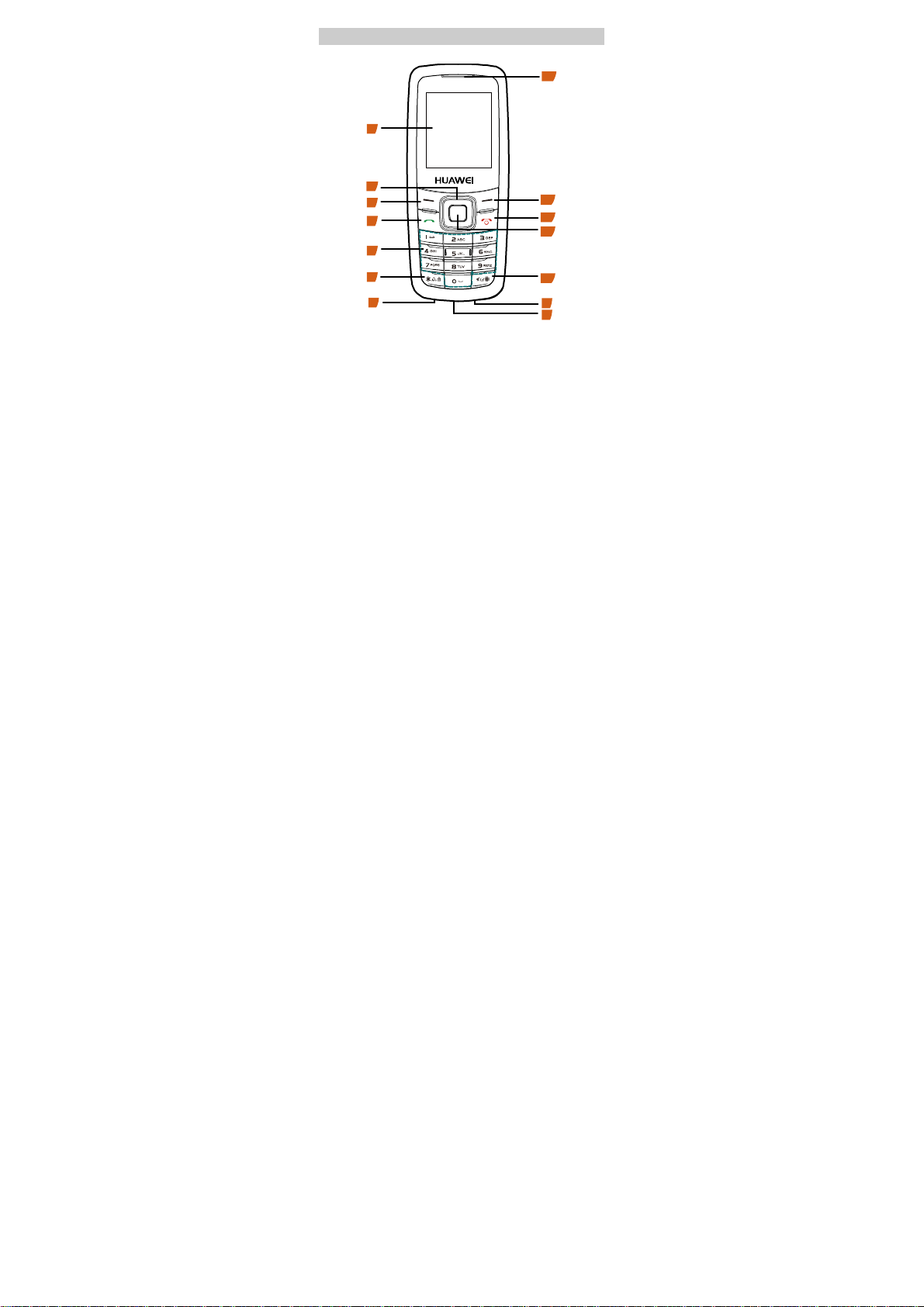
1 Screen 2 Navigation Keys
3 Left Soft Key 4 Dial Key
5 Number Keys 6 * Key
7 Microphone 8 Headset Jack
9 Charging Interface 10 # Key
11 OK Key 12 End Key
13 Right Soft Key 14 Earpiece
1
13
12
11
10
9
8
Page 2
Keys and Functions
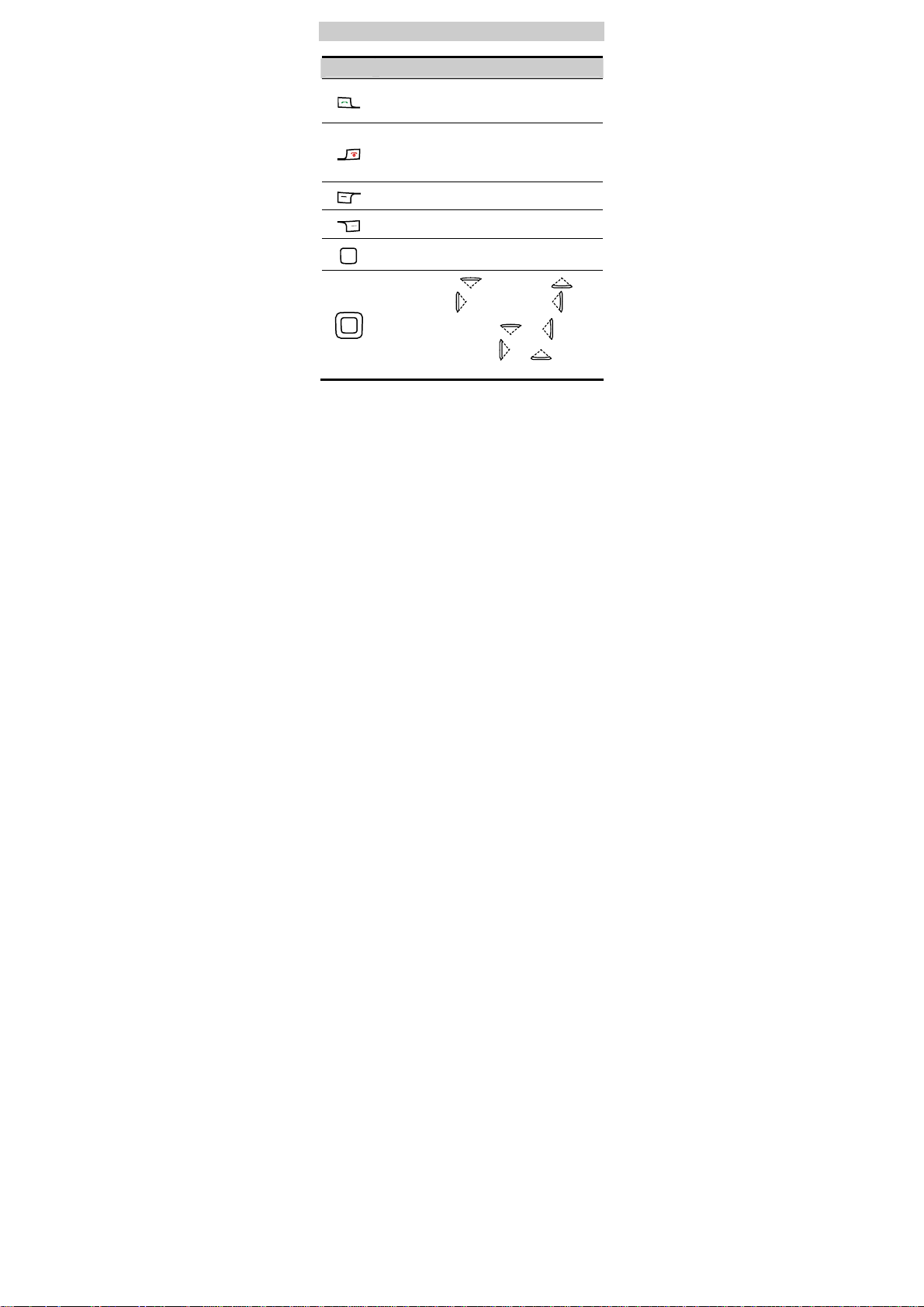
Press… To…
z
Make or answer a call.
z
View Dialed call records in the standby
mode.
z
Power on or off the phone (by pressing
and holding this key).
z
End a call or reject an incoming call.
z
Return to the standby mode.
Select the option displayed on the lower left
corner of the screen.
Select the option displayed on the lower
right corner of the screen.
z
Display the main menu in standby mode.
z
Confirm a selection.
z
Access WAP ( ), Contacts ( ),
Messaging (
z
Increase the volume ( or ) and
decrease the volume ( or ) during a
call.
), and Profiles ( ).
2
Page 3
Press… To…
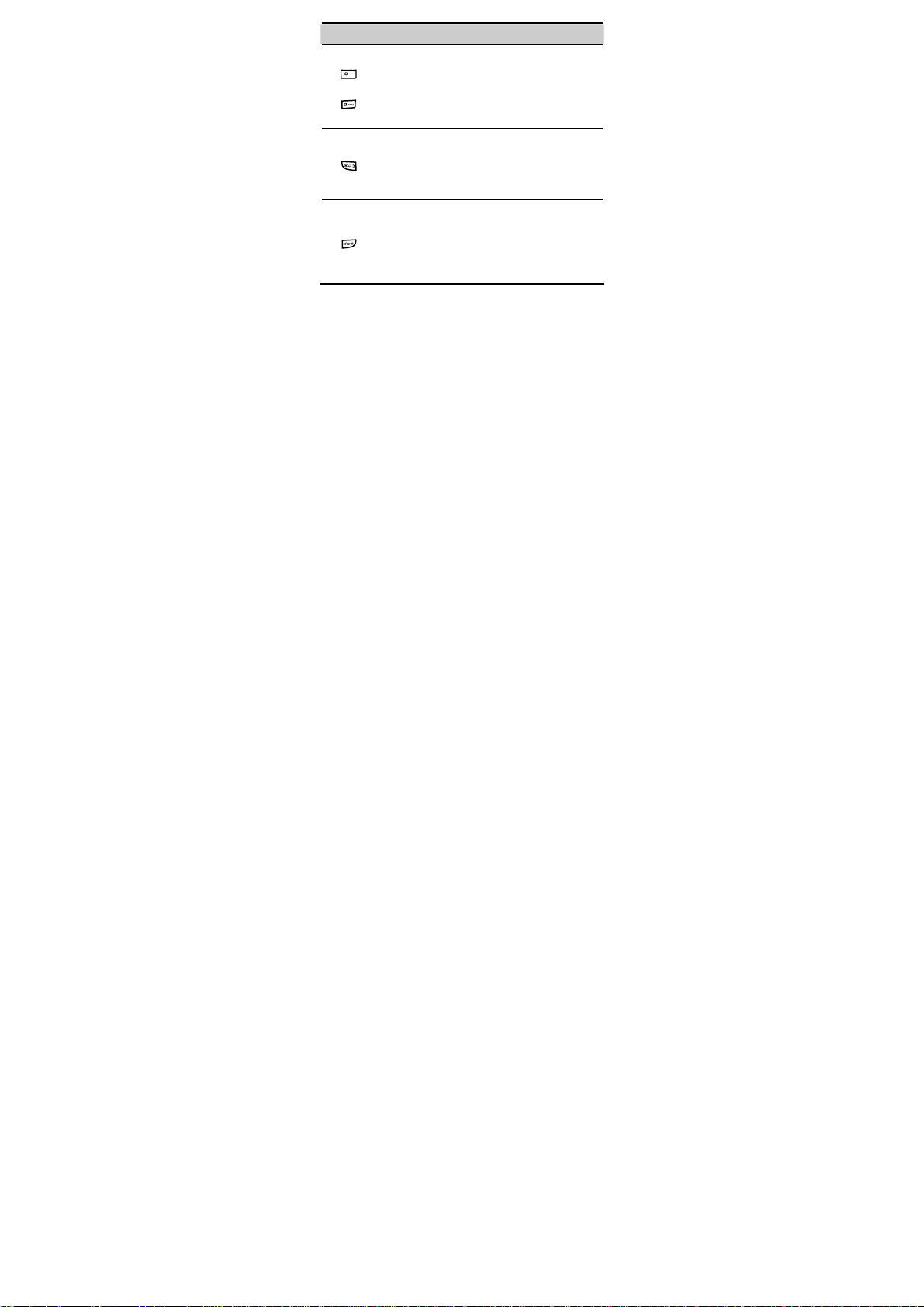
z
Enter numbers and characters.
z
Call the voice mail center in standby mode
(by pressing and holding the 1 key).
–
z
Speed dial a phone number in standby
mode (by pressing and holding the 2-9
key).
z
Enter the * symbol.
z
Lock the keypad in the standby mode (by
pressing and holding it).
z
Provide different functions according to
the phone features being used.
z
Enter the # symbol.
z
Switch between the Silent profile and the
Normal profile (by pressing and holding
it).
z
Provide different functions according to
the phone features being used.
3
Page 4
Screen Icons
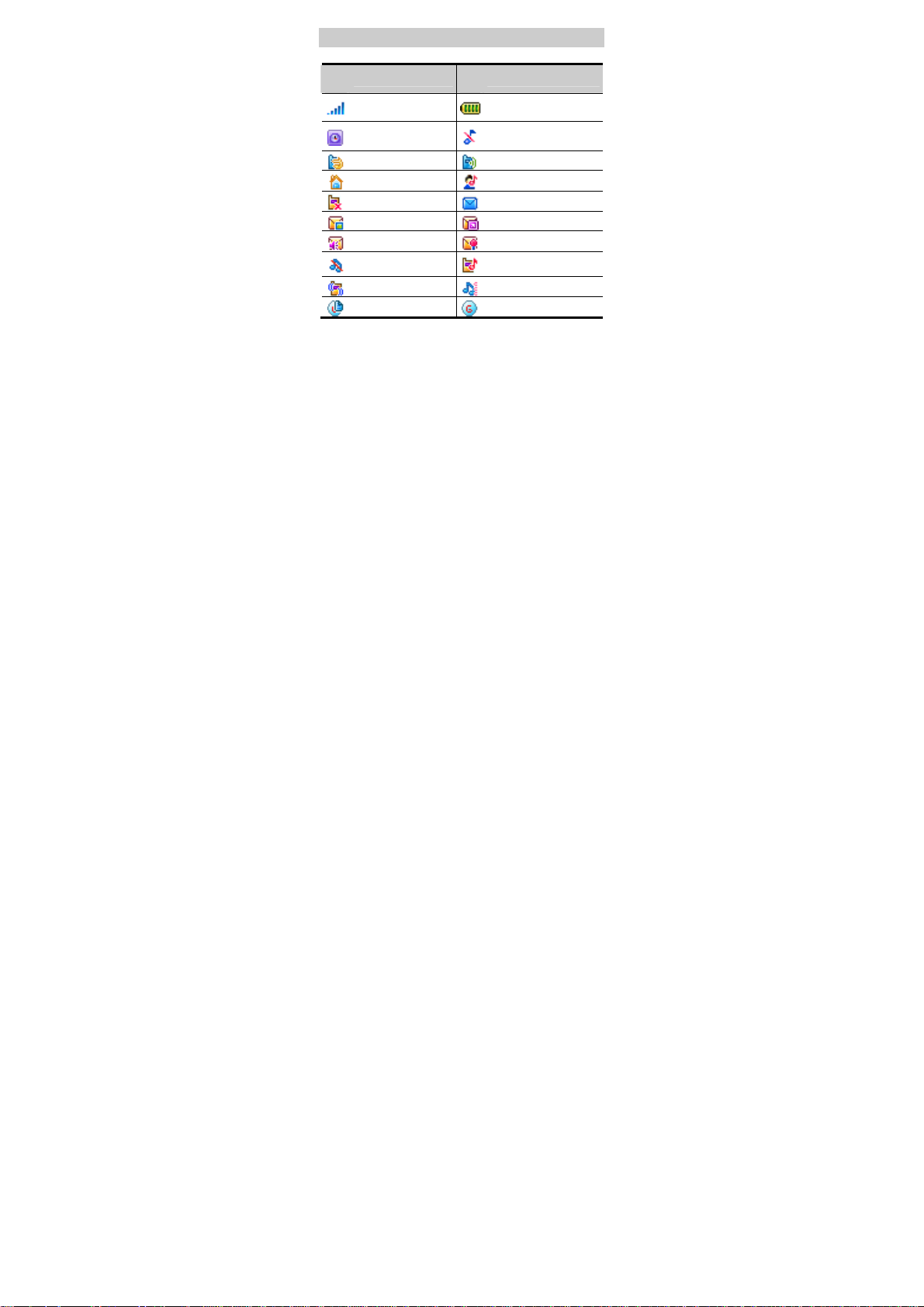
Ico
Description
n
Indicates the signal
strength.
An alarm clock is
set.
Headset Mode
Activity Mode
Missed call
MMS
Voice mail
No vibrancy
Ringtone
Vibrancy
Handset 2G PDP
Ico
Description
n
Indicates the battery
level.
Silent Mode
Normal Mode
Meeting Mode
SMS
Push messages
Broadcast message
Only Ringtone
Vibrancy Ringtone
Handset 2G
4
Page 5
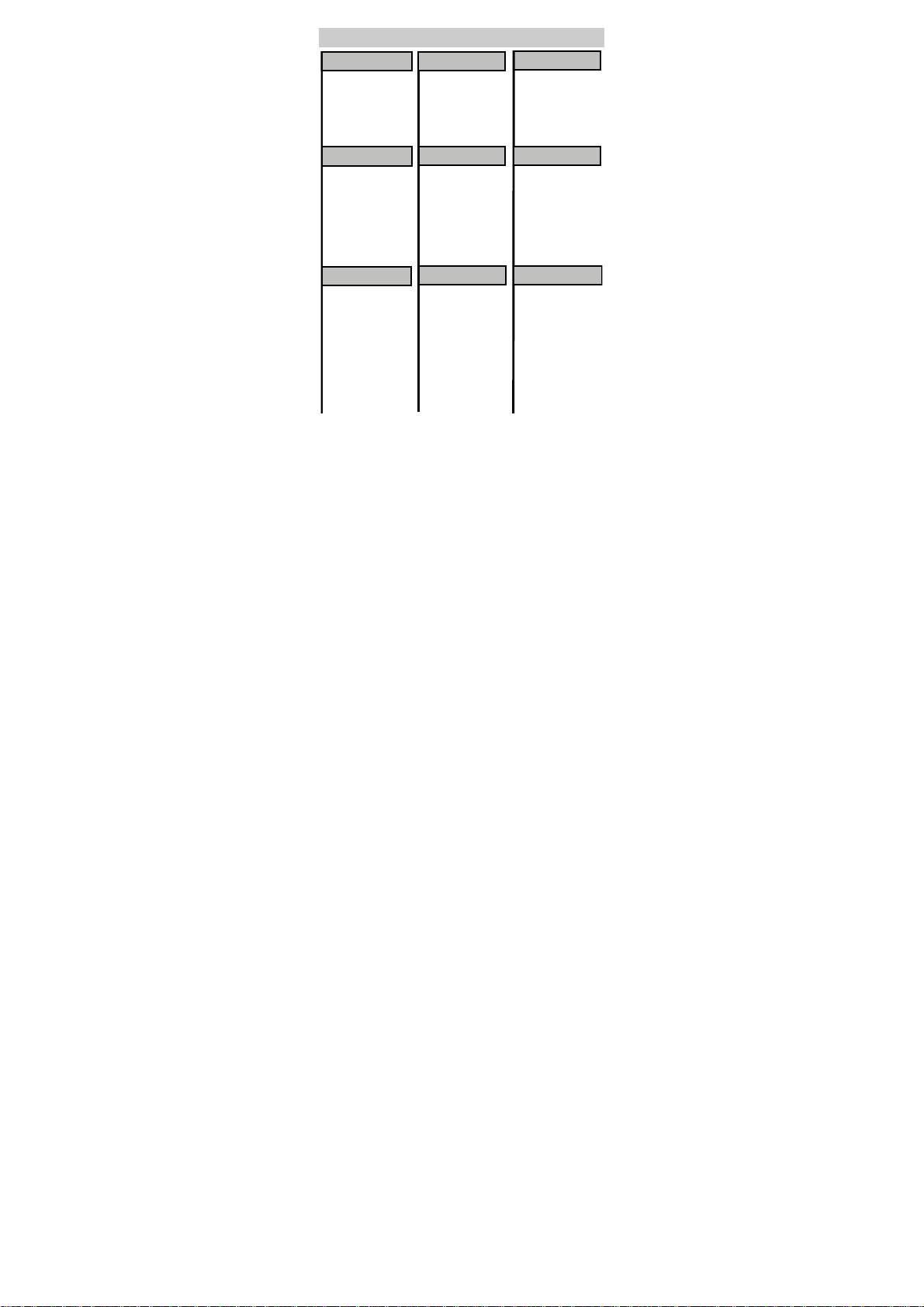
Menu Tree
Camera
Resolution
Self timer
Night mode
Image quality
Shutter tone
Go to my files
Organiser & Tools
STK
FM radio
Alarms
Calendar
Calculator
Profiles
Normal
Silent
Meeting
Activity
Headset
Internet
Homepage
Enter URL
Bookmarks
Internet settings
Messaging
Write message
SMS
MMS
Message templates
Call voice mail
Push messages
Broadcast message
Message Settings
Contacts
Add new contact
Call
Edit before call
Send SMS
Send MMS
Delete
Copy
Mark
Mark all
Settings
Memory status
5
Calls
Missed
Received
Dialed
My Files
Pictures
Ringtones
Music
Other
Memory status
Settings
Phone settings
Display settings
Message settings
Call settings
Contact se ttings
Security
Connectivity
Page 6
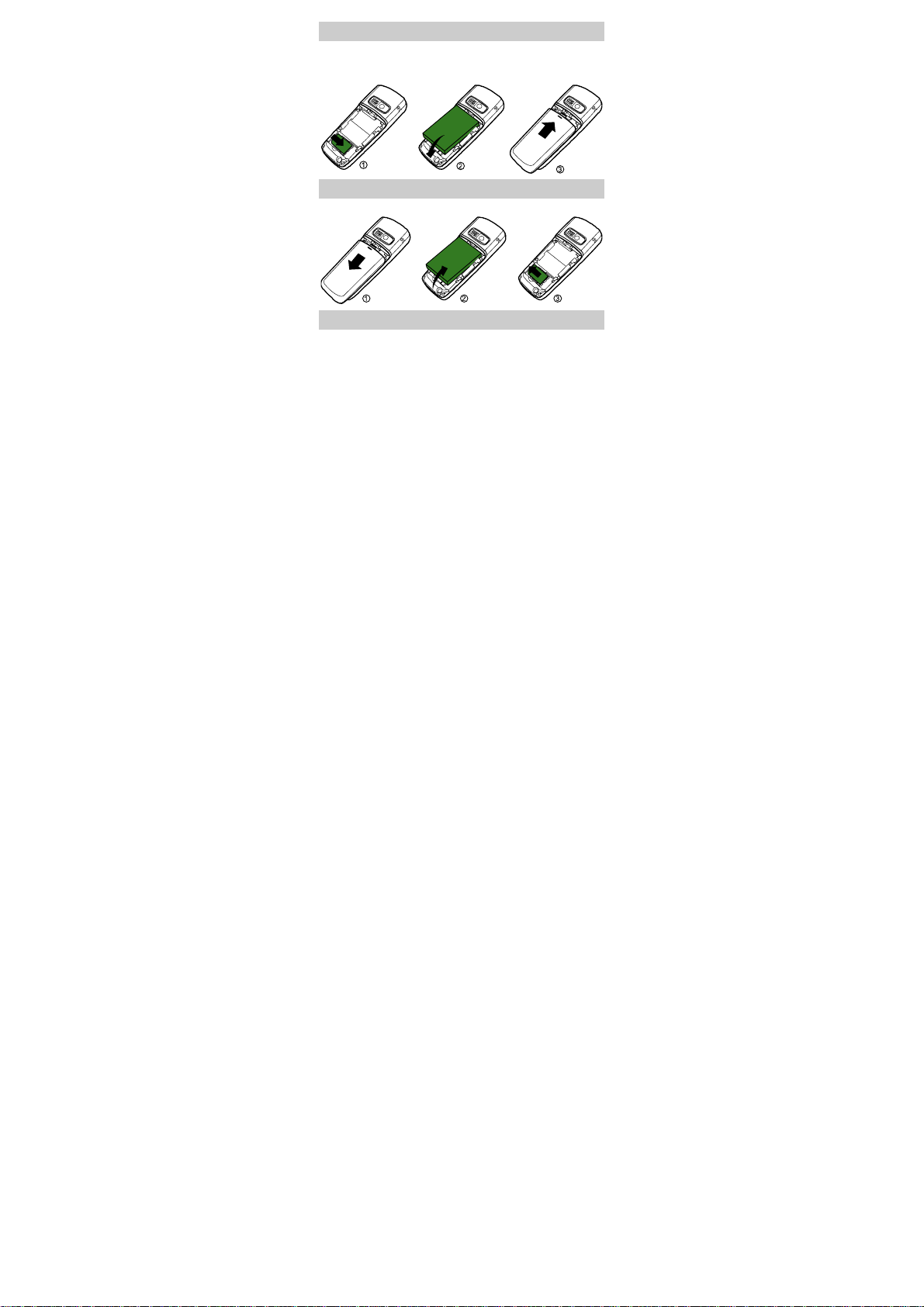
Installing the SIM Card and Battery
Make sure that the golden area of the SIM ca rd is facing
downwards and the cut-off edge is correctly aligned with
the card holder.
Removing the Battery and SIM Card
Make sure that your phone is powered off.
Charging the Battery
1. Connect the charger to the charger interface at the
bottom of your phone.
2. Connect the charger to an AC power socket.
3. During the charging process, the charging icon is in
animated status.
6
Page 7
Note When you start to charge a completely
discharged battery, the charging indicator may
appear on the screen several minutes later.
4. When the charging icon becomes static, the battery is
completely charged. Then you can disconnect the
charger from the AC power socket.
5. Disconnect the charger from the phone.
Using the Function Menu
1. In the standby mode, press (Menu) or to
display the main menu.
2. Press or or or
item, Press
(Select) or to display the
to scroll to a menu
selected menu.
3. Press or to scroll to a submenu and press
(Select) or to display the selected
submenu.
4. Press (Back) to return to the previous menu or
quit the function menu.
5. Press to return to the standby mode.
Making a Call
1. In the standby mode, enter a phone number.
z
To make an international call, press twice to
enter the international long distance code of "+".
7
Page 8

Then, enter the number to be dialed in the "country
code + region code + phone number" format.
z
To call a number with an extension, press three
times to insert "P".
2. Press to dial the number.
3. Press to end the call.
Note z When the phone is locked, enter the lock code
to unlock the phone first; otherwise, you can
only make emergency calls and answer calls.
z In the standby mode, press to view
Dialed call records. Select a record and press
to dial.
z Select a contact from the contacts and press
to dial.
z Select a message in the inbox and press
to dial.
Answering a Call
When there is an incoming call, you can press to
answer it; press
press
to reject the call. If the Any-key Answer
function is enabled, you can press any key except
and
to answer an incoming call.
(Reject) to mute the ringtone;
8
Page 9
Note If the headset is connected to the phone
properly, press the button on the headset to
answer an incoming call; press the button again
to end the call.
Activating the Loudspeaker
During a call, press (Options) and select
Speaker on/off to activate or deactivate the
loudspeaker of your phone.
PIN and PUK
The personal identification number (PIN) protects your
SIM card from unauthorized use. The PIN unlocking key
(PUK) can unblock the blocked PIN. Both PIN and PUK
are delivered with the SIM card. For details, consult your
service provider.
If you enter wrong PINs for a specified number of times
consecutively, the phone asks you to enter the PUK
code.
If you enter wrong PUKs for a specifie d number of times
consecutively, the SIM card is invalid permanently.
Contact your service provider for a new card.
Locking the Keypad
In the standby mode, press and hold to lock the
keypad. When the keypad is locked, you can still answer
an incoming call or make emergency calls by pressing
.
You can press
and to unlock the keypad.
9
Page 10
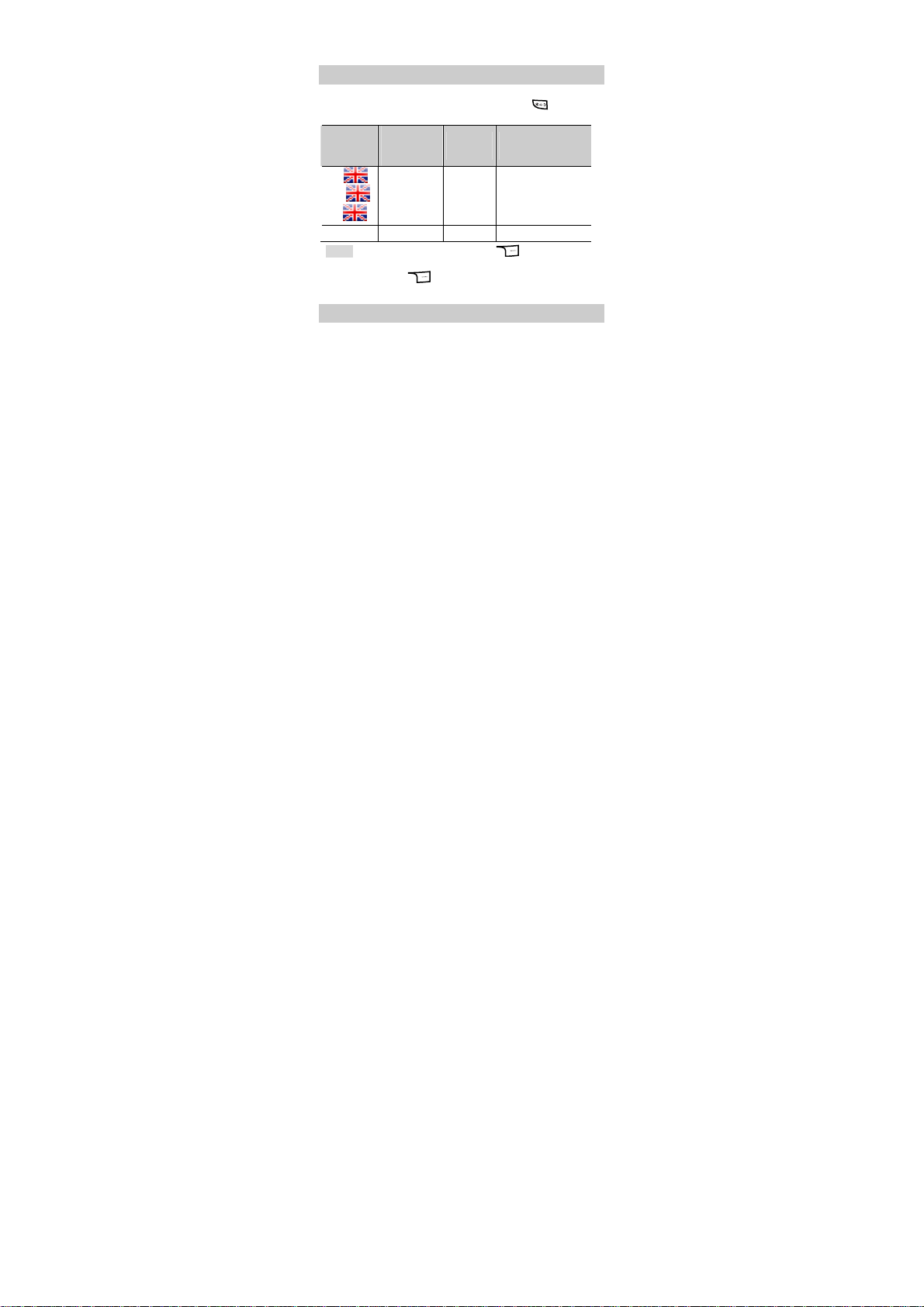
When the auto keypad lock is enabled, if there is no
operation on the phone for a preset period in the
standby mode, the keypad is locked automatically.
Changing the Text Input Modes
The indicator of the current text input mode is displayed
on the screen. In the editing mode, press
the input mode.
Indicato
r
Abc
ABC
abc
123 Numbers
Note
Text
Input
Mode
Smart
English
In the editing mode, press
delete the letter on the left of the cursor. Press
and hold
a time.
Indicat
or
Abc
ABC
abc
(Clear) to delete all the letters at
Alphabetical Text
to change
Text Input
Mode
(Clear) once to
Smart English Input
In the Smart English input mode, enter English letters as
follows:
1. Press each key only once according to the spelling
sequence of the desired word. Then the phone
displays the commonly used words according to the
numeric sequence of key presses.
10
Page 11

2.
Press or or or to scroll to the desired
word.
Alphabetical Text Input
The alphabetical text input allows you to enter
uppercase or lowercase English letters. You can press
the key labeled with the desired letter once to enter the
first letter on the key, twice to enter the second letter on
the key, and so on.
Entering Numbers
z
In "123" input mode, press number keys to enter
numbers.
z
In "Abc" input modes, press a number key repeatedly
until the number appears.
z
In "ABC ", "Abc ", "abc " input mode,
press and hold the key until the number appears.
Entering Symbols
1. In any input mode, press to display a symbol list.
2. Press or to select a symbol.
3. Press to enter the symbol.
Writing and Sending a Multimedia
Message
1. In the standby mode, select Menu
>Messaging>Write message > MMS.
11
Page 12
Enter the content of a multimedia message (MMS) in
2.
the following fields:
z
To: Names of whom the message is sent to.
z
Cc: Names of whom the message is co pied to.
z
Bcc: Names of whom the message is blind copied to.
z
Subject: The subject of the message.
z
Content: The content of the message.
Switching On the Radio
1. Insert the headset into the headset jack properly , and
keep the headset cable straight for a better effect.
2. In the standby mode, select Menu > Organiser &
tools > FM radio.
3. Press (Options) to select Automatic Tuning.
4. Press or to tune the channel.
5. Press or to adjust the volume.
Taking a photo
1. In the standby mode, select Menu > Camera to
access the camera preview mode.
2. Focus the lens on the scene and press the key to
take a photo.
3. Pictures taken will be saved in Pictures
automatically.
12
Page 13

WAP
It allows your phone to access the specified services
provided by network service providers, and allows you
to enjoy the mobile life easily. For example, you can
browse the Internet and download your favorite pictures,
ringtones, video clips, or music.
For more information about this function, consult your
service provider.
13
Page 14

Warnings and Precautions
Electronic Device
z
Power off your phone near high-precision electronic
devices. The phone may affect the performance of
these devices.
z
Such devices include hearing aids, pacemakers, fire
alarm systems, automatic gates, and other automatic
control devices. If you are using an electronic medical
device, consult the device manufacturer to confirm
whether the radio wave affects the operation of this
device.
z
Pacemaker manufacturers recommend that a
minimum separation of 15 cm be maintained between
a mobile phone and a pacemaker to avoid potential
interference with the pacemaker. To achieve this, use
the phone on the opposite ear to your pacemaker and
do not carry it in a front pocket.
Hospital
Pay attention to the following points at hospitals or
health care facilities:
z
Do not take your phone into the operating room (OR),
intensive care unit (ICU), or coronary care unit
(CCU).
z
Do not use your phone at places for medical
treatment where using a phone is prohibited.
z
When using your phone near someone who is
suffering from a heart disease, turn down the
ringtone volume or vibration properly so that it does
not affect the person.
14
Page 15

Area with Inflammables and Explosives
In any area with inflammables and explosives, power off
your phone and do not take out, install or charge the
battery, to avoid explosion and fire. Areas with
inflammables and explosives include, but are not limited
to the following:
z
Gas station
z
Area for storing fuels (such as the bunk under the
deck of a ship)
z
Device/vehicle for transporting and storing fuels or
chemical products
z
Area with chemical substances and particles (such as
granule, dust and metal powder) in the air
z
Area with the sign of "Explosives"
z
Area with the sign of "Power off bi-directional wireless
equipment"
z
Area where it is generally suggested to stop the
engine of a vehicle
Traffic Safety
z
Observe local laws and regulations on phone use. Do
not use your phone while driving to avoid traffic
accident.
z
Secure the phone on its holder. Do not place the
phone on the seat or other places where it can fall in
a jerk or collision.
z
Use the phone after the vehicle stops at a safe place.
z
If your phone supports the hands- free function, or the
phone can be used with earphones, or there is any
15
Page 16

vehicle-mounted equipment w ith hands- free function ,
use them in emergency.
z
Do not place the phone over the air bag or in the air
bag outspread area. Otherwise, the phone may hurt
you owing to the strong force when the air bag
inflates.
z
Observe the rules and regulations of airline
companies. When boarding or approaching an aircraft,
power off the phone and take out the battery. In
areas where using a phone is prohibited, power off
the phone. Otherwise, the radio signal of the phone
may interfere with the aircraft control signals. Power
off your phone before boarding an aircraft.
Storage Environment
z
Do not place magnetic storage media such as
magnetic cards and floppy disks near the phone.
Radiation from the phone may erase the information
stored on them.
z
Do not place your phone, battery, or other
accessories in containers with strong magnetic field,
such as an induction cooker and a microwave oven.
Otherwise, circuit failure, fire, or explosion may
occur.
z
Do not leave your phone, battery, or charger in a very
hot or cold place. Otherwise, malfunction of the
products, fire, or explosion may occur.
z
Keep the ambient temperature between 0℃ and 45℃
while the battery is being charge d. Keep the ambien t
temperature between –20℃ and 60℃ for storing the
battery. If the ambient temperature is too low
16
Page 17

(especially below 0℃) or too high, the capacity and
life of the battery will be reduced.
z
Do not place sharp metal objects such as pins near
the earpiece. The earpiece may attract these objects
that can hurt you when you are using the phone.
z
Do not subject your phone, battery, and charger to
serious collision or shock. Otherwise, battery leakage,
phone malfunction, overheat, fire, or explosion may
occur.
z
Do not put your phone in the back pocket of your
trousers or skirt, to avoid phone damage while
seated.
Children Safety
z
Put your phone, battery, and charger at places
beyond the reach of children. Do not allow childre n to
use the phone, battery, or charger without guidance.
z
Do not allow children to put the battery in mouth, for
electrolyte in the battery is poisonous.
z
Do not allow children to touch the small fittings.
Otherwise, suffocation or gullet jam can be caused if
children swallow the small fittings.
Operating Environment
z
The phone, battery, and charger are not
water-resistant. Keep them dry. Protect the phone,
battery and charger from water or vapor. Do not
touch the phone with a wet hand. Otherwise,
short-circuit and malfunction of the product or
electric shock may occur.
17
Page 18

z
Do not use the phone in dusty, damp and dirty places
or places with magnetic field. Otherwise, malfunction
of the circuit may occur.
z
Do not powe r on or of f the phone when it is near your
ears to avoid negative impact on your health.
z
When carrying or using the phone, keep th e an ten na
at least one inch (2.5 cm) away from your body, to
avoid negative impact on your health caused by radio
frequency leakage.
z
If you feel uncomfortable (such as falling sick or
qualm) after playing games on your phone for a long
time, consult a doctor immediately.
z
On a thunder and stormy day, do not use your phone
outdoors or when it is being charged.
z
Do not touch the antenna when a call is going on.
Touching the antenna may affect call quality and
cause the phone to operate with more power. As a
result, the talk time and standby time are shortened.
z
The phone may interfere with nearby TV sets, radios
and PCs.
z
In accordance with international standards for radio
frequency and radiation, use phone accessories
approved by the manufacturer only.
z
While using the mobile phone, observe the loc al laws
and regulations, and respect others' privacy and legal
rights.
Clearing and Maintenance
z
Before you clean or maintain the phone, power off the
phone and disconnect it from the charger. Otherwise,
18
Page 19

electric shock or short-circuit of the battery or
charger may occur.
z
Do not use any chemical detergent, powder, or other
chemical agent (such as alcohol and benzene) to
clean the phone and the charger. Otherwise, part
damage or a fire can be caused. You can clean the
phone and the charger with a piece of soft antistatic
cloth that is a little wet.
z
Do not scratch the shell of the phone. Otherwise, the
shed coating may cause skin allergy. Once it happens,
stop using the phone at once and go to see a doctor.
z
Keep the plug dry when you clean it, to prevent fire.
z
If the phone or any of its fittings does not work, turn
to the locally authorized service center for help.
z
Do not dismantle the mobile phone or accessories.
Only an authorized service center is allowed to
maintain the mobile phone.
Environment Protection
z
Please observe the local regulations regarding the
disposal of your packaging materials, exhausted
battery and old phone, and please promote their
recycling. Do not dispose of exhausted battery or old
phone in municipal waste or fire. Otherwise,
explosion may occur.
z
This HUAWEI device complies with Directive
2002/95/EC on the restriction of the use of certain
hazardous substances in electrical and electronic
equipment.
19
Page 20

z
: This symbol indicates that the equipment
carrying this mark must not be thrown into general
waste but should be collected separately and prop erly
recycled under local regulations.
Emergency Call
You can use your phone for emergency calls. However,
connections in all conditions cann ot be guaran teed. Y ou
should never rely solely on the phone for essential
communications.
Battery
z
Use the battery approved by the manufacturer only.
Otherwise, explosion may occur.
z
Do not dispose of the battery in fire. Otherwise, the
battery may ignite or explode.
z
Do not connect two poles of the battery with
conductors such as cables, jewelries or any other
metal material. Otherwise, the battery is
short-circuited and it may burn your body.
z
Do not disassemble the battery or solder the battery
poles. Otherwise, fluid leakage, overheat, fire, or
explosion may occur.
z
If there is battery leakage, smoke, or strange smell,
stop using the battery and keep it away from open
flame to avoid fire or explosion. Then turn to an
authorized maintenance engineer for help.
z
If the battery fluid contacts your skin or cloth, wash
with clean water immediately to avoid irritation to the
skin.
20
Page 21

z
If the battery fluid gets into eyes, do not rub your
eyes. Otherwise, your eyes can be hurt. Wash with
clean water and go to see a doctor immediately.
z
If there is battery deformation, color change or
abnormal heating while you charge or store the
battery, take it out immediately and stop using it.
Otherwise, battery leakage, overheat, explosion, or
fire may occur.
z
When installing the battery, do not push the battery
by force lest battery fluid leaks out or the battery
cracks.
z
Do not take out the battery when the phone is tu rned
on.
z
If you do not use the battery for a long time, store it
in normal temperature after being charged.
Charger
z
Use the charger approved by the phone manufacturer
only. Any violation of this rule may result in fire or
malfunction of the charger.
z
Do not short-circuit the charger. Short-circuiting the
charger may cause fire or malfunction of the charger.
z
If the power cord is damaged (for example, the lead is
exposed or broken), or the plug becomes loose , s top
using the cable at once. Otherwise, electric shock,
short-circuit of the charger, or fire may occur.
z
Keep the charger dry. Once water or other liq uid leaks
into the charger, electrical leakage or other faults
may occur.
21
Page 22

z
Do not use the charger in a dusty and damp
environment. Keep the power cord away from any
heating appliance.
z
Ensure the charger is properly plugged into the power
socket when charging the battery. Improper insertion
may result in electric shock, fire, or explosion. To
unplug the charger, pull the plug off rather than tear
the power cord.
z
Use the AC power supply defined in the specifications
of the charger. An improper power voltage can cause
fire or malfunction of the charger.
z
Do not place any heavy object on the power cord of
the charger. Do not damage, change, or pluck the
power cord. Otherwise electric shock or fire may
occur.
z
When you are charging the battery with the charger,
do not touch the plug, power cord or the charger with
a wet hand. Otherwise, electric shock can be caused.
z
Once the liquid such as water leaks into the charger,
remove the plug of the charger from the socket
immediately. Otherwise, overheating, fire and other
malfunction may occur.
Certification Information (SAR)
THIS DEVICE MEETS THE GOVERNMENT'S
REQUIREMENTS FOR EXPOSURE TO RADIO FREQUENCY
ELECTROMAGNETIC FIELD.
Your mobile phone is a low-power radio transmitter and
receiver. When it is turned on, it emits low levels of radio
frequency energy (also known as radio waves or radio
frequency fields).
22
Page 23

Governments around the world have adopted
comprehensive international safety guidelines,
developed by scientific organizations, e.g. ICNIRP
(International Commission on Non-Ionizing Radiation
Protection) and IEEE (Institute of Electrical and
Electronics Engineers Inc.), through periodic and
thorough evaluation of scientific studies. These
guidelines establish permitted levels of radio wave
exposure for the general population. The levels inc lude a
safety margin designed to assure the safety of all
persons, regardless of age and health, and to account
for any variations in measurements.
Specific Absorption Rate (SAR) is the unit of
measurement for the amount of radio frequency energy
absorbed by the body when using a mobile phone. The
SAR value is determined at the highest certified power
level in laboratory conditions, but the actual SAR level of
the mobile phone while operating can be well b elow the
value. This is because the mobile phone is designed to
use the minimum power required to reach the network.
All models of Huawei’s mobile phone are designed to
meet radio frequency exposure guidelines. Before a
phone model is available for sale to the public, it must be
tested and certified to the FCC that it does not exceed
the limit established by the government-adopted
requirement for safe exposure. The tests are performed
in positions and locations (that is, at the ear and worn on
the body) as required by the FCC for each model. For
body worn operation, this phone has been tested and
meets FCC RF exposure guidelines when the handset is
positioned a minimum of 20 mm from the body with an
accessory that contains no metal part. Use of other
23
Page 24

accessories may not ensure compliance with FCC RF
exposure guidelines.
The SAR limit adopted by the USA and Canada is 1.6
watts/kilogram (W/kg) averaged over one gram of
tissue. The highest SAR value reported to the FCC and
IC for this device type when tested for use at the ear is
1.340 W/kg, and when properly worn on the body is
1.050 W/kg.
The SAR limit adopted by the CNIRP is 2.0 W/kg over
one gram of tissue. The value guarantees a safe
distance to protect mobile phone users and the
difference caused by measurement errors. Under
different test requirements and frequency, the value
varies.
Statement
This equipment has been tested and found to comply
with the limits for a Class B digital device, pursuant to
Part 15 of the FCC Rules. These limits are designed to
provide reasonable protection against harmful
interference in a residential installation. Operation is
subject to the condition that this device does not cause
harmful interface.
This equipment generates, uses and can radiate radio
frequency energy and, if not installed and used in
accordance with the instructions, may cause harmful
interference to radio communications. However, there is
no guarantee that interference will not occur in a
particular installation. If this equipment does cause
harmful interference to radio or television reception,
which can be determined by turning the equipment off
24
Page 25

and on, the user is encouraged to try to correct the
interference by one or more of the following measures:
z
Reorient or relocate the receiving antenna.
z
Increase the separation between the equipment and
receiver.
z
Connect the equipment into an outlet on a circuit
different from that to which the receiver is connec ted.
z
Consult the dealer or an experienced radio/TV
technician for help.
NOTICE:
This device complies with Part 15 of the FCC Rules [and
with RSS-210 of Industry Canada].
Operation is subject to the following two conditions:
Changes or modifications made to this equipment not
expressly approved by (manufacturer name) may void
the FCC authorization to operate this equipment.
Warning: Changes or modifications made to this
equipment not expressly approved by HUAWEI may void
the FCC authorization to operate this equipment.
(1) this device may not cause harmful
interference, and
(2) this device must a ccept any
interference received, including
interference that may cause undesired
operation.
25
 Loading...