

Page 1
Quidway S2700&S3700&S5700&S6700 Series
Ethernet Switches
V100R006C01
Quick Start
Issue 01
Date 2011-10-26
HUAWEI TECHNOLOGIES CO., LTD.
Page 2

Copyright © Huawei Technologies Co., Ltd. 2011. All rights reserved.
No part of this document may be reproduced or transmitted in any form or by any means without prior written
consent of Huawei Technologies Co., Ltd.
Trademarks and Permissions
and other Huawei trademarks are trademarks of Huawei Technologies Co., Ltd.
All other trademarks and trade names mentioned in this document are the property of their respective holders.
Notice
The purchased products, services and features are stipulated by the contract made between Huawei and the
customer. All or part of the products, services and features described in this document may not be within the
purchase scope or the usage scope. Unless otherwise specified in the contract, all statements, information,
and recommendations in this document are provided "AS IS" without warranties, guarantees or representations
of any kind, either express or implied.
The information in this document is subject to change without notice. Every effort has been made in the
preparation of this document to ensure accuracy of the contents, but all statements, information, and
recommendations in this document do not constitute the warranty of any kind, express or implied.
Huawei Technologies Co., Ltd.
Address: Huawei Industrial Base
Bantian, Longgang
Shenzhen 518129
People's Republic of China
Website: http://www.huawei.com
Email: [email protected]
Issue 01 (2011-10-26) Huawei Proprietary and Confidential
Copyright © Huawei Technologies Co., Ltd.
i
Page 3
About This Document
Intended Audience
This document describes how to verify basic functions of the S2700, S2752, S3700, S5700, and
S6700 during the deployment to ensure stable and reliable running of the S2700, S2752, S3700,
S5700, and S6700 on the network.
This document is intended for:
l Data configuration engineers
l Commissioning engineers
l Network monitoring engineers
l System maintenance engineers
Symbol Conventions
The symbols that may be found in this document are defined as follows.
Symbol
Description
DANGER
Indicates a hazard with a high level of risk, which if not
avoided, will result in death or serious injury.
WARNING
Indicates a hazard with a medium or low level of risk, which
if not avoided, could result in minor or moderate injury.
CAUTION
Indicates a potentially hazardous situation, which if not
avoided, could result in equipment damage, data loss,
performance degradation, or unexpected results.
TIP
Indicates a tip that may help you solve a problem or save
time.
NOTE
Provides additional information to emphasize or supplement
important points of the main text.
Quidway S2700&S3700&S5700&S6700 Series Ethernet
Switches
Quick Start About This Document
Issue 01 (2011-10-26) Huawei Proprietary and Confidential
Copyright © Huawei Technologies Co., Ltd.
ii
Page 4
Command Conventions
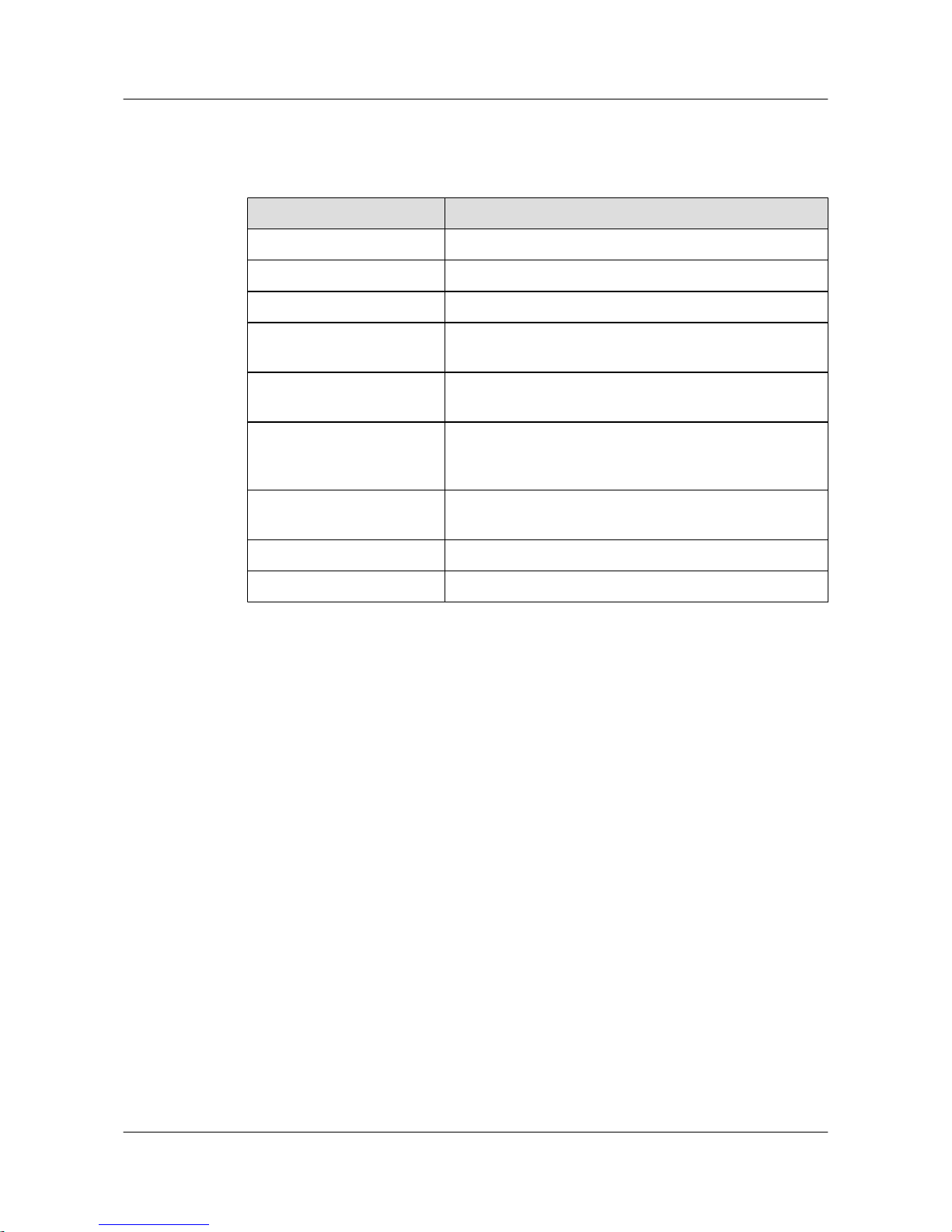
The command conventions that may be found in this document are defined as follows.
Convention Description
Boldface The keywords of a command line are in boldface.
Italic Command arguments are in italics.
[ ] Items (keywords or arguments) in brackets [ ] are optional.
{ x | y | ... } Optional items are grouped in braces and separated by
vertical bars. One item is selected.
[ x | y | ... ] Optional items are grouped in brackets and separated by
vertical bars. One item is selected or no item is selected.
{ x | y | ... }
*
Optional items are grouped in braces and separated by
vertical bars. A minimum of one item or a maximum of all
items can be selected.
[ x | y | ... ]
*
Optional items are grouped in brackets and separated by
vertical bars. Several items or no item can be selected.
&<1-n> The parameter before the & sign can be repeated 1 to n times.
# A line starting with the # sign is comments.
Change History
Updates between document issues are cumulative. Therefore, the latest document issue contains
all changes made in previous issues.
Changes in Issue 01 (2011-10-26)
Initial commercial release.
Quidway S2700&S3700&S5700&S6700 Series Ethernet
Switches
Quick Start About This Document
Issue 01 (2011-10-26) Huawei Proprietary and Confidential
Copyright © Huawei Technologies Co., Ltd.
iii
Page 5

Contents
About This Document.....................................................................................................................ii
1 Overview.........................................................................................................................................1
2 Product Hardware Introduction..................................................................................................2
2.1 S2700 Introduction.............................................................................................................................................3
2.2 S3700 Introduction.............................................................................................................................................5
2.3 S5700 Introduction.............................................................................................................................................8
2.4 S6700 Introduction...........................................................................................................................................12
2.5 S2700 Indicator Description.............................................................................................................................13
2.6 S3700 Indicator Description.............................................................................................................................17
2.7 S5700 Indicator Description.............................................................................................................................24
2.8 S6700 Indicator Description.............................................................................................................................34
3 Device Installation......................................................................................................................38
4 Powering on the Device.............................................................................................................39
4.1 Checking Before Power-on..............................................................................................................................40
4.2 Powering on the Device....................................................................................................................................44
4.3 Checking After Power-on.................................................................................................................................44
5 Logging in to the Device............................................................................................................46
5.1 Logging In to the Switch Through the Console Interface................................................................................47
5.2 Example for Configuring to Manage the SwitchThrough Telnet.....................................................................50
5.3 Logging In to the Web System Client..............................................................................................................53
6 Service Deployment....................................................................................................................55
7 Where to Obtain Documentation.............................................................................................56
Quidway S2700&S3700&S5700&S6700 Series Ethernet
Switches
Quick Start Contents
Issue 01 (2011-10-26) Huawei Proprietary and Confidential
Copyright © Huawei Technologies Co., Ltd.
iv
Page 6
1 Overview
This section provides an overview of quick start.
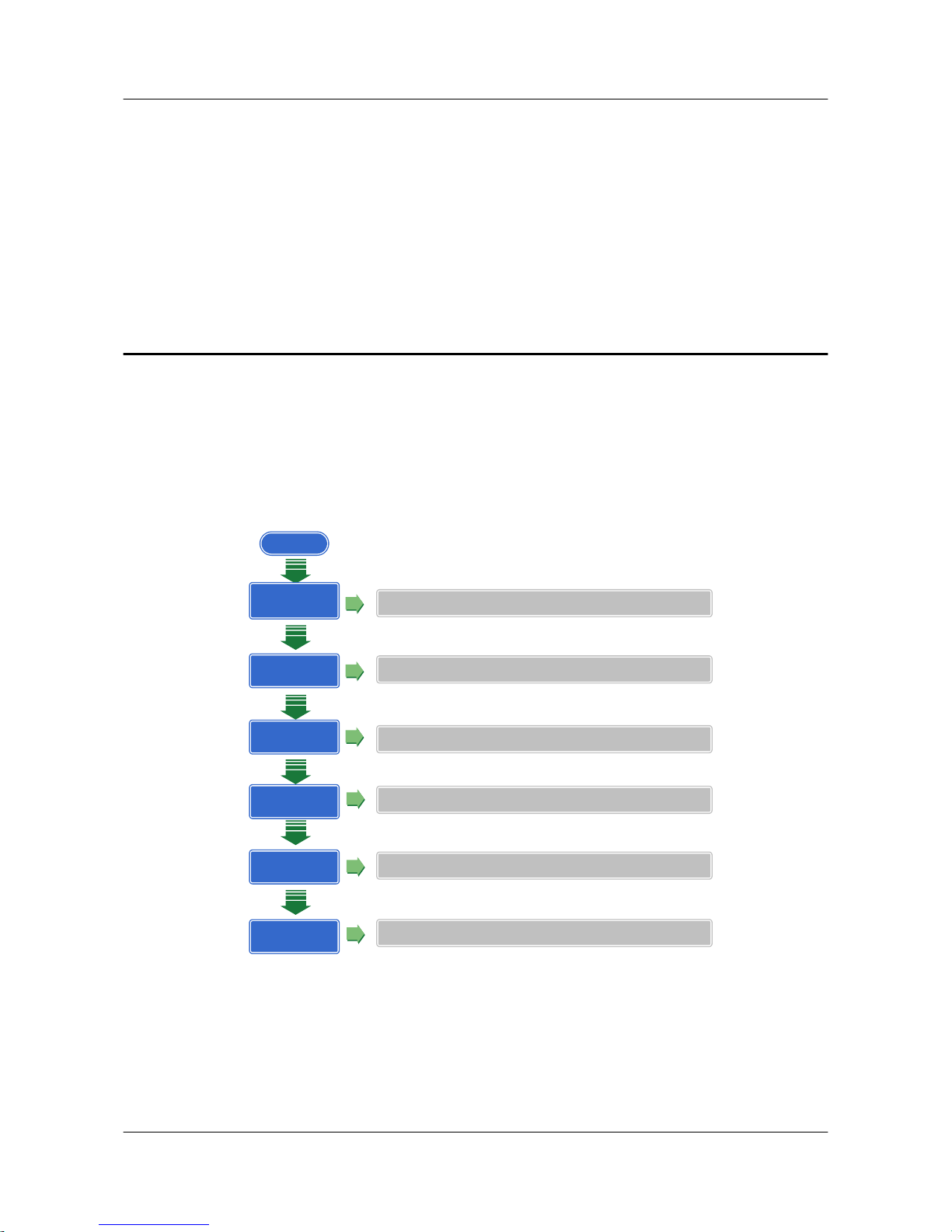
This document helps you quickly learn how to use the S2700/3700/5700/6700. Figure 1-1 shows
the quick start contents.
Figure 1-1 Quick start contents
Start
Product Hardware
Introduction
Describes switch models and Indicators on each model
Device Installation
Provides reference for device installation
Powering on the
Device
Logging in to the
Device
Describes precautions to take before and after you power on a switch
Describes how to log in to a switch
Service
Deployment
Provides reference for deploying services on a switch
Obtaining
Documentation
Helps you obtain product documentation quickly
Quidway S2700&S3700&S5700&S6700 Series Ethernet
Switches
Quick Start 1 Overview
Issue 01 (2011-10-26) Huawei Proprietary and Confidential
Copyright © Huawei Technologies Co., Ltd.
1
Page 7

2 Product Hardware Introduction
About This Chapter
This section describes models and indicators of low-end switches.
2.1 S2700 Introduction
This section describes S2700 models.
2.2 S3700 Introduction
This section describes S3700 models.
2.3 S5700 Introduction
This section describes S5700 models.
2.4 S6700 Introduction
This section describes S6700 models.
2.5 S2700 Indicator Description
2.6 S3700 Indicator Description
This section describes the indicators on the S3700 front panel.
2.7 S5700 Indicator Description
This section describes the indicators on the S5700 front panel.
2.8 S6700 Indicator Description
This section describes the indicators on the S6700 front panel.
Quidway S2700&S3700&S5700&S6700 Series Ethernet
Switches
Quick Start 2 Product Hardware Introduction
Issue 01 (2011-10-26) Huawei Proprietary and Confidential
Copyright © Huawei Technologies Co., Ltd.
2
Page 8
2.1 S2700 Introduction
This section describes S2700 models.
Device Models
To meet diverse customer requirements, the S2700 provides a variety of models. Table 2-1 lists
these device models.
You can select a device model as required.
Table 2-1 Device models
Produ
ct
Series
Model Maximum Number of Interfaces
S2700 S2700-9TP-SI-AC
S2700-9TP-EI-AC
S2700-9TP-EI-DC
9
There are eight 10/100BASE-T Ethernet interfaces
and one GE combo interface (10/100/1000BASE-T
+100/1000BASE-X).
S2700-18TP-SI-AC
S2700-18TP-EI-AC
18
There are sixteen 10/100BASE-T Ethernet interfaces
and two GE combo interfaces (10/100/1000BASE-T
+100/1000BASE-X).
S2700-26TP-SI-AC
S2700-26TP-EI-AC
S2700-26TP-EI-DC
26
There are twenty-four 10/100BASE-T Ethernet
interfaces and two GE combo interfaces
(10/100/1000BASE-T+100/1000BASE-X).
S2700-52P-EI-AC 52
There are forty-eight 10/100BASE-T Ethernet
interfaces, two 100/1000BASE-X Ethernet optical
interfaces, and two GE SFP interfaces.
S2700-9TP-PWR-EI 9
There are eight 10/100BASE-T Ethernet interfaces
and one GE combo interface (10/100/1000BASE-T
+100/1000BASE-X).
S2700-26TP-PWR-EI 26
There are twenty-four 10/100BASE-T Ethernet
interfaces and two GE combo interfaces
(10/100/1000BASE-T+100/1000BASE-X).
Quidway S2700&S3700&S5700&S6700 Series Ethernet
Switches
Quick Start 2 Product Hardware Introduction
Issue 01 (2011-10-26) Huawei Proprietary and Confidential
Copyright © Huawei Technologies Co., Ltd.
3
Page 9
Naming Rules
The following are the naming rules of the S2700-26TP-PWR-EI, S2700-52P-EI, and
S2700-9TP-SI.
Figure 2-1 Naming rules
Quidway S2700-26TP-PWR-EI
A B C D E F G
Quidway S2700-52P-EI-AC
D E G
Quidway S2700-9TP-SI
D E G
I
Ide
ntifi
er
Description
A Product brand.
B Switch.
C Product series. "23" indicates the S2700 series.
D Maximum number of interfaces.
NOTE
The number of interfaces on an S2700 can be 9, 18, 26, or 52, depending on the device model.
E Uplink interface type:
l P: A device has optical interfaces.
l TP: A device has combo interfaces supporting optical and electrical interfaces.
F The S2700 supports Power over Ethernet (PoE).
NOTE
If this letter is not displayed, PoE is not supported.
G Software version type:
l EI: enhanced version, supporting enhanced features
l SI: standard version, supporting basic features
Quidway S2700&S3700&S5700&S6700 Series Ethernet
Switches
Quick Start 2 Product Hardware Introduction
Issue 01 (2011-10-26) Huawei Proprietary and Confidential
Copyright © Huawei Technologies Co., Ltd.
4
Page 10
Ide
ntifi
er
Description
I Powering mode:
l AC: alternating current power
l DC: direct current power
2.2 S3700 Introduction
This section describes S3700 models.
Device Models
To meet diverse customer requirements, the S3700 provides a variety of models. Table 2-2 lists
these device models.
You can select a device model as required.
Table 2-2 Device models
Produ
ct
Series
Model Maximum Number of Interfaces
S3700 S3700-28TP-SI-AC
S3700-28TP-SI-DC
S3700-28TP-EI-AC
S3700-28TP-EI-DC
S3700-28TP-EI-MC-AC
28
There are twenty-four 10/100BASE-T Ethernet
interfaces, two 100/1000BASE-X Ethernet optical
interfaces, and two GE combo interfaces
(10/100/1000BASE-T+100/1000BASE-X).
S3700-28TP-EI-24S-AC 28
There are twenty-four 100BASE-X Ethernet
interfaces, two 100/1000BASE-X Ethernet optical
interfaces, and two GE combo interfaces
(10/100/1000BASE-T+100/1000BASE-X).
S3700-52P-SI-AC
S3700-52P-EI-AC
S3700-52P-EI-DC
52
There are forty-eight 10/100BASE-T Ethernet
interfaces, two 100/1000BASE-X Ethernet optical
interfaces, and two GE SFP interfaces.
S3700-52P-EI-24S-AC
S3700-52P-EI-24S-DC
52
There are twenty-four 10/100BASE-T Ethernet
interfaces, twenty-four 100BASE-X Ethernet
interfaces, two 100/1000BASE-X Ethernet optical
interfaces, and two GE SFP interfaces.
Quidway S2700&S3700&S5700&S6700 Series Ethernet
Switches
Quick Start 2 Product Hardware Introduction
Issue 01 (2011-10-26) Huawei Proprietary and Confidential
Copyright © Huawei Technologies Co., Ltd.
5
Page 11
Produ
ct
Series
Model Maximum Number of Interfaces
S3700-52P-EI-48S-AC
S3700-52P-EI-48S-DC
52
There are forty-eight 100BASE-X Ethernet
interfaces, two 100/1000BASE-X Ethernet optical
interfaces, and two GE SFP interfaces.
S3700-28TP-PWR-EI 28
There are twenty-four 10/100BASE-T Ethernet
interfaces, two 100/1000BASE-X Ethernet optical
interfaces, and two GE combo interfaces
(10/100/1000BASE-T+100/1000BASE-X).
S3700-52P-PWR-EI 52
There are twenty-four 10/100BASE-T Ethernet
interfaces, twenty-four 100BASE-X Ethernet
interfaces, two 100/1000BASE-X Ethernet optical
interfaces, and two GE SFP interfaces.
S3700-26C-HI 26
There are twenty-two 10/100BASE-T Ethernet
interfaces, two GE combo interfaces
(10/100/1000BASE-T+100/1000BASE-X), and two
interfaces on the front subcard.
Naming Rules
The following are the naming rules of the S3700-28TP-PWR-EI, S3700-52P-EI-24S,
S3700-28TP-EI-MC, S3700-28TP-SI and S3700-26C-HI.
Quidway S2700&S3700&S5700&S6700 Series Ethernet
Switches
Quick Start 2 Product Hardware Introduction
Issue 01 (2011-10-26) Huawei Proprietary and Confidential
Copyright © Huawei Technologies Co., Ltd.
6
Page 12
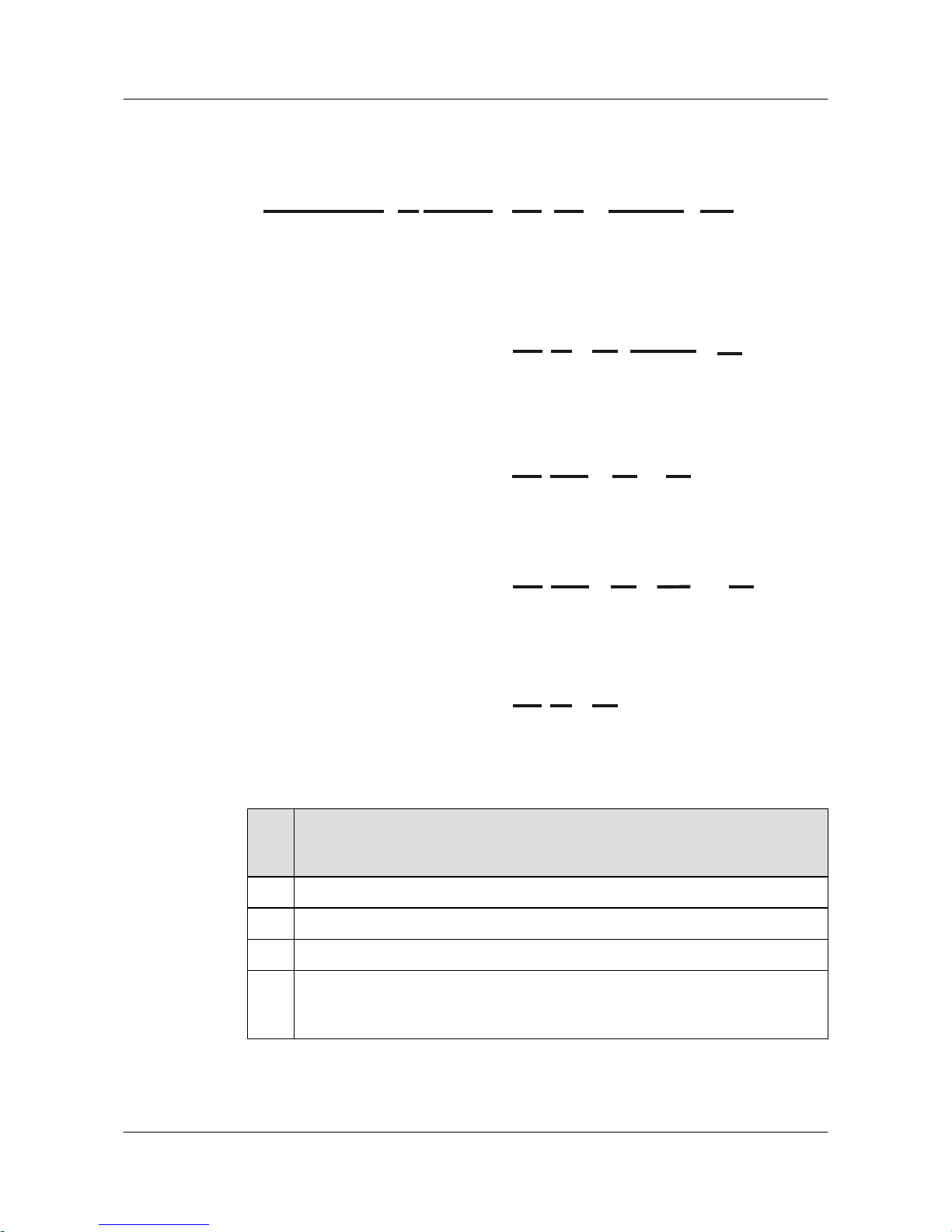
Figure 2-2 Naming rules
Quidway S3700-26C-HI
D E G
Quidway S3700-28TP-PWR-EI
A B C D E F G
Quidway S3700-52P-EI-24S-DC
HD E G
I
Quidway S3700-28TP-SI-AC
D E G
I
Quidway S3700-28TP-EI-MC-AC
D E G J
I
Ide
ntifi
er
Description
A Product brand.
B Switch.
C Product series. "37" indicates the S3700 series.
D Maximum number of interfaces.
NOTE
The number of interfaces on an S3700 can be 26, 28, or 52, depending on the device model.
Quidway S2700&S3700&S5700&S6700 Series Ethernet
Switches
Quick Start 2 Product Hardware Introduction
Issue 01 (2011-10-26) Huawei Proprietary and Confidential
Copyright © Huawei Technologies Co., Ltd.
7
Page 13

Ide
ntifi
er
Description
E Uplink interface type:
l P: A device has optical interfaces.
l TP: A device has combo interfaces supporting optical and electrical interfaces.
l C: A device supports interface cards. There can be two or four uplink interfaces
on an interface subcard.
F The S3700 supports Power over Ethernet (PoE).
NOTE
If this letter is not displayed, PoE is not supported.
G Software version type:
l EI: enhanced version, supporting enhanced features
l SI: standard version, supporting basic features
l HI: advanced version, supporting high-performance Operation, Administration,
and Maintenance (OAM) and built-in real-time clock (RTC)
H Downlink interface type. The value 24S indicates that 24 downlink interfaces of the
S3700-52P-EI-24S are optical interfaces.
NOTE
If this letter is not displayed, all downlink interfaces are electrical interfaces.
I Powering mode:
l AC: alternating current power
l DC: direct current power
J The device has monitoring interfaces.
2.3 S5700 Introduction
This section describes S5700 models.
Device Models
To meet diverse customer requirements, the S5700 provides a variety of models. Table 2-3 lists
these device models.
You can select a device model as required.
Quidway S2700&S3700&S5700&S6700 Series Ethernet
Switches
Quick Start 2 Product Hardware Introduction
Issue 01 (2011-10-26) Huawei Proprietary and Confidential
Copyright © Huawei Technologies Co., Ltd.
8
Page 14
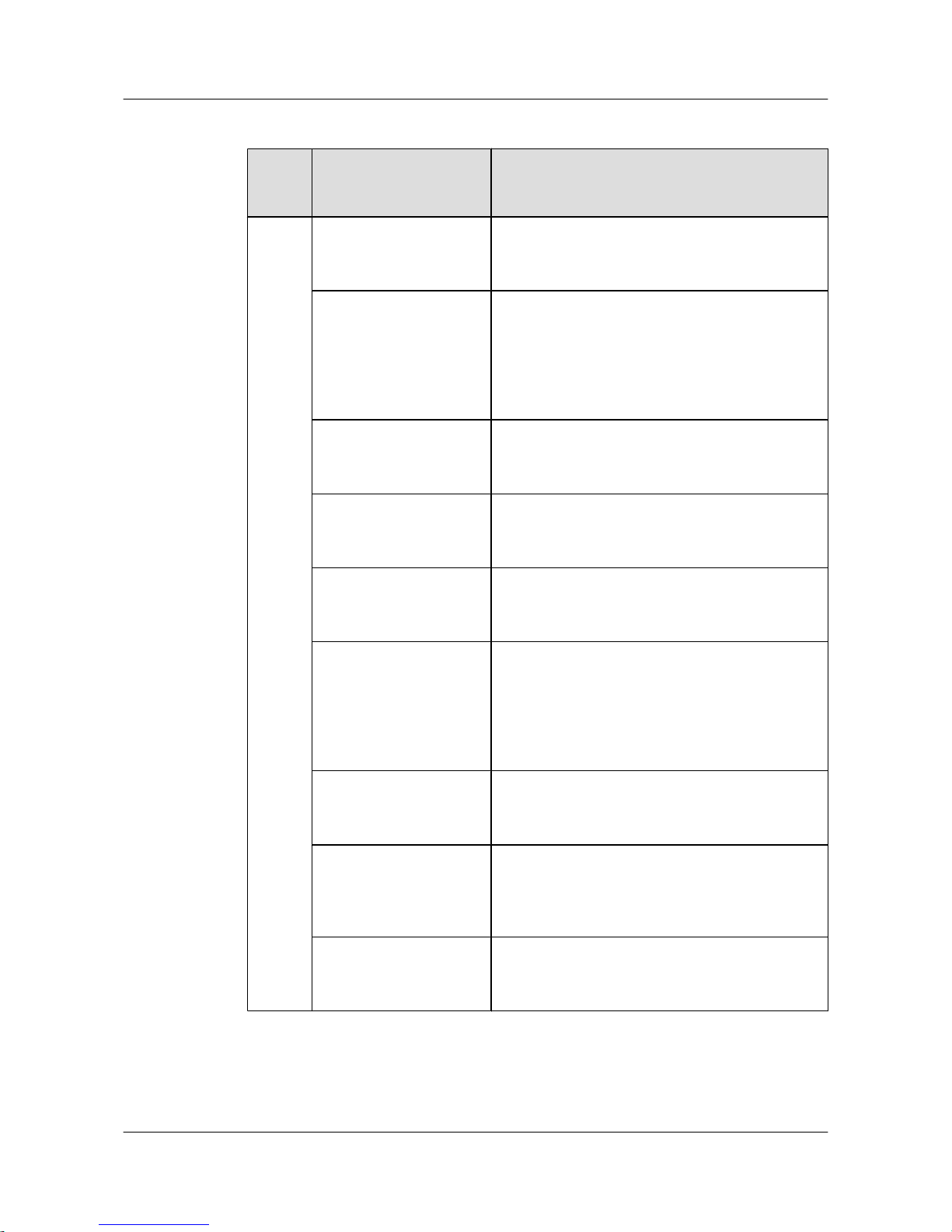
Table 2-3 Device models
Produ
ct
Series
Model Maximum Number of Interfaces
S5700CS5700-28C-EI 28
There are twenty-four 10/100/1000BASE-T Ethernet
interfaces and four interfaces on the front subcard.
S5700-28C-EI-24S 28
There are twenty-four 100/1000BASE-X Ethernet
optical interfaces, four GE combo interfaces
(10/100/1000BASE-T+100/1000BASE-X, used
together with the last four Ethernet interfaces), and
four interfaces on the front subcard.
S5700-52C-EI
52
There are forty-eight 10/100/1000BASE-T Ethernet
interfaces and four interfaces on the front subcard.
S5700-28C-PWR-EI 28
There are twenty-four 10/100/1000BASE-T Ethernet
interfaces and four interfaces on the front subcard.
S5700-52C-PWR-EI 52
There are forty-eight 10/100/1000BASE-T Ethernet
interfaces and four interfaces on the front subcard.
S5700-28C-SI 28
There are twenty-four 10/100/1000BASE-T Ethernet
interfaces, four GE combo interfaces
(10/100/1000BASE-T+100/1000BASE-X, used
together with the last four Ethernet interfaces), and
four interfaces on the front subcard.
S5700-52C-SI
52
There are forty-eight 10/100/1000BASE-T Ethernet
interfaces and four interfaces on the front subcard.
S5700-28C-HI-24S 28
There are twenty-four 100/1000BASE-X Ethernet
optical interfaces and four interfaces on the front
subcard.
S5700-28C-HI 28
There are twenty-four 10/100/1000BASE-T Ethernet
interfaces and four interfaces on the front subcard.
Quidway S2700&S3700&S5700&S6700 Series Ethernet
Switches
Quick Start 2 Product Hardware Introduction
Issue 01 (2011-10-26) Huawei Proprietary and Confidential
Copyright © Huawei Technologies Co., Ltd.
9
Page 15
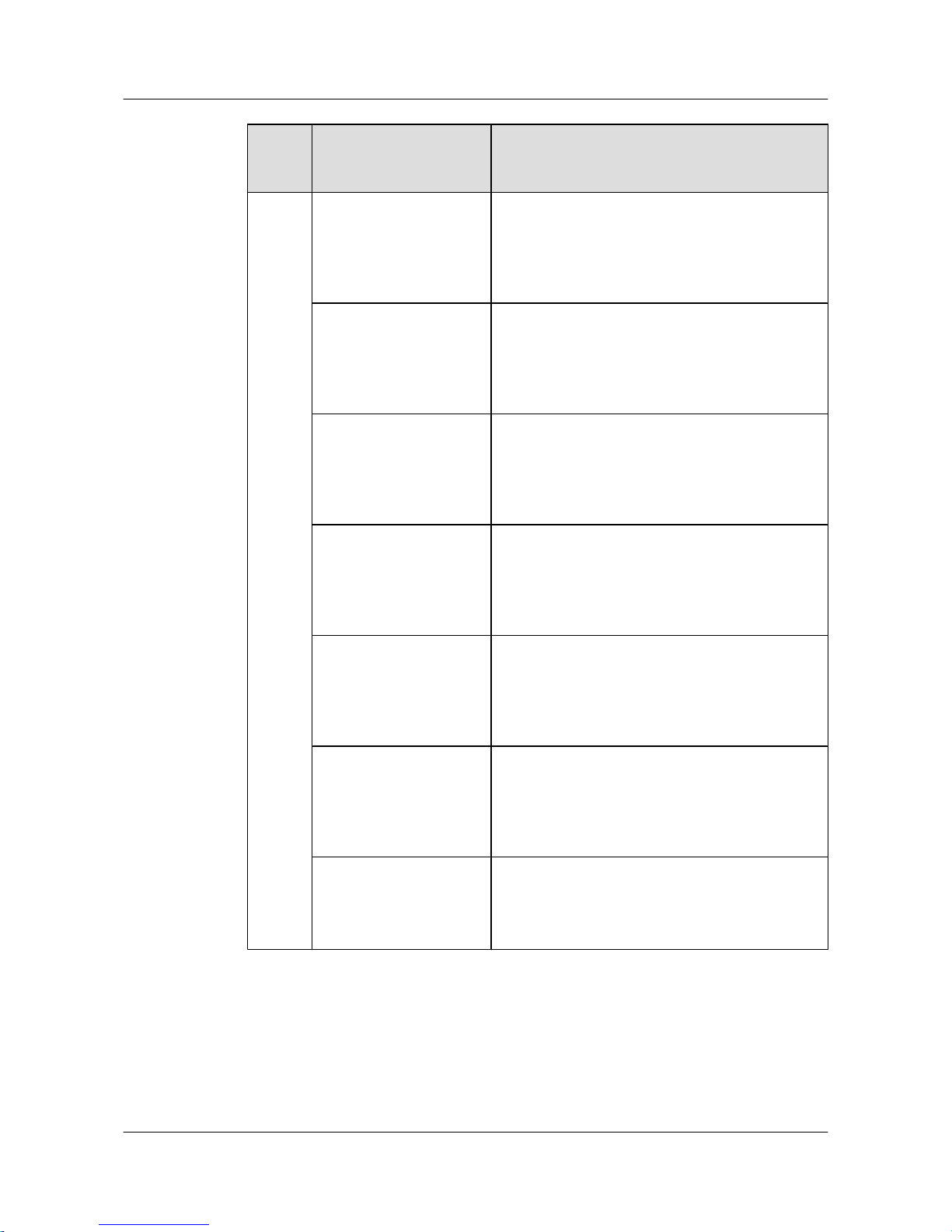
Produ
ct
Series
Model Maximum Number of Interfaces
S5700TPS5700-24TP-SI-AC 24
There are twenty-four 10/100/1000BASE-T Ethernet
interfaces and four GE combo interfaces
(10/100/1000BASE-T+100/1000BASE-X, used
together with the last four Ethernet interfaces).
S5700-24TP-SI-DC 24
There are twenty-four 10/100/1000BASE-T Ethernet
interfaces and four GE combo interfaces
(10/100/1000BASE-T+100/1000BASE-X, used
together with the last four Ethernet interfaces).
S5700-48TP-SI-AC 48
There are forty-eight 10/100/1000BASE-T Ethernet
interfaces and four GE combo interfaces
(10/100/1000BASE-T+100/1000BASE-X, used
together with the last four Ethernet interfaces).
S5700-48TP-SI-DC 48
There are forty-eight 10/100/1000BASE-T Ethernet
interfaces and four GE combo interfaces
(10/100/1000BASE-T+100/1000BASE-X, used
together with the last four Ethernet interfaces).
S5700-24TP-PWR-SI 24
There are twenty-four 10/100/1000BASE-T Ethernet
interfaces and four GE combo interfaces
(10/100/1000BASE-T+100/1000BASE-X, used
together with the last four Ethernet interfaces).
S5700-48TP-PWR-SI 48
There are forty-eight 10/100/1000BASE-T Ethernet
interfaces and four GE combo interfaces
(10/100/1000BASE-T+100/1000BASE-X, used
together with the last four Ethernet interfaces).
S5700-6TP-LI-AC 6
There are four 10/100/1000BASE-T Ethernet
interfaces and two GE combo interfaces
(10/100/1000BASE-T+100/1000BASE-X).
Naming Rules
The following are the naming rules of the S5700-6TP-LI-AC, S5700-48TP-PWR-SI,
S5700-28C-EI-24S and S5700-28C-HI.
Quidway S2700&S3700&S5700&S6700 Series Ethernet
Switches
Quick Start 2 Product Hardware Introduction
Issue 01 (2011-10-26) Huawei Proprietary and Confidential
Copyright © Huawei Technologies Co., Ltd.
10
Page 16
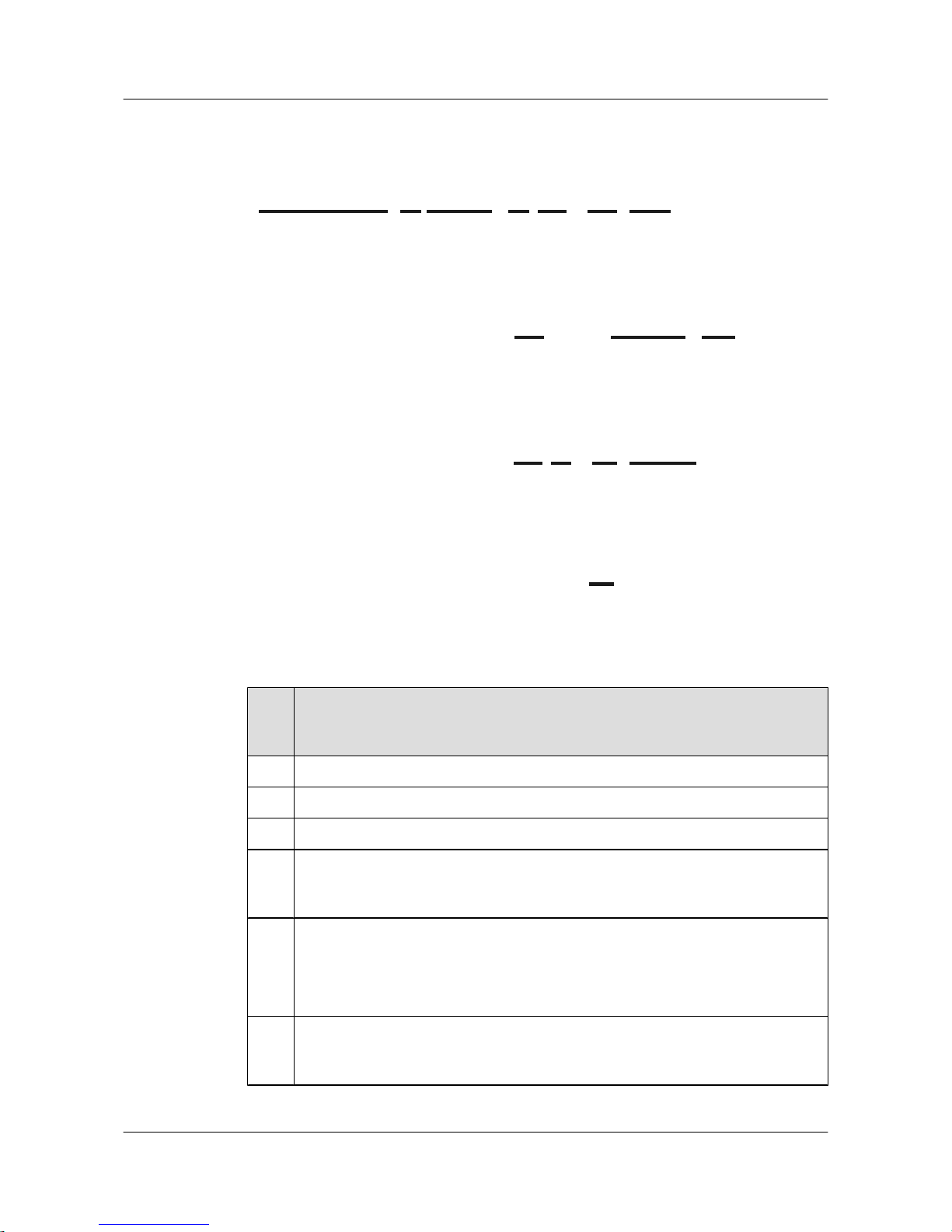
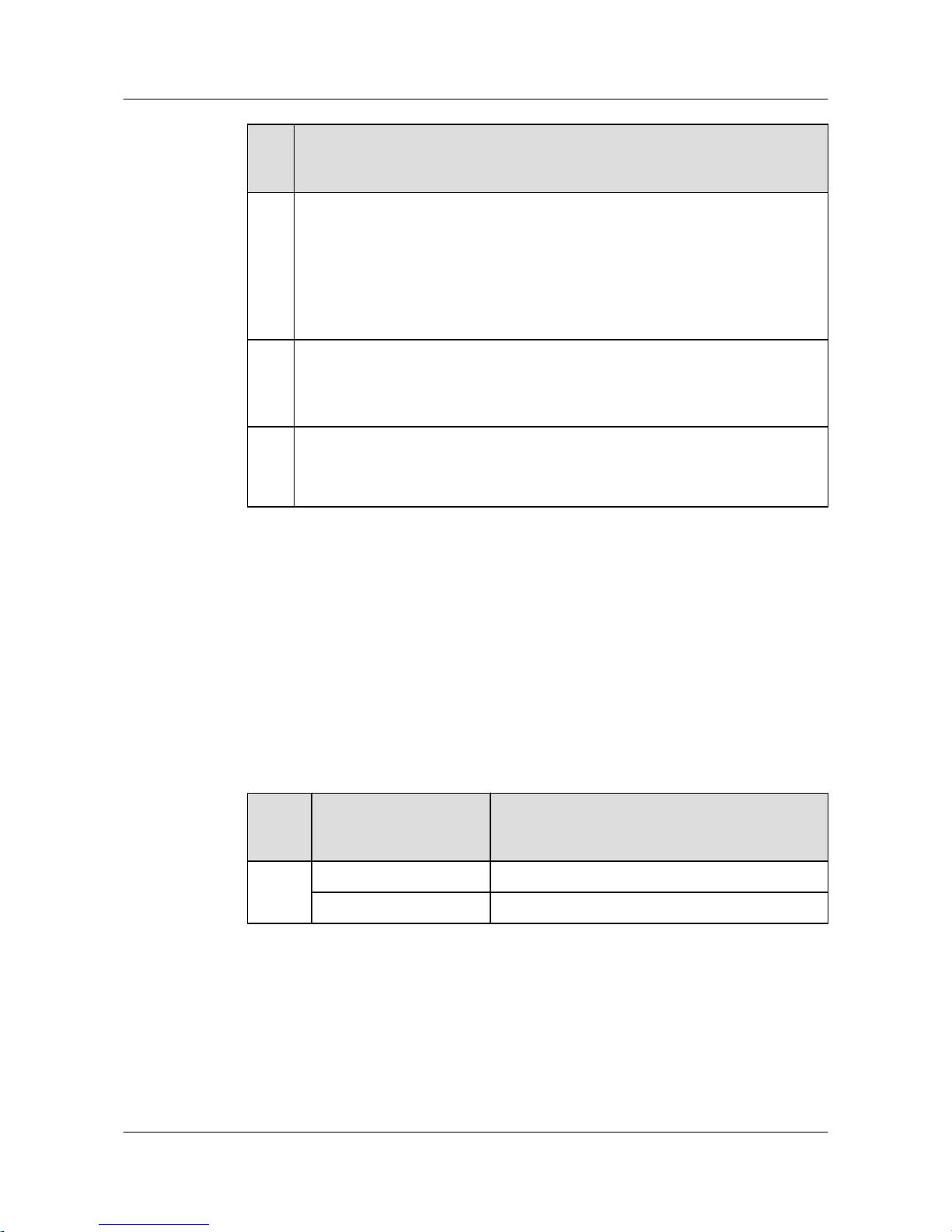
Figure 2-3 Naming rules
Quidway S5700-28C-HI
G
Quidway S5700-28C-EI-24S
HD E G
Quidway S5700-48TP-PWR-SI
D F G
Quidway S5700-6TP-LI-AC
A B C D E G I
Ide
ntifi
er
Description
A Product brand.
B Switch.
C Product series. "57" indicates the S5700 series.
D Maximum number of interfaces.
NOTE
The number of interfaces on an S5700 can be 6, 24, 28, 48, or 52, depending on the device model.
E Uplink interface type:
l C: A device supports interface cards. There can be two or four uplink interfaces
on an interface subcard.
l TP: A device has combo interfaces supporting optical and electrical interfaces.
F The S5700 supports Power over Ethernet (PoE).
NOTE
If this letter is not displayed, PoE is not supported.
Quidway S2700&S3700&S5700&S6700 Series Ethernet
Switches
Quick Start 2 Product Hardware Introduction
Issue 01 (2011-10-26) Huawei Proprietary and Confidential
Copyright © Huawei Technologies Co., Ltd.
11
Page 17
Ide
ntifi
er
Description
G Software version type:
l EI: enhanced version, supporting enhanced features
l SI: standard version, supporting basic features
l HI: advanced version, supporting high-performance Operation, Administration,
and Maintenance (OAM) and built-in real-time clock (RTC)
l LI: simplified version
H
Downlink interface type. The value 24S indicates that 24 downlink interfaces of the
S5700-28C-EI-24S are optical interfaces.
NOTE
If this letter is not displayed, all downlink interfaces are electrical interfaces.
I Powering mode:
l AC: alternating current power
l DC: direct current power
2.4 S6700 Introduction
This section describes S6700 models.
Device Models
To meet diverse customer requirements, the S5700 provides a variety of models. Table 2-4 lists
these device models.
You can select a device model as required.
Table 2-4 Device models
Produ
ct
Series
Model Maximum Number of Interfaces
S6700 S6700-24-EI Twenty-four 10G SFP+ optical interfaces
S6700-48-EI Forty-eight 10G SFP+ optical interfaces
Naming Rules
The following are the naming rules of the S6700-24-EI.
Quidway S2700&S3700&S5700&S6700 Series Ethernet
Switches
Quick Start 2 Product Hardware Introduction
Issue 01 (2011-10-26) Huawei Proprietary and Confidential
Copyright © Huawei Technologies Co., Ltd.
12
Page 18
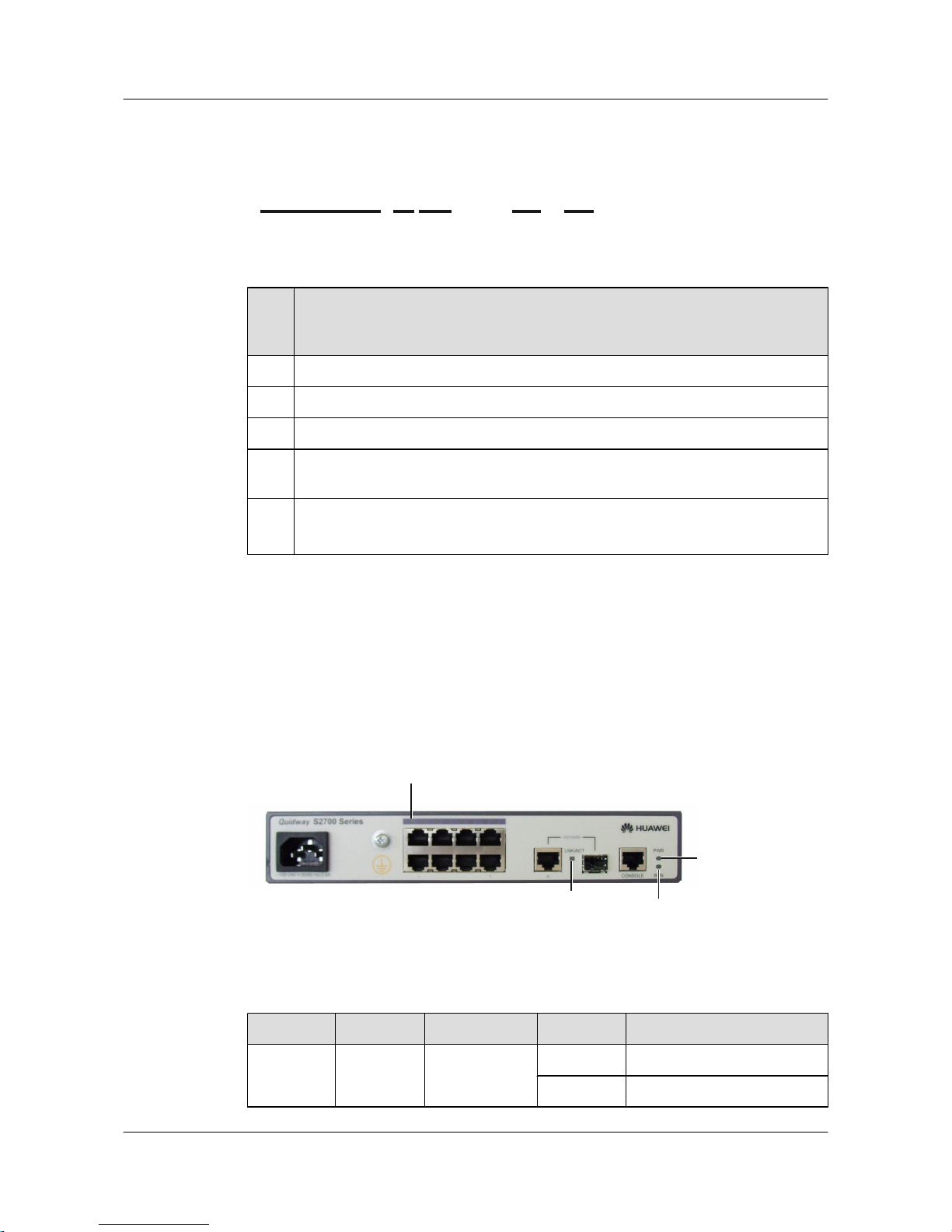
Figure 2-4 Naming rules
Quidway S6700-48-EI
A B C D E
Ide
ntifi
er
Description
A Product brand.
B Switch.
C Product series. "67" indicates the S6700 series.
D Maximum number of interfaces. The number of interfaces on an S6700 can be 24 or
48, depending on the device model.
E Software version type:
l EI: enhanced version, supporting enhanced features
2.5 S2700 Indicator Description
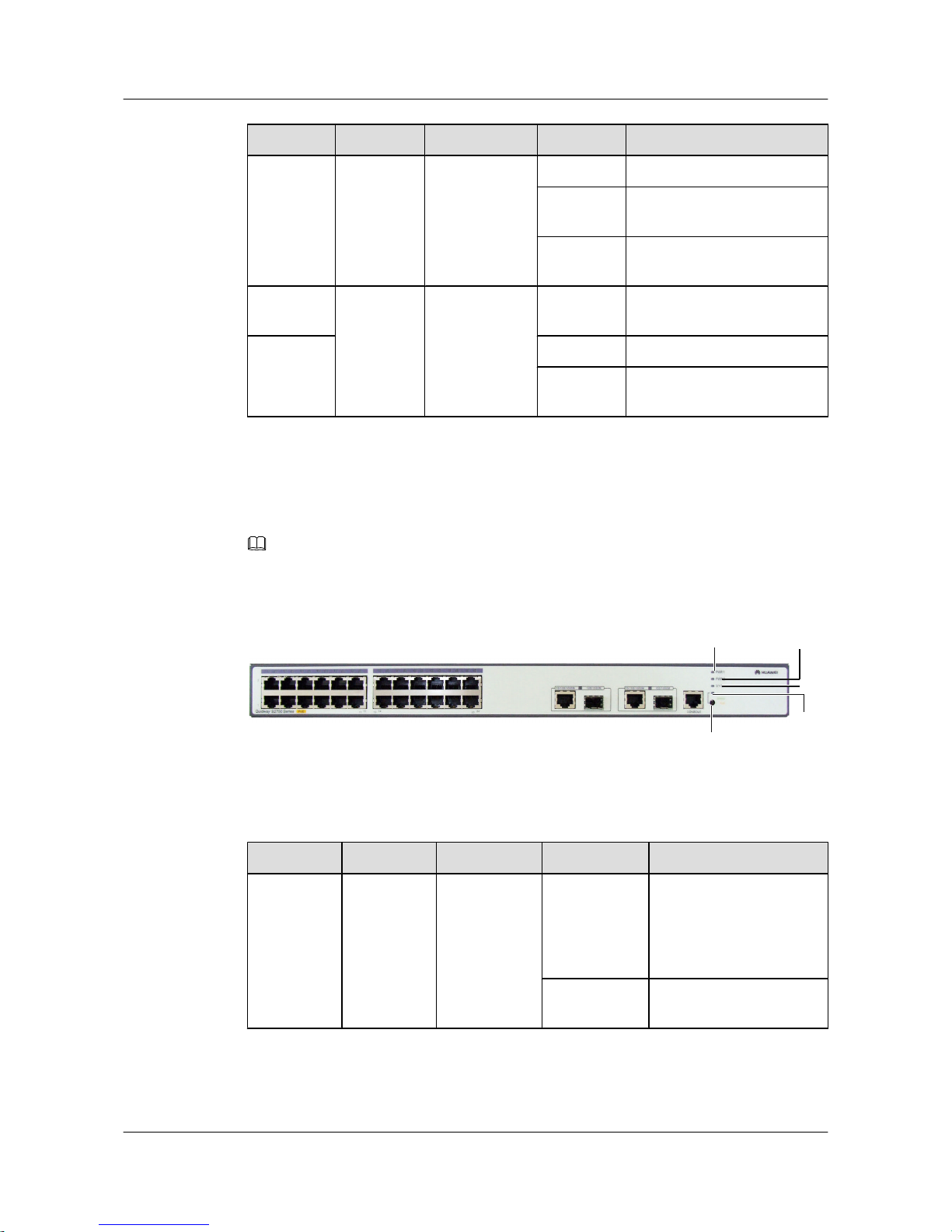
Indicators of a Non-PoE S2700
S2700-9TP-SI-AC is a non-PoE switch.
Figure 2-5 S2700-9TP-SI-AC indicators
4
3
2
1
Table 2-5 Description of S2700-9TP-SI-AC indicators
No.
Indicator Identifier Status Description
1 Power
indicator
PWR Off The switch is powered off.
Green The switch is powered on.
Quidway S2700&S3700&S5700&S6700 Series Ethernet
Switches
Quick Start 2 Product Hardware Introduction
Issue 01 (2011-10-26) Huawei Proprietary and Confidential
Copyright © Huawei Technologies Co., Ltd.
13
Page 19
No. Indicator Identifier Status Description
2 System
status
indicator
RUN Off The system is not operating.
Green The system is not operating
properly or is starting.
Blinking
green
The system is operating
properly.
3 Port
indicator
LNK/ACT Off The interface is not connected
or has been shut down.
4 Green The interface is connected.
Blinking
green
The interface is sending or
receiving data.
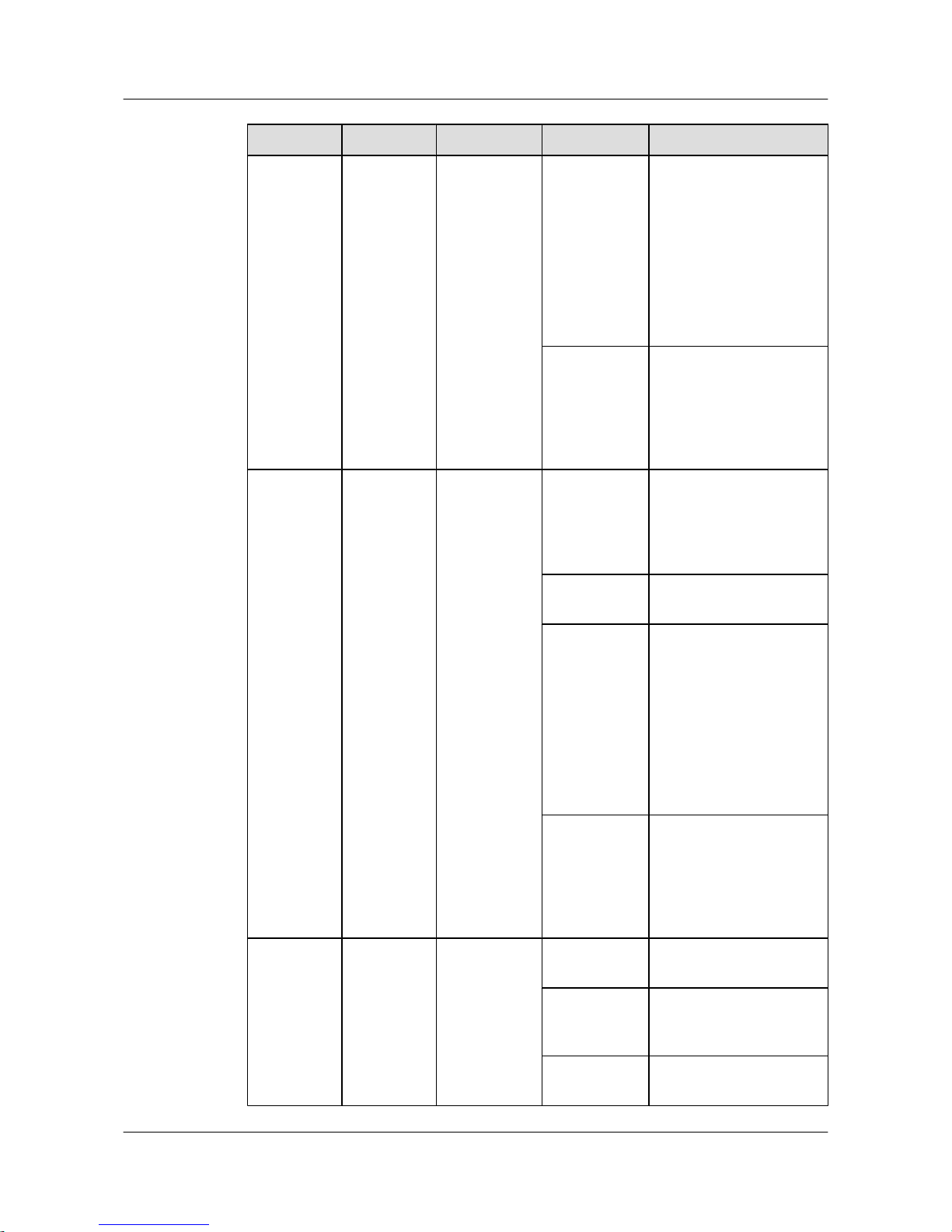
Indicators of a PoE S2700
S2700-26TP-PWR-EI is a PoE switch.
NOTE
S2700-9TP-PWR-EI has only one power supply unit, so the power indicator is identified by PWR.
Figure 2-6 S2700-26TP-PWR-EI indicators
2
3
4
5
1
Table 2-6 Description of S2700-26TP-PWR-EI indicators
No.
Indicator Identifier Status Description
1 Power
indicator
PWR1 Off The power supply units are
not present, or the power
supply is abnormal when a
single power supply unit is
used.
Green The power supply is
normal.
Quidway S2700&S3700&S5700&S6700 Series Ethernet
Switches
Quick Start 2 Product Hardware Introduction
Issue 01 (2011-10-26) Huawei Proprietary and Confidential
Copyright © Huawei Technologies Co., Ltd.
14
Page 20
No. Indicator Identifier Status Description
Red
l Two power supply
units are installed
properly, but not
switched on.
l The power supply units
are switched off.
l The card power and
PoE power are
abnormal.
Orange
If a single power supply
unit is installed, the PoE
power is out of range. If
two power supply units are
installed, the card power or
PoE power is out of range.
2 Power
indicator
PWR2 Off The power supply units are
not present, or the power
supply is abnormal when a
single power supply unit is
used.
Green The power supply is
normal.
Red
l Two power supply
units are installed
properly, but not
switched on.
l The power supply units
are switched off.
l The card power and
PoE power are
abnormal.
Orange
If a single power supply
unit is installed, the PoE
power is out of range. If
two power supply units are
installed, the card power or
PoE power is out of range.
3 System
status
indicator
SYS Off The system is not
operating.
Green The system is not
operating properly or is
starting.
Orange The system is performing
self-check during startup.
Quidway S2700&S3700&S5700&S6700 Series Ethernet
Switches
Quick Start 2 Product Hardware Introduction
Issue 01 (2011-10-26) Huawei Proprietary and Confidential
Copyright © Huawei Technologies Co., Ltd.
15
Page 21
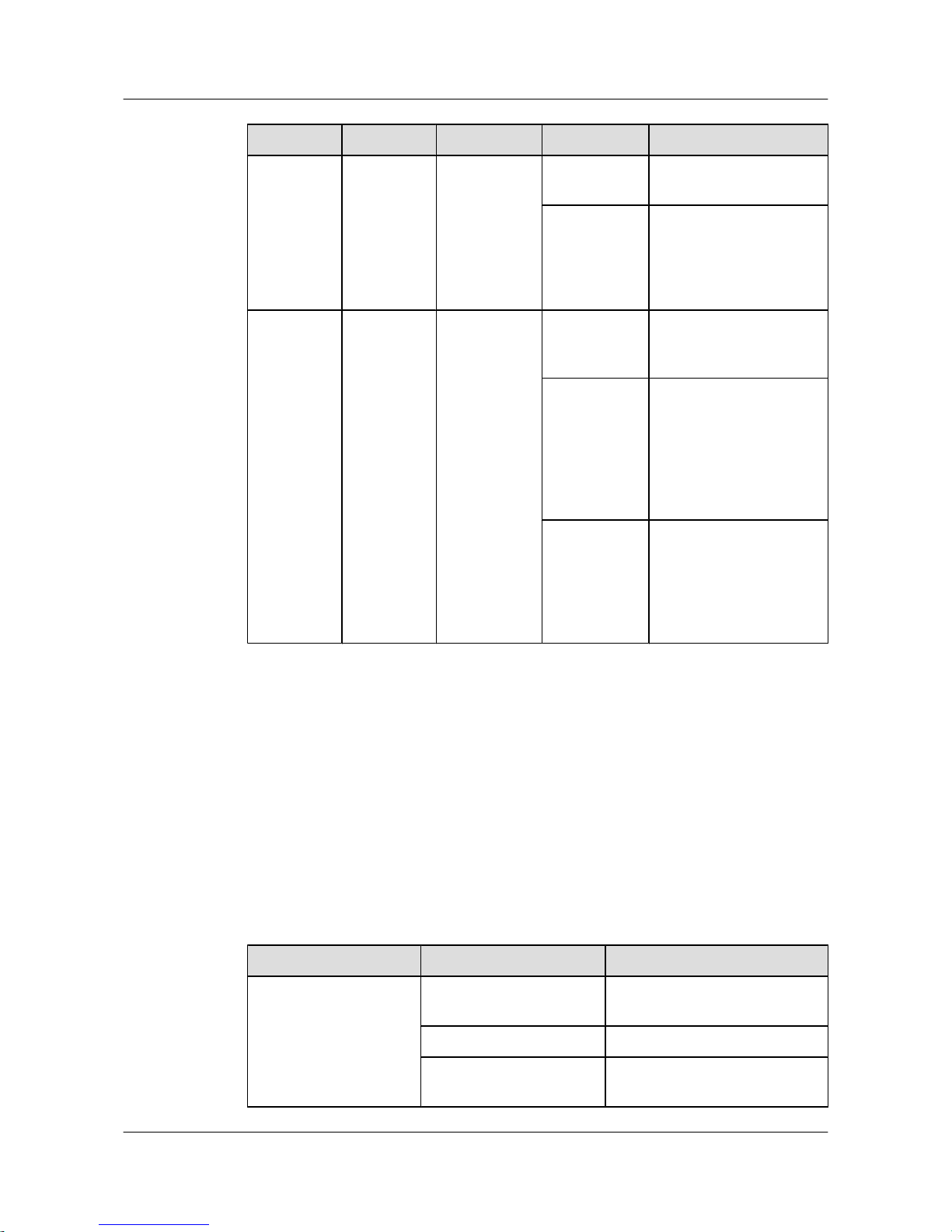
No. Indicator Identifier Status Description
Blinking green The system is operating
properly.
Red After registering, the
system does not operate
properly, or a power alarm,
fan alarm, or temperature
alarm is generated.
4 Mode
indicator
- Off The service interface
indicator is in the default
mode (STAT).
Green The service interface
indicator indicates the
interface speed. After 45
seconds, the service
interface indicator
automatically restores to
off.
Orange
The service interface
indicator indicates the PoE
status. After 45 seconds,
the service interface
indicator automatically
restores to off.
As shown in Figure 2-6, the S2700 has a mode switching button (5). You can press the mode
switching button to change the display mode of the mode indicator. The status of the mode
indicator represents the display mode of the related interface indicator. For example, when you
press the mode switching button once on S2700-9TP-PWR-EI, the mode indicator turns green
and the related interface indicator enters the speed state. When you press the mode switching
button for a second time, the mode indicator turns orange and the related interface indicator
represents the PoE power status. When you press the mode switching button for a third time,
the mode indicator restores to the default state (off). If you do not press the mode switching
button within 45 seconds, the mode indicator automatically restores to off.
The following table describes the meanings of indicators.
Table 2-7 Description of indicators in different modes
Display Mode
Status Description
STAT Off The interface is not connected or
has been shut down.
Green The interface is connected.
Blinking green The interface is sending or
receiving data.
Quidway S2700&S3700&S5700&S6700 Series Ethernet
Switches
Quick Start 2 Product Hardware Introduction
Issue 01 (2011-10-26) Huawei Proprietary and Confidential
Copyright © Huawei Technologies Co., Ltd.
16
Page 22
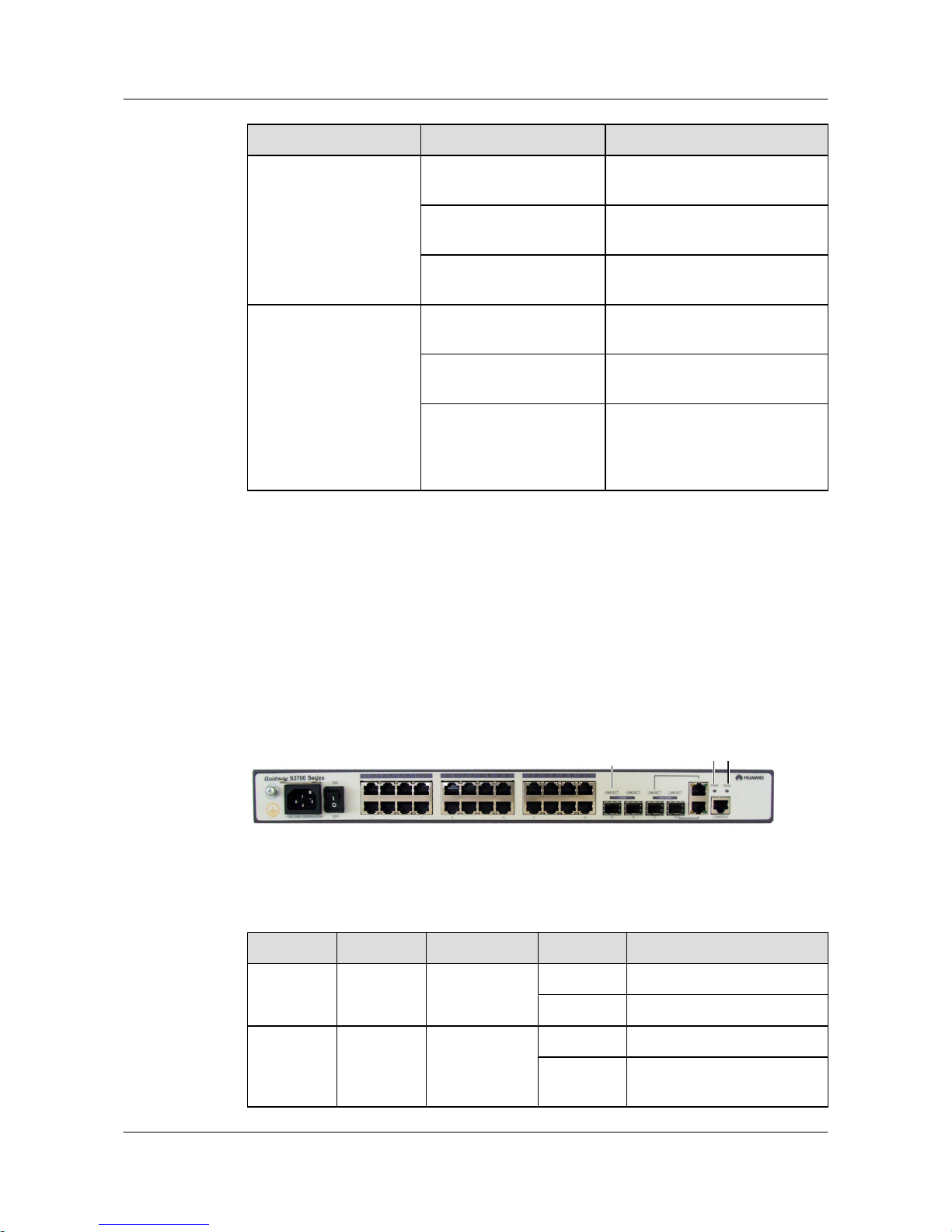
Display Mode Status Description
Speed Off The interface is not connected or
has been shut down.
Green The interface speed is 10/100
Mbit/s.
Blinking green The interface speed is 1000 Mbit/
s.
PoE Off The interface does not provide
remote power.
Green The interface is providing remote
power.
Blinking green
l The power of the powered
device (PD) exceeds the power
supply capability of the port or
exceeds the threshold.
2.6 S3700 Indicator Description
This section describes the indicators on the S3700 front panel.
Indicators of a Non-PoE S3700
S3700-28TP-SI-AC is a non-PoE switch that has a single power supply unit.
Figure 2-7 S3700-28TP-SI-AC indicators
1
2
3
Table 2-8 Description of S3700-28TP-SI-AC indicators
No.
Indicator Identifier Status Description
1 Power
indicator
PWR Off The switch is powered off.
Green The switch is powered on.
2 System
status
indicator
RUN Off The system is not operating.
Green The system is not operating
properly or is starting.
Quidway S2700&S3700&S5700&S6700 Series Ethernet
Switches
Quick Start 2 Product Hardware Introduction
Issue 01 (2011-10-26) Huawei Proprietary and Confidential
Copyright © Huawei Technologies Co., Ltd.
17
Page 23
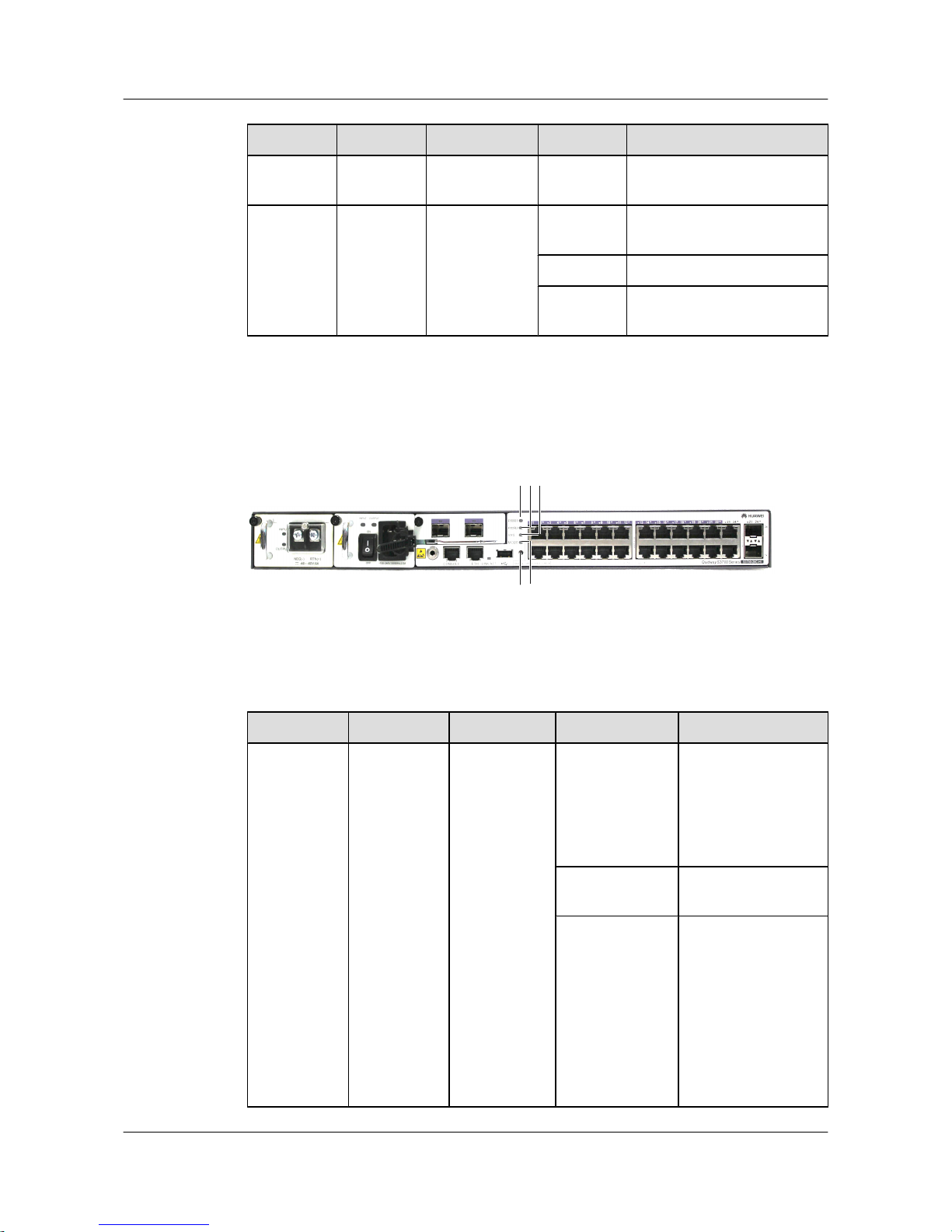
No. Indicator Identifier Status Description
Blinking
green
The system is operating
properly.
3 Port
indicator
LNK/ACT Off The interface is not connected
or has been shut down.
Green The interface is connected.
Blinking
green
The interface is sending or
receiving data.
S3700-26C-HI is a non-PoE switch that supports two power supply units.
Figure 2-8 S3700-26C-HI indicators
2
3
514
Table 2-9 Description of S3700-26C-HI indicators
No.
Indicator Identifier Status Description
1 Power
indicator
PWR1 Off The power supply
units are not present,
or the power supply is
abnormal when a
single power supply
unit is used.
Green The power supply is
normal.
Red
l Two power supply
units are installed
properly, but not
switched on.
l The power supply
units are switched
off.
l The power supply
units are faulty.
Quidway S2700&S3700&S5700&S6700 Series Ethernet
Switches
Quick Start 2 Product Hardware Introduction
Issue 01 (2011-10-26) Huawei Proprietary and Confidential
Copyright © Huawei Technologies Co., Ltd.
18
Page 24
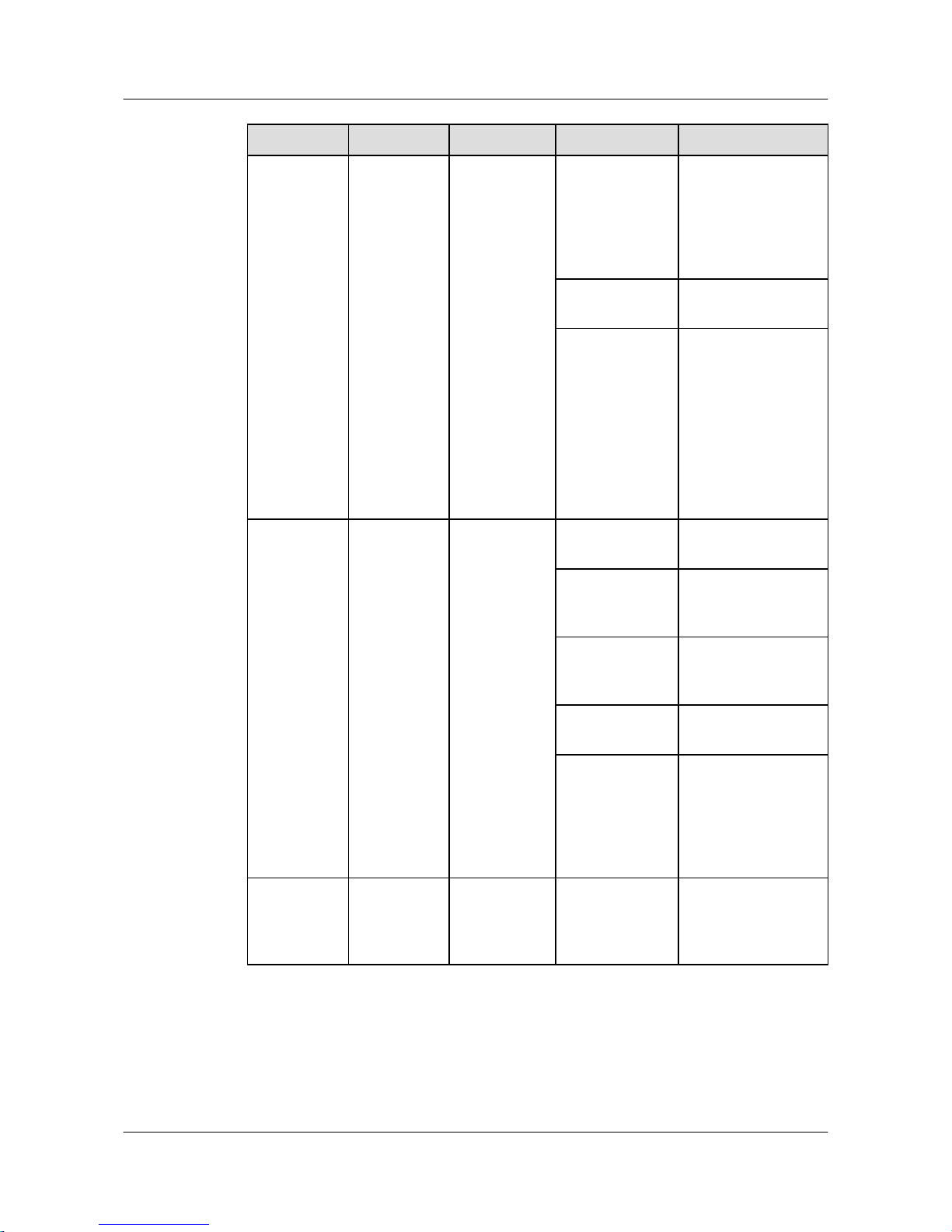
No. Indicator Identifier Status Description
2 Power
indicator
PWR2 Off The power supply
units are not present,
or the power supply is
abnormal when a
single power supply
unit is used.
Green The power supply is
normal.
Red
l Two power supply
units are installed
properly, but not
switched on.
l The power supply
units are switched
off.
l The power supply
units are faulty.
3
System status
indicator
SYS Off The system is not
operating.
Green The system is not
operating properly or
is starting.
Orange The system is
performing selfcheck during startup.
Blinking green The system is
operating properly.
Red After registering, the
system does not
operate properly, or a
power alarm, fan
alarm, or temperature
alarm is generated.
4 Mode
indicator
MODE Off The service interface
indicator is in the
default mode
(STAT).
Quidway S2700&S3700&S5700&S6700 Series Ethernet
Switches
Quick Start 2 Product Hardware Introduction
Issue 01 (2011-10-26) Huawei Proprietary and Confidential
Copyright © Huawei Technologies Co., Ltd.
19
Page 25
No. Indicator Identifier Status Description
Green The service interface
indicator indicates the
interface speed. After
45 seconds, the
service interface
indicator
automatically restores
to off.
Red
The service interface
indicator indicates the
stack ID. After 45
seconds, the service
interface indicator
automatically restores
to off.
Indicators of a PoE S3700
S3700-52P-PWR-EI is a PoE switch.
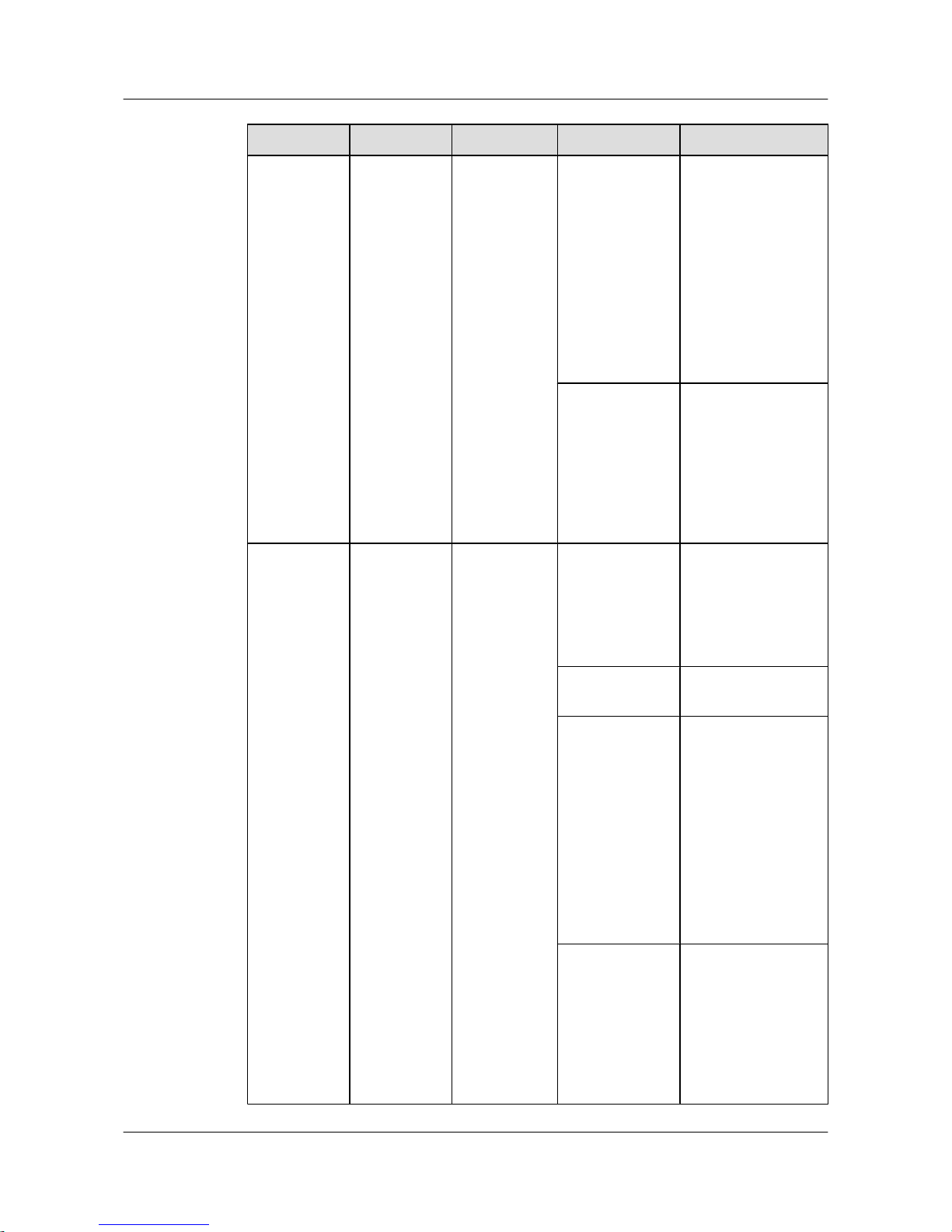
Figure 2-9 S3700-52P-PWR-EI indicators
2
3
4
5
1
Table 2-10 Description of S3700-52P-PWR-EI indicators
No.
Indicator Identifier Status Description
1 Power
indicator
PWR1 Off The power supply
units are not present,
or the power supply is
abnormal when a
single power supply
unit is used.
Green The power supply is
normal.
Quidway S2700&S3700&S5700&S6700 Series Ethernet
Switches
Quick Start 2 Product Hardware Introduction
Issue 01 (2011-10-26) Huawei Proprietary and Confidential
Copyright © Huawei Technologies Co., Ltd.
20
Page 26
No. Indicator Identifier Status Description
Red
l Two power
supply units are
installed properly,
but not switched
on.
l The power supply
units are switched
off.
l The card power
and PoE power
are abnormal.
Orange
If a single power
supply unit is
installed, the PoE
power is out of range.
If two power supply
units are installed, the
card power or PoE
power is out of range.
2
Power
indicator
PWR2 Off The power supply
units are not present,
or the power supply is
abnormal when a
single power supply
unit is used.
Green The power supply is
normal.
Red
l Two power
supply units are
installed properly,
but not switched
on.
l The power supply
units are switched
off.
l The card power
and PoE power
are abnormal.
Orange
If a single power
supply unit is
installed, the PoE
power is out of range.
If two power supply
units are installed, the
card power or PoE
power is out of range.
Quidway S2700&S3700&S5700&S6700 Series Ethernet
Switches
Quick Start 2 Product Hardware Introduction
Issue 01 (2011-10-26) Huawei Proprietary and Confidential
Copyright © Huawei Technologies Co., Ltd.
21
Page 27
No. Indicator Identifier Status Description
3 System status
indicator
SYS Off The system is not
operating.
Green The system is not
operating properly or
is starting.
Orange The system is
performing selfcheck during startup.
Blinking green The system is
operating properly.
Red After registering, the
system does not
operate properly, or a
power alarm, fan
alarm, or temperature
alarm is generated.
4 Mode
indicator
- Off The service interface
indicator is in the
default mode
(STAT).
Green The service interface
indicator indicates
the interface speed.
After 45 seconds, the
service interface
indicator
automatically
restores to off.
Orange
The service interface
indicator indicates
the PoE status. After
45 seconds, the
service interface
indicator
automatically
restores to off.
Red
The service interface
indicator indicates
the stack ID. After 45
seconds, the service
interface indicator
automatically
restores to off.
Quidway S2700&S3700&S5700&S6700 Series Ethernet
Switches
Quick Start 2 Product Hardware Introduction
Issue 01 (2011-10-26) Huawei Proprietary and Confidential
Copyright © Huawei Technologies Co., Ltd.
22
Page 28
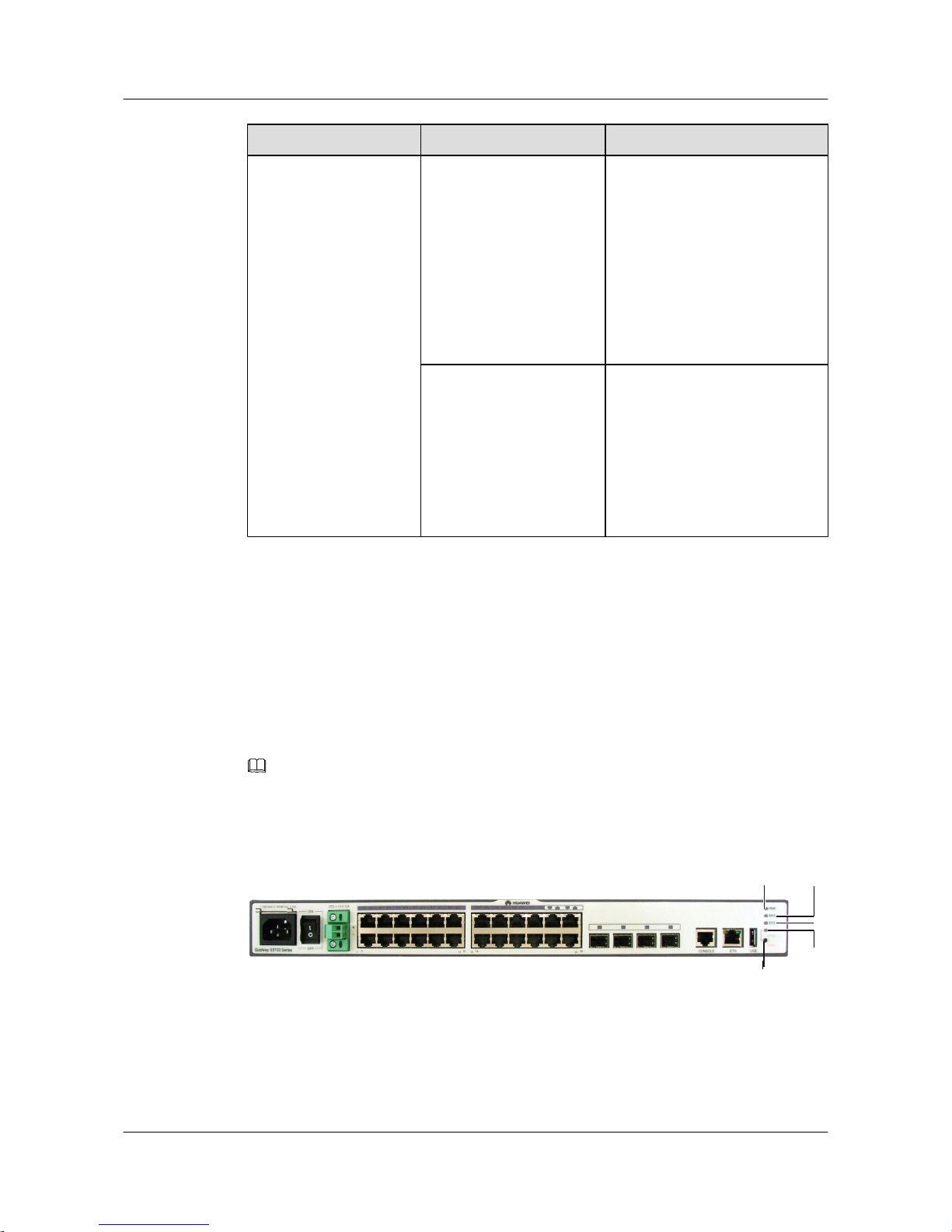
As shown in Figure 2-9, the button marked "5" is the mode switching button. On an S3700, you
can press the mode switching button to switch the display modes of interface indicators. The
status of a mode indicator represents the display mode of the related interface indicator. For
example, the mode indicator of S3700-28TP-PWR-EI is off and the interface indicators are in
STAT state by default. When you press the mode switching button once, the mode indicator
turns green and the related interface indicator enters the speed state. When you press the mode
switching button for a second time, the mode indicator turns orange and the related interface
indicator represents the PoE power status. When you press the mode switching button for a third
time, the mode indicator turns red and the related interface indicator represents the stack status.
When you press the mode switching button for a fourth time, the mode indicator restores to the
default state (off). If you do not press the mode switching button within 45 seconds, the mode
indicator automatically restores to off.
The following table describes the meanings of indicators.
Table 2-11 Description of indicators in different modes
Display Mode Status Description
STAT Off The interface is not connected or
has been shut down.
Green The interface is connected.
Blinking green The interface is sending or
receiving data.
Speed Off The interface is not connected or
has been shut down.
Green The interface speed is 10/100
Mbit/s.
Blinking green The interface speed is 1000 Mbit/
s.
PoE Off The interface does not provide
remote power.
Green The interface is providing remote
power.
Blinking green
l The power of the powered
device (PD) exceeds the power
supply capability of the port or
exceeds the threshold.
Stack Off The stack ID of the member
switch is not the number of an
interface in the off state.
Quidway S2700&S3700&S5700&S6700 Series Ethernet
Switches
Quick Start 2 Product Hardware Introduction
Issue 01 (2011-10-26) Huawei Proprietary and Confidential
Copyright © Huawei Technologies Co., Ltd.
23
Page 29
Display Mode Status Description
Green The device is a not a command
switch:
l If the indicator of an interface
is always on, the number of
this interface is the stack ID of
the device.
l If the first nine interface
indicators of the device are
always on, the stack ID of the
device is 0.
Blinking green
The device is a command switch:
l If the indicator of an interface
blinks, the number of this
interface is the stack ID of the
device.
l If the first nine interface
indicators of the device blink,
the stack ID of the device is 0.
2.7 S5700 Indicator Description
This section describes the indicators on the S5700 front panel.
Indicators of a Non-PoE S5700
S5700-24TP-SI-AC, S5700-24TP-SI-DC, S5700-48TP-SI-AC, S5700-48TP-SI-DC and
S5700-6TP-LI-AC are non-PoE switches, and each of them has a single power supply unit.
NOTE
Only S5700-24TP-SI-AC, S5700-24TP-SI-DC, S5700-48TP-SI-AC and S5700-48TP-SI-DC have
redundancy power supply (RPS) indicators.
Figure 2-10 S5700-24TP-SI-AC indicators
2
3
4
5
1
Quidway S2700&S3700&S5700&S6700 Series Ethernet
Switches
Quick Start 2 Product Hardware Introduction
Issue 01 (2011-10-26) Huawei Proprietary and Confidential
Copyright © Huawei Technologies Co., Ltd.
24
Page 30
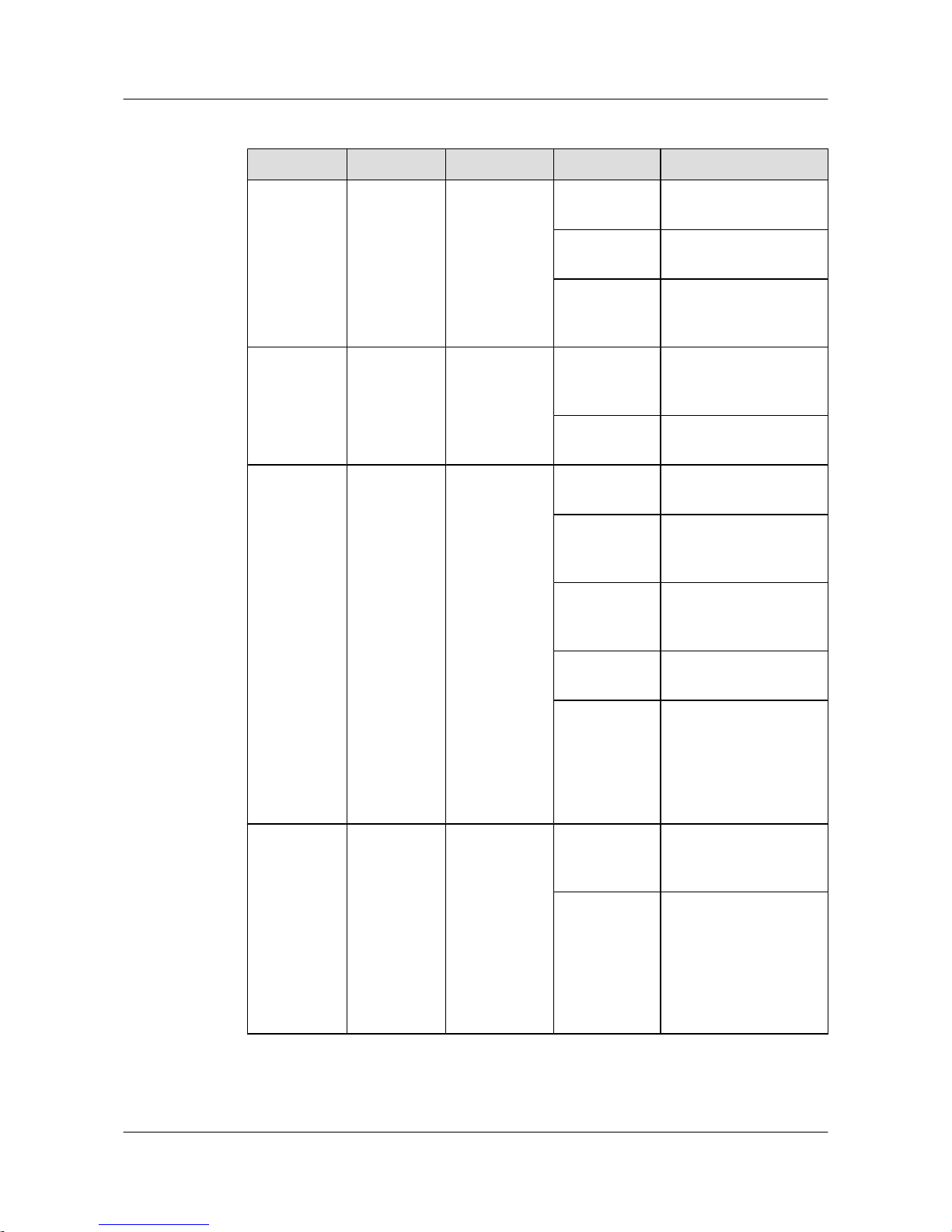
Table 2-12 Description of S5700-24TP-SI-AC indicators
No. Indicator Identifier Status Description
1 Power
indicator
PWR Off The switch is powered
off.
Green The switch is powered
on.
Orange The power supply unit is
faulty, and the external
RPS system is started.
2 RPS
indicator
RPS Off The RPS is not
connected to the switch
or the RPS is faulty.
Green The RPS is connected to
the switch.
3 System status
indicator
SYS Off The system is not
operating.
Green The system is not
operating properly or is
starting.
Orange The system is
performing self-check
during startup.
Blinking green The system is operating
properly.
Red After registering, the
system does not operate
properly, or a power
alarm, fan alarm, or
temperature alarm is
generated.
4 Mode
indicator
- Off The service interface
indicator is in the default
mode (STAT).
Green The service interface
indicator indicates the
interface speed. After 45
seconds, the service
interface indicator
automatically restores to
off.
Quidway S2700&S3700&S5700&S6700 Series Ethernet
Switches
Quick Start 2 Product Hardware Introduction
Issue 01 (2011-10-26) Huawei Proprietary and Confidential
Copyright © Huawei Technologies Co., Ltd.
25
Page 31
No. Indicator Identifier Status Description
Red The service interface
indicator indicates the
stack ID. After 45
seconds, the service
interface indicator
automatically restores to
off.
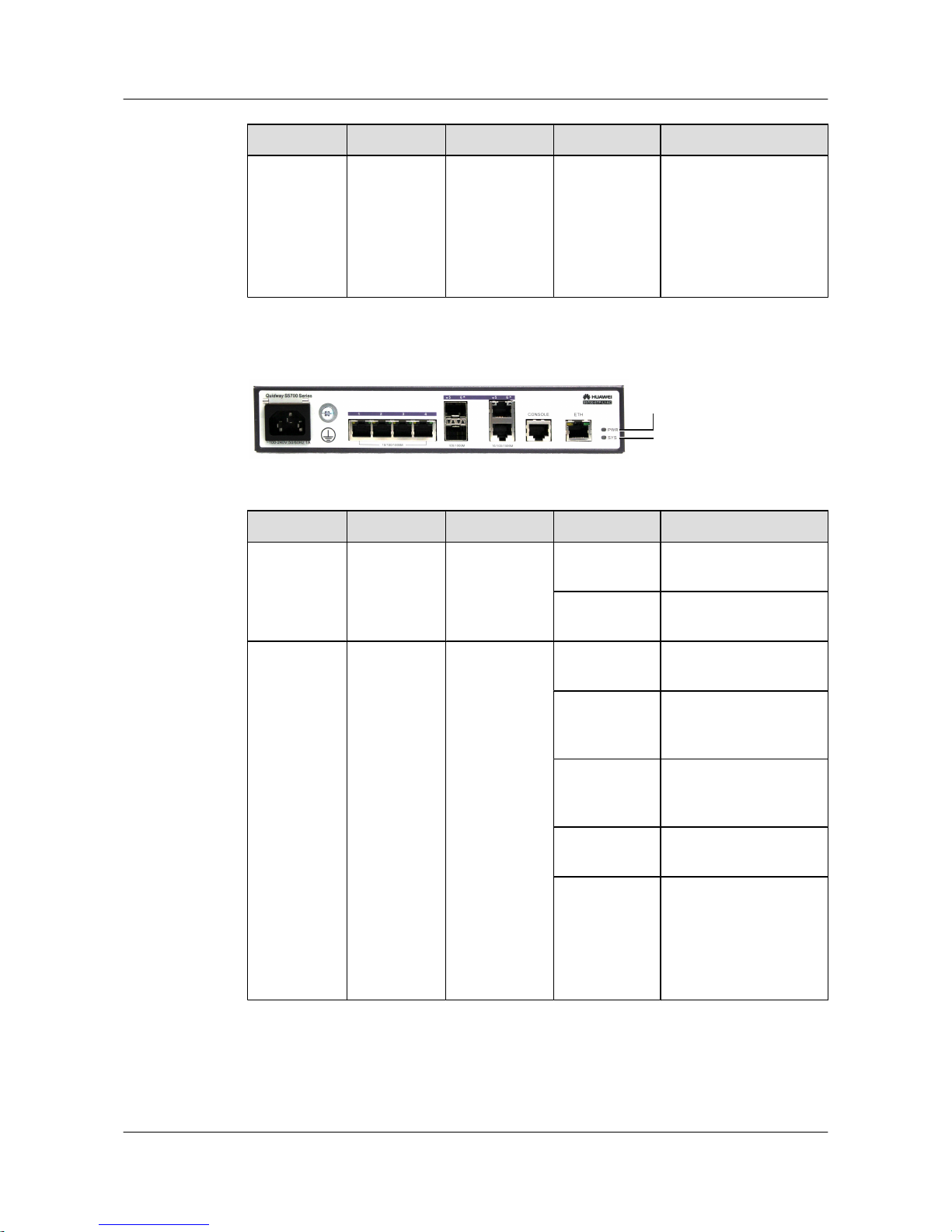
Figure 2-11 S5700-6TP-LI-AC indicators
2
1
Table 2-13 Description of S5700-6TP-LI-AC indicators
No. Indicator Identifier Status Description
1 Power
indicator
PWR Off The switch is powered
off.
Green The switch is powered
on.
2 System status
indicator
RUN Off The system is not
operating.
Green The system is not
operating properly or is
starting.
Orange The system is
performing self-check
during startup.
Blinking green The system is operating
properly.
Red After registering, the
system does not operate
properly, or a power
alarm, fan alarm, or
temperature alarm is
generated.
S5700-28C-EI is a non-PoE switch that has two power supply units.
Quidway S2700&S3700&S5700&S6700 Series Ethernet
Switches
Quick Start 2 Product Hardware Introduction
Issue 01 (2011-10-26) Huawei Proprietary and Confidential
Copyright © Huawei Technologies Co., Ltd.
26
Page 32
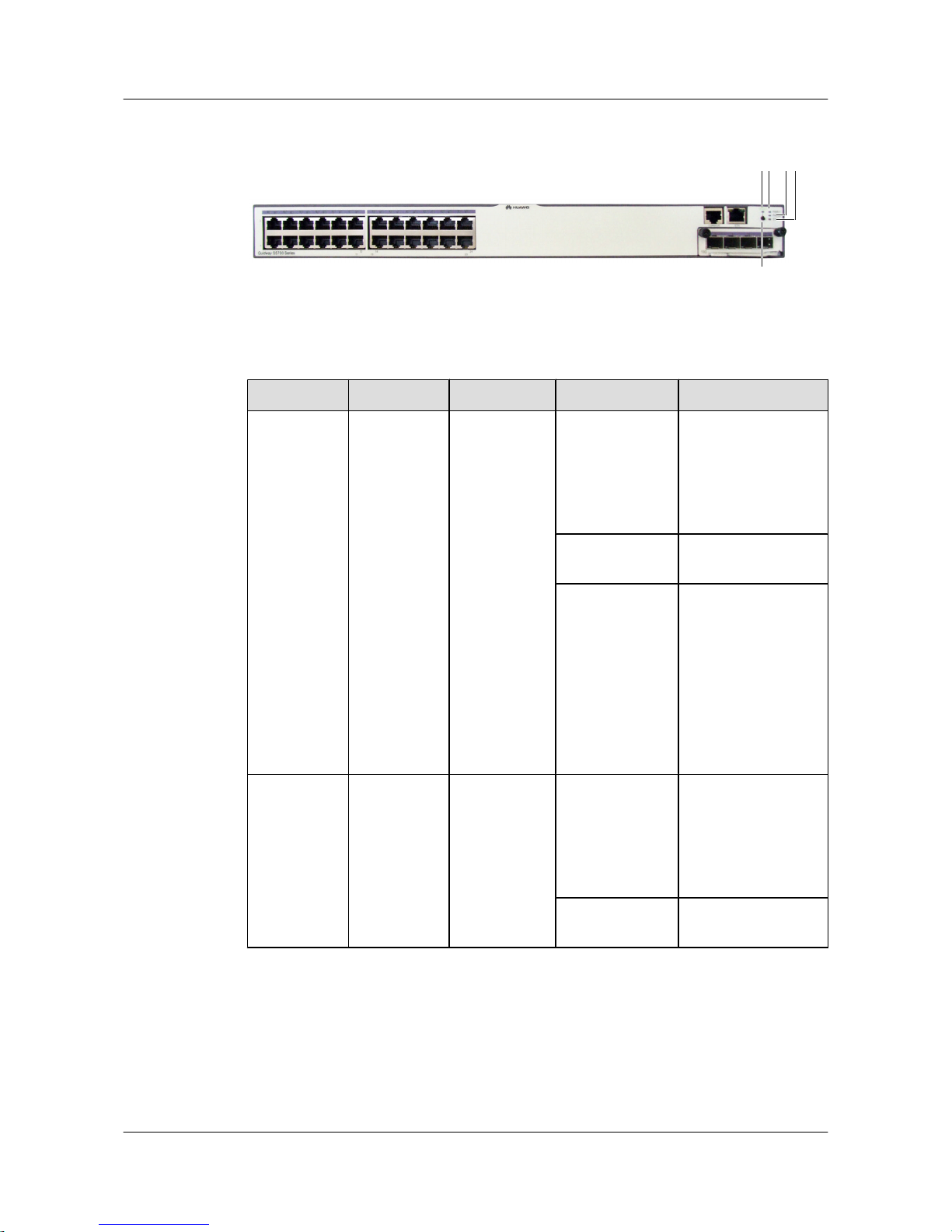
Figure 2-12 S5700-28C-EI indicators
2
3
5
14
Table 2-14 Description of S5700-28C-EI indicators
No. Indicator Identifier Status Description
1 Power
indicator
PWR1 Off The power supply
units are not present,
or the power supply is
abnormal when a
single power supply
unit is used.
Green The power supply is
normal.
Red
l Two power supply
units are installed
properly, but not
switched on.
l The power supply
units are switched
off.
l The power supply
units are faulty.
2
Power
indicator
PWR2 Off The power supply
units are not present,
or the power supply is
abnormal when a
single power supply
unit is used.
Green The power supply is
normal.
Quidway S2700&S3700&S5700&S6700 Series Ethernet
Switches
Quick Start 2 Product Hardware Introduction
Issue 01 (2011-10-26) Huawei Proprietary and Confidential
Copyright © Huawei Technologies Co., Ltd.
27
Page 33
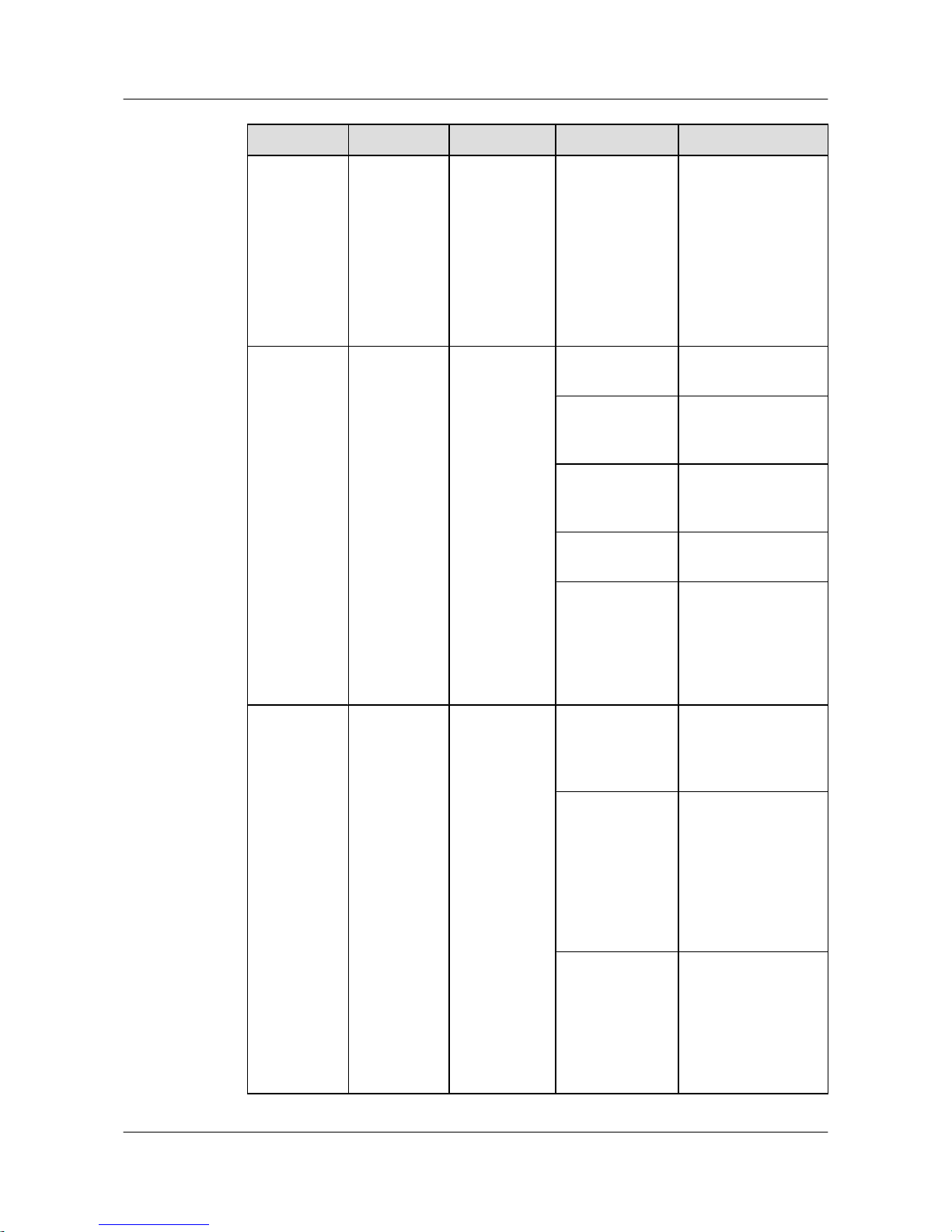
No. Indicator Identifier Status Description
Red
l Two power supply
units are installed
properly, but not
switched on.
l The power supply
units are switched
off.
l The power supply
units are faulty.
3
System status
indicator
SYS Off The system is not
operating.
Green The system is not
operating properly or
is starting.
Orange The system is
performing selfcheck during startup.
Blinking green The system is
operating properly.
Red After registering, the
system does not
operate properly, or a
power alarm, fan
alarm, or temperature
alarm is generated.
4 Mode
indicator
MODE Off The service interface
indicator is in the
default mode
(STAT).
Green The service interface
indicator indicates the
interface speed. After
45 seconds, the
service interface
indicator
automatically restores
to off.
Red
The service interface
indicator indicates the
stack ID. After 45
seconds, the service
interface indicator
automatically restores
to off.
Quidway S2700&S3700&S5700&S6700 Series Ethernet
Switches
Quick Start 2 Product Hardware Introduction
Issue 01 (2011-10-26) Huawei Proprietary and Confidential
Copyright © Huawei Technologies Co., Ltd.
28
Page 34
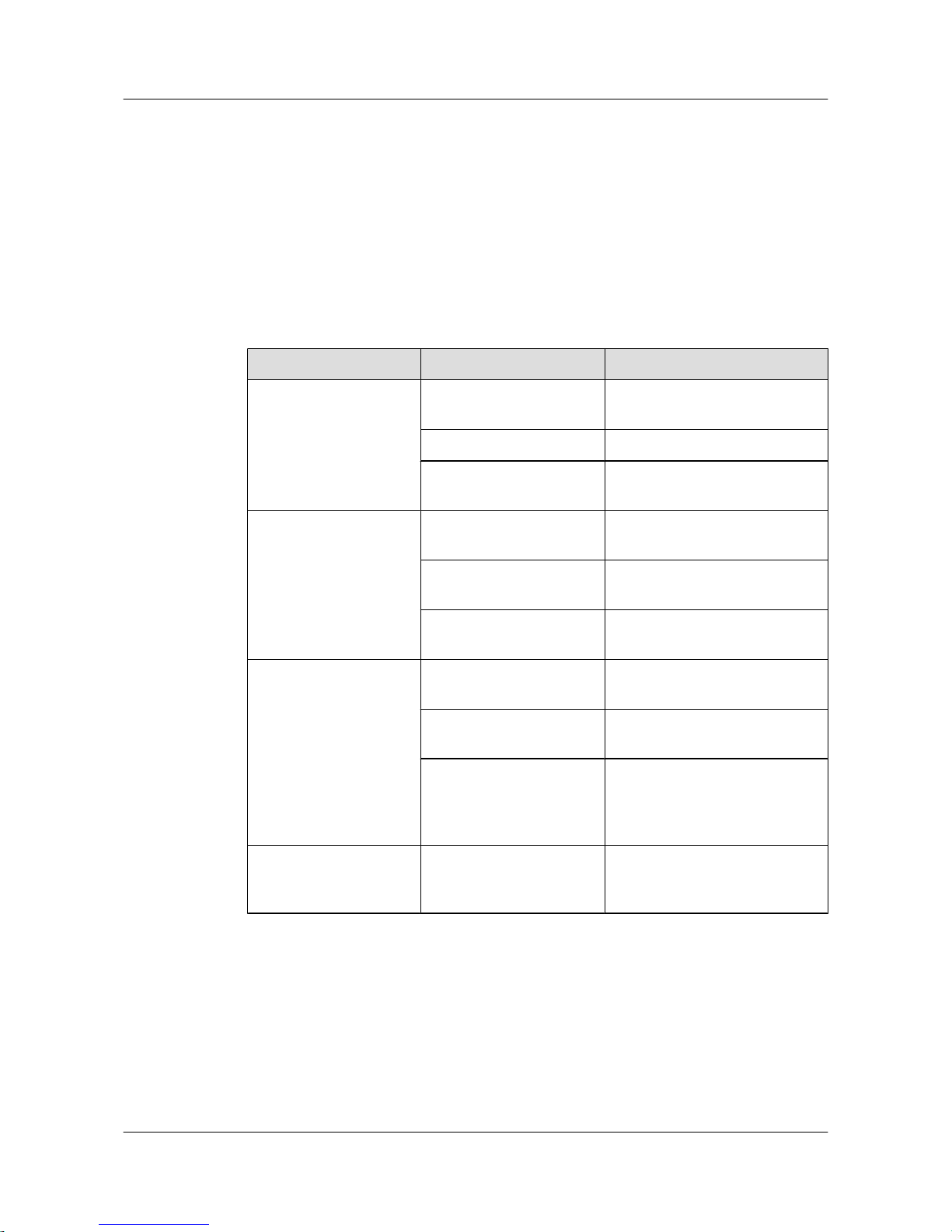
As shown in Figure 2-10, the button marked "5" is the mode switching button. When you press
the mode switching button once, the mode indicator turns green and the related interface indicator
enters the speed state. When you press the mode switching button for a second time, the mode
indicator turns red and the related interface indicator represents the stack status. When you press
the mode switching button for a third time, the mode indicator restores to the default state (off).
If you do not press the mode switching button within 45 seconds, the mode indicator
automatically restores to off. The following table describes the meanings of indicators.
Table 2-15 Description of indicators in different modes
Display Mode Status Description
STAT Off The interface is not connected or
has been shut down.
Green The interface is connected.
Blinking green The interface is sending or
receiving data.
Speed Off The interface is not connected or
has been shut down.
Green The interface speed is 10/100
Mbit/s.
Blinking green The interface speed is 1000 Mbit/
s.
PoE Off The interface does not provide
remote power.
Green The interface is providing remote
power.
Blinking green
l The power of the powered
device (PD) exceeds the power
supply capability of the port or
exceeds the threshold.
Stack Off The stack ID of the member
switch is not the number of the
interface in the off state.
Quidway S2700&S3700&S5700&S6700 Series Ethernet
Switches
Quick Start 2 Product Hardware Introduction
Issue 01 (2011-10-26) Huawei Proprietary and Confidential
Copyright © Huawei Technologies Co., Ltd.
29
Page 35
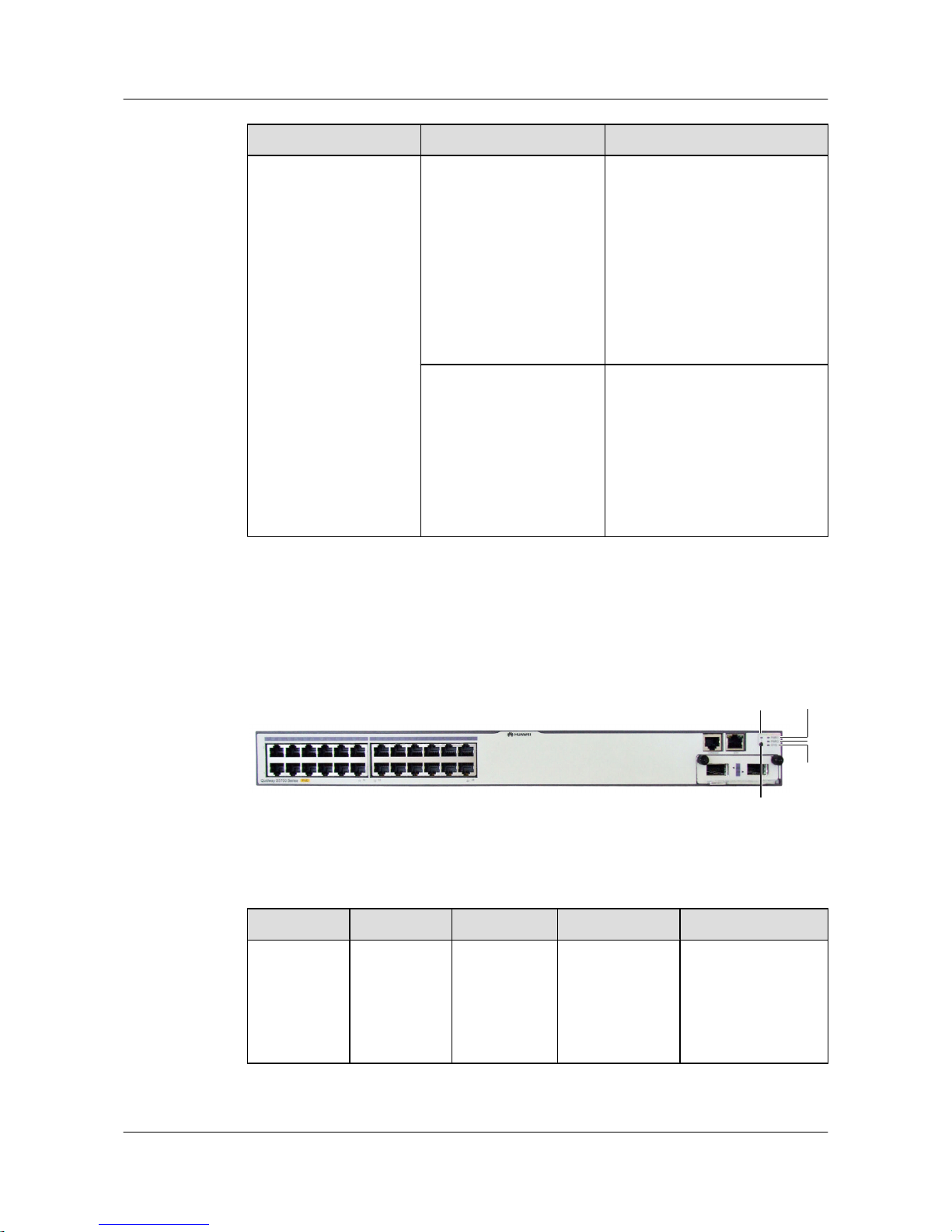
Display Mode Status Description
Green The device is a not a command
switch:
l If the indicator of an interface
is always on, the number of this
interface is the stack ID of the
device.
l If the first nine interface
indicators of the device are
always on, the stack ID of the
device is 0.
Blinking green
The device is a command switch:
l If the indicator of an interface
blinks, the number of this
interface is the stack ID of the
device.
l If the first nine interface
indicators of the device blink,
the stack ID of the device is 0.
Indicators of a PoE S5700
S5700-28C-PWR-EI is a PoE switch.
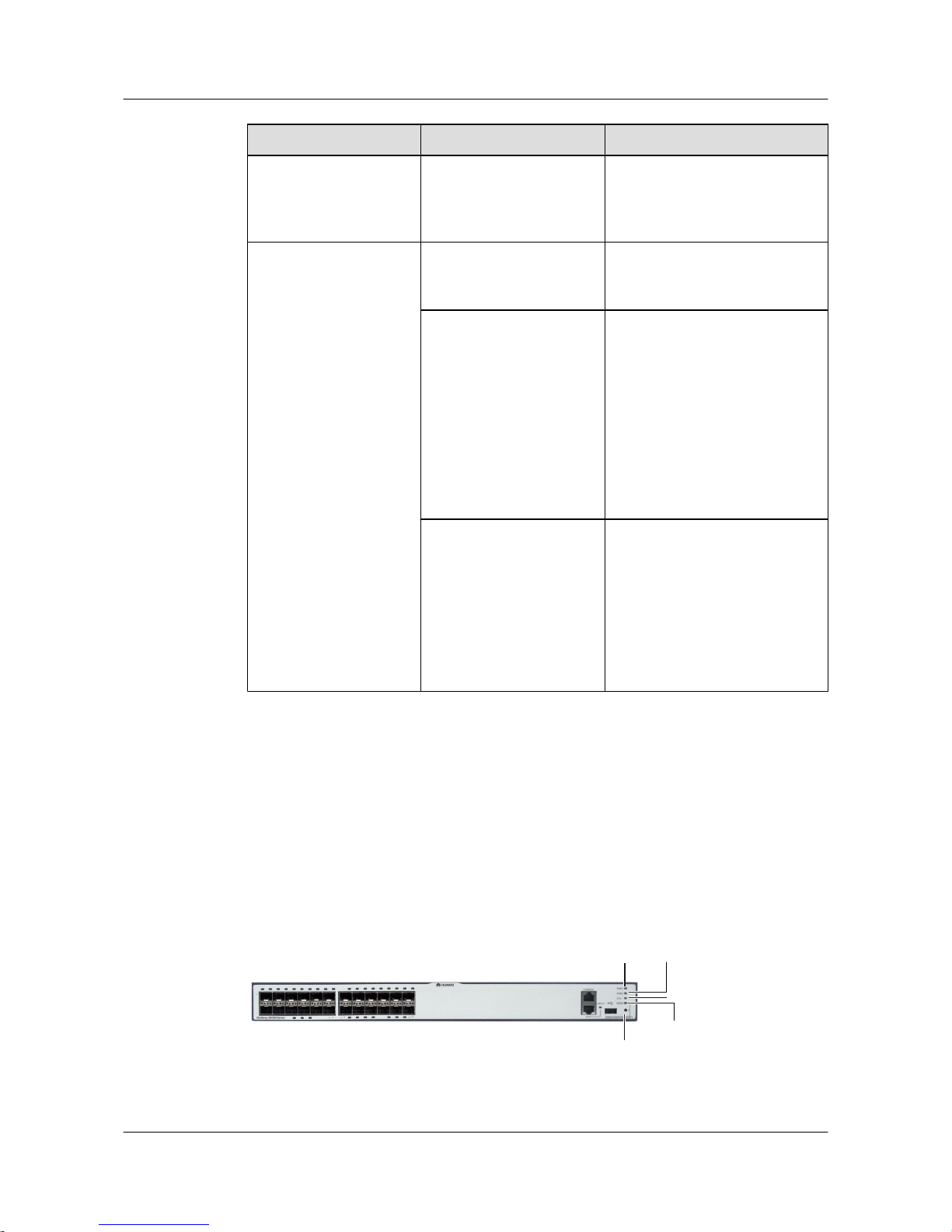
Figure 2-13 S5700-28C-PWR-EI indicators
2
3
4
5
1
Table 2-16 Description of S5700-28C-PWR-EI indicators
No.
Indicator Identifier Status Description
1 Power
indicator
PWR1 Off The power supply
units are not present,
or the power supply is
abnormal when a
single power supply
unit is used.
Quidway S2700&S3700&S5700&S6700 Series Ethernet
Switches
Quick Start 2 Product Hardware Introduction
Issue 01 (2011-10-26) Huawei Proprietary and Confidential
Copyright © Huawei Technologies Co., Ltd.
30
Page 36
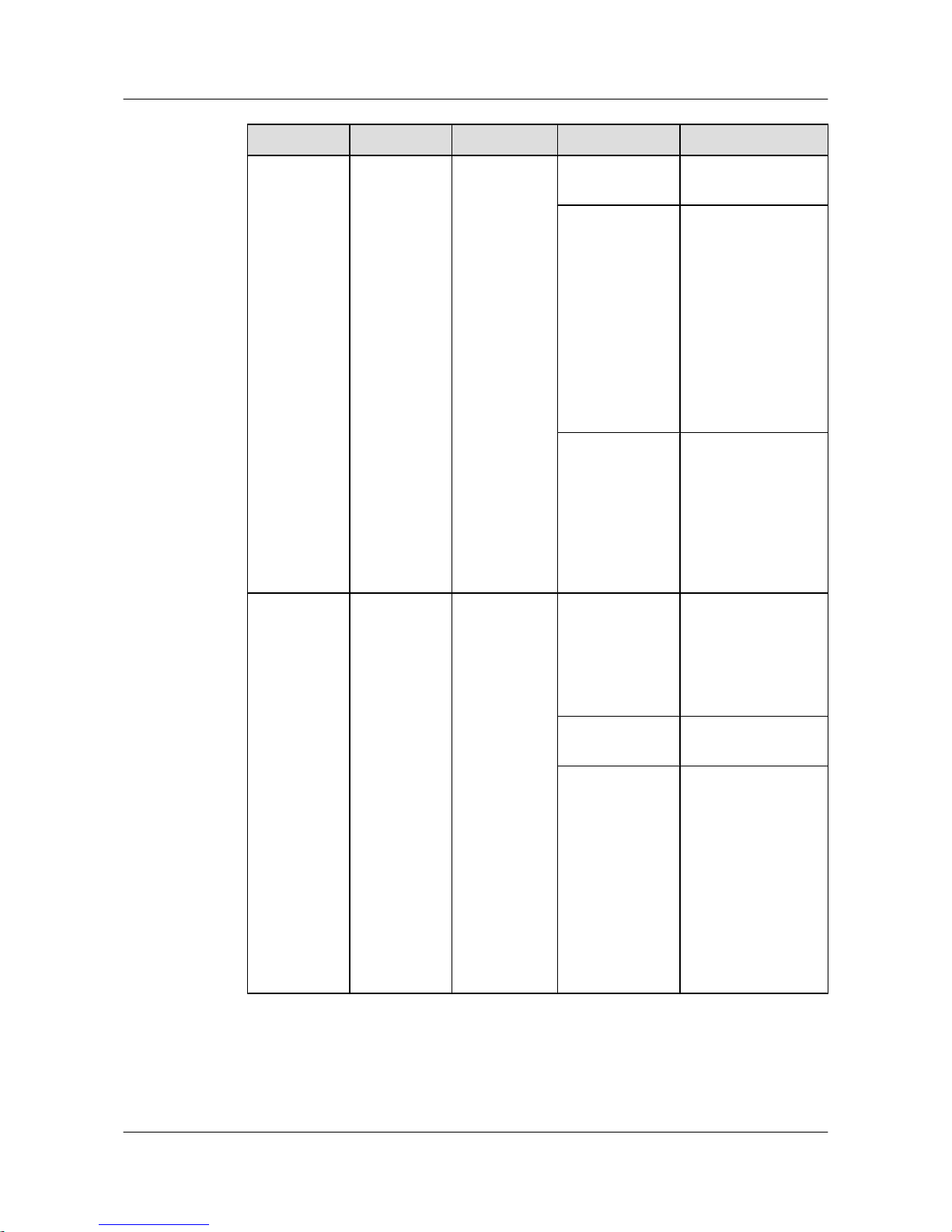
No. Indicator Identifier Status Description
Green The power supply is
normal.
Red
l Two power
supply units are
installed properly,
but not switched
on.
l The power supply
units are switched
off.
l The card power
and PoE power
are abnormal.
Orange
If a single power
supply unit is
installed, the PoE
power is out of range.
If two power supply
units are installed, the
card power or PoE
power is out of range.
2
Power
indicator
PWR2 Off The power supply
units are not present,
or the power supply is
abnormal when a
single power supply
unit is used.
Green The power supply is
normal.
Red
l Two power
supply units are
installed properly,
but not switched
on.
l The power supply
units are switched
off.
l The card power
and PoE power
are abnormal.
Quidway S2700&S3700&S5700&S6700 Series Ethernet
Switches
Quick Start 2 Product Hardware Introduction
Issue 01 (2011-10-26) Huawei Proprietary and Confidential
Copyright © Huawei Technologies Co., Ltd.
31
Page 37
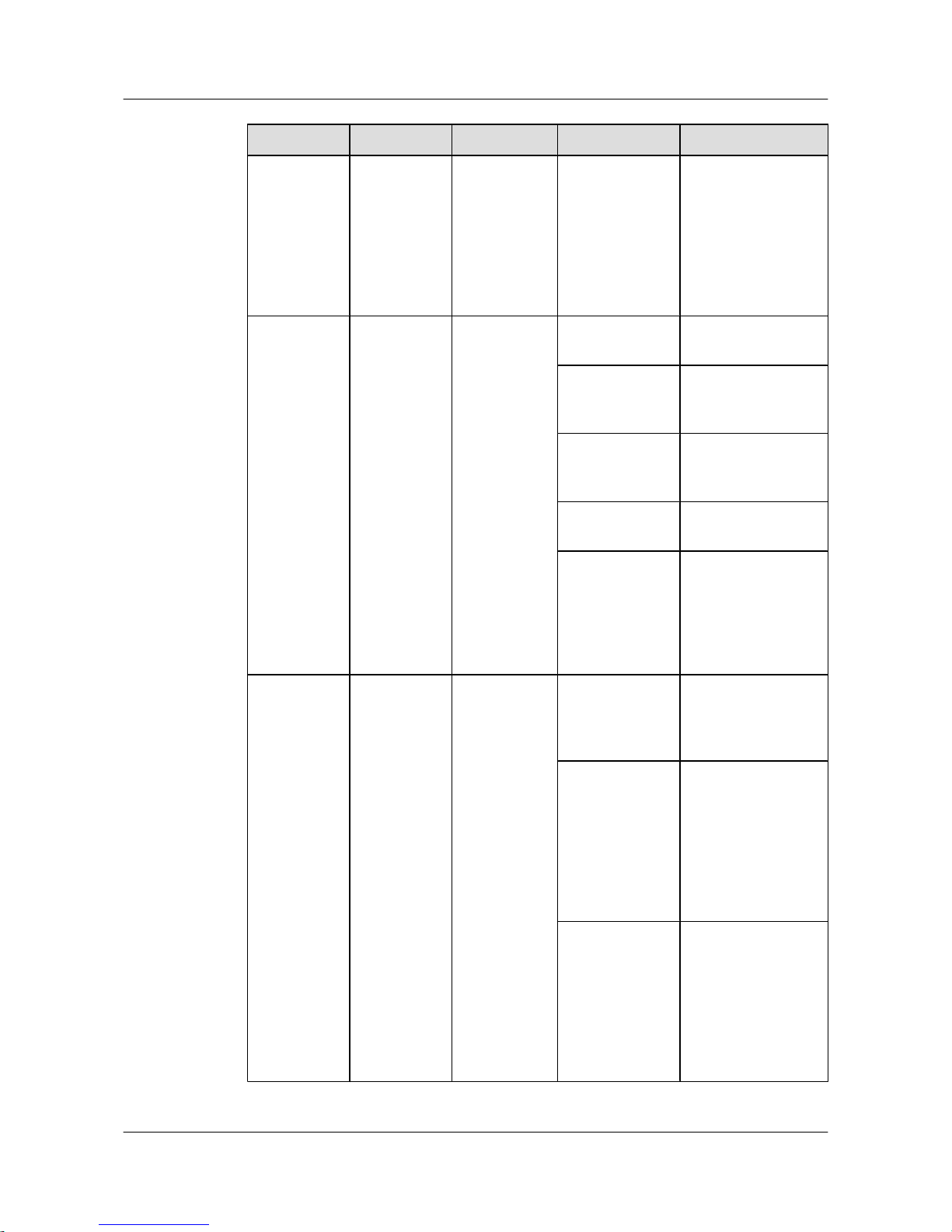
No. Indicator Identifier Status Description
Orange If a single power
supply unit is
installed, the PoE
power is out of range.
If two power supply
units are installed, the
card power or PoE
power is out of range.
3
System status
indicator
SYS Off The system is not
operating.
Green The system is not
operating properly or
is starting.
Orange The system is
performing selfcheck during startup.
Blinking green The system is
operating properly.
Red After registering, the
system does not
operate properly, or a
power alarm, fan
alarm, or temperature
alarm is generated.
4 Mode
indicator
- Off The service interface
indicator is in the
default mode
(STAT).
Green The service interface
indicator indicates
the interface speed.
After 45 seconds, the
service interface
indicator
automatically
restores to off.
Orange
The service interface
indicator indicates
the PoE status. After
45 seconds, the
service interface
indicator
automatically
restores to off.
Quidway S2700&S3700&S5700&S6700 Series Ethernet
Switches
Quick Start 2 Product Hardware Introduction
Issue 01 (2011-10-26) Huawei Proprietary and Confidential
Copyright © Huawei Technologies Co., Ltd.
32
Page 38
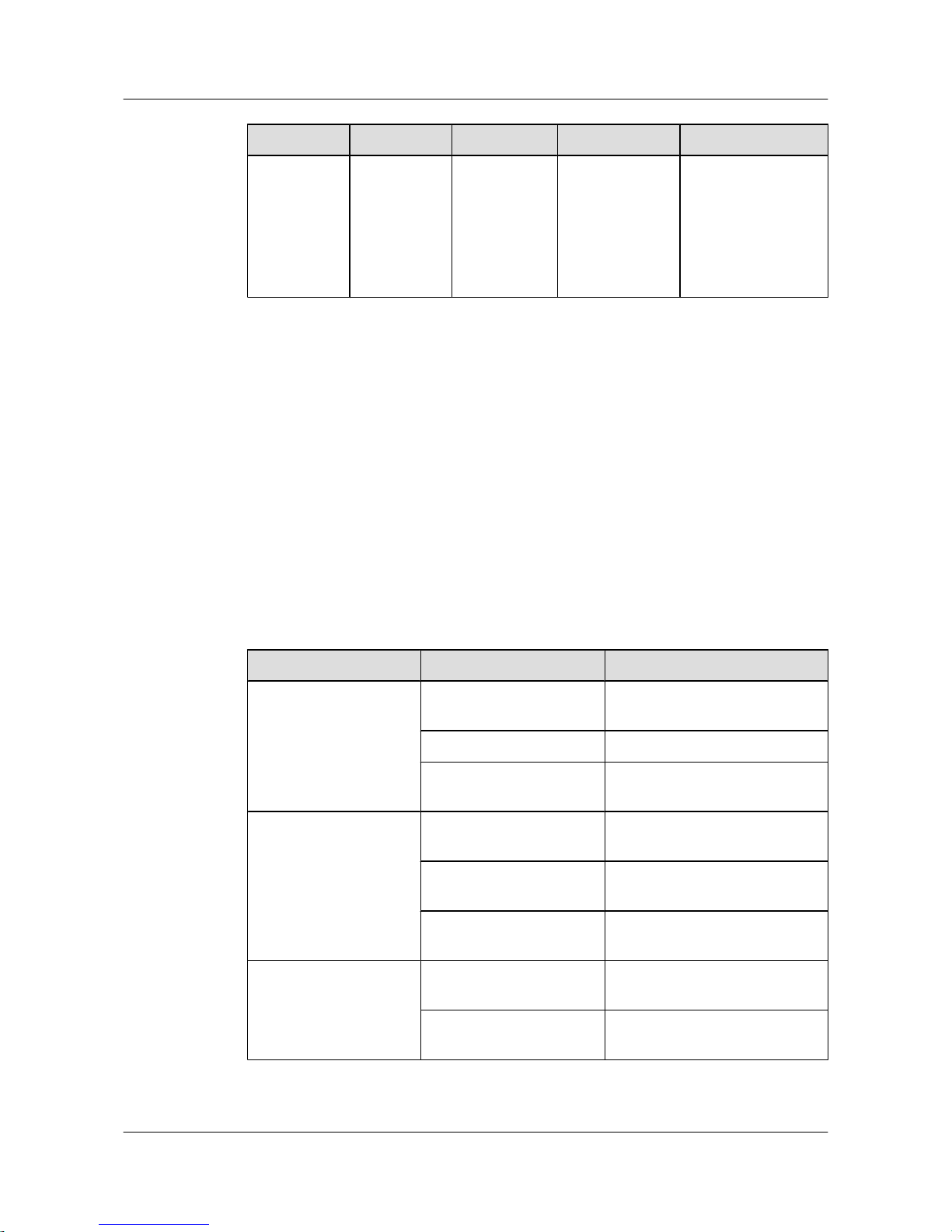
No. Indicator Identifier Status Description
Red The service interface
indicator indicates
the stack ID. After 45
seconds, the service
interface indicator
automatically
restores to off.
As shown in Figure 2-13, the button marked "5" is the mode switching button. On an S5700,
you can press the mode switching button to switch the display modes of interface indicators.
The status of a mode indicator represents the display mode of the related interface indicator. For
example, the mode indicator of S5700-28C-PWR-SI is off and the interface indicators are in
STAT state by default. When you press the mode switching button once, the mode indicator
turns green and the related interface indicator enters the speed state. When you press the mode
switching button for a second time, the mode indicator turns orange and the related interface
indicator represents the PoE power status. When you press the mode switching button for a third
time, the mode indicator turns red and the related interface indicator represents the stack status.
When you press the mode switching button for a fourth time, the mode indicator restores to the
default state (off). If you do not press the mode switching button within 45 seconds, the mode
indicator automatically restores to off.
The following table describes the meanings of indicators.
Table 2-17 Description of indicators in different modes
Display Mode
Status Description
STAT Off The interface is not connected or
has been shut down.
Green The interface is connected.
Blinking green The interface is sending or
receiving data.
Speed Off The interface is not connected or
has been shut down.
Green The interface speed is 10/100
Mbit/s.
Blinking green The interface speed is 1000 Mbit/
s.
PoE Off The interface does not provide
remote power.
Green The interface is providing remote
power.
Quidway S2700&S3700&S5700&S6700 Series Ethernet
Switches
Quick Start 2 Product Hardware Introduction
Issue 01 (2011-10-26) Huawei Proprietary and Confidential
Copyright © Huawei Technologies Co., Ltd.
33
Page 39
Display Mode Status Description
Blinking green
l The power of the powered
device (PD) exceeds the power
supply capability of the port or
exceeds the threshold.
Stack Off The stack ID of the member
switch is not the number of the
interface in the off state.
Green The device is a not a command
switch:
l If the indicator of an interface
is always on, the number of this
interface is the stack ID of the
device.
l If the first nine interface
indicators of the device are
always on, the stack ID of the
device is 0.
Blinking green
The device is a command switch:
l If the indicator of an interface
blinks, the number of this
interface is the stack ID of the
device.
l If the first nine interface
indicators of the device blink,
the stack ID of the device is 0.
2.8 S6700 Indicator Description
This section describes the indicators on the S6700 front panel.
Indicators of S6700 Switch
In the following description, the indicators of S6700-24-EI are described as an example.
Figure 2-14 S6700-24-EI indicators
2
3
4
5
1
Quidway S2700&S3700&S5700&S6700 Series Ethernet
Switches
Quick Start 2 Product Hardware Introduction
Issue 01 (2011-10-26) Huawei Proprietary and Confidential
Copyright © Huawei Technologies Co., Ltd.
34
Page 40
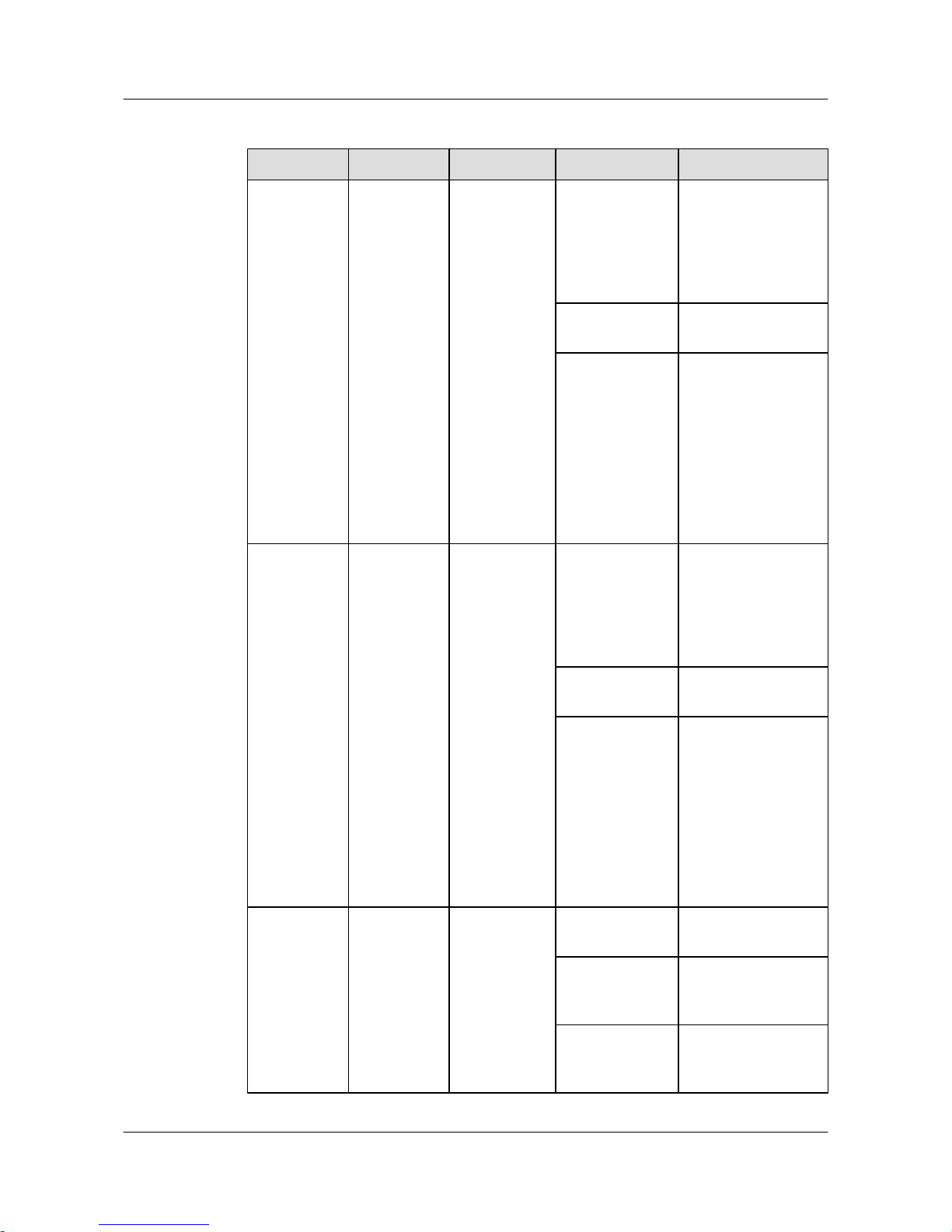
Table 2-18 Description of S6700-24-EI indicators
No. Indicator Identifier Status Description
1 Power
indicator
PWR1 Off The power supply
units are not present,
or the power supply is
abnormal when a
single power supply
unit is used.
Green The power supply is
normal.
Red
l Two power supply
units are installed
properly, but not
switched on.
l The power supply
units are switched
off.
l The power supply
units are faulty.
2
Power
indicator
PWR2 Off The power supply
units are not present,
or the power supply is
abnormal when a
single power supply
unit is used.
Green The power supply is
normal.
Red
l Two power supply
units are installed
properly, but not
switched on.
l The power supply
units are switched
off.
l The power supply
units are faulty.
3
System status
indicator
SYS Off The system is not
operating.
Green The system is not
operating properly or
is starting.
Orange The system is
performing selfcheck during startup.
Quidway S2700&S3700&S5700&S6700 Series Ethernet
Switches
Quick Start 2 Product Hardware Introduction
Issue 01 (2011-10-26) Huawei Proprietary and Confidential
Copyright © Huawei Technologies Co., Ltd.
35
Page 41
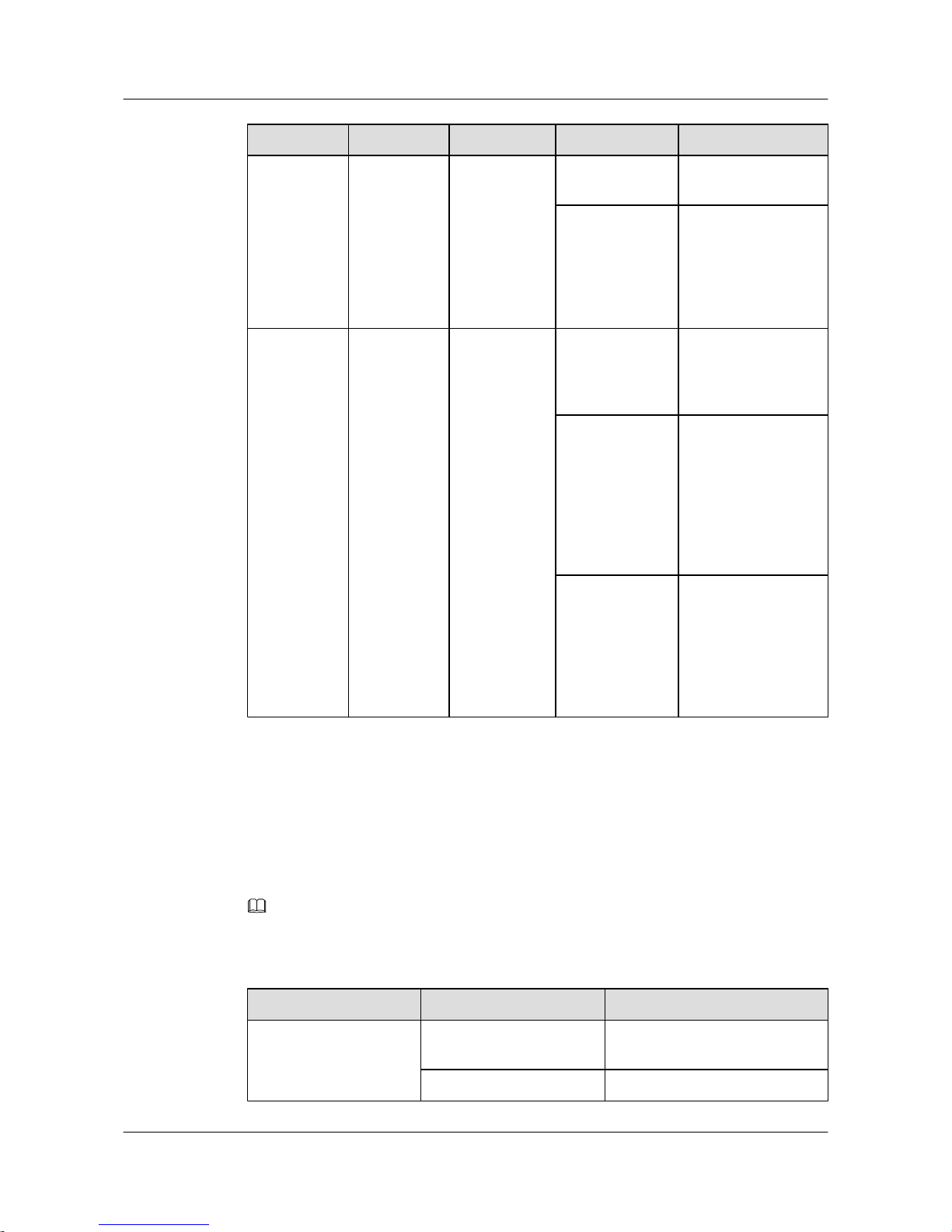
No. Indicator Identifier Status Description
Blinking green The system is
operating properly.
Red After registering, the
system does not
operate properly, or a
power alarm, fan
alarm, or temperature
alarm is generated.
4 Mode
indicator
MODE Off The service interface
indicator is in the
default mode
(STAT).
Green The service interface
indicator indicates the
interface speed. After
45 seconds, the
service interface
indicator
automatically restores
to off.
Red
The service interface
indicator indicates the
stack ID. After 45
seconds, the service
interface indicator
automatically restores
to off.
As shown in Figure 2-14, the button marked "5" is the mode switching button. When you press
the mode switching button once, the mode indicator turns green and the related interface indicator
enters the speed state. When you press the mode switching button for a second time, the mode
indicator turns red and the related interface indicator represents the stack status. If you do not
press the mode switching button within 45 seconds, the mode indicator automatically restores
to off. The following table describes the meanings of indicators.
NOTE
PWR1 is at the side of the chassis.
Table 2-19 Description of indicators in different modes
Display Mode
Status Description
STAT Off The interface is not connected or
has been shut down.
Green The interface is connected.
Quidway S2700&S3700&S5700&S6700 Series Ethernet
Switches
Quick Start 2 Product Hardware Introduction
Issue 01 (2011-10-26) Huawei Proprietary and Confidential
Copyright © Huawei Technologies Co., Ltd.
36
Page 42
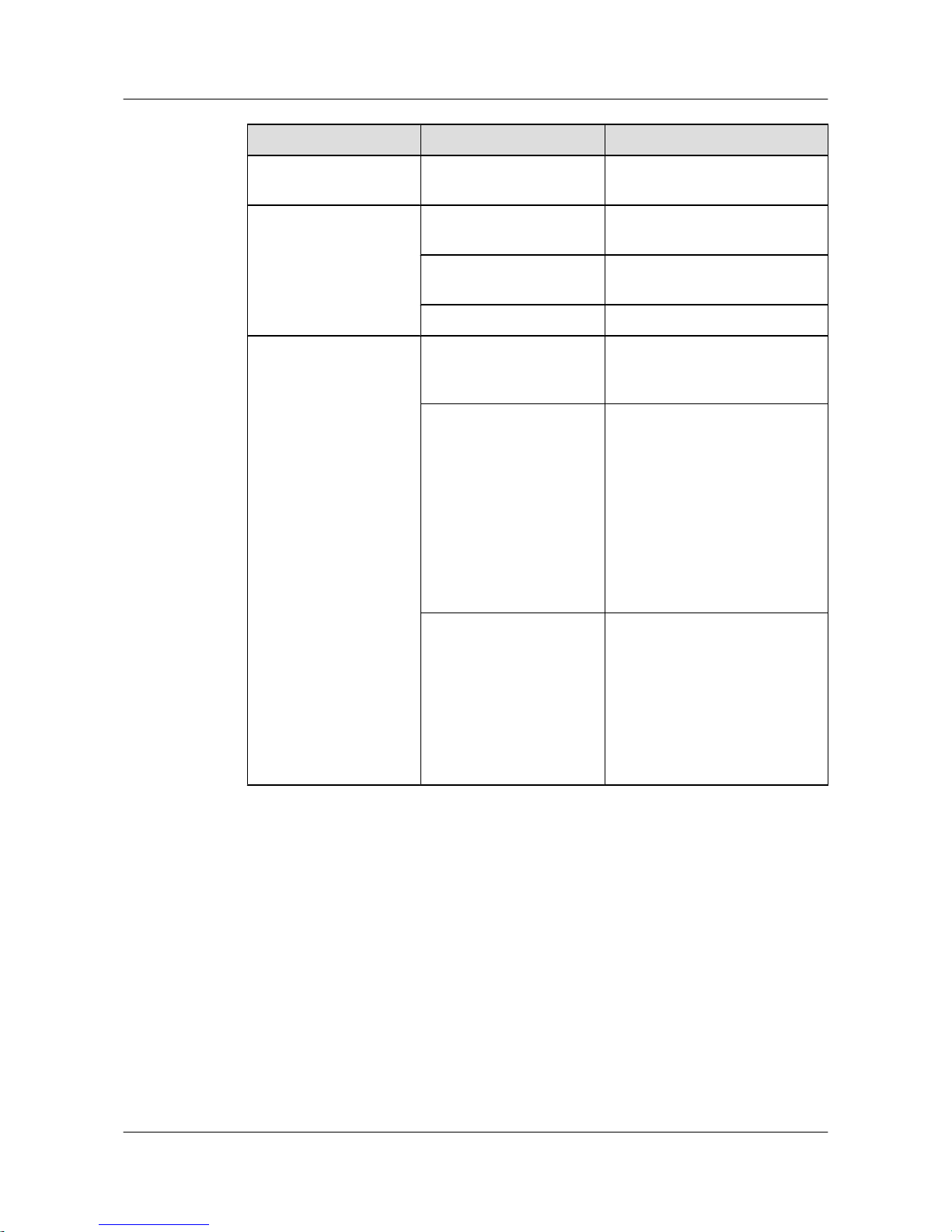
Display Mode Status Description
Blinking green The interface is sending or
receiving data.
Speed Off The interface is not connected or
has been shut down.
Green The interface speed is 1000 Mbit/
s.
Blinking green The interface speed is 10 Gbit/s.
Stack Off The stack ID of the member
switch is not the number of the
interface in the off state.
Green The device is a not a command
switch:
l If the indicator of an interface
is always on, the number of this
interface is the stack ID of the
device.
l If the first nine interface
indicators of the device are
always on, the stack ID of the
device is 0.
Blinking green
The device is a command switch:
l If the indicator of an interface
blinks, the number of this
interface is the stack ID of the
device.
l If the first nine interface
indicators of the device blink,
the stack ID of the device is 0.
Quidway S2700&S3700&S5700&S6700 Series Ethernet
Switches
Quick Start 2 Product Hardware Introduction
Issue 01 (2011-10-26) Huawei Proprietary and Confidential
Copyright © Huawei Technologies Co., Ltd.
37
Page 43

3 Device Installation
This section describes how to install the S2700/3700/5700/6700.
For details on device installation, see the S2700&3700&5700&6700 Installation Quick Start.
NOTE
You can obtain the paper documentation of the quick start from delivered accessories. To obtain the electronic
documentation of the quick start, see 7 Where to Obtain Documentation.
Quidway S2700&S3700&S5700&S6700 Series Ethernet
Switches
Quick Start 3 Device Installation
Issue 01 (2011-10-26) Huawei Proprietary and Confidential
Copyright © Huawei Technologies Co., Ltd.
38
Page 44

4 Powering on the Device
About This Chapter
This section describes the check items and the procedure for powering on and powering off the
device.
4.1 Checking Before Power-on
After hardware installation is complete, you need to check the device installation and cable
installation.
4.2 Powering on the Device
4.3 Checking After Power-on
Quidway S2700&S3700&S5700&S6700 Series Ethernet
Switches
Quick Start 4 Powering on the Device
Issue 01 (2011-10-26) Huawei Proprietary and Confidential
Copyright © Huawei Technologies Co., Ltd.
39
Page 45
4.1 Checking Before Power-on
After hardware installation is complete, you need to check the device installation and cable
installation.
NOTE
Before power-on, you need to check the device cabinet, cables, connectors, sockets, labels, and on-site
environment.
Device Installation Checklist
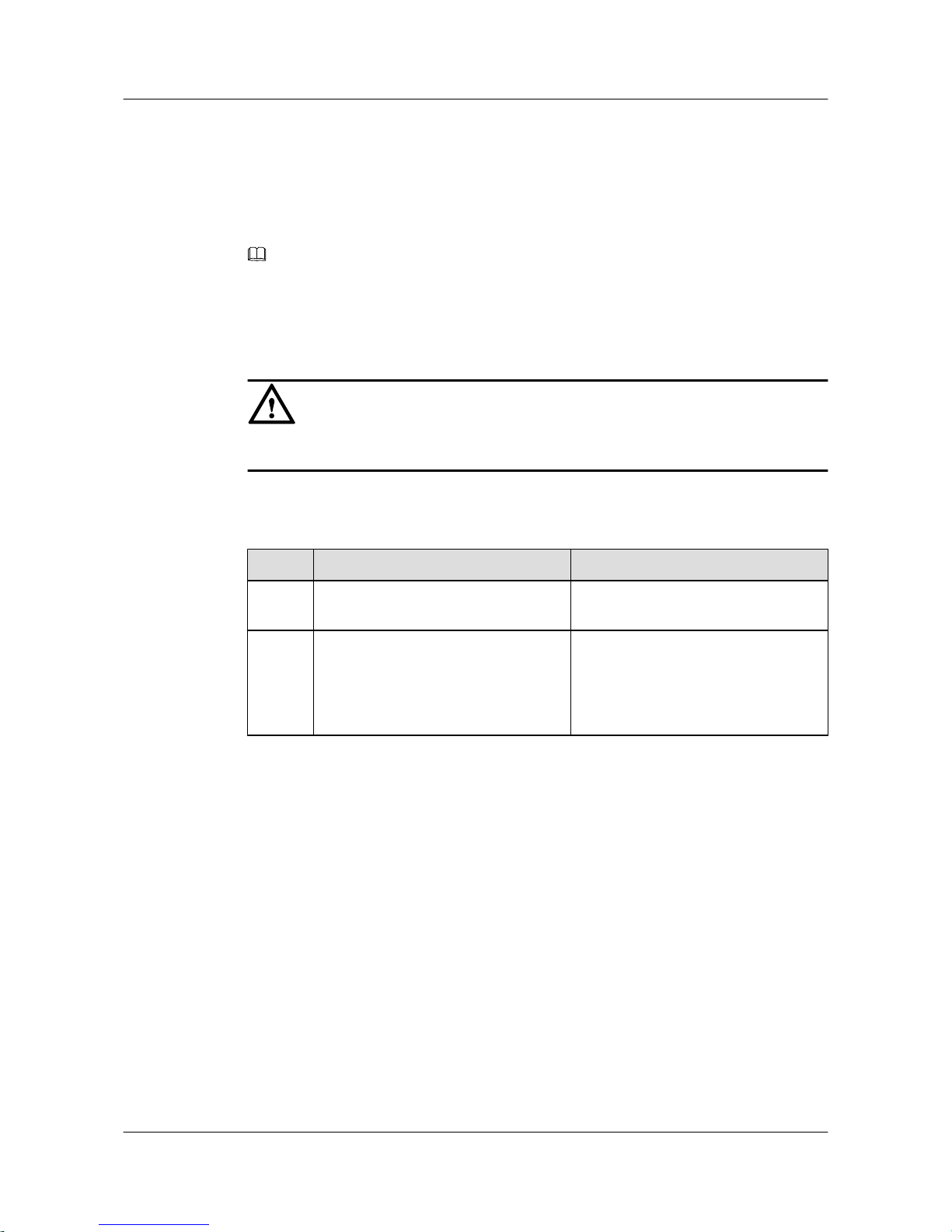
CAUTION
Before power-on, all the power distribution cabinets and power distribution frames must be off.
Table 4-1 describes the device installation checklist.
Table 4-1 Device installation checklist
No.
Item Method
1 The cabinet is installed according to the
dimensions on the design paper.
Check the cabinet according to the
project design document.
2 The expansion bolts for fixing the
cabinet or base (support) to the ground
are fastened. The plain washer, spring
washer, and nut (bolt) are installed
correctly.
-
Quidway S2700&S3700&S5700&S6700 Series Ethernet
Switches
Quick Start 4 Powering on the Device
Issue 01 (2011-10-26) Huawei Proprietary and Confidential
Copyright © Huawei Technologies Co., Ltd.
40
Page 46
No. Item Method
3 The installation holes on the support and
the expansion bolts adapt to each other
to ensure insulation between the support
and the ground and between the floor
bracket and the guide rail.
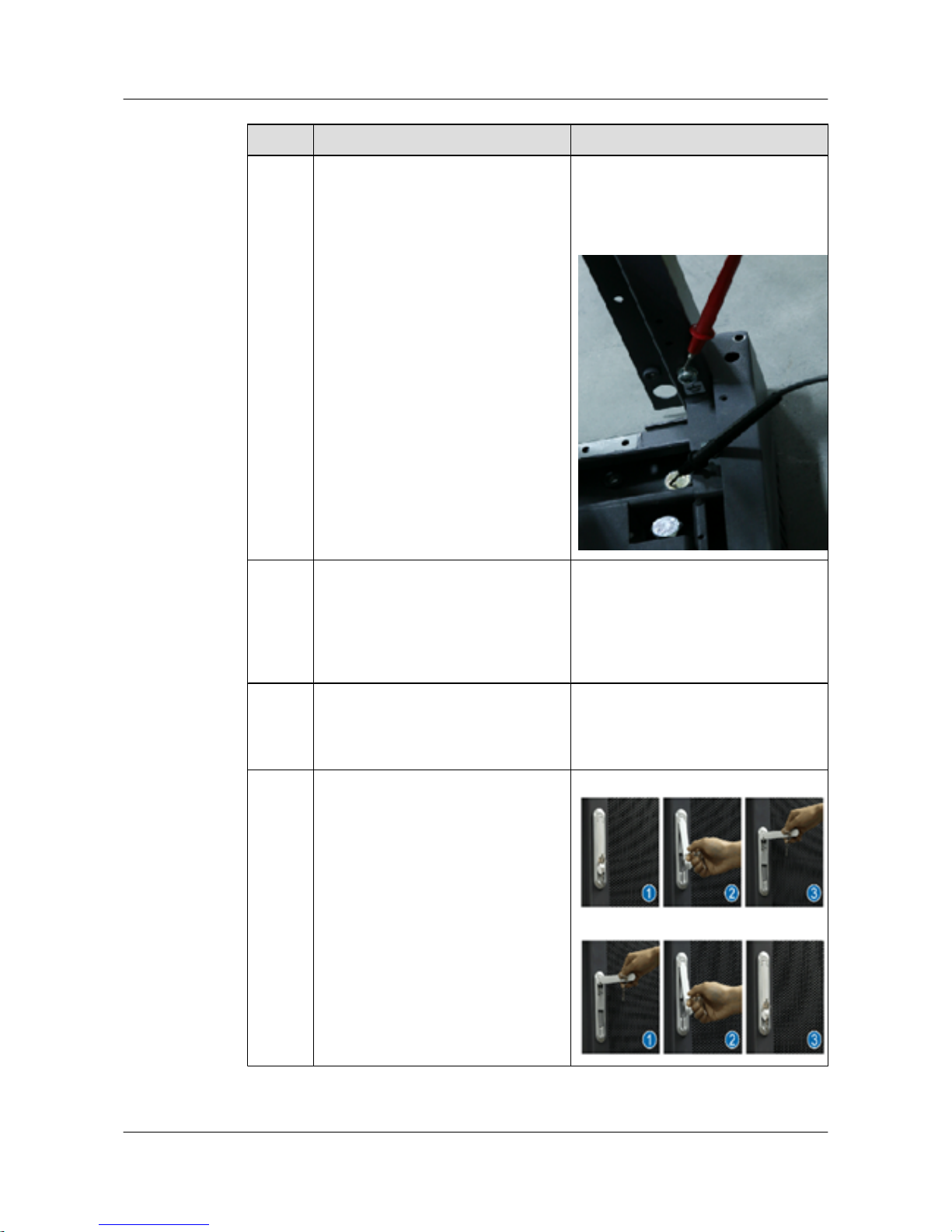
Use the multimeter to measure the
resistance between the bolt and the
grounding bolt of the rack. The
resistance must be more than five mega
ohms.
4 The surfaces of the cabinets in the same
row should be on the same plane. The
cabinets are arranged closely and tidily.
The cabinets on the sides of the main
path are aligned. The position error
should be less than 5 mm.
-
5 The accessories of the front and rear
doors are completely installed and the
connection board is installed for
combining cabinets.
-
6 The front door of a cabinet can be
opened and closed easily.
Open the door lock.
Close the door lock.
Quidway S2700&S3700&S5700&S6700 Series Ethernet
Switches
Quick Start 4 Powering on the Device
Issue 01 (2011-10-26) Huawei Proprietary and Confidential
Copyright © Huawei Technologies Co., Ltd.
41
Page 47
No. Item Method
7 The card is installed and removed
easily. The screws on the panel should
be appropriately tightened and easily
disassembled. The spring wire is intact.
-
8 The cabinet surface must be tidy and
clean; the components of the cabinet
cannot be distorted; all identifiers are
correct, clear, and complete.
-
9 The cabinet is kept clean and there are
no excessive binding straps and other
articles in the cabinet.
-
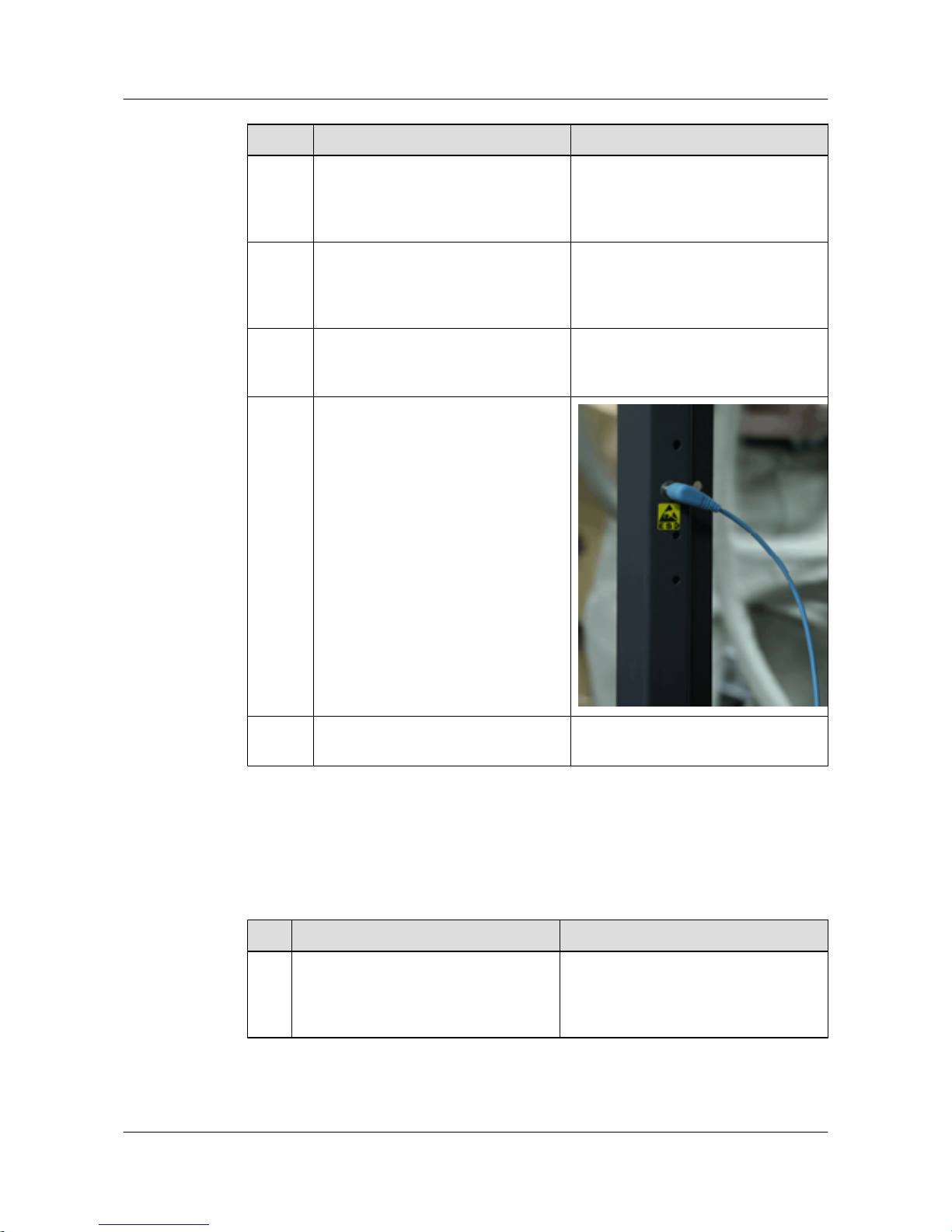
10 The ESD wrist straps are connected the
ESD jack in the chassis.
11 Blank panels are installed in all empty
slots.
-
Cable Installation Checklist
Table 4-2 describes the cable installation checklist.
Table 4-2 Cable installation checklist
No.
Item Method
1 The power cables and ground cables must
be the copper wires and have no splice.
The cables are safely connected
complying with standards.
-
Quidway S2700&S3700&S5700&S6700 Series Ethernet
Switches
Quick Start 4 Powering on the Device
Issue 01 (2011-10-26) Huawei Proprietary and Confidential
Copyright © Huawei Technologies Co., Ltd.
42
Page 48
No. Item Method
2 The power cables and ground cables are
connected safely. The spring washer of
the ground cable terminal is on the flat
washer.
-
3 The lugs of the power cables and ground
cables are soldered or crimped tightly.
-
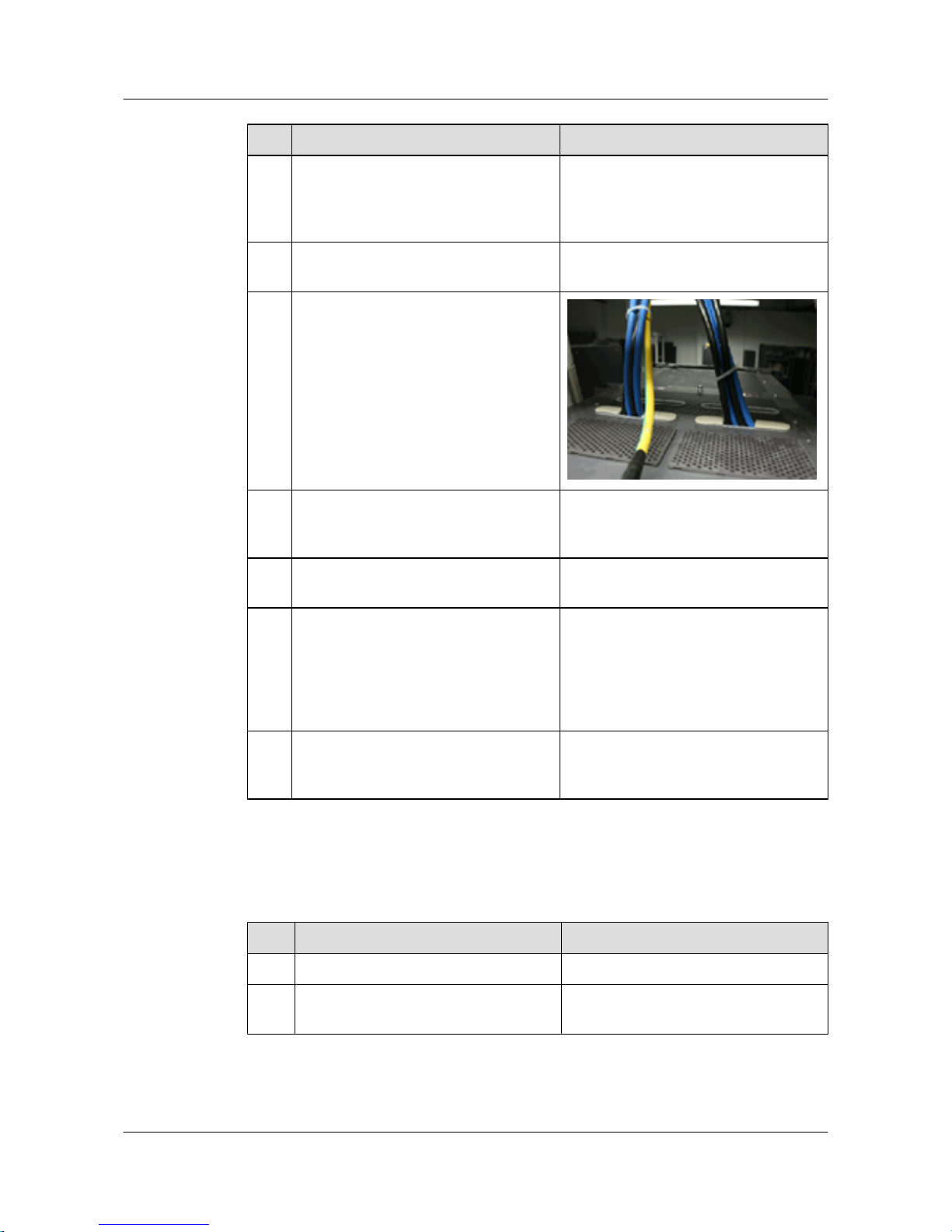
4 The power cables and ground cables are
not crossed and are separated from other
cables.
5 The redundant part of the power cables
and ground cables should be cut. The
cables cannot be circled.
-
6 The ground cables must be tightly
connected to the doors of the cabinet.
-
7 Labels are filled and attached to power
cables and PGND cables; power cables
and PGND cables including power
distribution switches are labeled correctly
and clearly. Labels are attached 20 mm
from the connector.
-
8 The clearance between the power cable,
PGND cable, and signal cable must be
more than 30 mm.
-
Table 4-3 describes the cabinet cable checklist.
Table 4-3 Cabinet cable checklist
No.
Item Method
1 Cables are correctly connected. -
2 Cable ties are not overlapped and
connectors are smooth.
-
Table 4-4 describes the signal cable checklist.
Quidway S2700&S3700&S5700&S6700 Series Ethernet
Switches
Quick Start 4 Powering on the Device
Issue 01 (2011-10-26) Huawei Proprietary and Confidential
Copyright © Huawei Technologies Co., Ltd.
43
Page 49
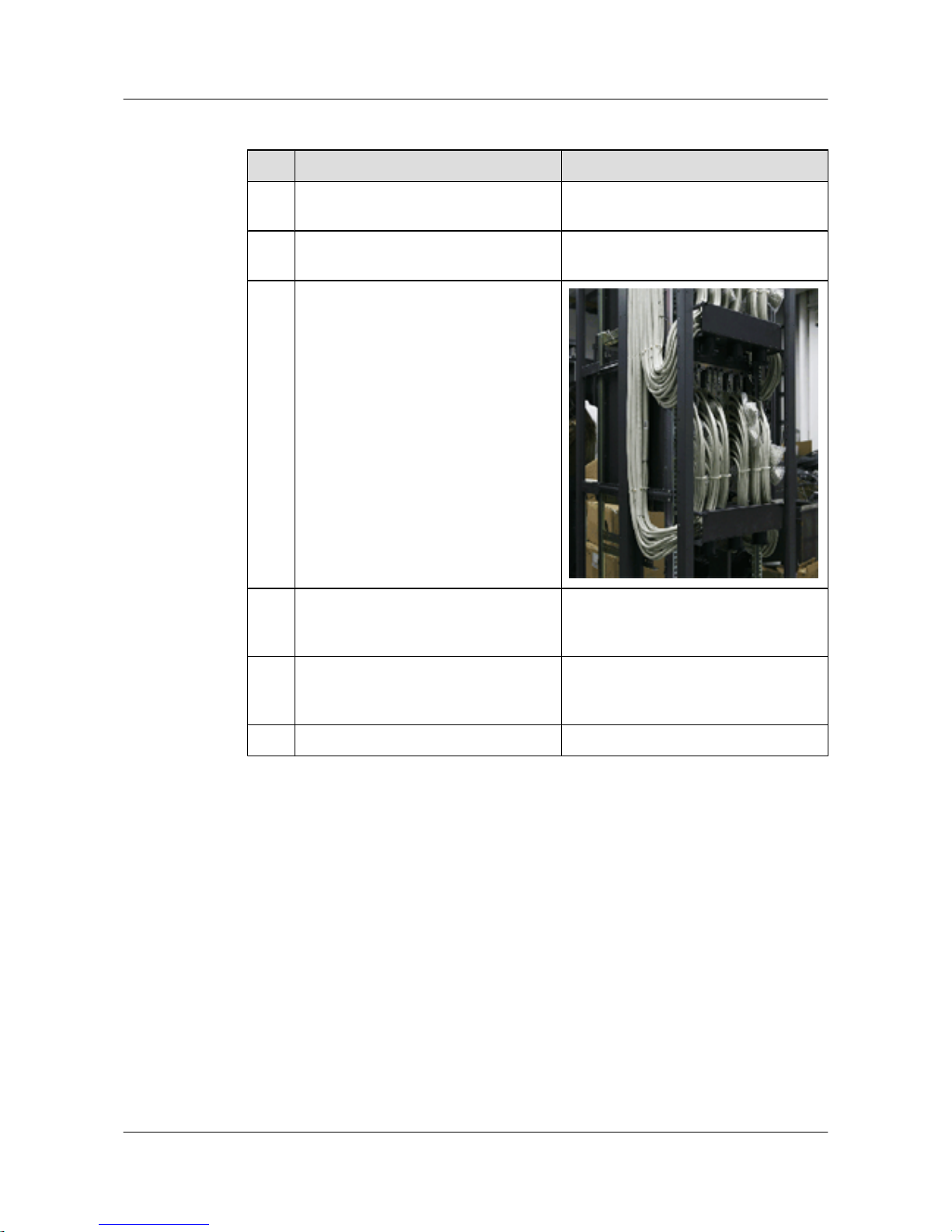
Table 4-4 Signal cable checklist
No. Item Method
1 All the signal cables to be deployed pass
the continuity check.
-
2 No signal cable is placed on the heat
dissipation holes of the cabinet.
-
3 The bent part of a signal cable cannot be
too tight.
4 The cables in the cabinet cannot be
crossed and the cables outside the cabinet
are bound.
-
5 The two ends of a signal cable are clearly
identified by labels and the texts on the
labels are in the same direction.
-
6 The bolts that fix the cables are tightened. -
4.2 Powering on the Device
Turn on the power module of the device.
4.3 Checking After Power-on
Check the following items after the device is powered on:
l The sound of fan rotating can be heard and that the air exhaust from the air vents can be
felt.
l The indicators of the power modules run normally. Normally, the INPUT and OUTPUT
indicators are on.
Quidway S2700&S3700&S5700&S6700 Series Ethernet
Switches
Quick Start 4 Powering on the Device
Issue 01 (2011-10-26) Huawei Proprietary and Confidential
Copyright © Huawei Technologies Co., Ltd.
44
Page 50

l The indicators of the fan modules run normally. Normally, the STATUS indicator is on
and the ALM indicator is off.
l Normally, the RUN indicator blinks and the ALM indicator is off.
Quidway S2700&S3700&S5700&S6700 Series Ethernet
Switches
Quick Start 4 Powering on the Device
Issue 01 (2011-10-26) Huawei Proprietary and Confidential
Copyright © Huawei Technologies Co., Ltd.
45
Page 51

5 Logging in to the Device
About This Chapter
This section describes how to log in to the device.
5.1 Logging In to the Switch Through the Console Interface
5.2 Example for Configuring to Manage the SwitchThrough Telnet
5.3 Logging In to the Web System Client
Before configuring the switch, you must log in to the Web system client.
Quidway S2700&S3700&S5700&S6700 Series Ethernet
Switches
Quick Start 5 Logging in to the Device
Issue 01 (2011-10-26) Huawei Proprietary and Confidential
Copyright © Huawei Technologies Co., Ltd.
46
Page 52
5.1 Logging In to the Switch Through the Console Interface
Context
When establishing the configuration environment through the console interface, you can log in
to the S2700/3700/5700/6700 through the HyperTerminal in Windows.
Procedure
Step 1 Start the HyperTerminal.
Choose Start > All Program > Accessories > Communications > HyperTerminal to start the
HyperTerminal in Windows XP.
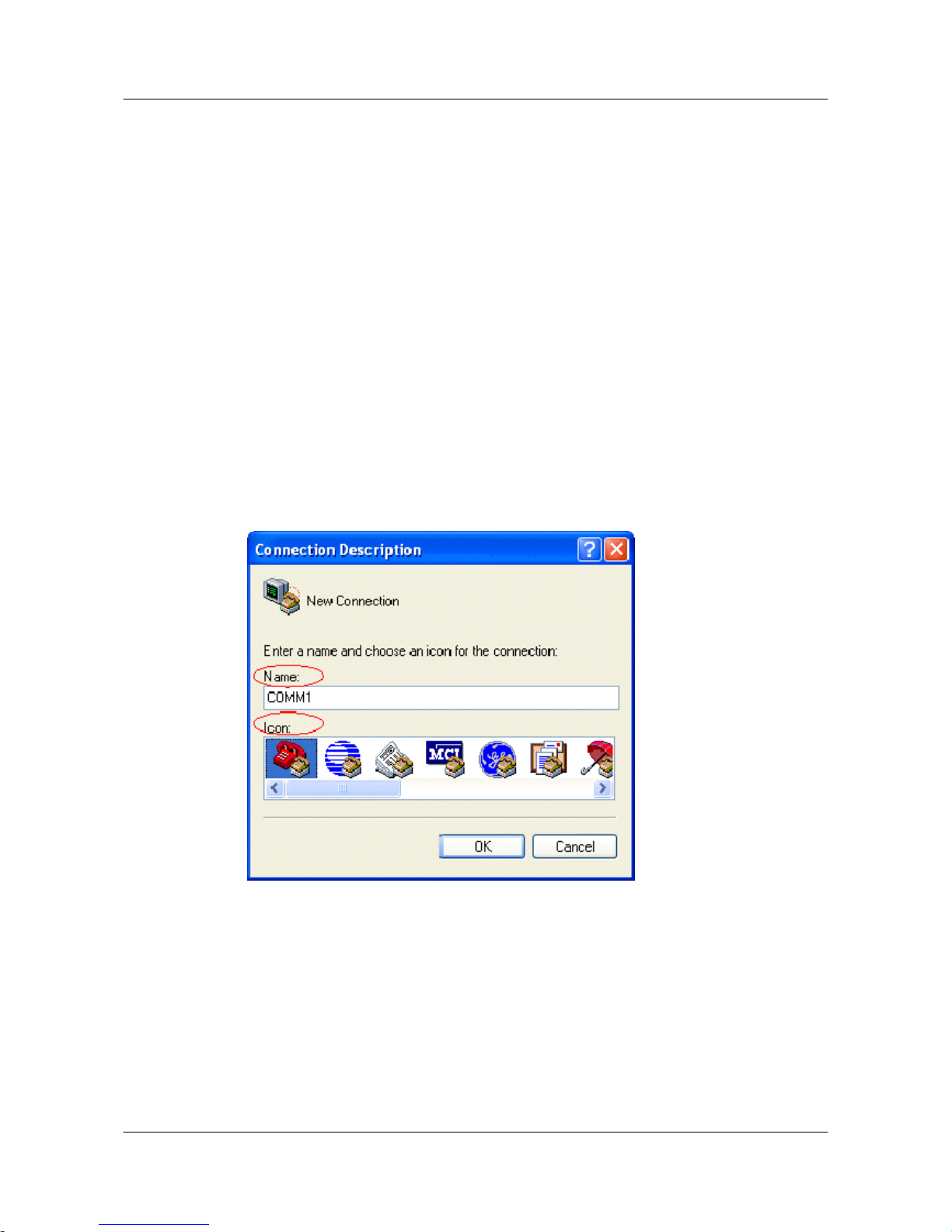
Step 2 Set up a connection.
See Figure 5-1. Enter the name of the new connection in the Name text box and then choose
one icon. Then, click OK.
Figure 5-1 Setting up a connection
Step 3 Configure an interface for connection.
In the Connect To dialog box, as shown in Figure 5-2, select an interface from the drop-down
list box according to the actual interface on the PC or terminal. Next, click OK.
Quidway S2700&S3700&S5700&S6700 Series Ethernet
Switches
Quick Start 5 Logging in to the Device
Issue 01 (2011-10-26) Huawei Proprietary and Confidential
Copyright © Huawei Technologies Co., Ltd.
47
Page 53
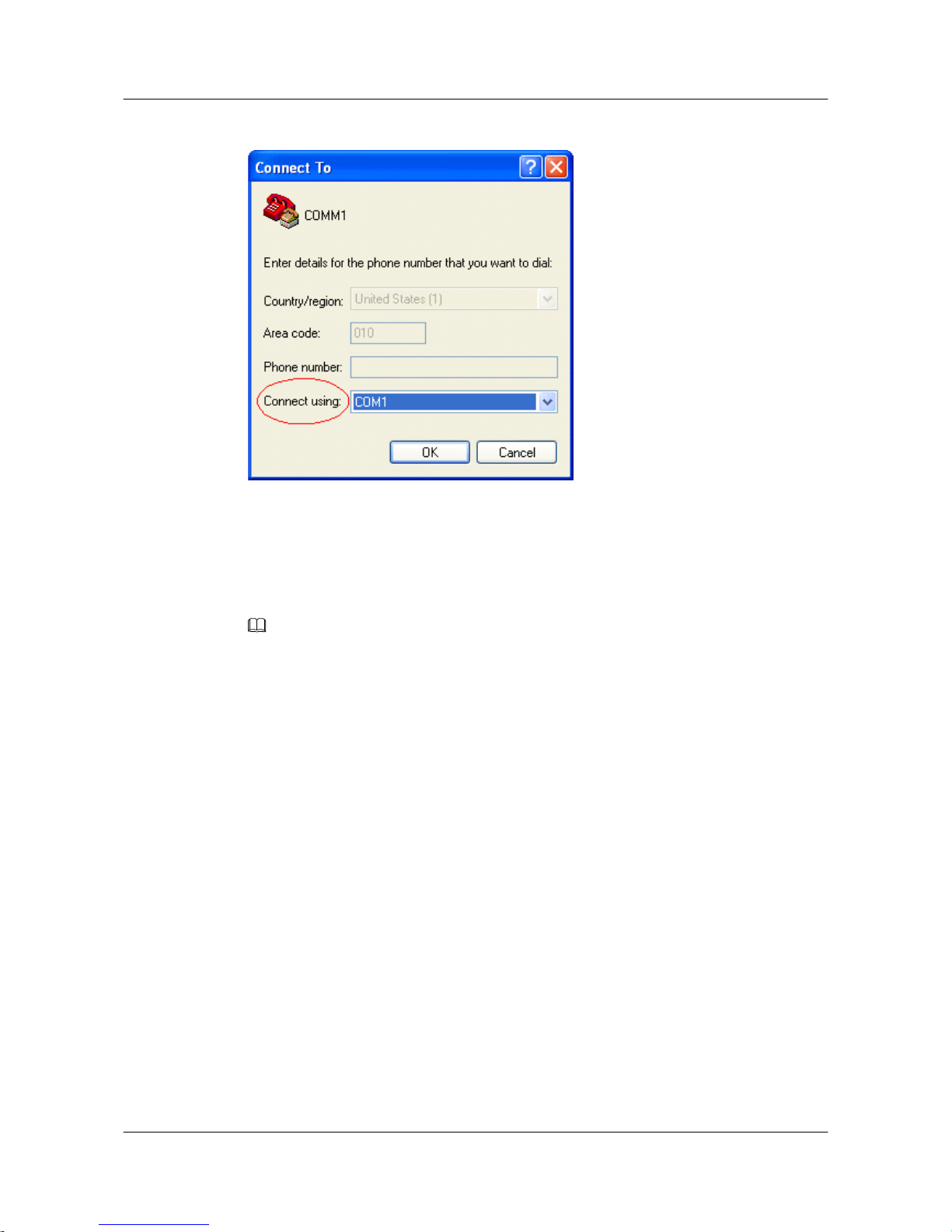
Figure 5-2 Configuring the interface for connection
Step 4 Set communication parameters.
When the COM1 Properties dialog box is displayed as shown in Figure 5-3, specify the
parameters listed in Table 5-1.
NOTE
In other Windows operating systems, bits per second may be described as baud rate and data stream control
may be described as traffic control.
Quidway S2700&S3700&S5700&S6700 Series Ethernet
Switches
Quick Start 5 Logging in to the Device
Issue 01 (2011-10-26) Huawei Proprietary and Confidential
Copyright © Huawei Technologies Co., Ltd.
48
Page 54
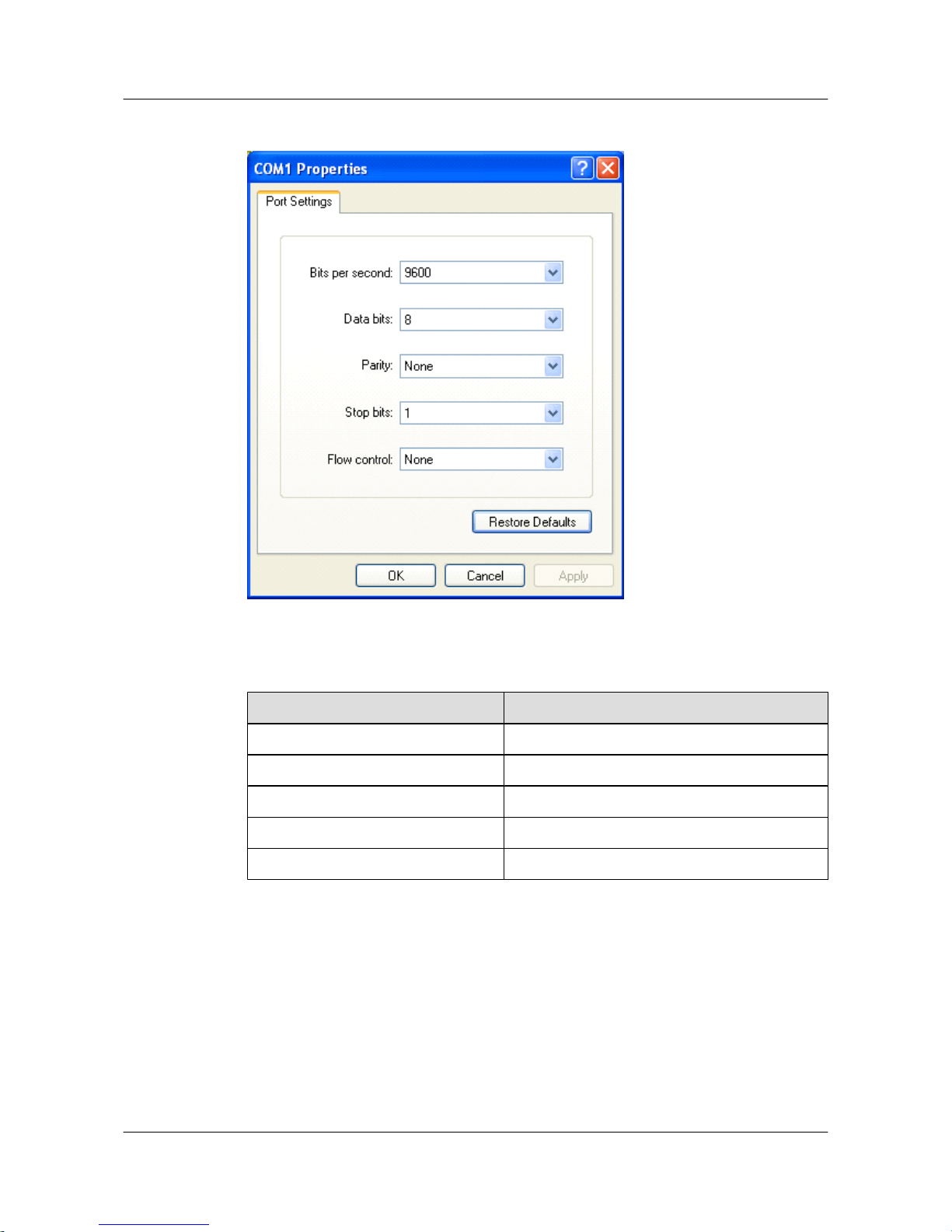
Figure 5-3 Specifying parameters
Table 5-1 Parameters
Parameter
Value
Bit per second (baud rate) 9600
Data bit 8
Parity check None
Stop bit 1
Flow control (traffic control) None
Step 5 After the HyperTerminal starts, choose FileAttributes to display the COMM1 Properties
dialog box, as shown in Figure 5-4. On the Setting tab, select VT100 in the Emulation dropdown list box. Click OK to complete the setting.
Quidway S2700&S3700&S5700&S6700 Series Ethernet
Switches
Quick Start 5 Logging in to the Device
Issue 01 (2011-10-26) Huawei Proprietary and Confidential
Copyright © Huawei Technologies Co., Ltd.
49
Page 55
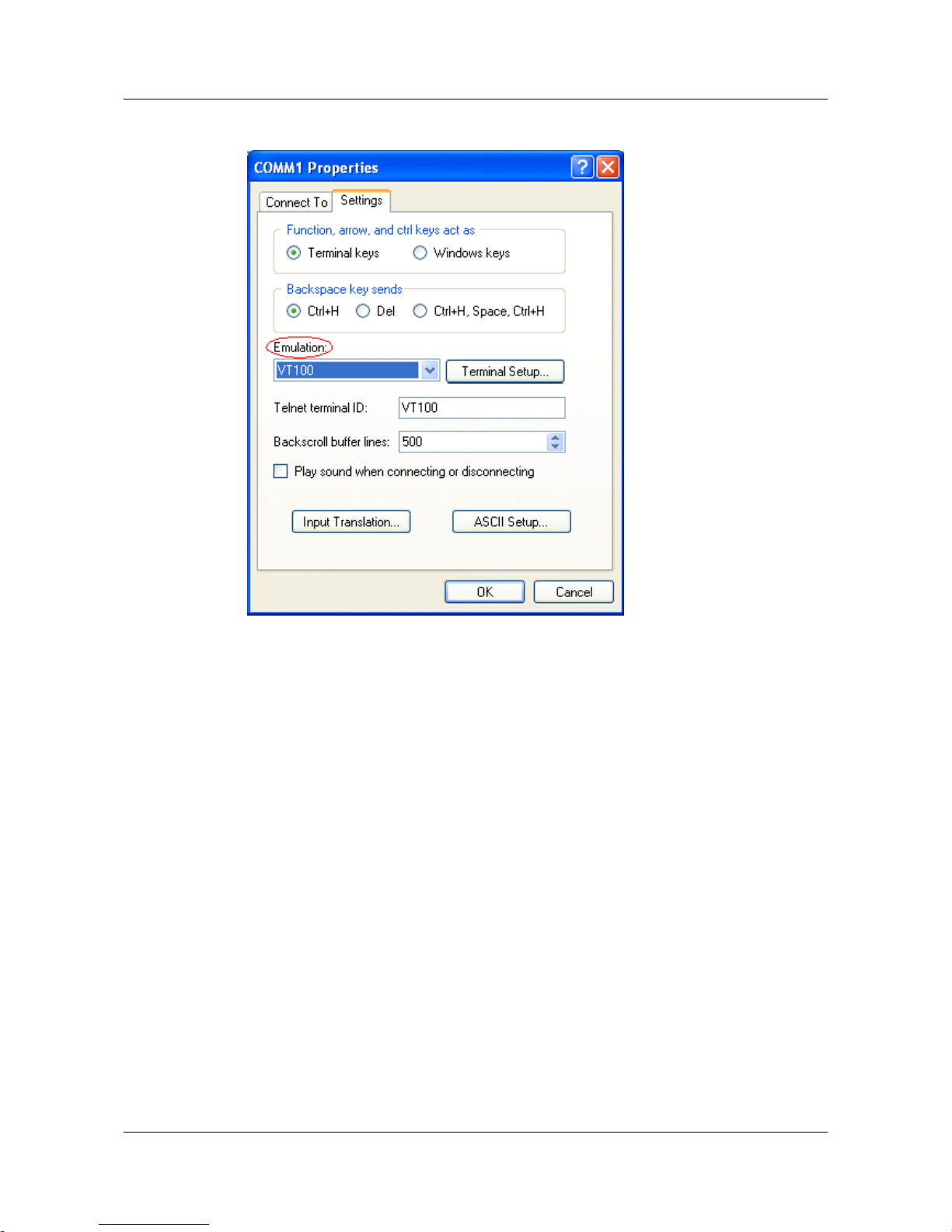
Figure 5-4 Selecting the terminal type
----End
Follow-up Procedure
After the preceding configurations are complete, press Enter. If the prompt <Quidway> is
displayed on the screen, it indicates that the Command Line Interface (CLI) is displayed. In this
case, you can enter commands to configure or manage the S2700/3700/5700/6700. For details
on configuration procedures, see the following sections.
5.2 Example for Configuring to Manage the SwitchThrough
Telnet
Networking Requirements
As shown in Figure 5-5, SwitchA is newly added to the network. SwitchA and SwitchB are
connected through a trunk link. To enable the network administrator to manage SwitchA
remotely, you need to configure the Telnet service and set the device name on SwitchA.
Quidway S2700&S3700&S5700&S6700 Series Ethernet
Switches
Quick Start 5 Logging in to the Device
Issue 01 (2011-10-26) Huawei Proprietary and Confidential
Copyright © Huawei Technologies Co., Ltd.
50
Page 56
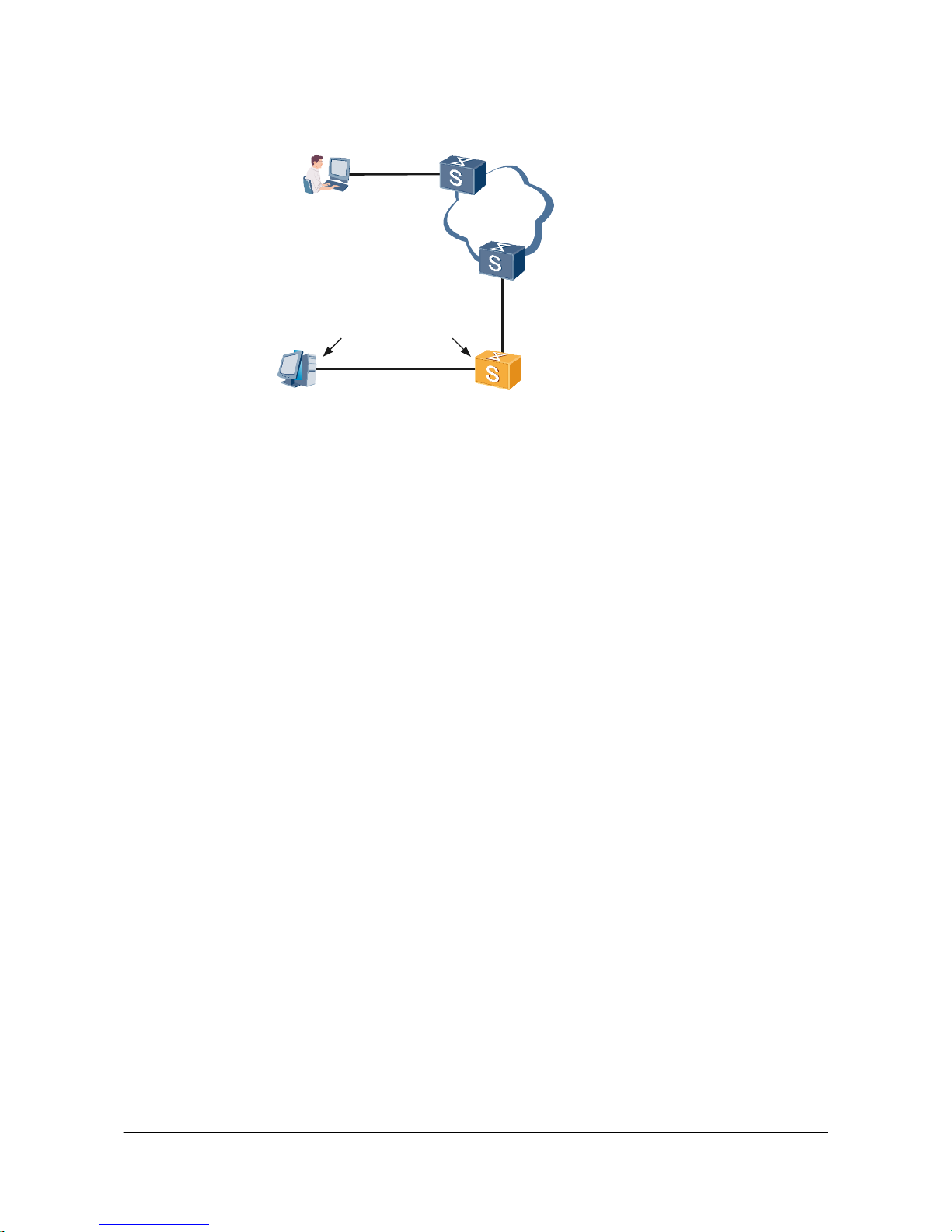
Figure 5-5 Networking diagram of managing SwitchA through Telnet
RS-232
Console cable
Console port
PC SwitchA
serial port
Ethernet
administrator
SwitchB
GE 0/0/1
GE 0/0/1
Configuration Roadmap
The configuration roadmap is as follows:
l Log in to SwitchA through the console interface.
l Set the device name.
l Configure a management VLAN.
l On SwitchA, set the type of the interface that connects SwitchA and SwitchB to trunk. Add
the interface to the management VLAN in trunk mode.
l Configure the management IP address of SwitchA.
l Configure the Telnet service.
Data Preparation
To complete the configuration, you need the following data:
l ID of the management VLAN
l Management IP address of SwitchA
l Number of the interface that connects SwitchA and SwitchB on SwitchA
l Authentication mode, user name, and password
Configuration Procedure
1. Log in to SwitchA through the console port. For details, see Logging In to the Switch
Through the Console Interface
.
2. Set the device name of SwitchA.
<Quidway> system-view
[Quidway] sysname SwitchA
3. Configure a management VLAN.
[SwitchA] vlan 1
Quidway S2700&S3700&S5700&S6700 Series Ethernet
Switches
Quick Start 5 Logging in to the Device
Issue 01 (2011-10-26) Huawei Proprietary and Confidential
Copyright © Huawei Technologies Co., Ltd.
51
Page 57

[SwitchA-vlan1] description admin_VLAN
4. On SwitchA, set the type of the interface that connects SwitchA and SwitchB to trunk. Add
the interface to the management VLAN in trunk mode.
[SwitchA] interface Gigabitethernet 0/0/1
[SwitchA-GigabitEthernet0/0/1] port link-type trunk
[SwitchA-GigabitEthernet0/0/1] port trunk allow-pass vlan 1
[SwitchA-GigabitEthernet0/0/1] quit
5. Configure the management IP address of SwitchA.
[SwitchA] interface vlanif 1
[SwitchA-Vlanif1] ip address 10.10.10.10 255.255.255.0
[SwitchA-Vlanif1] quit
6. Configure the Telnet service on SwitchA:
l Set the authentication method to AAA, user name to huawei, and password to huawei.
l Set the service type to telnet and user level to 15.
l Configure AAA authentication for the users at the vty 0 to vty 4 levels.
[SwitchA] aaa
[SwitchA-aaa] local-user huawei password simple huawei
[SwitchA-aaa] local-user huawei service-type telnet
[SwitchA-aaa] local-user huawei privilege level 15
[SwitchA-aaa] quit
[SwitchA] user-interface vty 0 4
[SwitchA-ui-vty0-4] authentication-mode aaa
[SwitchA-ui-vty0-4] return
<SwitchA>
7. Verify the configuration.
NOTE
When the administrator logs in to SwitchA through Telnet, ensure that the PC of the administrator
and SwitchA are reachable at the network layer.
<SwitchA> telnet 127.0.0.1
Trying 127.0.0.1 ...
Press CTRL+T to abort
Connected to 127.0.0.1 ...
***********************************************************
* All rights reserved (2005-2007) *
* Without the owner's prior written consent, *
* no decompiling or reverse-engineering shall be allowed. *
* Notice: *
* This is a private communication system. *
* Unauthorized access or use may lead to prosecution. *
***********************************************************
Login authentication
Username:huawei
Password:
Note: The max number of VTY users is 15, and the current number
of VTY users on line is 3.
<SwitchA>
Configuration Files
l SwitchA
#
sysname SwitchA
#
vlan batch 1
#
Quidway S2700&S3700&S5700&S6700 Series Ethernet
Switches
Quick Start 5 Logging in to the Device
Issue 01 (2011-10-26) Huawei Proprietary and Confidential
Copyright © Huawei Technologies Co., Ltd.
52
Page 58

vlan 1
description admin_VLAN
#
interface Vlanif1
ip address 10.10.10.10 255.255.255.0
#
interface GigabitEthernet0/0/1
port link-type trunk
port trunk allow-pass vlan 1
#
aaa
local-user huawei password simple huawei
local-user huawei service-type telnet
local-user huawei privilege level 15
authentication-scheme default
#
authorization-scheme default
#
accounting-scheme default
#
domain default
#
user-interface con 0
user-interface vty 0 4
authentication-mode aaa
#
return
5.3 Logging In to the Web System Client
Before configuring the switch, you must log in to the Web system client.
Context
l Before logging in to the Web system client, ensure that the switch has been commissioned
and the Web system server is enabled on the switch.
l The Web system client connects to the switch through HTTP; therefore, you must log in
to the Web system client through HTTP.
l The Web system client supports the Microsoft Internet Explorer 6 (IE6) and Firefox 3.0,
or later versions. The Web system client described in this document uses the IE6.
Procedure
Step 1 Open Microsoft Internet Explorer 6.0 on the client.
Step 2 Enter the universal resource locator (URL) of the Web system client in the address bar and press
Enter. The User Login dialog box is displayed, as shown in Figure 5-6.
The URL is in the format http://IP/view/login.html, for example, http://10.164.19.131/view/
login.html.
Quidway S2700&S3700&S5700&S6700 Series Ethernet
Switches
Quick Start 5 Logging in to the Device
Issue 01 (2011-10-26) Huawei Proprietary and Confidential
Copyright © Huawei Technologies Co., Ltd.
53
Page 59
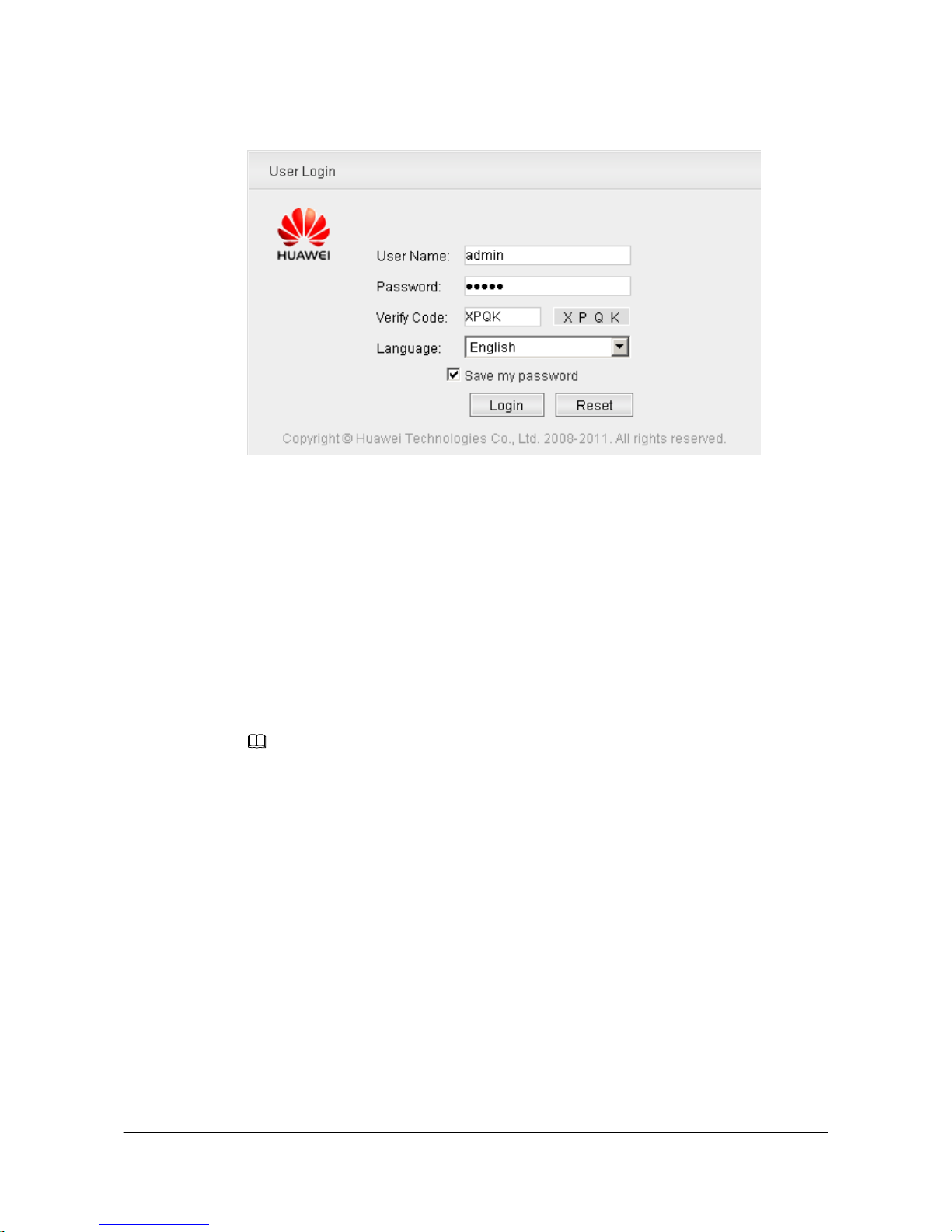
Figure 5-6 Login
Step 3 Enter values in User Name, Password, and Verify Code.
l The local switch provides a default account. The user name and password of the account are
admin.
l To create, change, or delete user names and passwords, choose Security > AAA > User.
l If your user level is 0, you can view only the Ping and Tracert pages after logging in to the
client.
Step 4 Choose a language, for example, English.
l The Web system client of the current version supports Chinese and English.
l After logging in to the client, you can select another language from the Language drop-down
list on the top right corner of the page.
Step 5 Click Login.
NOTE
If you select Save my password before clicking Login, you do not need to enter the user name and password
at next login.
After you log in to the Web system, the main page is displayed. For details about the main page,
see Window Layout.
----End
Quidway S2700&S3700&S5700&S6700 Series Ethernet
Switches
Quick Start 5 Logging in to the Device
Issue 01 (2011-10-26) Huawei Proprietary and Confidential
Copyright © Huawei Technologies Co., Ltd.
54
Page 60

6 Service Deployment
This section describes service deployment.
For details on service deployment, see the corresponding configuration guides.
Quidway S2700&S3700&S5700&S6700 Series Ethernet
Switches
Quick Start 6 Service Deployment
Issue 01 (2011-10-26) Huawei Proprietary and Confidential
Copyright © Huawei Technologies Co., Ltd.
55
Page 61
7 Where to Obtain Documentation
You can obtain product documentation, online help, and release documents in various ways.
Product Documents
Table 7-1 shows how to obtain product documents.
Table 7-1 Obtaining product documents
Phase
How to Obtain Documentation
HedEx Library Single Electronic Document
Installation
l From the electronic
documentation delivered with
the equipment
l From http://
support.huawei.com
l From the local Huawei
representative office
From http://support.huawei.com
Version upgrade
l From http://
support.huawei.com
l From the local Huawei
representative office
NOTE
l Obtain the product documents from http://support.huawei.com by choosing Documentation > Data
Communication
l It is recommended that you use your work email to register as an equipment customer for login to
Huawei support website. For any help, contact Huawei technical support engineers.
Online Help
The online help is integrated and released with the product software. You can view the online
help by:
Quidway S2700&S3700&S5700&S6700 Series Ethernet
Switches
Quick Start 7 Where to Obtain Documentation
Issue 01 (2011-10-26) Huawei Proprietary and Confidential
Copyright © Huawei Technologies Co., Ltd.
56
Page 62

l Selecting Help on the NMS interface
l Pressing F1 on any interface of the NMS
Release Documents
Release documents are released with the software package. You can apply to Huawei technical
support personnel for the documents.
Quidway S2700&S3700&S5700&S6700 Series Ethernet
Switches
Quick Start 7 Where to Obtain Documentation
Issue 01 (2011-10-26) Huawei Proprietary and Confidential
Copyright © Huawei Technologies Co., Ltd.
57
 Loading...