

Page 1
HUAWEI Android Smartphone
V100R001
G620-A2 FAQs
Issue
01
Date
2015-03-20
HUAWEI TECHNOLOGIES CO., LTD.
Page 2

Issue 01 (2015-03-11)
Huawei Proprietary and Confidential
Copyright © Huawei Technologies Co., Ltd.
i
Copyright © Huawei Technologies Co., Ltd. 2015. All rights reserved.
No part of this document may be reproduced or transmitted in any form or by any means without prior
written consent of Huawei Technologies Co., Ltd.
Trademarks and Permissions
and other Huawei trademarks are trademarks of Huawei Technologies Co., Ltd.
All other trademarks and trade names mentioned in this document are the property of their respective
holders.
Notice
The purchased products, services and features are stipulated by the contract made between Huawei and
the customer. All or part of the products, services and features described in this document may not be
within the purchase scope or the usage scope. Unless otherwise specified in the contract, all statements,
information, and recommendations in this document are provided "AS IS" without warranties, guarantees or
representations of any kind, either express or implied.
The information in this document is subject to change without notice. Every effort has been made in the
preparation of this document to ensure accuracy of the contents, but all statements, information, and
recommendations in this document do not constitute a warranty of any kind, express or implied.
Huawei Technologies Co., Ltd.
Address:
Huawei Industrial Base
Bantian, Longgang
Shenzhen 518129
People's Republic of China
Website:
http://consumer.huawei.com/us
Email:
Tel:
888.5HUAWEI / 888.548.2934
Page 3
HUAWEI Android Smartphone
H891L FAQs
About This Document
Issue 01 (2015-03-11)
Huawei Proprietary and Confidential
Copyright © Huawei Technologies Co., Ltd.
ii
About This Document
This document applies to the HUAWEI G620-A2 smartphones. It is intended for end users
and service representatives of the HUAWEI G620-A2.
Change History
Version
Date
Author
Description
01
Page 4

HUAWEI Android Smartphone
H891L FAQs
Contents
Issue 01 (2015-03-11)
Huawei Proprietary and Confidential
Copyright © Huawei Technologies Co., Ltd.
iii
Contents
About This Document .................................................................................................................... ii
1 Hardware and installation ........................................................................................................... 1
1.1 What can I do if my phone runs out of power quickly? ................................................................................................ 1
1.2 How do I tell that my phone is fully charged? ................................................................ ................................ .............. 2
1.3 What can I do if my phone fails to be charged? ............................................................................................................ 2
1.4 What can I do if my phone's date and time is not automatically synchronized after I reinstall the battery? ................. 2
2 Screen and display ........................................................................................................................ 4
2.1 Why does the screen automatically turn off? ................................................................................................................ 4
2.2 What can I do if the screen does not rotate automatically? ........................................................................................... 5
2.3 How can I set the status bar not to display the remaining battery percentage? ............................................................. 5
2.4 What can I do if the switch shortcuts are hidden? ........................................................................................................ 5
2.5 How can I change the system font size? ....................................................................................................................... 6
3 System settings and update......................................................................................................... 7
3.1 Will my phone become permanently locked if I have drawn an incorrect unlock pattern for a number of consecutive
times? .................................................................................................................................................................................. 7
3.2 What can I do if there is no network service after the phone has been powered up? .................................................... 7
3.3 What can I do if my phone runs slowly? ...................................................................................................................... 7
3.4 How do I exit safe mode? ............................................................................................................................................. 9
3.5 How do I disable power-intensive notification? ........................................................................................................... 9
3.6 How do I disable TalkBack? Or my phone will sound when clicking on the screen, how should I do? ..................... 10
3.7 What data will be erased if I restore my phone to its factory settings? ....................................................................... 13
3.8 How do I update my phone? ....................................................................................................................................... 13
4 Network and data transmission ............................................................................................... 15
4.1 What can I do if I can't access the Internet after my data service is turned on? .......................................................... 15
4.2 What can I do if I can't send MMS? ........................................................................................................................... 17
4.3 How do I save my data traffic? ................................................................................................................................... 18
4.4 How can I reduce traffic when I am roaming? ............................................................................................................ 19
4.5 Can I surf the Internet during a call? .......................................................................................................................... 19
4.6 How can I access the Internet via a Wi-Fi network? ................................................................................................... 19
4.7 What can I do if I can't connect to a Wi-Fi hotspot? ................................................................................................... 20
4.8 What can I do if my Wi-Fi connection constantly disconnects? ................................................................................. 22
Page 5

HUAWEI Android Smartphone
H891L FAQs
Contents
Issue 01 (2015-03-11)
Huawei Proprietary and Confidential
Copyright © Huawei Technologies Co., Ltd.
iv
4.9 I have turned on my phone's Wi-Fi, but it cannot detect Wi-Fi signals from a wireless router like other devices. What
can I do?............................................................................................................................................................................ 22
4.10 How do I know whether my phone is using its mobile data connection or a Wi-Fi connection to access the Internet?
.......................................................................................................................................................................................... 23
4.11 My phone is connected to both a Wi-Fi network and a 3G network. How do I know which network I am using for
data services? .................................................................................................................................................................... 23
4.12 How do I clear my browser's cache and web history? .............................................................................................. 24
4.13 What can I do if my phone cannot be detected by other Bluetooth devices? ............................................................ 24
4.14 Why can't I transfer files to another Bluetooth device that I've already paired with? ............................................... 25
4.15 Can I connect my phone to a computer and access the Internet using Bluetooth?.................................................... 25
4.16 How do I copy files from my phone to a computer? ................................................................................................. 25
5 Applications ................................................................................................................................. 27
5.1 How do I uninstall pre-installed applications? ............................................................................................................ 27
5.2 How do I download third-party applications? ............................................................................................................. 27
5.3 What can I do if my phone can't install an application? ............................................................................................. 28
5.4 How do I install on or move applications to the microSD card? ................................................................................ 28
5.5 What can I do if applications close unexpectedly? ..................................................................................................... 29
5.6 How do I close background applications? .................................................................................................................. 30
5.7 Is there any restriction on the email attachment size? ................................................................................................. 30
6 Calls and contacts ........................................................................................................................ 31
6.1 How can I use the TTY function on my phone? ......................................................................................................... 31
6.2 How can I enable TTY mode on my phone? .............................................................................................................. 31
6.3 How do I delete call records? ..................................................................................................................................... 31
6.4 What can I do if my ringtone automatically restores to the default one after I change it? .......................................... 32
6.5 Can I delete the native tones? ..................................................................................................................................... 32
6.6 How do I export contacts to another phone using a SIM card? .................................................................................. 32
6.7 How do I export contacts to another phone using a storage device? .......................................................................... 33
6.8 How can I recover contacts from my microSD card? ................................................................................................. 35
6.9 How can I back up my contacts list using Gmail? ...................................................................................................... 35
6.10 How can I synchronize Google Calendar between my phone and Microsoft Outlook via Google Calendar Sync? . 36
6.11 How do I assign a unique ringtone for a contact or contact group? .......................................................................... 38
6.12 How do I assign a photo to a contact? ...................................................................................................................... 38
6.13 What can I do if my phone can't display contacts saved in the SIM card? ............................................................... 40
6.14 How do I switch between multiple ongoing calls? ................................................................................................... 40
7 Messaging and texting ............................................................................................................... 42
7.1 Why can't I send or receive messages? ....................................................................................................................... 42
7.2 Is there any restriction on the multimedia message attachment size? ......................................................................... 43
7.3 How do I preview new messages on the notification panel? ...................................................................................... 43
7.4 How do I save messages as drafts? ............................................................................................................................. 43
7.5 Can I change the message font size? ........................................................................................................................... 44
7.6 Can I restore deleted messages? ................................................................................................................................. 44
Page 6

HUAWEI Android Smartphone
H891L FAQs
Contents
Issue 01 (2015-03-11)
Huawei Proprietary and Confidential
Copyright © Huawei Technologies Co., Ltd.
v
7.7 How can I switch the input method? ........................................................................................................................... 44
7.8 Why can't I use an input method that I have installed on my phone? ......................................................................... 44
8 Camera, music, and video .......................................................................................................... 46
8.1 How do I disable the shutter sound? ........................................................................................................................... 46
8.2 Can I change the default save path for photos and videos? ........................................................................................ 46
8.3 How do I set the microSD card as my default save location for photos and videos?.................................................. 47
8.4 What can I do if I can't use the flash? ......................................................................................................................... 47
8.5 Why can't my phone open some images, audio clips, or videos? ............................................................................... 47
8.6 What can I do if my phone can't play online music or videos? ................................................................................... 48
8.7 What can I do if my phone experiences lags when playing online music or videos? ................................................. 49
8.8 What can I do if the native music player can't scan all local music files? .................................................................. 50
8.9 What can I do if my phone's music playback volume is small? .................................................................................. 50
8.10 How can I use the headset button to control music playback? .................................................................................. 50
8.11 I set an audio file on my microSD card as my ringtone and I removed the microSD card. Does the phone still use
the file as my ringtone? ..................................................................................................................................................... 51
8.12 How do I play audio files in the background and exit Music? .................................................................................. 51
9 Storage and file management ................................................................................................... 52
9.1 Why is my phone's actual available storage less than the advertised storage? ........................................................... 52
9.2 What can I do if my phone does not have sufficient storage? ..................................................................................... 52
9.3 Where are my files saved by default? ......................................................................................................................... 54
9.4 How do I format the internal storage? ........................................................................................................................ 54
9.5 How do I set the microSD card as the default storage location? ................................................................................. 54
9.6 What can I do if my phone can't detect the inserted microSD card?........................................................................... 55
9.7 What can I do if my data is lost after I remove the microSD card? ............................................................................ 55
9.8 Can I restore deleted files? .......................................................................................................................................... 56
10 Location navigation .................................................................................................................. 57
10.1 Will it result in any charges if I use my navigation application? .............................................................................. 57
10.2 What can I do if my navigation application is slow in positioning or experiencing positioning failure? ................. 57
10.3 What can I do if the positioning and navigation information displayed on my phone is inaccurate? ....................... 57
11 Others .......................................................................................................................................... 59
11.1 How do I add an email account? ............................................................................................................................... 59
11.2 How do I remove an email account? ......................................................................................................................... 61
11.3 How can I add an Exchange account?....................................................................................................................... 62
11.4 How can I access Huawei's official website and forum? .......................................................................................... 63
Page 7
HUAWEI Android Smartphone
H891L FAQs
1 Hardware and installation
Issue 01 (2015-03-11)
Huawei Proprietary and Confidential
Copyright © Huawei Technologies Co., Ltd.
1
1 Hardware and installation
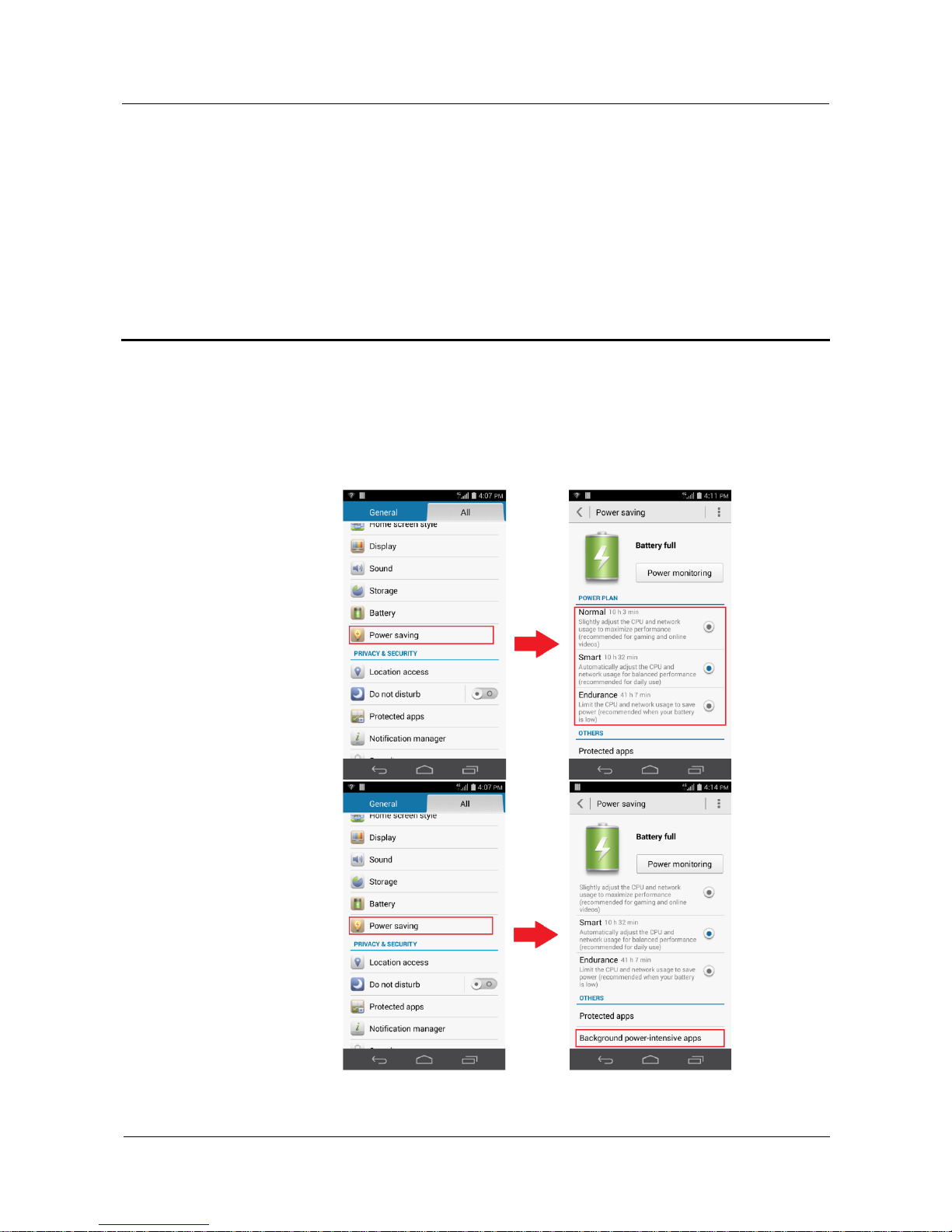
1.1 What can I do if my phone runs out of power quickly?
Turn on power saving mode. Go to Settings, touch Power saving, and select a power
saving mode or close power-intensive applications.
Page 8

HUAWEI Android Smartphone
H891L FAQs
1 Hardware and installation
Issue 01 (2015-03-11)
Huawei Proprietary and Confidential
Copyright © Huawei Technologies Co., Ltd.
2
Turn off the screen when you aren't using your phone.
Reduce the screen timeout period.
Reduce the screen brightness.
Reduce the volume.
Turn off your mobile network, Bluetooth, Wi-Fi, or GPS from the notification panel
when you aren't using them.
The figures are for your reference only. The actual screens may vary.
1.2 How do I tell that my phone is fully charged?
If you are charging your phone when it is powered on, press the power button to turn
on the screen. If the battery icon on the status bar becomes , or Charged is
displayed on the lock screen, your phone is fully charged.
If you are charging your phone when it is powered off, press the power button to turn
on the screen. If the charging indicator becomes 100%, your phone is fully charged.
1.3 What can I do if my phone fails to be charged?
If the battery power is completely used up:
Connect your phone to the charger and wait for 5 minutes.
If the battery power is not completely used up:
Use the original charger provided with your phone. If the charging failure occurs when
you use the original charger, replace the USB cable or power socket, or restart your
phone.
If your phone is overheating:
Your phone adopts an over temperature protection design that disables charging if your phone
is overheating.
Do not play games, watch videos, or use other power-intensive applications while charging.
If the problem persists, contact Huawei technical support.
1.4 What can I do if my phone's date and time is not
automatically synchronized after I reinstall the battery?
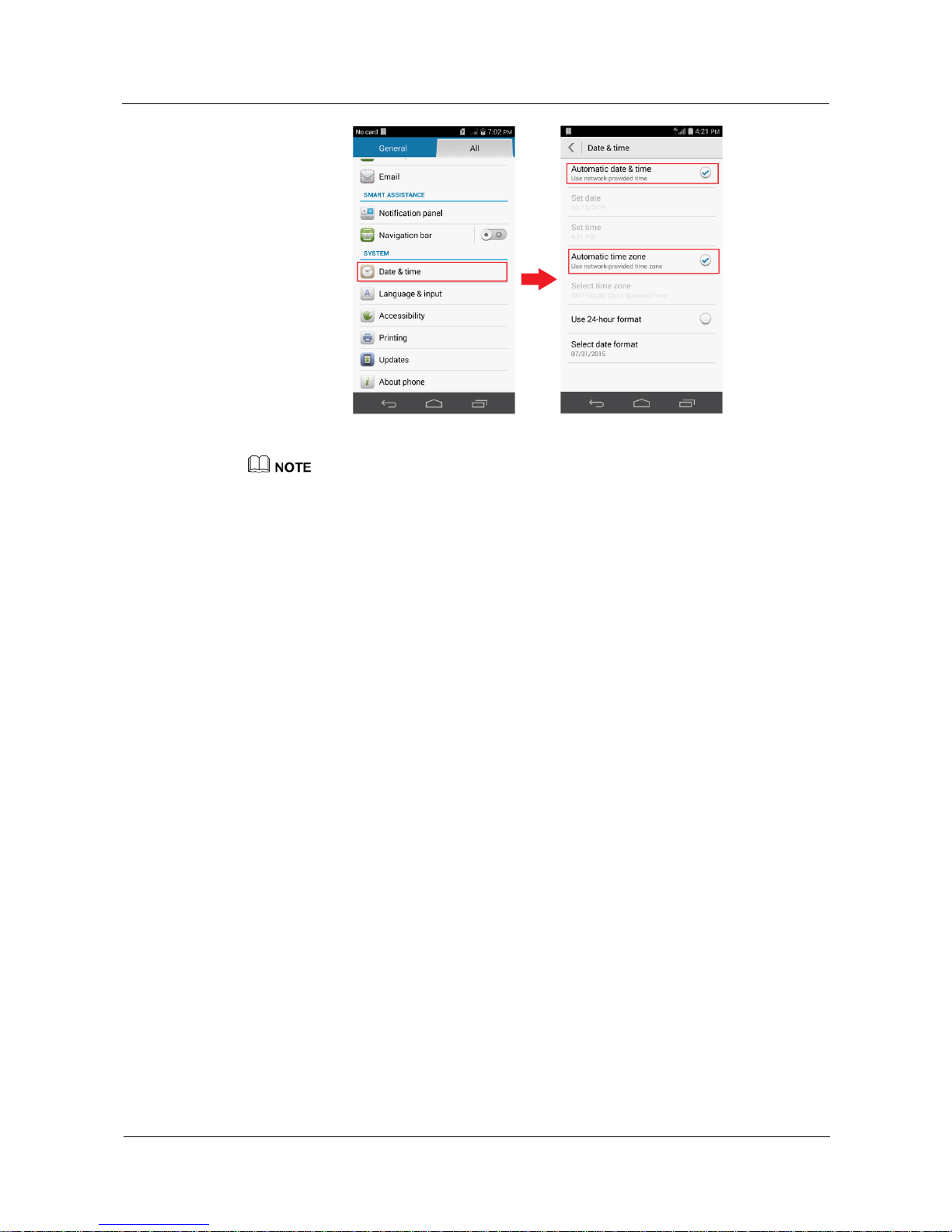
It is recommended that you use the network time. Your phone will automatically synchronize
the date and time from the Internet.
Turn on the data service, go to the Settings screen, touch Date & time, and select the
Automatic date & time and Automatic time zone check boxes.
Page 9
HUAWEI Android Smartphone
H891L FAQs
1 Hardware and installation
Issue 01 (2015-03-11)
Huawei Proprietary and Confidential
Copyright © Huawei Technologies Co., Ltd.
3
The figures are for your reference only. The actual screens may vary.
Page 10
HUAWEI Android Smartphone
H891L FAQs
2 Screen and display
Issue 01 (2015-03-11)
Huawei Proprietary and Confidential
Copyright © Huawei Technologies Co., Ltd.
4
2 Screen and display
2.1 Why does the screen automatically turn off?
If this happens during a call:
This is normal. When your ear or other object triggers the proximity sensor, the screen
automatically turns off to prevent misoperations. The screen turns back on when the
object blocking the proximity sensor is moved away.
Do not block the area around the earpiece with the phone cover or other objects.
If this happens when a third-party application is running:
The application may not be compatible with your phone. Uninstall the application in
question. If the problem persists, back up important data and restore your phone to its
factory settings.
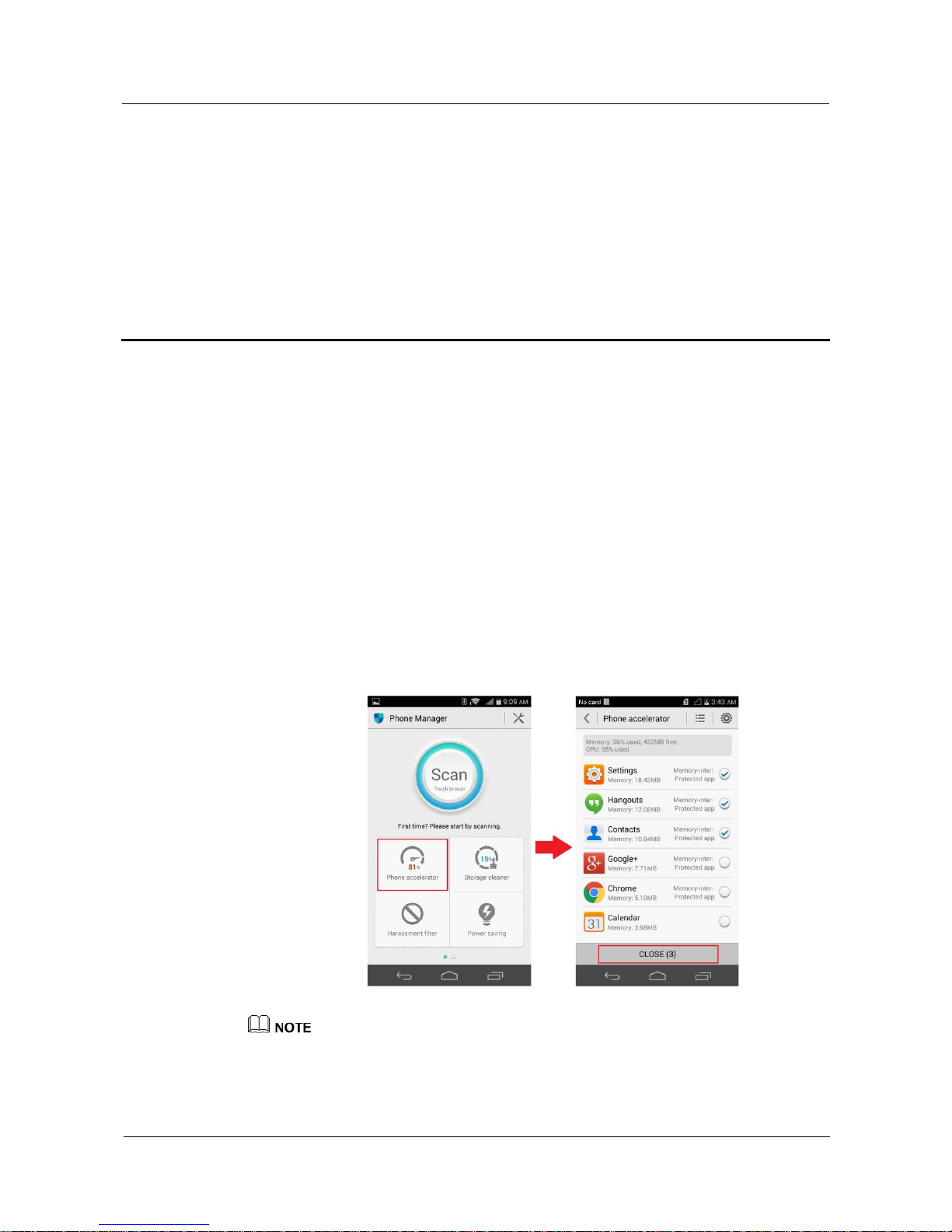
If this happens when you are running multiple applications simultaneously:
Close background applications not in use. Go to the Phone Manager screen, touch
Phone accelerator, and touch an application then CLOSE to close it.
The figures are for your reference only. The actual screens may vary.
Page 11
HUAWEI Android Smartphone
H891L FAQs
2 Screen and display
Issue 01 (2015-03-11)
Huawei Proprietary and Confidential
Copyright © Huawei Technologies Co., Ltd.
5
2.2 What can I do if the screen does not rotate
automatically?
Turn on the auto-rotate screen function.
Open the notification panel and touch to turn on the auto-rotate screen function.
If this happens when you are using a third-party application, check whether the
application is tilt sensor-based.
Your phone's tilt sensor may fail to work if certain system files are deleted. Back up
important data and restore your phone to its factory settings or update your phone.
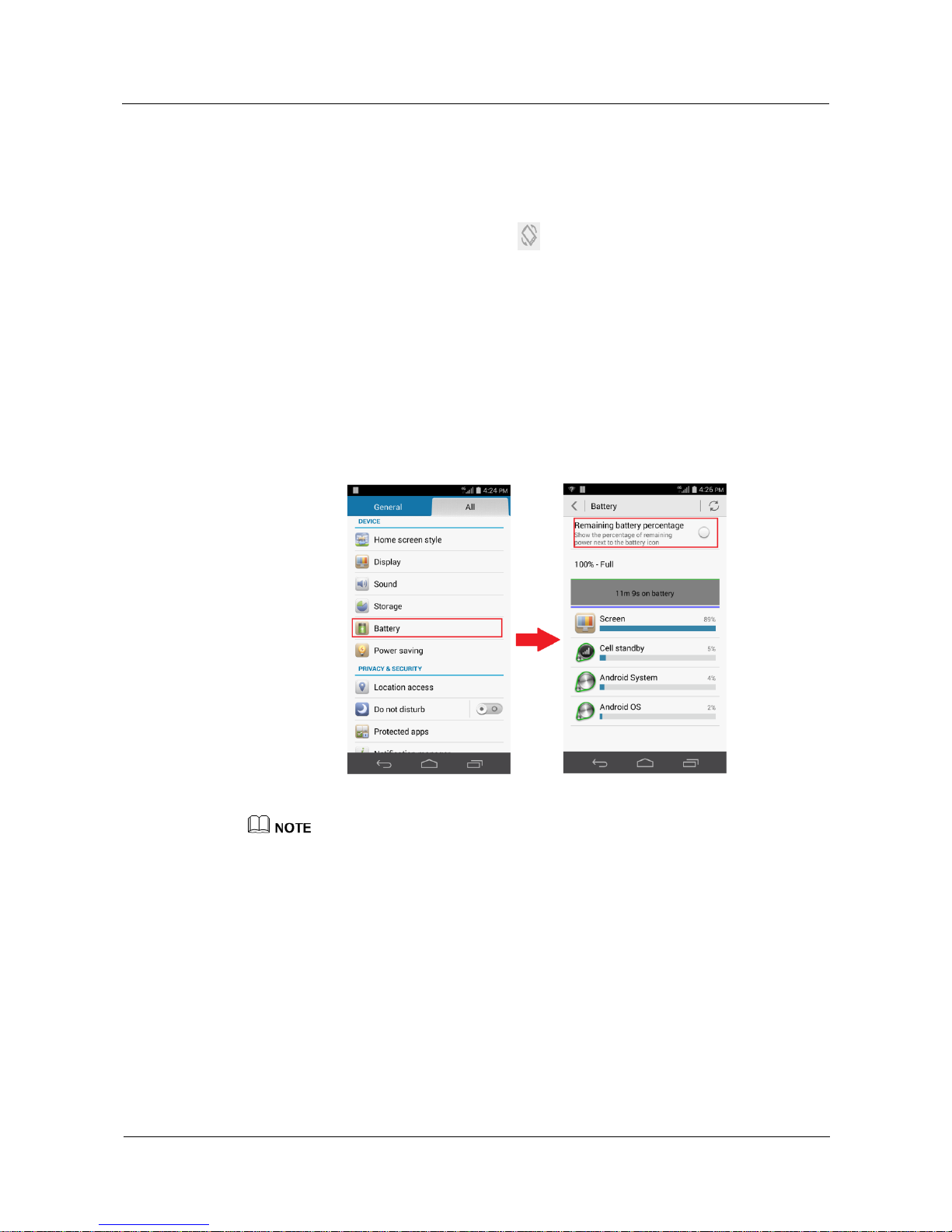
2.3 How can I set the status bar not to display the
remaining battery percentage?
Go to Settings, touch Battery, and clear the Remaining battery percentage check box.
The figures are for your reference only. The actual screens may vary.
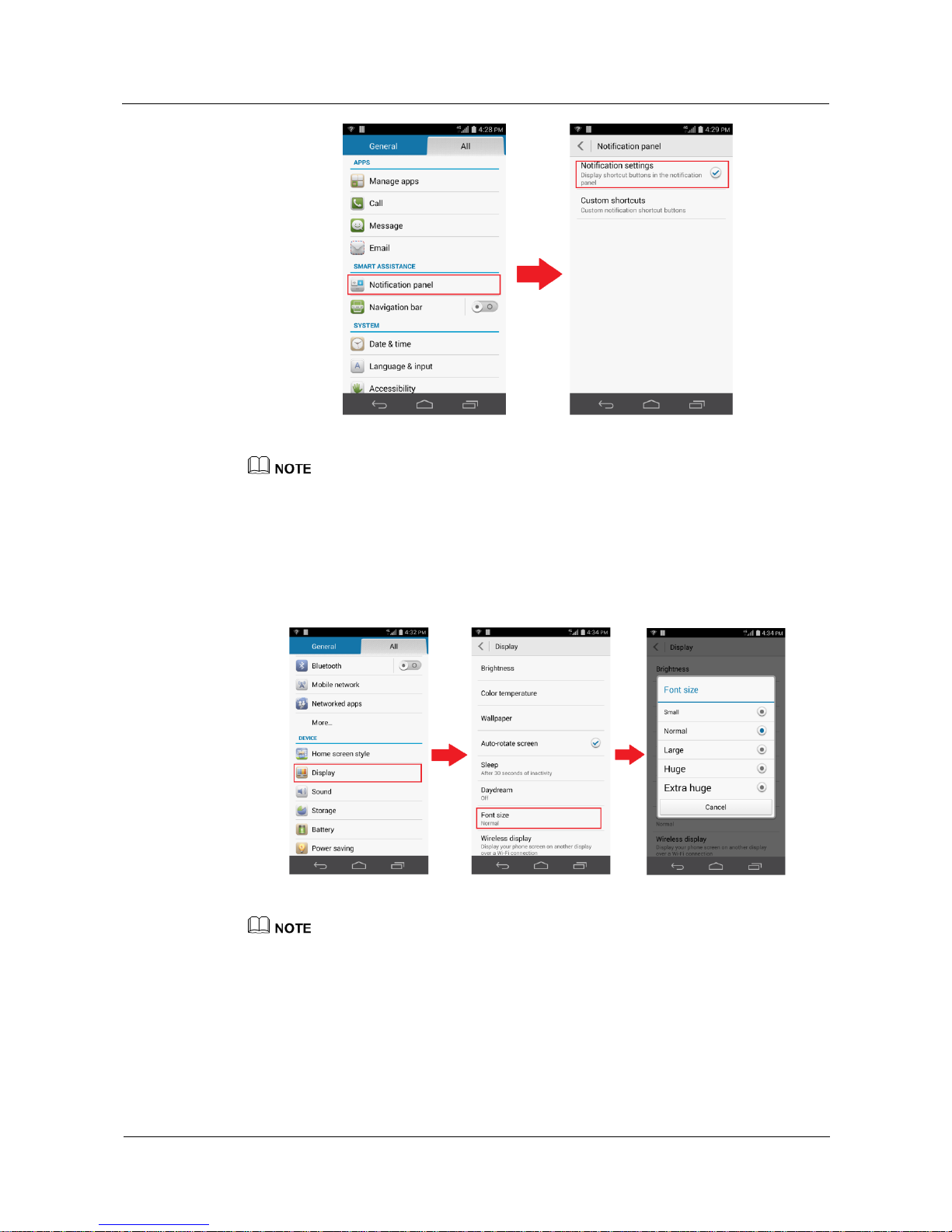
2.4 What can I do if the switch shortcuts are hidden?
Go to Settings, touch Notification panel, and select the Notification settings check box.
Page 12
HUAWEI Android Smartphone
H891L FAQs
2 Screen and display
Issue 01 (2015-03-11)
Huawei Proprietary and Confidential
Copyright © Huawei Technologies Co., Ltd.
6
The figures are for your reference only. The actual screens may vary.
2.5 How can I change the system font size?
Go to the Settings screen, and touch Display > Font size. Choose a font size from the
displayed option menu.
The figures are for your reference only. The actual screens may vary.
Page 13

HUAWEI Android Smartphone
H891L FAQs
3 System settings and update
Issue 01 (2015-03-11)
Huawei Proprietary and Confidential
Copyright © Huawei Technologies Co., Ltd.
7
3 System settings and update
3.1 Will my phone become permanently locked if I have
drawn an incorrect unlock pattern for a number of
consecutive times?
No. When you incorrectly draw the unlock pattern for five consecutive times, your phone will
display the message "You have incorrectly drawn your unlock pattern 5 times. Try again in 30
seconds." You can unlock your phone using the unlock password.
3.2 What can I do if there is no network service after the
phone has been powered up?
1. Check whether the SIM card is properly placed in your phone.
Remove the rear cover away to check whether the SIM card is properly seated in the
SIM card slot. If not, install the SIM card properly.
2. Check whether airplane mode is on.
If airplane mode is on, an airplane icon will be shown in the status bar in the upper right
corner of your phone. Press and hold the power button, and touch Airplane mode to
toggle it off.
3. Restart the phone and check again.
Press and hold the power button, and choose Restart from the displayed option menu.
Check again whether network service is available this time after your phone is powered
back on.
4. Make sure the network service is good on the spot. If not, move your phone to another
place and check again.
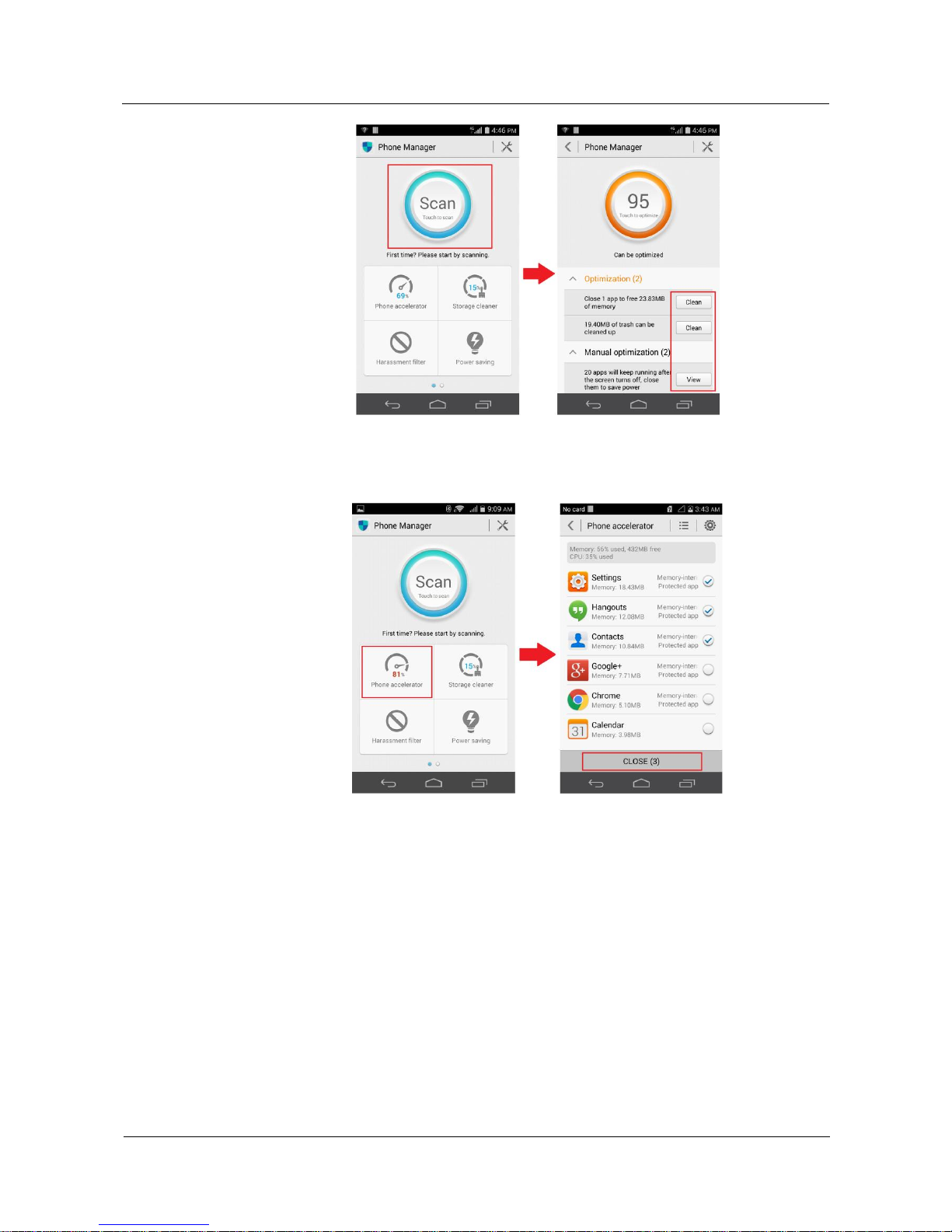
3.3 What can I do if my phone runs slowly?
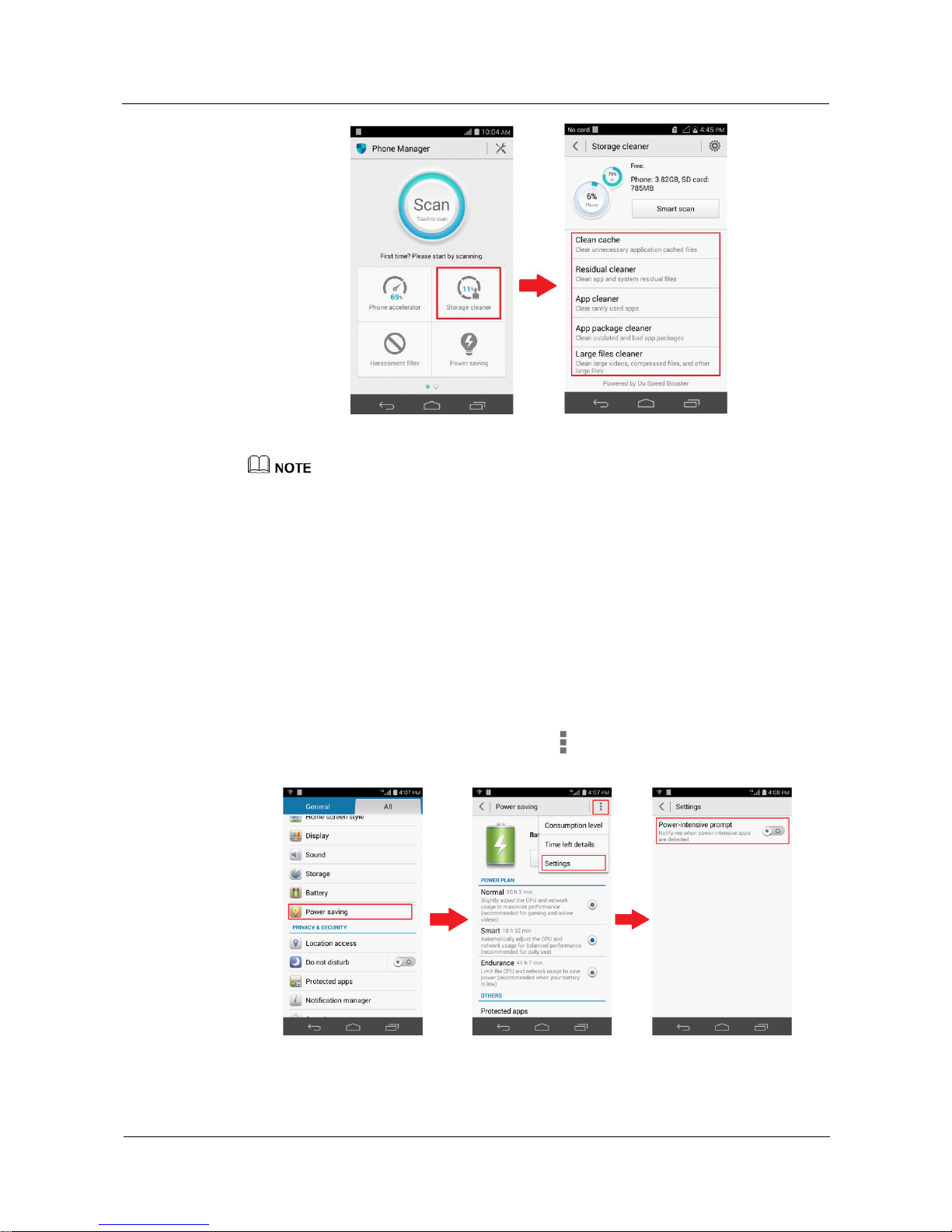
On the Phone Manager screen, touch Scan, and follow the onscreen instructions to
optimize your phone.
Page 14
HUAWEI Android Smartphone
H891L FAQs
3 System settings and update
Issue 01 (2015-03-11)
Huawei Proprietary and Confidential
Copyright © Huawei Technologies Co., Ltd.
8
On the Phone Manager screen, touch Phone accelerator, and follow the onscreen
instructions to close applications not in use.
On the Phone Manager screen, touch Storage cleaner > Smart scan, and follow the
onscreen instructions to clean your phone storage.
Page 15
HUAWEI Android Smartphone
H891L FAQs
3 System settings and update
Issue 01 (2015-03-11)
Huawei Proprietary and Confidential
Copyright © Huawei Technologies Co., Ltd.
9
The figures are for your reference only. The actual screens may vary.
3.4 How do I exit safe mode?
To exit safe mode, restart your phone.
Your phone enters safe mode if you press and hold the volume down key until the phone
powers on during its startup.
3.5 How do I disable power-intensive notification?
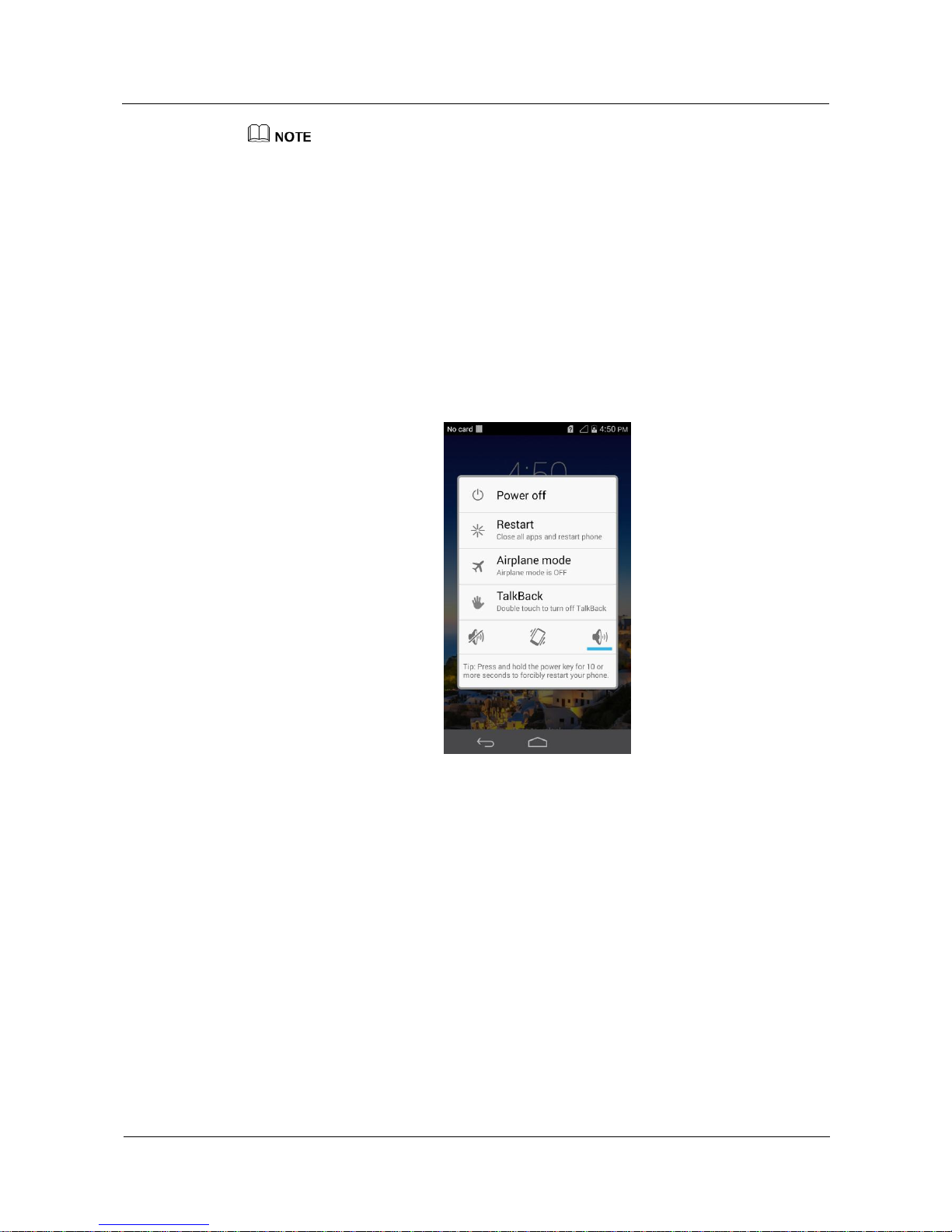
Go to Settings and touch Power saving. Touch and choose Settings from the option
menu. On the displayed Settings screen, turn off Power-intensive prompt.
Page 16
HUAWEI Android Smartphone
H891L FAQs
3 System settings and update
Issue 01 (2015-03-11)
Huawei Proprietary and Confidential
Copyright © Huawei Technologies Co., Ltd.
10
The figures are for your reference only. The actual screens may vary.
3.6 How do I disable TalkBack? Or my phone will sound
when clicking on the screen, how should I do?
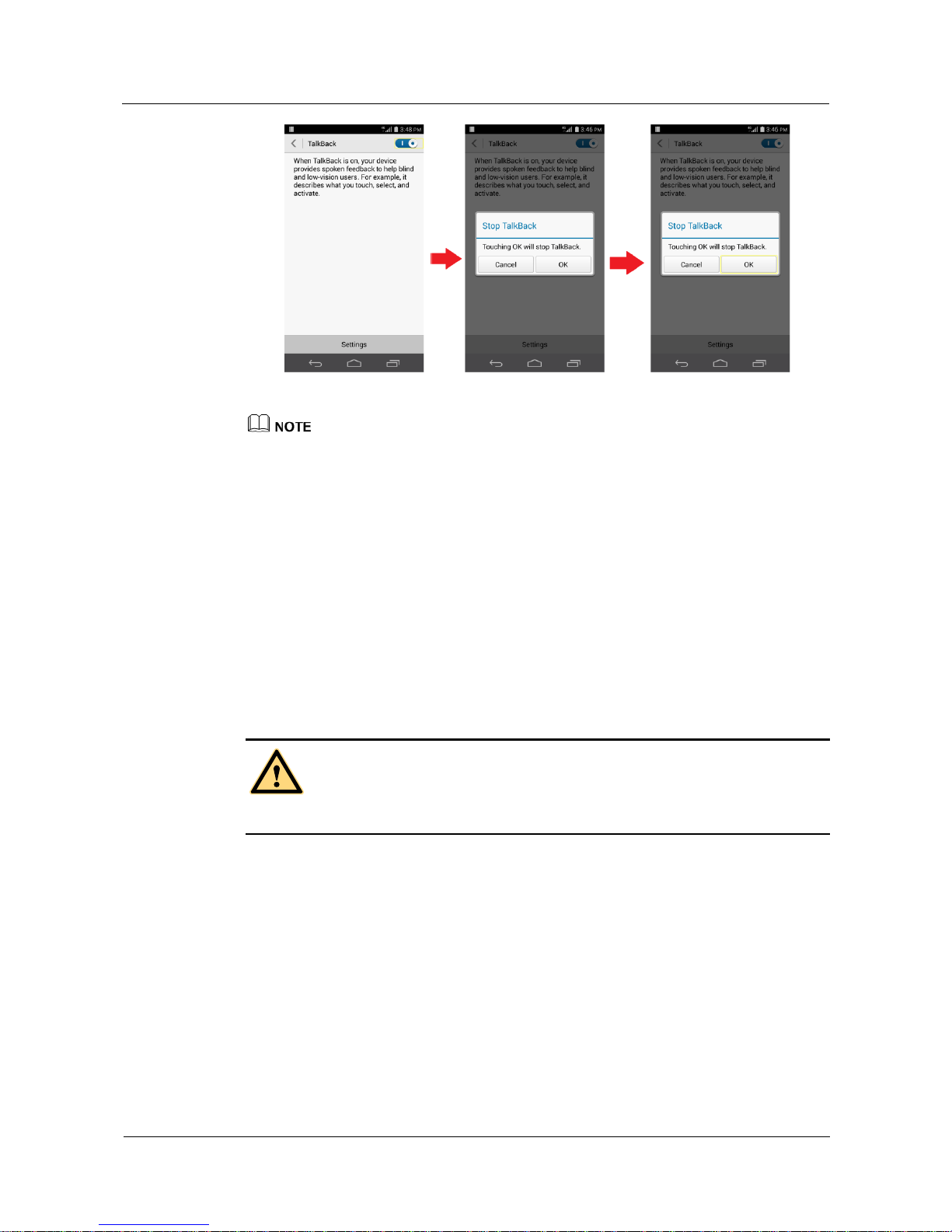
TalkBack is a screen reader service on Android devices for blind and vision-impaired users.
After you enable TalkBack, sliding requires two fingers, touching an item selects the item,
and double-touching an item enables your phone to perform the corresponding operation.
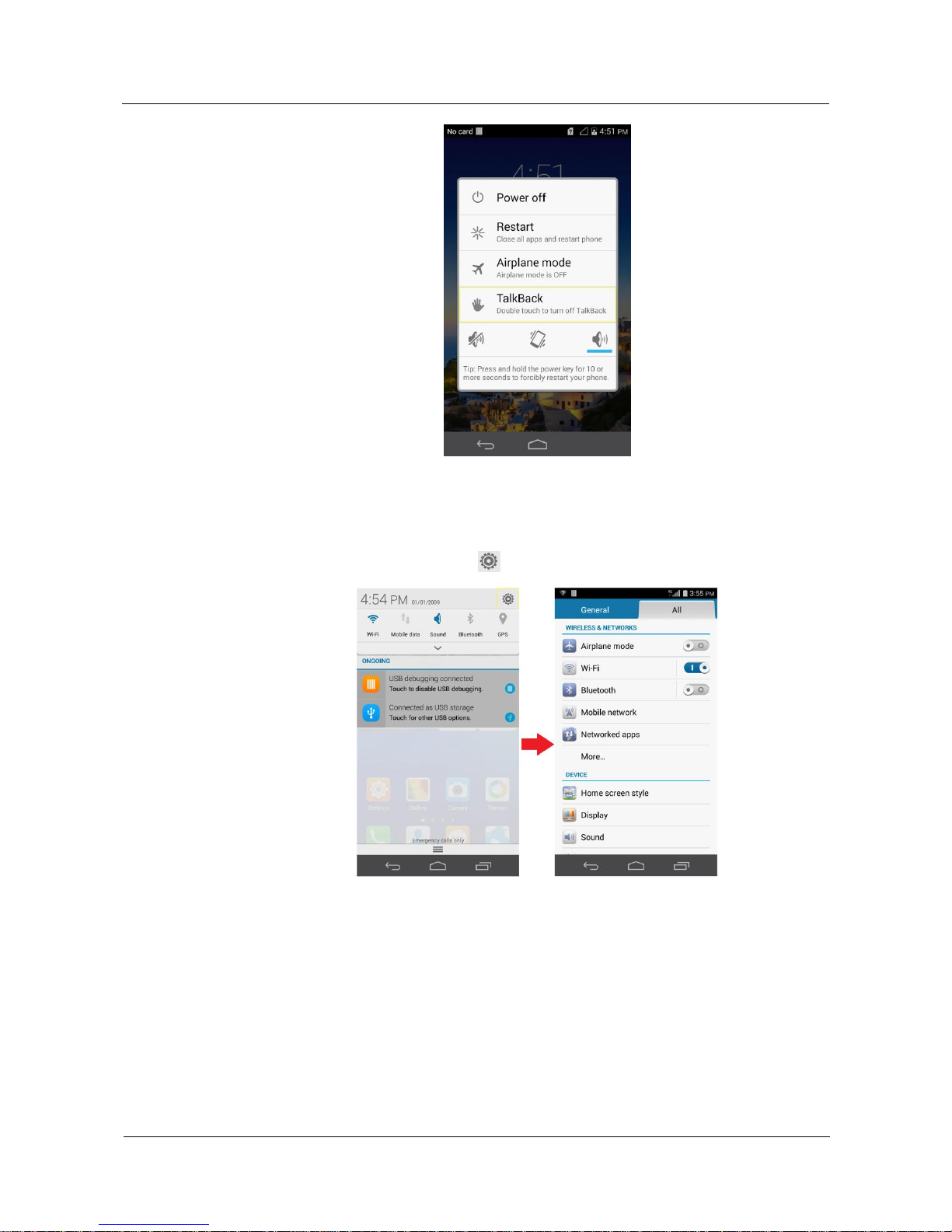
If you want to turn-off TalkBack, there are two kinds of methods:
Method I:
1.Turn on the screen by touching the power key, and then long touch the power key:
2. Double touch the “TalkBack” option.
Page 17
HUAWEI Android Smartphone
H891L FAQs
3 System settings and update
Issue 01 (2015-03-11)
Huawei Proprietary and Confidential
Copyright © Huawei Technologies Co., Ltd.
11
Method II:
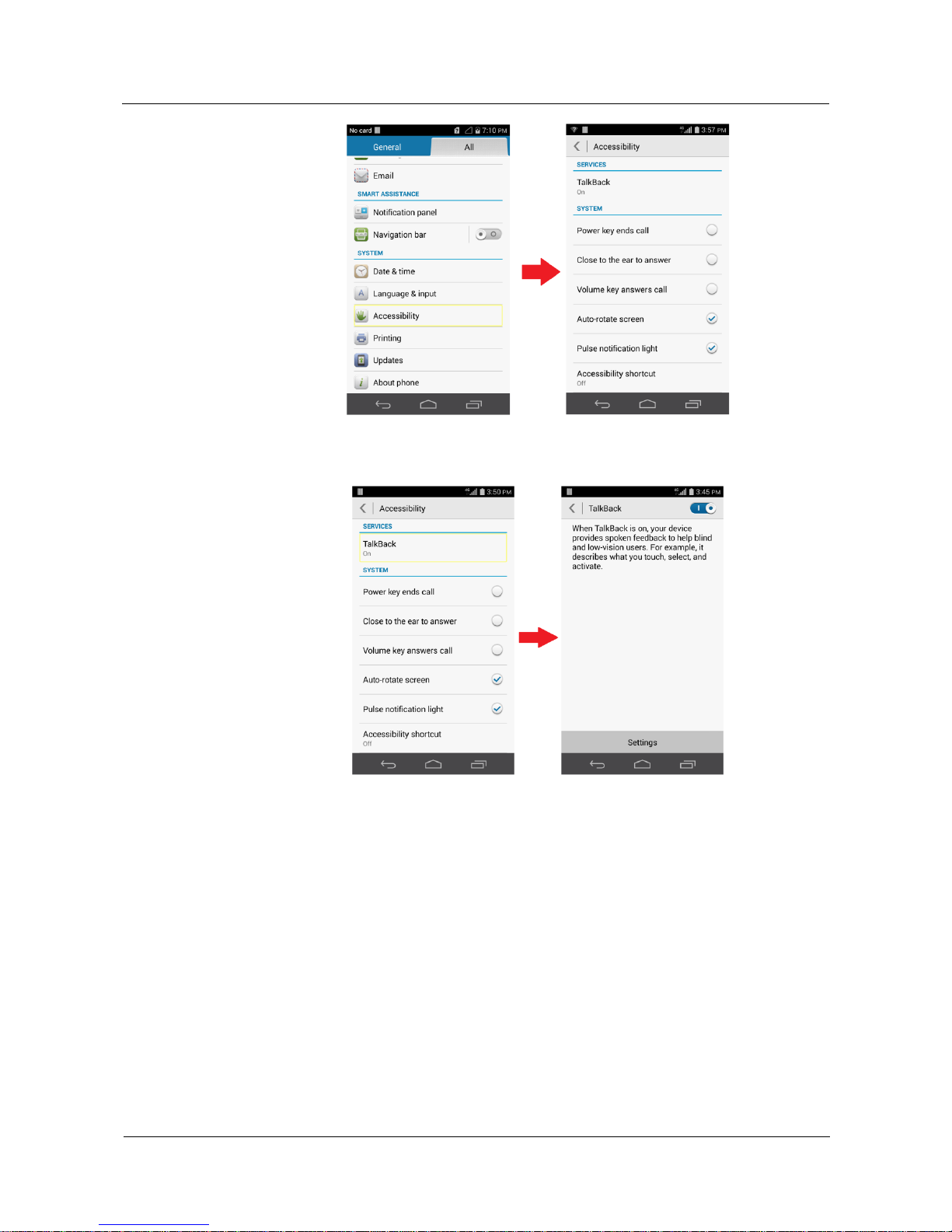
1.Press the power button to turn on the screen. Slide on the screen using single fingers to
unlock the screen.
2.Use two fingers to swipe from top to bottom to open the notification panel.
3.Touch and then double-touch .
4.On the Settings screen, touch and then double-touch Accessibility.
Page 18
HUAWEI Android Smartphone
H891L FAQs
3 System settings and update
Issue 01 (2015-03-11)
Huawei Proprietary and Confidential
Copyright © Huawei Technologies Co., Ltd.
12
5.Touch and then double-touch TalkBack.
6.Touch and then double-touch the TalkBack switch.
7.Touch and then double-touch OK.
Page 19
HUAWEI Android Smartphone
H891L FAQs
3 System settings and update
Issue 01 (2015-03-11)
Huawei Proprietary and Confidential
Copyright © Huawei Technologies Co., Ltd.
13
The figures are for your reference only. The actual screens may vary.
3.7 What data will be erased if I restore my phone to its
factory settings?
Restoring your phone to the factory settings erases all your personal data from the phone
storage, including information about your email accounts, system and application settings,
and installed applications.
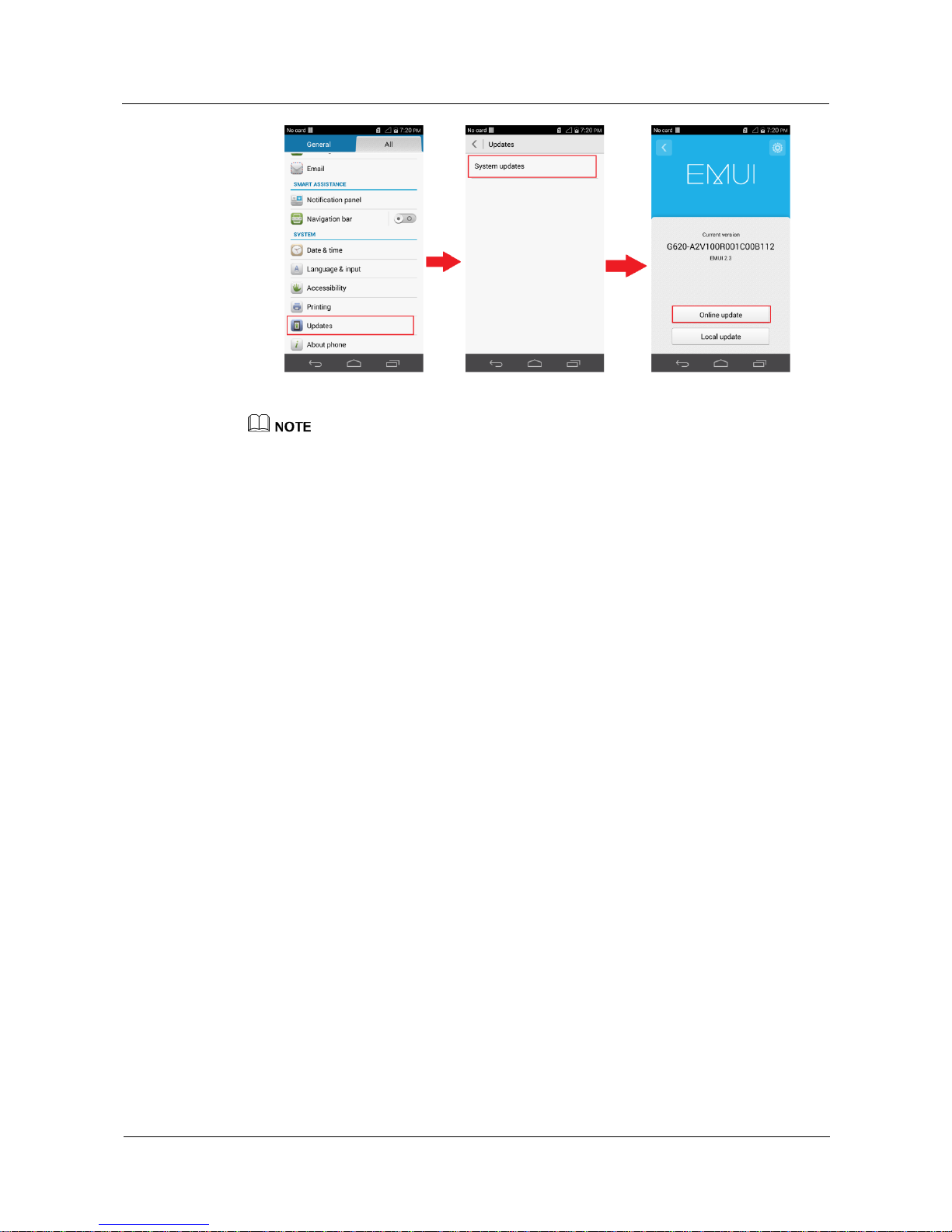
3.8 How do I update my phone?
WARNING
Back up important data, such as your contacts, messages, and call log, before the update.
Before the update, make sure your phone has Internet access.
Go to Settings, touch Updates >System updates >Online update, and follow the onscreen
instructions to complete the update.
Page 20
HUAWEI Android Smartphone
H891L FAQs
3 System settings and update
Issue 01 (2015-03-11)
Huawei Proprietary and Confidential
Copyright © Huawei Technologies Co., Ltd.
14
The figures are for your reference only. The actual screens may vary.
Page 21
HUAWEI Android Smartphone
H891L FAQs
4 Network and data transmission
Issue 01 (2015-03-11)
Huawei Proprietary and Confidential
Copyright © Huawei Technologies Co., Ltd.
15
4 Network and data transmission
4.1 What can I do if I can't access the Internet after my data
service is turned on?
Make sure your SIM card is properly inserted. For details, see the Quick Start Guide
that comes with your phone.
Make sure you have subscribed to a data plan for your SIM card. For details, contact
your service provider.
Make sure your SIM card has sufficient balance. Your service provider may stop
providing Internet access to SIM cards that have a negative balance.
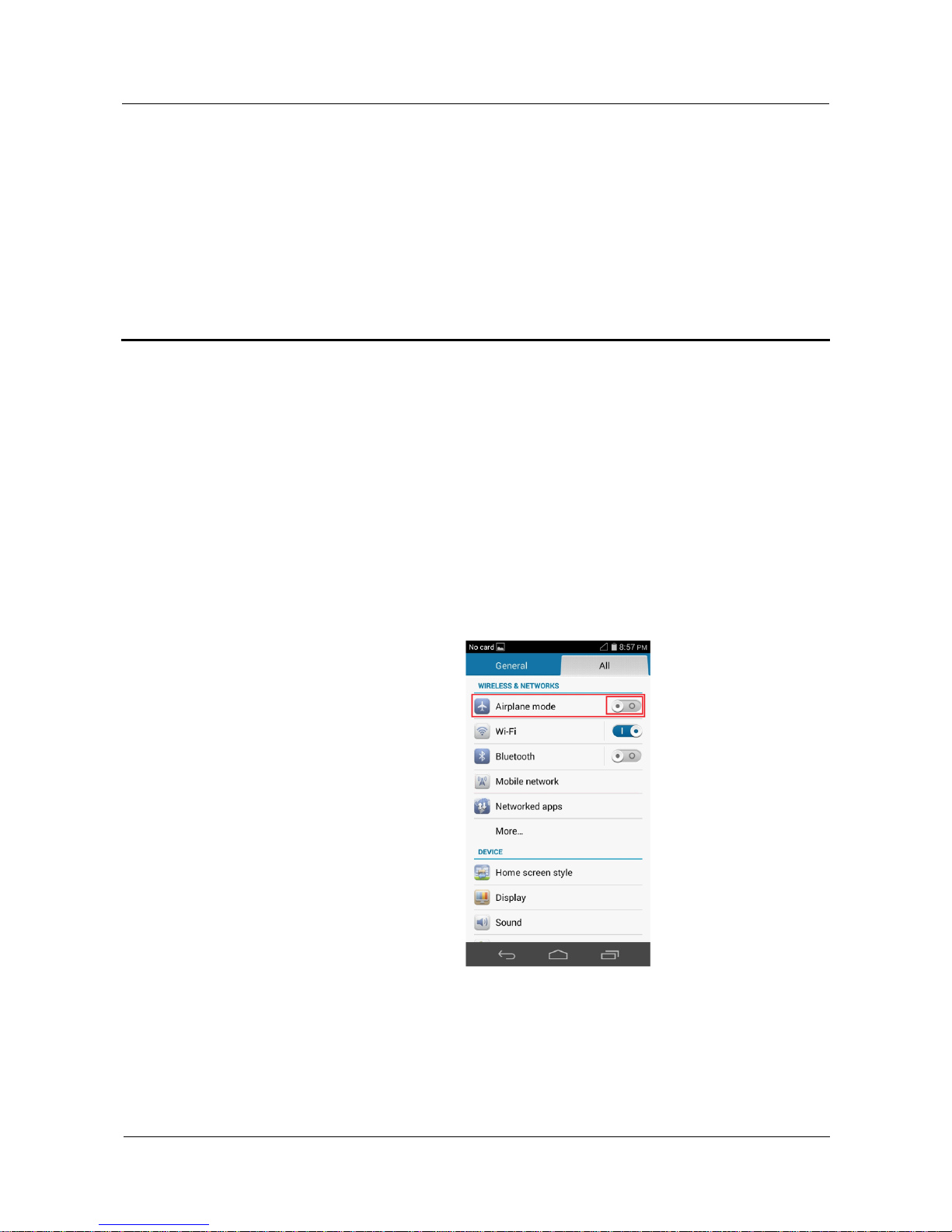
Go to the Settings screen and touch “Airplane mode” switch, Turn on the airplane
mode and then turn off the airplane mode.
Reboot your phone.
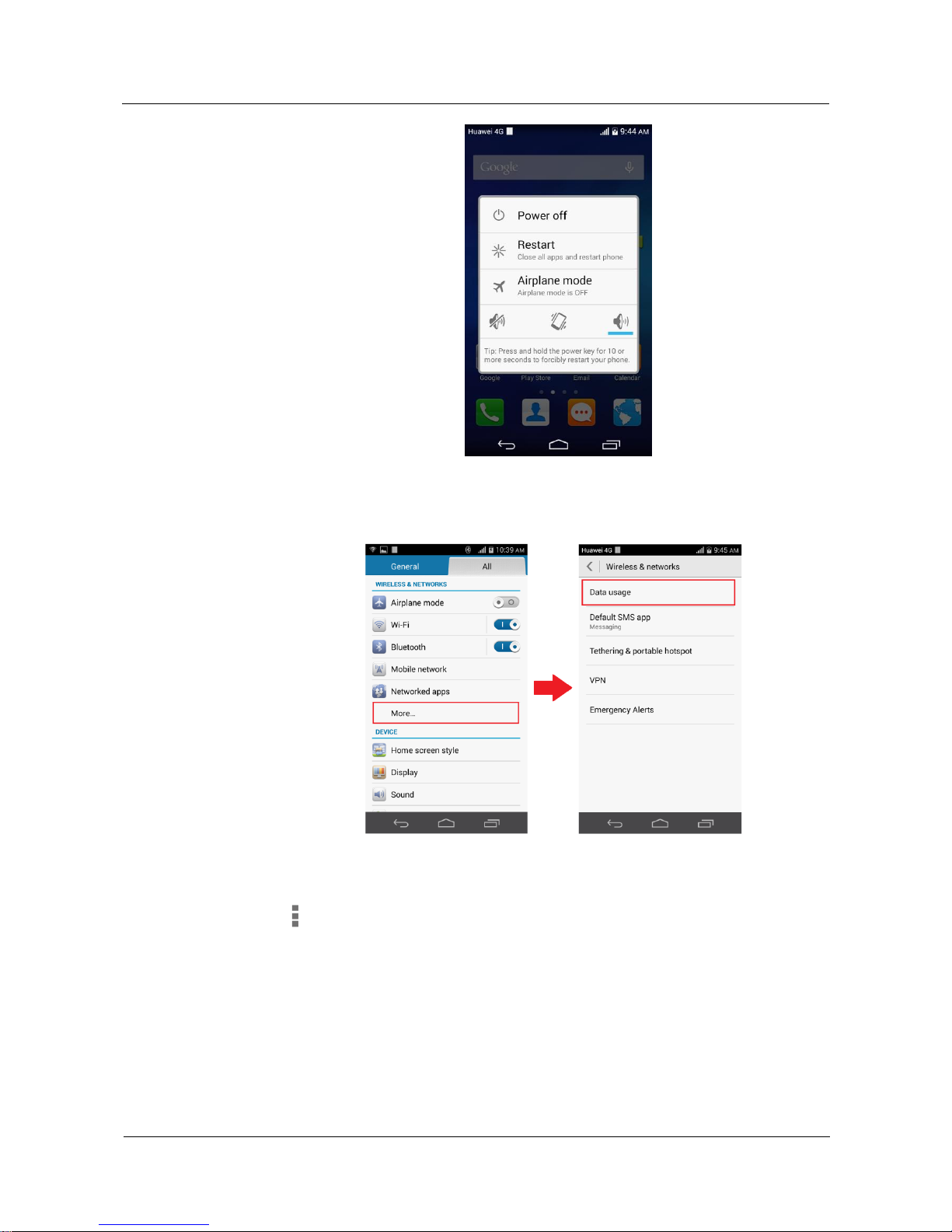
Long touch the power key, then touch the “Restart” menu.
Page 22
HUAWEI Android Smartphone
H891L FAQs
4 Network and data transmission
Issue 01 (2015-03-11)
Huawei Proprietary and Confidential
Copyright © Huawei Technologies Co., Ltd.
16
Check whether you have set a limit for data usage. If so, you will not be able to use
data services when the limit is met.
To remove the limit or set a larger value, go to the Settings screen and touch More... >
Data usage.
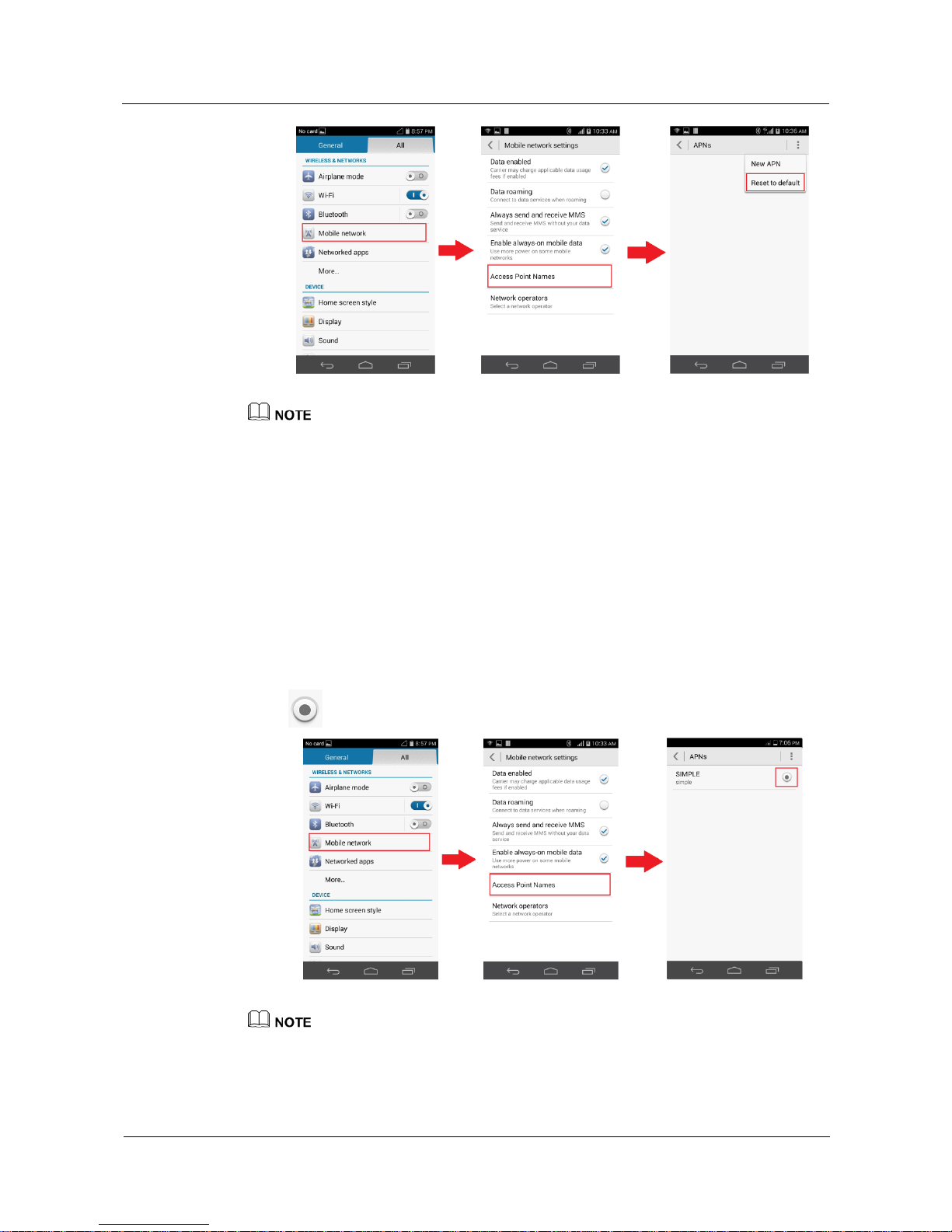
Restore the APN settings to their default values.
Go to the Settings screen, touch Mobile networks > Access Point Names, touch
> Reset to default, and then try again.
Page 23
HUAWEI Android Smartphone
H891L FAQs
4 Network and data transmission
Issue 01 (2015-03-11)
Huawei Proprietary and Confidential
Copyright © Huawei Technologies Co., Ltd.
17
The figures are for your reference only. The actual screens may vary.
4.2 What can I do if I can't send MMS?
Make sure your SIM card is properly inserted. For details, see the Quick Start Guide
that comes with your phone.
Make sure you have subscribed to MMS service for your SIM card. For details, contact
your service provider.
Make sure your SIM card has sufficient balance. Your service provider may stop
providing MMS service to SIM cards that have a negative balance.
Manual select the APN.
Go to the Settings screen, touch Mobile networks > Access Point Names, Touch
to manual select the APN, and then try again.
The figures are for your reference only. The actual screens may vary.
Page 24
HUAWEI Android Smartphone
H891L FAQs
4 Network and data transmission
Issue 01 (2015-03-11)
Huawei Proprietary and Confidential
Copyright © Huawei Technologies Co., Ltd.
18
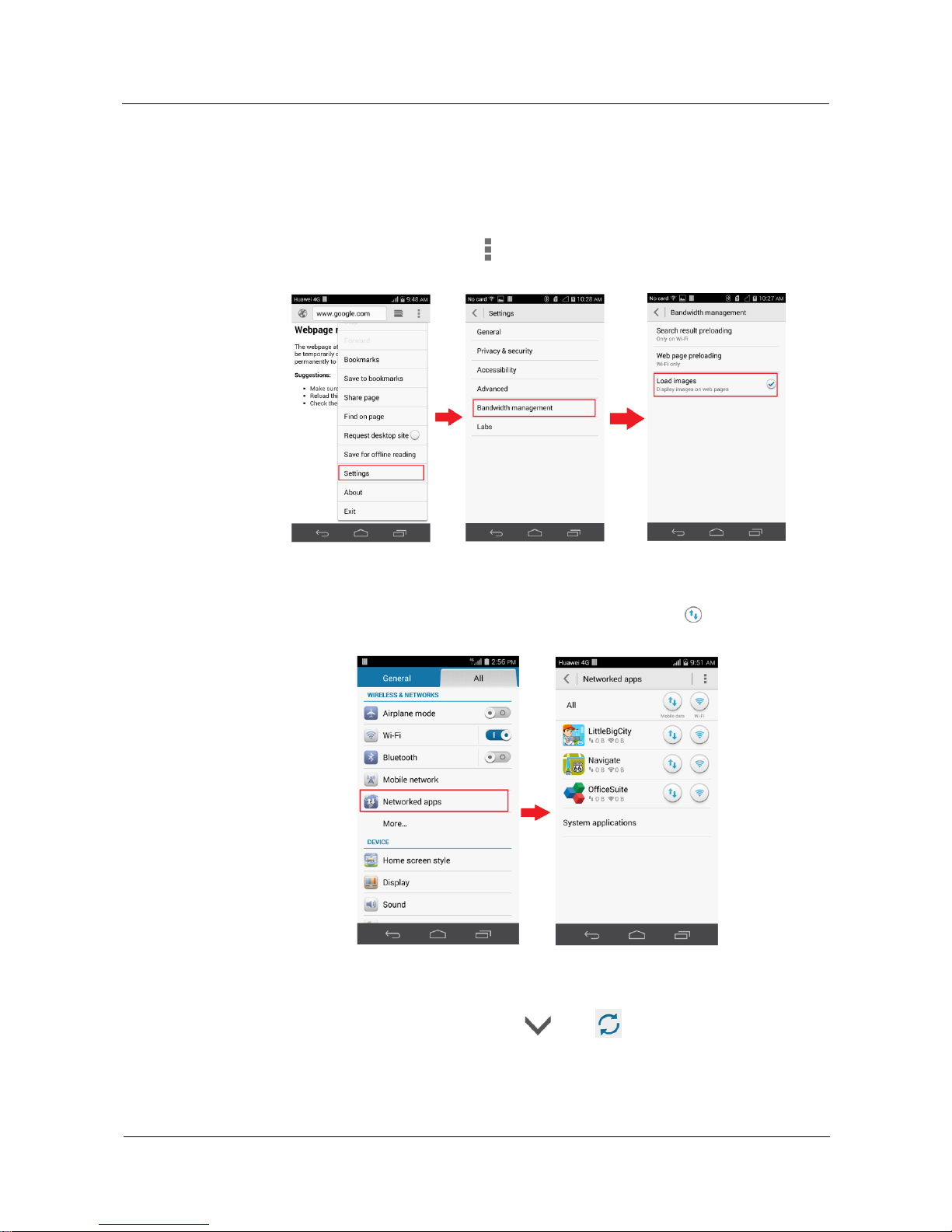
4.3 How do I save my data traffic?
Try to use Wi-Fi networks more often.
Turn off your data service when you don't need to go on the Internet.
When you surf the Internet, set your phone to block images on web pages.
On the Browser screen, touch > Settings > Bandwidth management, and
deselect the Load images check box.
Prevent applications from accessing the Internet using your mobile data connection.
Go to the Settings screen, touch Networked apps, and touch the button next to an
application.
If background data synchronization is not needed, turn it off.
Open the notification panel, and touch then .
Close networked applications not in use.
Page 25
HUAWEI Android Smartphone
H891L FAQs
4 Network and data transmission
Issue 01 (2015-03-11)
Huawei Proprietary and Confidential
Copyright © Huawei Technologies Co., Ltd.
19
Open the list of recently used applications. Flick left or right across an application or
touch to close it, or touch to close all applications simultaneously.
The figures are for your reference only. The actual screens may vary.
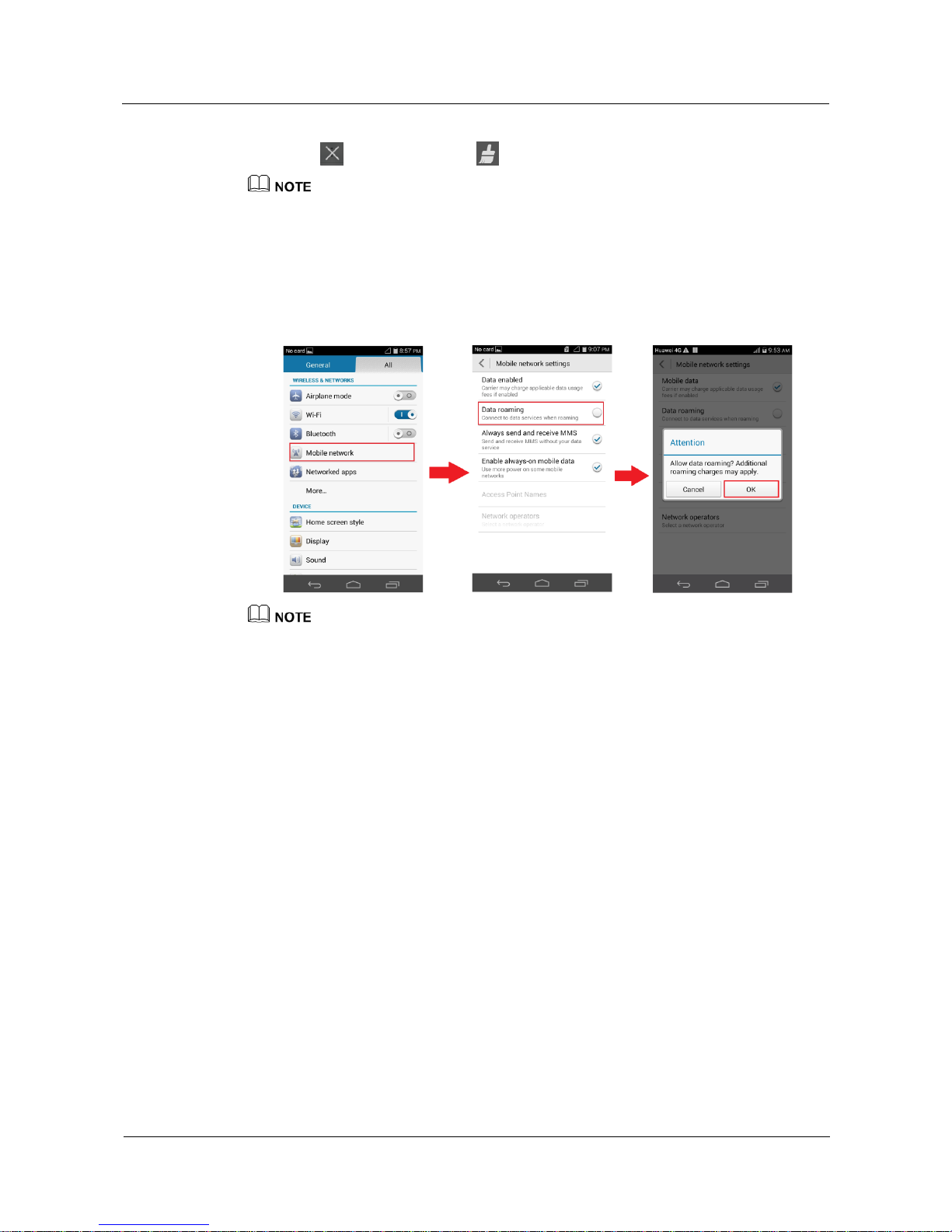
4.4 How can I reduce traffic when I am roaming?
Go to the Settings screen, touch Mobile networks, deselect the Data roaming check
box, and touch OK.
The figures are for your reference only. The actual screens may vary.
4.5 Can I surf the Internet during a call?
You can surf the Internet when you are making a call over a 3G or 4G network.
You cannot surf the Internet when you are making a call over a 2G network.
4.6 How can I access the Internet via a Wi-Fi network?
If a Wi-Fi network is available, your phone uses the Wi-Fi network to access the Internet.
When a Wi-Fi connection is set up, a Wi-Fi icon is displayed in the notification panel of your
phone. If no Wi-Fi network is available, your phone uses the cellular wireless network to
access the Internet.
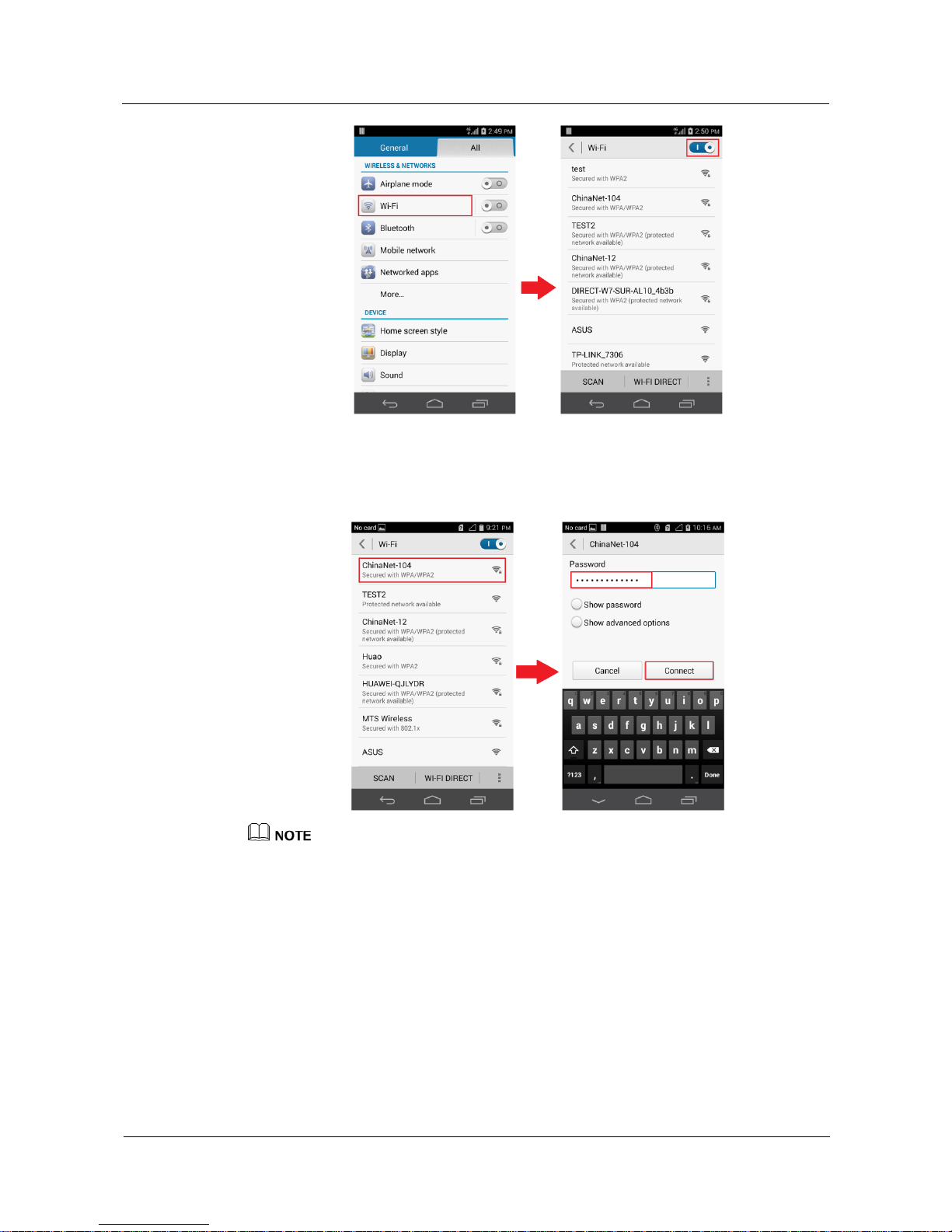
To access the Internet via a Wi-Fi network, perform the following:
1. On the Settings screen, touch Wi-Fi.
2. Turn on Wi-Fi on the Wi-Fi settings screen.
Page 26
HUAWEI Android Smartphone
H891L FAQs
4 Network and data transmission
Issue 01 (2015-03-11)
Huawei Proprietary and Confidential
Copyright © Huawei Technologies Co., Ltd.
20
3. Select the Wi-Fi network that you want to connect to, enter the password, and touch
Connect. (If the network is unprotected, you can access the Internet without a
password.)
The figures are for your reference only. The actual screens may vary.
4.7 What can I do if I can't connect to a Wi-Fi hotspot?
If the Wi-Fi hotspot is encrypted, make sure the password you entered is correct. Note
that the password is case-sensitive.
Check whether the Wi-Fi hotspot name or password has changed. If so, obtain the new
information and try again.
Make sure you are within the working range of the Wi-Fi hotspot; otherwise the Wi-Fi
connection will automatically disconnect.
Page 27
HUAWEI Android Smartphone
H891L FAQs
4 Network and data transmission
Issue 01 (2015-03-11)
Huawei Proprietary and Confidential
Copyright © Huawei Technologies Co., Ltd.
21
The number of connected devices may have reached the Wi-Fi hotspot's limit. Try
connecting to another available network.
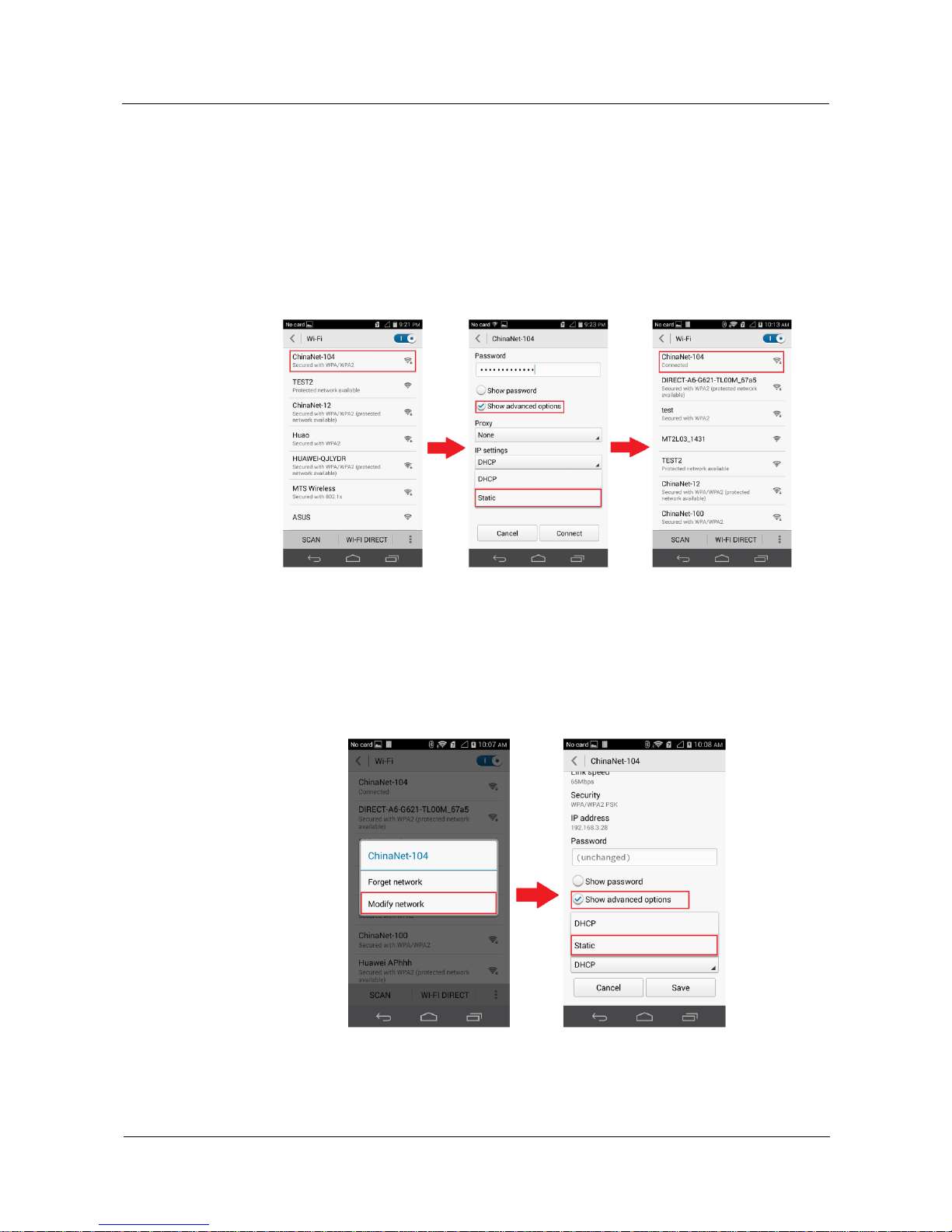
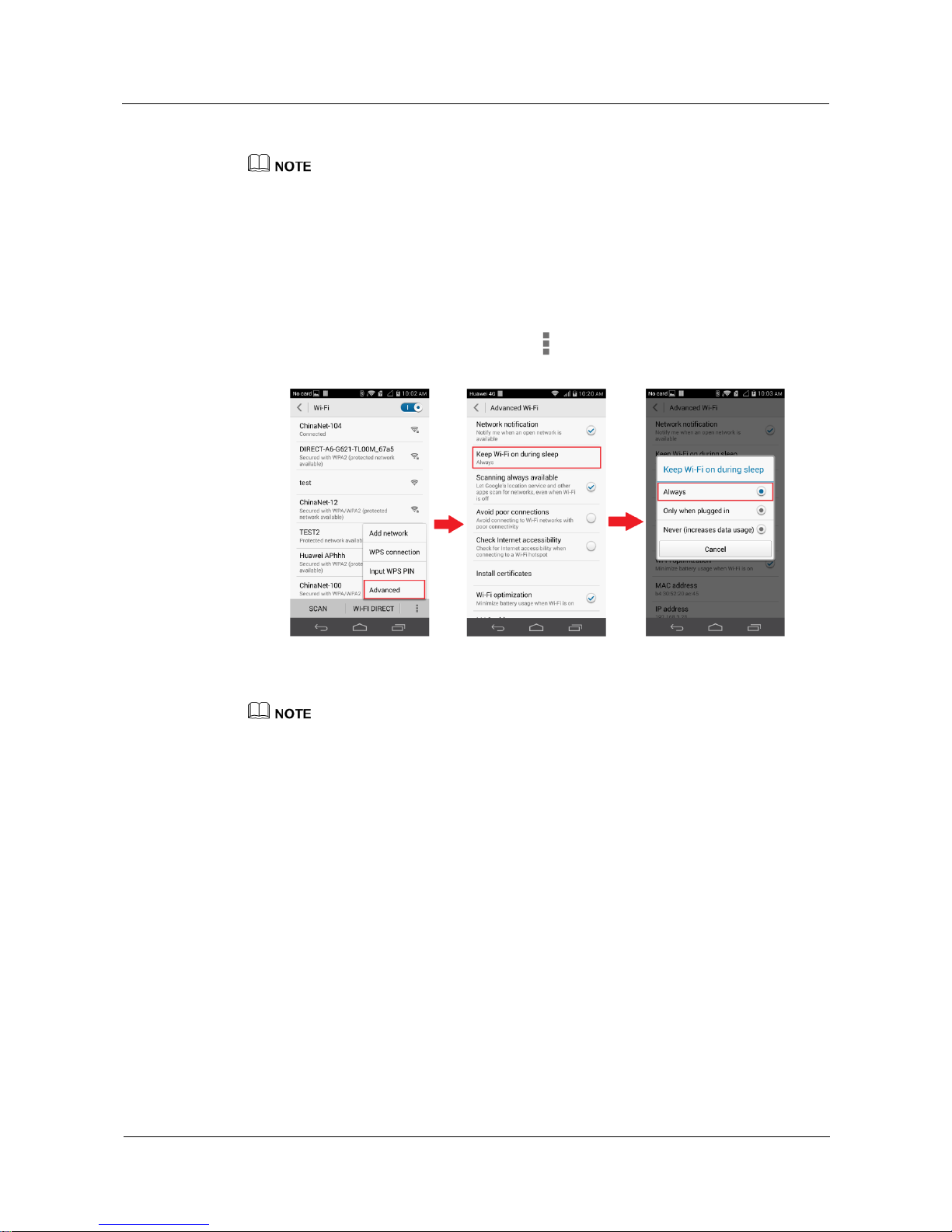
If your phone can't connect to the Wi-Fi hotspot and keeps obtaining an IP address, set
a static IP address for it as follows:
− For an encrypted Wi-Fi hotspot, on the Wi-Fi settings screen, touch the hotspot.
In the displayed dialog box, select the Show advanced options check box. Under IP
settings, touch the drop-down list box, and choose Static. Then enter an IP address
and domain name.
Enter the password, and touch Connect.
− For an open Wi-Fi hotspot, on the Wi-Fi settings screen, touch and hold the hotspot.
From the displayed option menu, choose Modify network. In the displayed dialog
box, select the Show advanced options check box. Under IP settings, touch the
drop-down list box, and choose Static. Then enter an IP address and domain name.
After your phone connects to the Wi-Fi network, a Wi-Fi icon will be displayed on
the status bar.
To connect to some public Wi-Fi hotspots, you may need to log in to a web page for
registration. For details, contact the Wi-Fi hotspot provider.
Page 28
HUAWEI Android Smartphone
H891L FAQs
4 Network and data transmission
Issue 01 (2015-03-11)
Huawei Proprietary and Confidential
Copyright © Huawei Technologies Co., Ltd.
22
If the problem persists, restart Wi-Fi on your phone or restart the Wi-Fi hotspot device.
The figures are for your reference only. The actual screens may vary.
4.8 What can I do if my Wi-Fi connection constantly
disconnects?
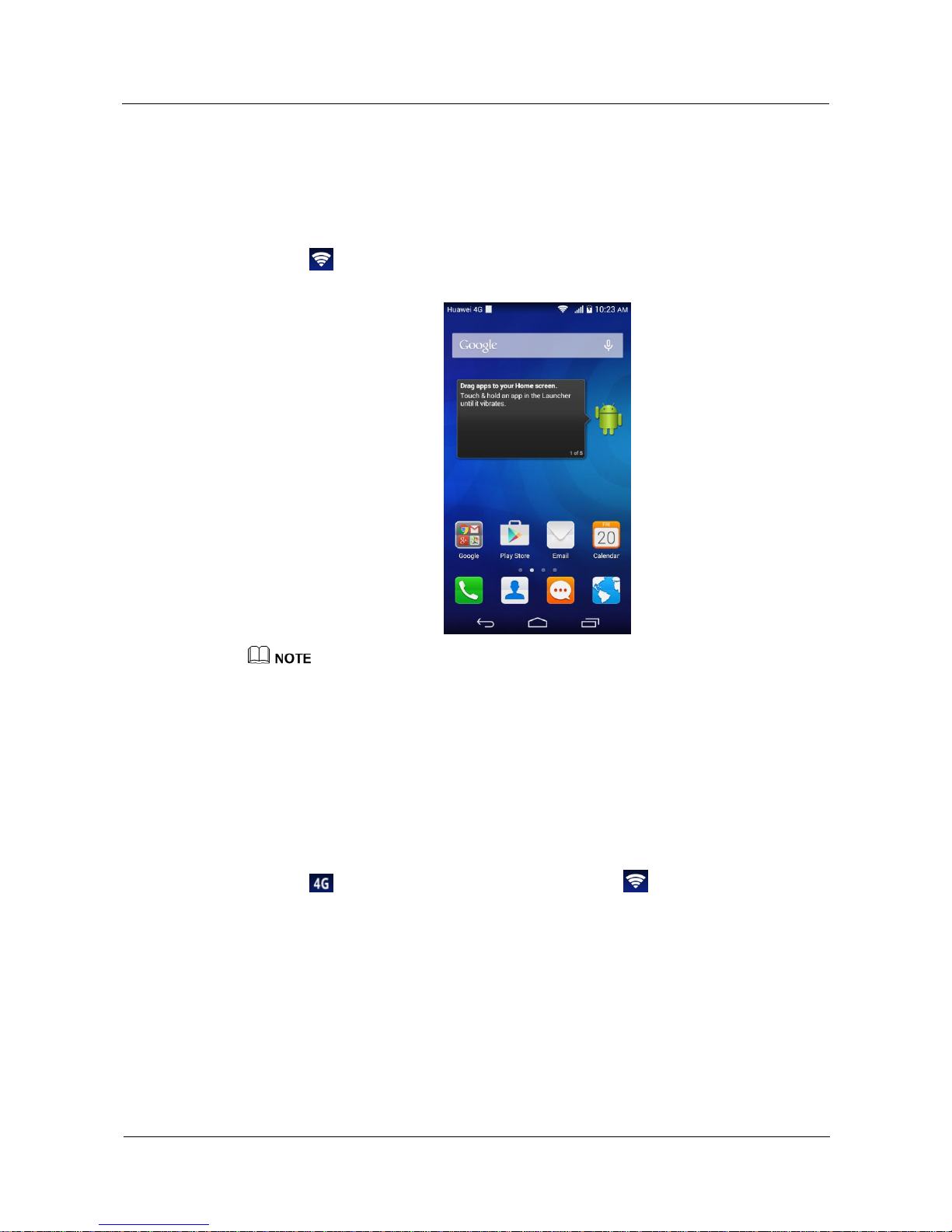
Make sure you are within the working range of the Wi-Fi hotspot.
Go to the Wi-Fi settings screen, touch > Advanced, and touch Keep Wi-Fi on
during sleep. From the displayed option menu, choose Always.
If the problem persists, restart Wi-Fi on your phone or restart the Wi-Fi hotspot device.
The figures are for your reference only. The actual screens may vary.
4.9 I have turned on my phone's Wi-Fi, but it cannot detect
Wi-Fi signals from a wireless router like other devices.
What can I do?
Check that the wireless router's service set identifier (SSID) is not hidden.
Move your phone to the coverage area of the wireless router.
Turn Wi-Fi off, and then turn it back on.
Restart your phone.
Page 29
HUAWEI Android Smartphone
H891L FAQs
4 Network and data transmission
Issue 01 (2015-03-11)
Huawei Proprietary and Confidential
Copyright © Huawei Technologies Co., Ltd.
23
4.10 How do I know whether my phone is using its mobile
data connection or a Wi-Fi connection to access the
Internet?
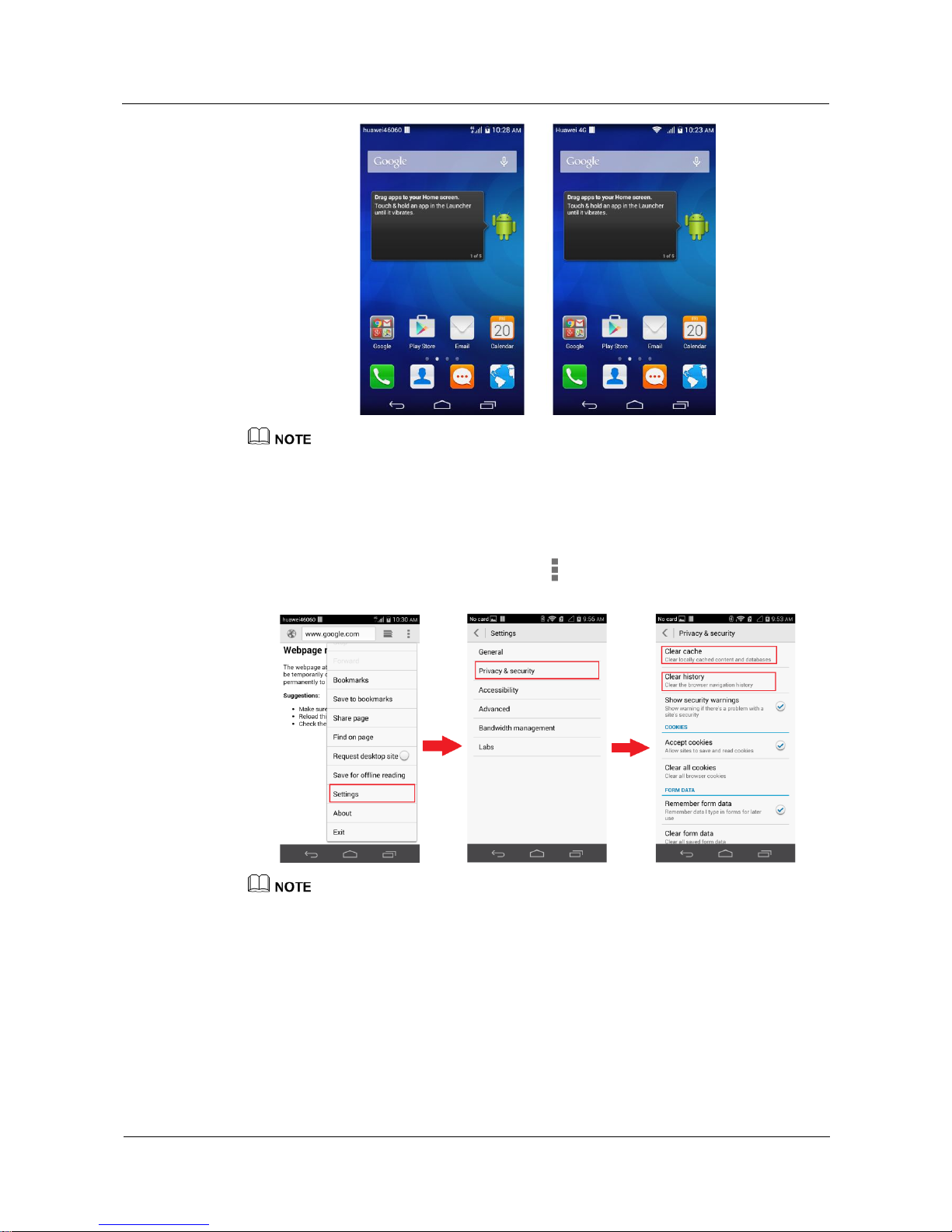
Once connected to a Wi-Fi network, your phone uses the Wi-Fi network to access the Internet.
The icon in the notification panel indicates that your phone is connected to a Wi-Fi
network.
The figures are for your reference only. The actual screens may vary.
4.11 My phone is connected to both a Wi-Fi network and a
3G network. How do I know which network I am using
for data services?
Once connected to a Wi-Fi network, your phone uses the Wi-Fi network for data services.
The icon indicates that a 3G network is connected and indicates that a Wi-Fi
network is connected.
Page 30
HUAWEI Android Smartphone
H891L FAQs
4 Network and data transmission
Issue 01 (2015-03-11)
Huawei Proprietary and Confidential
Copyright © Huawei Technologies Co., Ltd.
24
The figures are for your reference only. The actual screens may vary.
4.12 How do I clear my browser's cache and web history?
Launch your browser, open a web page, touch > Settings > Privacy & security, and
touch Clear cache and Clear history.
The figures are for your reference only. The actual screens may vary.
4.13 What can I do if my phone cannot be detected by
other Bluetooth devices?
Your phone may not be set to visible.
On the Bluetooth settings screen, touch your phone's Bluetooth name to set it to visible.
Page 31
HUAWEI Android Smartphone
H891L FAQs
4 Network and data transmission
Issue 01 (2015-03-11)
Huawei Proprietary and Confidential
Copyright © Huawei Technologies Co., Ltd.
25
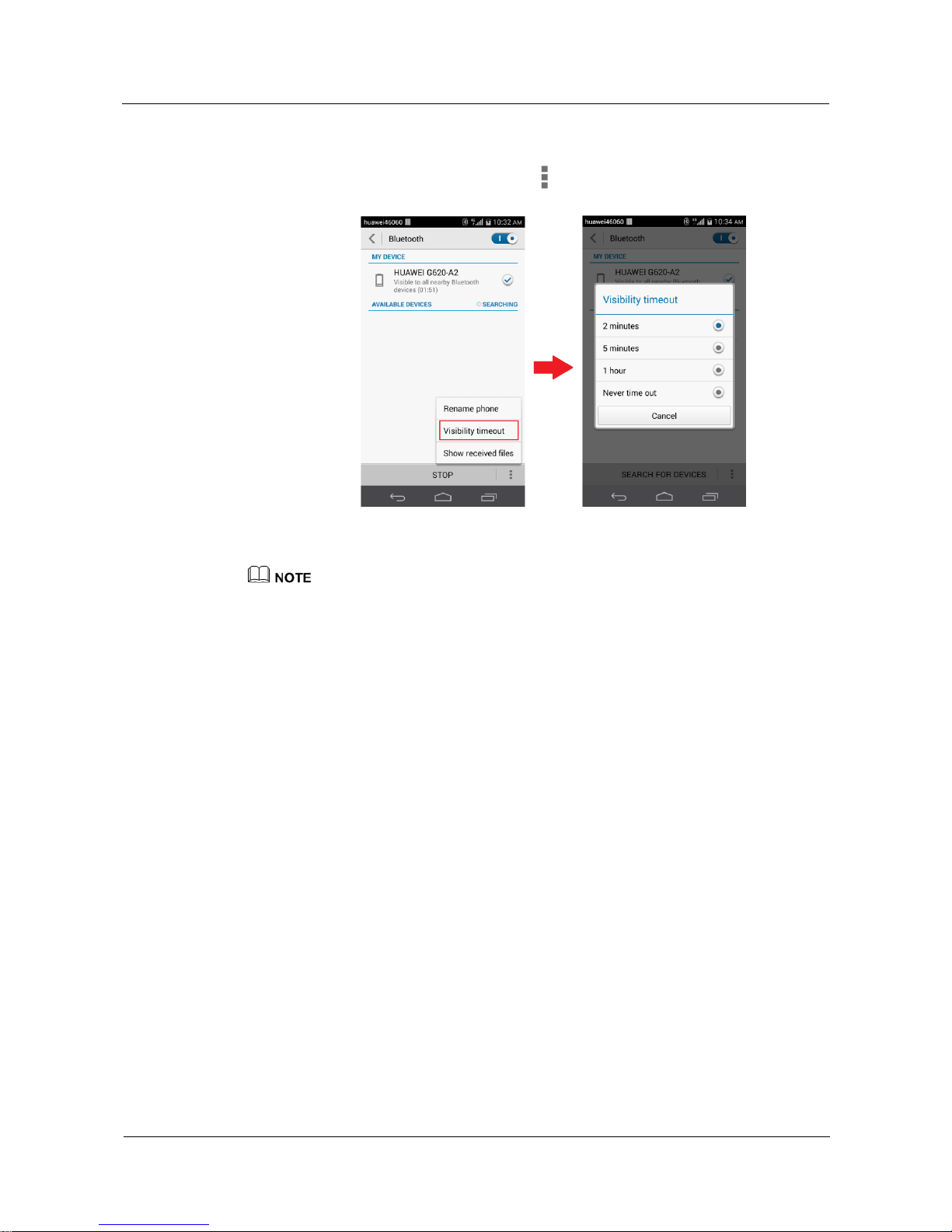
The Bluetooth visibility may have timed out. Re-enable the Bluetooth visibility or
change the timeout period.
On the Bluetooth settings screen, touch > Visibility timeout to select a period and
enable Bluetooth visibility.
Your phone may not be within the working range of Bluetooth.
Make sure your phone is within 10 m of other Bluetooth devices.
The figures are for your reference only. The actual screens may vary.
4.14 Why can't I transfer files to another Bluetooth device
that I've already paired with?
The distance between your phone and the other Bluetooth device is over 10 meters.
The other Bluetooth device did not respond to your file transfer request in time.
The other Bluetooth device does not support the format of the file you are trying to
send.
4.15 Can I connect my phone to a computer and access the
Internet using Bluetooth?
You can connect your phone to a computer using Bluetooth, but you cannot access the
Internet on your phone after the connection is set up.
4.16 How do I copy files from my phone to a computer?
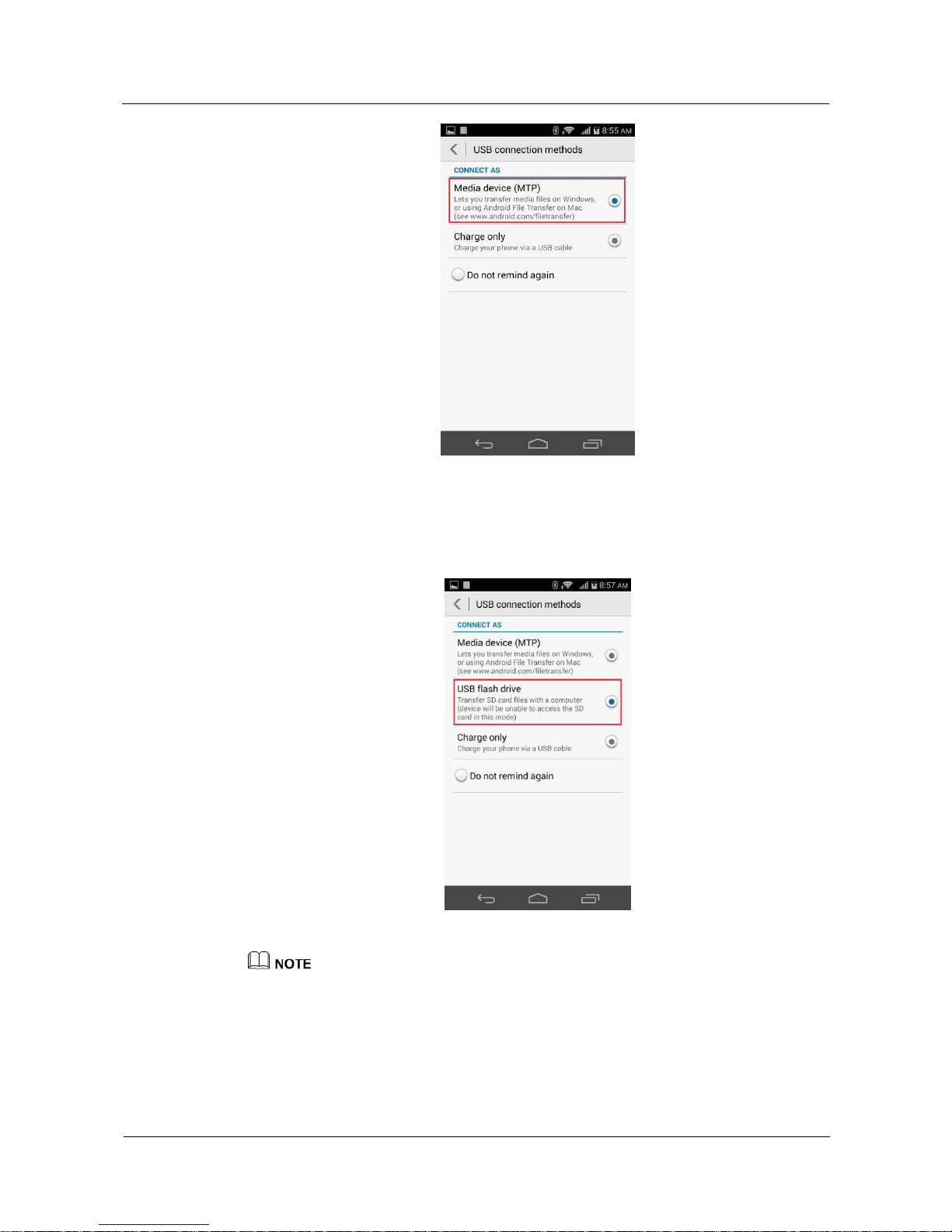
Use a USB cable to connect your phone to the computer in Media device (MTP) mode.
You can then transmit files between your phone and the computer.
Page 32
HUAWEI Android Smartphone
H891L FAQs
4 Network and data transmission
Issue 01 (2015-03-11)
Huawei Proprietary and Confidential
Copyright © Huawei Technologies Co., Ltd.
26
If you have inserted a microSD card into your phone, use a USB cable to connect your
phone to the computer in USB flash drive mode. The computer will identify the
microSD card as a USB storage device, and you'll be able to transmit files between the
microSD card and computer.
The figures are for your reference only. The actual screens may vary.
Page 33
HUAWEI Android Smartphone
H891L FAQs
5 Applications
Issue 01 (2015-03-11)
Huawei Proprietary and Confidential
Copyright © Huawei Technologies Co., Ltd.
27
5 Applications
5.1 How do I uninstall pre-installed applications?
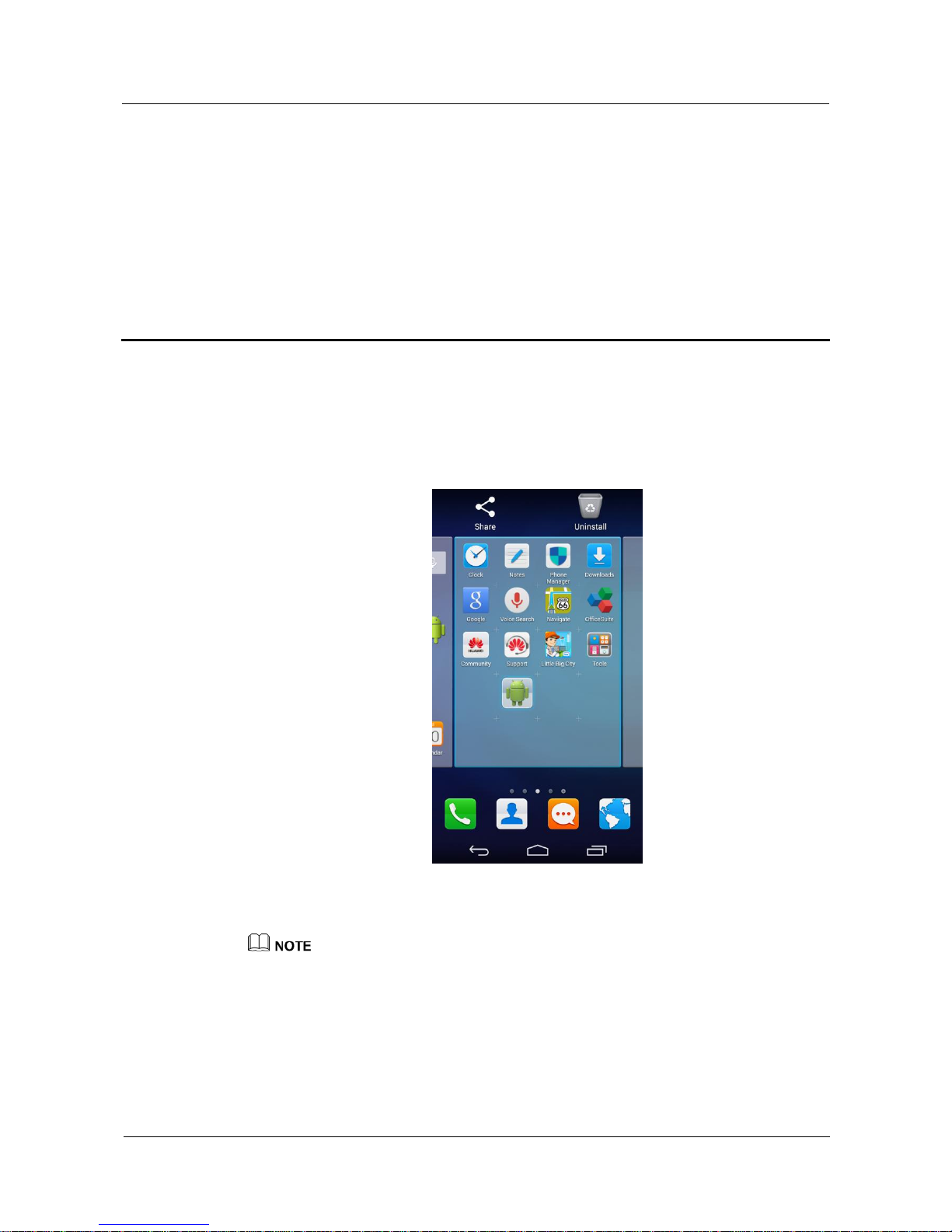
Touch and hold the application you want to uninstall, drag it to the trash can icon, and follow
the onscreen instructions to uninstall it.
System applications cannot be uninstalled.
The figures are for your reference only. The actual screens may vary.
5.2 How do I download third-party applications?
A rich selection of applications is available from a variety of sources. You can:
Download applications from Google's Play Store.
Page 34
HUAWEI Android Smartphone
H891L FAQs
5 Applications
Issue 01 (2015-03-11)
Huawei Proprietary and Confidential
Copyright © Huawei Technologies Co., Ltd.
28
Download applications from web pages using the browser on your phone.
Download applications using a computer, and copy them to your phone.
5.3 What can I do if my phone can't install an application?
Your phone supports third-party applications in APK format only. Make sure the
application you are trying to download is in this format.
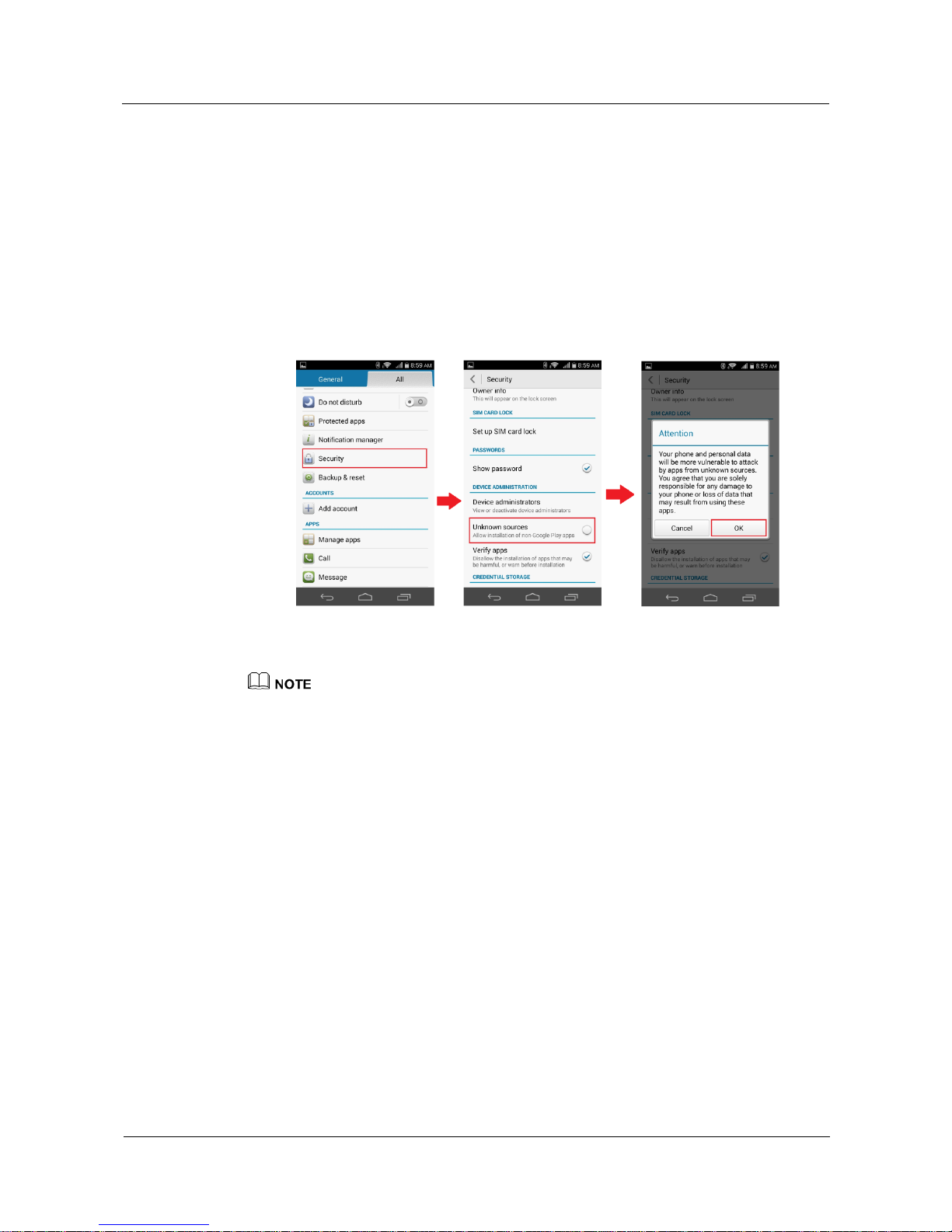
If the application is not from Google's Play Store, go to the Settings screen, touch
Security, select the Unknown sources check box, and touch OK. Then reinstall the
application.
The third-party application may not be compatible with your phone.
The figures are for your reference only. The actual screens may vary.
5.4 How do I install on or move applications to the
microSD card?
By default, third-party applications are installed to your phone's internal storage. The default
installation location cannot be changed. However, you can move some third-party
applications to the microSD card.
After you move an application to the microSD card, if you uninstall, remove, or format the
microSD card, the application will be unavailable.
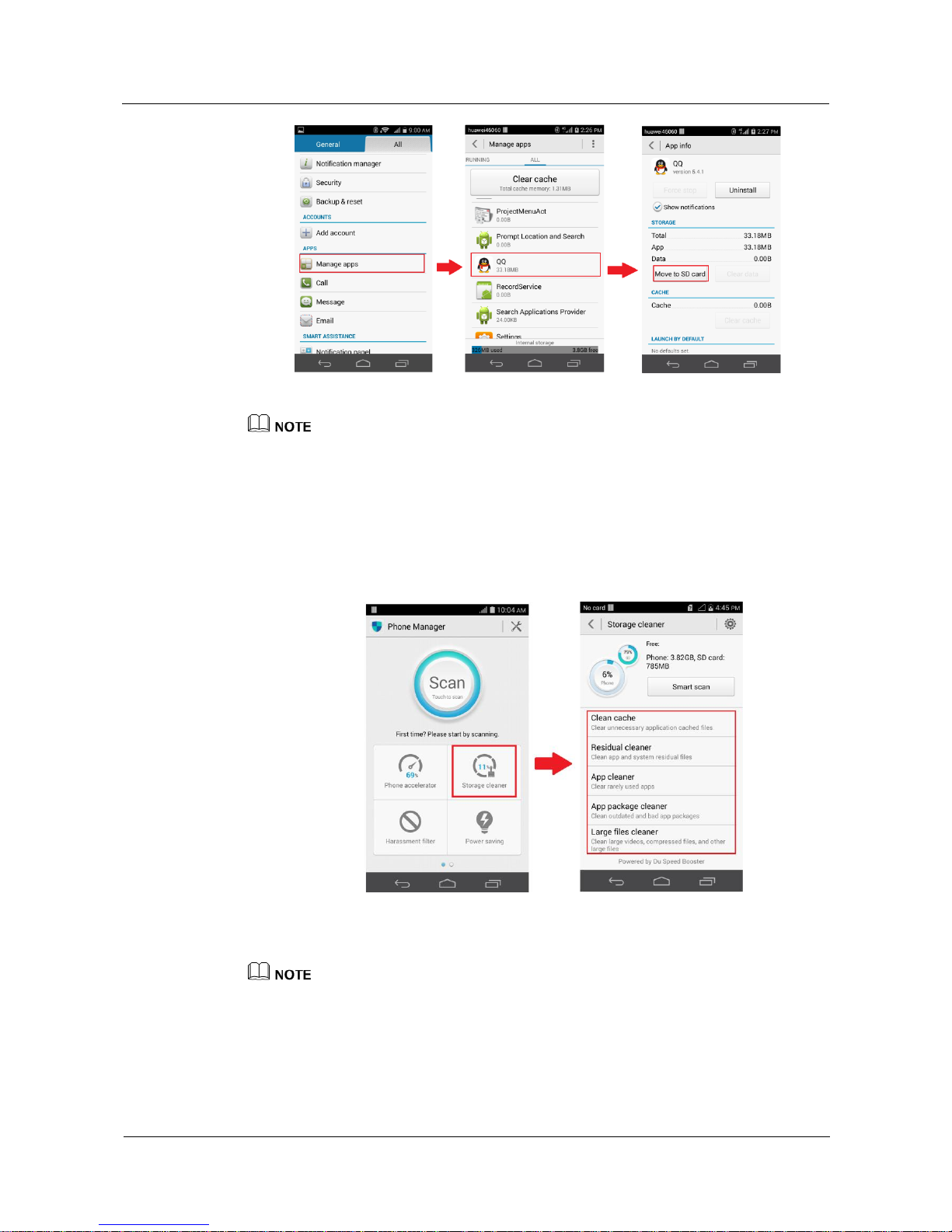
Go to the Settings screen, touch Manage apps, touch the application you want to move, and
touch Move to SD card.
Page 35
HUAWEI Android Smartphone
H891L FAQs
5 Applications
Issue 01 (2015-03-11)
Huawei Proprietary and Confidential
Copyright © Huawei Technologies Co., Ltd.
29
The figures are for your reference only. The actual screens may vary.
5.5 What can I do if applications close unexpectedly?
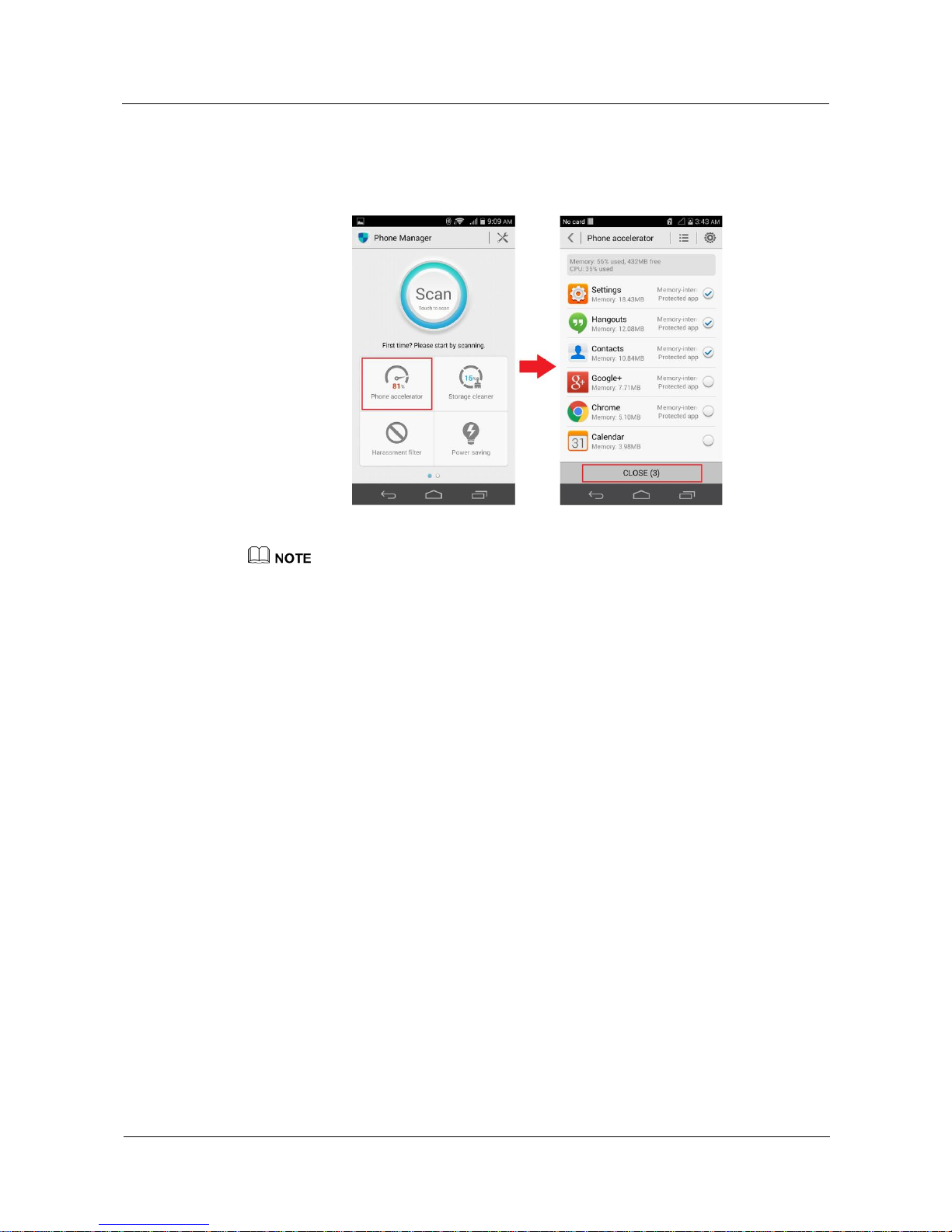
Your phone storage may be insufficient. To free up your phone storage space:
Go to the Phone Manager screen, touch Storage cleaner, and follow the onscreen
instructions to free up your phone memory.
Some third-party applications may not be compatible with your phone. You can try
replacing them with similar applications.
The figures are for your reference only. The actual screens may vary.
Page 36
HUAWEI Android Smartphone
H891L FAQs
5 Applications
Issue 01 (2015-03-11)
Huawei Proprietary and Confidential
Copyright © Huawei Technologies Co., Ltd.
30
5.6 How do I close background applications?
On the Phone Manager screen, touch Phone accelerator, and follow the onscreen
instructions to close applications not in use.
The figures are for your reference only. The actual screens may vary.
5.7 Is there any restriction on the email attachment size?
The total size of attachments in a single email must not exceed 5 MB.
Page 37

HUAWEI Android Smartphone
H891L FAQs
6 Calls and contacts
Issue 01 (2015-03-11)
Huawei Proprietary and Confidential
Copyright © Huawei Technologies Co., Ltd.
31
6 Calls and contacts
6.1 How can I use the TTY function on my phone?
To use the teletypewriter (TTY) function on your phone to send or receive typed messages, do
the following:
1. Connect a TTY to the headset jack of your phone, and then enable TTY mode on your
phone.
2. Make or answer a call as usual.
3. When the call is set up, use the TTY to send or receive typed messages.
4. Touch the end key to end the call.
6.2 How can I enable TTY mode on my phone?
1. On the Dialer screen, touch > Call settings > TTY mode.
2. Select an option from the following:
TTY Off: to disable the TTY function, that is, to listen to the other party using the
earpiece and to transmit your voice to the other party using the microphone.
TTY Full: to send and receive typed messages during a call.
TTY HCO: only to send typed messages during a call, that is, to listen to the other
party using the earpiece of your phone and to transmit your voice to the other party in
typed messages using the TTY connected to your phone.
TTY VCO: only to receive typed messages during a call, that is, to transmit your voice
to the other party using the microphone of your phone and to receive the other party's
voice in typed messages using the TTY connected to your phone.
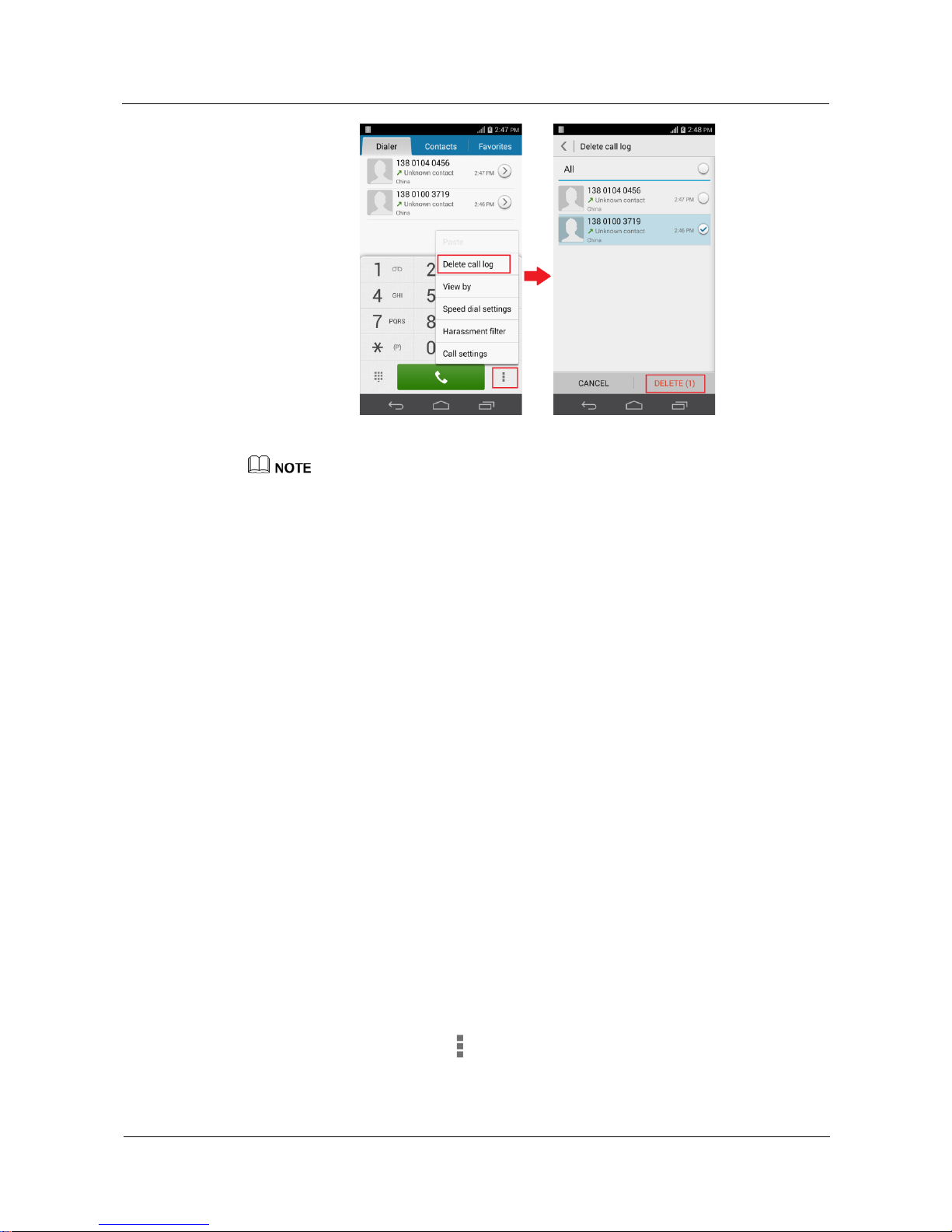
6.3 How do I delete call records?
On the Dialer screen, touch > Delete call log. Touch the call records you want to
delete, and touch DELETE.
Page 38
HUAWEI Android Smartphone
H891L FAQs
6 Calls and contacts
Issue 01 (2015-03-11)
Huawei Proprietary and Confidential
Copyright © Huawei Technologies Co., Ltd.
32
The figures are for your reference only. The actual screens may vary.
6.4 What can I do if my ringtone automatically restores to
the default one after I change it?
If the ringtone you set is not a native one, check whether you have deleted or moved
the ringtone file. If so, set the ringtone again.
If your phone supports external microSD cards and the ringtone file you set is saved in
a microSD card, the ringtone will restore to the default one when you connect your
phone to a computer in USB storage mode. Disconnect your phone from the computer
or move the ringtone file to your phone storage.
If your phone supports external microSD cards and the ringtone file you set is saved in
a microSD card, check whether you have uninstalled the microSD card. If so, install
the microSD card and set the ringtone again.
If the problem persists, contact Huawei technical support.
6.5 Can I delete the native tones?
No.
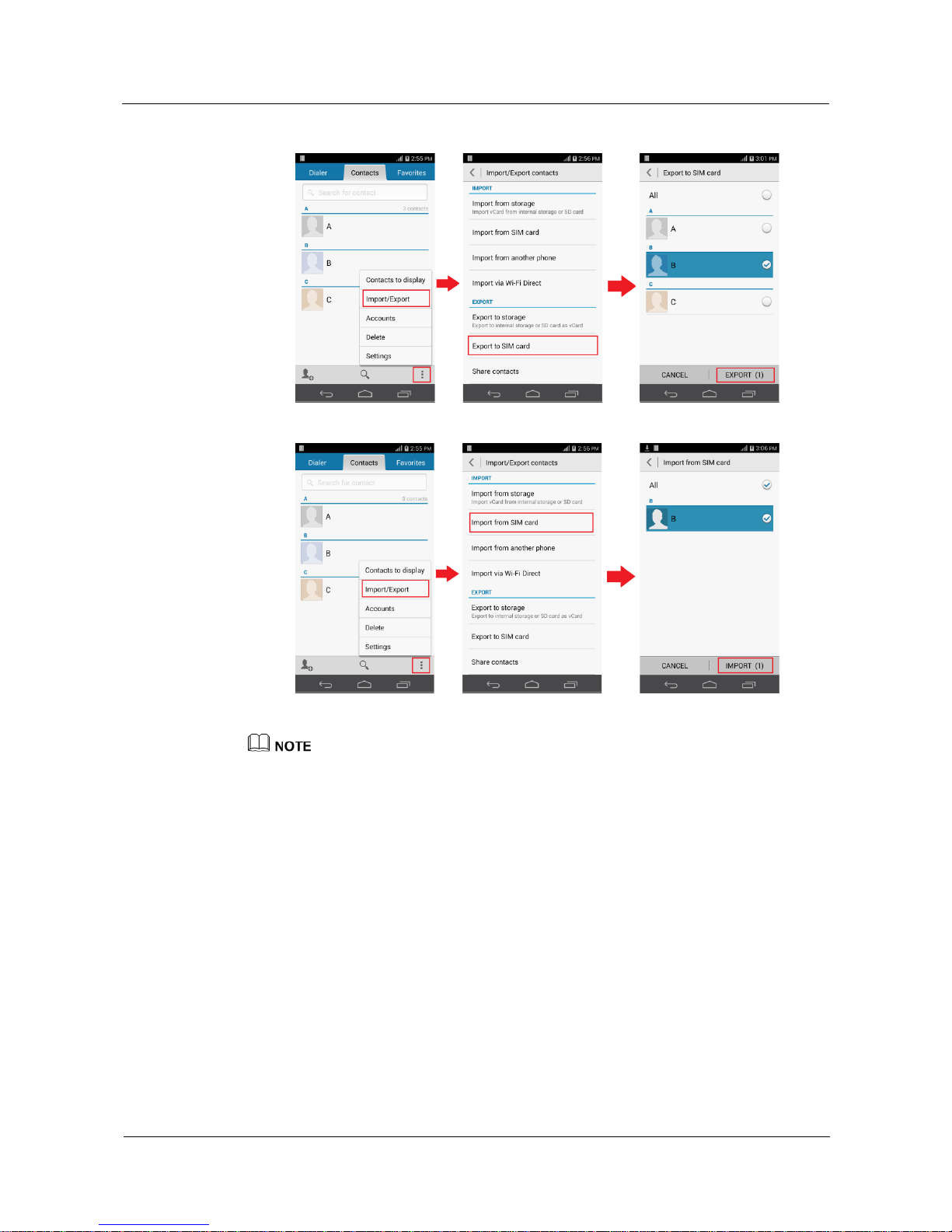
6.6 How do I export contacts to another phone using a SIM
card?
On the Contacts screen, touch > Import/Export > Export to SIM card. Follow the
onscreen instructions to export contacts from your phone to the SIM card.
Page 39
HUAWEI Android Smartphone
H891L FAQs
6 Calls and contacts
Issue 01 (2015-03-11)
Huawei Proprietary and Confidential
Copyright © Huawei Technologies Co., Ltd.
33
Then insert the SIM card into another phone, and import the contacts to that phone.
The figures are for your reference only. The actual screens may vary.
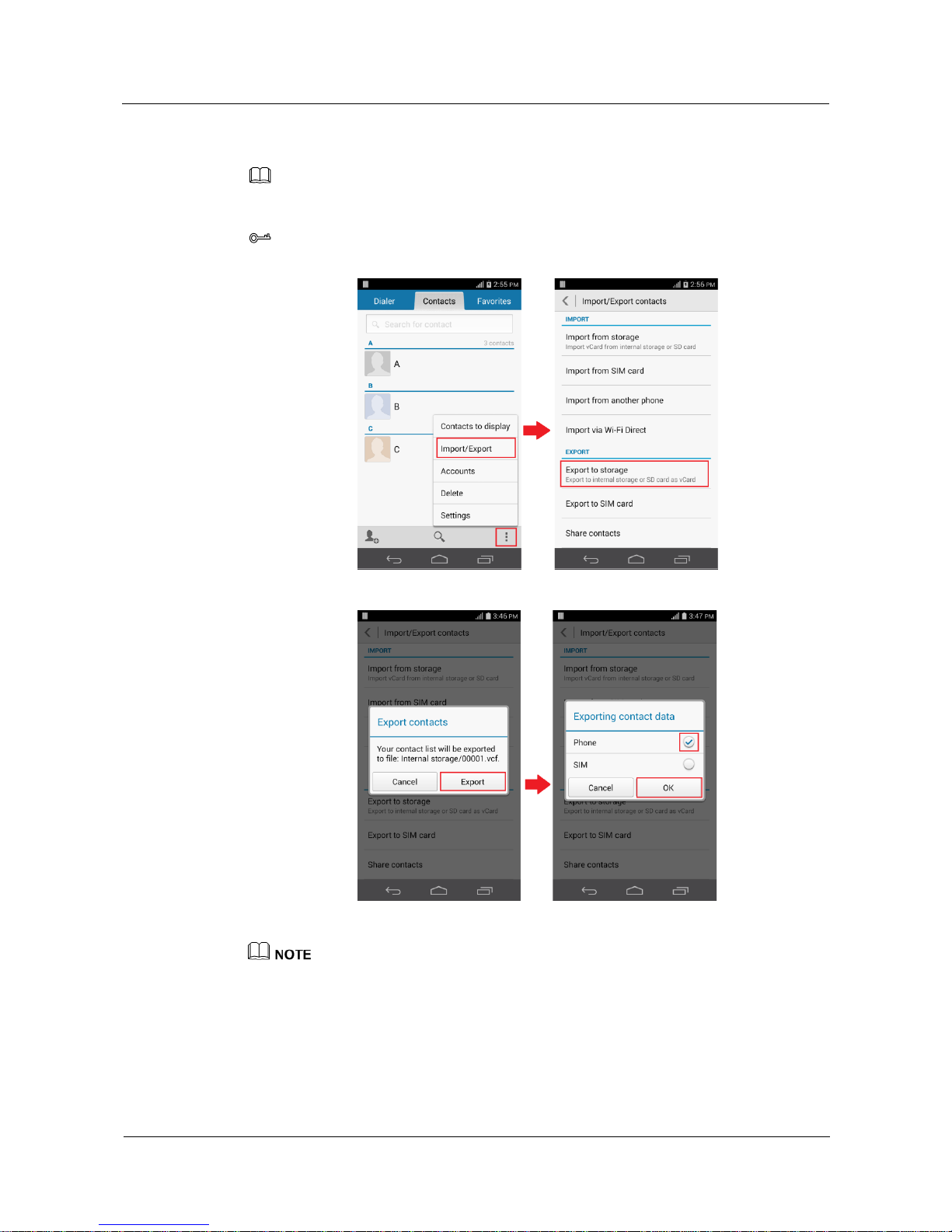
6.7 How do I export contacts to another phone using a
storage device?
1. Export contacts in your phone to the internal storage as a .vcf file.
2. Go to File Manager then the root directory of your phone storage, and send the .vcf file
to another phone.
3. Touch the .vcf file on the other phone to import the contacts.
If your phone supports external microSD cards and you have inserted one into your phone,
select SD card under Settings > Storage > Default storage location to export contacts
through the microSD card as follows:
1. Export contacts in your phone to the internal storage as a .vcf file.
2. Uninstall the microSD card, remove it, and insert it into another phone.
Page 40
HUAWEI Android Smartphone
H891L FAQs
6 Calls and contacts
Issue 01 (2015-03-11)
Huawei Proprietary and Confidential
Copyright © Huawei Technologies Co., Ltd.
34
3. Go to File Manager then the root directory of the microSD card, and touch the
exported .vcf file to import the contacts.
NOTE
Compatibility problems may occur with .vcf files created on different mobile phones and certain contact
information may be lost after contacts are imported.
TIP
You can also use the Bluetooth function to share and import contacts.
The figures are for your reference only. The actual screens may vary.
Page 41
HUAWEI Android Smartphone
H891L FAQs
6 Calls and contacts
Issue 01 (2015-03-11)
Huawei Proprietary and Confidential
Copyright © Huawei Technologies Co., Ltd.
35
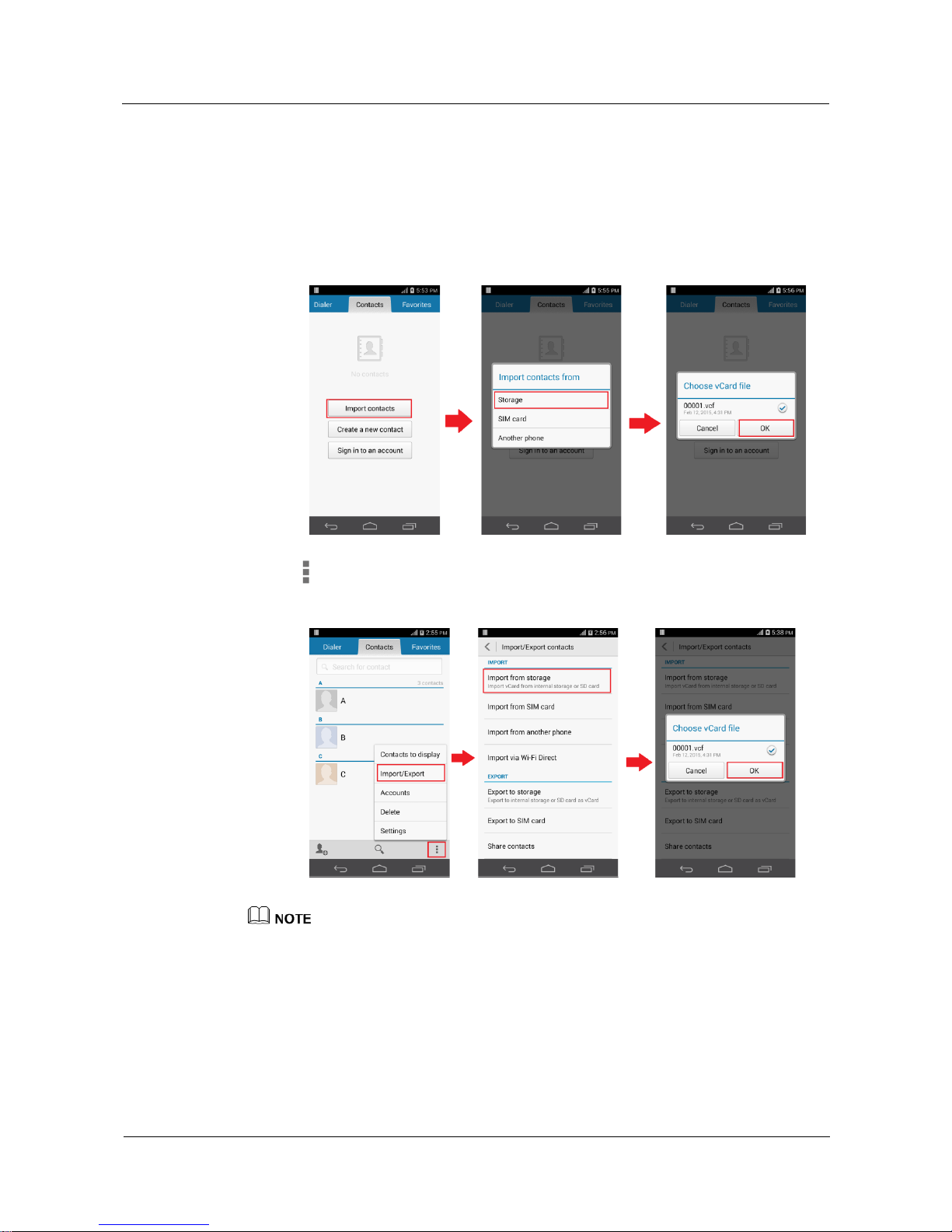
6.8 How can I recover contacts from my microSD card?
Access the /sdcard directory of your microSD card from File Manager. Select the
saved .vcf file from which you want to recover contacts. When the phone displays a
message asking you whether to recover contacts from your microSD card, touch OK.
If there’s no contact in your phone, Touch Contacts. On the Contacts screen, touch
Import contacts > Storage. Select the account you want to import, and then select the
saved .vcf file from which you want to recover contacts.
If there are contacts in your phone,Touch Contacts. On the Contacts screen, touch
. From the displayed option menu, choose Import/Export > Import from
storage. Select the account you want to import, and then select the saved .vcf file from
which you want to recover contacts.
The figures are for your reference only. The actual screens may vary.
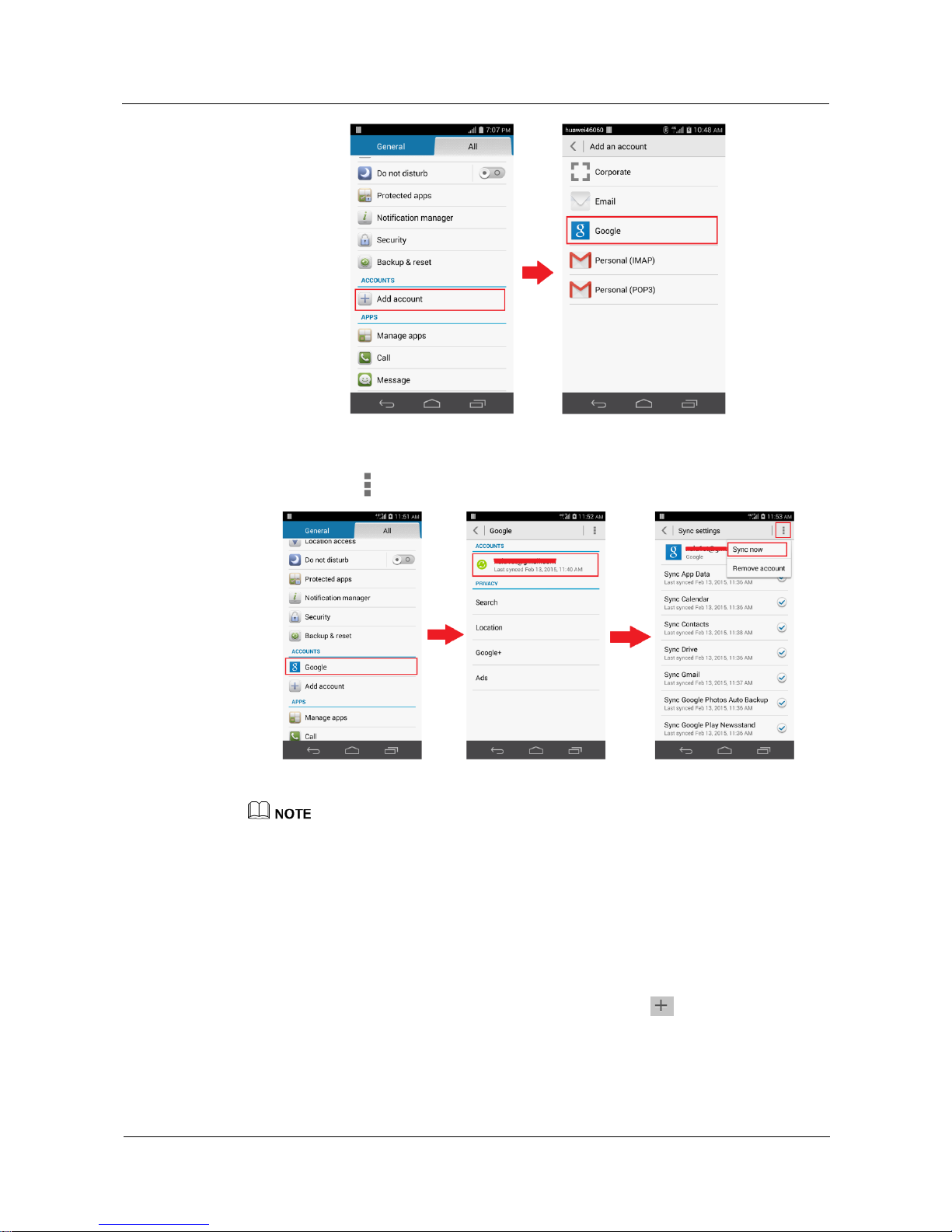
6.9 How can I back up my contacts list using Gmail?
1. On the Settings screen, touch Add account > Google to log in to your Google account.
If you have already logged in to your Google account, skip this step.
Page 42
HUAWEI Android Smartphone
H891L FAQs
6 Calls and contacts
Issue 01 (2015-03-11)
Huawei Proprietary and Confidential
Copyright © Huawei Technologies Co., Ltd.
36
2. On the Settings screen, touch Google. On the Google screen, touch the account, and
then touch > Sync now to synchronize your contacts list.
The figures are for your reference only. The actual screens may vary.
6.10 How can I synchronize Google Calendar between my
phone and Microsoft Outlook via Google Calendar Sync?
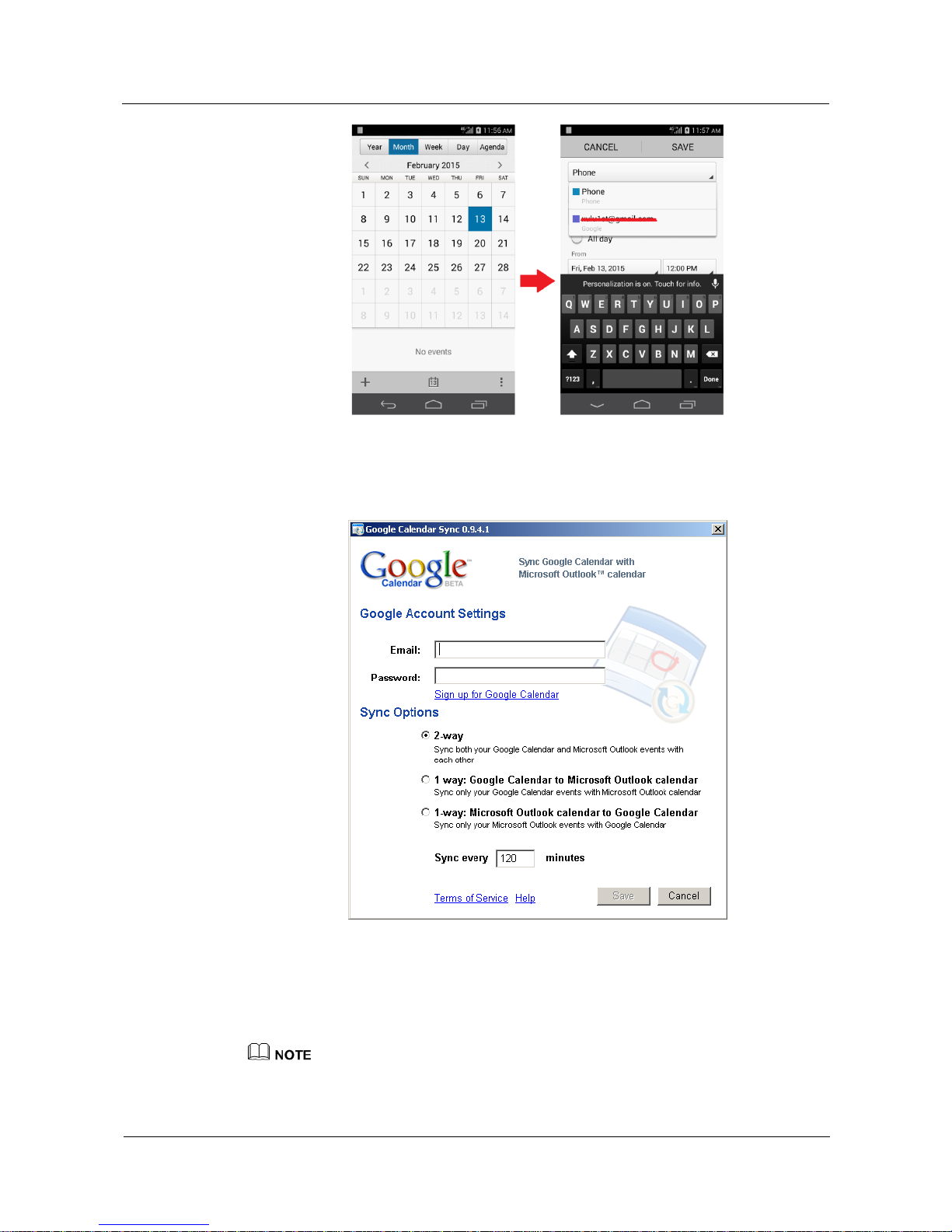
Before synchronizing Google Calendar between your phone and Microsoft Outlook via
Google Calendar Sync, ensure that you have created a Google account.
− Select Calendar. When the calendar is displayed, touch . On the Edit screen,
select your Google account, and then create an event.
Page 43
HUAWEI Android Smartphone
H891L FAQs
6 Calls and contacts
Issue 01 (2015-03-11)
Huawei Proprietary and Confidential
Copyright © Huawei Technologies Co., Ltd.
37
− On your computer, download and install Google Calendar Sync. In the Google
Calendar Sync dialog box, configure your Google account settings, select 2-way, set
the synchronization interval, and then save the settings.
Any change in calendar entries will be synchronized to Microsoft Outlook, Gmail, and your
phone. For example, after you add a calendar entry to your phone, this entry will be
synchronized to Gmail. When you launch Microsoft Outlook on your computer, this entry will
also be synchronized to Microsoft Outlook via Google Calendar Sync.
The figures are for your reference only. The actual screens may vary.
Page 44
HUAWEI Android Smartphone
H891L FAQs
6 Calls and contacts
Issue 01 (2015-03-11)
Huawei Proprietary and Confidential
Copyright © Huawei Technologies Co., Ltd.
38
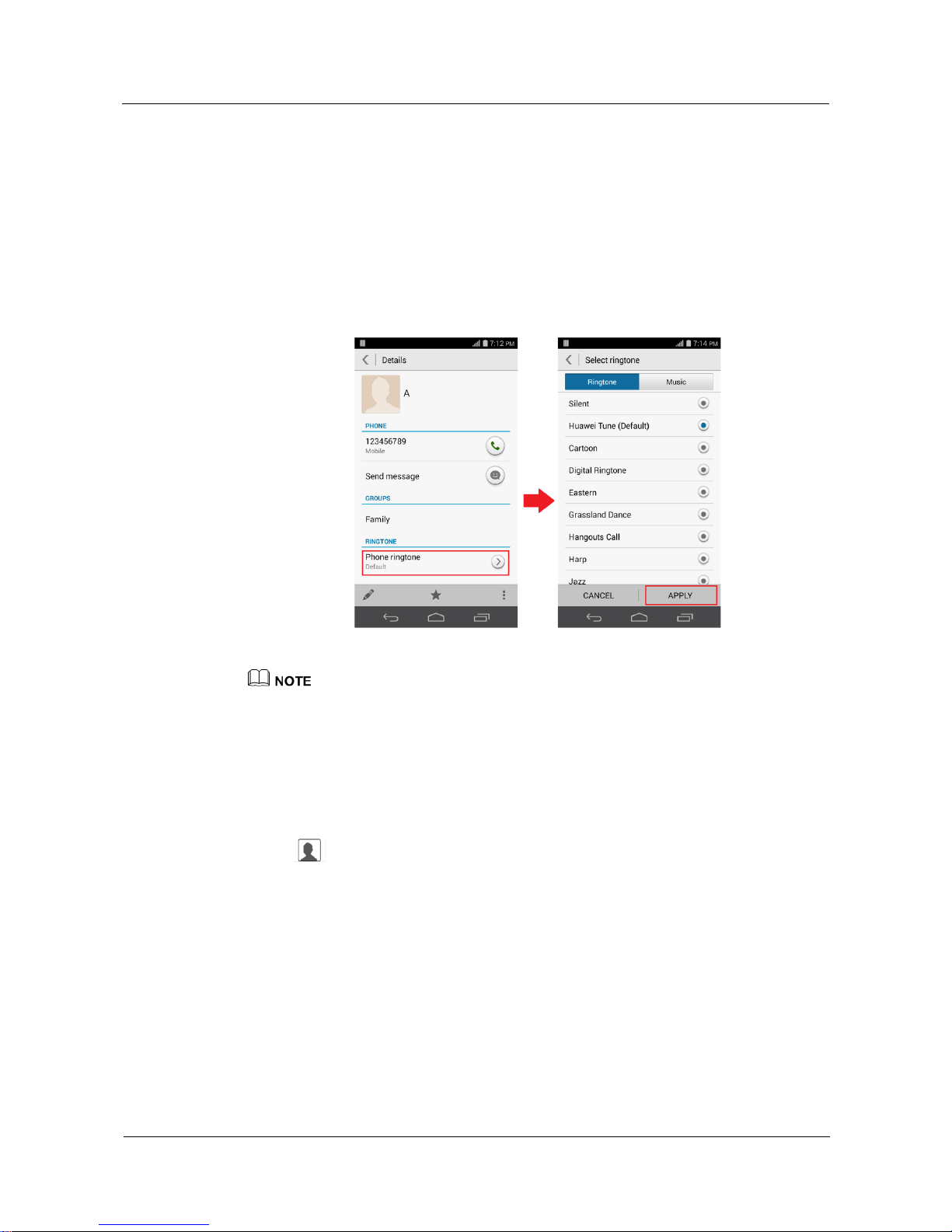
6.11 How do I assign a unique ringtone for a contact or
contact group?
Ringtones cannot be assigned for contact groups currently.
To assign a unique ringtone for a contact, go to the contact details screen, touch Phone
ringtone. On the Select ringtone screen, select a ringtone and touch APPLY.
The figures are for your reference only. The actual screens may vary.
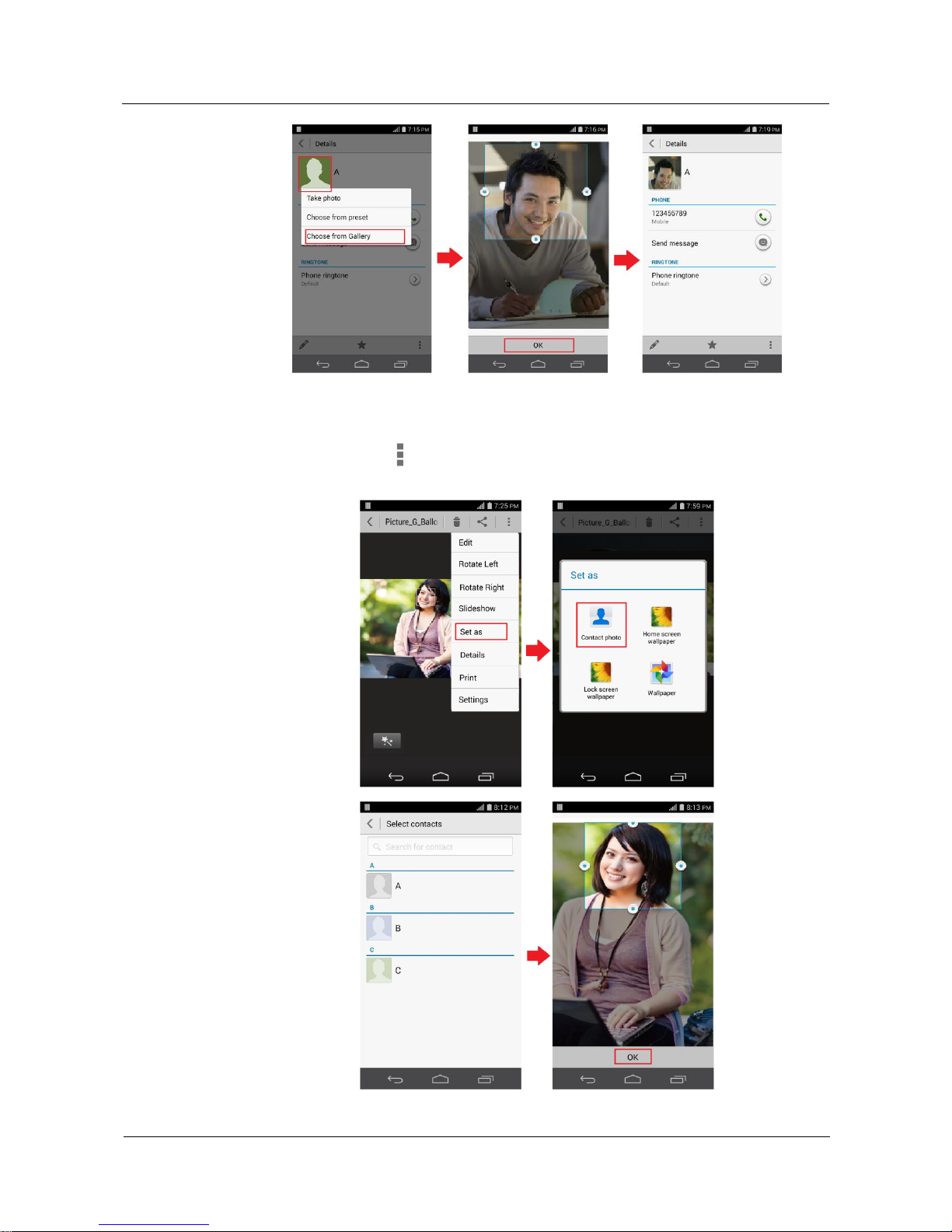
6.12 How do I assign a photo to a contact?
You can only assign photos to contacts saved in your phone storage.
From the contact details screen:
Touch next to the contact name. From the displayed option menu, choose a photo
source, and follow the onscreen instructions to adjust the photo. When you are done, touch
OK.
Page 45
HUAWEI Android Smartphone
H891L FAQs
6 Calls and contacts
Issue 01 (2015-03-11)
Huawei Proprietary and Confidential
Copyright © Huawei Technologies Co., Ltd.
39
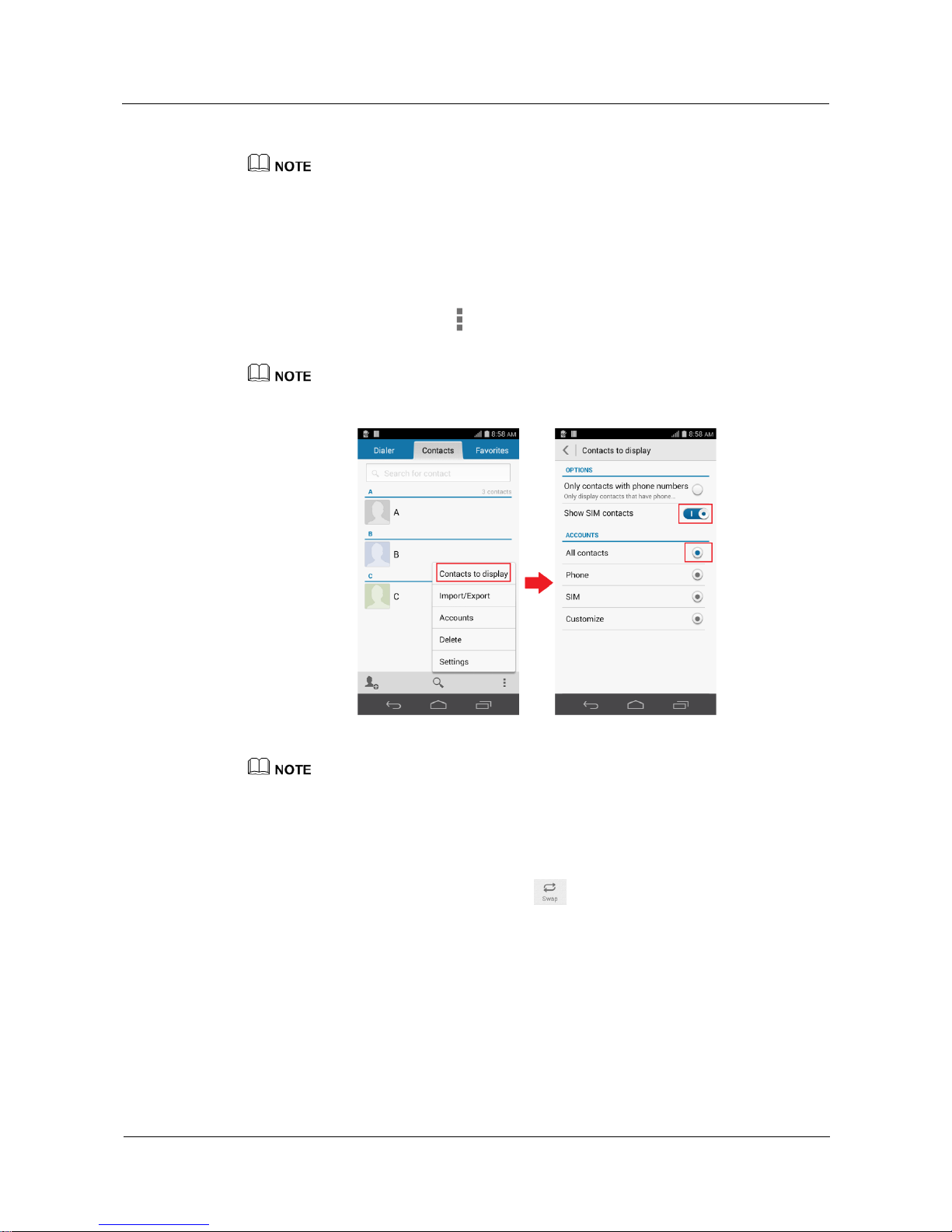
From Gallery or File Manager:
Open a photo. Touch > Set as > Contact photo, select a contact, and follow the
onscreen instructions to adjust the photo. When you are done, touch OK.
Page 46
HUAWEI Android Smartphone
H891L FAQs
6 Calls and contacts
Issue 01 (2015-03-11)
Huawei Proprietary and Confidential
Copyright © Huawei Technologies Co., Ltd.
40
The figures are for your reference only. The actual screens may vary.
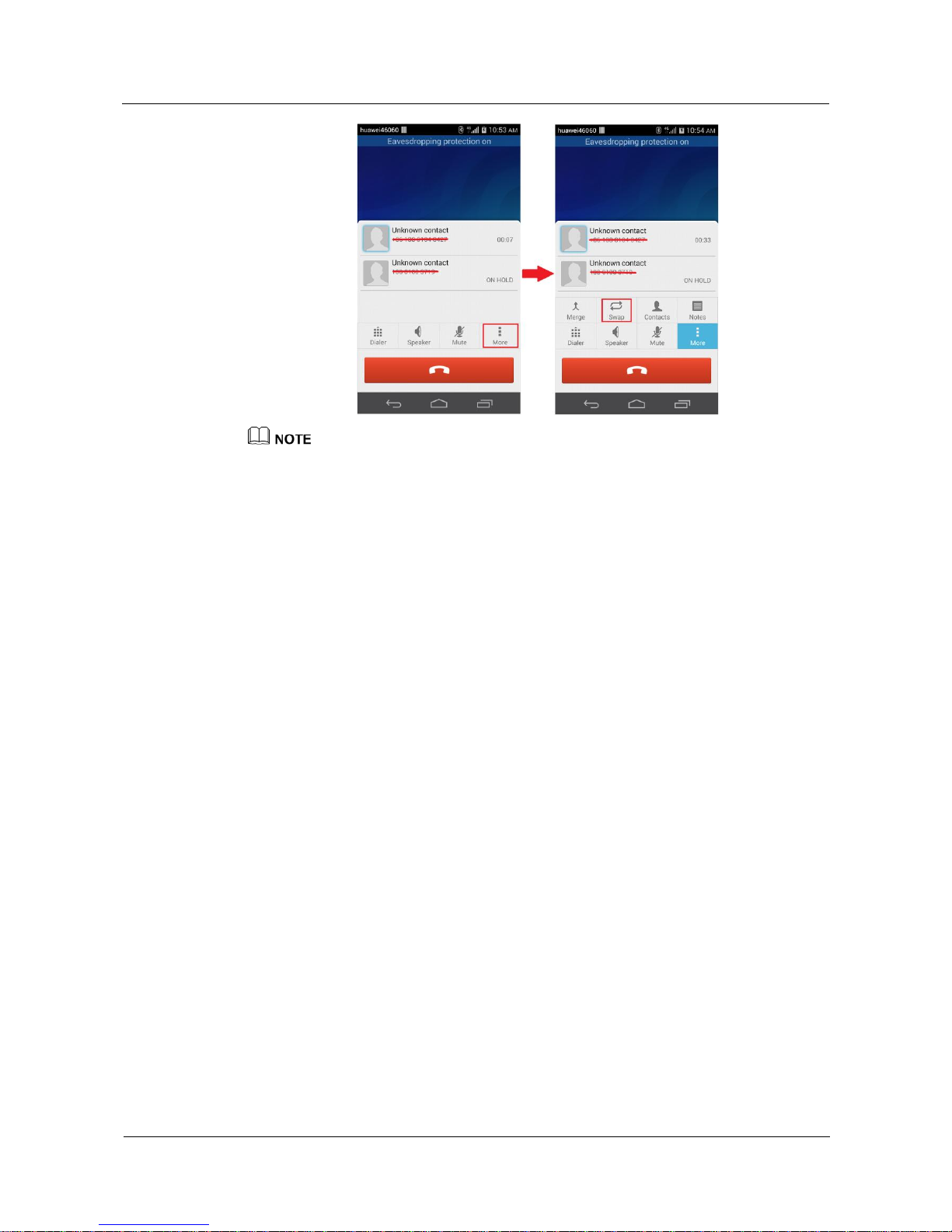
6.13 What can I do if my phone can't display contacts
saved in the SIM card?
On the Contacts screen, touch > Contacts to display, and turn on Show SIM
contacts.
If you just inserted the SIM card into your phone, it may take a while for the phone to load the contacts.
Please wait patiently.
The figures are for your reference only. The actual screens may vary.
6.14 How do I switch between multiple ongoing calls?
When you have multiple ongoing calls, touch to switch between them.
Page 47
HUAWEI Android Smartphone
H891L FAQs
6 Calls and contacts
Issue 01 (2015-03-11)
Huawei Proprietary and Confidential
Copyright © Huawei Technologies Co., Ltd.
41
The figures are for your reference only. The actual screens may vary.
Page 48
HUAWEI Android Smartphone
H891L FAQs
7 Messaging and texting
Issue 01 (2015-03-11)
Huawei Proprietary and Confidential
Copyright © Huawei Technologies Co., Ltd.
42
7 Messaging and texting
7.1 Why can't I send or receive messages?
Your SIM card balance may be insufficient. Make sure your SIM card has sufficient
balance.
Your phone reception may be poor. Take your phone to a place with good reception and
try again.
Your phone may be experiencing a network rush. Wait for a while and try again.
Make sure the recipient's phone number is correct.
Multimedia messages cannot be sent or received if your data service is disabled. Make
sure your data service is enabled.
Attachments larger than 1,024 KB can't be sent through multimedia message. Try
splitting your attachment into multiple multimedia messages or sending it in other
ways.
If the problem persists, check whether your phone has sufficient storage space
available.
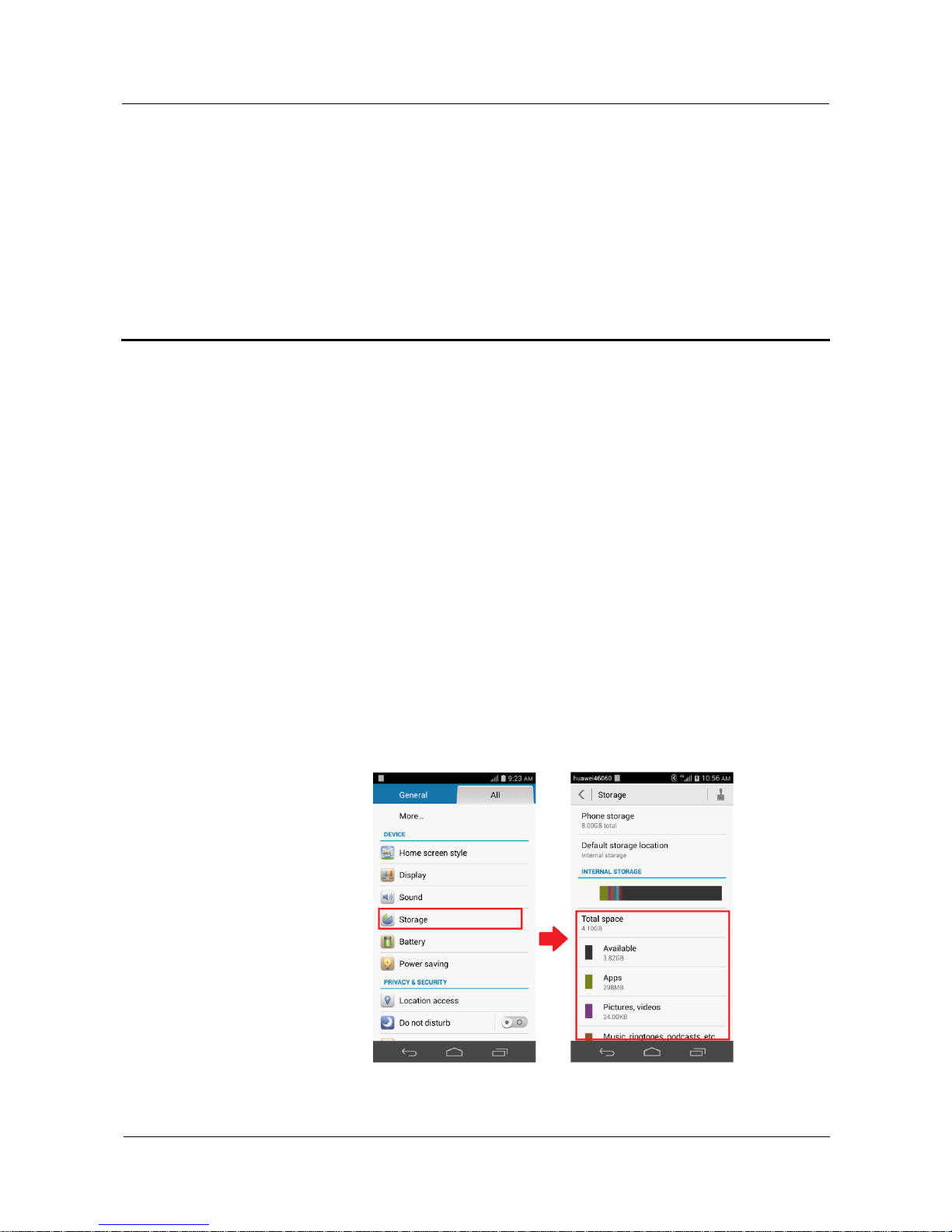
Go to the Settings screen and touch Storage to check the available storage. If you don't
have sufficient storage space, touch each item to view its size, and clear unwanted files
to free up some space.
Page 49
HUAWEI Android Smartphone
H891L FAQs
7 Messaging and texting
Issue 01 (2015-03-11)
Huawei Proprietary and Confidential
Copyright © Huawei Technologies Co., Ltd.
43
The figures are for your reference only. The actual screens may vary.
7.2 Is there any restriction on the multimedia message
attachment size?
Attachments to a multimedia message cannot exceed 1,024 KB. If an image is too large, it
will be automatically compressed before being attached to the message, as a result of which,
the image resolution will decrease. Videos or audio clips larger than 1,024 KB can't be sent
through multimedia messaging.
7.3 How do I preview new messages on the notification
panel?
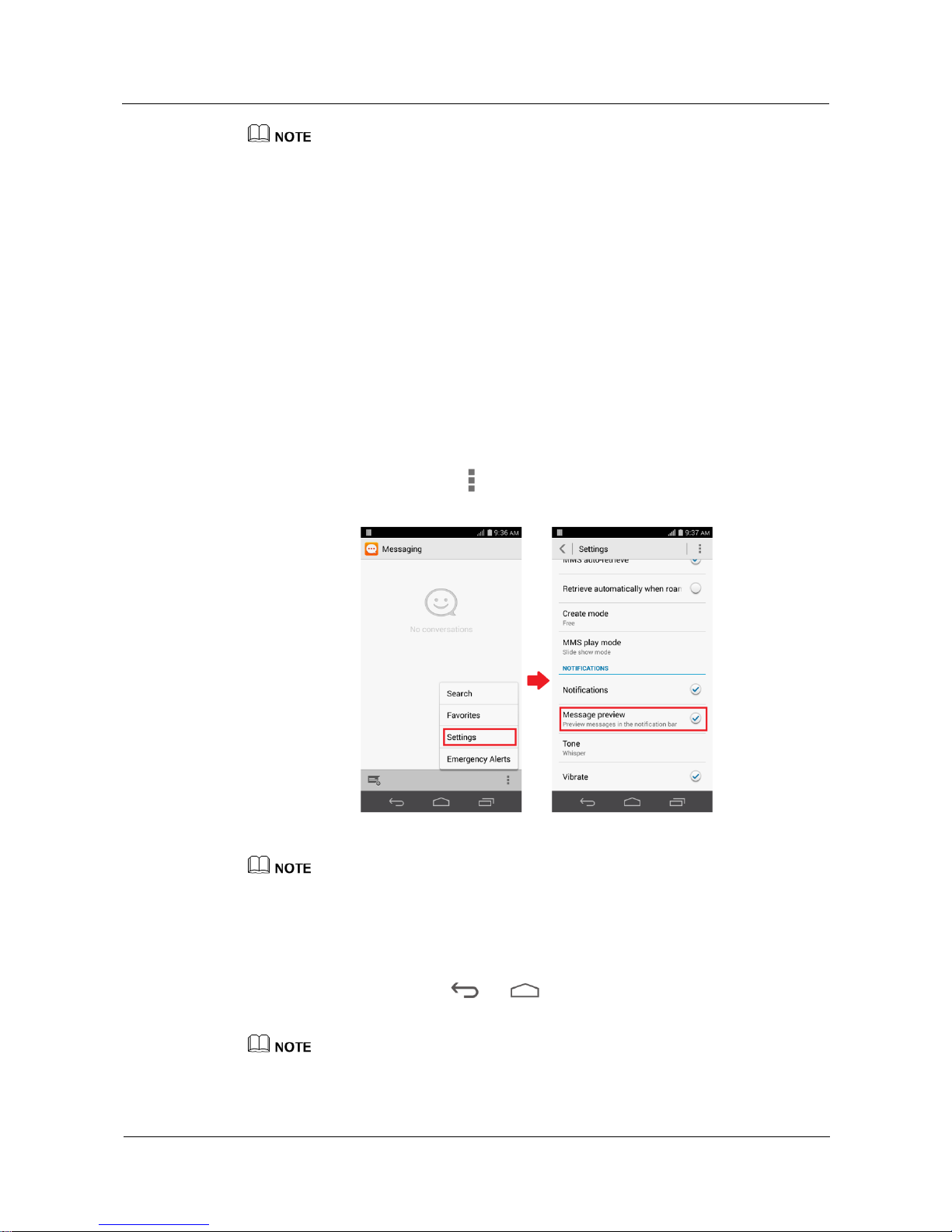
On the Messaging screen, touch > Settings, and select the Message preview check
box.
The figures are for your reference only. The actual screens may vary.
7.4 How do I save messages as drafts?
When writing a message, touch or to save the message as a draft, which will be
displayed the next time you open that thread.
To save a message as a draft, you must enter a recipient.
Page 50
HUAWEI Android Smartphone
H891L FAQs
7 Messaging and texting
Issue 01 (2015-03-11)
Huawei Proprietary and Confidential
Copyright © Huawei Technologies Co., Ltd.
44
7.5 Can I change the message font size?
The message font size changes along with the system font size. You cannot change the
message front size alone.
7.6 Can I restore deleted messages?
No.
7.7 How can I switch the input method?
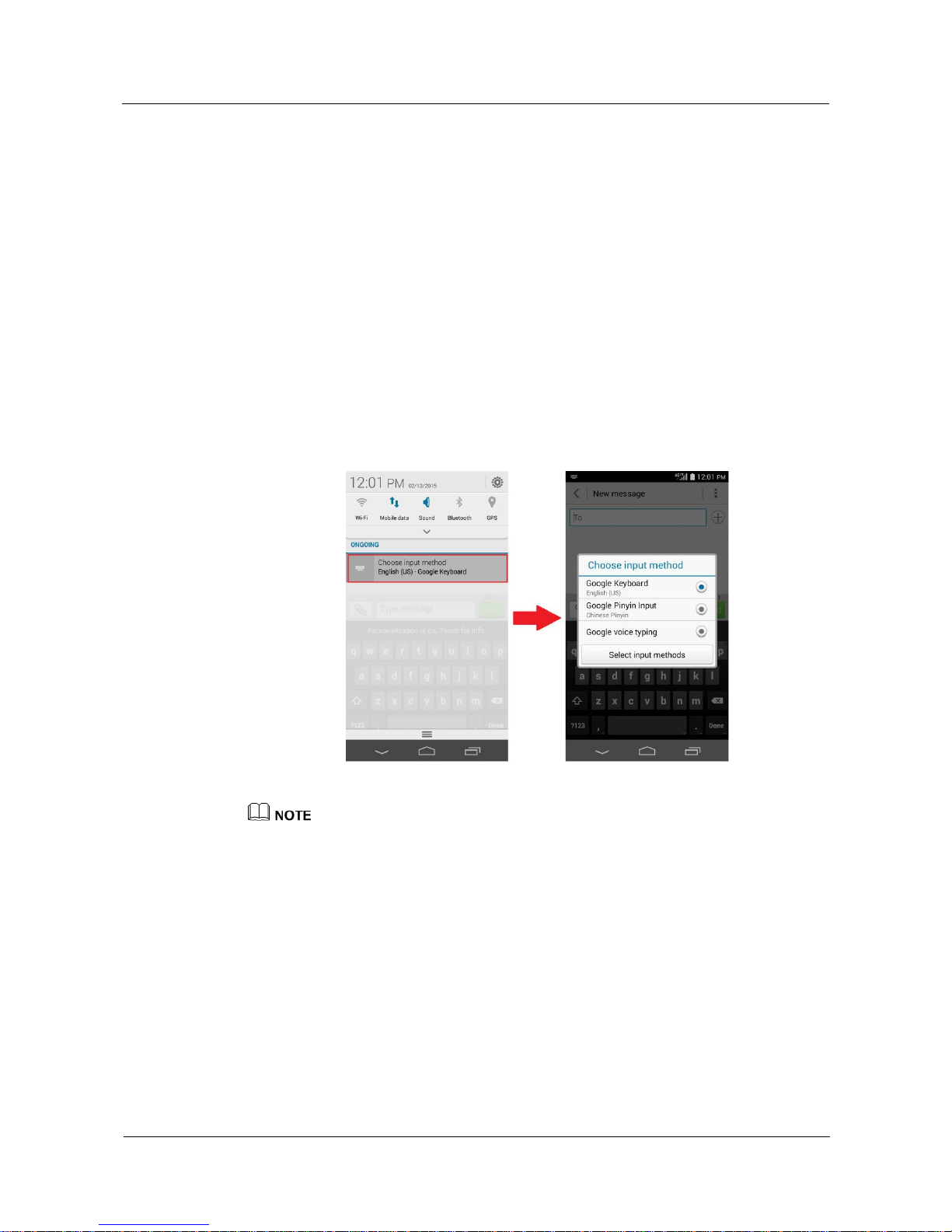
1. On the text editing screen, drag the status bar down to display the notification panel.
2. Touch Choose input method.
3. Select an input method.
The figures are for your reference only. The actual screens may vary.
7.8 Why can't I use an input method that I have installed
on my phone?
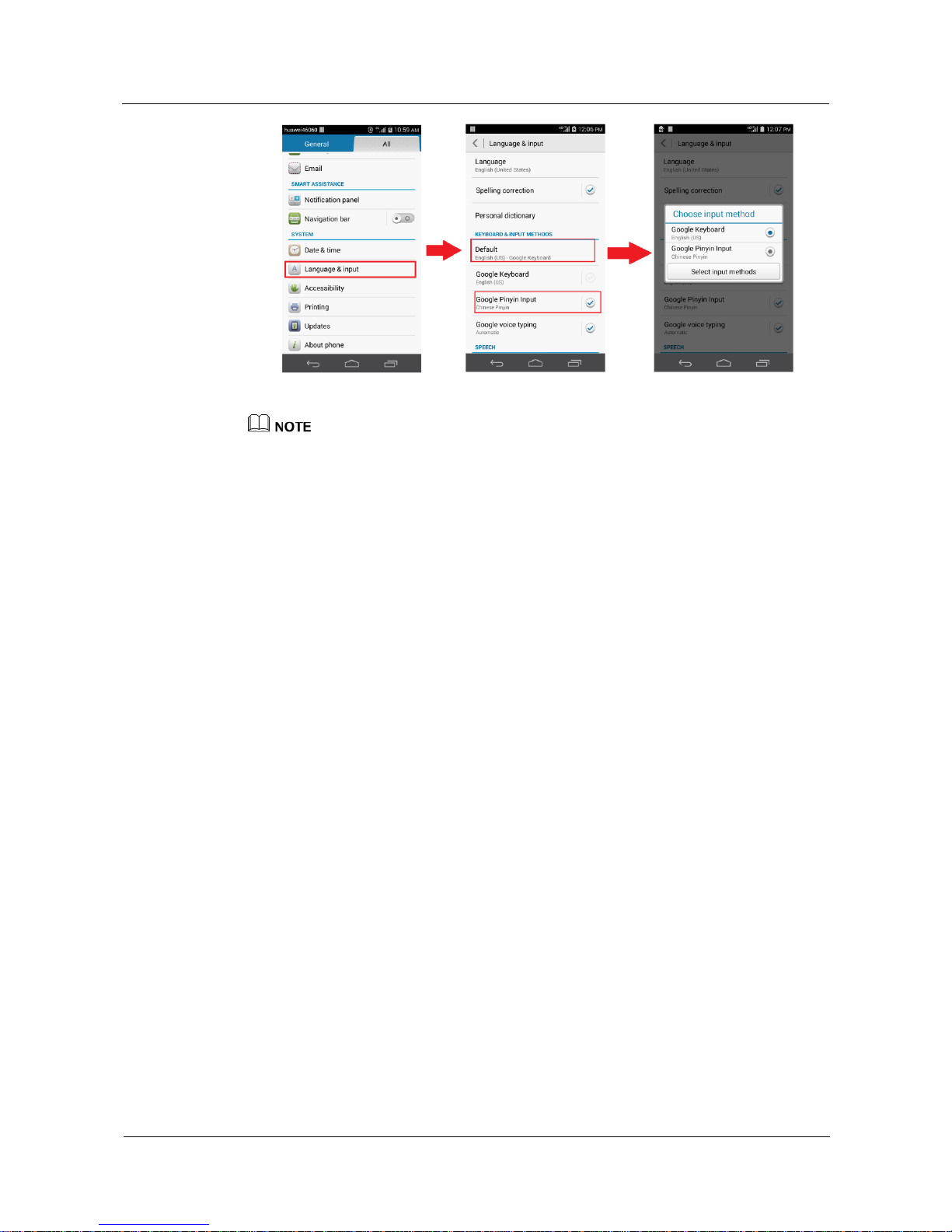
After installing an input method, touch Language & input on the Settings screen, and then
select the input method that you have installed for it to take effect.
Page 51
HUAWEI Android Smartphone
H891L FAQs
7 Messaging and texting
Issue 01 (2015-03-11)
Huawei Proprietary and Confidential
Copyright © Huawei Technologies Co., Ltd.
45
The figures are for your reference only. The actual screens may vary.
Page 52
HUAWEI Android Smartphone
H891L FAQs
8 Camera, music, and video
Issue 01 (2015-03-11)
Huawei Proprietary and Confidential
Copyright © Huawei Technologies Co., Ltd.
46
8 Camera, music, and video
8.1 How do I disable the shutter sound?
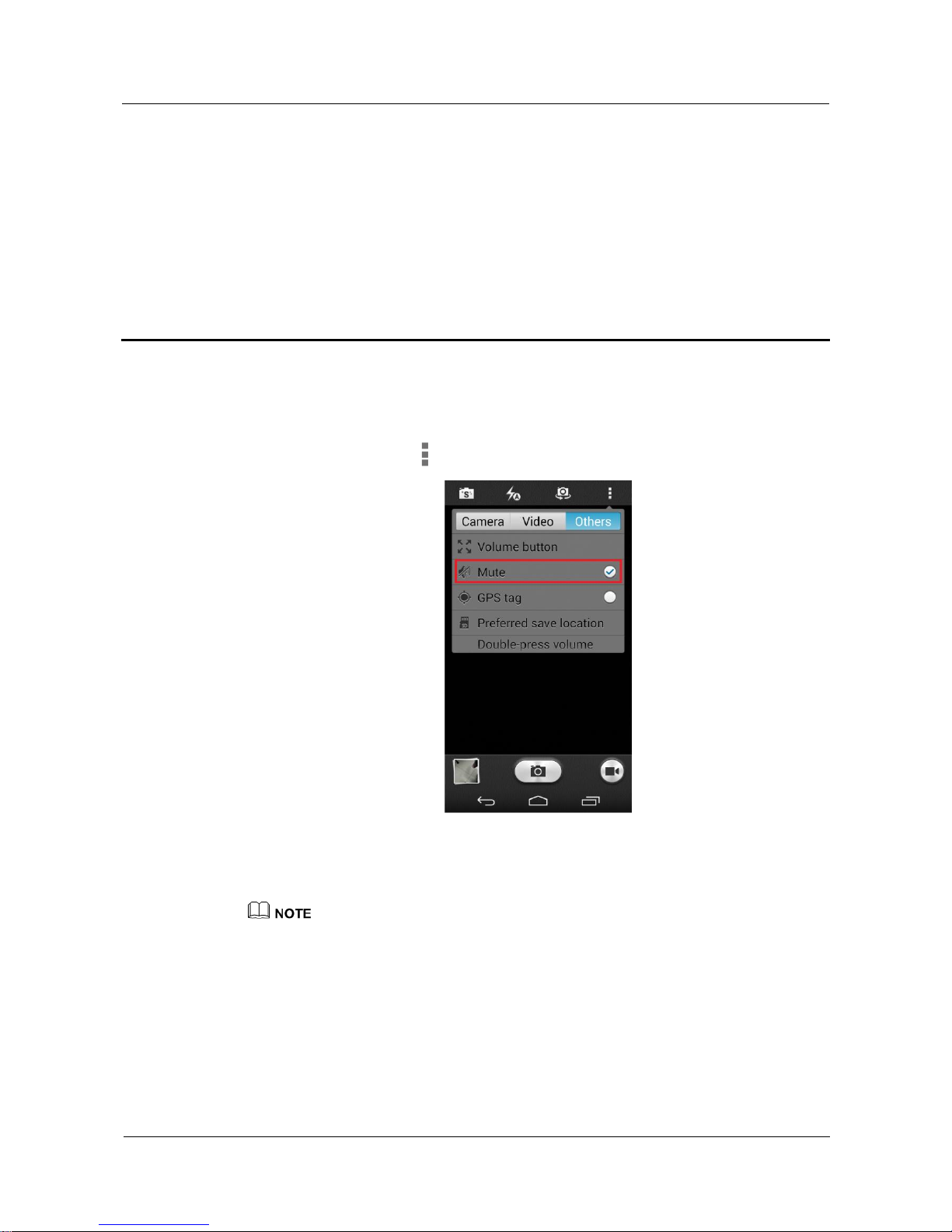
On the viewfinder, touch > Others, and select Mute.
When you phone is set to silence or vibration mode, the shutter sound is automatically
disabled.
The figures are for your reference only. The actual screens may vary.
8.2 Can I change the default save path for photos and
videos?
No. Your photos and videos are saved to the DCIM/Camera folder in File Manager.
Page 53
HUAWEI Android Smartphone
H891L FAQs
8 Camera, music, and video
Issue 01 (2015-03-11)
Huawei Proprietary and Confidential
Copyright © Huawei Technologies Co., Ltd.
47
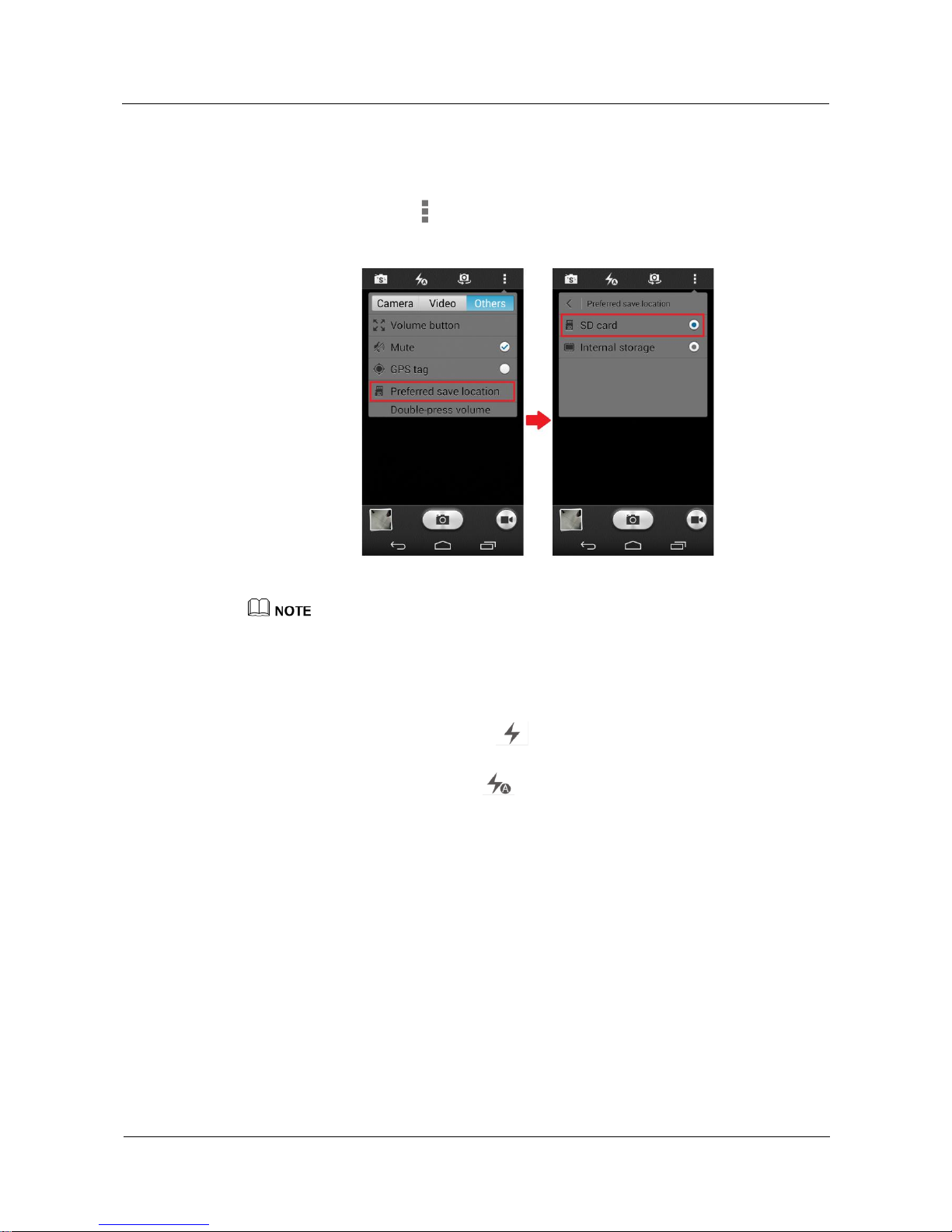
8.3 How do I set the microSD card as my default save
location for photos and videos?
On the viewfinder, touch > Others, and set Preferred save location to SD card.
On some phone models, photos and videos are saved to the microSD card by default.
The figures are for your reference only. The actual screens may vary.
8.4 What can I do if I can't use the flash?
Set the flash mode to mandatory . The flash will always turn on when you are
taking a photo or shooting a video.
If the flash mode is set to auto , the camera will turn on or off the flash based on
the ambient light. If you want to turn on the flash in a bright environment, enable
mandatory flash mode.
If the flash can't turn on in mandatory mode, check whether your phone has sufficient
power.
Your phone automatically disables the flash when the battery level is low.
Charge your phone if necessary.
The flash may not turn on if your phone is overheated or the flash is too frequently
used. Wait for a while and try again.
8.5 Why can't my phone open some images, audio clips, or
videos?
Your phone may not support the file format.
Page 54

HUAWEI Android Smartphone
H891L FAQs
8 Camera, music, and video
Issue 01 (2015-03-11)
Huawei Proprietary and Confidential
Copyright © Huawei Technologies Co., Ltd.
48
Supported image formats include PNG, GIF, JPG, and BMP. Supported video and audio
formats include MP3, WAV, OGG, MID, AMR, MPEG-4, and 3GP.
For files in other formats, you may need to use third-party applications.
The file may have corrupted.
Download another copy of the file and try opening it again.
The file may be copyright-protected.
Obtain a non copyright-protected version of the file.
The battery level may be low.
Connect your phone to a charger and try again.
Unknown error may have occurred.
Restart the applications in question or your phone.
8.6 What can I do if my phone can't play online music or
videos?
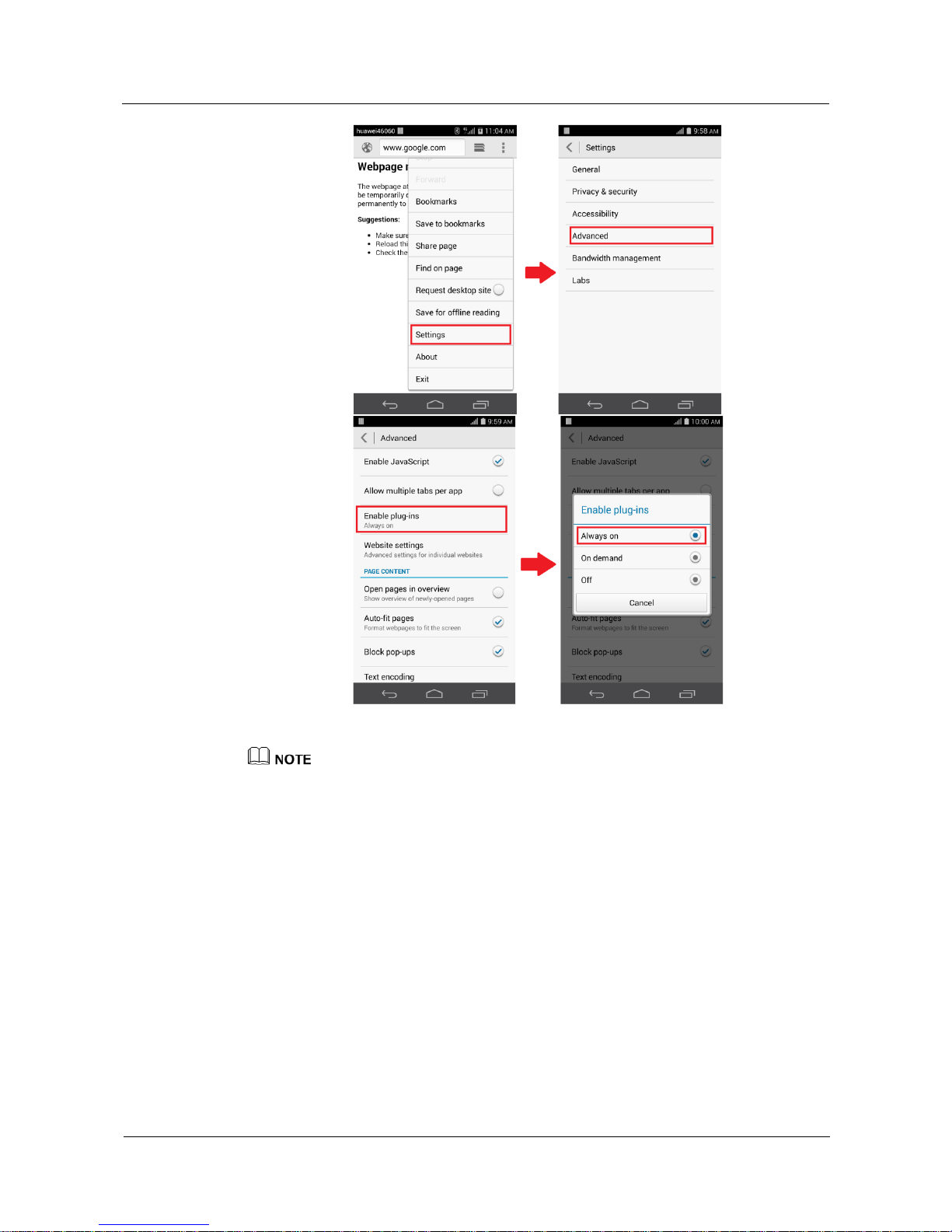
Follow the onscreen instructions to install the Adobe Flash Player plug-in before you play the
online music or video.
If the problem persists, perform the following operations:
On the Browser screen, touch > Settings > Advanced > Enable plug-ins, and choose
Always on. Then try again.
Page 55
HUAWEI Android Smartphone
H891L FAQs
8 Camera, music, and video
Issue 01 (2015-03-11)
Huawei Proprietary and Confidential
Copyright © Huawei Technologies Co., Ltd.
49
The figures are for your reference only. The actual screens may vary.
8.7 What can I do if my phone experiences lags when
playing online music or videos?
The Wi-Fi network connection may be unstable.
If you are connected to a Wi-Fi network, check whether you are within the coverage of
the Wi-Fi hotspot device, or contact your Wi-Fi service provider.
The mobile data reception may be poor.
If you are using a mobile data connection, move your phone to a place with good
reception and try again.
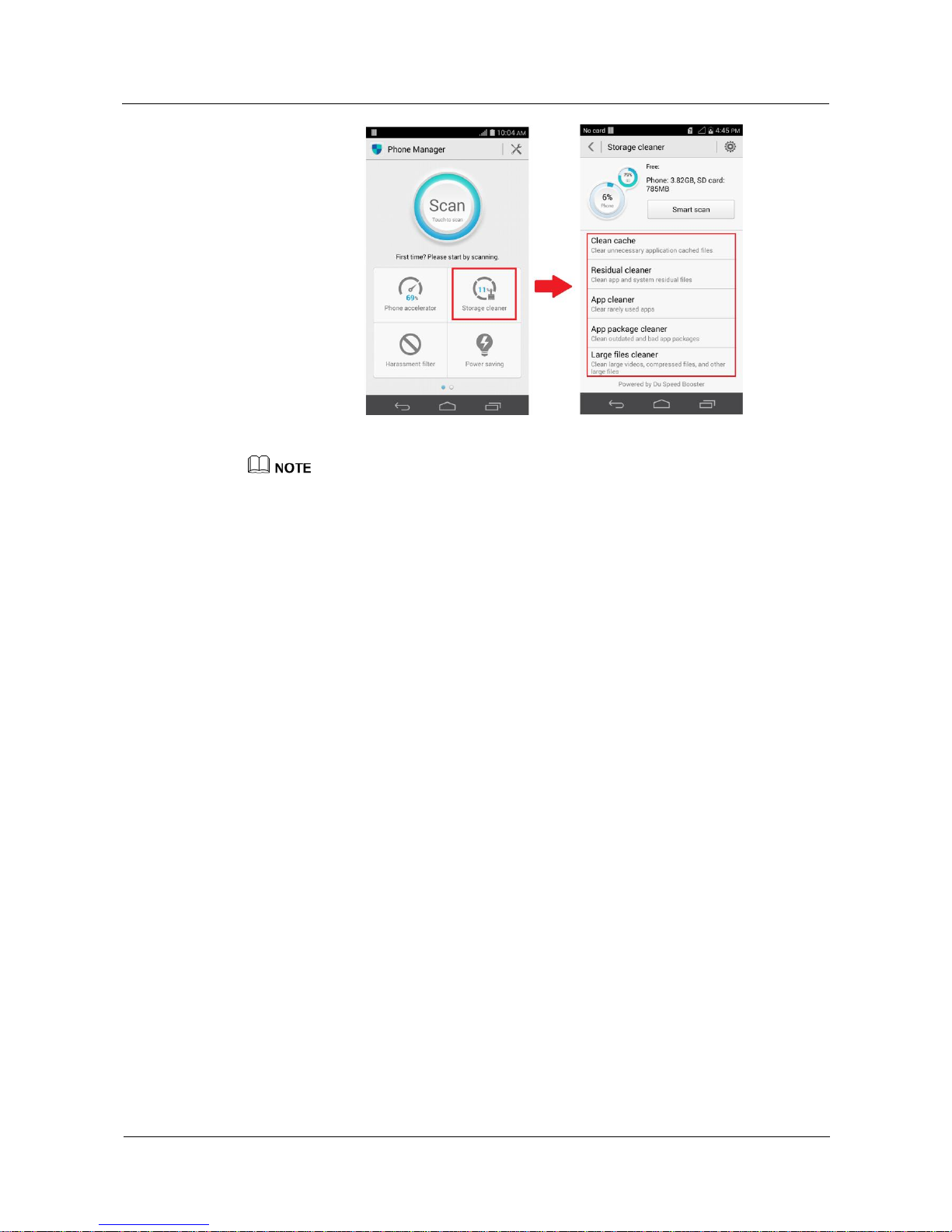
Your phone may not have sufficient storage.
Go to the Phone Manager screen, touch Storage cleaner, and follow the onscreen
instructions to free up your phone storage.
Page 56
HUAWEI Android Smartphone
H891L FAQs
8 Camera, music, and video
Issue 01 (2015-03-11)
Huawei Proprietary and Confidential
Copyright © Huawei Technologies Co., Ltd.
50
The figures are for your reference only. The actual screens may vary.
8.8 What can I do if the native music player can't scan all
local music files?
Your native music player only supports these audio formats: MP3, WAV, OGG, MID, and
AMR.
8.9 What can I do if my phone's music playback volume is
small?
During music playback, press the volume up button to increase the volume.
Make sure the speaker is not blocked by the phone protective cover or other objects.
Play a ringtone (Huawei Tune in the ringtone list is recommended) with high volume
to check whether the problem resides in the music file.
If the problem persists, contact Huawei technical support.
8.10 How can I use the headset button to control music
playback?
Press the headset button to play or pause a song.
Press and hold the headset button to skip to the next song.
Page 57

HUAWEI Android Smartphone
H891L FAQs
8 Camera, music, and video
Issue 01 (2015-03-11)
Huawei Proprietary and Confidential
Copyright © Huawei Technologies Co., Ltd.
51
8.11 I set an audio file on my microSD card as my ringtone
and I removed the microSD card. Does the phone still use
the file as my ringtone?
No. The ringtone for incoming calls changes to the default ringtone.
8.12 How do I play audio files in the background and exit
Music?
To play audio files in the background, touch Play Music, play an audio file, and touch the
Back or Home key.
To exit Play Music, pause the currently playing audio file and touch the Back or Home key.
Page 58
HUAWEI Android Smartphone
H891L FAQs
9 Storage and file management
Issue 01 (2015-03-11)
Huawei Proprietary and Confidential
Copyright © Huawei Technologies Co., Ltd.
52
9 Storage and file management
9.1 Why is my phone's actual available storage less than
the advertised storage?
System and background applications will take up a certain portion of your total storage.
9.2 What can I do if my phone does not have sufficient
storage?
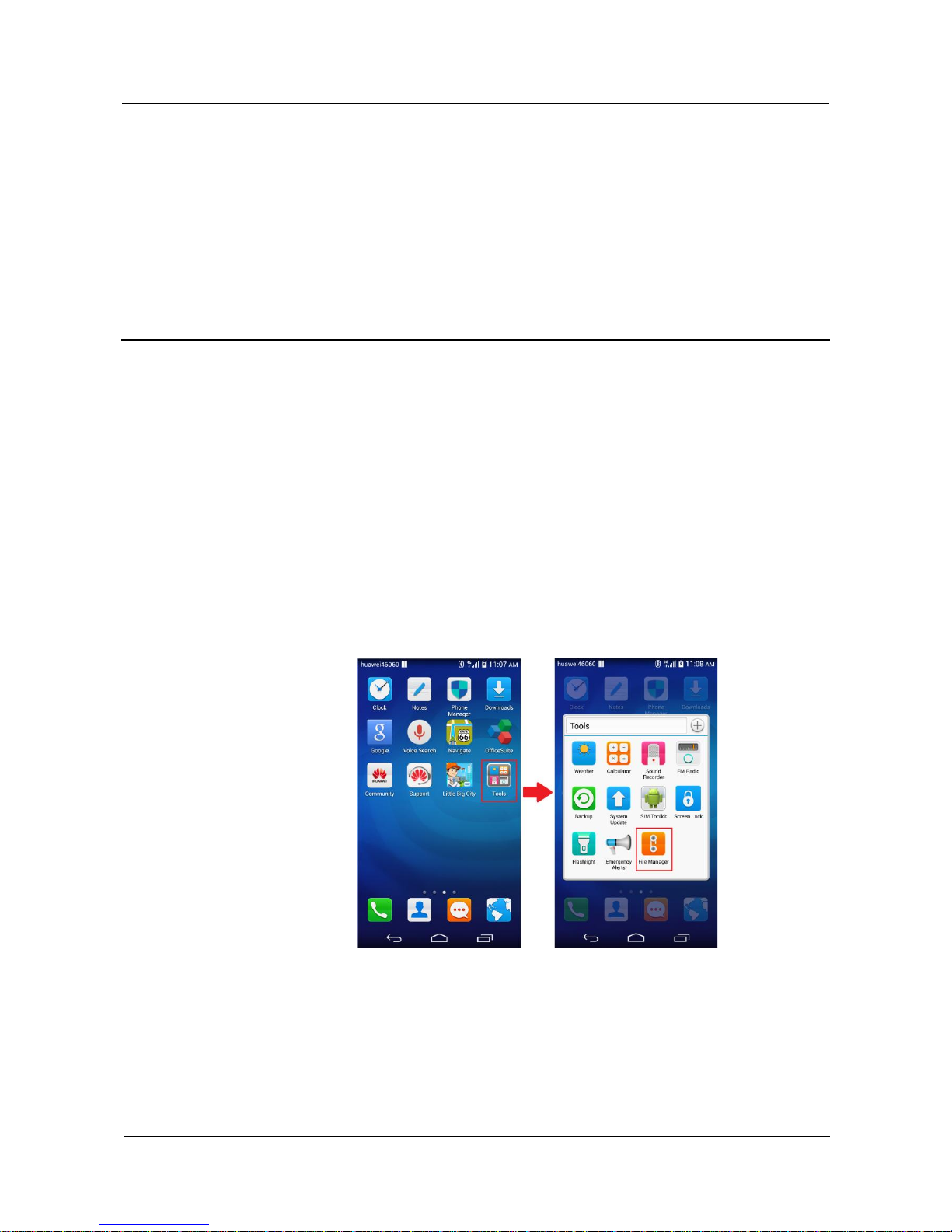
If your phone supports external microSD cards and you have inserted one into your phone,
move your photos, songs, videos, and other files to the microSD card.
Page 59
HUAWEI Android Smartphone
H891L FAQs
9 Storage and file management
Issue 01 (2015-03-11)
Huawei Proprietary and Confidential
Copyright © Huawei Technologies Co., Ltd.
53
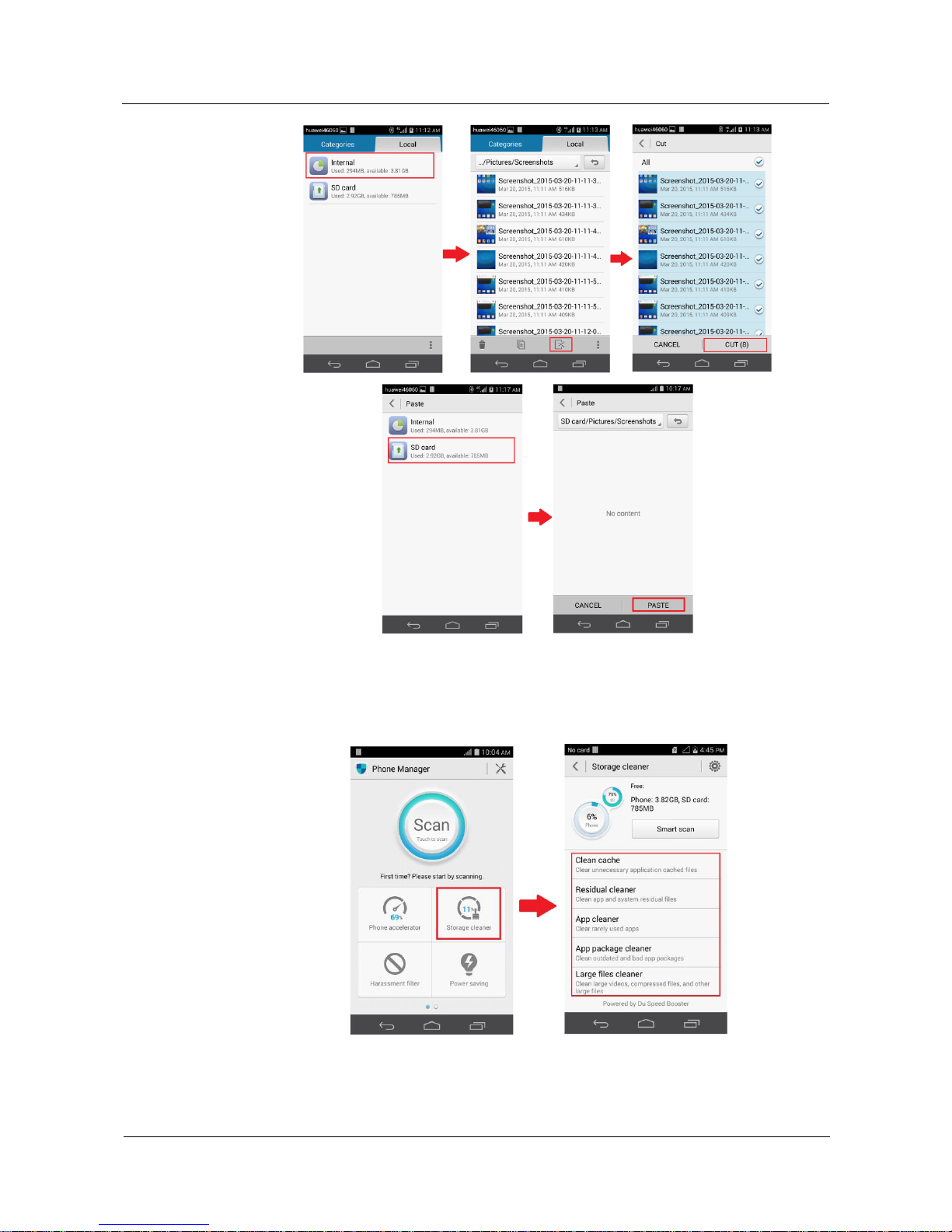
Clean your phone storage:
Go to the Phone Manager screen, touch Storage cleaner, and follow the onscreen
instructions to clean your phone storage.
If the problem persists, back up important data and restore your phone to its factory settings.
Page 60
HUAWEI Android Smartphone
H891L FAQs
9 Storage and file management
Issue 01 (2015-03-11)
Huawei Proprietary and Confidential
Copyright © Huawei Technologies Co., Ltd.
54
The figures are for your reference only. The actual screens may vary.
9.3 Where are my files saved by default?
Files received through Bluetooth are saved to the bluetooth folder in File Manager.
Photos and videos are saved to the DCIM folder in File Manager.
Screenshots are saved to the Pictures folder in File Manager.
Recordings are saved to the Recordings folder in File Manager.
9.4 How do I format the internal storage?
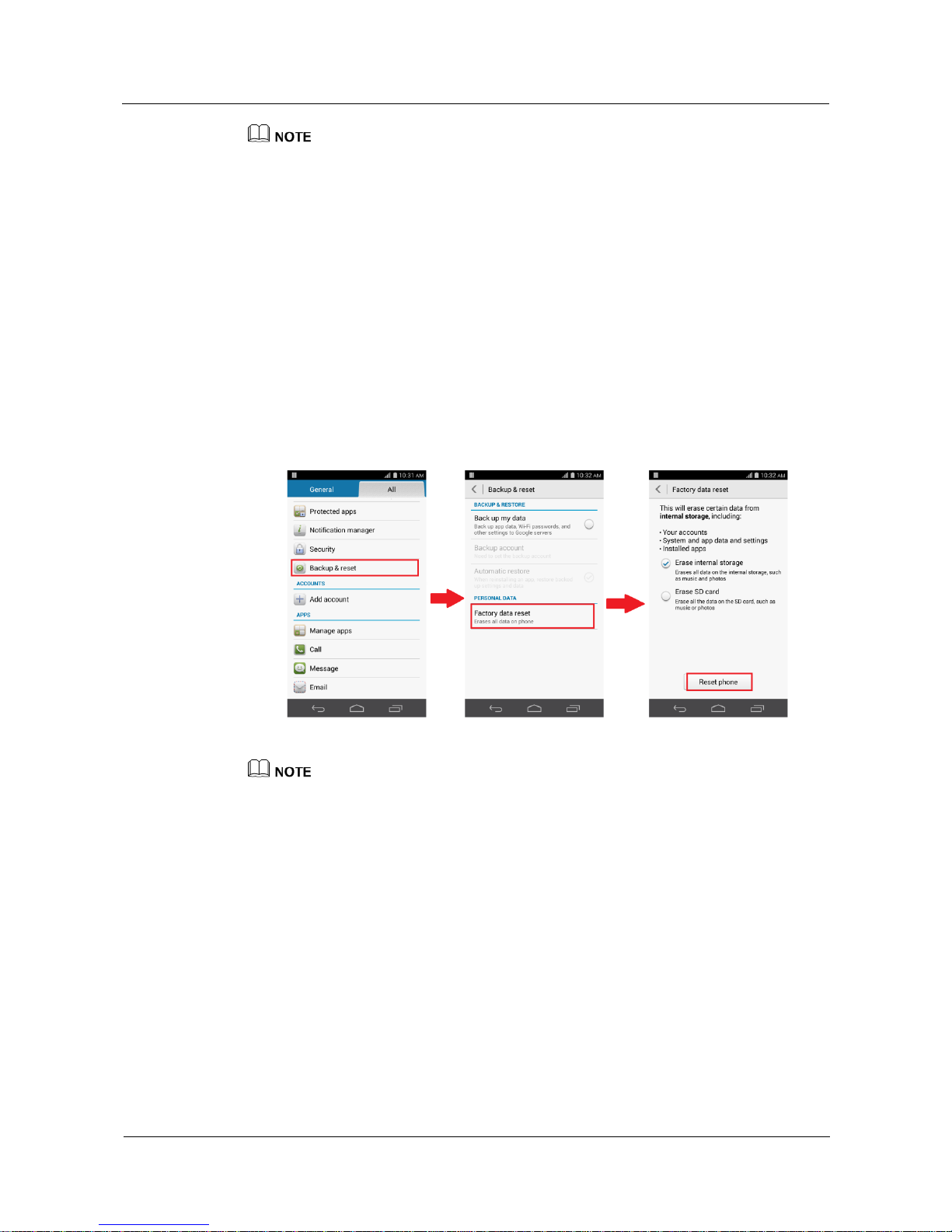
Go to the Settings screen, touch Backup & reset > Factory data reset, select the Erase
internal storage check box and touch Reset phone.
The figures are for your reference only. The actual screens may vary.
9.5 How do I set the microSD card as the default storage
location?
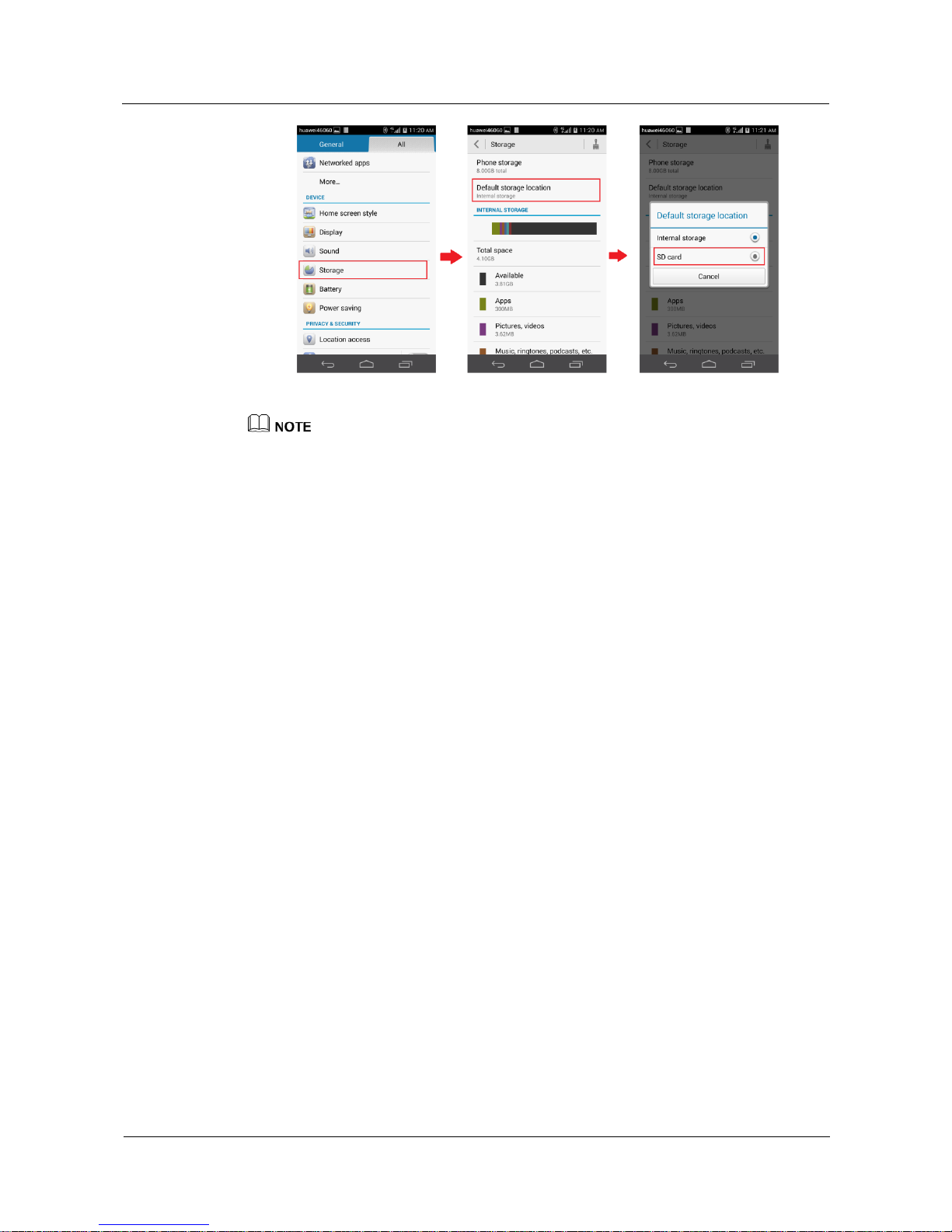
Go to the Settings screen, touch Storage > Default storage location, and select the SD card
check box.
Page 61
HUAWEI Android Smartphone
H891L FAQs
9 Storage and file management
Issue 01 (2015-03-11)
Huawei Proprietary and Confidential
Copyright © Huawei Technologies Co., Ltd.
55
The figures are for your reference only. The actual screens may vary.
9.6 What can I do if my phone can't detect the inserted
microSD card?
Make sure the microSD card is properly inserted. For details, see the Quick Start Guide
that comes with your phone.
Make sure your phone supports the microSD card. Your phone supports microSD cards
of 32 GB at most.
Make sure the microSD card is not damaged. You can check whether a microSD card is
damaged by connecting it to a computer through a card reader, or inserting it to another
phone.
If the problem persists, back up important data and restore your phone to its factory settings,
or contact an authorized Huawei service center.
9.7 What can I do if my data is lost after I remove the
microSD card?
Lost data can't be restored.
Before you remove a microSD card, uninstall it or power off your phone first. Otherwise, data
in the microSD card will be lost.
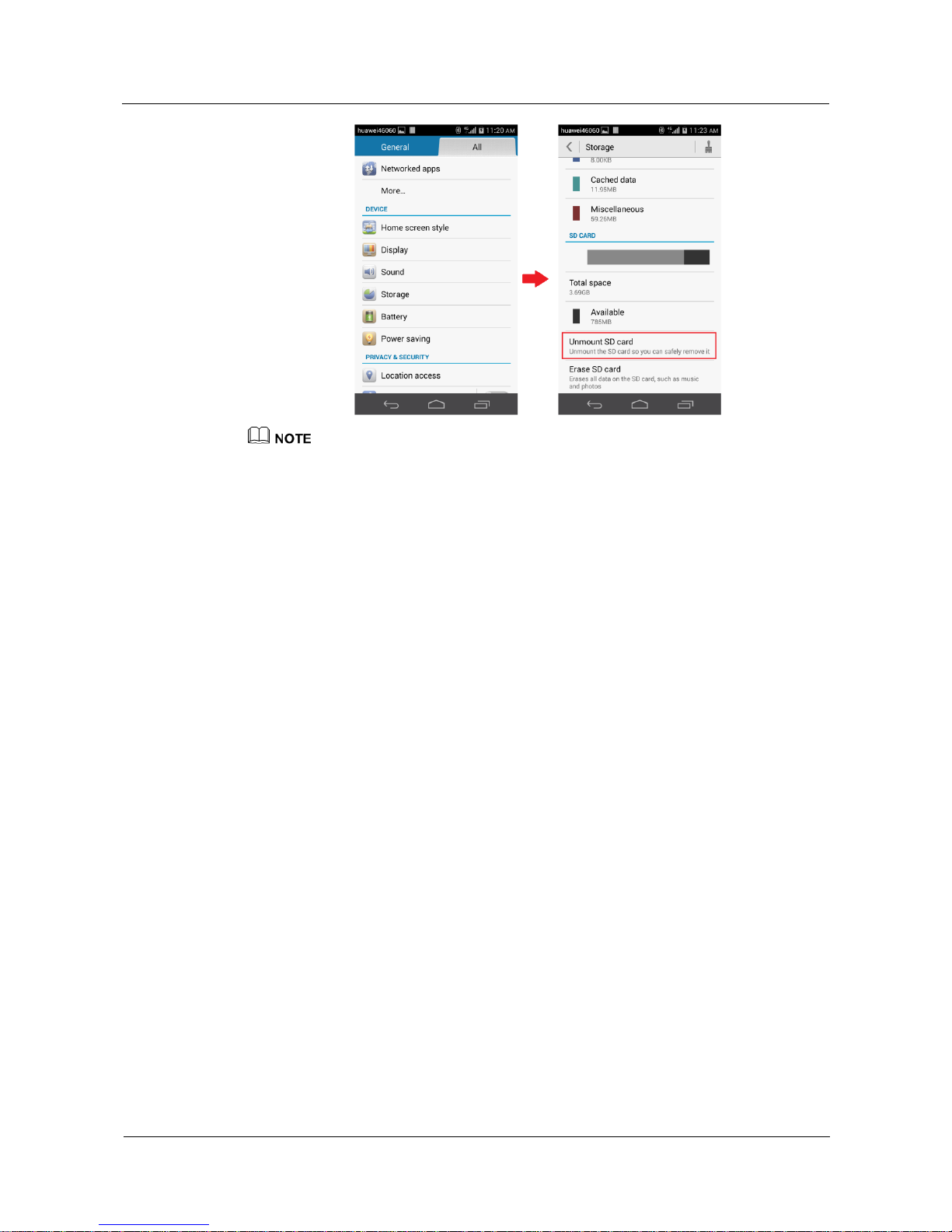
Go to the Settings screen, touch Storage > Unmount SD card, and carefully take out the
microSD card.
Page 62
HUAWEI Android Smartphone
H891L FAQs
9 Storage and file management
Issue 01 (2015-03-11)
Huawei Proprietary and Confidential
Copyright © Huawei Technologies Co., Ltd.
56
The figures are for your reference only. The actual screens may vary.
9.8 Can I restore deleted files?
No.
Page 63

HUAWEI Android Smartphone
H891L FAQs
10 Location navigation
Issue 01 (2015-03-11)
Huawei Proprietary and Confidential
Copyright © Huawei Technologies Co., Ltd.
57
10 Location navigation
10.1 Will it result in any charges if I use my navigation
application?
The navigation application itself is free. However, Internet access is required when you
browse through the map or plan a route, which may incur data usage fees.
For details about data usage fees, contact your Internet service provider.
10.2 What can I do if my navigation application is slow in
positioning or experiencing positioning failure?
Some navigation applications may need a network connection. Connect to a Wi-Fi
network or turn on the data service and try again.
GPS satellite signals are weak indoors, which may cause slow positioning or
positioning failure. Take your phone to an open area with good reception.
10.3 What can I do if the positioning and navigation
information displayed on my phone is inaccurate?
The positioning accuracy depends on the GPS satellites and map accuracy. Bring your
phone to an outdoor location with good reception. The GPS signals are weak indoors,
which may cause inaccurate positioning results.
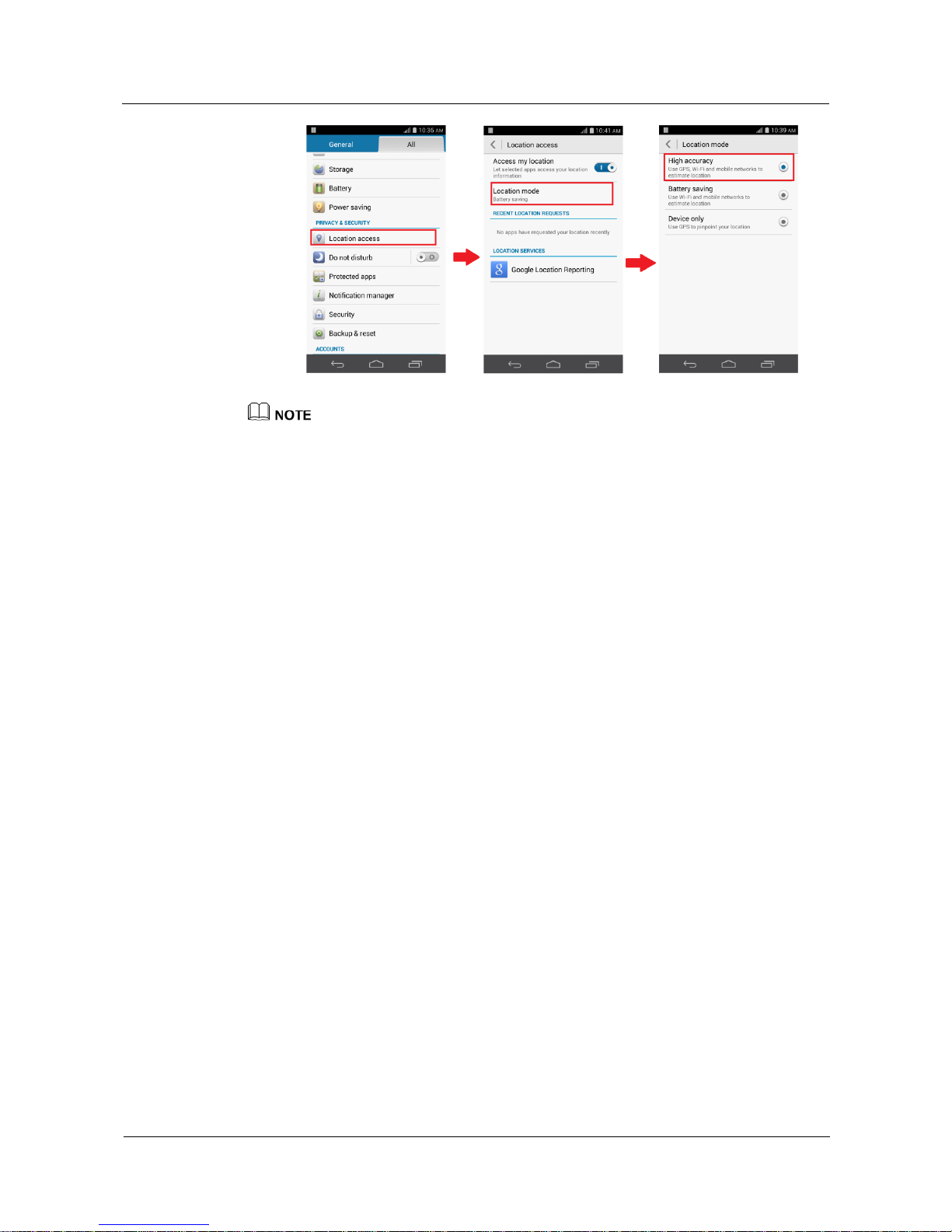
Turn on High accuracy for higher positioning accuracy.
Go to the Settings screen, and touch Location access > Location mode > High
accuracy.
Page 64
HUAWEI Android Smartphone
H891L FAQs
10 Location navigation
Issue 01 (2015-03-11)
Huawei Proprietary and Confidential
Copyright © Huawei Technologies Co., Ltd.
58
The figures are for your reference only. The actual screens may vary.
Page 65

HUAWEI Android Smartphone
H891L FAQs
11 Others
Issue 01 (2015-03-11)
Huawei Proprietary and Confidential
Copyright © Huawei Technologies Co., Ltd.
59
11 Others
11.1 How do I add an email account?
To add an email account, touch Email, select an email service provider, and log in to your
account. You can set up your account manually or automatically.
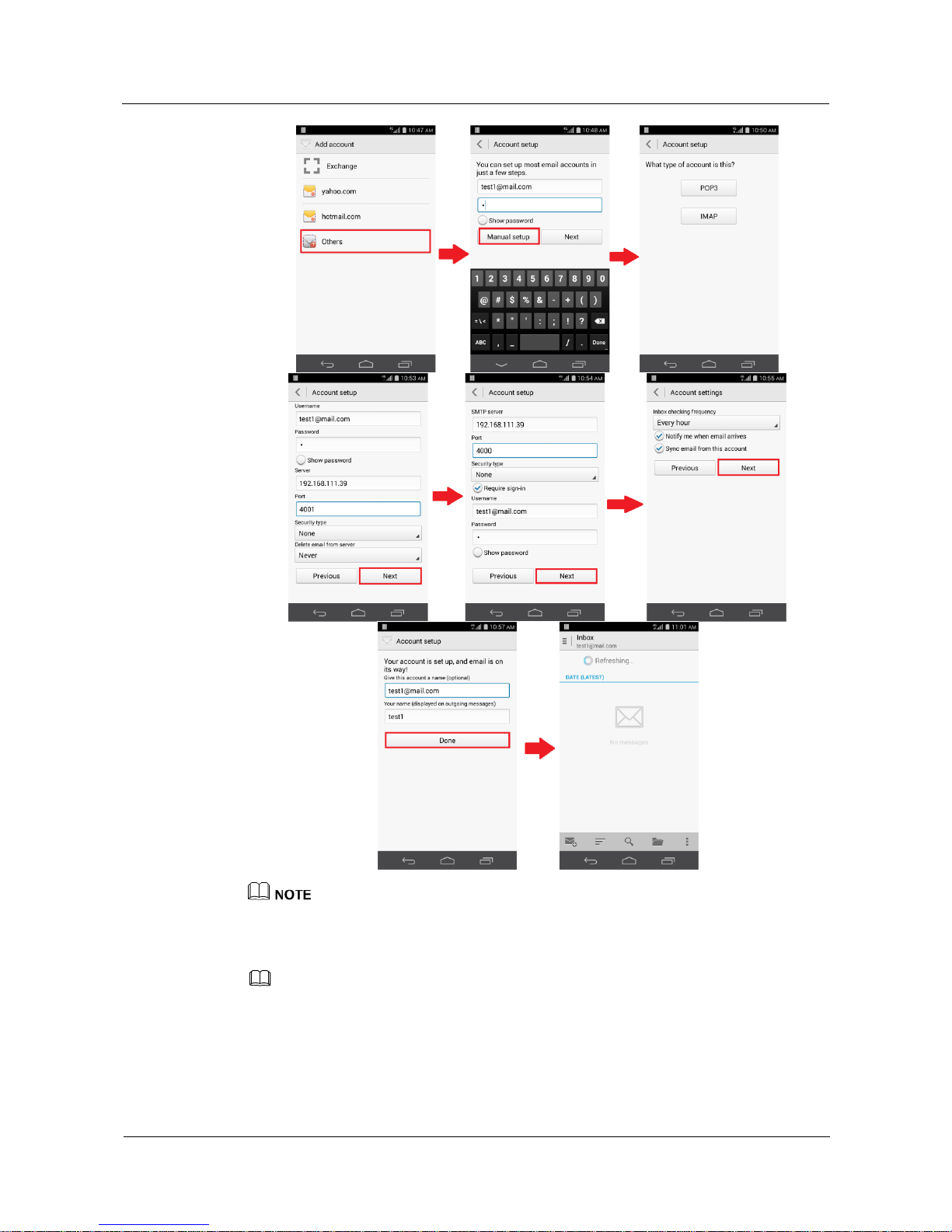
Manual setup
To set up your account manually:
1. On the Account setup screen, enter your email address and password and touch Manual
setup.
2. Select an account type.
3. Configure the incoming and outgoing server settings and touch Next.
4. Set the inbox checking frequency and touch Next.
5. Enter the name you want people to see when they receive your emails, set your account
name, and then touch Done.
Page 66
HUAWEI Android Smartphone
H891L FAQs
11 Others
Issue 01 (2015-03-11)
Huawei Proprietary and Confidential
Copyright © Huawei Technologies Co., Ltd.
60
The figures are for your reference only. The actual screens may vary.
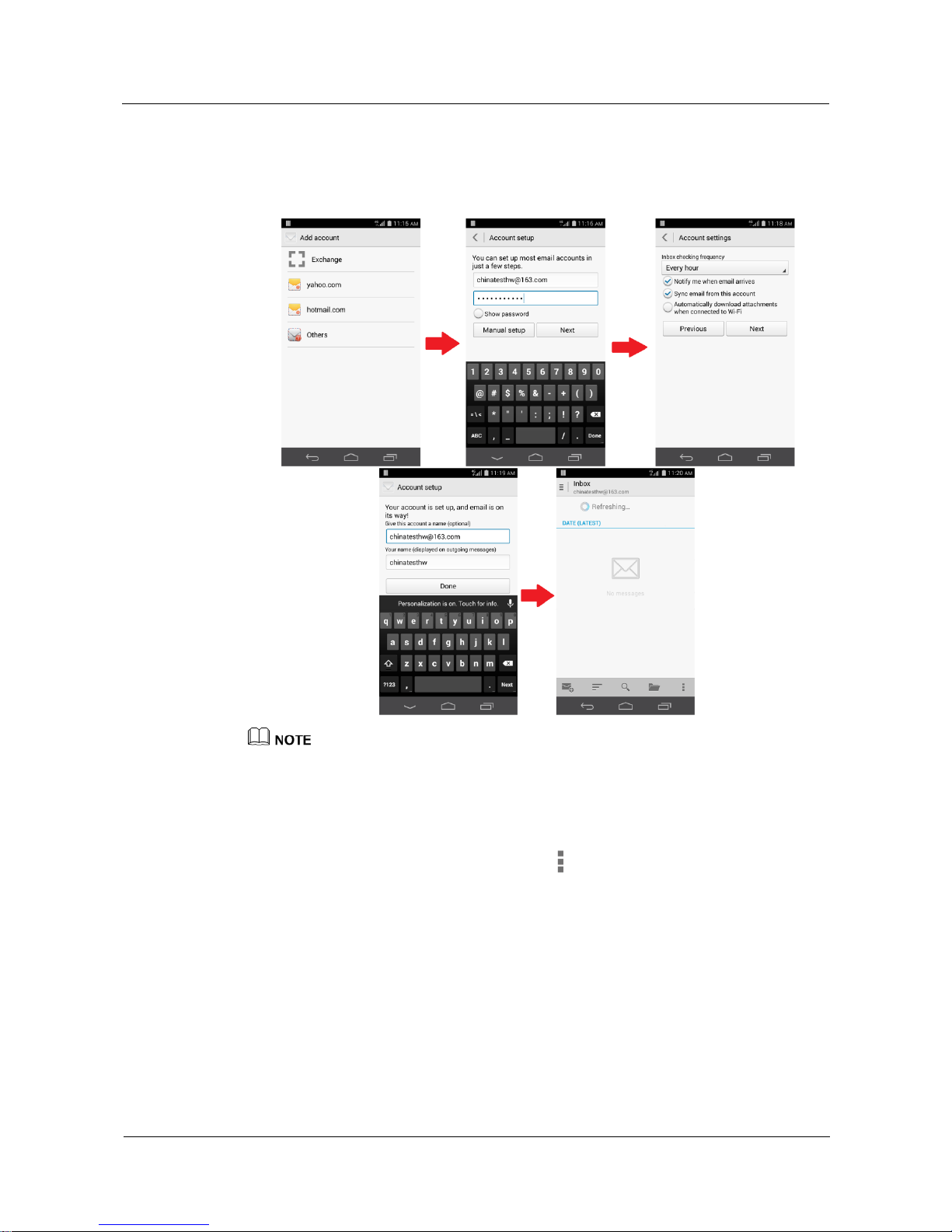
Automatic setup
NOTE
You can only set up your email account automatically for certain email service providers for which
settings are preconfigured on your phone.
To set up your account automatically:
1. On the Account setup screen, enter your email address and password and touch Next.
Page 67
HUAWEI Android Smartphone
H891L FAQs
11 Others
Issue 01 (2015-03-11)
Huawei Proprietary and Confidential
Copyright © Huawei Technologies Co., Ltd.
61
You phone automatically configures incoming and outgoing server settings.
2. On the Account settings screen, set the inbox checking frequency and touch Next.
3. Enter the name you want people to see when they receive your emails, set your account
name, and then touch Done.
The figures are for your reference only. The actual screens may vary.
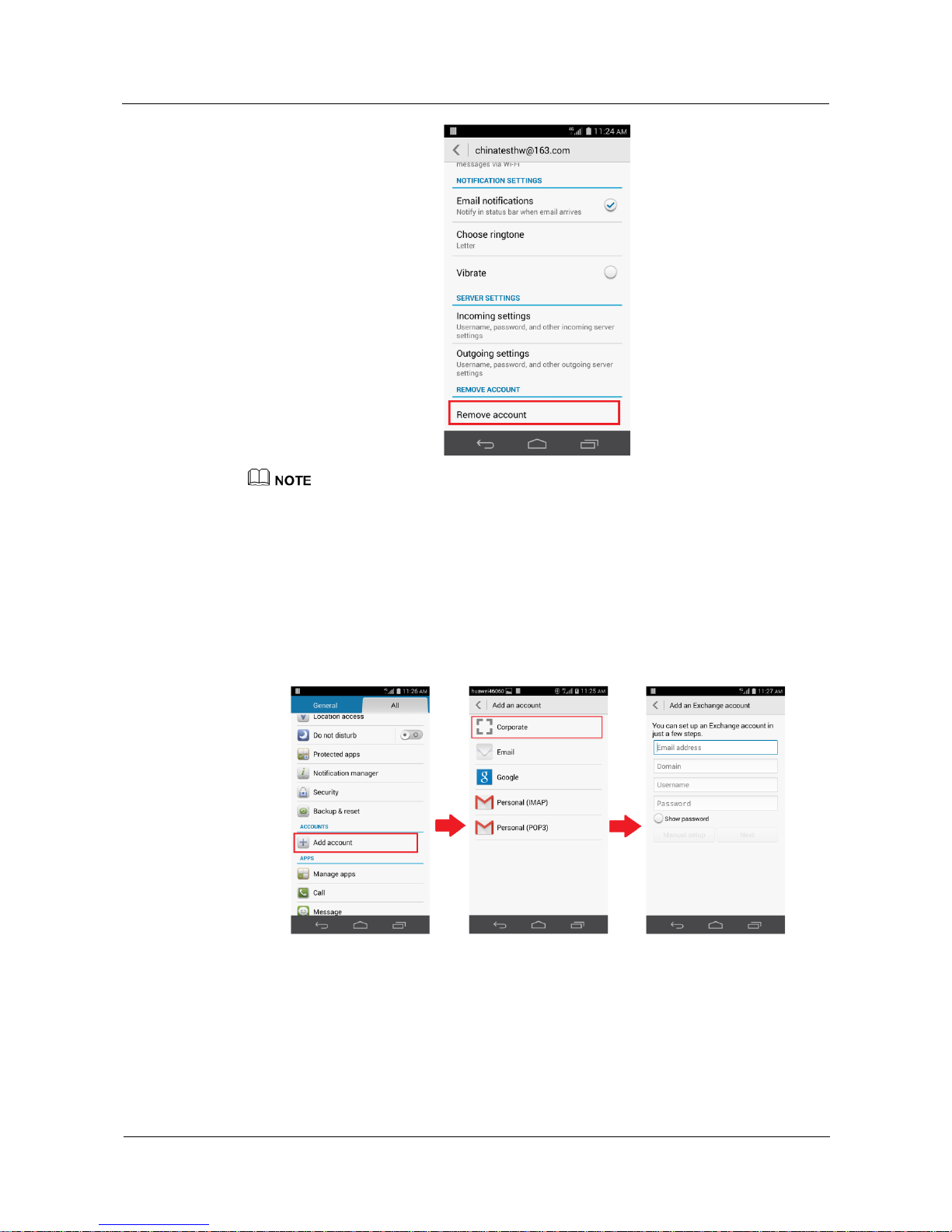
11.2 How do I remove an email account?
To remove an email account, touch Email then , choose Settings, and touch the account
you want to remove then Remove account.
Page 68
HUAWEI Android Smartphone
H891L FAQs
11 Others
Issue 01 (2015-03-11)
Huawei Proprietary and Confidential
Copyright © Huawei Technologies Co., Ltd.
62
The figures are for your reference only. The actual screens may vary.
11.3 How can I add an Exchange account?
1. On the Settings screen, touch Add account > Corporate.
2. On the Add an Exchange account screen, enter the required information about the
Exchange account you want to add.
For details, contact the server administrator.
3. Touch Next.
The Account setup screen is displayed.
4. Configure the synchronization settings for the account.
5. Touch Next to finish configuring the account settings.
If emails do not synchronize properly, contact the server administrator.
Page 69

HUAWEI Android Smartphone
H891L FAQs
11 Others
Issue 01 (2015-03-11)
Huawei Proprietary and Confidential
Copyright © Huawei Technologies Co., Ltd.
63
The figures are for your reference only. The actual screens may vary.
11.4 How can I access Huawei's official website and
forum?
Official website: http://consumer.huawei.com/us
Technical support email: [email protected]
 Loading...