

Page 1
Get started guide
© 2014 HTC Corporation.
All rights reserved.
HTC, the HTC logo, and HTC Dot View
are trademarks of HTC Corporation.
http://www.htc.com/support
Page 2
2
English
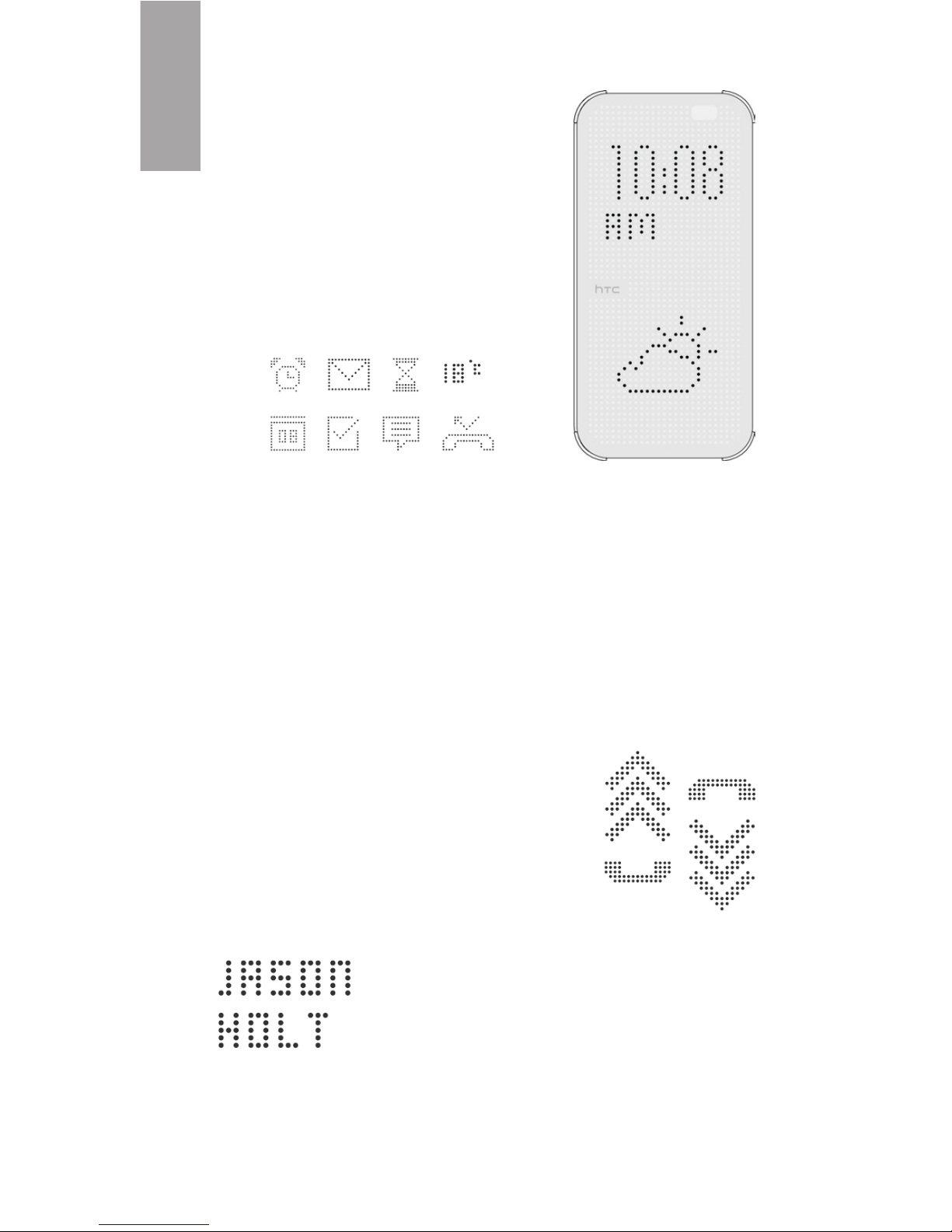
About HTC Dot View
HTC Dot View™ is a stylish
retro-designed case that gives
you a unique way to view the
time, weather, and most recent
notification while helping to
protect your HTC phone.
HTC Dot View works with HTC™
apps such as Mail, Messages,
Phone, Calendar, and more.
Inserting your HTC phone into
HTC Dot View
When you insert your HTC phone into HTC Dot View,
the fit should be snug. When the case is properly
attached, you’ll see the HTC Dot View display
through the cover of the case.
Handling phone calls
Whenever you get a phone call,
you don’t have to open the cover—
you can just swipe up or down on
the arrows to answer or reject an
incoming call.
While in a call, you’ll see the caller’s
name or phone number and how
long you’ve been in the call. You can
also end the call by swiping down
on the arrows.
Page 3

3
English
Making a call (Quick call)
Even when your HTC phone is covered by the case,
you can use the phone’s Quick call feature to make
a call.
1. While the HTC Dot View display is o, lift the
phone in portrait orientation.
2. Swipe down from the upper half of the cover.
3. When you see the microphone icon on the
screen, say “Call” and then the contact name.
See your HTC phone’s user guide for more details
on Quick call.
Handling notifications
When you receive notifications from HTC apps such
as Mail, Messages, Phone, you’ll see the most recent
notification through HTC Dot View.
When you see notifications with arrows,
swipe down on the arrows to clear the
notification.
For notifications without arrows, open the related
app or clear the notification from the Notification
Panel.
If you have older notifications, you’ll see the previous
one after clearing the current notification.
Volume status indicators
When using the volume buttons, you’ll see the
current volume setting through the HTC Dot View
display.
Waking up your phone
Lift the phone in portrait orientation, and then tap
twice on the cover. Or press the phone’s POWER
button.
Page 4

91H0xxxx-xxM Rev.A
htc.com
 Loading...