

Page 1

HP POS Keyboard with MSR for Point of
Sale System
User Guide
Page 2

© Copyright 2008–2010 Hewlett-Packard
Development Company, L.P. The
information contained herein is subject to
change without notice.
Microsoft, Windows, and Windows Vista are
either trademarks or registered trademarks
of Microsoft Corporation in the United
States and/or other countries.
All other product names mentioned herein
may be trademarks of their respective
companies.
Hewlett-Packard Company shall not be
liable for technical or editorial errors or
omissions contained herein or for incidental
or consequential damages in connection
with the furnishing, performance, or use of
this material. The information in this
document is provided “as is” without
warranty of any kind, including, but not
limited to, the implied warranties of
merchantability and fitness for a particular
purpose, and is subject to change without
notice. The warranties for Hewlett-Packard
products are set forth in the express limited
warranty statements accompanying such
products. Nothing herein should be
construed as constituting an additional
warranty.
This document contains proprietary
information that is protected by copyright.
No part of this document may be
photocopied, reproduced, or translated to
another language without the prior written
consent of Hewlett-Packard Company.
Third Edition (September, 2010)
Document Part Number: 489206-003
Page 3

About This Guide
This guide provides information on setting up and using the HP POS Keyboard with MSR (magnetic
stripe reader) for Point of Sale System.
WARNING! Text set off in this manner indicates that failure to follow directions could result in bodily
harm or loss of life.
CAUTION: Text set off in this manner indicates that failure to follow directions could result in
damage to equipment or loss of information.
NOTE: Text set off in this manner provides important supplemental information.
ENWW iii
Page 4

iv About This Guide ENWW
Page 5

Table of contents
1 Product Features ............................................................................................................................................ 1
HP POS Keyboard with MSR (magnetic stripe reader) ........................................................................ 1
2 Installation Instructions ................................................................................................................................. 2
Connecting the Keyboard ..................................................................................................................... 2
Installing the Software .......................................................................................................................... 2
Using the Magnetic Stripe Reader ....................................................................................................... 3
3 Safety and Maintenance Guidelines .............................................................................................................. 4
Safety and Comfort .............................................................................................................................. 4
Cleaning the Keyboard ......................................................................................................................... 4
Appendix A Troubleshooting ............................................................................................................................ 5
Solving Common Problems .................................................................................................................. 5
Online Technical Support ..................................................................................................................... 6
Preparing to Call Technical Support ..................................................................................................... 6
Appendix B Technical Specifications .............................................................................................................. 7
HP POS Keyboard with MSR ............................................................................................................... 7
Appendix C Agency Regulatory Notices ......................................................................................................... 8
Federal Communications Commission Notice ..................................................................................... 8
Modifications ........................................................................................................................ 8
Cables .................................................................................................................................. 8
Declaration of Conformity for Products Marked with the FCC Logo (United States Only) ................... 8
Canadian Notice ................................................................................................................................... 9
Avis Canadien ...................................................................................................................................... 9
European Union Regulatory Notice ...................................................................................................... 9
Japanese Notice ................................................................................................................................. 10
Korean Notice ..................................................................................................................................... 10
Product Environmental Notices .......................................................................................................... 10
Disposal of Waste Equipment by Users in Private Household in the European Union ..... 10
Chemical Substances ........................................................................................................ 10
Restriction of Hazardous Substances (RoHS) ................................................................... 10
Turkey EEE Regulation ..................................................................................................... 11
HP Recycling Program ...................................................................................................... 11
ENWW v
Page 6

vi ENWW
Page 7
1 Product Features
HP POS Keyboard with MSR (magnetic stripe reader)
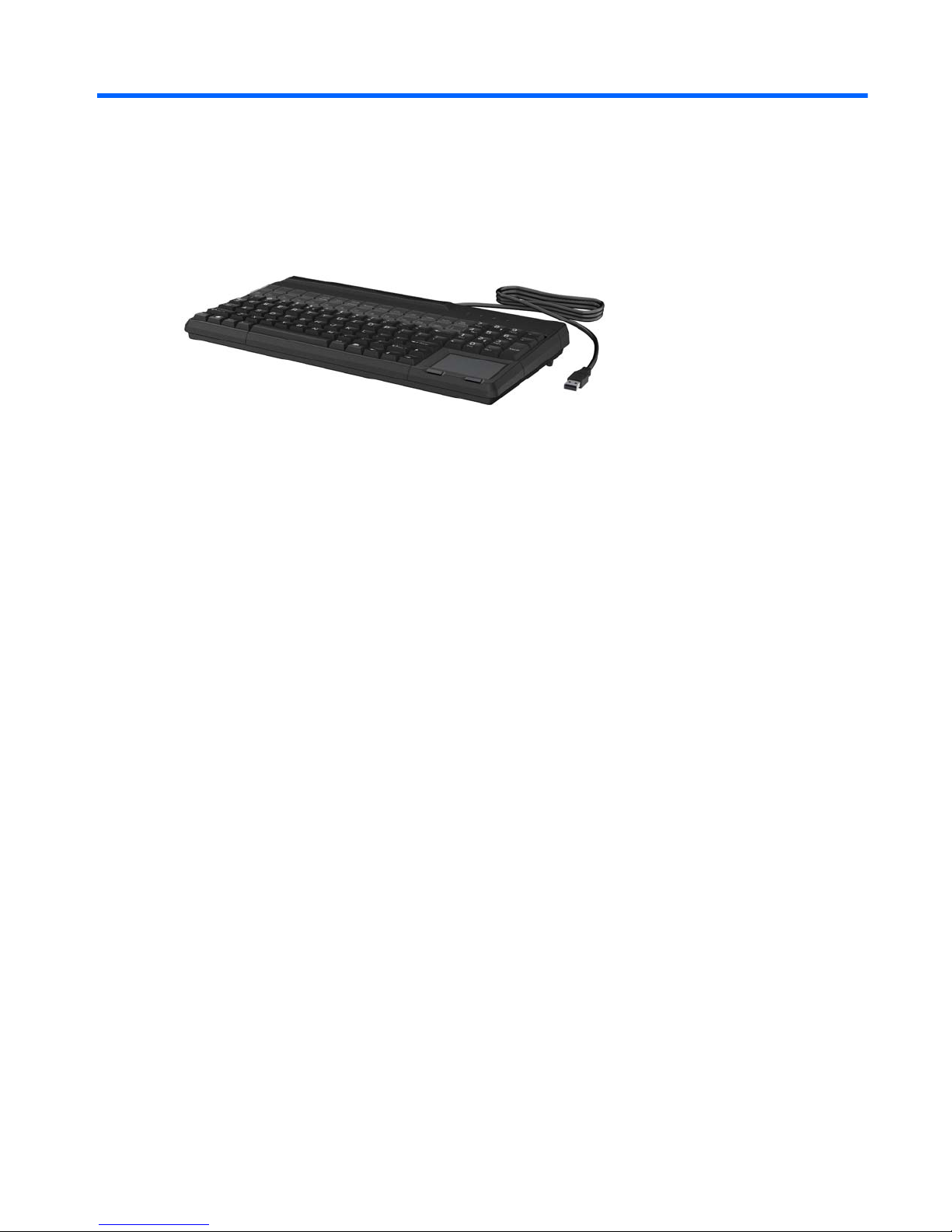
The HP Point of Sale Keyboard with magnetic stripe reader is designed to work with point of sale
system hardware and program applications. The POS keyboard features:
●
Compact 360 mm (14-inch) footprint
●
USB 2.0 plug and play capability
●
Programmable keys to provide easy layout configuration with 28 reconfigurable keys
●
Captive USB cable
●
Touchpad with two mouse buttons
●
Magnetic stripe reader with bi-directional swipe, LED, and buzzer indicators
●
Attachable keyboard feet to elevate the rear of the keyboard
●
Spill and dust resistant key area
●
Keycap tool to remove or customize keys
●
Software and product documentation provided on the HP Point of Sale System Software and
Documentation CD
ENWW HP POS Keyboard with MSR (magnetic stripe reader) 1
Page 8

2 Installation Instructions
Connecting the Keyboard
NOTE: If you are setting up a POS computer for the first time, complete the operating system
installation process before connecting the HP POS keyboard.
1. Place the keyboard on a flat surface near your POS work center. The rear of the keyboard can
be elevated by inserting the feet into the housing (holes left and right at the back side of the
bottom enclosure).
2. Plug the keyboard’s USB cable into a USB port on the POS computer.
Installing the Software
1. Turn on the POS computer.
2. Insert the HP Point of Sale System Software and Documentation CD, supplied with the
keyboard, into the CD or DVD drive on the POS computer.
3. Read and accept the End User License Agreement. The main menu will be displayed.
4. On the main menu, click HP POS Keyboard, and then scroll to the menu for your keyboard
model.
5. Select and install the Configuration Utility. Follow the instructions on the screen to complete the
installation.
6. Use the online help file available with the software to configure the keyboard and program the
keys.
7. Install the OPOS or JPOS drivers if required with your POS application.
2 Chapter 2 Installation Instructions ENWW
Page 9

Using the Magnetic Stripe Reader
1. Slide the card in either direction through the reader slot with the magnetic stripe on the card
facing the magnetic head.
2. While swiping the card through the reader, the LED turns off.
3. Once the magnetic stripe has been read, the LED will light and a buzzer will indicate a
successful reading.
ENWW Using the Magnetic Stripe Reader 3
Page 10

3 Safety and Maintenance Guidelines
Safety and Comfort
WARNING! To reduce the risk of serious injury, read the Safety and Comfort Guide. It describes
proper workstation, setup, posture, and health habits for users, and provides important electrical and
mechanical safety information. This guide is located on the Web at
http://www.hp.com/ergo and/or on
the documentation CD if one is included with the product.
Cleaning the Keyboard
1. Unplug the keyboard from the POS computer.
2. Use a clean, soft, lint-free cloth to clean the surface of the keyboard.
3. To remove heavily soiled areas from the surface, moisten the soft cloth with a mild cleaning
solution such as dish detergent.
4. Allow the keyboard to completely dry before plugging it back in.
To maintain the performance and extend the life of the keyboard:
●
Do not use solutions such as gasoline or alcohol and scouring agents or scouring foam for
cleaning.
●
Avoid allowing fluids to enter the device.
●
Remove any cleaning agent residue with a water-moistened cloth.
●
Dry off the device with a soft, lint-free cloth.
4 Chapter 3 Safety and Maintenance Guidelines ENWW
Page 11

A Troubleshooting
Solving Common Problems
Problem Possible Cause Solution
Keyboard commands and typing are not
recognized by the computer.
Keyboard connector is not properly
connected.
Shut down the computer using the
operating system.
After the shutdown is complete,
reconnect the keyboard to the back of
the POS computer and restart the
computer.
Program in use has stopped responding
to commands.
Shut down your computer using the
Touchpad and then restart the
computer.
Keyboard needs repairs. See the options warranty document for
details
Keyboard does not work The operating system’s USB drivers are
not installed.
Install USB drivers by:
●
Restarting the computer.
●
Scanning the computer for new
hardware through the Windows
Device Manager
●
Installing USB drivers from the
operating system CD.
●
Reinstalling your operating system
software.
Or
If the operating system installation
process for the POS computer was not
completed during initial setup, use a
mouse or standard keyboard until the
operating system has been fully
installed.
The magnetic stripe reader is not
responding after swiping the card
through the stripe.
Indicates a bad read on the card. Swipe the card again at a steady and
medium speed.
Review the orientation of the card stripe
to be sure it is in contact with the read
head.
When the card is swiped into Microsoft
Notepad, the MSR will output double
headers and terminators such as %%
or ??.
The Start/Stop Character Output is
turned on.
Refer to the Keyboard readme files on
the HP Point of Sale System Software
and Documentation CD for information
on keyboard and MSR configuration
settings.
ENWW Solving Common Problems 5
Page 12

Problem Possible Cause Solution
When the card is swiped into Microsoft
Notepad, the track read starts with a 5
or ends with a /.
The headers or terminators are not
programmed correctly with a shift key.
Refer to the Keyboard readme files on
the HP Point of Sale System Software
and Documentation CD for information
on keyboard and MSR configuration
settings.
When the card is swiped into Microsoft
Notepad, the track reads only shifted
characters: %B$$%#^&*^())^@@#
The shift key was not released when a
header or terminator was programmed.
Refer to the Keyboard readme files on
the HP Point of Sale System Software
and Documentation CD for information
on keyboard and MSR configuration
settings.
No output from MSR after swiping. The Send Immediately track setting,
which transfers data directly to the POS
computer, is turned off.
Refer to the Keyboard readme files on
the HP Point of Sale System Software
and Documentation CD for information
on keyboard and MSR configuration
settings.
The Decoding field option, which
specifies the format the magnetic card
reads, is turned off.
Refer to the Keyboard readme files on
the HP Point of Sale System Software
and Documentation CD for information
on keyboard and MSR configuration
settings.
Online Technical Support
For the online access to technical support information, self-solve tools, online assistance, community
forums or IT experts, broad multivendor knowledge base, monitoring and diagnostic tools, go to
http://www.hp.com/support.
Preparing to Call Technical Support
HP provides hardware/break support for this product.
If you can not solve a problem using the troubleshooting tips in this section, you may need to call
technical support. Contact your regional HP authorized service provider for HP Point of Sale System
products. Refer to the HP Technical Support Numbers on the Point of Sale System Software and
Documentation CD. Have the following information available when you call:
●
Serial number of the HP accessory located on the bottom of the product
●
Purchase date on invoice
●
Condition under which the problem occurred
●
Error messages received
●
Hardware configuration
●
Hardware and software you are using
6 Appendix A Troubleshooting ENWW
Page 13

B Technical Specifications
HP POS Keyboard with MSR
Interface USB 2.0 (full-speed composite device)
Power Supply -5 Vdc +/-5 % SELV
Current Consumption (typical) 100 mA max
Storage Temperature -20°C to 60°C
Operating Temperature Range 0°C to 50°C
Cable Length Approximately 1.85m (6 feet)
Magnetic Stripe Reader
Maximum Number of Tracks Reads 1, 2, or 3 tracks of magnetic information
Slot Bi-directional swipe
Indicators LED and buzzer
ENWW HP POS Keyboard with MSR 7
Page 14

C Agency Regulatory Notices
Federal Communications Commission Notice
This equipment has been tested and found to comply with the limits for a Class B digital device,
pursuant to Part 15 of the FCC Rules. These limits are designed to provide reasonable protection
against harmful interference in a residential installation. This equipment generates, uses, and can
radiate radio frequency energy and, if not installed and used in accordance with the instructions, may
cause harmful interference to radio communications. However, there is no guarantee that interference
will not occur in a particular installation. If this equipment does cause harmful interference to radio or
television reception, which can be determined by turning the equipment off and on, the user is
encouraged to try to correct the interference by one or more of the following measures:
●
Reorient or relocate the receiving antenna.
●
Increase the separation between the equipment and the receiver.
●
Connect the equipment into an outlet on a circuit different from that to which the receiver is
connected.
●
Consult the dealer or an experienced radio or television technician for help.
Modifications
The FCC requires the user to be notified that any changes or modifications made to this device that
are not expressly approved by Hewlett Packard Company may void the user's authority to operate the
equipment.
Cables
Connections to this device must be made with shielded cables with metallic RFI/EMI connector hoods
to maintain compliance with FCC Rules and Regulations.
Declaration of Conformity for Products Marked with the
FCC Logo (United States Only)
This device complies with Part 15 of the FCC Rules. Operation is subject to the following two
conditions:
1. This device may not cause harmful interference.
2. This device must accept any interference received, including interference that may cause
undesired operation.
For questions regarding the product, contact:
Hewlett Packard Company
P. O. Box 692000, Mail Stop 530113
Houston, Texas 77269-2000
Or, call 1-800-HP-INVENT (1-800 474-6836)
8 Appendix C Agency Regulatory Notices ENWW
Page 15

For questions regarding this FCC declaration, contact:
Hewlett Packard Company
P. O. Box 692000, Mail Stop 510101
Houston, Texas 77269-2000
Or, call (281) 514-3333
To identify this product, refer to the Part, Series, or Model number found on the product.
Canadian Notice
This Class B digital apparatus meets all requirements of the Canadian Interference-Causing
Equipment Regulations.
Avis Canadien
Cet appareil numérique de la classe B respecte toutes les exigences du Règlement sur le matériel
brouilleur du Canada.
European Union Regulatory Notice
This product complies with the following EU Directives:
●
Low Voltage Directive 2006/95/EC
●
EMC Directive 2004/108/EC
●
EuP Directive 2005/32/EC, where applicable
Compliance with these directives implies conformity to applicable harmonized European standards
(European Norms) which are listed on the EU Declaration of Conformity issued by Hewlett-Packard
for this product or product family.
This compliance is indicated by the following conformity marking placed on the product:
This marking is valid for non-Telecom
products and EU harmonized Telecom
products (e.g. Bluetooth)
This marking is valid for EU nonharmonized Telecom products.
*Notified body number (used only if
applicable — refer to the product label).
Hewlett-Packard GmbH, HQ-TRE, Herrenberger Strasse 140, 71034 Boeblingen, Germany
The official EU CE declaration of conformity for this device may be found at
http://www.hp.com/go/
certificates.
ENWW Canadian Notice 9
Page 16
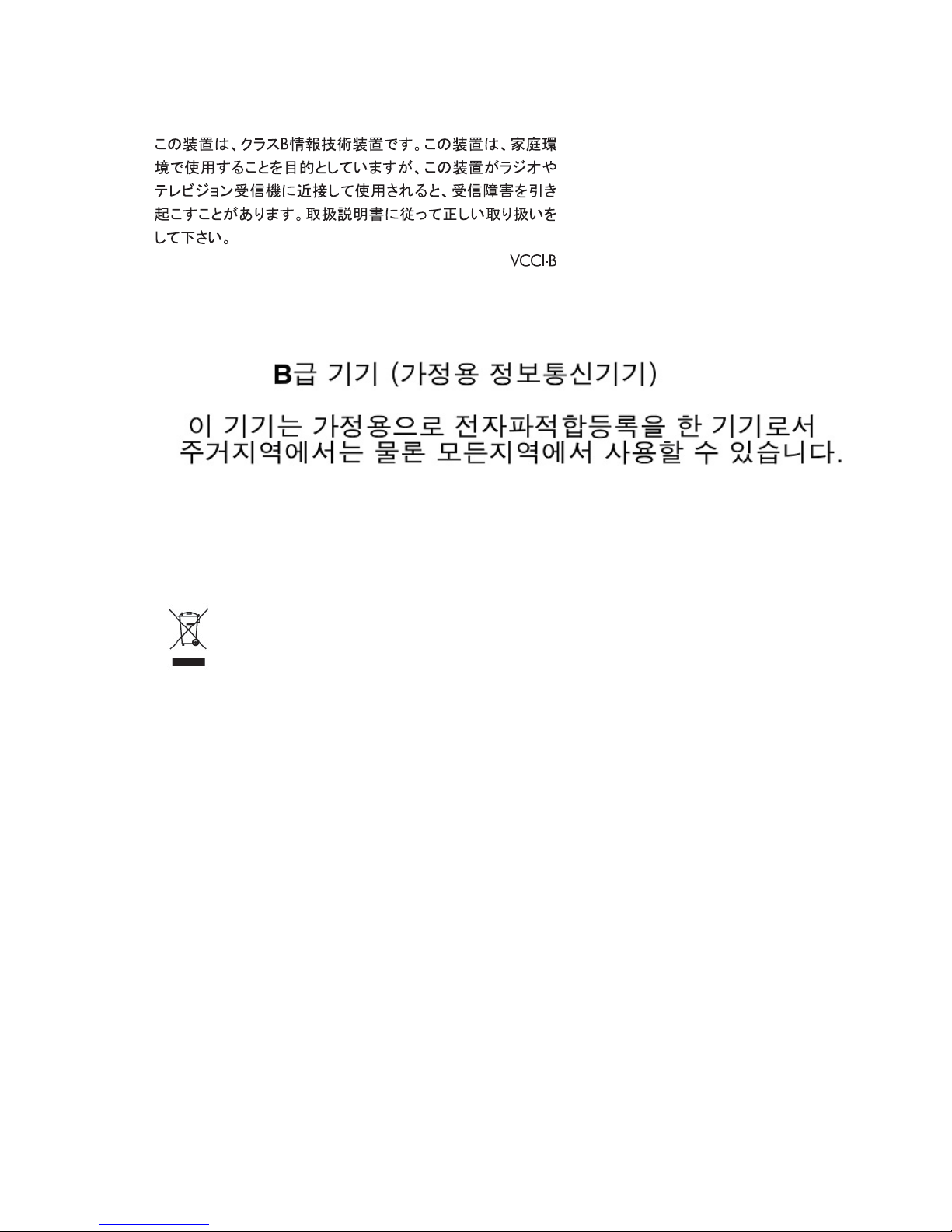
Japanese Notice
Korean Notice
Product Environmental Notices
Disposal of Waste Equipment by Users in Private Household in the
European Union
This symbol on the product or on its packaging indicates that this product must not be disposed of
with your household waste. Instead, it is your responsibility to dispose of your waste equipment by
handing it over to a designated collection point for the recycling or waste electrical and electronic
equipment. The separate collection and recycling of your waste equipment at the time of disposal will
help to conserve natural resources and ensure that it is recycled in a manner that protects human
health and the environment. For more information about where you can drop off your waste
equipment for recycling, please contact the local city office, the household waste disposal service or
the shop where you purchased the product.
Chemical Substances
HP is committed to providing our customers with information about the chemical substances in our
products as needed to comply with legal requirements such as REACH (Regulation EC No
1907/2006 of the European Parliament and the Council). A chemical information report for this
product can be found at:
http://www.hp.com/go/reach
Restriction of Hazardous Substances (RoHS)
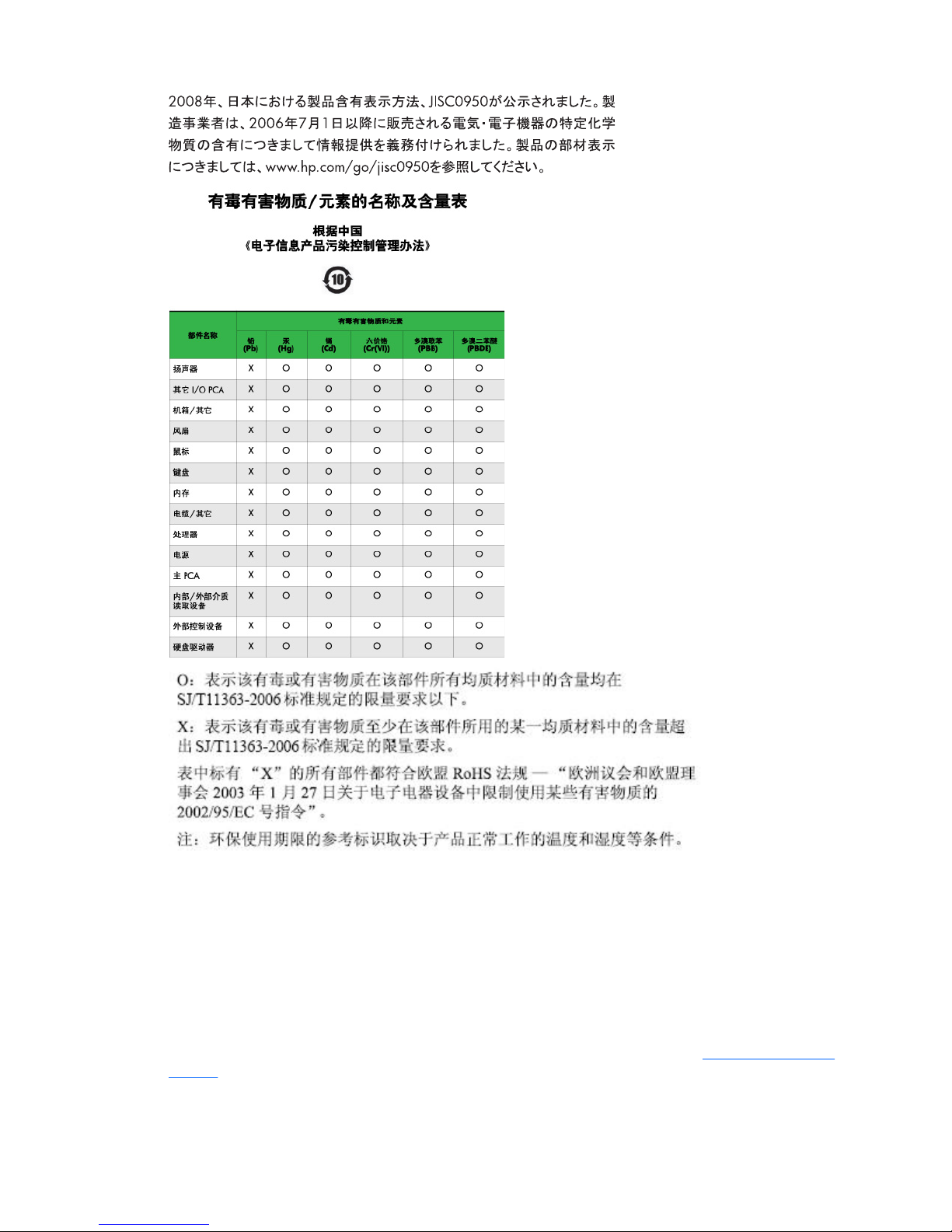
A Japanese regulatory requirement, defined by specification JIS C 0950, 2005, mandates that
manufacturers provide Material Content Declarations for certain categories of electronic products
offered for sale after July 1, 2006. To view the JIS C 0950 material declaration for this product, visit
http://www.hp.com/go/jisc0950.
10 Appendix C Agency Regulatory Notices ENWW
Page 17
Turkey EEE Regulation
In Conformity with the EEE Regulation
EEE Yönetmeliğine Uygundur
HP Recycling Program
HP encourages customers to recycle used electronic hardware, HP original print cartridges, and
rechargeable batteries. For more information about recycling programs, go to
http://www.hp.com/
recycle.
ENWW Product Environmental Notices 11
 Loading...