

Page 1

Maintenance, Shipping
and Travel
hp notebook series
Document Part Number: 316760-001
April 2003
This guide explains how to maintain your notebook, provides
steps for routine care, and includes guidelines on how to prepare
the notebook for shipping or traveling.
Page 2

© 2003 Hewlett-Packard Company
Microsoft and Windows are trademarks of Microsoft Corporation in the
U.S. and other countries. All other product names mentioned herein may be
trademarks of their respective companies.
HP shall not be liable for technical or editorial errors or omissions
contained herein or for incidental or consequential damages in connection
with the furnishing, performance, or use of this material. The information
in this document is provided “as is” without warranty of any kind, and is
subject to change without notice. The warranties for HP products are set
forth in the express limited warranty statements accompanying such
products. Nothing herein should be construed as constituting an additional
warranty.
This document contains proprietary information that is protected by
copyright. No part of this document may be photocopied, reproduced, or
translated to another language without the prior written consent of
Hewlett-Packard Company.
Maintenance, Shipping and Travel
First Edition April 2003
Document Part Number: 316760-001
Page 3

Contents
1 Maintaining Your Software and
Personal Data
Installing a Retail Version of an Operating System. . . . . 1–1
Virus Protection . . . . . . . . . . . . . . . . . . . . . . . . . . . . . . . . 1–2
Backup Utilities . . . . . . . . . . . . . . . . . . . . . . . . . . . . . . . . 1–2
2 Maintaining Your Hardware
Monitoring Notebook Temperature . . . . . . . . . . . . . . . . . 2–2
Cleaning Your Notebook . . . . . . . . . . . . . . . . . . . . . . . . . 2–2
Cleaning the Keyboard. . . . . . . . . . . . . . . . . . . . . . . . . . . 2–3
Cleaning the Display . . . . . . . . . . . . . . . . . . . . . . . . . . . . 2–4
Cleaning the TouchPad . . . . . . . . . . . . . . . . . . . . . . . . . . 2–4
Cleaning an External Mouse . . . . . . . . . . . . . . . . . . . . . . 2–5
Caring for Drives . . . . . . . . . . . . . . . . . . . . . . . . . . . . . . . 2–7
3 Preparing the Notebook for Shipping
or Traveling
Traveling with the Notebook . . . . . . . . . . . . . . . . . . . . . . 3–1
Maintenance, Shipping and Travel iii
Page 4

Maintaining Your Software
and Personal Data
HP recommends that you install all software updates as they
become available. However, if your system is connected to a
network, you may need to confer with your Information Services
department before updating system ROM.
Installing a Retail Version of an Operating System
The Windows operating system included in the QuickRestore
System Recovery CD is enhanced by HP. The enhancements
provide added functionality for power management, security, and
the use of drives and PC Cards.
CAUTION: Replacing an HP enhanced operating system with a retail
Ä
version will result in the loss of enhancements added by HP. In some
cases, it may result in system lockups and loss of unsaved
information. In other cases, complete USB support will become
unavailable.
1
Maintenance, Shipping and Travel 1–1
Page 5

Maintaining Your Software and Personal Data
Virus Protection
If you use the notebook for e-mail or to access the World Wide
Web, you risk infecting the system with a computer virus. You
can protect the notebook from infection by installing antivirus
software.
Several products available on the market will detect the virus,
destroy it, and repair any damage it causes.
Backup Utilities
To protect the information on your notebook and retrieve lost or
damaged files, you should back up your files regularly to
diskettes or other backup media.
To do a partial backup of selected files or folders, use backup
devices such as diskettes. To do a complete hard drive backup,
use tape drives or other high-capacity backup devices.
1–2 Maintenance, Shipping and Travel
Page 6

Maintaining Your Hardware
Your notebook is designed as a durable product. To maintain its
performance and promote longevity, follow these guidelines:
■ Carry and store your notebook in a portable carrying case.
CAUTION: To prevent possible damage to the display, do not place
Ä
anything on top of the notebook even when it is in the carrying case.
■ Keep Zip disks, diskettes, and modular disk drives away from
magnetic fields, which can erase your data.
■ Keep liquids and excessive moisture away from your
notebook and keyboard to prevent costly repairs.
WARNING: To reduce the risk of electric shock or damage to internal
Å
components, do not allow liquids to drip onto the notebook keyboard.
■ Avoid exposing your notebook to direct sunlight, extreme
temperatures, or ultraviolet light for extended periods of time.
2
■ Use your notebook only on a solid, flat surface. Make sure
that vents, which cool internal components, are unobstructed.
CAUTION: To prevent overheating, do not obstruct the vents. Do not
Ä
allow a hard surface, such as an adjoining optional printer, or a soft
surface, such as fabric or carpet, to block the airflow.
Maintenance, Shipping and Travel 2–1
Page 7

Maintaining Your Hardware
■ If the notebook will not be used for a week or more, shut
it down.
■ If the notebook will be disconnected from external power for
more than 2 weeks:
❏ Shut down the notebook.
❏ Remove all battery packs and store them in a cool, dry
place.
Monitoring Notebook Temperature
WARNING: The notebook is designed to run demanding applications
Å
at full power. As a result of increased power consumption, it is normal
for the notebook to feel warm or hot when used continuously. To avoid
potential discomfort or burns, do not block the air vents or use the
notebook on your lap for extended periods. The notebook complies
with the user-accessible surface temperature limits defined by the
International Standard for Safety of Information Technology
Equipment (IEC 60950).
Cleaning Your Notebook
WARNING: Always disconnect the notebook from the power outlet
Å
and disconnect peripherals before attempting to clean your notebook
or any of its components.
WARNING: Do not spray liquids on your notebook, display, or
Å
keyboard. Liquids and household solvents can permanently damage
your notebook’s finish and interior components.
2–2 Maintenance, Shipping and Travel
Page 8
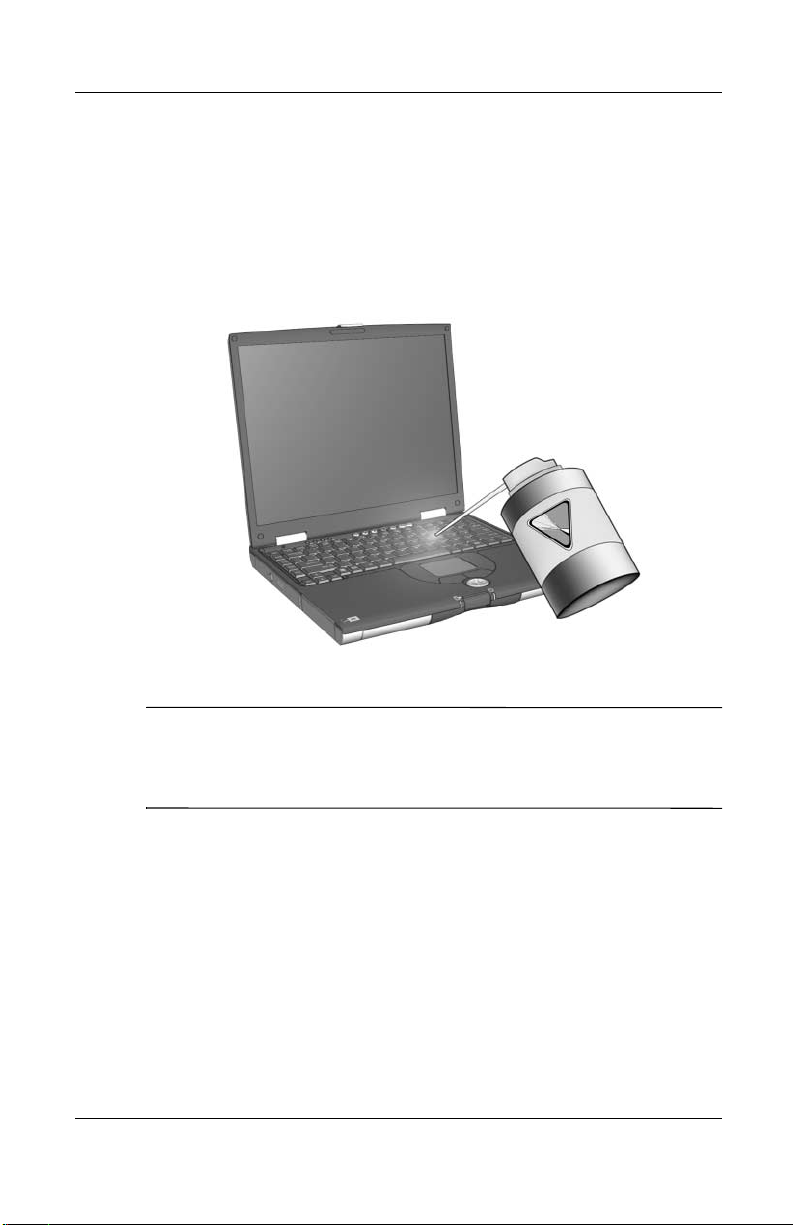
Cleaning the Keyboard
Clean the keyboard regularly to prevent keys from sticking and to
remove dust, lint, and particles that can become trapped beneath
the keys. Ideally, use a can of compressed air with a straw
extension to blow air in and around the keys.
Maintaining Your Hardware
Cleaning the keyboard
CAUTION: Do not use liquids of any kind on the keyboard, because
Ä
they may permanently damage your keyboard. Do not use a regular
vacuum cleaner to clean the keyboard, because you may deposit
normal household debris on the surfaces, rather than remove it.
Maintenance, Shipping and Travel 2–3
Page 9

Maintaining Your Hardware
Cleaning the Display
To remove smudges and lint, frequently clean your display with
a soft, damp, lint-free cloth. If the screen requires additional
cleaning, use an antistatic screen cleaner or premoistened
antistatic wipes.
CAUTION: Never spray water, cleaning fluids, or chemicals on the
Ä
screen. This can permanently damage your notebook.
Cleaning the TouchPad
Grease and dirt on the TouchPad can cause your cursor to
jump around on the display screen. To avoid this, wash hands
frequently when using the notebook and clean the TouchPad with
a damp cloth.
2–4 Maintenance, Shipping and Travel
Page 10
Maintaining Your Hardware
Cleaning an External Mouse
Keeping an external mouse clean can substantially improve its
performance and prevent loss of mouse pointer control. To clean
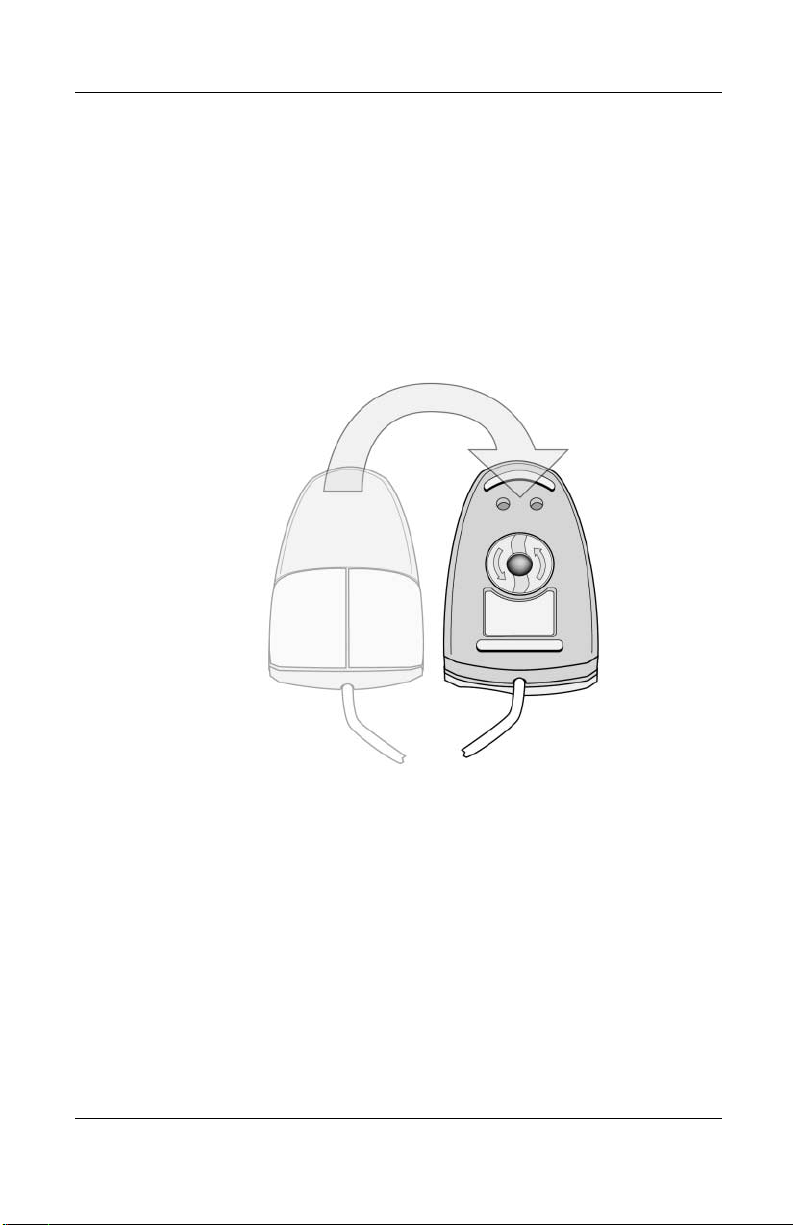
an external mouse, complete the following steps:
1. Turn the mouse over and rotate the circular plate about
1/4-inch counterclockwise until it pops loose. Most mice
have an arrow to indicate the direction to turn the plate.
Turning the mouse over
Maintenance, Shipping and Travel 2–5
Page 11
Maintaining Your Hardware
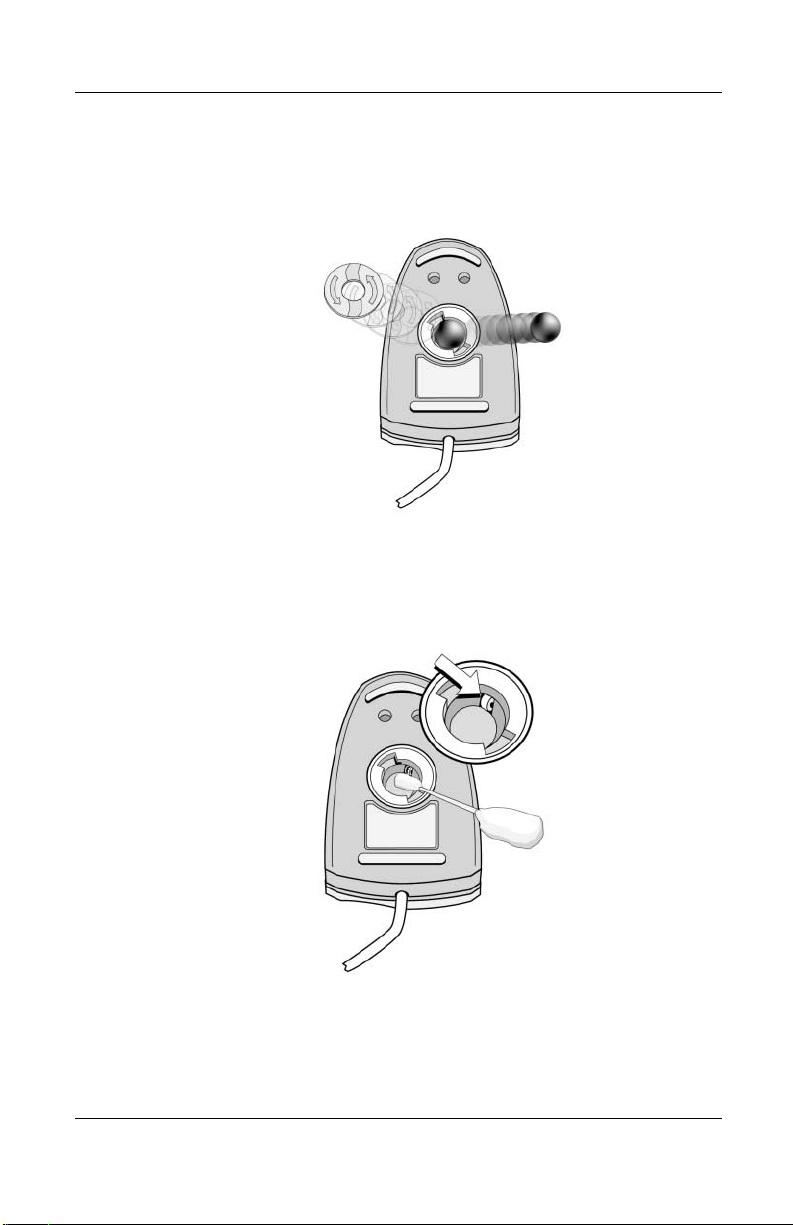
2. Remove the ball from your mouse and clean it with an
antistatic wipe or a lint-free cotton cloth.
Removing the ball from the mouse
3. Spray the inside of the mouse with compressed air or clean it
with a non-cotton swab to remove loose debris and dust.
Cleaning the mouse
4. Replace the ball and the bottom plate.
2–6 Maintenance, Shipping and Travel
Page 12

Caring for Drives
Drives are fragile notebook components that must be handled
with care. The following cautions apply to all drives at all times.
CAUTION: To prevent loss of work, or damage to the notebook or a
Ä
drive:
■ Electrostatic discharge can damage electronic components. To
prevent electrostatic damage to the notebook or a drive, follow
these two precautions: 1) Discharge yourself from static
electricity before handling a drive by touching a grounded metal
object, and 2) Avoid touching the connectors on a drive.
■ Excessive force can damage drive connectors. When you insert
a drive, use only enough force to seat the drive.
■ Handle a drive carefully. Do not drop it.
■ Avoid exposing a hard drive to devices with magnetic fields.
Products with magnetic fields include video and audio tape
erasure products, monitors, and speakers. Security devices
with magnetic fields include airport walk-through devices and
security wands. Airport security devices that check carry-on
luggage via a conveyor belt typically use x-rays instead of
magnetism, which will not damage a hard drive.
■ Do not spray a drive with cleaning fluids.
■ Avoid exposing a drive to liquids or temperature extremes.
■ If you mail a drive, ship it in packaging that protects it from
shock, vibration, temperature, and humidity, then label the
package “fragile.”
Maintaining Your Hardware
Maintenance, Shipping and Travel 2–7
Page 13

3
Preparing the Notebook for
Shipping or Traveling
To prepare the notebook for shipping or traveling:
1. Back up your work.
2. Remove all CD-ROMs, DVD-ROMs, diskettes, disks, or
PC Cards.
3. Turn off, then disconnect, all external devices.
4. Shut down the notebook.
5. If the notebook will be disconnected from an external power
source for more than 2 weeks, remove all battery packs and
store them in a cool, dry place.
6. If you are shipping the notebook, place it in the original
packing box or similar protective packaging and label
the package as “fragile.”
Traveling with the Notebook
■ Take along a backup of your work. Keep the backup separate
from the notebook.
■ When traveling by air, carry your notebook as hand baggage.
Do not check it in with the rest of your luggage.
Maintenance, Shipping and Travel 3–1
Page 14

Preparing the Notebook for Shipping or Traveling
■ Do not expose the notebook or diskettes to a magnetic
security detector.
❏ The security device that examines carry-on items placed
on a conveyor belt uses x-rays and is safe for the
notebook and diskettes.
❏ The walk-through security device and the handheld
security wands are magnetic and may damage the
notebook or diskettes.
■ If you plan to use the notebook during a flight, check with
the airline in advance. In-flight notebook use is at the
discretion of the airline.
■ If your notebook has a GSM device, such as the GPRS
Multiport Module, you must turn off the GSM device on
your notebook before boarding and keep it turned off if you
plan to use your notebook during the flight.
■ If you are traveling internationally:
❏ Consult with a Customer Care Center about power cord
and adapter requirements for each location in which you
plan to use the notebook. (Voltage, frequency, and plug
configurations vary.) Refer to the Worldwide Telephone
Numbers booklet to contact a Customer Care Center for
help and support.
WARNING: To reduce the risk of electric shock, fire, or damage to the
Å
equipment, do not attempt to power the notebook with a voltage
converter kit sold for appliances.
❏ Check the computer-related customs regulations for each
country on your itinerary.
3–2 Maintenance, Shipping and Travel
 Loading...