

Page 1

HP NetServer AutoPilot
Installation Guide
HP Part No. 5965-2354
Printed in USA • August 1996
Page 2

Notice
The information contained in this document is subject to change without notice.
Hewlett-Packard makes no warranty of any kind with regard to this material, including, but not
limited to, the implied warranties of merchantability and fitness for a particular purpose.
Hewlett-Packard shall not be liable for errors contained herein or for incidental or consequential
damages in connection with the furnishing, performance, or use of this material. HewlettPackard assumes no responsibility for the use or reliability of its software on equipment that is
not furnished by Hewlett-Packard.
This document contains proprietary information that is protected by copyright. All rights are
reserved. No part of this document may be photocopied, reproduced, or translated to another
language without the prior written consent of Hewlett-Packard Company.
Materials reprinted with the permission of Intel. Intel makes no warranty of any kind regarding
the accuracy, correctness, or sufficiency of the information in the publication, and the use of any
information therein is or will be free from claims of intellectual property infringement of any
kind.
The use of trademarks or other designations is for reference purposes only. The following
trademarks are used in this manual:
SCSI Status SNMP agent software copyright Adaptec, Inc., 1994; all rights reserved; distributed
by Hewlett-Packard Company under license. Adaptec is a trademark of Adaptec, Inc. Microsoft
and MS-DOS are U.S. registered trademarks of Microsoft Corp. Windows and Windows NT
are trademarks of Microsoft Corp. Novell and NetWare are registered trademarks of Novell,
Inc. CompuServe is a U.S. registered trademark of CompuServe, Inc. FTP and PC/TCP are
U.S. registered trademarks of FTP Software, Inc.
Network Server Division
5301 Stevens Creek Boulevard
P.O. Box 58059
Santa Clara, CA 95052-8059, USA
© Copyright 1996, Hewlett-Packard Company
ii
Page 3

License Agreement
HP Software License Agreement
ATTENTION: USE OF THE SOFTWARE IS SUBJECT TO THE HP SOFTWARE
LICENSE TERMS SET FORTH BELOW. USING THE SOFTWARE INDICATES
YOUR ACCEPTANCE OF THESE LICENSE TERMS. IF YOU DO NOT ACCEPT
THESE LICENSE TERMS, YOU MAY RETURN THE SOFTWARE FOR A FULL
REFUND. IF THE SOFTWARE IS BUNDLED WITH ANOTHER PRODUCT, YOU
MAY RETURN THE ENTIRE UNUSED PRODUCT FOR A FULL REFUND.
HP Software License Terms
The following License Terms govern your use of the accompanying Software unless
you have a separate written agreement with HP.
License Grant. Hewlett-Packard grants the Customer a license in the software,
subject to the following:
Use. "Use" means storing, loading, installing, executing or displaying the Software.
You may not modify the Software or disable any licensing or control features of the
Software. The software resides on the HP NetServer Navigator CD-ROM and consists
of two pieces: the HP AutoPilot Client software and the NSA Server software.
• The NSA Server software may be installed and used on one or more HP NetServer
(E series).
• The HP AutoPilot Client software may be installed on one or more client
workstation connected to a network that includes HP NetServer E series systems.
Ownership. The Software is owned and copyrighted by HP or its third party
suppliers. Your license confers no title or ownership in the Software and is not a sale
of any rights in the Software. HP's third party suppliers may protect their rights in the
event of any violation of these License Terms.
Copies and Adaptations. You may only make copies or adaptations of the Software
for archival purposes or when copying or adaptation is an essential step in the
authorized Use of the Software. You may not copy the Software onto any bulletin
board or similar system.
No Disassembly or Decryption. You may not disassemble or decompile the Software
unless HP's prior written consent is obtained. In some jurisdictions, HP's consent may
not be required for limited disassembly or decompilation. Upon request, you will
provide HP with reasonably detailed information regarding any disassembly or
iii
Page 4

License Agreement
decompilation. You may not decrypt the Software unless decryption is a necessary
part of the operation of the Software.
Transfer. Your license will automatically terminate upon any transfer of the
Software. Upon transfer, you must deliver the Software, including any copies and
related documentation, to the transferee. The transferee must accept these License
Terms as a condition to the transfer.
Termination. HP may terminate your license upon notice for failure to comply with
any of these License Terms. Upon termination, you must immediately destroy the
Software, together with all copies, adaptations and merged portions in any form.
Export Requirements. You may not export or re-export the Software or any copy or
adaptation in violation of any applicable laws or regulations.
U.S. Government Restricted Rights. The Software and any accompanying
documentation have been developed entirely at private expense. They are delivered
and licensed as "commercial computer software" as defined in DFARS 252.227-7013
(Oct 1988), DFARS 252.211-7015 (May 1991) or DFARS 252.227-7014 (Jun 1995),
as a "commercial item" as defined in FAR 2.101(a), or as "Restricted computer
software" as defined in FAR 52.227-19 (Jun 1987) (or any equivalent agency
regulation or contract clause), whichever is applicable. You have only those rights
provided for such Software and any accompanying documentation by the applicable
FAR or DFARS clause or the HP standard software agreement for the product
involved.
iv
Page 5

Software Product Limited Warranty
Ninety-Day Limited Software Warranty
HP warrants for a period of ninety (90) days from the date of the purchase that the
software product will execute its programming instructions when all files are properly
installed. HP does not warrant that the operation of the software will be uninterrupted
or error free. In the event that this software product fails to execute its programming
instructions during the warranty period, Customer’s remedy shall be a refund or
repair. Should HP be unable to replace the media within a reasonable amount of time,
Customer’s alternate remedy shall be a refund of the purchase price upon return of the
product and all copies.
Removable Media
HP warrants the removable media, if supplied, upon which this product is recorded to
be free from defects in materials and workmanship under normal use for a period of
ninety (90) days from the date of purchase. In the event the media prove to be
defective during the warranty period, Customer’s remedy shall be to return the media
to HP for replacement. Should HP be unable to replace the media within a reasonable
amount of time, Customer’s alternate remedy shall be a refund of the purchase price
upon return of the product and destruction of all other non-removable media copies of
the software product.
Notice of Warranty Claims
Customer must notify HP in writing of any warranty claim not later than thirty (30)
days after the expiration of the warranty period.
Limitation of Warranty
HP makes no other express warranty, whether written or oral, with respect to this
product. Any implied warranty of merchantability or fitness for a particular purpose is
limited to the 90-day duration of this written warranty. Some states or provinces do
not allow limitations on how long an implied warranty lasts, so the above limitation or
exclusion may not apply to you.
This warranty gives specific legal rights, and you may also have other rights that vary
from state to state, or province to province.
v
Page 6

Software Product Limited Warranty
Limitation of Liability and Remedies
The remedies provided above are Customer’s sole and exclusive remedies. In no event
shall HP be liable for any direct, indirect, special, incidental, or consequential
damages (including lost profit) whether based on warranty, contract, tort, or any other
legal theory. Some states or provinces do not allow the exclusion or limitation of
incidental or consequential damages, so the above limitation or exclusion may not
apply to you.
Obtaining Warranty Service
You may obtain Warranty service from your Authorized HP Reseller or HP Sales and
Service Office.
Consumer transactions in Australia and the United Kingdom: The disclaimers and
limitations above shall not apply and shall not affect the statutory rights of
a Consumer.
vi
Page 7

Technical Support
Telephone Support
The HP-supplied hardware and software in HP servers are covered by no-charge
telephone assistance during the warranty period. In some geographic areas this
telephone support is provided by Hewlett-Packard; in other areas, telephone support is
provided by your reseller.
For non-HP-supplied products, support numbers are included in the product
documentation or are available from your reseller.
Hewlett-Packard provides telephone assistance in installing, configuring, and
diagnosing the server such that one local client PC is able to log into an HP-supported
network operating system.
Assistance with additional functions, such as system design, operating system
upgrades, or performance optimization—and assistance with other technical areas,
such as cabling, non-HP hardware, or multiple operating system environments—is
available from Hewlett-Packard, resellers, or consultants at additional charge. For
example, HP offers Network Phone-In Support Service with a 7-day, 24-hour option
for network operating systems and multi-vendor hardware. Contact your local HP
office for details.
Obtaining HP Repair and Telephone Support
U.S. and Canada. For hardware service and telephone support, contact either:
• Participating Service Authorized HP Personal Computer Reseller
• HP Customer Support Center (Colorado) (1 970) 635-1000 from 6 AM to
8 PM Mountain Time on Monday through Friday and from 9 AM to 3 PM
Mountain Time on Saturday
Europe. For hardware service and telephone support, contact either:
• Participating Service Authorized HP Personal Computer Reseller
• HP Customer Support Center (Amsterdam):
Dutch language (+31 20) 581-3331
English language (+31 20) 581-3330
German language (+31 20) 581-3333
French language (+31 20) 581-3332
vii
Page 8

Technical Support
Italian language (+31 20) 581-3338
Spanish language (+31 20) 581-3339
Other countries. For hardware service, contact your local HP office. For telephone
support, contact your authorized HP reseller.
Using Other Information Services
Worldwide, access the HP NetServer World Wide Web home page:
http://www.hp.com/go/netserver
For software patches and driver updates:
In the US, access the HP PC Support BBS: (408) 553-3500
Worldwide, access the HP FTP Server:
ftp.netserver.hp.com
LOGON: anonymous
PASSWORD: <your e-mail address>
For more information on the product:
HP Audio Tips & Fax Info (HPFirst): (800) 333-1917 or (208) 344-4809
For information on CompuServe call
viii
(800) 848-8990 U.S.
(614) 457-8650 Canada
After logging in to CompuServe, type GO HPSYS to get onto the HP Forum.
Page 9

Documentation
HP NetServer AutoPilot includes the following documentation:
• This guide, which describes how to install and use HP AutoPilot to manage your
HP NetServer E Series network servers.
• HP AutoPilot application on-line help.
• The HP AutoPilot README file. For the client and your NetWare servers, a
version of this file is available from the "HP NetServer AutoPilot" program group
on your Windows client. For your Windows NT servers, a version of this file is
available in the "HP NetServer AutoPilot" program group. Use these README
files to obtain the very latest information about HP AutoPilot.
ix
Page 10

Page 11

Contents
Quick Start ...............................................................................................................1
Steps for Servers Running Novell NetWare.......................................................1
Steps for Servers Running Microsoft Windows NT.............................................2
1 Introducing HP NetServer AutoPilot....................................................................5
Alarms List ........................................................................................................7
HP AutoPilot Features...........................................................................................7
An Overview of Client/Server Management...........................................................8
Audience Assumptions ..........................................................................................9
HP AutoPilot Software Components ......................................................................9
Required Hardware and Software........................................................................10
HP NetServer Hardware Required...................................................................10
HP NetServer Software Required....................................................................11
HP AutoPilot Client Hardware Required...........................................................11
HP AutoPilot Client Software Required............................................................12
2 Installing HP NetServer AutoPilot......................................................................13
Running the HP AutoPilot Client Installation Program..........................................14
Installing NSA Software on Your Novell NetWare Servers...............................16
Installing NSA Software on Your Windows NT Servers....................................18
3 Using HP NetServer AutoPilot............................................................................21
Running HP NetServer AutoPilot.........................................................................21
HP NetServer AutoPilot Notifications and Alarms............................................22
Response Options ...........................................................................................23
A Customizing the HP AutoPilot HP NetServer....................................................25
Installing NSA Software Agents Manually on NetWare Servers ...........................25
Loading the ASR Software for Novell NetWare................................................25
ASR NLM Files and Parameters for NetWare.................................................. 26
ASR Program Files and Parameters for Windows NT......................................27
B Glossary of Network Terminology ....................................................................29
Index.......................................................................................................................33
xi
Page 12

Page 13

Quick Start
HP NetServer AutoPilot is software that notifies you of problems with your HP
NetServer E Series servers. Installation has two parts: Server software and Client
software. Steps for installing the software differ depending upon whether you have
servers running Novell NetWare or Microsoft Windows NT. If you are an experienced
network administrator, the following Quick Start procedures may be all you need to
install HP AutoPilot.
NOTE Be sure to review the "Required Hardware and Software" section of
Chapter 1 before proceeding.
Steps for Servers Running Novell NetWare
Before proceeding: Identify and list the network names of all the Novell
NetWare servers you want to monitor before starting installation. In addition, be sure
you have supervisor-level privileges for the Novell NetWare servers you want to
include.
At the Client Workstation:
¨
Step 1 Run setup at the client workstation
Insert the HP NetServer Navigator CD-ROM in your HP AutoPilot Client's CDROM drive. From the Windows Program Manager, run setup.exe located in the
autoplt subdirectory.
¨
Step 2 Select an install option
For an initial installation, choose the default option, "Install HP AutoPilot with
the option to install the Server Software." For servers running Novell NetWare,
HP AutoPilot software may be installed on both the client and server(s) while
you're at the client workstation.
¨
Step 3 Select HP NetServers to monitor
For servers running Novell NetWare, installation of the supporting Server software
is also accomplished at the client workstation. From the displayed list, add the HP
NetServers you want to monitor to the "Managed Servers" list box.
1
Page 14

Quick Start
At the HP NetServer:
¨
Step 1 Restart the HP NetServer(s)
When HP AutoPilot Client setup is finished, the HP AutoPilot icon appears in the
display, or, in Windows 95, on the program bar. With HP AutoPilot installed and
running at the client workstation, restart each installed HP NetServer.
¨
Step 2 Verify connection
To complete the installation you must restart each HP NetServer on which you
installed the server software. A verification message from the HP NetServer is
then sent to your HP AutoPilot Client letting you know that installation was
successful.
Steps for Servers Running Microsoft Windows NT
At the Client Workstation:
¨
Step 1 Run setup at the client workstation
Insert the HP NetServer Navigator CD-ROM in your HP AutoPilot Client's CDROM drive. From the Windows Program Manager, run setup.exe located in the
autoplt subdirectory.
¨
Step 2 Select an install option
For an initial installation, choose the default option, "Install HP AutoPilot with
the option to install the Server Software."
¨
Step 3 Note the TCP/IP address of the HP AutoPilot Client
Be sure to make note of the TCP/IP address of your HP AutoPilot Client when it is
displayed at the end of the HP AutoPilot Client setup. You'll need this address
when you install the NSA software on your HP NetServers.
2
Page 15

At the HP NetServer:
Before proceeding: When HP AutoPilot Client setup is finished, the HP AutoPilot
icon appears in the display, or, in Windows 95, on the program bar. However, you still
need to install the Server software at each Windows NT server you want to monitor
with HP AutoPilot. Be sure you have administrator privileges for those Windows NT
servers.
¨
Step 1 Verify SNMP services at the HP NetServer
Be sure your Windows NT server provides TCP/IP and SNMP services. Set up
SNMP services to include the community name and trap destination address (IP
address) of your HP AutoPilot client workstation (identified in Step 3 in the
preceding section).
¨
Step 2 Run HP NetServer setup
Insert the HP NetServer Navigator CD-ROM in your HP AutoPilot Client's CDROM drive, and run setup.exe, located in the autoplt/server/winnt subdirectory.
¨
Step 3 Restart the HP NetServer
If SNMP is running, HP AutoPilot setup stops it for you while it finishes
installation. When setup is complete, HP AutoPilot prompts you to restart. You
must restart the HP NetServer to complete the installation.
Quick Start
¨
Step 4 Verify connection
After restarting all the NetServers on which you have installed the HP AutoPilot
server software, a verification message is sent from the HP NetServer to your HP
AutoPilot Client letting you know that installation was successful.
3
Page 16

Page 17
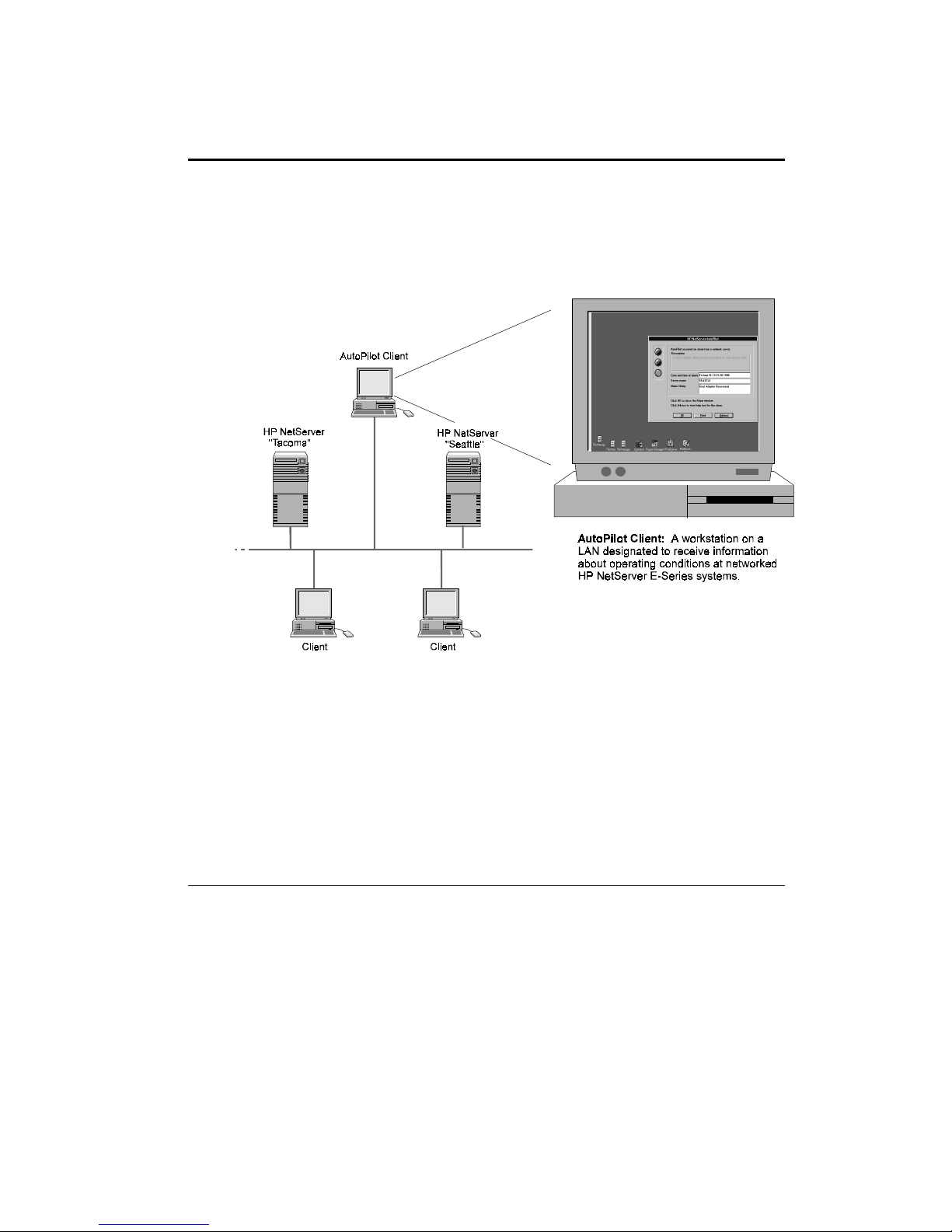
1 Introducing HP NetServer AutoPilot
HP NetServer AutoPilot is a software tool you can use to monitor and manage HP
NetServer E Series systems installed in a Local Area Network (LAN). HP AutoPilot
Client software, in conjunction with NSA software installed on your HP NetServers,
can simplify network administration.
Figure 1: HP AutoPilot Client on a Local Area Network
5
Page 18
1 Introducing HP NetServer AutoPilot
By assigning a client workstation to network management, you can use HP AutoPilot
to oversee all HP NetServer E Series connected on the local network. HP AutoPilot
helps manage your HP NetServers by:
• monitoring the operations of multiple HP NetServers—even if they are running
different network operating systems. HP AutoPilot provides immediate notification
of network problems.
• alerting you to potential problems. Server up-time is critical to your business. You
want to be able to identify problems—and if possible fix them—before you get
calls from your users.
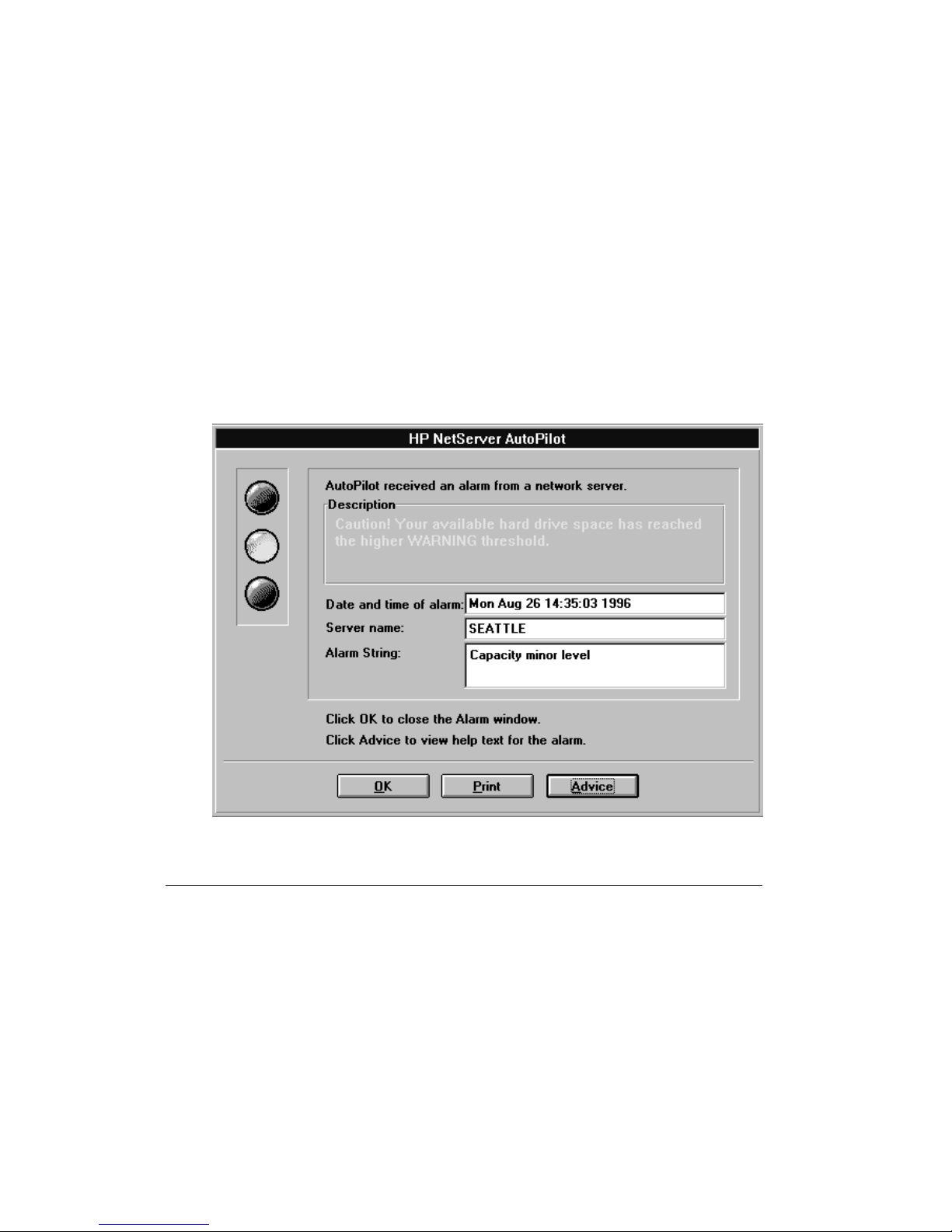
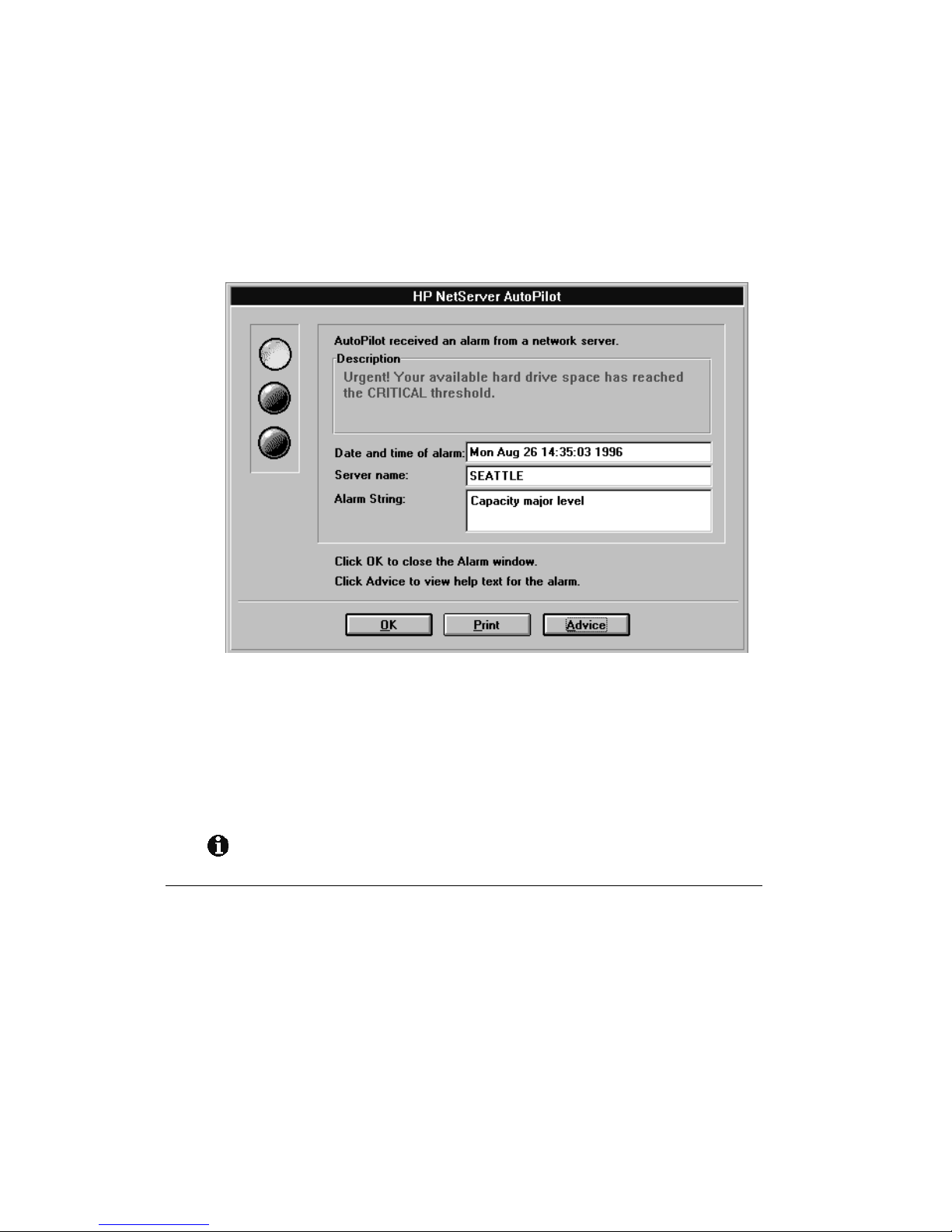
A typical HP AutoPilot notification is shown in Figure 2. In this case, the HP
NetServer "Seattle" is notifying the HP AutoPilot Client via the network that a hard
drive is nearing total storage capacity.
Special NSA software "agents" running on the server's network operating system
(NOS) have relayed information to the HP AutoPilot Client about the changed
condition at the server "Seattle."
Figure 2: Typical HP AutoPilot Alarm Notification
6
Page 19

1 Introducing HP NetServer AutoPilot
The HP AutoPilot Client notification advises that a change (in this case a notice of
"Capacity minor level") has occurred at an HP NetServer "SEATTLE". The date and
time of the alarm are also noted.
NOTE If you are experienced with network installations, see the preceding "Quick
Start" section for a brief outline of HP AutoPilot setup.
Alarms List
The table below lists the types of monitoring and alarm notifications that may be sent
to your HP AutoPilot Client.
Table 1. HP NetServer AutoPilot Monitor and Alarm Capabilities
Status and Alarm Capabilities Description
Server SCSI status Warns you of SCSI adapter and device problems
HP Disk System Warns you of predicted SCSI disk drive failures
Storage Capacity Planning Helps track a server's volume usage
Server Network Cards Monitors PC LAN adapter card performance
statistics and notifies you if any threshold values
are exceeded
HP AutoPilot Features
Key features of HP NetServer AutoPilot include:
• An easy-to-use, intuitive 'stoplight' interface
• Problem identification, coupled with appropriate remedies
• Centralized monitoring of multiple HP NetServers running either Novell NetWare
or Windows NT operating systems
• Alarms to notify you of HP NetServer disk space capacity, network interface card
(NIC) status, SCSI adapter and device problems, and potential HP NetServer SCSI
hard disk problems
• Multiple HP AutoPilot Client support. Data from monitored HP NetServers can be
directed to more than one workstation.
• Automatic Server Restart (ASR) capabilities
7
Page 20
1 Introducing HP NetServer AutoPilot
NOTE For information about HP AutoPilot that was not available when this guide
was published, see the HP AutoPilot README.WRI file. To view this file,
click the README icon in the HP AutoPilot Program Manager Group.
An Overview of Client/Server Management
In a typical client/server network, the server supplies data management, and
information-sharing services to multiple clients. This arrangement makes for efficient
use of computer resources because network devices can be pooled and made available
to all connected computers. In addition, client workstations and network servers can
work together by splitting processing work between the "front-end" client and the
"back-end" server.
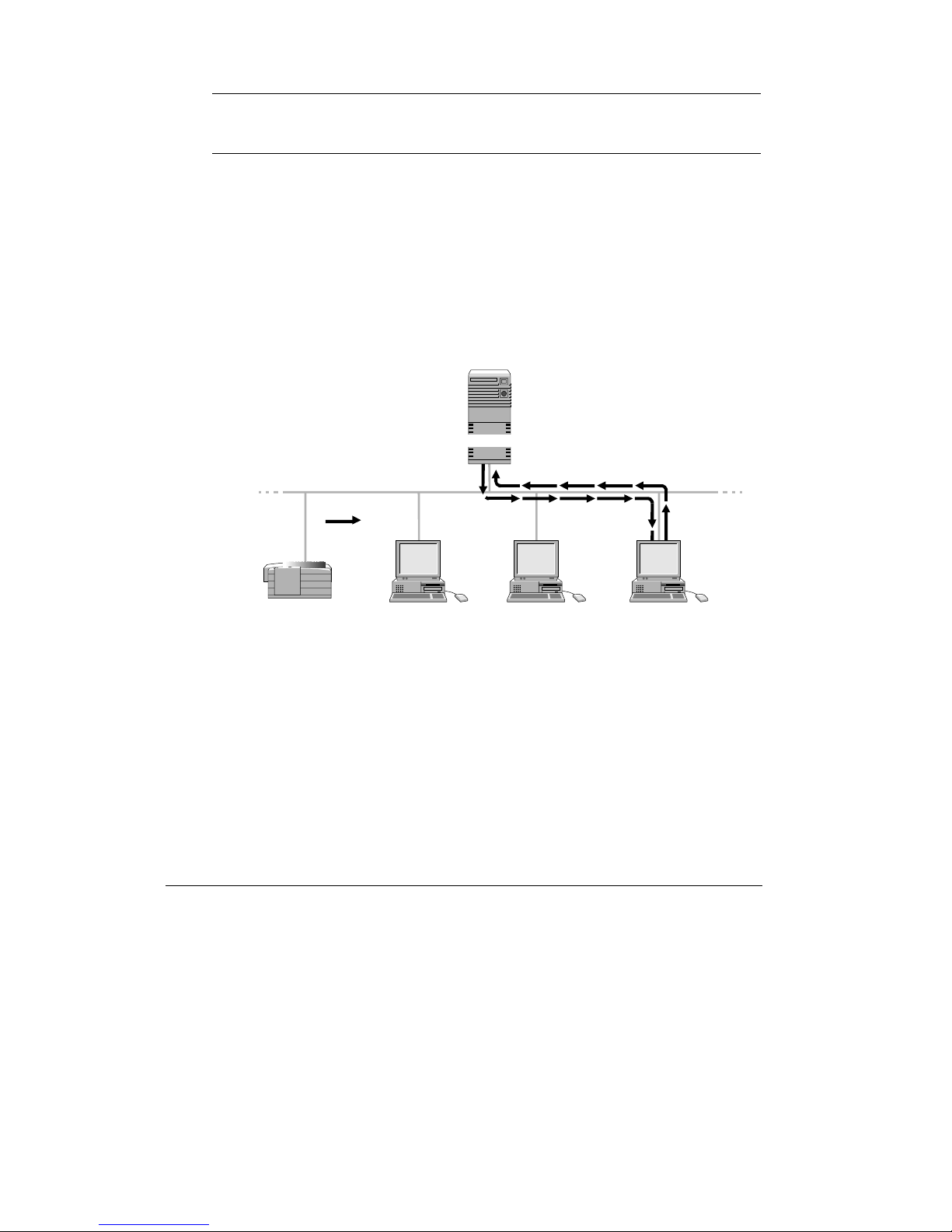
NetServer
AutoPilot Client
workstationonaLAN
designated to receive
information about operating
conditions at networked HP
NetServers.
A
Database
HP NetServer sends notification
and alarms t o a designated
workstation (the AutoPilot Client).
You are then notified of problems
as theyoccur at each HP
NetServer connected toyour
local area network (LAN).
=Data
Printer
Client
Client
AutoPilot
Client
Figure 3: HP AutoPilot Network Management on a LAN
As networks become more complex, the servers need to be carefully monitored and
their performance tracked. You need to know when a server is experiencing problems,
or if it is likely to have problems in the near future. This is where HP NetServer
AutoPilot fits in. To get prompt notification of server operations, you can use HP
AutoPilot on any existing network that includes HP NetServer E Series.
8
Page 21

1 Introducing HP NetServer AutoPilot
Audience Assumptions
This guide is designed for the user who is familiar with installing and configuring
computer and network software. You need to be able to:
• log on to the HP NetServer as an administrator
• perform the basic administrative tasks required to maintain network operations
• install and configure network software products
For HP AutoPilot Client operation, you also need to be familiar with:
• Microsoft Windows
• Novell NetWare and/or Microsoft Windows NT network operating systems
If you are unfamiliar with software installation, or have not previously administered
computer networks, contact your computer dealer, or Hewlett-Packard for technical
support.
HP AutoPilot Software Components
The HP AutoPilot software stored on the HP NetServer Navigator CD-ROM consists
of two components: NSA 3.0 Server software and HP AutoPilot Client software.
NSA 3.0 Server Software
Specialized HP AutoPilot software must be installed on each HP NetServer and
includes:
• HP SNMP Software HP's Simple Network Management Protocol (SNMP) based
software works behind the scenes to identify changes in the HP NetServer status.
When a monitored operation on the server exceeds a pre-defined threshold, a
notice is relayed over the network using SNMP software (installed at both the HP
NetServer and HP AutoPilot Client).
• HP Automatic Server Restart Automatic Server Restart (ASR) eases the burden
of dealing with a system crash or "hang" by automatically restarting the system if a
failure occurs. ASR uses a combination of software and hardware to do this. (The
hardware components are built in to the HP NetServer.)
9
Page 22

1 Introducing HP NetServer AutoPilot
When ASR service is enabled, the ASR software periodically notifies the ASR
hardware that the system is running correctly. When the system crashes or hangs,
the ASR hardware stops receiving the OK notices and automatically initiates a
system restart.
NOTE In order for the ASR service to function correctly, the system must be
configured to restart successfully without user intervention.
Be advised, however, that not all system hangs will cause a system restart. For
example, if the network operating system is still functional, but all forms of user
input have been disabled due to error (giving the appearance of a system hang),
ASR will not initiate a system restart.
HP AutoPilot Client Software
HP AutoPilot Client software is installed on a designated workstation (referred to in
this guide as the HP AutoPilot Client). The software is designed to receive and display
notifications and alarms from HP NetServer E Series regarding the server's operational
status.
Required Hardware and Software
The following are required hardware and software components necessary for the
proper installation and operation of HP AutoPilot on both your HP NetServer and HP
AutoPilot Client.
HP NetServer Hardware Required
Minimum server hardware requirements include:
• An HP NetServer E Series system connected to the network
• For an HP NetServer running Novell NetWare (Version 3.12 or later), you need at
least 500K of unused disk space on the NetWare SYS volume. For an HP
NetServer running Microsoft Windows NT, you need at least 500K of available
disk space on the drive where the operating system is located.
• HP Predictive SCSI disk drive failure monitoring supports all HP hard drives that
are factory-installed in HP NetServer E Series systems
10
Page 23

1 Introducing HP NetServer AutoPilot
HP NetServer Software Required
Minimum server software requirements include:
• HP NetServer Navigator CD-ROM (included with your server)
• Network operating system server software, either
◊ Novell NetWare network operating system server software v3.12, or v4.1
(including SMP, excluding SFT III)
OR
◊ Microsoft Windows NT Server 3.51
HP AutoPilot Client Hardware Required
Minimum hardware requirements for the HP AutoPilot Client include:
• A 486 computer, connected to the network
• A VGA color monitor
• 4 MB of hard disk space
• A CD-ROM drive in order to gain access to the HP NetServer AutoPilot and HP
Information Assistant software (located on the HP NetServer Navigator CD-ROM)
The CD-ROM drive you use for installation must be located either in your HP
AutoPilot client workstation, or it must be accessible via the network.
NOTE You can make floppy masters of the HP NetServer AutoPilot software using
the "Create Disks" option on the "HP Management Solutions" menu located
on the HP NetServer Navigator CD-ROM.
11
Page 24

1 Introducing HP NetServer AutoPilot
HP AutoPilot Client Software Required
Minimum software requirements for proper operation of HP AutoPilot are as follows.
• Microsoft Windows software:
◊ Windows for Workgroups 3.1, or 3.11, running in enhanced mode. If you plan
on managing Novell NetWare servers, your Windows for Workgroups HP
AutoPilot Client must be configured for NetWare network access. Run
Network Setup from the Network group in the Windows Program Manager to
verify or change your Windows network configuration.
◊ Windows NT Workstation 3.51 (for HP AutoPilot's NetWare features to work
properly with the Windows NT NetWare Client Services, you must replace
Microsoft's NETWARE.DRV file with the copy included in the NET33X.EXE
update supplied by Novell Corporation through CompuServe or the World
Wide Web)
◊ Windows 95
• Network operating system Client software (one or both of the following):
◊ Novell NetWare NETX shell v3.26 or VLM client v1.1 with either IPX.COM
v3.10 or IPXODI.COM v2.10 protocol drivers for IPX support
◊ TCP/IP stack that includes a Windows Sockets stack and WinSNMP, which
provides for the coexistence of multiple SNMP applications
12
NOTE For HP AutoPilot Clients running Windows for Workgroups, Hewlett-
Packard recommends either the use of Microsoft's TCP/IP software or the
purchase of FTP's PC/TCP product.
Page 25

2 Installing HP NetServer AutoPilot
This chapter details the installation of HP AutoPilot Client and the supporting NSA
server software. Be sure you have complied with the requirements for hardware and
software as listed in the "Required Hardware and Software" section in Chapter 1.
HP AutoPilot Client installation is performed in the context of the HP NetServer's
network operating system—either Novell NetWare or Microsoft Windows NT.
NOTE The Client must be network connected and running TCP/IP and SNMP
services. See the "Required Hardware and Software" section in Chapter 1.
To begin HP AutoPilot installation, run the HP AutoPilot software stored on the HP
NetServer Navigator CD-ROM that came with your system.
The instructions listed here are based on a CD-ROM installation. If you prefer to use
diskettes instead of a CD-ROM, you can make diskette masters of the HP AutoPilot
software through the "HP Management Solutions" menu of the HP NetServer
Navigator CD-ROM. If you make diskette masters, be sure to note any changes in
drive designation or directory structure as you install the software.
If You Have HP NetServers Running Novell NetWare
During HP AutoPilot Client installation, you may also install NSA 3.0 software via the
network to your HP NetServers running Novell NetWare. Before proceeding with
installation involving NetWare servers:
• Identify and list the network names of all the Novell NetWare servers you want to
monitor. The installation program prompts you for this list. You will need to
install NSA 3.0 software on each HP NetServer you want to monitor.
• Make sure you have supervisor-level privileges on all Novell NetWare servers on
which you plan to install NSA 3.0 software—you'll need them to complete some of
the installation steps.
• Verify that each listed Novell NetWare server has an ASPI manager loaded.
• Close all programs and applications currently running on your HP AutoPilot
Client.
13
Page 26
2 Installing the HP NetServer AutoPilot Software
Running the HP AutoPilot Client Installation
Program
After all applications have been closed at the client:
1. Insert the HP NetServer Navigator CD-ROM in your HP AutoPilot Client's CD-
ROM drive, or a network-accessible CD-ROM drive. (If your client doesn't have
access to a CD-ROM drive, you may make floppy masters from the HP NetServer
Navigator CD.)
2. Choose Run from the Windows Program Manager File menu and enter:
x
:\autoplt\console\disk1\setup.exe
where
x
is the CD-ROM drive containing the HP NetServer Navigator CD-ROM.
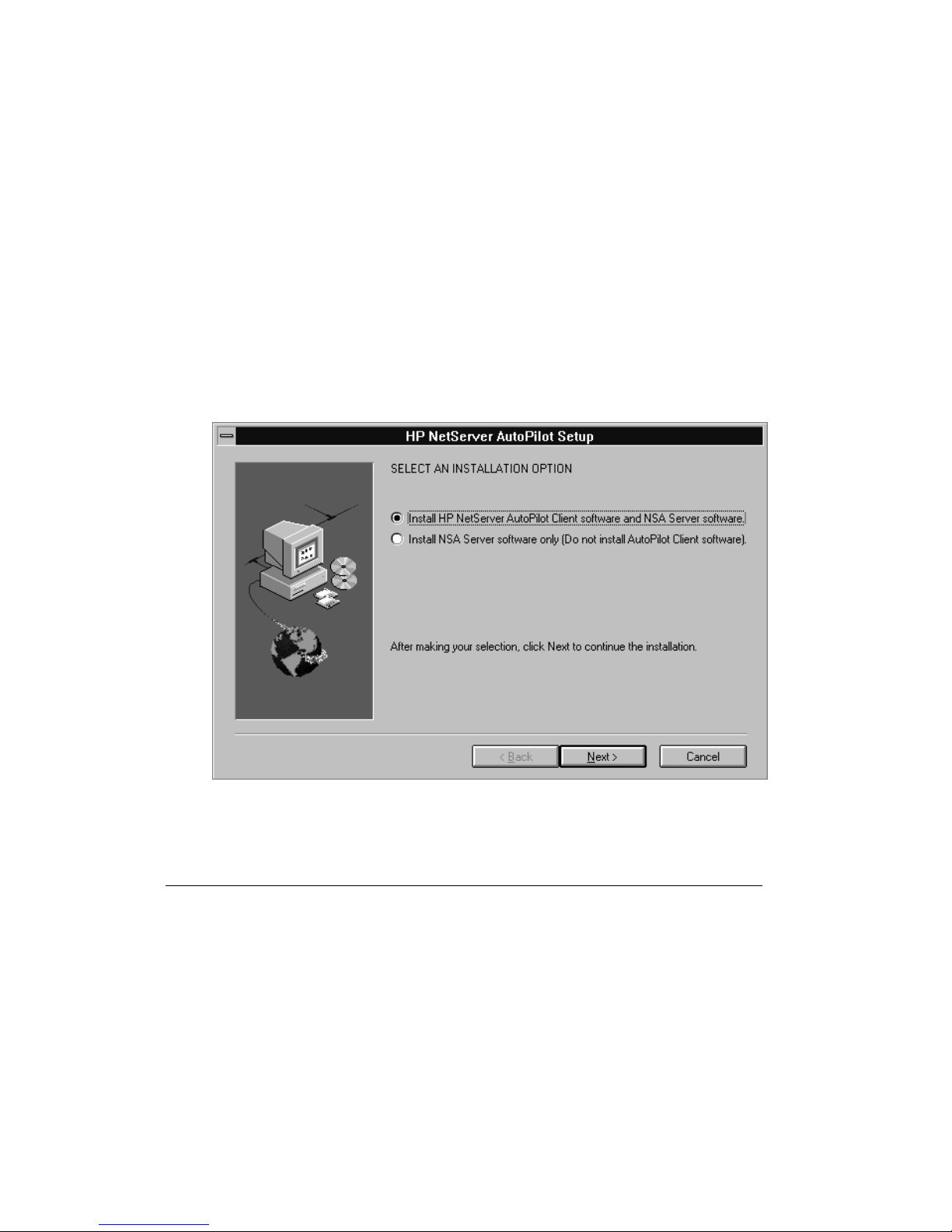
3. Setup prompts you regarding installation options as shown in the following
screen:
For initial installations, choose the default option,
14
Figure 4: Installation Options Screen
Page 27
2 Installing the HP NetServer AutoPilot Software
"Install HP NetServer AutoPilot Client software and NSA
Server software."
The second option,
"Install NSA Server software only..."
is provided so that you can update HP AutoPilot service. This option allows you to
add HP NetServers to HP AutoPilot service that's already operational.
After Setup has finished installing your HP AutoPilot Client software, AutoPilot
service is automatically activated and the "HP AutoPilot" program group appears. It
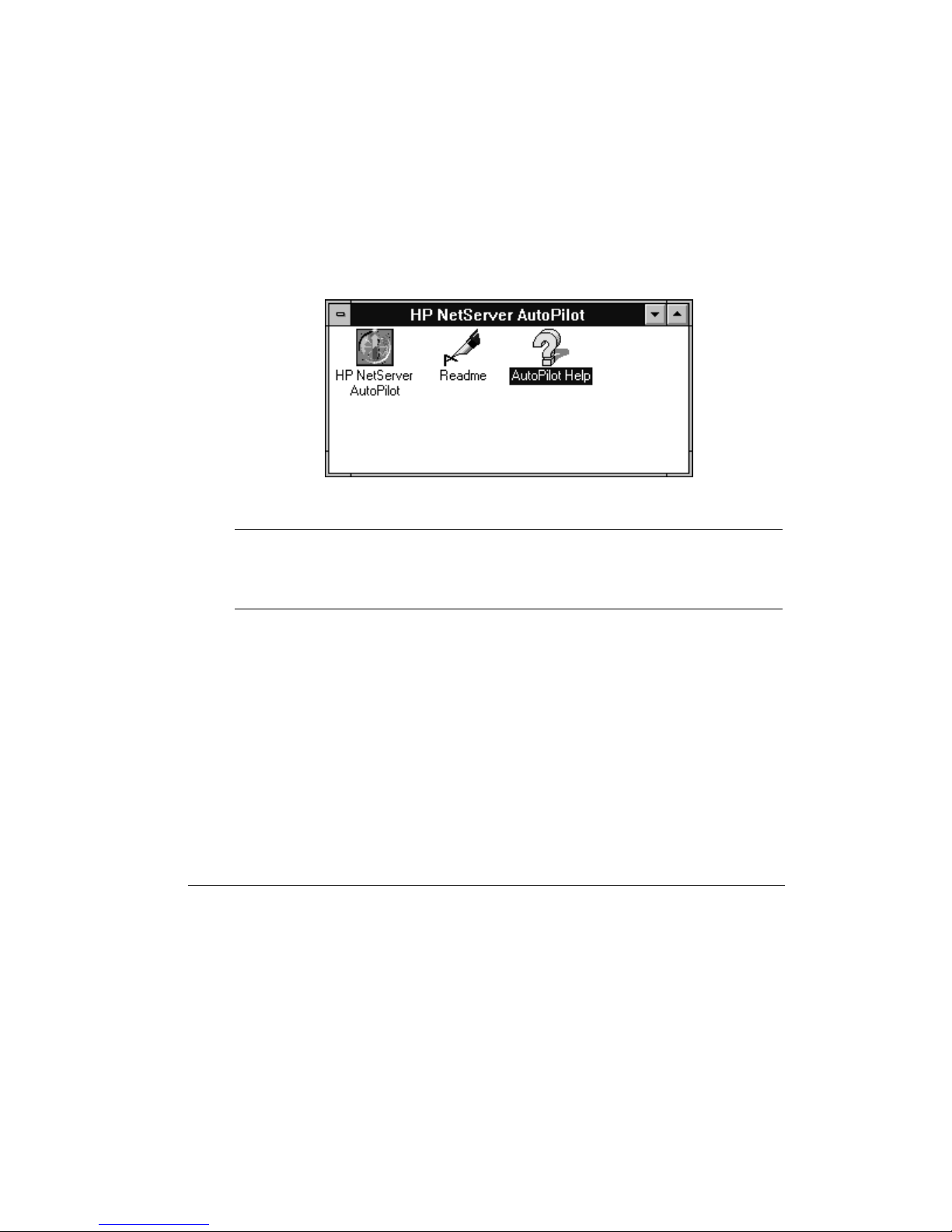
contains the program icon, a help icon, and a README file.
Figure 5: HP AutoPilot Group in Program Manager
NOTE After you have installed HP AutoPilot, the program is automatically loaded
every time you boot the system you use as the HP AutoPilot Client. If you
don't want HP AutoPilot to load automatically, remove it from the Startup
Group.
15
Page 28
2 Installing the HP NetServer AutoPilot Software
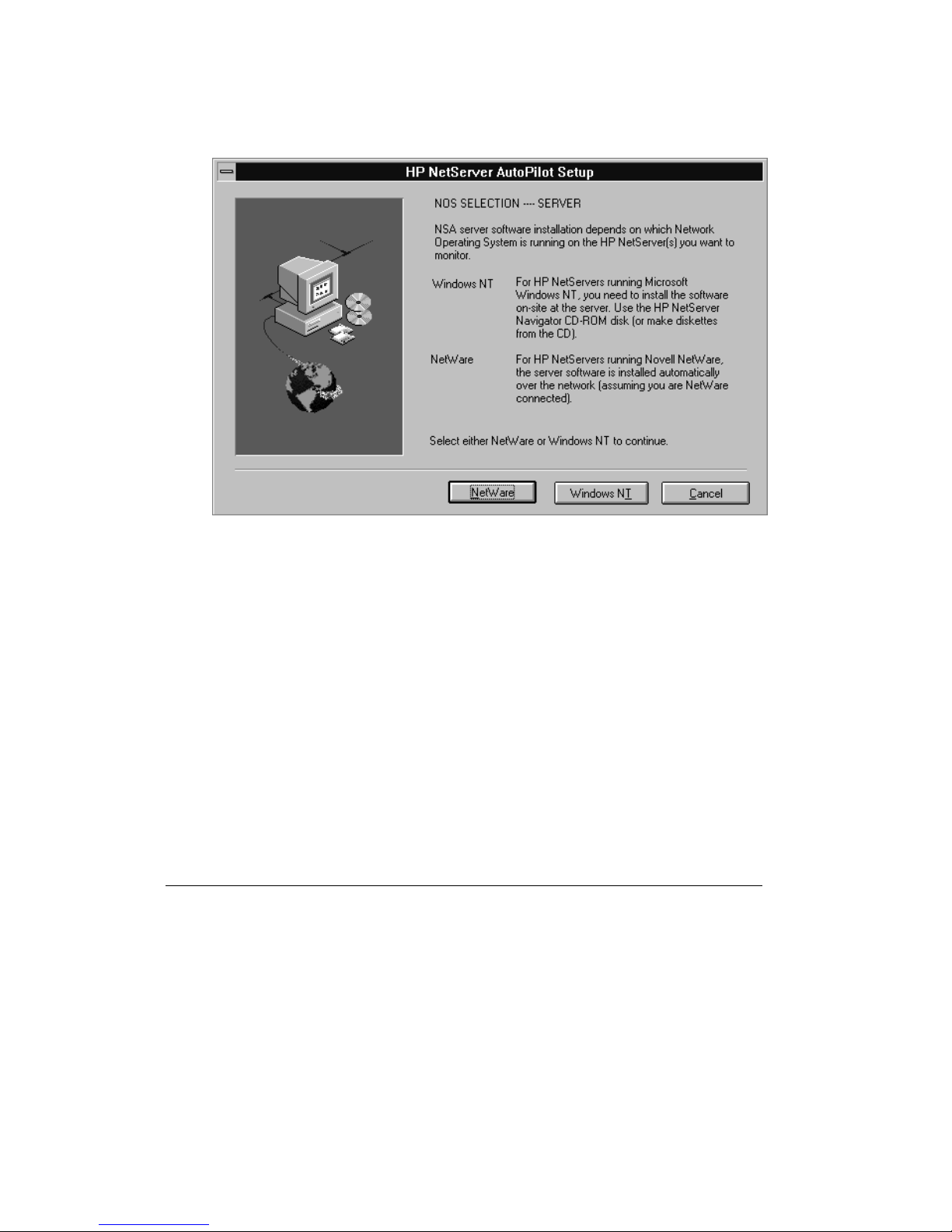
4. The next step in the installation process depends on which network operating
system is running on your HP NetServers. Click either NetWare or Windows NT
to continue.
Figure 6: Installation Depends on HP NetServer NOS
Depending on the NOS you selected, installation proceeds as follows:
Installing NSA Software on Your Novell NetWare Servers
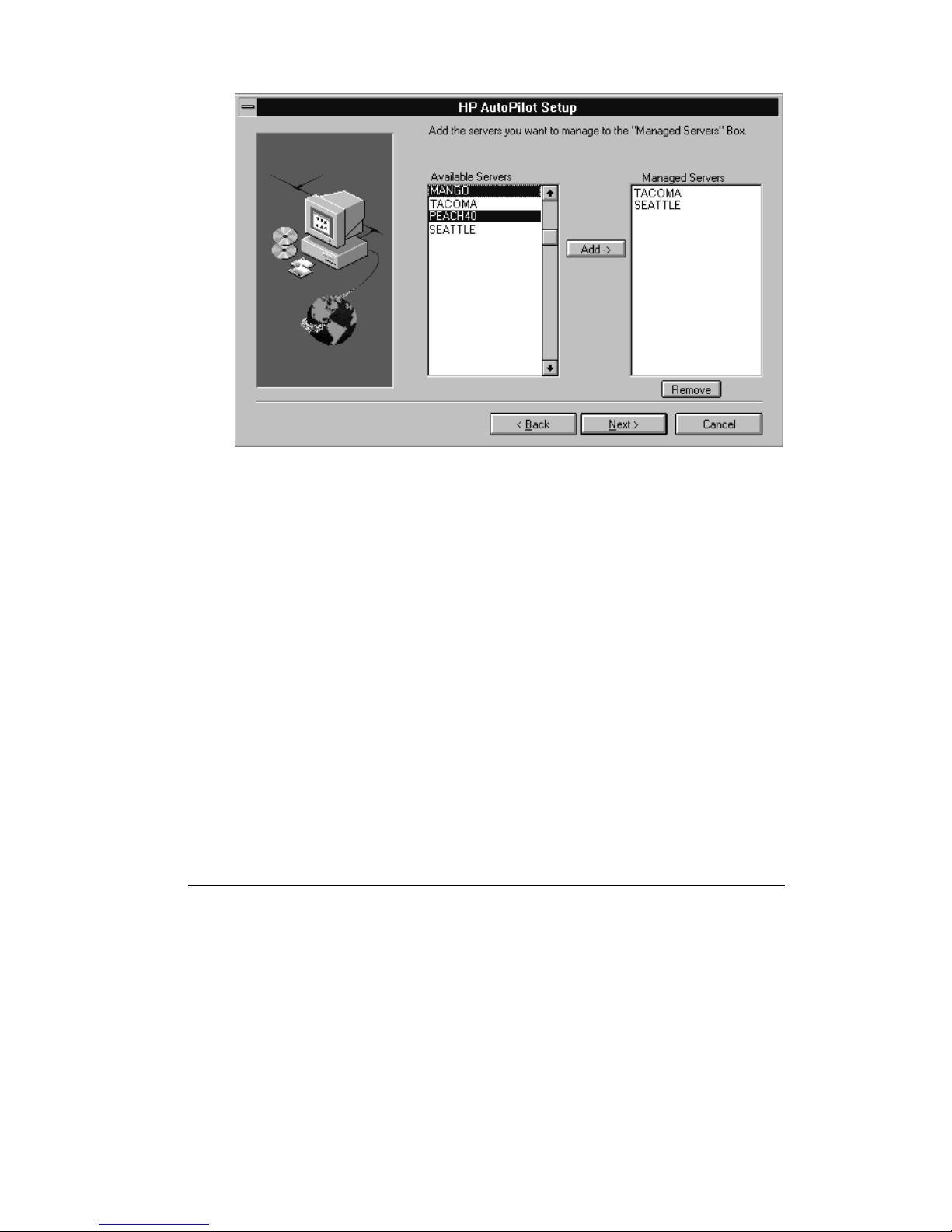
If the HP NetServers you want to monitor are running Novell NetWare, you are
prompted to identify those servers.
1. From the Available Servers list, add the servers you want to monitor to the
Managed Servers box.
16
Page 29
2 Installing the HP NetServer AutoPilot Software
Figure 7: HP AutoPilot Displays Available NetWare Servers
When you click Next, AutoPilot Setup copies the NSA software to each listed HP
NetServer.
2. With your HP AutoPilot Client running, restart each server to complete the
installation (or type nsaload).
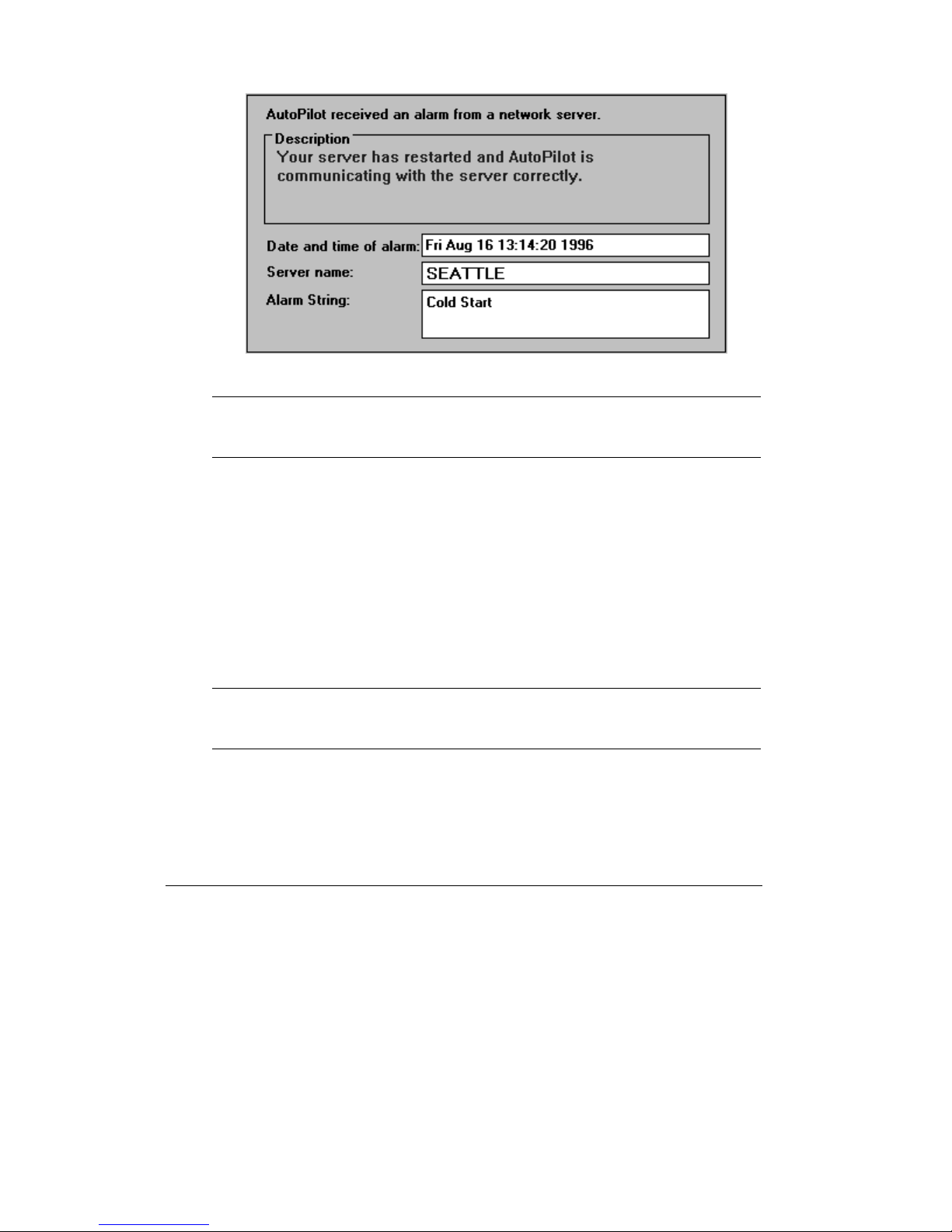
If installation was successful, HP AutoPilot displays the following message on your
HP AutoPilot Client for each installed server. Notice that the HP NetServer is
identified, as well as the date and time of the restart.
17
Page 30
2 Installing the HP NetServer AutoPilot Software
Figure 8: Server Restart Message
NOTE After the server files are copied, HP NetServer's AUTOEXEC.NCF file is
modified so that the NSA software is loaded automatically every time your
server starts.
Installing NSA Software on Your Windows NT Servers
If you have Windows NT servers, setup has installed HP AutoPilot Client software but
you still need to install NSA server software to complete setup. Leave your HP
AutoPilot Client running, then proceed to the next section for instructions on
installing NSA software on your Windows NT servers.
Before proceeding: Be sure that you've set up SNMP services to include the
community name (typically "public") and IP address of your HP AutoPilot Client. In
addition, you must have administrator privileges for the servers you plan to monitor
using HP AutoPilot.
NOTE TCP/IP and SNMP services are included with the standard Windows NT
product and must be available on all Microsoft Windows NT servers you
want to monitor using HP AutoPilot.
To install the NSA 3.0 Server software on an HP NetServer running Windows NT:
1. Insert the HP NetServer Navigator CD-ROM in your server's CD-ROM drive, or
log on to a network-accessible CD-ROM drive.
18
Page 31

2 Installing the HP NetServer AutoPilot Software
2. After logging into the server, run File Manager, and then run the HP AutoPilot
Setup program located in the following subdirectory on the HP NetServer
Navigator CD-ROM:
x
:\autoplt\server\disk1\winnt\setup.exe
where
x
is the CD-ROM drive containing the HP NetServer Navigator CD-ROM.
NOTE If the SNMP service is running on your HP NetServer, the NSA 3.0 Setup
program will detect it and stop it for you. You cannot install the HP
AutoPilot software while the SNMP service is running.
3. When the NSA setup is complete, restart the server. Once the server has restarted,
SNMP service should start up automatically. If it does not initiate the service
manually, change the startup configuration (in Control Panel/Services) for
automatic startup.
Upon successful installation, HP AutoPilot displays a message on your HP
AutoPilot Client as soon as you restart an HP NetServer running NSA software.
The message verifies operational service and demonstrates that HP AutoPilot is
communicating properly with the identified HP NetServer.
19
Page 32

Page 33

3 Using HP NetServer AutoPilot
This chapter describes HP AutoPilot services. It assumes that you are familiar with
the concepts and terminology introduced in Chapter 1, and that you have already set
up the HP AutoPilot Client and installed HP AutoPilot on at least one HP NetServer E
Series.
Running HP NetServer AutoPilot
HP AutoPilot is a service that, once installed, loads automatically whenever the HP
AutoPilot Client is booted. The HP AutoPilot icon appears in the lower-left corner of
the HP AutoPilot Client's display (default position) to indicate that the HP AutoPilot
alarm and notification service is operational.
Click the HP AutoPilot icon to open a standard Windows dialog box. You can then
either:
1. Close HP AutoPilot service
OR
2. Reposition the icon.
Double-click the HP AutoPilot icon to display a panel with HP AutoPilot version
information.
NOTE If you choose to close the HP AutoPilot service at the HP AutoPilot Client,
you will no longer be notified of changed conditions on your HP NetServers.
Restart HP AutoPilot by clicking the Program icon in the HP AutoPilot
group, or by rebooting the HP AutoPilot Client.
21
Page 34
3 Using HP NetServer AutoPilot
HP NetServer AutoPilot Notifications and Alarms
The HP AutoPilot notifications and alarms are based on factory-defined error
thresholds specifically set for the HP NetServer E Series. A condition change that
might effect HP NetServer function is identified and briefly described on the
notification screen. Alarms and notifications are triggered by changes in disk volume
(capacity), Network Interface Card (NIC) status, and predictive SCSI drive failure.
A notification or alarm is displayed whenever one of HP AutoPilot's preset thresholds
is exceeded. Here is an example of a notification sent to the HP AutoPilot Client:
Figure 9: An HP AutoPilot Message Panel
Notice that the severity of the notification coming from the HP NetServer is colorcoded in the traffic light icon in the upper-left corner of the screen:
• a green light indicates a return to normal operations
• a yellow light cautions that a minor problem condition exists
• a red light signals that a critical event occurred; immediate action may be indicated
This symbol indicates an informational message; no action is necessary.
22
Page 35
3 Using HP NetServer AutoPilot
Response Options
HP AutoPilot provides three user options along with each notification. You can click:
• Advice to research the error message and explore possible remedies
• Print to generate a hard copy summary of alarm information
• OK to remove the alarm notice from your display
When you close the notification display, HP AutoPilot's icon remains in the lower-left
corner of the display to remind you that HP AutoPilot service remains operational at
the HP AutoPilot Client.
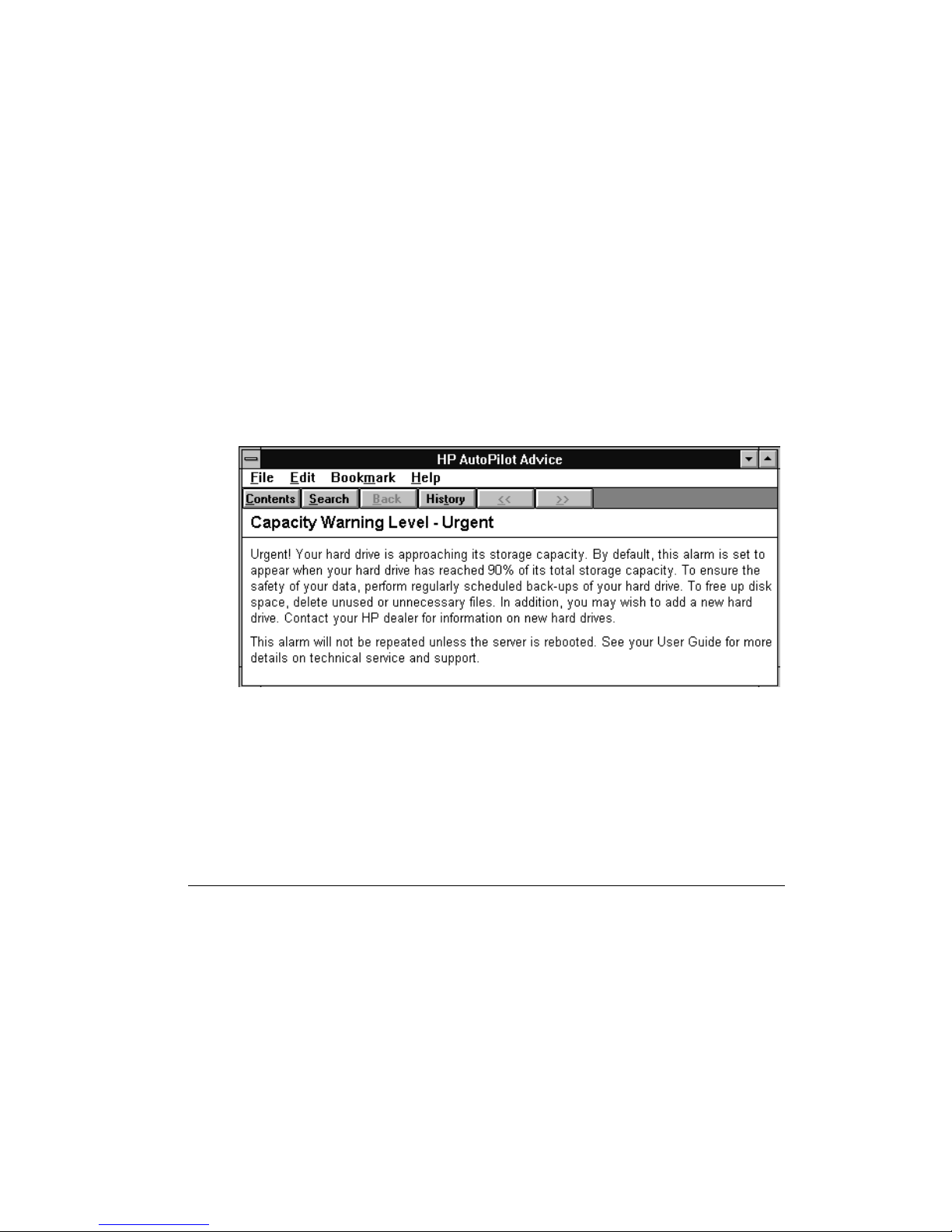
HP AutoPilot Advice
To get more information about a specific alarm or notification, click Advice. A
standard Windows help screen appears with context-appropriate information about the
condition listed in the current HP AutoPilot notification. The following Advice screen
explains the red lighted notification shown in the preceding section.
Figure 10: HP AutoPilot Advice Screen
HP AutoPilot Print
To get a hard-copy printout of an HP AutoPilot notification, click Print. A concise
description of the alert, including a listing of the server name, alert ID string, and the
date and time of the notification, is sent to your designated printer.
This is an example of a typical printout generated by HP AutoPilot.
23
Page 36

3 Using HP NetServer AutoPilot
- - - - HP AutoPilot Alert Information - - - Server name: [SEATTLE]
Date and time of alarm: [Wed Aug 21 11:27:50 1996
Alert string: [Capacity Warning Level]
NOTE If your HP AutoPilot Client has fax origination capability, you can redirect
the printed summary to a service center, or other facility by using the fax
software's print-to-fax feature.
If you are not sure how to respond to an alert notification, print a copy of the HP
AutoPilot notification for service reference, then call your dealer or contact HP
Customer Support.
HP AutoPilot Close (OK)
After you have received an HP AutoPilot notification, you can remove the message at
any time by clicking OK. If an Advice screen is also displayed, you must first close
the Advice screen before you can remove the notification.
If another message arrived at your HP AutoPilot Client prior to the one you are
currently viewing, you will find that, upon closing, the current message is replaced by
the earlier notification. In this case, click OK again to clear other messages.
Continue clicking OK until all notifications have been cleared.
When all notifications are closed, HP AutoPilot returns your HP AutoPilot Client to
the application that was running prior to receipt of the first alarm notification.
24
Page 37

A Customizing the HP AutoPilot HP
NetServer
This appendix covers the procedures for a customized installation of HP AutoPilot
Server software (NSA 3.0). Do not attempt to customize HP AutoPilot's NSA software
unless you are a confident network administrator and understand the use of command
line parameters.
Installing NSA Software Agents Manually on
NetWare Servers
As you add or reconfigure Novell NetWare servers, you may opt to install NSA server
agents on each server independently. If you want to install or reinstall the software at
a later date, you can use the HP AutoPilot Client installation program found on the HP
AutoPilot Client Diskette to install the software without reinstalling the rest of the HP
AutoPilot program files.
If your AUTOEXEC.NCF file does not include the HP nsaload command, the HP
AutoPilot software (which is made up of several NLMs) will not load automatically
whenever the server is started. If so, you will then need to load the software manually
each time you start the server.
To load the HP AutoPilot manually on your Novell NetWare servers, type the
following at your server's HP AutoPilot Client:
nsaload
Loading the ASR Software for Novell NetWare
If you installed the HP AutoPilot software on your server through the HP AutoPilot
installation program, the ASR NLMs were copied to that server and enabled
automatically. If you have done this, skip to step 4. Otherwise, proceed to step 1.
Note that this installation procedure assumes that a Novell NetWare server and client
have already been set up and are working correctly.
25
Page 38

A Customizing the HP NetServer AutoPilot Server Software
To manually install ASR for Novell NetWare:
1. Insert the HP NetServer Navigator CD-ROM in your server's CD-ROM drive, or
logon to a network accessible CD-ROM drive. If you prefer, you may make floppy
diskette masters of the Server Software through the HP Management Solutions
menu of the HP NetServer Navigator.
2. Map a drive letter from the client to the server's SYS:\SYSTEM directory.
3. Copy the files HPASR.NLM, HPRADRV.NLM, and HPLOGAPI.NLM from
x
:\autoplt\server\disk1\netware to the SYS:\SYSTEM directory.
Where
x
is the drive letter for the CD-ROM drive that contains the HP NetServer
Navigator CD-ROM.
4. If you don't want ASR loaded automatically each time your server is started,
remove LOAD HPASR from the server's AUTOEXEC.NCF file.
Note that HPRADRV.NLM and HPLOGAPI.NLM must be present for
HPASR.NLM to function correctly. However, you do not need to separately load
them because HPASR.NLM loads them automatically when it loads.
5. If you want to enable ASR manually, enter the following command from the HP
AutoPilot Client prompt:
LOAD HPASR
ASR NLM Files and Parameters for NetWare
The HPASR.NLM file provides ASR for NetWare. Loading this NLM on a server
enables ASR; unloading it disables ASR (without causing the system to restart itself).
The default time after which the server will restart after a crash or hang is 10 minutes.
The HPASR.NLM file can be dynamically modified with the following command line
parameter:
/t:<timeout> where <timeout> is a number in seconds
Minimum = 300 seconds (5 minutes)
Maximum = 1800 seconds (30 minutes)
Default = 600 seconds (10 minutes)
To change the timeout after loading the NLM, first unload it, and then reload it with a
new parameter.
26
Page 39

A Customizing the HP NetServer AutoPilot Server Software
ASR Program Files and Parameters for Windows NT
The following program files provide ASR for Windows NT:
NOTE By default, the ASR driver and ASR service programs are configured in the
registry to be started automatically. An administrator may change this to
manual control by using the standard Windows NT Service / Driver
configuration programs reached through Program Manager: Control
Panel, then Service or Drivers.
• ASRDEV.SYS
This ASR driver mediates communication between the ASR service program and
the ASR hardware.
• NSAFLASH.SYS
This additional driver is required for accessing the ASR hardware on HP NetServer
LS systems.
• ASRSRVC.EXE
This ASR service program resets the ASR hardware via calls to the ASR driver.
The polling period is 300 seconds (5 minutes) by default. It may be reconfigured
by the user via the ASRUSER program.
• ASRUSER.EXE
This program runs from a Windows command prompt. It is used to load the ASR
service program, change timeout parameters, and get ASR statistics. It accepts the
following command line parameters:
/g Loads the ASRSRVC service program and then starts it
/l Loads the ASRSRVC service program and the ASRDEV driver if not
already loaded. By default, the service program and the driver load
automatically. Use this option only if you change the registry
configuration to load ASR manually (that is, on demand).
/u Disables ASR by unloading the ASRSRVC service program. The ASR
service may be stopped at any time by the administrator running
ASRUSER /u. Terminating the ASR service program in this manner
does not affect the registry configurations. For instance, if the registry
configurations are set to load the driver and service programs
automatically, these programs will still be automatically loaded when
the system is restarted.
/s Starts the ASRSRVC service program (loads it if not loaded)
/x Stops the ASRSRVC service program (without unloading it)
27
Page 40

A Customizing the HP NetServer AutoPilot Server Software
/t Changes the ASR hardware restart time. This is the time after which
the system will be automatically restarted if the ASR hardware timer is
not reset by the service program. This value is preset to 600 seconds
(10 minutes). In other words, if the service program is not able to
execute for 10 minutes (indicating a hung system), the system will be
automatically restarted by the ASR hardware.
You may reconfigure the restart time in the range 300 seconds (5
minutes) to 1800 seconds (30 minutes) by running ASRUSER /t. The
change will remain in effect even after restarting your system.
/p Changes the ASR service program polling period. This is the time
interval at which the ASR service program resets the ASR hardware
timer. It must be less than the automatic hardware reset time. This
value is pre-configured to be 300 seconds (5 minutes). In other words,
the service program will reset the hardware timer every 5 minutes. To
change this time, run ASRUSER /p. The value you choose must be
less than the value entered for the Automatic Hardware Restart time.
/o Gets the current ASR timeout and polling period
/v Gets the version number
/c Prints ASR counter statistics, for installation testing and verification
28
Page 41

B Glossary of Network Terminology
BPS An acronym for Bits Per Second. The term BPS is used on a network as a
measurement of speed or data throughput.
client A computer workstation connected to a Local Area Network (LAN) that has
access to resources located on another (usually more capable) computer called a server,
HP NetServer, or file server. A client can request some service to be performed by
another networked device.
CPU An acronym for Central Processing Unit (CPU). A complex set of electrical
circuits that executes stored program instructions. The CPU is the brain of the
computer.
device database This database stores a list of devices discovered the last time the
server was operational. The device database is used to detect changes to the server. For
example, if a hard drive is no longer operational after a power outage, it will be
discovered when the list of current devices is compared to the list stored in the device
database.
device driver A software utility which, when installed on a system, supports a
particular hardware component, such as a printer, disk drive, or interface card.
DMA An acronym for Direct Memory Access. The DMA channel is a transaction
policy in which data is transferred directly between a peripheral device and the
computer's main memory without CPU intervention.
driver Software or firmware between hardware devices (such as video boards,
printers, and keyboards) and the software application.
file server A computer equipped with relatively large amounts of mass storage which
provides file handling services to a network. A file server may impose various levels of
control as it regulates access to common data files and applications available to the
network.
host adapter There are numerous kinds of adapters--usually integrated into the
computer's main circuit board--that permit the computer to communicate with a
peripheral device (such as a modem, printer, or CD-ROM drive) for which the
computer itself doesn't have the proper connections.
HP AutoPilot Client A workstation on a LAN designated to receive information
about operating conditions at networked HP NetServer E Series.
29
Page 42

B Glossary
HP NetServer Navigator CD-ROM A repository of software support products
including setup and installation programs for HP AutoPilot.
I/O An acronym for Input/Output. I/O refers to the sending and receiving of data in
reference to a computer's Central Processing Unit (CPU). Peripheral devices such as
disk drives and keyboards are managed via the CPU's I/O channel.
LAN An acronym for Local Area Network. LANs interconnect servers, clients, and
other peripheral devices such as printers. The result is shared data communications in
which any computer can interact with any other interconnected device in the group.
LAN devices are distributed over a relatively limited area--usually within the same
building.
LAN adapter A hardware interface circuit board that either plugs into a slot, or is
built in to the computer's main circuit board (may also be called a "mother board").
The LAN adapter provides hardware interfacing that allows a computer to
communicate to a Local Area Network. (See NIC and LAN)
LAN adapter driver Specialized software or firmware between a LAN adapter and
communications software that enables interfacing across a Local Area Network.
NetWare Loadable Modules (NLM) Customized servers are built from pieces or
tools called NetWare Loadable Modules. An NLM is a program that can be loaded or
unloaded from the server while the server continues to run.
network A group of computers and other peripheral devices connected so that they
can communicate with one another. Most networks are setup to transmit data, usually
over telephone lines.
NIC An acronym for Network Interface Card. A NIC is a hardware interface circuit
board designed to plug into a slot usually provided on a computer's main circuit board.
The NIC provides a hardware interface that allows a computer to communicate with
other networked devices. (See LAN adapter)
node A computer, file server, or peripheral device connected to a LAN that is used to
create receive or repeat a message or stream of data. Generally, a node refers to a
client or workstation. (See client and workstation)
packet A unit of information typically sent across a network from one device to
another. Usually the packet has a pre-defined maximum and minimum size that also
includes an identification number as well as information about its origin and
destination.
peripheral A device, such as a printer or modem, attached to a computer. A
peripheral typically serves some input/output function.
30
Page 43

B Glossary
port An access point for connection on a computer or peripheral device that is used to
send and/or receive data.
protocol A set of procedures or conventions defined to facilitate the exchange of data
between different kinds of computer systems, or devices.
RAM An acronym for Random Access Memory. RAM is computer hardware used to
temporarily store data. Computer RAM is usually composed of a number of computer
chips.
ROM An acronym for Read-Only Memory. ROM memory is used to store a
computer's general instructions for housekeeping operations. A user can access and
use data stored in ROM, but cannot alter the data. ROM is typically stored on a
nonvolatile memory chip.
SCSI The Small Computer System Interface is an industry-standard interface which
defines mechanical, electrical, and functional requirements for connections and
communication between small computers and disk drives and other peripherals. Each
disk drive is assigned a SCSI Address or SCSI ID (a number from 0 to 7) that uniquely
identifies the device on the SCSI channel.
server A computer, typically running administrative software and storing resources
which are available to other computers connected to a Local Area Network (LAN).
The server provides centralized multi-user access to system resources such as
databases. (See file server)
TCP/IP An acronym for Transmission Control Protocol/Internet Protocol. TCP/IP
defines specific networking rules for connecting different kinds of computers and
managing data errors, security issues, and line failures.
WAN An acronym for Wide Area Network. WAN is a communications network
similar in function to a Local Area Network (LAN) that can cover whole geographical
regions using telephone cables or microwave typically provided by a common carrier.
(See LAN)
workstation An individual computer connected to a network or LAN. HP AutoPilot
uses the equivalent term "client". (See also client and server)
31
Page 44

Page 45

Index
A
repairs, vii
telephone support, vii
Agent
installing ASR on NetWare server, 25
Alarms
AutoPilot objects and alarms, described,
22
ASR
loading NLM for NetWare server, 25
ASR file parameters for Windows NT, 27
ASR NLM file parameters, 26
Automatic Server Recovery
loading NLM for NetWare server, 25
NLM file parameters, 26
Windows NT file parameters, 27
AutoPilot
loading ASR NLM for NetWare server,
25
loading AutoPilot NLMs on server
manually, 25
objects and alarms described, 22
overview, 5
starting, 21
AutoPilot management console requirements,
13
AutoPilot server requirements, 10
C
Console
local management requirements,
AutoPilot, 13
L
Loading NLMs manually on the server, 25
M
Management console requirements, AutoPilot,
13
N
NetWare
ASR NLM file parameters, 26
loading Automatic Server Recovery NLM,
25
loading NLMs manually on the server, 25
NLM
ASR file parameters, 26
loading ASR for NetWare server, 25
NLMs
loading manually on the server, 25
Notifications
Response Options, 23
NSA
Windows NT ASR file parameters, 27
O
H
help
Overview
AutoPilot, 5
server management, 8
33
Page 46

Index
S
Server management
overview, 8
Server requirements for AutoPilot, 10
Starting
HP NetServer Assistant, 21
T
Technical support, vii
telephone support, vii
W
Windows NT
ASR file parameters, 27
34
 Loading...