

Page 1

Addendum: HP SureStore HD Server 4000
Note ❏
NT User Level
Security
This second edition of the
edition and supplements the other documentation distributed
with your HP SureStore HD Server 4000.
Addendum
supercedes the first
New Firmware Enhances Support of
NT Groups
You can create groups on the HD server that mirror your groups on
the NT domain. You need not create duplicate users. You need to
configure only the groups and shares, not the users and passwords,
on the HD server.
User-level security as described here is recommended for networks
based on Windows NT Server. (Share-level security is the
alternative recommended for Windows workgroup-based networks
without a domain controller.)
What you will configure.
controller and NT user-level security, you configure the HD server
to automatically register and authenticate the users that are
already defined on the domain controller. You configure the groups,
any additional shares, and the groups’ access permissions for each
share, on the HD server.
If you are using an NT domain
Addendum: HP SureStore HD Server 4000 1
Page 2
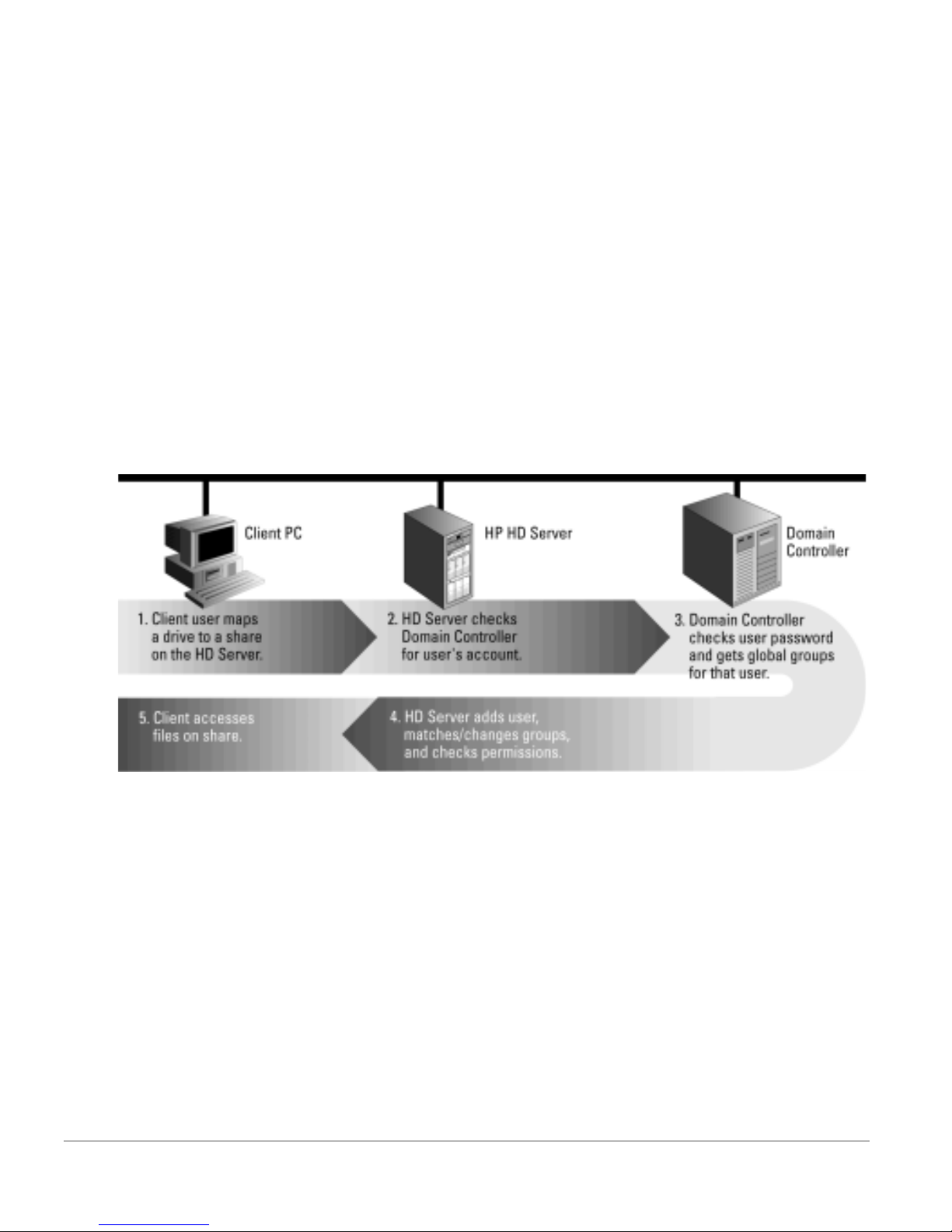
What happens.
When a client user maps a drive to a share on the
HD server (or selects it from Network Neighborhood), the
HD server checks the NT domain controller (also known as the
DC or PDC or authentication server) for the user’s account. If it is
found, the user is authenticated. Then the global groups in which
that user appears on the domain controller are passed back to the
HD server. If any of the group names match groups already
configured on the HD server, the user is allowed access to a share
for which the group has permissions.
The user name is added to the list of users on the HD server and to
the groups that match. Pass-through authentication (that is,
checking the password configured on the domain controller) is
enabled for that user. The user’s group memberships are added, or
if the user was previously added, any group membership changes
are updated.
What Happens
Note
The following illustration portrays the basic process.
Limitations for Multiple Domains
•
Trusted domains do not work for group relationships. Thus,
users cannot be automatically added or updated in groups from
trusted domains.
•
Only
•
•
2 Addendum: HP SureStore HD Server 4000
global
Global
NT groups, not
groups defined on a domain contain users only from
local
groups, are supported.
within the authentication domain.
Local
groups defined on a domain contain users from within
the domain and may contain other global groups from
within the domain and from trusted domains.
Page 3
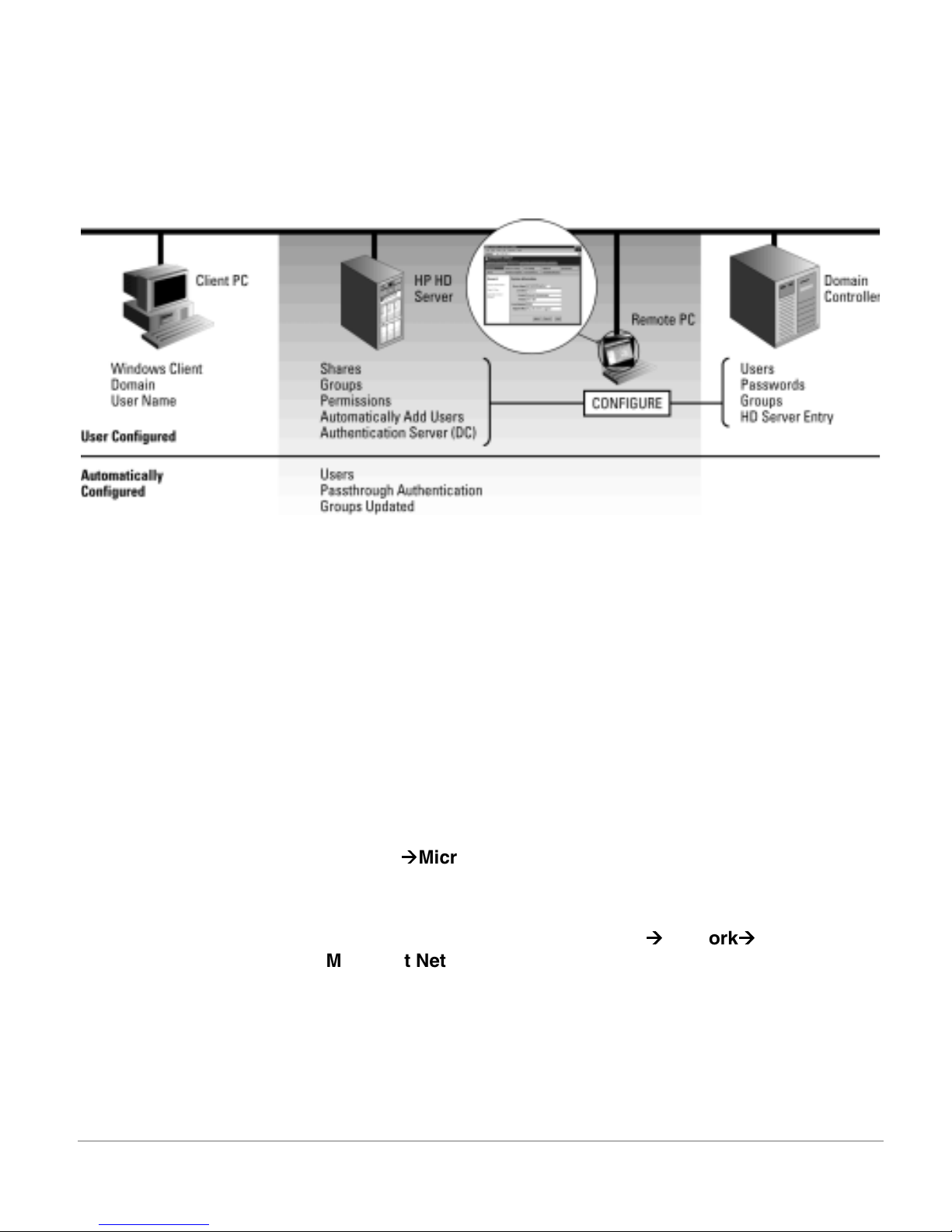
Setup Tasks for Automatically Adding Users
This information about using the Windows security in the updated
firmware amends the documentation found in “Set Up Shares” and
“Set Up Users and Groups”, in chapter 4 of the
User’s Guide
.
What is Configured
The following illustration shows what is configured on each device.
On the authentication server (commonly called the domain
controller or PDC) for the domain containing the user accounts:
•
In the User Manager for Domains application, set up the users
and global groups that you will permit to access the HD server,
if they are not already there. You will need to enter the group
names identically on the HD server. Passwords are maintained
here in User Manager.
•
In the Server Manager for Domains application, add the
HD server to the domain. It will appear as an NT 4.2 server.
On the HD server in HD Server Admin:
•
Set the
Security
•
Enter the name and IP address of the Windows NT domain
Security Model
Microsoft Networking
controller (authentication server) for
Authentication
on the
Microsoft Networking
address, the parameters
Update user membership in groups automatically
and
User Level
to
(as it is by default) on the
page.
Passthrough
Configuration
Network
page. When you first add the name and
Automatically add users to user list
switched on automatically (the boxes are checked).
However, if you have upgraded to this new firmware and had
previously set
Passthrough Authentication
(the name and
address are filled in), then you must check the boxes yourself.
Addendum: HP SureStore HD Server 4000 3
are
Page 4

When
Update user membership in groups automatically
the authentication can operate as described above. Switching
off this setting enables the user to be added to the user list but
does not add the user to groups, which disables automatically
granting access based on groups.
•
Set up the groups that will have access to shares on the
HD server using
Configuration
[Create]
Users & Groups
or
[Edit]
on the
page. These groups must be
defined with identical names on the domain controller. Only
global and not local groups can be used on the HD server (see
page 2).
is on,
You need
not
configure the
Passthrough Authentication
Users
on the
in the groups or
User
page. These are
automatically configured for you when you set up the
Configuration
Network
Microsoft Networking
page as
described on page 3.
Groups will also be updated each time the user again maps a
drive to the share or selects it from Network Neighborhood
(unless
Update user membership in groups automatically
disabled).
•
Set up any file shares in addition to, or in place of, the default
“pub”
Configuration
•
For each of the file shares, including
share, using the
File Shares
[Add]
button on the
page.
“pub”
, specify the groups
allowed access to the share and their access rights, using the
[Permissions]
button on the
Remove the default group
Configuration
“Everyone”
File Shares
from the share to
maintain your NT user security.
is
page.
Note
Other Limitations
❏
A limit of 100 user names and 50 groups can be defined on the
HP SureStore HD Server 4000.
❏
The password that authenticates passthrough users (which is
maintained on the domain controller) cannot be changed using
the
Admin. That page can be used only to change passwords that
are specifically configured on the HD server (on page 5 see
“You can set up and maintain the
4 Addendum: HP SureStore HD Server 4000
Security
Change User Password
page in HD Server
Users
Passwords
and
...”).
Page 5

User-Level Alternatives to Automatically Adding Users
Note ❏
Passthrough Authentication.
networks based on Windows NT Server, you can use the
passthrough authentication feature without automatically adding
the users. Each of your two alternatives for this require additional
configuration, as follows:
•
•
Share-level security is the alternative recommended for
Windows workgroup-based networks without a domain
controller. Use HD Server Admin’s
Microsoft Networking
Permissions
set
User’s Guide
appropriately. (See “Set Up Shares” in the
.)
page to change to
Security
Share Level
, and then
For user-level security in
You can set up and maintain the
Users
on the HD server with
identical names as on the domain controller and set
Passthrough Authentication
, so that the passwords are
authenticated only on the domain controller. You also must
perform all the tasks listed described above for automatically
adding users, except that
Automatically add users to user list
should be switched off.
You can set up and maintain the
Users
and the
Passwords
on
the HD server without association with any other
authentication on the domain.
Additionally, users can change their own passwords once the
administrator has configured them on the HD server. They
access HD Server Admin without the administrator login (and
are limited to the password,
Identity
, and
Support
pages), as
follows.
a. In the web browser, type the server’s IP address in the URL.
b. On the server’s web page, click the
c. Use the resulting
Security
Change User Password
Security
tab.
page to
change the password.
d. As long as the
do not click on the
Change User
Web UI
button remains selected and you
Microsoft Networking
or
button,
you will not be prompted for the Administrator password.
Default User Level Security.
If you
do not change
any defaults
in HD Server Admin as described on page 3 to page 4, then userlevel security is the default and shares are initially configured for
access by the default NT group “
Everyone
”. This gives full access to
all users who connect. No password is required for access, nor is
Connect As
required in NT. This includes the default share
“pub”
and new shares you create.
Addendum: HP SureStore HD Server 4000 5
Page 6

Changes and Notes
Restoring from
Backups using
Tape Catalog
Note ❏
You can use the catalog to find the files for a
However, if Western European language users have saved and
backed up files with path or file names containing extended (8-bit)
characters—such as é (e-acute) and ü (u-umlaut)—those characters
do not appear correctly in ordinary Windows applications used to
display the tape catalog.
Filenames using the English alphabet in the normal 7-bit range
are not affected by the problem described in this note.
Two methods are used to specify files on
a. Typing the file path and name in the
Typing the names as most Windows applications display
them—with false characters substituted for the extended
characters—specifies them incorrectly. Instead, you must
specify the actual 8-bit characters. Because you cannot see
the actual characters, use method b and the application
described following it.
b. Using “copy and paste” per the
User’s Guide
Selective Restore
Restore File Select
Selected Files
, chapter 9:
.
page:
box:
When the characters are incorrectly displayed, using a
normal “copy and paste” specifies them incorrectly. Instead,
copy the file specification using the following application.
Application to Correctly Copy Files from Tape Catalog
1. Start the Command Prompt window.
2. Change the default drive to the drive mapped to the HD server.
3. Specify the
4. Scroll to the files you wish to specify.
5. Right-click on the title bar of the Command Prompt window.
Select the
❏ Do not
6. Hold down the left mouse button and drag a box around all the files
needed. Release the left mouse button. Press
selected text is copied to the Clipboard.
7. Do the
“edit”
Edit
use the
“exit”
command to close the Command Prompt window.
command with the name of the tape catalog file.
Mark
command.
Edit
commands on the tool bar or
File
[ENTER]
Exit
[CTRL] [INS]
. The
.
.
Edit
8.
The extended characters will be specified correctly.
6 Addendum: HP SureStore HD Server 4000
Paste
the selection into the
Selected Files
box.
Page 7

Checking Disks
and File System
Check the volume’s disks and parity integrity in the
on the
Configuration
(2) click the
[Check Volume]
Disk Setup
page. (1) Click the volume and
button. (See the
User’s Guide
Volume C
,
view
chapter 11, “Check Status in HD Server Admin”.) The process
corrects parity errors. Also, in the unlikely event that read errors
are found, disk failure will be reported. Spares are not included in
this check.
❏
For preventive maintenance to correct parity errors, HP
recommends that this check be performed once a week.
❏
This process may take some time, depending on the number and
size of disk drives, and it may slightly slow service to clients,
depending on the number connected.
If a disk drive is failed (due to a read error found), it is removed
from service and the volume status is
again examine the
Disk Setup
page to determine which disk drive
failed, replace that disk drive module (see the
Degraded
User’s Guide
(red). In this case,
,
chapter 11, “Replace Disk Drive Module”), and add it to the volume.
To check the file system for errors, shut down and restart the
server. The integrity of the file system is checked at every restart.
If this check fails, you are notified of the following alert on the
control panel, and you should restore the file system (see the
User’s Guid
e, chapter 11, “Disaster: Lost or Damaged File System”).
Caution on
Operating
HD Server Admin
Unable to Mount File System
To navigate between pages in HD Server Admin use only the
buttons provided on the server web pages, such as
[Cancel]
. Do not use your web browser’s buttons for back, forward,
[Next>]
and
or refresh or reload. The information on those pages is expired and
cannot be displayed. (See the
User’s Guide
, chapter 4, “Operating
Features of HD Server Admin”.)
Exception:
It is OK to use your browser’s Refresh/Reload button
when specifically prompted by HD Server Admin, as may be
sometimes needed for restart.
Addendum: HP SureStore HD Server 4000 7
Page 8

Restarting after
Configuration
Changes is
More Convenient
After making a configuration change that requires a restart to take
effect, you no longer must go to a different web page to restart.
After you
choose whether to restart immediately. Your other choices are to
wait until all changes are complete and then either restart on the
page with the last change, or use the separate
Shutdown/Restart
[Apply]
one of those changes, you will be prompted to
Configuration
page.
Default
Security Model:
User Level
Note that the
using the
The default setting for
Networking
User’s Guide
the
functionality as before for shares. All users are members of a
default group
“pub”
required in NT.
See “Set Up Shares” in chapter 4 in the
change users and groups, you need not first use the
Microsoft Networking
default
can go directly to the
specify them. (See “Set Up Users and Groups” in the
So that rights are reserved only for the users you added, use the
page
remove the group
public access. (See “File Shares” in the
Windows 95/98 user must log in with same user name.
. No password is required for access, nor is
Share Level
Configuration
User’s Guide
Configuration
page is now
. This setting provides the same initial
“EVERYONE”
page to change the
User Level
to
Configuration
File Shares
“EVERYONE”
in chapter 4 mentions only the choice of
Shutdown/Restart
Security Model
User Level
, with full access to the default share
, select the
from the members list, disabling
on the
, not
and restart the server. Now you
Users and Groups
User’s Guide
page.
Security
Share Level
Connect As
User’s Guide
Security Model
“pub”
share, and
Microsoft
as described in
. To add or
Security
from the
page to
User’s Guide
.) Note that the
.)
To use
Microsoft Networking
Permissions
8 Addendum: HP SureStore HD Server 4000
Share Level
appropriately. (See “Set Up Shares” in
security, use HD Server Admin’s
page to change to
Share Level
Security
, and then set
User’s Guide
.)
Page 9

Users Can
Change Their
Own Passwords
Once the Administrator has configured the
Users
change his own password, without knowing the Administrator
password for the HD Server. (If
used, the password cannot be changed here but must be changed on
the authentication server.)
Clients can be directed to do this using the following steps:
1. In the web browser, type the server’s IP address in the URL.
2. On the server’s web page, click the
3. Use the resulting
set up with
change the password.
As long as the
not click on the
will not be prompted for the Administrator password.
User Level
Security
Change User
Web UI
security, the client user is able to
or
Passthrough Authentication
Change User Password
button remains selected and you do
Microsoft Networking
User Password
Security
tab.
for
is
page to
button, you
Note ❏
Default
“SetCommunity
Name”
Client users also have access to the
in the same way.
In the “Reset Defaults” table in chapter 6 of the
the default setting for
The default is both
to set trap destination entries correctly.
SetCommunity Name
“Public”
and
“Private”
Identity
is shown as
. This allows HP TopTools
Support
and
User’s Guide
“Private”
pages
,
.
Addendum: HP SureStore HD Server 4000 9
Page 10

Hardware Changes and Notes
9-pin “Serial”
Connector for
Future Use Only
Specifications for
HP 9.1-GB SCSI-2
Disk Drive
Module
Class A for
HP J3291A and
DAT40i Tape Drive
The 9-pin connector labeled “Serial” on the rear of the server has no
function at this time. Do not attach anything to it. It is illustrated
in the “Rear View of HD Server” in chapter 2 in the
Corrections for appendix C in the
Latency Average 4.17 millisecond
Power Consumption Average 12.8 W
Current
Corrections for appendix C and D are shown in this section.
HP J3291A SureStore HD Server 4000, containing the
HP C5686A SureStore DAT40i DDS-4 internal tape drive,
has some different regulatory specifications—Class A—as shown in
this section.
The other models HP J3290A, J3292A, and J3293A
SureStore HD Server 4000 continue to have the same Class B
regulatory compliance described in the
Declaration of Conformity on page 14 below.)
Average 0.47 A @ 5 V
User’s Guide
0.87 A @ 12 V
User’s Guide
:
User’s Guide
. (See their
.
Note ❏
Electromagnetic Specifications
When you install the HP C5686S SureStore DAT40i DDS-4
Tape Drive into t he other models, the server will then comply
with Class A regulations as shown below.
CISPR 22 Class A
FCC Part 15, Class A
EN 55022 Class-A
EN 55024
Canadian EMC Class A requirements
10 Addendum: HP SureStore HD Server 4000
Page 11

FCC Statements
General Information.
FCC Rules. Operation is subject to the following two conditions:
(1) This device may not cause interference, and (2) this device must accept
any interference received, including interference that may cause undesired
operation.
Pursuant to Part 15.21 of the FCC Rules, any changes or modifications to
this equipment not expressly approved by the Hewlett-Packard Company
may cause interference and void the FCC authorization to operate this
equipment.
The Federal Communications Commission has prepared a booklet titled
Interference Handbook
(stock number 004-000-004505-7) may be purchased from the
Superintendent of Documents, U.S. Government Printing Office,
Washington, D.C. 20402.
FCC Class A.
the limits for a Class A digital device, pursuant to Part 15 of the FCC
Rules. These limits are designed to provide reasonable protection against
interference in a
and can radiate radio frequency energy and, if not installed and used in
accordance with the instructions, may cause interference to radio
communications.
This equipment has been tested and found to comply with
commercial
This device complies with Part 15 of the
(1986), which may be helpful to you. This booklet
environment. This equipment generates, uses
Note
Canada
This equipment complies with Canadian EMC Class-A requirements.
European Union
This is a class A product. In a domestic environment, this product may
cause radio interference, in which case the user may be required to take
adequate measures.
Addendum: HP SureStore HD Server 4000 11
Page 12
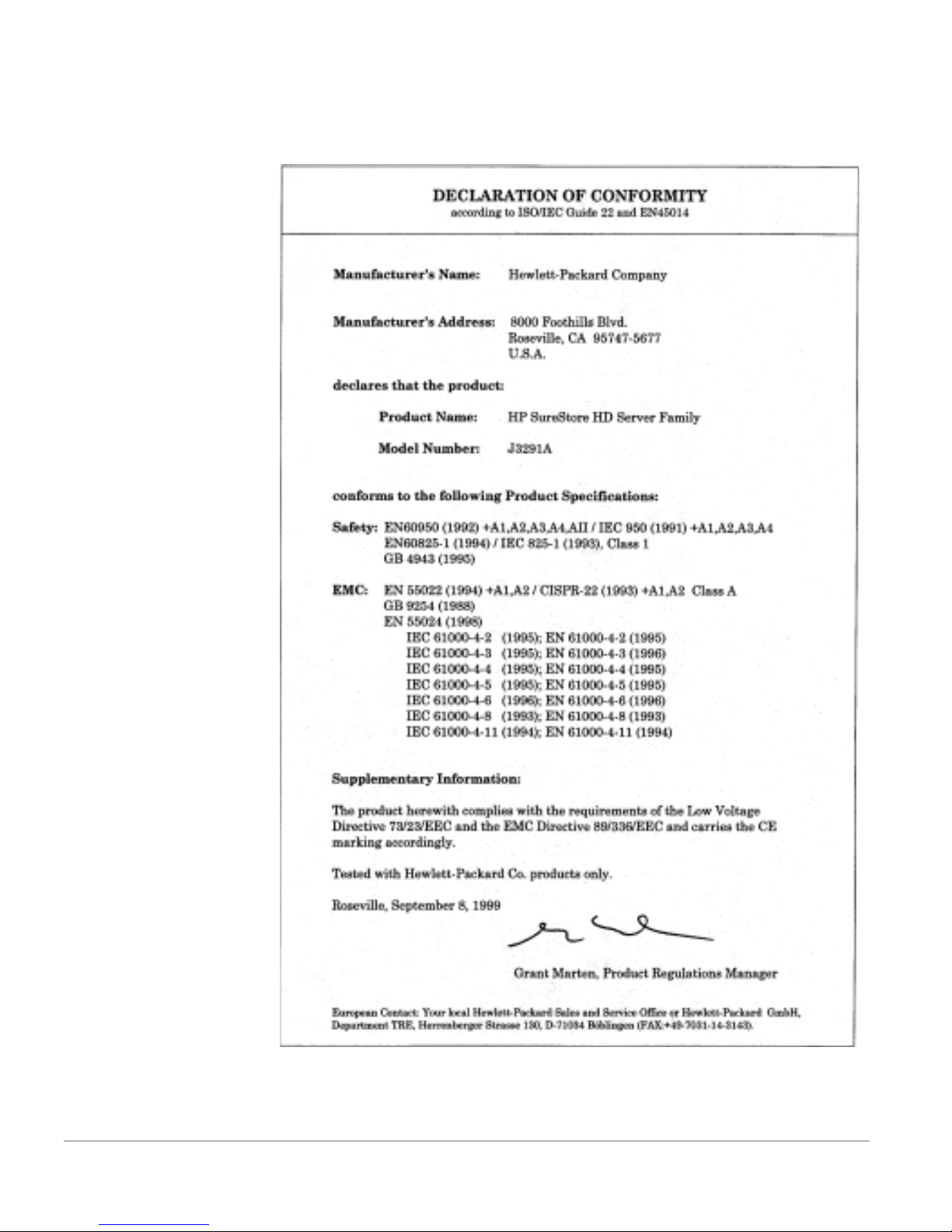
Declaration of Conformity.
The following Declaration of Conformity
complies with ISO/IEC Guide 22 and EN45014. It identifies the product,
the manufacturer's name and address, and the applicable specifications
that are recognized in the European community.
12 Addendum: HP SureStore HD Server 4000
Page 13

HP J3293A SureStore HD Server 4000
with 18-GB Drives
A new model of HP SureStore HD Server 4000 has been added to
the three described in the
HP J3293A contains six replaceable 18.2-gigabyte HP SCSI hard
disk drive modules, five preconfigured as a RAID 5 volume, one as a
hot spare.
With the sixth drive used as a spare (you can add it to the volume
instead), the capacity is approximately 4 times 18 GB, or 72 GB
(since RAID 5 uses the equivalent of one drive for redundancy).
Note this capacity calculation if you add a tape drive as described in
chapter 8 in the
described for the other models in the
mat.
User’s Guide
User’s Guide
. In other respects, it operates as
. The product number
User’s Guide
Quick Setup
and
Specifications
See appendix C in the
for specifications common to all models. The following are unique
for HP J3293A:
Weight J3293A: 25.5 kg (56 lb)
HP 18.2-GB SCSI-2 Disk Drive Module
Capacity 18.2 GByte
Rotational Speed 7200 rpm
Latency Average 4.17 millisecond
Data Transfer Rate Maximum 40 MByte/s
Seek Time
Power Consumption Average 13.6 W
Current
User’s Guide
Average Read 7 ms
Average 0.48 A @ 5 V
(and page 10 in this
Write 8 ms
0.93 A @ 12 V
Addendum
)
Addendum: HP SureStore HD Server 4000 13
Page 14
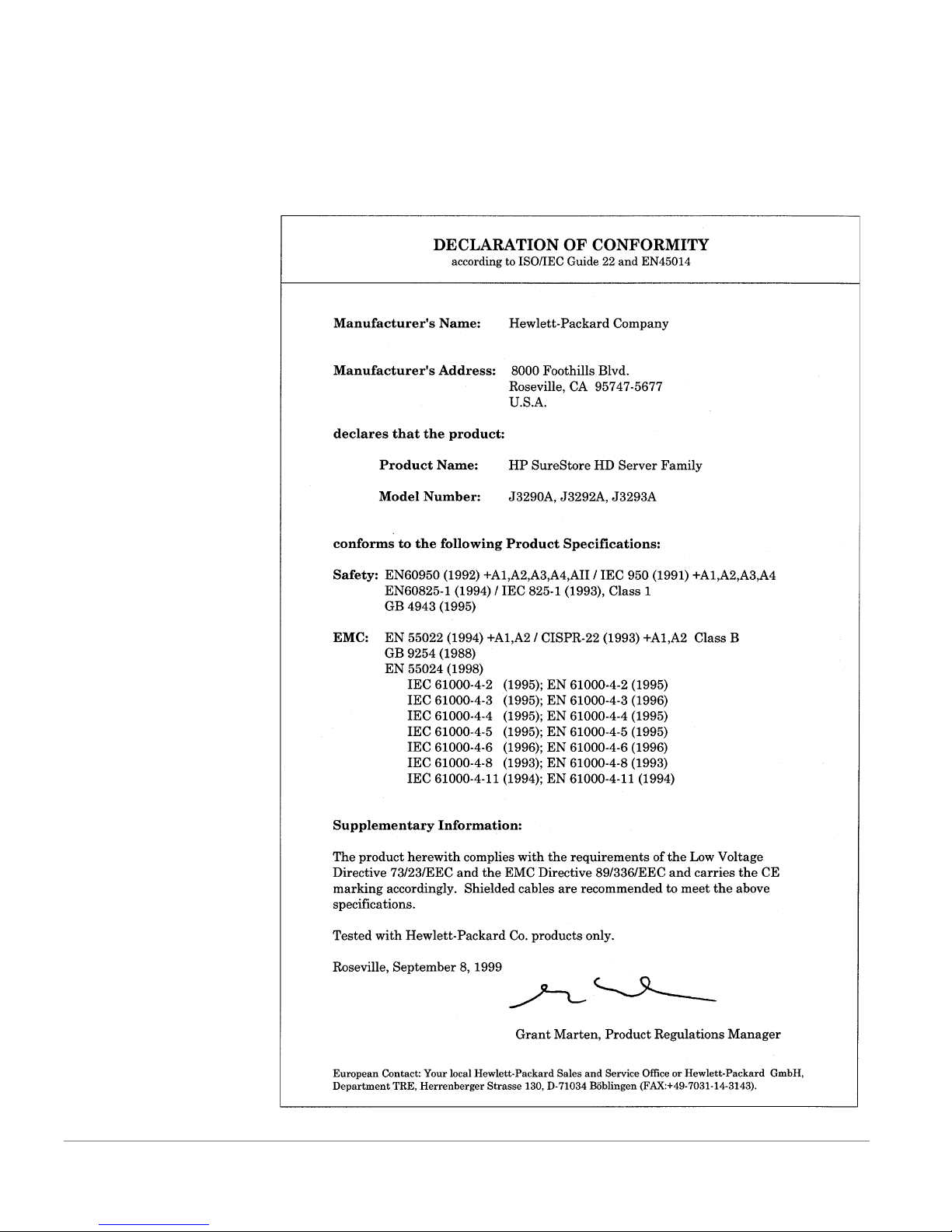
Regulatory
Information for
HP J3290A,
J3292A, J3293A
European Union
Declaration of Conformity.
complies with ISO/IEC Guide 22 and EN 45014. It identifies the product,
the manufacturer's name and address, and the applicable specifications
that are recognized in the European community.
The following Declaration of Conformity
14 Addendum: HP SureStore HD Server 4000
Page 15

Addendum: HP SureStore HD Server 4000 15
Page 16

©1999 Hewlett-Packard Company Printed in Singapore
December 1999 5969-6807
*5969-6807*
 Loading...