

Page 1
UPDATE SOFTWARE AND INSTRUCTION
Africa Twin Soware Update for 20, 21YM
92MKS600
© 2020 Honda Motor Co., Ltd - All Rights Reserved.
Page 2
Contents
Introduction P. 1
Function and Instruction
Troubleshooting
P. 2
P.24
Legal Information P.29
© 2020 Honda Motor Co., Ltd - All Rights Reserved.
Page 3

Introduction
Thank you for always using a Honda vehicle.
We provide software with new functions for applicable vehicle.
P. 1
Applicable vehicle
20, 21YM Africa Twin
Summary of update
For all type
• Passenger Headset Volume adjust
• Android Auto™
For FO type
• Apple CarPlay™
© 2020 Honda Motor Co., Ltd - All Rights Reserved.
Page 4
Function and Instruction
P. 2
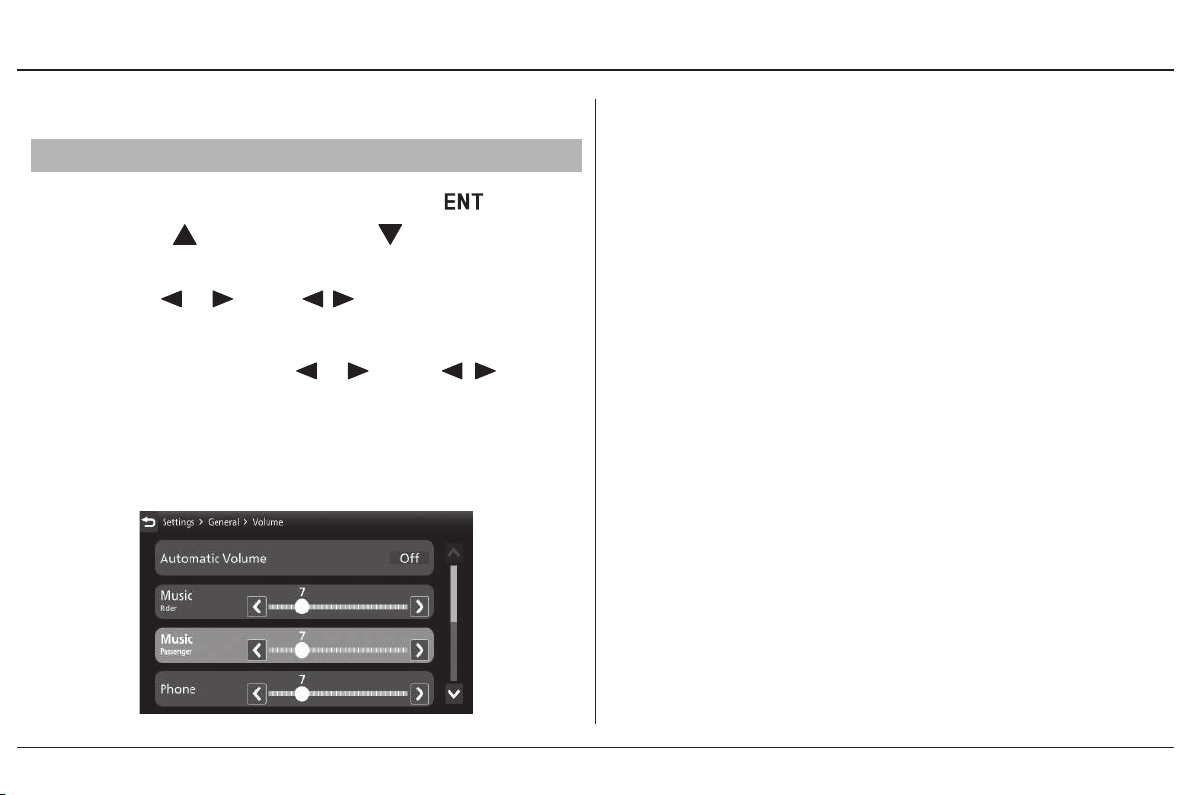
Passenger Headset Volume adjust
Function
Select [Volume], and then press the
❶
Press the
❷
to select a setting menu.
Push the
❸
select your preferred level.
Push and hold the or of the sel left/
▶
right switch to advance the gure fast.
You can also perform the above settings by
using the touch screen.
sel up switch or sel down switch
or of the sel left/right switch to
Default:
• Music (Rider) : 7
• Music (Passenger) : 7
switch.
© 2020 Honda Motor Co., Ltd - All Rights Reserved.
Page 5
Function and Instruction
P. 3
Android Auto™
Function
If you connect an
Android™
can use the multi-information display, instead of the
Android
Google Maps™
and voice search functions.
When you rst use
to complete initial setting on your phone screen.
We recommend that you complete this initial setting
while safely parked before using
phone to the system via USB port, you
phone display, to access the Phone,
Android Auto
(Navigation), Notication centre,
Android Auto
compatible
, you will required
Android Auto
.
• To use
Android Auto
smartphone.
• Only
with
used with
• Park your vehicle in a safe place before
connecting your
and when launching any compatible apps.
• In no event shall Honda be liable for any
damages or troubles that occur in the use of
Android
• If a mobile network communication is unstable
due to surrounding conditions or signal strength
conditions,
available.
• To use full functions of
connection is necessary.
• You cannot operate
screen while the vehicle is in motion.
Android Auto
app from
Android
Android Auto
5.0 or later versions are compatible
Android
phone.
Android Auto
, you need to download the
Google Play™
. Bluetooth A2DP cannot be
phone.
Android
phone to
functions may not be
Android Auto
Android Auto
to your
Android Auto
, a headset
by the touch
© 2020 Honda Motor Co., Ltd - All Rights Reserved.
Page 6
Function and Instruction
P. 4
• Application and menu items displayed on the
screen may dier depending on the connected
device and
• When your
Android Auto
Android
Android
version.
phone is connected to
, it is not possible to use the
Bluetooth® Audio.
• For details on countries and regions where
Android Auto
pertaining to function, refer to the
is available, as well as information
Android Auto
homepage.
• Google, Android, Google Maps, Google Play
Android Auto
are trademarks of
Google LLC
and
.
Compatible Devices
You can connect your
Android
phone using a
certied cable to the USB connector directly. Make
sure to use the factory USB cable that came with
your device.
Device
Android
Android
phone
OS
5.0 or later
The audio system may not be compatible with the
latest model and the latest OS version.
© 2020 Honda Motor Co., Ltd - All Rights Reserved.
Page 7
Function and Instruction
P. 5
Android Auto
Limitations
Android Auto
with an active cellular connection and data plan.
Your carrier’s rate plans will apply.
Changes in operating systems, hardware, software,
and other technology integral to providing
Auto
functionality, as well as new or revised
governmental regulations, may result in a decrease
or cessation of
services.
Honda cannot and does not provide any warranty
or guarantee of future
functionality.
It is possible to use 3rd party apps if they are
compatible with
Auto
homepage for information on compatible apps.
Operating Requirements &
requires a compatible
Android Auto
Android Auto
Android Auto
functionality and
. Refer to the
Android
performance or
phone
Android
Android
Use of User and Vehicle Information
The use and handling of user and vehicle
information transmitted to /from your phone by
Android Auto
Policy
.
is governed by the
Google’s Privacy
© 2020 Honda Motor Co., Ltd - All Rights Reserved.
Page 8
Function and Instruction
To Setup
When you connect an
via the USB port,
initiated.
Use of
of certain user and vehicle information (such as
vehicle location, speed, and status) to your
phone to enhance the
You will need to consent to the sharing of this
information on the screen.
Pair the headsets.
❶
Connect your
❷
Android Auto
Android Auto
Android Auto
Android
Android
will result in the transmission
Android Auto
phone to the USB socket.
phone to the unit
is automatically
Android
experience.
P. 6
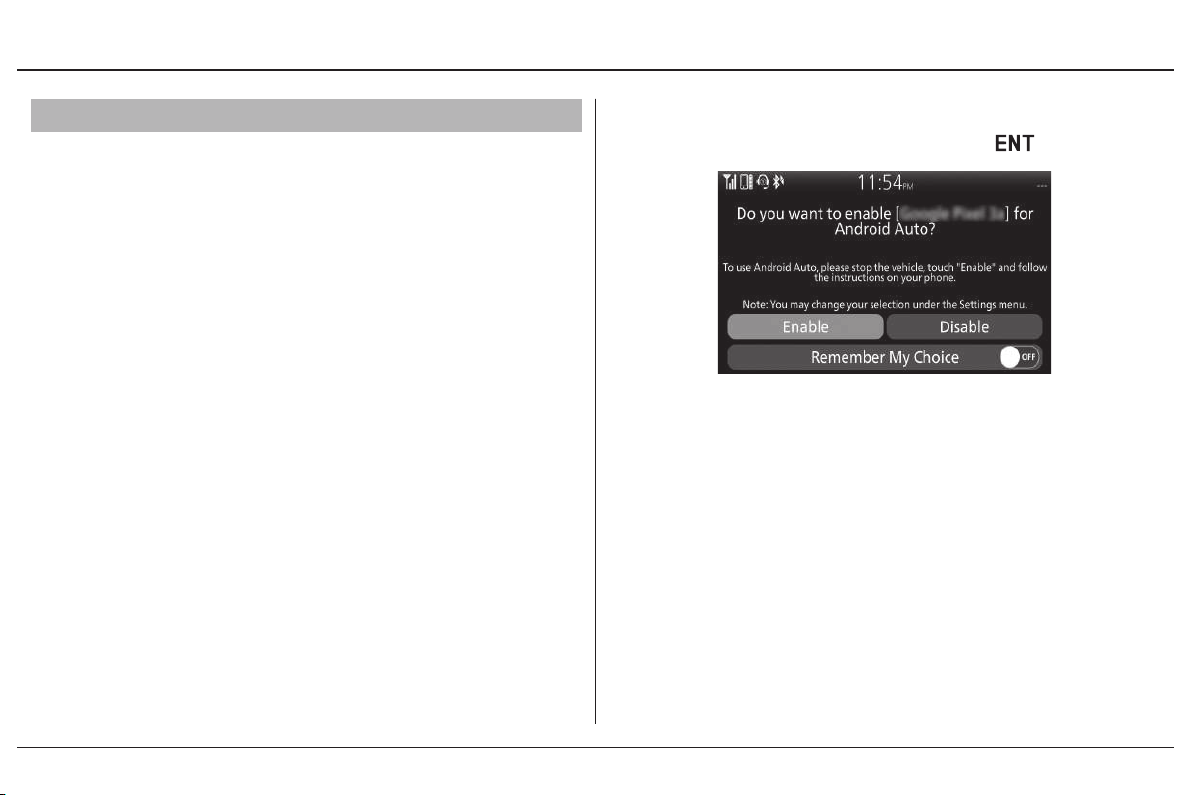
When the disclaimer message appears on the
❸
screen, select [Enable] and then
Set [Remember My Choice] to ON so that you will
not be asked the next time you connect.
switch.
Only initialize
▶
parked. When
phone, youwill need to set up your phone so
that auto pairing is possible.
Refer to the instruction manual that came with
your phone.
Android Auto
Android Auto
when you safely
rst detects your
© 2020 Honda Motor Co., Ltd - All Rights Reserved.
Page 9
Function and Instruction
[Enable] when [Remember My
Choice] is [OFF]: Allows only once.
(Prompt shows again next time.)
[Enable] when [Remember My
Choice] is [ON]: Allows anytime.
(Prompt does not show again.)
[Disable] when [Remember My
Choice] is [OFF]: Does not allow this
consent.
[Disable] when [Remember My
Choice] is [ON]: Does not allow anytime.
(Prompt does not show again.)
P. 7
Enable the
❹
Android Auto
❺
To appear App launcher screen, select and
❻
then press
You can also perform the above settings by
using the touch screen.
Android Auto
screen appears.
switch.
setting.(P.9)
© 2020 Honda Motor Co., Ltd - All Rights Reserved.
Page 10
Function and Instruction
P. 8
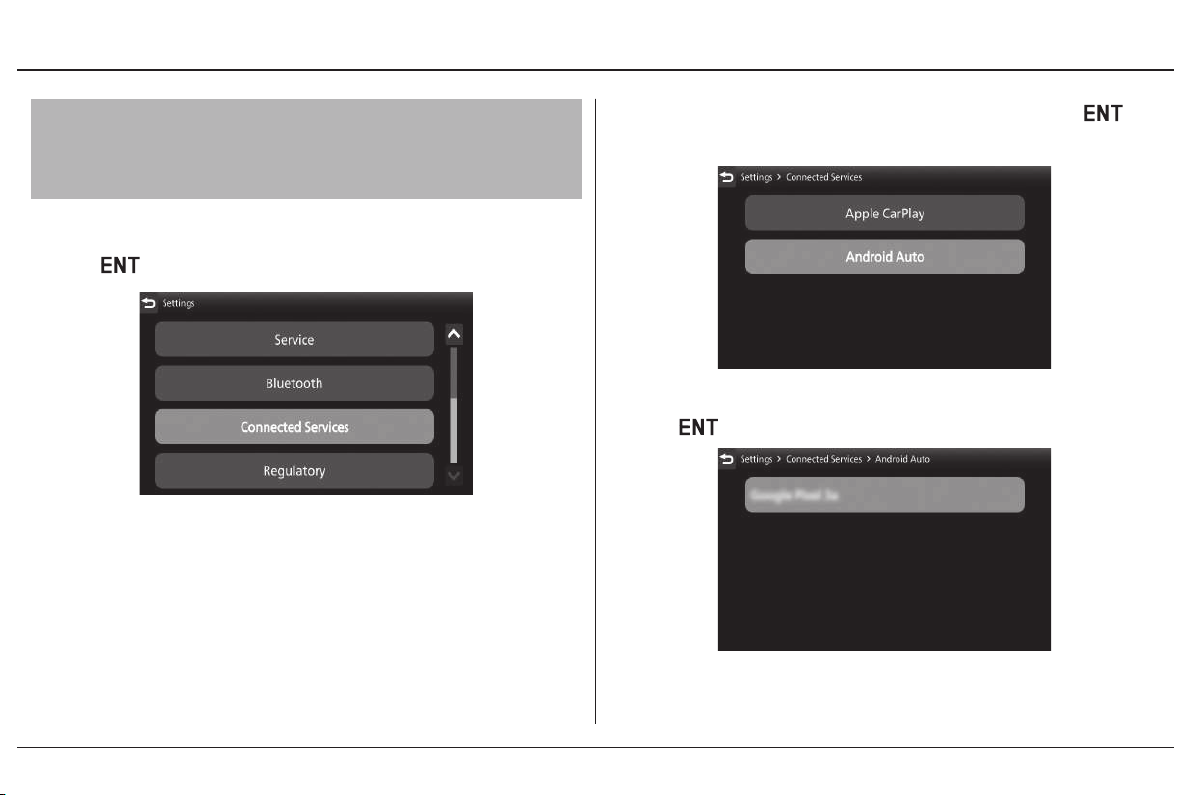
To Enable or Disable
To Select Ask On or Ask O of the
Android Auto
Select [Connected Services], and then press
❶
the
disclaimer Screen
switch.
Android Auto
Select [
❷
switch.
Select a target device name, and then press
❸
the
You can also perform the above settings by
using the touch screen.
Android Auto
switch.
], and then press the
© 2020 Honda Motor Co., Ltd - All Rights Reserved.
Page 11
Function and Instruction
P. 9
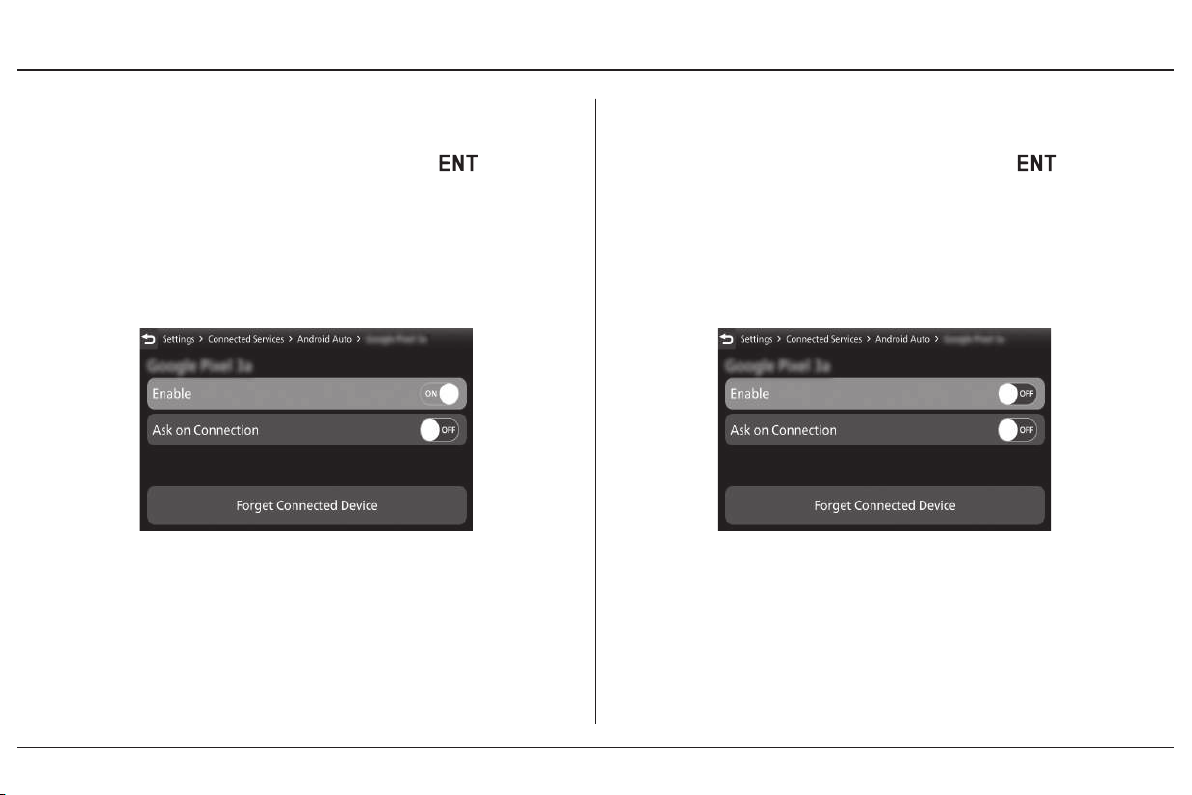
To enable
Select [Enable], and then press the
❹
[ON] (enable) the function.
You can also perform the above settings by
using the touch screen.
Android Auto
:
switch to
To disable
Select [Enable], and then press the
❹
[OFF] (disable) the function.
You can also perform the above settings by
using the touch screen.
Android Auto
:
switch to
© 2020 Honda Motor Co., Ltd - All Rights Reserved.
Page 12
Function and Instruction
P.10
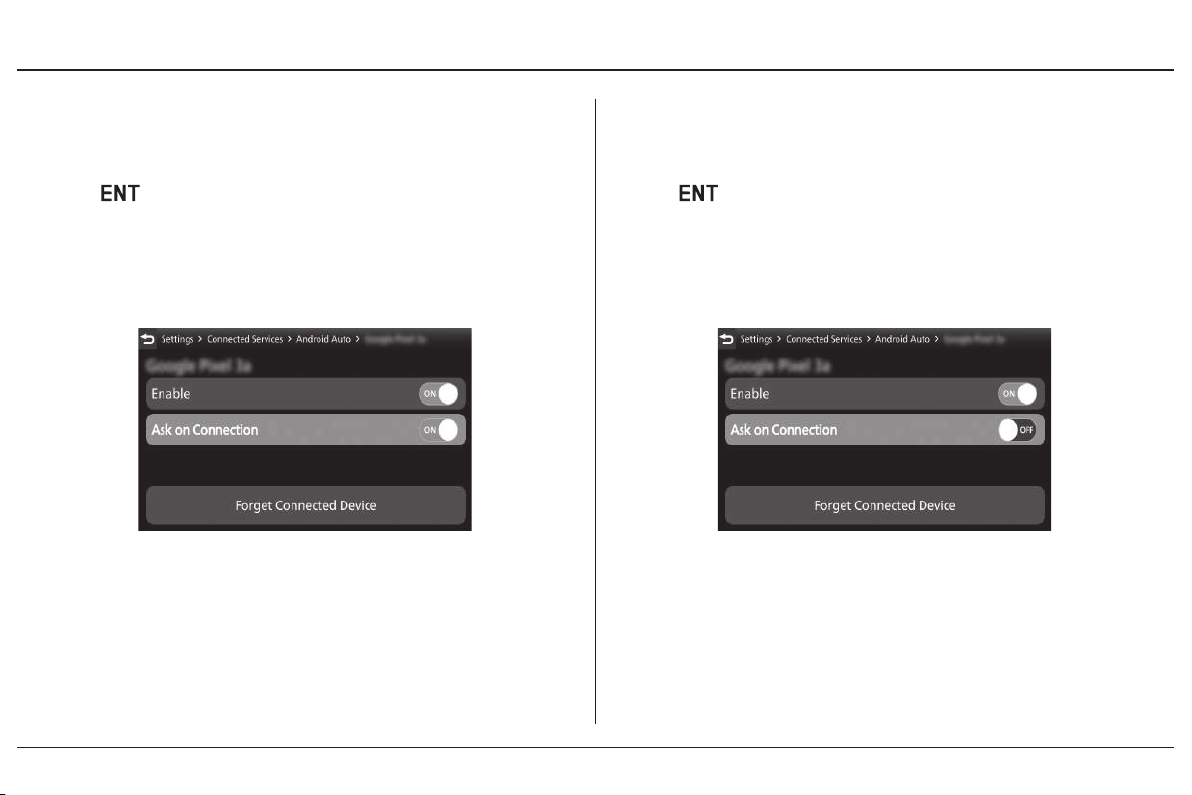
To ask on connection :
Select [Ask on Connection], and then press
❺
the
You can also perform the above settings by
using the touch screen.
switch to [ON] (ask on) the function.
To ask o connection :
Select [Ask on Connection], and then press
❺
the
You can also perform the above settings by
using the touch screen.
switch to [OFF] (ask o) the function.
© 2020 Honda Motor Co., Ltd - All Rights Reserved.
Page 13
Function and Instruction
P. 11
To Connect Your
• Do not leave your device in the vehicle (under
the front seat or under the rear seat etc.). High
heat will damage it.
• We recommend backing up your data before
playing it.
• Android
cable when the ignition switch is in the
position. The charging time may be longer than
usual.
• We recommend covering your devices with an
audio pouch, or soft fabric or cover to protect
them from damage.
• Be careful to not get the USB connector wet.
• Do not connect with a hub.
• Do not connect incompatible devices.
• If the audio system does not recognise the
Android
reboot the device.
phone can be charged with the USB
phone, try reconnecting it a few times or
Android
phone
(On)
To Disconnect Your
You can disconnect your
time.
Make sure to follow the device’s instructions
on how to disconnect the device from the cable.
Android
Android
phone
phone at at any
© 2020 Honda Motor Co., Ltd - All Rights Reserved.
Page 14
Function and Instruction
P.12
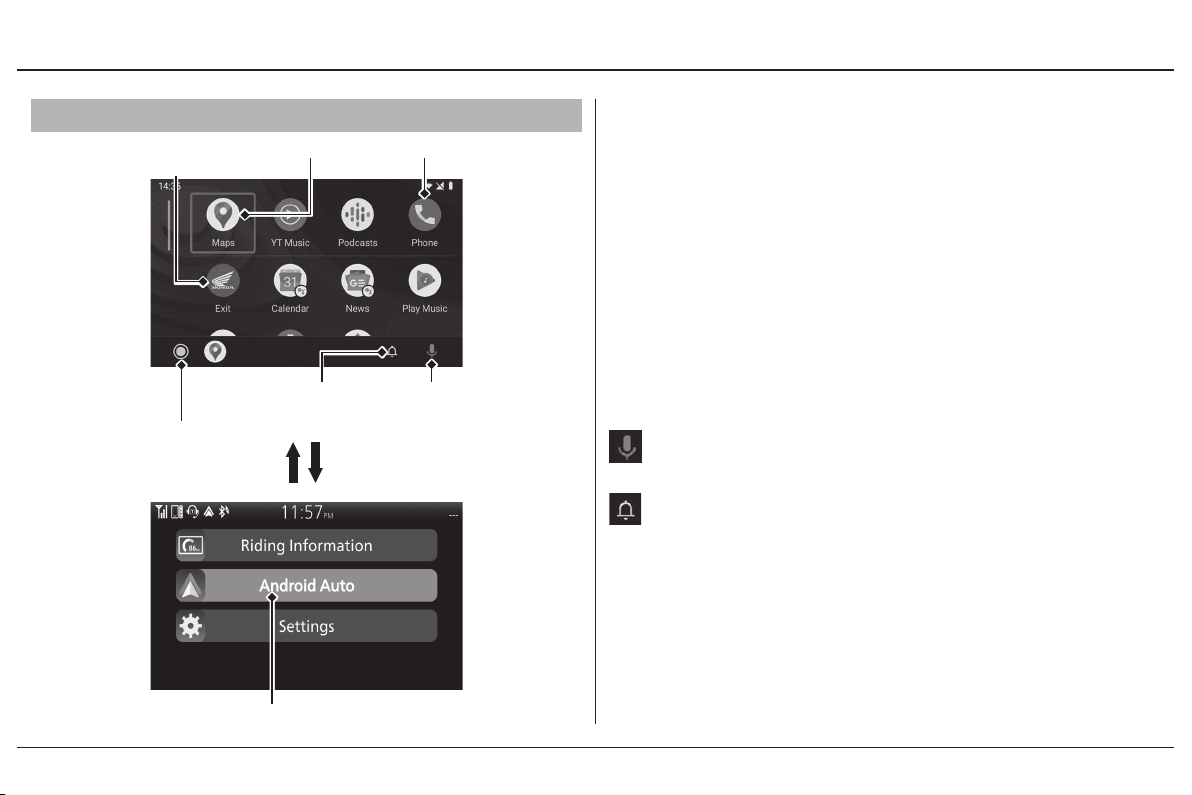
App launcher screen
Go back to
Home screen
Go to App
launcher screen
Home screen
Android Auto
Go to
Maps
Notication
centre
screen
Phone
Voice
search
Maps (Navigation)
Display
function just as you would with your
Google Maps
and use the navigation
Android
phone.
When the vehicle is in motion, it is not possible to
make keyboard entries. Stop the vehicle in a safe
location to undertake a search or provide other
inputs.
Phone (Communication)
Make and receive phone calls as well as listen to
voice mail.
Voice search
Operate Voice search.
Notication centre
See recent calls, messages, and alerts.
Go to App launcher screen
The app launcher opens.
Exit
Go back to the Home Screen.
© 2020 Honda Motor Co., Ltd - All Rights Reserved.
Page 15
Function and Instruction
P.13
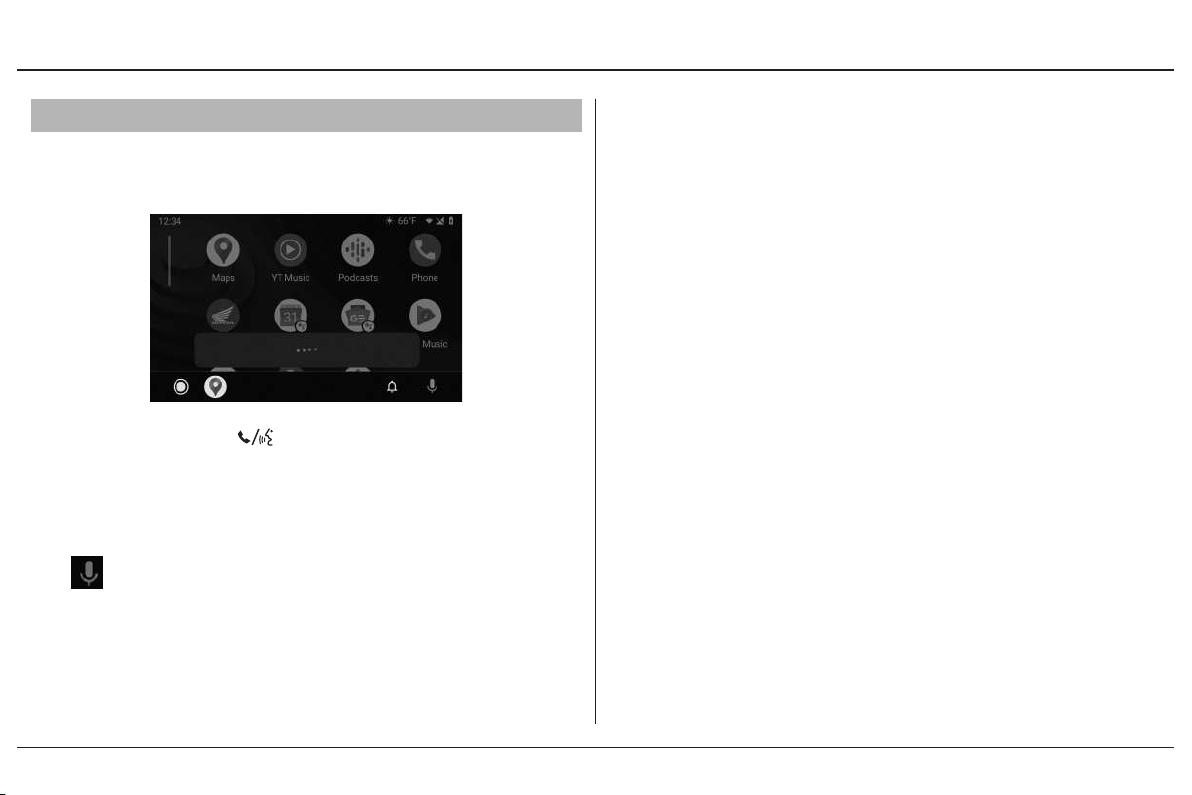
Operating voice search
To activate the voice search, pairing with device
such as a headset must be paired.
Push forward the voice control switch on the
left handlebar to operate
voice
.
You can also activate the voice search by selecting
the
Voice search may not be recognized correctly due
to the eect of wind noise during running or external
noise. In that case, try to change the position of the
microphone or to adjust the windscreen height.
icon.
Android Auto with your
Below are examples of commands you can
give with voice recognition :
• Reply to text.
• Call my wife.
• Navigate to Honda.
• Play my music.
• Send a text message to my wife.
• Call ower shop.
For more information, please refer to the
Auto
homepage.
Android
© 2020 Honda Motor Co., Ltd - All Rights Reserved.
Page 16
Function and Instruction
FO type
P.14
Apple CarPlay ™
Function
If you connect an Apple CarPlay compatible
iPhone to the system via USB, you can use the
multi-information display, instead of the iPhone
display, to make a phone calls, listen to music,
view maps (navigation), and access messages.
• Only iPhone 5 or newer versions with iOS 10 or
later are compatible with Apple CarPlay.
• Park your vehicle in a safe place before
connecting your iPhone to Apple CarPlay and
when launching any compatible apps.
• In no event shall Honda be liable for any
damages or troubles that occur in the use of
iPhone.
• If a mobile network communication is unstable
due to surrounding conditions or signal
strength conditions, Apple CarPlay functions
may not be available.
• To use Apple CarPlay, a headset connection is
necessary. If headset connection is broken due
to headset battery depletion or communication
failure, Apple CarPlay cannot be used until the
connection is restored.
• You cannot operate Apple CarPlay by the touch
screen while the vehicle is in motion.
• Application and menu items displayed on the
screen may dier depending on the connected
device and iOS version.
• While connected to Apple CarPlay, calls are
only made through Apple CarPlay. If you want to
make a call with Bluetooth® handsfree calling,
disconnect the USB cable from your iPhone and
connect your iPhone via Bluetooth®.
• For details on countries and regions where Apple
CarPlay is available, as well as information
pertaining to function, refer to the Apple
homepage.
• Apple CarPlay is a trademark of Apple Inc.
© 2020 Honda Motor Co., Ltd - All Rights Reserved.
Page 17
Function and Instruction
FO type
P.15
Apple CarPlay Operating Requirements &
Limitations
Apple CarPlay requires a compatible iPhone with
an active cellular connection and data plan. Your
carrier’s rate plans will apply.
Changes in operating systems, hardware, software,
and other technology integral to providing Apple
CarPlay functionality, as well as new or revised
governmental regulations, may result in a decrease
or cessation of Apple CarPlay functionality and
services.
Honda cannot and does not provide any warranty
or guarantee of future Apple CarPlay performance
or functionality.
It is possible to use 3rd party apps if they are
compatible with Apple CarPlay. Refer to the Apple
homepage for information on compatible apps.
Use of User and Vehicle Information
The use and handling of user and vehicle information
transmitted to/from your iPhone by Apple CarPlay is
governed by the Apple iOS terms and conditions and
Apple’s Privacy Policy.
© 2020 Honda Motor Co., Ltd - All Rights Reserved.
Page 18
Function and Instruction
FO type
P.16
To Setup Apple CarPlay
Use of Apple CarPlay will result in the transmission
of certain user and vehicle information (such as
vehicle location, speed, and status) to your iPhone
to enhance the Apple CarPlay experience.
You will need to consent to the sharing of this
information on the screen.
Pair the headsets.
❶
Connect your iPhone using a certied cable to
❷
the USB socket.
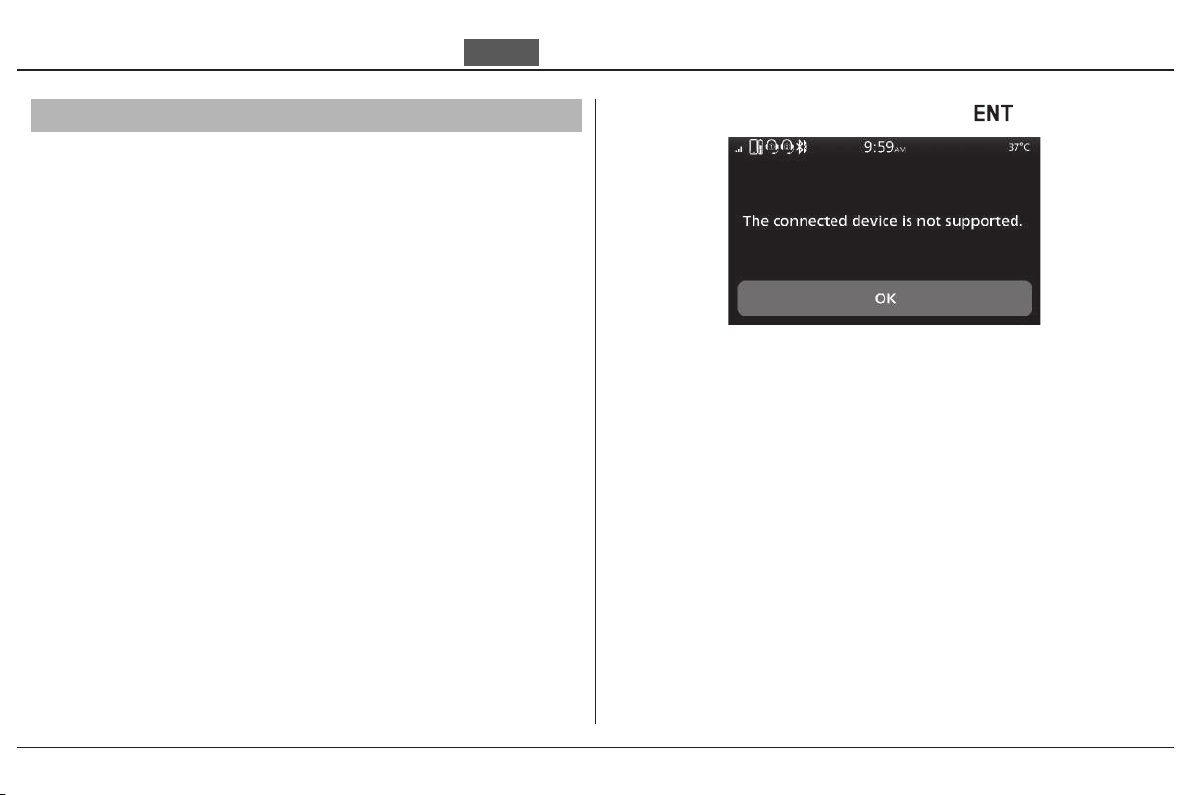
→If the following screen is displayed, Apple
CarPlay can not be used, but USB power can be
supplied.
1.Select [OK], and then press the
To enable Apple CarPlay: (P.19)
switch.
© 2020 Honda Motor Co., Ltd - All Rights Reserved.
Page 19
Function and Instruction
FO type
P.17
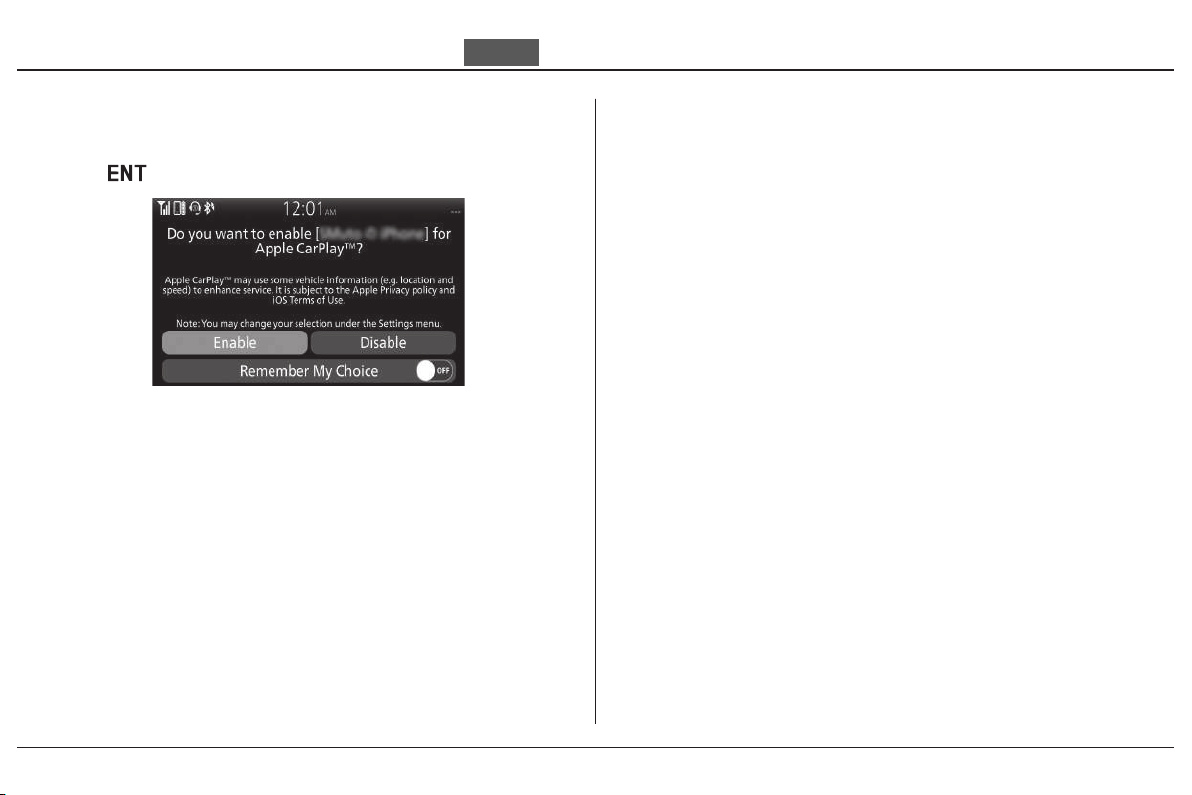
When the disclaimer message appears on
❸
the screen, select [Enable], and then press
the
switch.
Set [Remember My Choice] to ON so that you will
not be asked the next time you connect.
[Enable] when [Remember My Choice] is [OFF]:
Allows only once.
(Prompt shows again next time.)
[Enable] when [Remember My Choice] is [ON]:
Allows anytime.
(Prompt does not show again.)
[Disable] when [Remember My Choice] is [OFF]:
Does not allow this consent.
[Disable] when [Remember My Choice] is [ON]:
Does not allow anytime.
(Prompt does not show again.)
Enable the Apple CarPlay setting. (P.19)
❹
Apple CarPlay menu screen appears.
❺
You can also perform the above settings by
using the touch screen.
© 2020 Honda Motor Co., Ltd - All Rights Reserved.
Page 20
Function and Instruction
To Enable or Disable Apple CarPlay
To Select Ask On or Ask O of the
Apple CarPlay disclaimer Screen
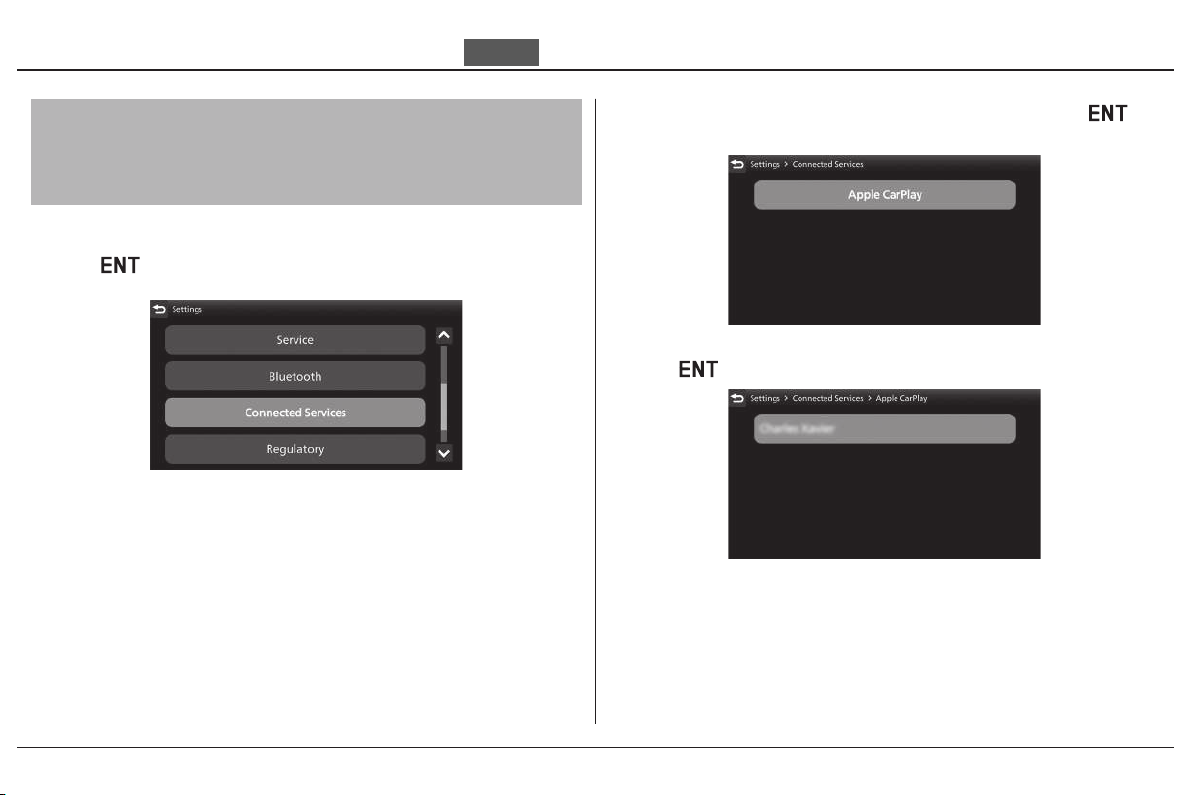
Select [Connected Services], and then press
❶
the
switch.
FO type
Select [Apple CarPlay], and then press the
❷
switch.
Select a target device name, and then press
❸
the
switch.
You can also perform the above settings by
using the touch screen.
P.18
© 2020 Honda Motor Co., Ltd - All Rights Reserved.
Page 21
Function and Instruction
FO type
P.19
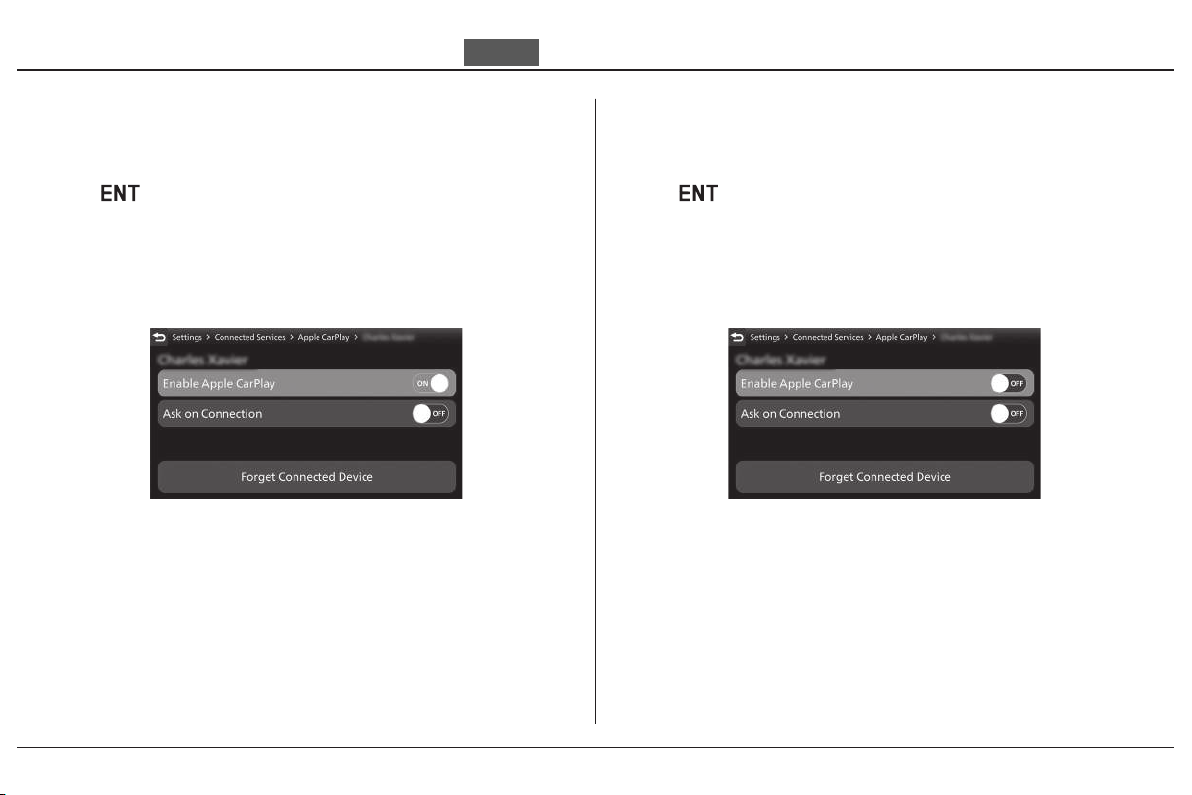
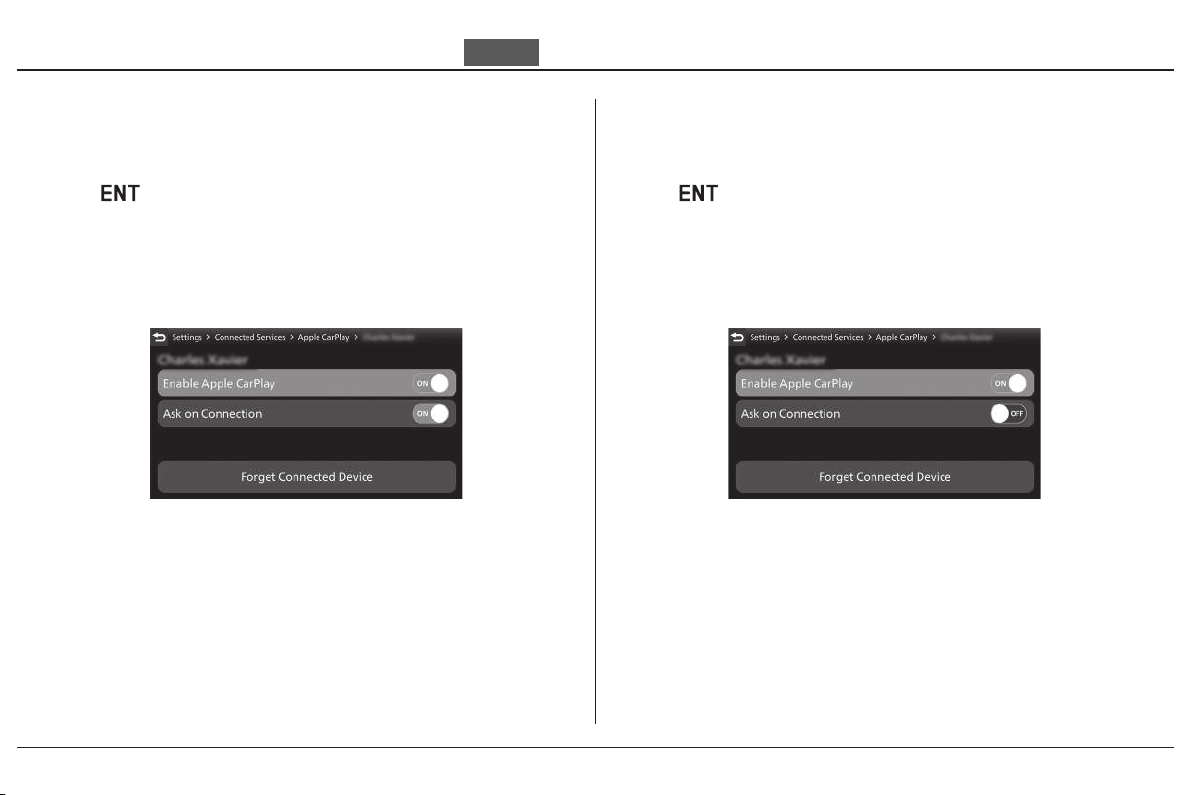
To enable Apple CarPlay :
Select [Enable Apple CarPlay], and then press
❹
the
switch to [ON] (enable) the function.
You can also perform the above settings by
using the touch screen.
To disable Apple CarPlay :
Select [Enable Apple CarPlay], and then press
❹
the
switch to [OFF] (disable) the function.
You can also perform the above settings by
using the touch screen.
© 2020 Honda Motor Co., Ltd - All Rights Reserved.
Page 22
Function and Instruction
FO type
P.20
To ask on connection :
Select [Ask on Connection], and then press
❺
the
switch to [ON] (ask on) the function.
You can also perform the above settings by
using the touch screen.
To ask o connection :
Select [Ask on Connection], and then press
❺
the
switch to [OFF] (ask o) the function.
You can also perform the above settings by
using the touch screen.
© 2020 Honda Motor Co., Ltd - All Rights Reserved.
Page 23
Function and Instruction
FO type
P.21
To Connect Your iPhone
• Do not leave your device in the vehicle
(under the front seat or under the rear seat etc.).
High heat will damage it.
• We recommend backing up your data before
playing it.
• iPhone can be charged with the USB cable when
the ignition switch is in the
(On) position. The
charging time may be longer than usual.
• We recommend covering your devices with an
audio pouch, or soft fabric or cover to protect
them from damage.
• Be careful to not get the USB connector wet.
• Do not connect with a hub.
• Do not connect incompatible devices.
• If the audio system does not recognise the
iPhone, try reconnecting it a few times or reboot
the device.
To Disconnect Your iPhone
You can disconnect your iPhone at any time.
Make sure to follow the device’s instructions
on how to disconnect the device from the cable.
© 2020 Honda Motor Co., Ltd - All Rights Reserved.
Page 24
Function and Instruction
FO type
P.22
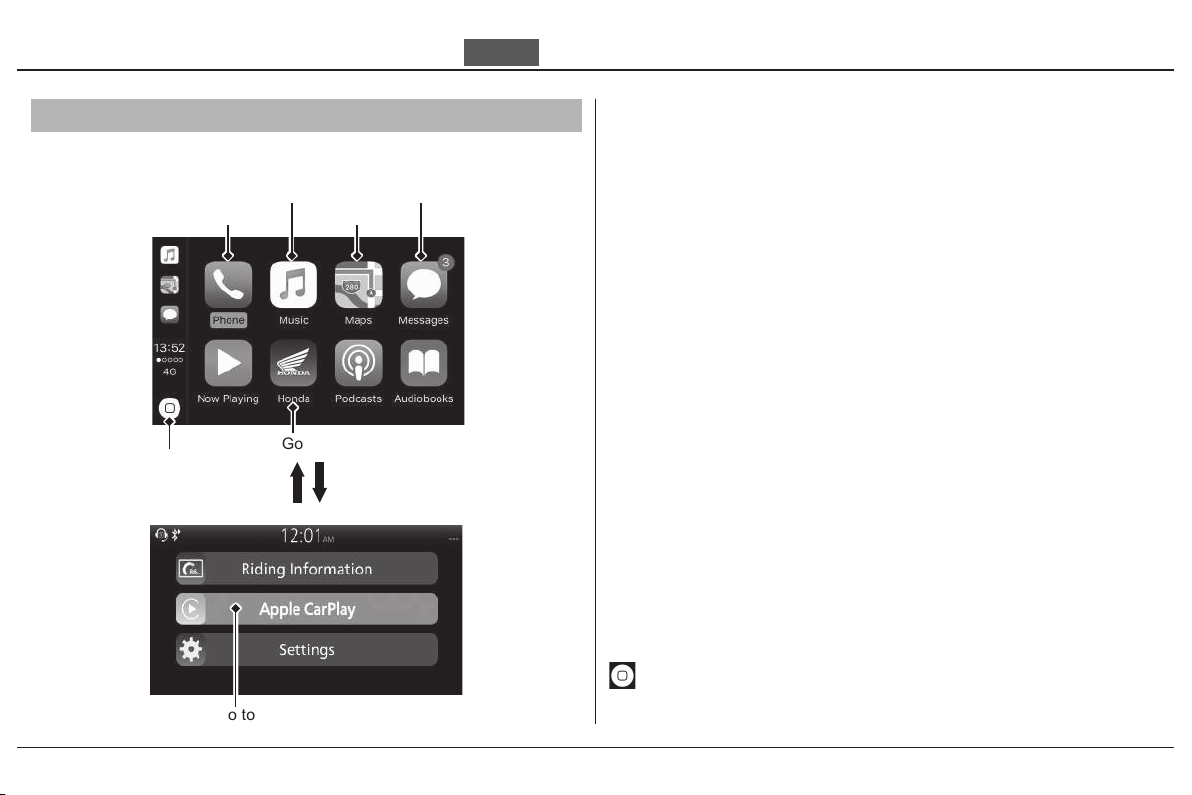
Apple CarPlay Menu
Apple CarPlay menu screen
Music
Phone
Go back to Home screen
Go back to
Apple CarPlay
menu screen
Maps
Messages
Phone
Access the contact list, make phone calls, or listen
to voice mail.
Music
Play music stored on your iPhone.
Maps
Display Apple CarPlay map and use the navigation
function just as you would on your iPhone.
Messages
Check and reply to text messages, or have
messages read to you.
Honda
Go back to the Home screen.
Go to Apple CarPlay menu screen
Go back to the Apple CarPlay menu screen.
© 2020 Honda Motor Co., Ltd - All Rights Reserved.
Page 25
Function and Instruction
FO type
P.23
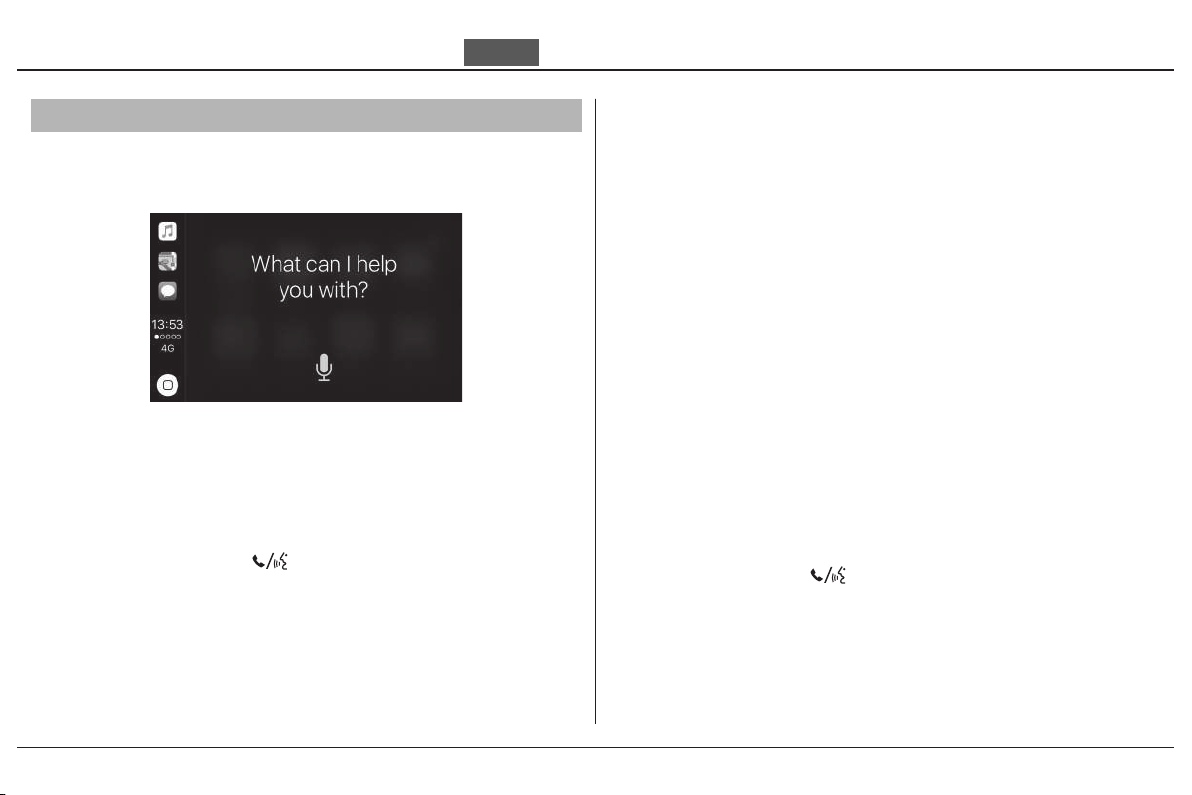
Operating Apple CarPlay with Siri
To activate Siri, pairing with device such as a
headset must be paired.
To Activate Siri
Start Apple CarPlay.
❶
Unlock your iPhone and enable Siri.
❷
For details, refer to the iPhone User Guide, etc.
▶
Push forward the
❸
voice control switch on the
left handlebar.
Say a voice command through the paired
❹
headset.
Siri may not be recognised correctly due to the
eect of wind noise during running or external
noise. In that case, try to change the position of
the microphone or to adjust the windscreen height.
Below Are Examples of Questions and
Commands for Siri
• Call dad at work.
• What song is this?
• How’s the weather tomorrow?
• Read my latest email.
For more information, please visit www.apple.com/
ios/siri.
To Deactivate Siri
Push forward the
voice control switch on the
left handlebar.
Siri is a trademark of Apple Inc.
© 2020 Honda Motor Co., Ltd - All Rights Reserved.
Page 26
Troubleshooting
P.24
Apple CarPlay/ Android Auto
Symptom Cause/remedy
Connected
compatible model with
Android
phone to the newer version.
Android Auto
Android Auto
available.
is not
Connected
Android
To use
headset.
When a mobile network communication is unstable due to surrounding
conditions or signal strength conditions,
available.
When the paired headset connection is broken due to headset battery
depletion or communication failure, go back to the Home screen, and pair
the headset connection again.
Android
phone may be unsupported
, a headset connection is necessary. Connect a paired
phone may be unsupported model. Check the
Android Auto
.
Android Auto
Android
functions may not be
version. Update the
© 2020 Honda Motor Co., Ltd - All Rights Reserved.
Page 27
Troubleshooting
Symptom Cause/remedy
P.25
Android Auto
available.
is not
Some USB cables may be incompatible with
Auto
, the USB cables should be certied by USB-IF to be compliant with
USB 2.0 Standard.
You have not agreed to enable
phone and enable to use
Android Auto
Android
setting on your
phone and enable the
Android Auto
Android Auto
on the disclaimer screen.
Android
Android Auto
phone may be disabled. Disconnect
Android Auto
. Reconnect the
setting on your
. For
Android
Android
Android
phone.
© 2020 Honda Motor Co., Ltd - All Rights Reserved.
Page 28
Troubleshooting
Symptom Cause/remedy
Connected iPhone may be unsupported model. Check the compatible
model with Apple CarPlay.
Connected iPhone may be unsupported iOS version. Update the iPhone to
the newer version.
P.26
Apple CarPlay is not
available.
To use Apple CarPlay, a headset connection is necessary. Connect a paired
headset.
When a mobile network communication is unstable due to surrounding
conditions or signal strength conditions, Apple CarPlay functions may not
be available.
When the paired headset connection is broken due to headset battery
depletion or communication failure, Apple CarPlay cannot be used until the
connection is restored.
© 2020 Honda Motor Co., Ltd - All Rights Reserved.
Page 29
Troubleshooting
Symptom Cause/remedy
The screen will not switch to Apple CarPlay automatically, other than when
the ignition switch is turned to
Some USB cables may be incompatible with Apple CarPlay. Use certied
cable to connect the iPhone.
Apple CarPlay is not
available.
You have not agreed to enable Apple CarPlay. Reconnect the iPhone and
enable to use CarPlay on the disclaimer screen.
Apple CarPlay setting on your iPhone may be disabled. Disconnect iPhone
and enable the Apple CarPlay setting on your iPhone.
P.27
(O) with Apple CarPlay is activated.
© 2020 Honda Motor Co., Ltd - All Rights Reserved.
Page 30
Troubleshooting
Symptom Cause/remedy
P.28
Connected, but does not
operate Apple CarPlay
Android Auto
/
Some functions of Apple
CarPlay /
is not available.
Apple CarPlay /
Auto
screen is too dark/
bright
The multi-function display
is too dark/bright.
.
Android Auto
Android
You cannot operate Apple CarPlay /
while the vehicle is in motion. Operate with the left handlebar switches or
park your vehicle in a safe place, then operate.
Some functions may be limited due to condition of mobile network
communication.
Selecting [Background] menu in [Settings], you can select white mode or
black mode in the navigation map or an application such as Maps, also
adjust backlight brightness by [Brightness] menu in [Settings].
When using applications such as Apple CarPlay /
select white mode or black mode, also adjust backlight brightness by
[Brightness] menu in [Settings].
Android Auto
Android Auto
by the touch screen
, you can
© 2020 Honda Motor Co., Ltd - All Rights Reserved.
Page 31

Legal Information
P.29
Apple CarPlay/
❚
OWNER’S MANUAL LICENSE/LIABILITY STATEMENTS
USE OF APPLE CARPLAY IS SUBJECT TO YOUR
AGREEMENT TO THE CARPLAY TERMS OF USE,
WHICH ARE INCLUDED AS PART OF THE APPLE iOS
TERMS OF USE. IN SUMMARY, THE CARPLAY TERMS
OF USE DISCLAIM APPLE AND ITS SERVICE
ROVIDERS’ LIABILITY IF THE SERVICES FAIL TO
PERFORM CORRECTLY OR ARE DISCONTINUED,
STRICTLY LIMIT APPLE AND ITS SERVICE ROVIDERS’
OTHER LIABILITIES, DESCRIBE THE KINDS OF USER
INFORMATION (INCLUDING, FOR EXAMPLE, VEHICLE
LOCATION, VEHICLE SPEED, AND VEHICLE STATUS)
BEING GATHERED AND STORED BY APPLE AND ITS
SERVICE PROVIDERS, AND DISCLOSE CERTAIN
POSSIBLE RISKS ASSOCIATED WITH THE USE OF
CARPLAY, INCLUDING THE POTENTIAL FOR DRIVER
DISTRACTION. SEE APPLE’S PRIVACY POLICY FOR
DETAILS REGARDING APPLE’S USE AND HANDLING
OF DATA UPLOADED BY CARPLAY.
Android Auto
USE OF
AGREEMENT TO THE
WHICH MUST BE AGREED TO WHEN THE
ANDROID AUTO
YOUR
ANDROID AUTO
ITS SERVICE PROVIDERS’ LIABILITY IF THE
SERVICES FAIL TO PERFORM CORRECTLY OR
ARE DISCONTINUED, STRICTLY LIMIT
AND ITS SERVICE PROVIDERS’ OTHER LIABILITIES,
DESCRIBE THE KINDS OF USER INFORMATION
(INCLUDING, FOR EXAMPLE, VEHICLE LOCATION,
VEHICLE SPEED, AND VEHICLE STATUS) BEING
GATHERED AND STORED BY
SERVICE PROVIDERS, AND DISCLOSE CERTAIN
POSSIBLE RISKS ASSOCIATED WITH THE USE OF
ANDROID AUTO
DRIVER DISTRACTION. SEE
POLICY
AND HANDLING OF DATA UPLOADED BY
AUTO
ANDROID AUTO
APPLICATION IS DOWNLOADED TO
ANDROID
FOR DETAILS REGARDING
.
PHONE. IN SUMMARY, THE
TERMS OF USE DISCLAIM
, INCLUDING THE POTENTIAL FOR
IS SUBJECT TO YOUR
ANDROID AUTO
GOOGLE
GOOGLE’S PRIVACY
TERMS OF USE
GOOGLE
GOOGLE
AND ITS
GOOGLE’S
ANDROID
AND
USE
© 2020 Honda Motor Co., Ltd - All Rights Reserved.
Page 32

Legal Information
P.30
DISCLAIMER OF WARRANTIES;
❚
LIMITATION ON LIABILITY
YOU EXPRESSLY ACKNOWLEDGE AND AGREE THAT
USE OF APPLE CARPLAY OR
APPLICATIONS”) IS AT YOUR SOLE RISK AND THAT
THE ENTIRE RISK AS TO SATISFACTORY QUALITY,
PERFORMANCE, ACCURACY AND EFFORT IS WITH
YOU TO THE MAXIMUM EXTENT PERMITTED BY
APPLICABLE LAW, AND THAT THE APPLICATIONS
AND INFORMATION ON THE APPLICATIONS IS
PROVIDED “AS IS” AND “AS AVAILABLE,” WITH ALL
FAULTS AND WITHOUT WARRANTY OF ANY KIND,
AND HONDA HEREBY DISCLAIMS ALL WARRANTIES
AND CONDITIONS WITH RESPECT TO THE
APPLICATIONS AND INFORMATION ON THE
APPLICATIONS, EITHER EXPRESS, IMPLIED OR
STATUTORY, INCLUDING, BUT NOT LIMITED TO, THE
IMPLIED WARRANTIES AND/OR CONDITIONS OF
MERCHANTABILITY, SATISFACTORY QUALITY,
FITNESS FOR A PARTICULAR PURPOSE, ACCURACY,
QUIET ENJOYMENT, AND NONINFRINGEMENT OF
THIRD PARTY RIGHTS. NO ORAL OR WRITTEN
INFORMATION OR ADVICE GIVEN BY HONDA OR AN
AUTHORIZED REPRESENTATIVE SHALL CREATE A
ANDROID AUTO
(“THE
WARRANTY. AS EXAMPLES, AND WITHOUT
LIMITATION, HONDA DISCLAIMS ANY WARRANTY
REGARDING THE ACCURACY OF DATA PROVIDED BY
THE APPLICATIONS, SUCH AS THE ACCURACY OF
DIRECTIONS, ESTIMATED TRAVEL TIME, SPEED
LIMITS, ROAD CONDITIONS, NEWS, WEATHER,
TRAFFIC, OR OTHER CONTENT PROVIDED BY
APPLE,
PARTY PROVIDERS; HONDA DOES NOT
GUARANTEE AGAINST LOSS OF APPLICATION
DATA, WHICH MAY BE LOST AT ANY TIME; HONDA
DOES NOT GUARANTEE THAT THE APPLICATIONS
OR ANY SERVICES PROVIDED THROUGH THEM
WILL BE PROVIDED AT ALL TIMES OR THAT ANY
OR ALL SERVICES WILL BE AVAILABLE AT ANY
PARTICULAR TIME OR LOCATION. FOR EXAMPLE,
SERVICES MAY BE SUSPENDED OR INTERRUPTED
WITHOUT NOTICE FOR REPAIR, MAINTENANCE,
SECURITY FIXES, UPDATES, ETC., SERVICES MAY
BE UNAVAILABLE IN YOUR AREA OR LOCATION, ETC.
IN ADDITION, YOU UNDERSTAND THAT CHANGES
IN THIRD PARTY TECHNOLOGY OR GOVERNMENT
REGULATION MAY RENDER THE SERVICES AND/OR
APPLICATIONS OBSOLETE AND/OR UNUSABLE.
GOOGLE
, THEIR AFFILIATES, OR THIRD
© 2020 Honda Motor Co., Ltd - All Rights Reserved.
Page 33

Legal Information
P.31
TO THE EXTENT NOT PROHIBITED BY LAW, IN NO
EVENT SHALL HONDA OR ITS AFFILIATES BE LIABLE
FOR PERSONAL INJURY, OR ANY INCIDENTAL,
SPECIAL, INDIRECT OR CONSEQUENTIAL DAMAGES
WHATSOEVER, INCLUDING, WITHOUT LIMITATION,
DAMAGES FOR LOSS OF PROFITS, CORRUPTION OR
LOSS OF DATA, FAILURE TO TRANSMIT OR RECEIVE
ANY DATA, BUSINESS INTERRUPTION OR ANY
OTHER COMMERCIAL DAMAGES OR LOSSES,
ARISING OUT OF OR RELATED TO THE
APPLICATIONS OR YOUR USE OF OR INABILITY TO
USE THE APPLICATIONS OR INFORMATION ON THE
APPLICATIONS, HOWEVER CAUSED, REGARDLESS
OF THE THEORY OF LIABILITY (CONTRACT, TORT
OR OTHERWISE) AND EVEN IF HONDA WERE
ADVISED OF THE POSSIBILITY OF SUCH DAMAGES.
SOME STATES AND JURISDICTIONS DISALLOW THE
EXCLUSION OR LIMITATION OF LIABILITY FOR
DAMAGES, SO THESE LIMITATIONS AND
EXCLUSIONS MAY NOT APPLY TO YOU. IN NO EVENT
SHALL HONDA’S TOTAL LIABILITY TO YOU FOR ALL
DAMAGES (OTHER THAN AS MAY BE REQUIRED BY
APPLICABLE LAW IN CASES INVOLVING PERSONAL
INJURY) EXCEED THE AMOUNT OF FIVE DOLLARS
($5.00).
THE FOREGOING LIMITATIONS WILL APPLY EVEN IF
THE ABOVE STATED REMEDY FAILS OF ITS
ESSENTIAL PURPOSE.
© 2020 Honda Motor Co., Ltd - All Rights Reserved.
 Loading...