

Page 1

R
LCD COLOR TV
USER MANUAL
TL 2020
Part No. IES050121
English
Page 2

TV SET-UP
1. When connecting a DVD / VCR Combination player or VCR to this TV, please connect it using
Composite (RCA), S-Video or Component outputs. Please do not use Coaxial cable (also known as
“RF Antenna cable”) as this might cause less then optimal viewing conditions (Coaxial connector is
marked as “ANT IN” on the back of the TV).
2. After connecting all your Audio / Video equipment to the TV, plug the power cord on the plug side of the
power cable into the wall receptacle and on the receptacle side into the “AC IN” connector on the back
of the TV. Make sure that power cable is securely inserted on both ends. Check if a red or blue light
lights up on the front panel of the TV. If there is, you can now proceed with turning on and setting-up
the TV. If no light has turned on, locate the power button on the back of the TV and make sure it’s
pressed. NOTE that this switch is not easy to locate on the back panel. It can be found to the right of
the “AC IN” connector as indicated in the figure below:
3. After turning on the TV by pressing either the POWER button on the right side of the TV or on the
remote control, please take the following steps to have the TV memorize all the available TV stations in
your area (only if you plan on watching TV channels without going through a cable box or satellite
receiver):
1. Press the MENU button on the remote control once
2. Press the ► directional button repeatedly to move to the SEARCH menu screen
3. Press the ▼ directional button repeatedly until the AUTO SEARCH feature is highlighted in
orange colour.
4. Press the ► directional button once to activate the AUTO SEARCH function. Now the TV will
search for all available cable TV channels in your area and memorize them. Make sure not to
press any other buttons during this process so the TV can complete the scanning process.
Once the scanning process is completed, the TV will stop at the first available channel. Now you
can skip to any available TV channel by pressing the CH ▲or CH ▼ on the TV or the numerical
and CH ▲or CH ▼ buttons on the remote control (when trying to view cable TV channels,
make sure that you are in TUNER mode by pressing the SOURCE button repeatedly until a
channel number appears in the top right corner of the TV screen.
For any further questions, please consult the product manual that was supplied with the TV or contact
our customer service line toll-free at 1800-287-4871
Page 3

Please read all the safety and operating instructions carefully before you begin.
This is an IEC safety class product and must be grounded for safety.
CONTENTS
SAFETY CLASS
Important safety instructions.......................................................................................................................................
Brief Product Overview
Learning about your new TV ................................ .......... .......... .......... .......... .......... .....
Selecting a location for the TV............................... .......... .......... .......... .......... .......... .....
Connecting your TV......................................... .......... .......... .......... .......... .......... .....
Connecting audio/visual equipment.................... .......... .......... .......... .......... .......... .....
Connecting the PC or Notebook ........................ .......... .......... .......... .......... .......... .....
Connecting to an Aerial / Cable antenna......................................................................
Using the remote control ................................... .......... .......... .......... .......... .......... .....
Preparing the remote control foruse.................... .......... .......... .......... .......... .......... .....
Shortcut keys operation .................................... .......... .......... .......... .......... .......... .....
Menu operation ....................................................................................................
Using the Picture Parameters menu ................... .......... .......... .......... .......... .......... ....
Using the Audio Setting menu ........................ .......... .......... .......... .......... .......... .....
Using the the Geometry menu ................................................................................
Using the General Settings menu ...................... .......... .......... .......... .......... .......... .....
Using the Search menu ................................ .......... .......... .......... .......... .......... .....
Appendix ................................................... .......... .......... .......... .......... .......... .....
Cleaning and care ...................................... .......... .......... .......... .......... .......... .....
Trouble shooting ....................................... .......... .......... .......... .......... .......... .....
Specifications .......................................... .......... .......... .......... .......... .......... .....
Limited Warranty ....................................... .......... .......... .......... .......... ...............
......................................................................................................................................................................................
2
4
6
7
7
7
8
8
10
10
11
14
14
14
15
15
18
19
19
20
21
22
-1-
Page 4
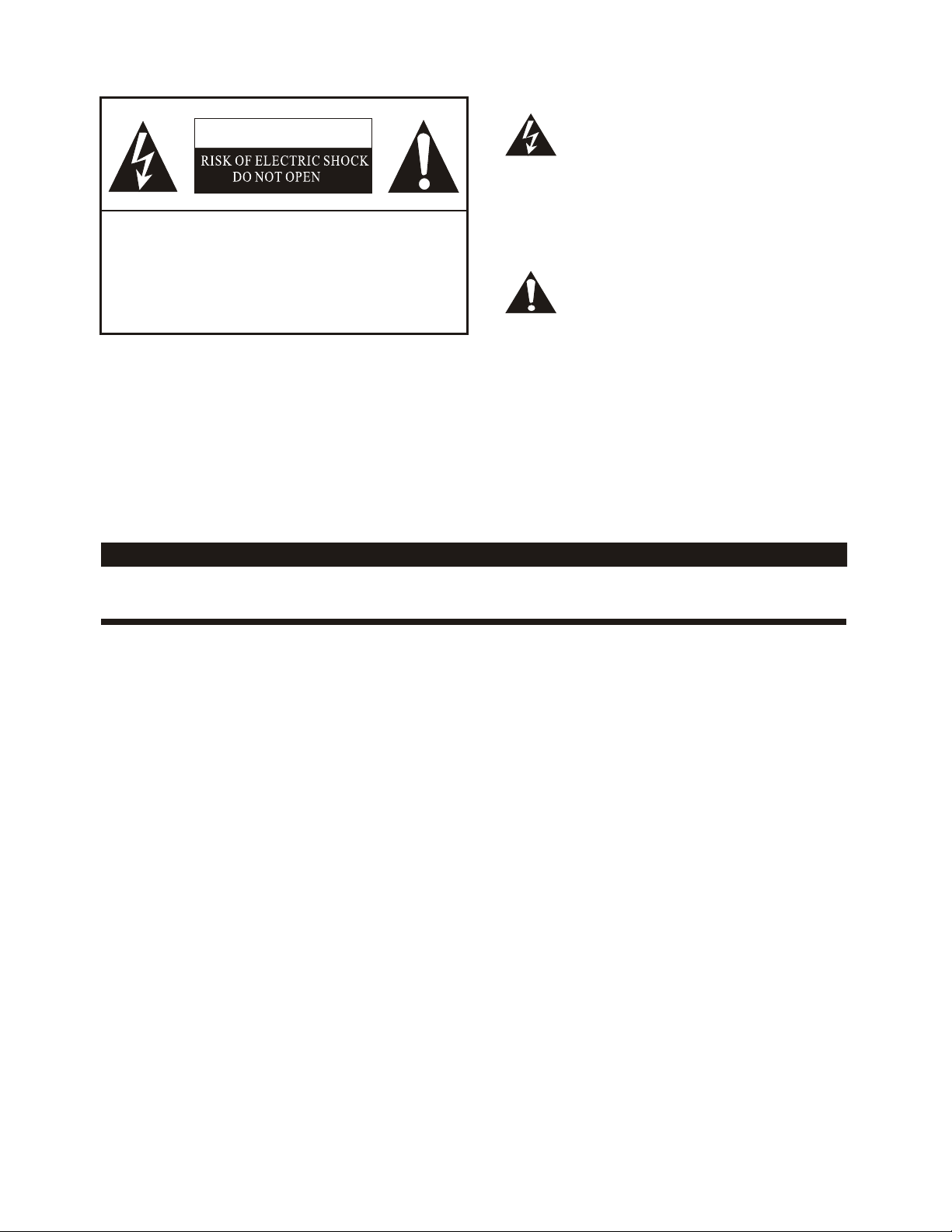
The lightning flash with arrowhead symbol, within an
CAUTION
equilateral triangle is intended to alert the user to the
presence of uninsulated dangerous voltage within the
product s enclosure that may be of sufficient magnitude
'
to constitute a risk of electric shock.
CAUTION: TO REDUCE THE RISK OF ELEC-
TRIC SHOCK, DO NOT REMOVE
COVER(OR BACK).NO USER SERVICEABLE PARTS INSIDE.
REFER SERVICING TO QUALIFIED
SERVICE PERSONNEL.
The exclamation point within an equilateral triangle is
intended to alert the user to the presence of important
operating and maintenance( servicing ) instructions in
the literature accompanying the set.
CAUTION: CHANGES OR MODIFICATIONS NOT EXPRESSLY APPROVED BY THE PARTY
RESPONSIBLE FOR COMPLIANCE WITH THE FCC RULES COULD VOID THE
USERS AUTHORITY TO OPERATE THIS EQUIPMENT.
WARNING: TO PREVENT FIRE OR SHOCK HAZARD, DO NOT EXPOSE THIS APPLIANCE TO RAIN OR MOISTURE.
Important safety instructions
1. READ THESE INSTRUCTIONS
All the safety and operating instructions should be read before the product is operated.
2. KEEP THESE INSTRUCTIONS
The safety and operating instructions should be retained for future reference.
3. HEED ALL WARNINGS
All warnings on the product and in the operating instructions should be adhered to.
4. FOLLOW ALL INSTRUCTIONS
All operating and use instructions should be followed.
5. DO NOT USE THIS APPARATUS NEAR WATER
Do not use the product near water. For example, near a bathtub, washbowl, kitchen sink, or laundry tub, in a wet
basement, or near a swimming pool, and the like.
6. CLEAN ONLY WITH DRY CLOTH
Unplug the TV from the wall outlet before cleaning. Do not use liquid cleaners or aerosol cleaners. Use a damp
cloth for cleaning.
7. DO NOT BLOCK ANY VENTILATION OPENINGS
Slots and openings in the cabinet back or bottom are provided for ventilation, to ensure reliable operation of the
TV and to protect it from overheating. These openings must not be blocked or covered. The openings should never
be blocked by placing the product on a bed, sofa, rug, or other similar surface. This product should never be placed
near or over a radiator or heat resource. This product should not be placed in a built-in installation such as a bookcase
or rack unless proper ventilation is provided or the manufacture's instructions have been adhere to.
8. DO NOT INSTALL NEAR ANY HEAT SOURCES
This product should be situated away from heat sources such as radiators, stoves, or other products (including amplifiers)
that produce heat.
9. DO NOT DEFEAT THE SAFETY PURPOSE OF THE POLARIZED OR GROUNDING-TYPE PLUG
A polarized plug has two blades with one wider than the other. A grounding- type plug has two blades and a third grounding
prong. The wide blade or the third prong are provided for your safety. If the provided plug does not fit into your outlet, consult
an electrician for replacement of the obsolete outlet.
10. PROTECT THE POWER CORD FROM BEING WALKED ON OR PINCHED PARTICULARLY AT PLUGS, CONVENIENCE
RECEPTACLES, AND THE POINT WHERE THEY EXIT FROM THE APPARATUS.
11. ONLY USE ATTACHMENTS/ACCESSORIES SPECIFIED BY THE MANUFACTURE.
-2-
Page 5
Important safety instructions
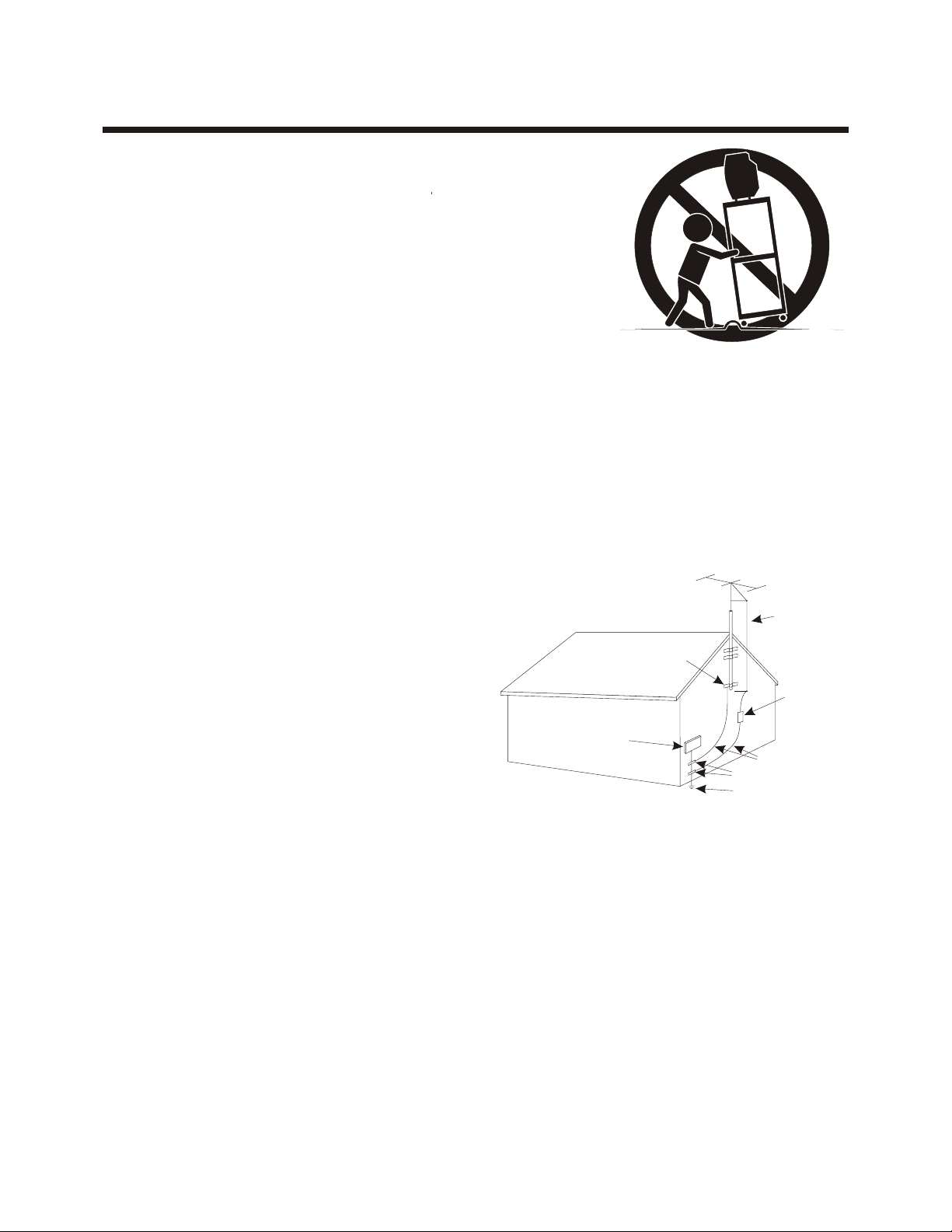
12. USE ONLY WITH CART, STAND, TRIPOD, BRACKET, OR TABLE SPECIFIED BY
THE MANUFACTURER, OR SOLD WITH THE APPARATUS. WHEN A CART IS USED,
USE CAUTION WHEN MOVING THE CART/APPARATUS COMBINATION TO AVOID
INJURY FROM TIP-OVER.
Do not place this TV on an unstable cart, stand, tripod, bracket ,or table. The TV may
fall, causing serious injury to someone, and serious damage to the appliance. An TV
and cart combination should be moved with care. Quick stops, excessive force, and
uneven surfaces may cause the product and cart combination to overturn.
13. UNPLUG THIS APPARATUS DURING LIGHTNING STORMS OR WHEN UNUSED
FOR LONG PERIODS OF TIME.
For added Protection for this TV receiver during a lightning storm, or when it is left
unattended and unused for long period of time, unplug it from the wall outlet and
disconnect the antenna or cable system. This will prevent damage to the TV due to
lightning and power line surges.
14. REFER ALL SERVICING TO QUALIFIED SERVICE PERSONNEL. SERVICING IS REQUIRED WHEN THE APPARATUS
HAS BEEN DAMAGED IN ANY WAY, SUCH AS POWER-SUPPLY CORD OR PLUG IS DAMAGED, LIQUID HAS BEEN
SPILLED OR OBJECTS HAVE FALLEN INTO THE APPARATUS, THE APPARATUS HAS BEEN EXPOSED TO RAIN OR
MOISTURE, DOES NOT OPERATE NORMALLY, OR HAS BEEN DROPPED.
15.
POWER SOURCE
This TV should be operated only from the type of power source indicated on the marking label. If you are not sure of the type
of power supply to your home, consult your appliance dealer or local power company . For TVs intended to operate from
battery power, or other sources, refer to the operating instructions.
16. POWER CORD PROTECTION
Power-supply cords should be routed so that they are not likely to be walked on or pinched by items placed upon or against
them, paying particular attention to cords at plugs, convenience receptacles, and the point where they exit from the appliance.
17. OUTDOOR ANTENNA GROUNDING
If an outside antenna or cable system is connected to
the TV, be sure the antenna or cable system is grounded
FIGURE A
EXAMPLE OF ANTENNA GROUNDING AS PER
NATIONAL ELECTRICAL CODE
to provide some protection against voltage surges
and built-up static charges. Section 810 of the National
Electrical Code, ANSI/NFPA NO.70,provides
information with respect to proper grounding
of the mast and supporting structure, grounding
of the lead-in wire to an antenna discharge unit ,
size of grounding conductors, location of
antenna discharge unit, connection to grounding
electrodes, and requirements for the grounding
electrode.(Fig.A)
18. LIGHTNING
For added protection for this TV receiver during
S2898A
a lightning storm, or when it is left unattended and
unused for long periods of time, unplug it from the wall outlet and disconnect the antenna or cable system. This will prevent
damage to the TV due to lightning and power line surges.
19. POWER LINES
An outside antenna system should not be located in the vicinity of overhead power lines, or other electric light or power
circuits, or where it can fall into such power lines or circuits. When installing an outside atenna system, extreme care should
be taken to keep from touching such power lines or circuits as contact with them might be fatal.
20. OVERLOADING
Do not overload wall outlets and extension cords as this can result in a risk of fire or electric shock.
21. OBJECT AND LIQUID ENTRY
Never push objects of any kind into this TV through openings as they may touch dangerous voltage points or short out parts
that could result in fire or electric shock. Never spill liquid of any kind into the TV.
22. SERVICING
Do not attempt to service this TV yourself as opening or removing covers may expose you to dangerous voltage or other
hazards. Refer all servicing to qualified service personnel.
23. REPLACEMENT PARTS
When replacement parts are required, be sure the service technician uses replacement parts specified by the manufacturer
that have the same characteristics as the original part. Unauthorized substitutions may result in fire, electric shock, injury to
persons or other hazards.
24. SAFETY CHECK
Upon completion of any service or repairs to this TV, ask the service technician to perform routine safety checks to determine
that the TV is in proper operating condition.
-3-
ELECTRIC
SERVICE
EQUIPMENT
S3126A
GROUND
CLAMP
ANTENNA LEAD
IN WIRE
ANTENNA
DISCHARGE UNIT
GROUNDING WIRES
GROUND CLAMPS
POWER SERVICE GROUNDING
ELECTRODE SYSTEM
Page 6
Brief Product Overview
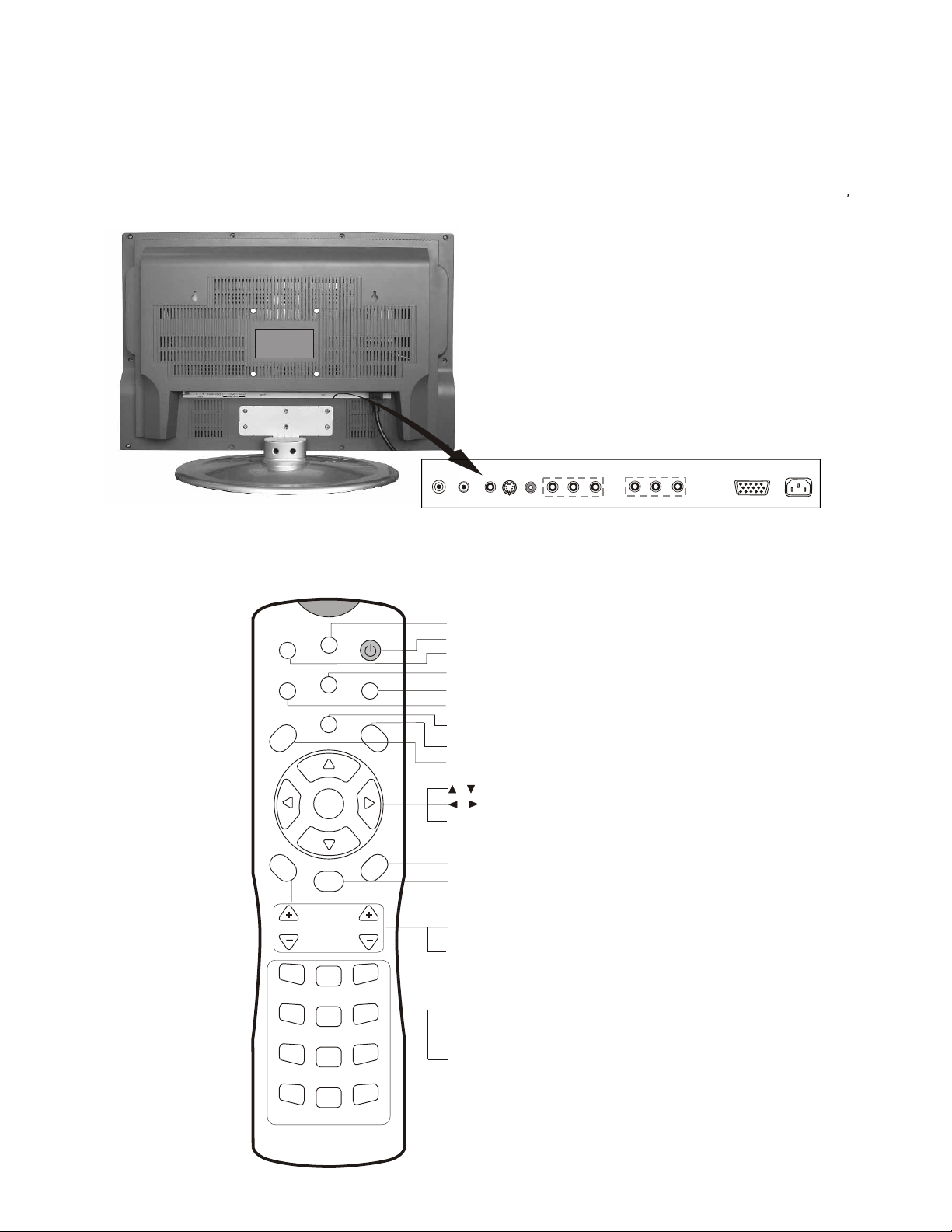
1.Connection
Connect the antenna lead or CATV cable or external equipment (such as Antenna, Cable TV, VCD, DVD,
VCR, Set top box, etc.) to the corresponding terminals or interface on the TV rear (please refer to the owner s
manual of the equipment to be connected as well) and confirm that the signal source is available and works
normally.
AC IN
AV OUT
2.The remote control
ANT.IN
S-VIDEO
LR
AUDIO
VIDEO
Y P/C P /C
B B R R
COMPONENT
Open the back battery cover on the remote control and insert 2 x 'AAA' size batteries, noting the correct
polarities marked inside the battery compartment . Next close the battery cover.
PC IN
SOURCE
CCD
MENU
P. MO DE
VOL
1
4
7
SCAN
PARENT
SAP
OK
S.MODE
2
5
8
LOCK
MUTE
RECALL
CH
3
6
9
SCAN: Scan available channels
POWER: Power on/off
SOURCE: Select one of five input signal sources
PARENT: Parental control function
LOCK: Set child lock
CCD: Closed caption function
SAP: SAP/stereo/mono audio setting selection
MUTE: Mute the sound
MENU: Call up the main menu
: Cursor up/down
/
: Select or adjust from a particular menu
/
OK: Confirm selected function or return to the previous menu
RECALL: Return to previous channel
S.MODE: Select the sound mode
P.MODE: Select the picture mode
VOL+/-:Volume up/down
CH+/-: Channel up/down
CHANNEL NUMBER: Direct Channel selection
SLEEP: Set the sleep timer
DISPLAY: Display current Status information
SLEEP
0
DISPLAY
-4-
Page 7
3.Switching on/off
1)Connect the TV to power outlet. Switch the power switch located on the back of the TV on (See page 6,
item 21 for location), if the power indicator is red, it means the TV is off now. You need to press the
POWER switch on the TV or the POWER button on the remote control to turn on the TV, and the power
indicator will light up in blue.
2)Press the power switch or thePOWER button on the remote control again to turn off the TV.
4.Signal source selection
Press the number [1-9] button or CH+ orCH- button to select TV input; press the SOURCE button to select TV,
Video, S-Video,VGA,Component..
5.Air/Cable selection
In order to access this setting, you need to be in the Antenna (TV) source mode(press SOURCE button repeatedly).
You can select the signal receiving method according to the following steps:
1) Press the MENU button to enter the main menu.
2) Press the button to select the item Search and press the
[ ]
button to enterSearch menu.
3) Press the button to select the item Tuning Mode.
4) Press the button to change the item among Air,Cable .
[ or ]
[ or ]
[ ]
5)Press OK button to confirm your selection. Press OK again to exit from the menu.
6.Channel search
In order to access this setting, you need to be in the Antenna (TV) source mode
(press SOURCE button repeatedly).
1) Press the MENU button to enter the main menu.
2) Press the button to select the item Search, and press the button to enter Search menu.
3) Press the button to select the item Auto Search.
4) Press the button to start auto searching for all available channels.
[ or ]
[ or ]
[ ]
[ ]
5)Once all the available channels have been memorized, you are now able to use the numerical buttons
or channel + / - buttons to watch the channel number you desire.
Picture Parameters
Equalier
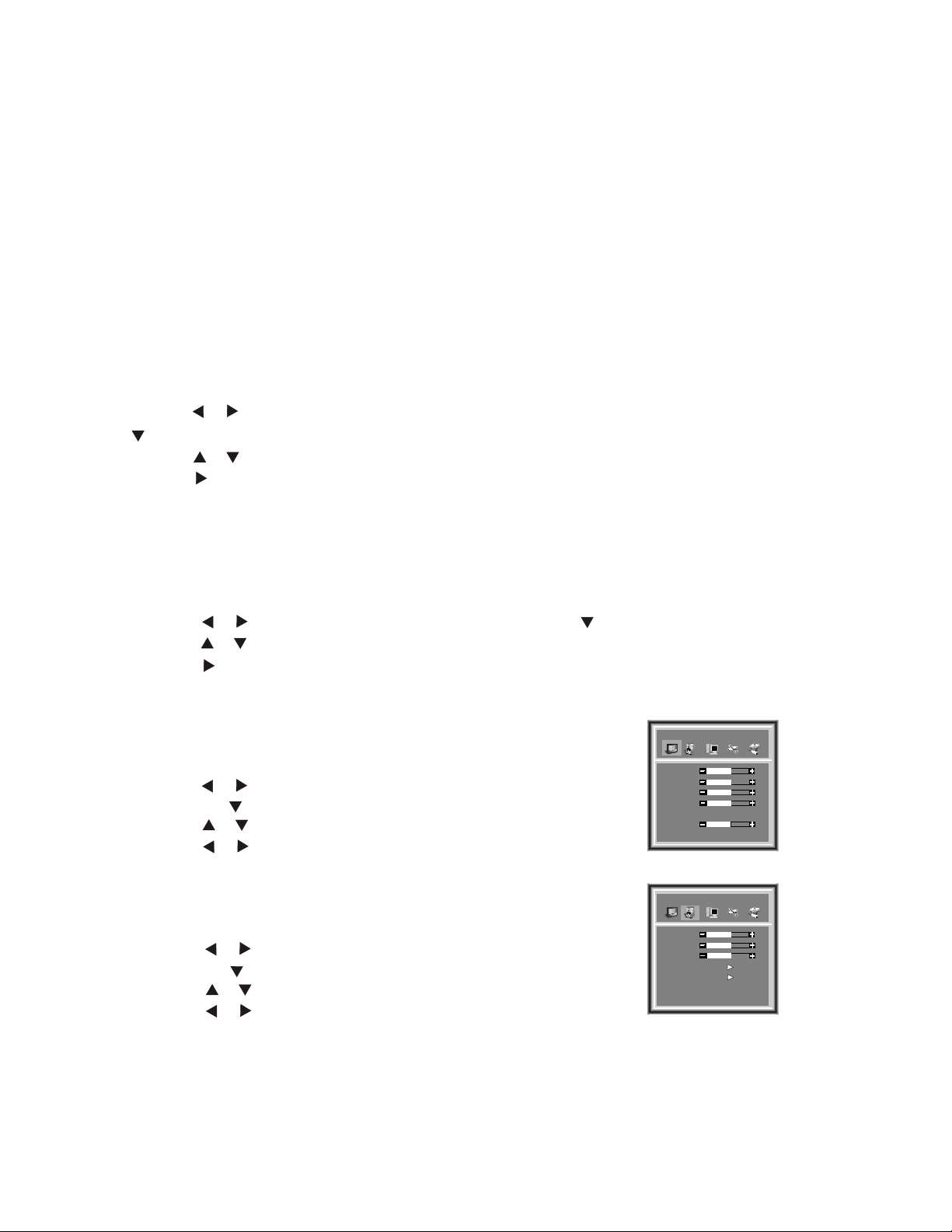
7.Picture adjustment
1) Press the MENU button to enter the main menu.
2) Press the button to select the item Picture Parameters,
and press the button to enterPicture Parameters menu.
3) Press the button to select the item you want to adjust.
4) Press the button to adjust the level.
[ or ]
[ ]
[ or ]
[ or ]
5)Press OK button to confirm your selection. Press OK again to exit from the menu.
Britghtness
Contrast
Saturation
Sharpness
Color Temp
Hue
Normal
50
50
50
50
50
quAlier
Audio Settings
8.Audio adjustment
1) Press the MENU button to enter the main menu.
2) Press the button to select the item Audio Settings,
and press the button to enterAudio Settings menu.
3) Press the button to select the item you want to adjust.
4) Press the button to adjust the level.
[ or ]
[ ]
[ or ]
[ or ]
5)Press OK button to confirm your selection. PressOK again to exit from the menu.
Note1: All buttons mentioned above are on the remote control unless indicated otherwise.
Note2: For more detailed information, please refer to the pages that follow...
-5-
Treble
Bass
Balance
HeadPhone
Equalier
50
50
50
Page 8
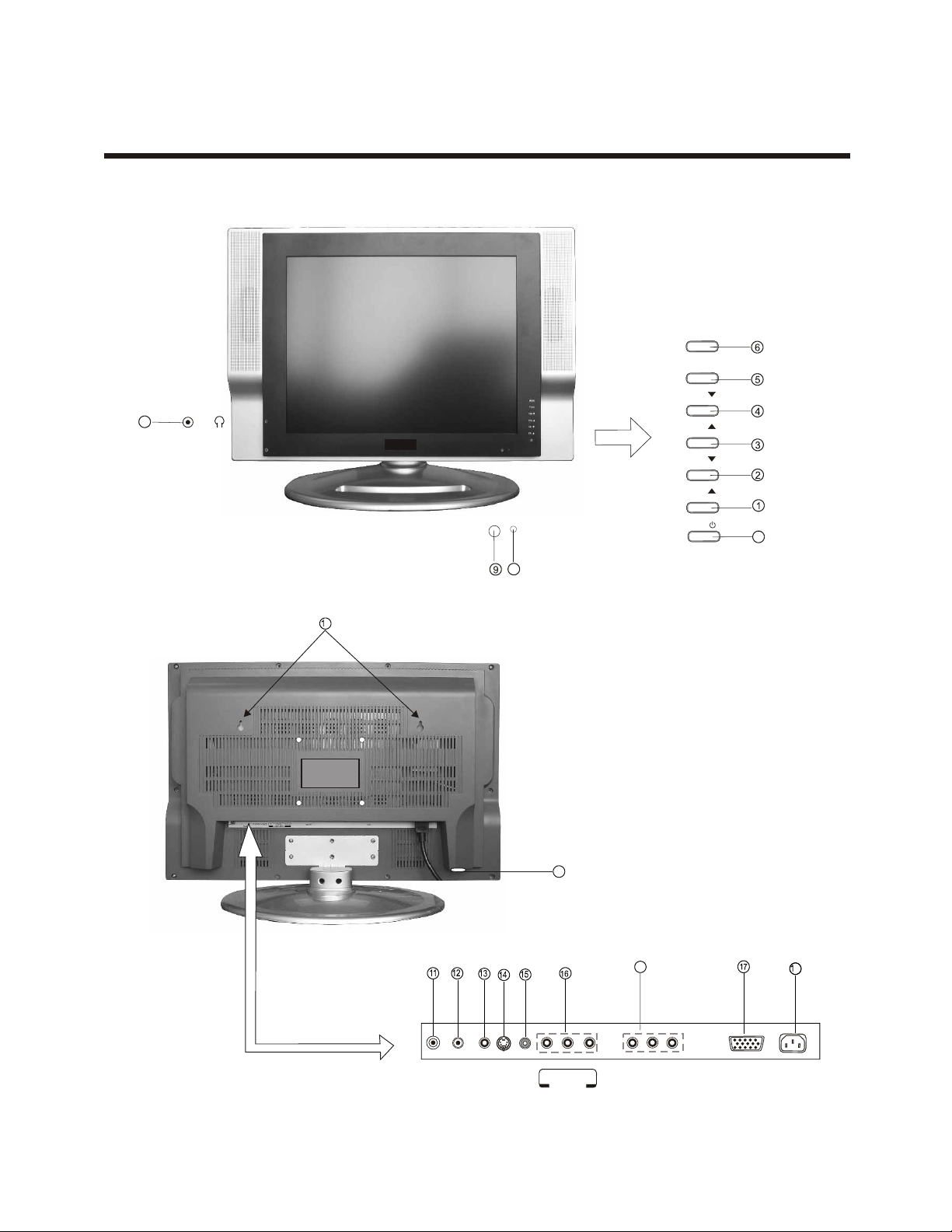
Learning about your new TVLearning about your new TV
You can operate your TV by using the buttons on the front panel or the remote control. The terminals on the
side and the rear panel provide all the connections you will need to connect other equipment to your TV.
Side Controls /
Connections
MENU
TV/AV
VOL
10
Rear Connections
VOL
CH
CH
7
8
9
21
ANT.IN
S-VIDEO
LR
AUDIO
VIDEO
20
P
B
/C
B
P
R
/C
R
Y
COMP
ONENT
AV OUT
PC IN
88
AC IN
Note: The above figures are for reference only, please refer to the actual connection jacks to determine their
appearance.
-6-
Page 9

Learning about your new TV
Channel up / cursor up
Channel down / cursor down
Volume up / cursor right
Volume down / cursor left
TV / AV / PC input select
MENU button
POWER button (standby)
POWER indicator
Remote control sensor
Headphone jack
CATV antenna input
AV audio input L
AV audio input R
S-Video input
AV Video input
Y PB/C
B PR/CR input (Component)
PC VGA input
POWER Plug
9
Wall mounting locating hole
20
AV outputs
21
Power switch
Selecting a location for the TV
1)Place the TV on the floor or on a sturdy platform in a location where light does not directly hit the screen.
2)Place the TV far enough from the walls to allow proper ventilation. Inadequate ventilation may cause
overheating, which may damage the TV.
Wall Mounting your TV
The TL2020 is a VESA compliant LCD TV which means that it can be wall mounted using a standard VESA
compliant mounting bracket. VESA compliant mounting brackets are available at your local electronics
store. The sizing of the bracket should be 100mm x 100mm. Please consult the store you are purchasing
the bracket from for details. Note that the base of the TV needs to be removed before attaching the wall
mounting bracket. Simply place the LCD screen, face down, on a soft, cushioned, non slip, non abrasive
surface, making sure that it cannot slip or slide. Now remove the screws that are holding the base in place.
Connecting your TV
Caution: Do not plug the TV in until you have finished connecting all of your equipment.
Connecting audio/visual equipment
Follow the instructions below to hookup a VCR, DVD, satellite receiver, camcorder, audio amplifier, etc.(cables not
included). Use the SOURCE button on your remote control to select signal sources.
AC IN
ANT.IN
L R
AUDIO
2
VIDEO
4
Y
6
5
Pb
C
S-VIDEO
31
P
B
/C
VCD, DVD, STB
B
P
R
/C
R
7
Pr
C
PC IN
Connection Details:
Connect using AV inputs (RCA Composite)
- Use 1, 2, 4
Connect using S-Video inputs
- Use 1, 2, 3
Connect using Y Pb/Cb Pr/Cr inputs (Component)
- Use 1, 2, 5, 6, 7
-7-
Page 10

Connecting your TV
NOTE: 1) Headphones are not included.
2) No sound will be heard from the
main unit speakers when a
headphone mini-plug is connected
into the headphone jack.
Connecting to a Personal Computer or Notebook
You can use your TV as a monitor for connecting through the PC IN (VGA) connection jack.your PC o rNotebook by Connect
the devices as shown below.
PC/NB
Headphone
PC IN
(cable not included)
To VGA
RGB line
NOTE:
The refresh rate of your PC & Notebook must be adjusted to 60Hz or below.
Connecting to an Aerial / Cable antenna
To enjoy the terrestrial signal transmitted by your local TV station, you need an indoor or outdoor aerial (not supplied).
Perfect picture quality requires a good signal and generally means that an outdoor aerial must be implemented. The
exact type and location of the aerial will depend on your particular area. Consult your local dealer or service
personnel for best advice. If you are a subscriber of your local CATV provider, the outdoor or indoor aerial is not needed.
Connect the equipment as follows:
REAR VIEW
Plug(not supplied)
Adaptor (not supplied)
COAXIAL CABLE (75 )
TWIN-LEAD FEEDER(300 )
The signal comes from:
An outdoor antenna
An indoor antenna
CATV net
ANT.IN
AERIAL SOCKET
-8-
Loosen the screw
Insert the feeder in
Tighten the screw
Page 11

Preparation for Using your new TV
Connecting to a cable converter box
This television has an extended tuning range and can tune into most cable channels without using a cable
company supplied converter box. Some cable companies offer premium pay channels in which the signal is
scrambled. Descrambling these signals for normal viewing requires the use of a descrambler device which
is generally provided by the cable company.
For subscribers to Basic Cable TV Service
For basic cable service, you do not require a Converter/Descrambler box, connect the CATV 75 ohm Coaxial
Cable directly to the Antenna Jack on the back of the television.
For subscribers to Scrambled Cable TV Service
If you subscribe to a cable service which requires the use of a Converter/Descrambler box, connect the
incoming cable to the Converter/Descrambler box and connect the output of the box to the Antenna Jack
on the back of the television. Follow the connections shown below. Set the television to the output of the
Converter/Descrambler box(usually channel 3 or 4)and use the Converter/Descrambler box remote control
to select channels.
For Subscribers to Unscrambled Basic Cable with Scrambled Premium Channels
If you subscribe to a cable service in which basic cable channels are unscrambled and premium channels
require the use of a Converter/Descrambled box, you may wish to use a two-set signal splitter(sometimes
called[two set coupler) and an A/B Switch box from the cable installer or an electronics supply store.
Follow the connections shown below. With the switch in the B position, you can directly tune into any
nonscrambled channels on your TV. With the switch in the A position, tune your TV to the output of the
Converter/Descrambler box(usually channel 3 or 4) and use the box to tune into scrambled channels.
Converter/Descrambler
Converter/Descrambler
Splitter
ANT 75
A/B Switch
Note:
When you use a converter box with your TV, there may be TV features that you cannot
access using the remote control that's provided with the converter box. Therefore keep
the TV remote handy.
- 9 -
Page 12

Using the remote control
Preparing the remote control for use
Installing the remote control batteries
1. Open the batterycover on the back of the remote control.
+
+
2. Insert two AAA size(1.5V) batteries (included). Match the + and - signs inside the batteries to the signs
on the battery compartment.
+
+
3. Close the battery cover.
Note:
1.Dispose of your batteries in a designated disposal area. Do not throw your batteries into fire.
2.Do not mix battery types or combine used batteries with new ones.
3.Remove dead batteries immediately to prevent battery acid from leaking into the battery compartment.
4.If you do not intend to use the remote control for a long time, remove the batteries.
5.The effective range of remote control is suggested in the figure below.
30
6m
30
30
30
6m
-10-
Page 13

Shortcut keys operation
S-Video
Video
Connecting POWER
Note: Use only a manufacturer approved AC plug. If you are having any issues connecting the AC plug to the TV
and / or wall outlet, call our customer service line toll-free at 1800-287-4871 for help.
ON/OFF Standby
Press POWER on the remote control to turn off the LCD TV, the POWER indicator will turn red.
Press POWER again to turn the LCD TV back on, the POWER indicator will turn blue.
Selecting the signal source
1. Turn on the power of the connected video equipment.
2
press the SOURCEbutton to toggle between the source inputs. Select among TV, Video, S-Video, VGA
or Component.
3. The sound signal of all input signals except TV, is inputted through the same AUDIO INPUT terminals.
INPUT TERMINAL
Antenna
Video
S-Video
PC IN(D-Sub15)
B/CB PR/CR
Y P
TV
Video
S-Video
VGA
Component
DISPLAY
TV
Video
S-Video
VGA
Component
NOTE: The explanation about Video,and S-Video signals.
1.In signal input, the use same channel.
2.Only one of these two signals can be input and received at one time. Therefore one of the inputs must
always be free. Otherwise the RCA Video and S-Video signals will affect each other.
Videoand S-Video signals
-11-
Page 14

Shortcut keys operation
Adjusting volume
Press VOL- or VOL+ on the remote control or on the TV to decrease or increase the volume.
VOL
Muting the sound
Press the MUTE on the remote control to temporarily turn off the sound. To restore the sound, press MUTE
again. The mute function is automatically turned off when any of the following buttons are pressed:POWER,
VOL+.
Changing channels
To change the channel, you can
1.Press CH - or CH+ on the remote control or on the TV.
2.Press the channel number buttons(0-9).
1) To select a one-digit channel : Press the 1-9 button to select channel directly.
2) To select a two-digit channel : Press a button from 1-9 to select the first number, then press a button
from 0-9 again to select the second number. For example, to select channel 28, press the 2 button first ,
2 will appear on the screen, and then press the 8 button, 28 will appear on the screen for one second.
--
3) To select a three-digit channel: Press the 1 button to select the first number, then press buttons from 0-9
successively to select the other two numbers. For example, to select channel 120, press the button 1 ,
1 will appear on the screen, then press the button 2 and the button 0 successively.
----
CH
Displaying current channel number on screen
Press the DISPLAY button on the remote control, the current channel number and audio mode will display on the
top-right corner of the screen. It will last for 5 seconds, or you can press the DISPLAY button again to clear the screen.
Switching between two channels
Press the RECALL button on the remote control to return to the previous channel that you have just viewed.
Press the RECALL button repeatedly, alternate between the present and previous channel.the screen will
Setting the child lock
Press the LOCK button to unlock lock or the TV.
When the TV is locked, the screen will turn to black background, and nothing can be viewed unless you press
LOCK again to unlock it.
Setting the sleep timer
Press SLEEP on the remote control to display SLEEP TIMER screen. Press the SLEEP button repeatedly to
progressively set the sleep timer for longer periods of time starting with 5 minutes, 10 minutes, 15minutes,.......,
120 minutes and then back to 0 minute. Selecting Off turns the sleep timer off.
-12-
Page 15

Shortcut keys operation
Selecting the picture mode
You can select the picture mode instantly from among three preset
modes and one user-set mode. Press the P.MODE button on the remote
control repeatedly to select the desired picture mode.
P.MODE
Normal
User
Soft
Selecting the sound mode
You can select a sound effect from among three preset
modes and one user-set mode. Press the S.MODE button on the
remote control repeatedly to select the desired sound effect.
S.MODE
Norma
User
Speech
Selecting MTS/SAP broadcasts
You can enjoy watching TV while you listen to high-fidelity stereo sound with the MTS feature. MTS can
also transmit a second audio program(SAP) containing a second language or other audio information.
Bright
Music
Press the SAP button on the remote control to switch among Mono, Stereo and SAP audio modes.
NOTE: In the general settings menu, you are also able to change the audio mode under the MTS setting
Scanning all available channels
You can scan all available channels by pressing the SCAN button on the remote control. Press the SCAN button
again to cancel this function.
Using CCD (Closed Captioning)
You can turn the CCD function on by pressing the CCD button on the remote control .See page 16 for more details .
Using Parental Control (V-Chip Technology)
You can access the parental control function by pressing the PARENT button on the remote control .See page 16
for more details .
-13-
Page 16

Menu operation
Using the Picture Parameters menu
Adjust picture settings
Picture Parameters
Equalier
1) Press the MENU button to enter the main menu.
2) Press the button to select the item Picture Parameters, and
press the button to enter menu.
3) Press the button to select the item you want to adjust.
4) Press the button to adjust the level.
[ or ]
[ ]
[ or ]
[ or ]
Picture Parameters
Britghtness
Contrast
Saturation
Sharpness
Color Temp
Hue
Normal
50
50
50
50
50
The adjusted data is stored automatically as the USER picture preset. To access the USER picture preset,
press the P.MODE button repeatedly until the word 'USER' appears on screen.
NOTE:1) There are some differences among different input mode. For example, Phase will disappear unless the
input signal is from VGA or Component .
2) The item Colour Temp is for reference only.
5) Press OK button to confirm your selection. Press OK again to exit from the menu.
Using the Audio Settings menu
Adjust audio settings
Adjust audio settingsAdjust audio settings
1) Press the MENU button to enter the main menu.
2) Press the button to select the item , and press
[ ]
the button to enter menu.
3) Press the button to select the item you want to adjust.
4) Press the button to adjust the level.
The adjusted data is stored automatically as the USER audio preset. To access the USER picture preset,
press the S.MODE button repeatedly until the word 'USER' appears on screen.
5) Press OK button to confirm your selection. Press OK again to exit from the menu.
[ or ]
[ or ]
[ or ]
Audio Settings
Audio Settings
Treble
Bass
Balance
HeadPhone
Equalizer
quAlier
Audio Settings
50
50
50
HeadPhone settings
1) Press the MENU button to enter the main menu.
[ ]
[ or ]
[ or ]
[ or ]
[ or ]
[ or ]
Audio Settings
HeadPhone menu
2) Press the button to select the item , and press
the button to enter menu.
3) Press the button to select the item HeadPhone.
4) Press the button to enter .
) Press the button to select the item you want to adjust.
5
6) Press the button to adjust the level.
Audio Settings
7)Press OK button to confirm your selection. Press OK again to exit from the menu.
Equalizer Setting
1) Press the MENU button to enter the main menu.
[ ]
[ or ]
Audio Settings
[ or ]
[ or ]
[ or ]
[ or ]
2) Press the button to select the item , and press
the button to enter menu.
3) Press the button to select the item Equalizer.
4) Press the button to enter Equalizer .
) Press the button to select the item you want to adjust.
5
6) Press the button to adjust the level
7) Press OK button to confirm your selection. Press OK again to exit from the menu.
.
Audio Settings
menu
-14-
Volume
Balance
100HZ
300HZ
1K
3K
8K
quAlier
HeadPhone
Equalizer
50
50
4545
4545
4545
4545
4545
Page 17

Menu operation
Using the Geometry menu
Geometry
1) Press the MENU button to enter the main menu.
2) Press the button to select the item Geometry, and press the button to enter geometry menu.
3) Press the button to select the item you want to adjust.
4) Press the button to change the value.
[ or ]
[ or ]
[ or ]
5) Press OK button to confirm your selection. Press OK again to exit from the menu.
[ ]
Geometry
Equalier
H Clipping: The item allows you to extend or shorten the TV image
in the horizontal direction.
H Position: The item allows you to move the TV image in the
horizontal direction.
V Position: The item allows you to move the TV image in the
vertical direction.
Auto Configuration : When the image looks abnormal, you can try to choose
the Auto Configuration item to correct the image.
example :NOTE: The disabled items will disappear. For H Clipping will disappear
unless the valid input signal is VGA or Component.
Using the General Settings menu
Timer
1) Press the MENU button to enter the main menu.
2) Press the button to select the item General Settings, and press
the button to enter General Settings menu.
3) Press the button to select Timer.
4) Press the button to enter the Timer menu.
5
) Press the button to select the item you want to adjust.
6) Press the button to change the value
7) Press OK button to confirm your selection. Press OK again to exit from the menu.
[ or ]
[ ]
[ or ]
[ or ]
[ or ]
[ or ]
Auto configuration
H Postion
V Postion
H Clipping
Equalier
General Settings
Timer
Vchip menu
Osd language english
CC mode Off
MTS Off
Reset Menu Off
50
50
50
Clock: This item allows you to set the local time on the TV.
On/Off : The item allows the TV automatically to turn on
or jump to a preset channel or switch to standby
mode when the preset time is reached.
Time: The item allows you to set the preset time, turn
Equalier
Timer
Clcck 00:00
On/Off Time Program
Off 00:00 0
Off 00:00 0
Off 00:00 0
Off 00:00 PowerOff
on time ,standby time .
Program:the item allows you to preset the channel number that the TV will turn to at the preset time.
-15-
Page 18

Menu operation
OSD Language: Press the button to change the OSD Language.
CC Mode: Press the button to switch among the different Closed Captioning options CC1~4, T1~4
[ or ]
[ or ]
and Off.
MTS : Press the button to switch among Stereo, SAP and Mono audio modes.
Reset Menu : Press the button to switch between On and Off and if
[ or ]
[ or ]
the item is switched to On ,The Option menu will appear when you turn on the TV the next time.
V-Chip Menu (Parental Control)
Equalier
Vchip Menu
1) Press the MENU button to enter the main menu.
[ ]
[ or ]
[ or ]
[ or ]
Vchip Menu
2) Press the button to select the item General Settings, and press
the button to enter General Settings menu.
3) Press the button to select Vchip Menu.
4) Press the button to enter the .
Note: By pressing the PARENT button on the remote control,
Note:
you can access the same menu
Password change:
Password is a four-digit number. The preset password is 0000.
You must enter password to access the next three operations
1) Press the button to select Password change, and press the button to enter .
Press the 1-9 button to input the the new password. Enter the new password
2)
[ or ]
again to confirm the password change.
[ ]
Password change
MPAA rating NA
TV PG rating
Canadian English NA
Canadian French NA
Enter the Vchip password:
xxxx
Confirm the password:
xxxx
MPAA Rating /TV PG Rating/Canadian English/Canadian French:
1) Press the button to select MPAA Rating TV PG Rating
Canadian English or Canadian French, and press the button to enter it
2)Press the button to select the rating, and press button
to block or unblock the selected rating
[ or ]
[ or ]
[ or ]
[ ]
[ ]
About MPAA Rating :
The Motion Picture Association of America(MPAA) uses a rating system to qualify motion picture content.
Television broadcasters employ a rating system to qualify the content of televison programs as well.
The MPAA and TV ratings work with the V-CHIP feature and allow you to block out programming above
the rating limits you determine.
Rating
G
PG
PG-13
R
NC-17
Defined as
General audience
Parental Guidance suggested
Parents strongly cautioned
Restricted
No one 17 and under admitted
X
Adult audience only
-16-
Page 19

Menu operation
About TV PG Rating:
The TV ratings are divided into two groups: age-based and content-based.
Age
TV-Y
TV-Y7
TV-G
TV-PG
TV-14
TV-MA
Defined as
All children
Directed to older children
General audience
Parental Guidance suggested
Parents Strongly cautioned
Mature Audience only
About Canadian English:
Rating Description
E Exempt
C Children
C8+ Children eight years and older
G General Programming, suitable for all
audiences
PG Parental Guidance
14+ Viewers 14 years and older
18+ Adult Programming
NA Rating not applicable
Contents
FV
D
L
S
V
Defined as
Fantasy Violence
Suggestive dialogue
Strong language
Sexual situations
Violence
About Canadian French:
RatingDescription
E Exempt
G General
8+ 8+ General – Not recommended for young
children
13+ Programming may not be suitable for
children under the age of 13
16+ Programming is not suitable for children
under the age of 16
18+ Programming restricted to adults
NA Rating not applicable
NOTE: As you block ratings, all ratings higher than the ones you select are blocked as well. For example, if you
choose
to block the MPAA rating R, the higher ratings, NC-17 and X, are automatically blocked too.
-17-
Page 20

Using the Search menu
TV Reception Mode
You can set tv source as aerial or cable antenna input.
Equalier
Search
1) Press the MENU button to enter the main menu.
[ ]
[ or ]
Search
[ or ]
[ or ]
2) Press the button to select the item Search, and press
the button to enter menu.
3) Press the button to select Tuning Mode.
4) Press the button to switch among Air, Cable.
Program
Tuning Mode
Skip
Auto search
1
Air
Off
Skip
Allows you to skip a preset TV channel. This is handy when you want to avoid accessing a channel regularly.
1) Press the MENU button to enter the main menu.
2) Press the button to select the item , and press the button to enter menu.
3) Press the button to select Skip.
4) Press the button to skip or unskip the present channel.
[ or ]
[ or ]
[ or ]
Search Search
[ ]
NOTE: The 'skipped' channels cannot be accessed by CH+ or CH- , but you can access them by digit button.
Auto Search
1) Press the MENU button to enter the main menu.
2) Press the button to select the item Search, and press the
button to enter menu.
3) Press the button to select Auto Search.
4) Press the button to start auto search.
[ or ]
Search
[ or ]
[ or ]
[ ]
Auto Search
1 48 MH
Z
-18-
Page 21

Appendix
Cleaning and care
WARNING: TV sets use high voltage. Do not try to remove the back cabinet yourself. There are no user
serviceable parts inside. Note that opening the cabinet could void your warranty. Refer
servicing to qualified service technicians.
To clean the TV screen:
1) Unplug the TV to avoid possible shock hazard.
2) Use a damp cloth or clean cellulose sponge to clean the TV screen and trim. Do not allow water to spill
into the cabinet or damage may occur.
3) Wipe off any excess moisture with a clean dry cloth.
4)Polish the cabinet with a quality furniture polish to maintain the finish and appearance of the cabinet.
Caution: Never use strong solvents such as thinner, benzene, or other chemicals on or near the cabinet.
These chemicals can damage the finish of the cabinet.
Important notice
1. When the TV does not behave properly for some reason,, please unplug the power and plug it back in.
2. Displaying a still picture for a long time will cause image sticking when the input signal is interlaced. The
image sticking will disappear when you turn off the TV for a moment. When using an interlaced input
signal, we recommend not to display a still image for a long time.
-19-
Page 22

Appendix
Troubleshooting
Before calling a service technician, please check the following table for a possible cause of the problem and
some solutions.
Problem
TV will not turn on
No picture, no sound
No sound, picture OK
Poor sound, picture OK
Poor picture, sound OK
Poor reception of broadcast channels
Solution
Make sure the power cord is plugged in, then press POWER.
The remote control batteries may be dead. Replace the batteries.
Check the antenna/cable connections.
The sound may be muted. Press VOL+.
The station may have broadcast difficulties. Try another channel.
The station may have broadcast difficulties. Try another channel
Check the antenna connections.
The station may have broadcast difficulties. Try another channel.
Adjust the picture from the menu.
The station may have broadcast difficulties. Try another channel.
Check the antenna connections.
If you are using a VCR, make sure the SOURCE button is set correctly.
Multiple images
Poor colour or no colour
The remote control does not operate
The station may have broadcast difficulties. Try another channel.
Use a highly directional outdoor antenna.
The station may have broadcast difficulties. Try another channel.
Adjust the TINT and COLOUR in the menu.
Check to see if the SOURCE mode is properly set.
There may be an obstruction between the remote control and the
remote control sensor.
The remote control batteries may be dead. Replace the batteries.
NOTICE:
Although the LCD screen is made with high-precision technology and has effective pixels of 99% or more,
black dots may appear or bright points of light (red, blue or green) may appear constantly on the LCD
screen. This is a structural property of the LCD panel and is not a malfunction.
-20-
Page 23

Appendix
Specifications
Tl2020
Diagonal display size
Television system
Channel coverage
Power source
Power consumption
Conection Interface
20 inches
NTSC standard
VHF: 2~13 UHF: 14-69 Cable TV: 2~13,A~W, W+1~W+84, A-5~A-1, 4A
120VAC, 60Hz
55W
RF input: Cable/ antenna 1RF 75 VHF/UHF input
VIDEO input: VIDEO 1
S-VIDEO 1Y:
YPbPr/YCbCr 1 Y:
YPbPr/YCbCr :
(480P/60Hz,480i/60Hz,720P/60Hz,1080i/60Hz)
VGA : Analog RGB 15pin 1
(VGA signal)
75 1.0Vp-p input
75 1.0Vp-p input
75 0.286Vp-p input
C:
75 1.0Vp-p input
75 1.0Vp-p input
75 0.70Vp-p input
VIDEO output: VIDEO 1
AV audio 1 >10K 1.0Vrms input
AV audio 1
Mini-jack for stereo(3.5 ) 1
Dimensions
Net Weight
Supplied accessories
AUDIO input:
AUDIO putput:
Width: 625mm
Height: 460mm
Depth: 300mm
26Ibs
Remote control,AC cord,Batteries
Design and specifications are subject to change without notice.
CUSTOMER NOTICE: Operate carefully to prevent damage to the screen.
- 21-
Page 24

LIMITED WARRANTY
HISENSE HOME ENTERTAINMENT WARRANTY
We appreciate your purchase of a HISENSE Home Entertainment product. We take pride in the quality of our products
and have manufactured your new Home Entertainment unit to exacting quality standards. We feel confident that in
normal use, it will provide you with satisfactory performance. However, should you experience difficulty, you are
protected under the provisions of this warranty.
HISENSE Home Entertainment products are warranted against manufacturing defects in materials and workmanship in
normal use for the following period from the date of purchase by the original user, and is conditional upon the unit being
installed and used as directed in the instruction manual.
LCD TV
Parts and Labour 1 Year
Remote Control 90 Days Parts and Labour
HISENSE's obligation under this warranty shall be limited to the repair, including all necessary parts and the cost of the
labour connected therewith, or at our option the exchange of any Home Entertainment product which shows evidence of
a manufacturing defect within the warranty period.
Replacement parts, furnished in connection with this warranty shall be warranted for a period equal to the unexpired
portion of the original equipment warranty.
CUSTOMER OBLIGATIONS
This warranty applies to the product from the original date of purchase at retail. Therefore, the owner must provide a
copy of the original, dated bill of sale. No warranty service will be performed without a bill of sale. Transportation to
and from the service depot is the responsibility of the owner.
WARRANTY EXCLUSIONS
This warranty is extended to HISENSE Home Entertainment products purchased and used in Canada. This warranty
shall not apply to appearance or accessory items including but not limited to: antenna, cabinet, cabinet parts, knobs,
batteries, connecting cables, cassette tapes, compact discs. This warranty shall, in addition, not apply to damages due
to handling, transportation, unpacking, set-up, installation, customer adjustments that are covered in the instruction
book, repair or replacement of parts supplied by other than the HISENSE authorized service depot, any malfunction or
failure caused by or resulting from abnormal environmental conditions, improper unauthorized service, improper
maintenance, modifications or repair by the consumer, abuse, misuse, neglect, accident, fire, flood, or other Acts of
God, and incorrect line voltage.
This Home Entertainment product is only warranted to the original retail purchaser. This warranty becomes void in the
event of commercial or rental use. This warranty becomes void in the event serial numbers are altered, defaced or
removed.
HISENSE reserves the right to make changes in design or to make additions to or improvements upon this product
without incurring any obligation to install the same on products previously manufactured. The foregoing is in lieu of
all other warranties expressed or implied and HISENSE neither assumes nor authorizes any person to assume for it any
other obligation or liability in connection with the sale or service of this product. In no event shall HISENSE or its
HISENSE dealers be liable for special or consequential damage arising from the use of this product, or for any delay in
the performance of this warranty due to cause beyond our control.
The purchaser may have other rights under existing provincial or federal laws, and where any terms of this warranty are
prohibited by such laws, they are deemed null and void, but the remainder of the warranty shall remain in effect.
HOW TO OBTAIN SERVICE
Should this product require service, you may obtain specific information on how to obtain service by contacting the
HISENSE Dealer from whom this product was purchased, or by contacting us directly:
SONIGEM SERVICE
300 Alden Road
Markham, Ontario
L3R 4C1
PHONE: (905) 940-5089 FAX: (905) 940-2303
1-800-287-4871
- 22-
 Loading...