

Page 1

This document is the property of HiRiseTech Ltd.
It is intended for the sole usage of its recipient within the scope of the following restrictions: copying,
reproduction or transfer, of this document, to third parties in whole o r part is prohibited without the prior
written authorization of HiRiseTech Ltd.
HiRiseTech Ltd. | Tel: 516-593-6241 | 30 Stewart Street | Hewlett, New York 11557
[email protected] | www.hirisetechnology.com
ARCS System
User’s Guide
Document No.: HRT2000EUD0011
Page 2

Confidential
P/N HRT2000EUD0011
Rev. A
Page 2 of 8
Safety Summary
Follow are warnings and cautions which should be carefully observed.
WARNING: Never insert objects of any kind through openings in the equipment. Conductive
foreign objects could produce a short circuit that could cause bodily injury, fire, electrical shock,
or equipment damage.
CAUTION: Never connect the system to a voltage outlet other than that designated for the
system.
CAUTION: Changes or modifications to this equipment not expressly approved by the party
responsible for compliance (HiRiseTech Ltd.) could void the user’s authority to operate the
equipment.
CAUTION: To comply with FCC RF exposure compliance requirements, the device should be
located at a distance of at least 20 cm from all persons during normal operation. The antennas
used for this product must not be co-located or operated in conjunction with any other
antenna or transmitter.
NOTE: This equipment has been tested and found to comply with the limits for a Class A digital
device, pursuant to part 15 of the FCC Rules. These limits are designed to provide reasonable
protection against harmful interference when the equipment is operated in a commercial
environment. This equipment generates, uses, and can radiate radio frequency energy and, if
not installed and used in accordance with the instruction manual, may cause harmful
interference to radio communications. Operation of this equipment in a residential area is likely
to cause harmful interference in which case the user will be required to correct the
interference at his own expense.
Page 3

Confidential
P/N HRT2000EUD0011
Rev. A
Page 3 of 8
Table of Contents
1. Activation 4
2. Console Controls and Indicators 5
3. Communicating over the Console 6
4. Recording the Audio on a USB Flash Drive 7
5. Playing Back Audio from a USB Flash Drive 7
Page 4
Confidential
P/N HRT2000EUD0011
Rev. A
Page 4 of 8
Introduction to the ARCS Console
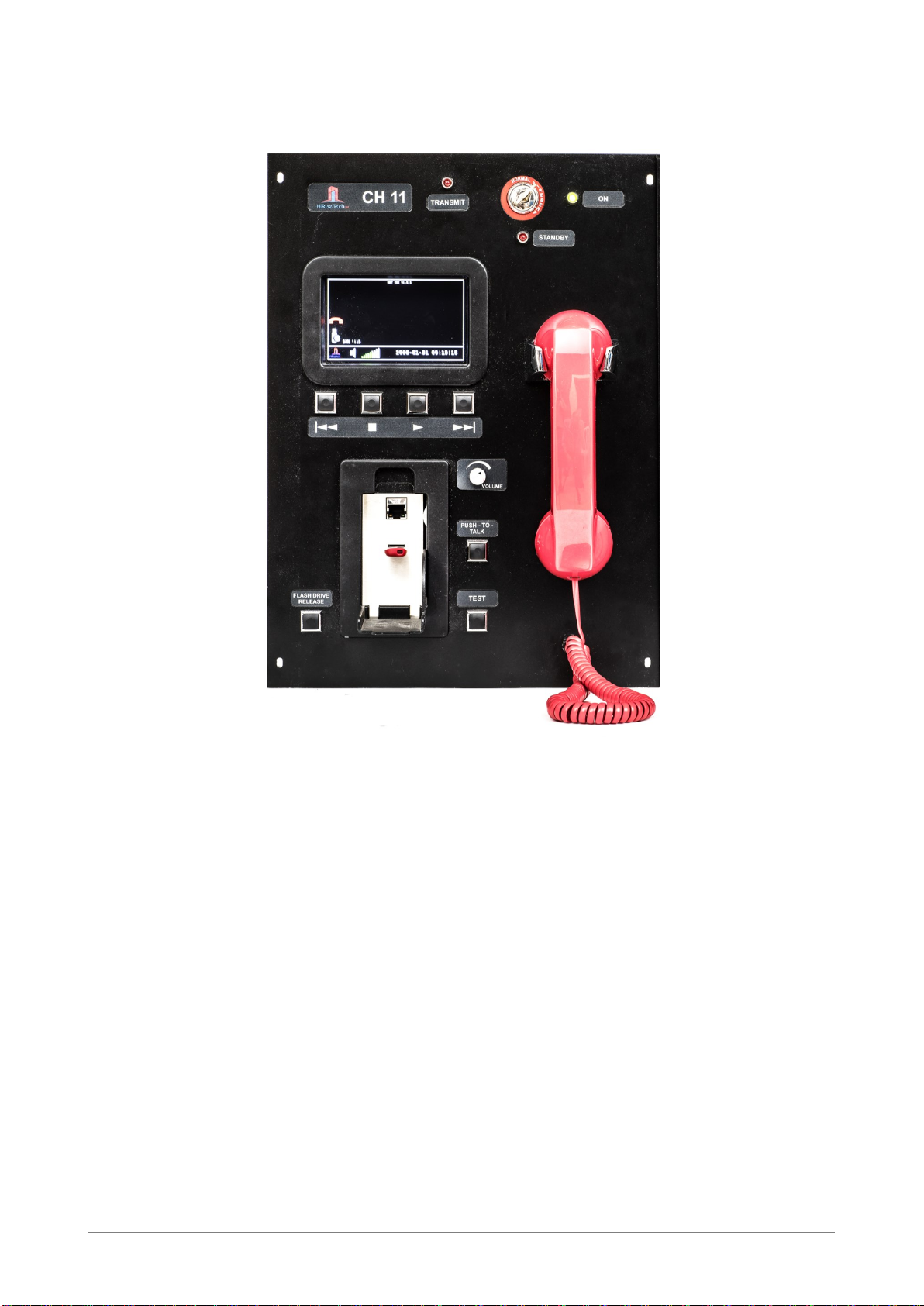
Figure 1: ARCS Console
The ARCS Console, which fully supports FDNY Tactical Channels 11 and 12, enables the control and
operation of the ARC system. Command personnel have full and on-going voice contact with all personnel
in the building using their Standard Portable Radios and can communicate with each individual or all
together.
The ARCS Console provides digital recording over a removable USB Flash Drive. The recorder records all
audio communications on the USB thumb drive. The recorded audio can be played back during the
console’s operation and at a later stage.
On the console display, the ARCS provides visual identification and real-time location of each firefighter.
1. Activation
To activate the ARCS, the Console must be turned on. To turn on the Console:
1. Insert the FDNY 2642 key into the key slot and turn to the ON position. The red STANDBY lamp is
extinguished and the green ON lamp lights.
2. Once the main screen is displayed, the ARCS Console is ready for use.
Page 5
Confidential
P/N HRT2000EUD0011
Rev. A
Page 5 of 8
2. Console Controls and Indicators
This section provides an overview of all the controls and indicators on the ARCS Console and explanations
for their use.
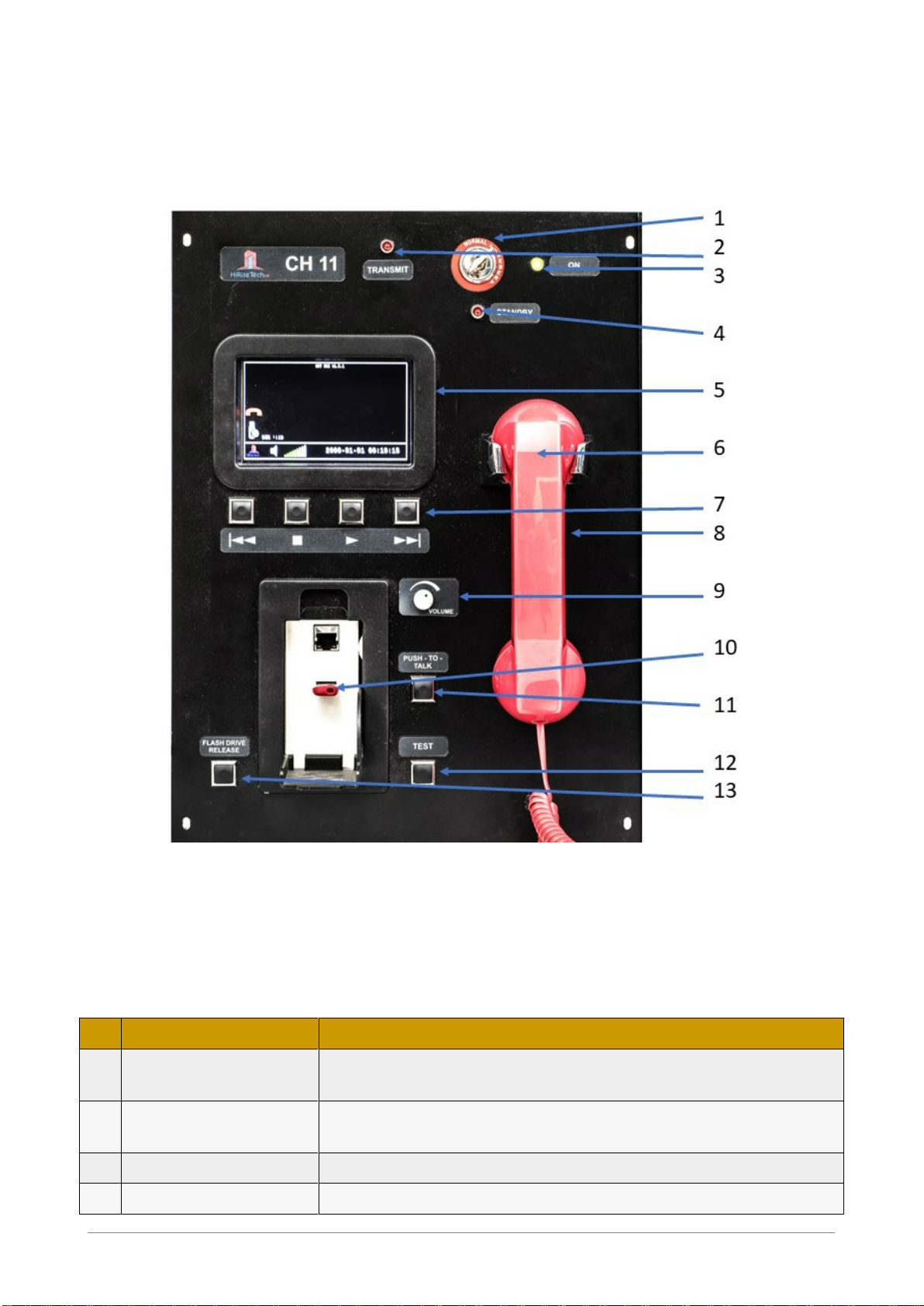
Figure 2: ARCS Console Controls and Indicators
The following table presents explanations for the ARCS Console controls and indicators as shown in Figure
2.
Table 1: ARCS Console Controls and Indicators
Control or Indictor
Explanation
1
Key slot
An FDNY 2642 key is inserted into the key slot to turn on the ARCS
Console.
2
TRANSMIT lamp
Lights red when a Console user is transmitting via the handset or the
push-to-talk button.
3
ON lamp
Lights green when Console is activated.
4
STANDBY lamp
Lights red when Console is dormant.
Page 6
Confidential
P/N HRT2000EUD0011
Rev. A
Page 6 of 8
Control or Indictor
Explanation
5
Display
Indications of various ARCS activities are shown on the Display.
6
Handset
Used to communicate with personnel in the building.
7
Playback controls
Used to review recorded material on the flash drive.
8
Area speaker and
microphone
When the Push-to-Talk button is depressed, communications is via this
internal speaker and microphone (concealed by handset in Figure 2).
9
Volume control
Controls volume on both the handset and the internal speaker.
10
USB flash drive bay
Includes a port for a USB flash drive used to record all communications
on the system.
11
Push-to-Talk button
Depressing the button activates communications via the built-in-speaker.
12
TEST activation button
Activates a system self-test.
13
FLASH DRIVE RELEASE
button
When pressed, opens the flash drive bay door.
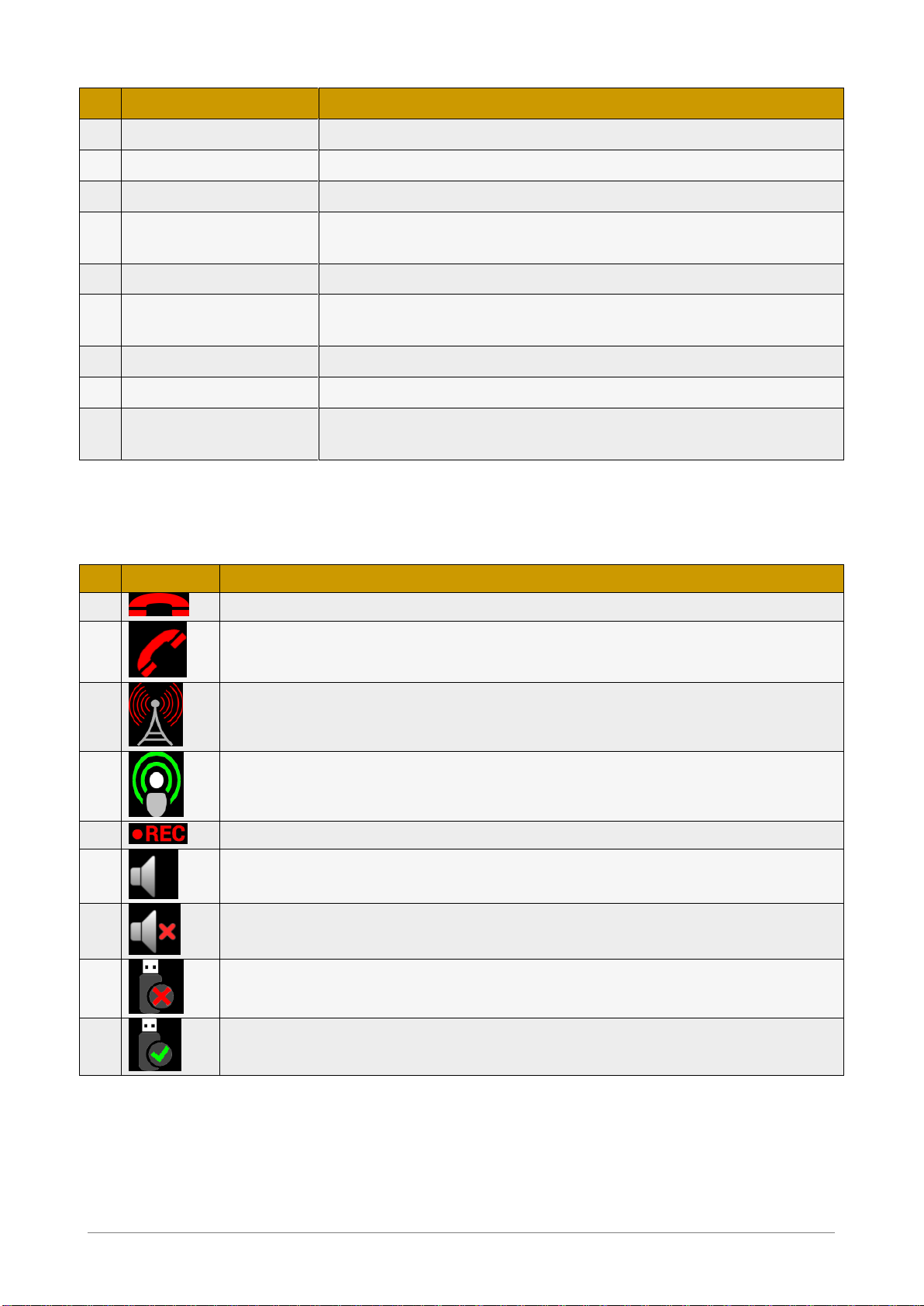
Table 2 presents a list of symbols appearing on the ARCS Console Display.
Table 2: Symbols Appearing on the ARCS Console Display
Synbol
Explanation
1 Handset is dormant.
2 Handset is in use.
3 Operator is transmitting.
4 Firefighter is transmitting.
5 System is recording on USB flash drive.
6 System sound is active.
7 System sound is turned off.
8 USB flash drive not inserted in port.
9 USB flash drive inserted in port.
3. Communicating over the Console
To communicate using the handset:
1. Lift the handset from the cradle. The handset active icon is shown on the display (2, Table 2).
Page 7

Confidential
P/N HRT2000EUD0011
Rev. A
Page 7 of 8
2. Press the button on the inner side of the handset to speak. The TRANSMIT lamp lights and the
Operator Transmitting Icon (3, Table 2) is displayed.
3. Release the button to listen to connected parties. The Firefighter Transmitting Icon (4, Table 2) is
displayed when one or more person is talking.
4. Adjust the volume of the audio using the VOLUME control.
NOTE: If the VOLUME button is turned off, the System Sound Turned Off icon (7, Table 2) is displayed.
Otherwise, the System Sound Active Icon (6, Table 2) is displayed.
To communicate using the Push-to-Talk function:
1. Press and hold the Push-to-Talk button to communicate with the firefighters. The TRANSMIT lamp
lights and the Operator Transmitting Icon (3, Table 2) is displayed.
2. Release the button to listen to connected parties. The Firefighter Transmitting Icon (4, Table 2) is
displayed when one or more person is talking.
3. Adjust the volume of the audio using the VOLUME control.
NOTE: If the VOLUME button is turned off, the System Sound Turned Off icon (7, Table 2) is displayed.
Otherwise, the System Sound Active Icon (6, Table 2) is displayed.
4. Recording the Audio on a USB Flash Drive
To record communications over a removable USB Flash Drive:
1. Prior to activating the system insert a USB flash storage device in the USB flash drive bay. Recoding
commences automatically.
2. To suspend recording, press the FLASH DRIVE RELEASE button.
3. To restart recording, press the ►button.
To record communications in the event that a USB flash storage device was not inserted in the USB flash
drive bay.
1. Insert a USB flash storage device in the USB flash drive bay.
2. After a few seconds, recoding commences.
3. To suspend recording, press the FLASH DRIVE RELEASE button.
4. To restart recording, press the ►button.
NOTE: The recorded audio can be played back during the console’s operation or at a later stage.
5. Playing Back Audio from a USB Flash Drive
To play back audio when the system is inactive:
1. Insert the FDNY 2642 key into the key slot and turn to the ON position. The red STANDBY lamp is
extinguished and the green ON lamp lights.
2. Once the main screen is displayed, playback can be activated.
3. Press the ►button to commence playback.
4. Press the ■ button to stop playback.
5. Press the ►►| button to skip ahead 20 seconds.
6. Press the |◄◄ button to skip back 20 seconds.
Page 8

Confidential
P/N HRT2000EUD0011
Rev. A
Page 8 of 8
NOTE: When play back is activated during recording, the system continues to record all audio in the
background.
To play back audio when the system is active:
1. Press the ►button to commence playback. Playback will commence from the beginning of the
latest recorded file.
NOTE: Conversations carried out when playback is active cannot be heard.
2. Press the ■ button to stop playback.
3. Press the ►►| button to skip ahead 20 seconds.
4. Press the |◄◄ button to skip back 20 seconds.
 Loading...