

Page 1
User Guide
Noahlink Wireless Programming Interface
Noahlink
Wireless
Page 2

2
Welcome
Congratulations on your Noahlink Wireless which will allow
you to connect and fit wireless hearing instruments, without
the use of an intermediate device, using easy plug-and-play
functionality. Carefully read this user guide to fully benefit from
the Noahlink Wireless.
Ask your local hearing instrument manufacturer if you have any
questions.
i Only use Noahlink Wireless with wireless-enabled
hearing instruments. Noahlink Wireless can co-exist with other
hearing instrument programming interfaces (e.g. Hi-PRO,
NOAHlink) on the same PC.
For your safety, carefully read the chapter Important
Information.
Page 3

3
Statement:
This device complies with Part 15 of the FFC and IC rules.
Operation is subject to the following two conditions: (1) this
device may not cause harmful interference, and (2) this device
must accept any interference received, including interference
that may cause undesired operation.
Note: This equipment has been tested and found to comply with
the limits for a Class A digital device, pursuant to part 15 of the
FCC and ICES-003 of the IC rules. These limits are designed to
provide reasonable protection against harmful interference when
the equipment is operated in a commercial environment. This
equipment generates, uses, and can radiate radio frequency
energy and, if not installed and used in accordance with the
instruction manual, may cause harmful interference to radio
communications. Operation of this equipment in a residential
area is likely to cause harmful interference in which case the
user will be required to correct the interference at his own
expense. Changes or modifications can void the user’s authority
to operate the equipment.
FCC ID: 2AH4DCPD-1
Page 4

4
Intended use
Noahlink Wireless is intended to enable a hearing instrument
fitter to wirelessly adjust the settings of wireless hearing
instruments. The primary function of the Noahlink Wireless
programming interface is to transfer information signals
between a PC installed with fitting software and wireless hearing
instruments.
List of countries (EU only)
Products are intended for sale in countries within European
Economic Area as well as Switzerland.
In EU: Noahlink Wireless is a Class II communications device,
and conforms to the essential requirements and other relevant
provisions of Directive 1999/5/EC (R&TTE). The declaration of
conformity may be consulted at www.himsa.com.
In US: FCC CFR 47 Part 15, subpart C.
Other identified applicable international regulatory requirements
in countries outside EU and US: Please refer to local country
requirements for these areas.
Model: CPD-1
IC: 21381-CPD1
Page 5

5
Cet appareil numérique de la classe A est conforme à la norme
NMB-003 du Canada.
Japanese Radio Law and Japanese Telecommunications
Business Law Compliance
This device is granted pursuant to the Japanese Radio Law
(電波法).
and the Japanese Telecommunications Business Law
(電気通信事業法).
This device should not be modified (otherwise the granted
designation number will become invalid).
Page 6

6
Page 7

7
Contents
Description ................................................................................8
Getting started – Installation ................................................... 10
Tips for optimal wireless fitting ................................................ 13
Compatibility ........................................................................... 17
Light indicators (LED) .............................................................. 18
Important information..............................................................20
Technical specifications ..........................................................22
Warranty .................................................................................22
Troubleshooting guide ............................................................ 24
Page 8
1
2
3
8
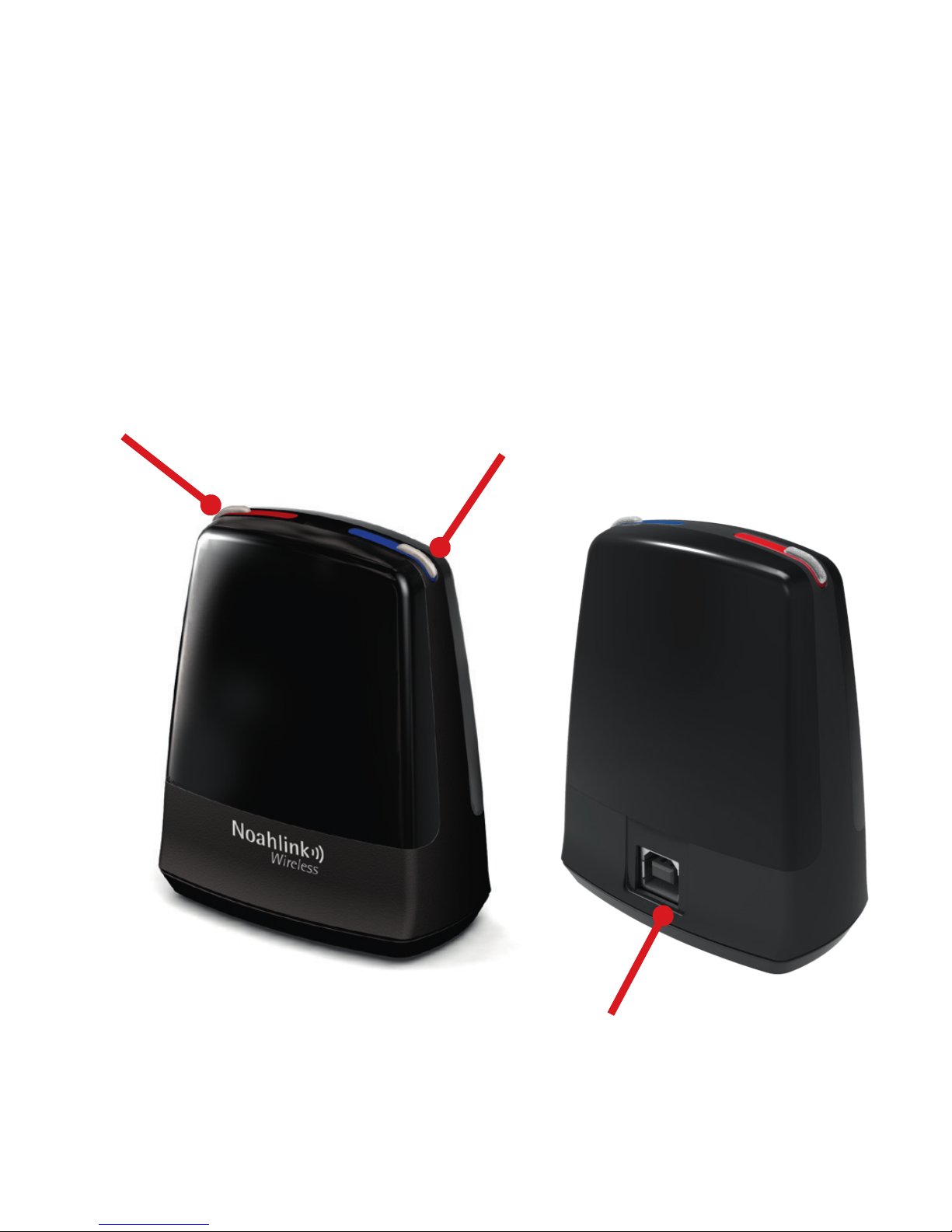
Description
1 Right side light indicator
2 Left side light indicator
3 USB port for power and communication with the fitting
software
Page 9

9
Page 10

10
Getting started - Installation
Note: To ensure the best possible operation of the Noahlink Wireless always make sure it is placed out in the open with a clear
line-of-sight between the Noahlink Wireless and the hearing instruments to be fitted.
Noahlink Wireless is a USB plug-and-play programming interface
enabling you to wirelessly fit hearing Instruments from licensed
manufacturers. For a complete list of hearing instrument manufacturers who use Noahlink Wireless, visit www.himsa.com.
1. Before you connect Noahlink Wireless make sure that you
have the approriate fitting software installed. The Noahlink
Wireless driver is installed during fitting software installation.
2. After successful fitting software installation attach Noahlink
Wireless to any USB port on the PC using the supplied USB
cable. A 2-3 second solid green light indication will confirm
that Noahlink Wireless is powered.
Page 11
11
Page 12

12
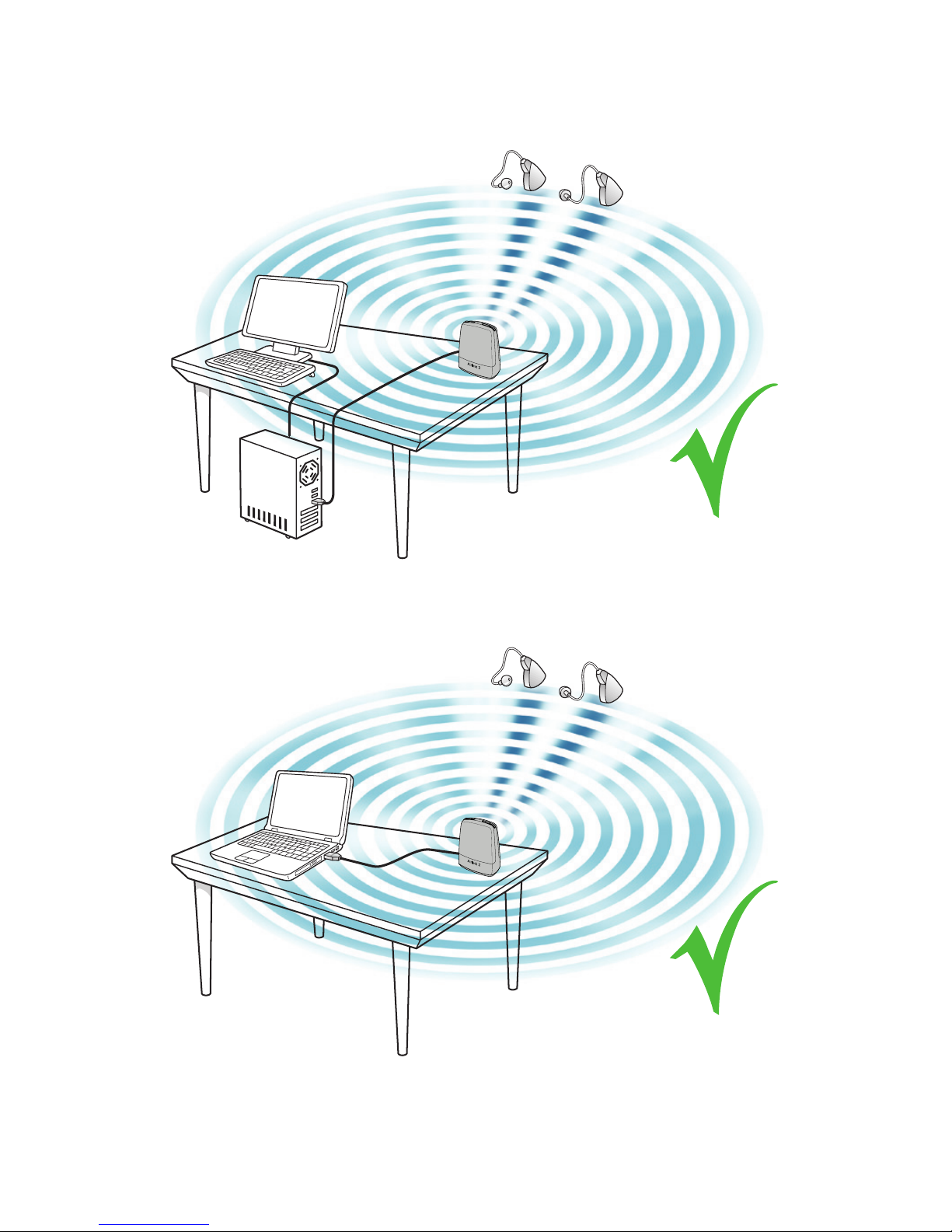
3. Performing a wireless fitting can sometimes be challenged
due to number of factors related to equipment setup, and the
physical layout of the fitting environment.
• Place Noahlink Wireless on the table with a clear line-ofsight to the hearing instruments, which should be within a
range of 10 feet (3 metres).
• Avoid placing the Noahlink Wireless in a USB hub with
other USB devices (e.g. Bluetooth dongle), as this can decrease the efficiency of the Noahlink Wireless.
• When fitting hearing instruments inside a sound booth
place the Noahlink Wireless inside or close to the booth.
• It is recommended not to use USB cables between the
Noahlink Wireless and the PC exceeding a length of 10 feet
(3 metres).
4. You are now ready to start fitting wireless hearing instruments.
Page 13
13
Tips for optimal wireless fitting
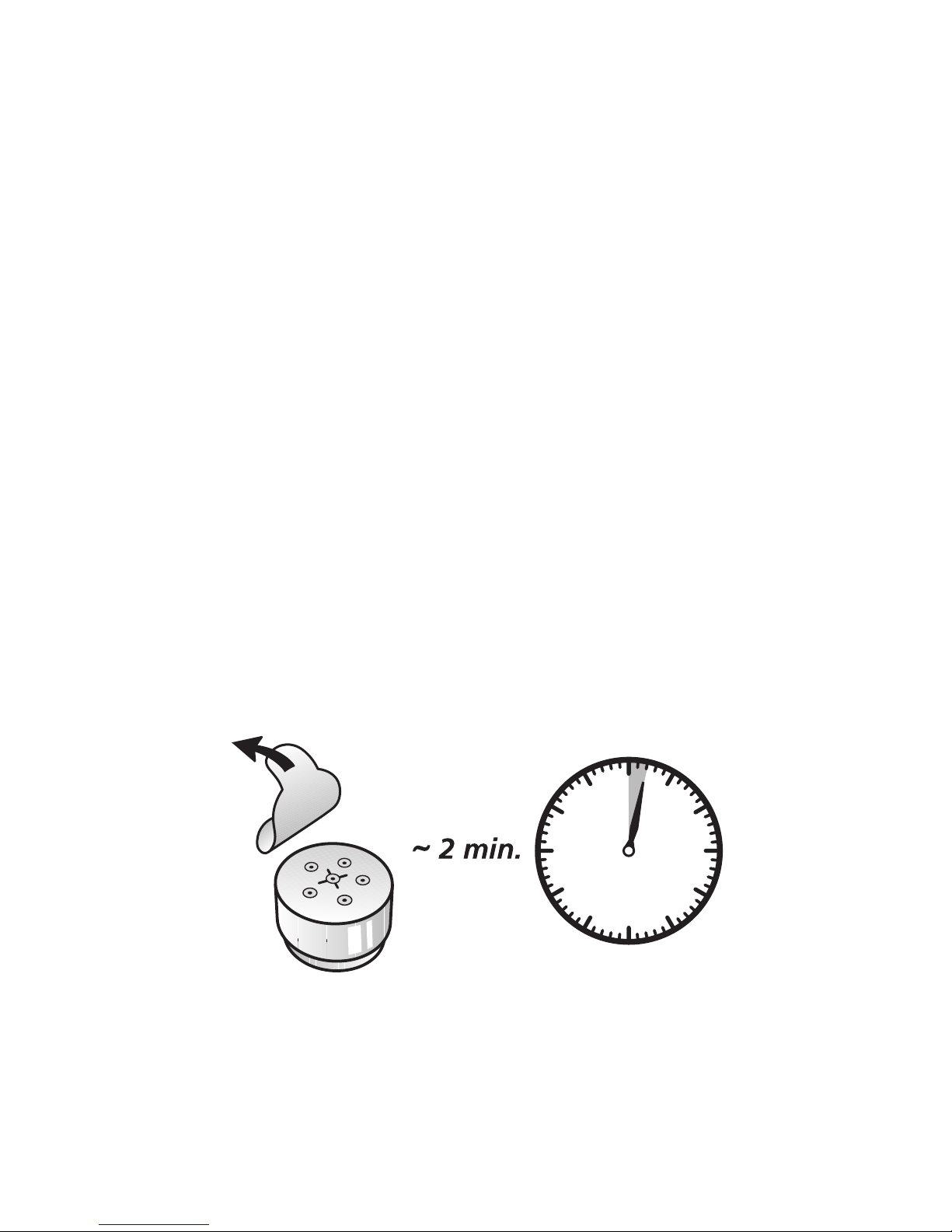
Let the battery breathe/oxygenize before inserting
When performing a wireless fitting, always use new batteries. The
most common type of hearing instrument batteries are zinc-air.
These types of batteries are activated by the oxygen in the air. By
removing the small sticker from the battery, oxygen activates the
battery. Because oxygen must pass through fine holes and a filter,
the oxygen is absorbed slowly.
Therefore, it is important to wait 2 full minutes after removing the
battery sticker and before inserting the battery and closing the
battery door on the hearing instrument. If inserted prematurely,
the battery may not absorb enough oxygen to properly power the
hearing instrument.
Page 14

14
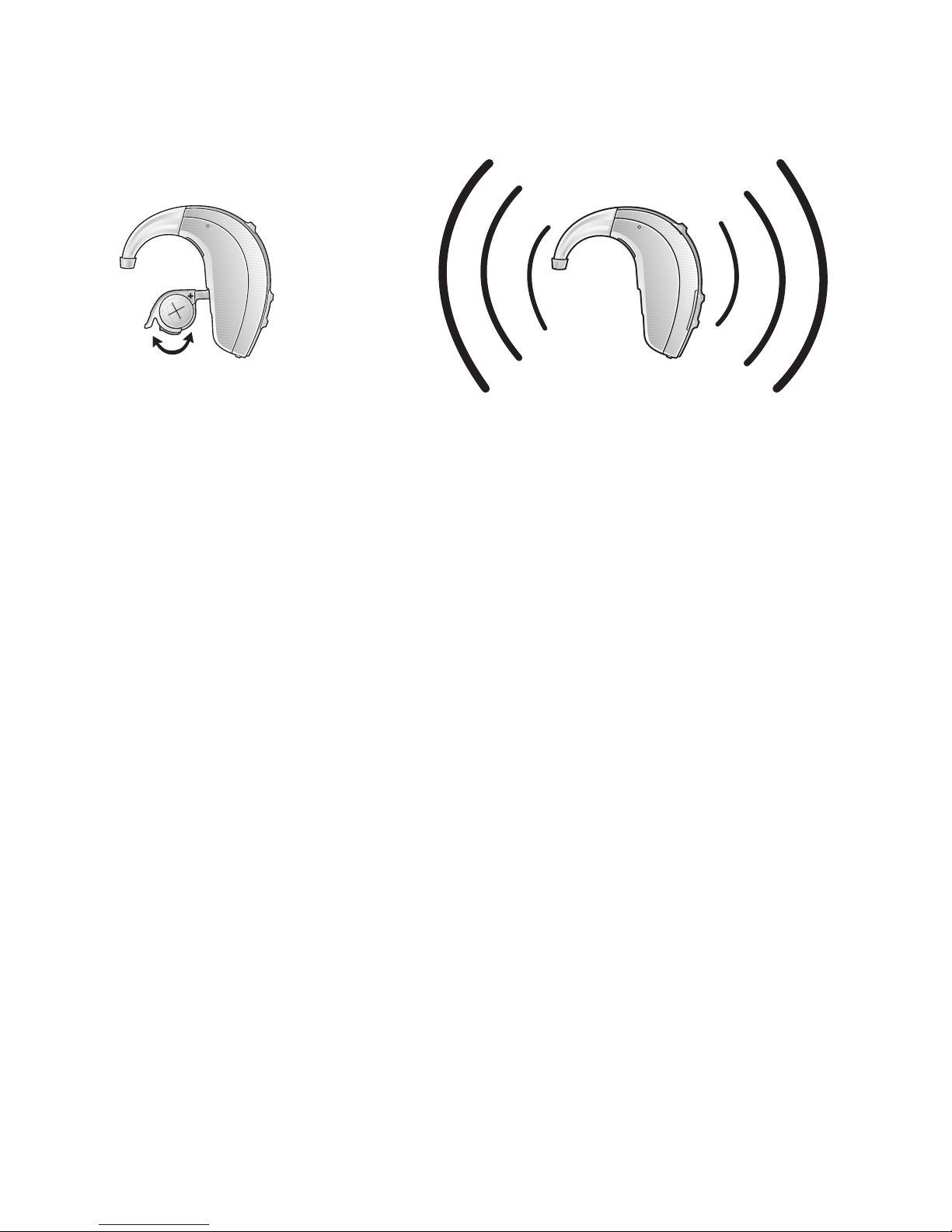
Always open/close the battery door to connect
When connecting the hearing instruments to the fitting software
make sure to always bring the hearing instruments into “Fitting
mode” by rebooting them. This is done by opening and closing
the battery door of the hearing instrument one time.
By doing so it is possible for the fitting software to discover and
communicate with the hearing instruments.
Note: If a hearing instrument is accidently put into flight mode
where all wireless operation is disabled, just open and close
the battery door again. After 10 seconds wireless operation is
resumed. Keep the battery door closed for an additional 15 seconds after wireless operation has been resumed before opening
and closing the battery door again. Opening and closing the battery door within 15 seconds will put the hearing instrument into
flight mode again.
For more information about Flight Mode please refer to the relevant wireless hearing instrument user guide.
After having completed the fitting make sure to open and close
the battery door to reboot the instruments saving all settings.
Page 15
15
Optimize the wireless fitting environment
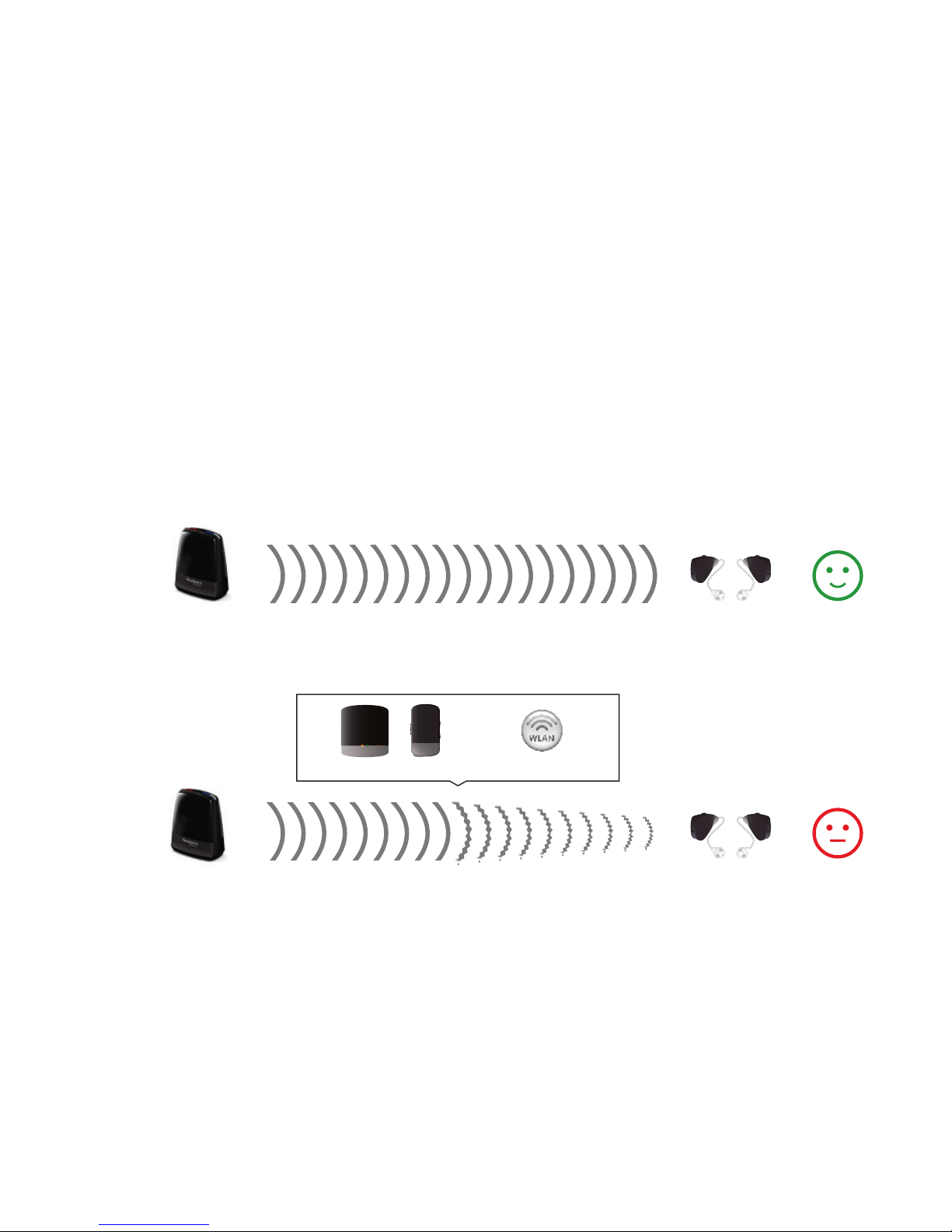
Even if all of the previous mentioned tips are followed, the stability of the fitting connections may be impacted by interference
from other wireless sources in the environment. Interference may
cause data transfer issues, slow connectivity or loss of connections to the hearing instruments entirely.
Interference in the wireless fitting environment should, therefore,
be minimized or avoided if possible by following the guidelines
below:
• Minimize number of interfering wireless sources. Wireless activity from sources like WLAN, mobile phones and streamers
should be minimized as much as possible. Even though the
wireless protocol technology supports three audio streaming
devices it is recommended to have no more than one stream-
Page 16
16
ing device (e.g. TV streamer) active while performing wireless
fitting.
• Keep interfering wireless sources away from the fitting area.
If interfering devices such as WLAN and streamers cannot be
turned off during wireless fitting it is recommended to place
these devices a minimum of 6 feet (2 meters) away from the
hearing instruments and the Noahlink Wireless, ensuring that
they are not between the Noahlink Wireless and the hearing
instruments.
1 2 3
Noahlink Wireless HI
Noahlink Wireless
Streaming devices WLAN
HI
Page 17

17
Compatibility
Noahlink Wireless supports the following operating systems: Windows Vista, Windows 7, Windows 8 and Windows 10.
Page 18
18
Light indicators (LED)
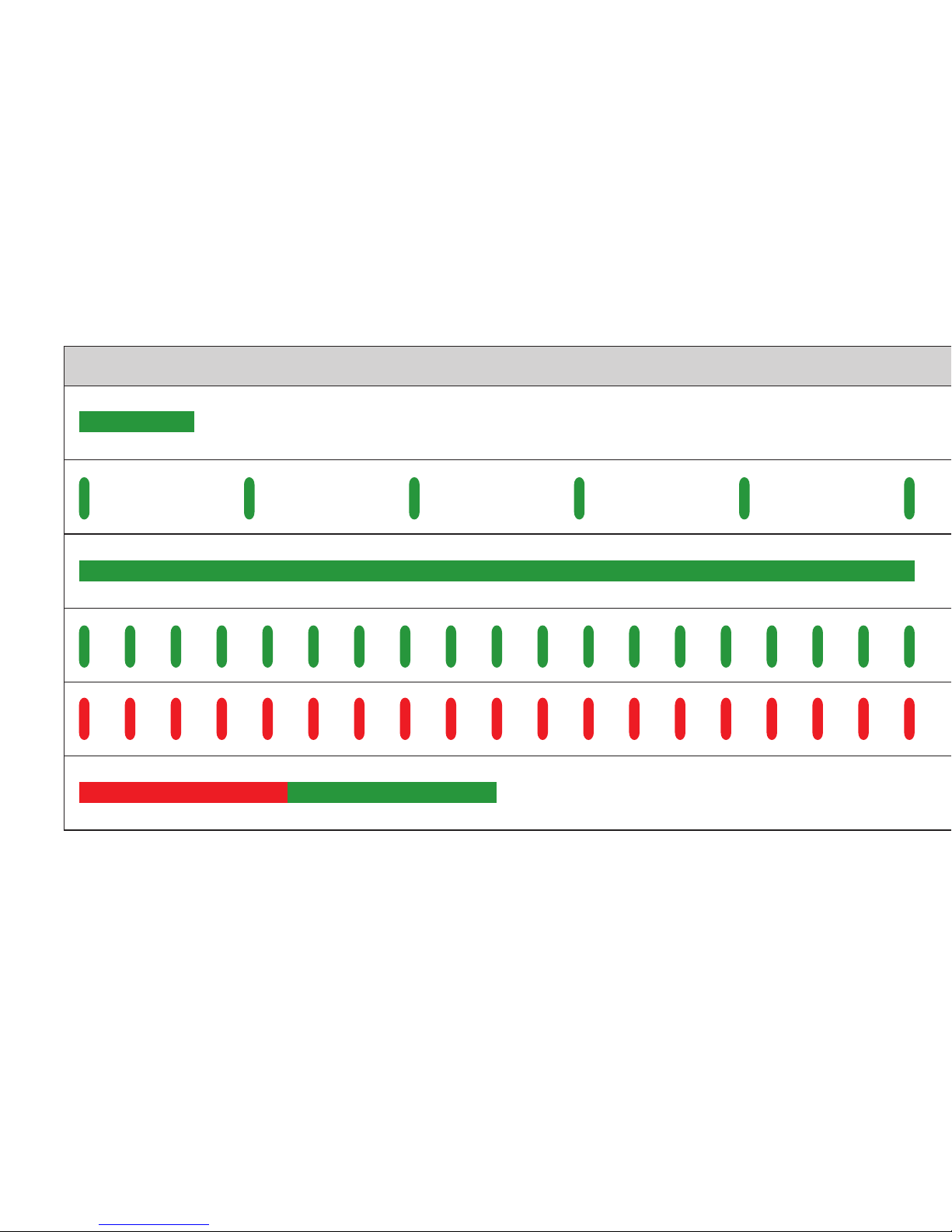
The Light indicators at the top of the Noahlink Wireless serve as
a multipurpose user interface, providing connectivity status and
activity of the programming interface.
*Test Mode - Running the test mode the system checks if it can see the
Noahlink Wireless by asking for the version number.
LED Blinks Meaning
Page 19
19
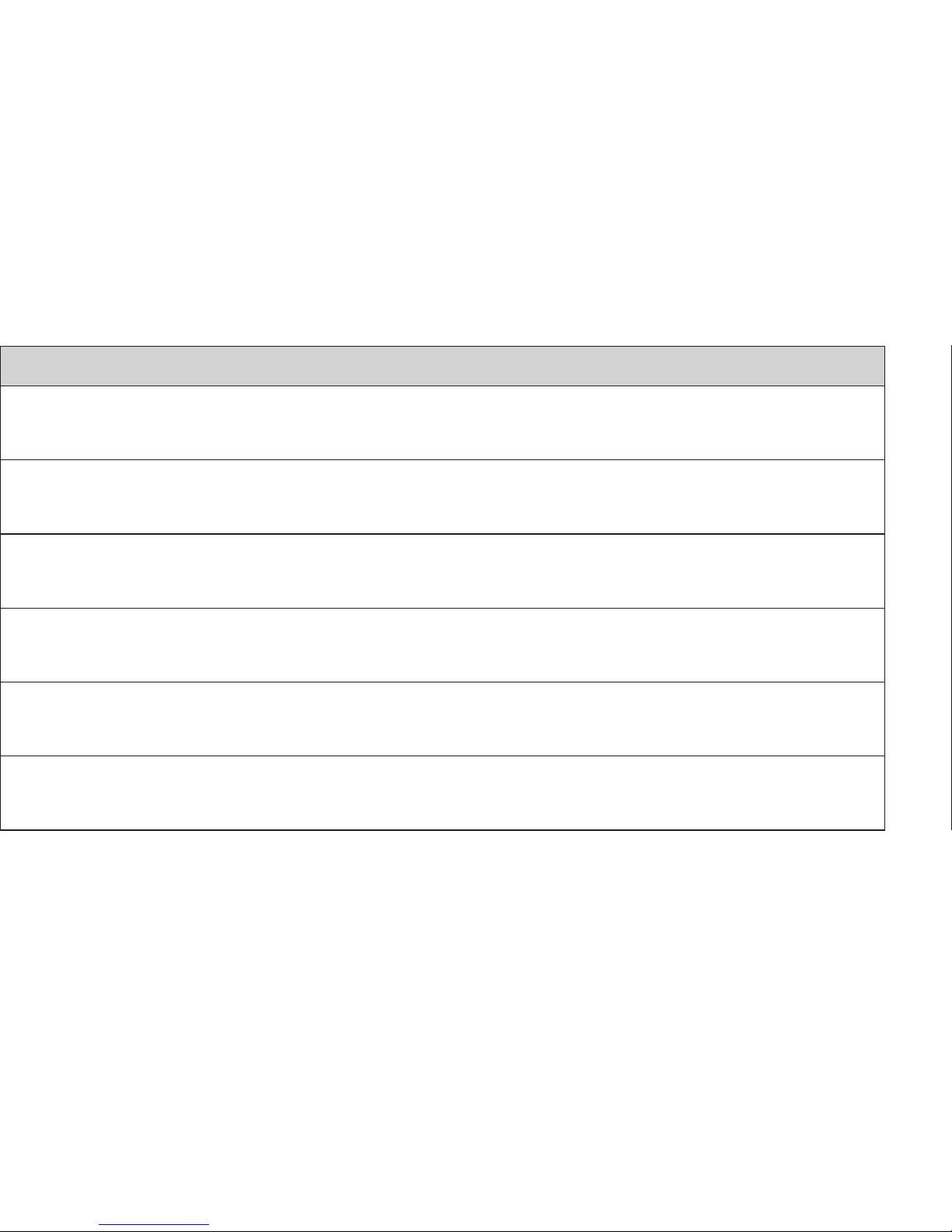
Start Up.
Noahlink Wireless attached to PC USB port
Fitting software launched and connected to
Noahlink Wireless
Hearing instrument(s) connected to Noahlink Wireless
Data being transferred between instruments and fitting software
Hearing instruments disconnected
Running
Noahlink Wireless Test Mode*
Page 20

20
Important information
i
Maintenance and care
• Cleaning the Noahlink Wireless is usually not necessary. If
needed, use a soft, dry cloth.
• If service is required please return the Noahlink Wireless to
your local sales representative or manufacturer. Do not attempt to open the device. There are no user-serviceable parts
inside.
General warnings
i
• Keep this device out of reach of children under 3 years of age.
• Noahlink Wireless uses low-powered digitally-coded transmissions in order to communicate with other wireless devices.
Although unlikely, nearby electronic devices may be affected.
In that case, move Noahlink Wireless away from the affected
electronic device.
• If Noahlink Wireless is affected by electromagnetic interference, move the Noahlink Wireless away from the source of
interference.
• Noahlink Wireless must not be used for any other purpose
than for hearing instrument fitting.
Page 21

21
General precautions
i
• Your hearing instrument and this device are given a unique
communication network code during the fitting. This ensures
that the device will not affect hearing instruments worn by others.
• High-powered electronic equipment, larger electronic installations and metallic structures may significantly reduce the
operating range.
• Do not make any changes or modifications to this device.
• Do not use Noahlink Wireless in areas where RF transmission
is prohibited, e.g. airplanes.
• Only connect Noahlink Wireless to connections for which it is
explicitly intended.
Page 22

22
Technical specifications
Operating range: 10 feet (3 meters)
Power supply: Powered by the USB port of a PC
Wireless: 2.4 GHz
Operating temperature: 0 to 55 C
Storage temperature: -20 to 60 C
Temperature test, transport and storage information
The product is subjected to various tests in temperature and
damp heating cycling between -25 C and +70 C according to
internal and industry standards.
Warranty
The Noahlink Wireless programming interface is covered by a
limited warranty issued by the manufacturer for a period of 12
months from the date of original purchase. Please notice that
extended warranties may apply in your country. Please contact
your local hearing instrument manufacture. Be aware of information marked with the warning symbol.
Page 23
23
i
WARNING points out a situation that could lead to serious injuries.
CAUTION indicates a situation that could lead to minor
and moderate injuries.
i
Advice and tips on how to handle your device better.
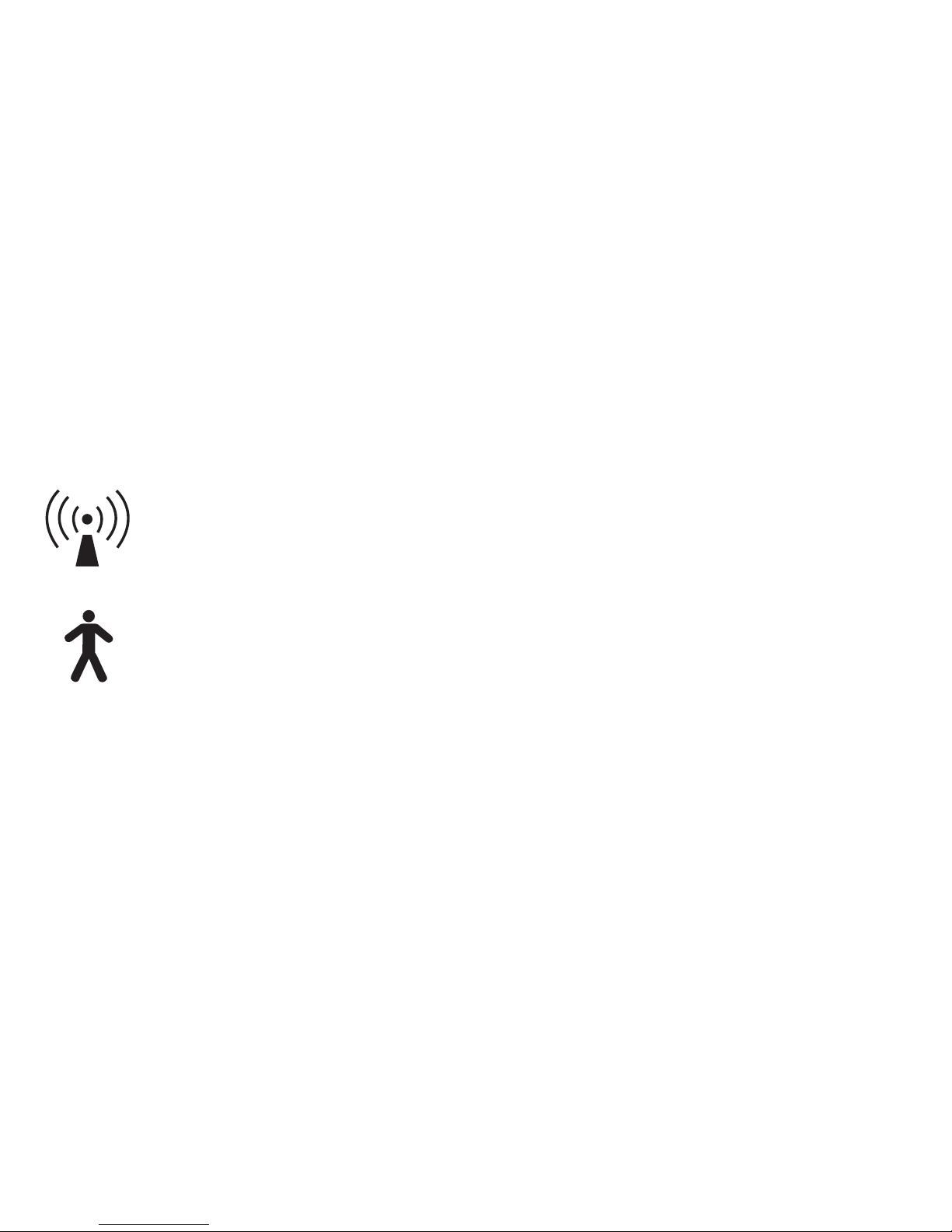
Equipment includes RF transmitter
Product is a Type B applied part
Page 24

24
TROUBLESHOOTING GUIDE
SYMPTOM CAUSE POSSIBLE REMEDY
Noahlink Wireless
not found
No Noahlink Wireless inserted in the PC’s
USB port.
No Connection The USB port(s) in your PC have no power.
No Noahlink Wireless attached to the PC’s
USB port.
Obstacles between the Noahlink Wireless and the hearing instruments block the
wireless signal.
The Noahlink Wireless is placed too far
away from the hearing instruments.
Hearing instrument low battery.
Page 25

25
Insert Noahlink Wireless activating a 2-3 second solid green
light confirming that Noahlink Wireless is powered. Launch the
fitting software if not already launched.
Not a Noahlink Wireless issue. PC service is required.
Insert Noahlink Wireless activating a 2-3 second solid green
light confirming that Noahlink Wireless is powered. Launch the
fitting software if not already launched.
Place Noahlink Wireless in line-of-sight of the hearing instruments.
Move Noahlink Wireless closer to the hearing instruments.
Always use fresh zinc-air batteries, which have not expired. Remove the sticker from the battery and let the battery breathe for
2 minutes before inserting and starting up the fitting.
Page 26

26
SYMPTOM CAUSE POSSIBLE REMEDY
Unstable/
Lost Connection
Obstacles between the Noahlink Wireless and the hearing instruments block
the wireless signal.
The Noahlink Wireless is placed too far
away from the hearing instruments.
A 2.4 GHz cordless telephone, a WLAN
access point or another wireless device
is powered or in use near to the fitting
station doing wireless fitting with Noahlink Wireless.
Noahlink Wireless is sharing power
source with one or more USB harddisks,
resulting in Noahlink Wireless not having
the required power available.
TROUBLESHOOTING GUIDE
Page 27

27
Place the Noahlink Wireless in line-of-sight of the hearing instruments.
Move the Noahlink Wireless closer to the hearing instruments.
Minimize the number of interfering wireless sources or move
them away from the fitting area.
Use a phone that is not 2.4 GHz.
Remove the USB harddisk or use a powered USB hub to insure
the required power. Lack of power is only an issue with USB
harddisks which are very power-consuming.
Page 28

28
Notes:
Page 29

29
Notes:
Page 30

30
Page 31
31
Any issues relating to Class II communication devices and the
R&TTE Directive 1999/5/EEC should be directed to HIMSA II K/S,
Lyngbyvej 28, 1.th., DK-2100 Copenhagen Ø, Denmark
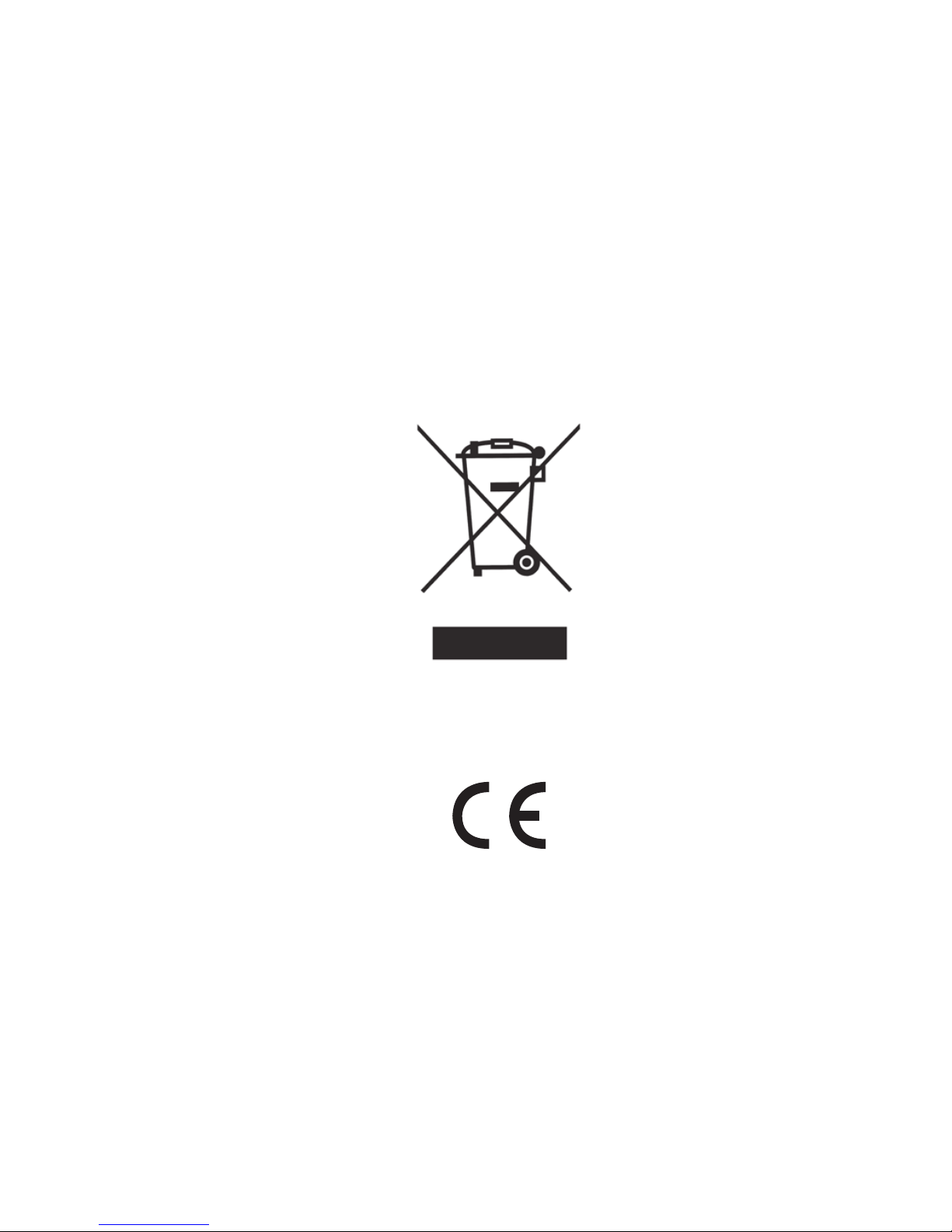
Please ask your local hearing care professional
concerning disposal of your accessory
Page 32
HIMSA II K/S
Lyngbyvej 28, 1.th.
DK-2100 Copenhagen Ø, Denmark
Tel.: +45 39 16 22 00
Fax: +45 39 16 22 16
Noahlink
Wireless
 Loading...