

Page 1
User gUide
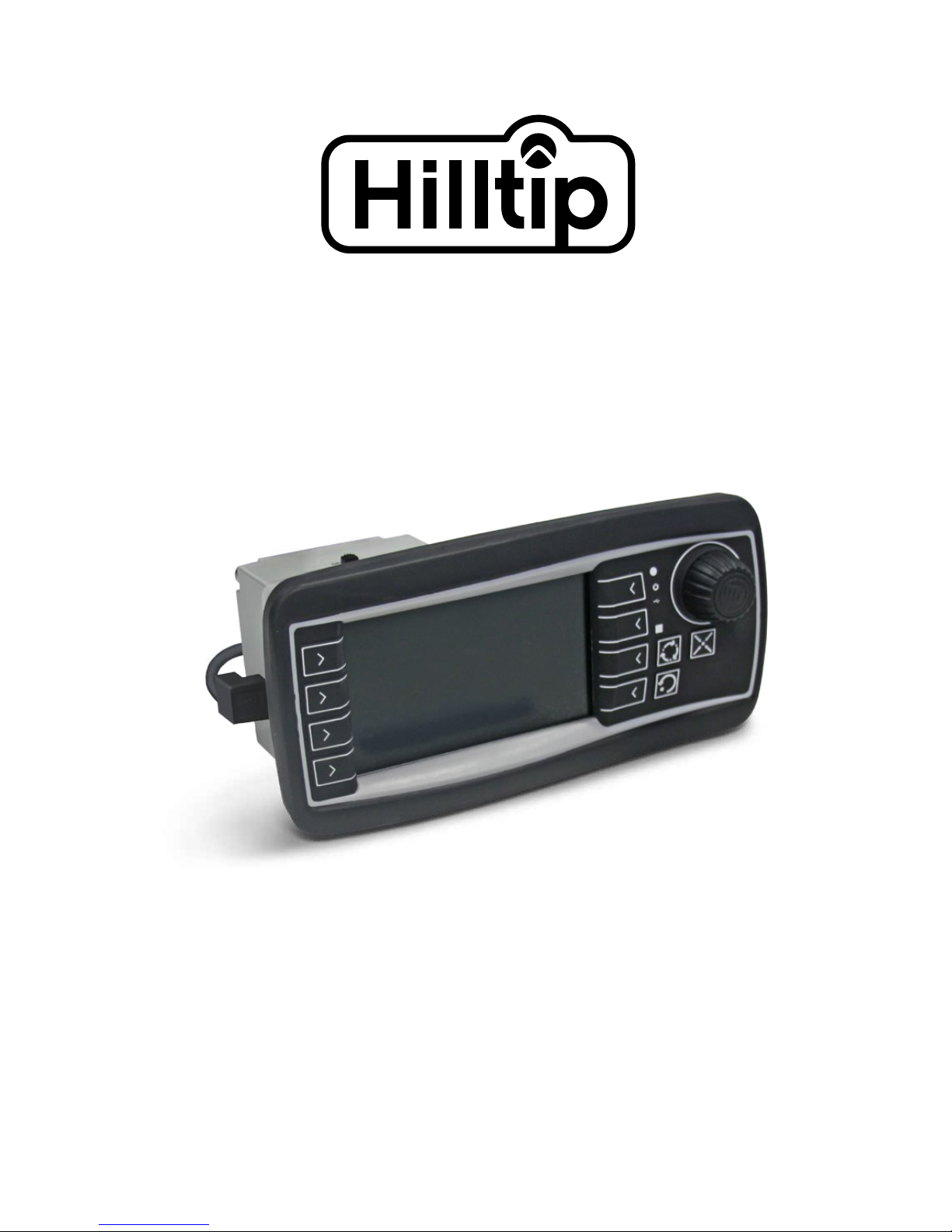
HILLTIP HTRACK TRACKING SYSTEM
HTrACK
TM
Page 2
HTrack
2
CONTROLLER SETTINGS
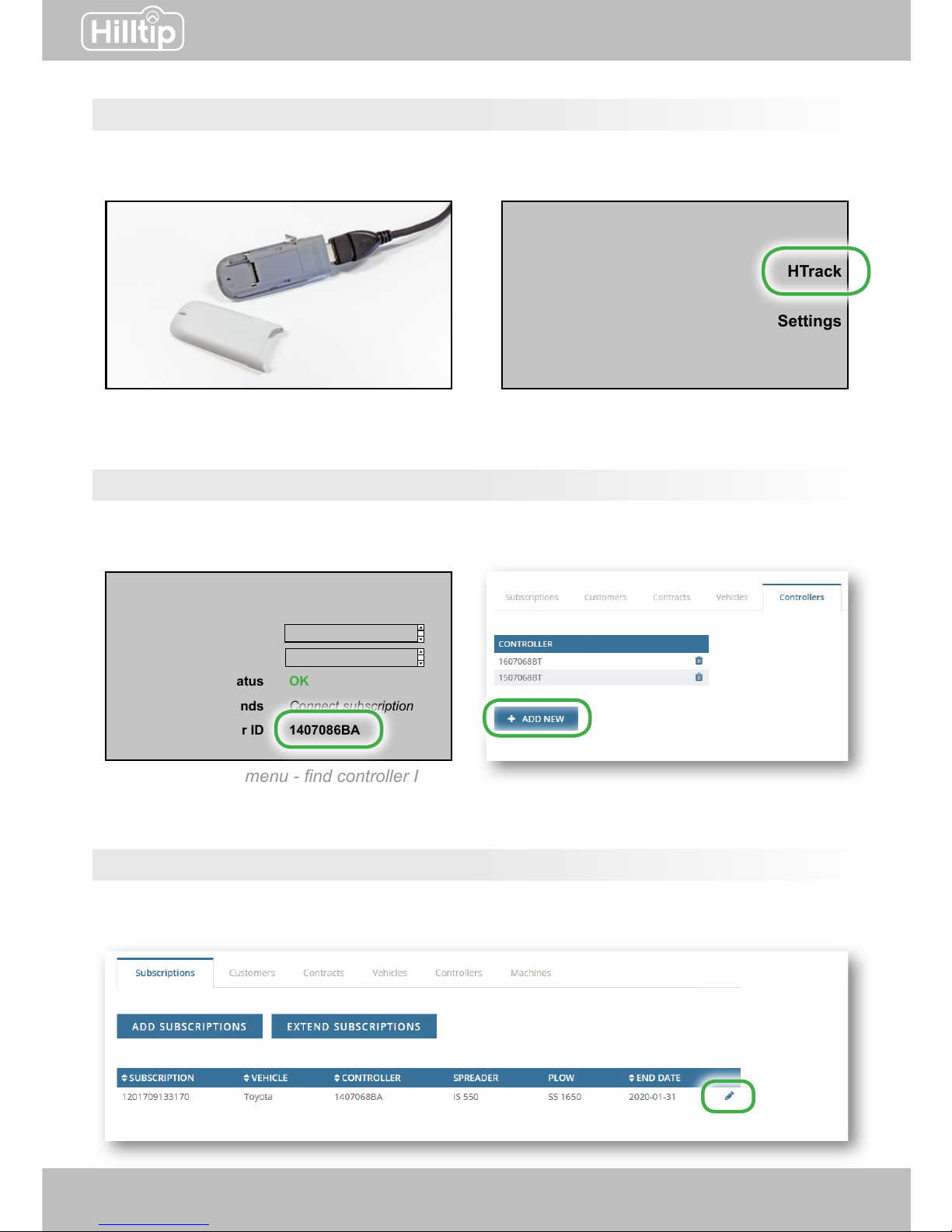
Open the cover of the Hilltip USB modem and insert a sim-card. Connect it to your spreader or
sprayer controller with a USB cable. Turn on the controller. In the main menu, select HTrack.
Hand spray
Automatic
Manual
Main menu
Settings
Info
HTrack
HTrack
Customer
Contract
SIM status
Subscription ends
Controller ID
Connect subscription
Connect subscription
OK
Connect subscription
1407086BA
Controller HTrack menu - nd controller ID
Insert sim-card into USB modem Controller main menu
Step 1
Step 2
On rst setup, in the HTrack controller menu, nd the controller ID. Go to the HTrack webpage, and
under settings → controllers, click “Add new” to insert the controller ID and connect it to your account.
HTrack webpage - Add controller ID
Step 3
Go to settings → subscriptions on the webpage and edit one of your subscriptions to connect it
to the controller you just registered.
Page 3
HTrack
3
Subscriptions Settings → Subscriptions
You need a subscription to use HTrack. One HTrack subscription can only hold data for one
vehicle/spreader combination at a time.
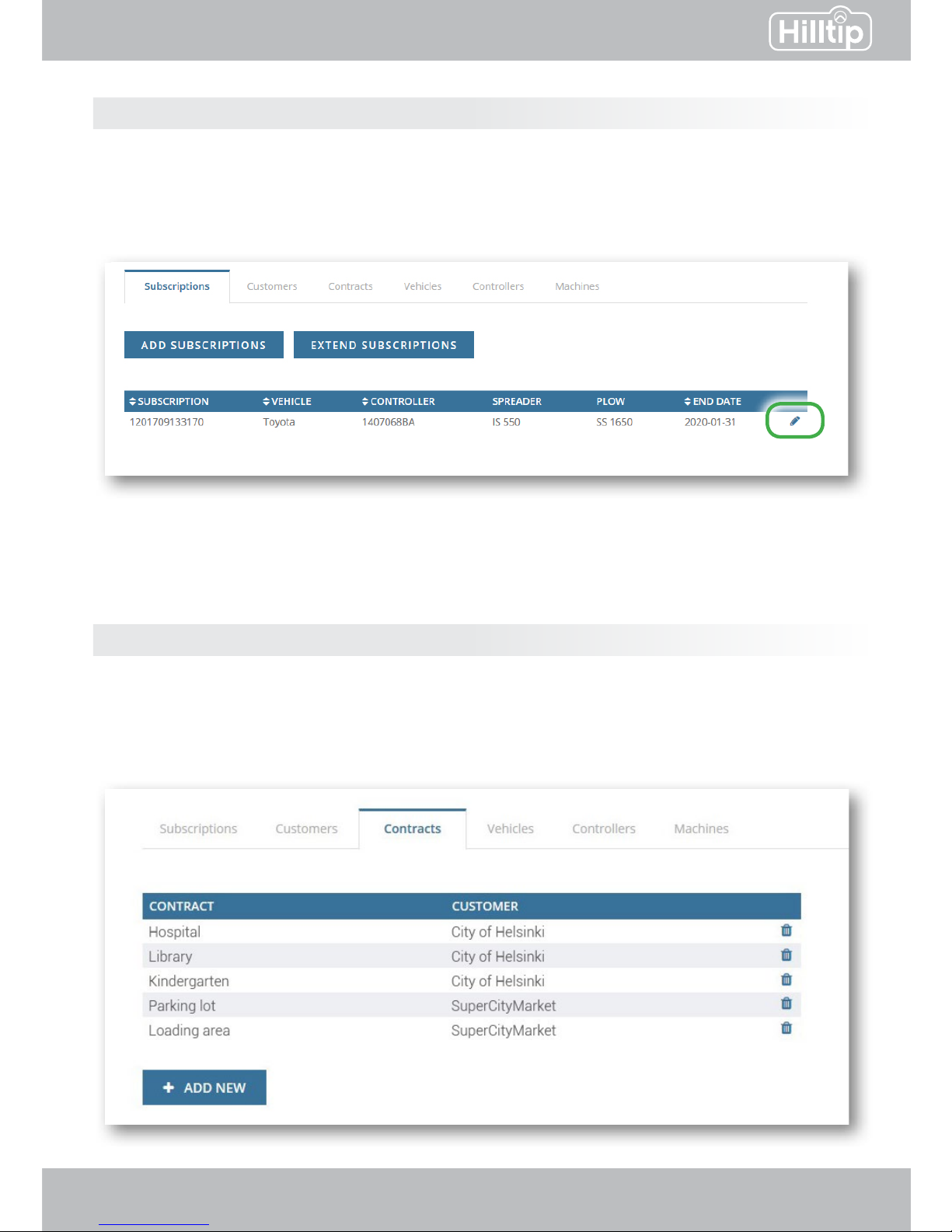
The table at the subscription-page shows which devices are connected to your subscription.
Click the edit symbol (pencil) to change or add the vehicle, controller, spreader/sprayer or plow
connected to your subscription.
Click “Add subscription“ to buy a new subscription, or “extend subscription” to extend an existing
subscription.
Customers and contracts Settings → Customers/Contracts
HTrack is designed so that you can report specic spreading/plowing jobs to specic customers/
clients. Add a new customer (e.g. City of Helsinki) by clicking “Add new” on the Customers-page.
Add a new contract to a specic customer by clicking “Add new” on the Contracts page. (e.g.
add “Library” to City of Helsinki). Click the name of a customer or contract to edit it.
SETTINGS
Click the edit symbol to edit a subscription and change or add a device to it.
Example of customers and contracts
Page 4
HTrack
4
Vehicles, controllers and machines Settings → Vehicles/Controllers
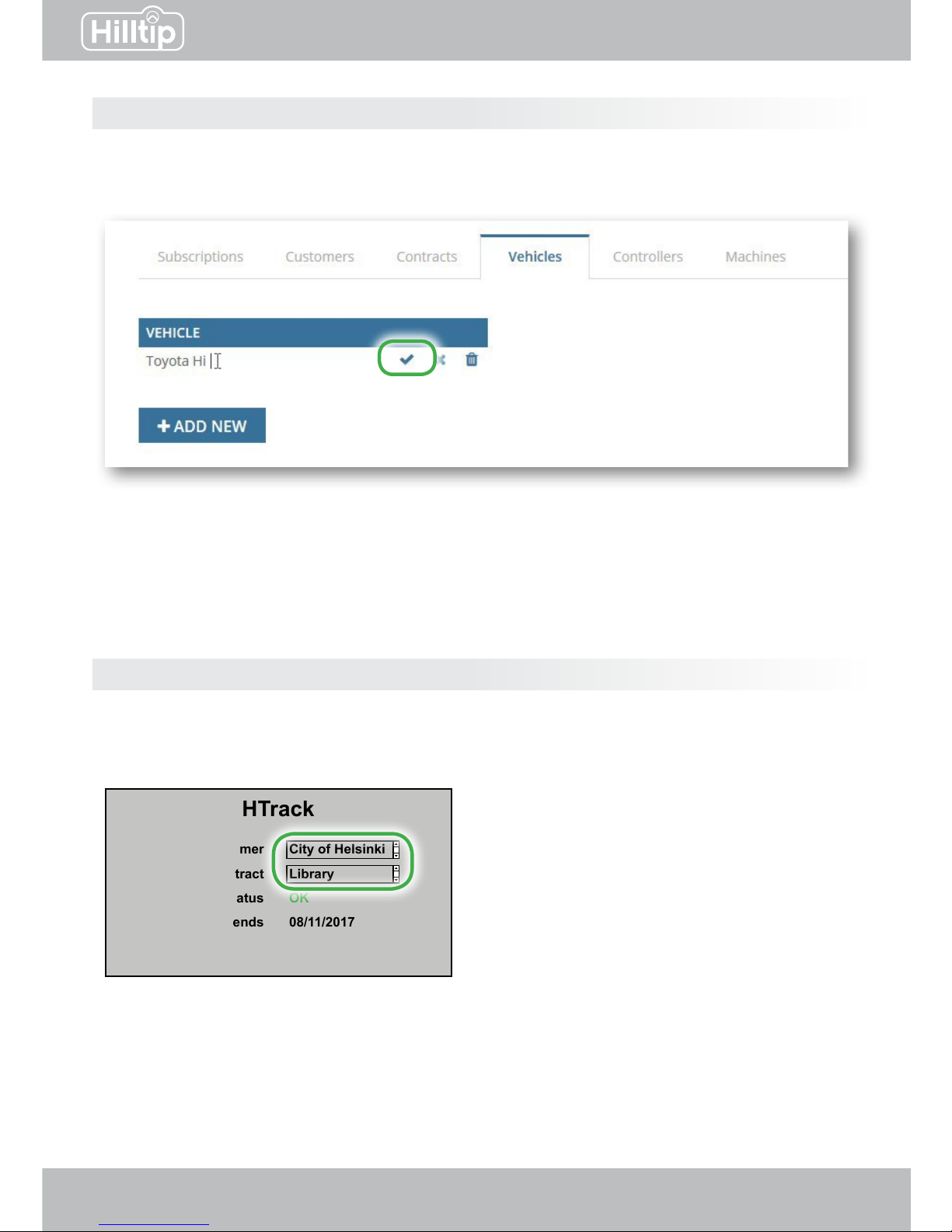
Add a vehicle or controller by clicking “Add new“ below the matching column.
Click the name of an existing device to edit it directly in the table, click the checkmark to save.
Go to the Subscription-page to combine vehicles, controllers and machines.
To be completed after you have set up your devices and subscriptions on the webpage:
Before starting a new spreading/spraying/plowing session, go to HTrack menu in the controller
and select Customer and Contract to track and to be able to create customer specic reports.
Controllers settings
HTrack
Customer
Contract
SIM status
Subscription ends
Controller ID
City of Helsinki
Library
OK
08/11/2017
1407086BA
After webpage setup the options will appear
in the in-cab controller
Click the name to edit
Page 5
HTrack
5
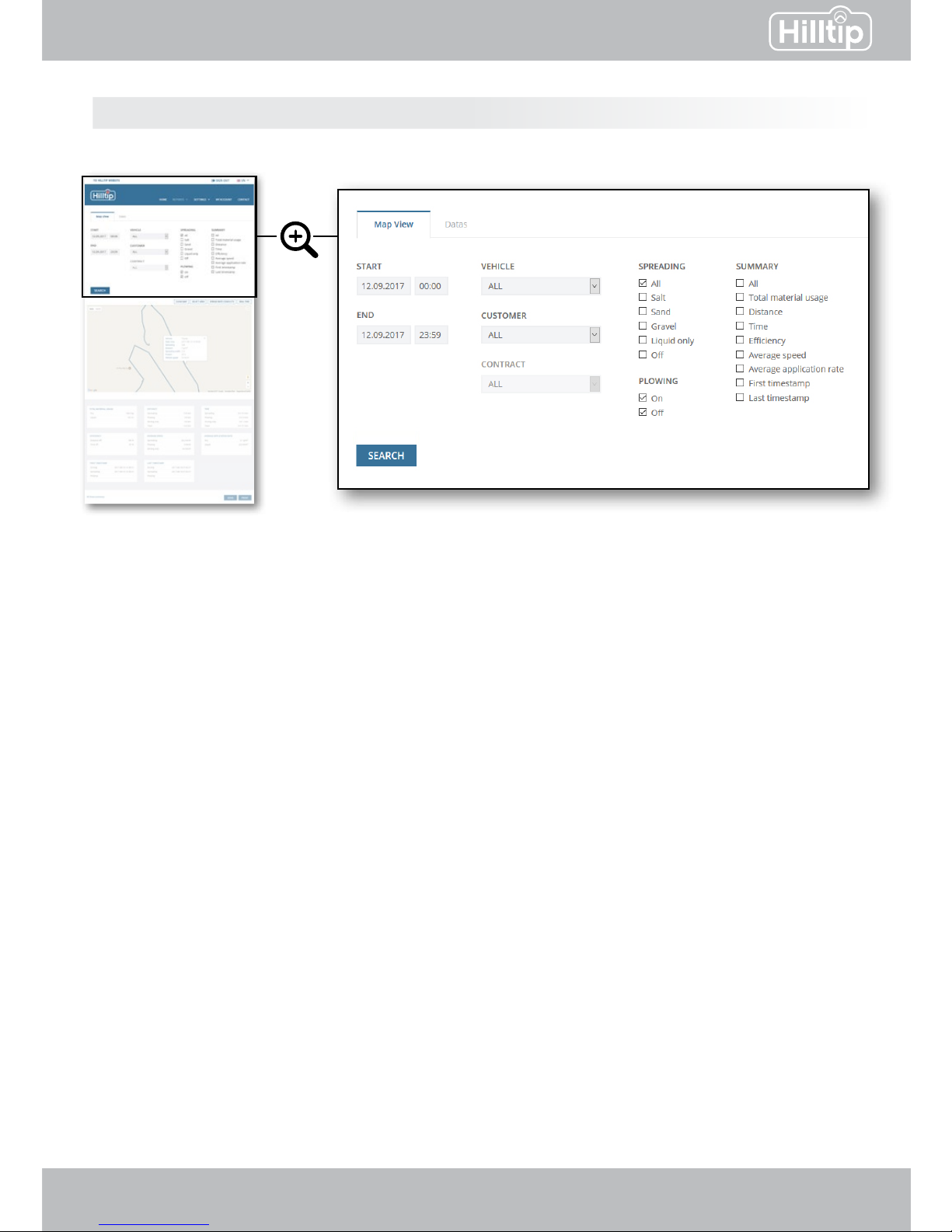
Start - End
Set a time interval: Insert start and end time to show tracking data during a specic time interval.
Vehicle - Customer - Contract
You can choose to view details for all vehicles, customers or contracts, or a selected combination
of these.
Spreading - Plowing
Select one or multiple spreading materials to be shown. Select if you want to see where plow
has been active (on) or inactive (o), or check both values. For SprayStriker applications, please
select “Liquids Only”.
Summary
Check the values you want to be included in the report.
Click SEARCH to show details for the set attributes.
REPORTS
Map view Reports → Map view
Page 6
HTrack
6
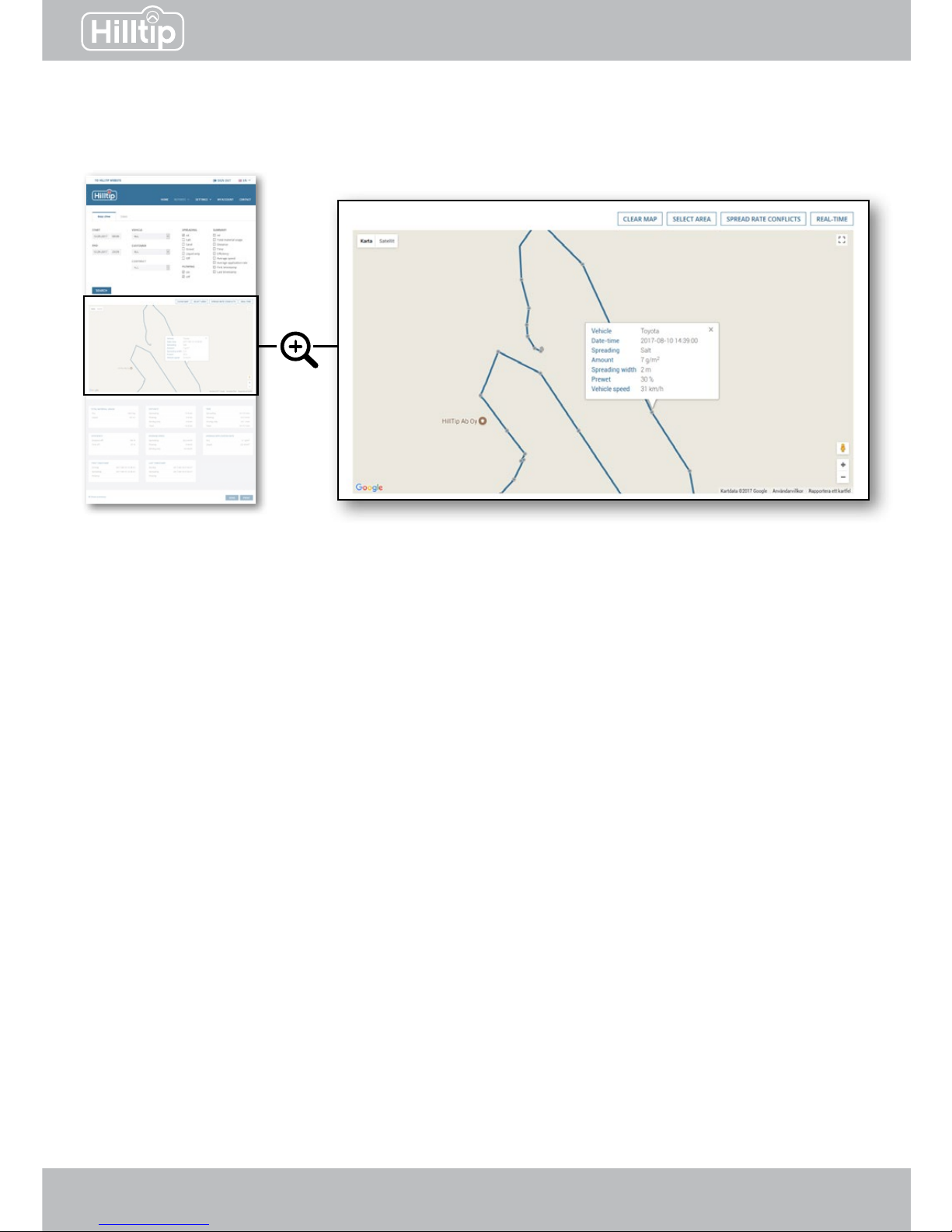
Click on a route to display checkpoints. Checkpoints are logged in 4 second intervals along the
route. Click a specic checkpoint to show spreading data for that location.
Clear map
Clears route from map.
Select area
Click the map to create a boundary for the area you want to select. Data for this area will be
shown in the summary eld.
Spread rate conicts
Highlight areas where the spreader has not been able to accomplish the spread rate as set in
the controller, even if auger is at max speed. This indicates that vehicle speed is too high.
Real time
If a vehicle has been active within the last 2 minutes, its most recent position will be shown on
the map.
REPORTS
Page 7
HTrack
7
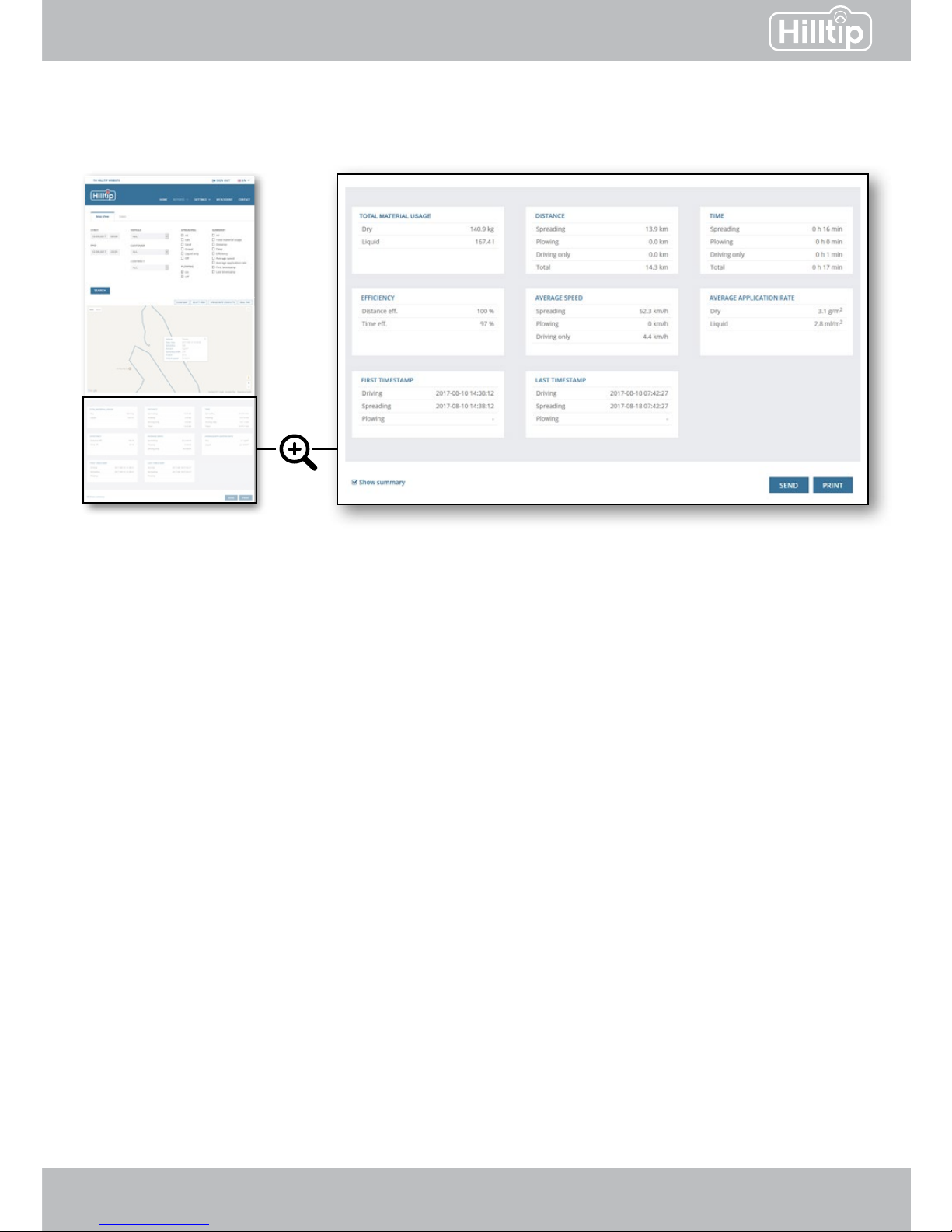
Summary eld
The summary eld shows tables which contain data relevant to the selected attributes at the top
of the page.
Send as e-mail
Sends the summary report as a PDF-le to the e-mail address dened in your user prole.
Print
Generates a summary report as a PDF-le that can be printed or saved.
REPORTS
Page 8

HTrack
REPORTS
Datasheet view Reports → Datasheet view
Use the datasheet mode when you need to summarize data for longer periods of time. The data
will be summarized in tables, and not on a map.
Start - End
Set a time interval: Insert start and end time to show details for the selected customer or vehicle
during a specic time interval.
Type
You can choose to view details for all or a specic customer/contract or vehicle.
Operating mode
Select which activity/activities should be shown in the summary.
Spreading material
Check the spreading materials you want to be shown in the summary. For SprayStriker
applications, please select “Liquids only”.
Calculations
Check which attributes should be calculated in the summary report.
Click SEARCH to show details for the set attributes.
Oy HillTip Ab
Pukkisaarentie 6
FIN-68600 Pietarsaari
Finland
+358 50 5983 026
+358 50 3659 415
www.hilltip.com
[email protected]
Specications and other details are subject to change without notice.
 Loading...