

Page 1
THE
W
IZARD
Work Zone Alert
and
Information Radio
THE
W
IZARD
®
Wizard Field Operation Procedures
A guide for settings and message selection under
varying operating conditions.
Highway Technologies, Inc
81 Texaco Road • Mechanicsburg, PA 17050 • 717-691-8007
Highway Technologies, Inc
81 Texaco Road • Mechanicsburg, PA 17050 • 717-691-8007
RF Safety Warning
The antenna for this device must be mounted on top of the
roof of the vehicle or on top of the construction site trailer
away from nearby personnel. All personnel must remain at
least 7” from an unobstructed antenna to avoid extended periods of RF exposure.
Page 2

With trucks logging more than 50 billion vehicle miles on the nation's roads,
more maintenance and more work zones increases the opportunity for more
accidents. Higher speeds, inattentive driving and closer spacing contribute
to rear-end vehicle collisions and hazardous conditions for road construction
workers.
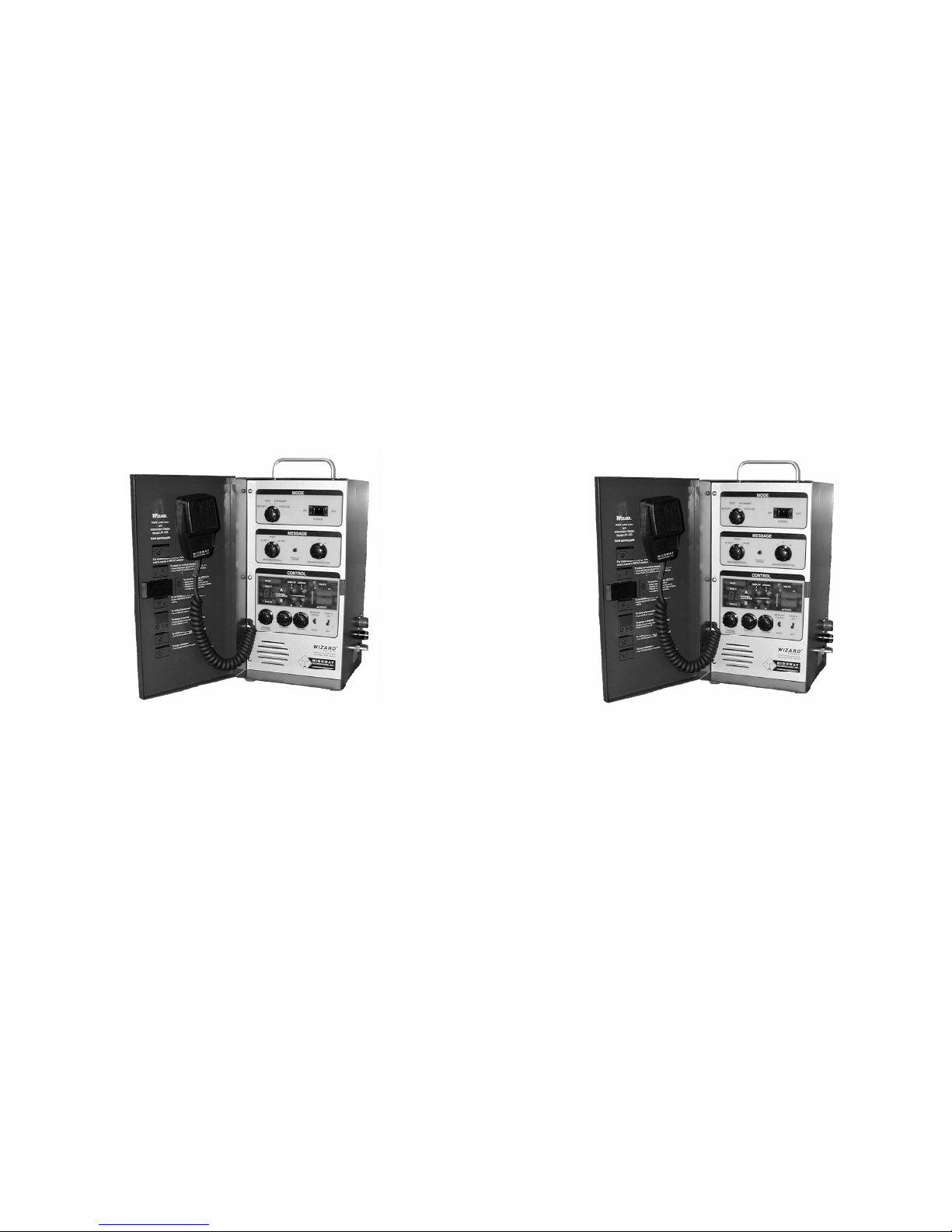
The Wizard® is designed to provide
advanced warning of impending traffic
slowdowns to give all vehicles, especially
heavy trucks, the necessary time to stop.
The Wizard is a completely portable
wireless broadcasting system adaptable to
any work site, sending localized messages
on selected CB channels.
The Wizard counts down the selected
interval for sending, listens for a break in
activity on channels 9 and 19 (or other
user selected and emergency CB channels), and broadcasts when clear. Care is
taken to not interfere with normal CB
communication between vehicles.
A short message alerts the driver to slow down. The message can be broadcast on a second user selected channel if desired. Messages can be changed
at the site, broadcast distances adjusted for traffic backup, and message
frequency modified to compensate for average speeds.
WARNING
The Citizens Band (CB) Radio Service is under the jurisdiction of the
Federal Communications Commission (FCC). Any adjustments or
alterations which alter the performance of the transceiver's original
FCC type acceptance, or change the frequency determining method,
are strictly prohibited. Replacement or substitution of crystals,
transistors, ICs, regulator diodes, or any other part of a unique
nature, with parts other than those recommended by Highway
Technologies, Inc., may cause violation of the technical regulations
of Part 95 of the FCC rules or violation of type acceptance requirements of Part 2 of the rules.
This radio has been type accepted and certified by the FCC.
Page 2
Select desired
Transmit
Channel using
the “Channel
Selector”
switch
Adjust Squelch and Volume Controls to desired levels
Listen for “break” in conversations
Squeeze (and hold) microphone switch while speaking.
As soon as you finish your message release the microphone switch and listen for a response. Be sure to hold
the microphone near your mouth so that your voice - not
just background noise - can be heard.
Release microphone switch to listen for response
Enclosure
General Specifications
The Wizard enclosure is a protected, weather resistant box. Boxes
that are fully weather protected are available as an option.
Internal components are securely mounted to the case and inter connected with industrial connectors
It may be used in many weather conditions so long as no part of the
box is submerged.
Care should be taken to protect the unit with appropriate security
measures if placed in an unattended location.
Page 11
Page 3
Set The Wizard to Broadcast
Automatically
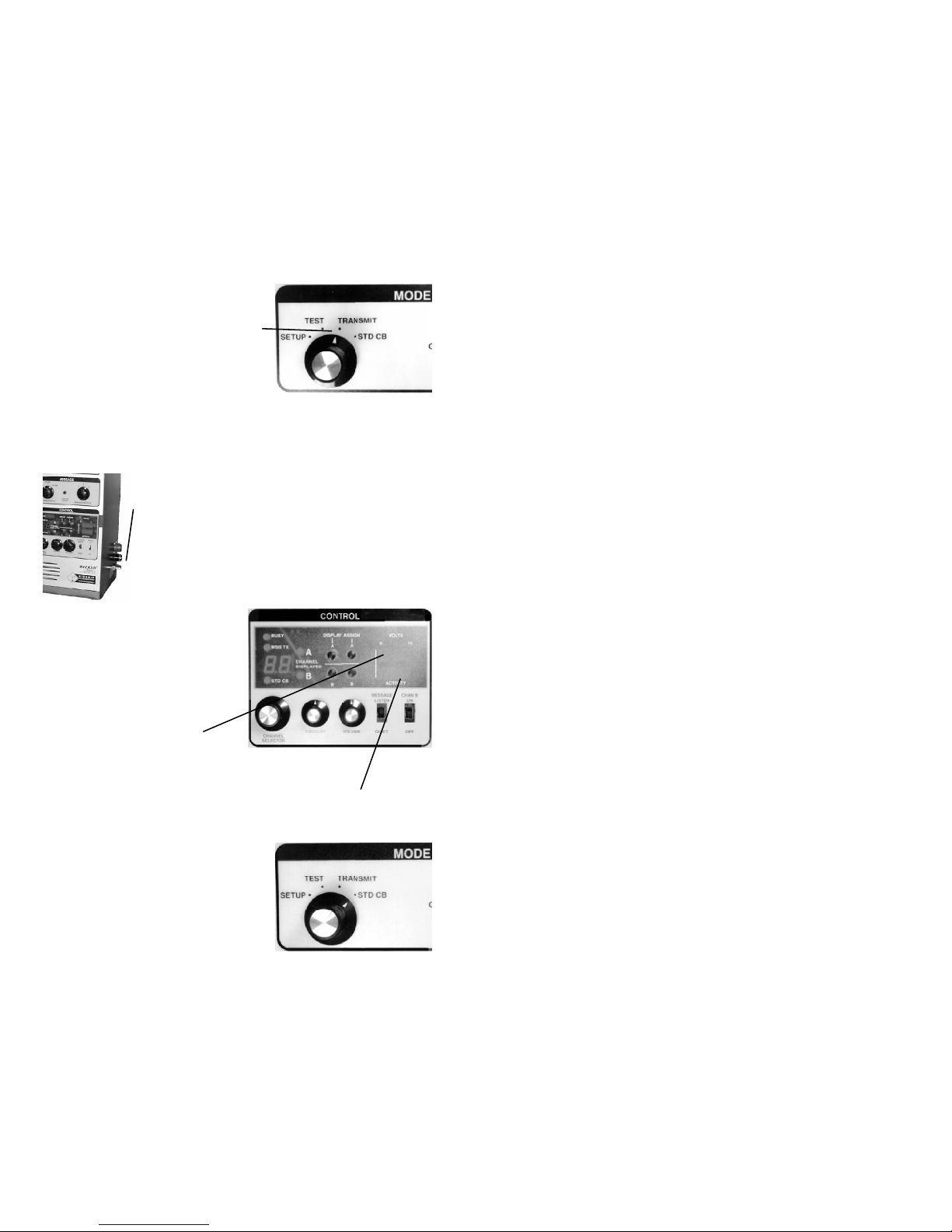
Set “MODE” switch to “TRANSMIT”
position.
Remote Antenna Installation
Construction Site Trailer
If unit is used inside a trailer, external antenna (optional)
may be mounted in any convenient outside location accord ing to instructions
Plug lead-in shielded cable to “antenna in” connector.
Operate the system according to all previous instructions.
No personnel should be closer to the antenna than 7 unob structed inches.
NOTE: DO NOT OPERATE WITHOUT A PROPERLY
CONNECTED AND LOCATED ANTENNA !
Power Panel Indicators
There are two light bar
indicators that provide
dynamic strength information
Meters
The “VOLTS” bar indicates the
level of DC power being provided to
the unit. It should read about 12V for proper operation
.
The “ACTIVITY” bar gives an indication of how frequent and strong the
signals are that are being received by the CB. Distant transmissions (weak
signals) will not cause the system to interpret the channel as being busy.
CB Microphone Operation
Operator Communication
The “Microphone” may be used if
desired for live communications
Rotate “MODE” switch to “STD CB”
Page 10 Page 3
Elimination of licensing ………………………………………4
Rules You Should Know ………………………………………4
Easy to Operate ………………………………………………5
Operation ………………………………………………………6
If the Transceiver is placed Indoors………………………6
If the Transceiver is placed Outdoors……………………6
Select power source ………………………………………6
12 volt operation ………………………………………6
Initial Set-up…………………………………………………6
Message Set-up ……………………………………………7
To Record A Message ………………………………7
To Listen and Confirm Recorded Message(s)………7
Transmit Set-up ……………………………………………7
CB Channel Selection …………………………………8
To Designate Working Channels ……………………8
CB Broadcast Message ………………………………9
To Confirm Complete Setup …………………………9
Set The Wizard to Broadcast Automatically ………10
Remote Antenna Installation ……………………………10
Construction Site Trailer ……………………………10
Power Panel Indicators …………………………………10
Meters …………………………………………………10
CB Microphone Operation ………………………………10
Operator Communication ……………………………10
Enclosure …………………………………………………11
General Specifications ………………………………11
Contents
Page 4
Page 4
Elimination of Licensing
The Federal Communications Commission has ruled that Citizens
Band Radio Service operators are no longer required to obtain an
FCC license to operate their CB equipment. In doing so, the FCC
also permits CB stations to operate without station identification.
Elimination of individual station licenses results in no lessening of
the operating privileges or responsibilities of CB users. An operator
of a CB radio station is still required to comply with the Communica tions Act and with the rules of CB Radio Service.
Rules You Should Know
In common with all other CB operators, you must comply with the
general rules prohibiting music, profanity, promotion of illegal activi ties, selling of merchandise or services, and blasting others off the
air with illegally amplified transmitters.
Although one-way communications are generally not allowed, oper ation of the Wizard for its intended purpose is permitted. Rule 18
(d) provides specific permission to establish one-way communica tions concerning highway conditions to assist travelers. An opera tor should be monitoring the Wizard at all times.
Since Rule 7 (b) reserves Channel 9 for emergency communica tions or travelers assistance, channel 9 may be a good choice as
channel B.
A second channel is provided to extend cover age to one other channel that may be used for
information.
Using the “Channel Selector Knob” select a
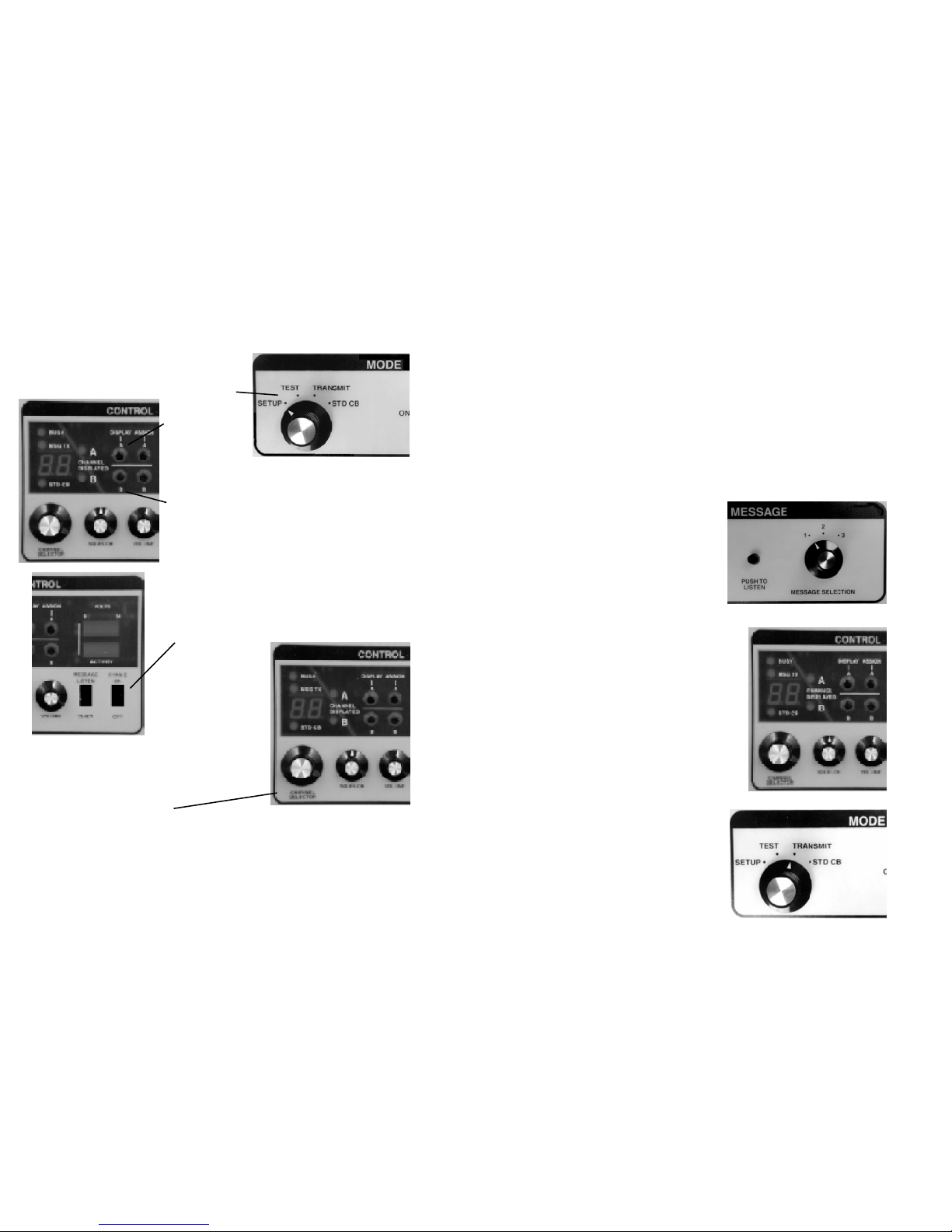
SECOND channel on which to alternate trans missions. Perform the same procedure as out lined above, using the “Channel B” assign but ton. The same channel should NOT be
assigned to A and B.
To confirm the channels selected, push the display
channel A or display channel B buttons and observe
the channel number displayed. Release the switch
as soon as the channel selection is confirmed.
CB Broadcast Message
After channels have been selected, select the appro priate message in Message panel.
Select “Message Frequency” indicated in seconds. If
30 seconds is selected, the timer will countdown 30
seconds after the completion of each transmissioin to
begin a new transmission. If the channel is busy, it
will take a few additional seconds to wait for a break
in the conversation.
NOTE: The faster the traffic, the more frequently the
message should be sent.
To Confirm Complete Setup
Set “MODE” switch to “TEST” position. The system
will perform automatically, governed by the current
settings (including timed response and message
selection). The message will be directed only to the
Wizard speaker, not transmitted to the active chan nel. If you do not hear the message when the Wizard
is simulating a transmission, set the speaker switch
to “on” and/or turn the volume switch to a higher set ting.
If the settings give the desired results, then proceed.
Otherwise, return to the appropriate previous steps.
Page 9
Page 5
Page 8 Page 5
CB Channel Selection
While the dominant “trucker” channel nationally is 19, certain regional pref
erences may influence your Channel A selection. Channel B may be set to
the primary emergency channel (9) or another secondary channel of your
choice
.
Place “MODE” switch in “SETUP” position.
Push “Display
A” switch to
display the
channel number
currently designated as the primary broadcast
channel
.
Push “Display B” to display the channel number
currently designated as the secondary channel.
If the selections are satisfactory, there is no need
to change the designated working channels.
Note: Channel B should be different from channel A
to avoid back-to-back messages on channel A. If
you wish to use only one channel, slide the channel
B on-off switch to “off.”
To Designate Working Channels
To change the designated working channels...
1. Turn the “Channel Selector” until the desired channel on which you wish to
transmit a message appears in the “Channel Displayed” window.
2. Push the “Assign A” button to designate to the system that the channel dis played will be designated “Channel A”.
Note: Although the Wizard is technically capable of being set to any of the 40
CB channels, for simplicity the factory pre-selects 6 channels starting with 19
and 9 - the channels that are normally used.
1 Bring Wizard to desired location
2 If not already attached to a
power source plug into a cig arette lighter or other 12V DC
source
3 Select prerecorded message
or record on the spot
4 Select CB channels on which to
transmit and amount of delay
between messages
5 Turn mode control to
“Transmit” and the rest is
automatic.
The broadcast should be
under the direct control of a
nearby operator at all times
Easy to Operate
Page 6
Page 6 Page 7
If the Transceiver is placed Indoors
If located in construction shack or other permanent or semi-permanent loca tion, place antenna in suitable external location and connect antenna lead-in to
terminal at lower right side of case.
If the Transceiver is placed Outdoors
Screw antenna securely into coaxial antenna connector
No personnel should be closer to the antenna than 7 unobstructed inches.
Select power source
12 volt operation
A connection cable is provided for plugging into a standard automo tive cigarette lighter. Cables for connecting to other 12V DC sourc es are available.
Initial Set-up
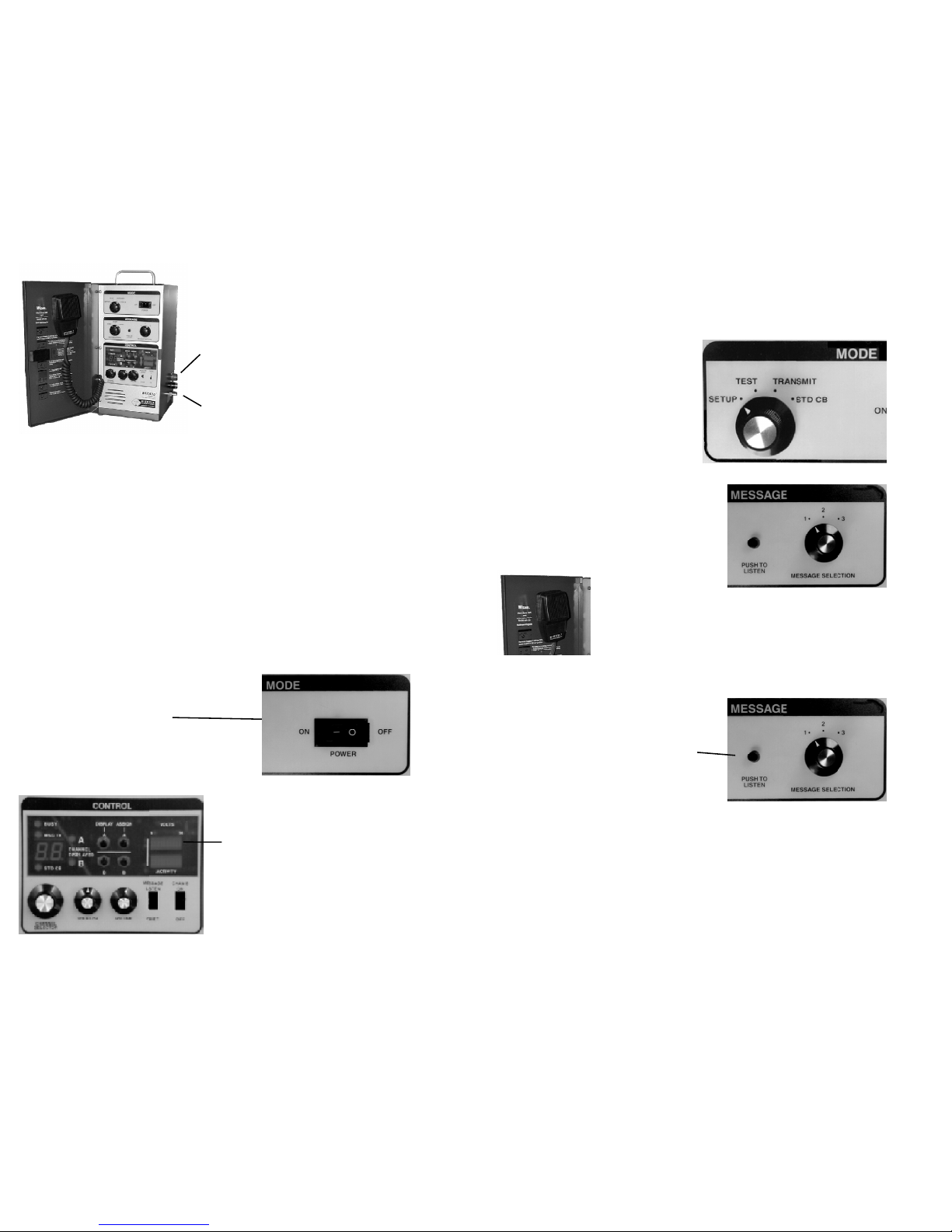
Open front cover.
Turn on main power switch.
Different lights will turn on depending on
the settings.
The voltage indicator light bar
should indicate 12V. However, the
unit will function normally when
provided by at least 10V DC
Operation
Antenna connector
12V Power connector
Message Set-up
There is a provision for storing 3 different messages. Messages can be
recorded in the field. They will be more readily understood if the back ground noise is minimized, and the
person recording the message speaks
clearly.
To Record A Message
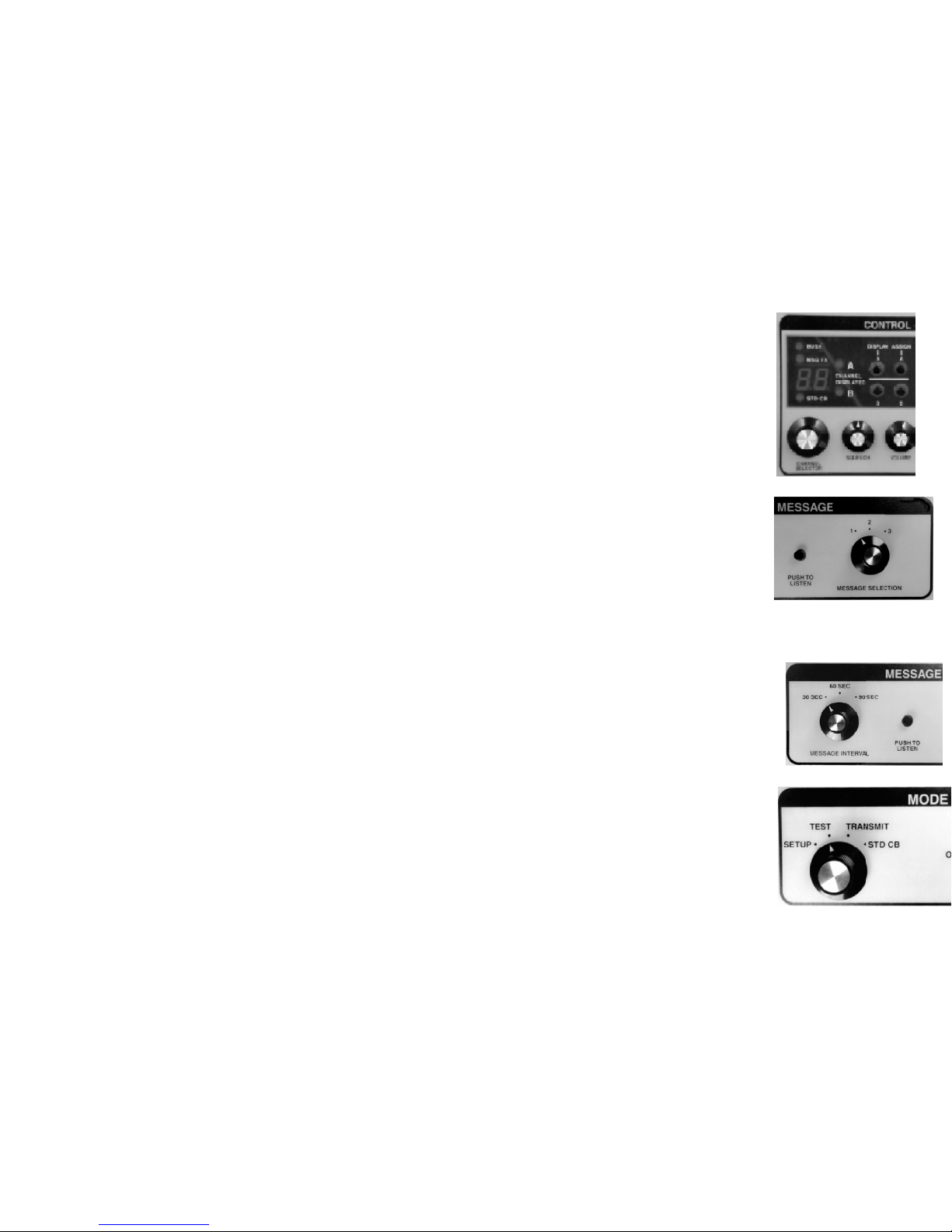
Place Mode Switch in “SETUP”
position. Recording a new message
will erase any message previously
recorded at that message position.
Place “Message Selection” switch in
position 1, 2, or 3.
Squeeze the microphone to depress the
mic switch, and speak. Release “Record”
switch only after complete message has
been recorded. Keeping
the message as short as
practical will minimize
inconvenience to CB users. The system will record a mes
sage as long as 18 seconds. The number of seconds
remaining will be displayed.
To Listen and Confirm Recorded Message(s)
1. Select message 1, 2 or 3.
2. Press “Push to Listen” momentarily
and release to hear any recorded mes sage. This will not alter messages.
It is IMPORTANT in the set-up of the CB Broadcast frequencies to follow
the procedure accurately, and reconfirm certain settings occasionally dur ing the broadcast period. For instance, depending on volume of traffic and
the slowdown rate, message frequency selection may require changing. It
is also important to keep the message relevant. Credibility is established
by broadcasting the right message at the right time.
Transmit Set-up
 Loading...