

Page 1
1
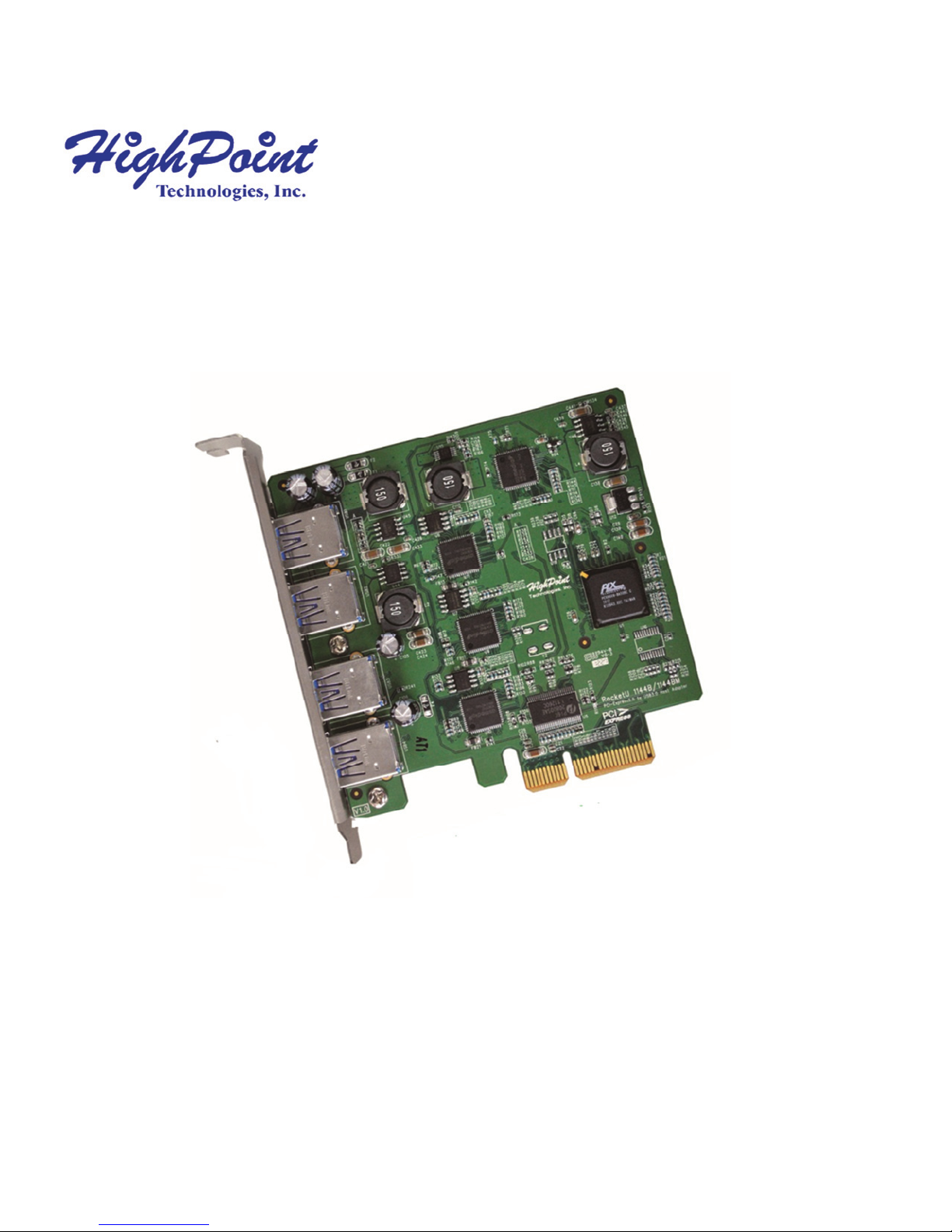
RocketU 1144CM
4-Port USB 3.0 PCI-Express 2.0 x4 RAID HBA
Quick Installation Guide
V1.0
Dec. 13, 2012
Page 2

2
Table of Contents
HighPoint RocketU 1144CM ......................................................... 3
Kit Contents .................................................................................. 4
Installing the RocketU Series Host Adapter .................................. 4
RocketU 1144CM Software Installation for Mac ........................... 4
Web RAID Management Interface ............................................... 6
Customer Support ........................................................................ 7
FCC Part 15 Class B Radio Frequency Interference statement ..... 7
Page 3

3
HighPoint RocketU 1144CM
Industry 1st PCIe 2.0x4 USB3.0 HBA for MAC OS X 10.8 and
later!
HighPoint's RocketU 1144CM: 2nd Generation PCI-E 2.0 x4 USB
3.0 HBA designed for Apple Mac Pro's and Mac OS X.
RocketU 1144CM HBAs benefit from a 2 ounce (oz) copper PCB
layer for robust transfer performance and improved energy
efficiency. The four Dedicated 5Gb/s USB Ports deliver 20Gb/s
of transfer bandwidth. The RocketU 1144CM is optimized for
todays fastest USB 3.0 HDD and SSD's, storage docks, and
enclosures.
Key Features
PCI Express 2.0 x4
Quad-Port: Four USB 3.0 ports with type A connectors for
easy data access
Super Speed USB 3.0: 5 Gb/s per USB port
20Gb/s transfer bandwidth
Optimized for external USB drives and drive enclosures
Backwards compatible with USB 2.0 & 1.1
Hot-Swap and Hot-Plug
Compliant with xHCI (Extensible Host Controller Interface)
Specification
Mac OS X 10.6 and newer
Page 4

4
Kit Contents
RocketU 1144CM Host Controller
Software CD
Quick Installation Guide
Installing the RocketU Series Host Adapter
Note: Make sure the system is powered-off before installing
the RocketU series HBA.
1. Open the system chassis and locate an unused PCI-Express
x16 slot.
2. Remove the PCI-Express slot cover.
3. Gently insert the RocketU series HBA into the PCI-Express
slot, and secure the bracket to the system chassis.
4. Close and secure the system chassis.
5. After installing the adapter, attach the hard disks or disk
enclosure to the RocketU series card using the USB cables.
RocketU 1144CM Software Installation for Mac
Once you have installed the RocketU 1144CM Card and booted
your Mac, follow these instructions to install the drivers and the
HighPoint Web Manager software:
Page 5
5
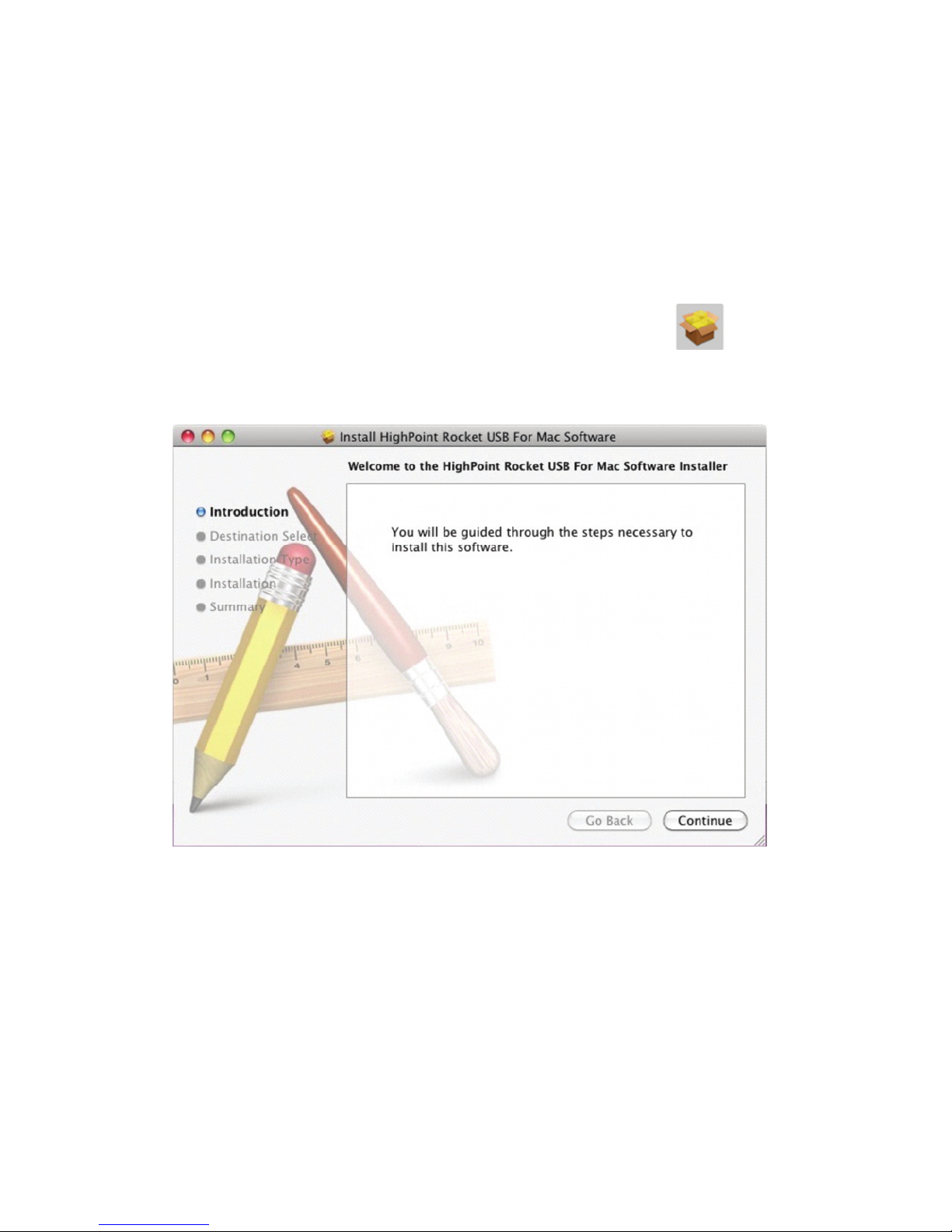
1. Insert the RocketU Series Software CD into your Mac DVD
drive and navigate to the Mac Software package folder:
/RocketU/RU1144CM
2. Double-click on the “*.dmg” file to mount the disc image
containing the Mac OS X software and drivers.
3. Double-click on the installer package labeled to start
the installation process.
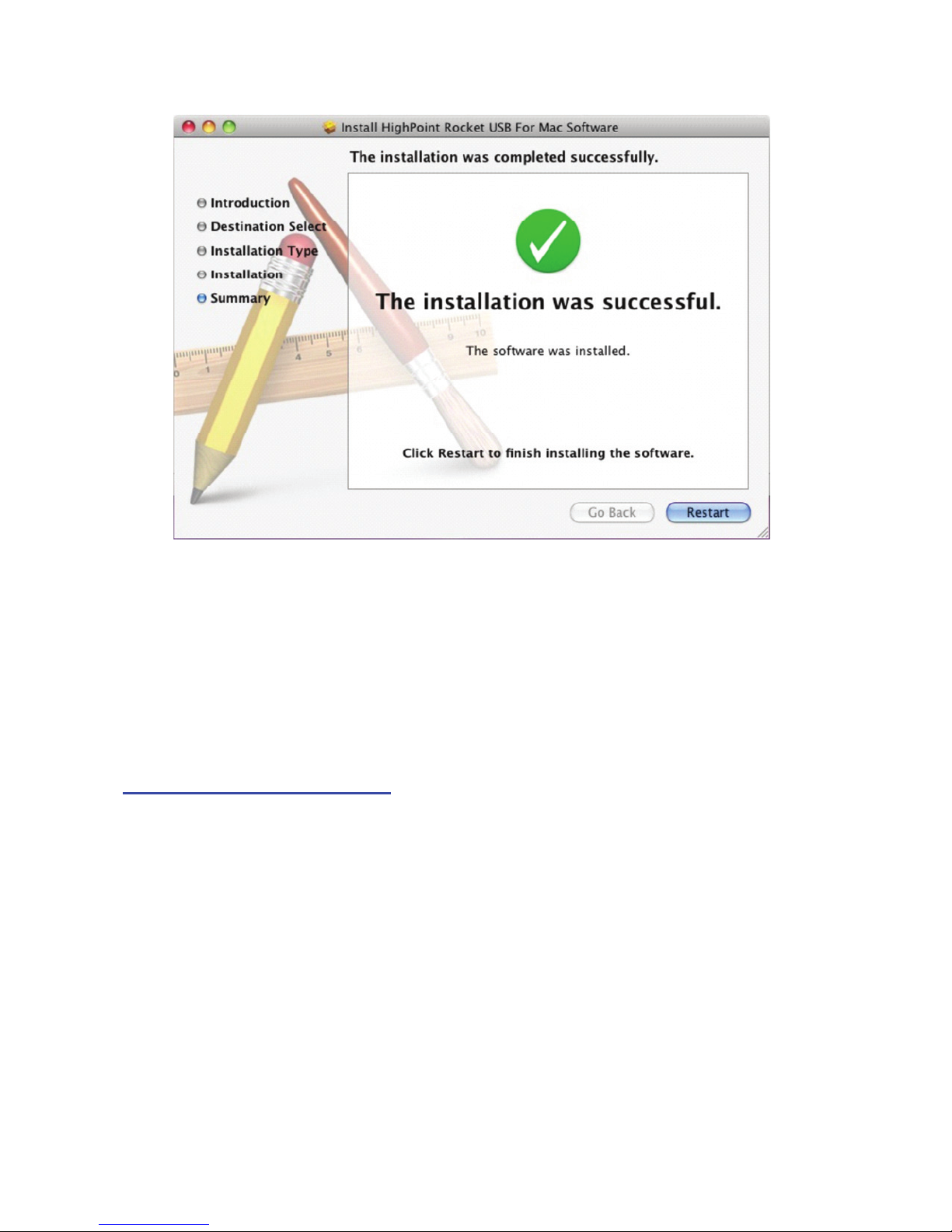
4. Follow the on-screen steps to complete the installation
process. After the install has completed, you will be
prompted to restart your computer. You will need to restart
in order to use the RocketU 1144CM.
Page 6
6
Web RAID Management Interface
To run the management interface, start your browser and enter
the following URL address:
http://localhost:7402
Note: To use the web-based RAID management interface, a
web browser with XML support is required, e.g. Safari, Firefox
or Chrome.
Page 7

7
Customer Support
If you encounter any problems while utilizing the RocketU
series host adapter, or have any questions about this or any
other HighPoint Technologies, Inc. product, feel free to contact
our Customer Support Department.
Web Support: http://www.highpoint-tech.com/websupport/
HighPoint Technologies, Inc. websites:
http://www.highpoint-tech.com
http://www.hptmac.com
FCC Part 15 Class B Radio Frequency Interference
statement
This equipment has been tested and found to comply with the
limits for a Class B digital device, pursuant to part 15 of the FCC
Rules. These limits are designed to provide reasonable protection
against harmful interference in a residential installation. This
equipment generates uses and can radiate radio frequency energy
and, if not installed and used in accordance with the instructions,
may cause harmful interference to radio communications.
However, there is no guarantee that interference will not occur in a
particular installation. If this equipment does cause harmful
interference to radio or television reception, which can be
Page 8

8
determined by turning the equipment off and on, the user is
encouraged to try to correct the interference by one or more of
the following measures:
Reorient or relocate the receiving antenna.
Increase the separation between the equipment and receiver.
Connect the equipment into an outlet on a circuit different
from that to which the receiver is connected.
Consult the dealer or an experienced radio/TV technician for
help.
Modifications not expressly approved by the manufacturer could
void the user’s authority to operate the equipment under FCC
rules.
This device complies with part 15 of the FCC Rules. Operation is
subject to the following two conditions: (1) this device may not
cause harmful interference, and (2) this device must accept any
interference received, including interference that may cause
undesired operation.
European Union Compliance Statement
This Information Technologies Equipment has been tested and
found to comply with the following European directives:
European Standard EN55022 (1998) Class B
European Standard EN55024 (1998)
© Copyright 2012 HighPoint Technologies, Inc. All right reserved.
 Loading...