

Page 1
Manual Version 1.0
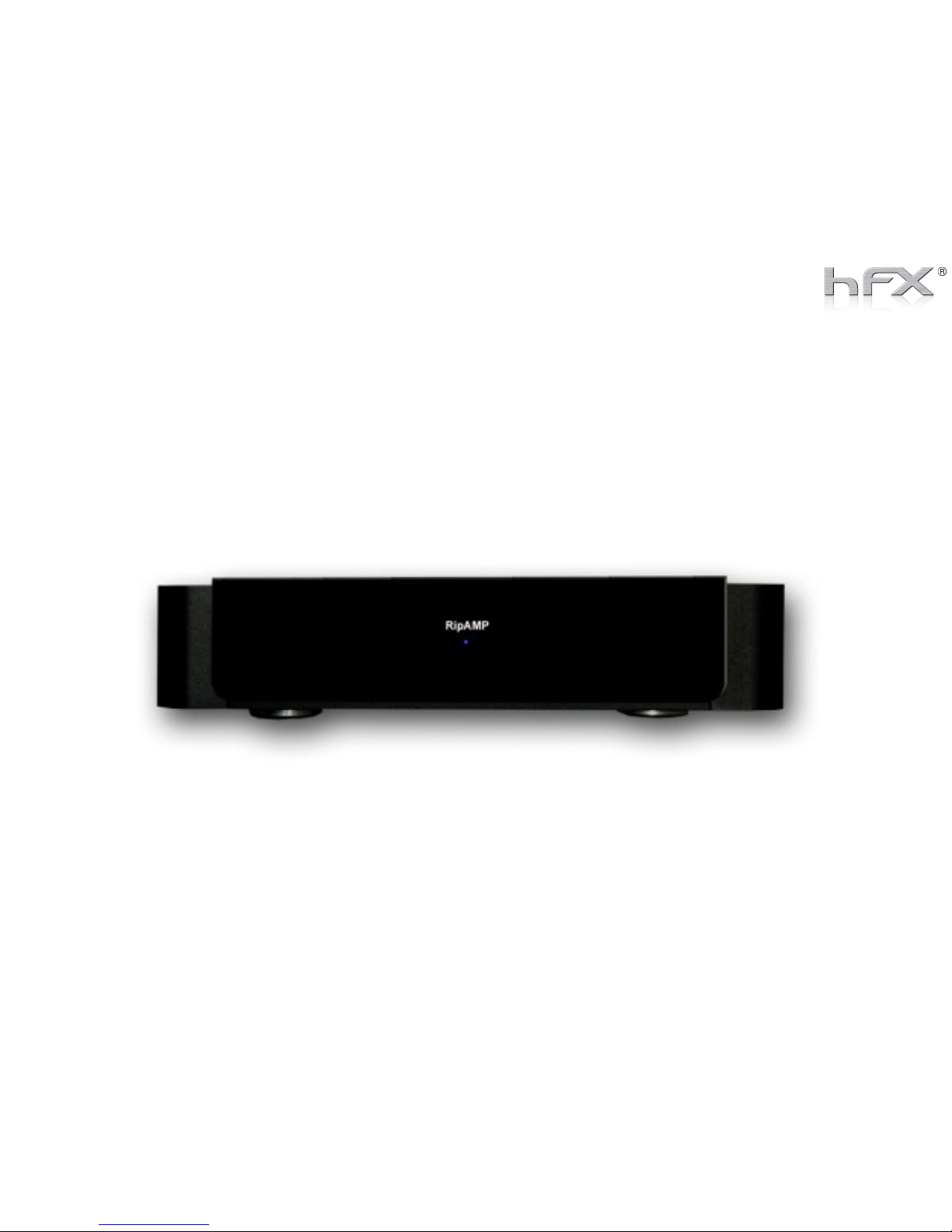
RipAMP 2.1/100
Page 2
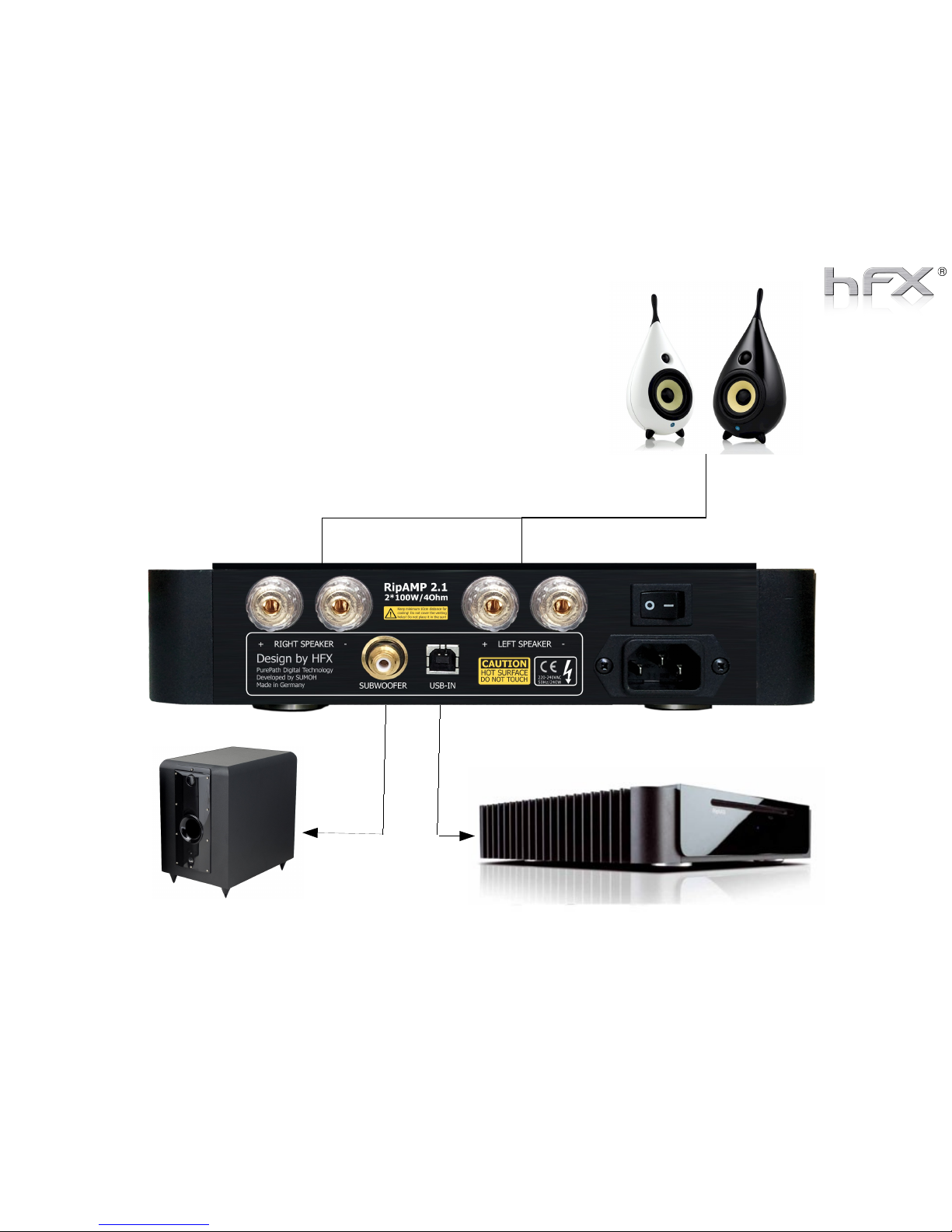
How to connect the RipAMP
RipNAS, PC or Laptop
Subwoofer
Speaker
Page 3
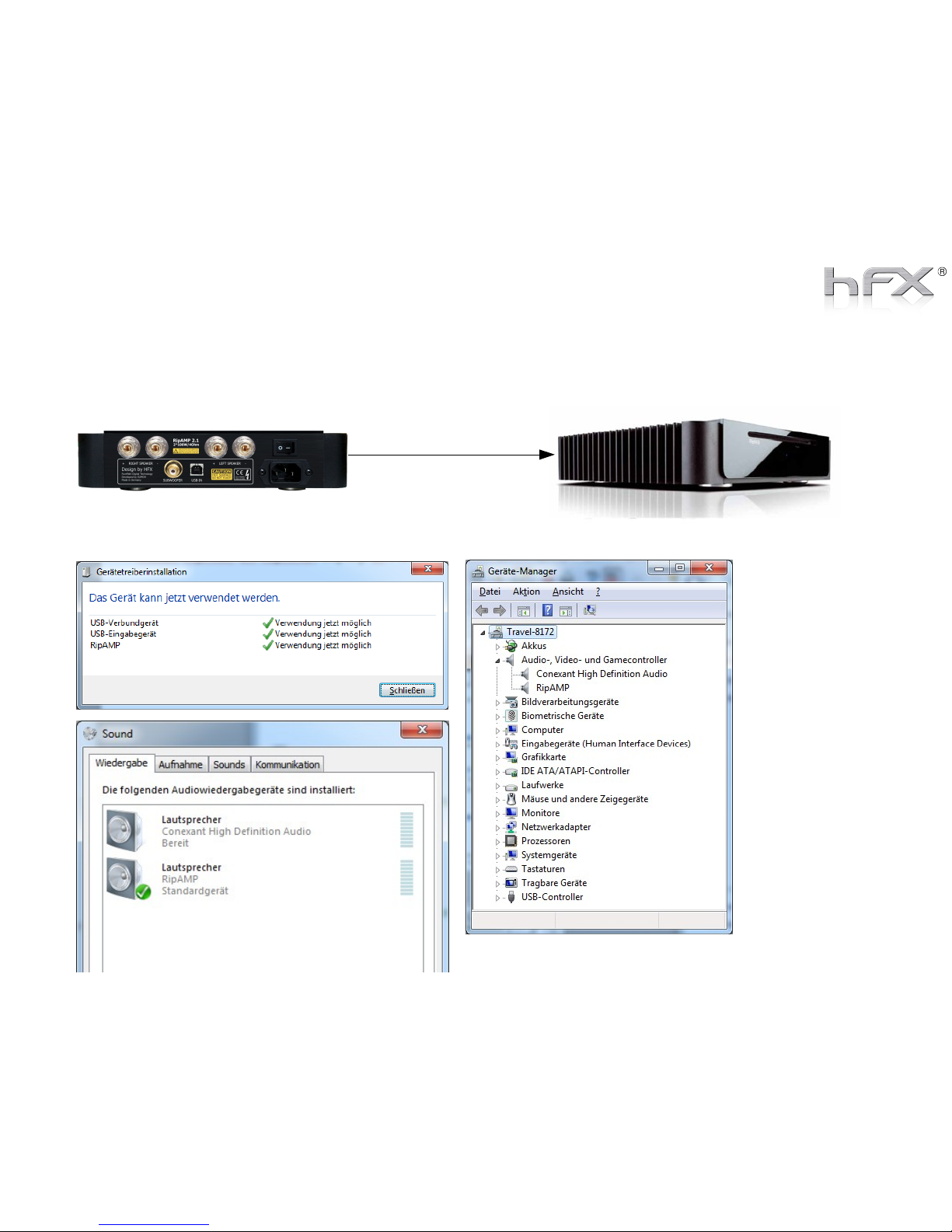
Install RipAMP on RipNAS, Laptop or PC
Connect RipAMP with RipNAS using a USB cable. Switch on the Power of the RipNAS.
The Audio Driver of the RipAMP will be installed automatically.
You can doublecheck in the
systems
configuration, that
the RipAMP is
installed.
The Standard Audio
Output Sound
should also be set
to RipAMP by
defaut.
WARNING:
Do not use remote
desktop to connect
with the RipNAS:
sound driver is
disabled then.
Better use VNC.
Page 4
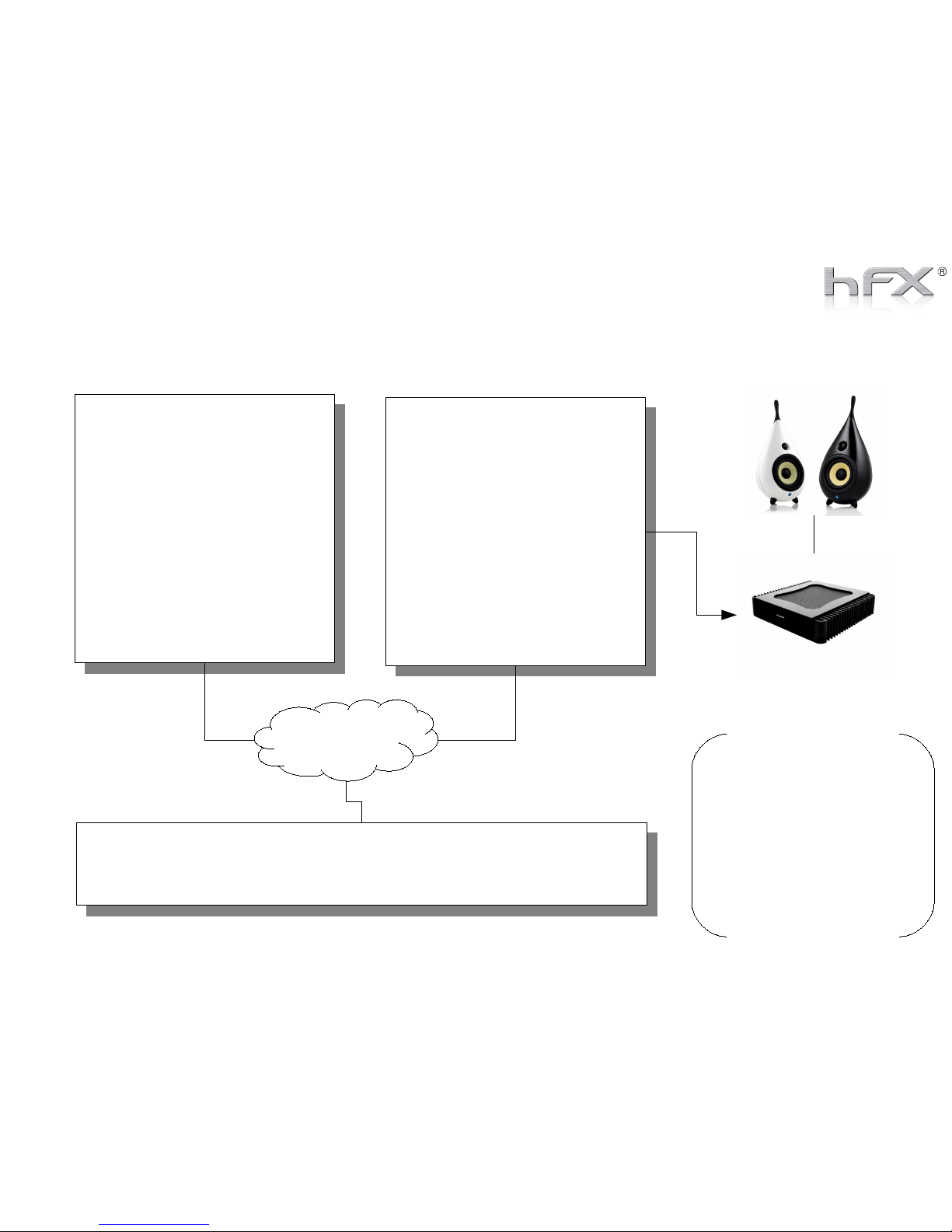
Set up LOGITECH Mode - Recommended
SERVER (Source)
> You need to stream your
music into the network.
> Please download and
install Squeezebox-Server
> Squeezebox-Server is
already installed on RipNAS
http://downloads.slimdevices.com/nightly/
http://downloads.slimdevices.com/nightly/
RENDERER (Player)
> You need to install
SqueezePlay on your
Laptop, PC or RipNAS
RipAMP 2.1
USB
CONTROLLER (Remote Control)
> You can install Logitech Squeezebox App for iPod, iPAD or Android
LAN / WLAN
We recommend to connect
the RipAMP to the RipNAS
and to install on the
RipNAS theSqueezPlay
player.
As remote control we
recommend to install
Squeezebox App on an
Android Pad or iPad/ iPod
RipNAS | Laptop | PC
RipNAS | Laptop | PC
Touch Pad
Attention: Controller App and Squeezebox-Server
must have the same Logitech account!
Page 5
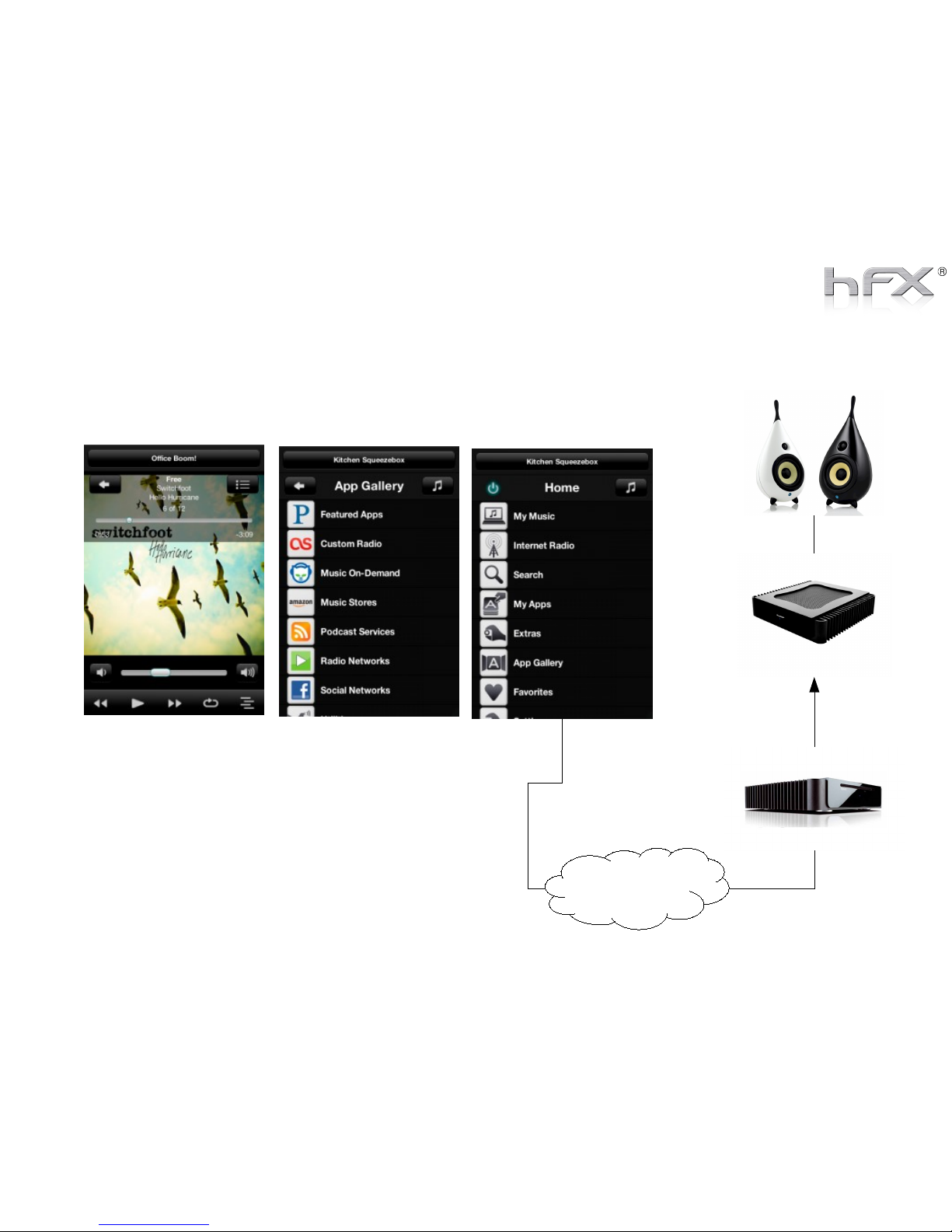
Set up LOGITECH Mode – Using Squeezebox Controller App
RipAMP 2.1
LAN / WLAN
RipNAS
Download Squeezebox Controller App from
Android Marketplace or Apple App-Store for your
Android phone or Pad or Apple Iphone or Ipad.
Page 6
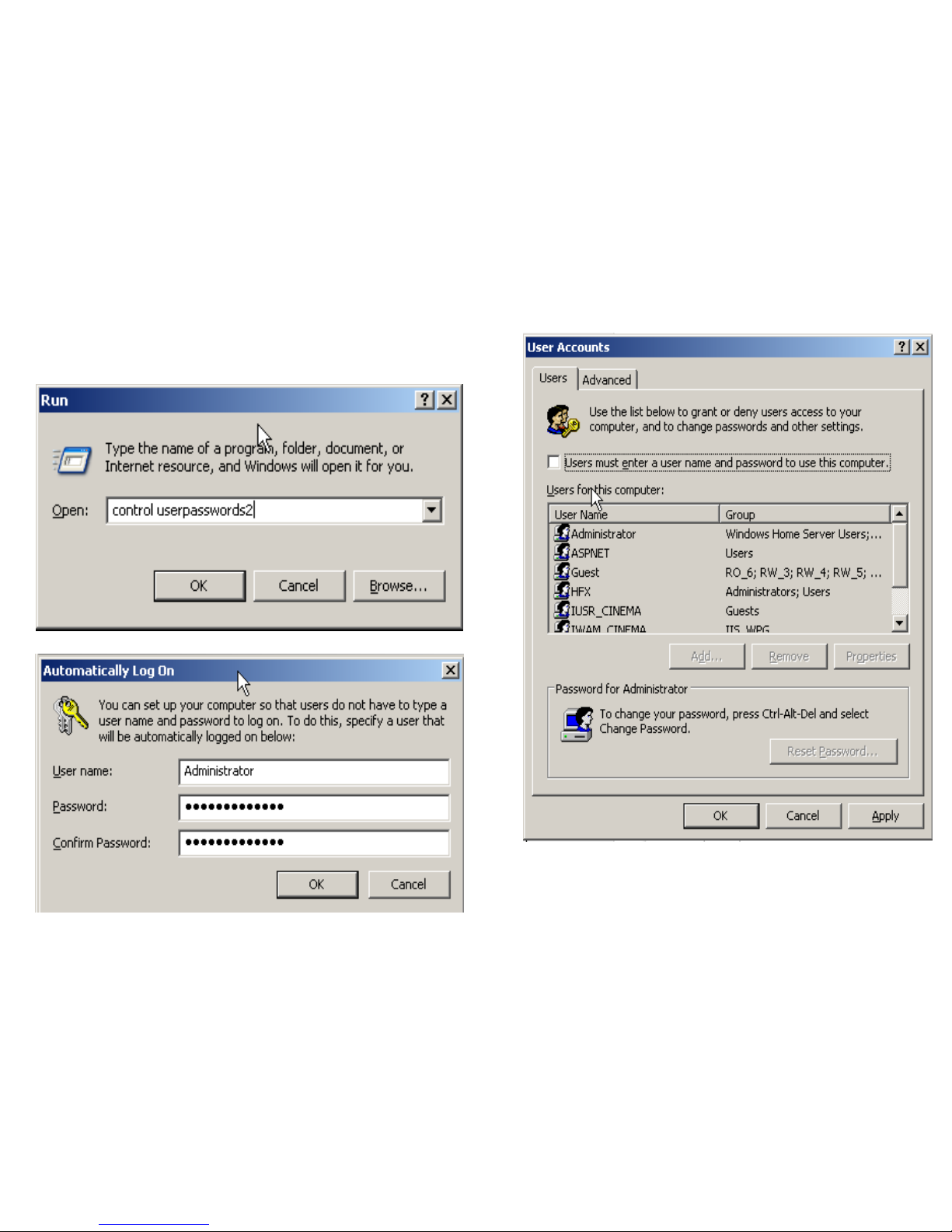
You have to activate autologon of the RipNAS
Add Squeezeplay now to you autostart folder
Start Squeezebox automatically with RipNAS
Page 7
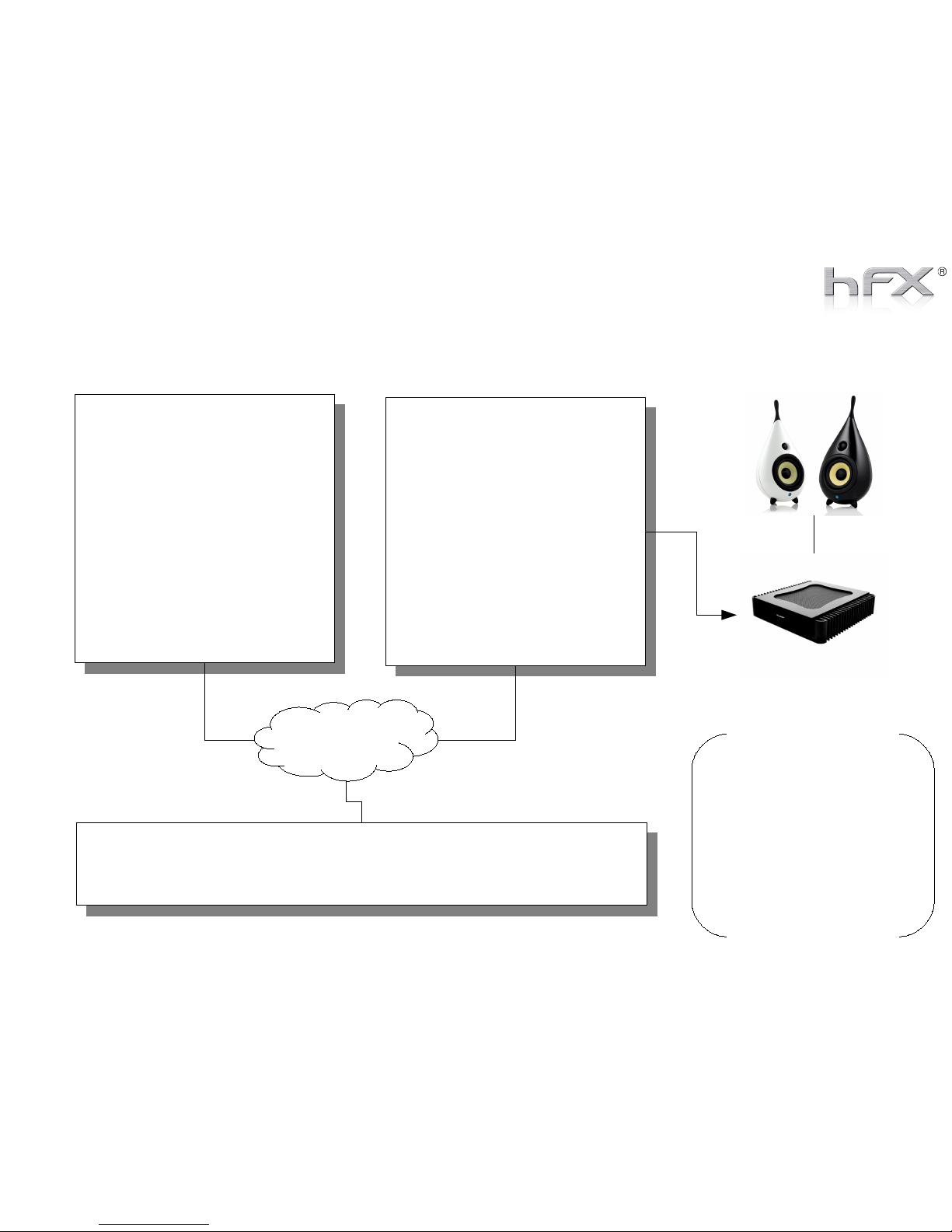
Set up UPNP Mode - Overview
SERVER (Source)
> You need to stream your
music into the network.
> Please install a UPNP
Server on your PC, like
Asset-UPNP, Twonkey or
Tversity
> You can also use the
RipNAS, where AssetUPNP is already installed
RENDERER (Player)
> You need to install a
UPNP Player on your
Laptop, PC or RipNAS
> We recommend to install
dbpoweramp renaissance
player
RipAMP 2.1
USB
CONTROLLER (Remote Control)
> You can install Asset Control on your Laptop or an WIN Pad
> You can install Android UPNP Control on any Android Pad
LAN / WLAN
We recommend to connect
the RipAMP to the RipNAS
and to install on the
RipNAS the renaissance
player.
As remote control we
recommend to install
PlugPlayer on an Android
Pad or iPad
RipNAS | Laptop | PC
RipNAS | Laptop | PC
Touch Pad
Page 8
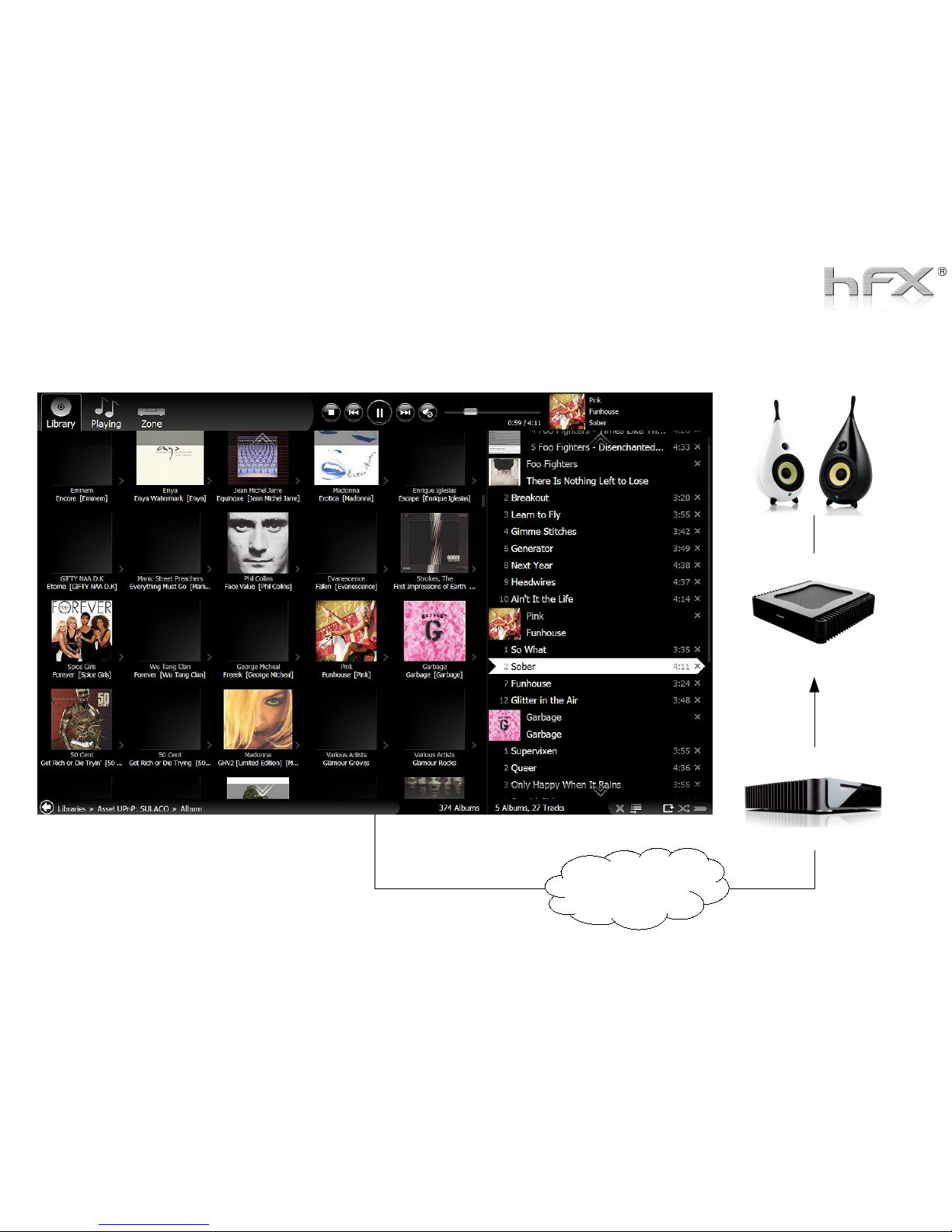
Set up UPNP Mode – Using Asset Control (Windows)
RipAMP 2.1
LAN / WLAN
RipNAS
Asset Control is available
for Windows Systems, you
can install it on any
Windows Laptop, PC or
Win Pad.
Page 9
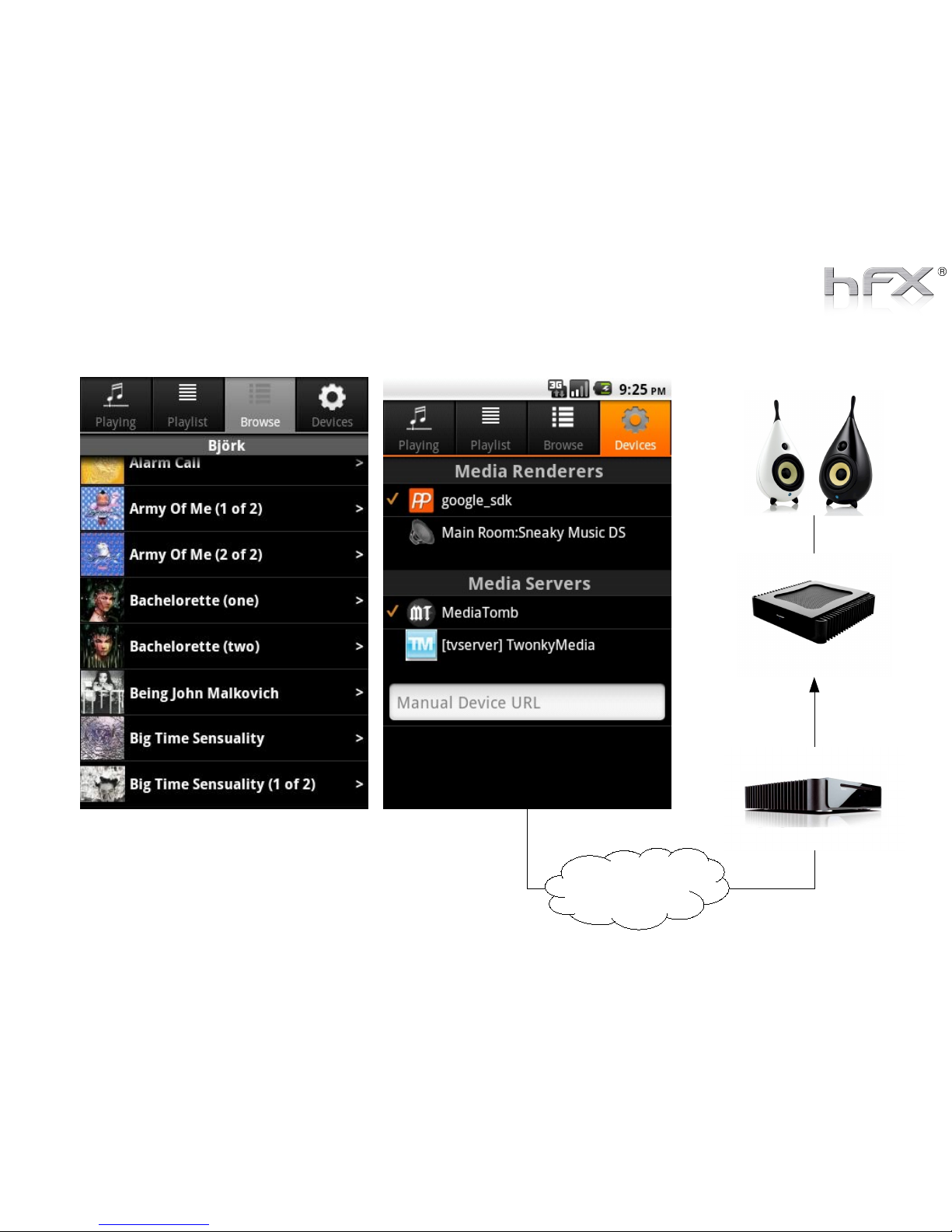
Set up UPNP Mode – Using PlugPlayer (Android / iPAD)
RipAMP 2.1
LAN / WLAN
RipNAS
Download PlugPlayer from Android Marketplace
or Apple App-Store for your Android phone or
Pad or Apple Iphone or Ipad.
 Loading...