

Page 1
Quick Reference Guide
Please do read user manual before you operate the device.
Powered by
Android and Android TV are trademarks of Google LLC.
Page 2

Safety instruction
Please keep the device in horizontal position
Please use the provided power adapter
Please keep the device away from the heat source to
avoid any damage to the machine
Keep the device in a properly ventilated area
Please keep the device away from damp and dusty
environment to avoid fire and electric shock
Promptly shut down the device and unplug power
adapter if the machine starts emitting smoke or in
case there is a burning smell coming out of the
device
Please unplug the power adapter in case device is
not used for longer time
Do not put any heavy stu on the top of the device
Please avoid to plug power adapter with wet hands
Please do not dissemble, modify the device by
yourself to avoid any shock or damage to the device
Do not use the damaged power cable and plug
Page 3
Accessory List
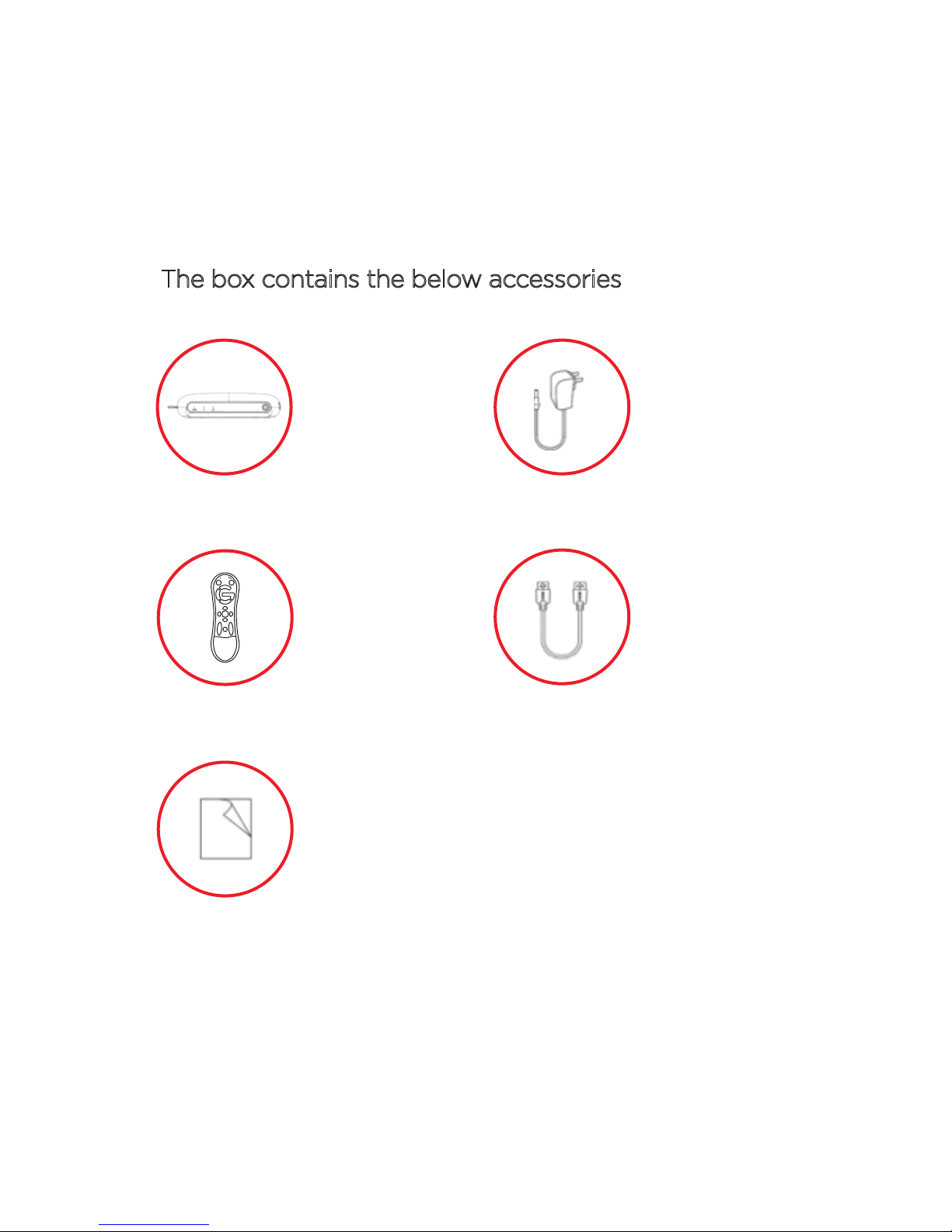
The box contains the below accessories
Android
TV Box
Remote
Control
User
Power
Adaptor
HDMI
Cable
Manual
Page 4
Hardware
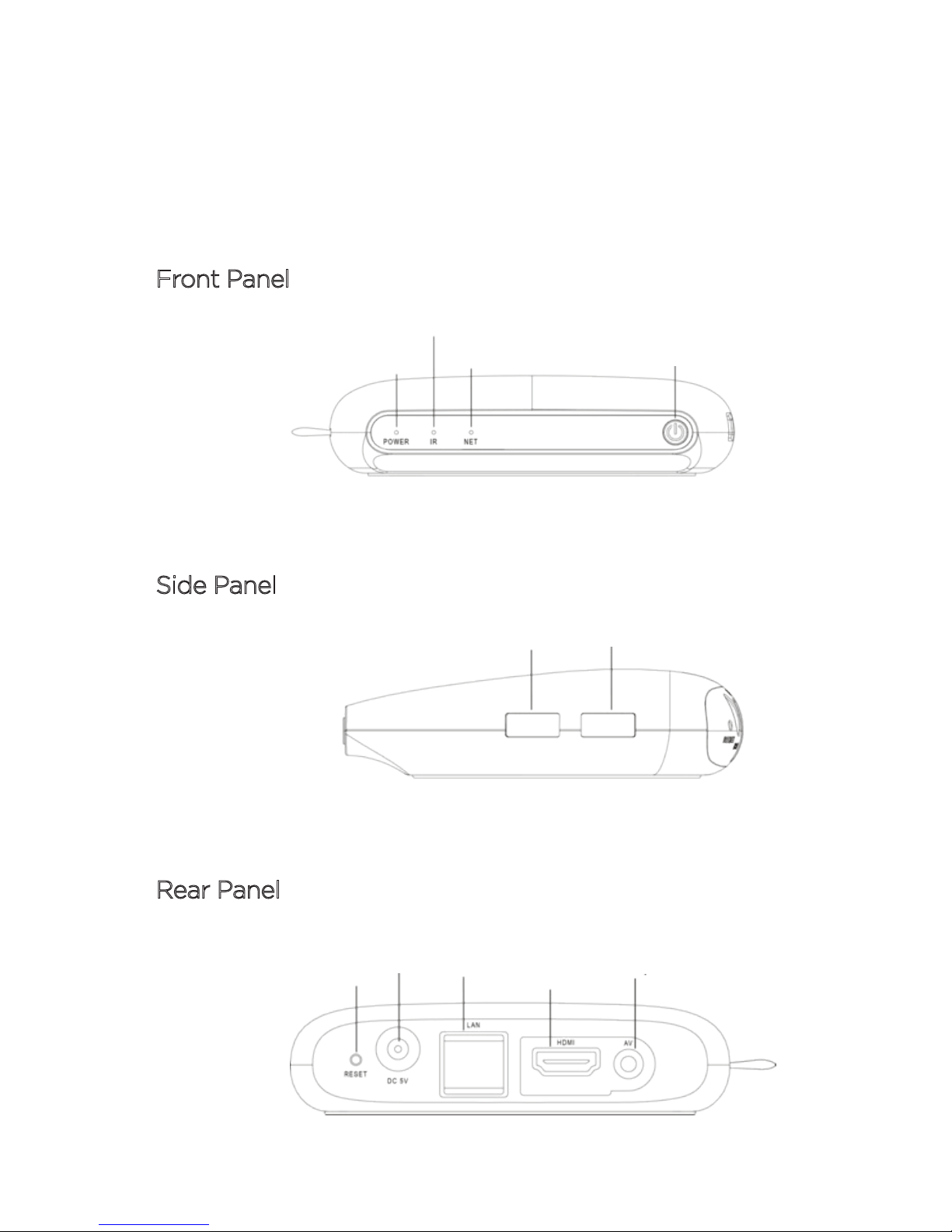
Front Panel
IR LED
Side Panel
Power LED
Net LED Standby Key
USB 1 USB 2
Rear Panel
Reset
DC in
Ethernet
HDMI Out
AV output
Page 5
Remote Control
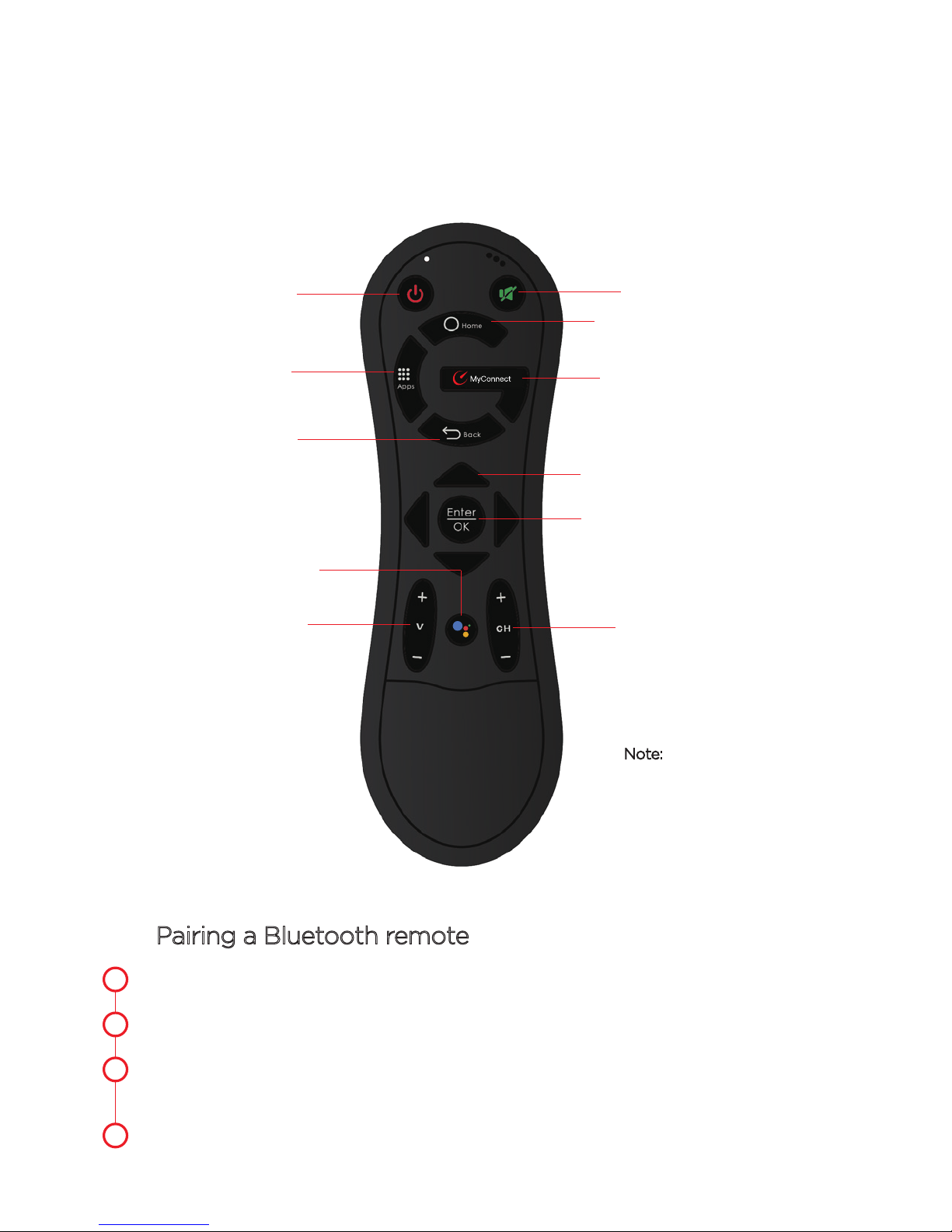
Standby On/O
Application Key
Back Key
GOOGLE Assitant Key
Volume Control
Mute
Home
MY CONNECT/Operator Key
Navigation Keys
OK Button
Channel Control
Note: Functions of the
remote control maybe
dierent for dierent Apps,
you may need to use an
external mouse to operate it.
Pairing a Bluetooth remote
1
Go to settings.
2
Under remote and accessories, select Add accessory.
3
Enable the pairing mode of the remote by pressing OK and channel (-)
key simultaneously till the blue LED on the remote starts blinking.
4
The remote will be paired now.
Page 6
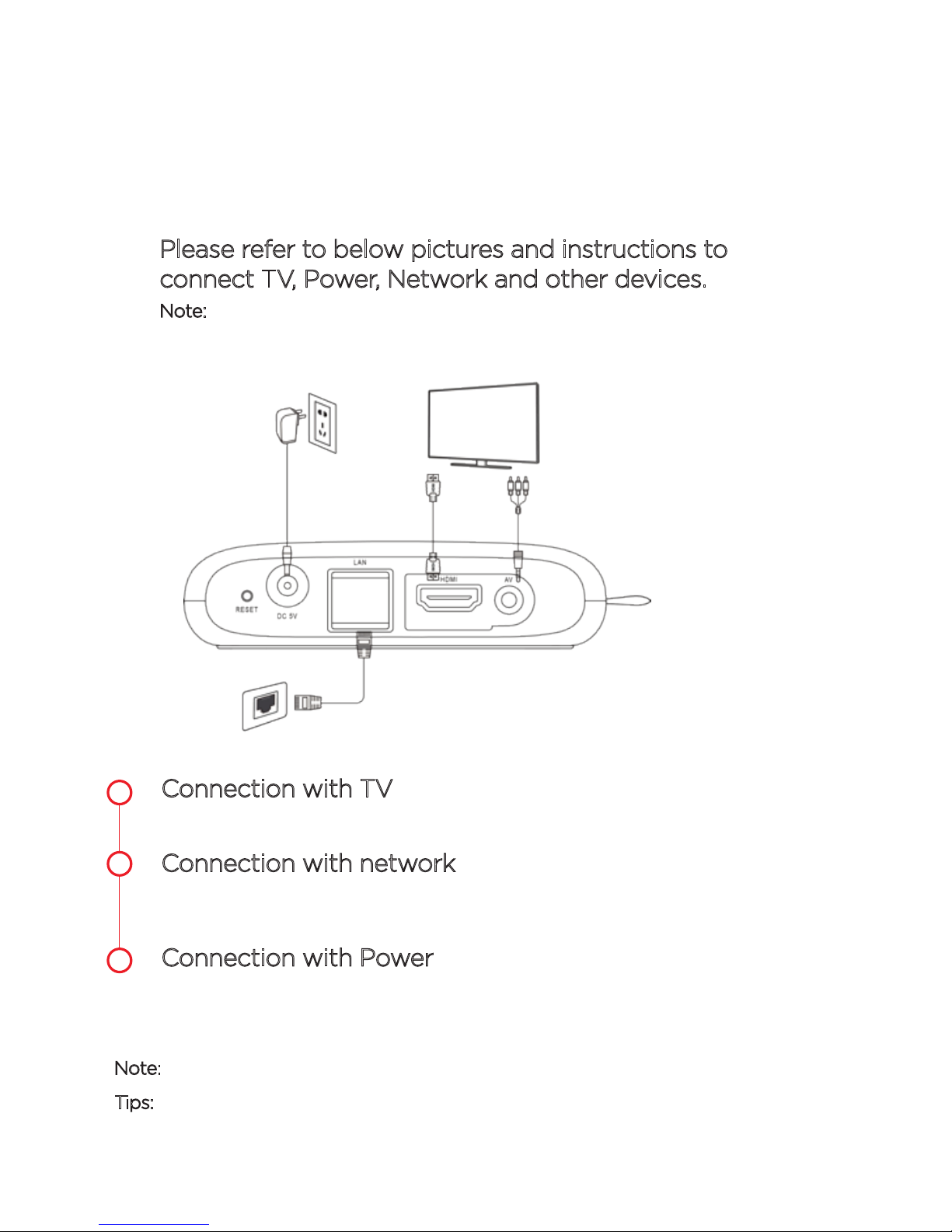
System Connection
Please refer to below pictures and instructions to
connect TV, Power, Network and other devices.
Note: Before connecting please switch o all the equipment to be
connected (such as this device and TV power)
Power
TV
Input
Internet
Connection
1
Connection with TV
Connect HDMI/AV cable to HDMI/AV port of the Android TV box & TV set.
2
Connection with network
Plug the Ethernet cable to LAN port of the Android TV box, the other
side to LAN port of router or Ethernet port of home broadband network.
3
Connection with Power
Connect the power adapter to the Android TV box. After power is on, it
can start automatically.
Note: Before powering on, Please switch the signal input of the TV to correct source.
The Android TV box supports Wi-Fi as well. Go to settings > Network and then
Tips:
select the relevant SSID. Select connect, entre password and press Ok. You are now
connnected to Wi-Fi.
Page 7
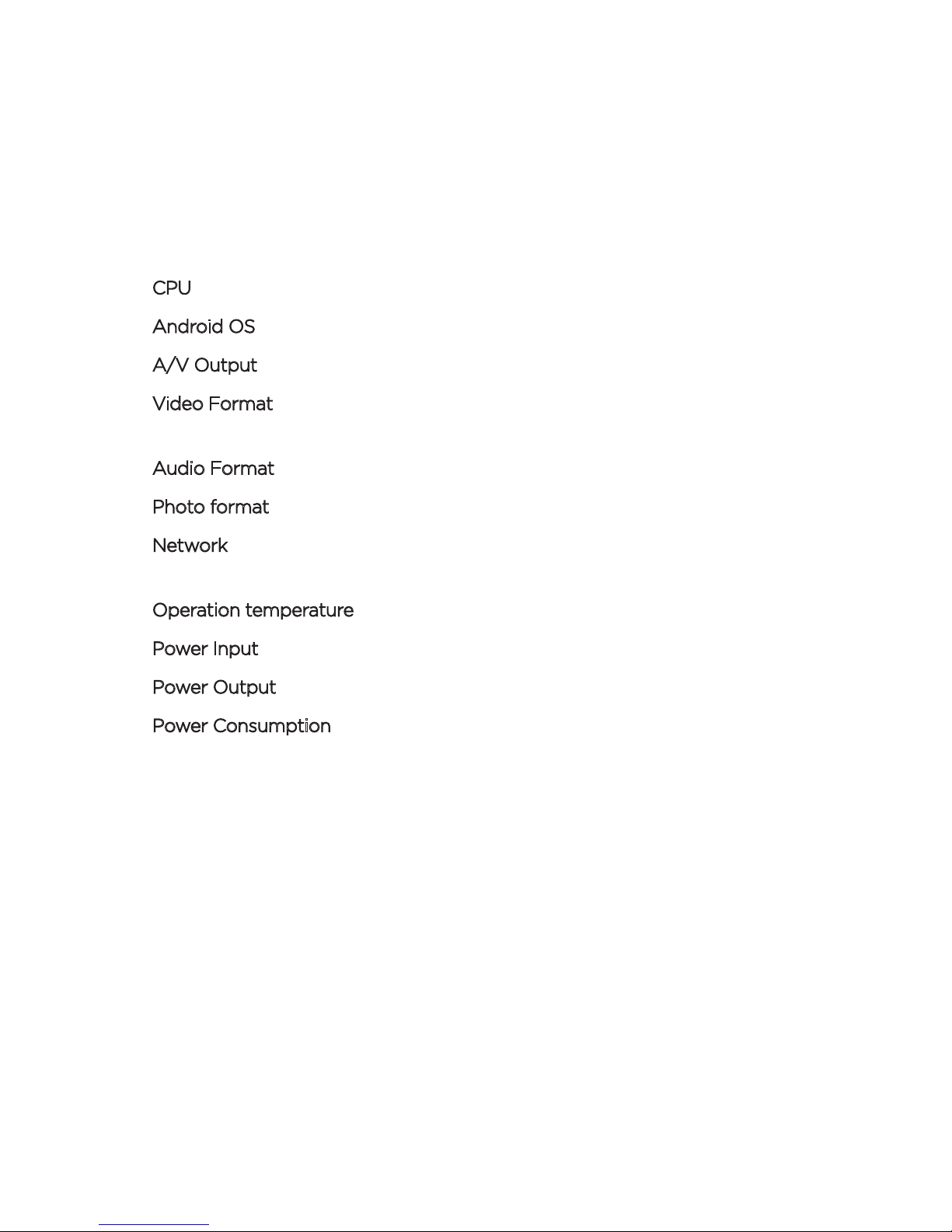
Technical Specifications
CPU
Android OS
A/V Output
Video Format
Audio Format
Photo format
Network
Operation temperature
Power Input
Power Output
Power Consumption
Quad core ARM Cortex-A53 up to 1.2GHZ(DVFS)
Android 8.0
HDMI2.0b, AV
VP9 1080p@60fps, H.265 10-bit 1080p@60fps,
H.264, MPGE, MKV, MP4 and other video formats
AAC, WAV, MP3 and other audio formats
JPG, BMP, PNG and other photo formats
Wi-Fi 2.4G 802.11b/g/n
RJ45 Interface 10M/100M adaptive + Bluetooth
0
C - 40 0C
0
AC100-240V 50/60Hz
DC 5V/2A
<8W
Page 8
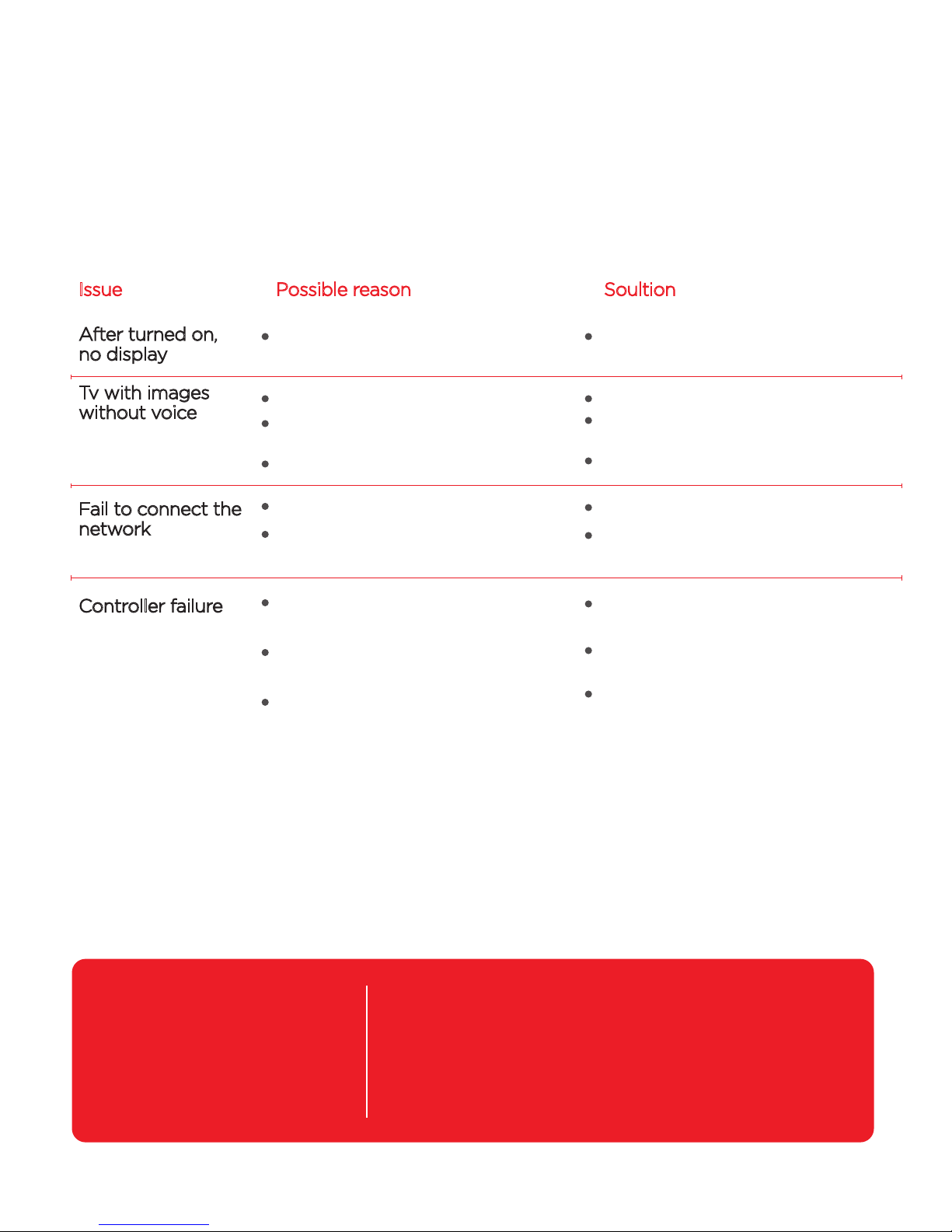
Troubleshooting
Issue
After turned on,
no display
Tv with images
without voice
Fail to connect the
network
Controller failure
Possible reason
The power cord is not connected
or socket without electricity
Audio cable is not connected
Android TV box in MUTE state
Volume is too low
Cable connect is abnormal
Wi-Fi closed or the signal is too
weak
Remote control is not in the
correct direction
Remote control is with low
battery
Remote control is broken
Soultion
Connect power plug, ensure
normal voltage electrical outlet
Re-connect the Audio cable
Please press mute button
Turn up the volume
Please reconnect internet
Please restart the Wi-Fi or adjust
the position of the router
Please aim at the front panel's
'SENSOR', then try again
Please change the batteries
Please send it to the local
maintenance station for
checking
Contact Details
Android and Android TV are trademarks of Google LLC.
W: www.mybox.net.in
 Loading...