

Page 1
QUICK START GUIDE
Page 2

/ Hello
Congratulations on your new HERO3+. This Quick Start Guide will help
you learn the basics of capturing life’s most incredible moments with
your GoPro.
JOIN THE GOPRO MOVEMENT
twitter.com/GoPro
youtube.com/GoPro
facebook.com/GoPro
instagram.com/GoPro
Page 3
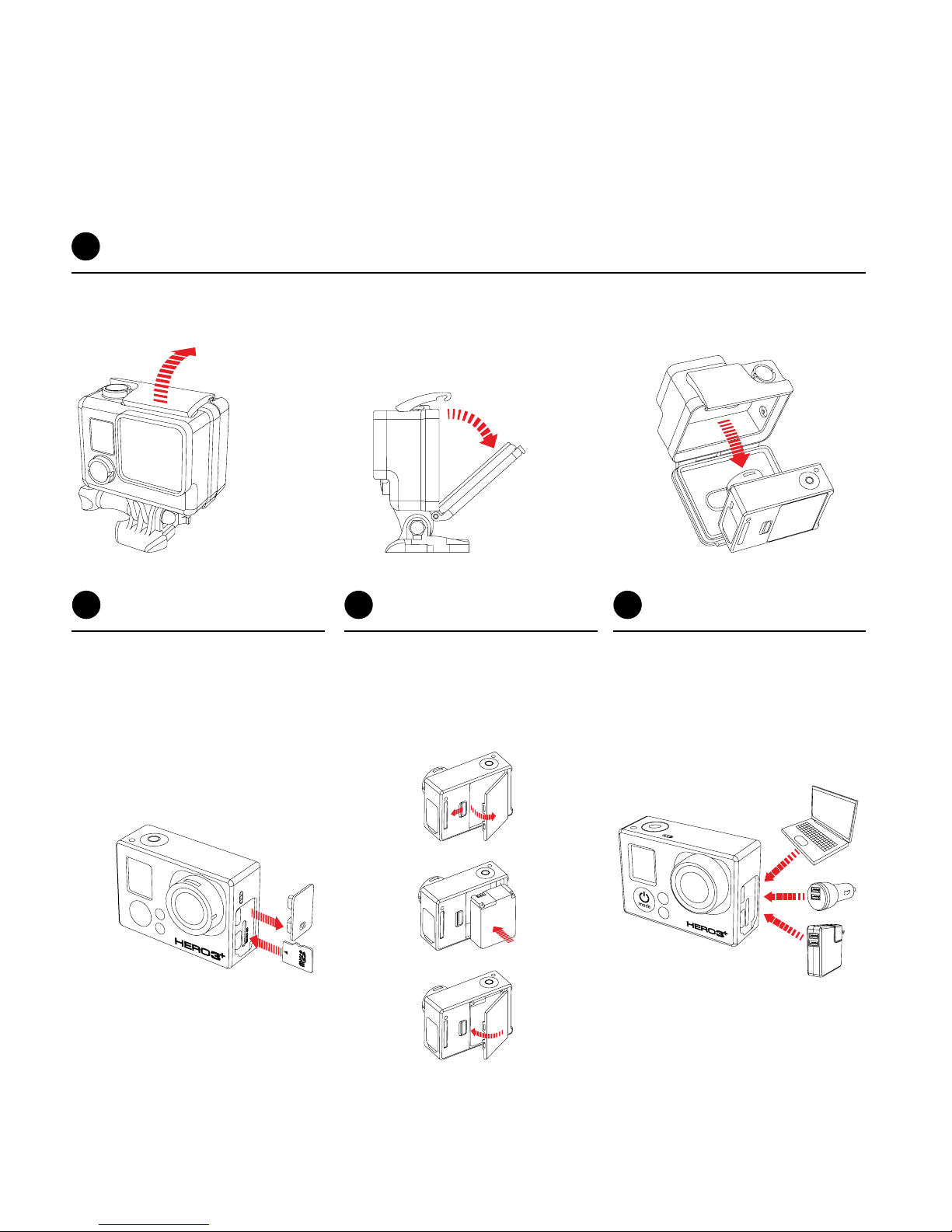
REMOVE CAMERA
BACK DOOR AND
INSERT BATTERY
CHARGE BATTERY
USING INCLUDED
USB CABLE
/ Getting Started
REMOVE CAMERA FROM HOUSING
1
REMOVE CAMERA
SIDE DOOR AND
INSERT MICROSD
CARD
(Class 10 required, sold separately)
2
3
4
Page 4
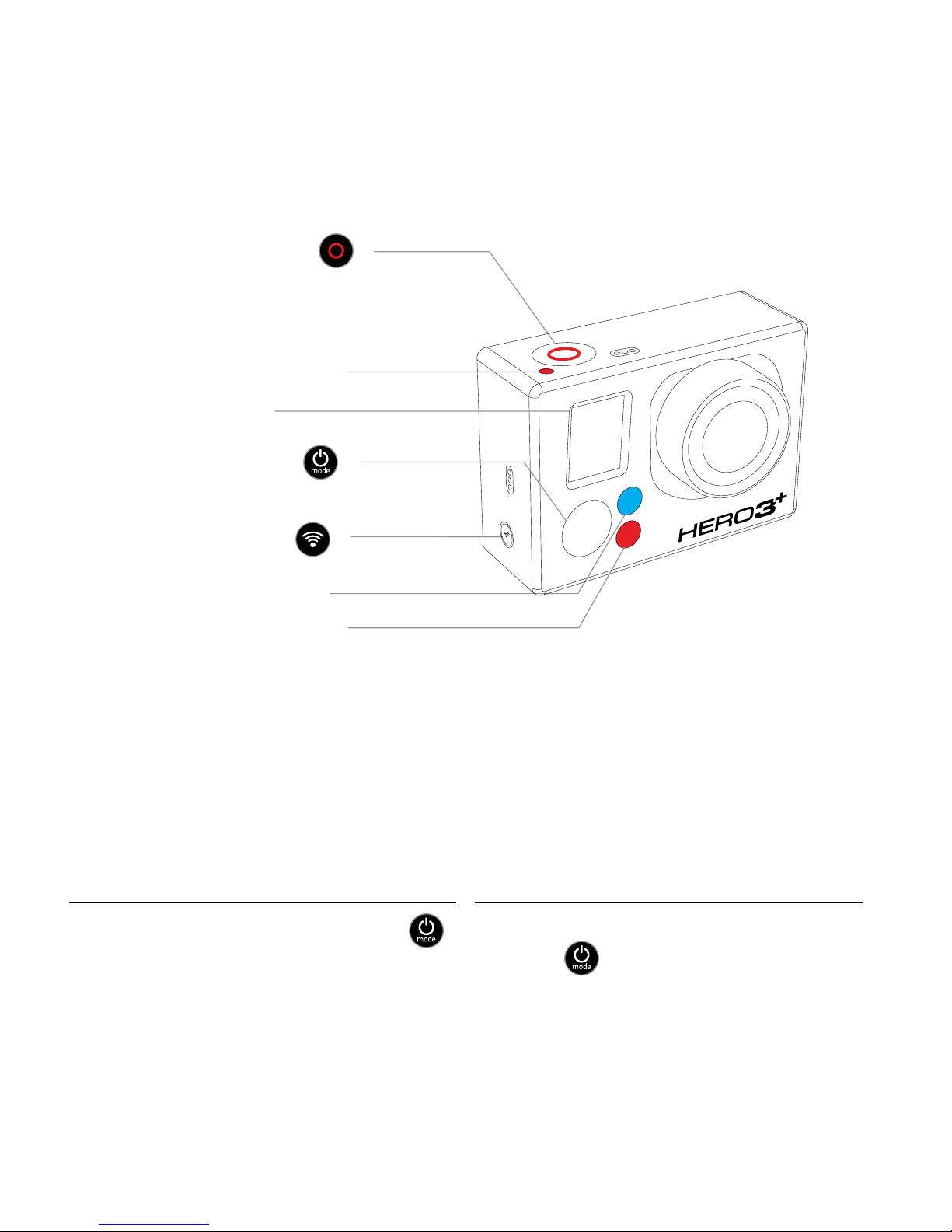
POWERING CAMERA ON AND OFF
To power ON
To power OFF
Press the Power/Mode Button [ ].
Press and hold the Power/Mode
Button [
] for two seconds.
LCD Status Screen
Wi-Fi Status Light [blue]
Camera Status Light [red]
Shutter/Select Button [
]
Power/Mode Button [ ]
/ Camera Essentials
Camera Status Light [red]
Wi-Fi On/Off Button [
]
Page 5
/ Selecting Camera Modes
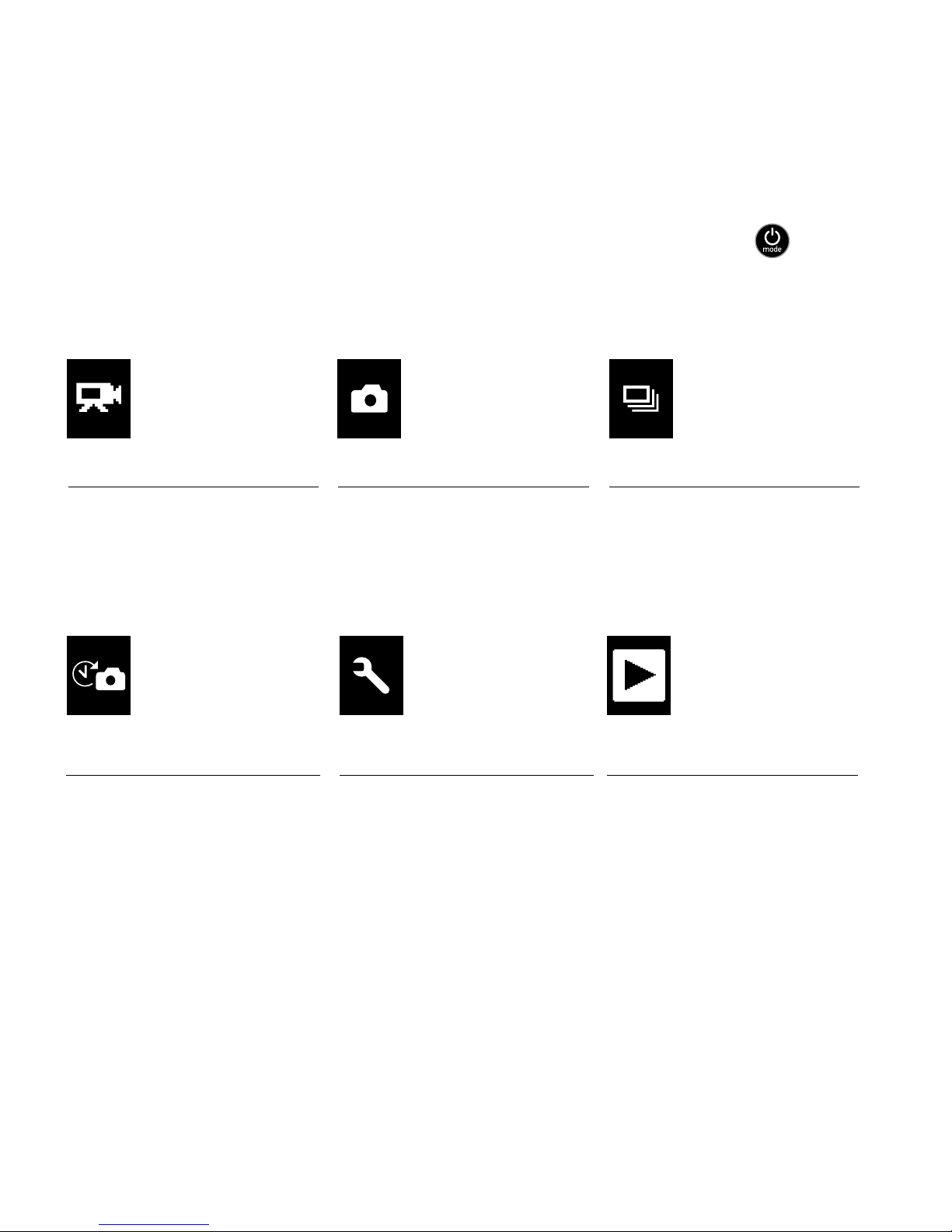
Turn camera ON and repeatedly press the Power/Mode Button [ ] to
cycle through camera modes.
*Playback only appears when camera is connected to a TV or LCD Touch BacPac
(optional accessory, sold separately).
VIDEO
Record video
PHOTO
Capture a single photo
TIME LAPSE
Shoot a series of photos
at set time intervals
BURST PHOTO
Capture photo bursts
SETTINGS
Adjust camera settings,
resolution and more
PLAYBACK*
View your videos
and photos on a
TV or LCD Touch
BacPac
TM
Page 6
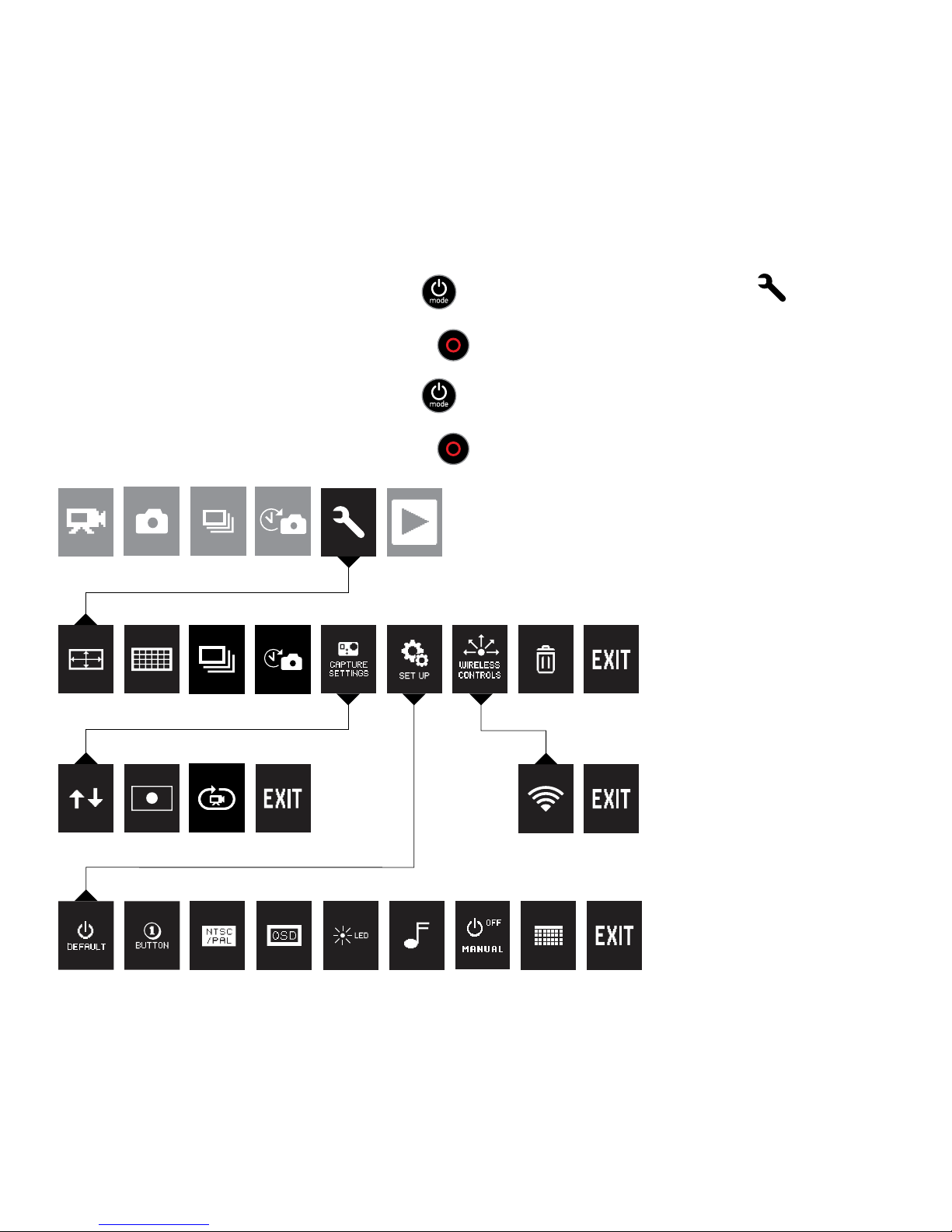
/ Camera Settings
*
TO ADJUST CAMERA SETTINGS:
1. Press the Power/Mode Button [
] to cycle to Settings mode [ ].
2. Press the Shutter/Select Button [
] to enter the Settings menu.
3. Press the Power/Mode Button [
] to cycle through options.
4. Press the Shutter/Select Button [
] to select desired option.
*For a full explanation of camera settings, see the User Manual.
SET UP
CAMERA SETTINGS
CAPTURE SETTINGS WIFI
MAIN CAMERA MODES
Page 7
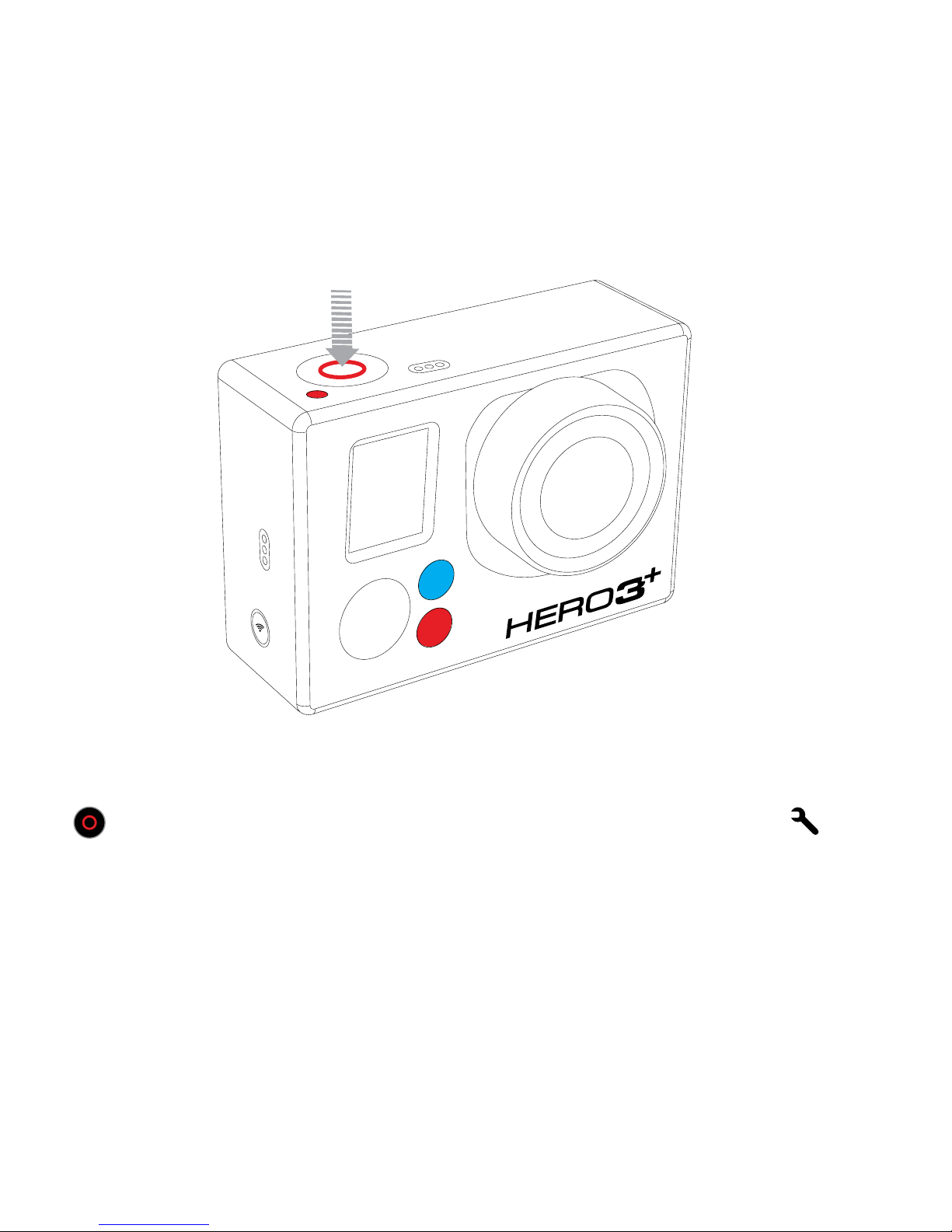
/ Capturing Video + Photos
You can change video and photo
settings in the Settings menu [
].
Press the Shutter/Select Button
[ ] to start/stop recording or
take a photo.
Page 8
DEFAULT VIDEO SETTING: 960P60 FPS
DEFAULT PHOTO SETTING: 10MP
/ Default Video + Photo Settings
Your camera is set to 960p60 fps, which delivers a large viewing
area and smooth footage. It’s great for gear- and body-mounted
shots.
If you want to experiment with other video settings, you can find
more info in the Camera Settings section of the User Manual.
Your camera is set to 10MP
resolution, allowing you to capture
stunning high-resolution photos.
You can adjust photo resolution in
the Settings menu [
].
13003714000 REVB
Page 9
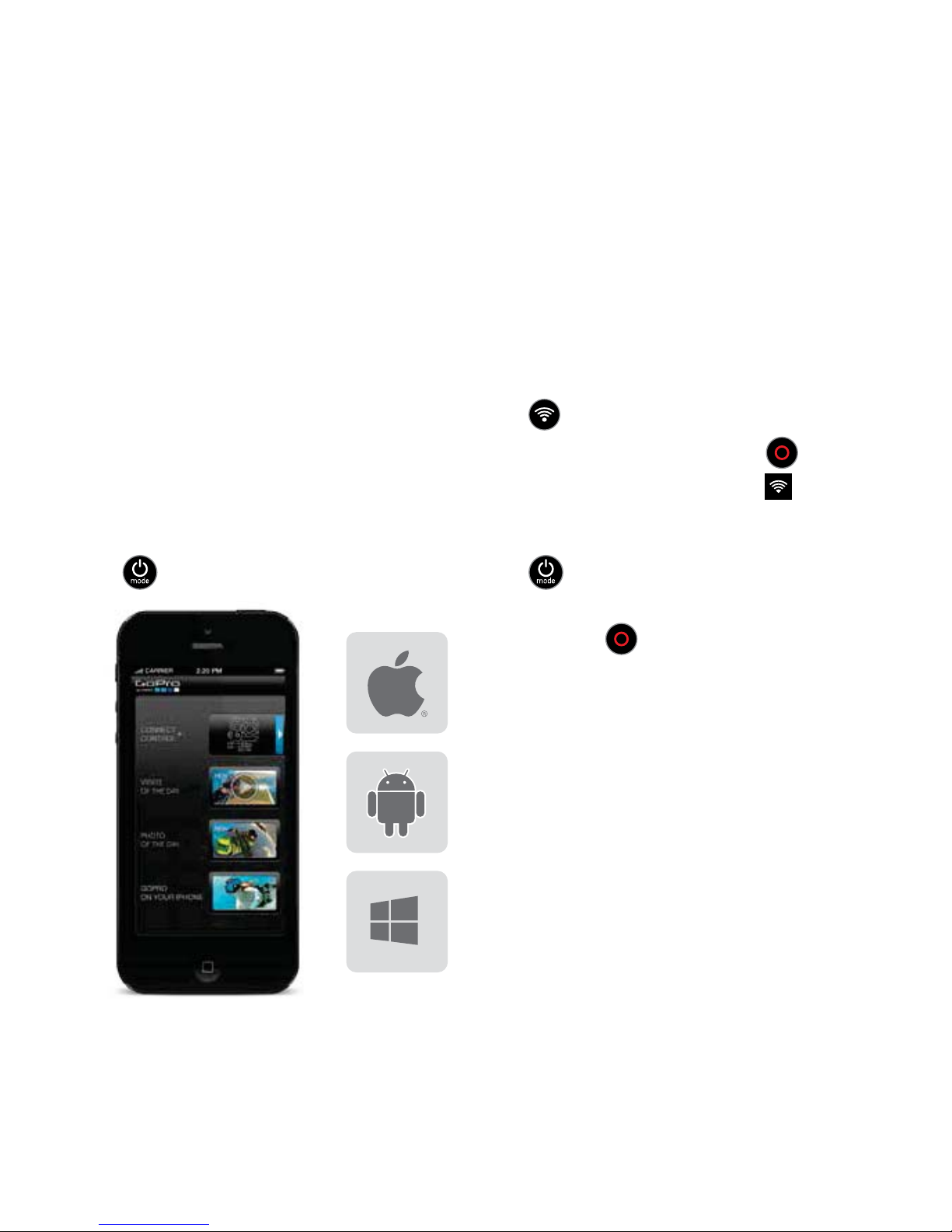
/ Connecting to the GoPro App
1. Download the GoPro App to
your smartphone or tablet at the
Apple App Store, Google Play or
Windows Phone marketplace.
2. Press the Power/Mode Button
[
] to power camera ON.
*For device compatibility, please visit gopro.com.
**This is the default network name and password. You can customize this if you update your camera
soware at gopro.com/update.
The GoPro App lets you control your camera remotely using a smartphone
or tablet. Features include full camera control, live preview, playback and
sharing of select content and more*.
3. Press the Wi-Fi On/Off Button
[
] twice, then press the
Shutter/Select Button [
] to
enter the Wi-Fi menu [
].
4. Press the Power/Mode Button
[
] to cycle to GoPro App,
then press the Shutter/Select
Button [
] to select it.
5. In your smartphone or tablet’s
Wi-Fi settings, connect to the
network called “GOPRO-BP”
followed by a series of numbers/
letters. Enter the password
“goprohero”**.
6. Open the GoPro App on your
smartphone or tablet.
Page 10
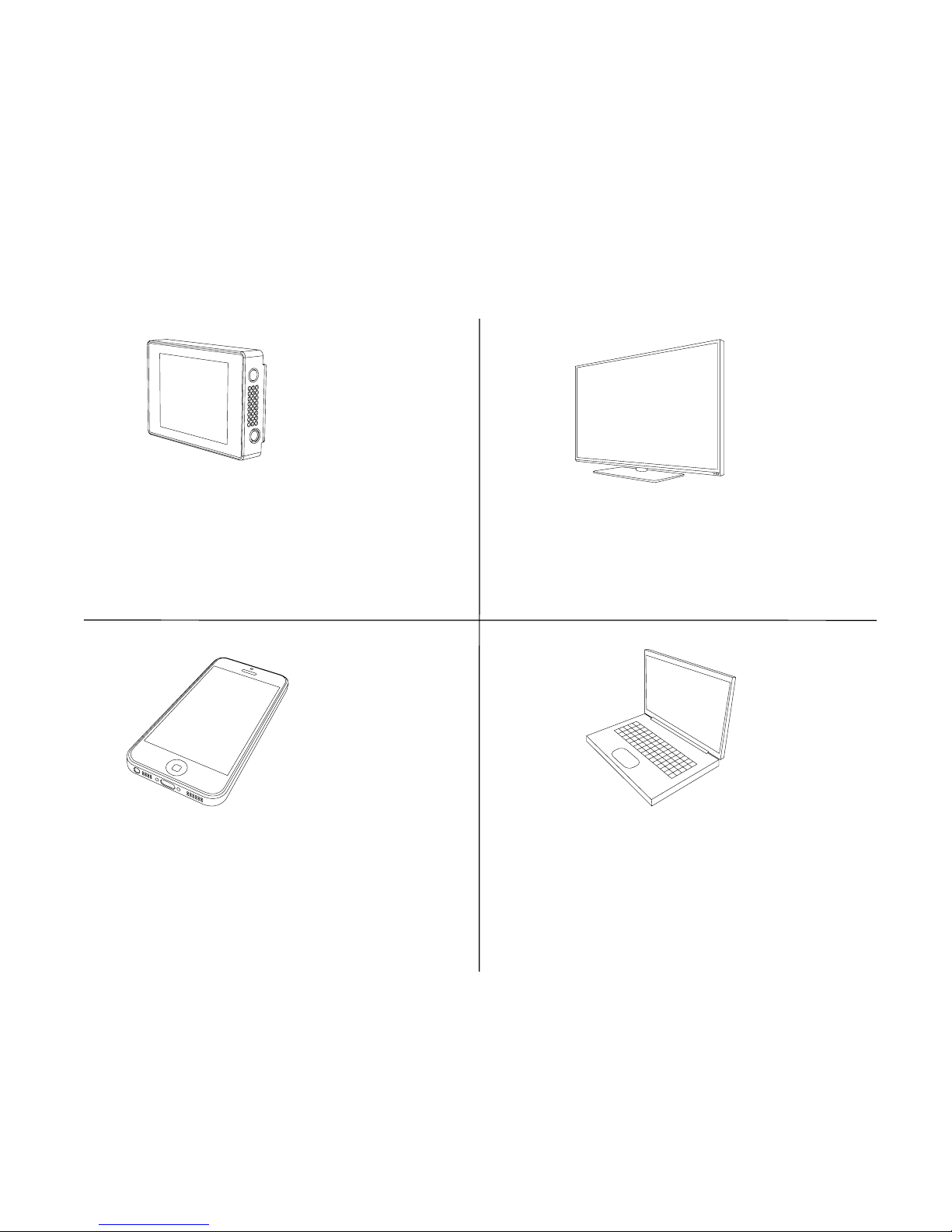
/ Playing Back Videos + Photos
COMPUTERGOPRO APP
LCD TOUCH BACPAC
TM
TV
There are several ways to play back your videos and view your photos.
Removable LCD touch screen
(sold separately).
Connect via Micro HDMI, Composite
or Combo Cable (sold separately).
Play back and share select content
using your smartphone or tablet.
Connect via included USB cable.
Page 11
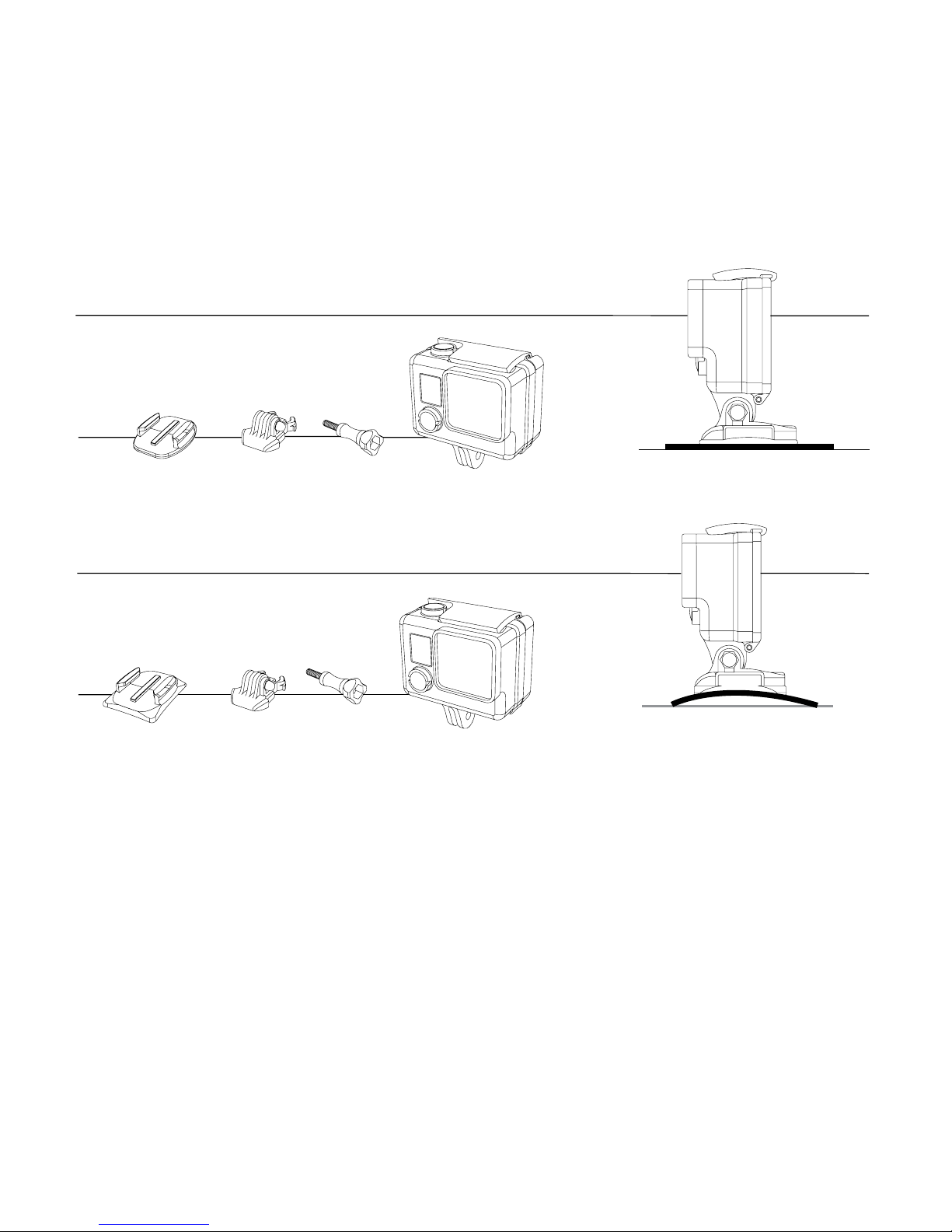
/ Mounting Your Camera
NOTE: To remove adhesive mounts, heat with a hair dryer then peel off mount.
FLAT SURFACE MOUNTING
CURVED SURFACE MOUNTING
Attach your HERO3+ to helmets, gear and equipment.
Page 12
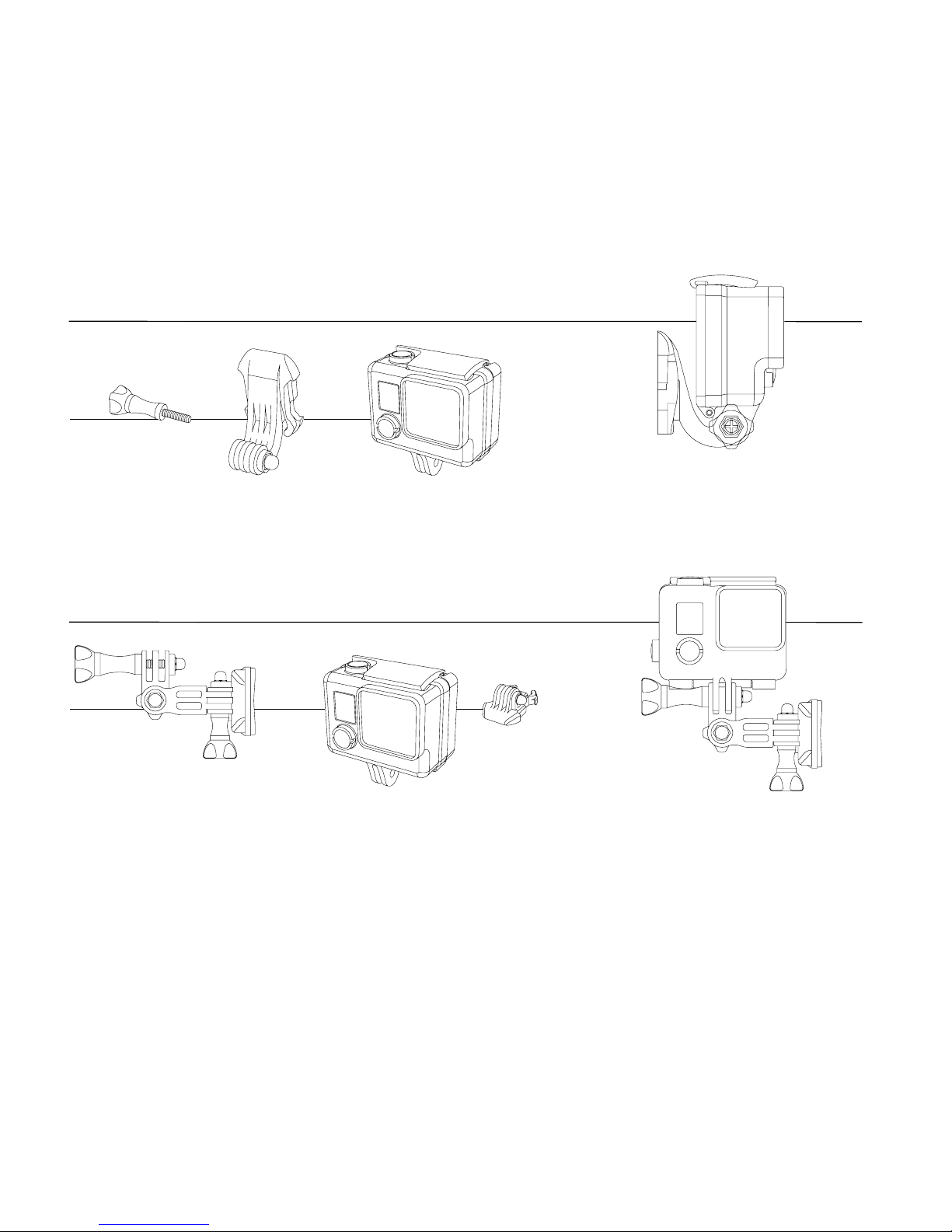
/ Mounting Your Camera (Continued)
SIDE MOUNTING
VERTICAL MOUNTING
Page 13
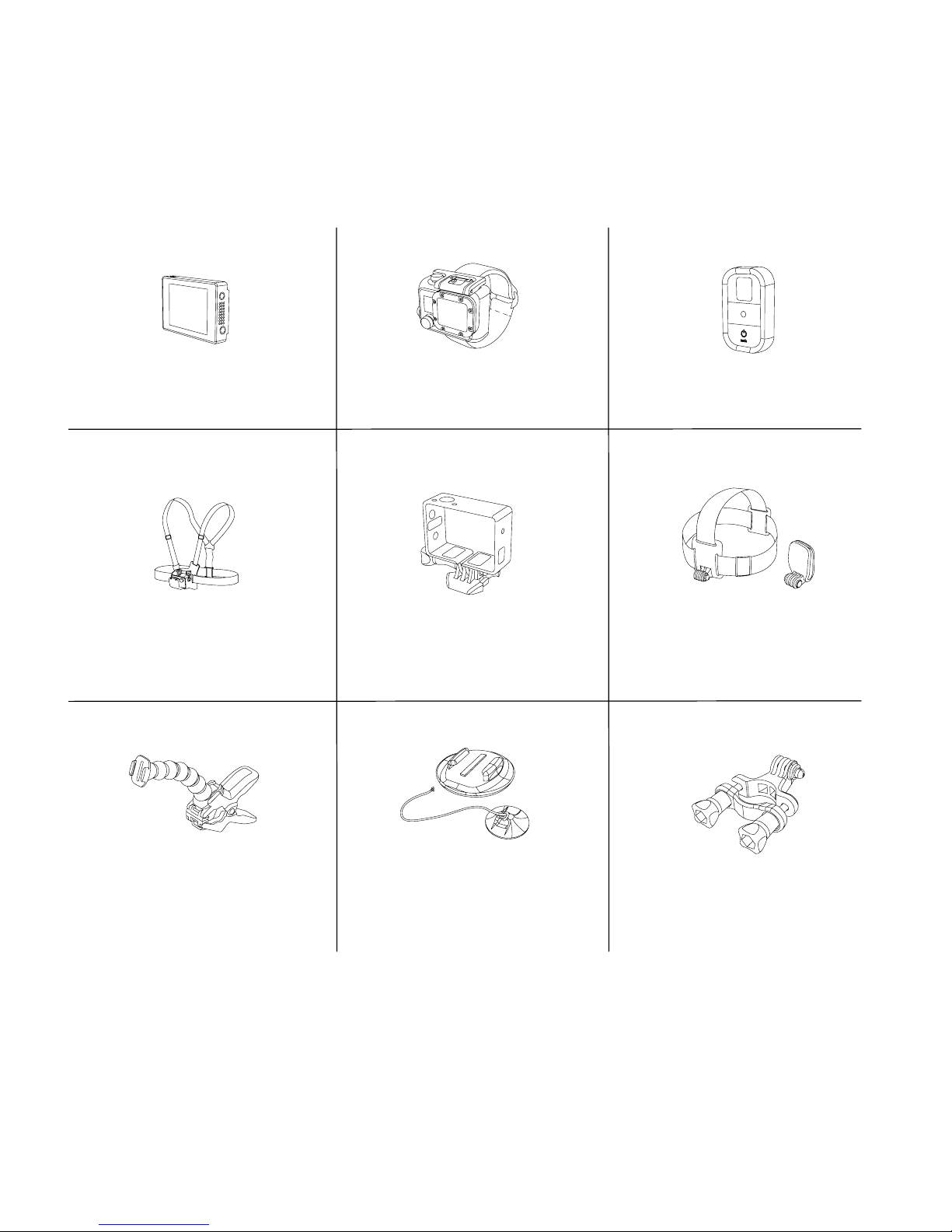
/ Optional Accessories
*
LCD Touch BacPac
™
Wrist Housing Wi-Fi Remote
Chest Mount Harness The Frame Head Strap + QuickClip
Jaws Flex Clamp Mount Handlebar/Seatpost/
Pole Mount
See more at gopro.com
Surfboard Mounts
*Optional accessories sold separately
Page 14

/ Help + Resources
CUSTOMER SUPPORT
GoPro is dedicated to providing the best possible service. To reach
GoPro Customer Support, visit gopro.com/support.
GOPRO TUTORIAL VIDEOS
How-to tutorials, pro tips and tricks to help you make the most of
your GoPro products. Visit youtube.com/goprotutorials
.
CAMERA SOFTWARE UPDATES
To get the latest features and best performance from your HERO3+,
make sure you’re using the most current camera soware. To check
for available updates and download the latest camera soware, visit
gopro.com/update.
 Loading...