

Page 1

Peace of mind, in real-time
User Guide
Page 2

The hereO Family User Guide - Table of Contents
GETTING STARTED 3
WHAT’S IN THE BOX 3
GETTING TO KNOW YOUR HEREO WATCH 3
CHARGING YOUR HEREO WATCH 4
DOWNLOADING THE HEREO FAMILY APP 5
ACCOUNT REGISTRATION 5
PROFILE CREATION 6
PAIRING YOUR HEREO WATCH 7
USING THE HEREO WATCH AND FAMILY APP 11
CREATING SAFE-ZONES 11
ADDING FAMILY MEMBERS 12
WATCH’S SETTINGS 13
WIRELESS LEASH 15
ADJUSTING THE TIME ON THE HEREO WATCH 16
ACTIVATING THE PANIC ALERT 16
USING THE APP 17
OVERVIEW 17
MAIN MENU 17
USER MENU 19
ADD/REMOVE MEMBER 19
CURRENT LOCATION OF USER 19
FIRMWARE UPDATES 19
TROUBLESHOOTING 19
RESTART YOUR WATCH 19
YOUR WATCH IS DISPLAYING SYNC FOR A LONG TIME 19
IF YOUR WATCH HAS BEEN LOST OR STOLEN 20
NEED FURTHER SUPPORT? 20
DISPOSAL AND RECYCLING INFORMATION 20
Page 3
3
The hereO family User Guide
GETTING STARTED
WHAT'S IN THE BOX
• hereO GPS Watch
• Universal power charger
• Micro USB cable
• Quick start guide
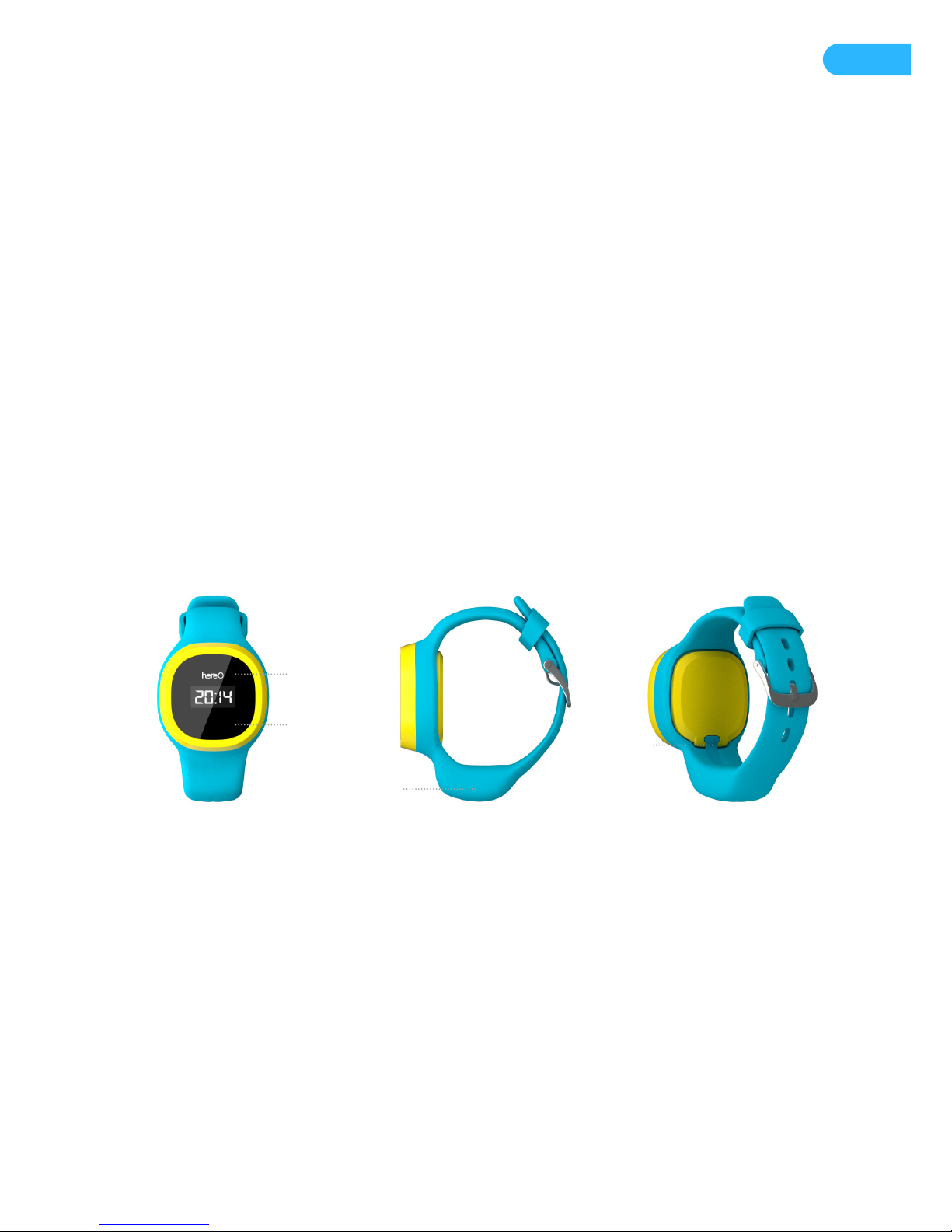
GETTING TO KNOW YOUR HEREO WATCH
ANATOMY
WRISTBAND SIZE
The hereO GPS Watch comes with an adjustable wristband with six different sizes between 120160mm. When putting on the watch, ideally it will be snug on your child’s wrist so as not to risk the
watch slipping off.
DIMENSIONS
The dimensions of the watch face are 15x38x38mm (HxWxL).
WEIGHT
The watch weighs 45g.
SPLASH PROOF
The watch will endure splashes of water (e.g. washing hands or a few drops of rain) but it should not
Screen
Panic Alert /
Send pre-dened
message
USB Connector
GPS Module
Page 4
4
be submerged in water or under high water pressure. We do not recommend swimming, showering
or bathing with the watch on.
MATERIAL
The watch’s wristband is made out of non-allergenic silicon and the face is made of plastic.
BATTERY
The watch has a 410 mAh LiPo (lithium-polymer) battery that will last up to 60 hours on a single
charge (depending on usage and mode).
TOUCHSCREEN INTERFACE
The screen is an EPD (Electronic Paper Display) and has a touch sensitive display with which you can
send a Panic Alert and pre-dened messages
CHARGING YOUR HEREO WATCH
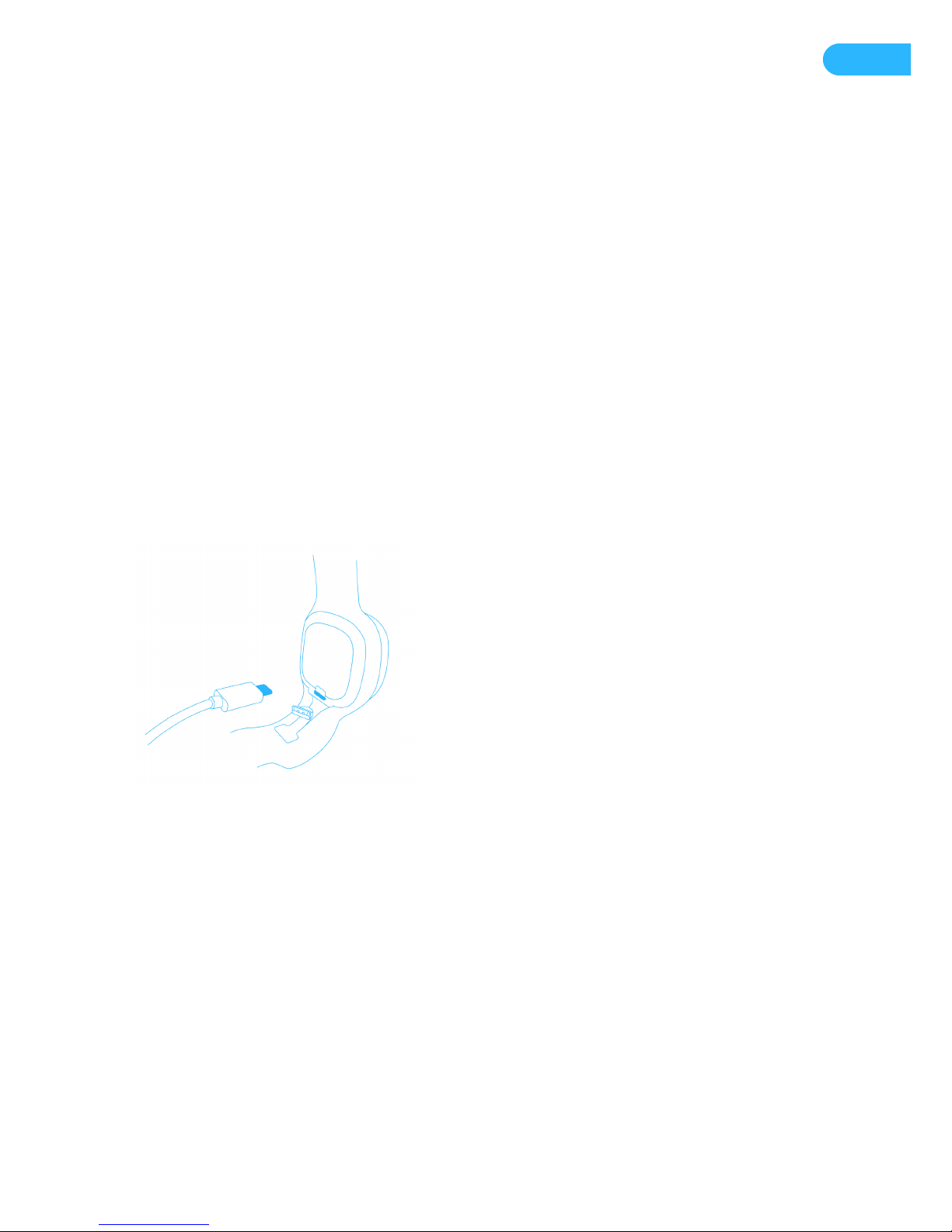
The hereO GPS Watch has a micro USB port for charging the device via the included power adapter.
To charge the device:
1. Connect the USB cable (male)
to the USB power charger
2. Connect the power charger to
your wall outlet
3. Connect the Micro-USB
connector (male) to the hereO
GPS Watch
Depending on usage, your device can last up to 60 hours on one charge. You can check the battery
level of your watch through the app. It is strongly recommendable to charge the device every evening,
as to not nd yourself with only a few hours left of battery life just when you need it the most. Just
plug the device to the charger in the evening and remove it the next morning, before your child
leaves the house.
CHARGE INDICATORS
Your watch should take approximately 2h to be fully charged. Charge indicators are as follows:
“OFF”: Will display on the screen when the battery is at and needs to be charged.
“SYNC”: Will be displayed when connecting to the server
“CHRG”: Will be displayed on the screen during the charging process.
“FULL”: Will be displayed on the screen when the watch reaches its full charge.
Page 5
5
DOWNLOADING THE HEREO FAMILY APP
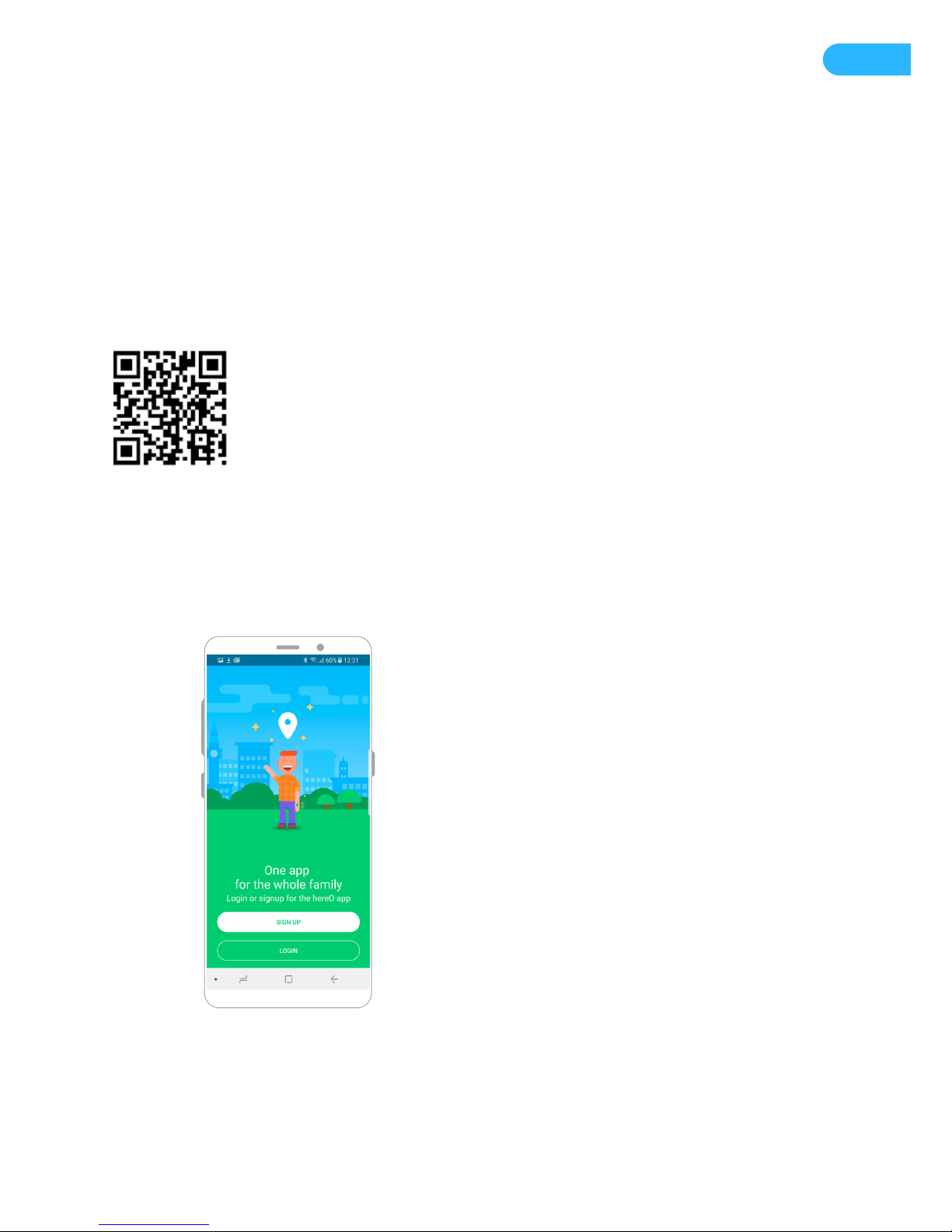
Before you can use your new hereO GPS Watch, you will need to download the free hereO Family
companion app from iTunes (for iOS based iPhones) or Google Play (for Android smartphones). From
your smartphone Navigate to:
www.hereofamily.com/download
OR
Scan this QR code:
ACCOUNT REGISTRATION
Once you have successfully
downloaded and installed the hereO
Family app on your device, upon
opening the app you will be prompted
with a log in / sign up screen.
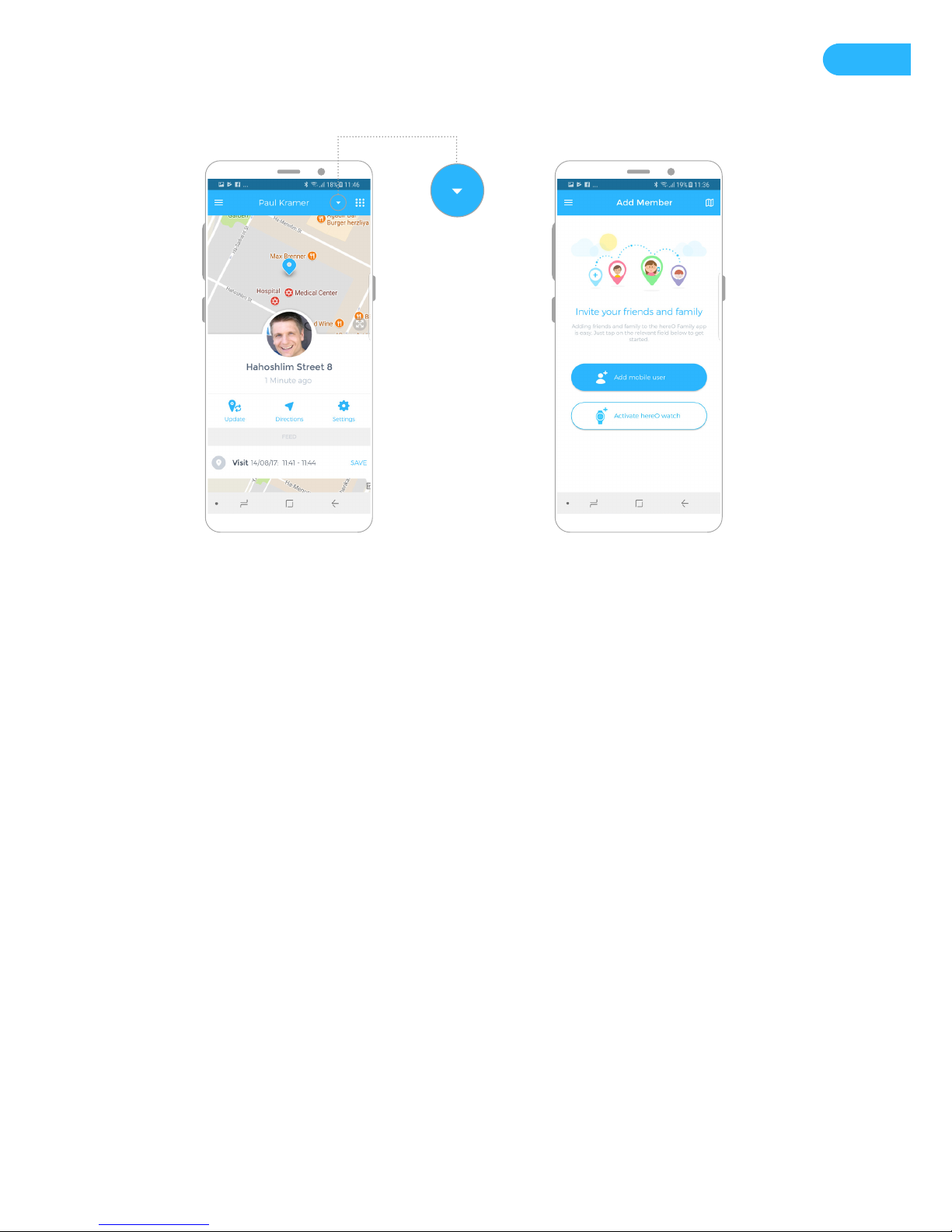
NOTE: If you already have a hereO app account, you can go ahead and sign in, click on the arrow icon
displayed on the feed page, invite a new member, select “activate hereO watch", and skip to the next
section of this walk through – “PAIRING YOUR HEREO WATCH”
Page 6
6
If you are new to the hereO family, select “Sign Up” and follow the prompts to create your hereO
account.
PROFILE CREATION
Photo Upload – You can upload a picture from your camera roll or take a new picture with your device
camera. Don’t be shy, give us your best shot ;-)
Proceed to ll in your email address, rst and last name, phone number, and a memorable password.
Hit “Create Account”, and you are good to go!
IMPORTANT: Your password should contain capital letters, lowercase letters, and numbers.
Page 7
7
PAIRING YOUR HEREO WATCH
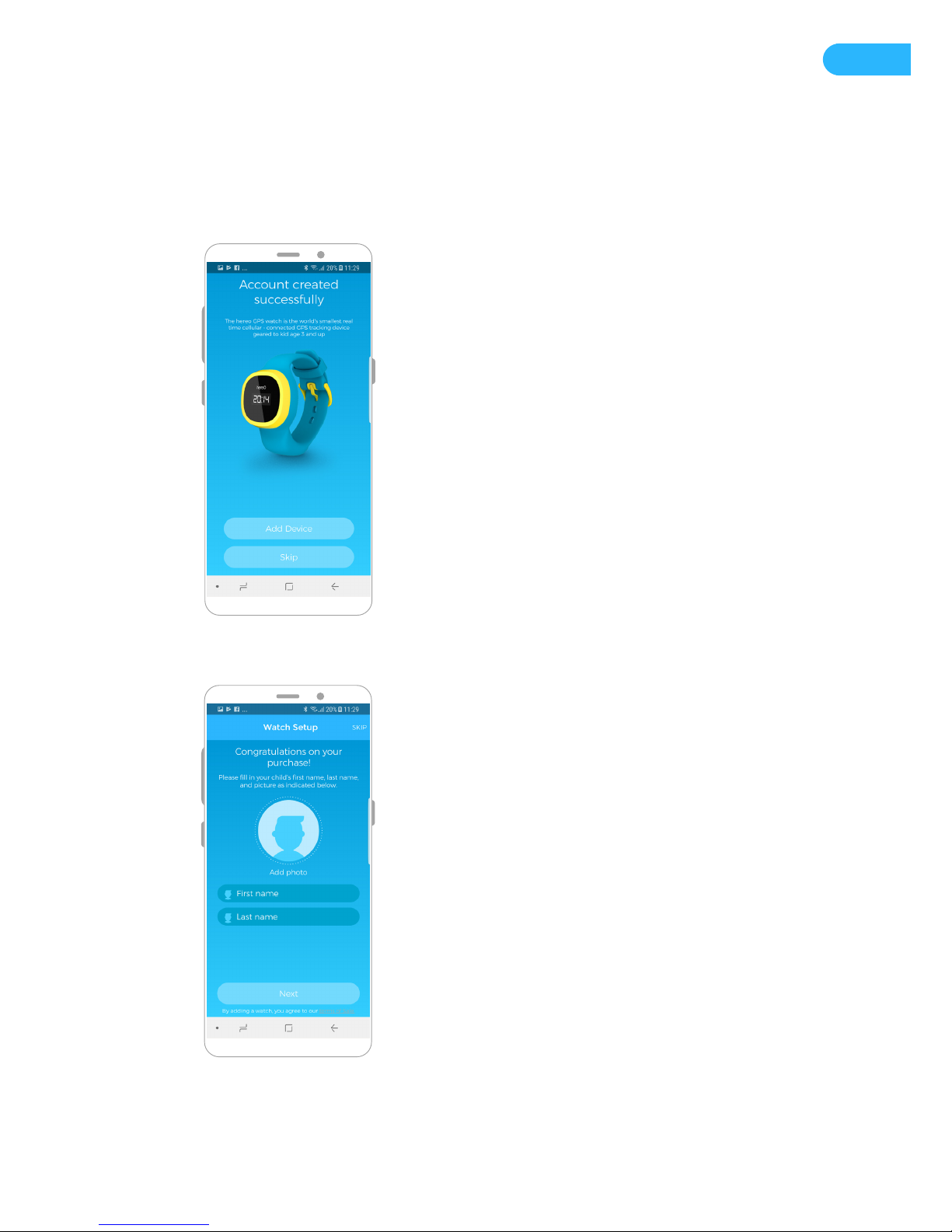
If you just created a new app account, you will be given the option to activate your new hereO GPS
Watch. The wizard on our app will guide you through every step of the activation.
Once your account is created
successfully, click “Add Device”.
Enter your child’s information and
proceed to the next step.
Page 8
8
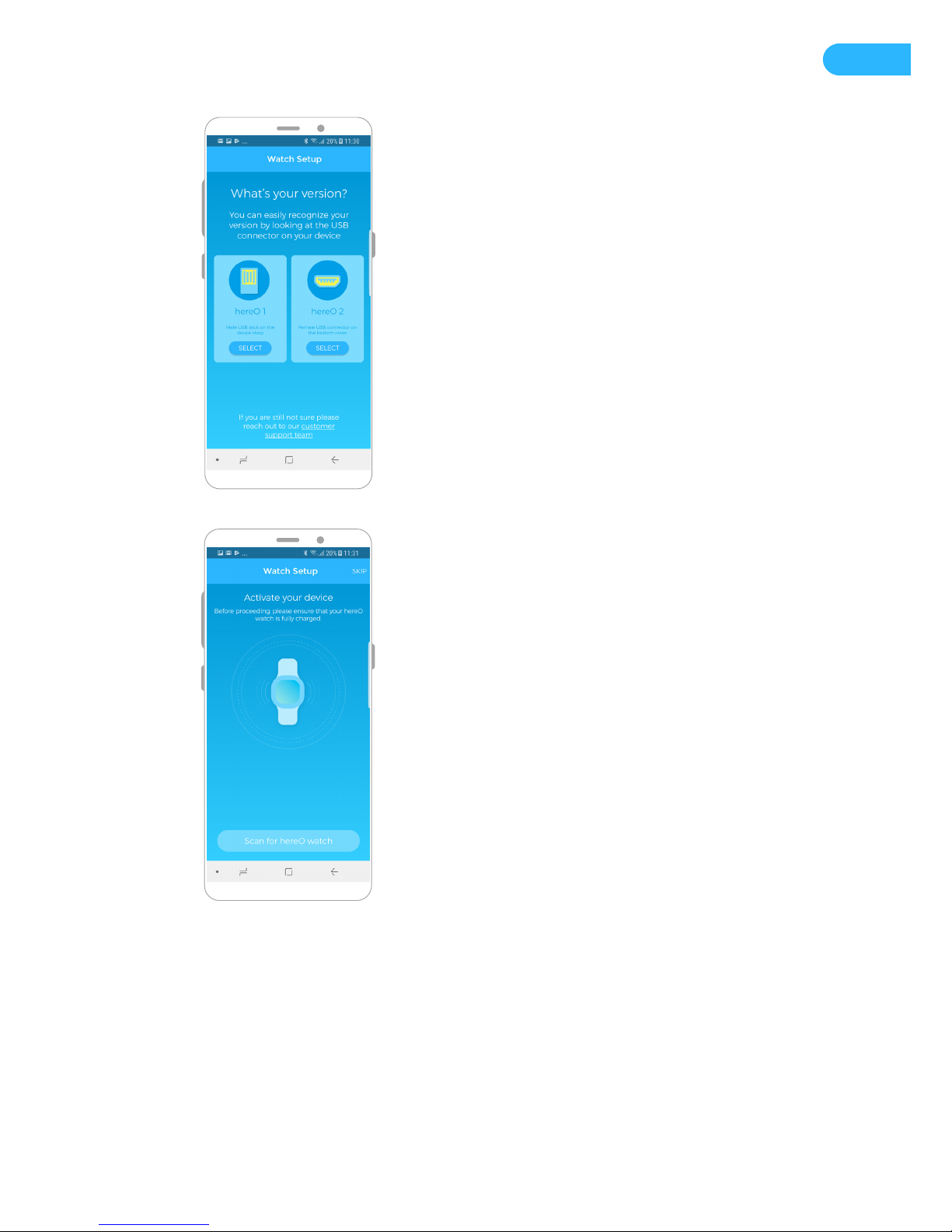
Select hereO 2.
Make sure your bluetooth is enabled
on your smartphone and click “Scan”.
Page 9
9
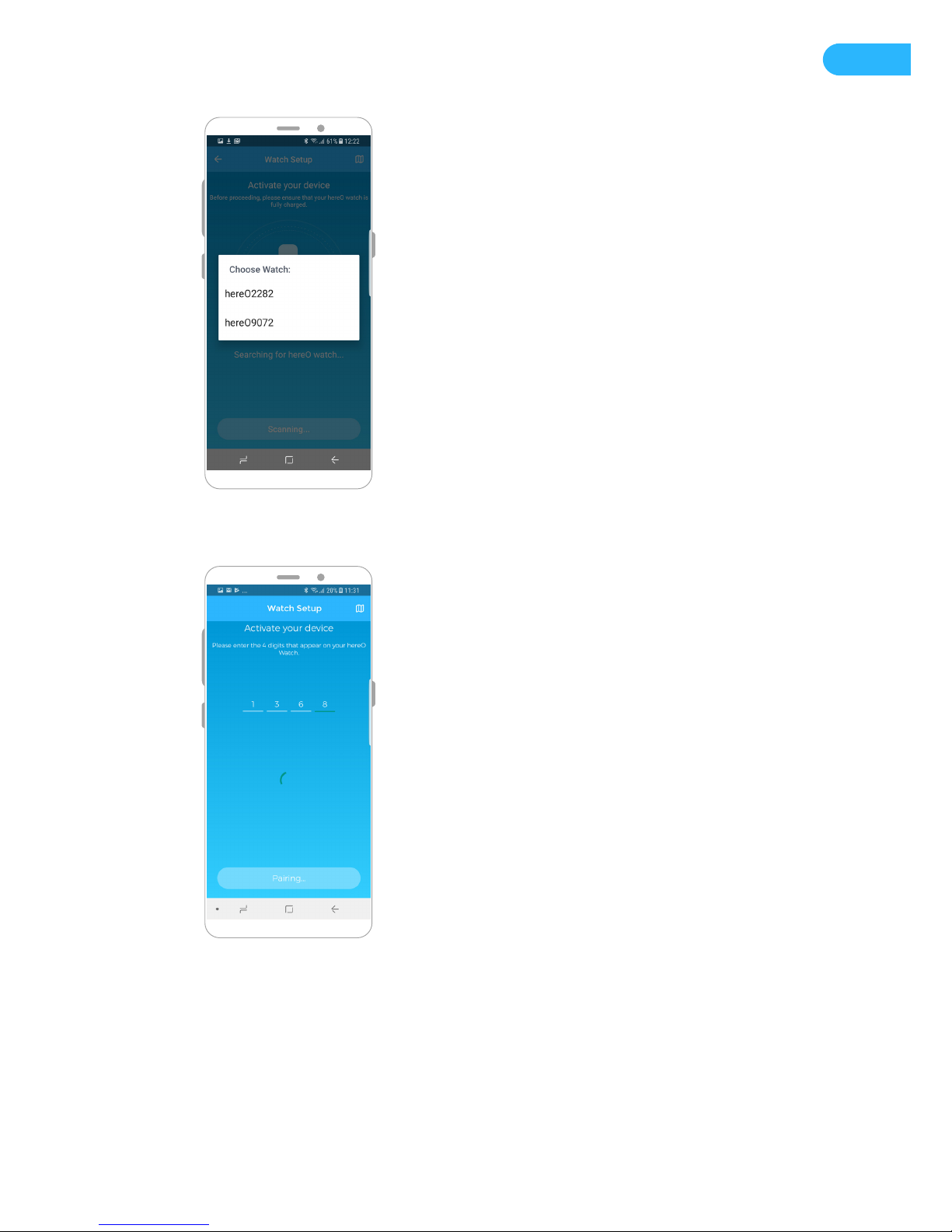
You will see a list of the devices found.
Note that the last three digits displayed
on your watch's screen are shown on
your phone. If you have more than one
watch, choose the device you want to
activate rst.
Insert the 4 digits displayed on your
watch. Press "pair device" and wait a
few moments - activation can take up
to 2min.
IMPORTANT:
If your watch is displaying only 3 digits,
add "0" (zero) as the 1st digit.
Eg: If you watch is displaying 567,
insert 0567 on the app.
Page 10
10
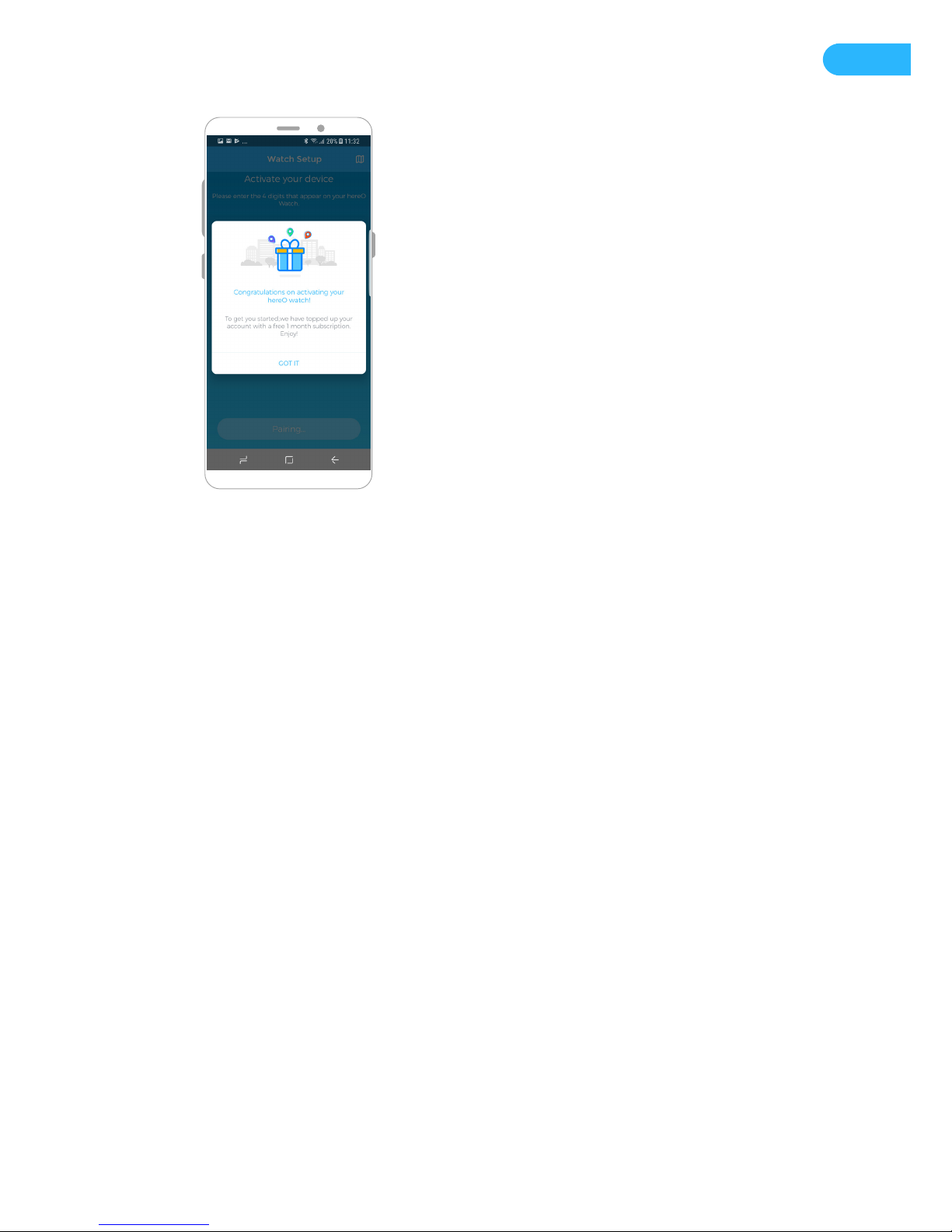
Now that you have successfully created
an account and paired the app with
your hereO GPS Watch, you will be
directed to your News Feed, where
you have the option to dene Safe-
Zones and add family members. You
can do this now, or skip it and come
back to it later via the “settings” menu
at any time.
Page 11
11
USING THE HEREO WATCH AND FAMILY APP
CREATING SAFE-ZONES
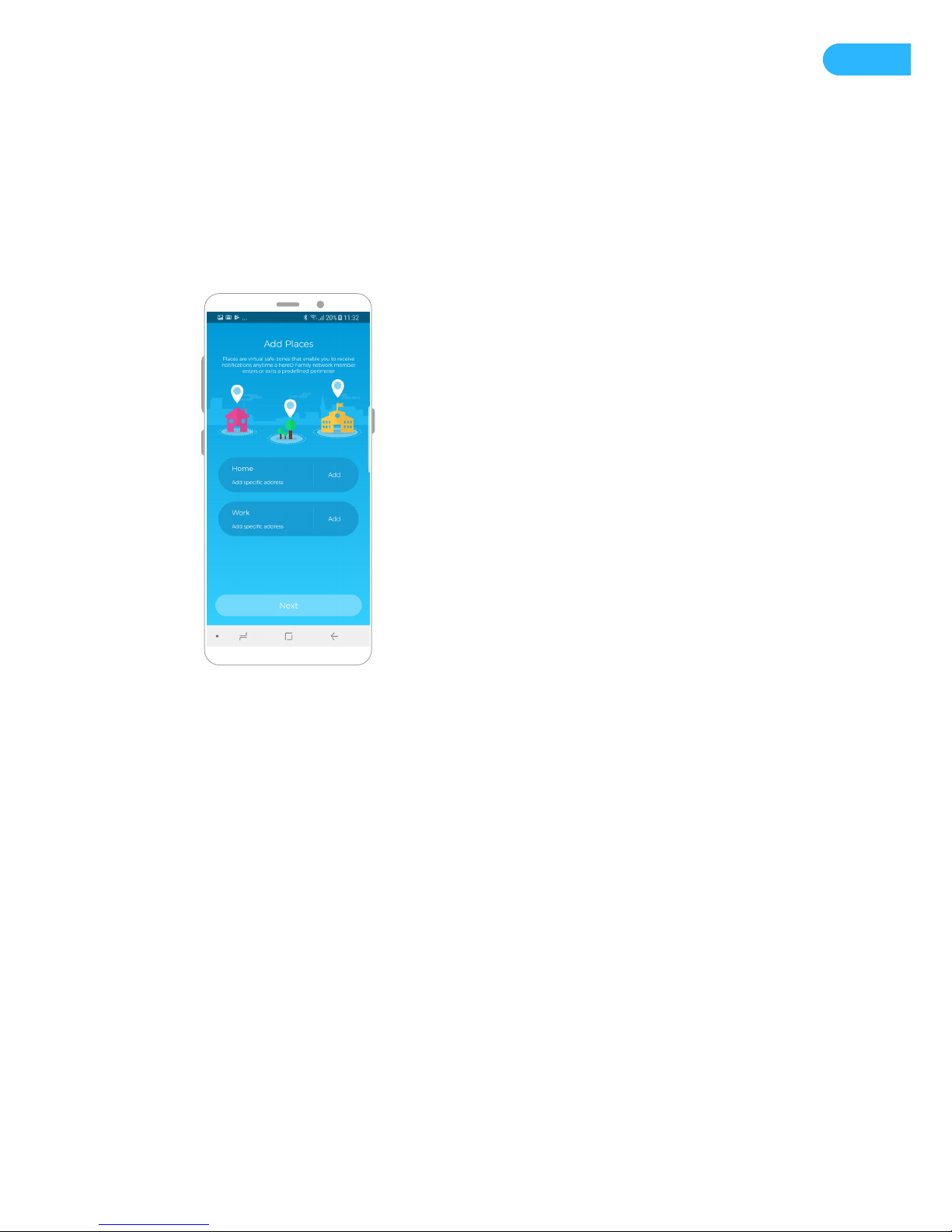
Safe-Zones are virtual geo-fences
around a pin point on the map
that enable you to receive push
notications anytime one of your
family members enters or exits the
predened perimeter. While the
hereO app will learn your child’s
routine and periodically suggest new
Safe-Zones, you can get right to it after
the setup.
TIP: Safe-Zones help extend your device's battery life and we recommend that you create one for
each place where your child usually spends a lot of time.
Page 12
12
ADDING FAMILY MEMBERS
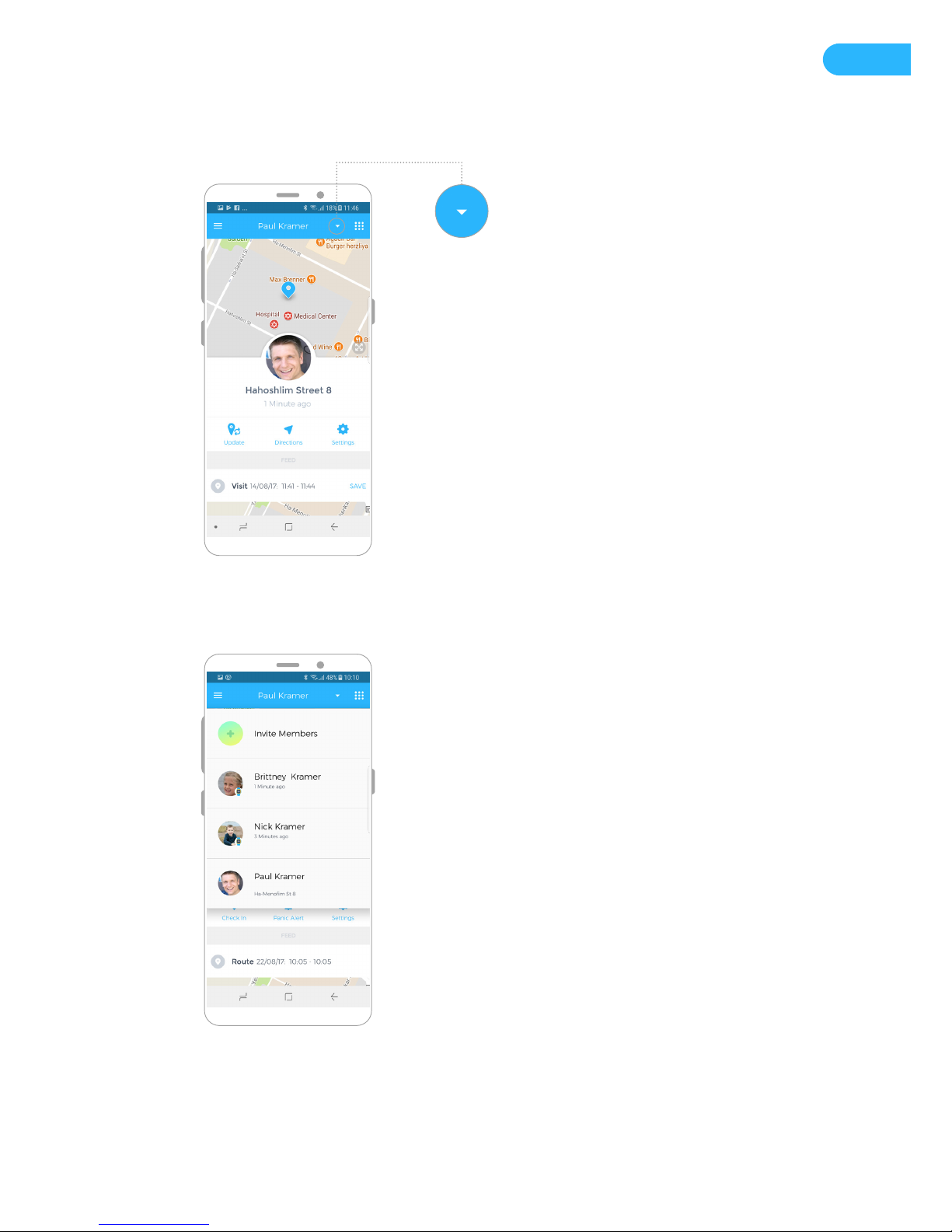
You can add a family member at any
time by clicking on the arrow in the
top-right corner of the Feed screen.
After clicking the menu, a dropdown
menu will appear where you can invite
a new member.
Page 13
13
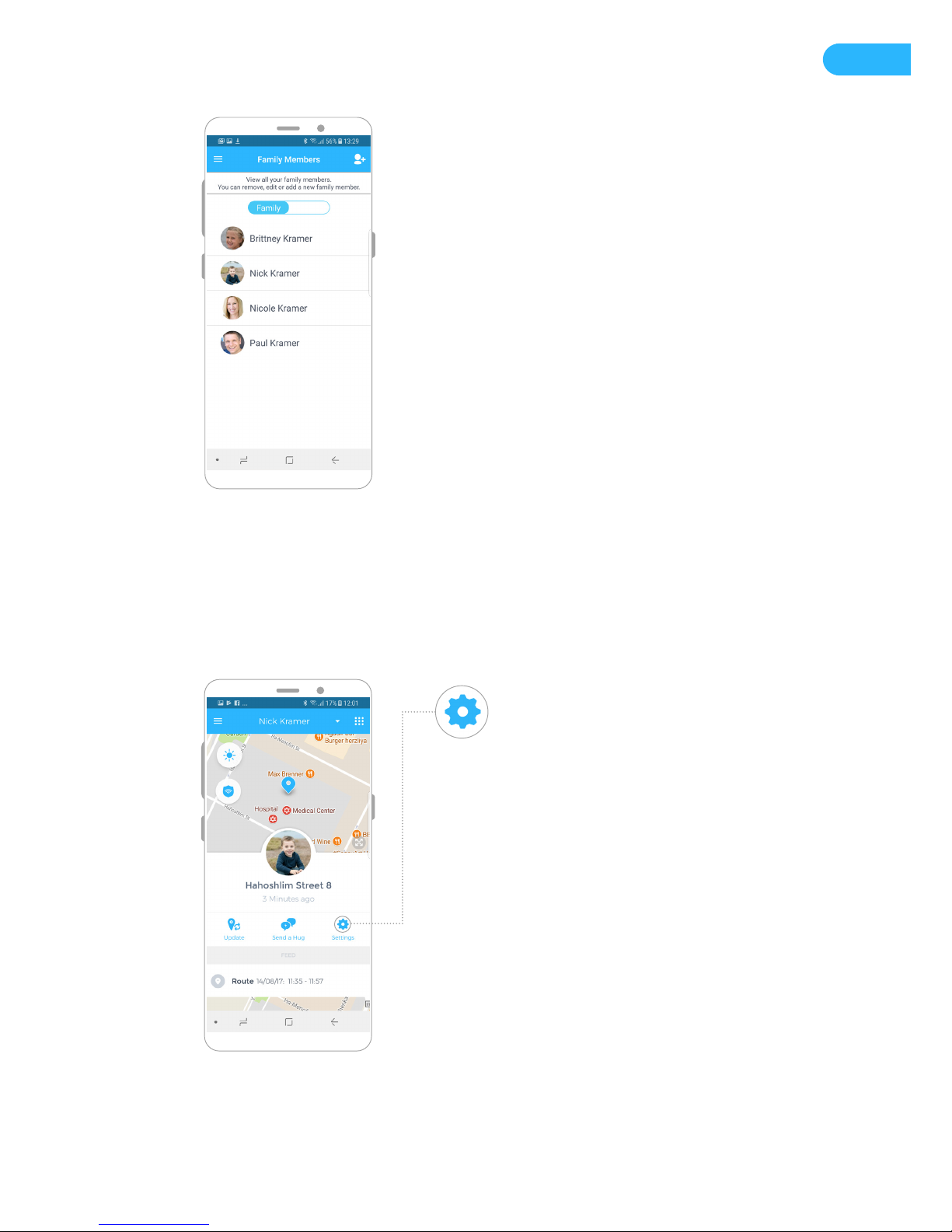
You can also add or remove members
at anytime directly via the “Members”
section on the Main Menu.
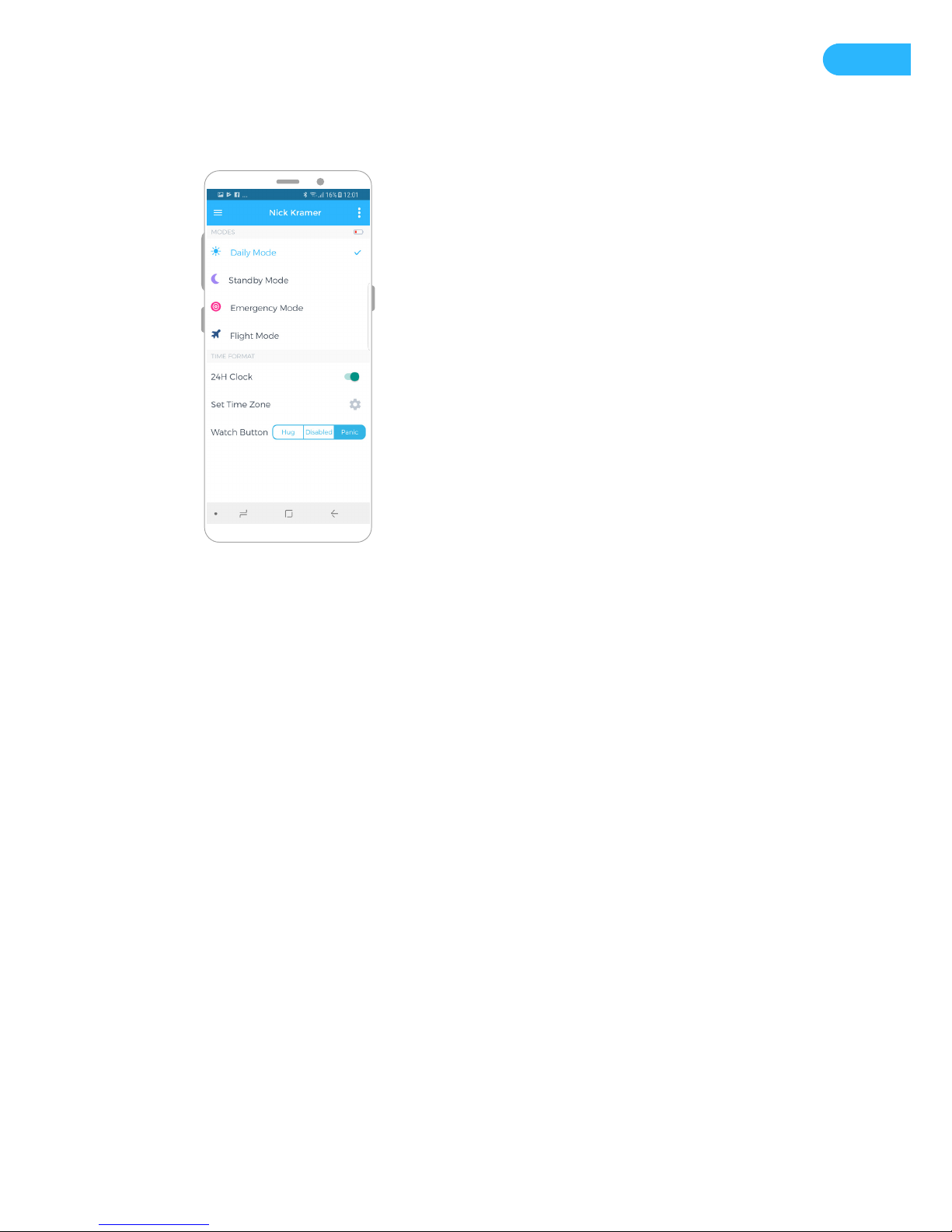
WATCH'S SETTINGS
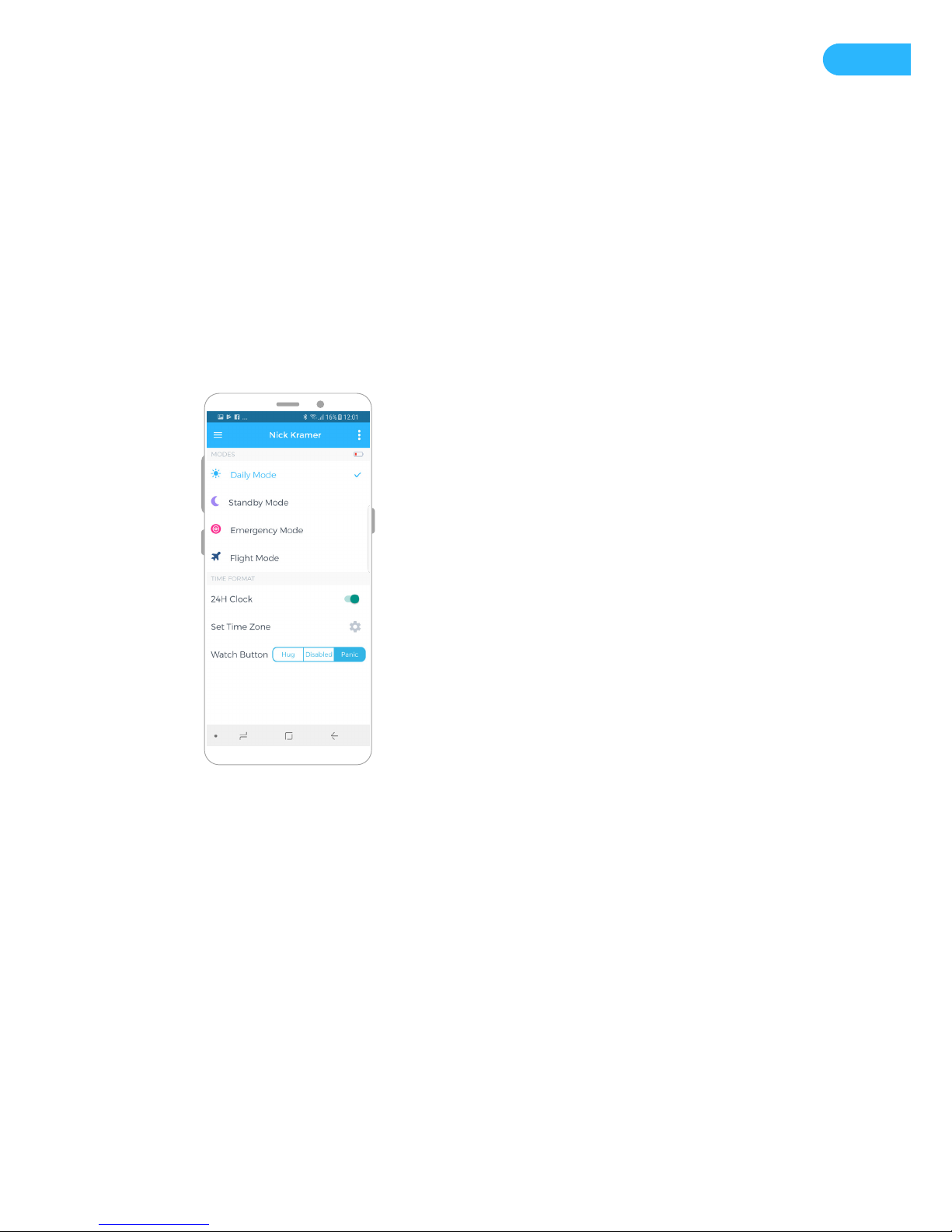
From within the hereO Family app,
select the watch user and click on
"Settings". You will be prompted with
a list of the watch's operating modes
as well as time format (time zone,
and 12/24h clock display) and panic
alert settings. Operating modes are as
follows:
Page 14
14
DAILY MODE
This mode regularly updates the
location of the watch on the family
map and sends Safe-Zone breach
notications as they occur.
STAND BY
This is your battery saver mode.
While you will not receive any push
notications for Safe-Zones, you can
request a location update at any time
via the “update” button. You will still
receive panic alerts and low battery
alerts.
EMERGENCY
This is a live tracking mode. Once
activated, the app will continuously
track the watch and feed the map with
real-time updates. This mode is power
hungry and will quickly consume the
watch’s battery capacity, so please use
sparingly.
FLIGHT MODE
This mode will shut down all
communications to and from your
watch.
Page 15
15
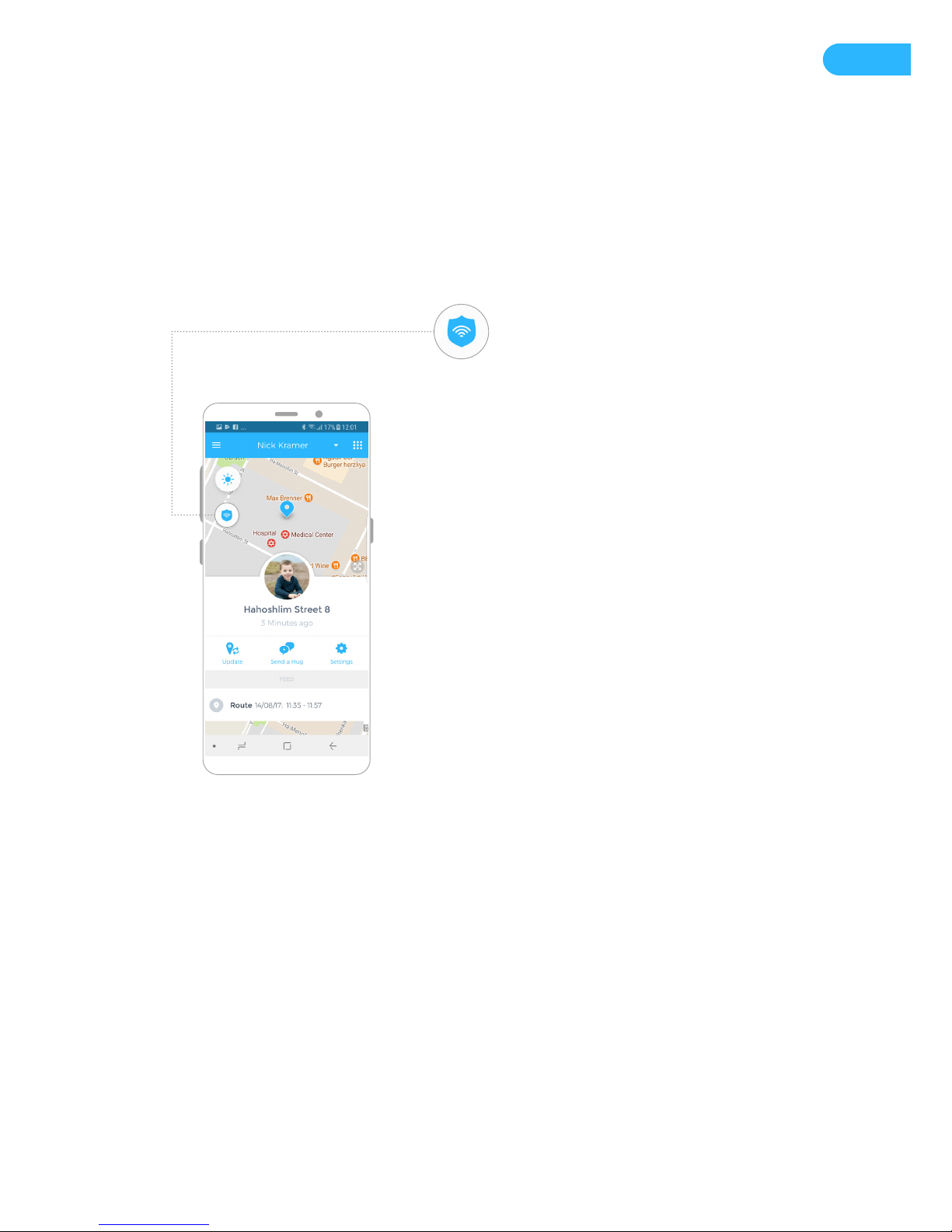
WIRELESS LEASH
The watch has a Wireless Leash feature that uses bluetooth to create a proximity sensor. When this
feature is activated, you will be notied if your child wanders to far away from you(or whoever is
holding the phone with the hereO app).
You can activate the Wireless Leash by
clicking on the shield icon on the
watch user’s home screen.
Note: Wireless Leash only works on
watch users. You cannot use Wireless
Leash on another app user.
When the feature is activated, the
shield icon should change from white
to blue background.
You'll be notied if your child wanders
more than 30 meters away from you (in
an open space). Additionally, you can
deactivate this feature by clicking the
shield icon again, and the background
color should revert back to white.
Page 16
16
ADJUSTING THE TIME ON THE HEREO WATCH
The time on your hereO watch can be
adjusted by selecting the appropriate
time zone from within the settings on
the hereO Family app. Simply select
the relevant user, click on "Settings"
(gear icon), and adjust the time zone
as well. You can also choose how you
would like time to be displayed on the
watch, 12h or 24h format.
ACTIVATING THE PANIC ALERT
You can control what happens when the child activates the alert on his/her watch.
To issue a panic alert from the device, press the bottom half of the watch screen and hold for 3-4
seconds. A successfully issued panic alert will ash an SOS message on the watch display.
When the Panic Alert is activated from the watch, a push alert and backup email will be delivered to
each and every family member with the last known location of the watch that issued the alert.
Page 17
17
USING THE APP
The following is a detailed overview of the companion hereO Family app, the sidekick of your hereO
GPS Watch. Via the app, you can customize the frequency of interactions with the GPS watch, dene
Safe-Zones, receive check-in updates, get panic alerts, and much more. You can read on for the full
list of features included in the companion app.
OVERVIEW
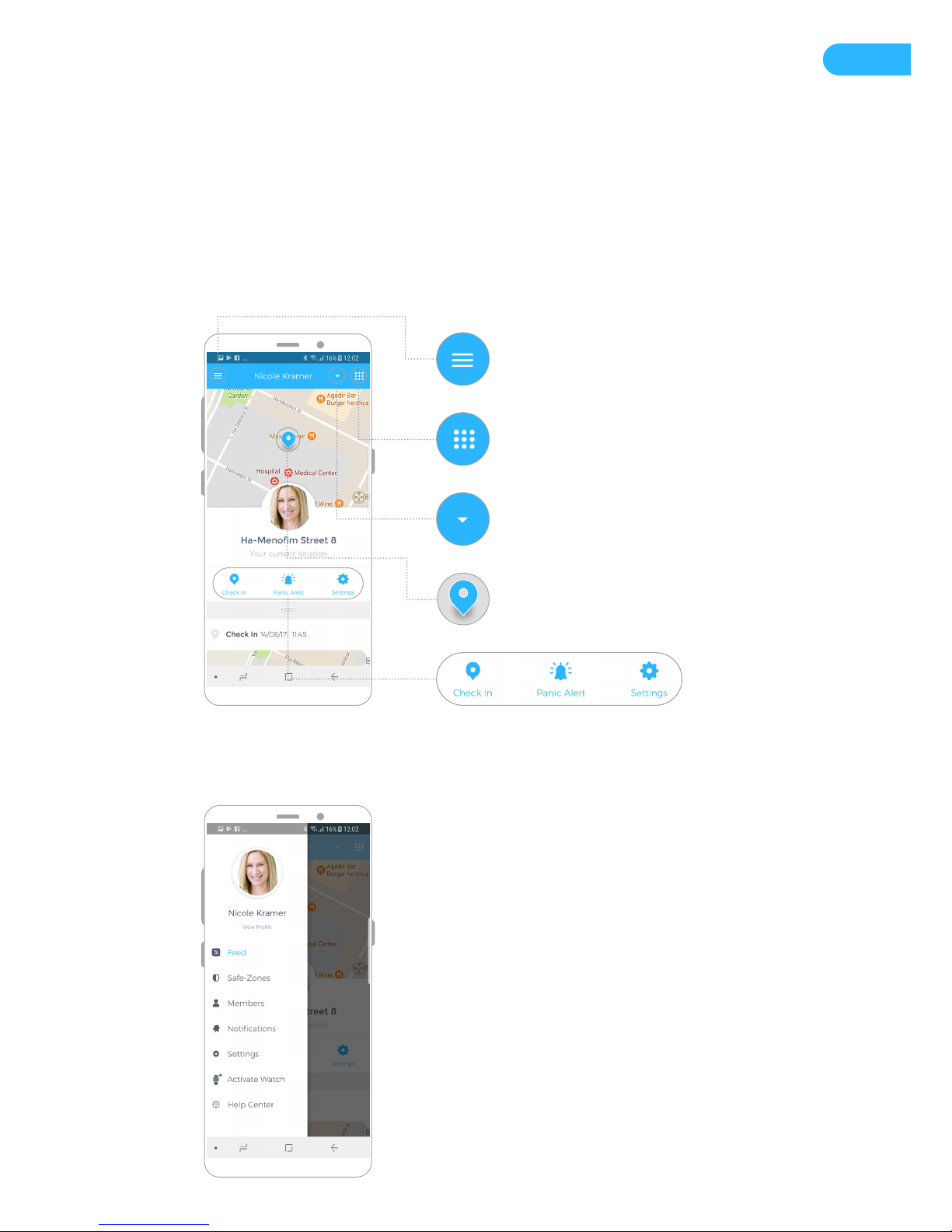
MAIN MENU
The main menu is divided into two
sections, an action bar at the bottom
(Check-in, Alert), and a sub-menu to
customize your interaction with the
app and watch.
Main Menu
User Menu
Add/Remove Member
Current Location of User
Action Bar
Page 18

18
SUB-MENU
FEED
This is the default screen you will see whenever you open the app. On the Feed, you can scroll down
to see the user’s location history (routes) and places that have been recently visited. Information
regarding the active user’s current location, such as approximate address, time of last location share,
and accuracy indicator can be found under the user’s picture. The map also supports pinch to zoom
and double tap zoom.
SAFE-ZONES
Here is where you nd a list of all the Safe-Zones dened in your account. You can activate or
deactivate specic Places for specic members. To create a new Safe-Zone, please refer to
“CREATING SAFE-ZONES”.
MEMBERS
Add, edit, delete, or grant editing permissions to a family member here. Once you have submitted the
form, an email invitation will be sent to the user notifying them of the invitation. Once accepted, the
new user will be added to your app family.
NOTIFICATIONS
Here you will nd a list of incoming notications ltered by user, such as low battery alerts, Safe-Zone
notications, panic alerts, and more.
SETTINGS
Edit your prole, alert settings, and disable/enable location sharing, etc.
ACTIVATE WATCH
Activate a new watch
HELP CENTER
Direct access to our online Help Center for additional resources.
ACTION BAR
CHECK IN
Hit “Check In” to broadcast your location to all family members. Depending on their own settings,
they will either receive a push notication to their smartphone, an email, both, or none at all
(everybody needs a little quiet time every once in awhile).
ALERT
This is the Panic Alert. Clicking on it will issue an alert to all family members containing your current
location. Depending on their own settings, they will either receive a push notication to their
smartphone, an email, both, or none at all.
Page 19

19
SETTINGS
User settings, where you can call, message, or get directions to another user. You can also see the
selected user’s notications.
USER MENU
Here’s where you get a live update on a User’s current position. Just hit “Update”, sit back and give
the app a few seconds to scrape every corner of the world before it provides you with an automagical
location update. You can also get directions to another user, send a “Hug” message to a watch, or
update your settings.
ADD/REMOVE MEMBER
A new hereO in the family? Just hit the arrow icon in the top-right corner and you will be have the
option to invite a new member.
CURRENT LOCATION OF USER
The user’s current location will be displayed at the top of the main screen.
FIRMWARE UPDATES
You may periodically receive messages via the hereO Family app notifying you of an available software
or rmware update for your device. The next time you connect your watch to your computer (via the
included USB cable), you will be prompted to follow the instructions for completing the upgrade.
TROUBLESHOOTING
RESTART YOUR WATCH
To restart your watch, try disconnecting and then reconnecting it to the charger. It might take a few
minutes for the watch to turn on.
YOUR WATCH IS DISPLAYING SYNC FOR A LONG TIME
If the screen shows “SYNC”, the device is having difculties connecting to a cell network in your area.
It can take up 20 minutes to activate when in an area of bad reception. Try connecting and then
disconnecting from the power plug and wait 20 minutes. We suggest that you leave the watch close
to a window or outdoor area while it attempts to nd signal. If it still doesn’t load, please contact our
Support department. .
Page 20

20
IF YOUR WATCH HAS BEEN LOST OR STOLEN….
First things rst. If your watch still has battery (this can be veried via the watch dashboard on your
app), you can get a location update from within the app. If the watch is out of battery, please contact
our customer support team and we will do our best to help you.
NEED FURTHER SUPPORT?
Should you have any issues with your hereO watch, please refer to our online Help Center: support.
hereofamily.com
DISPOSAL AND RECYCLING INFORMATION
This symbol on the products, its battery or its packaging means that this products and batteries must
not be disposed of with household waste. It is your responsibility to hand this over to an applicable
collection point for the recycling of batteries and electronic equipment. This separate collection
and recycling will help to conserve natural resources and prevent potential negative consequences
for human health and the environment due to the possible presence of hazardous substances in
the battery and electronic equipment, which could be caused by inappropriate disposal. For more
information about where to drop off your batteries and electronic waste, please contact the
distributor or the shop where you purchased the product.
 Loading...