

Page 1
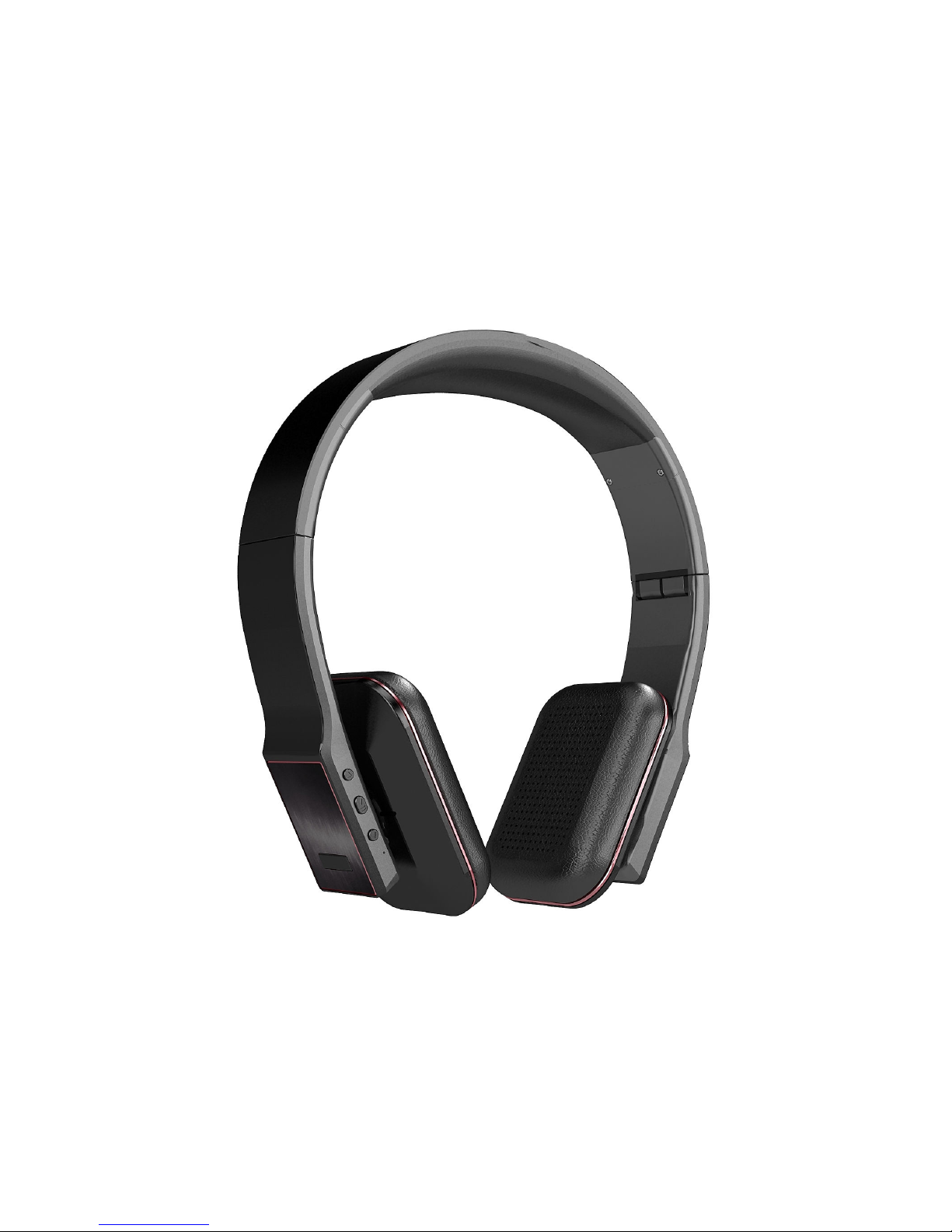
BTH033
Bluetooth stereo headset
User’s manual
Page 2

Contents
Brief introduction…………...…………………………..…....1
1. Bluetooth wireless communication technology
……………….…....1
2. About BTH033
…………………………………………………...1
Before use……………………………………………………..2
1. Overview
…………………………………………………...……2
2. Charging for Headsets
……………………………………………3
Getting started……..…………………………………………4
1. Turning on/off the headsets
…………………………………......4
2. Pairing headsets with Bluetooth devices
………………………..….4
1) How to enter pairing mode
………………….………………….4
2) Pairing headsets with Bluetooth devices
……………………..….5
3) Pairing headsets with Bluetooth transmitter
…………………....5
4) Pairing headsets with Multi-devices
…………………………….6
3. Reconnecting the headsets with devices
………………………....7
4. Making calls with the headset
…………………………………….7
5. Playing music
……………………………………………….…...9
6. LED indicator
…………………………………………………..10
7. Indication tone
………………………………………………….10
8. Factory Reset
………………………………………………..….11
9. Resetting
……………………….……………………………….11
Care and maintenance……………………………..………..11
FAQs……………………………………...…………………..11
Specification……………………………...………………..…12
Page 3

Welcome to use this Bluetooth stereo headset, BTH033. Please read this
user’s manual carefully before use.
Brief introduction
1. Bluetooth wireless communication technology
Bluetooth is a standard of close range wireless communication technology
that was drawn up by Ericsson, IBM, Intel, Nokia and Toshiba. With
Bluetooth technology, we can achieve the highest transmission rate among
cell phones, computers, printers, PDAs and other devices. The max
transmission range of class II is 10 meters while the max transmission
ranges of class I can reach up to 100 meters.
2. About BTH033
BTH033 is a Bluetooth stereo headset. Foldable and retractable design is
very easy to take with you. It supports the following Bluetooth profiles:
HSP —— Headset Profile
HFP —— Hands-free Profile
A2DP—— Advanced Audio Distribution Profile
AVRCP——Audio/Video Remote Control Profile
You can enjoy music wirelessly by using BTH033. It has the following
features:
1) Pairing with a Bluetooth cell phone or PDA supporting HFP profile.
Answer a call, end a call and reject a call
Redial last number
Voice dial
Adjust the volume
Call transfer between the headset and your Bluetooth cell phone
Microphone mute
2) Pairing with a Bluetooth music device or Bluetooth transmitter
supporting A2DP profile.
Enjoy music wirelessly
Adjust the volume
Remote control pause/play
Remote control previous/next track
1
Page 4
3) Easy to switch between the call and music, you will not miss the
incoming call during listening to music.
4) Every time the headset is turned on, it will connect to last connected
device automatically.
Note: In order to complete to above function, the Bluetooth profiles of
paired device must be same as the headset. And even though the paired
device and the headset support the same Bluetooth profiles, functions may
vary due to specification differences of the paired devices.
Before use
1. Overview
2
Page 5
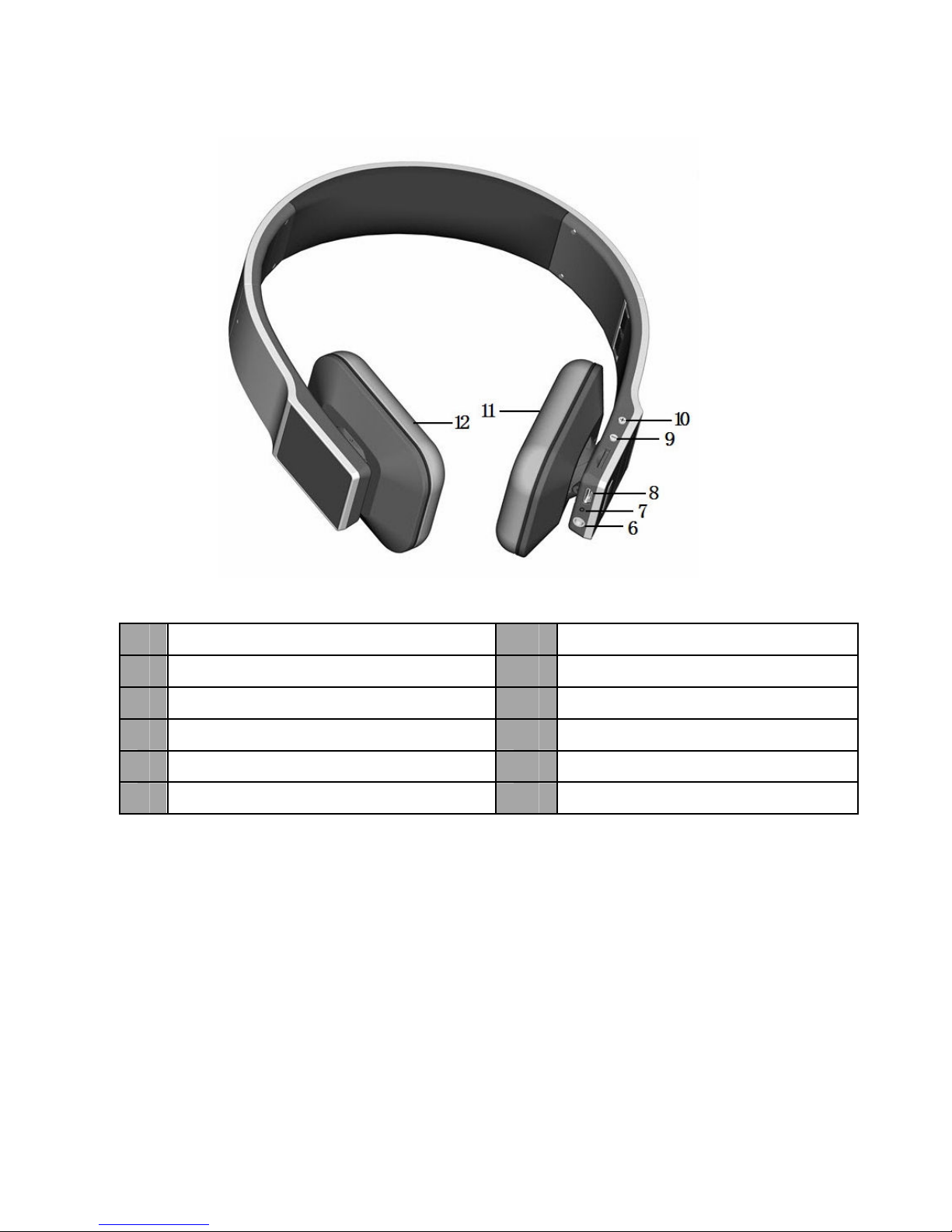
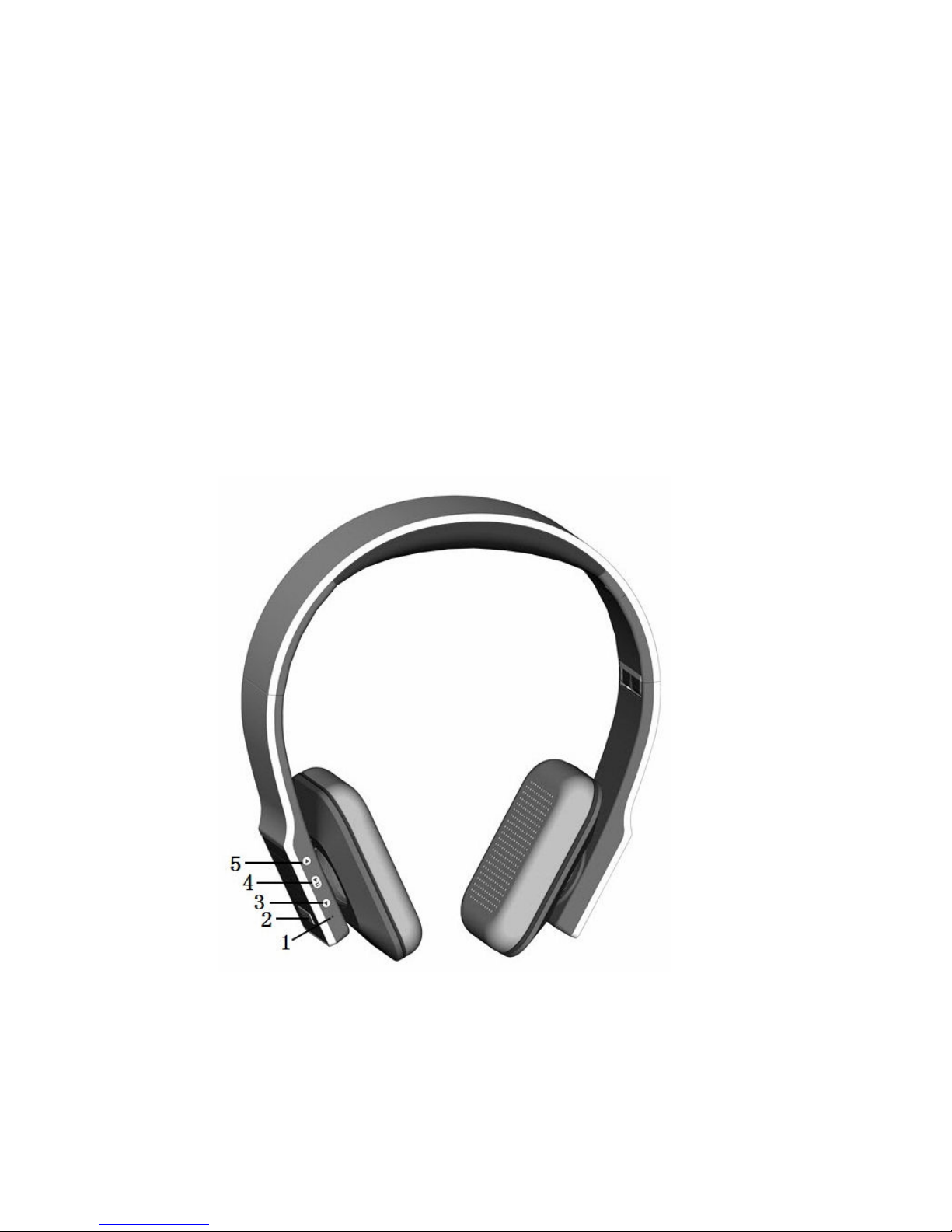
1 Built-in Microphone 7 LED indicator
2 Multi-function button(MFB) 8 Charging jack
3 Next song 9 Volume down
4 Pause/play 10 Volume up
5 Last song 11 Right speaker
6 Line-in jack 12 Left speaker
2. Charging the headset
The headset comes with a built-in rechargeable battery, prior to using it, it is
recommended to charge the battery fully for the first time.
When the headset is low power, red LED flashes twice and the headset emits
three “Dong” tones every 30 seconds and the red LED flashes twice. Please
recharge the battery of the headset.
3
Page 6
The way of charging as following:
Using USB cable
1. Plug USB charging cable into the USB port of computer
2. Plug another side of USB cable to headset
Red light on: Charging
Red light off: Finish charging
3. It will takes about 2.5 hours to finfish charging
Remarks:
1) The battery is recyclable.
2) Batteries (battery pack or batteries installed) shall not be exposed to
excessive heat place, such as sunshine, fire or the like.
Getting started
1. Turning on/off the headset
Functions Operation LED indicator
Turning on Press and hold MFB button for
3~5 seconds until blue LED
flashes
Blue LED on one
second
Turning off Press and hold MFB button for
3 seconds until red LED
flashes
Red LED on one
second
Remark: In order to save power, the headset will turn off automatically if
no devices can be connected after 5 minutes.
2. Pairing the headset with Bluetooth devices
1) How to enter pairing mode
Functions Operation LED indicator
Entering
pairing
mode
Ensure the headset is off, and
then press and hold MFB
button for 7~8 seconds until red
and blue LED flash alternately
Red and blue LED
flash alternately
Remark: Pairing mode will last 2 minutes. If no devices can be connected
after 2 minutes, it will return to standby mode automatically.
4
Page 7

2) Pairing the headset with a Bluetooth cell phone
Prior to using the headset for the first time, you have to pair it with a
Bluetooth-enabled cell phone. The pairing procedures are subject to
different models of cell phones. Please refer to your cell phone user’s
manual for further information. The general pairing procedures are as
follows:
1) Keep your headset and phone within 1 meter when pairing;
2) Make the headset enter pairing mode (please refer to “How to enter
pairing mode);
3) Activate your cell phone’s Bluetooth function and set your cell phone to
search for Bluetooth devices within range, and select “BTH033” from the
list of devices shown;
4) According to the indication, enter password or PIN No: “0000”;
5) If prompted by your cell phone to connect, select “Yes” (this will vary
among cell phone models);
6) After successful connecting, blue LED flashes twice every 4 seconds or
flashes three times every 4 seconds.
Remarks:
If pairing is failed, please turn off the headset first and then re-pair
according to steps 1~6 mentioned above.
After pairing is successful, the headset and the cell phone will remember
each other, they will no need to re-pair next time. The headset can
remember 8 paired devices, when the number of paired devices exceeds
8, the first one will be replaced.
Every time the headset is turned on, it will connect to last connected
device automatically. If you want to pair it with other devices, please turn
off the Bluetooth function of last connected devices first and pair the
headset with the new device according to steps 1~6 mentioned above.
3) Pairing the headset with a Bluetooth transmitter
You can connect the headset to a Bluetooth transmitter to enjoy music
wirelessly. Hereby take BTT010 (Bluetooth transmitter for iPod and iPhone,
not included) for example. The pairing steps are as follows:
5
Page 8
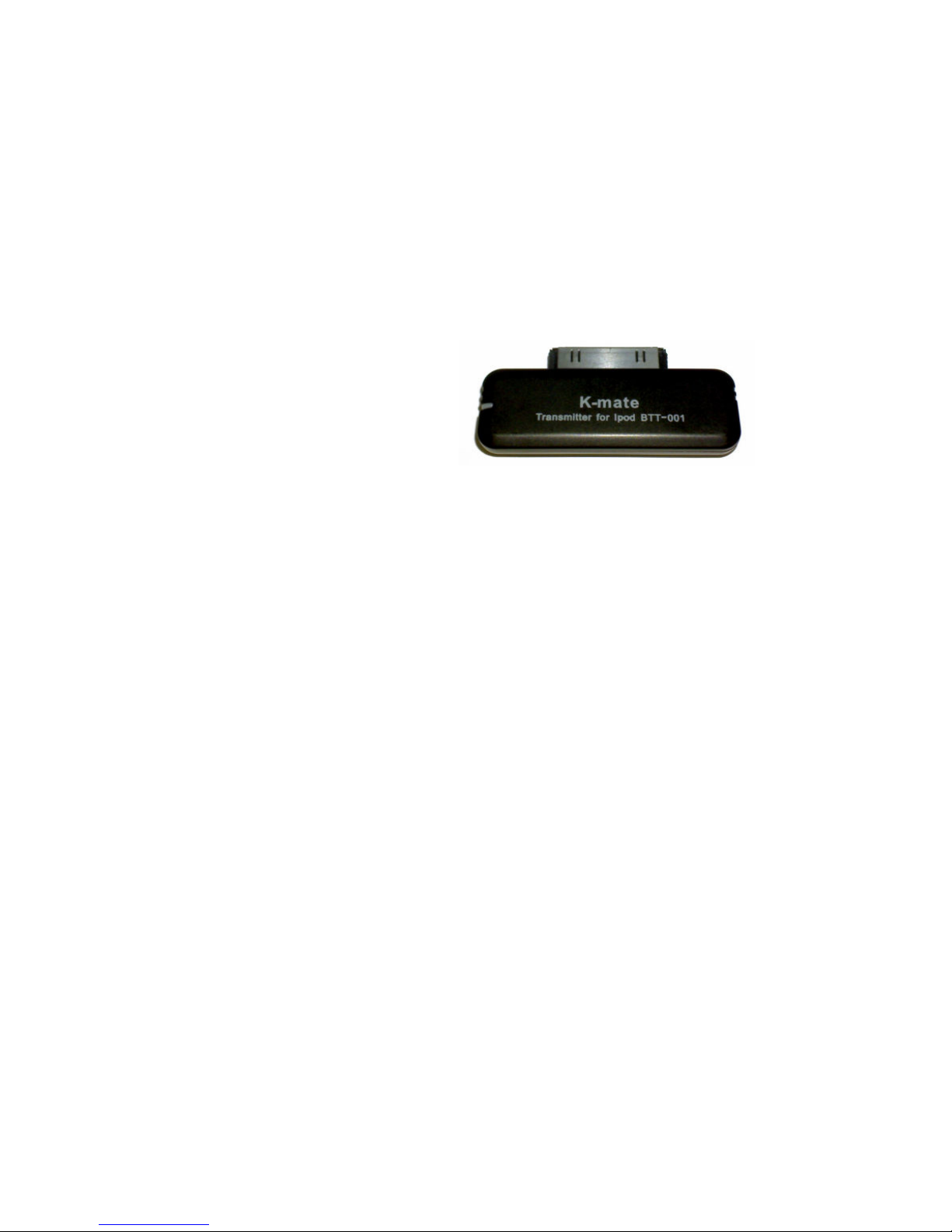
1) Keep your headset and phone within 1 meter when pairing;
2) Make the headset enter pairing mode (Please refer to “How to enter
pairing mode);
3) Turn on the Bluetooth transmitter. It will search for Bluetooth devices
automatically and send a pairing request;
4) When the headset requests to enter a PIN No., the transmitter will
response “0000” automatically;
5) After successful pairing and connecting, blue LED of the headset flashes
twice every 4 seconds.
Remarks:
The pairing password of the headset is “0000”. So, the headset can only
pair with a Bluetooth transmitter whose pairing password is “0000”.
If pairing still fails after several tries, please refer to the Bluetooth
transmitter’s user’s manual for further information.
4) Multi-pairing
The headset can connect with two devices at most. One is a Bluetooth cell
phone supporting HFP profile, the other one is a Bluetooth music device
supporting A2DP profile. If you want to finish the multi-pairing, please refer
to the following steps:
1) Firstly, pair the headset with a Bluetooth transmitter (refer to “pairing the
headset with a Bluetooth transmitter);
2) Turn off the Bluetooth transmitter;
3) Pair and connect the headset with a Bluetooth cell phone (refer to
“pairing the headset with a Bluetooth cell phone”);
4) Turn on the Bluetooth transmitter, it will connect to the headset
automatically.
6
Page 9
Remarks:
After successful multi-pairing, the paired devices will remember each
other, they will no need to pair next time. If the pairing information is
deleted, please connect the mobile phone with the headset first and then
turn on the Bluetooth transmitter, multi-connecting can be performed.
For the cell phone supporting the HSP and A2DP at the same time. It
may set up HSP and A2DP connection with the headset simultaneously.
At this time, the Bluetooth transmitter may not connect to the headset.
3. Re-connecting with a Bluetooth device
1) Automatic connecting
Every time the headset is turned on, it will connect to last connected device
automatically.
2) Manual connecting
When the headset is in standby mode and doesn’t connect to a device, short
press MFB button once, it will connect to last connected device.
Remarks:
Before connecting to a Bluetooth device, please turn on the Bluetooth
function of Bluetooth device.
On some Bluetooth devices, take some Nokia cell phones for example,
you have to allow automatic connecting in the cell phone’s settings.
Please refer to your cell phone’s manual for further information.
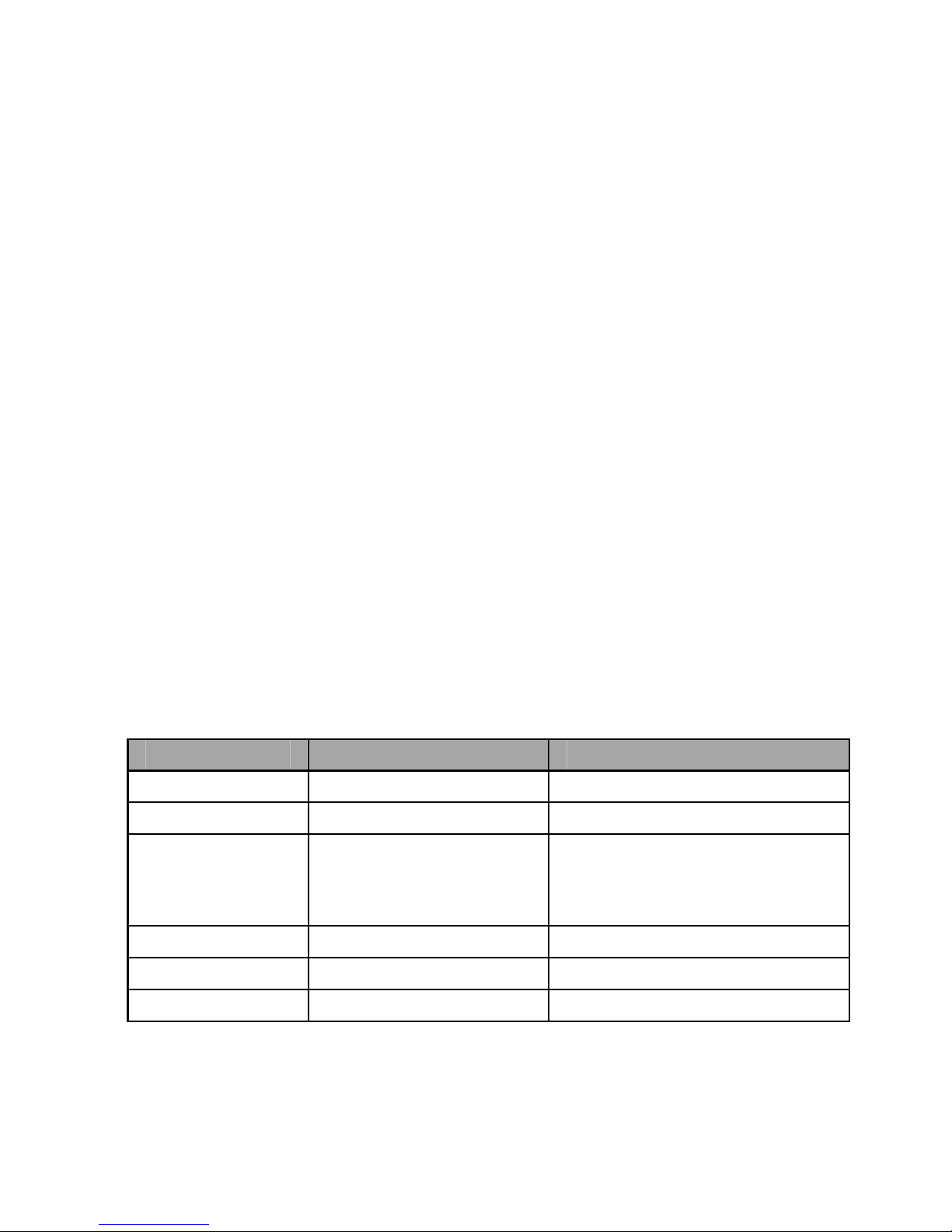
4. Making a call with the headset
1) Basic operation
Functions Status of headset Operation
Cancel a call Calling Short press MFB once
Answer a call Incoming ringing Short press MFB once
Reject a call Incoming ringing Long press MFB for 2
seconds and release it until
listen a tone
End a call During a call Short press MFB once
Volume up During a call Short press+ button
Volume down During a call Short press — button
7
Page 10
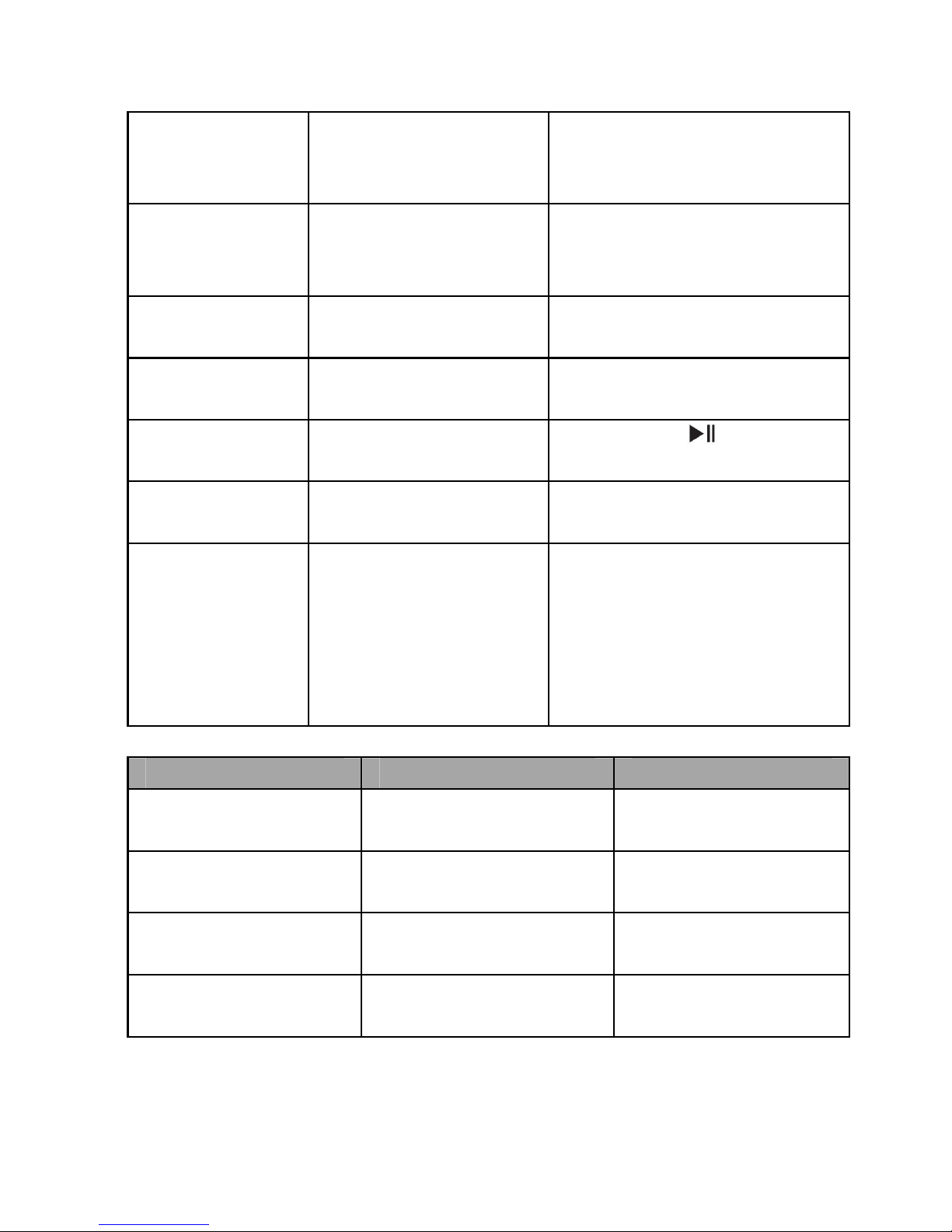
Transfer
conversation to
mobile phone
During a call Long press MFB for 2
seconds
Transfer
conversation to
headset
During a call Long press MFB for 2
seconds
Microphone
mute
During a call Double click MFB
Cancel mute During a call
(microphone mute)
Double click MFB
Voice dial Standby mode
(connected device)
Long press
button for
2 seconds
Redial the last
number
Standby mode
(connected device)
Double click MFB
Remove paired
list
Turned off Press MFB and pause
button for 8 seconds
simultaneously, and release
it until the red and blue(or
purple) LED on at the same
time
2) Three-ways call operation
Functions Status of headsets Operation
Answer new call and
end current call
There are second
incoming call
Short press MFB
once
Answer new call and
retain current call
There are second
incoming call
Long press MFB for
2 seconds
Switch calls Keep conversation Long press MFB for
2 seconds
End current call and
switch retain call
Keep conversation Short press MFB
once
Warning: Excessive pressure form earphones and headphones can
cause hearing loss.
8
Page 11
Note:
Not all the mobile phones support all the functions listed above. Please
refer to your mobile phone user’s manual.
Different function and prompt tone according to different mobile phone.
When the volume is adjusted to max or min, you will hear one prompt
tone.
When pressing the answer button on some mobile phones, the call will be
transferred to the mobile phone. You can switch the call to the headset by
using the conversation switch button or through operating on the mobile
phone. Please refer to your mobile phone user manual for further
information.
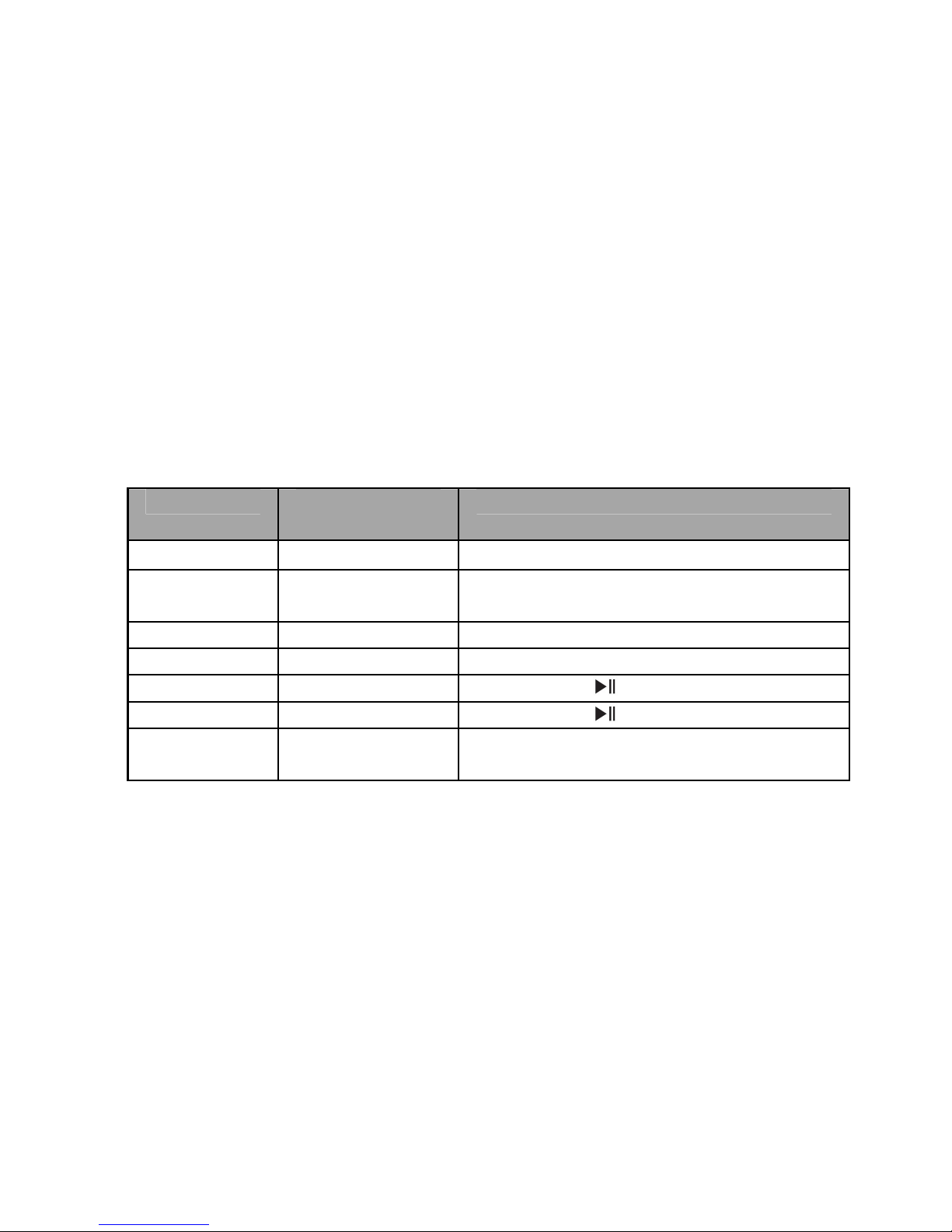
5. Playing music
When the headset connects to a mobile phone or Bluetooth transmitter
which supports A2DP, you can enjoy music wirelessly through the headset.
Function Status of the
headset
Operation
Volume up Playing music Short press “+”button
Volume
down
Playing music Short press “―”button
Last song Playing music Short press ◄ button once
Next song Playing music Short press ► button once
Pause Playing music Short press
button once
play Pausing Short press
button once
Line in
input
Turned off It can playing music through 3.5mm
audio line
Notes:
When playing music on some mobile phones, the music will be
transmitted to the mobile phone’s speaker instead of the headset. You
have to select “transmit the sound via Bluetooth” in the settings menu
and then choose “BTH033” as speaker device. The music will be
transmitted to the headset. Please refer to your mobile phone’s user’s
manual for further information.
When the volume is adjusted to max or min., you will hear one prompt
tone.
9
Page 12
If you want to remote control last/next song, pause/play, it needs your
Bluetooth mobile phone or Bluetooth transmitter paired with the headset
to support AVRCP profile, please refer to the user’s manual of your
mobile phone or Bluetooth transmitter for further information.
The Bluetooth will disconnect between headset and mobile phone
automatically if you plug 3.5mm audio input, and the Line in is available
in this time.
6. LED indicator
1) Charging
LED indicator Status of headset
Red LED on Charging
Red LED off Finish charging
2) Pairing with Bluetooth device
LED indicator Status of headset
Red and blue LED flashes
alternately
Pairing mode
Blue LED flashes once quickly
every 2 seconds
Not connect device
Blue LED flashes twice quickly
every 4 seconds
Have already connected HFP or
A2DP
Blue LED flashes three times
quickly every 4 seconds
Connect HFP and A2DP
simultaneously
Blue LED flashes quickly Calling/incoming call
Blue LED flashes once quickly
every 4 seconds
During a call
Red LED flashes twice every 30
seconds
Low battery
7. Indication tone
Indication tone Status of the headset
Continuous two prompt tone
every 10 seconds
Conversation mode and
microphone mute
Three “dong” warning tone every
30 seconds
Low battery
10
Page 13

8. Factory Reset
In the status of turned off, long press MFB and pause button for 8 seconds
simultaneously and release it until the red and blue LED on.
9. Resetting
If the product work abnormally, you can plug 3.5mm Line-in or charging the
headset so that to reset products.
Care and maintenance
Read the following recommendations carefully before using BTH033.
Following these you will be able to enjoy this product for many years.
Keep it dry and don’t put it in the dump place to avoid the product’s
internal circuit being affected.
Keep the product away from direct sunlight or hot places. High
temperatures will shorten the life of electronic devices, destroy the
battery or distort certain plastic parts.
Don’t expose the product to cold areas. It may damage the internal circuit
board.
Don’t try to disassemble the product as it may get damaged if you are not
professional.
Don’t let it fall down onto the floor or other hard surfaces. The internal
circuit might get damaged.
Don’t use intensive chemical products or detergent to clean the product.
Don’t scratch the surface with sharp things.
In case the product doesn’t function properly, send it to the store you bought
it. The staff will help you to solve the problem
FAQs
1. What does it mean when red LED blinks twice every 30 seconds?
Battery is low power, need to be recharged.
2. Why is the red LED off when charging?
a) Please make sure the charging device connect with headset Well;
b) You didn’t use the headset for a long time, the battery may dry up. At this
time, you have to charge the battery for 30 minutes, and then the red
LED will be ON.
11
Page 14
3. How far is the effective rang between the headset and mobile phone?
According to the Bluetooth standard, the max available range of ClassII
headset is 10 meters. It varies under different environment.
4. Why my mobile phone can not search and find the headset?
The mobile phone will not find the headset if headset and mobile phone are
not under the pairing mode. Make sure the headset is under the pairing mode
and in the effective working range, and then the headset can be paired and
connected.
5. Why can not hear the voice?
a) Make sure the headset has been switched on;
b) Make sure the volume is not too low or muted;
c) Make sure the headset connects with the mobile phone correctly;
d) Make sure the distance between the headset and the cell phone is in the
available Bluetooth range.
6. Why is the voice not clear in conversation?
a) Make sure the mobile phone is in the strong signal area;
b) Make sure the headset is in the available range of this product.
7. Why can’t control pause, play, last song and next song when playing
music?
This function needs your Bluetooth device supports AVRCP (Audio/Video
Remote Control profile)
Specifications
Bluetooth version Bluetooth V2.1+EDR
Bluetooth profiles Headset, Hands free, A2DP, AVRCP
Operating distance 10meters
Headset working time Music up to 17 hours
Headset standby time Approx 384 hours
Charging input DC5.0V 340mA
Headset charging time Approx 2.5 hours
Dimension 176*165*32mm
Weight Approx 172.8g
Battery capacity 415mAH
Page 15

Warning: This device complies with Part 15 of the FCC Rules. Operation is
subject to the following two conditions : (1) this device may not cause
harmful interference, and (2) this device must accept any interference
received, including interference that may cause undesired operation.
Warning: Changes or modifications to this unit not expressly approved by
the party responsible for compliance could void the user’s authority to
operate the equipment.
NOTE: This equipment has been tested and found to comply with the limits
for a Class B digital device, pursuant to Part 15 of the FCC Rules. These
limits are designed to provide reasonable protection against harmful
interference in a residential installation. This equipment generates, uses and
can radiate radio frequency energy and, if not installed and used in
accordance with the instructions, may cause harmful interference to radio
communications.
However, there is no guarantee that interference will not occur in a
particular installation. If this equipment does cause harmful interference to
radio or television reception, which can be determined by turning the
equipment off and on, the user is encouraged to try to correct the
interference by one or more of the following measures:
Reorient or relocate the receiving antenna.
Increase the separation between the equipment and receiver.
Connect the equipment into an outlet on a circuit different from that to
which the receiver is connected.
Consult the dealer or an experienced radio/TV technician for help.
 Loading...