

Page 1

BACnet Gateway (435)
User Guide
Doc. No.: D007501, issue 1
2017-03-30
Page 2

Copyright © 2017 Helvar Ltd.
All rights reserved.
No part of this document may be reproduced in any form or by any means – graphic, electronic, or mechanical,
including photocopying, recording, taping, or information storage and retrieval systems – without the written
permission of the publisher.
Products that are referred to in this document may be either trademarks and/or registered trademarks of the
respective owners. The publisher and the author make no claim to these trademarks.
While every precaution has been taken in the preparation of this document, the publisher and the author assume no
responsibility for errors or omissions, or for damages resulting from the use of information contained in this
document, or from the use of the software that may accompany it. In no event shall the publisher and the author be
liable for any loss of profit or any other commercial damage caused or alleged to have been caused directly or
indirectly by the information contained in this document.
Page 3

iii
Contents
1. INTRODUCTION ................................................................................................................................. 1
1.1. DEVICE LIMITS AND COMPATIBILITY ...................................................................................... 2
1.2. DESCRIPTION OF THE UNIT .................................................................................................... 2
1.2.1. Front panel LEDs ................................................................................................................................... 3
1.2.2. Button and switches .............................................................................................................................. 3
1.3. SYSTEM OVERVIEW .................................................................................................................. 4
1.3.1. Helvar devices and DALI networks ....................................................................................................... 5
1.3.2. BACnet/IP network ................................................................................................................................ 5
2. CONFIGURATION ............................................................................................................................... 6
2.1. CONFIGURATION PAGES ......................................................................................................... 6
2.2. CONNECT TO THE 435 BACNET GATEWAY .............................................................................. 7
2.3. CONFIGURE THE COMMS INTERFACE .................................................................................... 7
2.3.1. Configure the IP config settings ............................................................................................................ 8
2.3.2. Configure the comms settings .............................................................................................................. 9
2.4. CONFIGURE THE MAP POINTS .............................................................................................. 10
2.4.1. Discover and select workgroups and devices..................................................................................... 11
2.4.2. Configure the mapping to BACnet object types .................................................................................. 12
2.4.3. Edit the BACnet table .......................................................................................................................... 14
2.5. BACKUP AND RESTORE SETTINGS ....................................................................................... 16
2.5.1. Create a backup ................................................................................................................................... 16
2.5.2. Restore: Backup configuration or change device firmware ............................................................... 17
2.6. CONFIGURE THE LOGIN SECURITY ....................................................................................... 17
3. ORDER CODES ................................................................................................................................. 19
4. PROTOCOL IMPLEMENTATION CONFORMANCE (PIC) STATEMENT .............................................. 20
ANNEX A – PROTOCOL IMPLEMENTATION CONFORMANCE STATEMENT (NORMATIVE) .................. 21
Page 4

iv
Page 5
Helvar 435 BACnet Gateway: User Guide
1
1. Introduction
The 435 BACnet Gateway provides a simple interface to a Helvar router system and allows lighting
system data to appear in a BACnet Building energy Management System (BeMS).
Note: Typically, individual systems (energy control, lighting, boiler and air-conditioning
systems, etc.) are measured separately for CO
2 accountability. Therefore, installing the
BACnet Gateway and combining the various systems can help an effective BeMS be
more energy efficient and comply with national building regulations.
The 435 allows a Building Management System (BMS) or BeMS to control and monitor the lighting
system as well as obtain device status and group power consumption information. BACnet/IP
clients can easily connect with the gateway via a TCP/IP network.
Page 6

2
Helvar
| Data is subject to change without notice.
The 435 BACnet Gateway has been specifically designed to expose the ‘router’, ‘group’ and ‘device’
parameters from Helvar routers in a designated workgroup through the TCP/IP network. The
BACnet/IP BMS can use this information to control and monitor the lighting, energy and
environmental conditions.
1.1. Device limits and compatibility
The 435 BACnet Gateway has the following limitations and compatibility requirements:
• Limits:
o Single workgroup
o Max. 2 units per workgroup (may require different device instance numbers: see
Configure the comms settings
).
o Max. 20 router
o Max. 300 groups
o Max. 2000 BACnet/IP points (overall limit)
• Compatibility:
o Router firmware version 5.2 or above.
o Router IP addresses need to have the same first and second octets, i.e. ‘10.254.x.x’.
o Web browsers: Firefox (recommended), Chrome and Internet Explorer.
1.2. Description of the unit
The 435 BACnet Gateway includes internal HTML configuration pages designed to simplify the
engineering and setting of the interface. These pages make it easier to configure the
communication requirements. The connected Helvar routers appear as a single BACnet device in
the BACnet/IP BeMS, whereas the predetermined parameters appear as predetermined BACnet
object types.
From the configuration pages you can do the following:
• Identify:
o Each Helvar router in a defined workgroup.
o The required Helvar router and DALI device parameters.
o Which BACnet Object type is assigned to each parameter.
• Simplify the configuration of the BACnet/IP communication requirements and allow for
connected routers and devices to appear on the BACnet/IP BMS.
Page 7
Helvar 435 BACnet Gateway: User Guide
3
1.2.1. Front panel LEDs
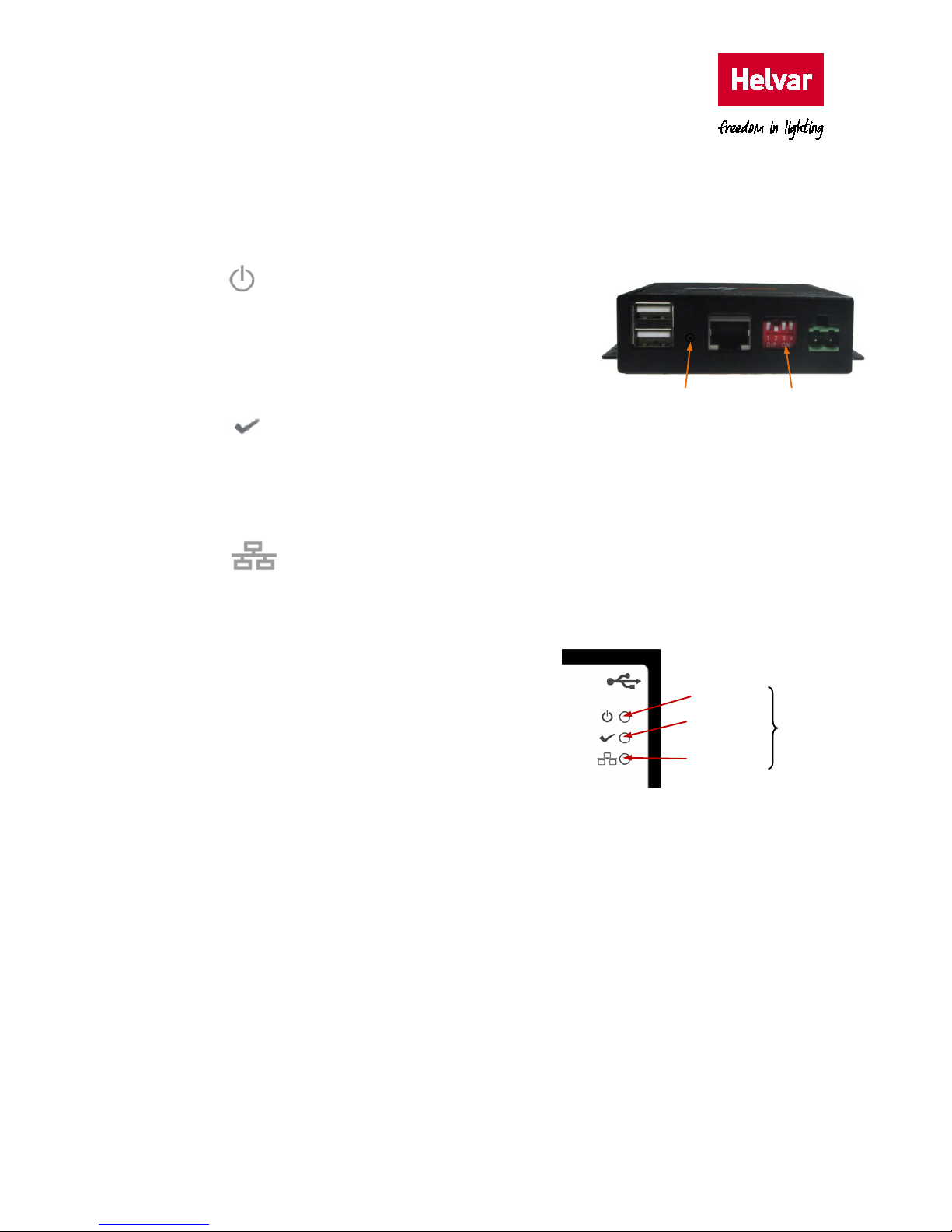
The LEDs on the unit indicate the general status of the BACnet Gateway, including power, ready
and LAN communication activity.
• Power LED
This LED shows the current status of the power applied
to the unit.
‘On’ indicates that the 24 VDC power is supplied. ‘Off’
indicates that the power is not supplied or has failed.
• Ready LED
This LED shows the status of the boot-up process.
‘On’ indicates that the required files have been loaded to the RAM disk and that the unit has
successfully booted up. ‘Off’ indicates that the unit is not ready or has failed to boot up.
• Ethernet Activity LED
This LED shows the communication between the unit and the supervisory computer or
controller connected via the Ethernet.
‘On’ indicates incoming communications traffic.
‘Off’ indicates outgoing communications traffic.
1.2.2. Button and switches
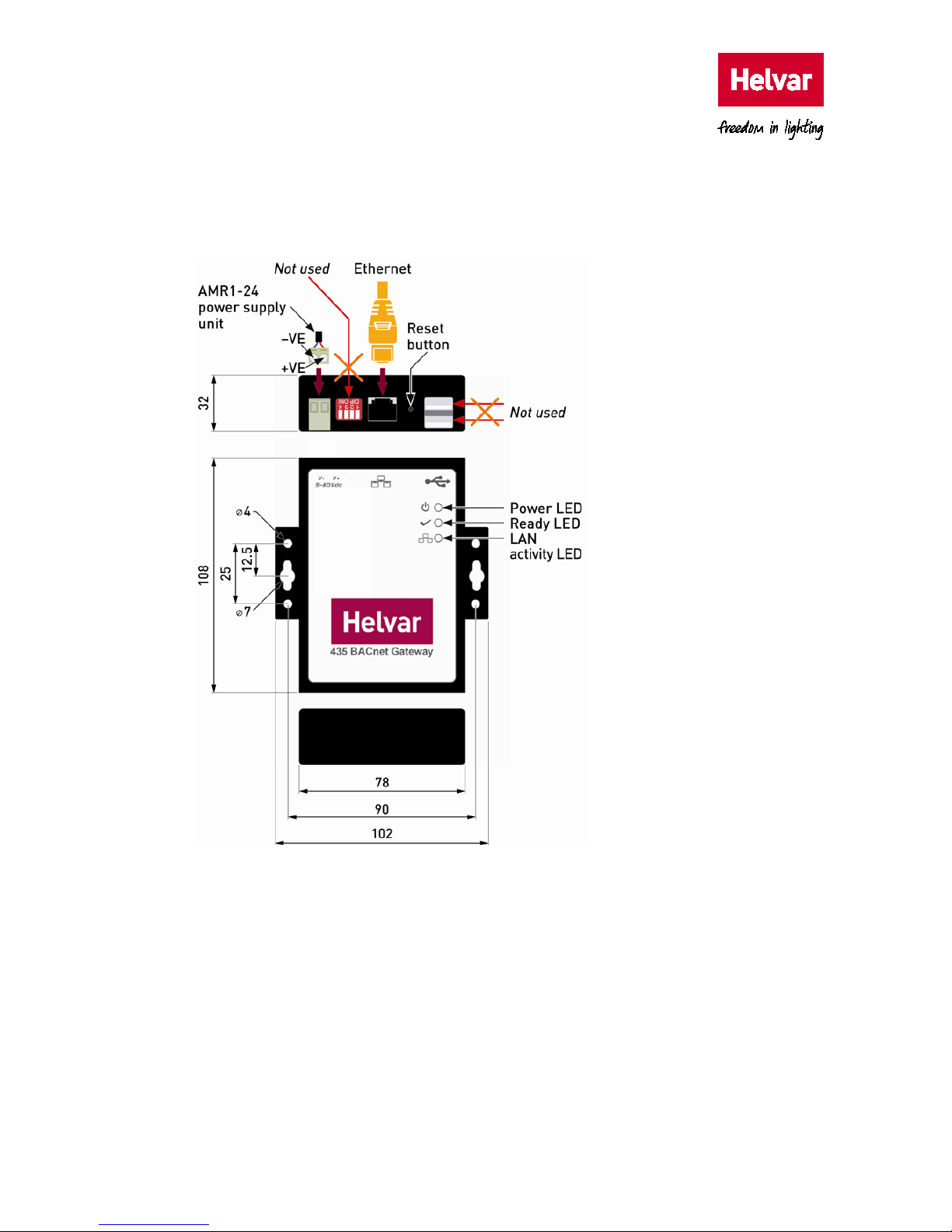
The BACnet Gateway is fitted with a recessed button
for rebooting the unit, and with a bank of four DIP
switches. The bank of DIP switches is not functional in
this version.
While the reset button does not erase any configuration, we recommend that you use it only if the
software reboot fails.
DIP switches
(not used)
Reset button
Ethernet
Activity LED
Status
LEDs
Power LED
Ready LED
Page 8
4
Helvar
| Data is subject to change without notice.
435 BACnet Gateway (Router/
DALI to BACnet mapping)
IP Network
BACnetIP network IP Network
Device
instance
DALI 1
DALI 2
DALI 1 DALI 1
DALI 2
SDIM
Router 910
DMX
Router 920
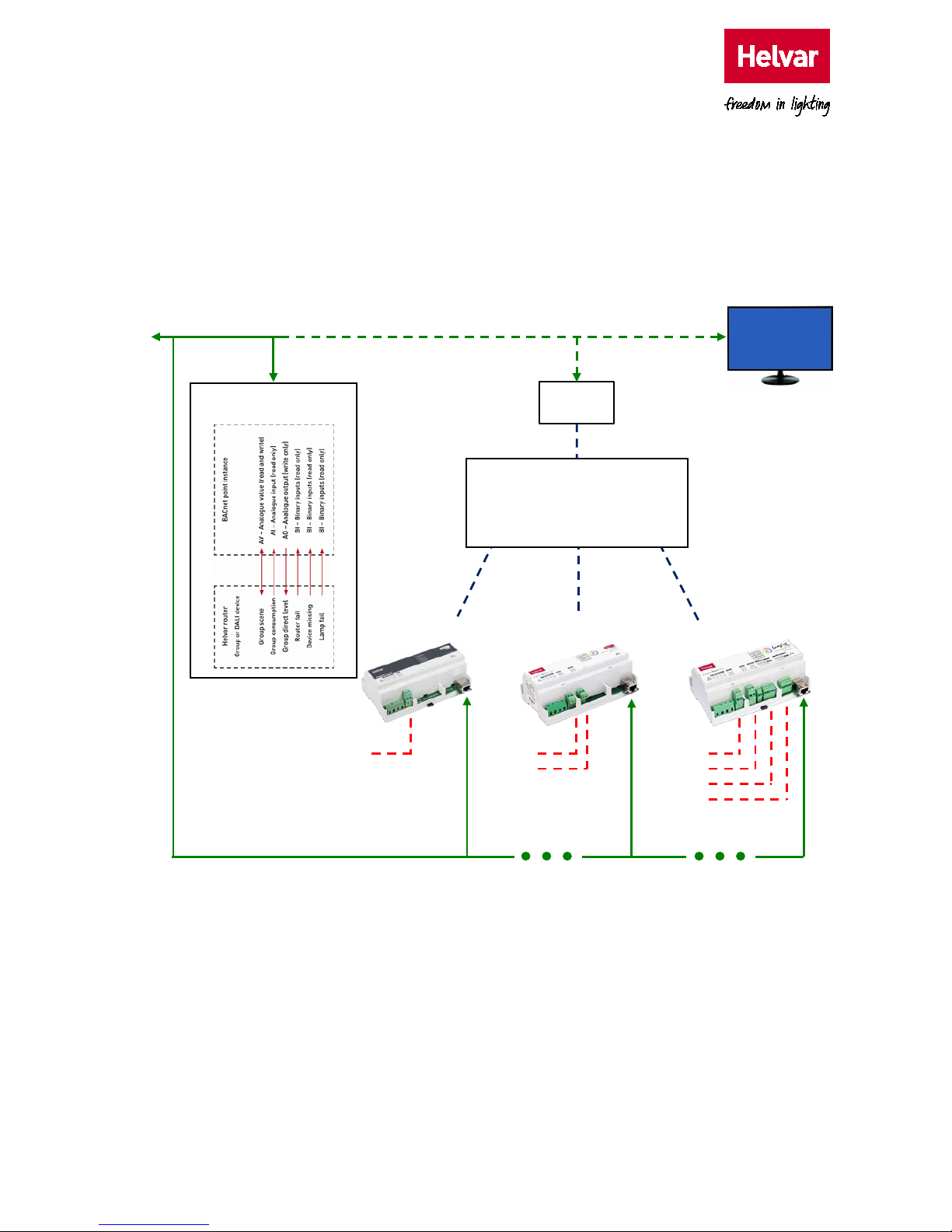
Predetermined Helvar router and DALI
device points appear as a BACnet object
types in a single BACnet device.
Select Helvar points to clarify between
BACnet network.
Router 905
1.3. System overview
The BACnet Gateway provides direct interface between Helvar routers, including the devices
connected to them (such as ballasts, LED drivers, luminaires and sensors), and a BACnet/IP BMS.
Thus, the BACnet/IP BeMS can access the values recorded in the Helvar 905, 910 and 920 routers
and in the DALI devices.
Page 9

Helvar 435 BACnet Gateway: User Guide
5
1.3.1. Helvar devices and DALI networks
The Helvar 905, 910 and 920 routers use the Ethernet connection as a network backbone to
combine DALI, SDIM and DMX networks. The DALI and SDIM networks appear as Helvar router
subnets in the 435 browser interface.
DALI (Digital Addressable Lighting Interface) is a standardised (IEC 62386) protocol that, among
other things, provides individual addressing and monitoring of lighting devices. It allows you to
connect of up to 64 DALI devices on a single and simple two-wire network and communicate with
them individually, collectively or in groups. You can thus instruct DALI loads to turn on and off and
to dim up and down. Additional operational status information is available from each of them,
confirming its ability to operate effectively or to confirm a fault condition.
SDIM and DMX are low-loss RS485 Type (multistranded, twisted and shielded), three or four cores
and screen networks, max. 1 km cable length.
Tip: For DALI, SDIM and DMX network installation, refer to the Helvar 905, 910 and 920
routers documentation. See also the D5 Recommended Best Practices document for
networking and system guidelines.
1.3.2. BACnet/IP network
Specifically designed for building automation and control networks, the BACnet/IP protocol
provides a standard way of representing the functions from third-party devices to exchange data
over a computer network. It operates on a client/server principle: the BACnet Gateway is the
server, and either a BACnet device or the BACnet Explorer is the client. The network uses
standard cat 5e cabling to transfer ‘service’ requests from each client to the server, which
performs the service and then reports the result to the client. Local IP network policy is used to
address BACnet devices.
Each ‘service’ request includes a default set of ‘objects’. These may represent either a single
physical point or logical groupings of points that perform a specific function. An ‘object’ is simply a
collection of properties (such as ‘Object_Name’, ‘Object_Type’ or ‘Present_Value’) that describe
the behaviour and operation of the BACnet device.
Note: For BACnet compliance details, refer to
Annex A – Protocol Implementation
Conformance Statement (Normative)
DALI 1
DALI 2
SDIM
DMX (NOT EXPOSED)
905 router
64 devices
N/A
N/A
N/A
910 router 64 devices 64 devices N/A N/A
920 router
64 devices
64 devices
252 addresses
512 in/out
addresses
Page 10

Helvar 435 BACnet Gateway: User Guide
6
2. Configuration
This section describes the process of allowing a BACnet client on the BACnet/IP-based control
system to access the data recorded by the connected Helvar routers. It explains the specific
configuration of the following:
• Each of the devices connected to the BACnet Gateway.
• The communication protocols used by the hardware connected to the 435 BACnet Gateway.
• The parameters used to specify the data that the the BACnet client will access on the
BACnet/IP based control system.
2.1. Configuration pages
You can configure the BACnet Gateway via the internal configuration pages. These settings define
the operation of the unit; they are password protected to prevent unauthorised access.
The internal configuration pages include the following:
• Admin: To configure the login security (password) of the unit, the firmware version and the
documentation.
• Map points: To link and assign the required Helvar router points detected by the unit, to a
predetermined ‘object type’ in this BACnet device.
• IP config: To configure the unique identity of the BACnet Gateway on the IP (Internet
Protocol) network.
• Comms settings: To configure the communications network parameters that correspond to
the communications with the Helvar routers and with the BACnet/IP network.
• Back up and restore: To save the internal configuration and apply an existing backup file or
firmware update file.
Remember: To apply the changes, press Save or the corresponding Save button. You may need to
wait until the unit reboots and Refresh the browser.
To cancel all the unsaved changes, and Refresh the browser.
Page 11
Helvar 435 BACnet Gateway: User Guide
7
2.2. Connect to the 435 BACnet Gateway
After the BACnet Gateway has been correctly installed (see the
Installation Leaflet
supplied with
each unit or the
Installation Guide
), you need to configure the communication protocols and the
required parameters.
Each unit is supplied with a default IP address that identifies the unit on the IP network. You must
replace this IP address with a unique IP address as required by the applicable local network
policy.
Before configuring the unit, make sure that the connected computer has a compatible IP address,
i.e. an IP address in the same IP range as the BACnet Gateway. Otherwise, change the computer’s
IP address.
To connect to the BACnet Gateway:
1. After physically connecting the unit to the computer (see the
Installation Guide
), open a
browser application (Firefox recommended).
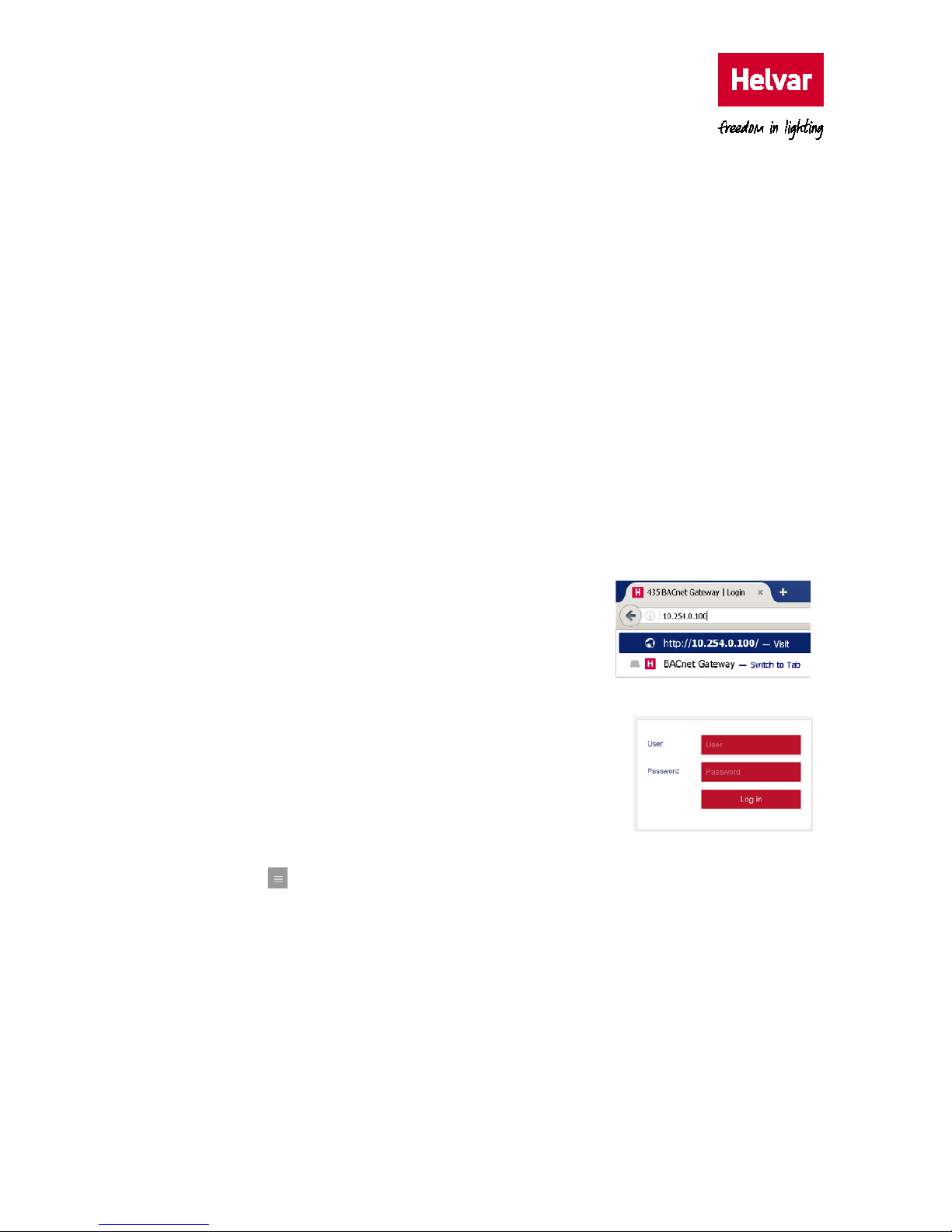
2. In the browser Navigation toolbar, type the required IP address using the standard 32-bit
dotted-decimal notation.
Default IP address: 10.254.0.100 (255.0.0.0)
The Login page will appear.
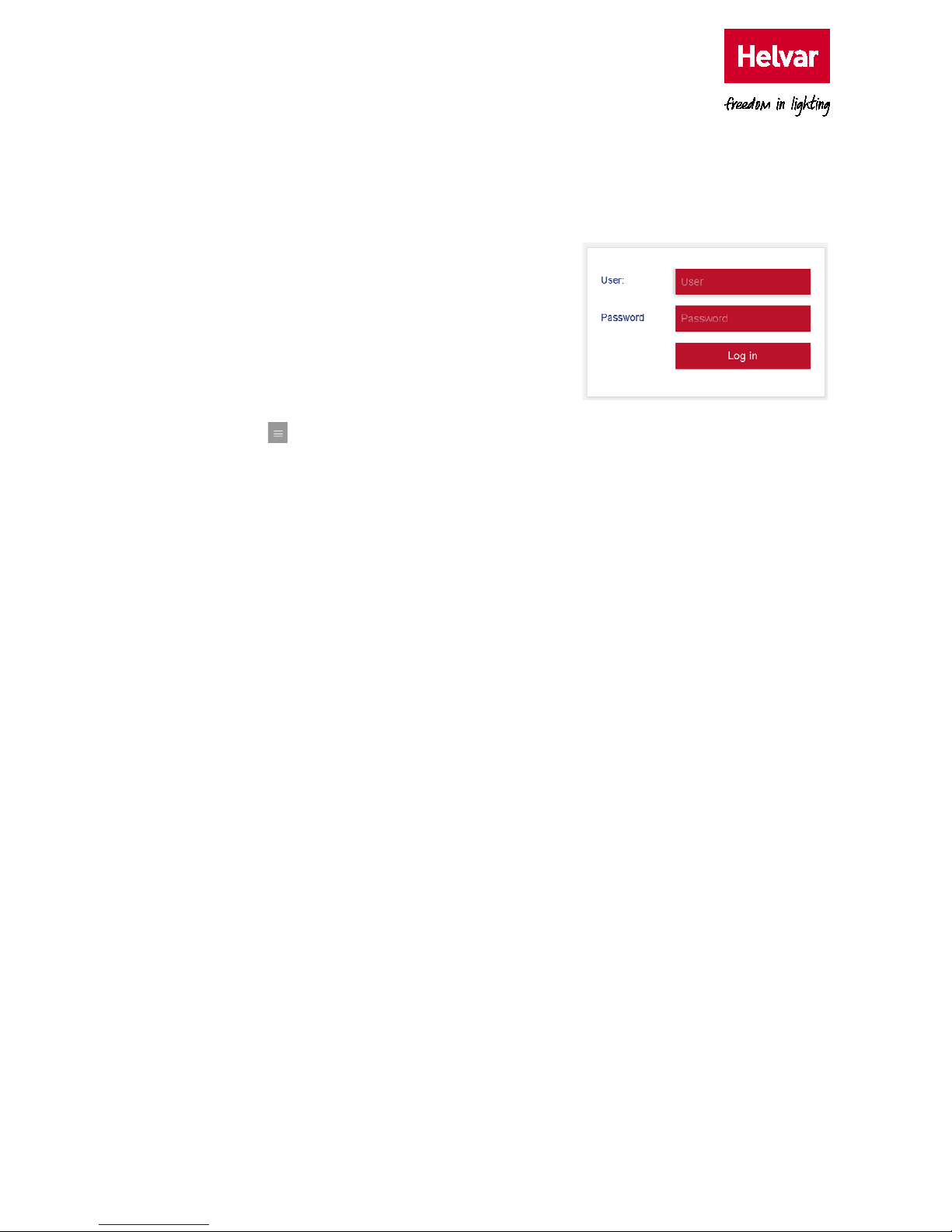
3. Type the User name and Password (both are case
sensitive), and then press
Log in.
o User name: Admin
o Password: password
Tip: If the ‘Login’ page fails to appear, use the ping test to
confirm that the expected IP address is used.
If the valid ‘User name’ and ‘Password’ fails to launch
the configuration page, clear the browser cache, and
then contact technical support for instructions.
4. Press to display the Home page. This provides access to the configuration pages.
Tip: Zoom out to display more information.
2.3. Configure the Comms interface
The IP config and Comms settings menu options allow you to configure the communication
protocols needed to transmit data between:
• The Helvar routers and the BACnet Gateway.
• The BACnet Gateway and the BACnet client on the BACnet/IP based control system.
Caution: Configure the IP address, the subnet mask and the default gateway according to the
applicable local network policy.
Page 12
8
Helvar
| Data is subject to change without notice.
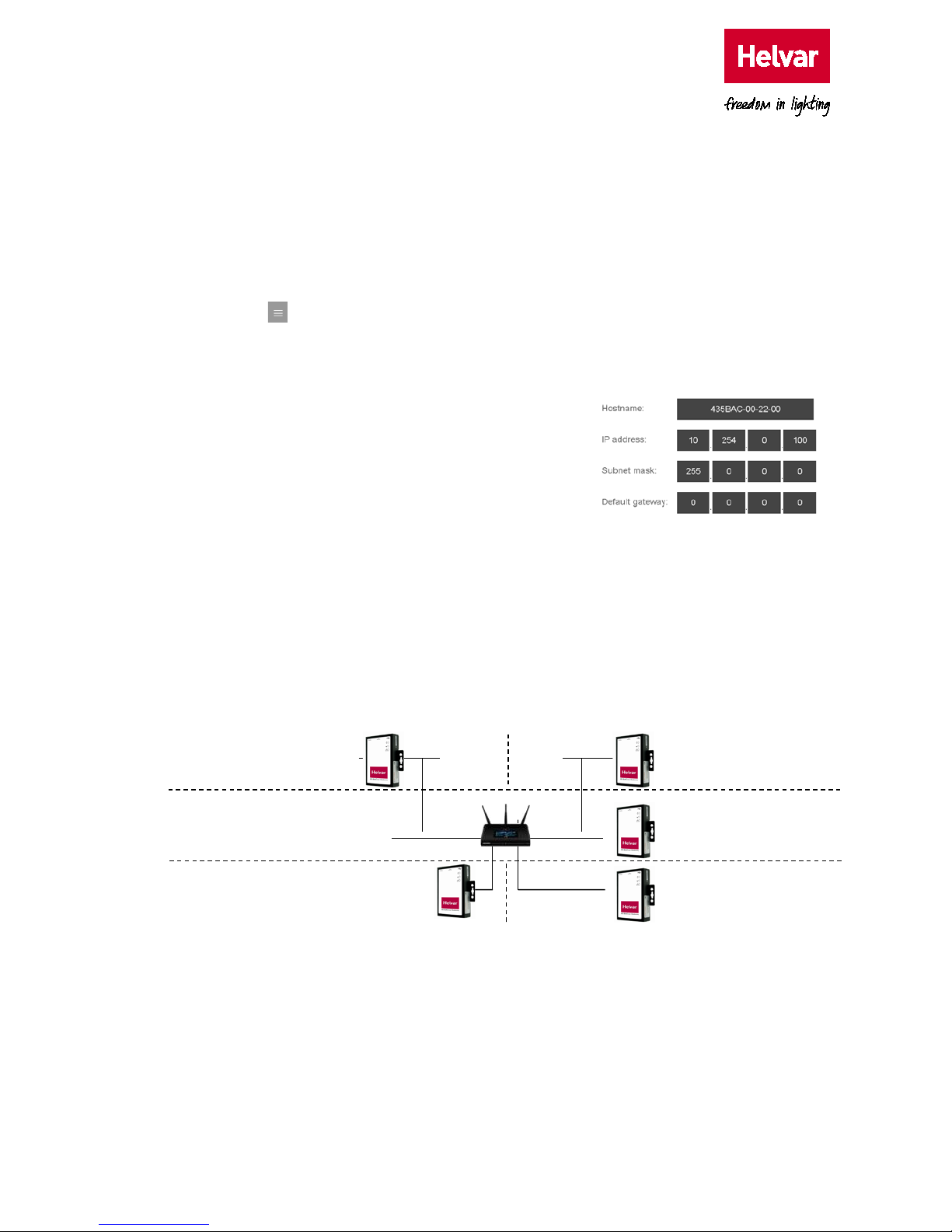
2.3.1. Configure the IP config settings
The parameters on the IP config page are used to configure the unique identity of the
BACnet Gateway on the IP (Internet Protocol) network.
Caution: The unit must use an IP address compatible with both Helvar routers and the
BACnet BMS; for example, 10.254.1.x (255.0.0.0).
1. Press , and then select IP config to display the TCP/IP parameters that identify the
BACnet Gateway on the LAN. You can use a specific range of configured IP addresses to
group units in networks or subnets.
o If necessary, edit the Hostname. This is a
15 character label (letters, numbers, ‘-’ and ‘_’)
assigned to this unit and linked to the IP address.
Default: 435BAC-<last 3 pairs of hardware MAC
address>.
2. Change the IP address, subnet mask, and default
gateway according to the applicable local network
policy. The IP address provides a unique identification of the BACnet Gateway in the defined
subnet mask on the IP network. The subnet mask is a configurable range of accessible IP
addresses. The default gateway is used to direct communications to IP addresses that are not
in the defined subnet mask.
Note: Use the Helvar search tool provided (available from the Homepage > Support page) to
detect the 435 Gateway(s) on the IP network. You can also use a BACnet Explorer to
detect the unit on the BACnet/IP network.
3. Press Save, and then reboot the BACnet Gateway.
The unit restarts (as confirmed by a beep) and loads the Login page.
Caution: Assign a different IP address to each gateway before networking them. The BACnet
device instance number also requires changing in order to differentiate the gateways
on the BACnet/IP network.
(LAN 4) Subnet 4 = IP address
10.254.1.193 to 10.254.1.254
(Subnet mask 255.255.255.192)
(LAN 1) Subnet 1 = IP address
10.254.1.2 to 10.254.1.63
(Subnet mask 255.255.255.192)
(LAN 5) Subnet 1 = IP address
10.254.5.2 to 10.254.5.254
(Subnet mask 255.255.255.0,
Gateway 10.254.1.1)
Gateway = 10.254.1.1
(LAN 2) Subnet 2 = IP address
10.254.1.65 to 10.254.1.127
(Subnet mask 255.255.255.192)
(LAN 3) Subnet 3 = IP address
10.254.1.129 to 10.254.1.191
(Subnet mask 255.255.255.192)
Page 13

Helvar 435 BACnet Gateway: User Guide
9
Remember: When you reboot the unit, the connection to it stops. To ensure that the browser shows
the latest data, clear the browser cache (Ctrl+Shift+Del and the top four options
enabled as a minimum) before login.
2.3.2. Configure the comms settings
The comms settings allow you to configure the unit as a gateway from the Helvar routers using
the Helvar proprietary communications protocol to the BACnet/IP network.
1. Press , and then select Comms settings to define the network connection details required
for receiving and transmitting data between the Helvar routers and the BACnet/IP supervisor
on the BACnet/IP network.
2. Configure the HelvarNet settings. These parameters define the connection details for
communicating with the Helvar routers. Do not
modify the default values unless specifically
instructed to do so.
o Router failure threshold.
Default: 3; range: 1–10 message failures.
This value defines the number of consecutive
failed requests from a Helvar router, and
determines when a ‘Router failure’ state is
indicated.
o Pause between requests.
Default: 50; range: 1 ms – 2000 ms
This value defines the delay between sending a data request to one Helvar router and the
next Helvar router.
o Polling interval.
Default: 60; range: 10 s – 1800 s
This value defines when the next data request cycle with the configured Helvar routers is
attempted; for example, every 60 seconds.
Caution: This value must be greater than the ‘Last poll duration’ value. Otherwise, ‘Router
failure’ BACnet Objects may be asserted.
o Read timeout.
Default: 5; range: 2 s – 10 s
This value defines the number of seconds that the device must wait for a response from a
Helvar router. After this period has elapsed, the device proceeds to the next configured
Helvar router. When a Helvar router fails to respond to the number of consecutive
requests set in the
Router failure threshold text box, a ‘Router failure’ state is indicated.
Page 14
10
Helvar
| Data is subject to change without notice.
o Last poll duration value.
This value shows the number of seconds that it has taken to poll all the configured Helvar
routers.
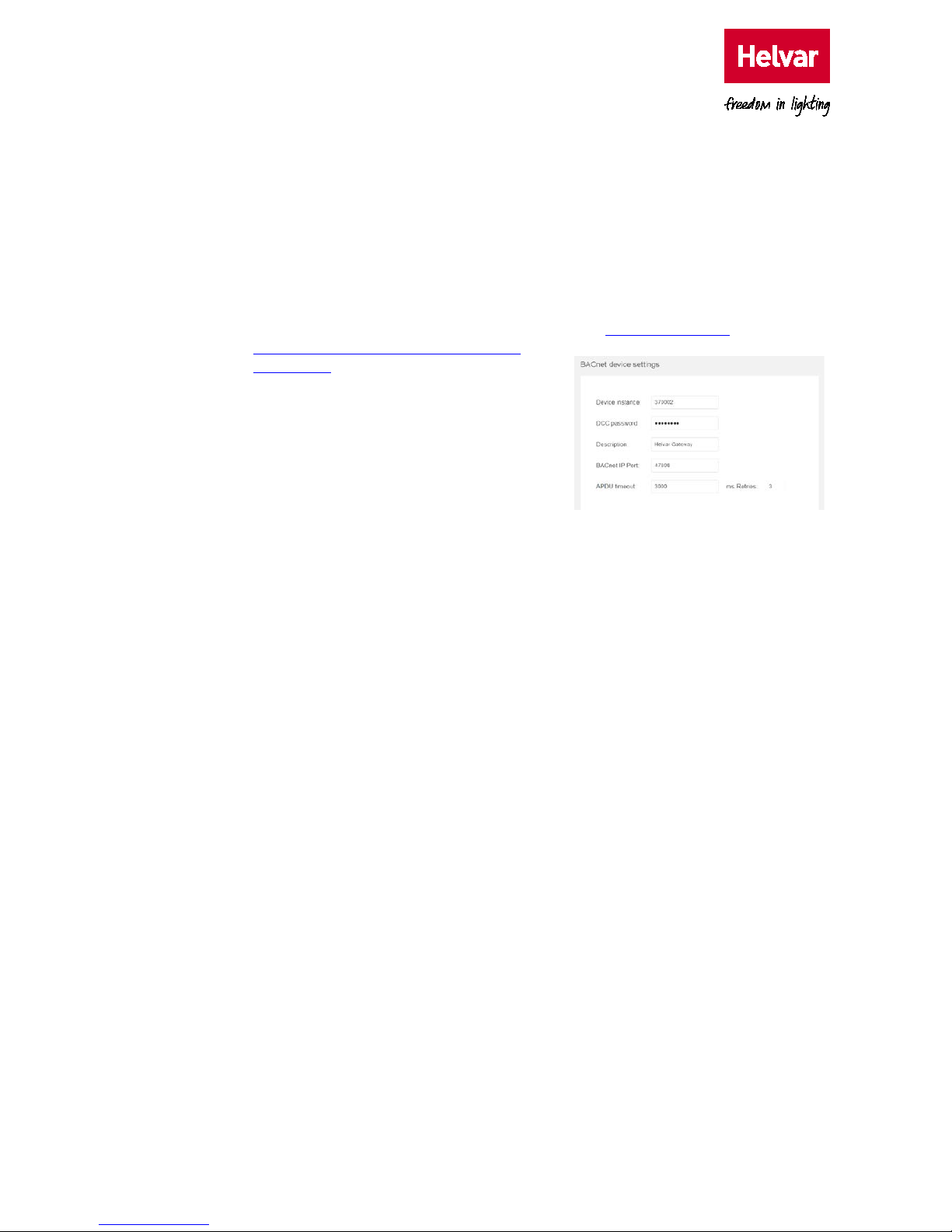
3. Configure the BACnet device settings. These settings define the connection details for the
unit to appear as a BACnet device on the BACnet/IP based control system.
Note: Each BACnet device includes a default set of properties that are displayed in a BACnet
Explorer. They are described in the BACnet PICS: see
Annex A – Protocol
Implementation Conformance Statement
(Normative).
o Device instance.
Default: 370001; range: 1 – 999999.
This number identifies the unit on the
BACnet/IP based control system. Change this
number if you have more than one 435 on the
BACnet/IP network.
Caution: If the network has more than one 435 , each unit requires individual Device instance
numbers.
o DCC password (max. 30 characters).
This is used to permit the DCC (Device Communication Control) and RD (Reinitialise
Device) operations.
o Description.
You can enter any desired descriptive information in the BACnet/IP based control system.
This information will be read by the communication partners.
4. Press Save to apply the changes.
2.4. Configure the Map points
The Map points page is used to expose predetermined parameters in a single workgroup to a
BACnet Supervisor (BACnet client) on the BACnet/IP based control system. These predetermined
parameters are available from discovered Helvar routers and Helvar router subnet devices.
Tip: Use Helvar Designer software to configure the lighting system and to assign IP
addresses to Helvar routers. All Helvar programming should be completed before you
map the points to the 435 Gateway
Page 15
Helvar 435 BACnet Gateway: User Guide
11
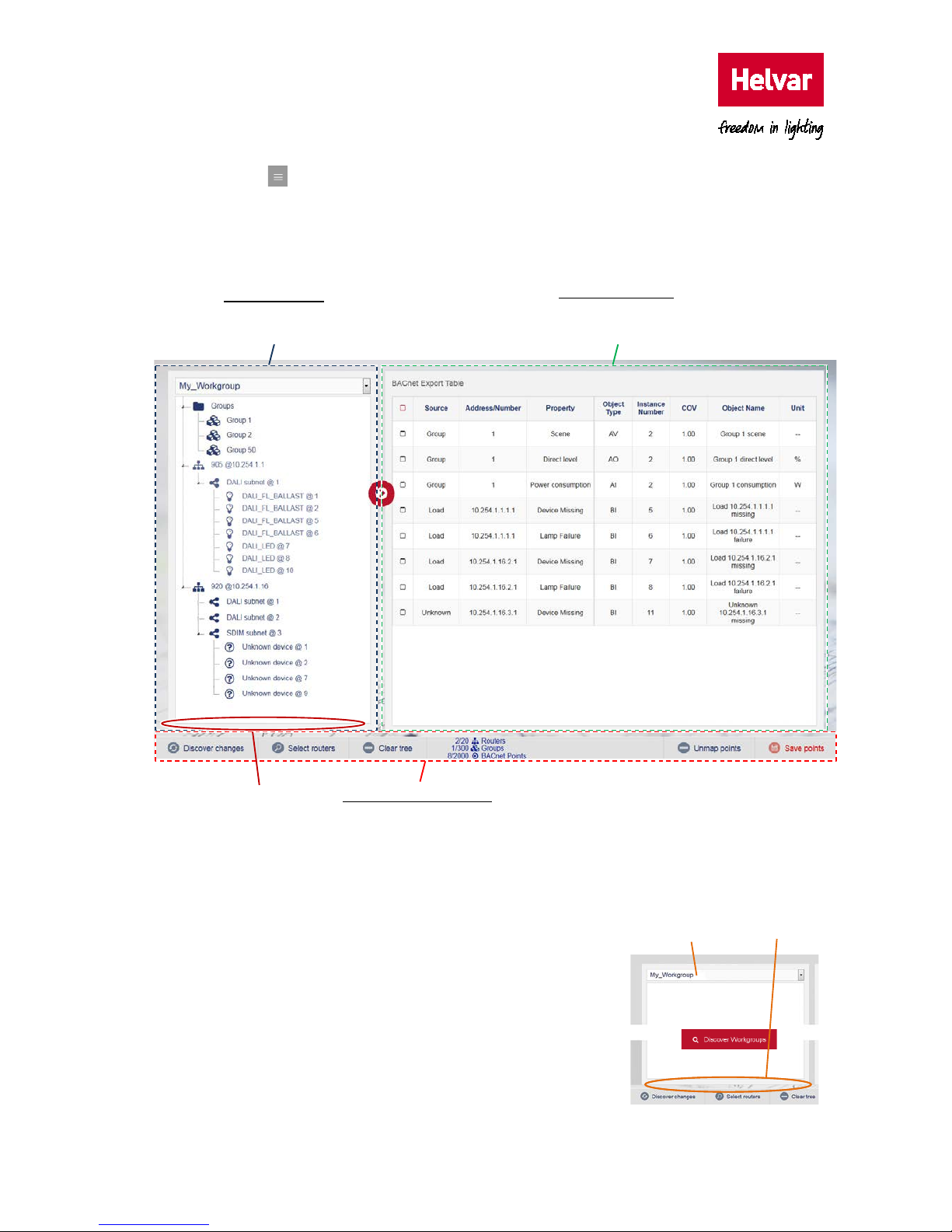
1. Press , and then select Map points to display the BACnet Export Table, where you can
select Groups Router and Router Subnet device parameters from existing workgroups.
Note: The 920 router DMX subnet is not displayed as no export information is supported for
DMX devices.
2.4.1. Discover and select workgroups and devices
When you first install 435 BACnet Gateway devices, you
must assign the following:
• An existing Helvar workgroup for Helvar routers
and Helvar routers subnet devices.
• Groups to be discovered.
To discover existing workgroups and devices:
1. Press Discover workgroups to populate the list of
Workgroup section
Discovered
workgroup and
detected devices
Point Mapping section
Points selected from
available devices in
workgroup
Configuration button section
Buttons to manage the
workgroup and map available
points
Workgroup
Router/Subnet/Device
deselection and
Message area
Deselection
and message
area
Discovered
workgroups
Page 16
12
Helvar
| Data is subject to change without notice.
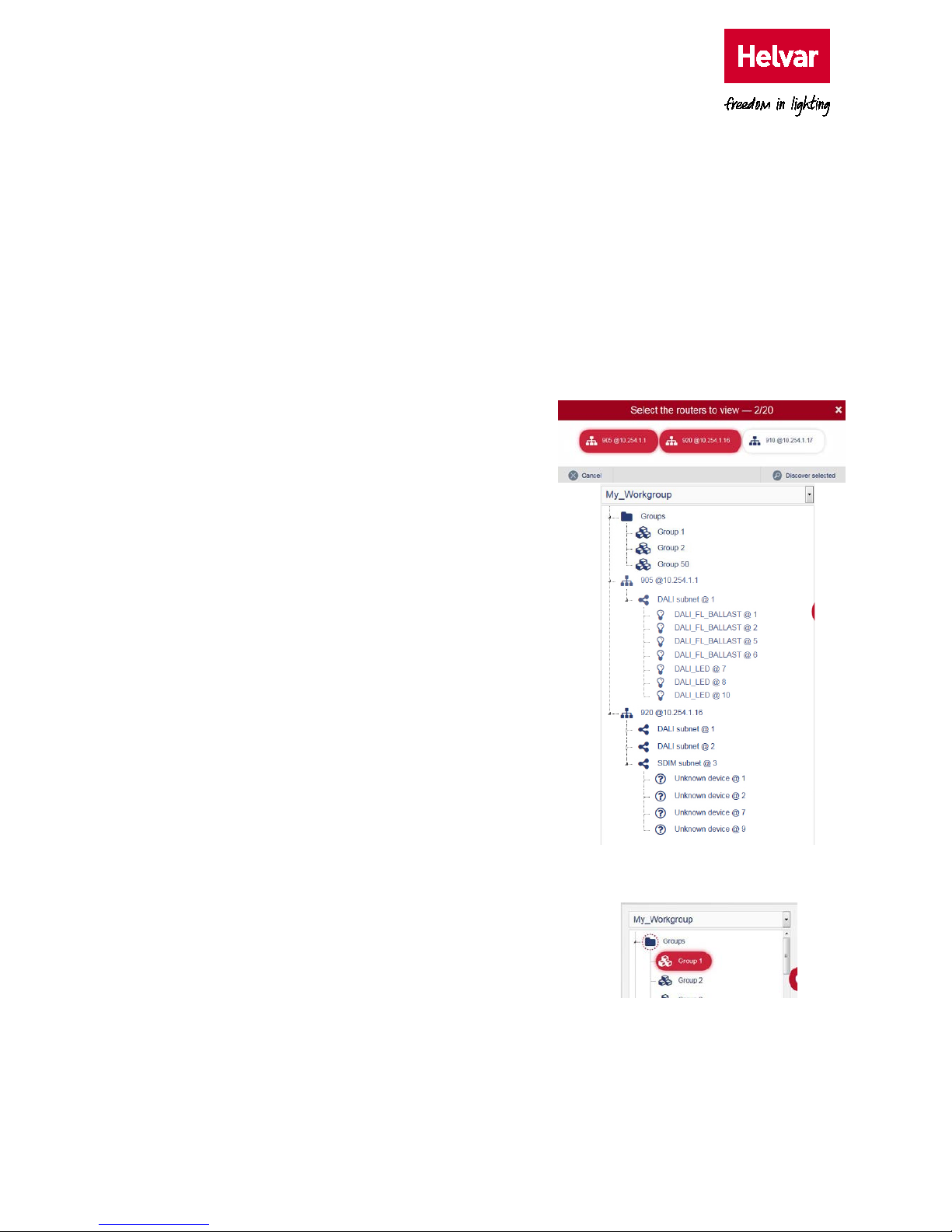
available workgroups and to display additional configuration buttons.
2. Do one of the following:
o Press Discover selected workgroup to discover Helvar routers in the selected
workgroup.
o Select the required workgroup from the list of available workgroups, and then press
Discover selected workgroup.
3. If necessary, press Discover changes to detect changes to the selected workgroup.
4. Press Select routers to show all Helvar routers in the selected workgroup.
5. Select the routers with parameters that require
mapping to the BACnet BMS. The maximum
number that you can select is 20.
Tip: Detected Helvar routers are identified by
the router type and IP Address, i.e. router
920 at IP Address 10.254.1.16.
6. Press Discover selected to detect all router and
the devices connected to the available router
subnets. This will display the network tree
associated with the selected workgroup.
o Press Clear tree to remove all discovered
Helvar routers, groups and connected
devices detected in the selected workgroup.
Tip: You can use the workgroup tree to confirm
that the expected routers and connected
devices are available.
2.4.2. Configure the mapping to BACnet object types
Each group, Helvar router and connected device
includes parameters that can be mapped to BACnet
Object types. They are available to the BACnet/IP
network via the BACnet Gateway.
1. Expand the Groups folder or the required router.
o Expand Groups to show all the groups
configured in this workgroup.
o Expand the router (e.g. 920 @ 10.254.1.16) to
show all the available router subnets in this
workgroup.
Page 17
Helvar 435 BACnet Gateway: User Guide
13
2. Do the following to add parameters to predetermined BACnet Object types.
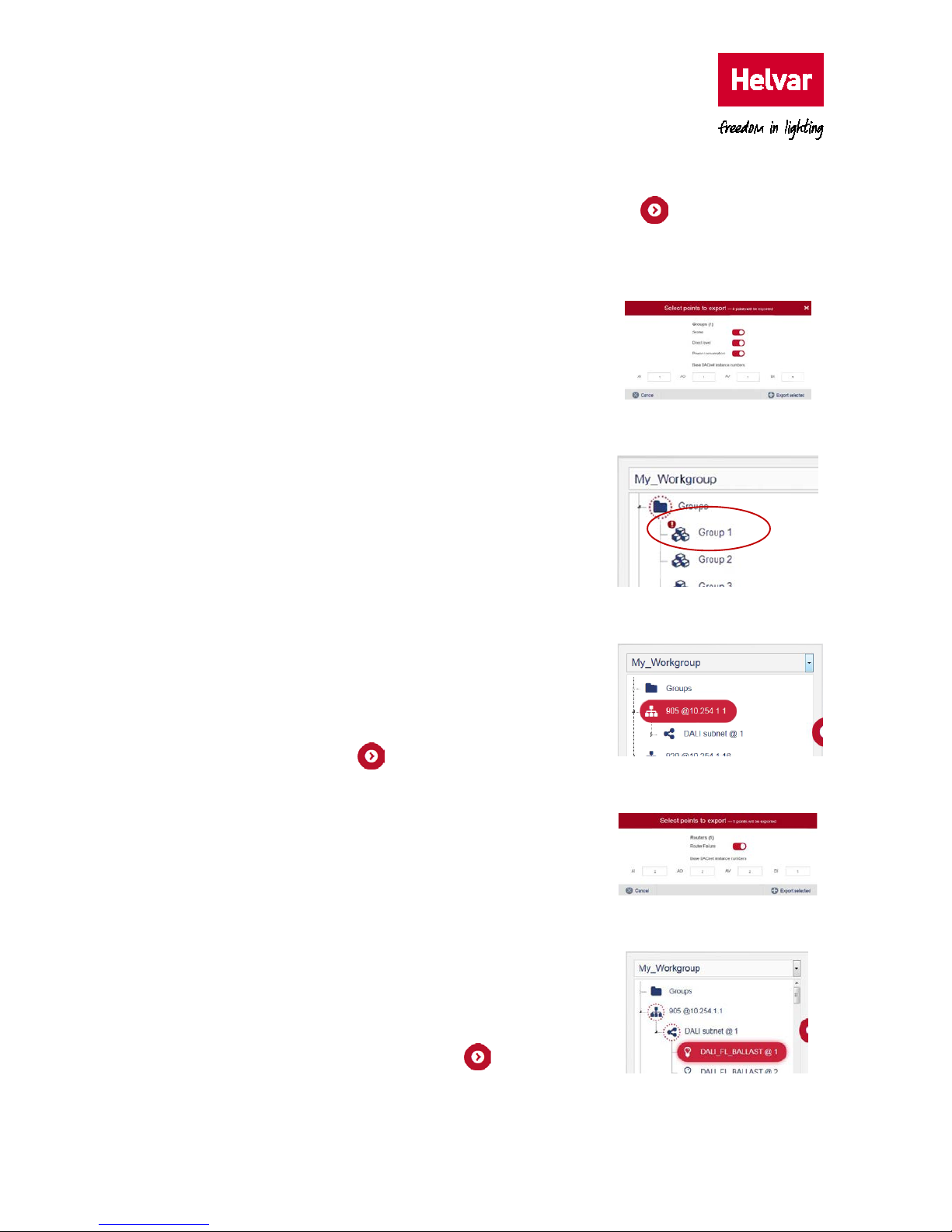
i. Select a group in the applicable workgroup, and then press to display the Select
points to export dialog box.
Tip: To add group parameters from all groups, select the ‘Groups’ folder.
ii. Turn on the switch corresponding to the parameter
that you want to map:
Scene, Direct Level and
Power Consumption.
iii. Define the Base BACnet instance number for the
equivalent group parameters.
iv. Press Export selected to add the enabled
parameters and default properties to the BACnet
table.
Notes: The Groups icon indicates that you have selected
some parameters.
The exclamation mark icon shows that not all
group parameters have been selected/exported.
v. Check the default BACnet configuration applied.
Note: You need to add at least one router to the export
table for control and monitoring of groups.
To add router parameters:
i. Select a router shown in the defined workgroup,
and then press to display a list of points that
can be mapped to BACnet Object types.
ii. Turn on the Router failure switch.
iii. Type the BACnet instance number for the selected
router.
iv. Press Export selected to add the enabled
parameters and default properties to the
configuration table.
v. Check the default BACnet configuration applied.
To add subnet device parameters:
i. Expand the applicable router subnet, select the
required device, and then press to display the
points that can be mapped to BACnet object types.
Page 18
14
Helvar
| Data is subject to change without notice.
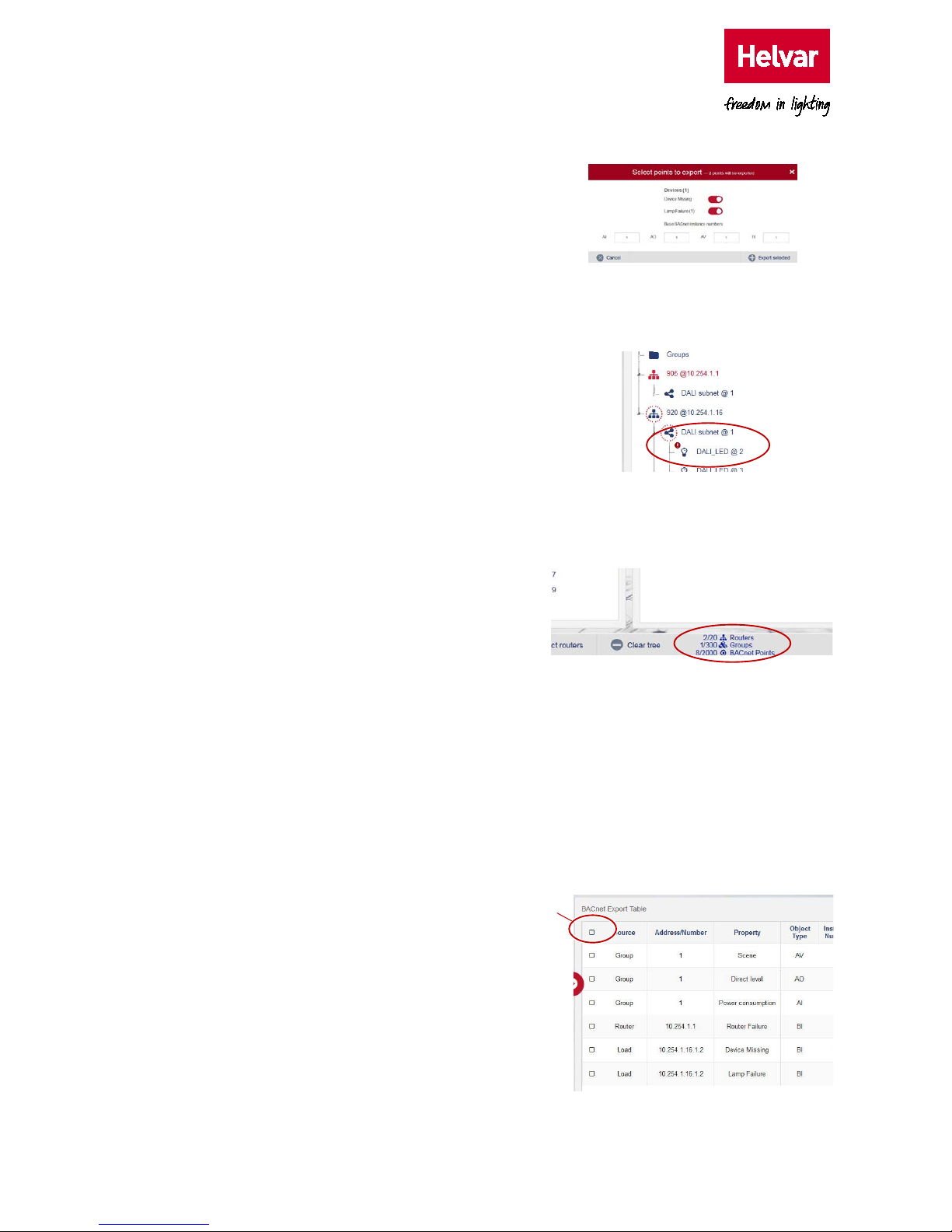
ii. Turn on the switch corresponding to the
parameter that you want to map:
Device
Missing or Lamp Failure.
iii. Type the BACnet instance number for the
equivalent subnet device parameters.
iv. Press Export selected to add the enabled
parameters and default properties to the
configuration table.
Notes: The Helvar router and Helvar router
subnet icons indicate that parameters
have been selected.
The exclamation mark icon indicates that
not all ‘Device’ parameters have been
selected/ exported.
v. Check the default BACnet configuration
applied.
3. Press Save points to apply the selected
configuration and verify that the selected
parameters are defined correctly.
Note: The bottom bar shows the current total
number of configured device limitations.
2.4.3. Edit the BACnet table
The BACnet table allows you to view and edit the mapping configuration of the group, the Helvar
router and the Helvar router subnet device parameters to the BACnet object instances. Each
BACnet object instance includes a default set of properties that are displayed in the BACnet
Explorer.
Note: The BACnet Protocol Implementation Conformance Statement (PICS) describes the
implementation of BACnet protocol in the BACnet Gateway: see Annex A – Protocol
Implementation Conformance
Statement (Normative).
To edit the BACnet table:
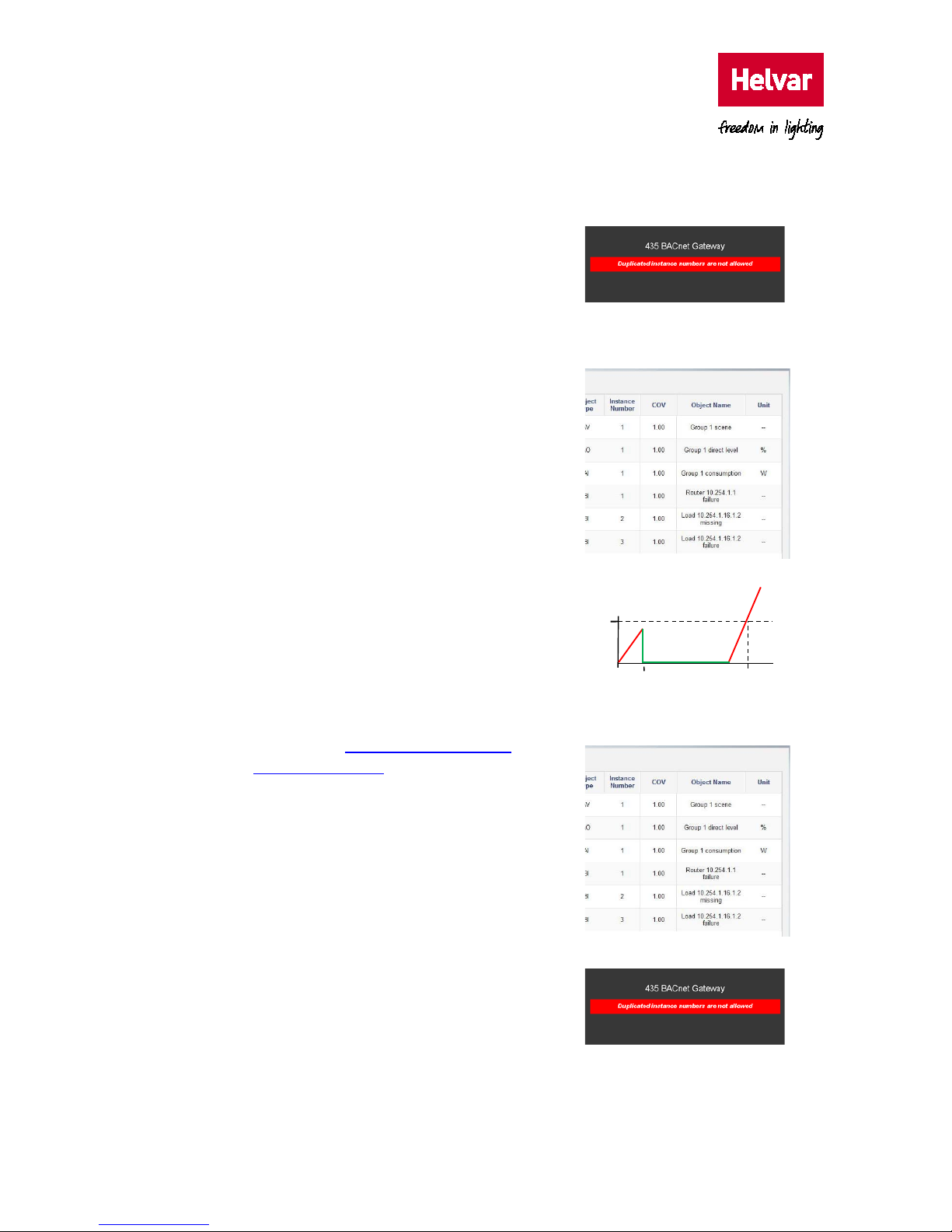
1. Select a parameter in the BACnet Points
table, and ensure that the
Source,
Address/Number, Property and Object
Type fields are correct.
Source: Group, Router or Load.
Note: ‘Load’ refers to parameters derived
from devices connected to the Helvar
router subnets.
Select
all
Page 19
Helvar 435 BACnet Gateway: User Guide
15
o Address/Number: Group number, Helvar router IP Address or Helvar router IP Address
and subnet device address.
o Property: Parameter label.
o Object type: AV (analogue value – read/write),
AO (analogue output – write only), AI (analogue
input – read only) or BI (binary input– read only).
2. If necessary, remove a configuration point. Select
the corresponding row (the first column shows ),
and then press
Unmap points.
Tip: To remove all configured points, set the top
most tick box , and then press Unmap points.
Note: Check the default BACnet Object name
applied. Group parameters appear as ‘<Group
No.> <parameter name>’, router parameters
appear as ‘Router <IP address> <parameter
name>’, and subnet devices appear as ‘Load
<IP address.subnet.device address>’
<parameter name’.
3. Make sure that the Instance Number, COV and
Object Name are correct.
o If necessary, edit the Instance Number. This is
a unique object type number that identifies the
location of the BACnet point in this device. It is
derived from the Base BACnet instance
numbers (see
Configure the mapping to
BACnet object types).
Caution: A warning message appears if a duplicated
BACnet Object type, AV, AO, AI or BI instance
number is detected.
o If necessary, edit the COV (Change Of Value)
field. This value determines when the BACnet
device sends a COV message to the BACnet
client. If the value changes by 1 or more, a COV
message is sent. It is displayed as
Object
Name in the BACnet Explorer.
Value increased
by less than 1
1.00
COV
threshold
Value increased
by more than 1
COV
message
sent
Page 20

16
Helvar
| Data is subject to change without notice.
Note: Typically, BACnet servers wait for a BACnet client to request data before responding,
but this optional BACnet property sends a COV message when the COV threshold is
exceeded.
o If necessary, edit the Object Name. An Object Name is automatically generated and
derived from the
Source, Address/Number and Property fields.
Caution: A warning message appears if a duplicated BACnet Object Name is detected.
4. Ensure that the Unit field is correct.
Unit: % or W
Note: The % unit refers to the Direct level parameter. It writes the percentage of light used in
the corresponding group. The W unit refers to the Power consumption parameter. It
reads the amount of power used in the corresponding group.
5. Press Save points to apply the changes.
2.5. Backup and restore settings
The Back up and Restore page provides functions that allows you to manage the configuration in
the 435 BACnet Gateway. The functions generate a file that replicates the configuration contained
in the unit. You can then use this file to restore the unit to an earlier state without losing data. The
IP configuration of the 435 may also change to the restore file settings (see
Restore: Backup
configuration or change device firmware).
2.5.1. Create a backup
The Back up button exports a copy of the configuration in this device. It creates a backup of the
configuration to a defined media/location. You can use this backup to restore the device to an
earlier state (see
Restore: Backup configuration or change device firmware).
Tip: Use the backup function (‘Back up and restore’ page), before performing any additional
changes and after checking that any configuration changes operate correctly. If it is not
possible to complete the update, this function will allow you to restore the unit to a
known operating condition without losing data.
To create a backup file:
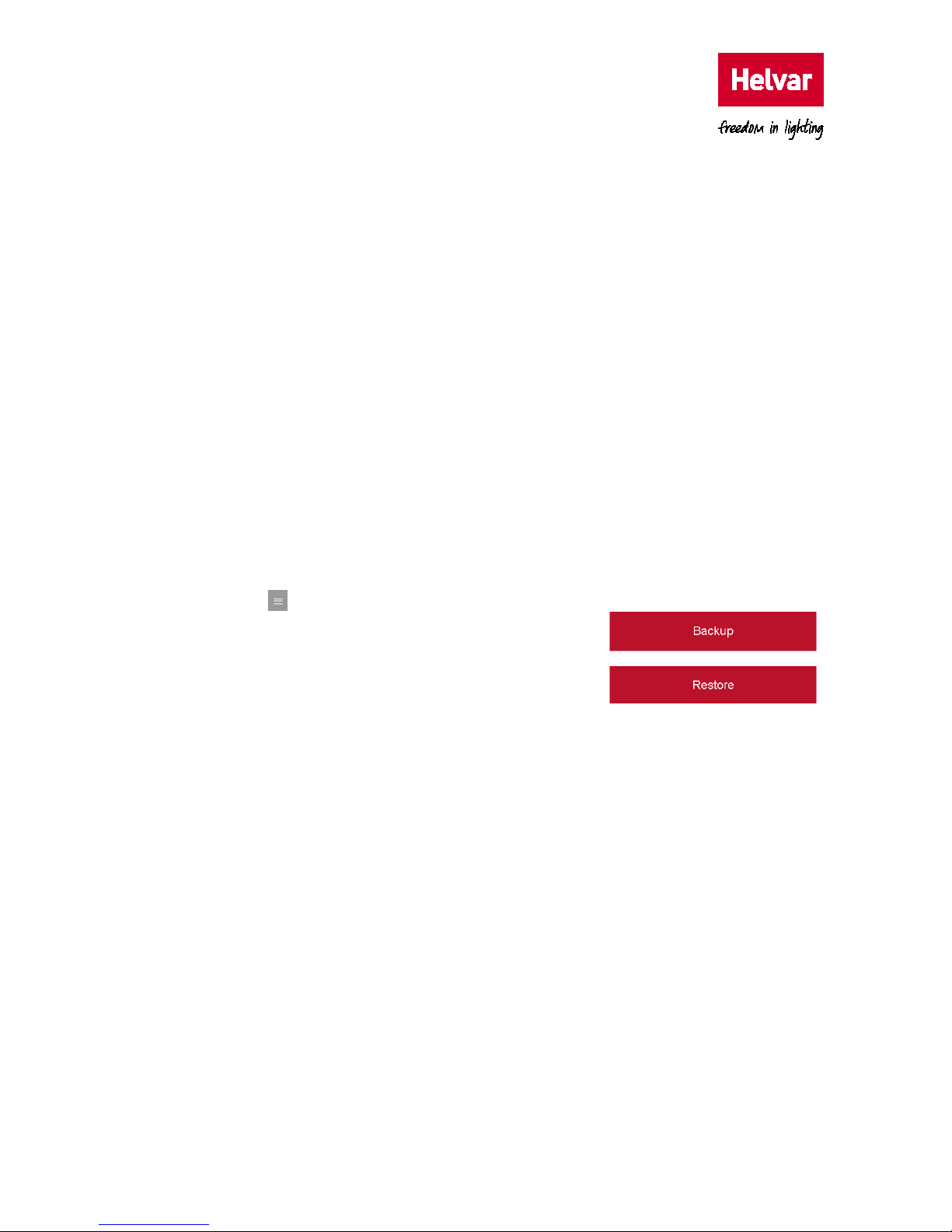
1. Press , and then select Back up to prepare device
specific configuration files ready for downloading an
encrypted backup file. When completed, a confirmation
dialog box appears.
Caution: Browsers may automatically download the file to
the computer ‘Downloads’ folder. This will
overwrite any file with the same filename.
Note: The Backup files do not have a file extension. They contain only configuration files,
including the ‘IP config’ settings, ‘HelvarNet settings’, ‘BACnet settings’, and ‘Map
points’ page configuration.
Page 21
Helvar 435 BACnet Gateway: User Guide
17
2. Rename the backup to clarify the origin, i.e. the IP address of the device, and then press
Save file.
Caution: Do NOT select ‘Open file’. Using ‘Open file’ may corrupt the backup file.
3. Locate the required back up destination, i.e. a hard drive, USB memory stick, or a removable
drive, and then press
Save.
2.5.2. Restore: Backup configuration or change device firmware
The Restore function returns the BACnet Gateway to an earlier state without losing data. This is
useful if it the unit is not operating correctly because of a configuration change or a problem with
an application. It is also useful for disaster recovery if the unit fails completely.
By restoring the BACnet Gateway to an earlier state (a version before it began to display
problems), it may be possible to resolve the problems caused by a serious system issue or data
loss. In addition, you can use the
Restore function to configure another unit before you fit it to an
existing system, thus reducing the repeat engineering time.
This feature is also used to apply firmware update files as necessary.
To restore a backup file:
1. Press , and then select Restore to launch a browse
dialog box.
2. Locate and select the required backup or firmware
update file, and then press
Open.
This will upload the selected file and extract the
information from the backup or update file.
If restoring a backup file, the existing configuration will be overwritten.
If restoring a firmware update file, the unit firmware will be overwritten, and the
configuration files will remain unaffected.
Tip: The device beeps steadily while the backup or update files are being loaded. A fanfare
indicates that the process is complete, and the device restarts automatically.
The ‘Login’ page will appear when the IP connection has been re-established. This may
take several minutes and may require a Refresh of the browser.
To confirm that updates have been successfully applied, press ‘Show version info’
button on the ‘Home’ page.
2.6. Configure the Login Security
When first installed, the configuration pages are protected by a user name and a default password
(see the
Installation Guide
). You must type them before you can access the configuration of the
device. After the device has been installed, change the default password to prevent unauthorised
access.
Page 22
18
Helvar
| Data is subject to change without notice.
Caution: Changing and retaining the password is the responsibility of the user/customer.
However, it may be possible to restore the default password. If required, contact your
Helvar support representative for further details.
To configure the password:
1. Do one of the following:
• If necessary, press Admin (on the Home page) to
display the
Change password page.
This page displays the User, Password and New
password text boxes, which allow you to change the
current password.
• Press , and then select Change Password to display the Change password page.
Tip: Press Go back to return to the configuration pages.
Press Logout (at any time) to exit the configuration pages immediately.
2. Type the default User name (Admin).
3. Type the current password.
Caution: Login security can be successfully controlled only if the password is carefully
distributed.
4. Type a new password (40 characters max.) in the New Password text box. This password
overwrites the previous password.
Tip: A random combination of numbers and uppercase and lowercase letters provide a
secure password setup.
5. Press Save to apply the changes and return to the Login page.
Page 23

Helvar 435 BACnet Gateway: User Guide
19
3. Order codes
ORDER CODES
DESCRIPTION
435
BACnet Gateway
AMR1 PSU
24 VDC 1 A power supply
435+AMR1 PSU
Combined above 2 items sold as a pack
Page 24

20
Helvar
| Data is subject to change without notice.
4. Protocol Implementation Conformance (PIC) Statement
Helvar’s 435 BACnet Gateway is an OEM product from Synapsys Solutions Ltd and is a variant of the
Synapsys SIP. The following Protocol Implementation Conformance (PIC) statement gives the full
compliance by Synapsys for all variants of the SIP gateway.
The Helvar 435 variant offers a reduced selection of the full BACnet/IP capability that is available from the
SIP. The standard object types supported for the Helvar 435 are:
analogue value, analogue input,
analogue output, and binary inputs.
Page 25

Helvar 435 BACnet Gateway: User Guide
21
Annex A – Protocol Implementation Conformance Statement (Normative)
(This annex is part of this standard and is required for its use.)
BACnet Protocol Implementation Conformance Statement
Date: 2 September 2016
Vendor Name: Synapsys Solutions Ltd
Product Name: Synapsys SIP
Product Model Number: N/A
Application Software Version: 1.05
Firmware Revision: 0.8.3
BACnet Protocol Revision: 12
Product Description
This software module is used across Synapsys SIP products range and exposes values typically
from Modbus, Mbus or other over BACnet IP.
BACnet Standardized Device Profile (Annex L):
BACnet Operator Workstation (B-OWS)
BACnet Advanced Operator Workstation (B-AWS)
BACnet Operator Display (B-OD)
BACnet Building Controller (B-BC)
BACnet Advanced Application Controller (B-AAC)
BACnet Application Specific Controller (B-ASC)
BACnet Smart Sensor (B-SS)
BACnet Smart Actuator (B-SA)
Page 26

22
Helvar
| Data is subject to change without notice.
List all BACnet Interoperability Building Blocks Supported (Annex K):
DS-RP-B, DS-RPM-B, DS-WP-B, DS-WPM-B, DS-COV-B,
DM-DDB-A, DM-DDB-B, DM-DOB-B, DM-DCC-B, DM-TS-B, DM-UTC-B
Segmentation Capability:
None
Standard Object Types Supported:
DEVICE:
Dynamically creatable: No
Dynamically deletable: No
Optional properties: Description, Local_Time, UTC_Offset, Local_Date, Daylight_Savings_Status,
Location, Active_COV_Subscriptions
Writable properties: –
Conditionally writable properties: –
Proprietary properties: –
Property range restrictions:
APDU_Timeout: 0-65535
Number_Of_APDU_Retries: 0-255
ANALOG_INPUT
Dynamically creatable: No
Dynamically deletable: No
Optional properties: Description, Reliability, COV_Increment
Writable properties: Present_Value and Reliability when Out_Of_Service is TRUE, Out_Of_Service
(These are saved in volatile memory; changes are lost after reboot)
Conditionally writable properties: –
Page 27

Helvar 435 BACnet Gateway: User Guide
23
Proprietary properties: –
Property range restrictions: –
ANALOG_VALUE
Dynamically creatable: No
Dynamically deletable: No
Optional properties: Description, Reliability, Priority_Array, COV_Increment, Relinquish_Default
Writable properties: Present_Value, Reliability when Out_Of_Service is TRUE, Out_Of_Service
(These are saved in volatile memory; changes are lost after reboot)
Conditionally writable properties: –
Proprietary properties: –
Property range restrictions: –
ANALOG_OUTPUT
Dynamically creatable: No
Dynamically deletable: No
Optional properties: Description, Reliability, COV_Increment
Writable properties: Present_Value, Reliability when Out_Of_Service is TRUE, Out_Of_Service (These
are saved in volatile memory; changes are lost after reboot)
Conditionally writable properties: –
Proprietary properties: –
Property range restrictions: –
BINARY_INPUT
Dynamically creatable: No
Dynamically deletable: No
Optional properties: Description, Reliability
Page 28

24
Helvar
| Data is subject to change without notice.
Writable properties: Present_Value and Reliability when Out_Of_Service is TRUE, Out_Of_Service
(These are saved in volatile memory; changes are lost after reboot)
Conditionally writable properties: –
Proprietary properties: –
Property range restrictions: –
BINARY_VALUE
Dynamically creatable: No
Dynamically deletable: No
Optional properties: Description, Reliability, Priority_Array, Relinquish_Default
Writable properties: Present_Value, Reliability when Out_Of_Service is TRUE, Out_Of_Service (These
are saved in volatile memory; changes are lost after reboot)
Conditionally writable properties: –
Proprietary properties: –
Property range restrictions: –
BINARY_OUTPUT
Dynamically creatable: No
Dynamically deletable: No
Optional properties: Description, Reliability
Writable properties: Present_Value, Reliability when Out_Of_Service is TRUE, Out_Of_Service (These
are saved in volatile memory; changes are lost after reboot)
Conditionally writable properties: –
Proprietary properties: –
Property range restrictions: –
MULTISTATE_INPUT
Dynamically creatable: No
Page 29

Helvar 435 BACnet Gateway: User Guide
25
Dynamically deletable: No
Optional properties: Description, Reliability, State_Text
Writable properties: Present_Value and Reliability when Out_Of_Service is TRUE, Out_Of_Service
(These are saved in volatile memory; changes are lost after reboot)
Conditionally writable properties: –
Proprietary properties: –
Property range restrictions: Max. 128 states, each state max. 19 characters.
MULTISTATE_VALUE
Dynamically creatable: No
Dynamically deletable: No
Optional properties: Description, Reliability, Priority_Array, State_Text, Relinquish_Default
Writable properties: Present_Value, Reliability when Out_Of_Service is TRUE, Out_Of_Service
(These are saved in volatile memory; changes are lost after reboot)
Conditionally writable properties: –
Proprietary properties: –
Property range restrictions: Max. 128 states, each state max. 19 characters
MULTISTATE_OUTPUT
Dynamically creatable: No
Dynamically deletable: No
Optional properties: Description, Reliability, State_Text
Writable properties: Present_Value, Reliability when Out_Of_Service is TRUE, Out_Of_Service
(These are saved in volatile memory; changes are lost after reboot)
Conditionally writable properties: –
Proprietary properties: –
Property range restrictions: Max. 128 states, each state max. 19 characters
Data Link Layer Options:
Page 30

26
Helvar
| Data is subject to change without notice.
BACnet IP, (Annex J)
BACnet IP, (Annex J), Foreign Device
ISO 8802-3, Ethernet (Clause 7)
ATA 878.1, 2.5 Mb. ARCNET (Clause 8)
ATA 878.1, EIA-485 ARCNET (Clause 8), baud rate(s) ____________
MS/TP master (Clause 9), baud rate(s): ____________
MS/TP slave (Clause 9), baud rate(s): ____________
Point-To-Point, EIA 232 (Clause 10), baud rate(s): ____________
Point-To-Point, modem, (Clause 10), baud rate(s): ____________
LonTalk, (Clause 11), medium: ____________
BACnet/ZigBee (ANNEX O)
Other: ____________
Device Address Binding:
Is static device binding supported? (This is currently necessary for two-way communication with
MS/TP slaves and certain other devices.)
Yes No
Networking Options:
Router, Clause 6 - List all routing configurations, e.g., ARCNET-Ethernet, Ethernet-
MS/TP, etc.
Router, Clause 6 - List all routing configurations, e.g., ARCNET-Ethernet, Ethernet-
MS/TP, etc.
Annex H, BACnet Tunneling Router over IP
BACnet/IP Broadcast Management Device (BBMD)
Does the BBMD support registrations by Foreign Devices?
Yes No
Does the BBMD support network address translation?
Yes No
Network Security Options:
Non-secure Device – capable of operating without BACnet Network Security
Secure Device - is capable of using BACnet Network Security (NS-SD BIBB)
Page 31

Helvar 435 BACnet Gateway: User Guide
27
Multiple Application-Specific Keys:
Supports encryption (NS-ED BIBB)
Key Server (NS-KS BIBB)
Character Sets Supported:
Indicating support for multiple character sets does not imply that they can all be supported
simultaneously.
ISO 10646 (UTF-8)
IBM /Microsoft DBCS ISO 8859-1
ISO 10646 (UCS-2) ISO 10646 (UCS-4) JIS X 0208
If this product is a communication gateway, describe the types of non-BACnet
equipment/networks(s) that the gate-way supports:
This product is a gateway. It typically exposes modbus, mbus but also other building protocols to
BACnet IP. The non-BACnet equipment depends on product model.
 Loading...