

Page 1
Heise Connect
RGB PRO Quick start page
Step 1: Download app for smart devices.
Step 2: Identify controller (pg. 2)
• Open the Heise Connect app
• Tap connect page
• Verify controller link
• Check mark only 1 controller
• Use the on/off button to identify
which controller it is
Step 3: Rename (pg. 11)
• Select setting page
• Tap controller settings
• Scroll to select active controller
• Tap inside current device name,
clear box and type desired name
Example: Headlights
HeiseLED.com
© COPYRIGHT 2022 METRA ELECTRONICS CORPORATION
REV. 11/15/2022 HEISE CONNECT
Step 4: Set pixel [Chasing controller(s) only]
• Select setting page (pg. 8)
• Tap chasing settings (pg. 10)
• Scroll to select controller
• Locate the at the end of the
instruction for the product purchased.
Set the pixel range to the value listed in
the instructions
Step 5: Controller security
• Select setting page (pg. 8)
• Tap password (pg. 9)
• Scroll to select controller
• Enter a new password
NOTE: The default password is [123456]
Step 6: RF remote lock (pg.13)
NOTE: Choose one RF card remote to use with all
controllers.
• Remove from antistatic bag, and pull out
clear tab from bottom to activate
• Verify remote is operating
• Press and hold the bottom left button that
is purple for 5 seconds. The lights will
flash to indicate that the controller(s) are
now RF locked to this remote
NOTE: All controllers that flashed are RF locked to this
remote. The app works independent of the RF lock.
Repeat for all remaining controllers
HeiseLED.com
Tech Support: 386.257.1187
Page 2
Heise Connect
RGB PRO Reference guide
Scan QR to download app
on google play, and Apple
app stores.
Table of contents
Main screens………………………………………........
Connect
Icons and descriptions…………………..
Grouping……………………………………….
Control
Static colors…………………………………..
Modes + Patterns (Chasing default).
Modes + Patterns (Chasing DIY)……
Music + Microphone………………………
Settings
Icons………………………………………………
Controller password………………….…..
Pixel count (Chasing only)……………...
Naming the controller(s)………………..
Triggers (Brake and turning)…………..
RF Card remote…………………………………………..
Chasing master list……………………………………..
RGB(W) master list……………………………………..
Page Number
1
2
3
4
5
6
7
8
9
10
11
12
13
14-16
17
HeiseLED.com
Table of contents
Page 3
Heise Connect
RGB PRO Reference guide
HeiseLED.com
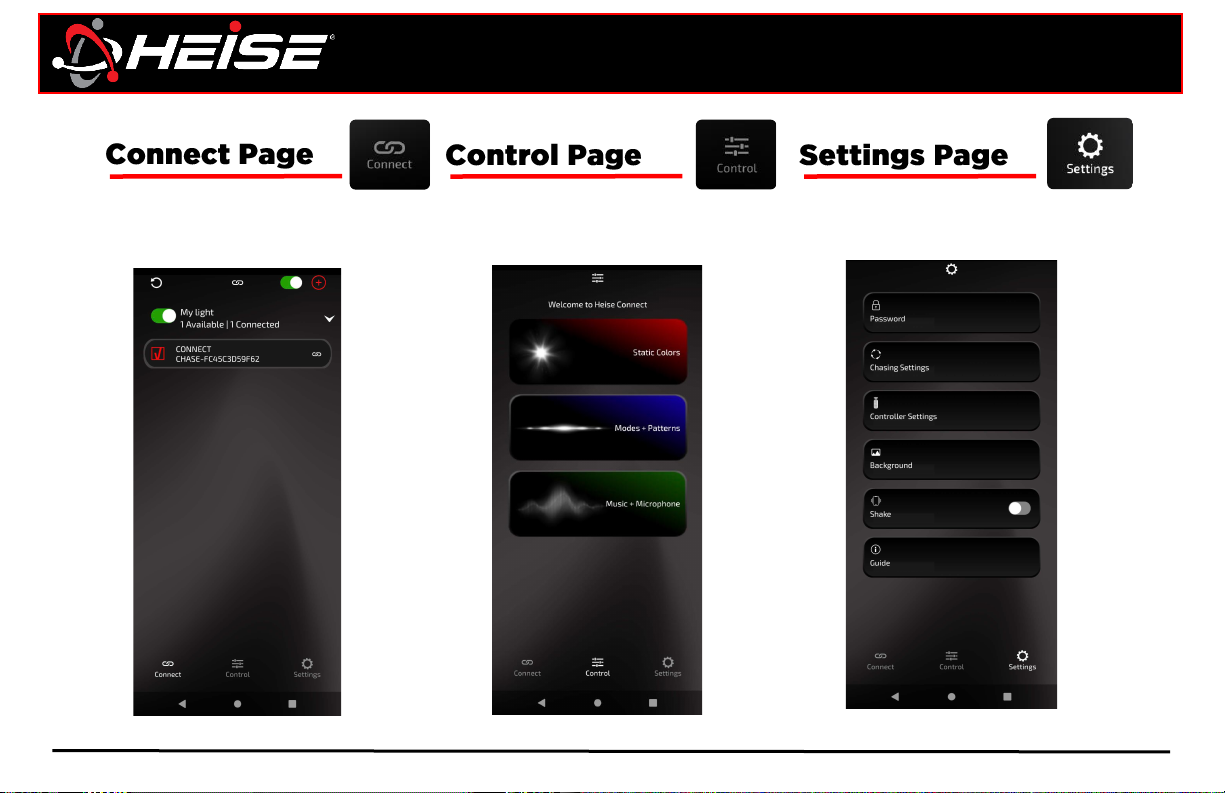
Landing page | Page 1
The connect button opens the page where all
available devices can be viewed, connected,
and activated.
The control button opens the color and
animation page.
The Settings button opens the page where all
available controller related, and app related
setting can be adjusted.
Page 4
Heise Connect
RGB PRO Reference guide
HeiseLED.com
Connect | Page 2
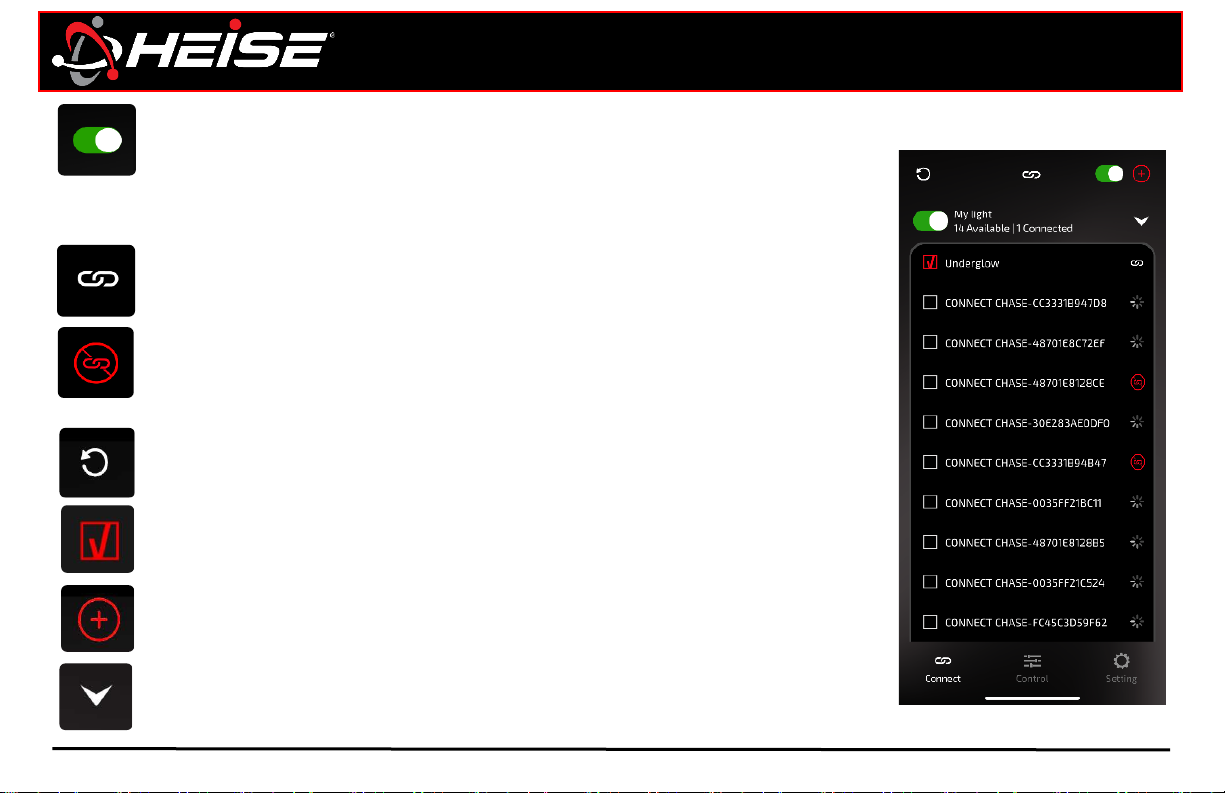
Status
Next to each controller in the list there is a chain symbol, it will be in one of 2 states,
linked if the controller is connected or crossed out if the controller is disconnected. By
tapping the chain, the associated controller can be connected or disconnected.
NOTE: Android only, only 4 controllers can be connected simultaneously. If 4 controllers are
connected, one myst be disconnected before another controllers can be connected.
Power
The primary power button (at the top right) switches off/on all lights on selected controllers. The
slider is green when the lights are on, and black when the lights are off. The group power button
(at the group name) works the same as the primary power button, but only the selected group.
Note, this only turn the lights on and off, it does not power down and power on the controllers.
Refresh
Pressing the refresh will cause the app to scan for more controllers.
Controller selection
Putting a check in this box, selects the controller to be activated by the app.
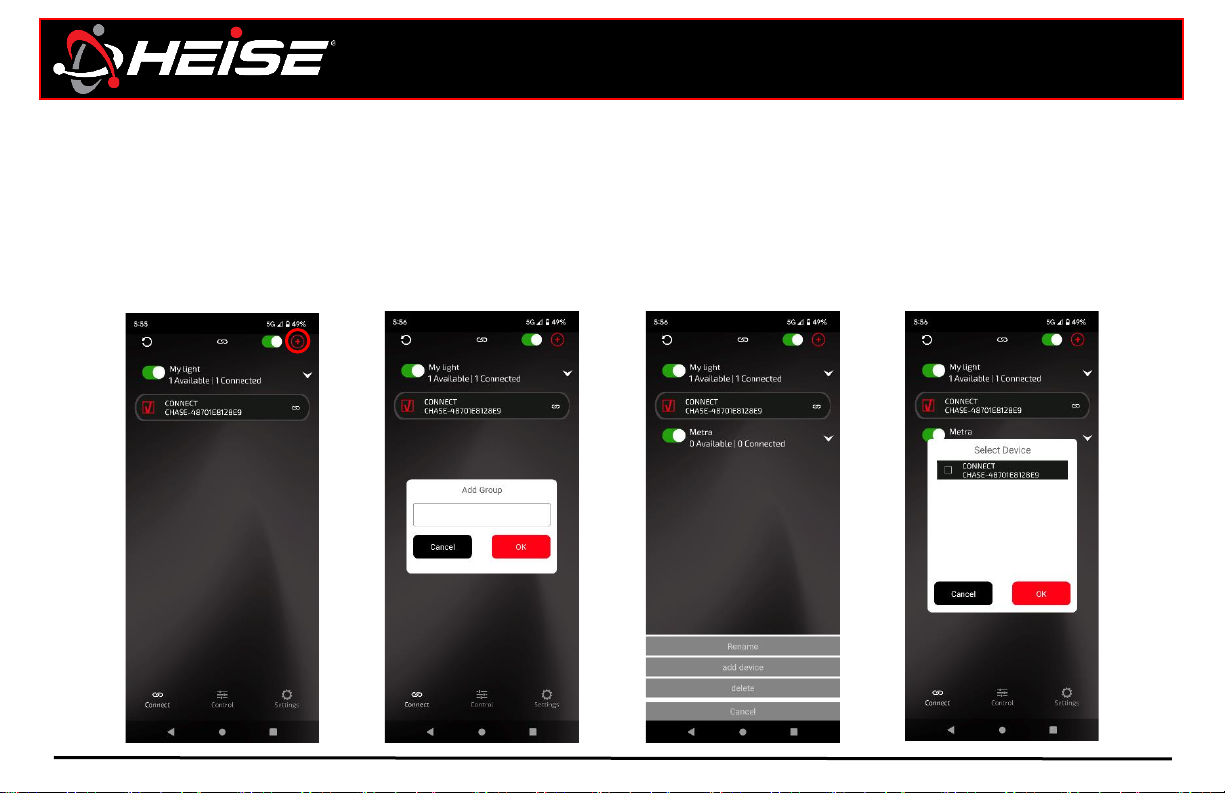
Group list
Pressing this icon will display all controllers in the group.
Connection grouping
Pressing this icon will create a new group
Connect Page | Icons
Page 5
Heise connect
RGB PRO Reference guide
HeiseLED.com
Connect | Page 3
“Add Group”
Name group, click “OK”
“Add Device”
“Place check, click ok”
Connections and grouping
Groups can be created by pressing the “add group” towards the bottom of the screen. You will be asked to name
the group. The new group is now created. Press and hold on the group in the panel to bring up the option menu,
where the group can be renamed, devices added, or deleted. Selecting “ADD DEVICE” will present a list of available
devices that can be selected and added to the group.
Metra
Connect Page | Grouping
Page 6
z
Heise connect
RGB PRO Reference guide
HeiseLED.com
Control | Page 4
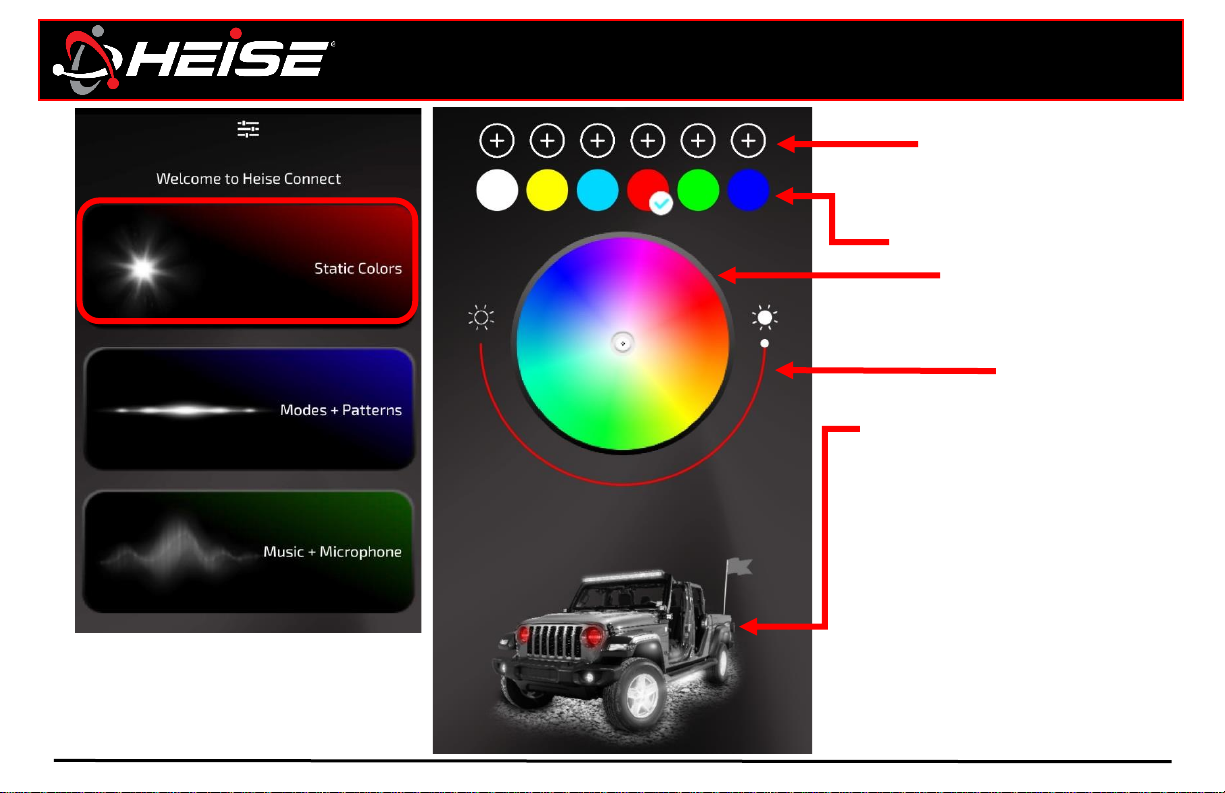
Custom colors
Use the color wheel to
select the custom color
desired. Press save.
Preset colors
Color wheel
Brightness
slider
Active zone color
NOTE: Zones are assigned in
“controller settings” found on pg. 11.
The color displayed is the current
active color.
• LED Headlight
• LED Fog Light
• LED Rock Light
• LED Interior Light
• LED Light Bar
• LED Whip Light
• LED Wheel Light
• LED Underglow Light
Control Page | Static Colors
Page 7
Heise connect
RGB PRO Reference guide
HeiseLED.com
Control | Page 5
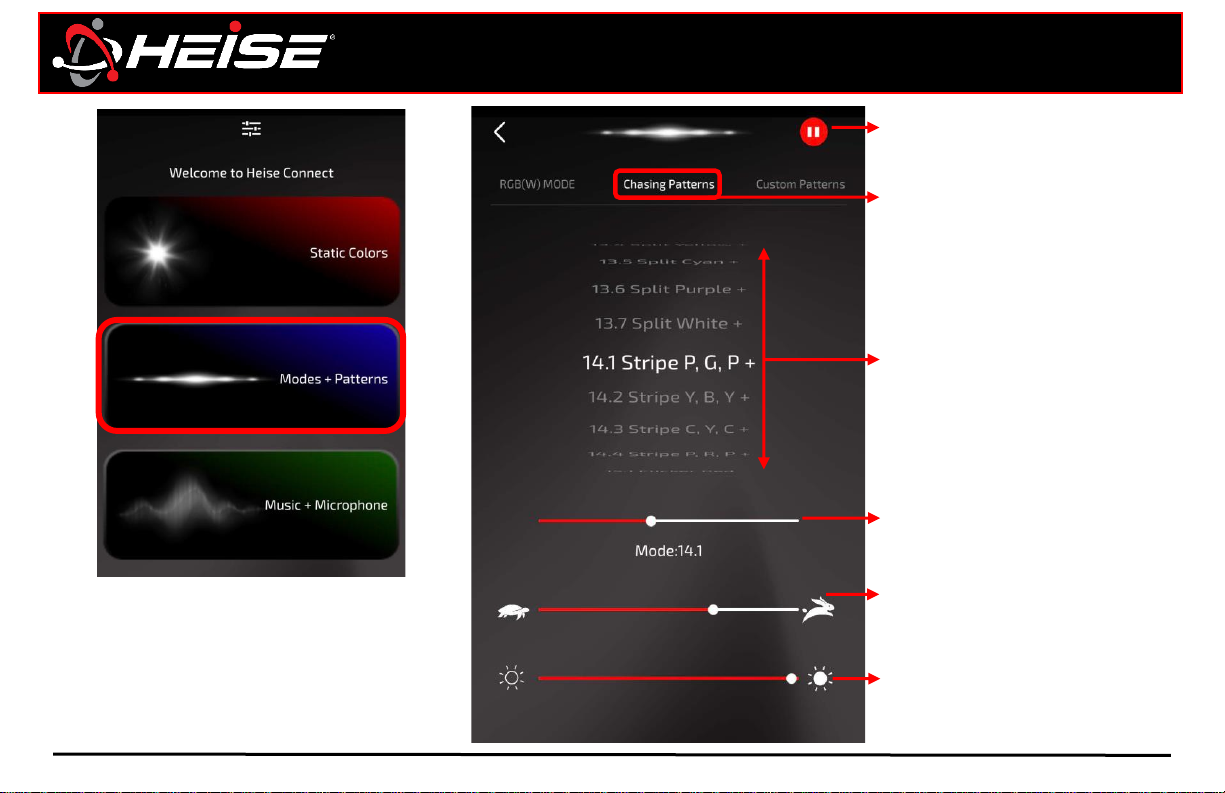
Pattern scroll
NOTE: See full list on pg. 14-16.
Mode slider
Linear pattern list selector
Play / Pause
NOTE: Chasing patterns and Custom
patterns only affect chasing controllers.
RGB(W) MODE only affects RGB and
RGBW controllers.
Speed slider
Speed up or slow down a
chasing animation
Brightness
Choose LED light output
Chasing Patterns
Default list of chasing patterns
and colors.
Control Page | Chase (Default)
Page 8
Heise connect
RGB PRO Reference guide
HeiseLED.com
Control | Page 6
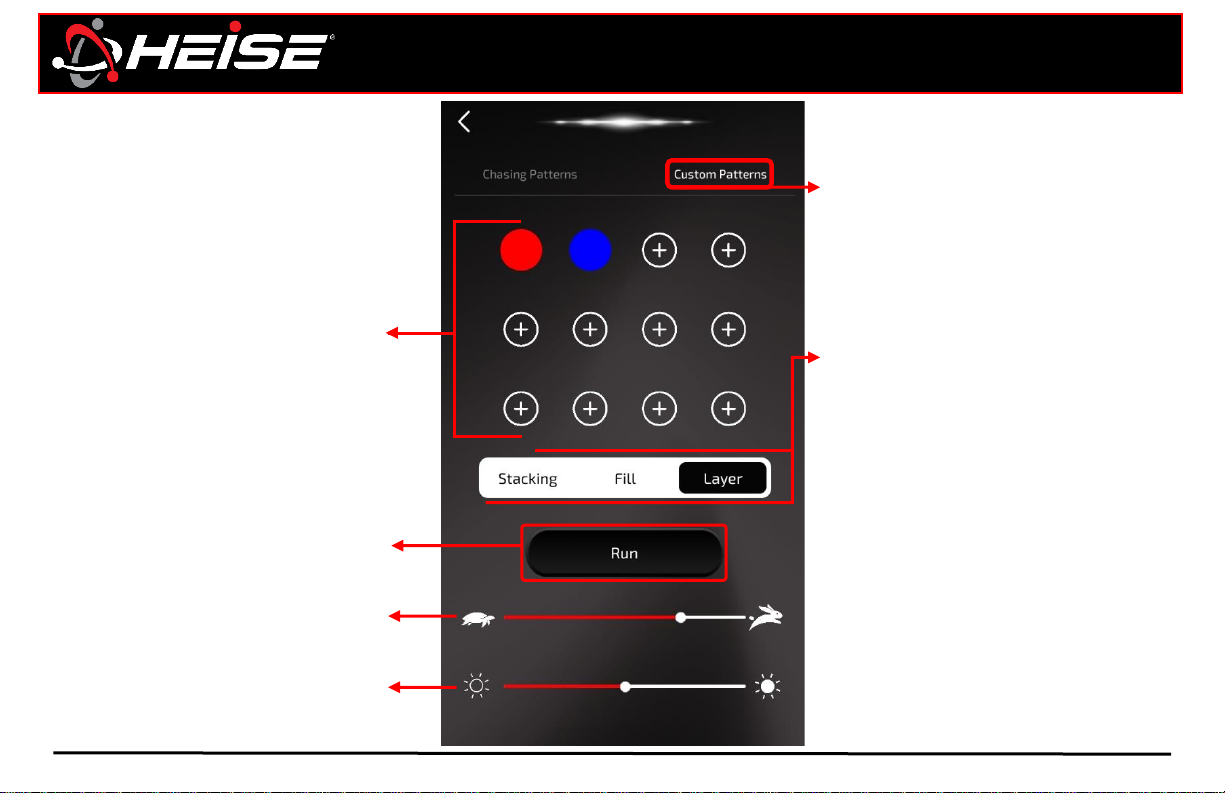
Color Pallet
Chooses the colors that are going
to appear in custom pattern
Chasing styles
Stacking: Builds single color,
one segment at a time until
completed advancing to next
chosen color.
Fill: Flowing first selected color
until all pixels are filled.
Advancing to next chosen
color, after brief pause in
between each color change.
Layer: Flowing first selected
color until all pixels are filled.
Advancing to next chosen color
without pause.
Run
Tapping this will start
the selections above
Speed slider
Speed up or slow down a
chasing animation
Brightness
Choose LED light output
Custom Patterns
Design a custom pattern.
Control Page | Chase DIY
Page 9
Heise connect
RGB PRO Reference guide
HeiseLED.com
Control | Page 7
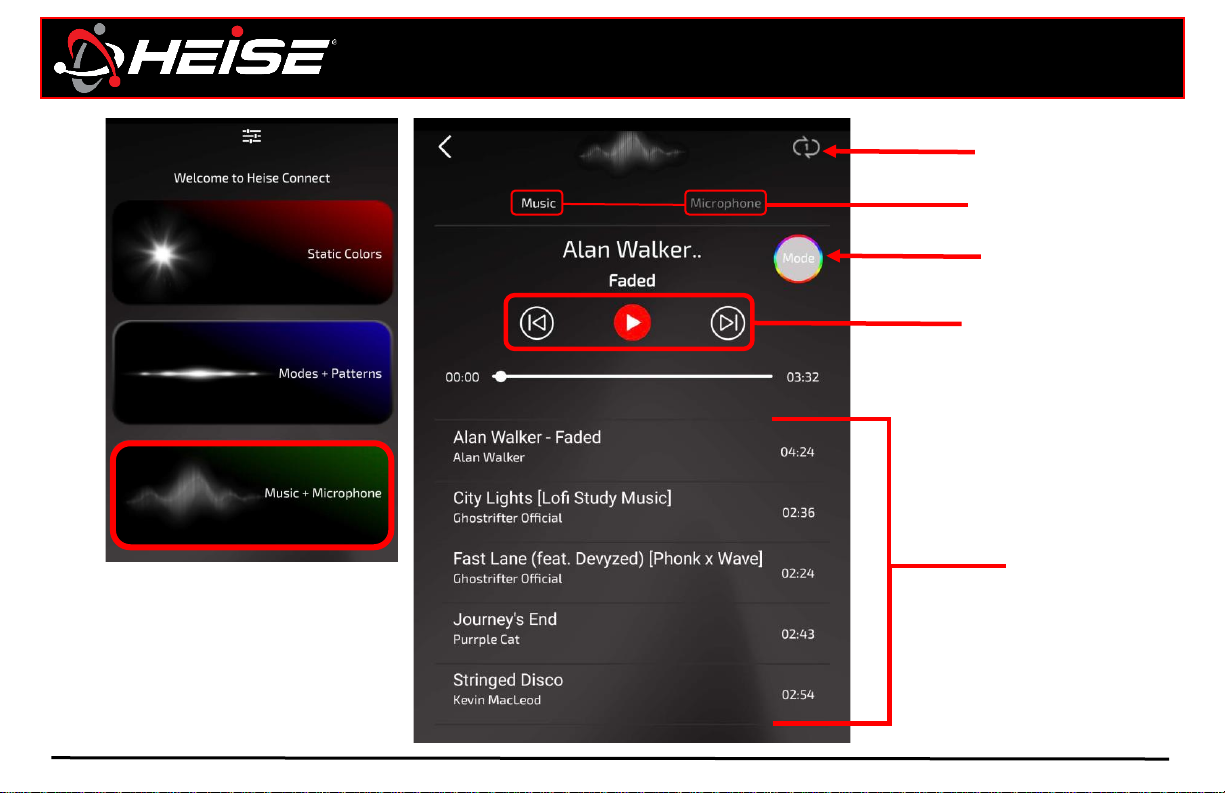
Locally stored music
Streaming and content
downloaded from
streaming services is not
available.
Repeat control
Source selector
Pattern selector
(Tap to cycle between 2 patterns)
Music controls
Control Page | Music and Microphone
Page 10
Heise connect
RGB PRO Reference guide
HeiseLED.com
Settings | Page 8
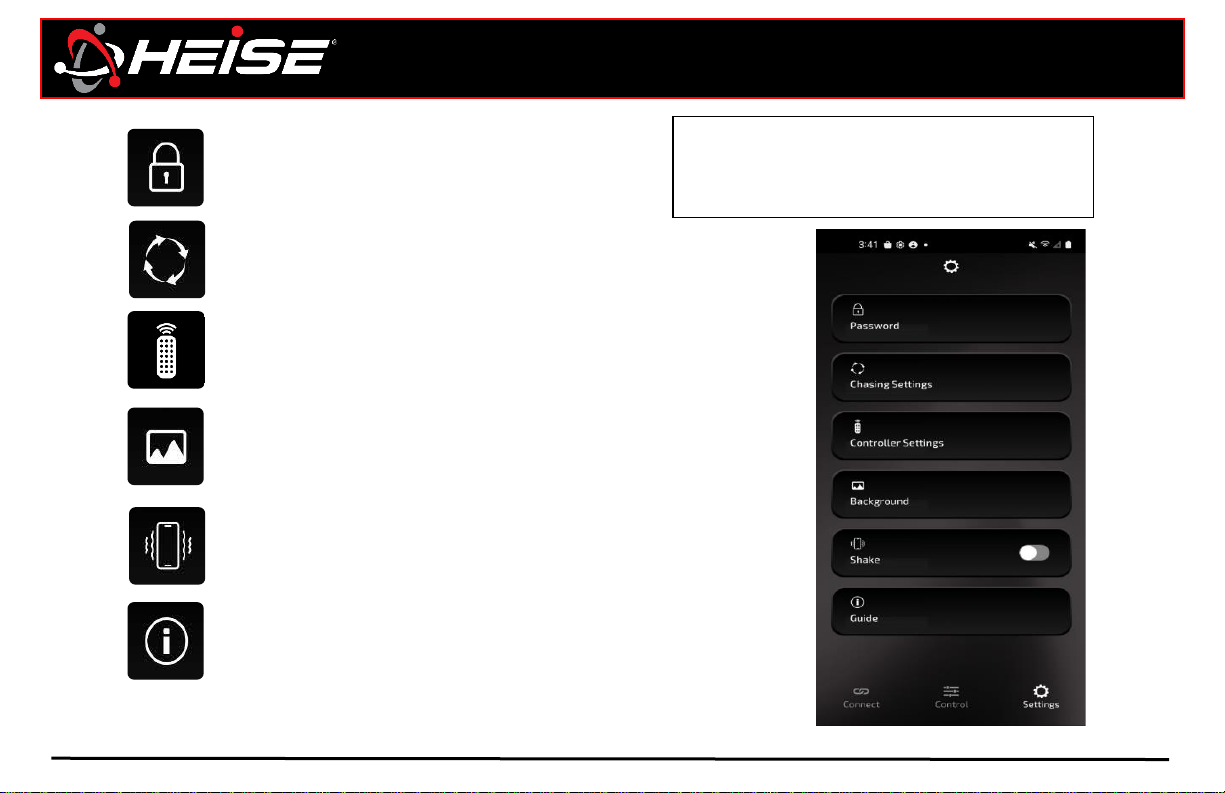
The Controller settings page is where the
APP can be customized to the installation,
and main device used with the product.
Shake function
Slide on/off to activate. Shake your device to switch colors or
patterns.
Guide
Detailed user guide is available in-app, with details of how to
use the Heise connect app.
Background
You can change the app background (not illumination preview image) to any photo in
your devices image gallery. Click “Image reset” to change back to default background.
NOTE: All images will be compressed/stretched to fit the screen.
Controller settings
Customize the apps zones, controller names and trigger
controls. Read more on pg. 11.
Chasing settings
Set controller pixel count, and RGB settings. Read more on pg. 10.
Password
Set controller(s) password
Settings Page | Icons
Page 11
Heise connect
RGB PRO Reference guide
HeiseLED.com
Settings | Page 9
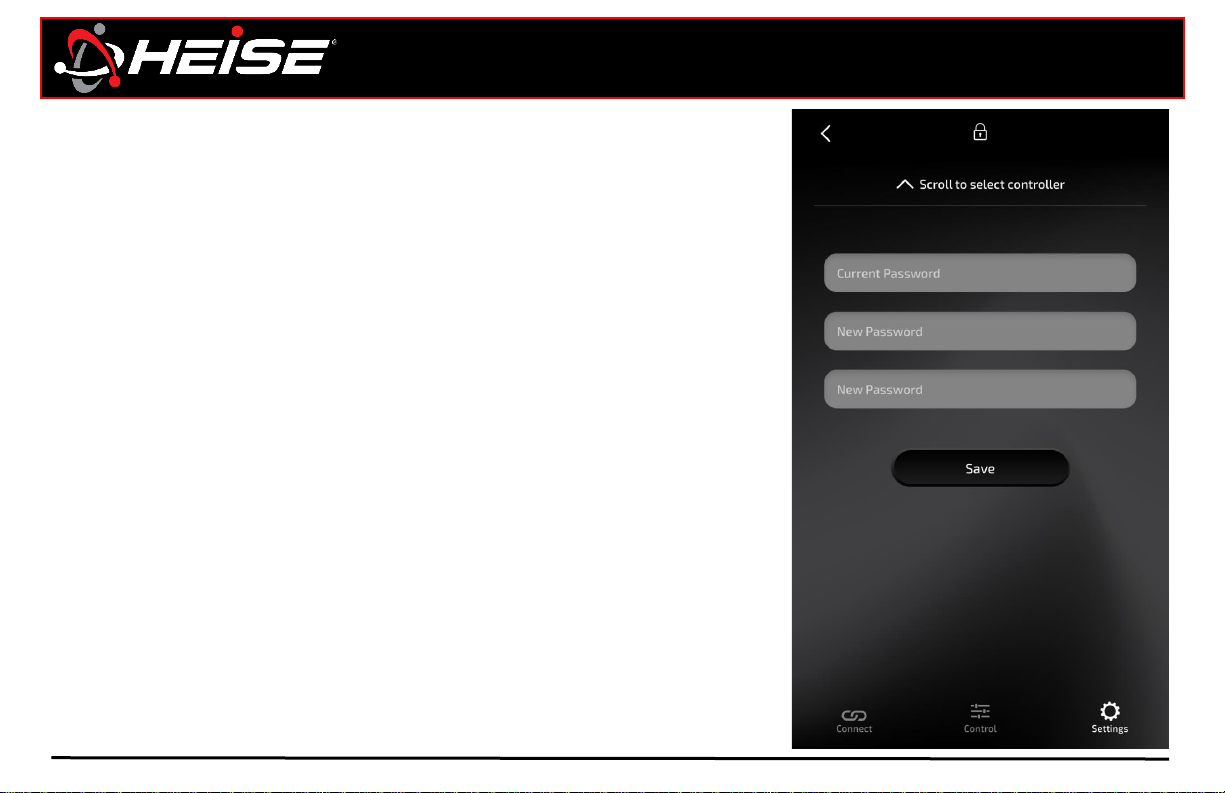
Password function:
Password lock can ensure one-to-one control of the product. It prevents other
phones from controlling your product when it is operating.
How to set the Password (app):
From the setting cog, click the password function, slide up to select your device,
enter the original password in the first line (the original password is: 123456), enter
the new password in the second line, and enter the same new password again in the
third line. Click save, a confirmation message “password set success” should appear.
If you forget the Password:
Switch the controller quickly on/off 10 times to restore the initial password. Do this
by connecting and disconnecting the red wire from the +12V power source. The black
wire needs to be connected to chassis ground during this process.
Settings Page | Password
Page 12
Heise connect
RGB PRO Reference guide
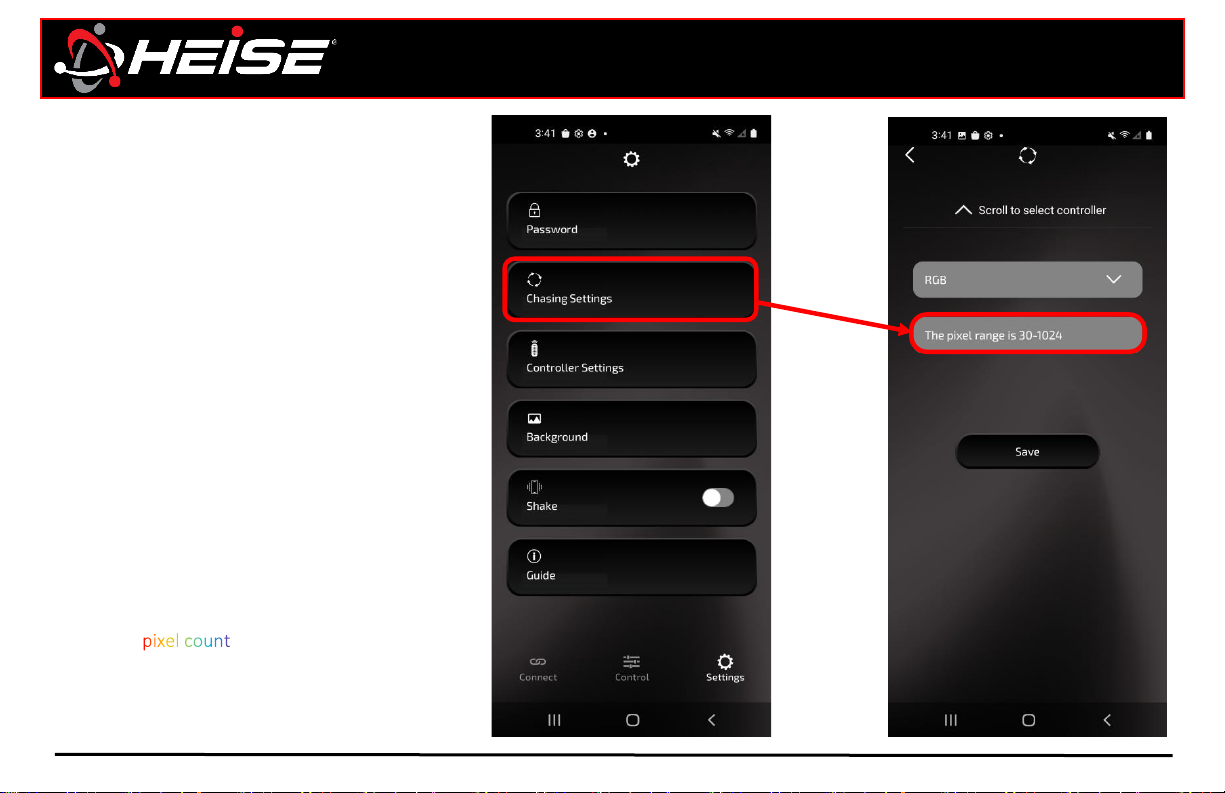
Setting up the pixel count:
In the app is an important step in achieving
proper functionality of the HEISE connect
chasing products.
Each chasing product has its own unique pixel
count determined by the physical properties of
the lights. By setting the pixel count in the app,
the app effectively knows how “large” the light
(or light set) is and adjust the pattern program
accordingly to fit.
Quick Setup: It is recommended to select a solid
color for initial setup. If you have any LEDs that
are not activated, increase the pixel count until
all LEDs are activated.
To set the pixel count do the following: Look at
the instruction that came with the HEISE
connect chasing product. This is typically
labeled “ “ on the CHASING products
instructions. Enter that number in the pixel
count, and press the “Save” button.
NOTE: minimum pixel count is 30.
HeiseLED.com
Settings | Page 10
Settings Page | Pixel count
Page 13
Heise connect
RGB PRO Reference guide
HeiseLED.com
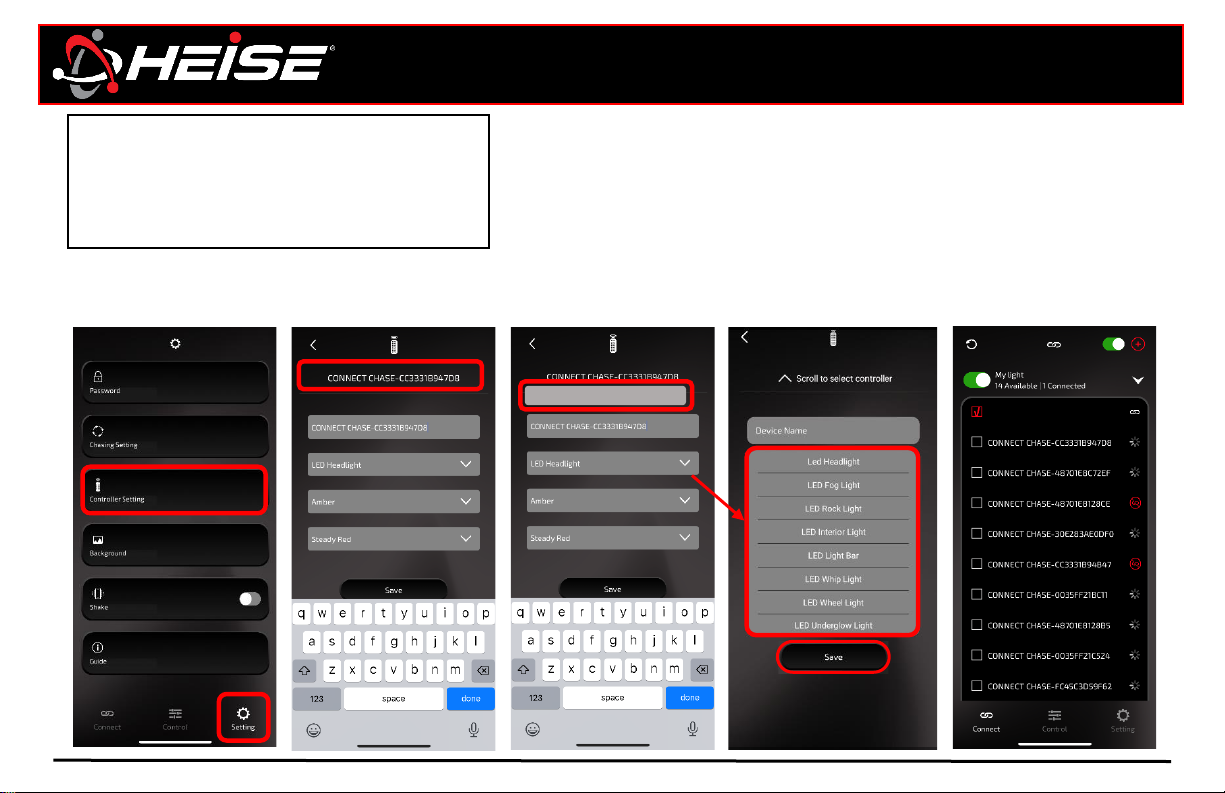
Settings | Page 11
Tap device name,
and type desired
name.
Example: Underglow,
Headlights, Whip
Headlight
Scroll to controller
Tap controller
settings
In the connect
screen, you will see
the new name of the
controller.
NOTE: Custom names
and groups are saved to
configuration device
and not transferrable.
Headlight
After naming the
controller, select
the product type
and tap save.
NOTE: This will set the
zone area used for
color in app. (pg. 4)
An easy way to identify multiple
controllers, and which zones they’re
assigned to, is by renaming the
controller(s) in the app.
Settings Page | Naming controller
Page 14
z
Heise connect
RGB PRO Reference guide
HeiseLED.com
Settings | Page 12
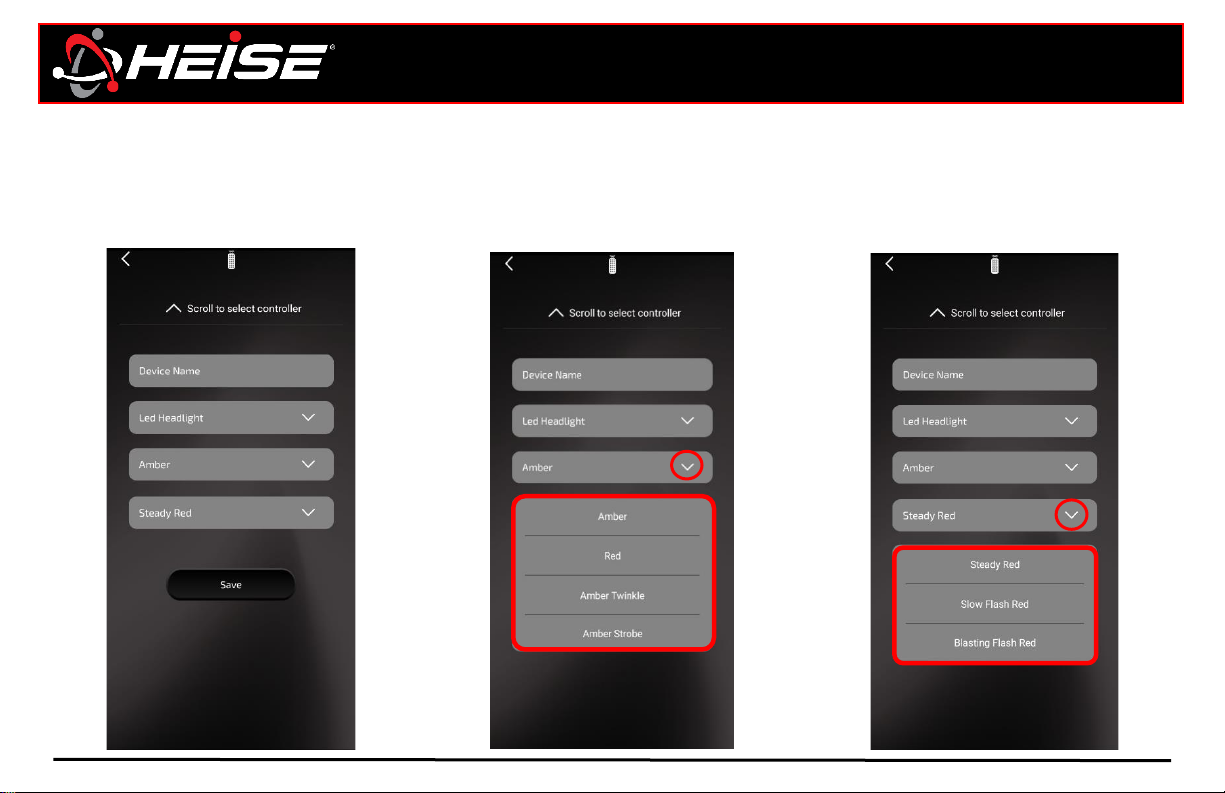
Some controllers have triggers
available. These are usually turn
signals, and a brake light trigger
activated.
The brake trigger, when connected,
will illuminate both the left and
right circuit with the signal. 3 styles
in red can be selected.
The turn signal triggers, when
connected, will flash the left/right
circuit with the left/right signal. 3
styles in amber and 1 style of red can
be selected.
Settings Page | Programmable triggers
Page 15
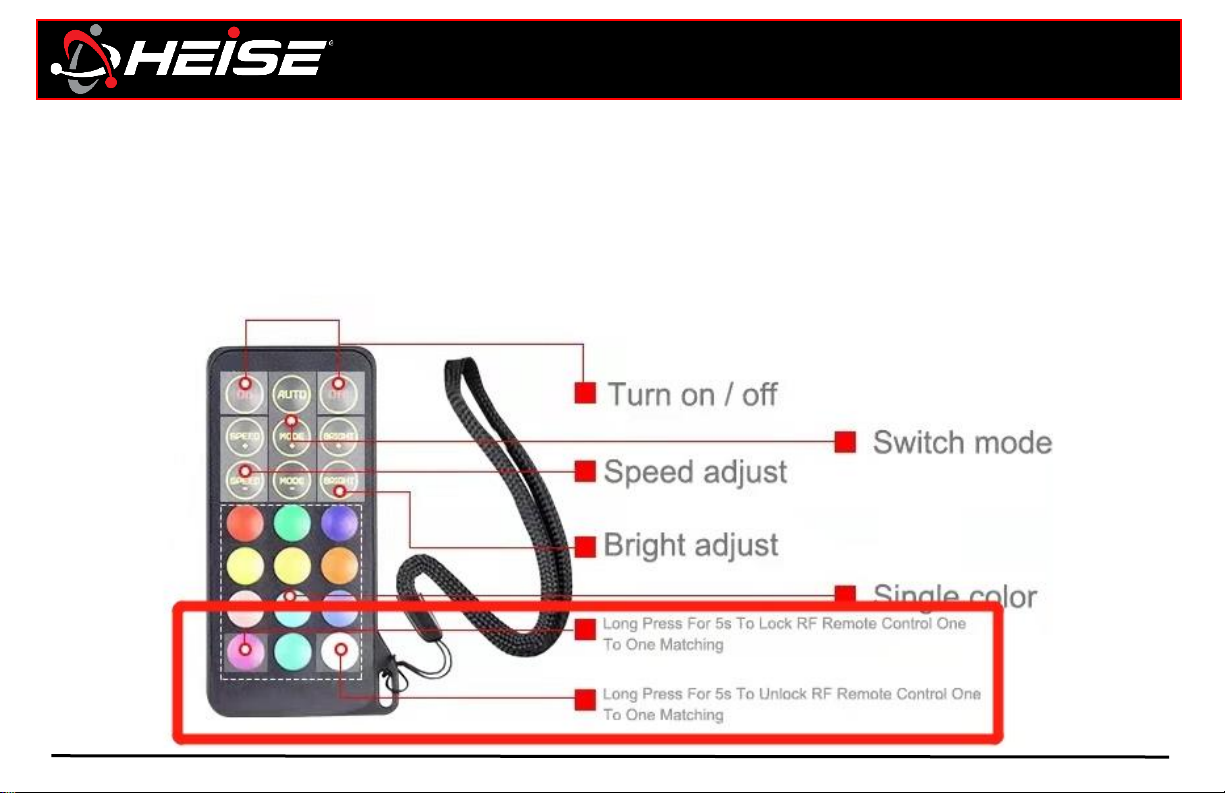
How to set the RF lock (remote):
The RF remote is an easy way to control the lighting, however the RF control is susceptible to interference that can trigger the
lights to change. For this reason, the controller has been equipped with an RF lock function, so that the controller only accepts
commands from the paired remote. It is recommended to lock one remote to all controllers.
Lock on: Hold the bottom left button for five seconds, while in range of the controller.
Lock off: Hold the bottom right button for five seconds, while in range of the controller.
Heise connect
RGB PRO Reference guide
HeiseLED.com
Card remote | Page 13
RE Remote | RF Lock
Page 16
Heise connect
RGB PRO Reference guide
HeiseLED.com
Controls | Page 14
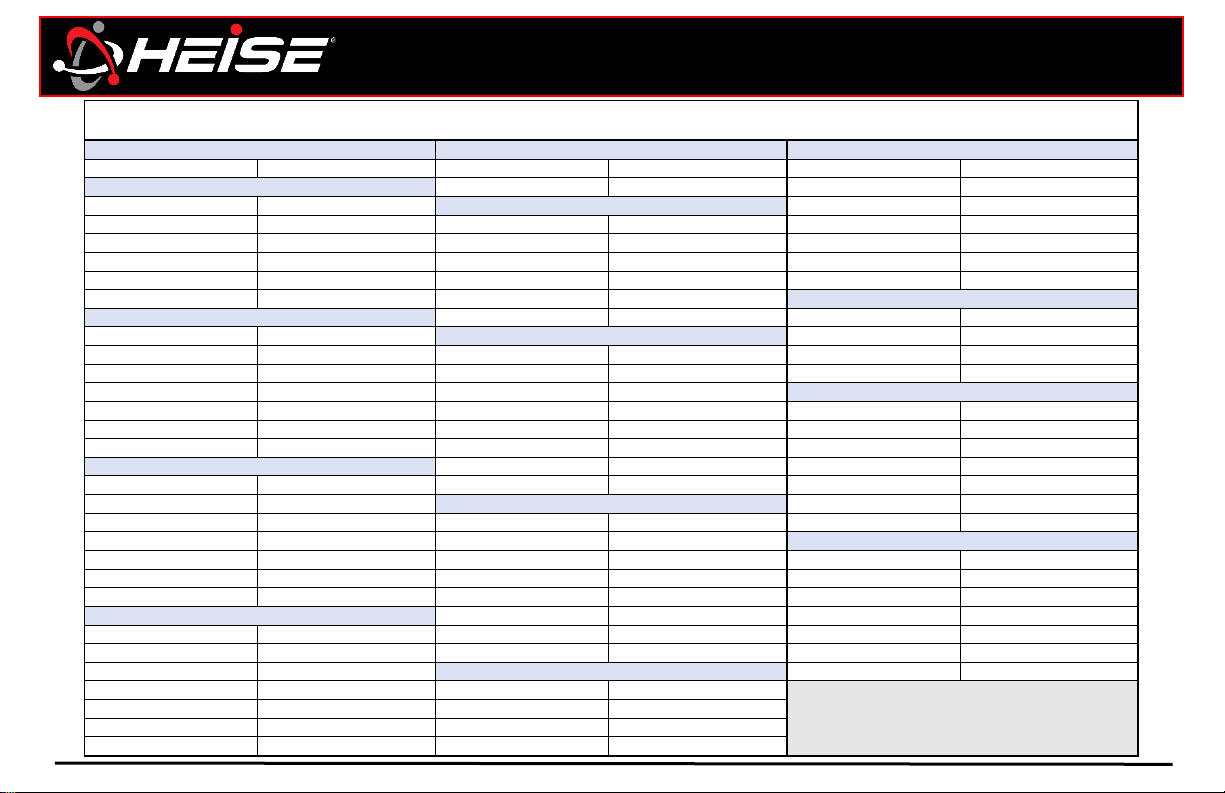
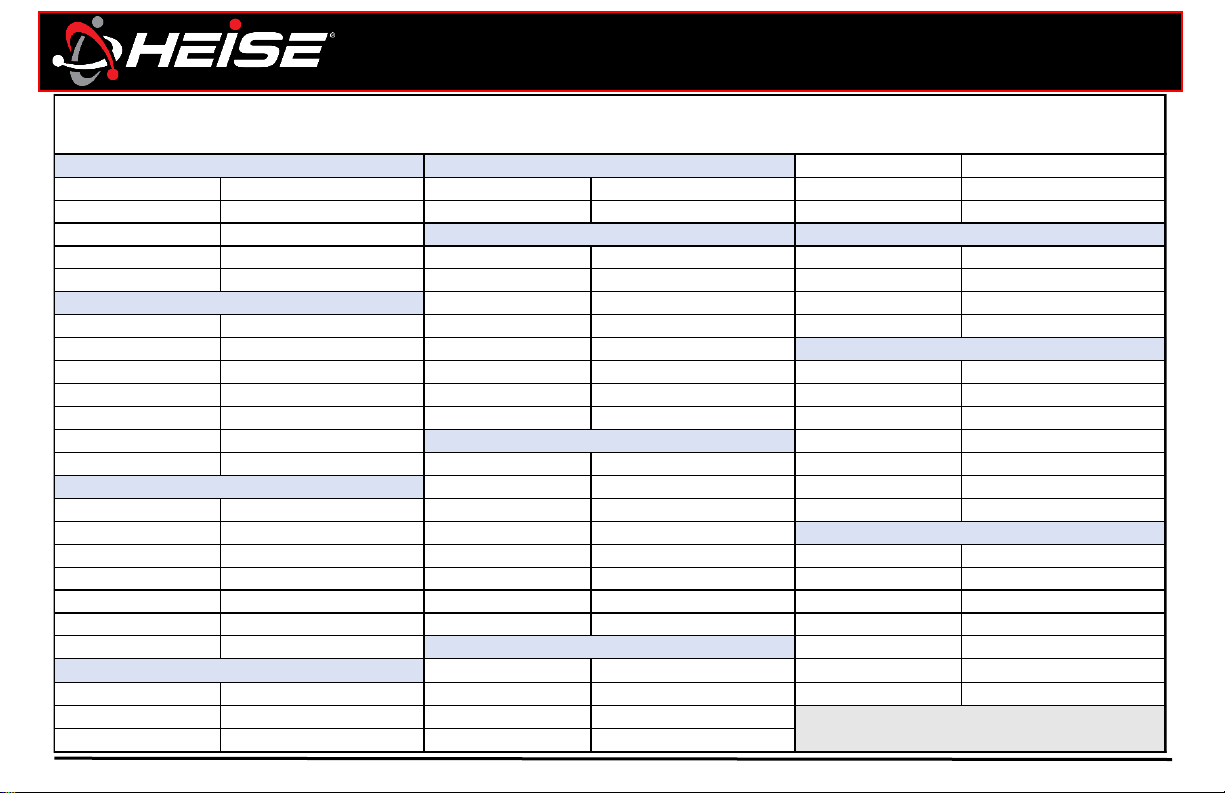
Controls Page | Chase master list
1.1 Rainbow of colors 7.1 Red, Green, Blue 13.1 Red
7.2 Yellow, Cyan, Purple 13.2 Green
2.1 Fire 13.3 Blue
2.2 Pulse 8.1 Red on Blue 13.4 Yellow
2.3 Fill 8.2 Green on Red 13.5 Cyan
2.4 March 8.3 Blue on Green 13.6 Purple
2.5 Layer 8.4 Purple on Yellow 13.7 White
2.6 Split 8.5 Yellow on Purple
8.6 Cyan on Red 14.1 Purple / Green / Purple
3.1 Red 14.2 Yellow / Blue / Yellpw
3.2 Green 9.1 Red, Green, Blue 14.3 Cyan / Yellow / Cyan
3.3 Blue 9.2 Yellow, Cyan, Purple 14.4 Purple / Red / Purple
3.4 Yellow 9.3 Red, Green
3.5 Cyan 9.4 Green, Blue 16.1 Red
3.6 Purple 9.5 Yellow, Blue 16.2 Green
3.7 White 9.6 Yellow, Cyan 16.3 Blue
9.7 Cyan, Purple 16.4 Yellow
4.1 Red on Green 9.8 White, Off 16.5 Cyan
4.2 Green on Red 16.6 Purple
4.3 Blue on Yellow 10.1 Red / Blue / Red 16.7 White
4.4 Yellow on Cyan 10.2 Blue / Green / Red
4.5 Red on Blue 10.3 Red / Green / Red 17.1 Green on Blue
4.6 Purple on Yellow 10.4 Green / Red / Green 17.2 Green on Red
4.7 Purple on Blue 10.5 Green / Yellow / Green 17.3 Red on Blue
10.6 Blue / Red / Blue 17.4 Cyan on Yellow
5.1 Red 10.7 Blue / Purple / Blue 17.5 Yellow on Purple
5.2 Green 10.8 Blue / Green / Blue 17.6 White on Yellow
5.3 Blue 17.7 Yellow on White
5.4 Yellow 12.1 Red, Green, Blue
5.5 Cyan 12.2 Yellow, Cyan, Purple
5.6 Purple 12.3 Blue, Yellow, Purple
5.7 White 12.4 Green, Blue, Yellow
5.1 thru 5.7 - Double pulse of color
10.1 thru 10.8 - 3 color stripe
12.1 thru 12.4 - Marching color, follow color, follow color
1.1 Cycling
2.1 thru 2.6 - RGB with different effects
4.1 thru 4.7 - Stacking color over background color
13.1 thru 13.7 - Center out color split
14.1 thru 14.4 - 3 color stripe
16.1 thru 16.7 - Marching single color
17.1 thru 17.7 - Color racing on color background
7.1 thru 7.2 - Layer color, over color, over color
8.1 thru 8.6 - Bouncing color over background color
9.1 thru 9.8 - Fill color, next color, next color
3.1 thru 3.7 - RGB racing on color background
Positive Moving Patterns
Pattern starts from controller and moves out to the end
Page 17
Heise connect
RGB PRO Reference guide
HeiseLED.com
Controls | Page 15
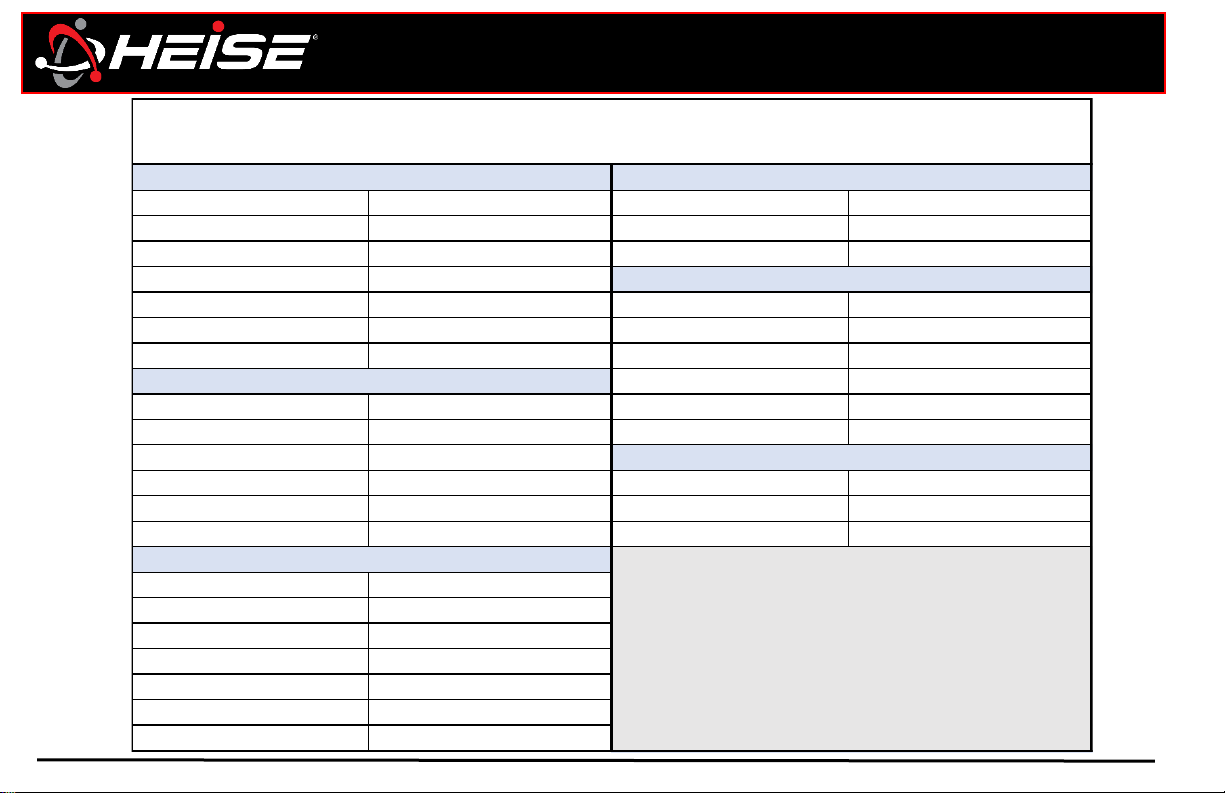
Controls Page | Chase master list
28.5 Cyan
21.1 Pulse 25.1 Red, Green, Blue 28.6 Purple
21.2 Fill 25.2 Yellow, Cyan, Purple 28.7 White
21.3 March
21.4 Layer 26.1 Red / Blue / Red 29.1 Purple / Green / Purple
21.5 Split 26.2 Red / Green / Blue 29.2 Yellow / Blue / Yellpw
26.3 Red / Green / Red 29.3 Cyan / Yellow / Cyan
22.1 Red 26.4 Green / Red / Green 29.4 Purple / Red / Purple
22.2 Green 26.5 Green / Yellow / Green
22.3 Blue 26.6 Blue / Red / Blue 30.1 Red
22.4 Yellow 26.7 Blue / Purple / Blue 30.2 Green
22.5 Cyan 26.8 Blue / Green / Blue 30.3 Blue
22.6 Purple 30.4 Yellow
22.7 White 27.1 Red, Green, Blue 30.5 Cyan
27.2 Yellow, Cyan, Purple 30.6 Purple
23.1 Red 27.3 Red, Green 30.7 White
23.2 Green 27.4 Green, Blue
23.3 Blue 27.5 Yellow, Blue 31.1 Green on Blue
23.4 Yellow 27.6 Yellow, Cyan 31.2 Green on Red
23.5 Cyan 27.7 Cyan, Purple 31.3 Red on Blue
23.6 Purple 27.8 White, Off 31.4 Cyan on Yellow
23.7 White 31.5 Yellow on Purple
28.1 Red 31.6 White on Yellow
24.1 Red, Green, Blue 28.2 Green 31.7 Yellow on White
24.2 Yellow, Cyan, Purple 28.3 Blue
24.3 Blue, Yellow, Purple 28.4 Yellow
26.1 thru 26.8 - 3 color stripe
27.1 thru 27.8 - Fill color, next color, next color
25.1 thru 25.2 - Layer color, color, over color
Negative Moving Patterns
Pattern starts from end and moves toward the controller
31.1 thru 31.7 - Color racing on color background
30.1 thru 30.7 - Color split in to center
29.1 thru 29.4 - 3 color stripe
24.1 thru 24.3 - Marching, color, follow color
28.1 thru 28.7 - Marching single color
21.1 thru 21.5 - RGB with different effects
22.1 thru 22.7 - RGB Racing on color background
23.1 thru 23.7 - Double pulse of color
Page 18
Heise connect
RGB PRO Reference guide
HeiseLED.com
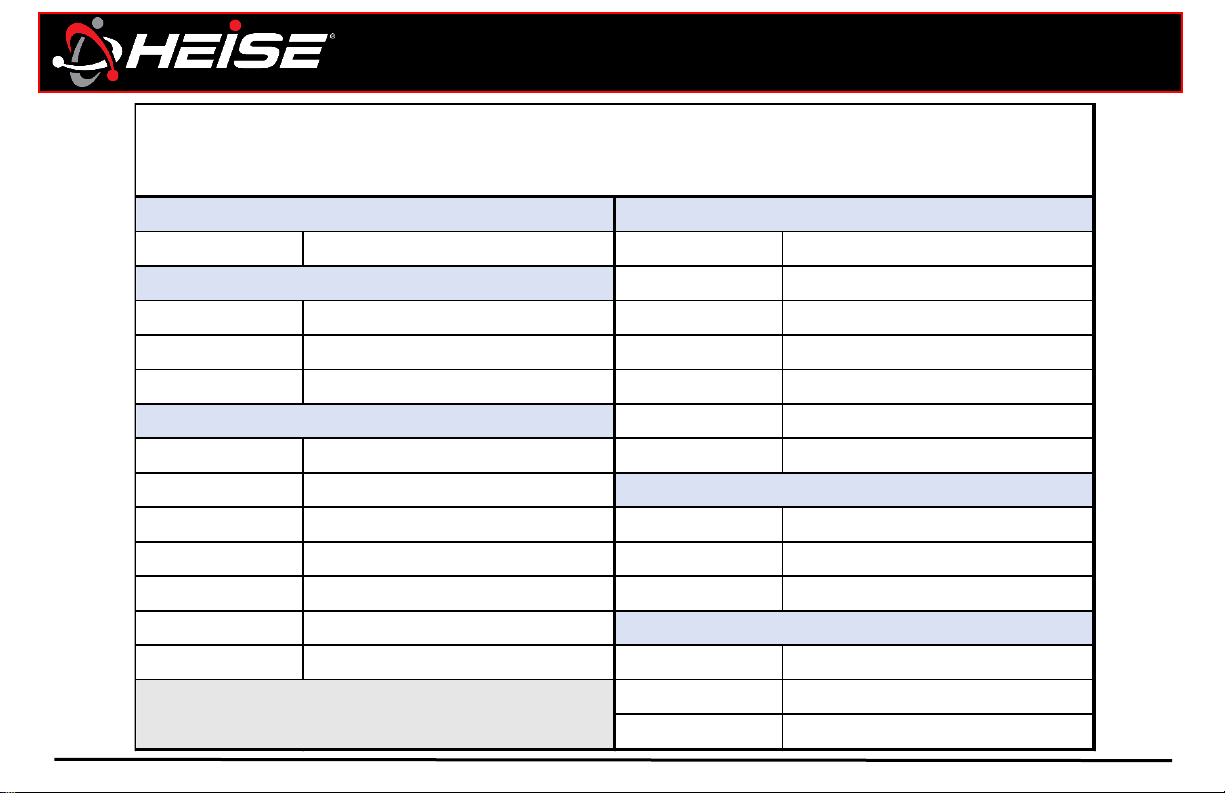
Controls | Page 16
6.1 Red 18.1 7 Color
6.2 Green 18.2 Red, Green, Blue
6.3 Blue 18.3 Yellow, Cyan, Purple
6.4 Yellow
6.5 Cyan 19.1 7 Color
6.6 Purple 19.2 Red, Yellow
6.7 White 19.3 Red, Purple
19.4 Green, Cyan
11.1 Red on Blue 19.5 Green, Yellow
11.2 Red on Green 19.6 Blue, Purple
11.3 Blue on Green
11.4 Green on Yellow 20.1 7 Color
11.5 Blue on Purple 20.2 Red, Green, Blue
11.6 Blue on White 20.3 Yellow, Cyan, Purple
15.1 Red
15.2 Green
15.3 Blue
15.4 Yellow
15.5 Cyan
15.6 Purple
15.7 White
19.1 thru 19.6 - Gradient effect
18.1 thru 18.3 - Strobing effect
Neutral Patterns
Color changing patterns without motion
20.1 thru 20.3 - Jumping effect
15.1 thru 15.7 - Flicker single color
11.1 thru 11.6 - Flicker 2 color
6.1 thru 6.7 - Fire effect of color
Controls Page | Chase master list
Page 19
Heise connect
RGB PRO Reference guide
HeiseLED.com
Controls | Page 17
1.1 Random 4.1 Red
4.2 Green
2.1 Jumping 4.3 Blue
2.2 Gradient 4.4 Yellow
2.3 Strobe 4.5 Cyan
4.6 Purple
3.1 Red 4.7 White
3.2 Green
3.3 Blue 5.1 Jumping
3.4 Yellow 5.2 Gradient
3.5 Cyan 5.3 Strobe
3.6 Purple
3.7 White 6.1 Red, Green
6.2 Red, Blue
6.3 Green, Blue
4.1 thru 4.7 - Single color strobe
5.1 thru 5.3 - RGB with diffent effects
6.1 thru 6.3 - 2 color gradient
Neutral Patterns
Color changing patterns without motion
2.1 thru 2.3 - 7 color with different effects
3.1 thru 3.7 - Single color gradient
1.1 - Mix of all patterns
Controls Page | RGB(W) master list
Page 20
Heise connect
RGB PRO Reference guide
HeiseLED.com
Support and contact | Page 18
TECH SUPPORT HOURS (EST)
Monday-Friday: 9:00AM – 7:00PM
Saturday: 10:00AM – 7:00PM
Sunday: 10:00AM – 4:00PM
Closed for most US Federal Holidays
Having difficulties?
Contact our tech support line at:
[email protected]
Or via phone at:
368.257.1187
Thank you for purchasing your lighting from Metra Electronics!
If you have any questions, comments, feedback on the product,
please contact our tech support team.
Don’t forget to Visit HEISELED.COM to view the available parts,
accessories, and available installation videos.
 Loading...