

Page 1

H120 User Manual
Page 2

2
Page 3

Index
A word from Bent 5
What’s in the box 6
Quickstart 7
General Use 10
Connections 11
Remote Control 12
Network Configuration 13
Using AirPlay 14
Using Spotify 15
Software Updates 16
Special Functions 17
General Information 18
Additional Information 19
3
Page 4

Page 5
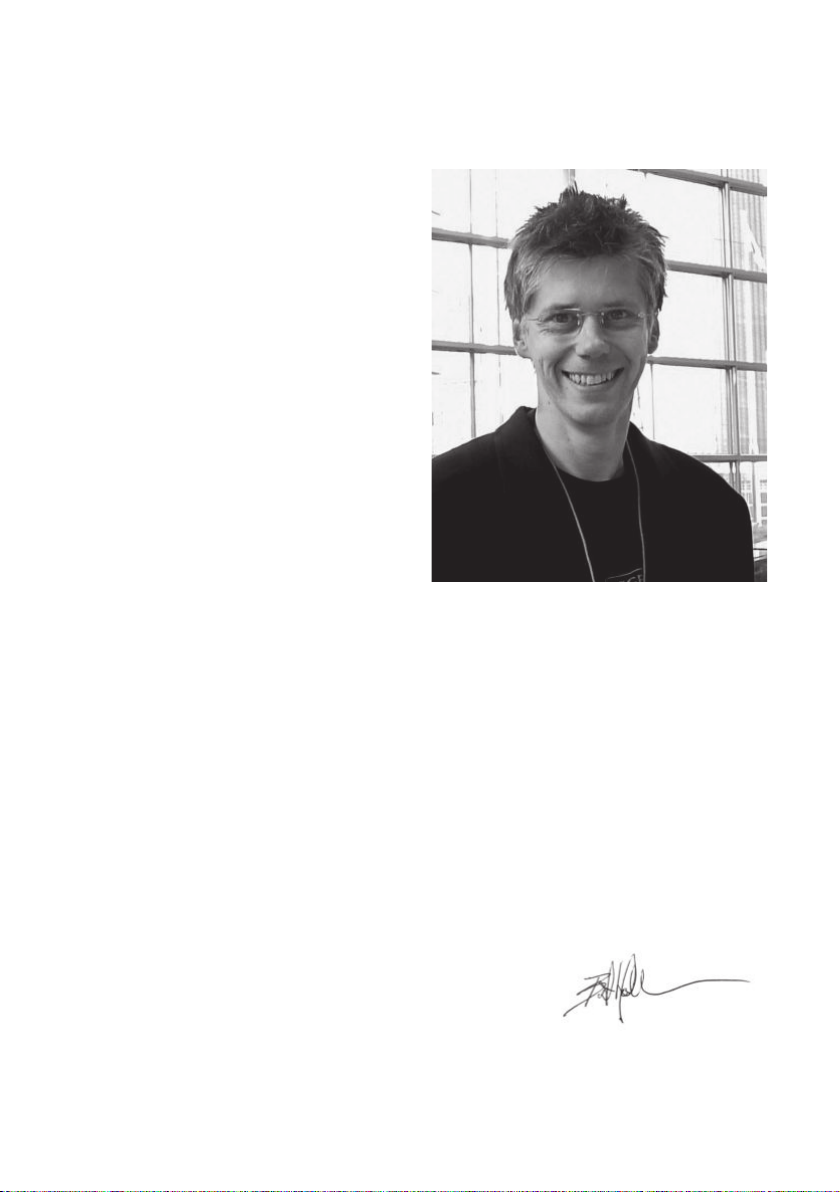
Congratulations on your new Hegel H120.
All Hegel products are based on a simple philosophy: Add as little as possible. We always
aim to keep the music signal close to the original recording. We are constantly looking for
ways to lower distortion and noise. By lowering noise, we unveil layers of music covered
by noise. And by lowering the distortion we can have a better and more precise reproduction of the recording. We work hard to give you the best possible music experience. Our
minimalistic Scandinavian design is styled to fit in with any interior. The products are easy
to operate and manufactured according to the best quality principles.
Bent Holter
Founder Hegel Music System
5
Page 6
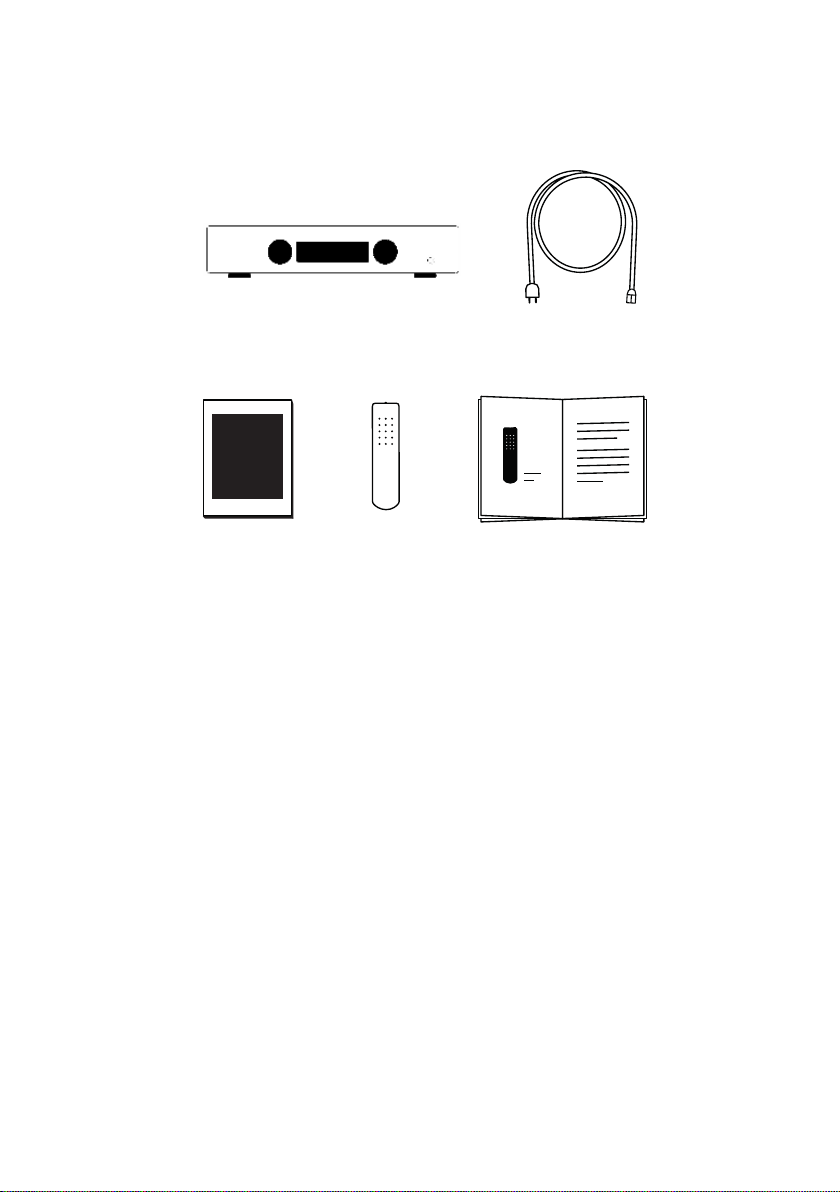
What’s In The Box
Accessory Box
Amplifier
Remote
Control
Power Cord
User Manual
6
Page 7
Quickstart
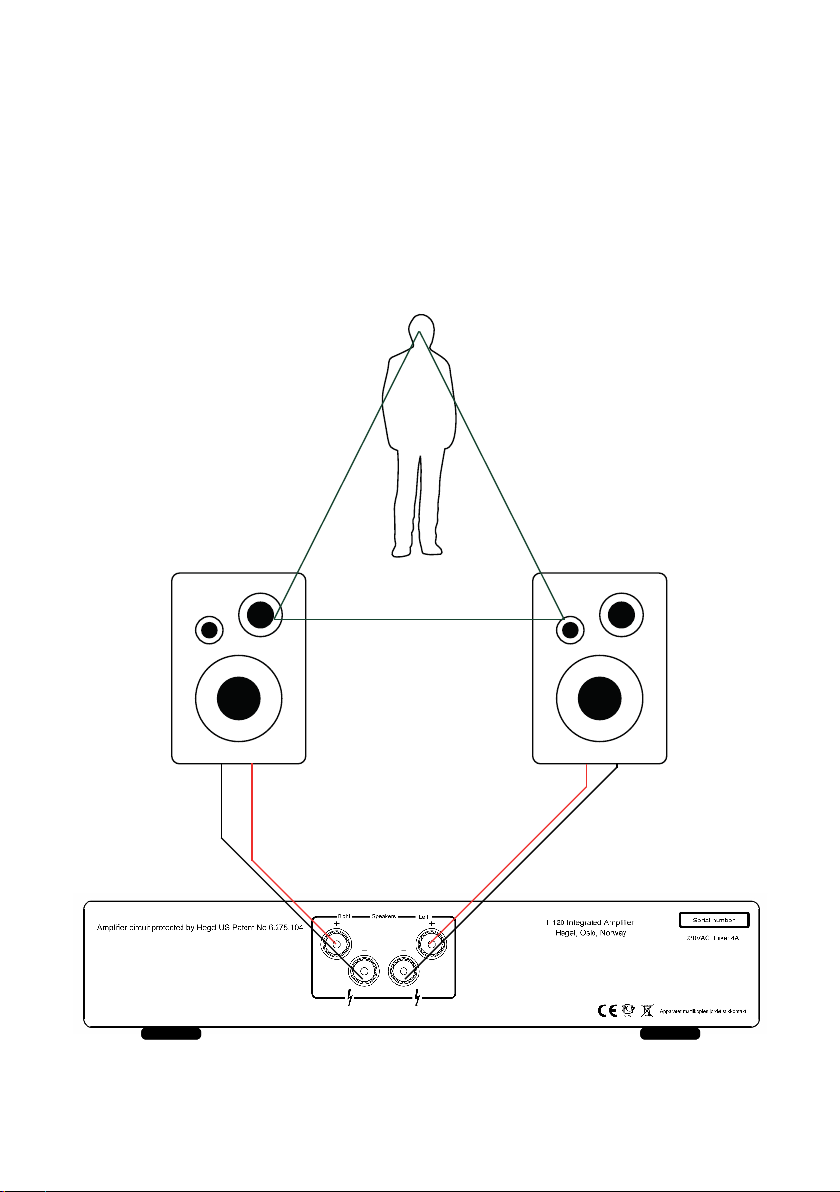
1. Connect your speakers
For the best audio experience the distance
between the listener and each speaker should
be the same.
7
Page 8
Quickstart
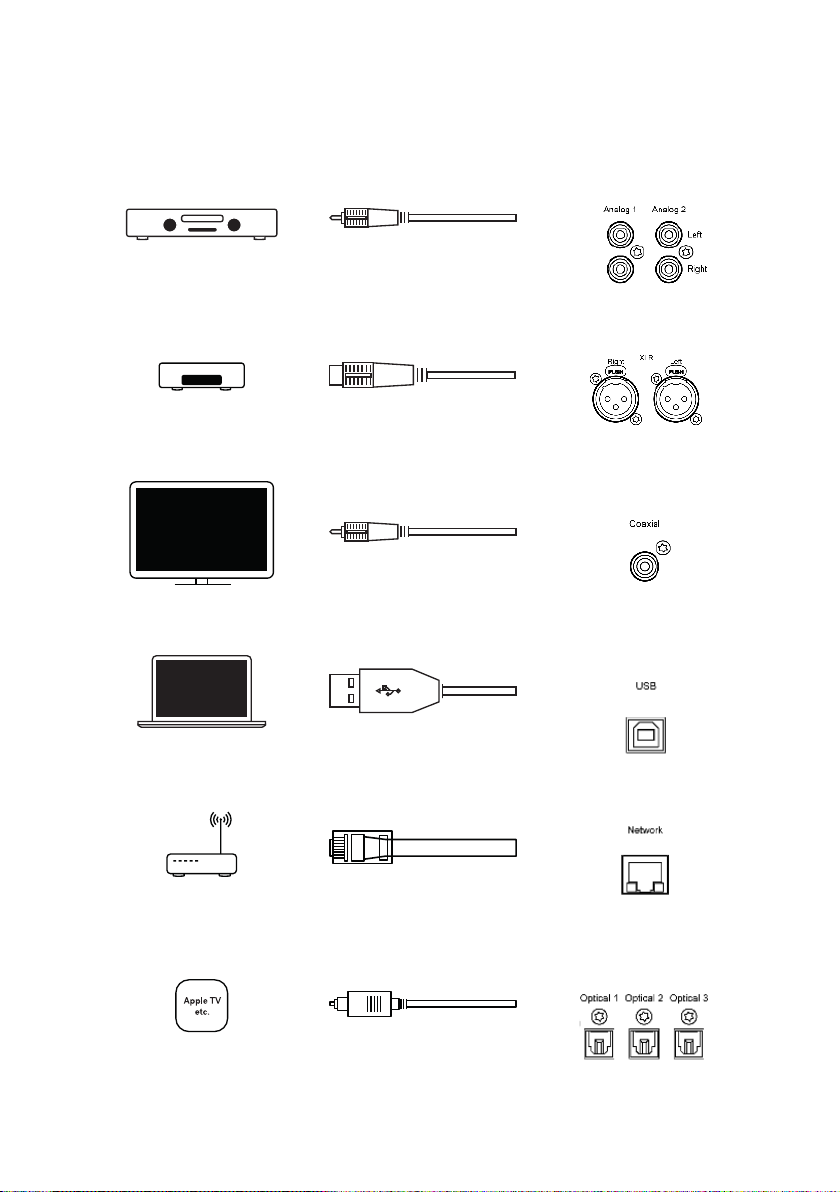
2. Connect a source
Unbalanced Analog
Balanced Analog
Coaxial Digital
USB Computer
Network streaming
Optical Digital
8
Page 9
Quickstart
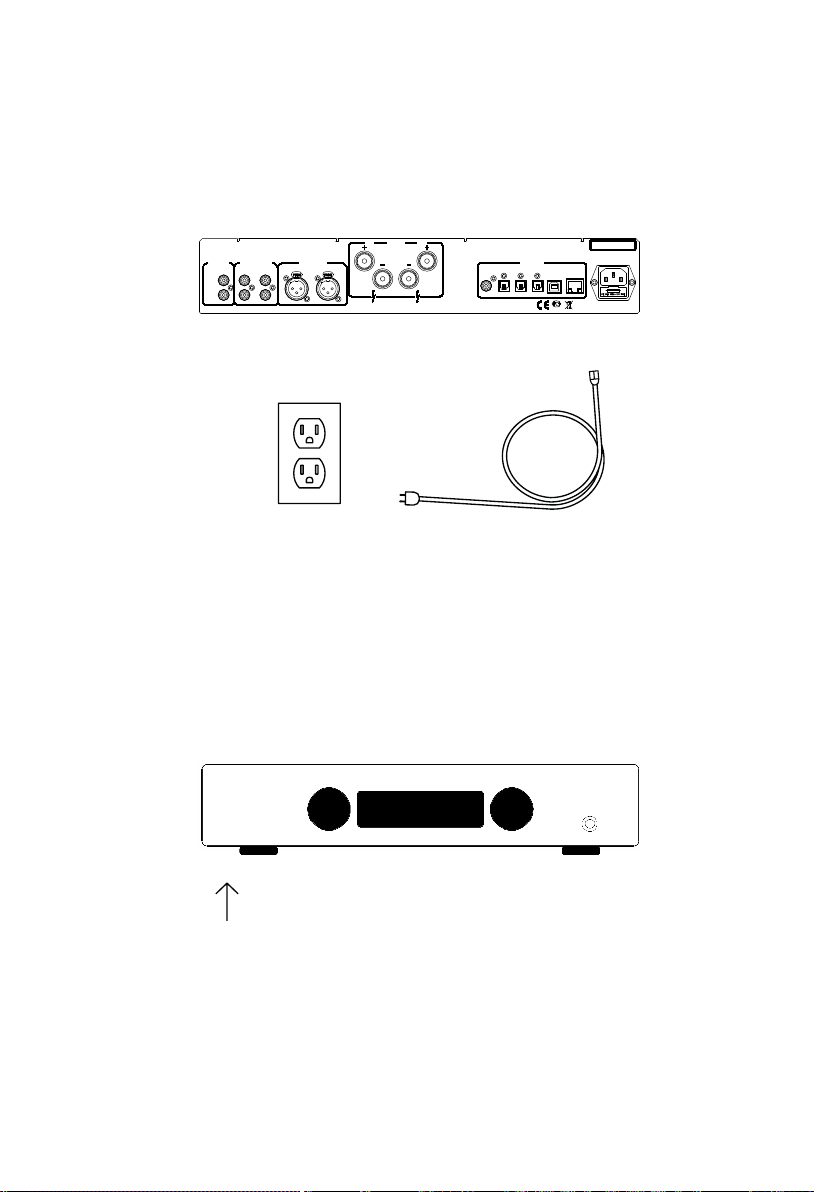
3. Connect the power cord
Right
Speakers
Amplifier circuit protected by Hegel US Patent No 6.275.104
Unbalanced Inputs
Left
Right
Line Output
Analog 1
Variable
Balanced Inputs
Analog 2
Left
Right
Left
4. Turn on the amplifier
H120 Integrated Amplifier,
Hegel, Oslo, Norway
Digital Inputs
Optical 2 USBOptical 3Coaxial Optical 1
Network
RA
46
Serial number
230VAC Fuse: 4AT
Apparatet må tilkoples jordet stikkontakt
Power Switch
9
Page 10
General Use
Operating the H120
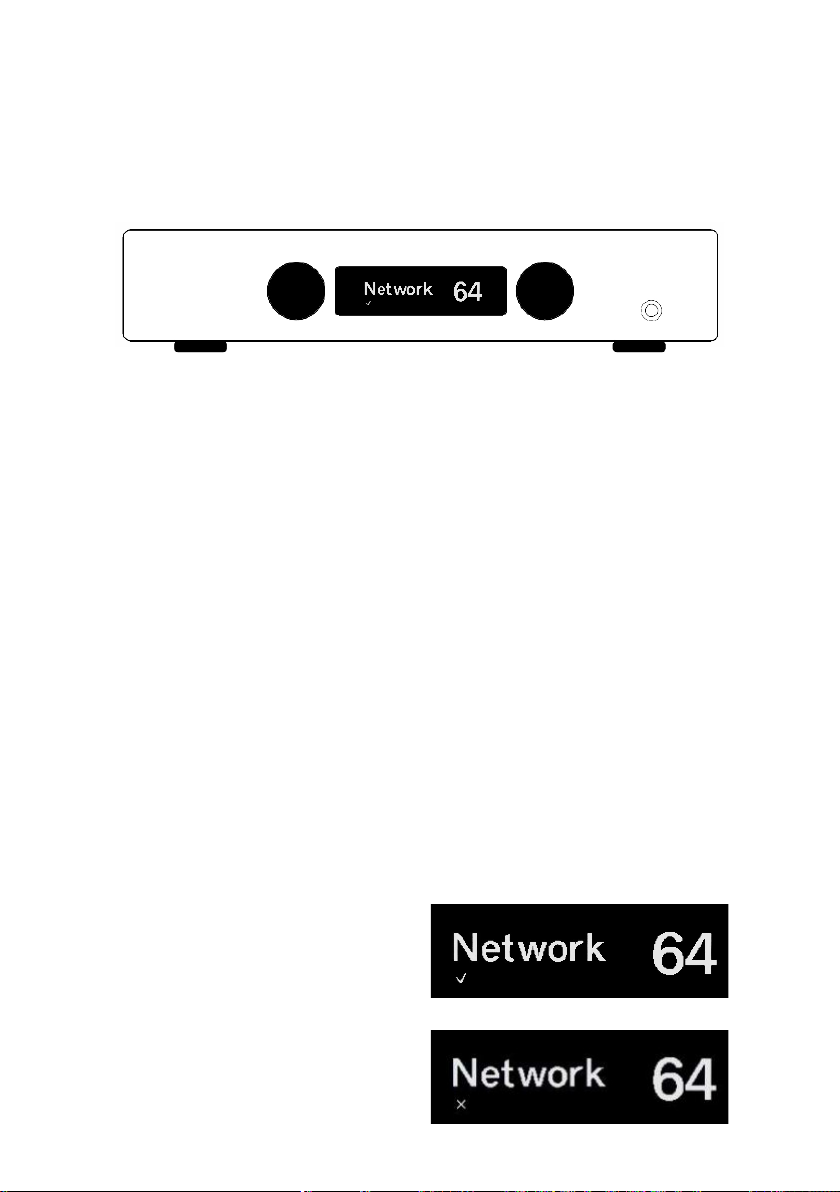
The source and volume can be changed
using the volume and input selector on the
front panel or using the remote control. The
volume level is indicated by a number between 0 and 99, with 0 being mute level and
99 being max volume. The H120 powers
up at a default volume 20. This value can be
changed, see Special Functions.
Power Button
The H120 amplifier is switched on and off
with the power button located on the underside of the amplifier, towards the front of
the unit. When powered up, the H120 takes
a few seconds to calibrate. During this time,
the outputs are muted.
NOTE: When powering up, the outputs are
muted and the volume flashes to indicate
that mute is on. This is normal, and is part
of the start-up procedure.
NOTE: When the H120 has been switched
off, wait 30 seconds before powering it on
again.
Headphone Output
Connect the 6.3mm headphone jack to
the front of the H120. This activates the
headphone volume control and mutes the
speaker outputs.
NOTE: Variable Line Output is still active.
Mute
Pressing the mute button on the Hegel
remote control mutes the outputs on the
amplifier. The volume flashes to
indicate that mute is on. Press the mute
button, or adjust the volume level, to switch
mute off.
Status Indicators
The Hegel H120 will display the network
status in the lower left corner.
Network status is OK:
Network status is not OK:
10
Page 11
Connections
Amplifier circuit protected by Hegel US Patent No 6.275.104
Unbalanced Inputs
Line Output
Left
Right
Variable
Analog 1
Analog 2
Balanced Inputs
Right
Left
Right
Speakers
Left
H120 Integrated Amplifier,
Hegel, Oslo, Norway
Digital Inputs
Optical 2 USBOptical 3Coaxial Optical 1
RA
46
Serial number
230VAC Fuse: 4AT
Network
Apparatet må tilkoples jordet stikkontakt
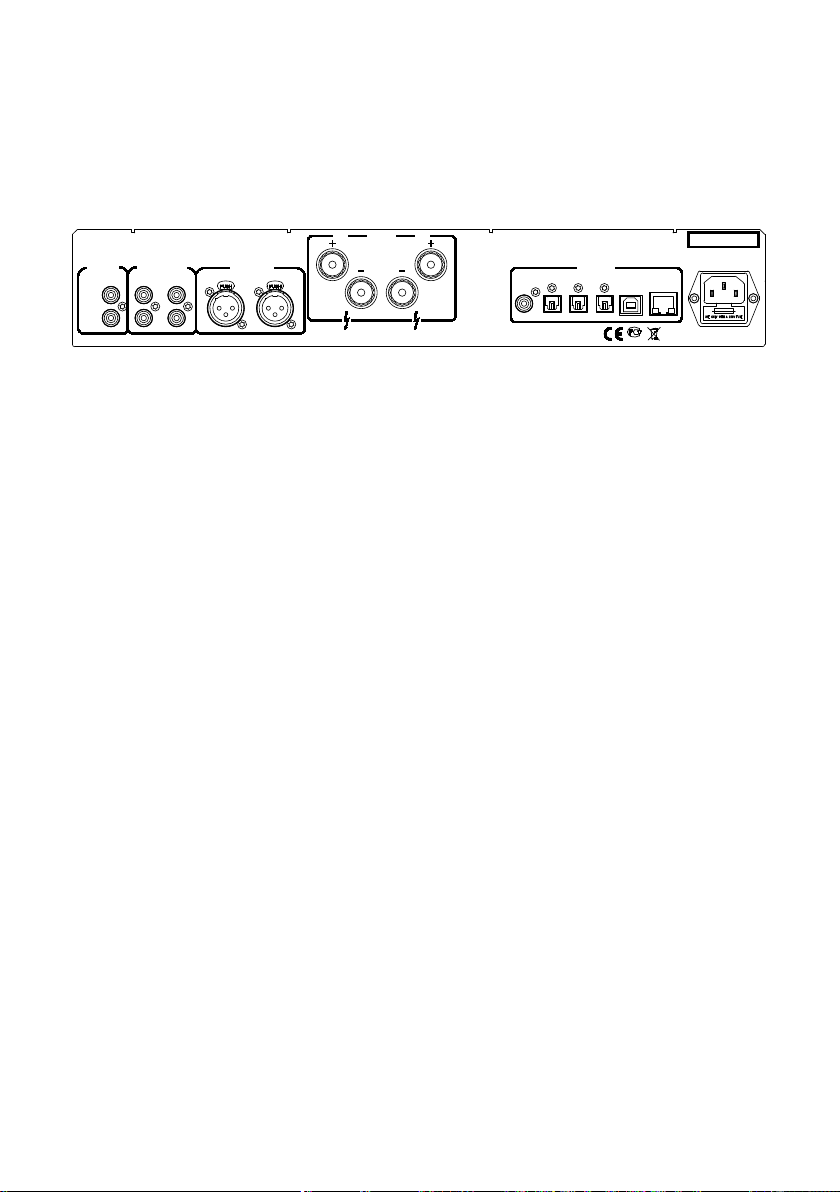
Always power the amplifier off before connecting input/output audio cables and the
power cable.
Speakers
•Right outputs
•Left outputs
Line Outputs
•Variable Line Level (RCA)
Analog Inputs
•Balanced (XLR): Standard balanced
analog input (Pin 1 is Chassis Ground;
Pin 2 is Positive Phase; Pin 3 is Negative
Phase)
•An1(RCA): Standard analog input
•An2(RCA): Standard analog input
If you want to connect H120 to a Home
Theater, see page 17
AC Power Connection
•AC Power connector with fuse holder:
230V/115V/100V AC depending on
country.
Digital Connections
•Coax1: Input Coaxial/RCA
•Optical1: Input TOSLINK/EIAJ Optical
•Optical2: Input TOSLINK/EIAJ Optical
•Optical3: Input TOSLINK/EIAJ Optical
•Computer USB input
•Home network connection (LAN - RJ45)
11
Page 12
Remote Control - RC8
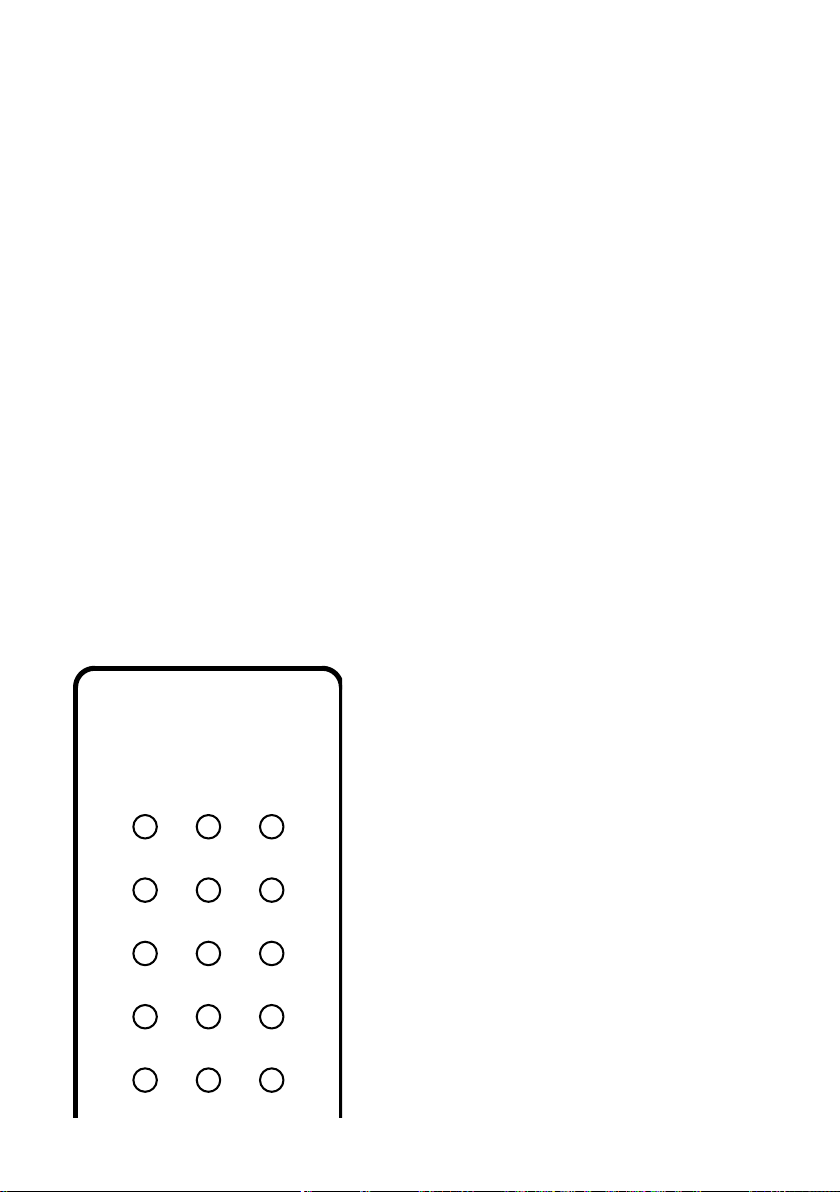
The Hegel H120 can be controlled with the
included Hegel RC8 Remote Control. The
RC8 controls other Hegel products, such
as amplifiers and preamplifiers, and most
Media players on your Mac/PC, avoiding the
need for multiple remote control devices.
The remote control uses two standard 1.5volt LR03 AAA batteries. To insert the batteries, use a crosshead (Phillips) screwdriver to gently remove the four screws on
the underside of the remote control.
Insert the batteries with the correct polarity
with + sign and – sign, as shown inside the
battery holder. Be careful when inserting the
batteries to not damage the battery holder.
Replace the cover. Insert the screws by gently turning them by hand, to avoid damaging
the threads in the remote control chassis.
Remote control buttons (starting top left)
PREV Skip to previous track on most computers/media players
PLAY Play/Pause on most computers/media players
COMPUTER
PREV PLAY
DAC+
PREV
ECO
PLAY
NEXT
DISP
NEXT
NEXT Skip to next track on most computers/media players
DAC+ Input source selector button for Hegel DACs
ECO This will put certain Hegel equipment in low power mode
DISP Display on/off (hold for off)
PREV Skip to previous track on Hegel CD-players
PLAY Play/Pause for Hegel CD-players
NEXT Skip to next track on Hegel CD-players
IN+ Switches up to next input on your Hegel amplifier
STOP Stop/Eject for Hegel CD-players
VO L+ Volume up for Hegel amplifiers
IN- Switches down to previous input on your Hegel amplifier
MUTE Mute for Hegel amplifiers
VO L- Volume down for Hegel amplifiers
Do not tighten the screws too much, as this
can damage the screws and the soft metal
chassis of the remote control.
Caution: Do not drop the remote control
on the floor, as this can damage its internal
parts and the battery holder.
To avoid damage to the remote control by
leakage from the batteries during transport
and storage, the remote control is supplied
without batteries from Hegel.
12
IN+
STOP
VOL+
MUTEIN- VOL-
Page 13

Network Configuration
The Hegel H120 has its own Network Configuration page to where you can change
the name, the IP settings and update the
firmware.
Find the name of the unit by pressing and
holding “COMPUTER PLAY” (2) button.
A menu appears and use “COMPUTER
NEXT”(3) butten to choose “Network”. It will
then display the name and IP address of
your H120.
PC/Mac: Type in the IP in your browser and
the Network Configuration page opens.
Playing Files on a Network Device
The Hegel H120 can function as a Digital
Media Renderer. This means that
it can receive and play media files from a
UPnP/DLNA compatible media player.
For details on how to set up your media
player, please refer to the user manual
supplied with the player.
For detailed information on the Network
Configuration page, supported formats and
much more please go to:
www.hegel.com/products/integrated/H120
13
Page 14
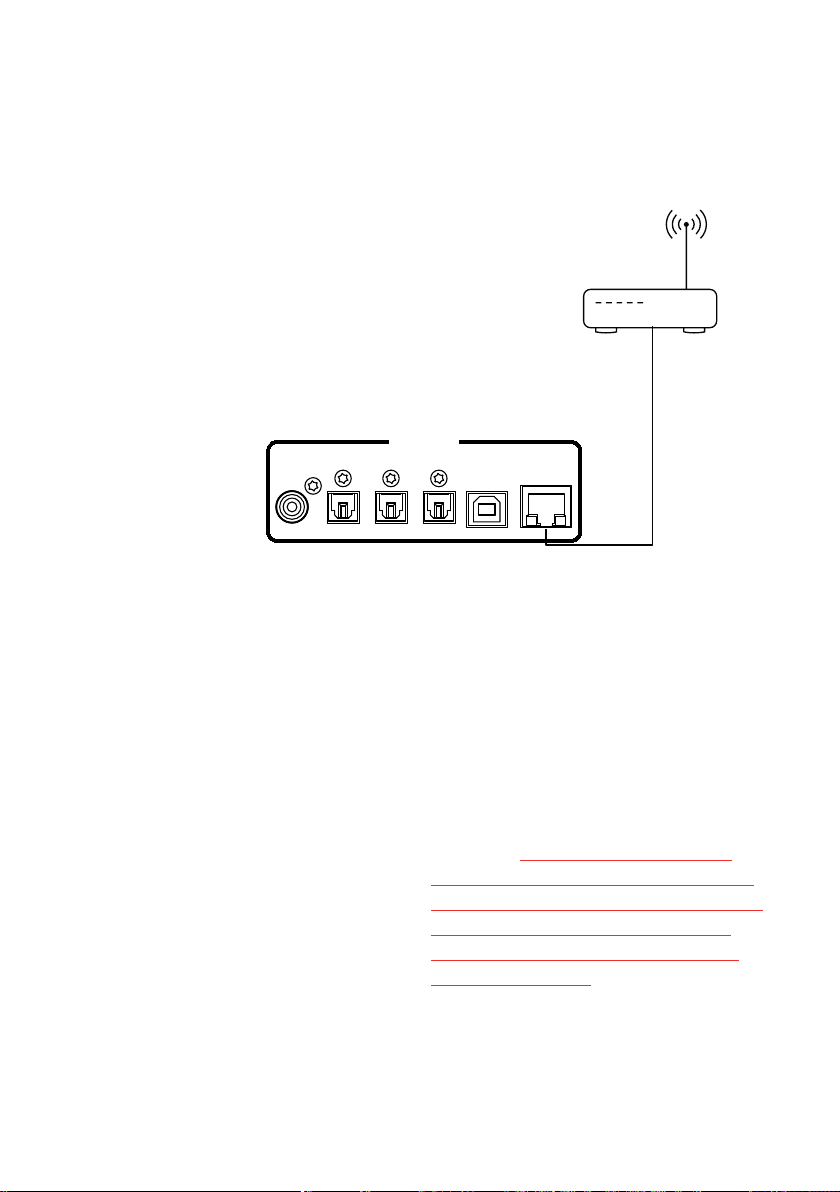
Using AirPlay
Hegel, Oslo, Norway
When using AirPlay on the Hegel H120, you
can send the music stream from your AirPlay
compatible device, to the amplifier. Start
with connecting your Hegel H120 to your
local network using Ethernet cable from network connection (LAN - RJ45) on the back
of the amplifier, to your router.
Digital Inputs
Optical 2 USBOptical 3Coaxial Optical 1
Network
Make sure the Hegel H120 is connected to
your local network.
When connected, the unit will use DHCP,
and will automatically receive an IP-address
and then integrate in your home network.
All AirPlay compatible devices will now
detect the Hegel H120 in their list of AirPlay
speakers, it will be displayed as “H120”,
followed by a unique number.
To activate the AirPlay function on your AirPlay
compatible device, you must first make sure
the device is connected to the same network as the Hegel H120. For details on this
please check the device manual. Then the
AirPlay icon will be displayed and you can
select the H120. You are now ready to send
the music stream to your amplifier.
14
Playing from iTunes on your Hegel H120.
Install iTunes on your Mac or Windows
computer. Launch iTunes, press the AirPlay
Logo, and select the H120. You can also
play to more than one speaker at a time,
select the AirPlay logo, then ”multiple”and
check of the speakers that you want to listen
to. You can also adjust the volume on each
individual speaker.
WARNING: After selecting the H120 as
the output, always remember to check the
iTunes volume-setting before pressing play.
The H120 will change its volume to the
volume set in iTunes, when iTunes starts
playing to the H120.
Page 15
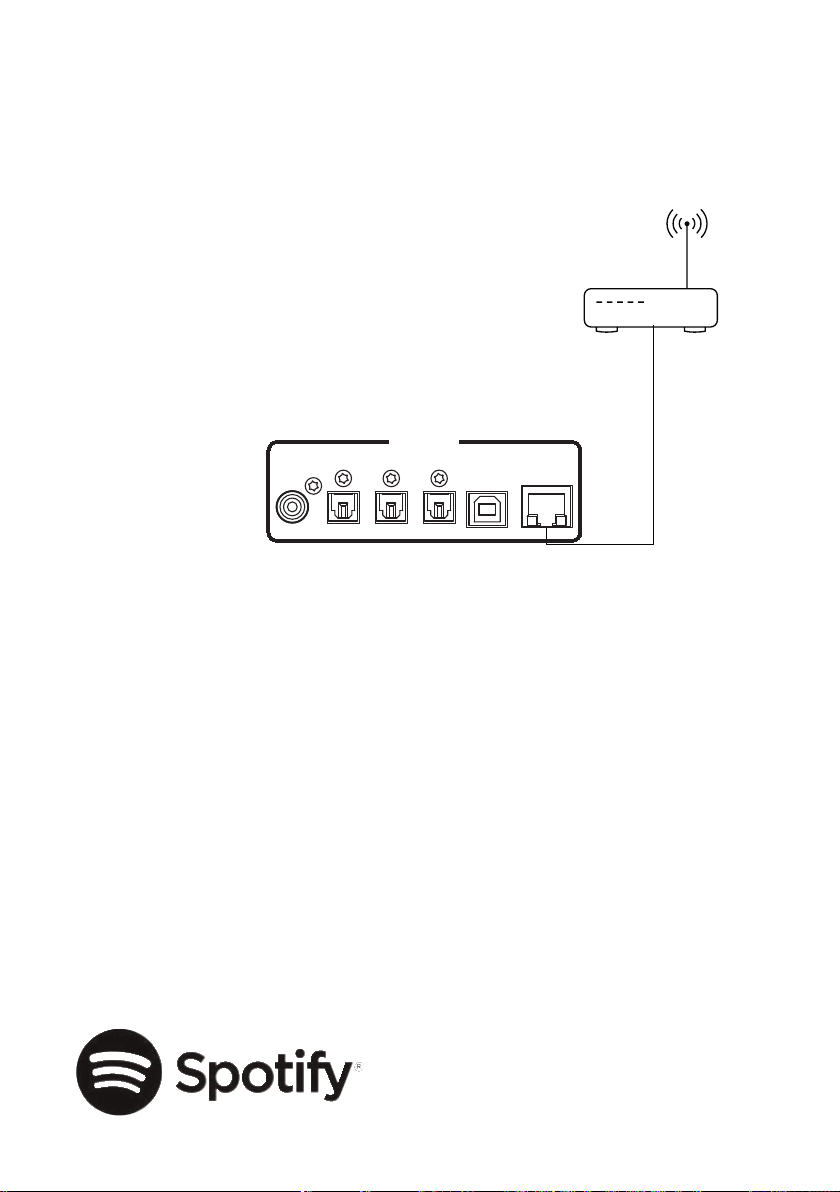
Using Spotify Connect
Hegel, Oslo, Norway
When using Spotify Connect on the Hegel
H120, you can send the music stream from
Spotify to the amplifier. Use the Spotify
application to control the music. Start with
connecting your Hegel H120 to your local
network using Ethernet cable from network
connection (LAN - RJ45) on the back of the
amplifier, to your router.
Optical 2 USBOptical 3Coaxial Optical 1
Digital Inputs
Network
Listen out loud with Spotify Connect
1. Connect your Hegel H120 to your local network
2. Open up the Spotify app on your phone, tablet or laptop using the same local network
3. Play a song and select Devices Available.
4. Select your Hegel H120 and start listening.
15
Page 16
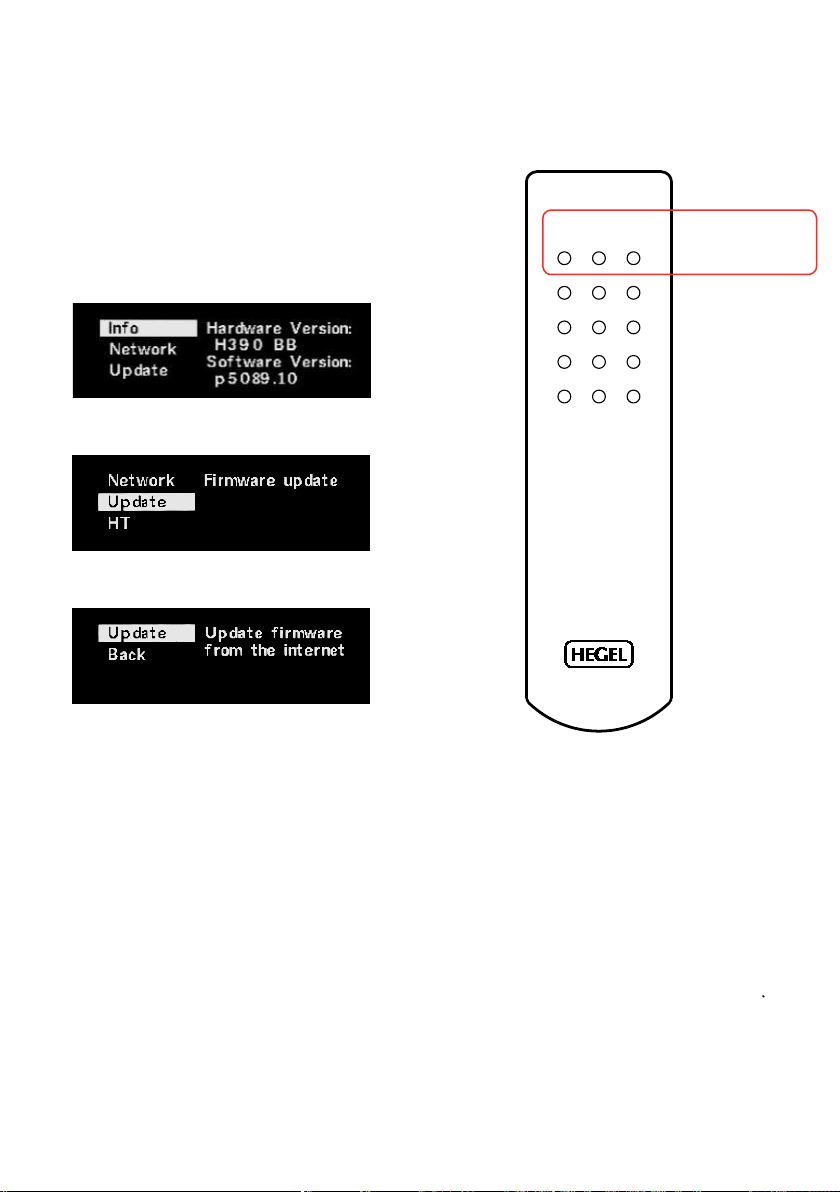
Software Update
Make sure your H120 is connected to a
network with an internet connection.
Hold Play on your remote control for around
5 seconds to enter the device menu.
COMPUTER
PREV PLAY
NEXT
DAC+
ECO
DISP
PREV
PLAY
NEXT
Menu navigation
PREV - Up
PLAY - Select
NEXT - Down
Scroll down to the Update option by using
Next and enter this menu by pressing Play.
Press Play again to check for firmware
updates on the internet.
IN+
VOL+
STOP
MUTEIN- VOL-
16
Page 17

Special Functions
Display On/Off
The DISP button on the RC8 remote control
may be used to turn the display of the H120
on or off. Hold the DISP button for more
than 1 second to turn the display off.
Press the button turn the display on.
Home Theater or Standard Analog Input
All inputs can be changed into a Home
Theater input. This will set the Volume at a
fixed high volume level. Use the RC8
remote to change the settings. Hold
computer play until the setup menu
appears. Use computer prev/next to
navigate to “HT” and press computer play
to select this submenu. Now use computer
next/prev to maneuver to the input you want
to change into a fixed level input. Press
computer Play to toggle between a fixed
level input or normal variable input. Now
don’t press anything for 15sec, and the
H120 will return to normal mode.
WARNING: Activating Home Theater sets
the volume at a high fixed level. This may
harm your speakers if a fixed level input is
connected.
Set Power Up Volume
A user defined volume value may be used as
the power-up volume. The current volume is
set as the power-up volume by pressing and
holding the DAC+ button while pressing Volon the RC8 remote control.
Reset to Factory Default Settings
By pressing and holding the DAC+ button
while pressing Mute on the RC8, the H120
will be reset to factory settings. This will
clear all user defined settings, including IP
settings, and reinitialize the H120.
Max Volume
A user defined volume value may be used as
the max volume.
The current volume is set as the max volume
by pressing and holding the DAC+ button
while pressing Vol+ on the RC8 remote
control. To reset, put to max voulme, press
and holding the DAC+ button while pressing
Vol+ on the RC8 remote control.
Using the USB Connection:
When you connect H120 to a computer
with a USB cable (not included), the H120
will automatically install itself as a USB
soundcard on all newer versions of Windows and MAC OS X, and most newer
versions of Linux.
When your computer is connected with
the USB-cable you may use the supplied
remote control to skip/play/pause in most
media players.
The first time you connect your computer to
H120: Connect the computer to the internet
and close all media players, such as iTunes
or Windows Media Player.
Troubleshooting with MAC:
H120 connected but no sound out of the
speakers: Go to System Preferences –
Sound – Output and select “TE7022 Audio
w/ SPDIF” as the Output Device.
24 bit Audio:
H120 can receive 24-bit music files through
the USB interface. Sending 24-bit audio signals, from your computer, may require some
set-up in your media player. Setup varies
depending on the operating system and the
media player. Consult the FAQ section of the
media player for details.
CD-quality and lower resolution files:
No additional set-up is needed.
Page 18

General Information
Technical Specifications
H120 Integrated Amplifier
Transport and Shipment
If you are packing the amplifier for shipping,
please follow these instructions to avoid
Power output 2*75W in 8 Ohms
Minimum load 2 Ohms
Analog Inputs 1*Balanced (XLR),
2*Unbalanced (RCA),
Digital Inputs 1*Coaxial S/PDIF,
3*Optical S/PDIF,
1*USB,
1*Network
Line level Output 1*Unbalanced Variable(RCA)
Frequency response 5Hz-100kHz
Signal-to-noise ratio More than 100dB
Crosstalk Less than -100dB
Distortion Less than 0.01% @
50W 8 Ohms 1kHz
Intermodulation Less than 0.01%
(19kHz + 20kHz)
Damping factor More than 2000
(main power output stage)
Dimensions 8cm x 43cm x 31cm
(HxWxD)
12kg shipment weight.
3.15” x 16.93” x 12.20”
(HxWxD)
26.46lbs shipment weight.
damaging the unit: Be careful not to hold the
volume- and source-knobs when lifting the
amplifier. Put the bag around the amplifier. Make sure the bottom shock absorbers are placed at the bottom of the original
cardboard box. Place the amplifier into
the shock absorbers. Place the top shock
absorber on top of the amplifier.
Use and Placement
The Hegel H120 should be placed on a flat,
hard surface for proper cooling. The amplifier
performs best after being switched on for
about 1 hour for heating up. A certain space
is required for air circulation above and
below the amplifier. The amplifier must never
be placed on a carpet or similar surface that
obstructs air circulation through the unit. Nor
must it be covered while in use or placed on
a narrow shelf or in another confined space.
The amplifier will automatically switch itself
off if overheated. When it cools down the
relays kick in and the amplifier sets the
volume to 0.
Cleaning
Fingerprints or stains on the front panel or
top cover can be removed with a cloth moistened with warm water or a mild detergent
suitable for cleaning mirrors and windows.
18
Page 19
Additional Information
Warning
Hegel products should only be opened
or serviced by certified technicians. The
devices contain electronic components
that may cause severe electric shock. Work
performed on Hegel products by unqualified personnel may cause serious damage
or personal injury.
Opening of the product by non-authorized
personnel will void the guarantee.
The products must not be exposed to rain
or moisture.
The Spotify Software is subject to third party licenses
found here: www.spotify.com/connect/third-party-
licenses
Warranty
All Hegel products come with a 2-year
warranty against defective materials and
workmanship.
In case you would need any assistance with
your Hegel product please find your nearest
dealer or distributor by looking at the Hegel
web site www.hegel.com. If you experience
any problems locating your dealer or distributor please contact [email protected]
For more information abut the H120,
please visit www.hegel.com/products/integrated/H120
AirPlay works with iPhone, iPad, and iPod touch, or Mac
and PC with iTunes.
Use of the Works with Apple badge means that an accessory has been designed to
work specifically with the technology identified in the
badge and has been certified
by the developer to meet Apple performance standards.
Apple, iPad and iPhone are trademarks of Apple Inc.,
registered in the U.S. and other countries. The trademark
“iPhone” is used in Japan with a license from
Aiphone K.K.
V1
19
Page 20

www.hegel.com
 Loading...