

Page 1
Owner’s Manual
Page 2

2
Disclaimer
Use emWave® PC and the exercises contained in the software as tools for individual balance, optimal
performance and growth. Although this instrument and exercises are believed to be very safe and
have potentially great benet, no medical benets or cures are expressed or implied. These programs
and exercises are not to be used as, or used in lieu of, any course of medical or psychological
treatment.
Please note that emWave PC is designed to be a training and entertainment product. None of the
feedback, summary data, or logging data provided in the software is to be interpreted as medically
diagnostic.
Finally, heart rate variability patterns differ widely from one person to another. There are no “right” or
“wrong” patterns. The coherence scores in the program and games are especially useful for
comparing your own progress in increasing your ability to maintain a physiologically coherent state as
you practice; they should not be compared between one individual and another.
Individuals with heart irregularities such as atrial brillation or utter or intense clusters of premature
ventricular contractions (PVC’s), or children who are unable to sit still, may be unable to use the
emWave PC successfully.
Page 3

3
14700 West Park Ave
Boulder Creek, CA 95006
www.heartmath.com
© copyright Quantum Intech, Inc. 2007
Page 4

4
Table of Contents
Basics.....................................................................................
About this Manual.................................................................
Package Contents................................................................
Installing the Software..........................................................
Registering the Software......................................................
Installing the Hardware.........................................................
Navigating the Home Screen................................................
Menu....................................................................................
Toolbar..................................................................................
Content Categories..............................................................
How To..................................................................................
Activities...............................................................................
Running a Session................................................................
To Run a Session.................................................................
Coherence Ratio Screen......................................................
Accumulated Coherence Score............................................
Saving Your Session............................................................
6
6
6
7
10
11
13
14
15
16
16
16
17
17
20
23
25
Page 5

5
Table of Contents continued
Key Features..........................................................................
Utilizing the Content Categories...........................................
Learning with the Tutorial....................................................
Using the Coherence Coach™.............................................
Playing the Games...............................................................
Running the Emotion Visualizer™........................................
Additional Help......................................................................
Help Files.............................................................................
Online Support Center..........................................................
Usage, Copyright, Patents, License and Warranty.............
27
27
29
31
33
35
37
37
37
38
Page 6

6
Basics
About this Manual
This manual is a short guide for emWave PC. It is not intended to
cover all the topics or the full functionality of emWave PC. For more
extensive information access the Help menu, Tutorial and Quick Start
Guide within the software or visit our online support center at:
http://support.emwave.com
Package Contents
emWave® PC 1.0.6 software CD
USB module
USB ear pulse sensor
Owner’s Manual
Page 7
7
Installing the Software
To install the program you need the Registration Number located on
the back of this Owner’s Manual.
When you’re ready to install the software, insert the emWave PC 1.0
software CD into your CD-ROM drive.
The installer does not automatically start.
Go to My Computer and double-click the CD-ROM icon. Click the
Setup.exe icon.
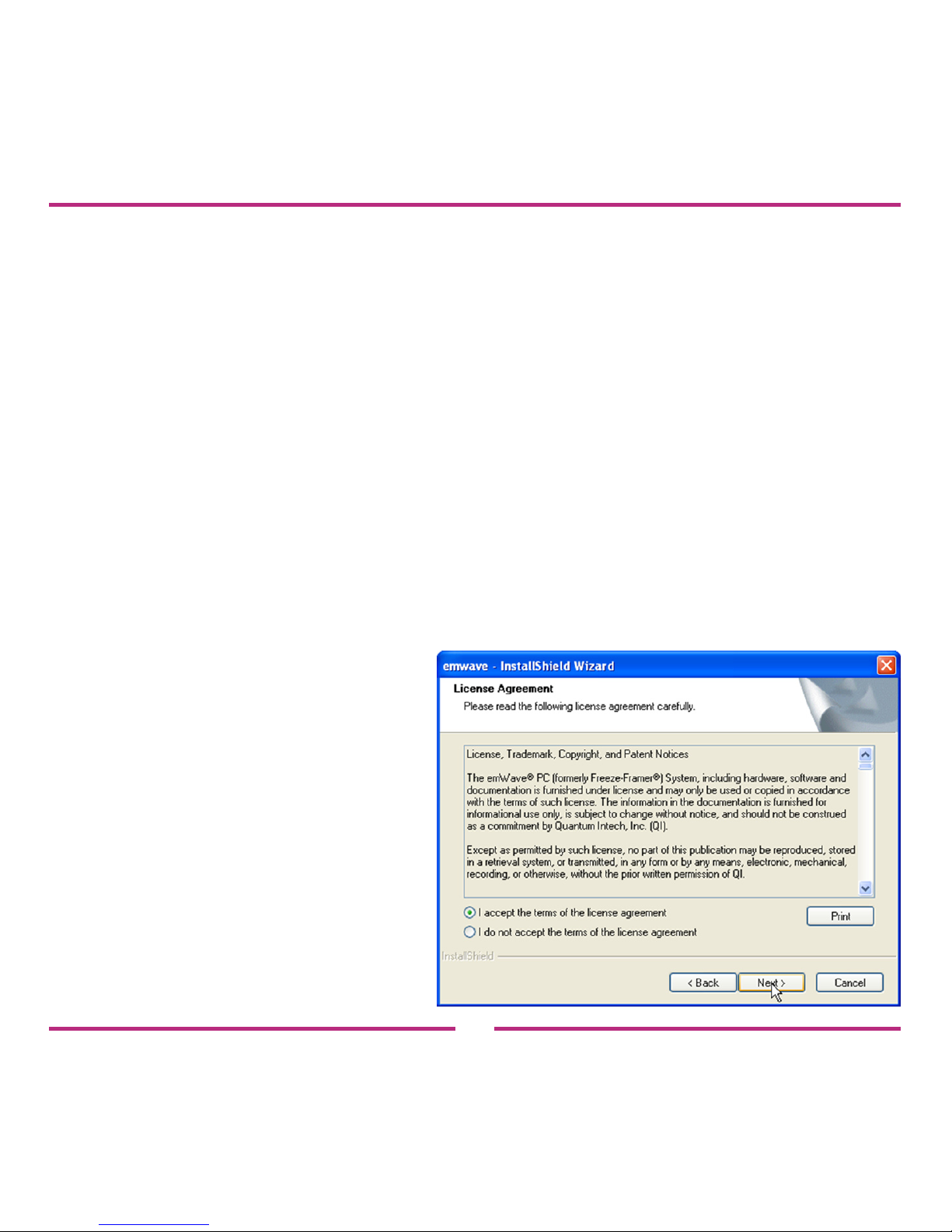
The InstallShield Wizard for
emWave PC will open. Click
Next to begin the installation.
Read the License Agreement.
To continue you must accept
the terms.
Click Next to continue.
Page 8
8
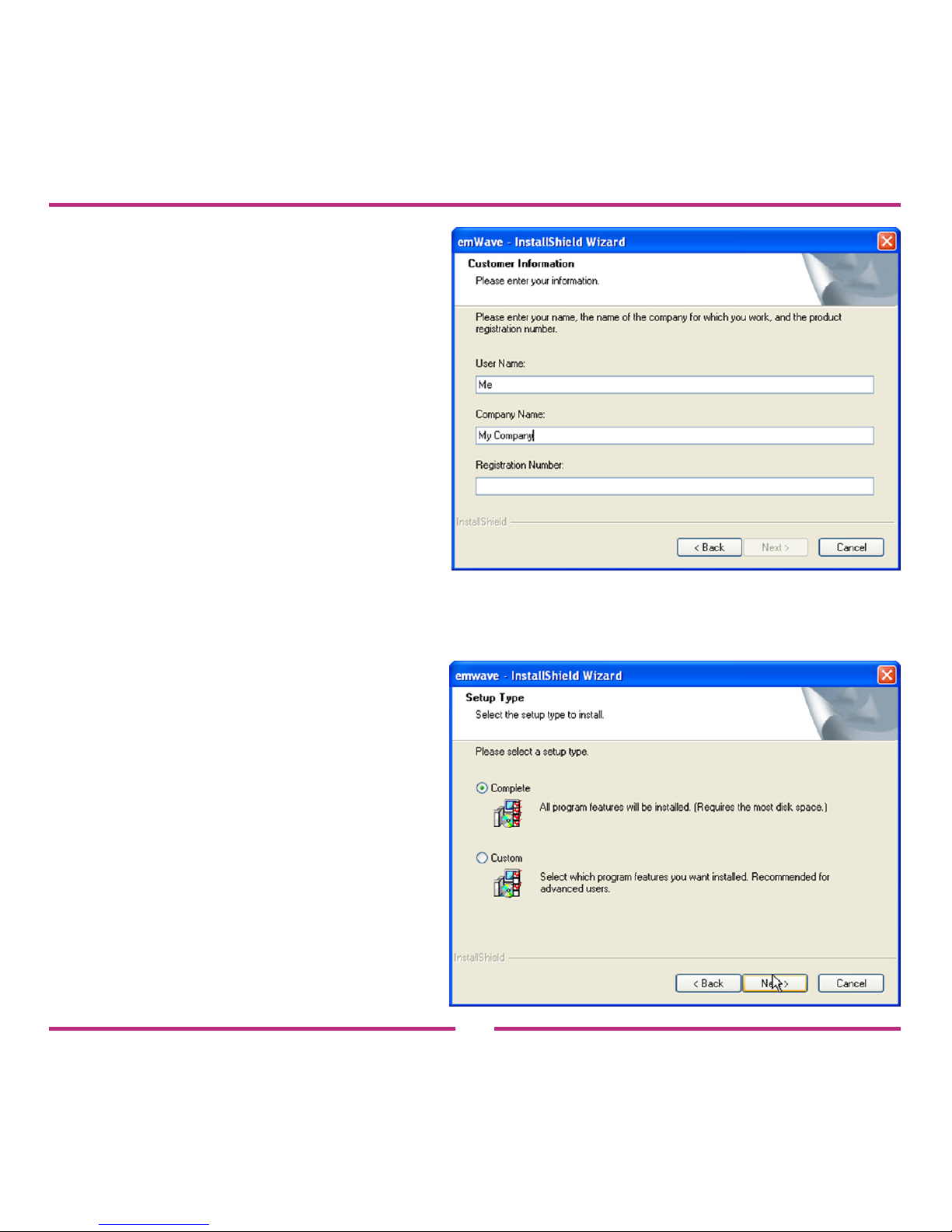
The next screen that appears
asks you for customer
information along with the
Registration Number located
on the back of this manual.
You must enter a User Name
and the Registration Number
to continue.
You can leave the Company
Name blank if emWave PC is for
personal use.
Click Next to continue.
Now select a Setup Type.
We recommend using the
complete installation
because it gives you
all the features available
in emWave PC.
Page 9
9
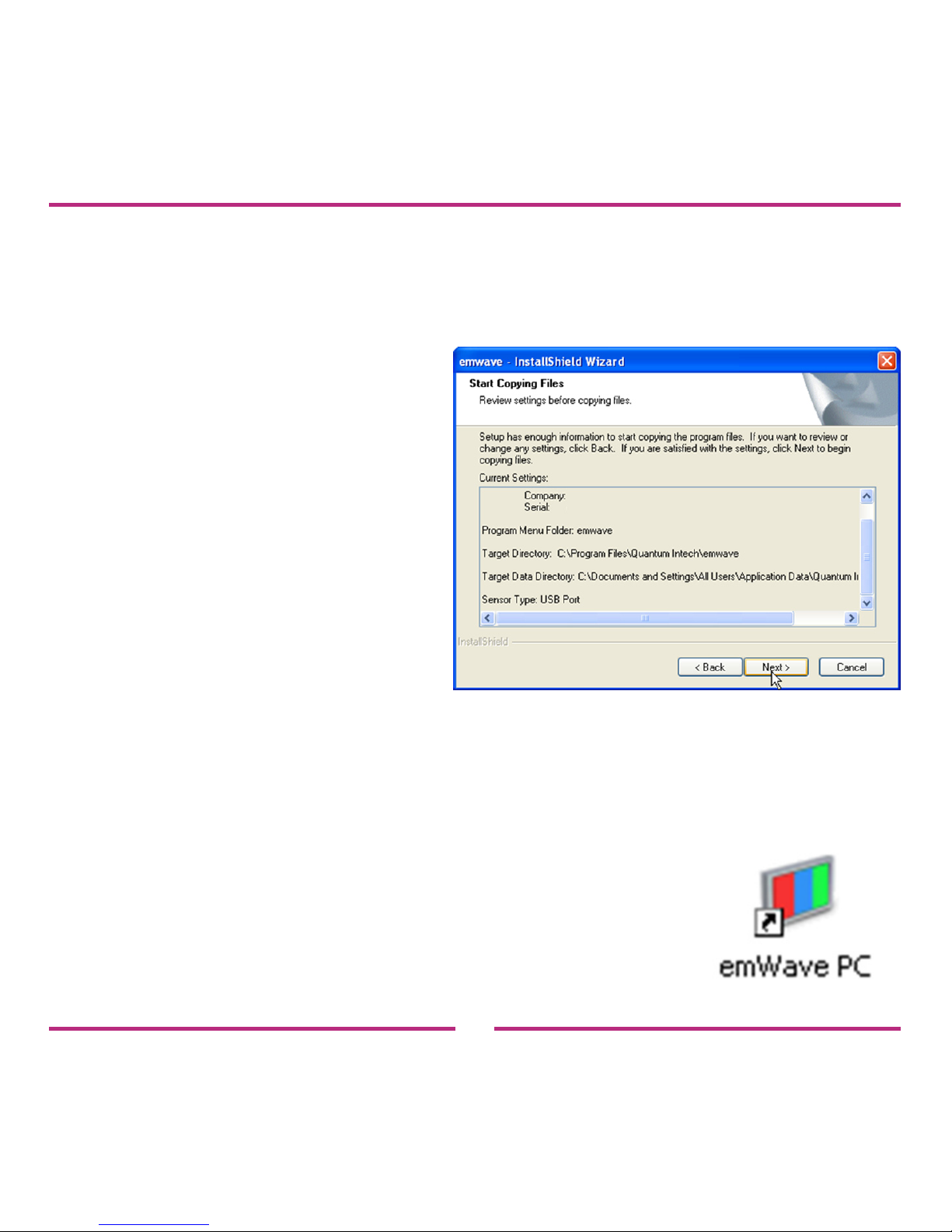
The next step will copy emWave PC les to your computer. You can
review the information you have entered before copying the les.
Click Next when you are
satised with your settings.
emWave PC will now congure
your installation and copy the
les to your computer.
When conguration is complete a ‘Read Me’ le will open. Please read
this document. This document gives you pertinent information and
details about emWave PC.
If emWave PC has been successfully installed, an
emWave PC icon will appear on your desktop.
Page 10

10
Registering the Software
When you rst open emWave PC, you will be prompted to register the
software. Please register your software so that we can send you
updates and other announcements.
To register via the Web:
— After installing emWave PC, make certain your computer is
connected to the Internet.
— Go to the Help menu. Click the Register emWave PC link. The
Online Product Registration page will open.
— Fill out the form and click the Create Account button at the
bottom of the page.
To register via mail:
— Fill out the enclosed Registration card with your information.
— Afx one of the emWave PC registration number stickers to the
Registration Card or print the number onto the card.
— Mail the Registration Card.
Note: If you already have an online store account with us, sign into that
account to register your product.
Page 11
11
Installing the Hardware
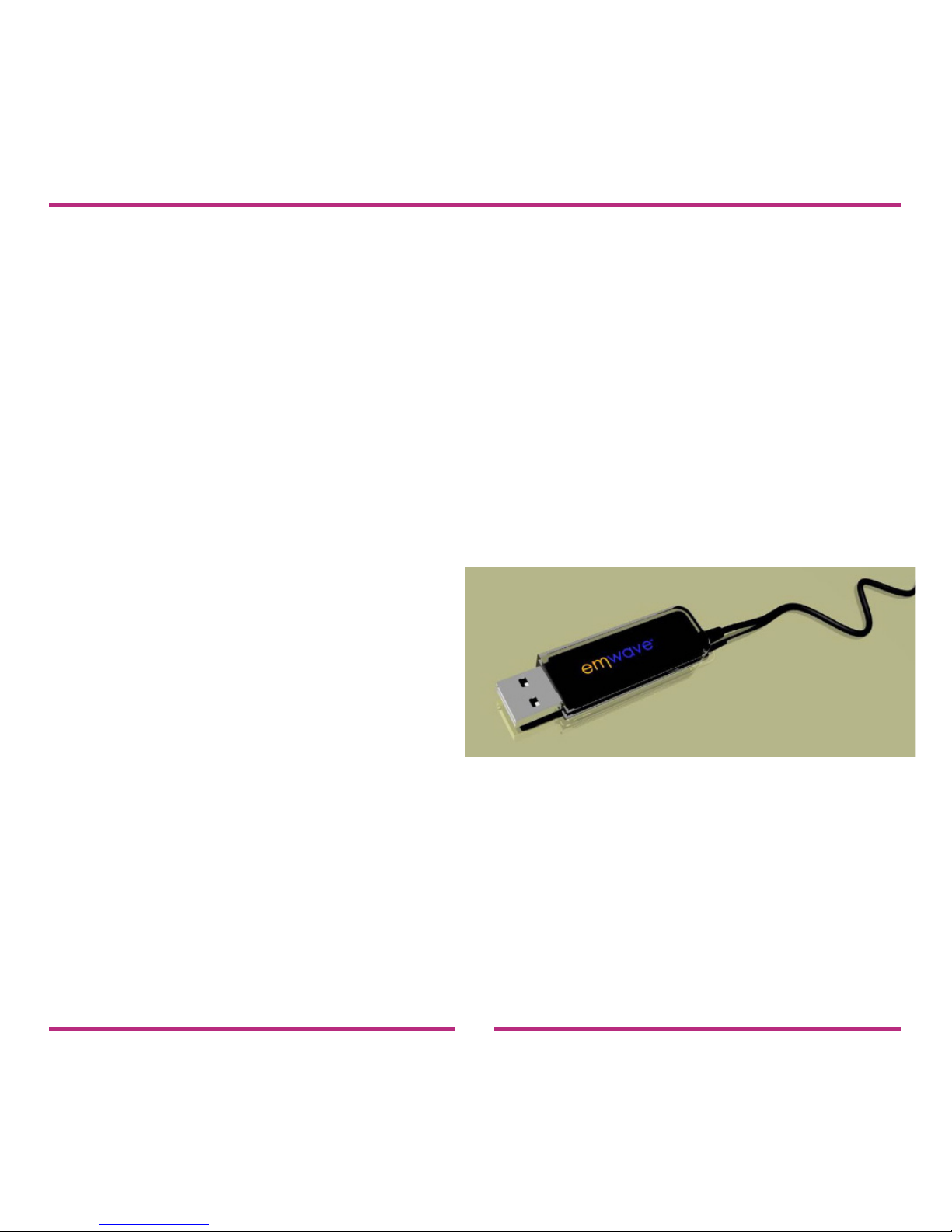
Make certain your computer is turned on, you have installed
the emWave PC software, and you have the following hardware:
— USB Module
— USB Ear Sensor
Step 1: Connect the ear sensor cable to the USB module and plug it
into an available USB port on your computer.
When you rst connect the USB
Module to a USB port, you should
see a notication near the Windows System tray in the lower
right hand corner of your screen.
This indicates that Windows has
detected the module. After the connection is established, the green
light on the USB Module is briey illuminated while it performs a self
test. After the self test is completed, the LED light on the USB Module
goes off and remains off until you begin your session.
Page 12
12
An optional nger sensor may be plugged into the USB Module
instead of the ear sensor. To obtain a nger sensor go to: www.heart-
mathstore.com
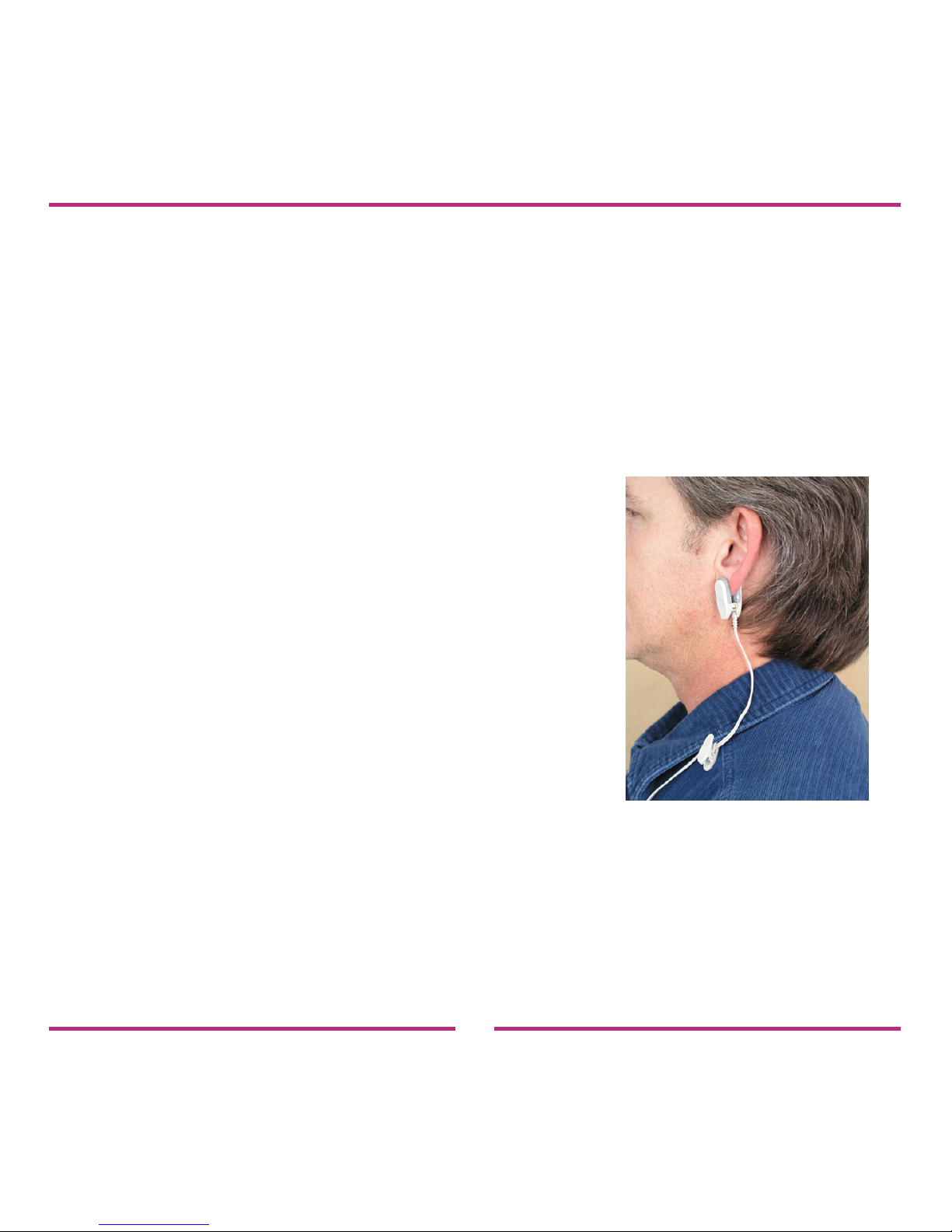
Step 2: Clip the ear sensor to your earlobe and the lapel clip to your
clothing. Slide the lapel clip along the wire to a comfortable position.
You might have to reposition the sensor to get an accurate pulse detection.
You are now ready to start using emWave® PC
and run a session.
Page 13
13
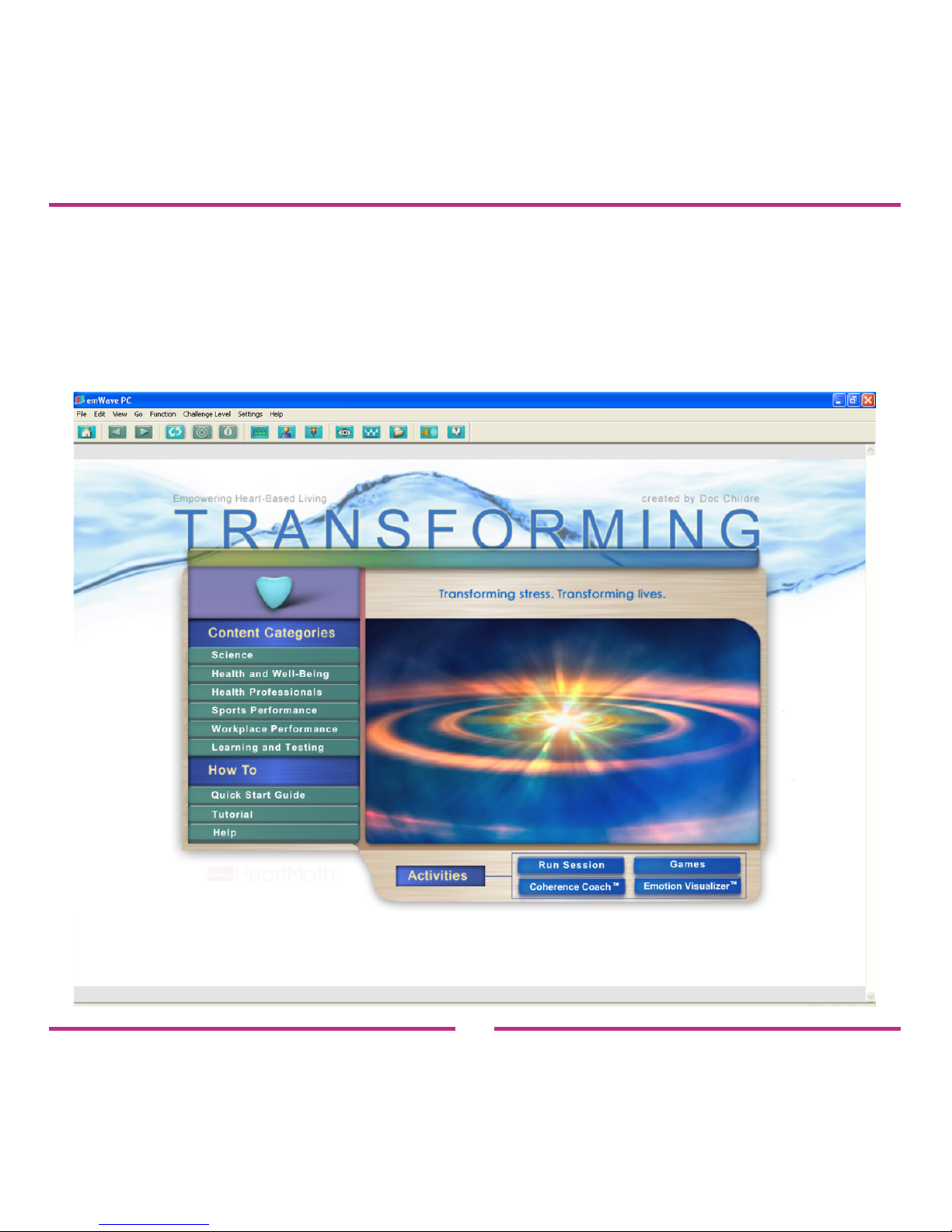
Navigating the Home Screen
The Home Screen is the starting point for easily and quickly navigating
the emWave PC program.
Page 14
14
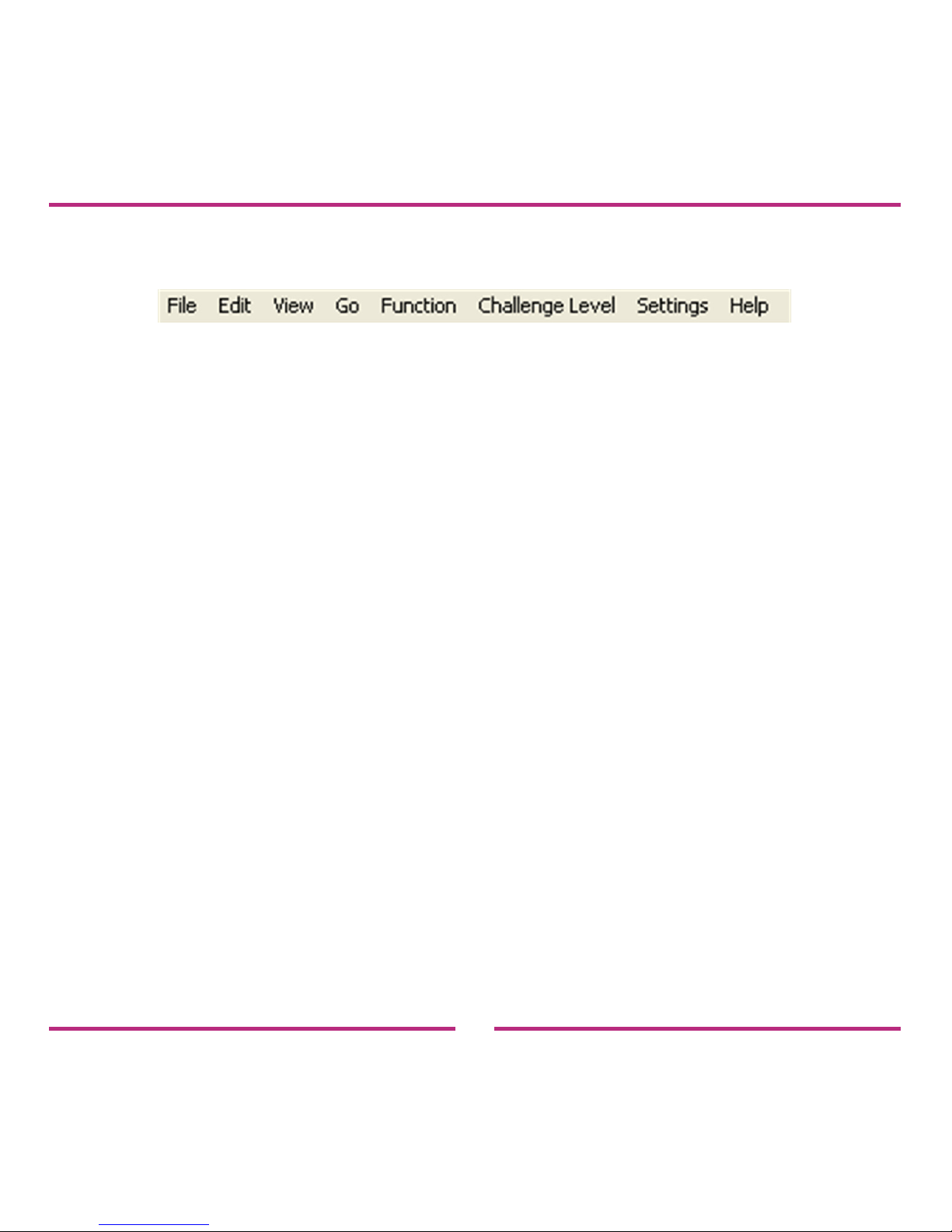
Menu - Drop down menus to access function and features.
From left to right:
File — Access to user and session functions.
Edit — Editing options.
View — Viewing options for the Heart Rhythm Display.
Go — Access to session data, Classic Games and
Emotion Visualizer.
Function — Controls for the Heart Rhythm Display.
Challenge Level — Set the Challenge Level.
Settings — Set Homepage, edit sounds and choose options.
Help — The support functions of emWave PC.
Page 15
15
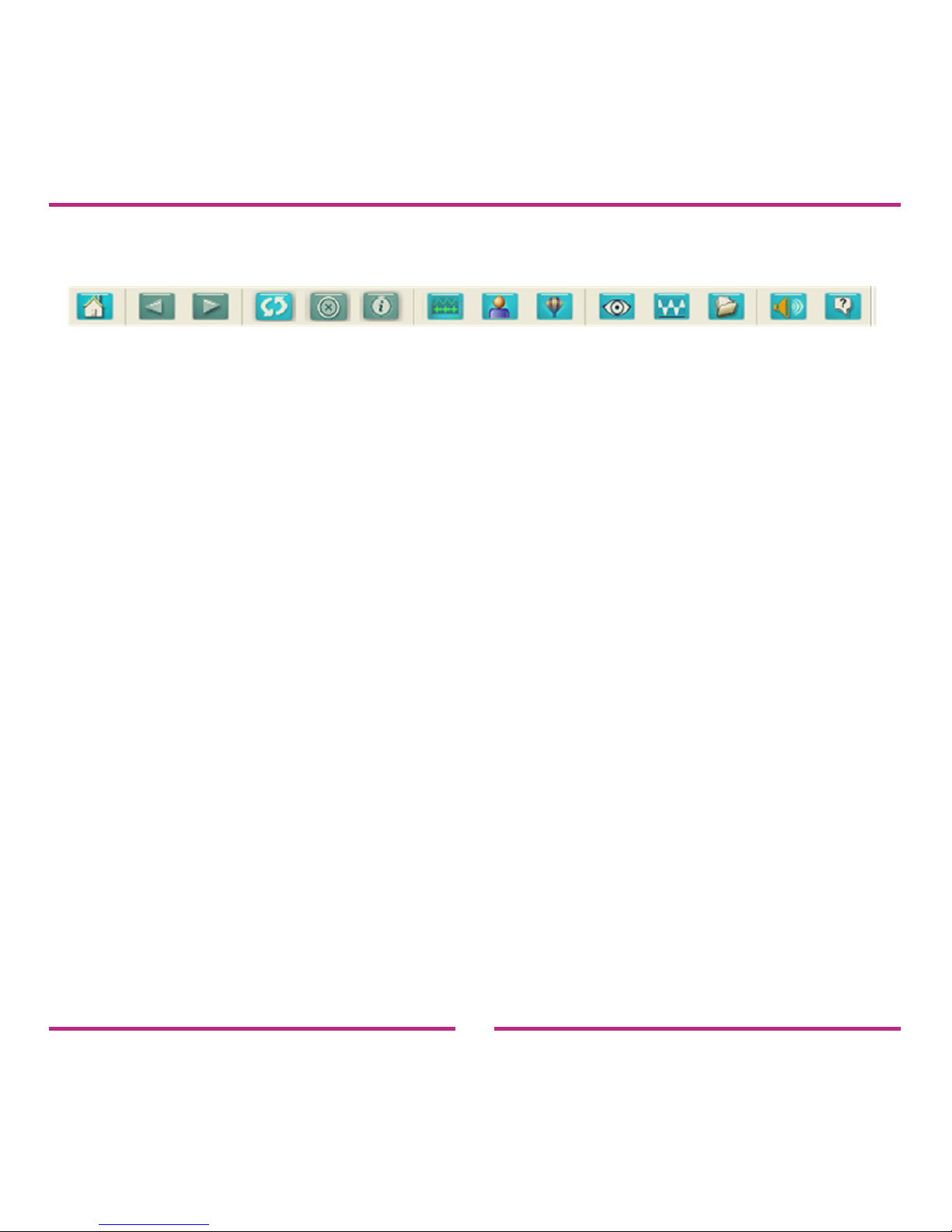
Toolbar - Graphical buttons to access functions and features.
From left to right:
Return to Home Screen — Displays Home Screen.
Previous Screen — Navigates back one page in history.
Next Screen — Navigates forward one page in history.
Refresh — Updates the current page.
Stop Load — Stops loading the current page.
View in Browser — View online pages in a web browser.
HRV Start — Opens the Heart Rhythm Display.
Open User — Select an existing user.
Play a Game — Opens the Games Homepage.
Visualizer — Opens the Emotion Visualizer Homepage.
Coach — Opens the Coherence Coach.
Review a Past Session — Select from a list of sessions.
Edit Sound — Enable, disable and import new sounds.
Help — Activates the context help arrow.
Page 16
16
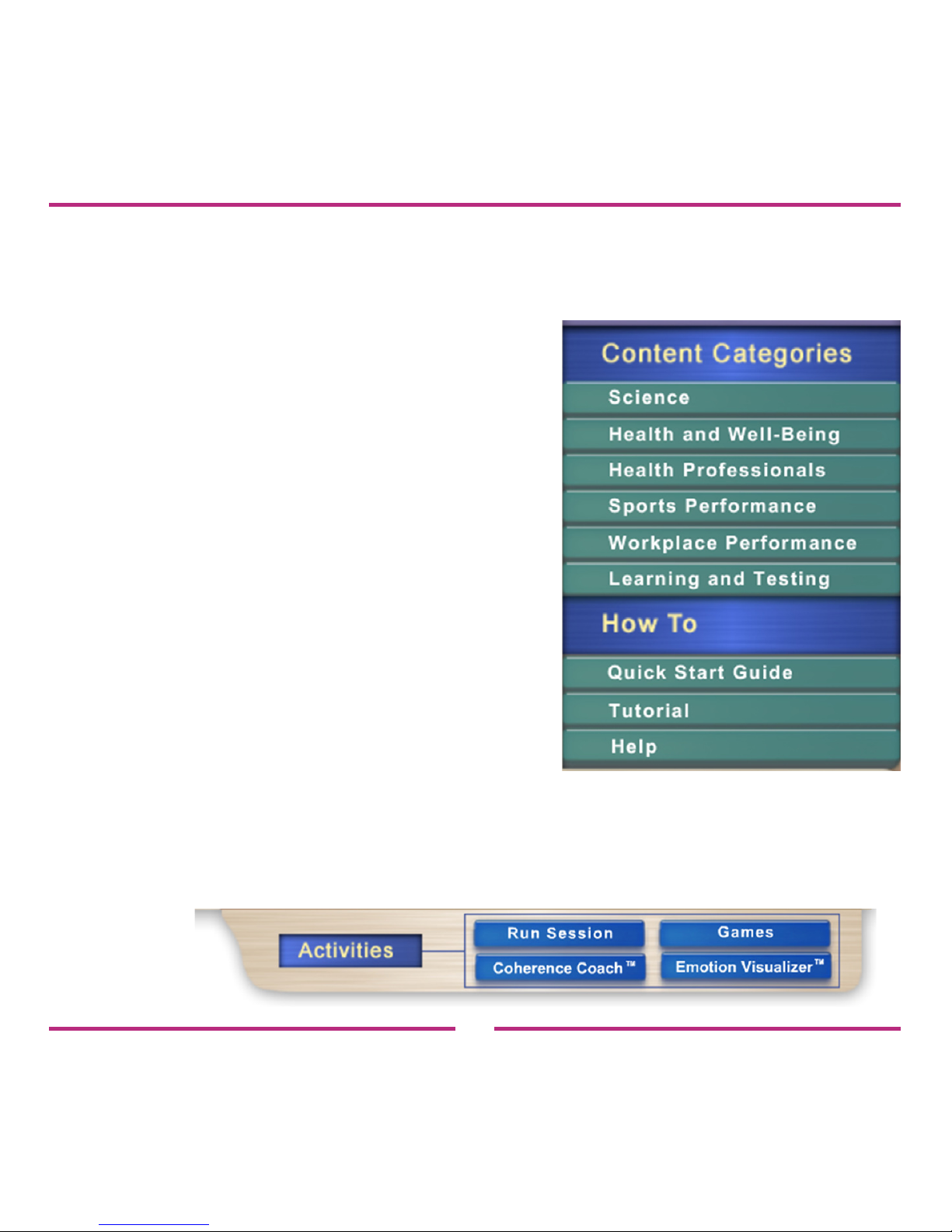
Content Categories — Buttons that open application specic sections
that provide information about how to
use emWave PC.
Clicking each of the green buttons
opens that category’s Homepage.
How To — Buttons that open the
Quick Start Guide, Tutorial
and Help Files.
Activities — Buttons that open the core features:
Run Session, Games, Emotion Visualizer™ and
Coherence Coach™.
Page 17
17
Running a Session
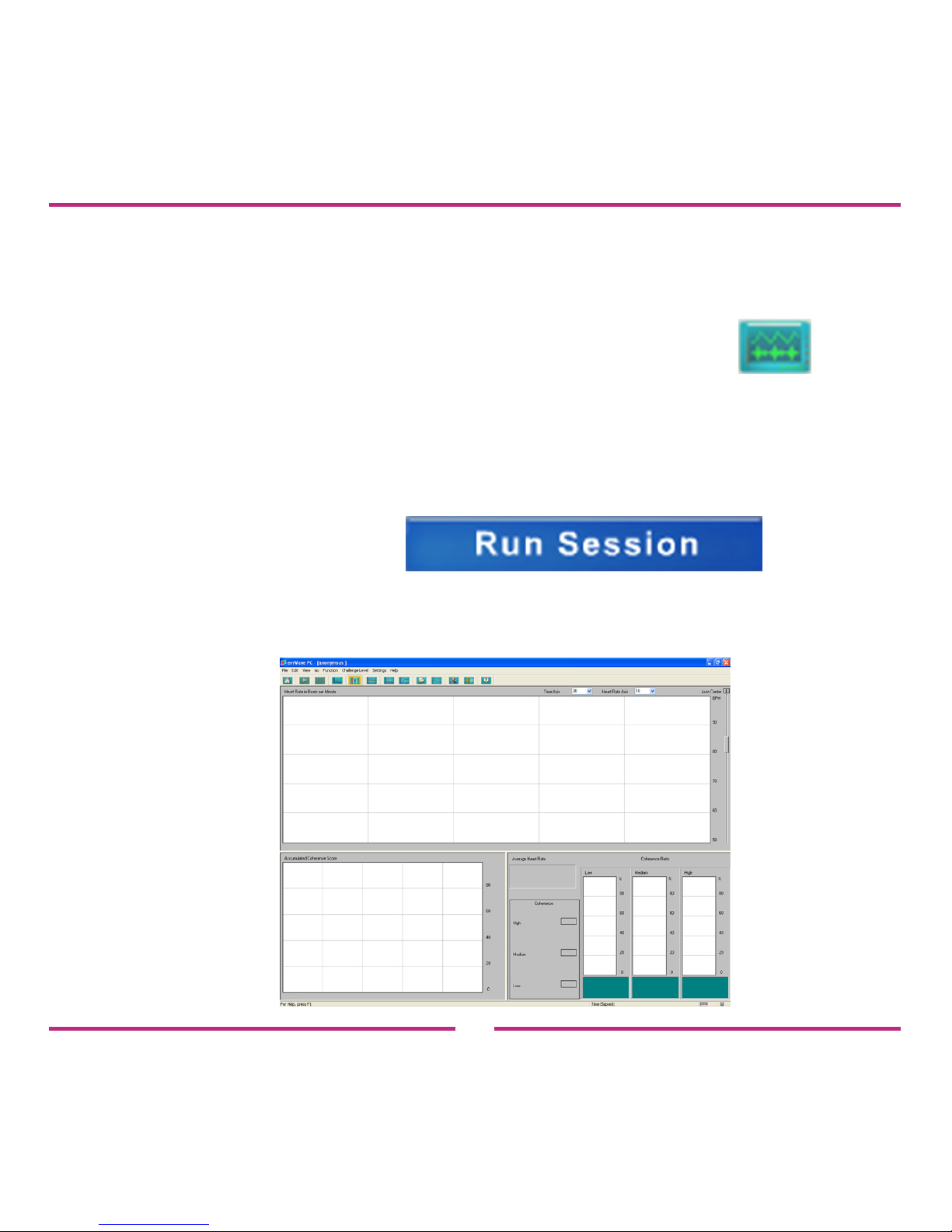
To run a session:
Step 1: Go to the Toolbar and click the HRV Start button.
Or
Go to the Activities section and click the Run Session button.
The main Heart Rhythm Display will open.
Page 18
18
Step 2: You are now ready to attach the ear sensor.
Clip the ear sensor to your earlobe and the lapel clip to your
clothing. Slide the lapel clip along the wire to a comfortable
position.
Note: As you achieve low, medium, or high coherence during your
session, the LED light on the USB Module will glow red, blue, or green
according to your level of coherence.
Step 3: Click the Start button on the Toolbar. This will start your
session.
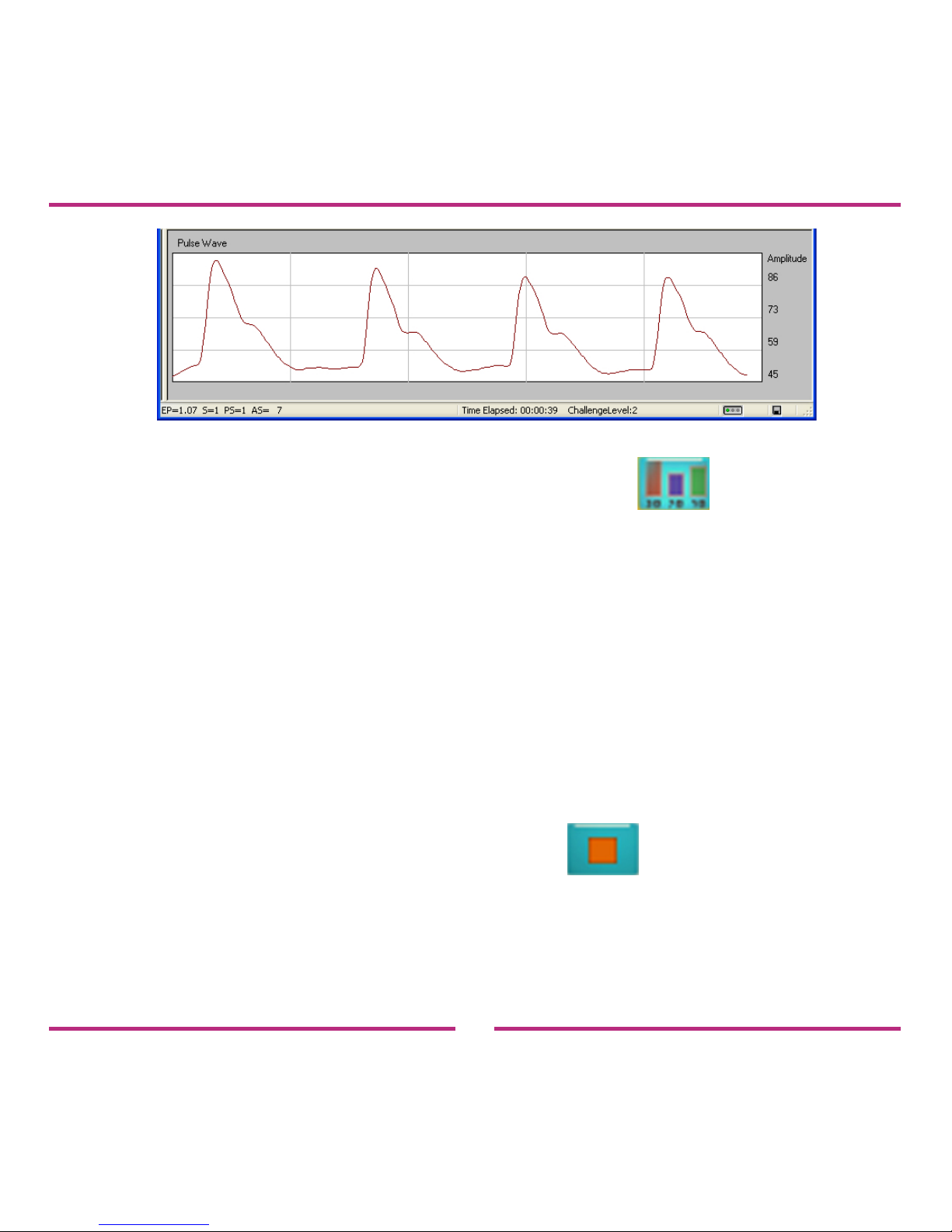
Step 4: Click the View Pulse Wave button on the Toolbar.
Adjust the nger sensor or the ear sensor until your pulse
wave data shows distinct, smooth pulse spikes. When you see
a pattern similar to the one on the next page, accurate data is
being recorded.
Page 19
19
Step 5: Click the View Coherence Ratios button on the Toolbar.
This takes you back to the main Heart Rhythm Display.
This screen displays your Coherence Ratio, Accumulated
Coherence Score and your Heart Rhythm pattern.
You are now ready to practice the Quick Coherence®
technique (found in the Tutorial and the Coherence Coach)
to shift your heart rhythms and increase your coherence level.
To end your session, click the Stop button on the Toolbar.
Page 20
20
Coherence Ratio Screen
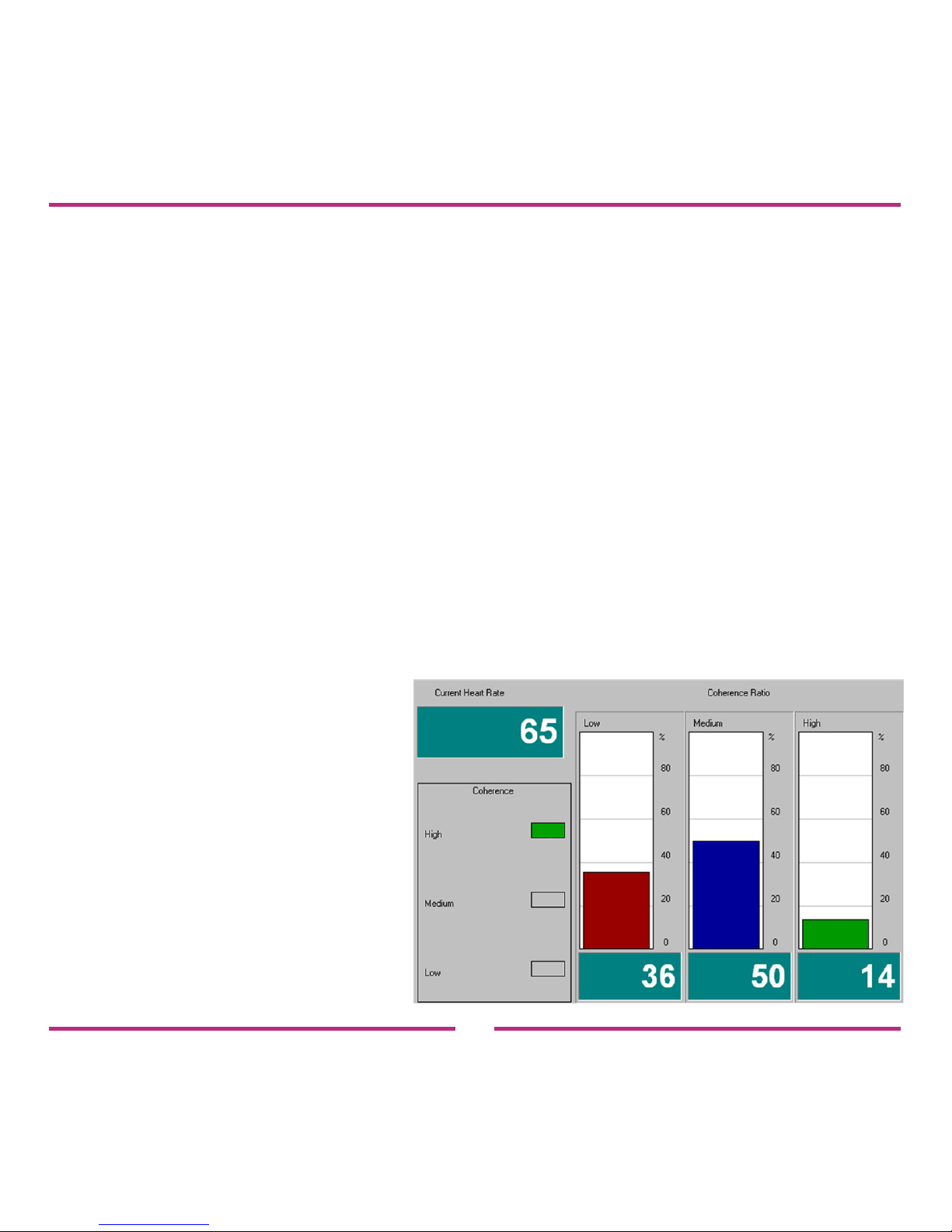
During a session, the Coherence Ratio screen will continuously display
an updated view of your physiological coherence ratio, your current
coherence level and your current heart rate reading. The information
will be updated and displayed every ve seconds throughout your
session.
(For further understanding of coherence, take a moment to read the
Overview section in the Science category.)
The Coherence Ratio screen can be viewed from the main Heart
Rhythm Display below the Heart Rhythm screen to the right of the
Accumulated Coherence Score screen.
Page 21

21
The Coherence Ratio Bar Chart is divided into three coherence levels:
low, medium and high. The total of all three levels will always equal
100%. The Coherence Ratio Bar Chart displays what percentage of
the time you have spent during your session in low, medium and high
coherence.
For example, in the image on the previous page the person was in:
— Low Coherence 36% of the time.
— Medium Coherence 50% of the time.
— High Coherence 14% of the time.
Your goal is to increase the amount of time you spend in high
coherence. This is done through practice.
Your results will vary depending on the challenge level you select.
Page 22
22
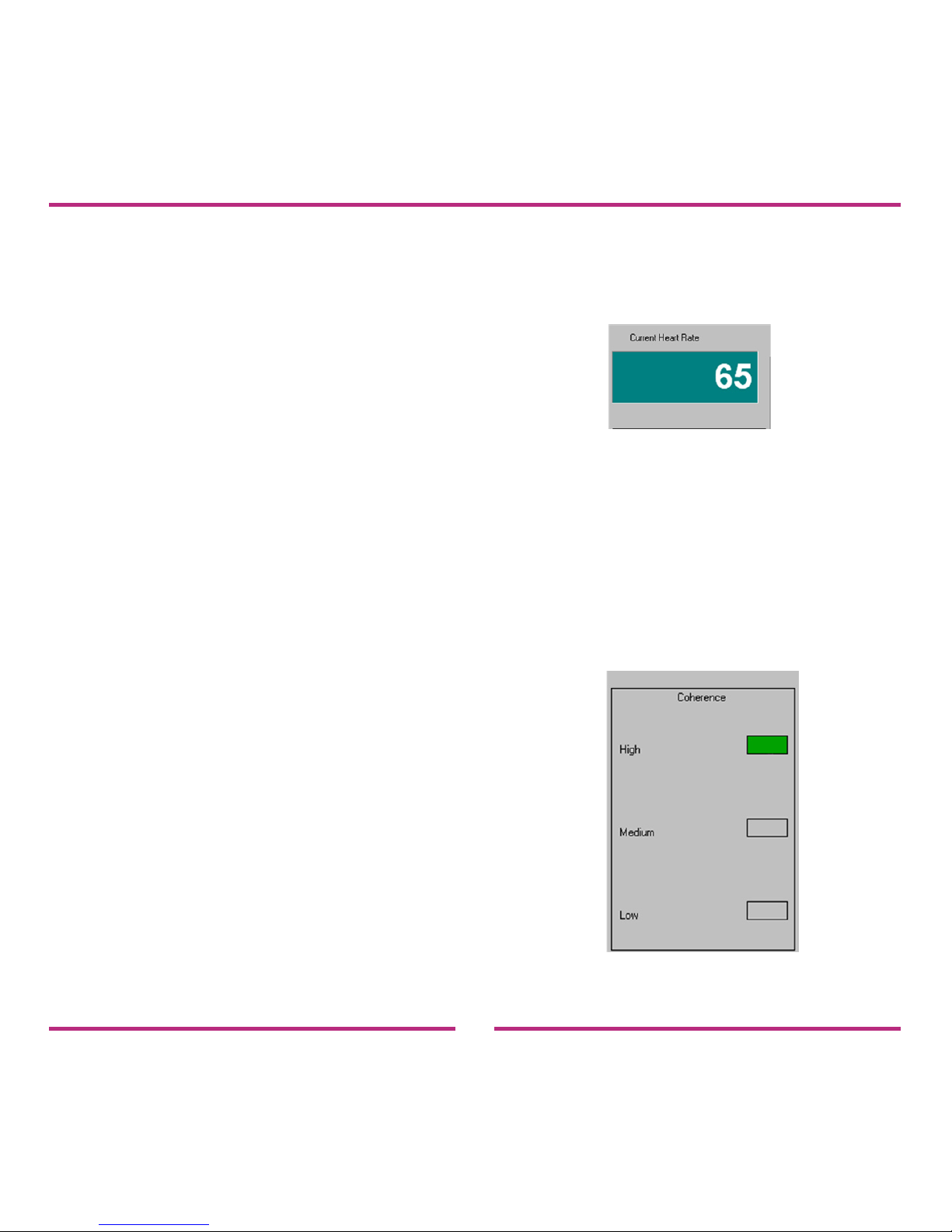
The Current Heart Rate display will show you your average heart rate.
Every ve seconds, emWave PC averages your heart rate and
displays that average.
After you end a session, the Current Heart Rate display will show your
average heart rate for the entire session.
Every ve seconds, the three coherence lights below the Current Heart
Rate display reect your coherence level. There is a short lag time
from the time the data is recorded to when it is analyzed and viewable
on this display.
Page 23
23
Accumulated Coherence Score
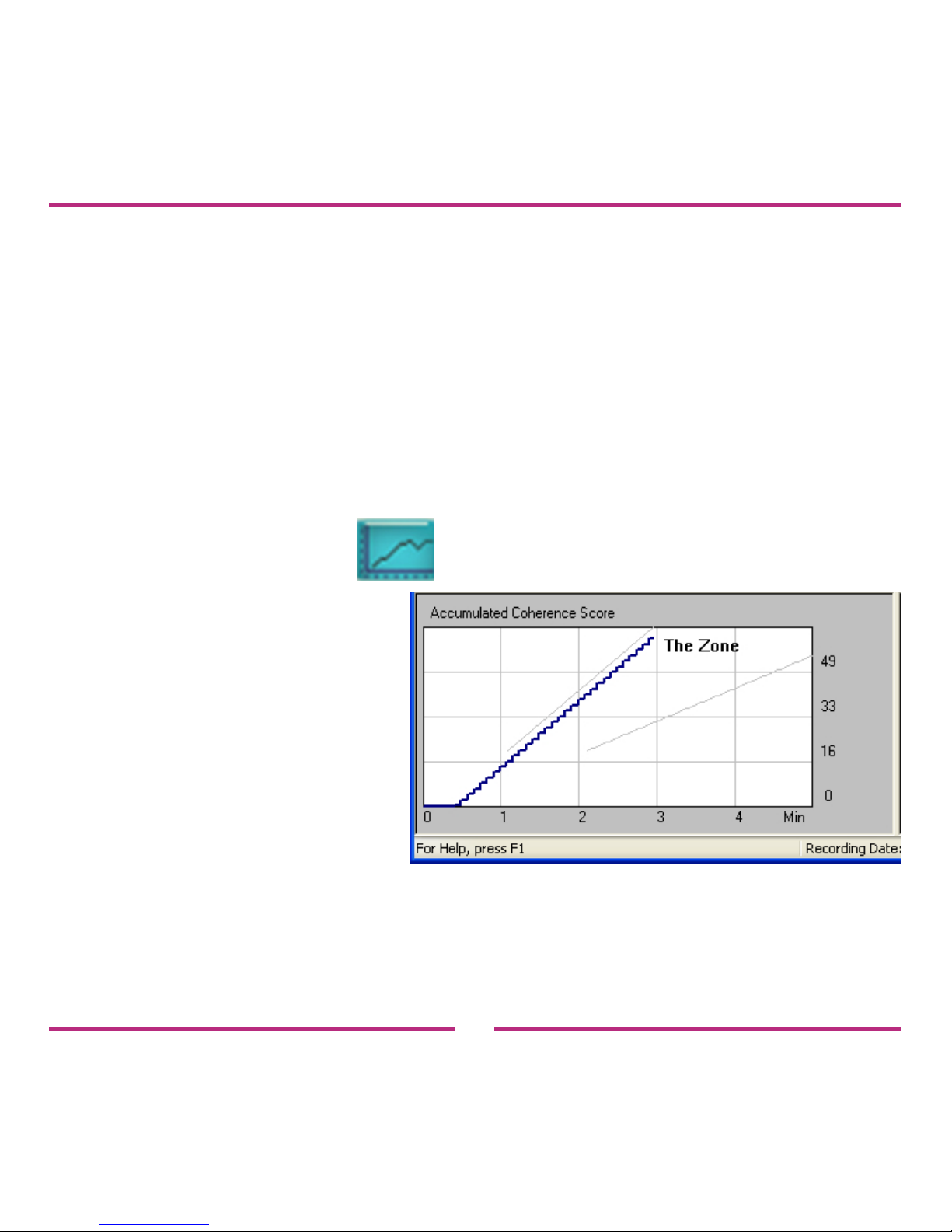
The screen to the left of the Coherence Ratio screen is the
Accumulated Coherence (AC) Score. It is a linear view of the AC
Score. With this score you can measure your progress over an
individual session and compare between separate sessions.
The AC Score can be viewed from the main Heart Rhythm Display.
It can also be displayed on a larger screen by clicking the View
Coherence Score button.
Interpreting Your Accumulated Coherence Score?
The blue line in the Accumulated Coherence Score screen is linked to
the amount of time you are in low, medium, or high coherence.
Page 24

24
When you are in low coherence, the slope of the line goes down.
When you are in medium or high coherence the line goes up.
The numbers on the right side of the screen represent points. For
every ve seconds that you are in medium coherence you receive 1
point (+1). For every ve seconds you are in high coherence you
receive 2 points (+2). For every ve seconds that you are in low
coherence you lose a point (-1).
Increases and decreases in points are reected in the upward and
downward movement of the blue line.
After about one minute you will see two lines on the graph sloping at a
downward angle from right to left. These lines represent a target area
called The Zone. Your goal is to accumulate points by staying in
medium or high coherence, which will cause the blue line to move
upward between the sloping lines into The Zone.
Using the Accumulated Coherence Score screen to view your
relationship to The Zone can help you achieve and maintain higher
levels of coherence.
To learn more about the Accumulated Coherence Score go to the
online support site at http://support.emwave.com.
Page 25
25
Saving Your Session
The Save Session feature is designed to make it possible for multiple
users to save their data to their personal le. emWave PC has no limit
to the number of sessions that can be saved; the amount of hard drive
space on your computer determines this.
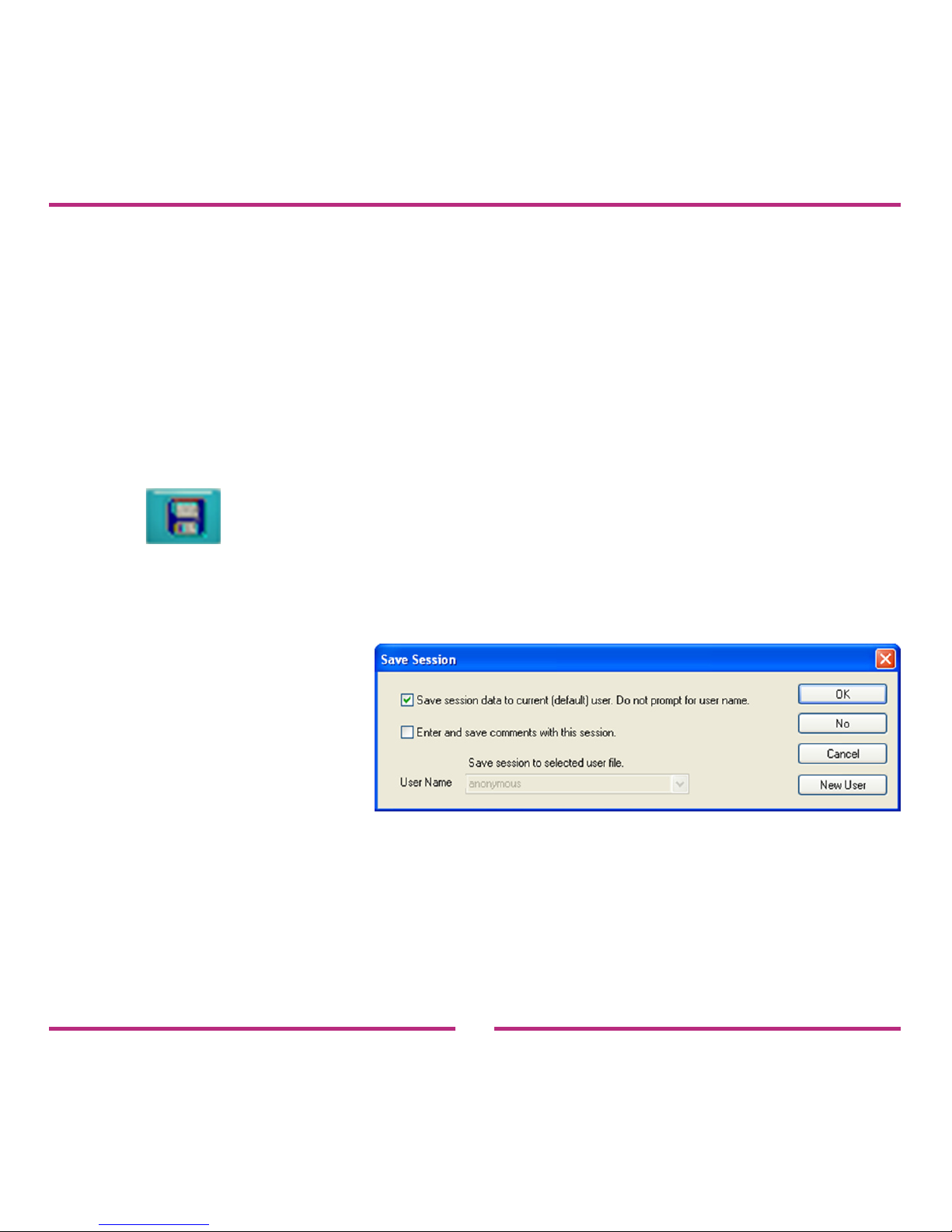
To save your data after running a session click the Save Session
button.
The Save Session dialog box appears.
If you attempt to exit a session without saving it, the Save Session
dialog box will appear. If you want to turn this feature off, or save
sessions automatically, go to the Help menu for instructions.
Page 26

26
To save session data to the current user without entering
comments, click OK. The current default user is displayed above the
Menu next to emWave PC page title.
To save session data to current (default) user and enter
comments with the session, select the ‘Enter and save comments
with this session’ checkbox. A Session Comment window will appear.
Enter a title and any comments that correspond to the session.
To create a new user, if this is your rst session on this computer,
click the New User button. The Personal Information dialog box will
appear. Enter your personal information and click OK.
If you already have a User Name and are not the current (default) user,
you can save the session under your existing User Name by
de-selecting the ‘Save session data to current (default) user’ checkbox.
You can now nd your User Name in the drop down menu.
If you decide not to save the session, click the No button.
Page 27

27
Key Features
Utilizing the Content Categories
To enter into one of the Content
Categories click a category button,
which opens the Homepage of that
category.
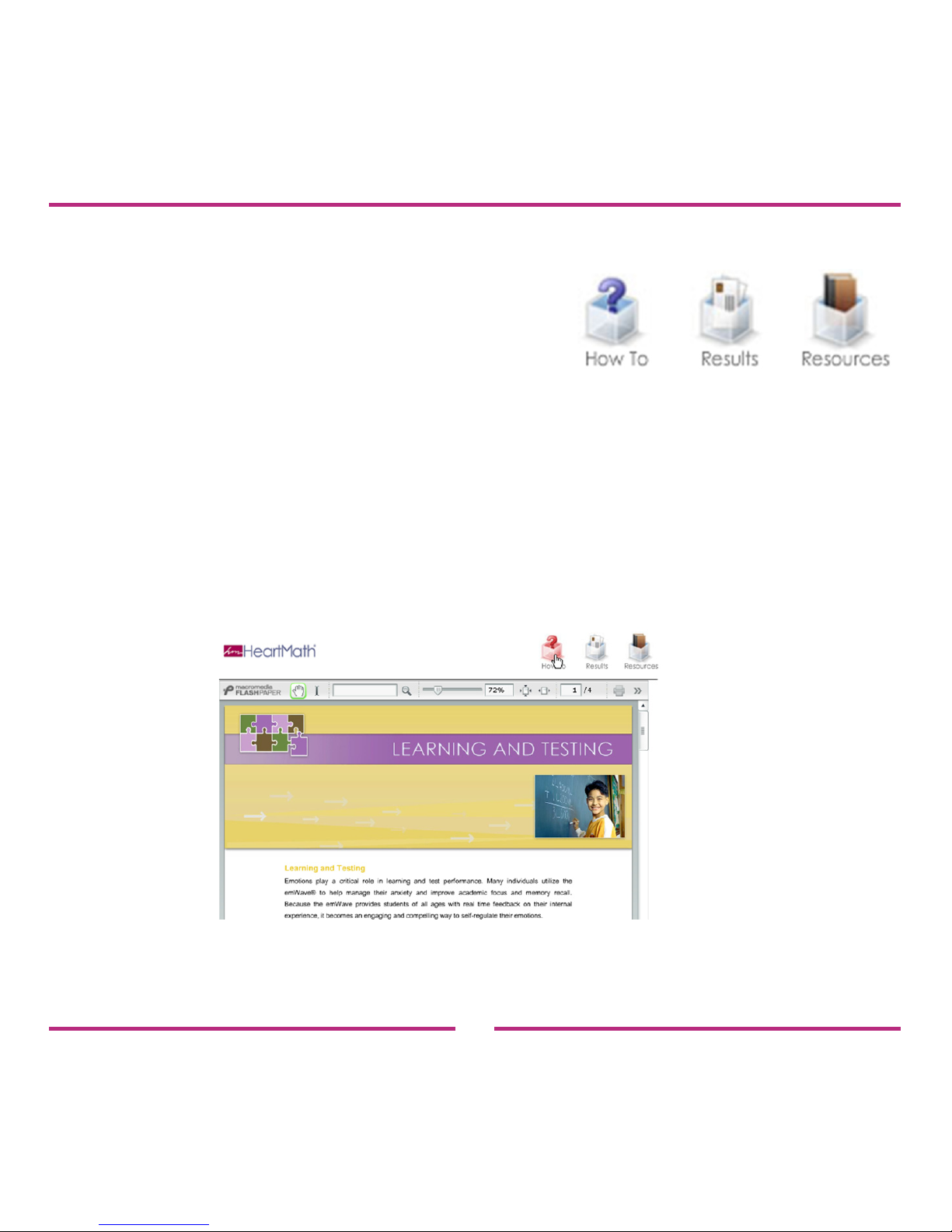
The Learning and Testing
Homepage is shown to
the right.
Page 28
28
To view the How To, Results and Resources sections click the
corresponding button.
How To — Provides instruction on how to use emWave PC for that
specic application.
Results — Includes case studies and personal stories.
Resources — Provides additional resources and available services to
help you get the most from your emWave PC system.
Note: The Science Homepage buttons are labeled
Overview, Applications and Resources.
How To
example page
Page 29
29
Learning with the Tutorial
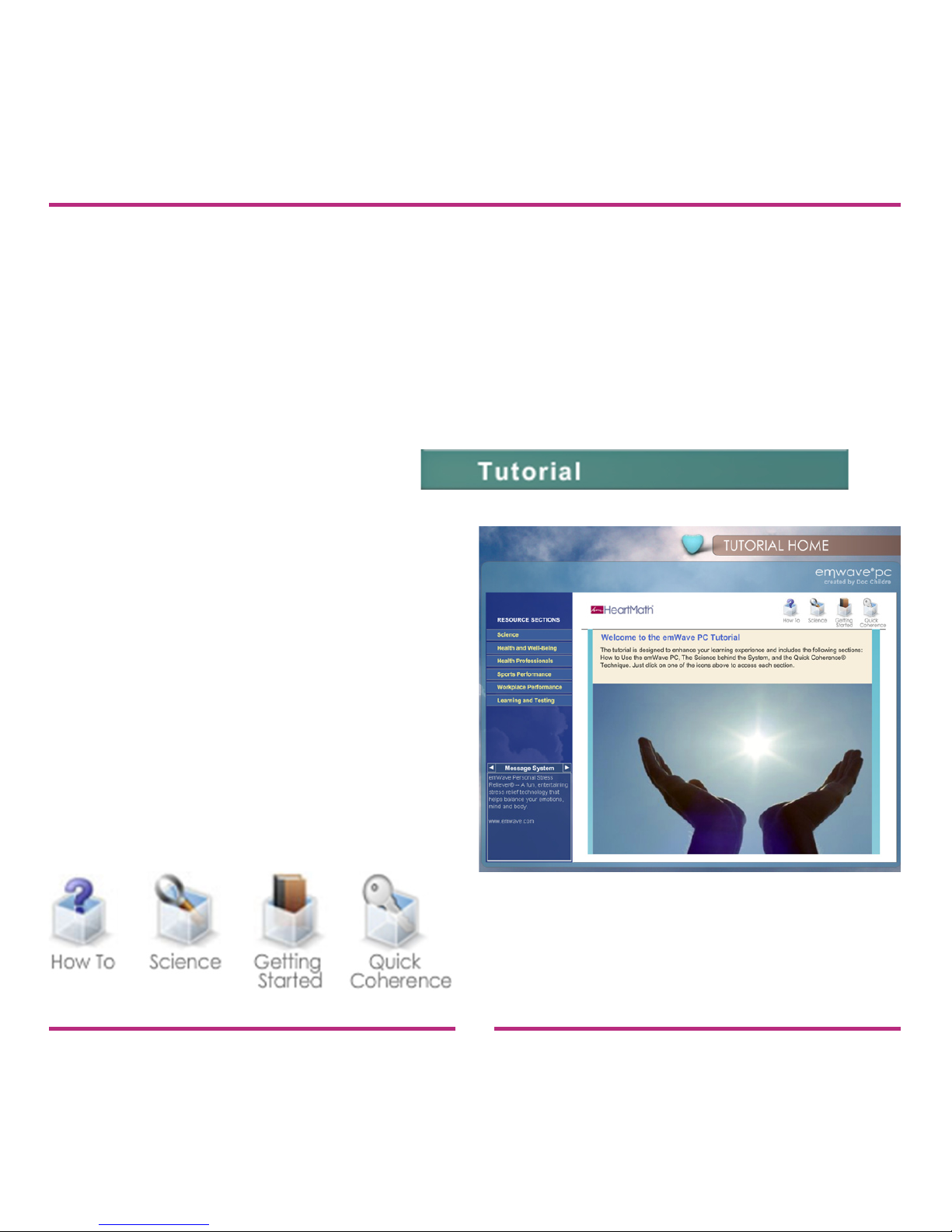
The Tutorial includes four sections. To fully utilize and get the most out
of your emWave PC study each of the four sections.
To open the Tutorial click the green Tutorial button in the How To
section of the Home Screen.
The Tutorial Homepage will open.
To view the How To,
Science, Getting Started or
Quick Coherence section click
the corresponding button.
Page 30
30
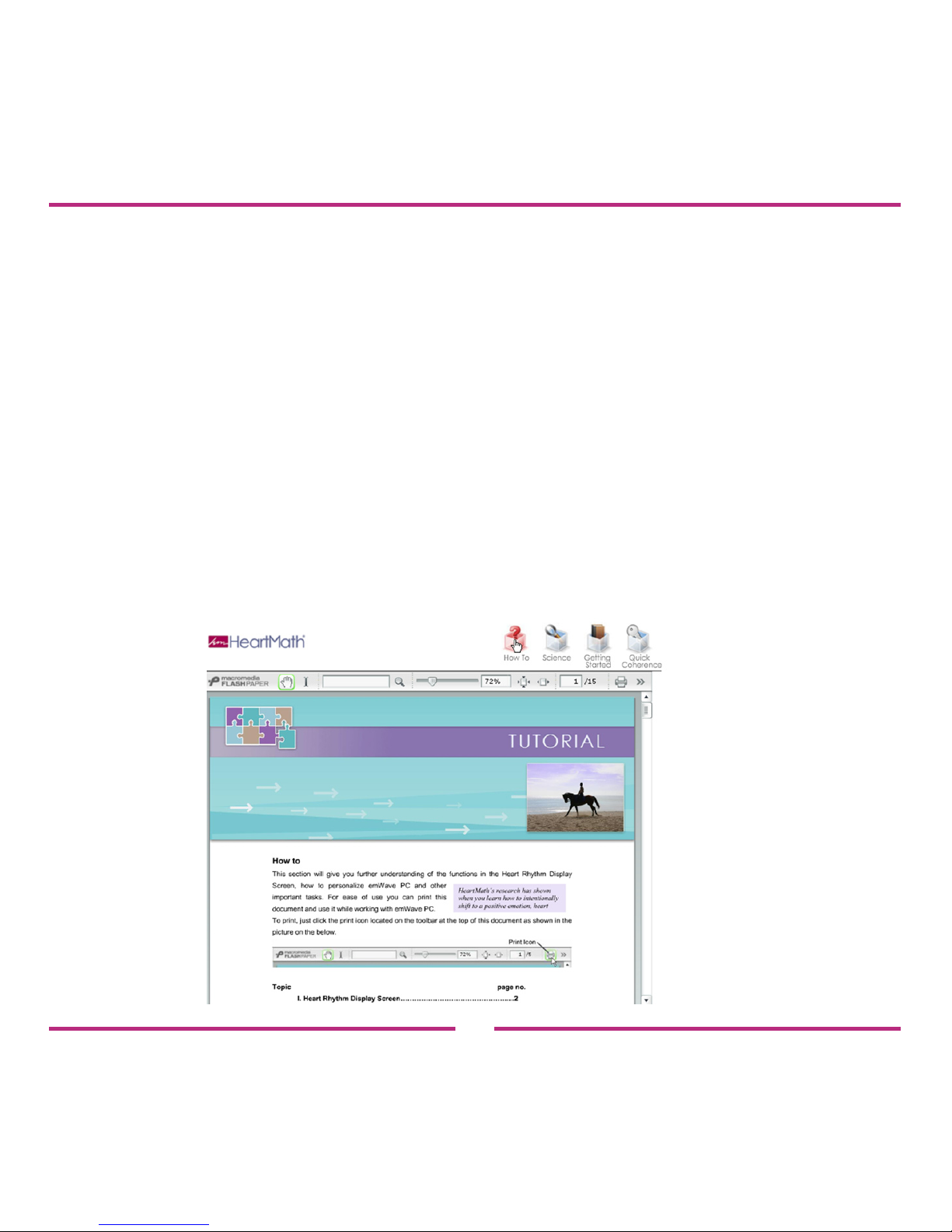
How To — Outlines the functions of the Heart Rhythm Display and
other core options.
Science -— Short video clips explaining the science behind
emWave PC and the HeartMath® system.
Getting Started — Walks you through the key features in
emWave PC.
Quick Coherence — A video explaining the powerful Quick
Coherence technique you will use to improve
your coherence scores.
.
How To
example page
Page 31
31
Using the Coherence Coach™
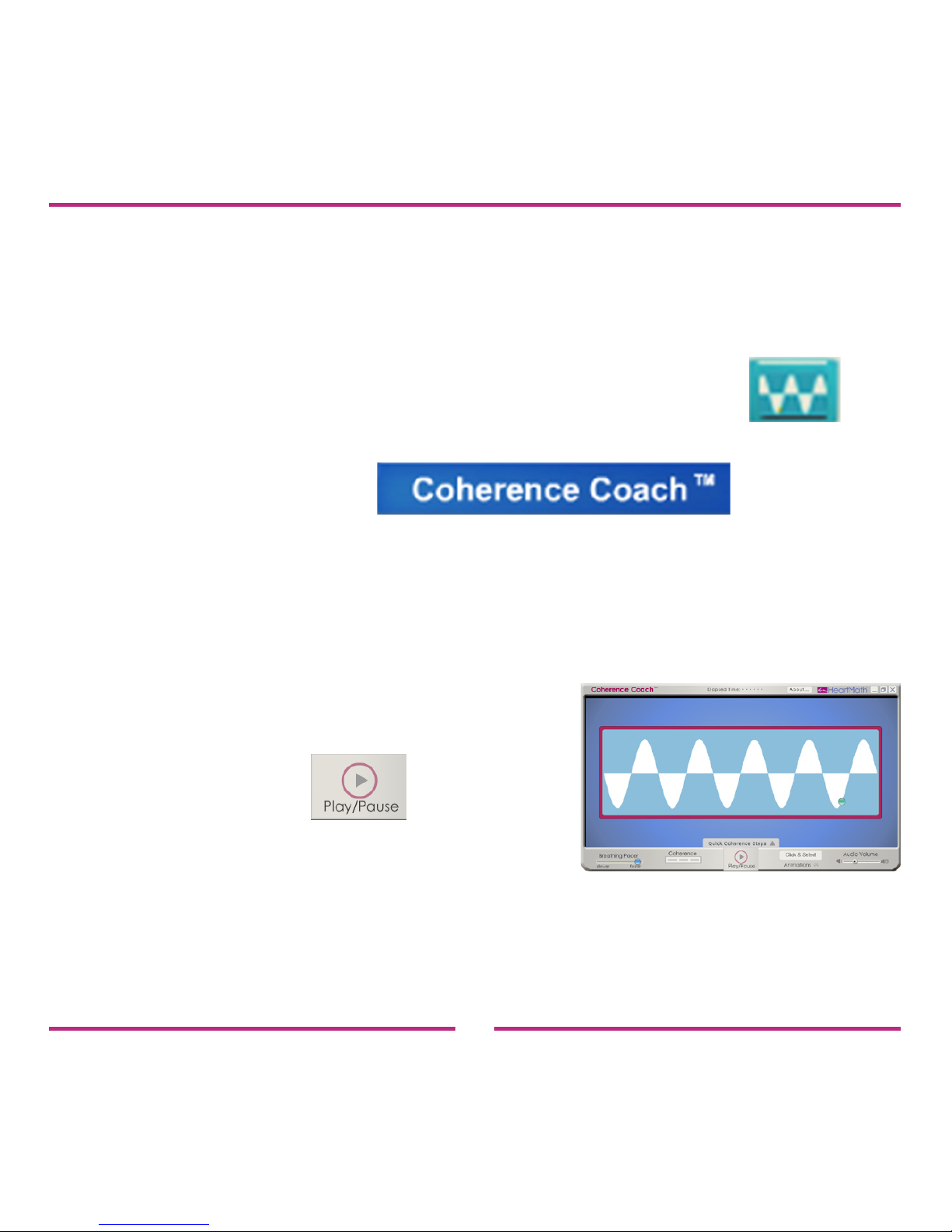
The Coherence Coach is an interactive feature that teaches
HeartMath‘s Quick Coherence technique for relieving stress.
To open the Coherence Coach just click the Coach button
on the Toolbar. Or click the Coherence Coach button
in the Activities section on
the Home Screen.
Before opening the Coherence Coach you should have your
hardware set up and be ready to start a session.
After clicking the Coach button, the Coherence Coach will open.
When you are ready to begin,
click the Play button.
After clicking the Play button the
Coherence Coach will teach you the Quick Coherence technique.
The Heart Rhythm Display will open in the background and begin
accumulating data.
Page 32
32
The Coherence Coach and the Heart Rhythm Display run separately.
When you pause the Coherence Coach, the Heart Rhythm Display
keeps running, and vice versa.
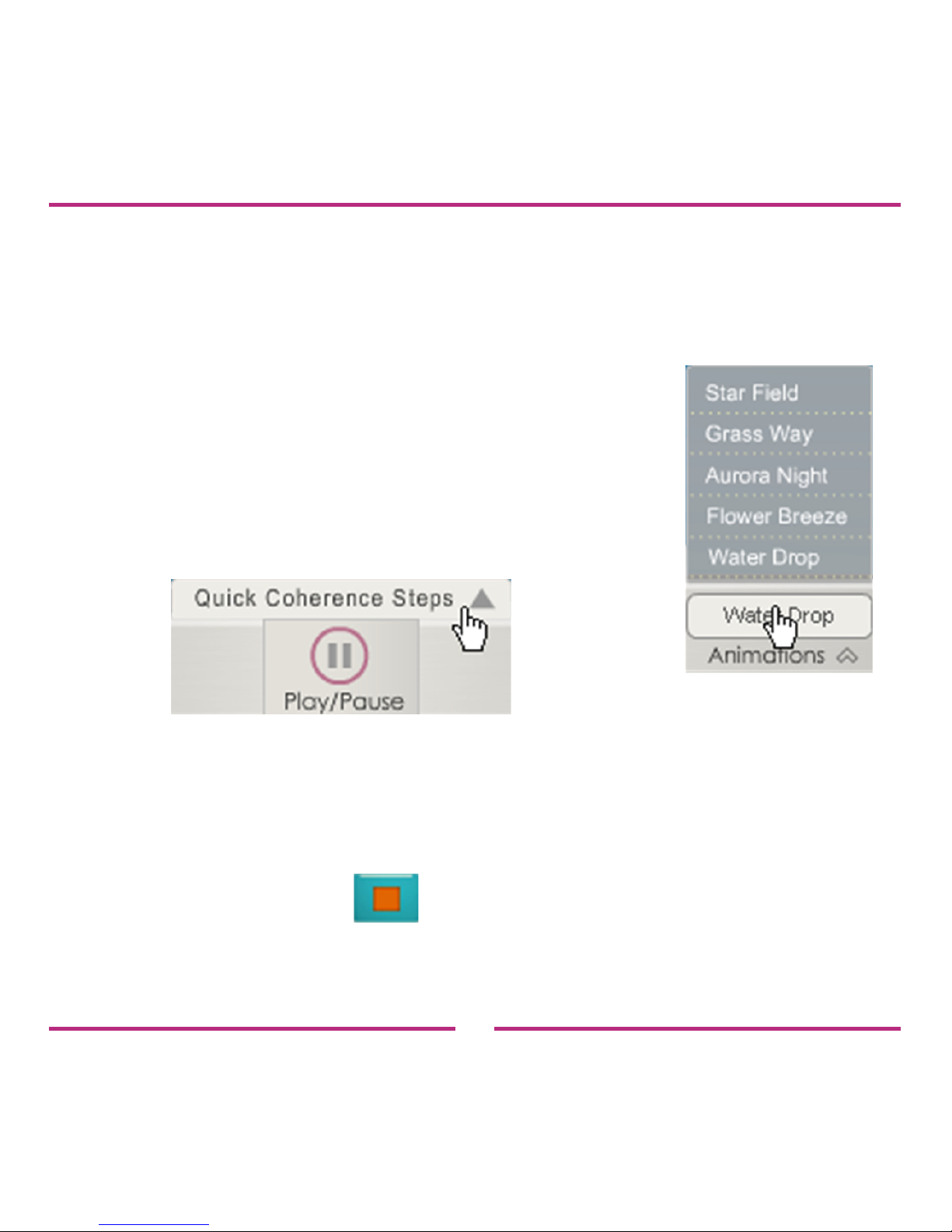
After the Coach has instructed you on the
Quick Coherence technique you can choose one of
the Animations from the menu shown to the right.
You can also go back over the steps by clicking
the Quick Coherence Steps button shown below.
To close the Coherence Coach click the X in the upper right corner of
the application window.
To stop your running session you must go to the Heart Rhythm Display
and click the Stop button on the Toolbar.
After you are nished with the Coach you can view your data in
the Heart Rhythm Display, which has been running in the background.
Page 33
33
Playing the Games
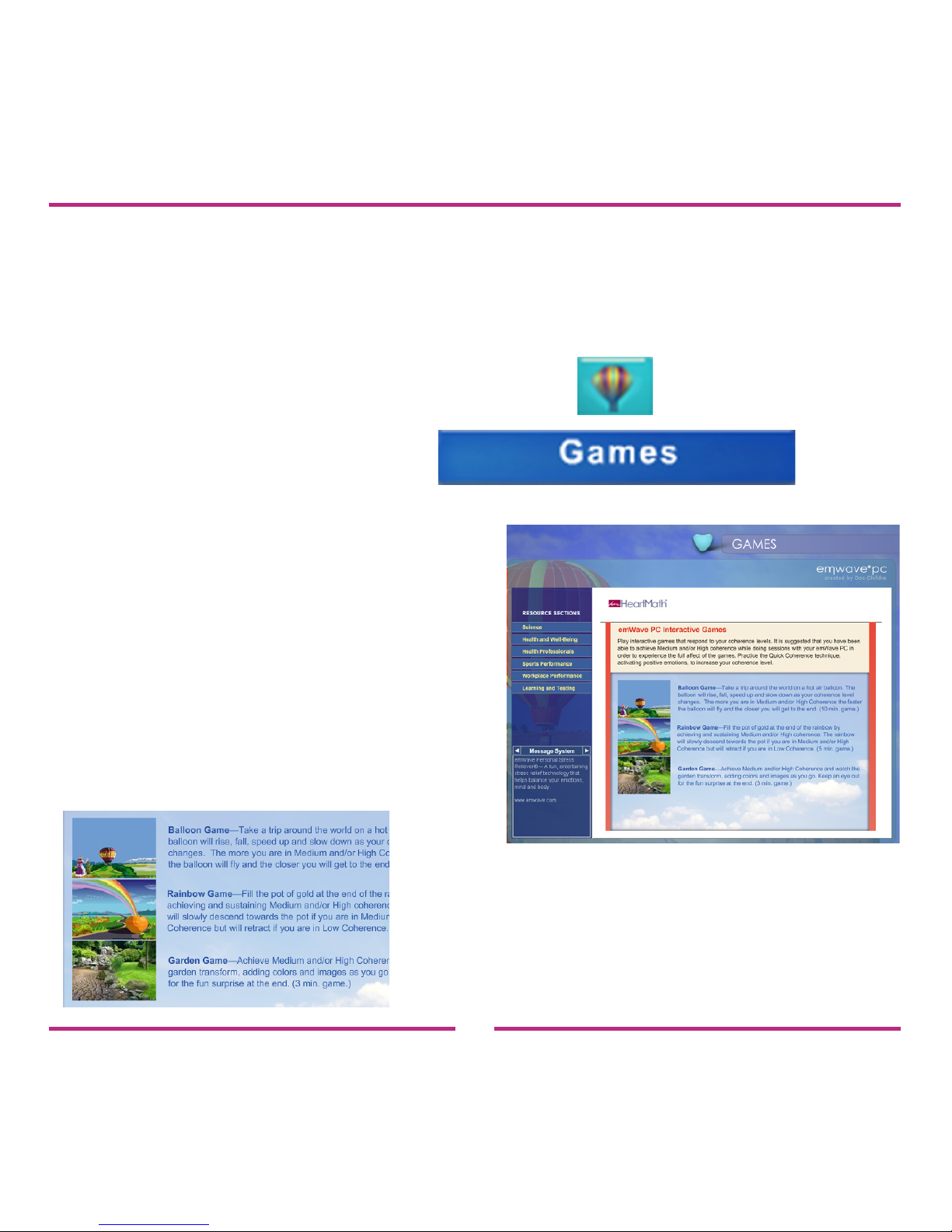
emWave PC includes games designed to support you in practicing the
Quick Coherence technique.
To play the games, click the Games button on the Toolbar. Or
click the Games button
in the Activities section on the
Home Screen.
The Games Homepage will open.
Notice in the middle of the screen
the three game images with
descriptions.
To open one of the games, click
one of the three game images.
After clicking the game you want to
play, the game opens up in a separate
window.
Page 34
34
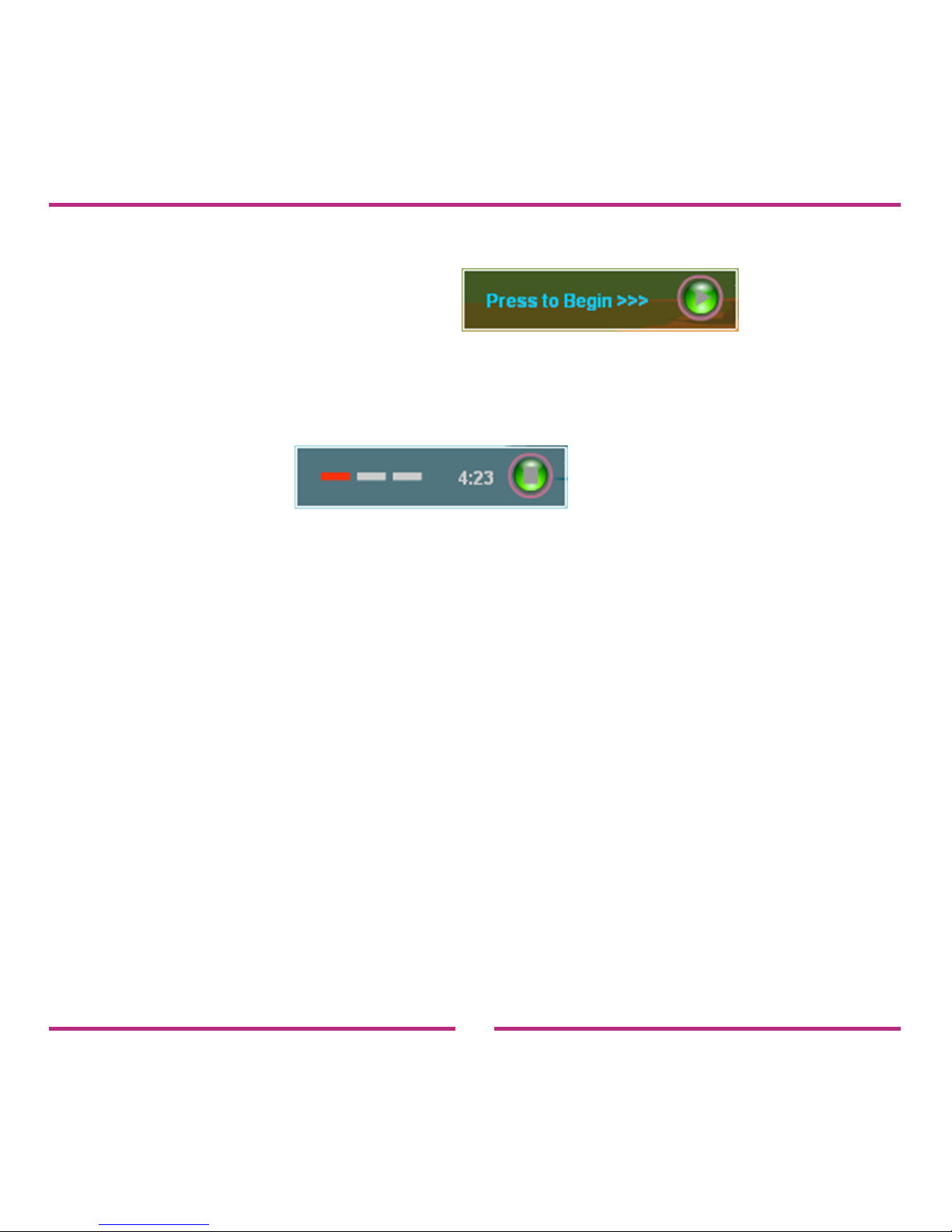
To start the game, click the green Start button located in the
lower-right corner of the screen.
The game has started once you see one of the coherence bar
indicators light up. (shown in the picture below)
To stop the game, click the green Stop button which has
replaced the Start button.
The games run in conjunction with the monitoring of your heart rhythm.
After you have nished a game, you can review your data in the Heart
Rhythm Display, which has been running in the background.
Page 35
35
Running the Emotion Visualizer™
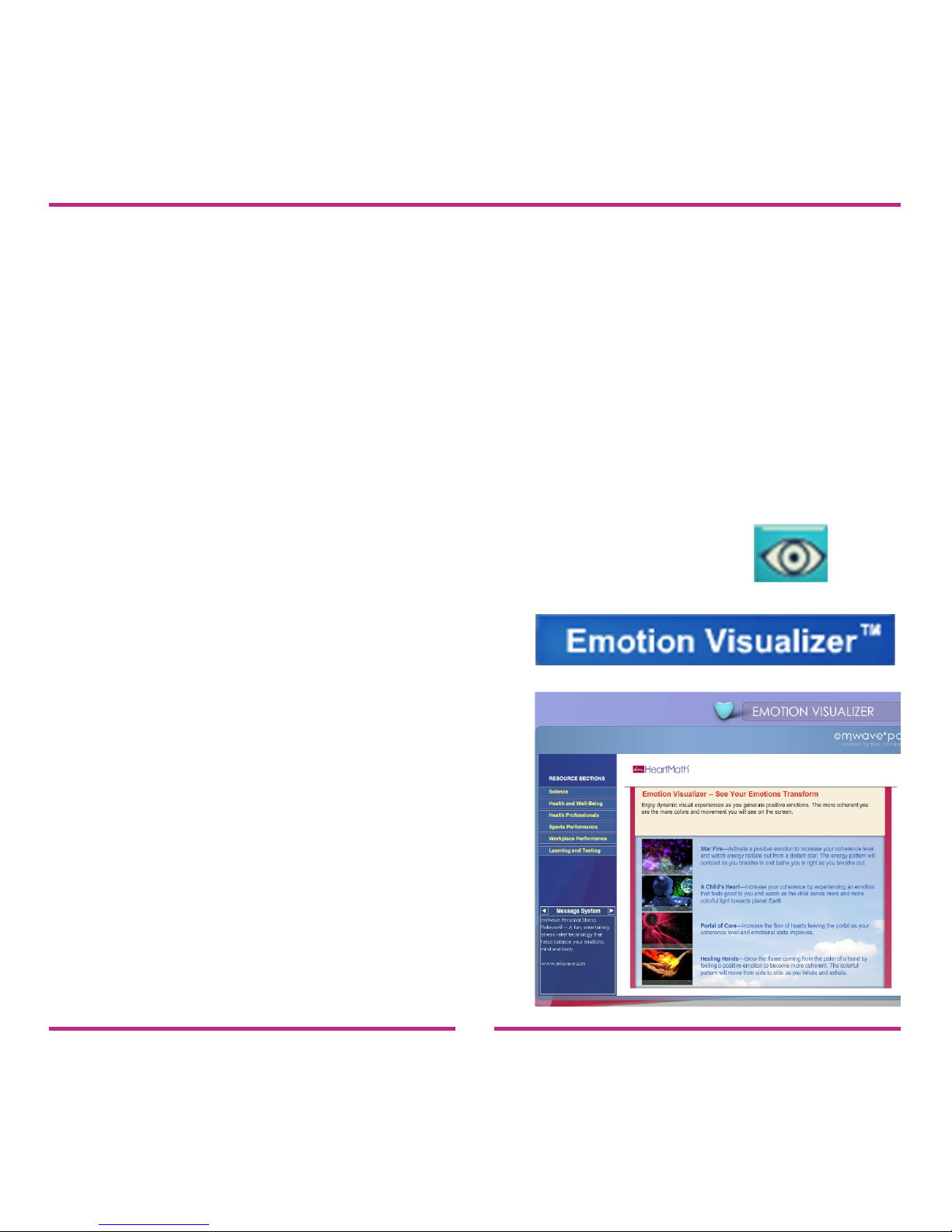
The Emotion Visualizer is a graphic display that changes as your
coherence level changes. What we mean by Emotion Visualizer is
this: As you organize your emotional intentions to send out love, care
or appreciation, the visual images change to reect your emotional
coherence level. The visual images provide feedback so you can get
the feel of when you are increasing your coherence by self-generating
positive emotions.
To open the Emotion Visualizer click the Visualizer button on
the Toolbar. Or click the Emotion Visualizer button
in the Activities section on the Home
Screen. The Emotion Visualizer
Homepage will open.
Notice in the middle of the screen
the four visualizer images and
their descriptions.
To open the Emotion Visualizer
click one of these four images.
The Emotion Visualizer opens in
a separate window.
Page 36
36
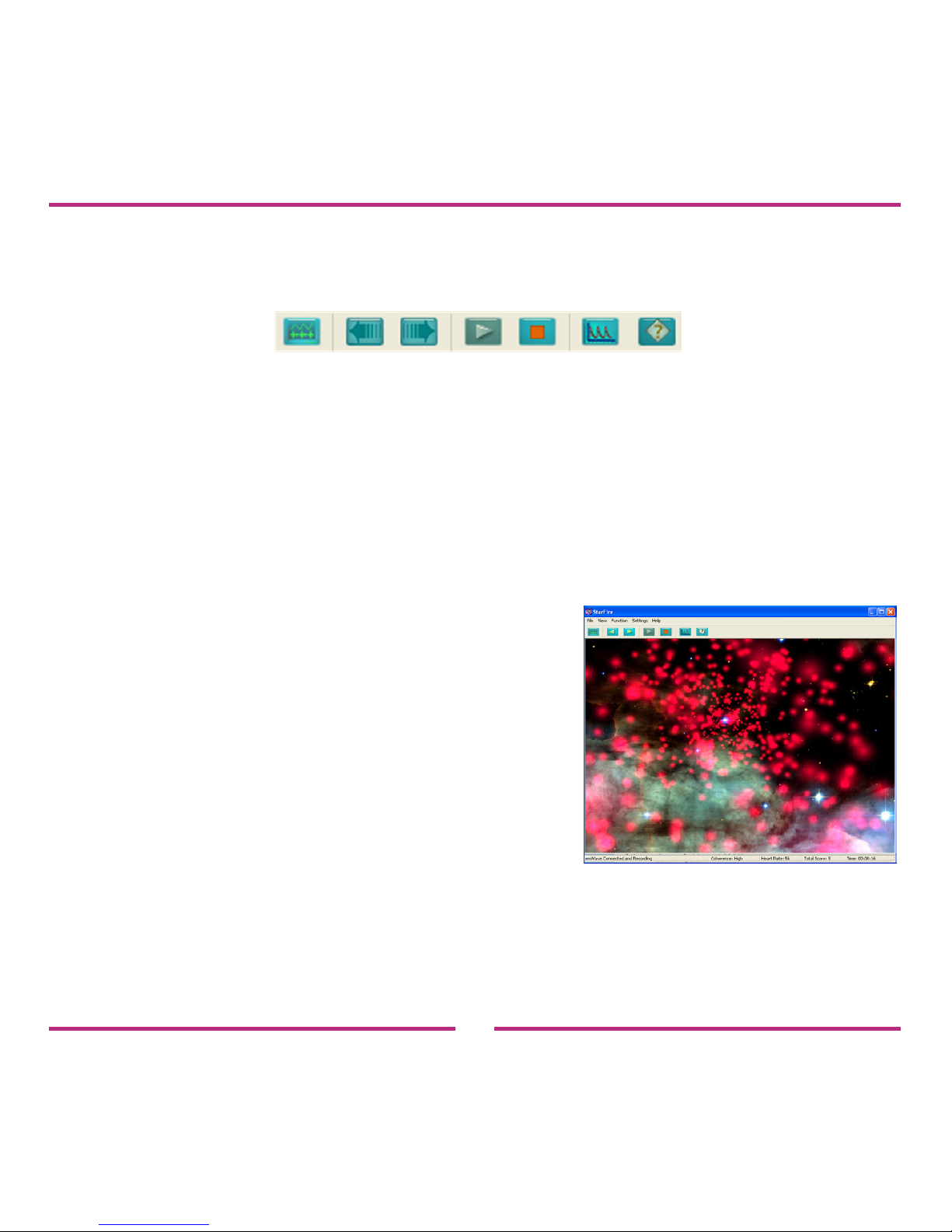
Click the Start Session button on the Emotion Visualizer Toolbar to
begin.
From left to right:
Switch to emWave PC — Displays the Heart Rhythm Display
Previous/Next Setting — Toggles between the visualizations.
Start Session — Starts a session.
Stop Session — Stops a session.
Show Graph — Displays a window of your Heart Rhythm
pattern, Coherence Level, and AC Score.
Help — Opens the Help System.
Once data is being recorded and you are
running a session, practice the
Quick Coherence technique to enhance
the visualization experience.
You can stop your session from the Heart Rhythm Display or from the
Emotion Visualizer Toolbar. You can then review your recorded heart
rhythm data.
Page 37

37
Additional Help
Help Files
emWave PC is designed with extensive self-contained Help Files that
cover a variety of detailed topics to assist in your use of the product.
To access the Help Files go to the Help menu and click Help Topics. To
nd a topic you can manually search through the table of contents and
topics by keyword or use the search function.
Online Support Center
The online support center provides extensive information to answer
your questions.
To access the online support center go to the Help menu and click
Online Support.
In the support site, use the troubleshooter, knowledgebase or search
function to nd the answer to your question.
Note: Register an account if you want to submit any questions to
the online support center.
Page 38

38
Usage, Copyright, Patents, License and Warranty
The emWave PC system, including hardware, software and documentation is furnished under license
and may only be used or copied in accordance with the terms of such license. The information in the
documentation is furnished for informational use only, is subject to change without notice, and should
not be construed as a commitment by Quantum Intech, Inc. (QI).
Except as permitted by such license, no part of this publication may be reproduced, stored in a
retrieval system, or transmitted, in any form or by any means, electronic, mechanical, recording, or
otherwise, without the prior written permission of QI.
Please remember that existing artwork or images may be protected under copyright law.
The unauthorized incorporation of such artwork or images could be a violation of rights of the
author(s). Please be sure to obtain any permission required from such authors.
emWave, Personal Stress Reliever, Coherence Coach and Emotion Visualizer are registered trademarks of QI. HeartMath is a registered trademark of Institute of HeartMath. Quick Coherence is a registered trademark of Doc Childre. Pentium is a registered trademark of Intel, Inc. All other products or
name brands are trademarks of their respective holders. Written and designed by Quantum Intech,
Inc., 14700 West Park Avenue, Boulder Creek, CA 95006,
phone: 831-338-8700; http://www.quantumintech.com; [email protected].
For defense agencies: Restricted Rights Legend. Use, reproduction or disclosure is subject to
restrictions set forth in subparagraph (c)(1)(ii) of the Rights in Technical Data and Computer Software
clause at 252.227-7013. For civilian agencies: Restricted Rights Legend. Use reproduction or
disclosure is subject to restrictions set forth in subparagraph (a) through (d) of the commercial
Computer Software Restricted Rights clause at 52.227-19 and the limitations set forth in Quantum
Intech’s standard commercial agreement for this software. Unpublished rights reserved under the
copyright laws of the United States.
Page 39

39
EMWAVE PC SOFTWARE LICENSE AGREEMENT
YOU MAY NOT LOAD OR USE THE SOFTWARE WITHOUT THE CONSENT OF THE SOFTWARE
OWNER WHO DOES NOT CONSENT UNLESS YOU ACCEPT THE TERMS AND CONDITIONS IN
THIS AGREEMENT. BY INSTALLING OR OTHERWISE USING THE SOFTWARE, YOU ACCEPT
ALL THE TERMS AND CONDITIONS
OF THIS AGREEMENT.
This is a legal agreement (the Agreement) between you (either an individual or an entity), the end
user, and Quantum Intech, Inc. (QI). Use of the enclosed software including the accompanying
hardware (collectively, the SOFTWARE) indicates your acceptance of these terms and conditions.
If you do not agree to the terms of this Agreement, promptly return the SOFTWARE package and the
accompanying hardware and other accompanying materials to the place you obtained them for a full
refund.
1. GRANT OF LICENSE. By this Agreement, QI grants you the following rights with respect to your
use of the SOFTWARE:
(a) License. If you are an individual, QI grants a license to you to install the SOFTWARE and use it
for your personal use on any computer that you own or lease. In the case of a leased computer, you
agree to remove the SOFTWARE from that computer should you cease leasing it. If you are an entity,
QI grants a license to you to install the SOFTWARE on a computer at your place of business for use
as a self-directed training program.
Authorized resellers of the SOFTWARE may use the SOFTWARE to give demonstrations of the
product to multiple individuals and may instruct individuals on how to use the SOFTWARE, but may
not charge customers for the demonstration sessions. Health Practitioners may use the SOFTWARE
as a tool in the normal course of their delivery of health services. Hospitals, clinics, companies,
schools and other organizations may make the SOFTWARE available on a public computer for
demonstration purposes, as long as fees are not charged for this use.
Page 40

40
QI does not grant you a license to use the trademarked terms Quick Coherence®, Freeze-Framer®
Emotional Management Enhancer, emWave®, nor any other trademarked terms of QI, the Institute of
HeartMath or HeartMath LLC in advertising or marketing.
(b) Transfer. You may transfer the SOFTWARE licensed under this Agreement to another computer
as often as you like. If you are an individual, you may have the SOFTWARE installed on multiple
computers simultaneously provided that all said computers are owned or leased by you. If you are
an entity, you may have the SOFTWARE installed on a single computer only at one time for use by a
single individual, unless you have signed a site license agreement which supercedes this agreement.
You may not distribute the SOFTWARE or accompanying materials with other products without QI’s
prior written permission. You may not rent or lease the SOFTWARE, but you may transfer your rights
under this Agreement on a permanent basis, provided that you transfer this SOFTWARE License
Card, all copies of the SOFTWARE and all accompanying materials and the recipient agrees to the
terms of this Agreement. Any transfer of the SOFTWARE must include the most recent update and all
prior versions of the SOFTWARE and accompanying materials.
(c) Copying. QI grants you the right to install and use exact copies of the SOFTWARE PRODUCT on
your computers. You may also make copies of the SOFTWARE PRODUCT as may be necessary for
backup and archival purposes.
(d) Notice to Users. You shall inform all users of the SOFTWARE of the terms and conditions of this
Agreement.
For purposes of this Agreement, use means loading the SOFTWARE into computer memory of any
kind, including RAM and installation on a hard disk or other storage device. You may gain access to
the SOFTWARE from a hard disk, over a network, or any other method you choose so long as you
otherwise comply with this Agreement.
2. COPYRIGHT. The SOFTWARE is owned by QI and is protected by United States copyright laws
and international treaty provisions. Therefore, you must treat the SOFTWARE like any other
copyrighted material (e.g., a book or musical recording), except that you may transfer and make
copies of the SOFTWARE in accordance with this Agreement.
Page 41

41
3. PATENTS. No right or license is granted, either express or implied, under any patent wholly or
partially owned licensed to or controlled by QI, except that a license is granted under any such patent
to use the SOFTWARE in accordance with this Agreement.
4. OTHER RESTRICTIONS. This SOFTWARE License is proof of your rights to use the SOFTWARE.
You may not reverse engineer, decompile, or disassemble the SOFTWARE, except as permitted by
applicable law. This Agreement is governed by the laws of the State of California, U.S.A., without
regard to the conicts of laws and principles thereof.
EMWAVE PC SOFTWARE LIMITED WARRANTY.
QI warrants that the SOFTWARE will perform substantially in accordance with the accompanying
printed materials for a period of one year from the date of purchase (the Limited Warranty).
Any implied warranties on the SOFTWARE are limited to one year.
SOME STATES/PROVINCES/COUNTRIES DO NOT ALLOW LIMITATIONS ON DURATION OF
IMPLIED WARRANTIES, SO THE ABOVE LIMITATION MAY NOT APPLY TO YOU. IN THE UNITED
KINGDOM: NOTHING IN THIS LIMITED WARRANTY WILL AFFECT YOUR STATUTORY RIGHTS,
INCLUDING YOUR RIGHTS, IF ANY, AGAINST QI.
CUSTOMER REMEDIES. QI’s entire liability and your exclusive remedy in respect of this Limited
Warranty, shall be, at QI’s option, either (a) return of the price paid or (b) repair or replacement of
the SOFTWARE that does not meet this Limited Warranty, and that is returned to QI with proof of
purchase (i.e., a copy of your receipt). This Limited Warranty is void if failure of the SOFTWARE has
resulted from accident, abuse, or misapplication. Any replacement SOFTWARE will be warranted for
the remainder of the original warranty period or thirty (30) days, whichever is longer.
IN THE U.S. & CANADA: NO OTHER WARRANTIES. To the maximum extent permitted by applicable
law, QI disclaims all other warranties, either express or implied, including, but not limited to, implied
warranties of merchantability and tness for a particular purpose, with respect to the SOFTWARE and
the accompanying materials. This Limited Warranty gives you specic legal rights and you may also
have other rights which may vary from state to state, province to province or country to country.
Page 42

42
NO LIABILITY FOR CONSEQUENTIAL DAMAGES. To the maximum extent permitted by applicable
law, in no event shall QI or their respective suppliers be liable for any damages whatsoever, includ-
ing, without limitation, damages for loss of business prots, business interruption, loss of business
information or other pecuniary loss arising out of the use or inability to use the SOFTWARE, computer
failure or malfunction, or any and all other commercial damages or losses, even if QI or any of such
suppliers has been advised of the possibility of such damages. In such case, QI and their respective suppliers’ entire liability shall be limited to the amount paid by you for the SOFTWARE. Because
some states/provinces/countries do not allow the exclusion or limitation of liability for consequential or
incidental damages, the above limitation may not apply to you.
INQUIRIES. Should you have any questions concerning this Agreement or the Limited Warranty, or if
you desire to contact QI for any other reason, please contact our subsidiary: HeartMath LLC, 14700
West Park Avenue, Boulder Creek, CA 95006 or call 831-338-8700.
EMWAVE USB MODULE AND PULSE SENSOR LIMITED WARRANTY The Basic Coverage: The
module and pulse sensor are warranted to the original owner for a period of ONE YEAR from the
date of original purchase against defects in manufacturing by Quantum Intech (QI)-not by the dealer
from whom the equipment was purchased. What QI Will Do: If the module or sensor develops such
a defect within the one year period, the item will be repaired or replaced with a new or thoroughly
reconditioned and inspected item, provided defective items are returned with a US $5.00 check or
money order to cover costs of postage, handling, and service (this is not a repair charge). Additionally,
this warranty requires that you enclose proof of purchase and date of purchase.
Page 43

43
This Limited Warranty Does Not Cover:
QI will not repair defects under the limited warranty related to servicing not performed by QI. 2) QI
will not provide any warranty service if your pulse sensor shows evidence that it has been tampered
with, misused, or altered; for example: moisture damage sufcient to affect the proper function of the
sensor; damage to the case; or visible damage to the wire or connector. 3) QI IS NOT LIABLE FOR
INCIDENTAL, SPECIAL, OR CONSEQUENTIAL DAMAGES.
Some states/provinces/countries do not allow the exclusion or limitation of incidental, special, or
consequential damages, so the above exclusion or limitation may not apply to you. Your Rights
Under Implied Warranties and State/Province Law: THIS LIMITED WARRANTY IS IN LIEU OF ALL
OTHER EXPRESS WARRANTIES, OBLIGATIONS OR LIABILITIES. QI LIMITS THE DURATION OF
ANY WARRANTY IMPLIED BY STATE/PROVINCE LAW, INCLUDING BUT NOT LIMITED TO, THE
IMPLIED WARRANTIES OF MERCHANTABILITY AND FITNESS FOR A PARTICULAR PURPOSE,
TO ONE YEAR FROM THE DATE OF ORIGINAL PURCHASE.
Some states/provinces/countries do not allow limitations on how long implied warranties last, so the
above limitation may not apply to you. This limited warranty gives you specic legal rights, and you
may also have other rights which vary from state to state, province to province or country to country.
emWave is a registered trademark of Quantum Intech, Inc. in the U.S. and other countries. © 2007
Quantum Intech, Inc. All rights reserved.
This device complies with FCC part 15 class B and CE EN 55.02 and 55.04.
Tested to comply with FCC standards for home or ofce use.
Manufactured under US Patent Nos.: 6,358,201; 7,117,032 and 7,163,512, D554226. Austria Patent
No. 115685, Australia Patient No. 770323 EU Patent No. 1156851. China Patent Nos. 00807109.8,
HK 1042056, Canada Patent No. 2,364,032
Page 44

emWave PC-user man-1008
 Loading...