

Page 1

4K60 HDMI Matrix 4x4
VER 1.0
Page 2

1/11
Thank you for purchasing this product
Surge protection device recommended
Table of Contents
For optimum performance and safety, please read these instructions carefully before
connecting, operating or adjusting this product. Please keep this manual for future
reference.
This product contains sensitive electrical components that may be damaged by electrical spikes, surges, electric shook, lighting strikes, etc. Use of surge protection systems
is highly recommended in order to protect and extend the life of your equipment.
1. Introduction...........................................................................................................
2. Features.................................................................................................................
3. Package Contents................................................................................................
4. Specifications........................................................................................................
5. Operation Controls and Functions......................................................................
5.1. Front Panel....................................................................................................
5.2. Rear Panel....................................................................................................
6. Remote Controller.................................................................................................
7. PC Controller User Guider....................................................................................
8. Application Example..............................................................................................
2
2
2
3
4
4
4
6
6
11
Page 3

1. Introduction
2. Features
☆ HDMI2.0, HDCP2.2/HDCP1.4 compliant.
☆ Support video format up to 4k2k@60Hz with 24bit RGB/YCbCr 4:4:4/YCbCr
4:2:2, and up to 4k2k@60Hz with 12bit YCbCr 4:2:0.
☆ Support color space conversions among RGB, YCbCr4:4:4, YCbCr4:2:2 and
xvYCC video formats.
☆ Support all HDMI 3D formats up to 2160p@30Hz.
☆ Support high resolution VESA mode video format up to QSXGA@60Hz.
☆ Support reception of any audio data conforming to the HDMI specification
such PCM at up to 192kHz, compressed audio (IEC 61937), DSD, DST, DTS
and HBR.
☆ Support smart EDID management.
☆ Support RS-232, remote control and on-panel control.
3. Package Contents
① 1× 4×4 HDMI Matrix
② 1× 12V/2.5A Power Adapter
③ 1× User Manual
④ 1× HDMI Matrix IR Remote
2/11
The 4×4 HDMI 2.0 Matrix simultaneously routes four HDMI sources to four HDMI
displays. It supports the transmission of video resolution up to 4K×2K@60Hz Ultra HD
YUV4:4:4 and supports high resolution digital audio formats such as LPCM 7.1CH,
Dolby TrueHD, Dolby Digital Plus and DTS-HD Master Audio. It works with Blue-Ray
players, Set-Top boxes, Home Theater PCs and game consoles. Any source accessible
at all times by any display by selecting it via the supplied IR Remote Control, RS-232
or select buttons on the front panel. Support smart EDID management.
Page 4

4. Specifications
Video Bandwidth
600MHz(18Gbps)
480i, 576i, 480p, 576p, 720p, 1080i, 1080p24/25/
30/50/60, 2160P24/25/30/50/60
4×HDMI, 1×RS-232
4×HDMI
HDMI connector
Type A 19 pin female
Human-body Model: ±8kV (Air-gap discharge),
±4kV (Contact discharge)
Power Supply
12V/2.5A DC (US/EU standards, CE/FCC/UL certified)
Dimensions
150mm(W)×111mm(D)×32.2 mm(H)
Weight
585g
Chassis Material
Metal
Silkscreen Color
Black
Operating Temperature
0°C ~ 40°C / 32°F ~ 104°F
Storage Temperature
-20°C ~ 60°C / -4°F ~ 140°F
Relative Humidity
20~90% RH (non-condensing)
Power Consumption
30W (max)/1W(Standby)
Video Resolution
Input Ports
Output Ports
ESD Protection
3/11
Technical
Page 5
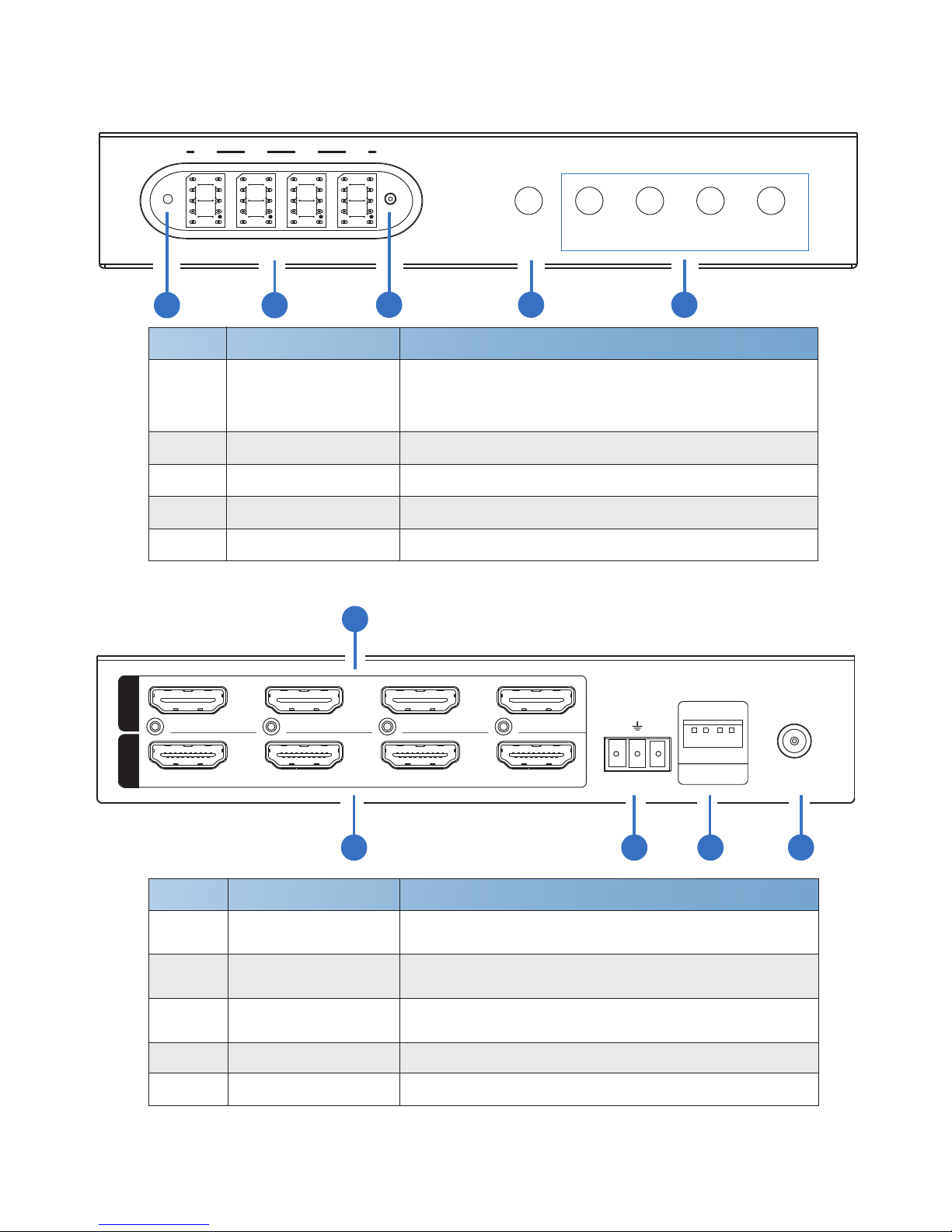
5. Operation Controls and Functions
5.1 Front Panel
OU T A OU T B O UT C O UT D
A B C D
P OWE R
1 2
3
4 5
4
Number
Function description
1
2
Nixie tube
3
4
LED
POWER
5
OUTPUT button A/B/C/D output channel key.
IR
When the LED light is on, it is displayed as standby.
When the LED light is not on, it is the equipment is
working.
Displays information for each input channel.
IR receive window.
Device power key.
Name
5.2 Rear Panel
R S-232
TX RX
OUT PUT
IN P UT
OU T A OU T B
OU T C O UT D
IN 1 IN 2 I N 3 I N 4
E DID
DC 1 2V
1 1 1 1
0 0 0 0
1
2
3
4
5
4/11
3
4
Number Name Function descriptions
1
2
3
4
5
HDMI OUTPUT
HDMI INPUT
RS-232
EDID
POWER INPUT
Connect to the HDMI output device, such as TV or
Monitor.
Connect to the HDMI input source device, such as
DVD player or Set top box.
Connect PC or use D-Sub 9-pin line connect the
control system to transmit RS-232 commands.
DC 12V Power supply interface.
Select HDMI output signal format via EDID Selector.
Page 6

3
Notice: The following is the EDID schema table.
0000
0001
0010
0011
0100
0101
0110
0111
1000
1001
1010
1011
1100
1101
1110
1080p, Stereo Audio 2.0
1080p, Dolby/DTS 5.1
1080p, HD Audio 7.1
1080i, Stereo Audio 2.0
1080i, Dolby/DTS 5.1
1080i, HD Audio 7.1
3D, Stereo Audio 2.0
3D, Dolby/DTS 5.1
3D, HD Audio 7.1
4K2K30_444, Stereo Audio 2.0
4K2K30_444, Dolby/DTS 5.1
4K2K30_444, HD Audio 7.1
4K2K60_444, Stereo Audio 2.0
4K2K60_444, Dolby/DTS 5.1
4K2K60_444, HD Audio 7.1
1111
EDID is controlled by the host computer
5/11
EDID mode EDID description
Page 7
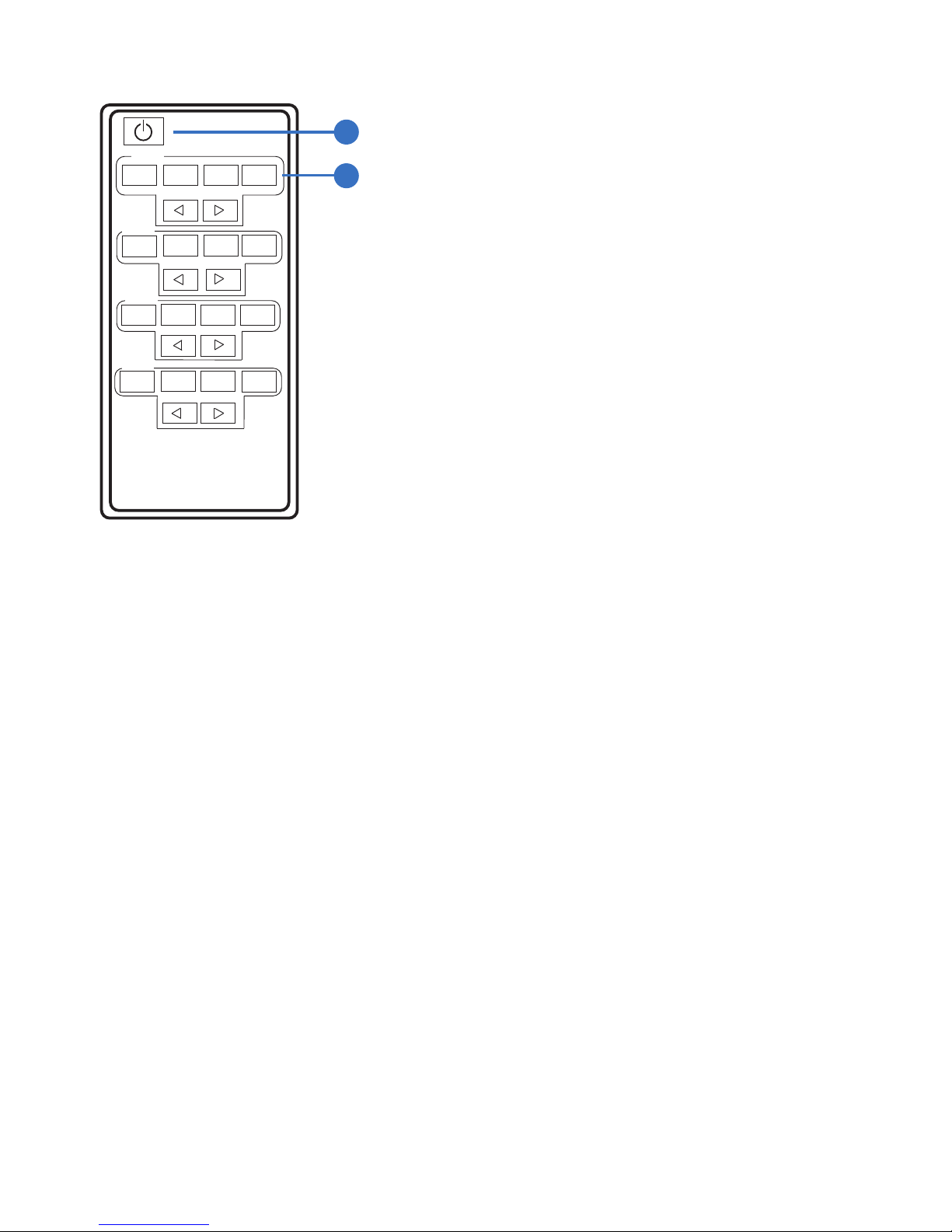
6. Remote Control
① Press this button to open the power of the Matrix or
set it as a standby state.
② Press these keys to select the Output A, Output B,
Output C, Output D for output corresponding 1, 2, 3,
4 input port.
1
2 3 4
Output A
1 2 3
4
1
2 3 4
1
2
3
4
Output B
Output C
Output D
1
2
HDMI Matrix Remote
7. PC Controller User Guide
Install:
PC controller is a green software, You just need a cable to connect from PC to RS-232.
Copy“4×4 HDMI matrix Controller.exe”to PC and complete install.
Preparation:
① Connect PC and Matrix by RS-232 cable(headers of both sides of cable should be
FEMALE ).
② Power-up Martix.
③ Double click“4×4 HDMI matrix Controller.exe”icon to run it.
6/11
Page 8
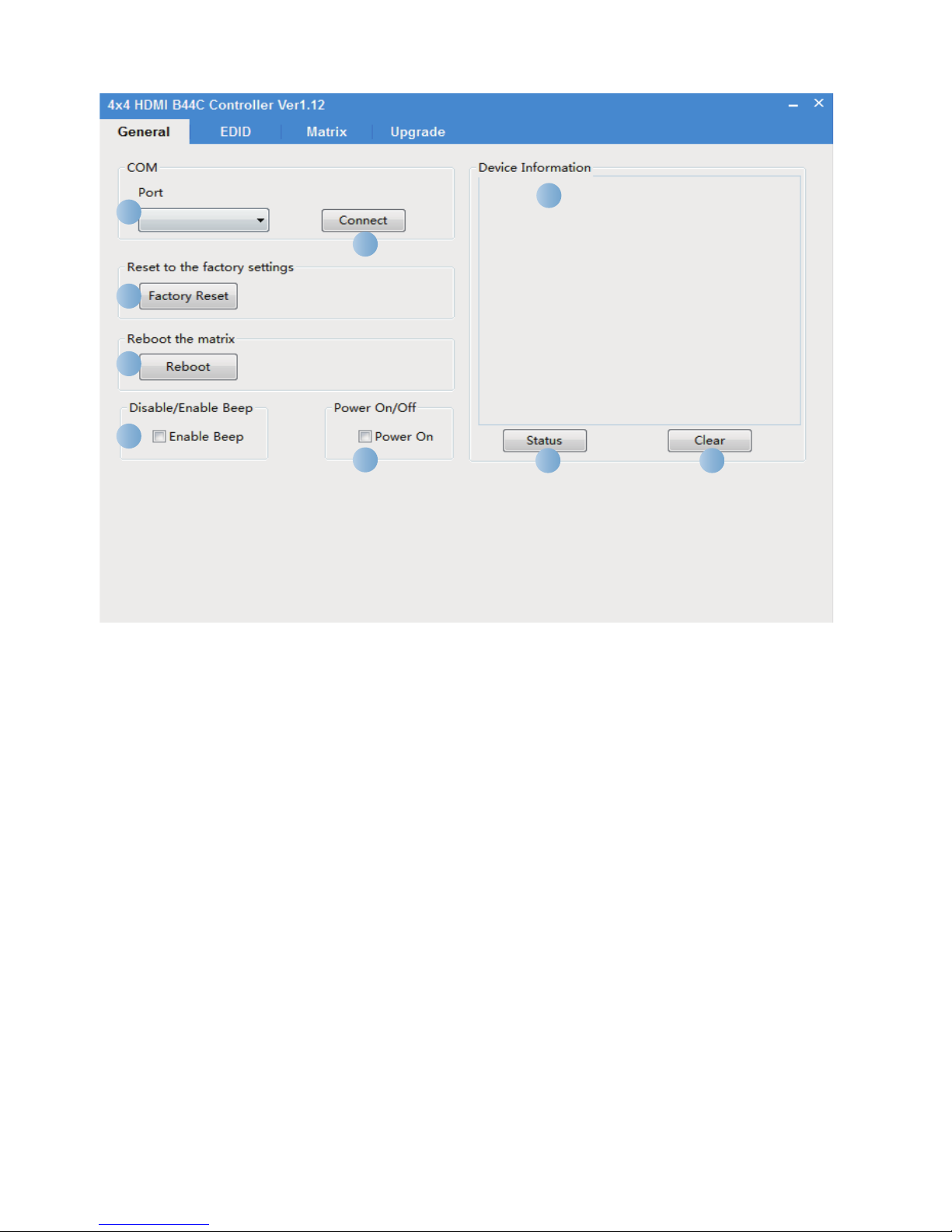
General page
① Select the RS-232 COM port.
② Click to connect the matrix, no click will not connect the matrix.
③ Click reset to factory settings state.
④ Click to restart the matrix.
⑤ Select‘Enable Beep’, the matrix button sound open. No select and the
sound is off.
⑥ The matrix has been selected‘Power on’at work, When the user is
deselected and the matrix will go in standby mode.
⑦ Click refresh device status.
⑧ Click to clear device information.
⑨ Device information display column.
1
2
3
4
5
6
7
8
9
7/11
Page 9
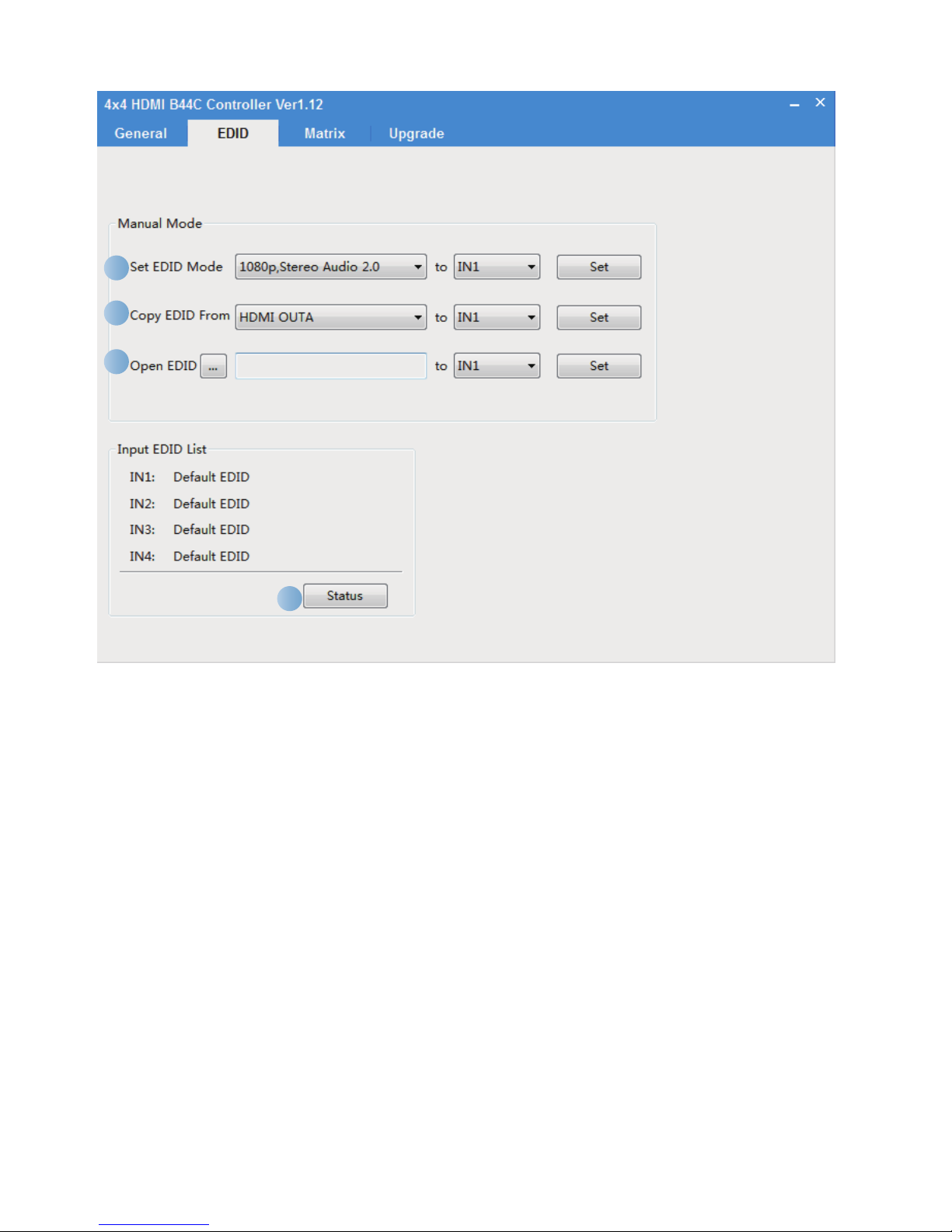
EDID page
The controller have 3 ways to set theEDID mode:‘manual mode’,‘Copy mode’and
‘Open EDID file mode’.
① Select the need EDID for the input, then click the‘set’button.
EDID will be selected to HDMI input.
② Copy selected HDMI input or HDBT output EDID, then click‘set’button
to select HDMI input.
③ Open the user defined EDID file, then click‘set’button to select HDMI input.
④ Click the‘status’button for input EDID status again.
1
2
3
4
8/11
Page 10
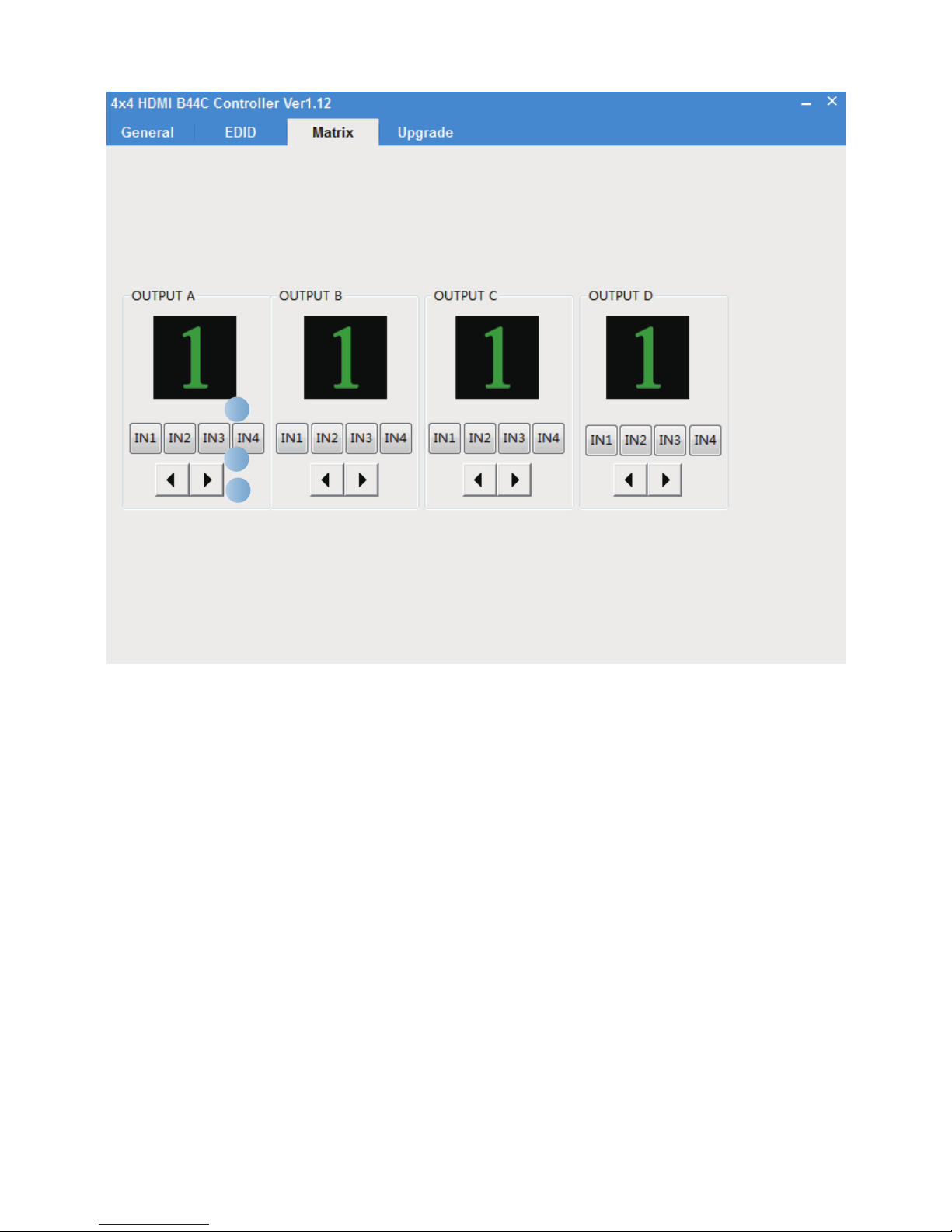
Matrix page
① LED which display Input number for respective Output.
② Click to select Input port for respective Output port.
③ Click to select the previous or the next Input port for respective Output port.
1
2
3
9/11
Page 11
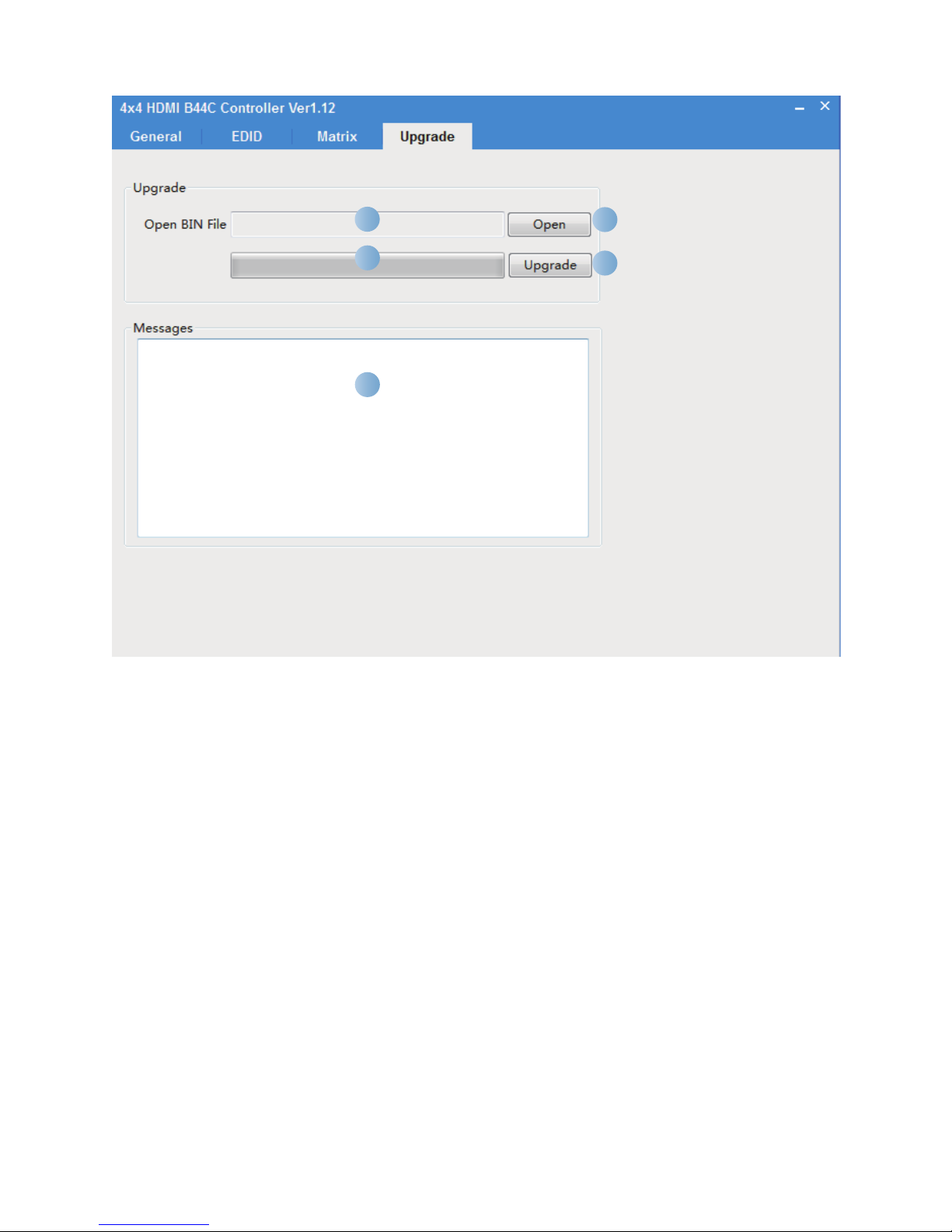
① Click to open FW file(file extension is “.fw”).
② Display the FW file path.
③ Display the progress of the software upgrade.
④ Click to upgrade the Matrix software.
⑤ Display the message of the software upgrade.
Upgrade page
12
3
4
5
10/11
Page 12
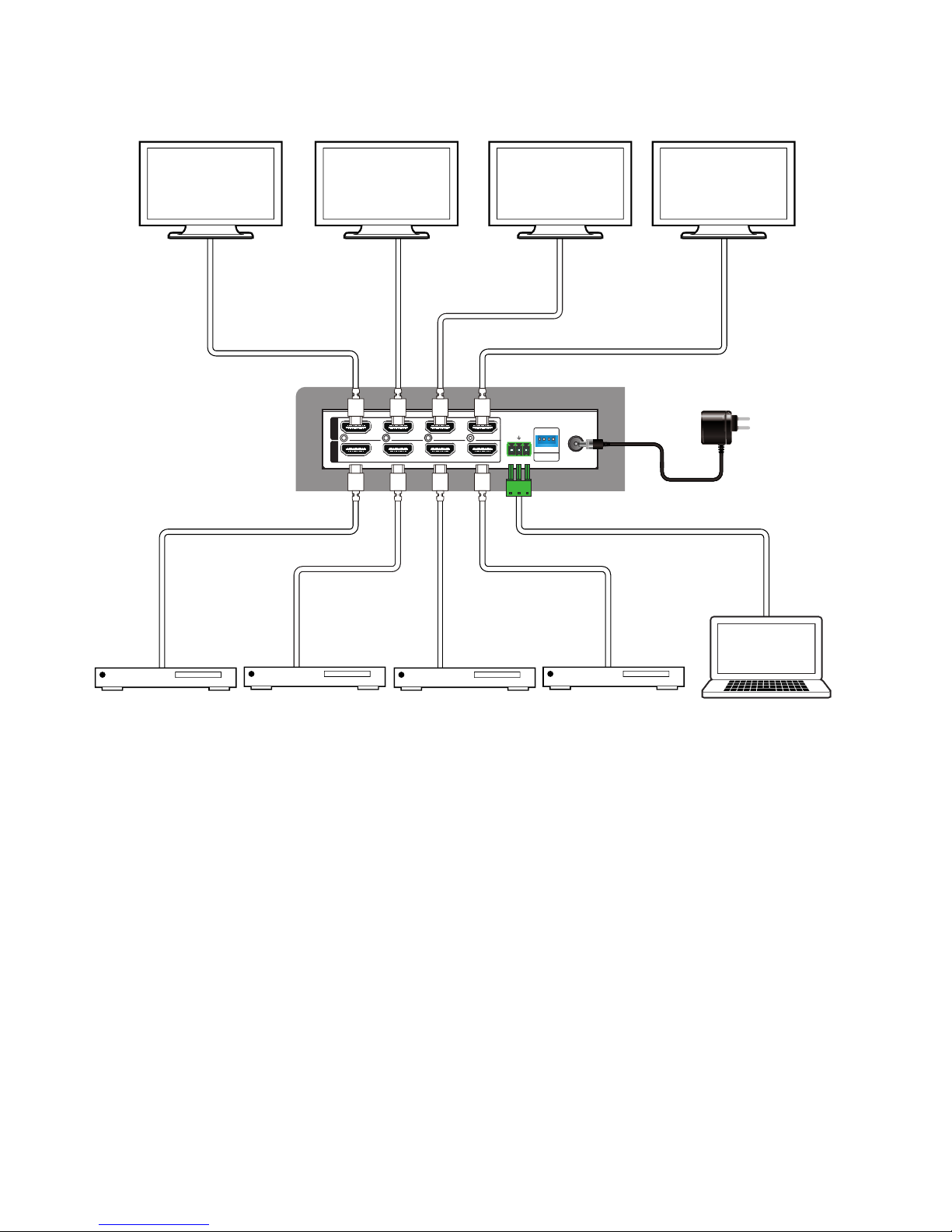
8. Application Example
RS -2 32
TX R X
OU
TP UT
INP UT
OUT A OUT B
OUT C OUT D
IN 1 IN 2 I N 3 IN 4
EDI D
DC 1 2V
1 1 1 1
0 0 0 0
DVD or Blu-ray Player
Power Supply
DVD or Blu-ray Player
DVD or Blu-ray Player
DVD or Blu-ray Player
Notebook
UHDTV UHDTV UHDTV UHDTV
HDMI HDMI HDMI HDMI
HDMI HDMI HDMI HDMI
RS-232
11/11
 Loading...